
Mini IP Dome Camera Quick Start Guide
Version 1.1.0

i
Table of Contents
1
Framework...................................................................................................................................1
1.1
Dimensions....................................................................................................................1
1.2
Structure ........................................................................................................................2
2
Installation ...................................................................................................................................4
2.1
Device Installation ........................................................................................................4
2.2
SD Card Installation .....................................................................................................6
3
Quick Configuration Tool...........................................................................................................7
3.1
Overview........................................................................................................................7
3.2
Operation .......................................................................................................................7
4
Web Operation..........................................................................................................................10
4.1
Network Connection...................................................................................................10
4.2
Login and Logout........................................................................................................10
Appendix Toxic or Hazardous Materials or Elements ...............................................................13

ii
Welcome
Thank you for purchasing our IP camera!
This quick start guide is designed to be a reference tool for your system.
Please keep this start guide well for future reference.
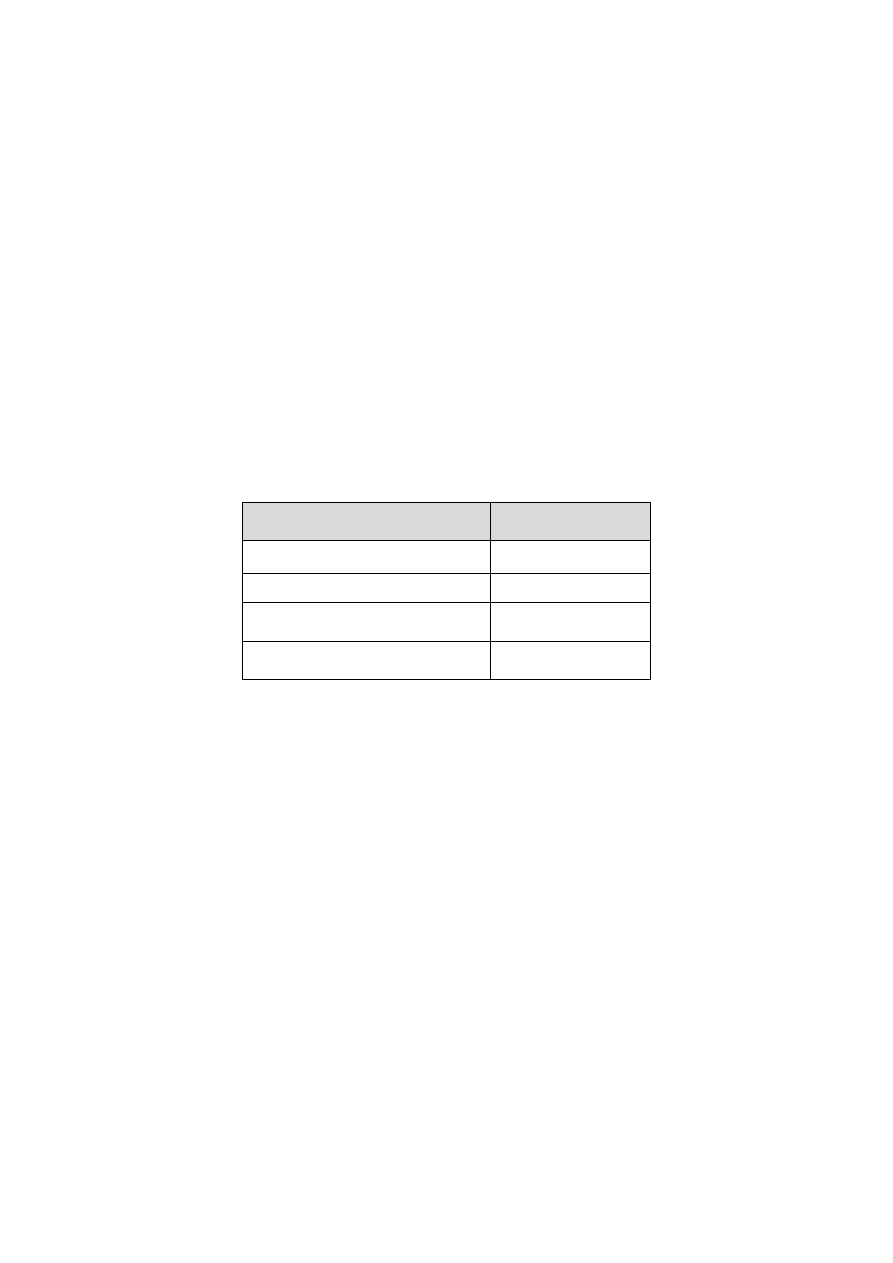
Please open the accessory bag to check the items one by one in accordance with the list below.
Contact your local retailer ASAP if something is missing or damaged in the bag.
Before your operation please read the following instructions carefully.
1
.Electrical safety
All installation and operation here should conform to your local electrical safety codes.
The power shall conform to the requirement in the SELV (Safety Extra Low Voltage) and the Limited
power source is rated 12V DC in the IEC60950-1.
We assume no liability or responsibility for all the fires or electrical shock caused by improper handling
or installation.
We are not liable for any problems caused by unauthorized modification or attempted repair.
2
.Transportation security
Heavy stress, violent vibration or water splash are not allowed during transportation, storage and
installation.
3
.Installation
Do not apply power to the camera before completing installation.
Please install the proper power cut-off device during the installation connection.
Always follow the instruction guide the manufacturer recommended.
4
.Qualified engineers needed
All the examination and repair work should be done by the qualified service engineers.
We are not liable for any problems caused by unauthorized modifications or attempted repair.
5
.Environment
This series IP camera should be installed in a cool, dry place away from direct sunlight, inflammable,
explosive substances and etc.
Please keep it away from the electromagnetic radiation object and environment.
Please make sure the CCD (CMOS) component is out of the radiation of the laser beam device.
Otherwise it may result in CCD (CMOS) optical component damage.
Please keep the sound ventilation.
Do not allow the water and other liquid falling into the camera.
Thunder-proof device is recommended to be adopted to better prevent thunder.
iii
The grounding holes of the product are recommended to be grounded to further enhance the reliability
of the camera.
6. Daily Maintenance
Please shut down the device and then unplug the power cable before you begin daily maintenance
work.
Do not touch the CCD (CMOS) optic component. You can use the blower to clean the dust on the lens
surface.
Always use the dry soft cloth to clean the device. If there is too much dust, please use the water to
dilute the mild detergent first and then use it to clean the device. Finally use the dry cloth to clean the
device.
Please put the dustproof cap to protect the CCD (CMOS) component when you do not use the camera.
7. Accessories
Be sure to use all the accessories recommended by manufacturer.
Before installation, please open the package and check all the components are included.
Contact your local retailer ASAP if something is broken in your package.
Accessory Name
Amount
IPC Unit
1
Accessories bag
1
Quick Start Guide
1
CD
1
1
1 Framework
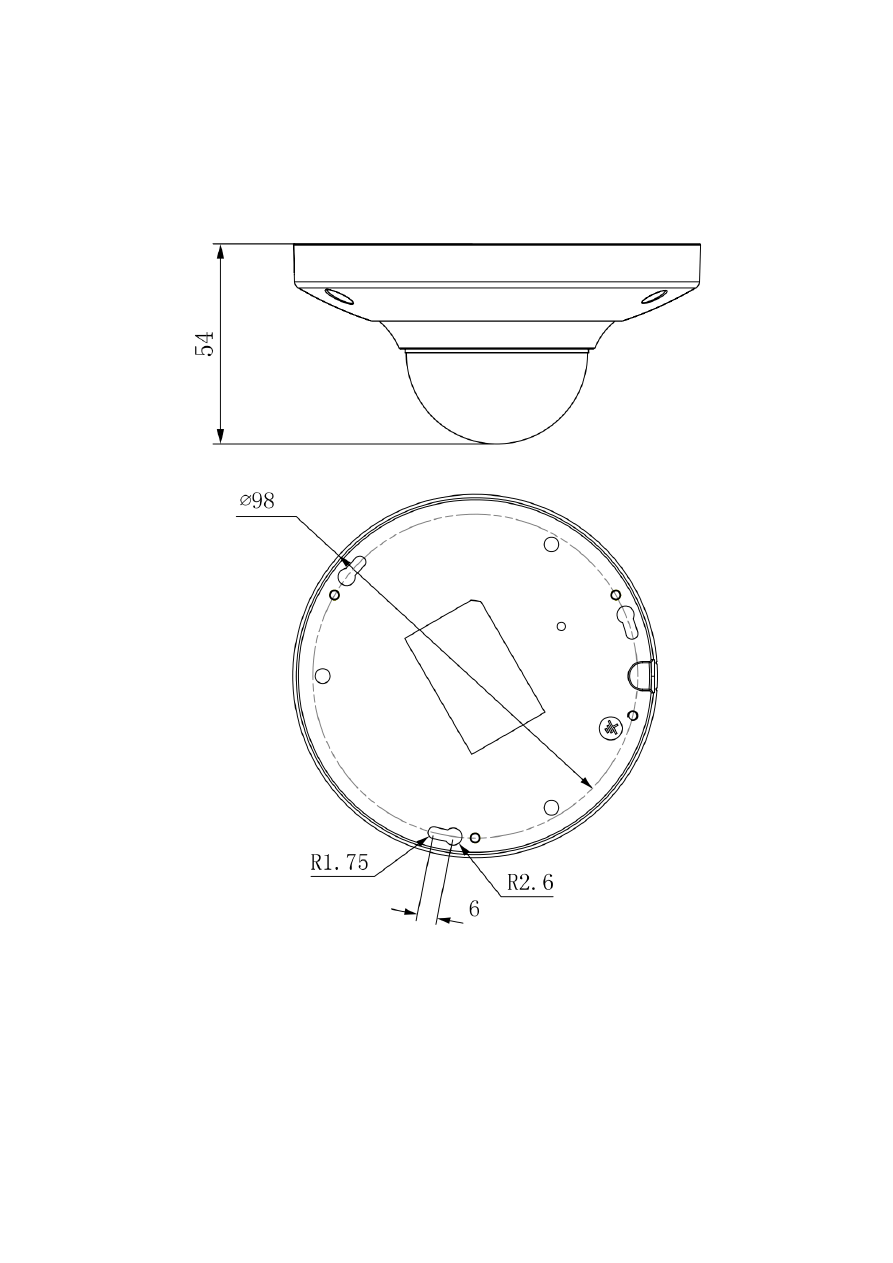
1.1 Dimensions
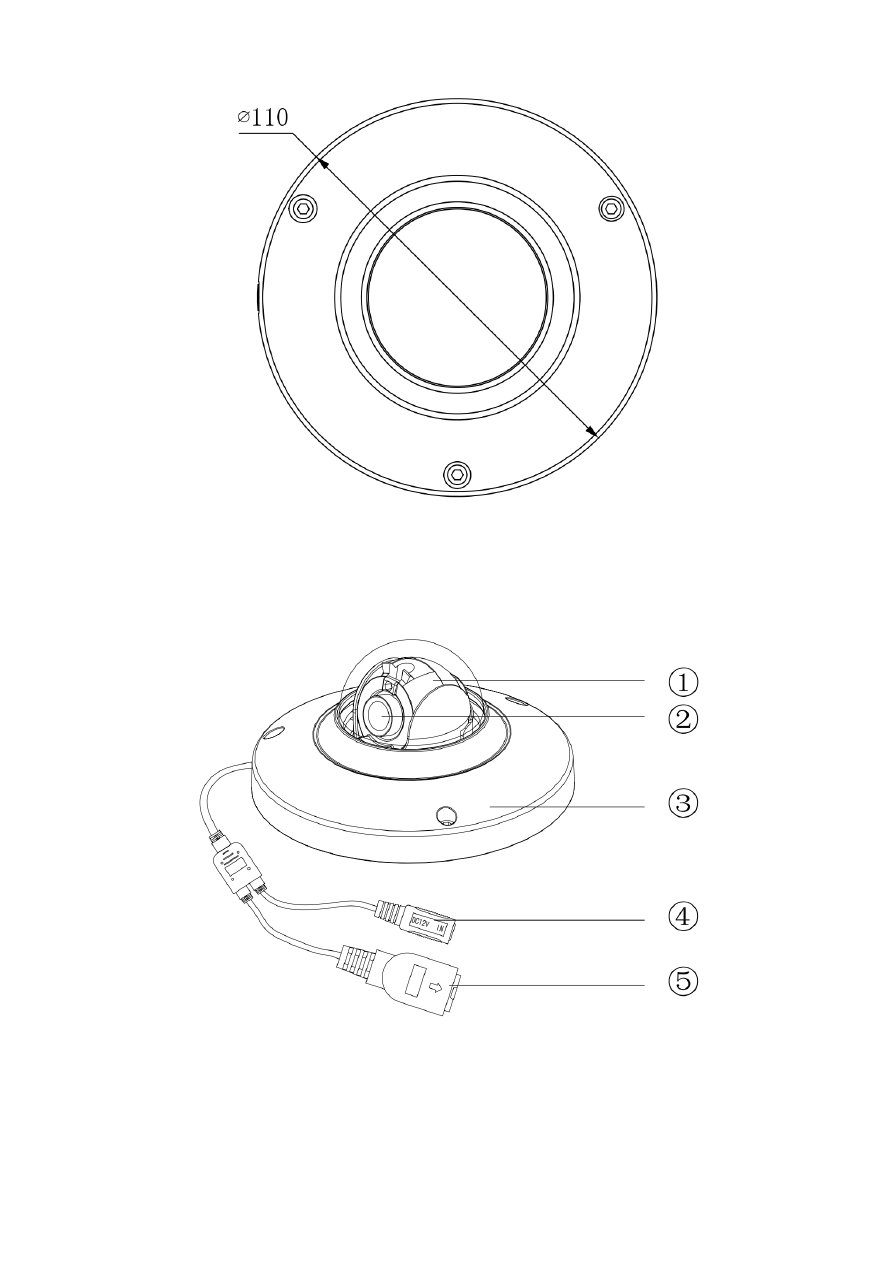
Please refer to the following figure for the dimension information. The unit is mm. See Figure 1-1
through Figure 1-3.
Figure 1-1
Figure 1-2
2
Figure 1-3
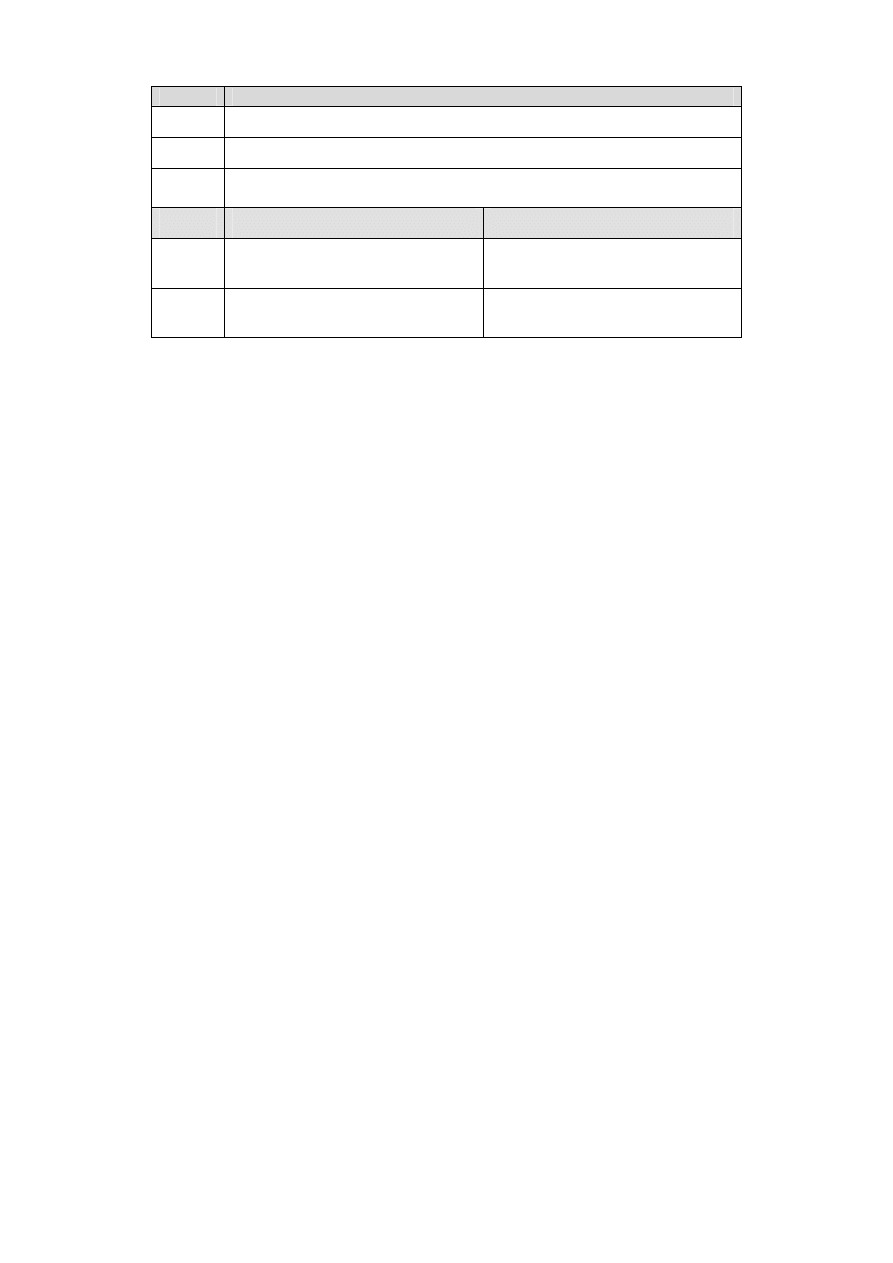
1.2 Structure
Please refer to the following figure for detailed information. See Figure 1-4.
Figure 1-4
Please refer to the following sheet for detailed information.
3
SN
Name
1
X-Y-Z rotation module
2 Device
lens
3
Dome camera enclosure
SN
Name
Function
4
Power input port
Connect to the DC 12+ power to
input the power.
5
Network port
Network data input, output and
PoE.
4
2 Installation
2.1 Device Installation
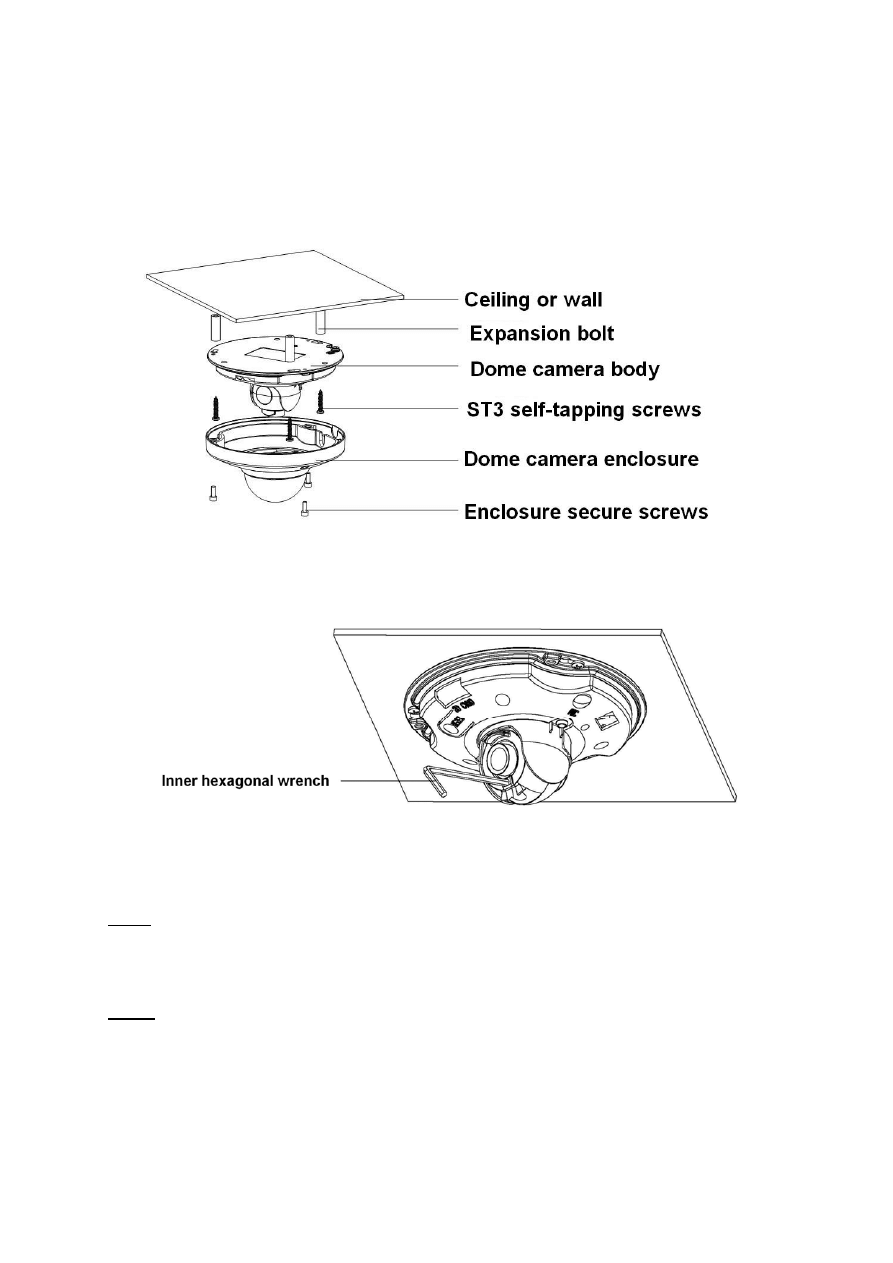
This series IPC can be put on the table to realize surveillance. Or you can use the bracket or the
in-ceiling installation to realize the hang function. Please refer to the steps listed below.
Figure 2-1
Figure 2-2
Step1
Use the inner hexagonal wrench (provided) to loose the three inner hexagon screws in the dome
cover and then open the cover.
Step 2
Please take the installation position map in the accessories bag, and then paste it on the ceiling
or the wall according to your monitor area requirements. Draw and then dig three plastic
expansion bolts holes in the installation surface and then insert three expansion bolts in the holes.
Secure these three bolts firmly. Please dig a “cable exit hole” in the surface according to the
installation position map if you want to draw out the cable from the top of the installation surface.
You need to use the proper tool to open up the side port of the U-cable channel of the dome
5
camera pedestal if you want to draw out the cable from the side port of the cable channel when
you are installing the device cable. And then you can draw out the cable from the cable channel
of the pedestal.
Step 3
Adjust the device installation pedestal to the proper position and then draw the cable through the
cable exit you just dug in the ceiling (wall). Line up the TOP direction of the device to the
installation position map and then line up the three screw holes in the device pedestal to the
three plastic expansion bolt holes in the installation position. Put the three self-tapping screws in
the three plastic expansion bolts firmly. Now the dome camera is secure in the installation
surface.
Step 4
Loosen the two M3 secure screws of the lens rotation structure (Do not remove, loosen a little bit
will be OK.). Use the inner hexagonal wrench to insert them to the inner hexagonal holes and
then use the wrench to turn the lens. Adjust the lens to the proper monitor angle and then secure
the screws of the lens rotation structure. The lens adjust angle ranges are: flip (0°~+75°),video
pan rotation (-15°~+15°) , video rotation angle(-15°~+15°).
Step 5
Line up the dome camera cover to the cable exits and put the cover back. Use the inner
hexagonal wrench to secure the three inner hexagonal screws firmly. Now the installation
completed.
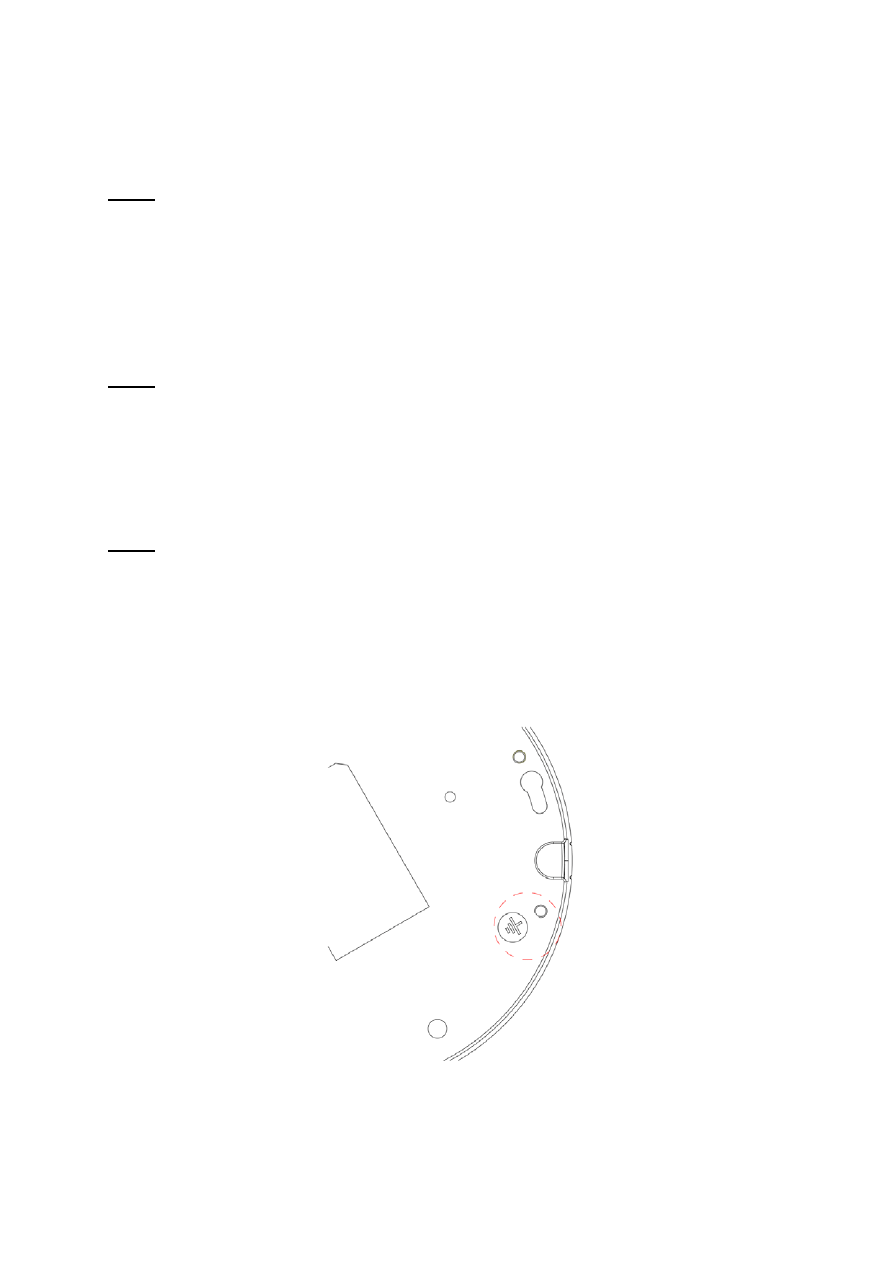
Note:
The device GND cable can effectively enhance the device reliability. The GND hole is near the
cable exit of the back of the enclosure. The GND screw specification is M3. See Figure 2-3.
Figure 2-3
6
2.2 SD Card Installation
Important
Some series product do not support the SD card storage function.
Please shut down the power and then turn off the device before you install the SD card.
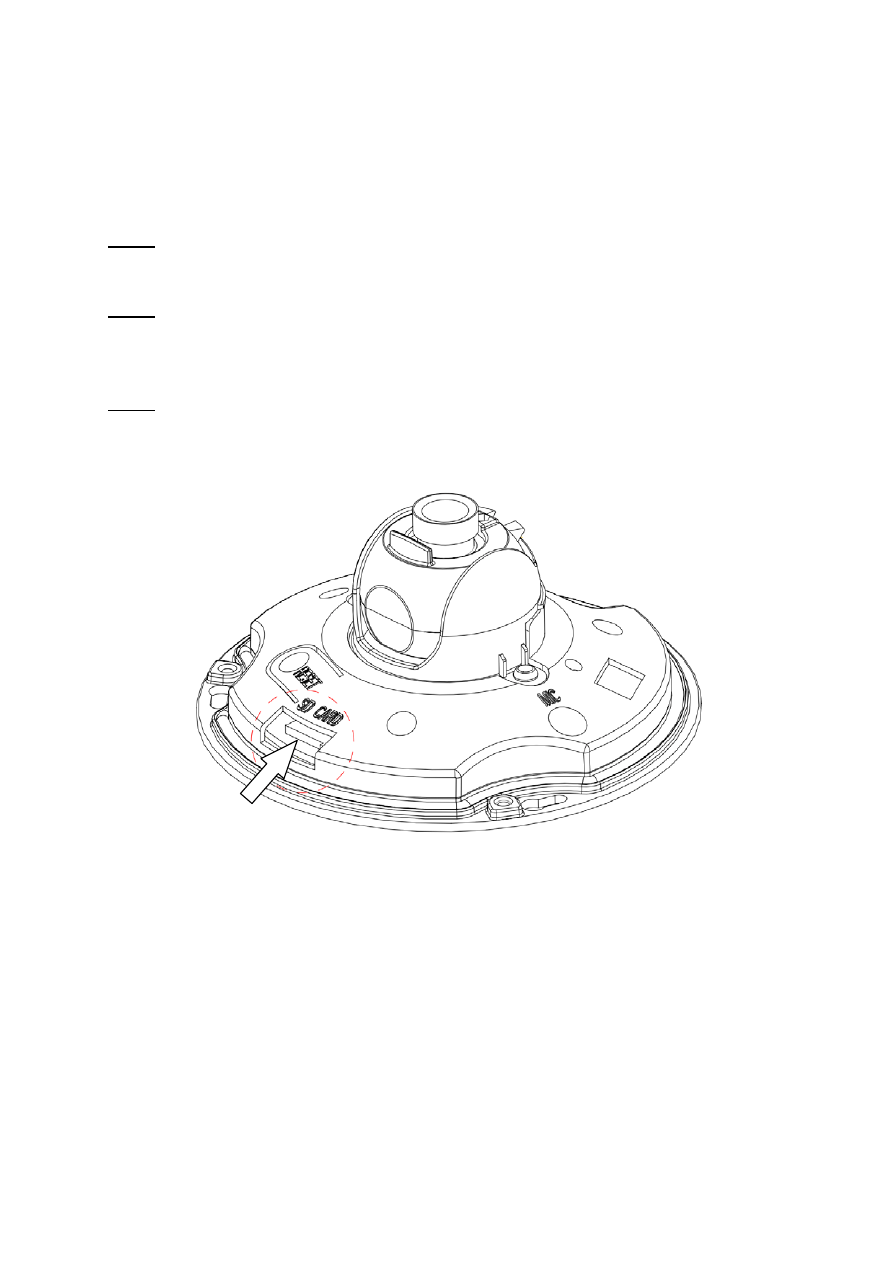
Step 1
Please refer to the step 1 in chapter 2.1 to open the device.
Step 2
Find the “SD CARD” indicator in the enclosure. Adjust the SD card to the proper direction and
then install. See Figure 2-4.
Step 3
Please refer to the step 5 in chapter 2.1 to complete the installation.
Figure 2-4
7
3 Quick Configuration Tool
3.1 Overview
Quick configuration tool can search current IP address, modify IP address. At the same time, you
can use it to upgrade the device.
Please note the tool only applies to the IP addresses in the same segment.
3.2 Operation
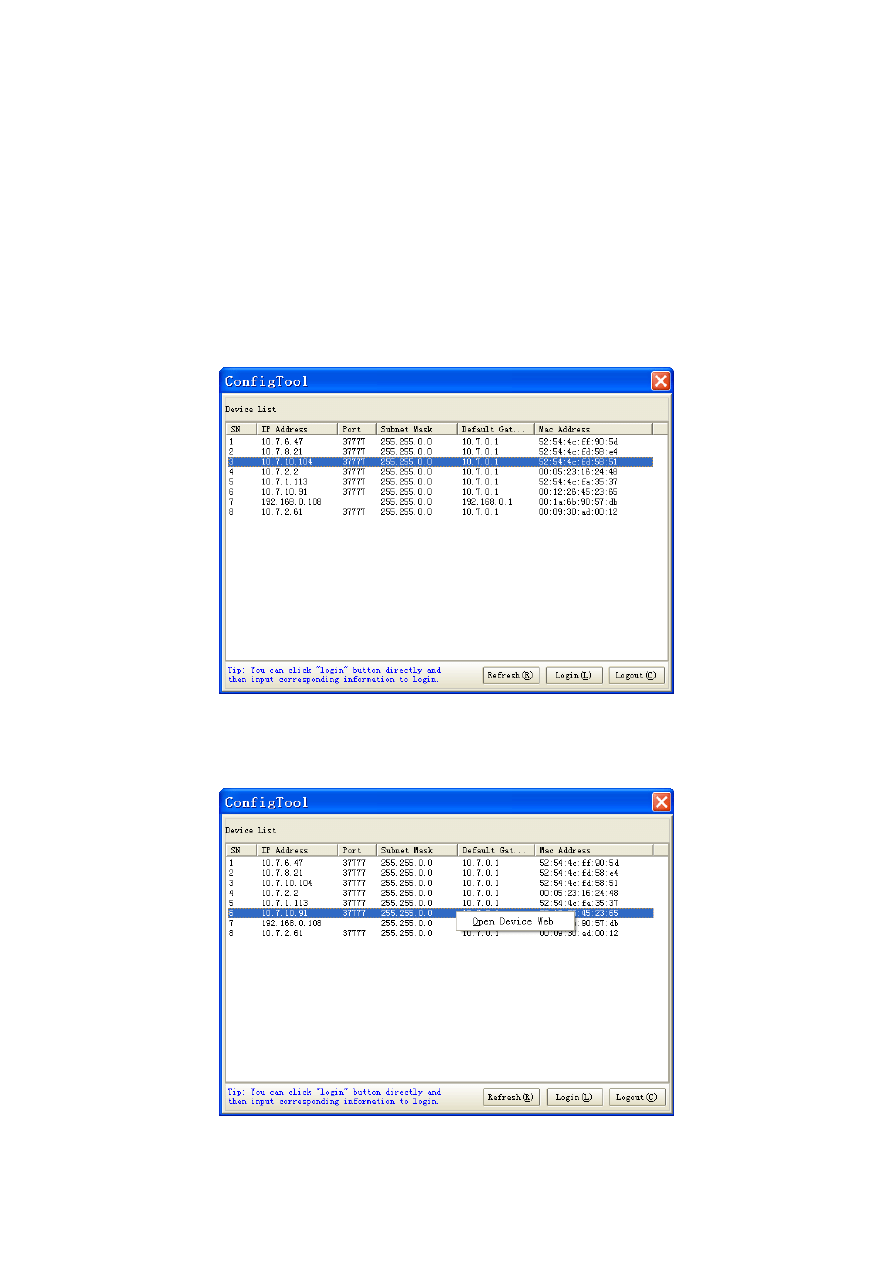
Double click the “ConfigTools.exe” icon, you can see an interface is shown as in Figure 3-1.
In the device list interface, you can view device IP address, port number, subnet mask, default
gateway, MAC address and etc.
Figure 3-1
Select one IP address and then right click mouse, you can see an interface is shown as in Figure
3-2.
Figure 3-2
8
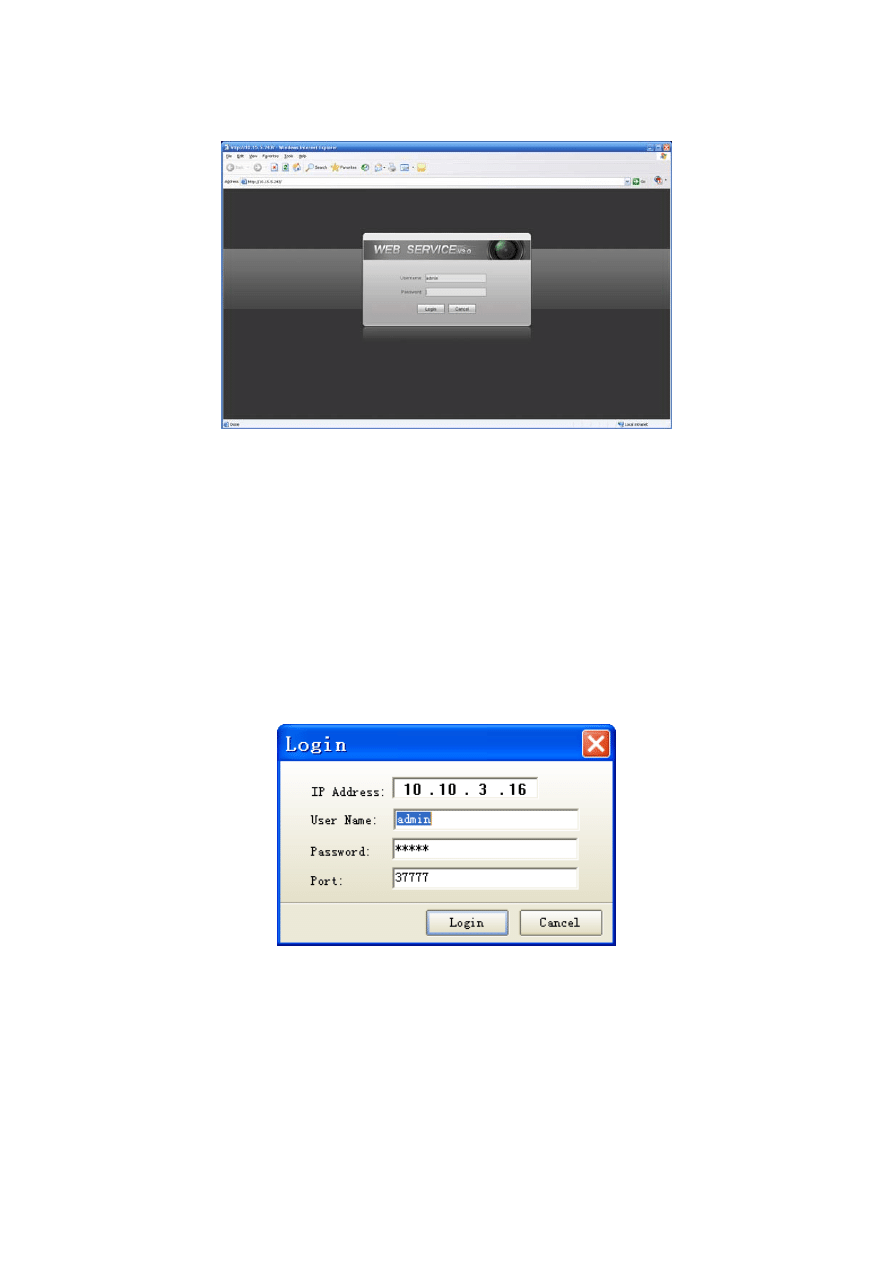
Select the “Open Device Web” item; you can go to the corresponding web login interface. See
Figure 3-3.
Figure 3-3
If you want to modify the device IP address without logging in the device web interface, you can
go to the configuration tool main interface to set.
In the configuration tool search interface (Figure 3-1), please select a device IP address and then
double click it to open the login interface. Or you can select an IP address and then click the
Login button to go to the login interface. See Figure 3-4.
In Figure 3-4, you can view device IP address, user name, password and port. Please modify the
corresponding information to login.
Please note the port information here shall be identical with the port value you set in TCP port in
Web Network interface. Otherwise, you can not login the device.
If you are use device background upgrade port 3800 to login, other setups are all invalid.
Figure 3-4
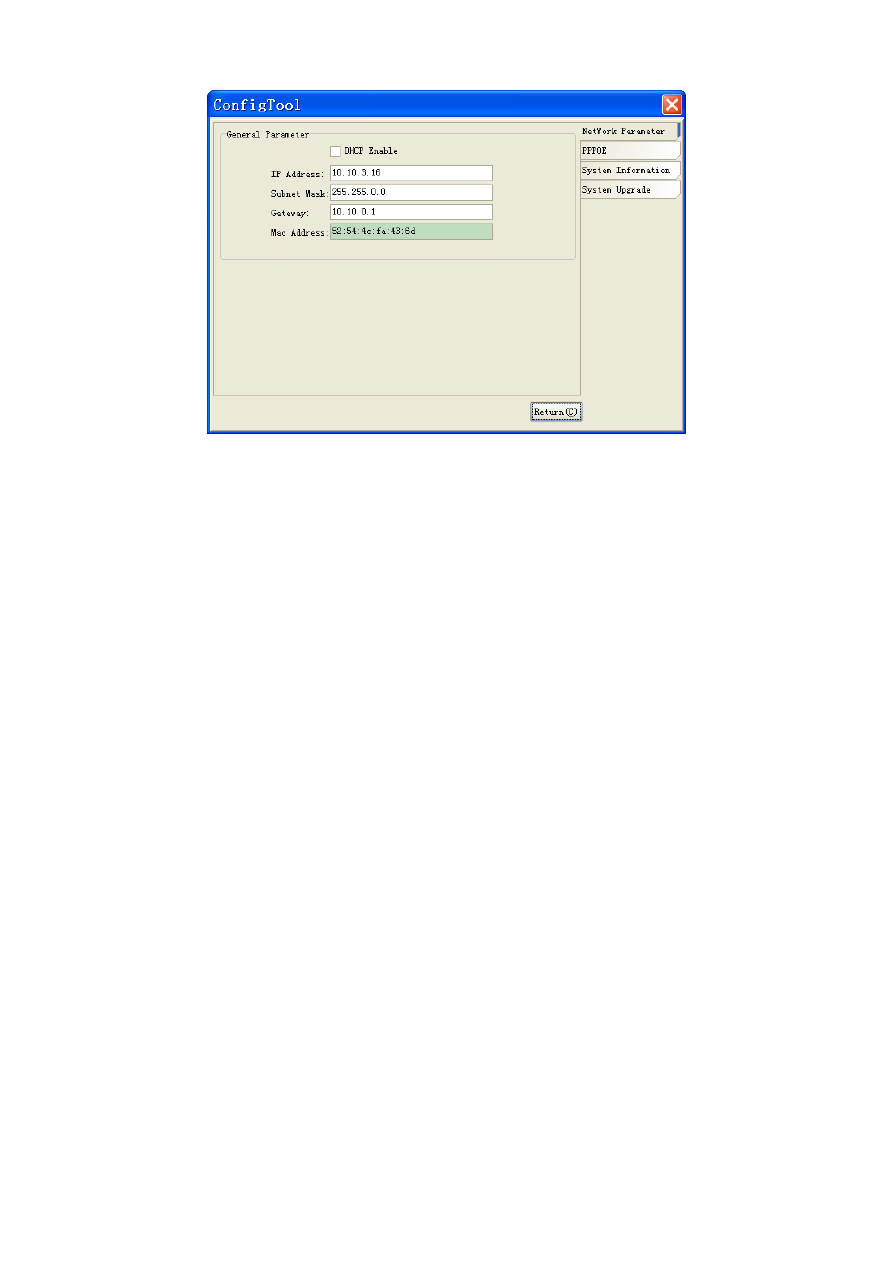
After you logged in, the configuration tool main interface is shown as below. See Figure 3-5.
9
Figure 3-5
For detailed information and operation instruction of the quick configuration tool, please
refer to the Quick Configuration Tool User’s Manual included in the resources CD.
10
4 Web Operation
This series IPC product support the Web access and management via PC.
Web includes several modules includes monitor channel preview, PTZ control, system
configuration, alarm and etc.
4.1 Network Connection
Please follow the steps listed below for network connection.
z
Make sure the IPC has connected to the network properly.
z
Please set the IP address, subnet mask and gateway of the PC and the IPC respectively.
IPC default IP address is 192.168.1.108. Subnet mask is 255.255.255.0. Gateway is
192.168.1.1
z
Use order ping ***.***.***.***(* IP camera address) to check connection is OK or not.
4.2 Login and Logout
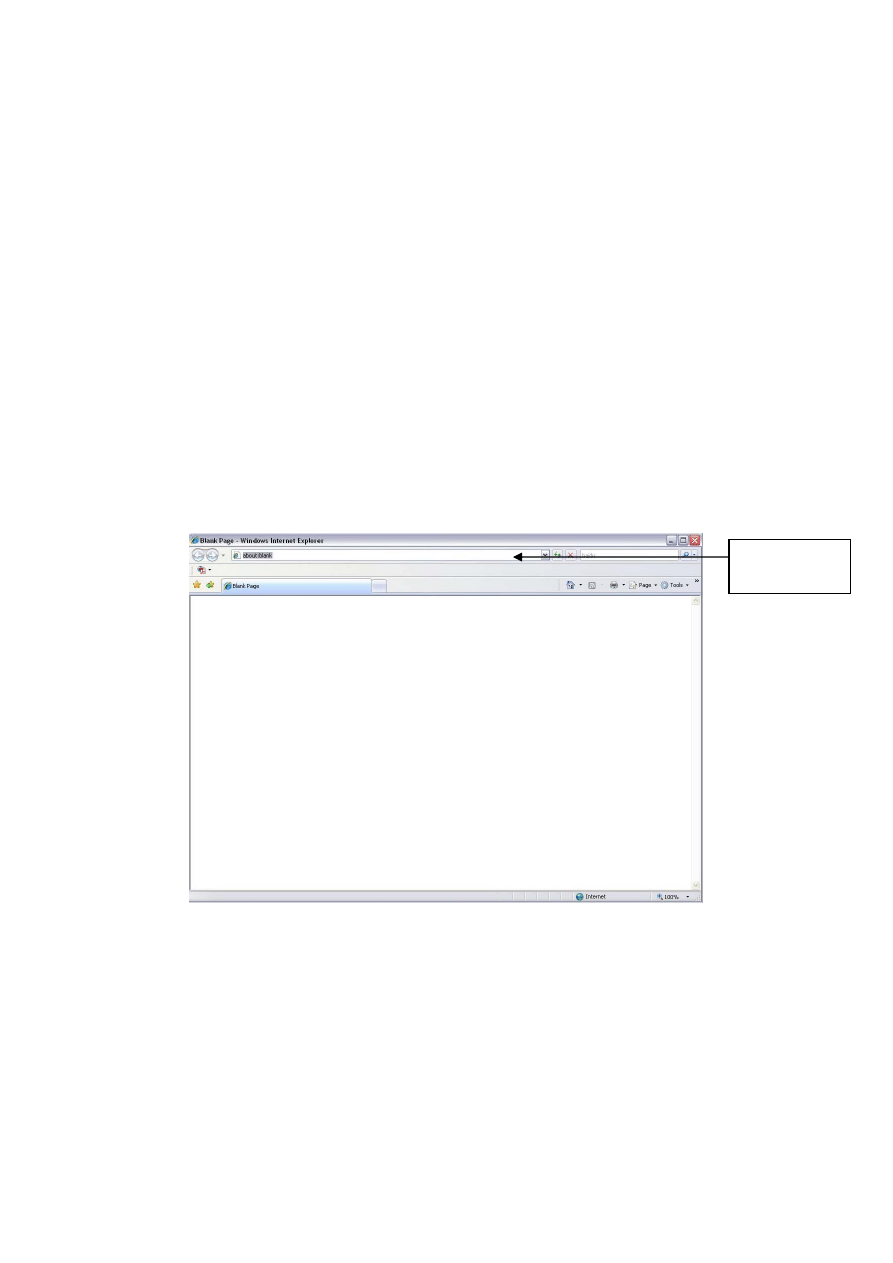
Open IE and input IP camera address in the address bar.
For example, if your camera IP is 192.168.1.108, then please input http:// 192.168.1.108 in IE
address bar. See Figure 4-1.
Figure 4-1
The login interface is shown as below. See Figure 4-2.
Please input your user name and password.
Default factory name is admin and password is admin.
Note: For security reasons, please modify your password after you first login.
Input your IP
address here
11
Figure 4-2
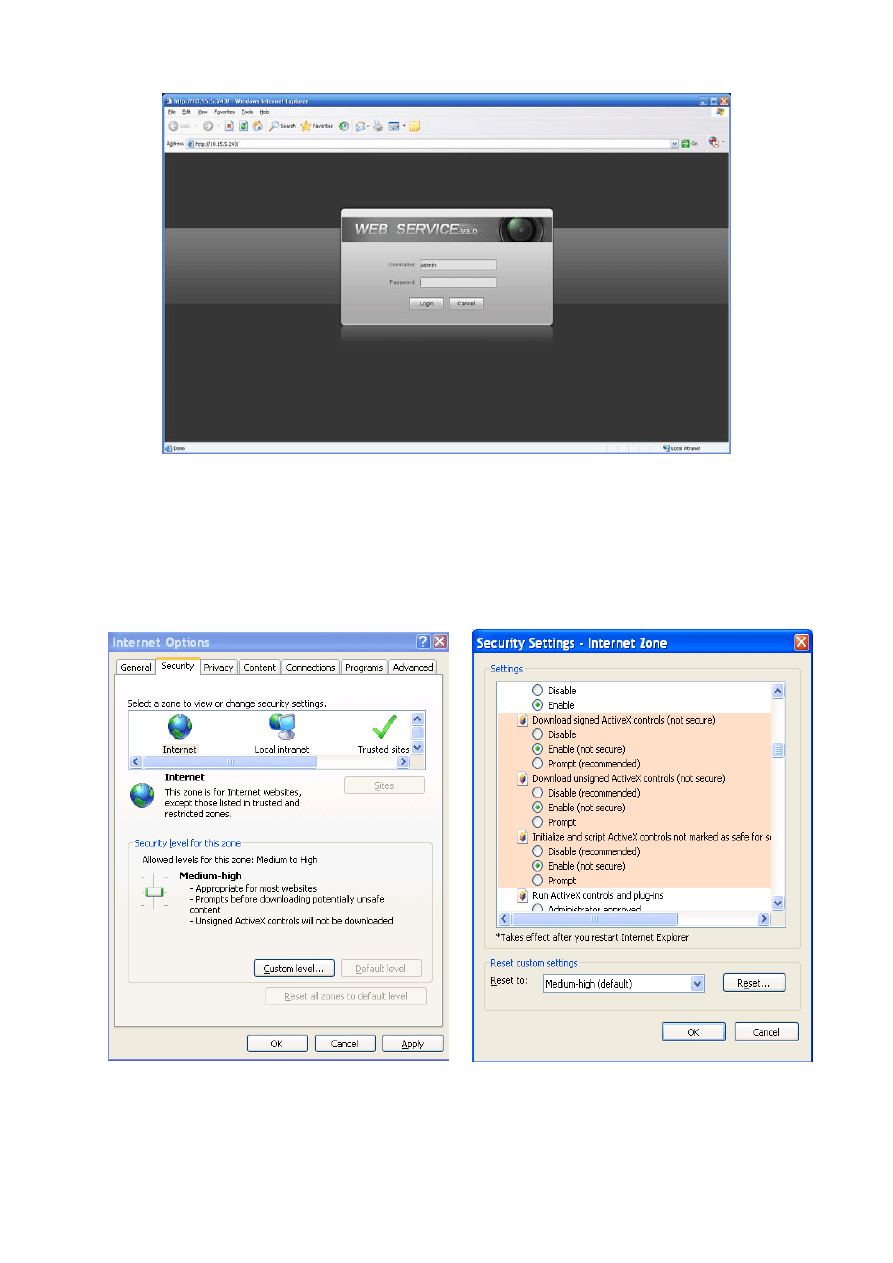
If it is your first time to login in, system pops up warning information to ask you whether install
control webrec.cab
or not after you logged in for one minute. Please click OK button, system can
automatically install the control. When system is upgrading, it can overwrite the previous Web too.
If you can’t download the ActiveX file, please check whether you have installed the plug-in to
disable the control download. Or you can lower the IE security level. See Figure 4-3.
Figure 4-3
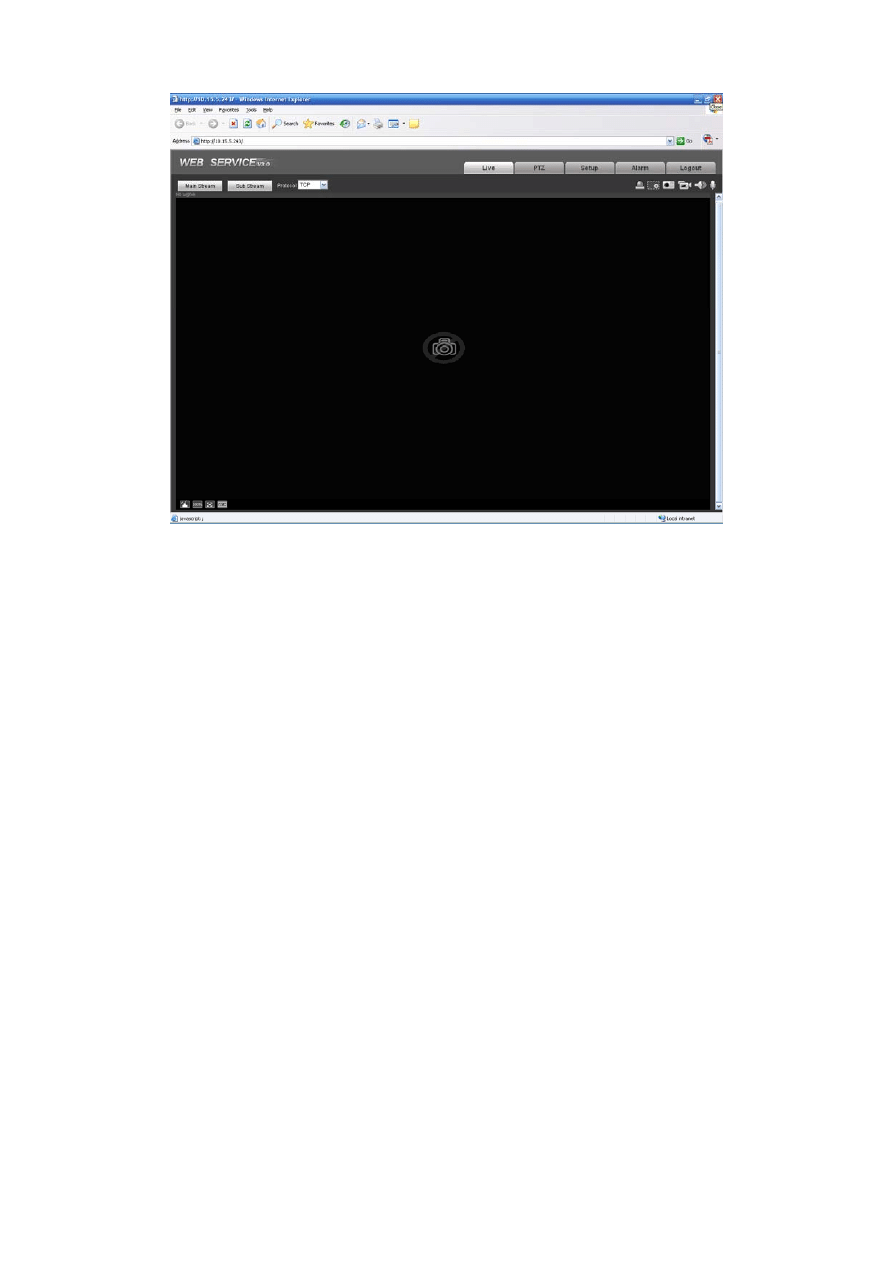
After you logged in, you can see the main window. See Figure 4-4.
12
Figure 4-4
Please refer to the Web Operation Manual included in the resource CD for detailed operation
instruction.
13
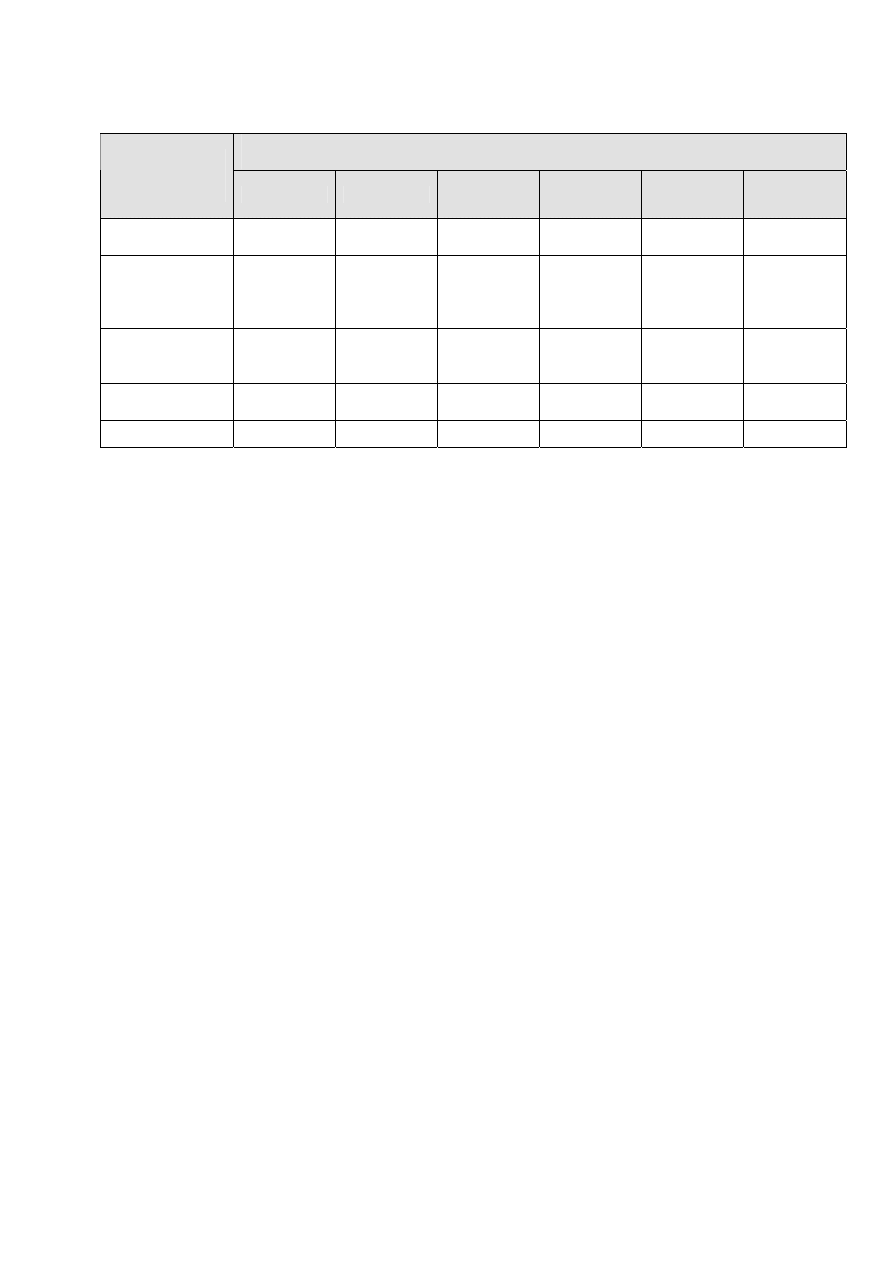
Appendix Toxic or Hazardous Materials or Elements
Toxic or Hazardous Materials or Elements
Component
Name
Pb
Hg
Cd
Cr VI
PBB
PBDE
Circuit Board
Component
○
○
○
○
○
○
Device
Construction
Material
○
○
○
○
○
○
Wire and Cable
○
○
○
○
○
○
Packing
Components
○
○
○
○
○
○
Accessories
○
○
○
○
○
○
O: Indicates that the concentration of the hazardous substance in all homogeneous materials in
the parts is below the relevant threshold of the SJ/T11363-2006 standard.
X: Indicates that the concentration of the hazardous substance of at least one of all
homogeneous materials in the parts is above the relevant threshold of the SJ/T11363-2006
standard. During the environmental-friendly use period (EFUP) period, the toxic or hazardous
substance or elements contained in products will not leak or mutate so that the use of these
(substances or elements) will not result in any severe environmental pollution, any bodily injury or
damage to any assets. The consumer is not authorized to process such kind of substances or
elements, please return to the corresponding local authorities to process according to your local
government statutes.
Note
• This quick start guide is for reference only. Slight difference may be found in the
user interface.
• All the designs and software here are subject to change without prior written
notice.
• If there is any uncertainty or controversy, please refer to the final explanation of us.
• Please visit our website or contact your local service engineer for more
information.
Wyszukiwarka
Podobne podstrony:
Smart Box NVR Series Quick Start Guide V1 0 0
PAP4055DUO V1 0 Quick Start Guide PL
PAP4020DUO V1 0 Quick Start Guide PL
PAP4300 V1 0 Quick Start Guide PL
PAP3500 V1 0 Quick Start Guide PL
Parallels Desktop Mac Quick Start Guide
Quick Start Guide
Quick Start Guide
50064982 MD80210 quick start guide PL
AF104114261 en us quick start guide store and share documents
OUTLOOK 2016 QUICK START GUIDE
Quick Start Guide
quick start guide v2 1
Ultimate Comment Scraper Quick Start Guide
Parallels Desktop for Mac Quick Start Guide
Calibre Quick Start Guide John Schember
A Quick Start Guide to Monitor Profiling with Lprof
AF104114265 en us quick start guide lists
więcej podobnych podstron