Introduction
1
Installation
2
Operation
3
Attachment
A
Edition 03.2004
back to startscreen

This document was generated with WinWord V 8.0 and Designer V 7.0
and the DokuTool AutWinDoc .
The reproduction, transmission or use of this document or its contents
is not permitted without express written authority. Offenders will be
liable for damages. All rights, including rights created by patent grant or
registration of a utility model or design, are reserved.
© Siemens AG 2004. All Rights Reserved.
We have checked the contents of this document to ensure that they
coincide with the described hardware and software. The information in
this document is regularly checked and necessary corrections are
included in reprints. We are thankful for any recommendations for
improvement.
We reserve the right to make technical changes.
Order No. -
Printed in the Federal Republic of Germany
Siemens-Aktiengesellschaft.

© Siemens AG 2004 All Rights Reserved
DOConCD User Instructions (DOC) - Edition 03.2004
iii
Contents
1 Introduction ..................................................................................... 1-5
2 Installation ....................................................................................... 2-7
2.1 System requirements.................................................................... 2-7
2.2 Downloading data from the CD..................................................... 2-7
2.3 Hard disk installation (data from the hard disk) ............................ 2-8
3 Operation ......................................................................................... 3-9
3.1 Starting the plug-in........................................................................ 3-9
3.2 Selecting the CD........................................................................... 3-9
3.3 Contents........................................................................................ 3-10
3.3.1
General information ................................................................... 3-10
3.3.2
Favourites .................................................................................. 3-11
3.4 Full-text search ............................................................................. 3-12
3.4.1
Basic functions .......................................................................... 3-12
3.4.2
Extended functions .................................................................... 3-14
3.5 Keywords ...................................................................................... 3-15
A Attachment...................................................................................... A-17

Contents
© Siemens AG 2004 All Rights Reserved
iv
DOConCD User Instructions (DOC) - Edition 03.2004
For your notes

© Siemens AG 2004 All Rights Reserved
DOConCD User Instructions (DOC) - Edition 03.2004
1-5
1 Introduction
DOConCD is a plug-in for Adobe Acrobat®/Acrobat Reader®. If Acrobat Reader is
mentioned in the following text, then this also applies for the Adobe Acrobat.
This plug-in provides the user with an extensive range of user-friendly research
functions for documents in the PDF format. An especially important feature is that
several documents can be searched through in one session.
The documents are arranged according to target groups (users,
manufacturers/service) and according to systems. Further, users can combine
documents to form groups which they have defined themselves to specifically
address their own specific tasks and objectives.
Note
This version of the DOConCD plug-in can only be used for DOConCD Editions
from 11.2002. When researching in older DOConCD Editions, please continue to
use the software version which is provided on the particular DOConCD version.
Both the previous DOConCD versions as well as also the new Edition can be
used together.
1

Introduction
© Siemens AG 2004 All Rights Reserved
1-6
DOConCD User Instructions (DOC) - Edition 03.2004
For your notes
© Siemens AG 2004 All Rights Reserved
DOConCD User Instructions (DOC) - Edition 03.2004
2-7
2 Installation
Adobe Acrobat®/ Acrobat Reader®, Version 5.0 (or higher) must be installed on
your computer so that you can install DOConCD on your computer.
We recommend an update although DOConCD with Version 4.0 also provides the
full functionality.
2.1 System requirements
Your system should have the following minimum requirements in order to be able
to install and start DOConCD:
•
Pentium® processor
•
Microsoft® Windows® 9x/ME/2000/XP or
NT 4.0 with Service Pack 5 or 6 (we recommend Service Pack 6)
•
16 MB RAM (we recommend 32 MB)
•
Approx. 1 MB of available hard disk memory
•
Adobe Acrobat®/Acrobat Reader® 5.0
For older versions, an update should first be made to Version 5.
2.2 Downloading data from the CD
1. Close the Internet Browser you may be using such as the Internet Explorer
or Netscape Navigator as well as Acrobat Reader/Adobe Acrobat if these
have been opened.
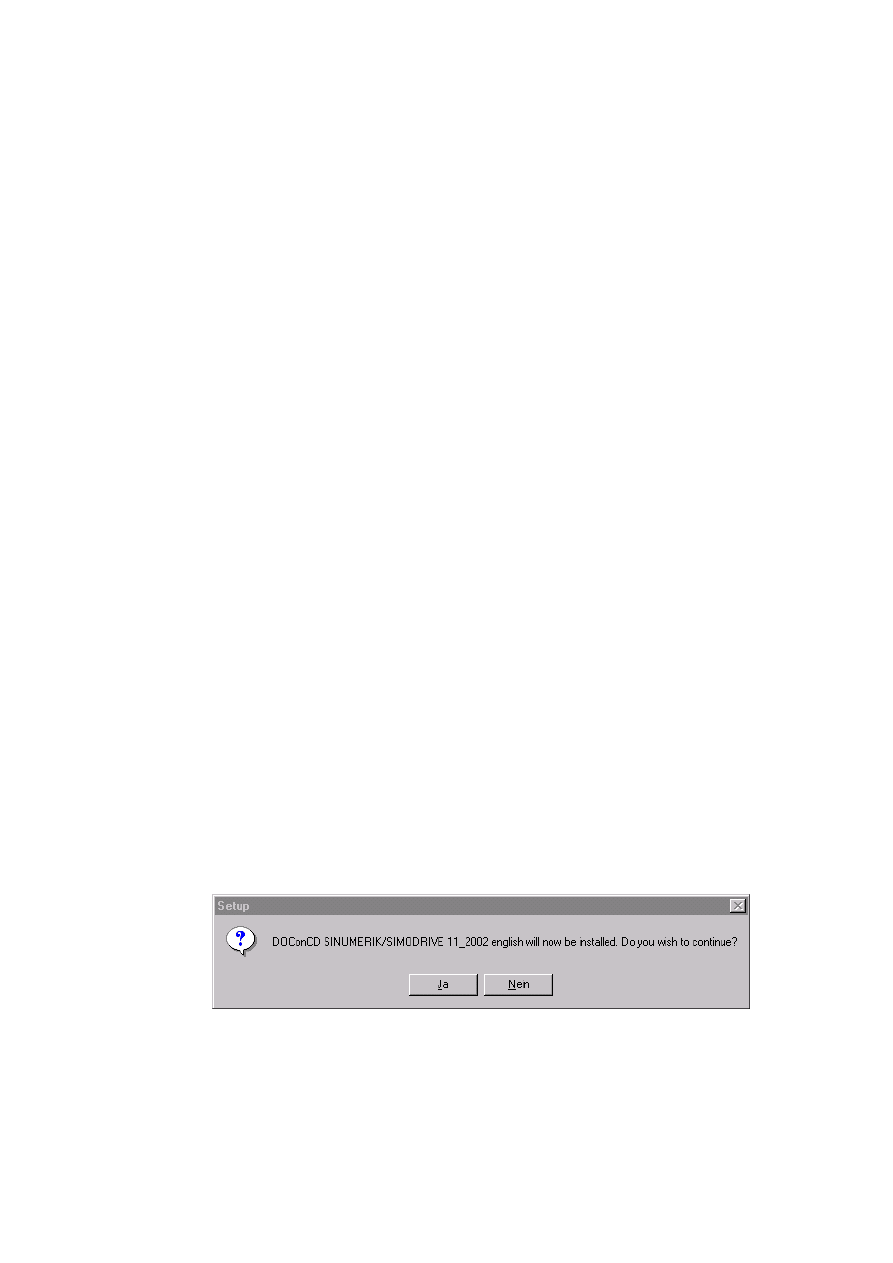
2. Insert the CD in the CD-ROM drive of your computer. In Explorer, select
the CD-ROM drive and start the file setup.exe. This starts the installation
routine for DOConCD.
Fig. 2-1
Starting the setup program
2
Installation
© Siemens AG 2004 All Rights Reserved
2-8
DOConCD User Instructions (DOC) - Edition 03.2004
3. If all of the prerequisites have been fulfilled, please follow the installation
routine. This sets-up a sub-directory \DOConCD in the folder C:\Programs;
important program information can be saved here.
4. A check is now made as to whether Acrobat Reader 5.0 (or higher) is
already installed on your computer (if it has not been installed, then you
must now do this and re-start the installation). Acrobat Reader then installs
the DOConCD plug-in into the directory plug_ins.
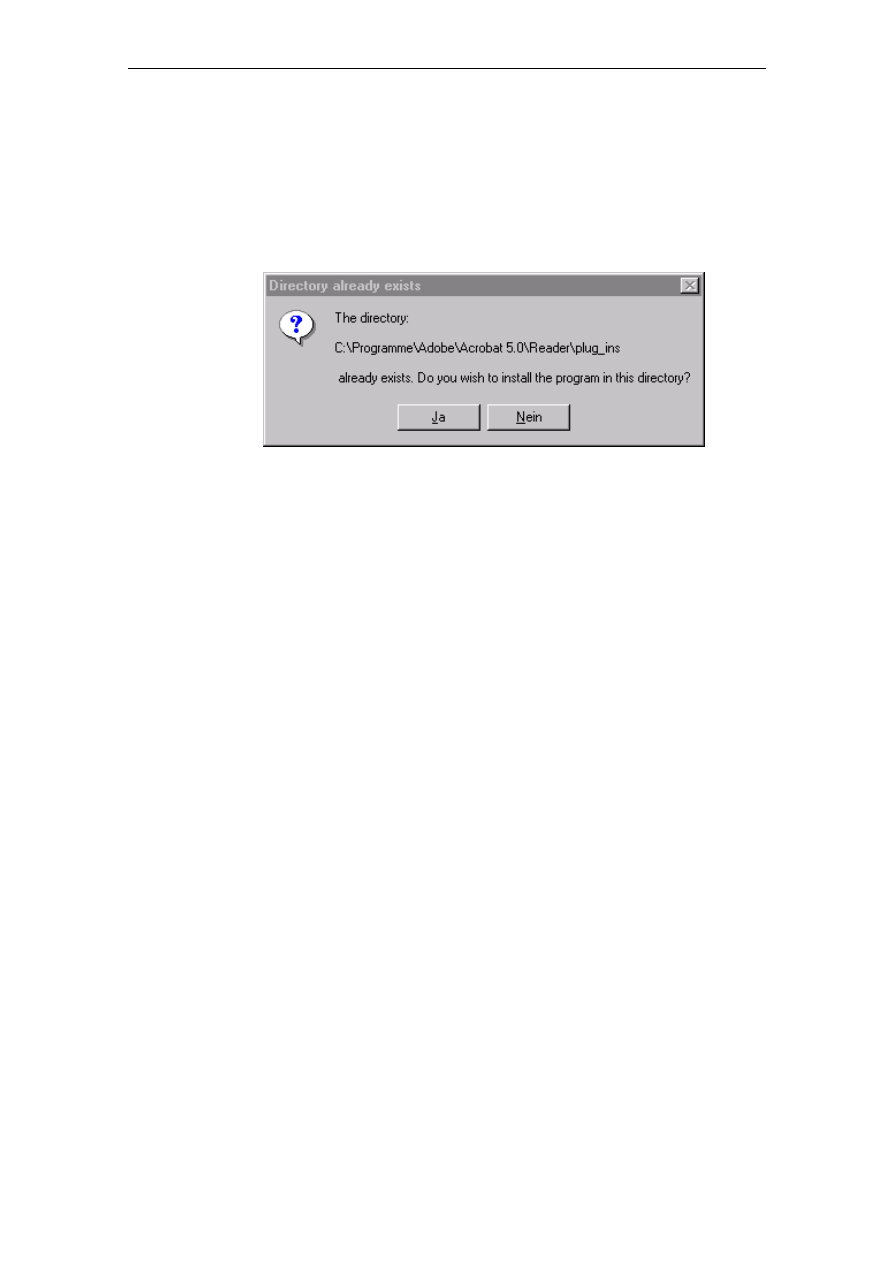
Fig. 2-2
Safety prompt for the installation path
5. Yes must be entered when the safety prompt is displayed. If DOConCD
has already been installed on your computer, then you'll be prompted to
overwrite the existing installation.
2.3 Hard disk installation (data from the hard disk)
DOConCD can be re-configured so that it can be used from the hard disk.
However, this isn't done automatically but must be done manually.
Proceed as follows:
1. Set-up a new folder on the hard disk. For example:
c:\<Production
name>
2. Copy the complete contents of the CD into this directory.
3. From this directory, install the software using setup.exe, essentially the
same as described under Section 2.2.
© Siemens AG 2004 All Rights Reserved
DOConCD User Instructions (DOC) - Edition 03.2004
3-9
3 Operation
3.1 Starting the plug-in
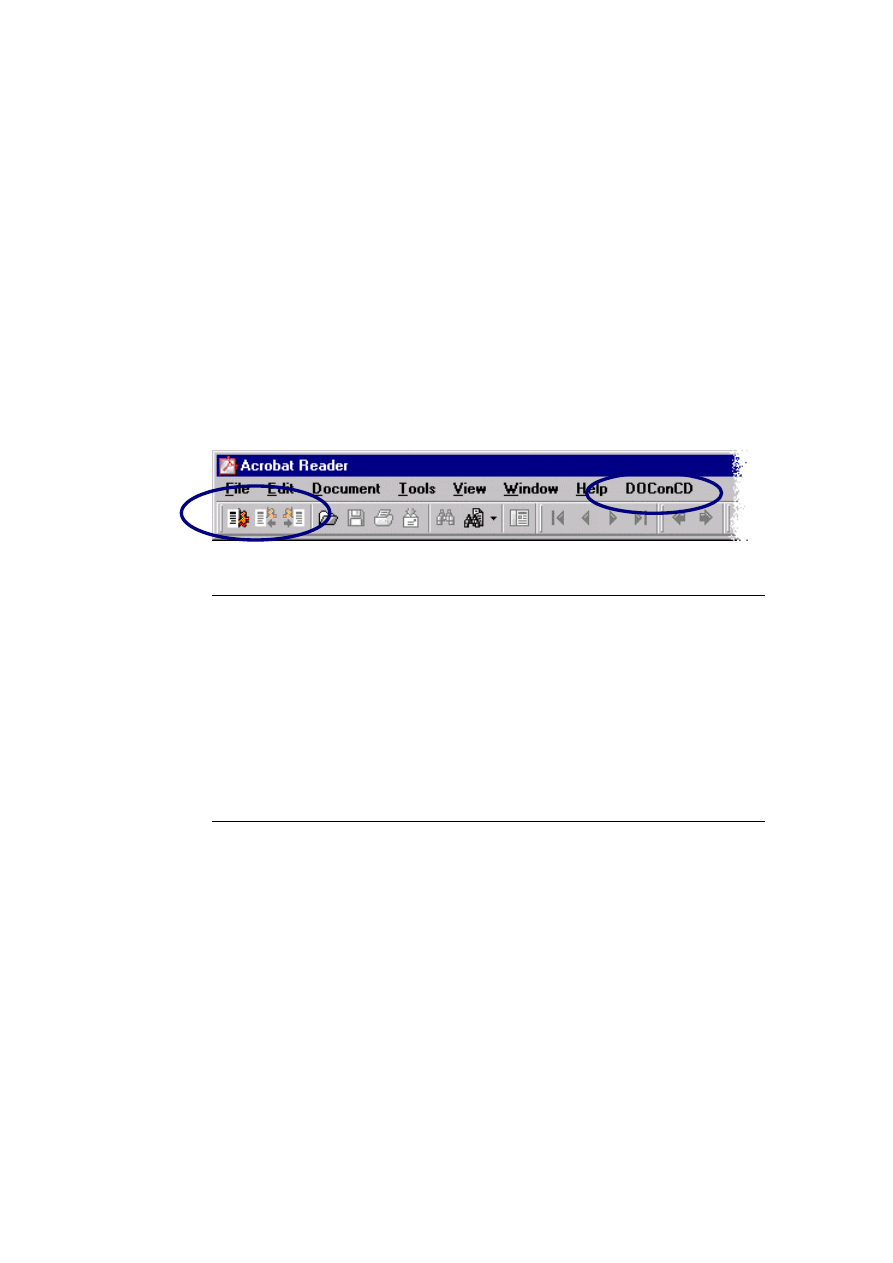
After DOConCD has been installed, you'll see the new DOConCD menu item,
which is used to start the plug-in, in the Acrobat Reader menu bar. As an
alternative, DOConCD can be started using the icon in the command bar. A new
window then opens - the Navigator.
Fig. 3-1
Menu bar after DOConCD has been installed
Note
If DOConCD cannot be seen in the menu bar, then check as to whether the Only
certified supplementary modules option is activated. To do this, proceed as
follows:
1. Open the menu Edit > Basic settings. A new window then opens with the
possibilities of making the appropriate settings.
2. Select
Options in the lefthand bar.
3. Now de-activate the Only certified supplementary modules option by
clicking with the mouse on the check mark.
4. Confirm the action with OK and then exit the program.
5. Now restart Acrobat Reader.
3.2 Selecting the CD
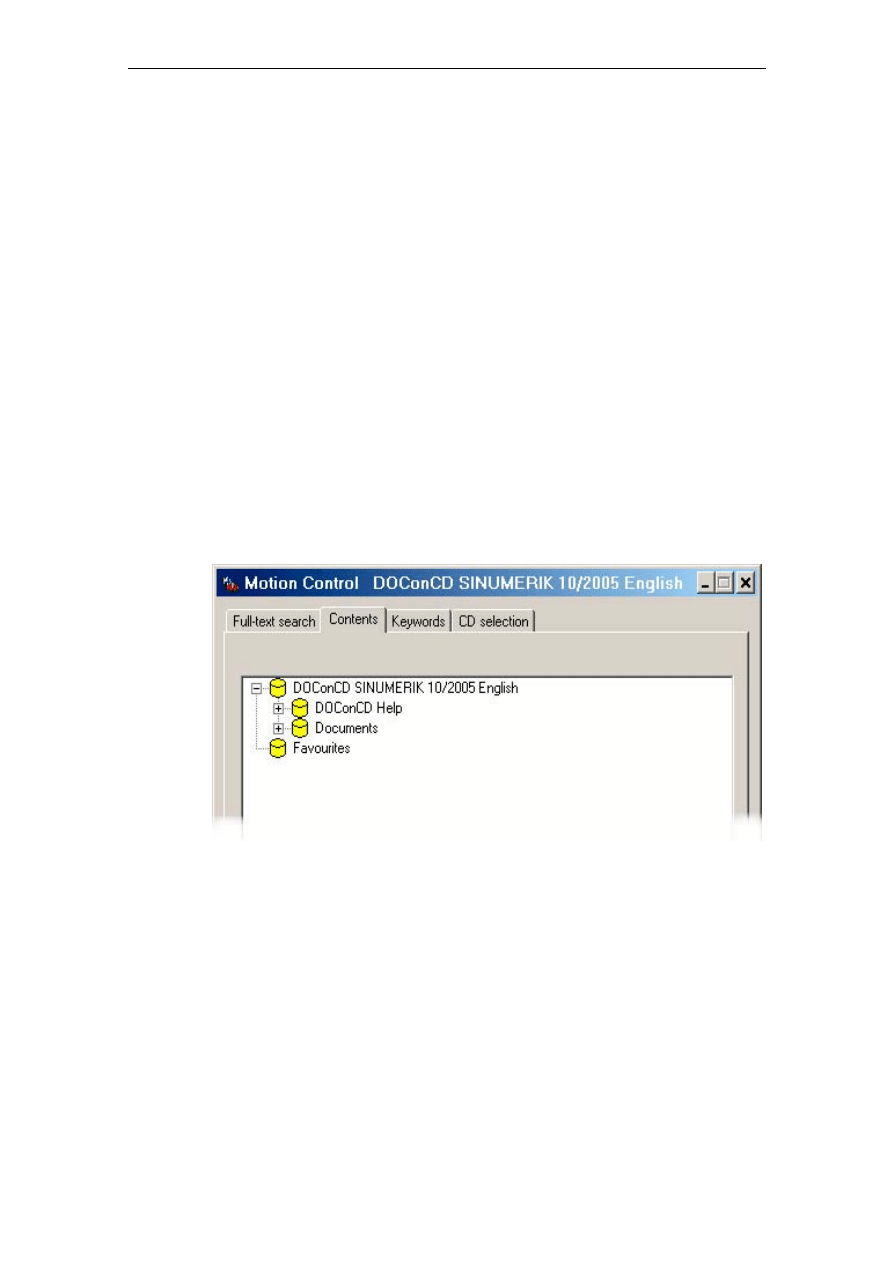
After DOConCD has been started, the CD selection tab in the Navigator is opened.
An overview of the existing DOConCD Editions from 11.2002 is provided here. If
several DOConCD Editions have been installed, then the required DOConCD
Edition can be selected using a pull-down menu. It can be opened using the Start
button. DOConCD Editions up to 01.2002 cannot be opened using this software
version.
If you have selected a DOConCD Edition, then the Navigator changes to the
contents view. The following tabs – Full-text search, keyword and CD selection –
are also displayed at the upper edge of the window.
3
Operation
© Siemens AG 2004 All Rights Reserved
3-10
DOConCD User Instructions (DOC) - Edition 03.2004
3.3 Contents
3.3.1 General
information
The following rules apply for the tab Contents:
• The highest levels are represented using yellow cans. If a can is selected,
then the lid of the can turns black. A small plus character in front of the can
signifies that there is an additional level below this.
• If the display levels are opened by double-clicking on the folder symbol or
the name, then these are displayed and the plus character changes to a
minus character. The display level is closed by double-clicking again.
• Alternatively, the tree can either be opened or closed by simply clicking on
the plus/minus character. A click with the righthand mouse key opens the
selection Open/Close. All of the levels lying below the yellow can are
opened. If this operator action is repeated, then the display levels close.
• A document is opened and the list of contents displayed using a double
click. The appropriate page in the Acrobat Reader is displayed by selecting
a Section or a header.
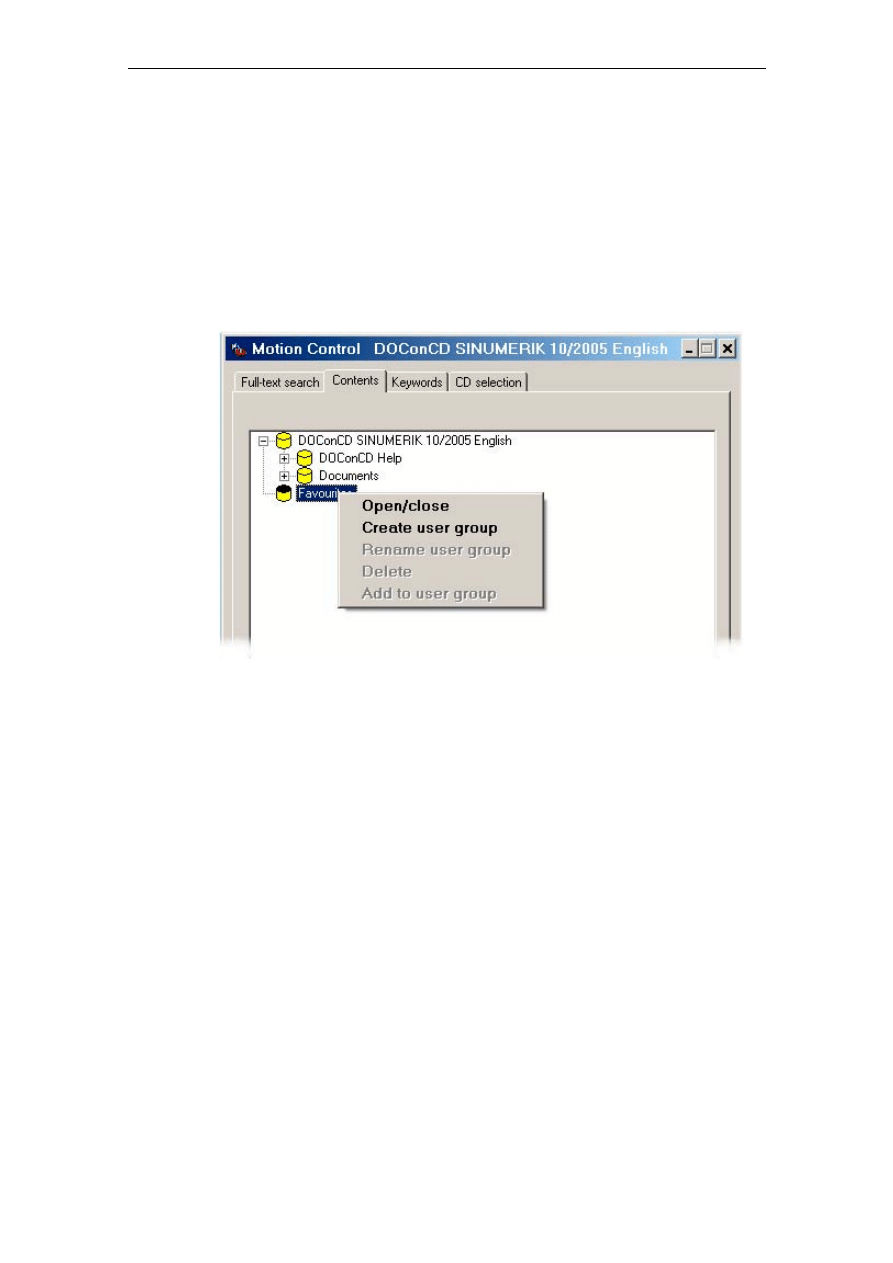
The Contents tab is structured as follows:
Fig. 3-2
Contents Navigator window
• All PDF files are sorted systematically under Documents.
• You can arrange any documents in any groups under Favourites.
Operation
© Siemens AG 2004 All Rights Reserved
DOConCD User Instructions (DOC) - Edition 03.2004
3-11
3.3.2 Favourites
This folder has a specific significance. Here you are free to create document
groups which you have defined yourself. A search can be made in these groups
using a full-text search.
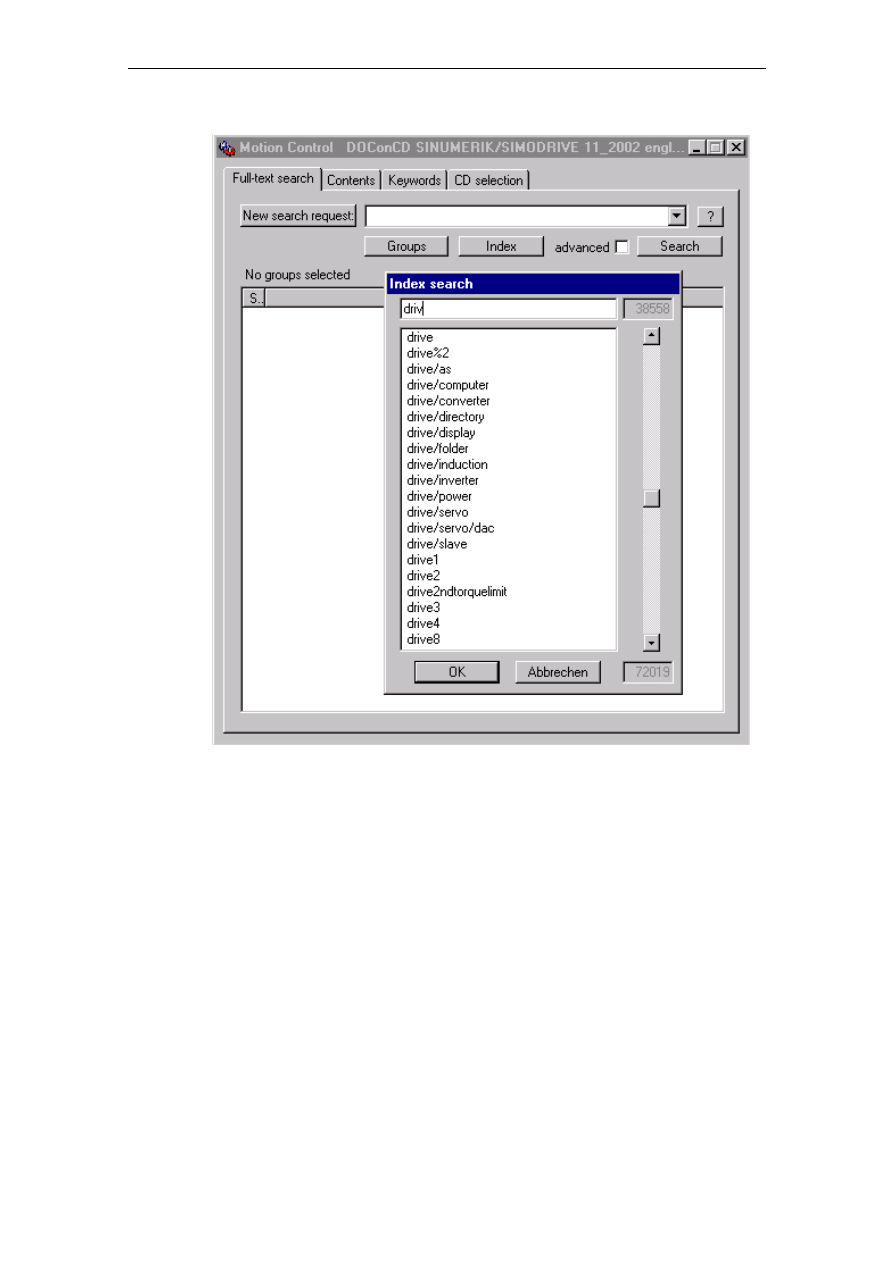
Creating an user group
A menu with extended options opens by clicking with the righthand mouse key on
Favourites. The Create user group option creates a new group.
Fig. 3-3
Creating an user group
Assigning documents to an user group
1. Select the particular document using the righthand mouse key and select
the option Add to user group.
2. A selection window opens with the user groups which have been created
which can then be selected by clicking on them. A check mark is then
displayed. User groups can also be added to by dragging & dropping.
3. The settings are automatically saved.
Editing an user group
You can delete a document from an user group by opening it, highlighting the
document to be deleted and then selecting Delete with a righthand mouse key
click. A complete user group can be deleted in the same way.
An user group can be allocated a new name with the Rename user group option.
The changes are then automatically saved.

Operation
© Siemens AG 2004 All Rights Reserved
3-12
DOConCD User Instructions (DOC) - Edition 03.2004
3.4 Full-text search
3.4.1 Basic
functions
Using the full-text search, all of the words can be found which appear in the
documents in the DOConCD Edition. So-called stop words are exceptions (one,
and, or, appropriately etc.).
Selecting groups
The Groups button opens a selection window to restrict the search. Both pre-
defined groups as well as user groups are displayed here in whose documents a
search is to be made. A group is selected by clicking with the lefthand mouse key.
The groups which are to be searched are then designated with a check mark.
Starting the search
1. Enter the search term. In this case a differentiation is not made between
upper and lower case letters.
2. Optionally, you can enter a check mark next to the Extended control box in
order to carry-out a search term check.
3. The search is started either using the entry key or the Search button.
Once the search has been completed information is provided about the number of
PDF documents that were searched and the number of matches. This is shown as
follows:
green
Words which were found (only if the extended search was activated)
red
Documents in which the search term was found (title of the document)
yellow
Pages in which the search term was found (header of the chapter)
If a match is marked using the lefthand mouse key, then Acrobat Reader displays
the corresponding page of the document and highlights the term in color which was
searched for and was found.
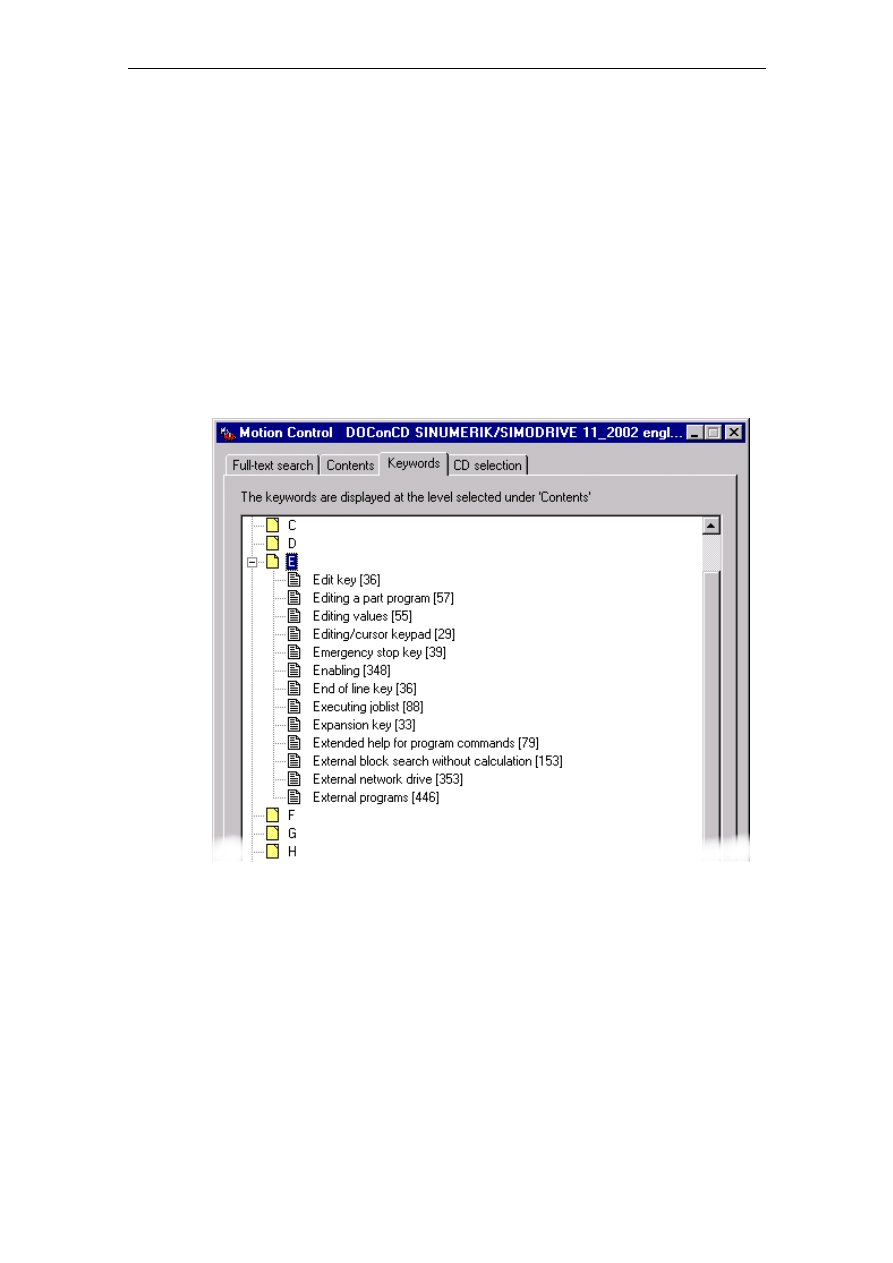
Index search
The search term can also be selected from the index. The index is a list with all of
the terms which occur in the documents of the DOConCD Edition with the
exception of stop words. To do this, proceed as follows:
1. If you press the Index button, the Index search input window is displayed.
2. Using the keyboard, enter the first letters of the search term. The index
automatically jumps to the first word which starts with this sequence of
letters. Alternatively, using the scrollbars on the righthand side of the index
window, you can scroll to the required search term.
Operation
© Siemens AG 2004 All Rights Reserved
DOConCD User Instructions (DOC) - Edition 03.2004
3-13
Fig. 3-4
Example of a search in the index
3. A word highlighted in the new search request is accepted with OK.
New search
The entry window is deleted if you press this button.

Operation
© Siemens AG 2004 All Rights Reserved
3-14
DOConCD User Instructions (DOC) - Edition 03.2004
3.4.2 Extended
functions
Linking search terms
DOConCD allows several search terms to be linked using the (+) and (-) operators.
These must be directly entered in front of the search term. These operators have
the following significance:
+
The word must be included in the match
-
The word may not be included in the match
If an operator is not specified in front of search term, then this term can be included
in the match . If several search terms are specified without an operator, then every
page is considered a match in which at least one of the search terms occurs.
If a search is only started with one search term, then the plus character is not
necessary, and every page, in which the search term occurs, is displayed as
match.
Example
The linked search term "drive +motor –gearbox" is found on all pages on which the
word
"drive"
can occur,
"motor"
must occur and
"gearbox"
may not occur.
Note
A hyphen is treated like the "-" operator. This means that then hyphenated words
such as SSI-transfer must be entered as two individual words with a "+":
+ssi
+transfer
Making a search with space retainer
The following space retainers are permitted when searching:
*
none, one or several characters
?
none or an individual character
!
one individual character
Example
"Form*" provides results such as form, format, formula, format, ...etc.
"Paten!" only supplies the patent as result
"Ba?nd*" supplies, as result, band, bands, bandstop, ...etc.
Operation
© Siemens AG 2004 All Rights Reserved
DOConCD User Instructions (DOC) - Edition 03.2004
3-15
3.5 Keywords
The Keywords tab allows you to look for keywords in the documents. To do this,
proceed as follows:
1. The area to be searched through is marked under the Contents tab. This
can be the complete contents, one group, an user group, or just an
individual document.
2. Select the keyword tab. A list with the starting letters, in which the
keywords of the area to be searched through are saved, is displayed in the
navigation window. Click on one letter using the lefthand mouse key. A
detailed view opens in which all keywords associated with this letter are
listed. The small plus character in front of the keyword indicates that the
keyword occurs at several locations in the selected area. If a keyword is
selected, then the appropriate page in the text is displayed.
Fig. 3-5
Keywords

Operation
© Siemens AG 2004 All Rights Reserved
3-16
DOConCD User Instructions (DOC) - Edition 03.2004
For your notes

© Siemens AG 2004 All Rights Reserved
DOConCD User Instructions (DOC) - Edition 03.2004
A-17
A Attachment
Impressum
The DOConCD application was developed in cooperation with
SIEMENS AG
Automation and Drives
Motion Control Systems
Postfach 3180, D-91050 Erlangen
Contact partner: Georg Schäfler
Tel.: 09131 - 98 3315
Fax: 09131 - 98 2176
E-Mail: georg.schaefler@siemens.com or
motioncontrol.docu@siemens.com
and
iStrat GmbH
Tel. 03677-205 99 60
Hofgraben 2
Fax 03677-205 99 66
98704 Langewiesen eMail info@istrat.de
Erlangen, February 2003
A

Attachment
© Siemens AG 2004 All Rights Reserved
A-18
DOConCD User Instructions (DOC) - Edition 03.2004
For your notes
To
Siemens AG
Suggestions
Corrections
A&D MC BMS
Postfach 3180
For documentation:
DOConCD
D-91050 Erlangen
Tel. +49 (0) 9131 / 98 – 3315 [Hr. Schäfler]
Fax +49 (0) 9131 / 98 – 2176 [Documentation]
E-Mail motioncontrol.docu@erlf.siemens.de
Installation and Operation
Service Documentation
From
Name:
User Instructions
Order No.:
-
Edition 03.2004
Company address/Department
Street:
Postal code: ____________ City:
Telephone: __________ /
Telefax: ________ /
If you should come across any printing errors
in this document, please let us know using
this form.
We would also be grateful for any suggestions
and recommendations for improvement.
Suggestions and/or corrections

Published by Siemens AG
Bereich Automatisierungstechnik
Geschäftsgebiet Automatisierungssysteme
für Werkzeugmaschinen, Roboter
und Sondermaschinen
Postfach 3180, D - 91050 Erlangen
Federal Republic of Germany
Tested Siemens Quality for Software and Training acc. to DIN ISO
9000, Reg. No. 2160-01.
This document was printed on environmentally-friendly chlorine-
free bleached paper.
Copyright Siemens AG 2000 All Rights Reserved
We reserve the right to make changes
Progress
in
Automation.
Siemens
Siemens Aktiengesellschaft
Order No.: -
Printed in the Federal Republic of Germany
Wyszukiwarka
Podobne podstrony:
MagnetLoop Help id 276752 Nieznany
cd zad 3 id 109161 Nieznany
help id 200579 Nieznany
Cwiczenia cd kwerendy id 124483 Nieznany
forma rzadu cd id 179477 Nieznany
3 podstawowe operacje cd id 339 Nieznany (2)
zestaw 6 dynamika cd id 588136 Nieznany
3 Podstawy teorii SJLM cd id 33 Nieznany (2)
Digit S2 CD Digit CD Black id 1 Nieznany
cd zad 2 zad 3 id 109138 Nieznany
Doswiadczenie cd id 141049 Nieznany
cd zad 1 i zad 2 id 109160 Nieznany
Abolicja podatkowa id 50334 Nieznany (2)
4 LIDER MENEDZER id 37733 Nieznany (2)
katechezy MB id 233498 Nieznany
metro sciaga id 296943 Nieznany
perf id 354744 Nieznany
interbase id 92028 Nieznany
Mbaku id 289860 Nieznany
więcej podobnych podstron