WELCOME TO NMHG WEB SERVER
Minimum System Requirements:
- Pentium I 166 Mhz (or above)
- 32 MB RAM
- MS Windows 98 (or above)
-
MS Explorer 5.0 (or above)
- MS Explorer 5.5 (or above)
- Adobe Acrobat Reader 5.0 (or above) available free at www.adobe.com
Installation:
- Close all programs before commencing installation
- Double click the flsetup.exe icon, the default software destination directory
C:\programmi\NHMG_web_server can be changed as required using the 'sfoglia' button.
It is also possible (preferred) to automatically install a shortcut on your desktop and in the start-up menu by
checking the 'Creare cartella nel menù di avvio' and 'Put shortcut on the desktop' boxes.
- Click on OK to install or Esci to exit set up
- When the status bar reaches 100% installation is complete, click OK
- Installation is now complete.
Disinstallation:
- Simply double click the 'Disinstallazione NMHG Web Server' shortcut on the start up menu or in the
installation destination directory
Instructions for use:
- Insert the crypted CD you wish to read in your CD drive.
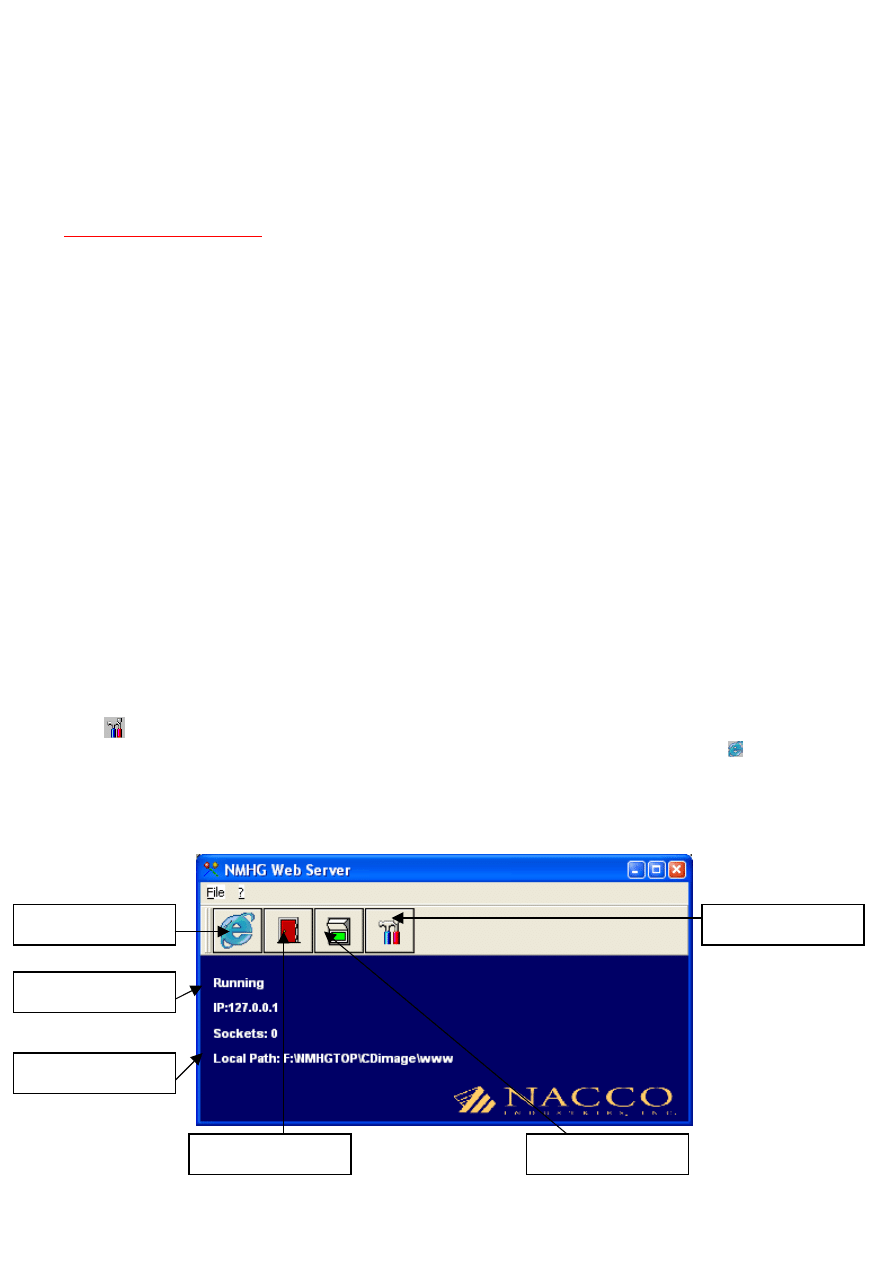
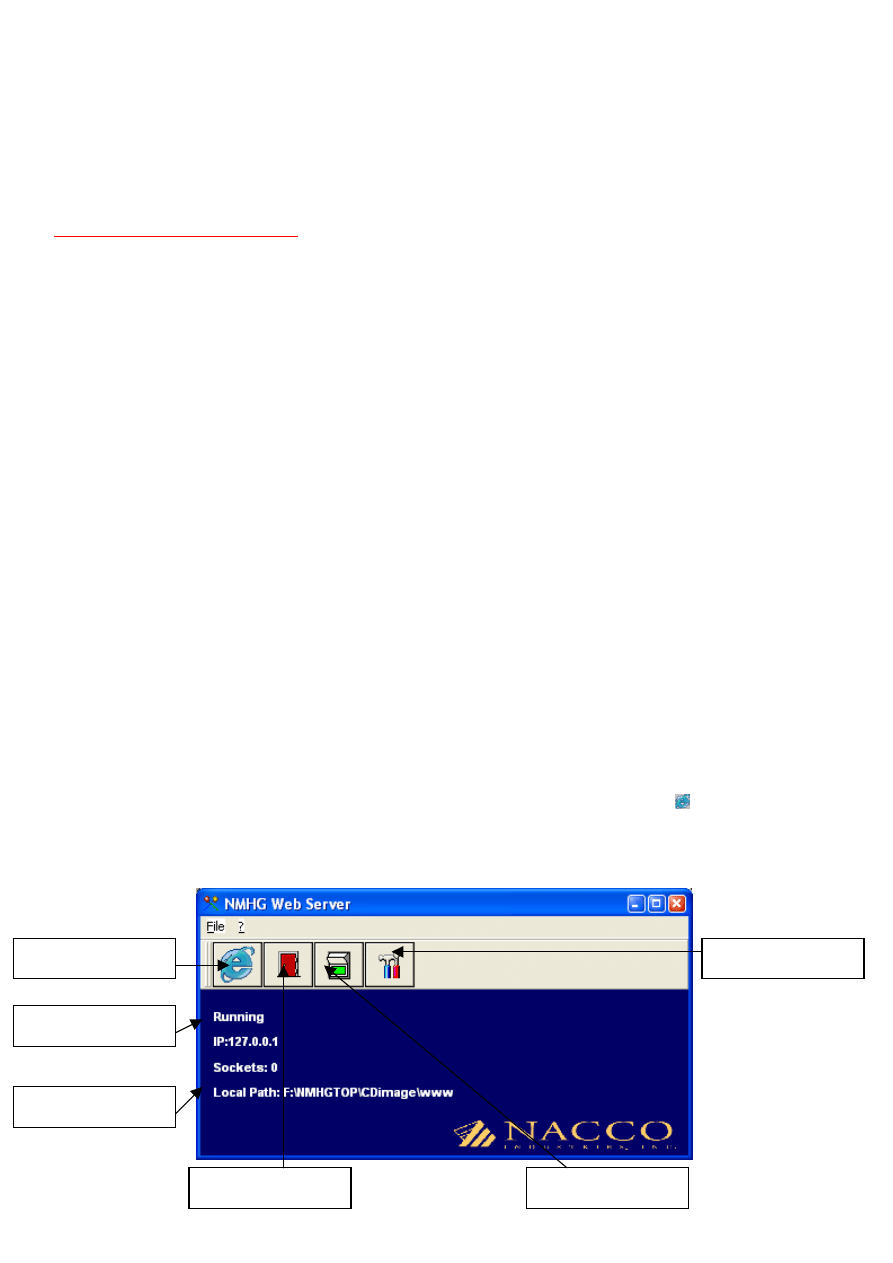
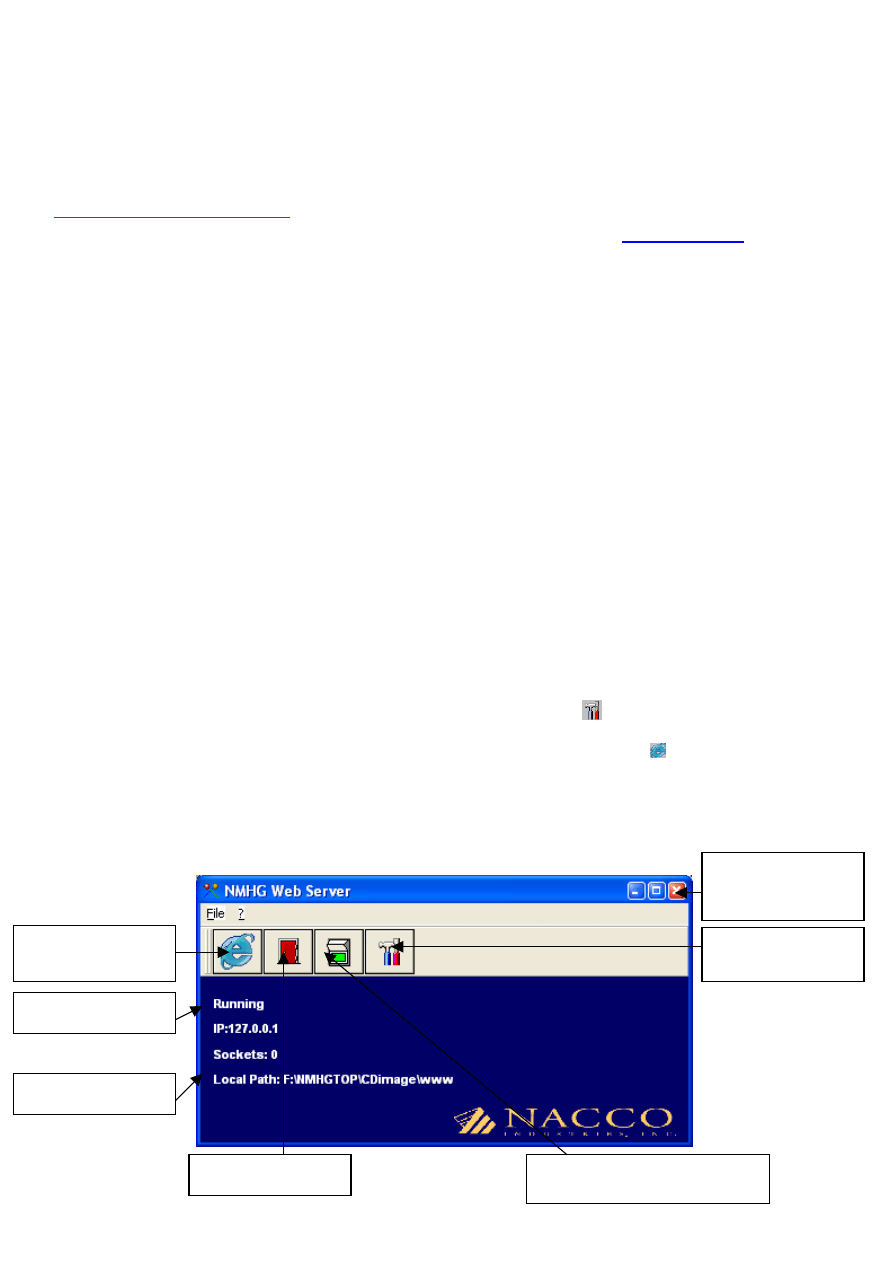
- Click on the NMHG Web Server shortcut on your desktop or start menu, check that ‘Local path
corresponds to d:\www (where d is your CD Rom drive), this path can be changed using the ‘configuration’
button
, it is necessary to re-start the Web Server if the configuration is changed.
- To view the encrypted data, insert the CD to be viewed in your CD Rom drive and click the button, this
starts your standard web browser (preferably MS Internet Explorer 5.0 or above) and will automatically
open the CD Home Page.
- It is very important when viewing is terminated to close the NMHG Web Server by using the Exit
button (not the close button).
Start Navigation
Button
Local path
Software Status
Exit Button
Start / Stop Software
Button
Configuration Button
Expiry:
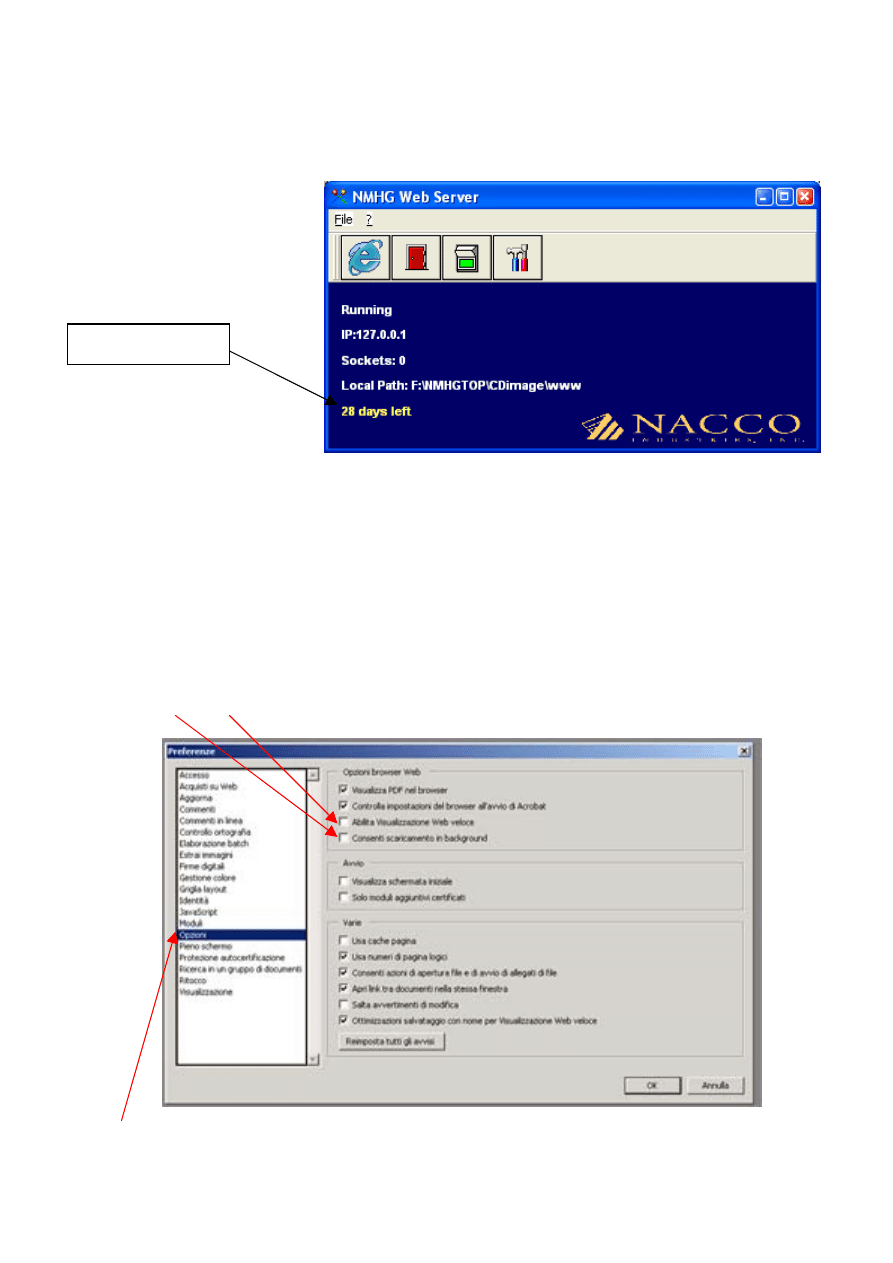
- The ‘reader’ software is programmed to work for one year (to 31/12/XX), after which the reader can
be re-activated with re-activation files available from NMHG. Information regarding this re-activation
will be sent to you by Service Bulletin.
Expiry Warning – 30
days before expiry
Adobe Acrobat Reader Settings (Only version 5.0 or above):
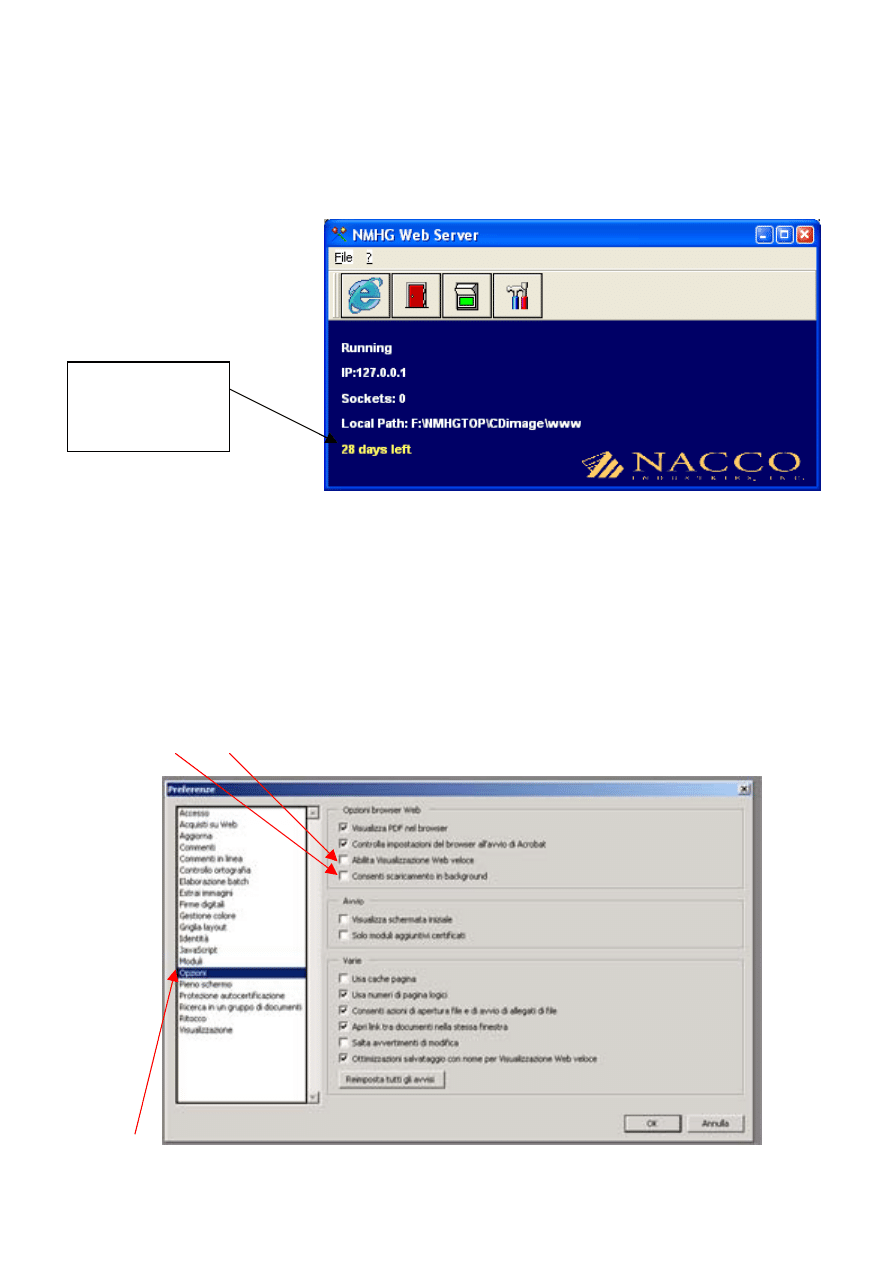
- For rapid viewing of the PDF files contained on the CD’s when using Adobe Acrobat Reader or
Adobe Acrobat version 5 or above, please ensure that the General Preferences window options
(under Edit – Preferences – General - Options) are as below, in particular ‘Allow fast Web Viewing’
and ‘Consent download in background’ must not be selected.
- Open Adobe Acrobat Reader or Adobe Acrobat used to view the PDF files contained on the CD,
under ‘Edit’ menu select ‘Preferences’ then ‘General’, finally ‘Options’. Select options as below then
click ‘OK’.
NO NO
OPTIONS
BENVENUTI AL NMHG WEB SERVER
Requisiti Minimi di Sistema:
- Pentium I 166 Mhz
- 32 MB di RAM
- MS Windows 98 (o successivi)
-
MS Explorer 5.0 (o successivi)
- MS Explorer 5.5 (o successivi)
- Adobe Acrobat Reader 5.0 (o successivi) disponibile gratuitamente a www.adobe.com
Installazione:
- Chiudere tutte le applicazioni e programmi prima di cominciare l’installazione.
- Clicca sull’icona flsetup.exe , la cartella di installazione default ‘C:\programmi\NHMG_web_server’ può
essere modificato se necessario usando il pulsante 'sfoglia'.E’ inoltre possibile installare automaticamente
dei collegamenti al software sul vostro desktop e nel menu d’avvio del vostro PC, per farlo, selezionare le
caselle 'Creare cartella nel menù di avvio' e 'Put shortcut on the desktop'.
- Clicca su ‘OK’ per eseguire l’istallazione o ‘Esci’ per uscire dall’istallazione.
- Quando la barra di stato arriva al 100%, istallazione è completata, clicca ‘OK’.
- Istallazione è stata completata.
Disinstallazione:
- Clicca sull’icona 'Disinstallazione NMHG Web Server' che si trova nel menu d’avvio del PC oppure nella
cartella d’installazione del software NMHG Web Server.
Istruzioni per l’uso:
- Inserire il CD contenente i dati criptati nel lettore CD Rom
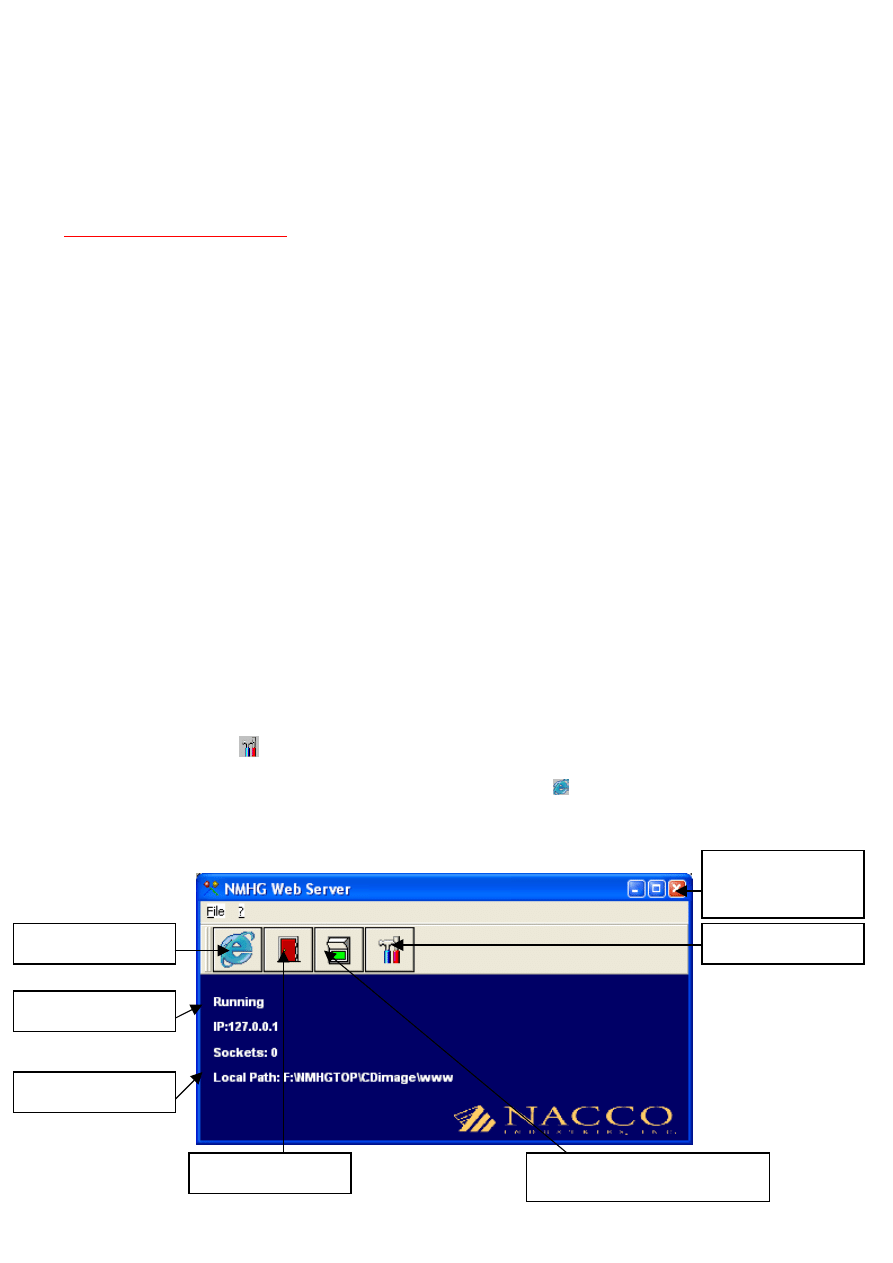
- Clicca sull’icona ‘NMHG Web Server’ che si trova nel menu d’avvio o sul desktop del PC. Controlla che
‘Local Path’ corrisponde a D:\www (dove D è il lettore CD), questo percorso può essere modificato usando
il pulsante ‘configuration’
, è necessario uscire dall’applicazione e riavviare se vengono alterati i valori di
configurazione.
- Per visionare i files criptati sul CD, clicca il pulsante di navigazione , partirà il vostro navigatore standard
(solitamente e preferibilmente Internet Explorer) che aprirà automaticamente la pagina iniziale del CD.
- Quando visione dei files criptati è terminata, è imperativo che il software NMHG Web Server viene
chiuso usando il pulsante ‘Exit’ NON il pulsante di chiusura software.
Pulsante di chiusura
software –
NON
USARE
Pulsante di
configurazione
Pulsante di
navigazione
Local path
(percorso)
Stato Software
Pulsante ‘Exit’
Pulsante attivazione /
disattivazione software
Scadenza:
- NMHG Web Server è programmato per funzionare per anno (fino a 31/12/XX), a fine anno il
software può essere ripristinato per un ulteriore anno di funzionamento tramite un piccolo file di
aggiornamento disponibile da NMHG. Informazioni riguardanti il ripristino annuale vi verrà inoltrato
da NMHG tramite Bollettino Tecnico. Non ci sono costi addizionali per il software NMHG Web
Server ed i costi di licenza saranno coperti da NMHG.
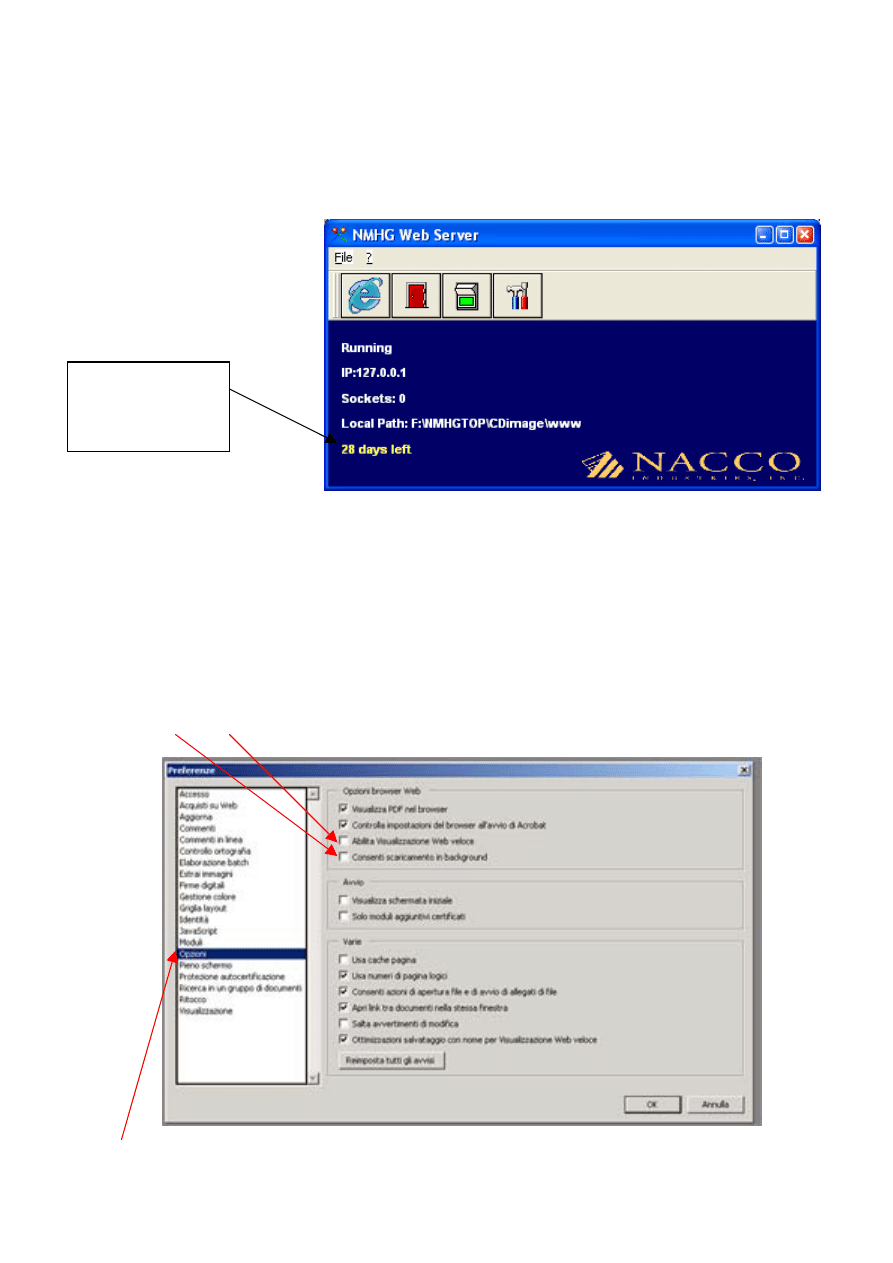
Avviso di scadenza
ogni giorni con
trenta giorni di
preavviso
Settaggi Ottimali Adobe Acrobat Reader (Solo versione 5.0 o successivi):
- Per visionare rapidamente i files PDF contenuti nei CD usando Adobe Acrobat Reader o Adobe
Acrobat versione 5 o successive, assicurarsi che le opzioni delle Preferenze Generali (sotto
Modifica – Preferenze – Generali - Opzioni) sono come mostrato sotto. Particolarmente che ‘Abilita
Visualizzazione Web Veloce’ e ‘Consenti scaricamento in background’ NON sono selezionate.
- Aprire Adobe Acrobat Reader o Adobe Acrobat usato per visionare i files PDF sul CD, sotto
‘Modifica’ selezionare ‘Preferenze’ poi ‘Generali’ e in fine ‘Opzioni’. Selezionare opzioni come sotto
poi clicca su ‘OK’.
NO NO
OPZIONI
WELCOME TO NMHG WEB SERVER
Minimalsystemanforderungen:
- Pentium I 166 Mhz (or above)
- 32 MB di RAM
- MS Windows 98 (oder aktueller)
- MS Explorer 5.0 (oder aktueller)
- MS Explorer 5.5 (oder aktueller)
- Adobe Acrobat Reader 5.0 (oder aktueller) frei erhältlich unter: www.adobe.com
Installation:
- Den flsetup.exe-icon doppelt anklicken, das voreingestellte software Zielverzeichnis
C:\programmi\NHMG_web_server kann wunschgemäss verändert werden, indem man den 'sfoglia'
Knopf benutzt.
Die automatische Installation einer Ikone auf Ihrem Desktop und im Start-up Menue ist ebenfalls möglich
(bevorzugt) durch Anklicken von ‘Creare cartella nel menu di avvio’ und ‘Put shortcut on the desktop’.
- Auf OK klicken um zu installieren, oder auf ESCI um aus dem SETUP auszusteigen.
- Wenn die Statusanzeige (Streifen) 100% erreicht und damit die Installation komplett ist,OK anklicken.
- Die Installation ist jetzt komplett.
Deinstallation:
- Einfacher Doppelklick auf ‘Disinstallazione NMHG Web Server’ Ikone auf das Startupmenue, oder im
Installationszielverzeichnis.
Instruktionen für Benutzer:
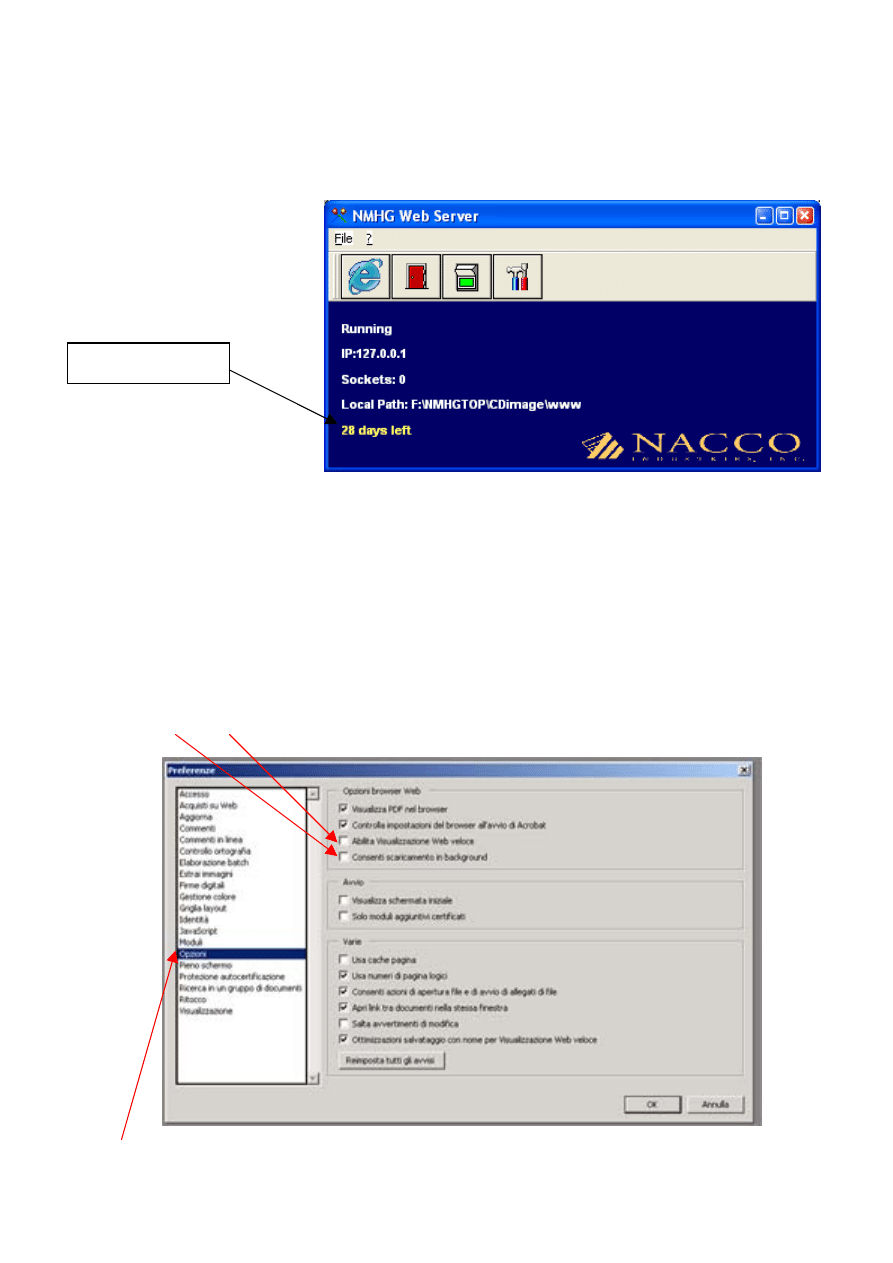
- Auf die NMHG Web Server Ikone des Desktops oder Startmenues clicken, prüfen, ob der lokale Pfad mit
d:\www(wo d ihr CD Rom Laufwerk ist) übereinstimmt. Dieser Pfad kann verändert werden, indem man
den ‘configuration’-Knopf benutzt. Man muss den Web Server neu starten, wenn die Konfiguration
verändert ist.
- Um die chiffrierten Daten zu sehen, CD in Ihr CD Romlaufwerk einfügen und den Knopf anklicken.
Dies startet Ihren Standard Web Browser (bevorzugt MS Internet Explorer 5.0 oder aktueller) und öffnet
die CD-HOME PAGE automatisch.
- Es ist sehr wichtig den NMHG Web Server zu schliessen wenn sie fertig sind, indem Sie den
EXIT Knopf benutzen.
Start Navigation
Knopf/Button
Lokalpfad
Software Status
Exit Knopf/button
Start / Stop Software
Knopf/button
Configuration
Knopf/Button
Verfall:
- Die ‘reader/Leser’ Software ist programmiert um damit 1 Jahr zu arbeiten (bis 31/12/XX). Danach
kann der Benutzer durch Reaktivierungsfiles, erhältlich von NMHG, reaktiviert werden. Weitere
Informationen bezüglich dieser Reaktivierungsdateien werden Ihnen von Service Bulletin
zugeschickt werden.
Verfallswarnung –
30 Tage vorher
Adobe Acrobat Reader Einstellungen (Nur Version 5.0 or aktueller):
- Für eine schnelle Ansicht der auf der CD-ROM enthaltenen PDF-Dateien, wenn Sie Adobe Acrobat
Reader oder Adobe Acrobat 5.0 oder aktueller benutzen, bitte verichern Sie sich, dass das
Allgemeine Preferenzen Fenster Optionen ( unter Editi-Preferences – General – Options) so wie
Unten gezeigt eingestellt ist, besonders ‘Allow fast Web Viewing’ und ‘consent download in
background’ dürfen nicht aktiviert werden.
- Öffnen Sie Adobe Acrobat Reader, oder Adobe Acrobat das für die Ansicht der auf der CD-ROM
enthaltenen pdf-Dateien benutzt wird, unter dem ‘Edit’ – Menue ‘Preferences’ und dann ‘General’
und zum Schluß ‘Options’. Wählen Sie options wie unten gezeigt und clicken Sie auf ‘OK’.
NO NO
OPTIONS
BIENVENIDOS AL NMHG WEB SERVER
Requisitos Mínimos de Sistema:
- Pentium I 166 Mhz
- 32 MB de RAM
- MS Windows 98 (o superior)
- MS Explorer 5.0 (o superior)
- MS Explorer 5.5 (o superior)
- Adobe Acrobat Reader 5.0 (o superior) disponible gratuitamente en: www.adobe.com
Instalación:
- Cerrar todas las aplicaciones y programas antes de empezar la instalación.
- Hacer clic en el icono flsetup.exe, la carpeta de instalación ‘C:\programmi\NHMG_web_server’ puede
modificarse si fuera necesario usando el pulsador 'hojear'. También se pueden instalar automáticamente
conexiones al software en su escritorio y en el menú de inicio de su PC, para hacerlo, seleccionar las
casillas 'Crear carpeta en el menú de inicio' y 'Put shortcut on the desktop'.
- Hacer clic en ‘ACEPTAR’ para efectuar la instalación o ‘Salir’ para salir de la instalación.
- Cuando la barra de estado llega al 100%, la instalación ha terminado, hacer clic en ‘ACEPTAR’.
- La instalación ha terminado.
Desinstalación:
- Hacer clic en el icono 'Desinstalación NMHG Web Server' que se encuentra en el menú de inicio del PC
o bien en la carpeta de instalación del software NMHG Web Server.
Instrucciones de uso:
- Insertar el CD que contiene los datos codificados en el lector de CD-ROM.
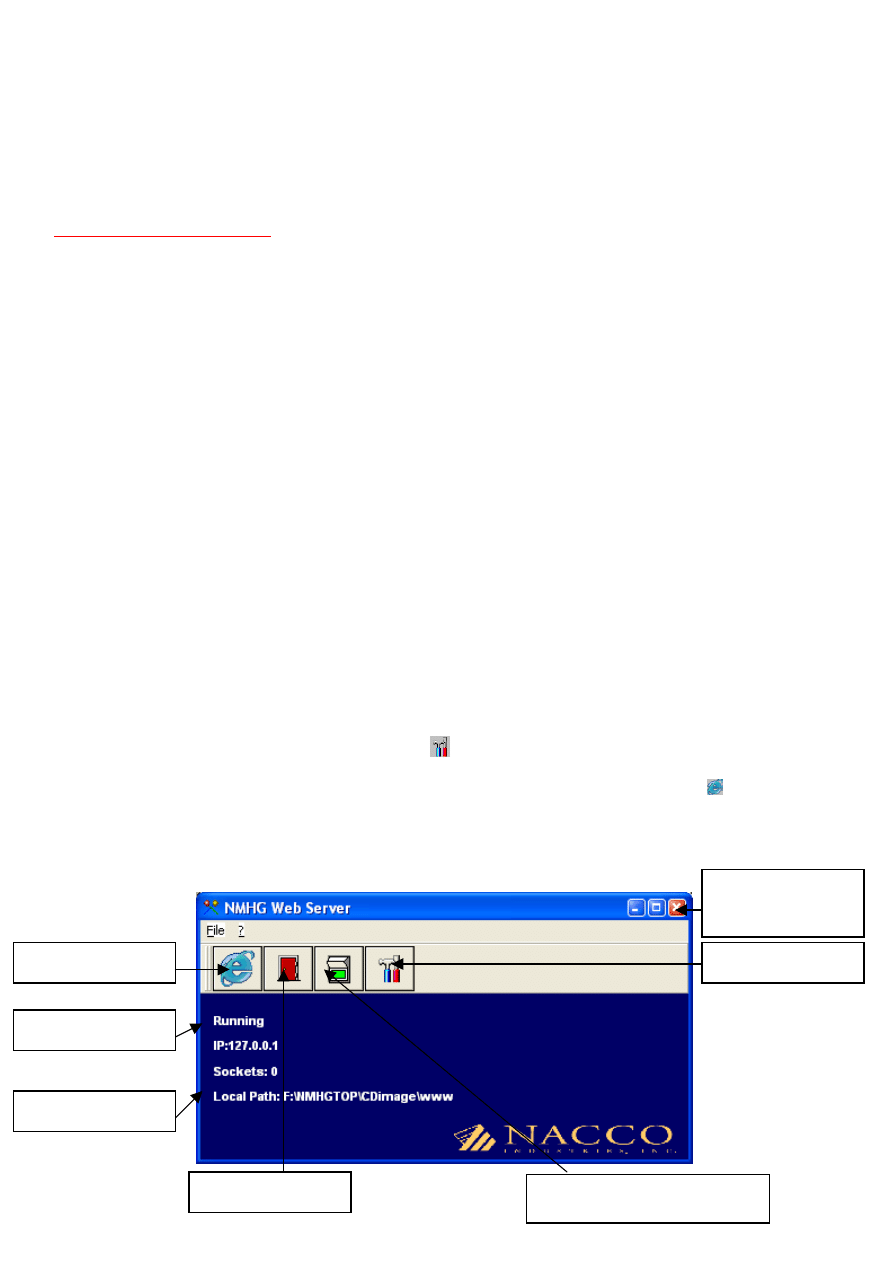
- Hacer clic en el icono ‘NMHG Web Server’ que se encuentra en el menú de inicio o en el escritorio del
PC. Controlar que ‘Local Path’ corresponda a D:\www (donde D es el lector de CD), esta ruta de acceso se
puede modificar usando el pulsador ‘configuración’
, es necesario salir de la aplicación y reinicializar si
se alteran los valores de configuración.
- Para visionar los ficheros codificados en el CD, hacer clic en el pulsador de navegación , arrancará su
navegador estándar (normal y preferentemente Internet Explorer) que abrirá automáticamente la página
inicial del CD.
- Cuando la visión de los ficheros codificados ha terminado, es obligatorio cerrar el software
NMHG Web Server usando el pulsador ‘Salida’ y NO el pulsador de cierre software.
Pulsador de cierre
software –
NO
USAR
Pulsador de
configuración
Pulsador de
navegación
Local path (ruta de
acceso)
Estado Software
Pulsador ‘Salida’
Pulsador activación /
desactivación software
Caducidad:
- NMHG Web Server está programado para funcionar un año (hasta el 31/12/XX), a fin de año el
software se puede renovar para otro año de funcionamiento mediante un pequeño fichero de
actualización que NMHG pone a disposición. Más información sobre la renovación anual les será
enviada por NMHG mediante Boletín Técnico. No hay costes adicionales para el software NMHG
Web Server y los costes de licencia están cubiertos por NMHG.
Aviso de caducidad
cada día con treinta
días de preaviso
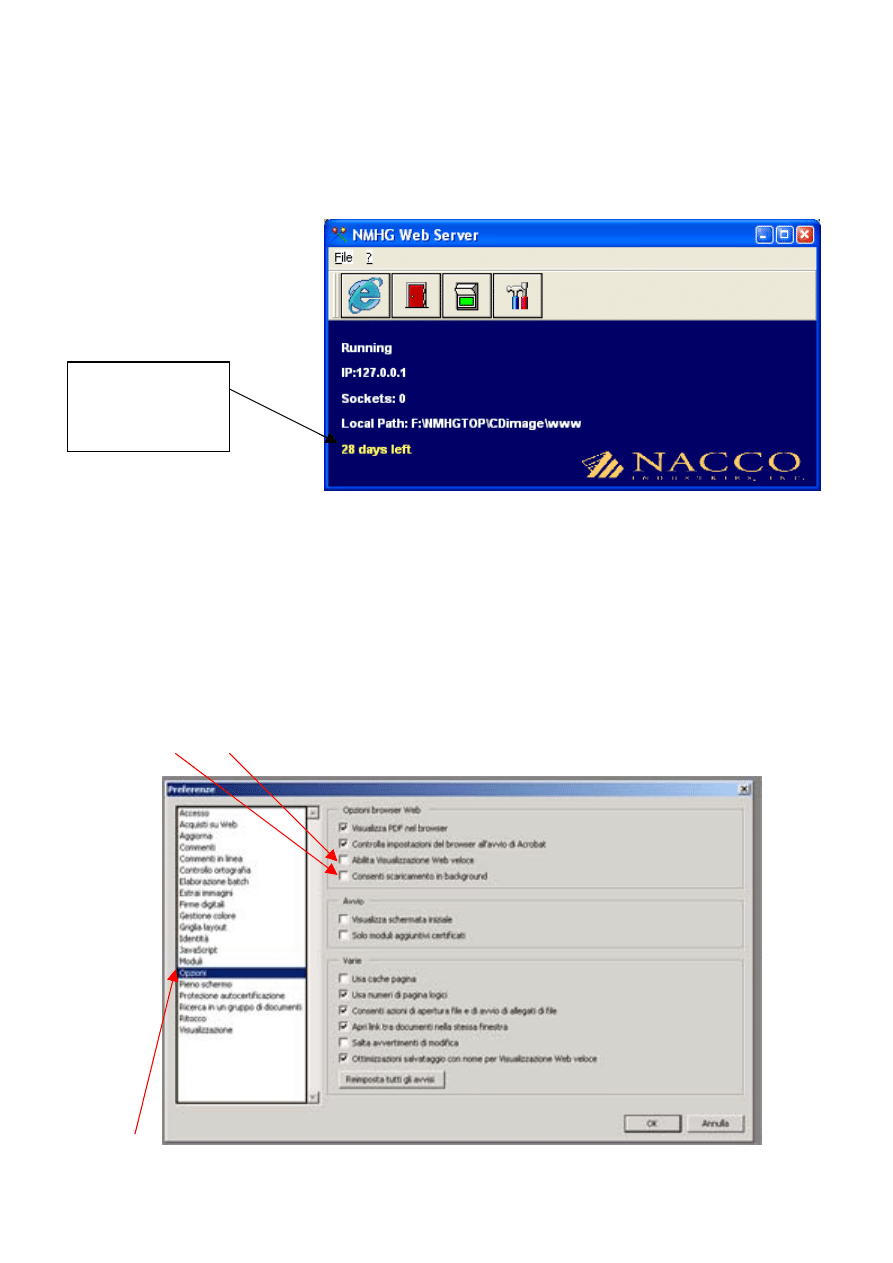
Configuraciones óptimas Adobe Acrobat Reader (Sólo versión 5.0 o superiores):
- Para visionar rápidamente los ficheros PDF que se encuentran en los CDs usando Adobe Acrobat
Reader o Adobe Acrobat versión 5 o superior, asegurarse que las opciones de las Preferencias
Generales (bajo Modificación – Preferencias – Generales - Opciones) aparezcan como puede
verse a continuación. Más concretamente que ‘Permitir Vista rápida en Web’ y ‘Permitir
transferencia en segundo plano’ NO estén seleccionadas.
- Abrir Adobe Acrobat Reader o Adobe Acrobat usado para visionar los ficheros PDF en el CD, bajo
‘Modificación’ seleccionar ‘Preferencias’ luego ‘Generales’ y, por último, ‘Opciones’. Seleccionar las
opciones como se indica a continuación y luego hacer clic en ‘ACEPTAR’.
NO NO
OPCIONES
BIENVENUE SUR LE SERVEUR NMHG
Configuration minimale requise:
- Pentium I 166 Mhz
- 32 Mo de RAM
- MS Windows 98 (ou supérieur)
- MS Explorer 5.0 (ou supérieur)
- MS Explorer 5.5 (ou supérieur)
- Adobe Acrobat Reader 5.0 (ou supérieur) disponible gratuitement sur le site
Installation :
- Fermez toutes les applications et les programmes avant de commencer l’installation.
- Cliquez sur l’icône flsetup
.exe
; Si nécessaire le fichier d’installation par défaut
« C:\programmes\NHMG_web_server » peut être modifié en utilisant le bouton « Parcourir ». Il est en outre
possible d’installer automatiquement des liens au logiciel sur votre bureau et dans le menu Démarrer de
votre ordinateur, pour le faire, cocher les cases « Créer un dossier dans le menu Démarrer » et « créer un
raccourci sur le bureau » (Put shortcut on the desktop).
- Cliquez sur « OK » pour lancer l’installation ou « Annuler » pour quitter l’installation.
- Quand la barre d’état arrive à 100%, l’installation est complète, cliquez sur « OK ».
- L’installation a été terminée .
Désinstallation :
- Cliquez sur l’icône « Désinstallation NMHG Web Server » qui se trouve dans le menu de démarrage de
l’ordinateur ou bien dans le dossier d’installation du logiciel NMHG Web Server.
Mode d’emploi :
- Insérez le CD contenant les données cryptées dans le lecteur de CD Rom
- Cliquez sur l’icône « NMHG Web Server » qui se trouve dans le menu Démarrer ou sur le bureau de
l’ordinateur. Contrôlez que le Chemin d’accès (Local Path) correspond à D:\www (où D est le lecteur de
CD), ce chemin peut être modifié en utilisant le bouton « configuration »
; il est nécessaire de sortir de
l’application et de redémarrer si les données de configuration ont été modifiées.
- Pour visionner les fichiers cryptés sur le CD, cliquez sur le bouton de navigation pour lancer votre
navigateur standard (habituellement et de préférence Internet Explorer) qui ouvrira automatiquement la
page initiale du CD.
- Quand la vision des fichiers cryptés est terminée, il faut impérativement fermer le logiciel NMHG
Web Server en utilisant le bouton ‘Sortie’ mais PAS le bouton de fermeture du logiciel.
Bouton de
configuration
Bouton de
navigation
Local path (chemin)
Etat Logiciel
Bouton “Sortie”
Bouton activation / désactivation
logiciel
Bouton de fermeture
du logiciel –
NE PAS
UTILISER
Echéance :
- NMHG Web Server est programmé pour fonctionner un an (jusqu’au 31/12/XX), à la fin de l’année
le logiciel peut être réactivé pour une autre année de fonctionnement au moyen d’un petit fichier de
mise à jour disponible chez NMHG. Les informations concernant la réactivation annuelle vous
seront adressées par NMHG à travers le Bulletin Technique. Il n’y a aucun supplément de prix pour
le logiciel NMHG Web Server et les coûts de licence seront couverts par NMHG.
Avis d’échéance
chaque jour avec un
préavis de trente
jours
Configuration Optimale de Adobe Acrobat Reader (Version 5.0 seulement ou supérieure) :
- Pour visionner rapidement les fichier PDF contenus dans les CD en utilisant Adobe Acrobat Reader
ou Adobe Acrobat version 5 ou supérieure, vérifier que les options des Préférences (Menu Edition -
Préférences - Générales - Options) sont comme indiqué dans la fenêtre ci-dessous. Notamment
que les options « Autoriser l’affichage rapide des pages Web » et « Autoriser le téléchargement en
tâche de fond » NE SONT pas sélectionnées.
- Lancer Adobe Acrobat Reader ou Adobe Acrobat, utilisé pour visionner les fichiers PDF sur le CD,
puis sous « Edition » sélectionnez « Préférences » puis « Générales » et enfin « Options ».
Sélectionnez « options » comme ci-dessous puis cliquez sur ‘OK’.
NON NON
OPTIONS
Wyszukiwarka
Podobne podstrony:
MagnetLoop Help id 276752 Nieznany
cd help id 109152 Nieznany
Abolicja podatkowa id 50334 Nieznany (2)
4 LIDER MENEDZER id 37733 Nieznany (2)
katechezy MB id 233498 Nieznany
metro sciaga id 296943 Nieznany
perf id 354744 Nieznany
interbase id 92028 Nieznany
Mbaku id 289860 Nieznany
Probiotyki antybiotyki id 66316 Nieznany
miedziowanie cz 2 id 113259 Nieznany
LTC1729 id 273494 Nieznany
D11B7AOver0400 id 130434 Nieznany
analiza ryzyka bio id 61320 Nieznany
pedagogika ogolna id 353595 Nieznany
Misc3 id 302777 Nieznany
cw med 5 id 122239 Nieznany
więcej podobnych podstron