
Nokia Developer’s Suite for the Java™ 2 Platform,
Micro Edition Version 2.0 for Windows
Installation Guide
F O
N O K I A
R U M
Version 1.0; June 09, 2003

Forum.Nokia.com
Contents
Nokia Developer’s Suite for J2ME™ Installation Guide
2
Forum.Nokia.com
Change History
09 June 2003
V1.0
Initial document release
Nokia Developer’s Suite for J2ME™ Installation Guide
3

Forum.Nokia.com
Disclaimer
The information in this document is provided ”as is,” with no warranties whatsoever, including any warranty of merchantability, fitness
for any particular purpose, or any warranty otherwise arising out of any proposal, specification, or sample. Furthermore, information
provided in this document is preliminary, and may be changed substantially prior to final release. This document is provided for
informational purposes only.
Nokia Corporation disclaims all liability, including liability for infringement of any proprietary rights, relating to implementation of
information presented in this document. Nokia Corporation does not warrant or represent that such use will not infringe such rights.
Nokia Corporation retains the right to make changes to this specification at any time, without notice.
The phone UI images shown in this document are for illustrative purposes and do not represent any real device.
Copyright © 2001-2003 Nokia Corporation.
Nokia and Nokia Connecting People are registered trademarks of Nokia Corporation.
Java and all Java-based marks are trademarks or registered trademarks of Sun Microsystems, Inc.
Other product and company names mentioned herein may be trademarks or trade names of their respective owners.
License
A license is hereby granted to download and print a copy of this specification for personal use only. No other license to any other
intellectual property rights is granted herein.
Nokia Developer’s Suite for J2ME™ Installation Guide
4

Forum.Nokia.com
Nokia Developer’s Suite for J2ME™
Installation Guide
Version 1.0; June 09, 2003
1 Overview
The following steps will guide the installation of Nokia Developer’s Suite for the Java
TM
2 Platform, Micro Edition, Version
2.0 for Windows. This set of applications includes also Nokia 7210 MIDP SDK 1.0 and Nokia Series 60 MIDP Concept
SDK Beta 0.3, Nokia edition. The software can be integrated with Borland JBuilder IDE (tested with versions 8 and 9) or
Sun™ ONE Studio 4, Mobile Edition.
2 System
requirements
Nokia Developer’s Suite for J2ME
TM
and the supported Nokia SDKs require the following software and hardware
components:
Basic requirements:
• Microsoft Windows 2000 (SP 2) or Microsoft Windows XP (SP 1)
• Java™ 2 Runtime Environment (JRE™), Standard Edition 1.4.1
• Internet connection (for the registration procedure).
Requirements specific to installation options:
1. Nokia Developer’s Suite for J2ME
TM
as a standalone application (without IDE integration):
• A Pentium 300MHz or faster processor (350MHz recommended)
• 256 megabytes of RAM
• 100 megabytes of free disk space
If you install additional emulators, consult the installation guide of each emulator for its disk space requirements.
2. Nokia Developer’s Suite for J2ME
TM
integrated with Borland JBuilder IDE:
• Processor speed, RAM and hard disk space requirements as for JBuilder
3. Nokia Developer’s Suite for J2ME
TM
integrated with Sun™ ONE Studio 4, Mobile Edition.
• Processor speed, RAM and hard disk space requirements as for Sun™ ONE Studio 4, Mobile Edition.
Nokia Developer’s Suite for J2ME™ Installation Guide
5

Forum.Nokia.com
3 Optional pre-installation requirements
To be able to use this product you will need a serial number. This can be retrieved for free of charge from Forum Nokia
website, Tools & SDKs section or it can be received during the installation via email. During the installation, you must
use the serial number you received from Forum Nokia. You cannot use a serial number received by another user. The
installation program describes how to get the serial number for this product by using your current username if the serial
number is not available yet. The serial number will be sent to the e-mail address designated in your Forum Nokia
account.
Borland JBuilder together with JBuilder MobileSet. (See Borland documentation for more information.)
Sun™ ONE Studio 4, Mobile Edition. To utilize the KVM-debugging capabilities of Sun™ ONE Studio 4, Mobile
Edition, J2ME™ Wireless Toolkit 1.0.4 or 2.0 must be installed.
Network connection is needed to complete the installation if the user does not have a Forum Nokia account and/or a
serial number for this product.
4 Installation
options
Three different installation sets can be chosen during the installation (see Chapter 5). Each selection includes a different
set of files. You should carefully check the system requirements before selecting the install set.
4.1
Without IDE integration (as a standalone application)
Requirements:
Java 2 Platform, Standard Edition version 1.4.1 (Please update your path/environment settings correspondingly).
Files included with this feature:
• Nokia Developer’s Suite for J2ME
TM
basic files
• Nokia 7210 MIDP SDK 1.0 including emulator, J2ME™/MIDP classes and documentation
• Series 60 MIDP Concept SDK Beta 0.3, Nokia edition including emulator, J2ME™/MIDP classes and
documentation
• MIDP example applications with source code
• MIDI example files
• Documentation
• Uninstaller
4.2
Integration with Borland JBuilder
Requirements:
Borland JBuilder IDE (tested with versions 8 and 9) together with JBuilder MobileSet 3.01
Files included with this feature:
• Nokia Developer’s Suite for J2ME
TM
basic files
• Nokia Developer’s Suite for J2ME
TM
integration files for Borland JBuilder
• Nokia 7210 MIDP SDK 1.0 including emulator, J2ME™/MIDP classes and documentation
Nokia Developer’s Suite for J2ME™ Installation Guide
6

Forum.Nokia.com
• Series 60 MIDP Concept SDK Beta 0.3, Nokia edition including emulator, J2ME™/MIDP classes and
documentation
• MIDP example applications with source code
• MIDI example files
• Documentation
• Uninstaller
4.3
Integration with Sun™ ONE Studio 4, Mobile Edition
Requirements:
Sun™ ONE Studio 4, Mobile Edition. Note that the KVM-debugging capabilities require the installation of J2ME
TM
Wireless Toolkit 1.0.4 or 2.0.
Files included with this feature:
• Nokia Developer’s Suite for J2ME
TM
basic files
• Nokia Developer’s Suite for J2ME
TM
integration files for Sun™ ONE Studio 4, Mobile Edition
• Nokia 7210 MIDP SDK 1.0 including emulator, J2ME™/MIDP classes and documentation
• Series 60 MIDP Concept SDK Beta 0.3, Nokia edition including emulator, J2ME™/MIDP classes and
documentation
• MIDP example applications with source code
• MIDI example files
• Documentation
• Uninstaller
5 Installation
steps
Before downloading the software, you must either log in as a Forum Nokia member or register (free of charge) at Forum
Nokia. If you have received the software to be installed in some other way and have not yet registered as a Forum Nokia
member, you should register before or during the installation procedure.
During the installation, you can submit your current Forum Nokia username and password, and the corresponding serial
number for the product will then be sent to the e-mail address specified in your Forum Nokia account. The product’s
serial number can also be retrieved from the Tools and SDK section at
Note : If you already have a Forum Nokia account and have received the serial number, installation can be
done without a network connection.
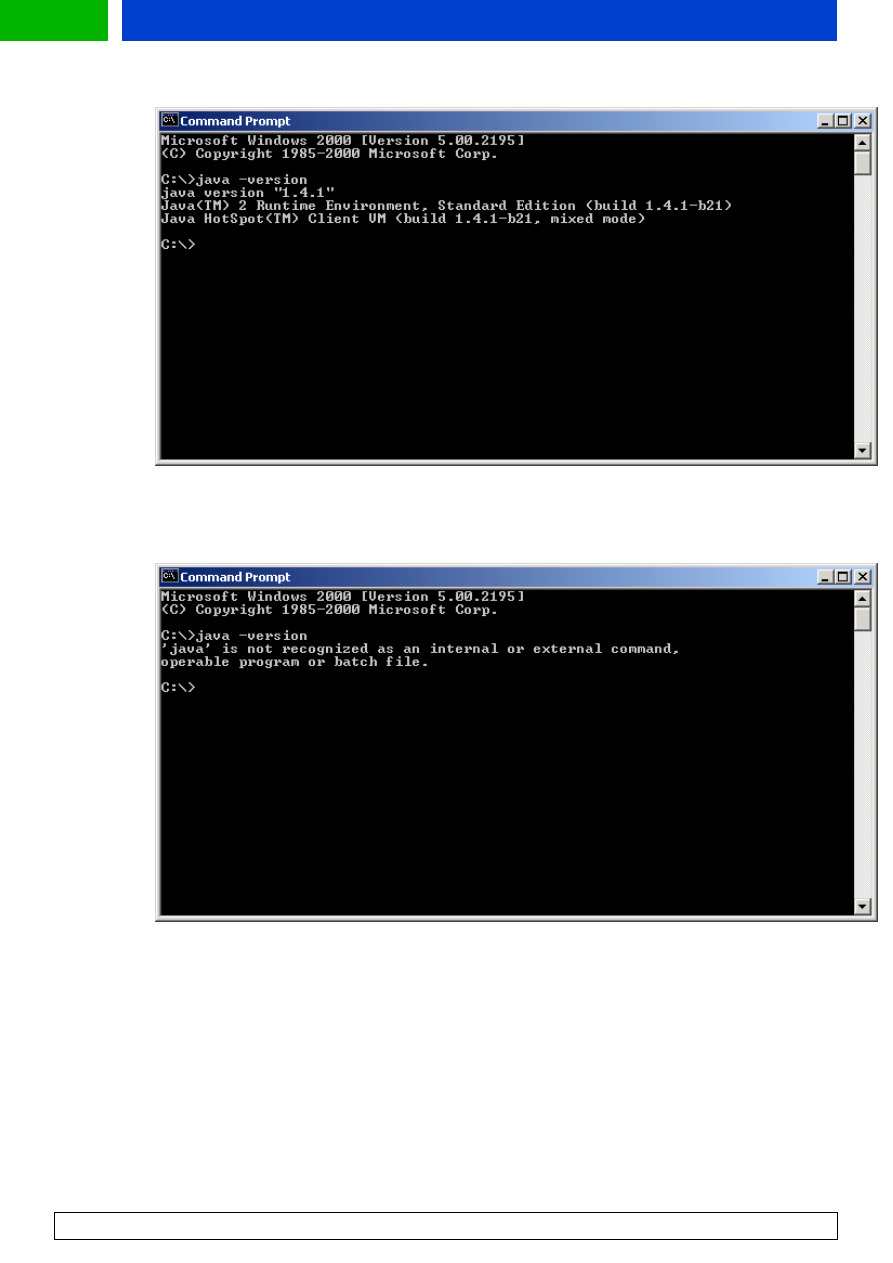
Note : Before you start the installation, you should check that your Java Runtime Environment is found from
system path. Open Command prompt from your PC and type command java –version. The result depends on
your JRE version. Correct result with JRE 1.4.1 is shown in Figure 2. If you will get result as in Figure 3, then
you should install JRE using .exe file that can be downloaded from Sun website. If you know that JRE 1.4.1 is
already in your machine (e.g. with JBuilder), then you need to configure it to system path.
Nokia Developer’s Suite for J2ME™ Installation Guide
7
Forum.Nokia.com
Figure 2. Correct result for Java version check.
Figure 3. Java not configured correctly to the path or not installed at all.
Start by running the installation executable (setup.exe).
Note: At the start of the installation procedure, JRE version will be checked from your system. If current JRE version is
not 1.4.1 or later, information dialog recommending an upgrade to version 1.4.1 is shown.
Step 1. Introduction panel. This panel displays general information about the software to be installed. Press the Next
button to continue.
Nokia Developer’s Suite for J2ME™ Installation Guide
8

Forum.Nokia.com
Step 2. End-user software agreement panel. Read the terms of the license agreement. Accept the terms by selecting the
appropriate option, and then press the Next button to proceed with the installation.
Step 3. Welcome panel.
a. If the Forum Nokia username or the product’s serial number is not available, leave both the username field and the
serial number field empty, and press Next. Go to step 4.
b. If both the Forum Nokia username and the correct product serial number are available, fill in both fields and press
Next. Go to step 8.
Step 4. Proxy settings panel. If the installation program succeeds in automatically detecting the current proxy settings,
these settings are suggested for use. Alternatively, specify the desired settings or select No proxy. If your proxy needs a
username and password, type them in the appropriate fields. Note that the registration procedure requires an
Internet connection. Press the Next button to continue.
Step 5. Registration panel.
a. If you have a Forum Nokia account: Fill in your Forum Nokia username and password, and press the Next button.
You will be connected to the Forum Nokia server, and the serial number will be sent to the e-mail address specified in
your Forum Nokia account.
b. If you do NOT have a Forum Nokia account: Press the Register button, and then register (at
forum.nokia.com/reg_form) as a Forum Nokia member using your Web browser. After typing in your new Forum Nokia
username and password, press the Next button to continue with the installation.
Step 6. Check your e-mail for the serial number. (You must access your e-mail account using a separate application.
You cannot check your e-mail from within the installation program.)
Step 7. Licensing panel. Type in the product serial number and press the Next button.
Step 8. Choose install set panel. Choose the correct install set according to the instructions in Chapter 4. Press Next to
continue.
If you chose to integrate Nokia Developer’s Suite for J2ME
TM
with JBuilder, perform step 9. If Sun™ ONE Studio 4,
Mobile Edition integration was chosen, perform step 10.
Step 9. Select the installation directory of Borland JBuilder panel. The installation directory for JBuilder 8 or 9 will be
suggested. To change the suggested directory, either press the Browse… button or type a new directory. After the
directory for JBuilder has been accepted, press the Next button and go to step 11.
Step 10. Select the installation Directory of your SUN IDE panel. The installation directory for SUN™ One Studio 4,
Mobile Edition is suggested. To change the suggested directory, either press the Browse… button or type a new
directory. After the directory for your SUN IDE has been accepted, press the Next button and go to step 11.
Step 11. Choose an installation directory panel. Either press the Browse… button to select the installation directory, or
type the directory name in the directory path field. After the location has been accepted, press the Next button.
Step 12. Pre-installation summary panel. Check that the installation locations are correct. Press the Install button. The
installation will be completed. After installing you will be prompted whether you wish to read product release notes.
Step 13. Restart your computer after the installation is complete.
Nokia Developer’s Suite for J2ME™ Installation Guide
9
Forum.Nokia.com
6 Uninstallation
steps
Select one of the following options to start the uninstaller:
• Navigate the Windows Start menu by choosing
Settings | Control Panel | Add/Remove Programs | Nokia Developer’s Suite v2.0 for J2ME
TM
and then press the Change/Remove button.
• Navigate the Windows Start menu as follows:
Programs | Nokia Developer Tools | Nokia Developer’s Suite 2.0 for J2ME™ |Uninstall
• Run the following executable in the installation directory of Nokia Developer’s Suite v2.0 for J2ME™:
Uninstaller.exe
7 Getting
started
1) If Nokia Developer’s Suite for J2ME
TM
is used as a standalone application, navigate the Windows Start menu as
follows:
Programs | Nokia Developer Tools | Nokia Developer’s Suite 2.0 for J2ME™ | Run as a Standalone
2) If Nokia Developer’s Suite for J2ME
TM
is used with JBuilder or Sun™ ONE Studio 4, Mobile Edition, start from the
following menu in your IDE:
Tools | Nokia Developer's Suite for J2ME™
3) See User's Guide for more information. You can open it from the Windows Start menu as follows:
Programs |Nokia Developer Tools| Nokia Developer's Suite 2.0 for J2ME™ | User’s Guide
8 Troubleshooting
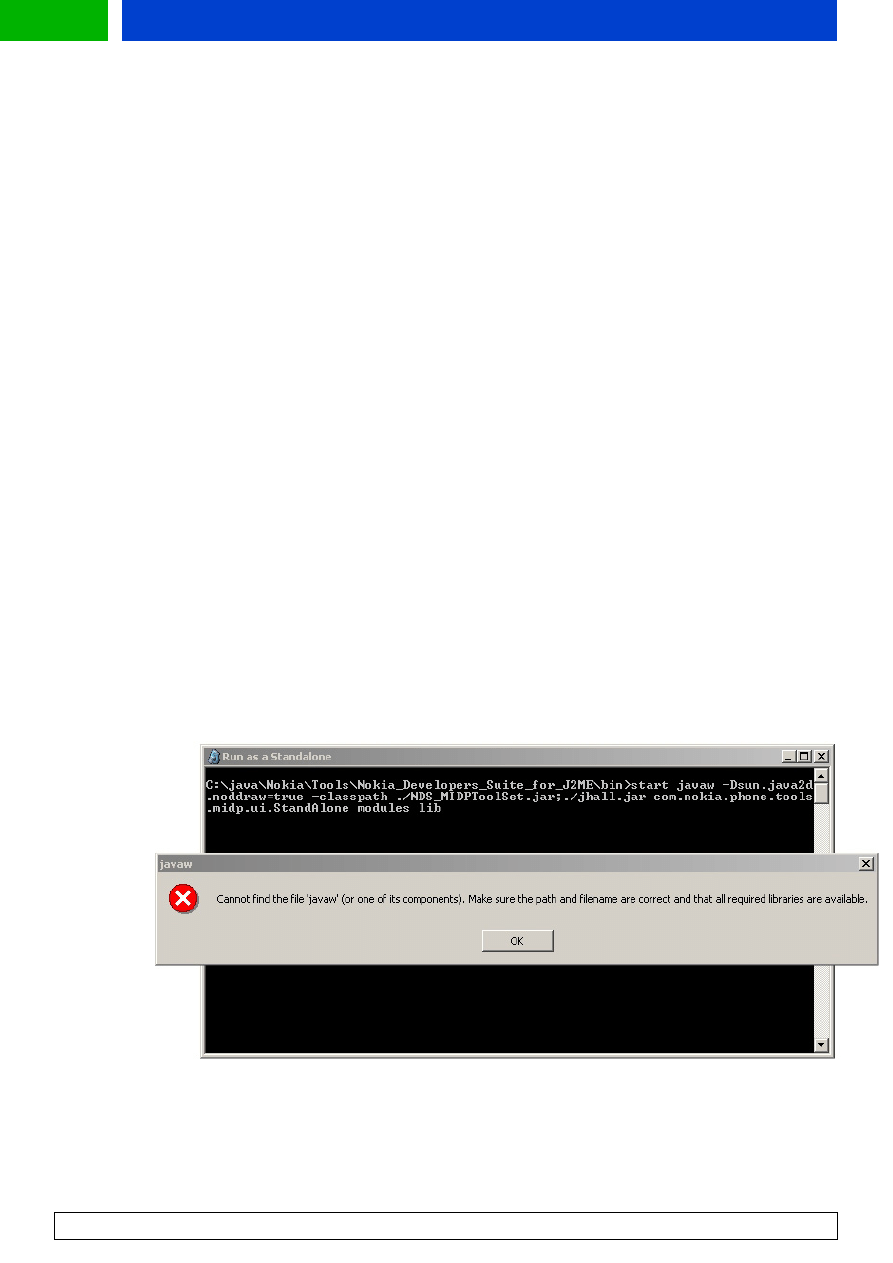
Problem #1: Installer informs that an older version of Nokia Developer’s Suite for J2ME™ exists
The installer displays following notification when an older version of NDS for J2ME™ is detected:
Nokia Developer’s Suite for J2ME™ Installation Guide
10
Forum.Nokia.com
Nokia Developer’s Suite for J2ME™ Installation Guide
11
Possible cause: The previous version of NDS for J2ME™ has not been uninstalled or has been uninstalled partially.
Suggested solution:
1) Uninstall previous version of NDS for J2ME™. Select one of the following options to start the uninstaller:
• Navigate the Windows Start menu by choosing
Settings | Control Panel | Add/Remove Programs |
Choose the previous version of Nokia Developer’s Suite for J2ME™ and press the Change/Remove button
• Navigate the Windows Start menu as follows:
E.g. uninstall for version 1.1
Programs | Nokia Developer's Suite | v1.1 for J2ME™ | Uninstall
• Run the following executable in the installation directory of Nokia Developer’s Suite for J2ME™:
Uninstaller.exe
2) If you already have run uninstaller and the installer still informs about previous version of NDS for J2ME™, remove
the registry key for NDS for J2ME™ as follows:
Navigate Windows Start menu by choosing Run, then type regedit to start the registry editor
Remove following registry key: HKEY_LOCAL_MACHINE\SOFTWARE\Nokia\Nokia Developer's Suite for J2ME
Problem #2: Nokia Developer’s Suite for J2ME™ won’t start from Windows Start-menu
For example, the following notification is shown:
Possible cause: Java™ Runtime Environment (JRE) is not found from the system path.
Suggested solution: You should install JRE using .exe file that can be downloaded from Sun website. If you know that
JRE 1.4.1 is already in your machine (e.g. with JBuilder), then you need to configure it to system path.
Document Outline
- Overview
- System requirements
- Optional pre-installation requirements
- Installation options
- Installation steps
- Uninstallation steps
- Getting started
- Troubleshooting
Wyszukiwarka
Podobne podstrony:
opracowania ochr instal n nap i Nieznany
Monter instalacji klimatyzacyjn Nieznany
09 wspolczesne instalacje miesz Nieznany
monaz instalacji elektrycznej i Nieznany
I 3a Wiadomosci podstawowe v2 i Nieznany
Oracle10g instalacja v2.1
Instrukcja instalacji programu Nieznany
Kompilacja i instalacja Apache' Nieznany
cw2 projektowanie instalacji id Nieznany
1 Usuwanie NOx w instalacji od Nieznany (2)
instrukcja instalacji polskiej Nieznany
81 Nw 02 Instalacje wodociagowe Nieznany
10 Montaz instalacji telekomuni Nieznany
Instrukcja instalacji programu Nieznany (2)
opracowania ochr instal n nap i Nieznany
Monter instalacji klimatyzacyjn Nieznany
PRZ OPI wyklad 3 v2 pdf id 4033 Nieznany
więcej podobnych podstron