1 - 39
CCNP: Optimizing Converged Networks v5.0 - Lab 6-5
Copyright
© 2007, Cisco Systems, Inc
Lab 6.5 Configuring LEAP
Learning Objectives
• Install the Cisco Secure ACS server on a Windows host PC
• Configure a RADIUS server
• Configure a WLAN to use the 802.1X security protocol and LEAP
• Authenticate with an access point using 802.1X security and LEAP
Topology Diagram
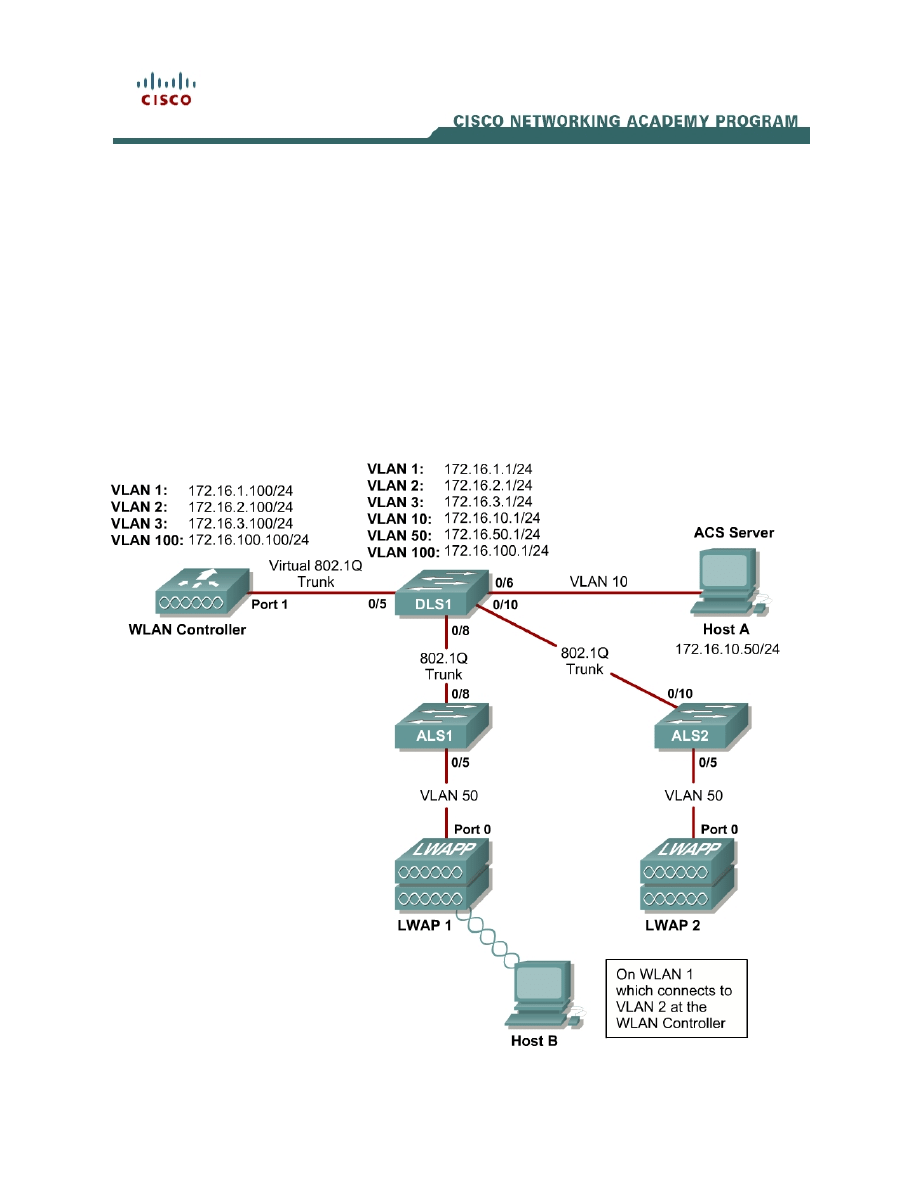
Select the appropriate diagram based upon whether you have external or internal
WLAN controllers:
Figure 1-1: Ethernet Connectivity Diagram for Module 6, External WLAN Controller
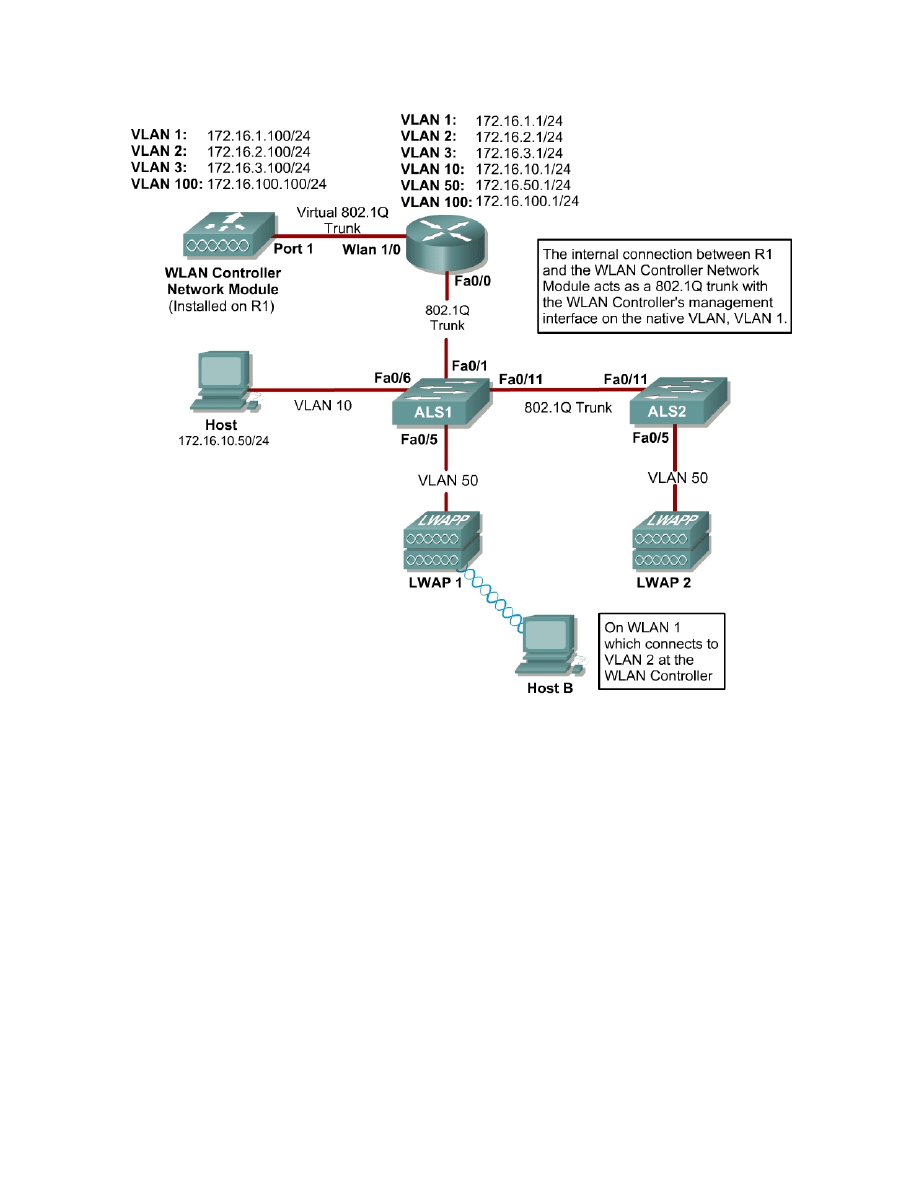
Figure 1-2: Ethernet Connectivity Diagram for Module 6, Internal WLAN Controller
Scenario
In this lab, you will configure and verify 802.1X security in a wireless
environment. The 802.1X authentication protocol is built on the Extensible
Authentication Protocol (EAP) and the RADIUS authentication protocol and
provides per-client authentication and network admission.
This lab requires two separate PCs, Host A and Host B. Host A will act on
VLAN 10 as the Cisco access control server (ACS) and will also be used to
configure the wireless LAN (WLAN) controller the way a PC has been used to
do in previous labs. Host B requires a Cisco wireless network card with the
Aironet Desktop Utility installed. Host B will function as a wireless client on
WLAN 1 which corresponds to VLAN 2.
You may complete this scenario using either the external wireless LAN
controller (WLC) or the network module that resides in a router. However, you
2 - 39
CCNP: Optimizing Converged Networks v5.0 - Lab 6-5
Copyright
© 2007, Cisco Systems, Inc

must load the final configurations from the end of Lab 6.1: Configuring a WLAN
Controller.
We highly recommend that you complete Labs 6.1, 6.2, and 6.3 before
attempting this lab.
Note:
This lab will only go into the details of configuring the 802.1X security
protocol. For more information on using the web interface of the WLC,
consult Lab 6.2: Configuring a WLAN Controller via the Web Interface.
Preparation
Complete Lab 6.1 and ensure that all switches and routers, the WLAN
controller, and the host are configured the way they would be at the end of Lab
6.1.
At the end of Lab 6.1, you should already have the following features configured
and verified:
• VLAN
connectivity
• Trunk
ports
• HTTP access to the WLC
• Lightweight Access Points (LWAPs) associated with the controller
Step 1: Install Cisco Secure ACS
If you have already installed Cisco Secure ACS on Host A, skip this step.
This step will guide you through installing the 90-day trial version of Cisco
Secure ACS on Host A. After you download the trial to Host A and extract it, run
Setup.exe. The installer will start.
Note: At the time of this writing, Cisco Secure ACS will only install and run on
Microsoft Windows Server Editions. You will not be able to run the CiscoSecure
ACS on Microsoft Windows XP.
3 - 39
CCNP: Optimizing Converged Networks v5.0 - Lab 6-5
Copyright
© 2007, Cisco Systems, Inc
Figure 1-1: CiscoSecure ACS Splash Screen
After reading the terms of the license agreement, click ACCEPT to accept
them.
Figure 1-2: CiscoSecure ACS License Agreement
Click Next to continue the installation process.
4 - 39
CCNP: Optimizing Converged Networks v5.0 - Lab 6-5
Copyright
© 2007, Cisco Systems, Inc
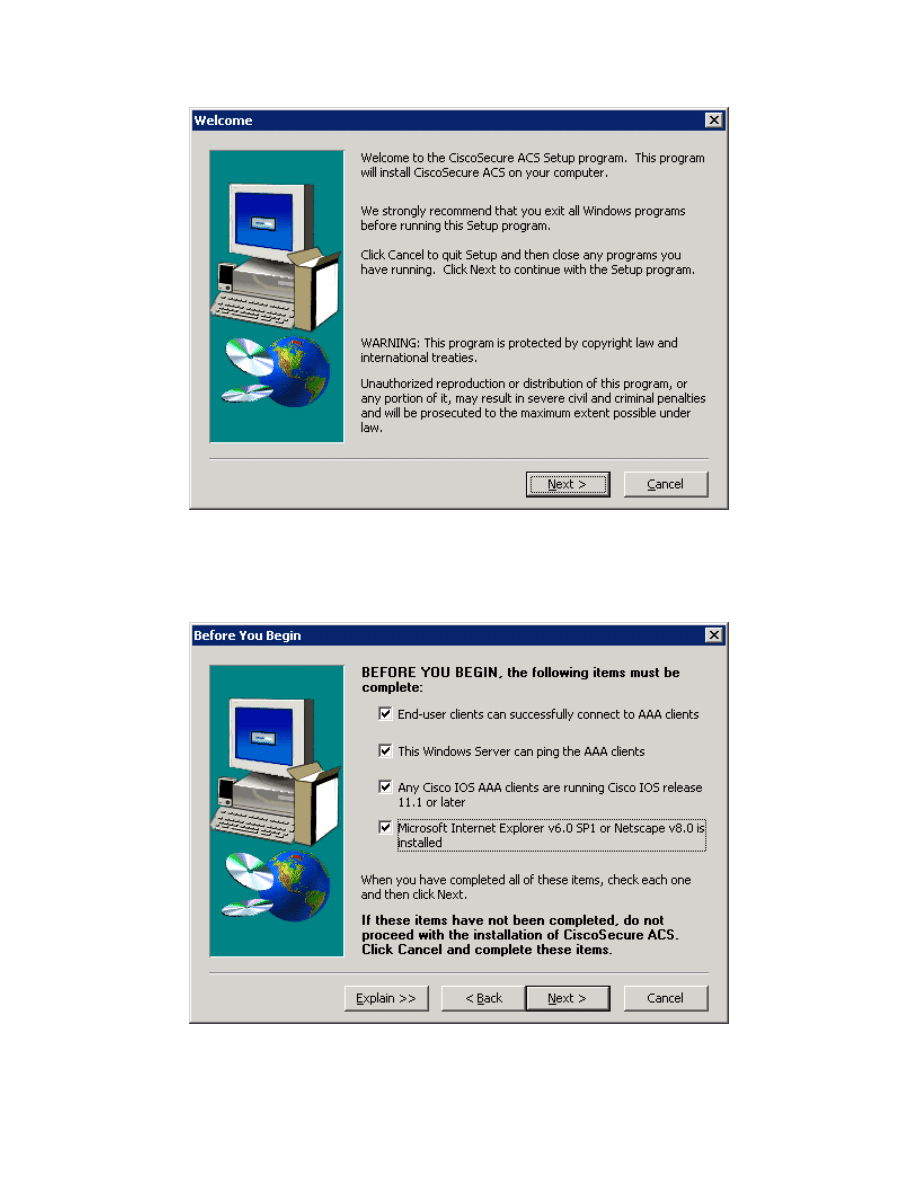
Figure 1-3: CiscoSecure ACS Installation Wizard
Verify that all of the requirements in the checklist are satisfied and check all of
the options before clicking Next again.
Figure 1-4: CiscoSecure ACS Pre-Installation Checklist
5 - 39
CCNP: Optimizing Converged Networks v5.0 - Lab 6-5
Copyright
© 2007, Cisco Systems, Inc
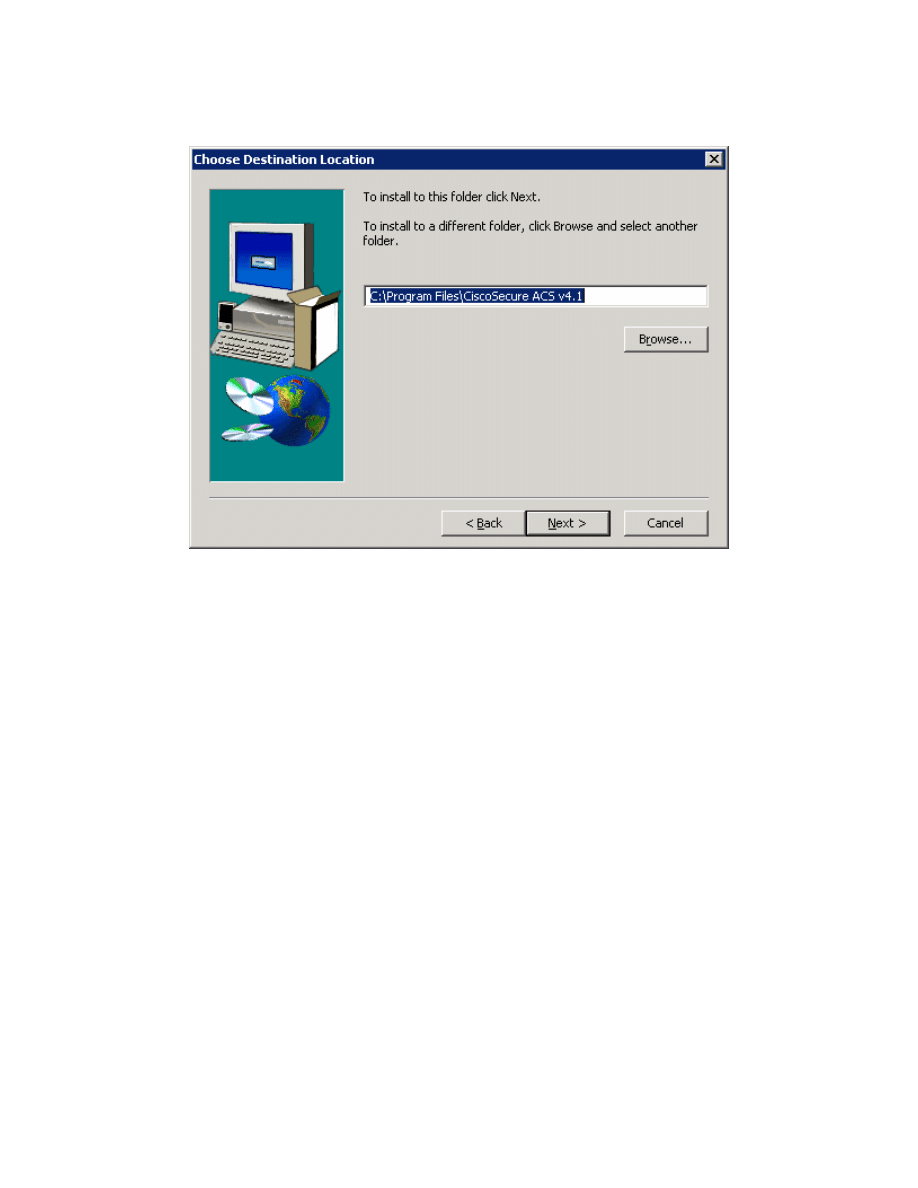
Use the default installation folder and click Next.
Figure 1-5: CiscoSecure ACS Installation Location
CiscoSecure has the ability to authenticate against the Windows User
Database. However, for this lab, choose to only authenticate against the
internal database. Click Next.
6 - 39
CCNP: Optimizing Converged Networks v5.0 - Lab 6-5
Copyright
© 2007, Cisco Systems, Inc
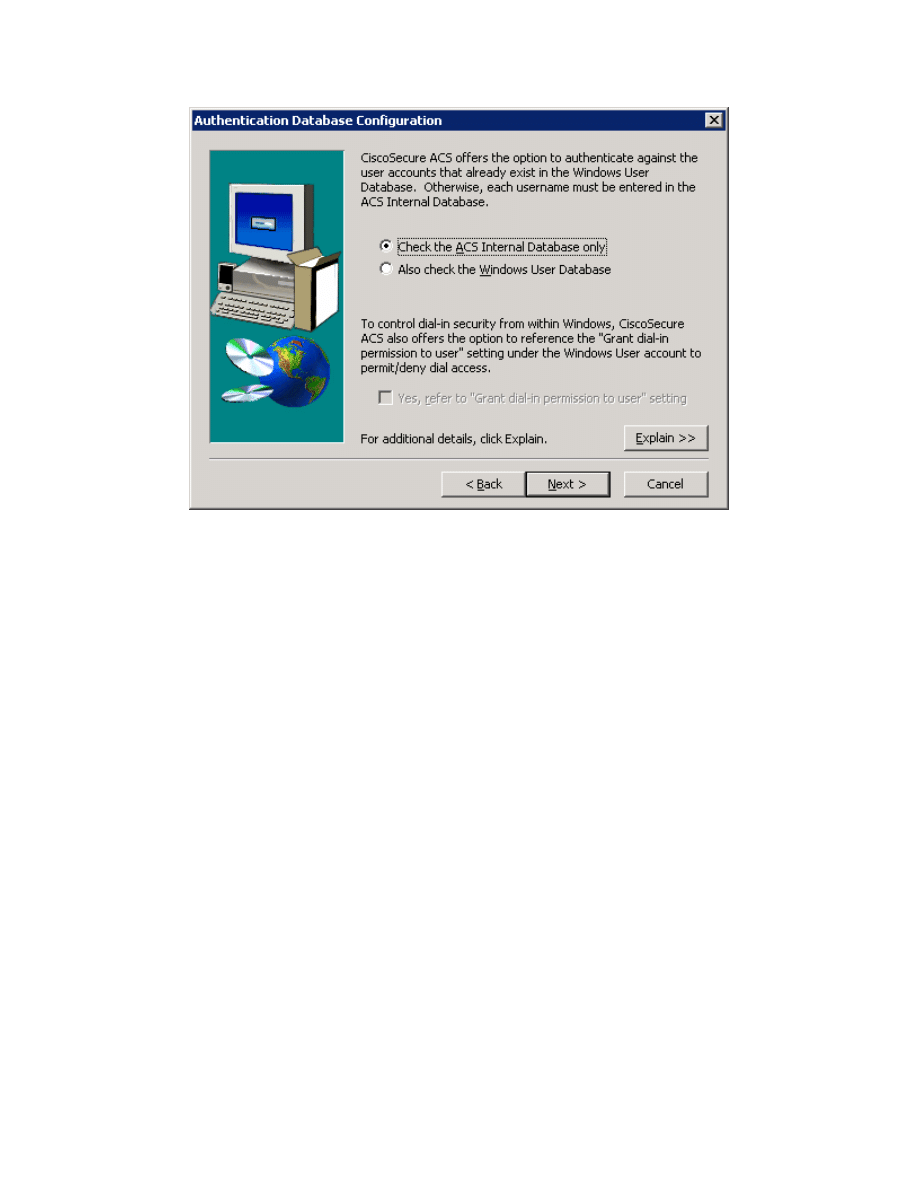
Figure 1-6: CiscoSecure ACS Authentication Database Options
The installer will then begin copying files and registry keys. This process may
take a few minutes.
7 - 39
CCNP: Optimizing Converged Networks v5.0 - Lab 6-5
Copyright
© 2007, Cisco Systems, Inc
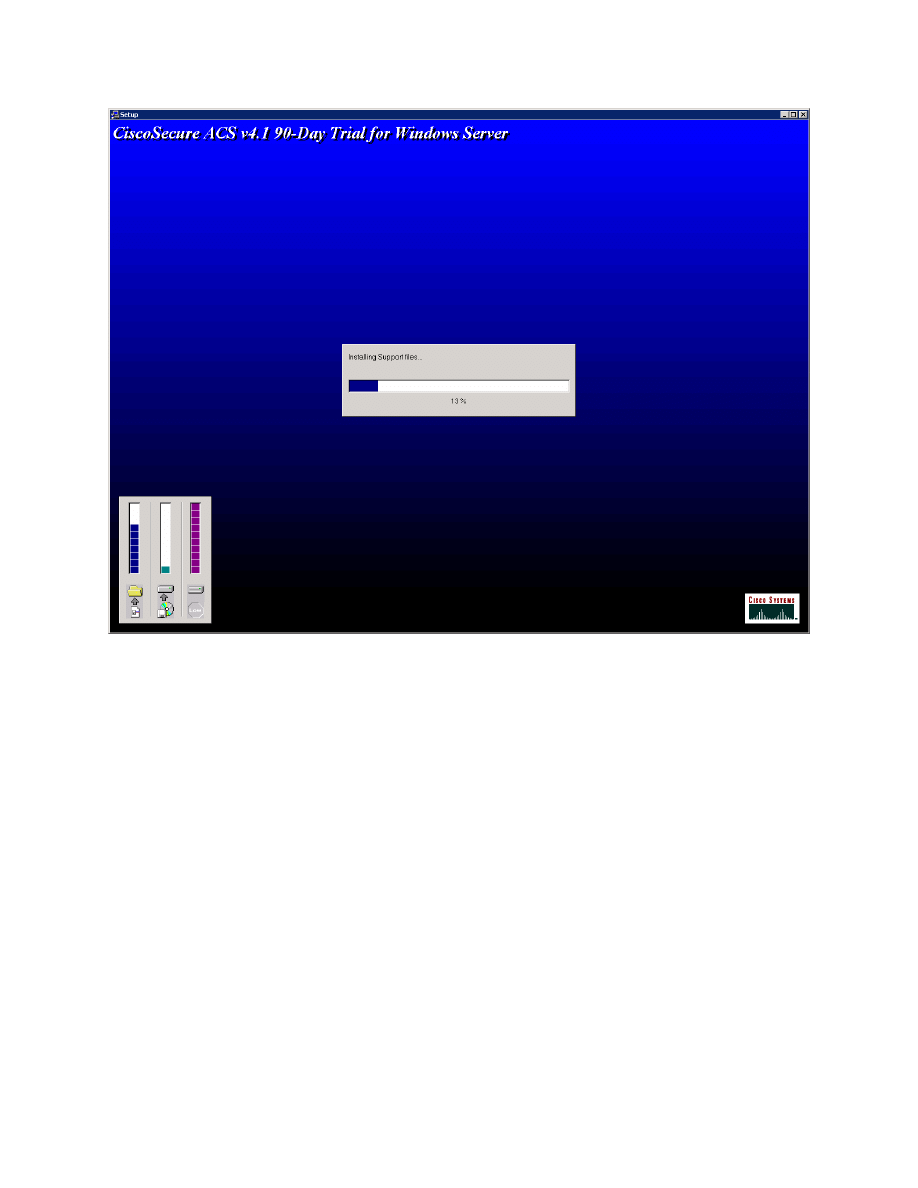
Figure 1-7: CiscoSecure ACS Installation Progress Indicator
At the end of the installation, you will be prompted to indicate if you want to see
any advanced configuration options in the user interface. You do not need to
check any of these. Click Next after reviewing the options.
8 - 39
CCNP: Optimizing Converged Networks v5.0 - Lab 6-5
Copyright
© 2007, Cisco Systems, Inc
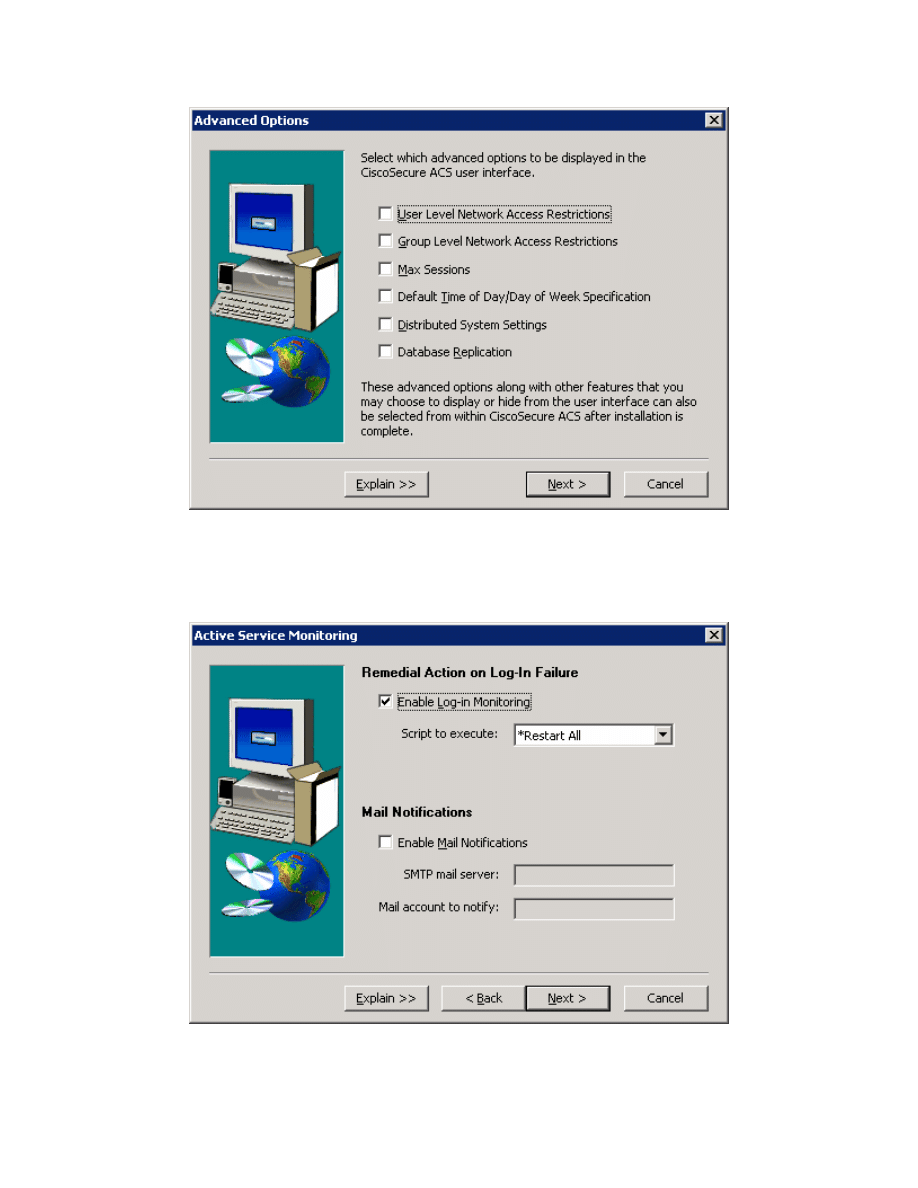
Figure 1-8: CiscoSecure ACS Advanced Configuration Options
Use the default settings in the next step of the installation wizard as well and
click Next.
Figure 1-9: CiscoSecure ACS Log-In
9 - 39
CCNP: Optimizing Converged Networks v5.0 - Lab 6-5
Copyright
© 2007, Cisco Systems, Inc
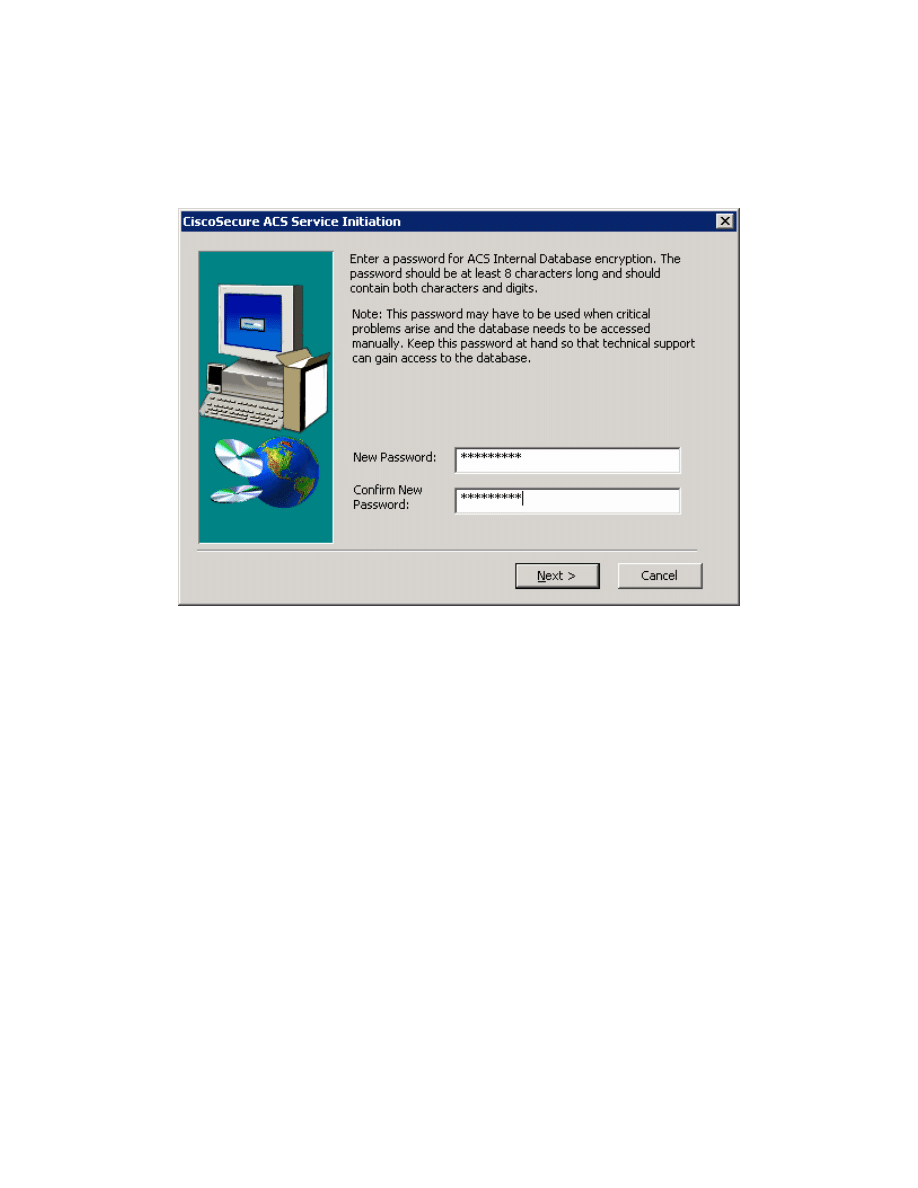
You must create a password for ACS internal database encryption. It must be at
least eight characters long and contain both letters and numbers. In the
example below, “ciscoacs4” was used as a password. After configuring the
password, click Next.
Figure 1-9: CiscoSecure ACS Password Configuration
Choose to start the ACS service on the host now. You should also select the
option to start the administration window after the installer ends to verify the
installation. Click Next after selecting the correct options.
10 - 39
CCNP: Optimizing Converged Networks v5.0 - Lab 6-5
Copyright
© 2007, Cisco Systems, Inc
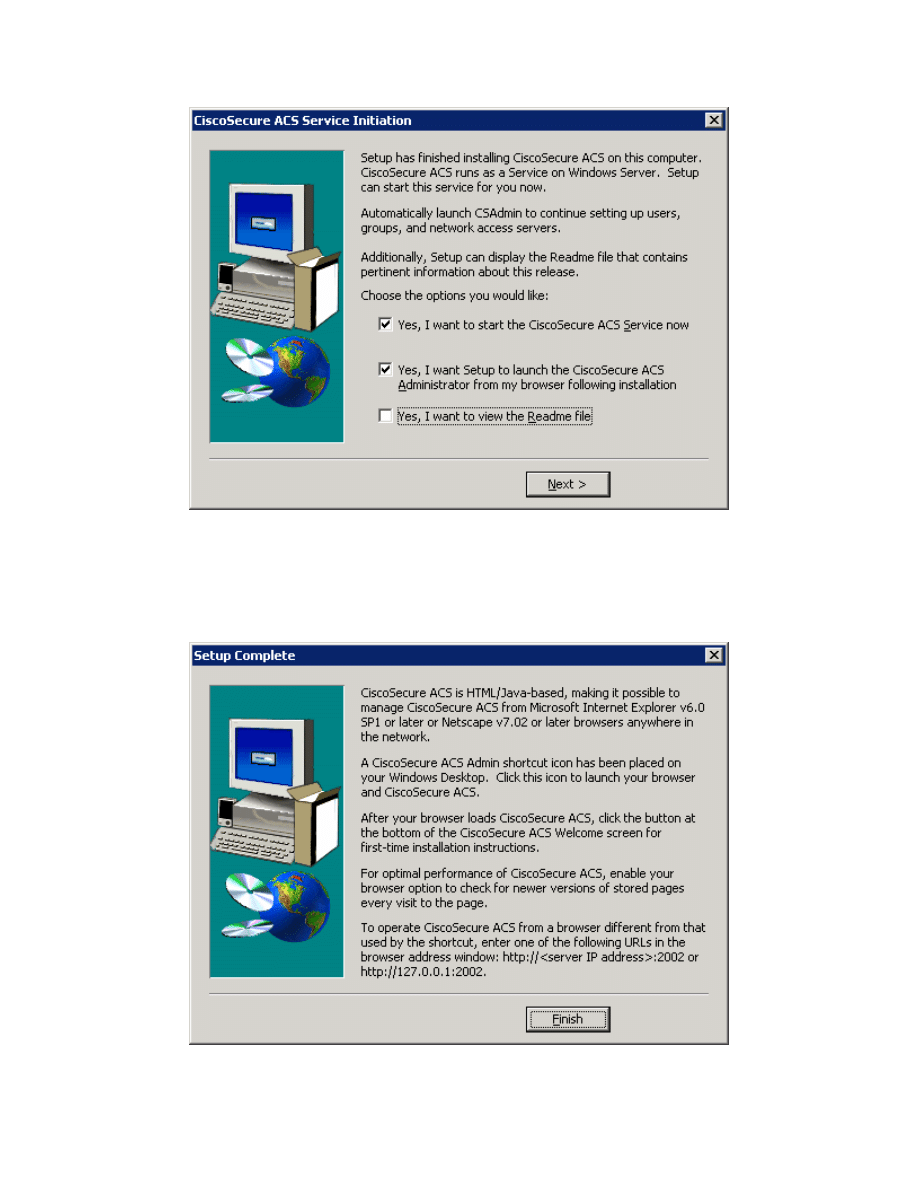
Figure 1-10: CiscoSecure ACS Service Configuration
Read the instructions and click Finish. You should also make sure your
computer is compliant with all ACS access requirements, complying with the
supported versions of Internet Explorer and the Java Runtime Environment.
Figure 1-11: CiscoSecure ACS Installation Complete Window
11 - 39
CCNP: Optimizing Converged Networks v5.0 - Lab 6-5
Copyright
© 2007, Cisco Systems, Inc
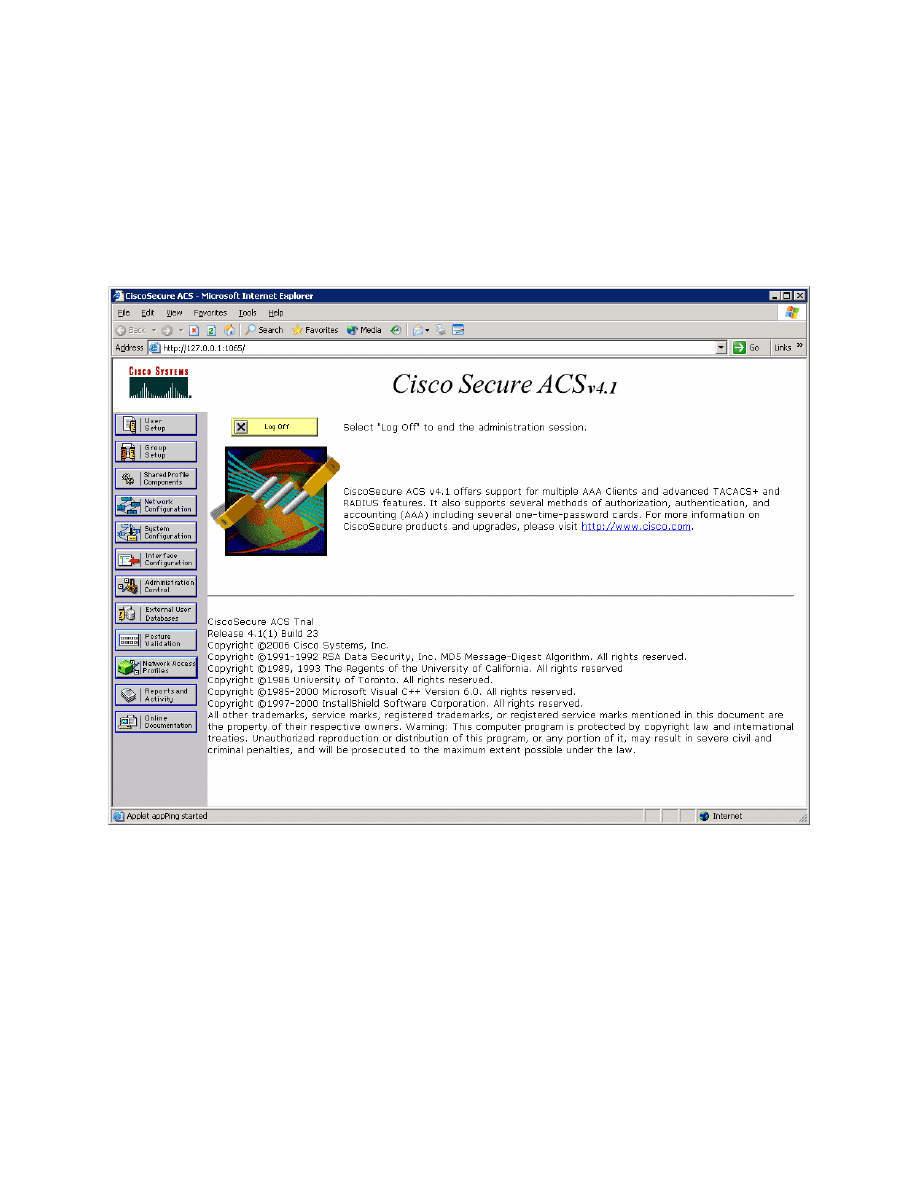
If the Cisco Secure ACS administrative screen comes up when the installer
ends, this signals that ACS was successfully installed.
Step 2: Set up ACS for LEAP
If you don’t have the Cisco Secure ACS application open on Host A from the
previous step, open it now by clicking the Start button and choosing Programs
> CiscoSecure ACS v4.1 Trial > ACS Admin.
Figure 2-1: ACS Home Page
In the left pane, click Network Configuration. On the Network Configuration
screen, you can configure authentication, authorization, accounting (AAA)
clients directly. Click the Add Entry button under the heading AAA Clients.
12 - 39
CCNP: Optimizing Converged Networks v5.0 - Lab 6-5
Copyright
© 2007, Cisco Systems, Inc
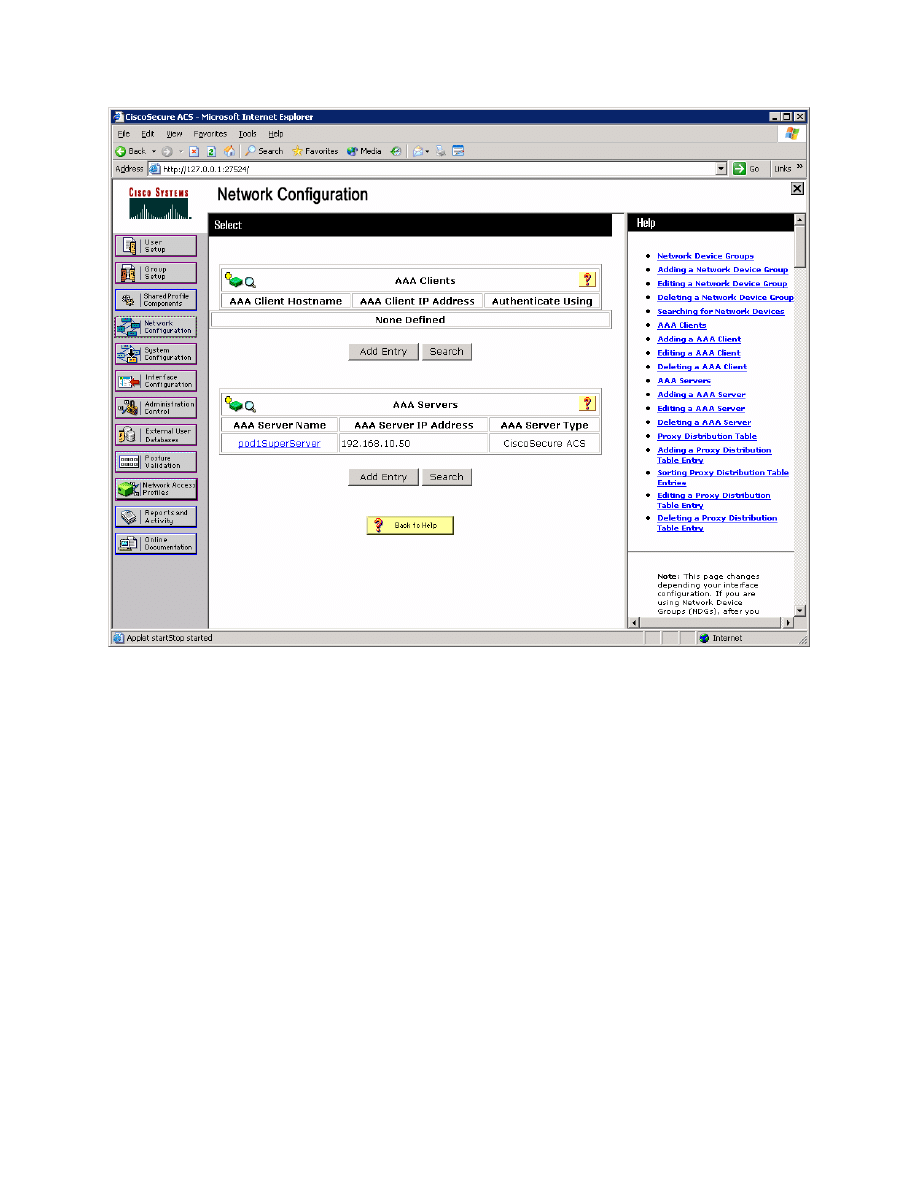
Figure 2-2: ACS Network Configuration Page
Enter the hostname of the WLC (you can get this from show run-config on the
WLC command-line interface [CLI] or from its web interface), the management
IP address of the WLC, and “cisco” as the shared secret. Change the value of
the Authenticate using: field to RADIUS (Cisco Airespace). After you have
entered in everything, click Submit + Apply.
13 - 39
CCNP: Optimizing Converged Networks v5.0 - Lab 6-5
Copyright
© 2007, Cisco Systems, Inc
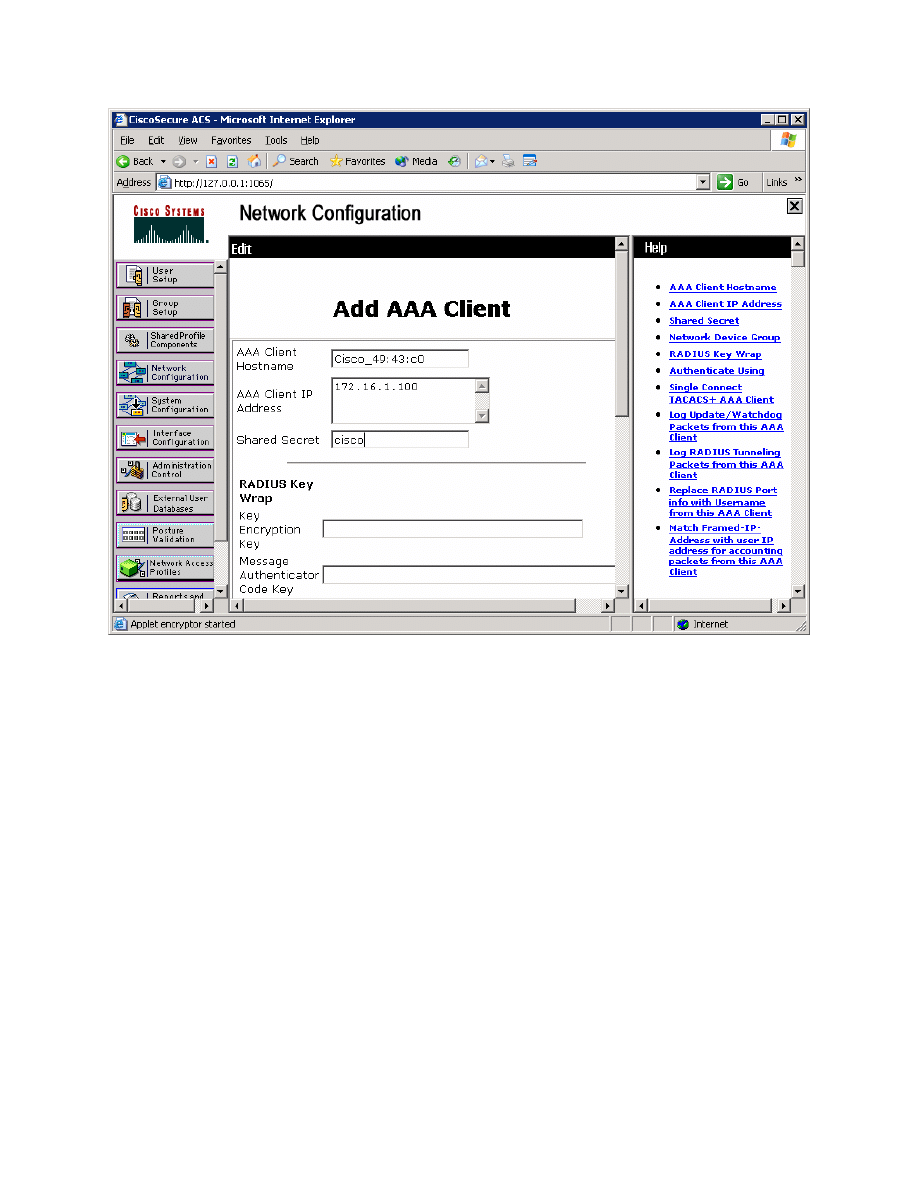
Figure 2-3: ACS AAA Client Configuration
You should now be able to see the WLC listed as an AAA client on the network
configuration screen.
14 - 39
CCNP: Optimizing Converged Networks v5.0 - Lab 6-5
Copyright
© 2007, Cisco Systems, Inc
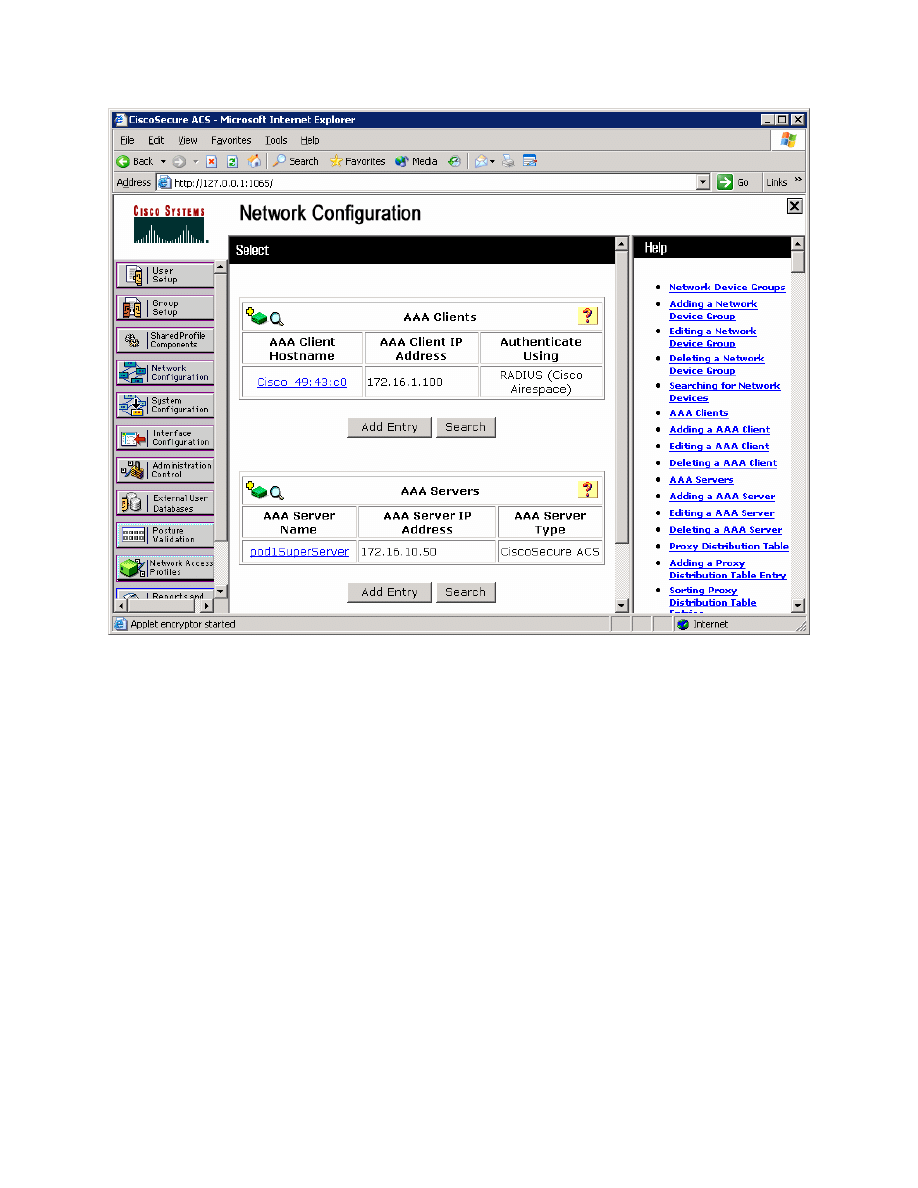
Figure 2-4: ACS Network Configuration Page, with Changes Applied
On the left pane, click User Setup. Add a user named “cisco,” and then click
Add/Edit.
15 - 39
CCNP: Optimizing Converged Networks v5.0 - Lab 6-5
Copyright
© 2007, Cisco Systems, Inc
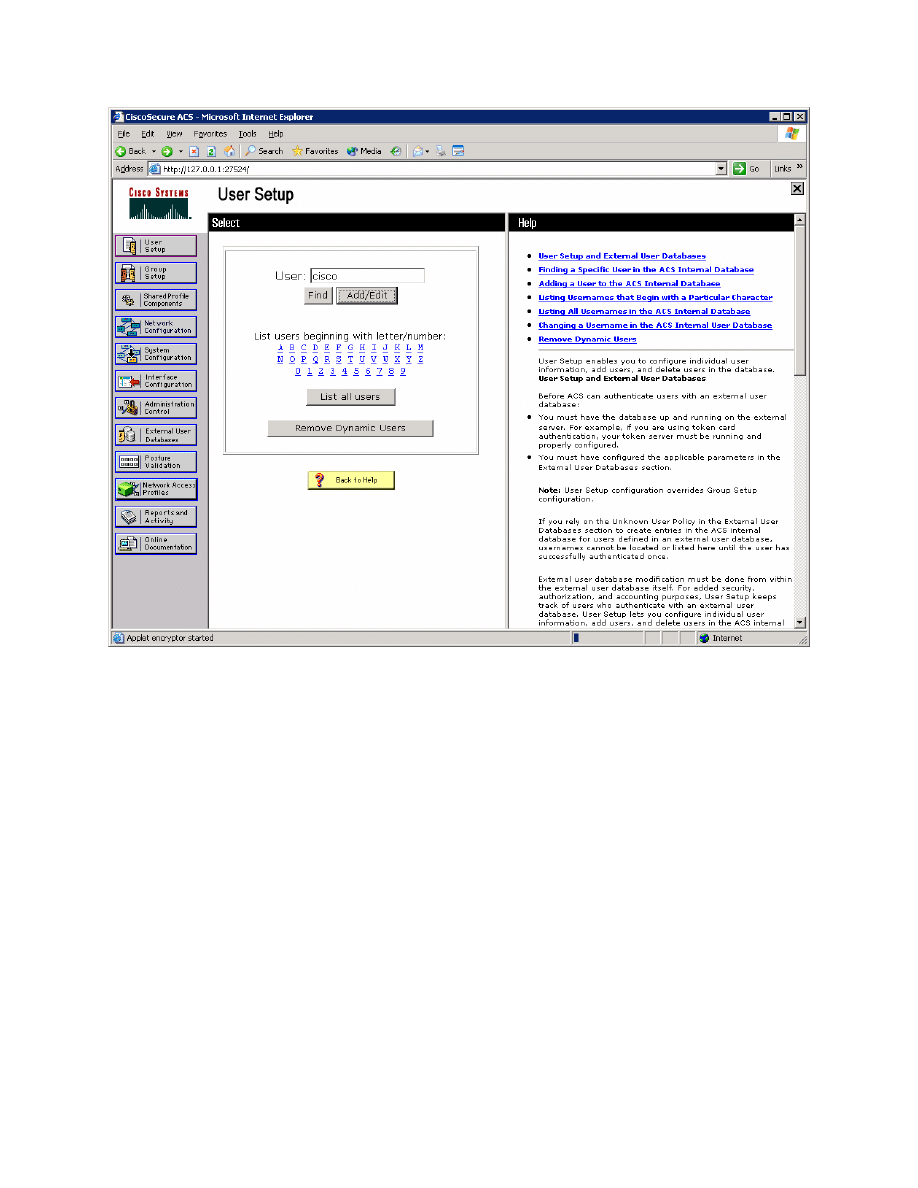
Figure 2-5: ACS User Configuration Page
Assign “cisco” as the user name, and set “cisco” as the password. Click
Submit.
Why is the shared secret configured on a per-client basis?
You should see the WLC listed in the network configuration screen.
On the left pane, click User Setup. Type in “cisco” in the user field (this will be
the name of the user we are creating), and then click Add/Edit.
16 - 39
CCNP: Optimizing Converged Networks v5.0 - Lab 6-5
Copyright
© 2007, Cisco Systems, Inc
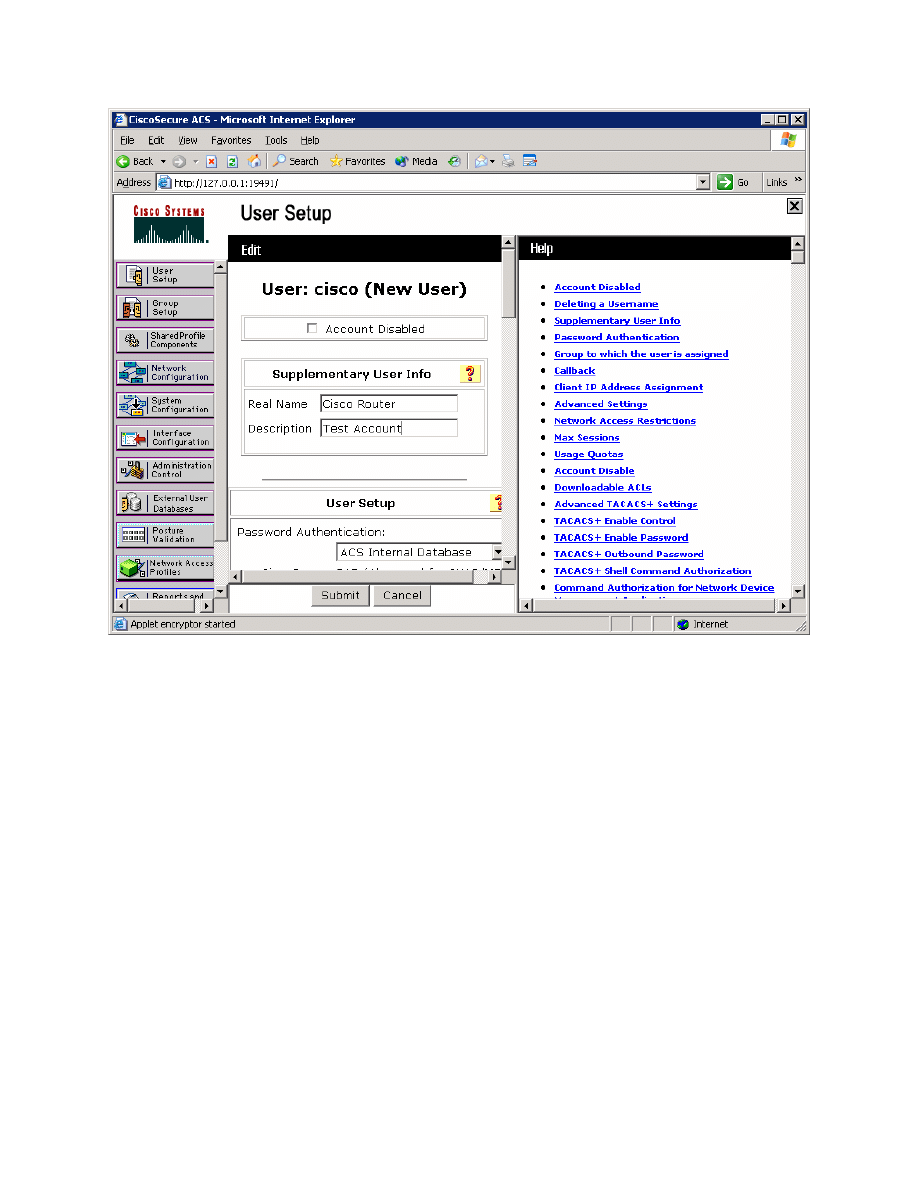
Figure 2-6: ACS User Configuration
17 - 39
CCNP: Optimizing Converged Networks v5.0 - Lab 6-5
Copyright
© 2007, Cisco Systems, Inc
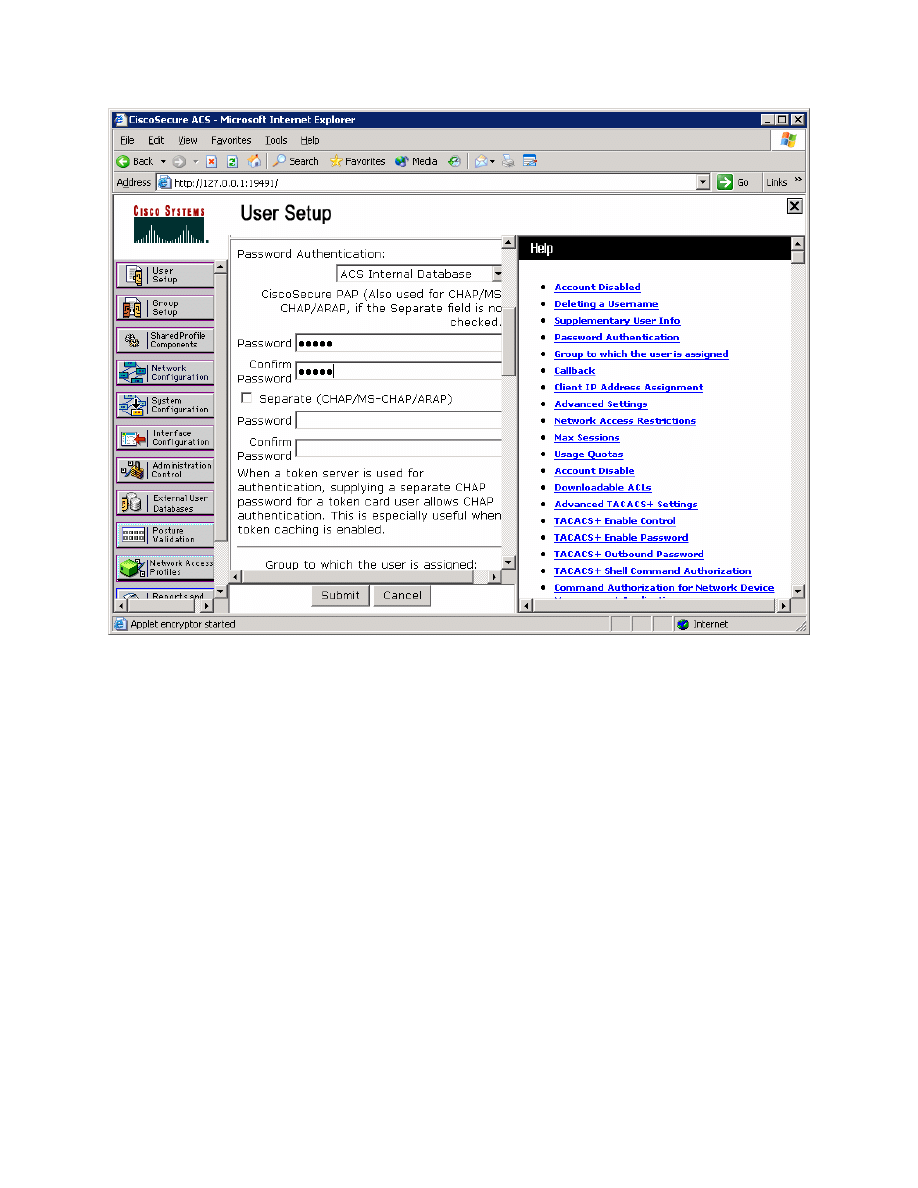
Figure 2-7: ACS User-level Password and Group Configuration
For what purpose will you use this user account?
Although it should be enabled by default, we will make sure that LEAP
authentication is enabled in ACS.
Click System Configuration on the left pane.
18 - 39
CCNP: Optimizing Converged Networks v5.0 - Lab 6-5
Copyright
© 2007, Cisco Systems, Inc
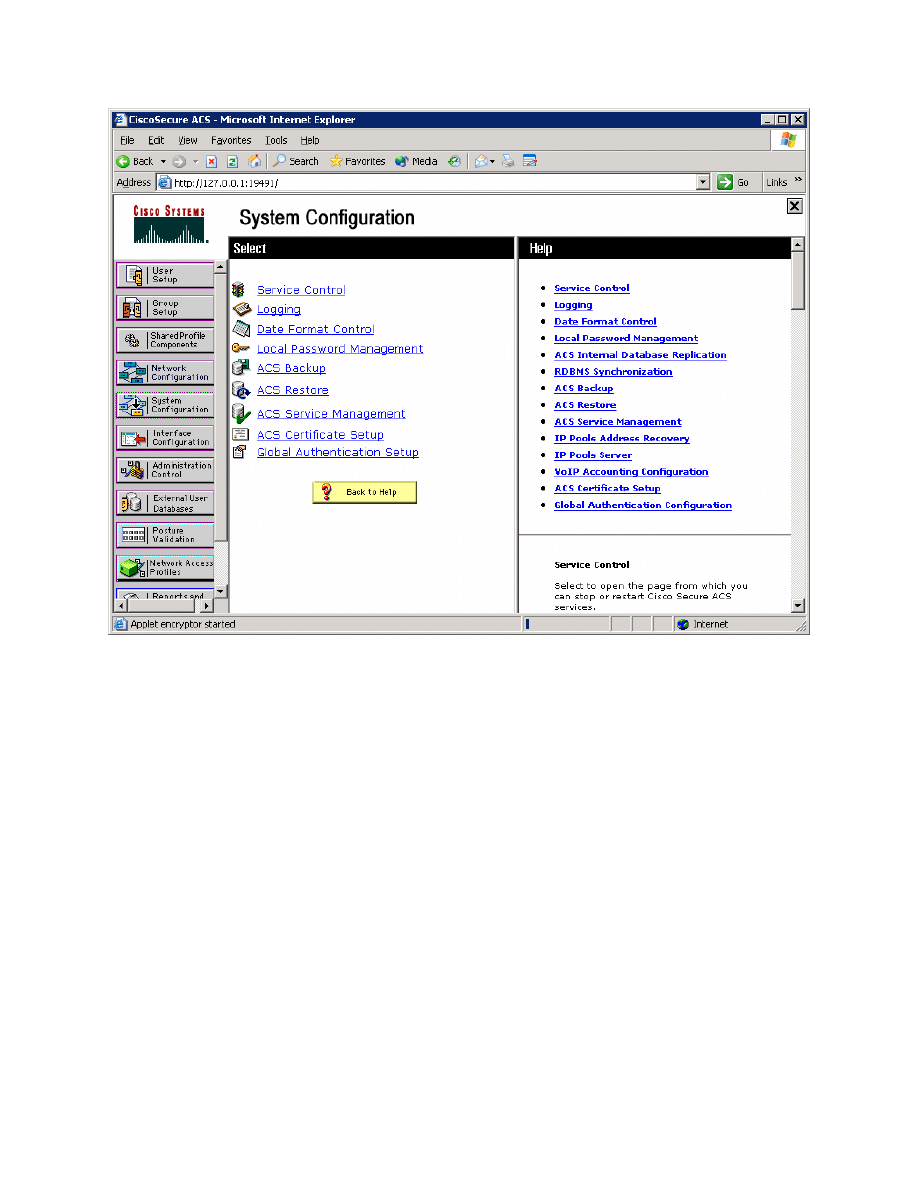
Figure 2-8: System Configuration Tab
Click Global Authentication Setup in the list of options. Scroll down and make
sure that Allow LEAP is checked, as shown in Figure 2-9.
19 - 39
CCNP: Optimizing Converged Networks v5.0 - Lab 6-5
Copyright
© 2007, Cisco Systems, Inc
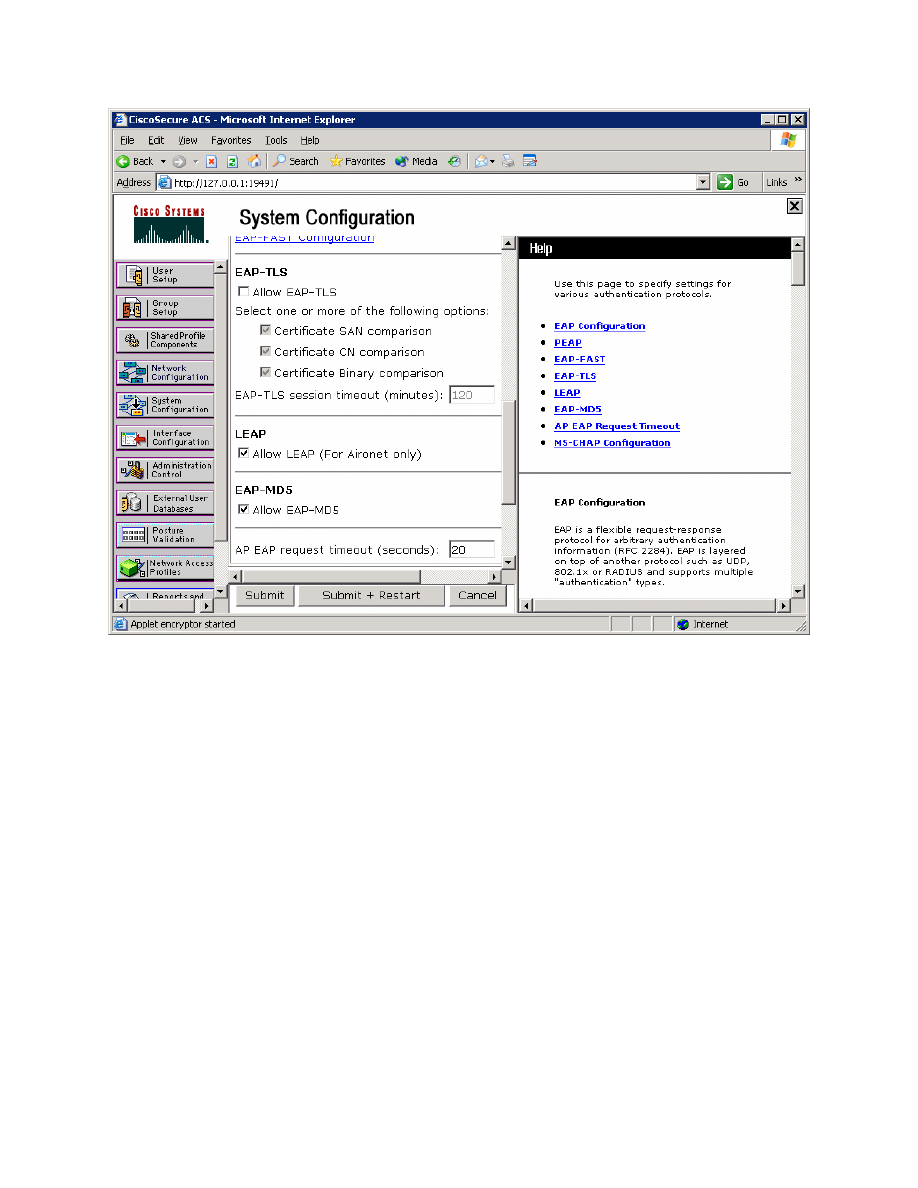
Figure 2-9: System Security Protocol Configuration
Step 3: Connect to the WLC from the Management Host
This lab will only go into the details of configuring WLAN security using 802.1X
and RADIUS. For more information on using the web interface of the WLC,
consult Lab 6.2: Configuring a WLAN Controller via the Web Interface.
On Host A, open up Internet Explorer, and go to the URL https://172.16.1.100.
This is the secure method of connecting to the management interface of the
WLAN controller. You can also use http://172.16.1.100 since we previously
enabled regular insecure HTTP access in the CLI for Lab 6.1: Configuring a
Wireless LAN Controller. If you connect to the secure address, you may be
prompted with a security warning. Click Yes to accept it and you will be
presented with the login screen for the WLAN controller. Click Login and an
authentication dialog box will appear.
20 - 39
CCNP: Optimizing Converged Networks v5.0 - Lab 6-5
Copyright
© 2007, Cisco Systems, Inc
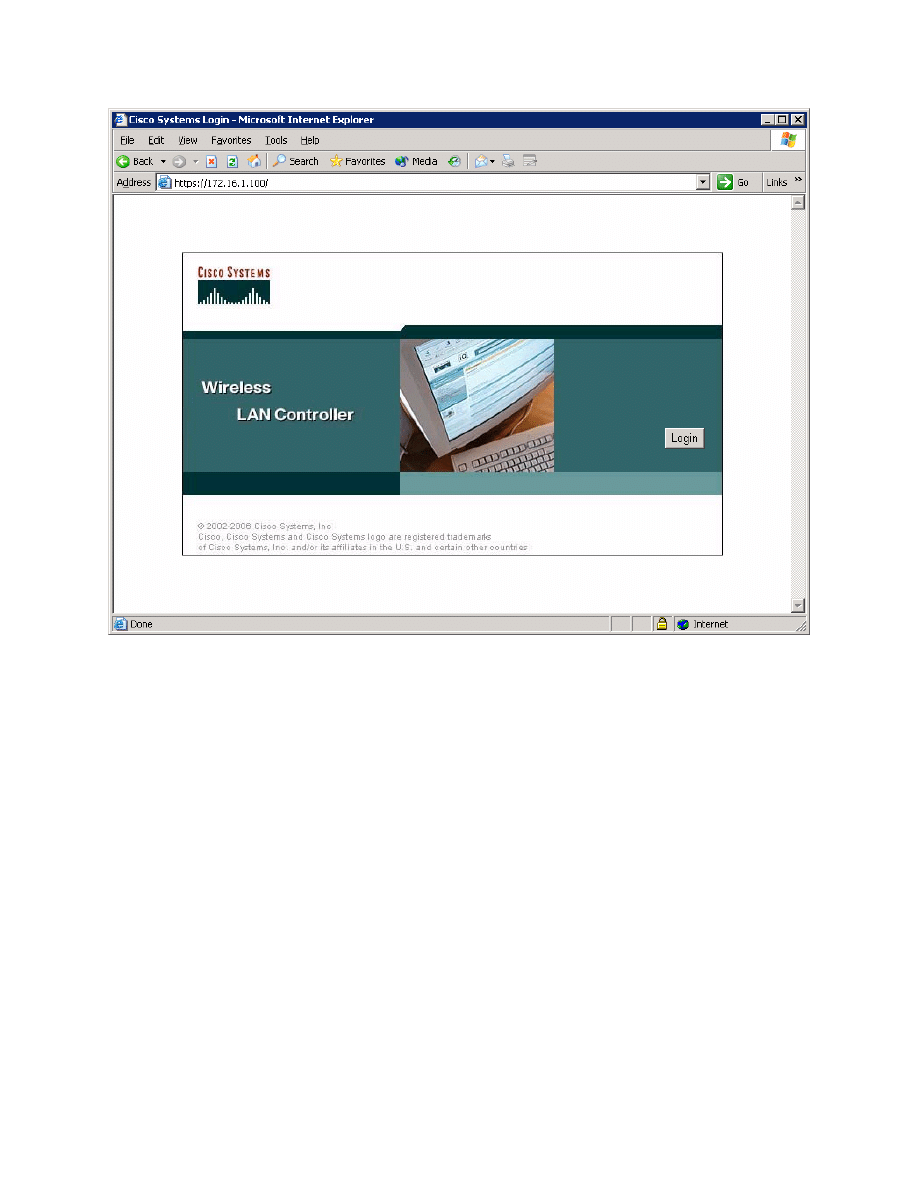
Figure 3-1: WLAN Controller Splash Screen
Use “cisco” as both the username and password. You configured these in the
earlier lab. Click OK to get to the main page of the WLC web interface.
21 - 39
CCNP: Optimizing Converged Networks v5.0 - Lab 6-5
Copyright
© 2007, Cisco Systems, Inc
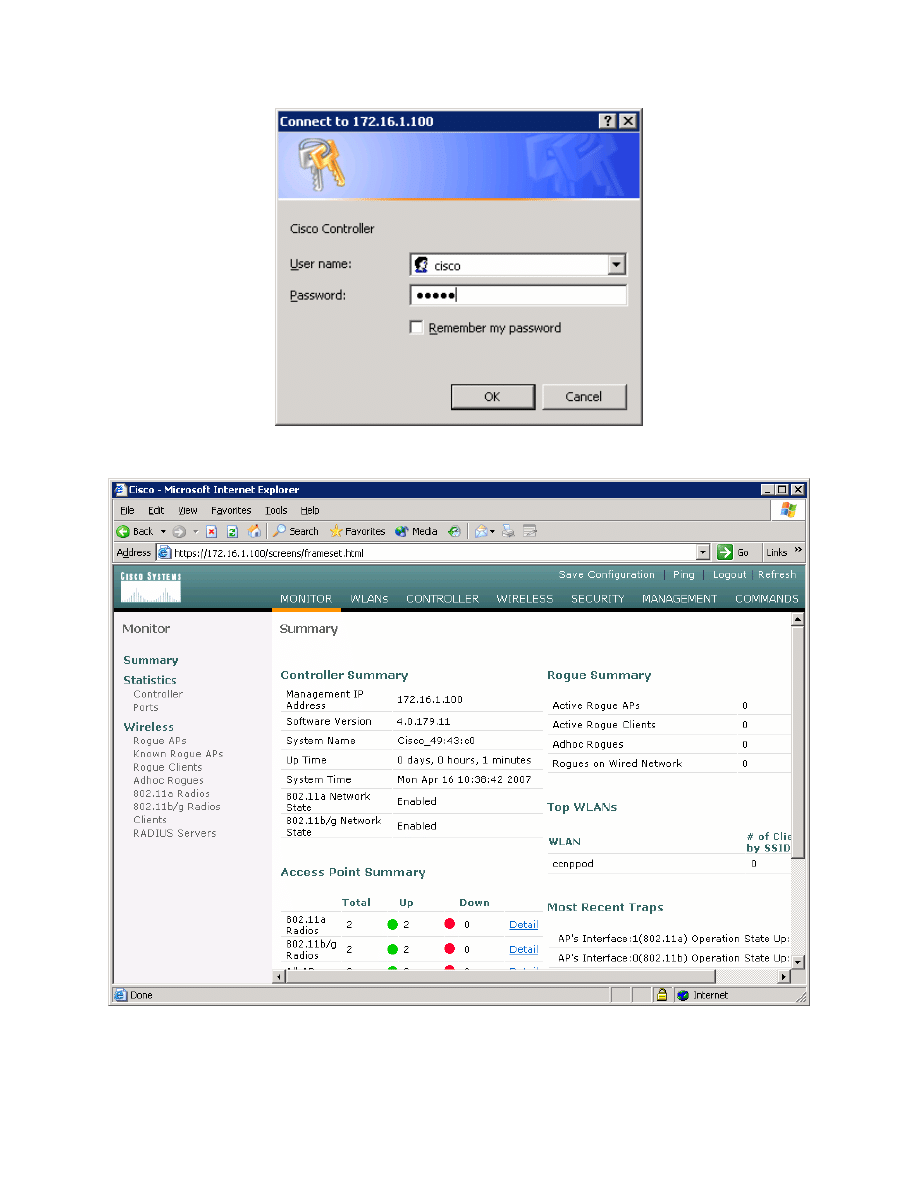
Figure 3-2: Authentication Dialog Box for HTTP Access to WLC
Figure 3-2: WLAN Controller Monitor Page
22 - 39
CCNP: Optimizing Converged Networks v5.0 - Lab 6-5
Copyright
© 2007, Cisco Systems, Inc
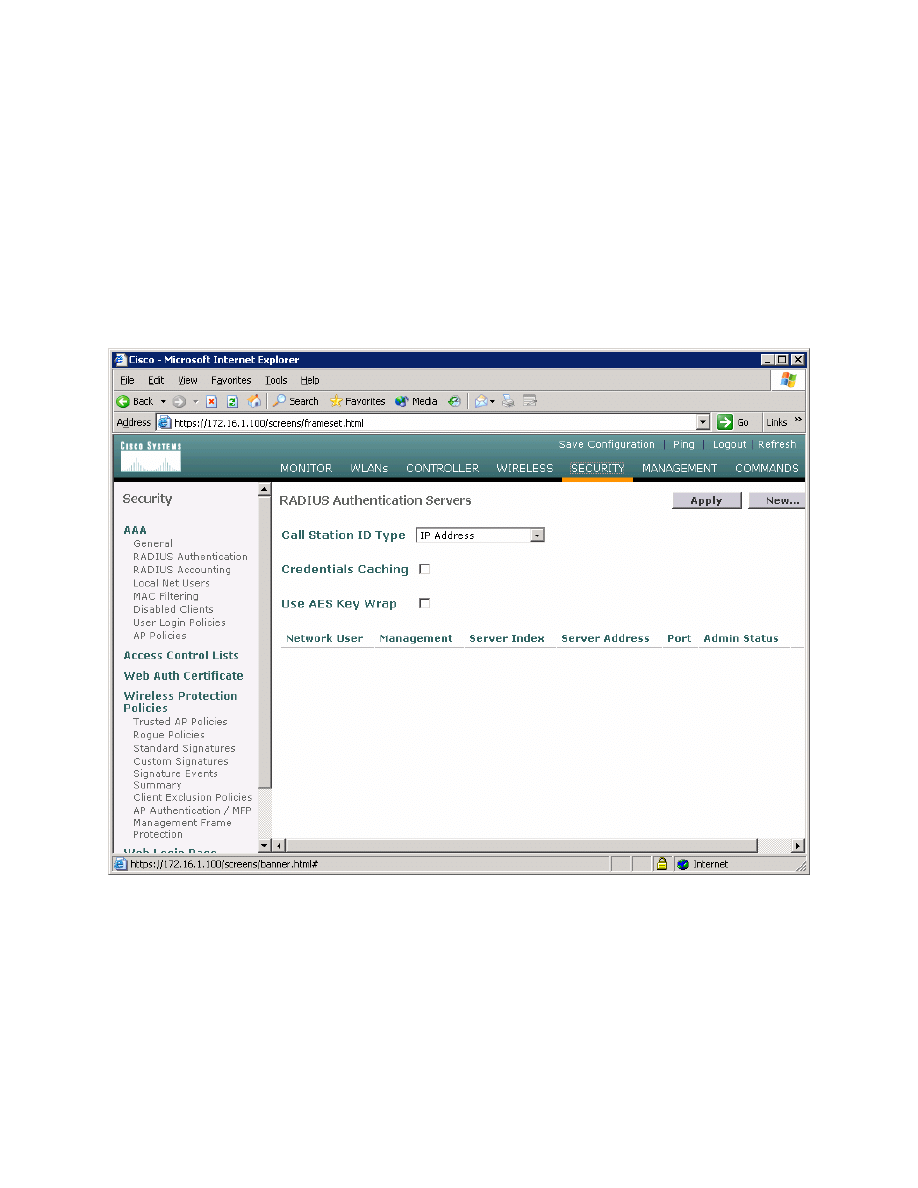
Make sure you see two access points under the “Access Point Summary” part
of the page. If you don’t, try reloading the LWAPs; otherwise, troubleshoot. You
may also see it detecting rogue access points if your lab has other wireless
networks around it; this behavior is normal. You can also see various port
controller and port statistics by clicking their respective links on the left-hand
menu on the screen.
Step 4: Set Up a RADIUS Server
In this step, we will set up a RADIUS server to be used for WLAN
authentication. Click the Security link at the top of the WLC interface.
Figure 4-1: WLC RADIUS Server Configuration
Click New to add a new server. Set the IP address to the IP address of the
server running ACS, and set the shared secret to “cisco” as configured on the
ACS server for this device. Click Apply when done.
23 - 39
CCNP: Optimizing Converged Networks v5.0 - Lab 6-5
Copyright
© 2007, Cisco Systems, Inc
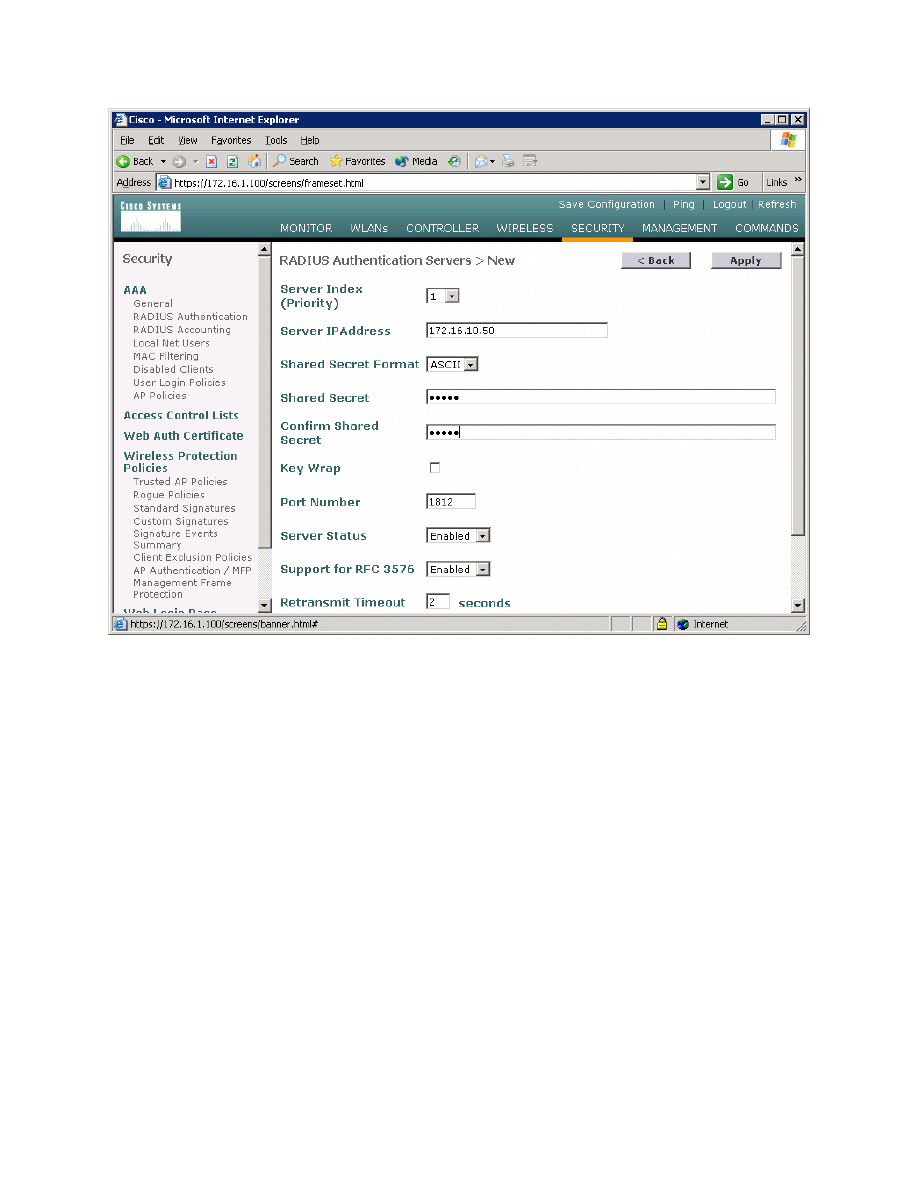
Figure 4-2: New RADIUS Server Configuration
You should see the new server added to the list.
24 - 39
CCNP: Optimizing Converged Networks v5.0 - Lab 6-5
Copyright
© 2007, Cisco Systems, Inc
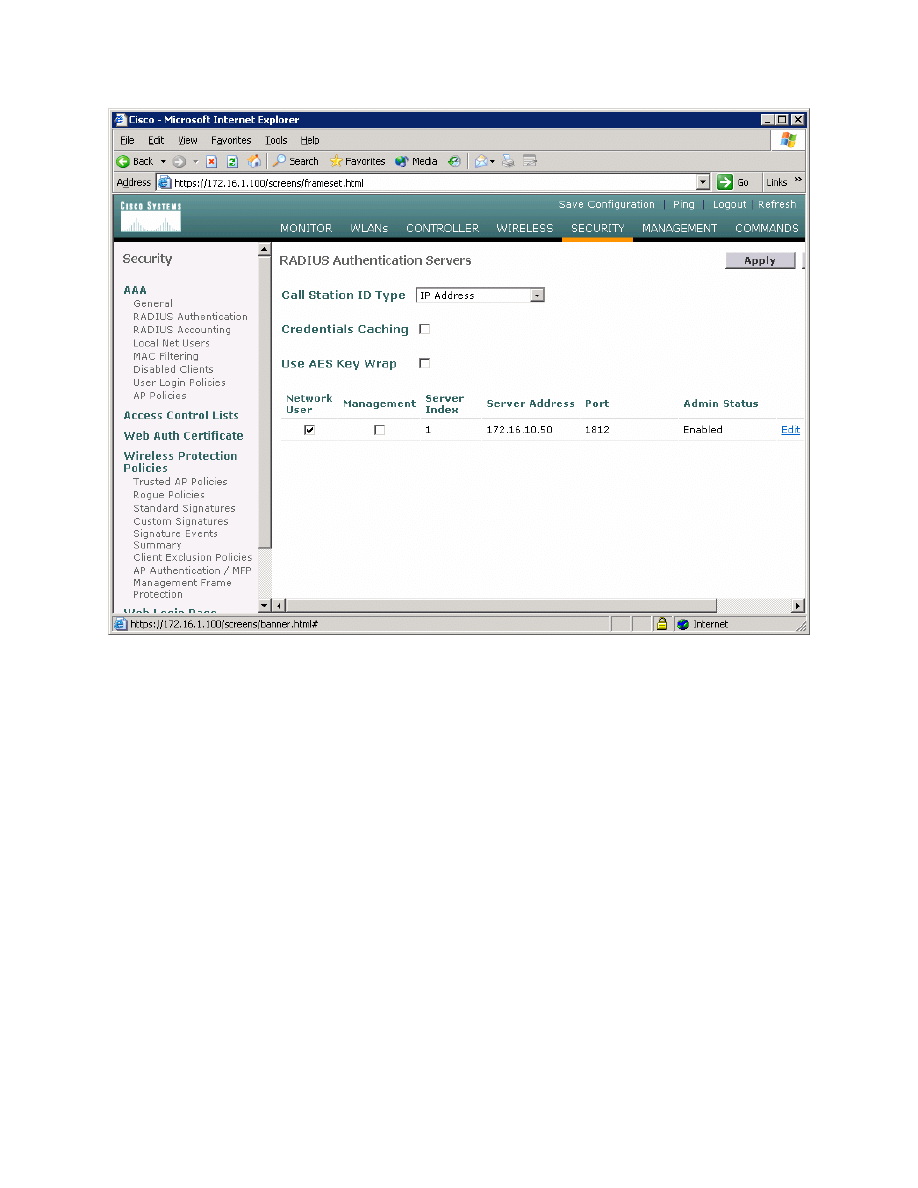
Figure 4-3: WLC RADIUS Server Configuration with Changes Applied
Step 5: Assign a WLAN to a VLAN
Click the Controller button at the top of the WLC interface. On the left pane,
click Interfaces to see the current configured IP interfaces on the WLC. Click
New to create a new interface.
25 - 39
CCNP: Optimizing Converged Networks v5.0 - Lab 6-5
Copyright
© 2007, Cisco Systems, Inc
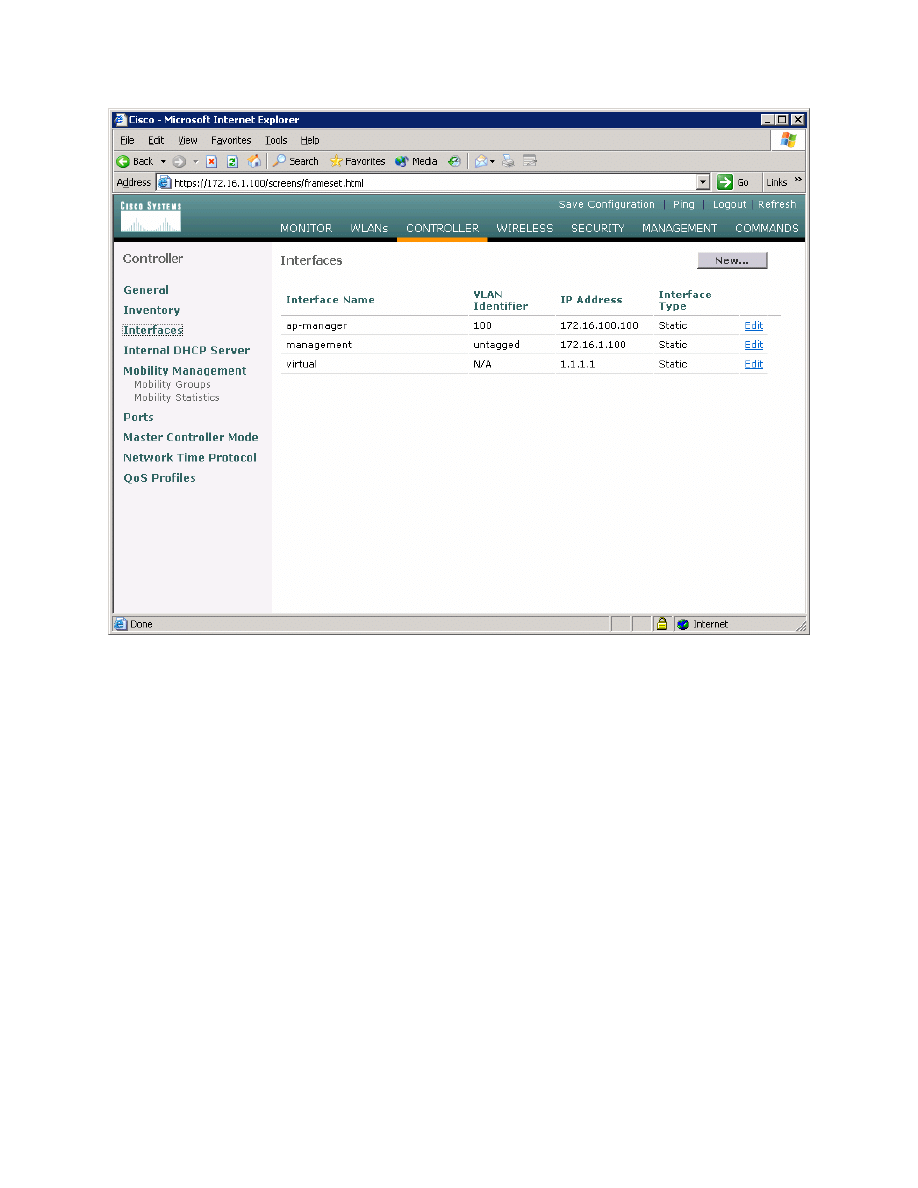
Figure 5-1: Interface Configuration Page
Name the interface “VLAN2” and assign it to 802.1Q tag 2, just like in Lab 6.2.
Click Apply when you have completed this.
26 - 39
CCNP: Optimizing Converged Networks v5.0 - Lab 6-5
Copyright
© 2007, Cisco Systems, Inc
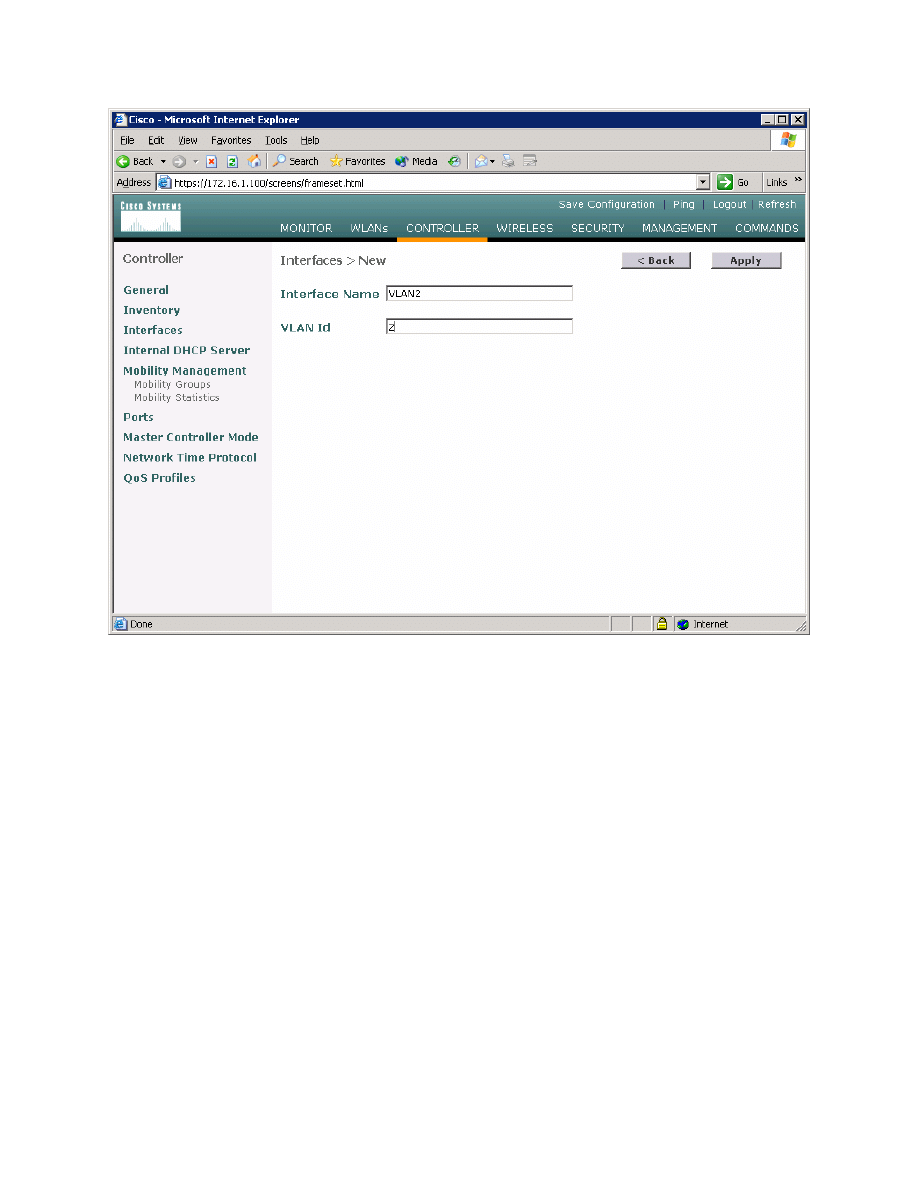
Figure 5-2: Creating a New VLAN Interface
Configure the IP address, default gateway, port number, and Dynamic Host
Configuration Protocol (DHCP) server for this interface as shown in the
following figure, and then click Apply. Accept the warning that comes up by
clicking OK.
27 - 39
CCNP: Optimizing Converged Networks v5.0 - Lab 6-5
Copyright
© 2007, Cisco Systems, Inc
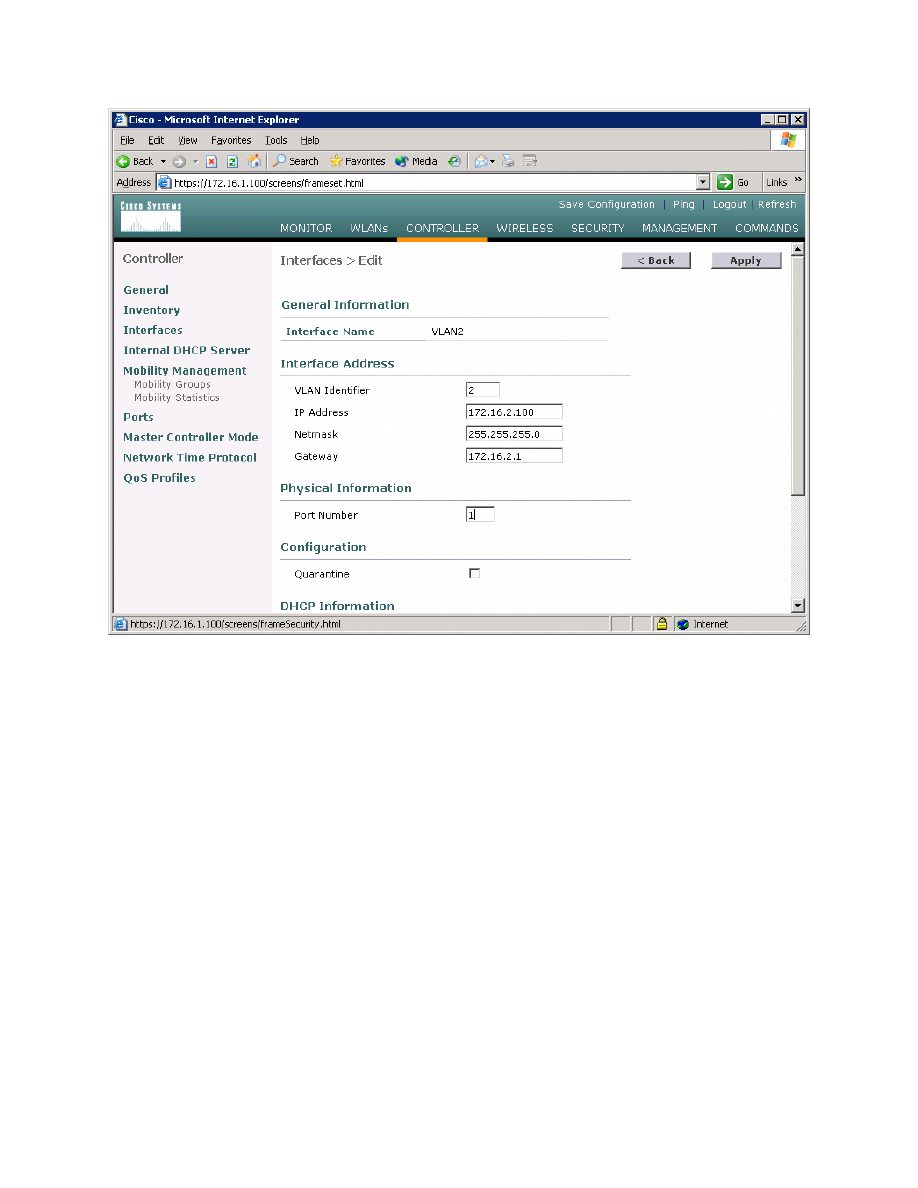
Figure 5-3: Configuring VLAN Interface Properties
28 - 39
CCNP: Optimizing Converged Networks v5.0 - Lab 6-5
Copyright
© 2007, Cisco Systems, Inc
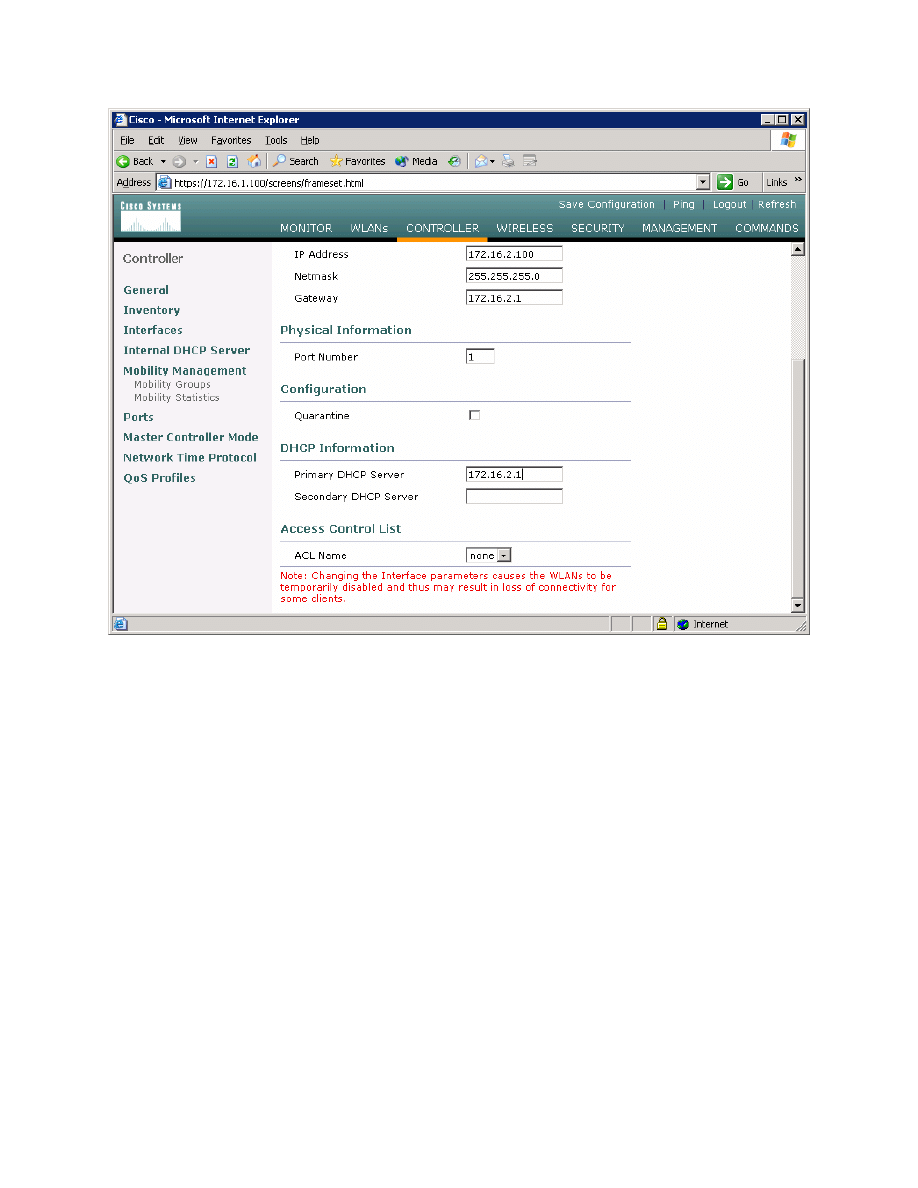
Figure 5-4: Configuring VLAN Interface Properties, DHCP Options
The new interface should appear in the interfaces list.
29 - 39
CCNP: Optimizing Converged Networks v5.0 - Lab 6-5
Copyright
© 2007, Cisco Systems, Inc
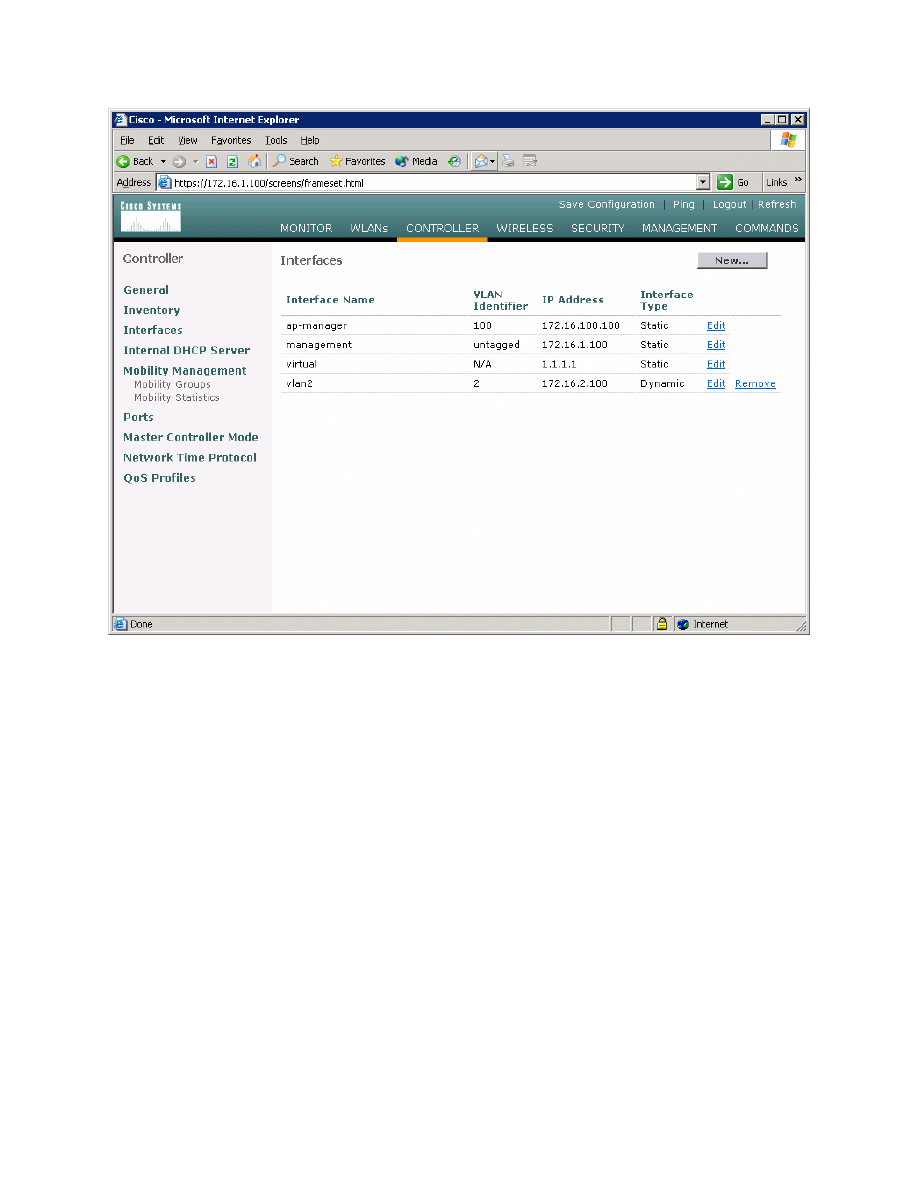
Figure 5-5: Verify Existing VLAN Interfaces
Click the WLANs button at the top of the web interface. This shows you all
configured WLANs on the WLC. Currently the only one listed is the one created
during the setup wizard.
30 - 39
CCNP: Optimizing Converged Networks v5.0 - Lab 6-5
Copyright
© 2007, Cisco Systems, Inc
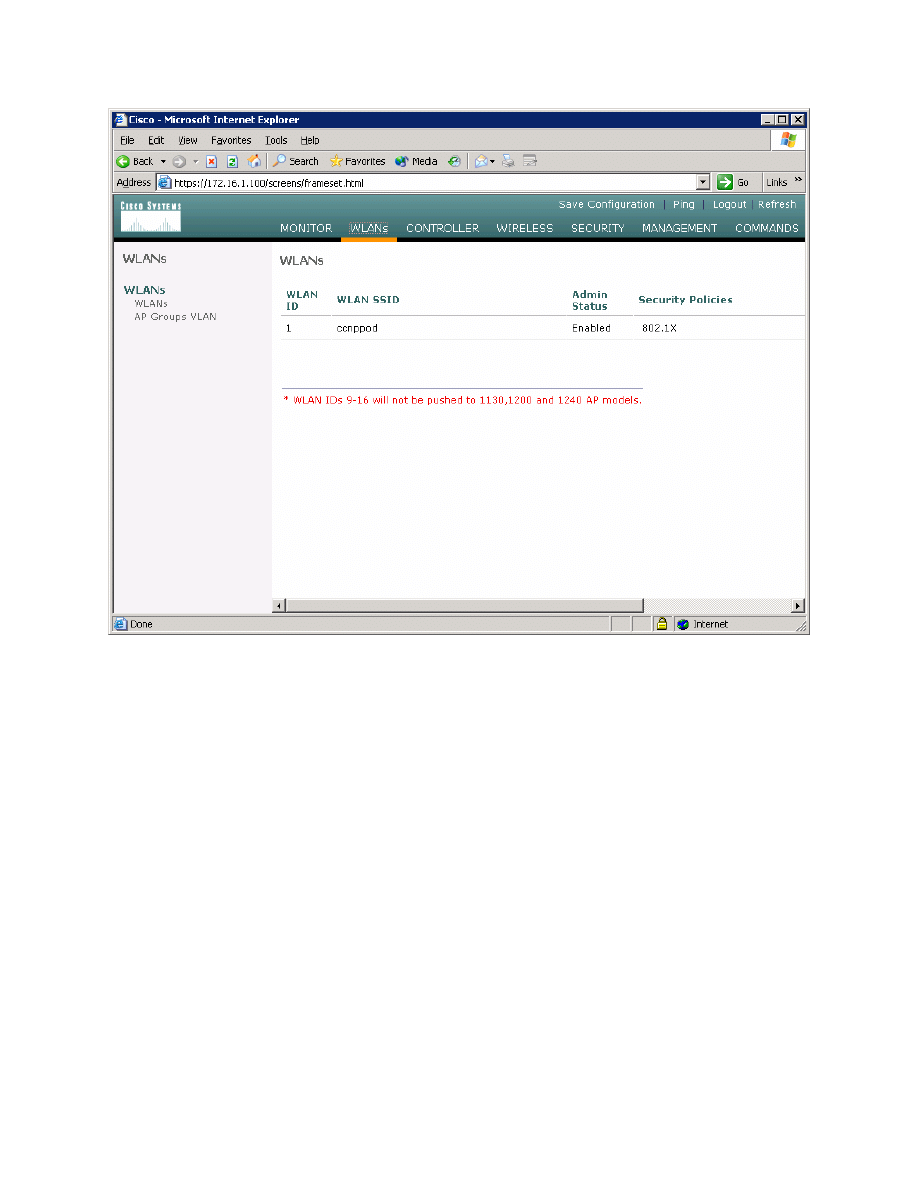
Figure 5-6: Viewing Existing WLANs with Security Policies
Click Edit for the WLAN listed. The default security policy is 802.1X, which is
the security policy we want. Make sure that the administrative status of the
WLAN is enabled. Change the IP interface of the WLAN to VLAN2, and assign
the RADIUS server created earlier. Click Apply when all changes are
configured. Click OK if a warning appears.
31 - 39
CCNP: Optimizing Converged Networks v5.0 - Lab 6-5
Copyright
© 2007, Cisco Systems, Inc
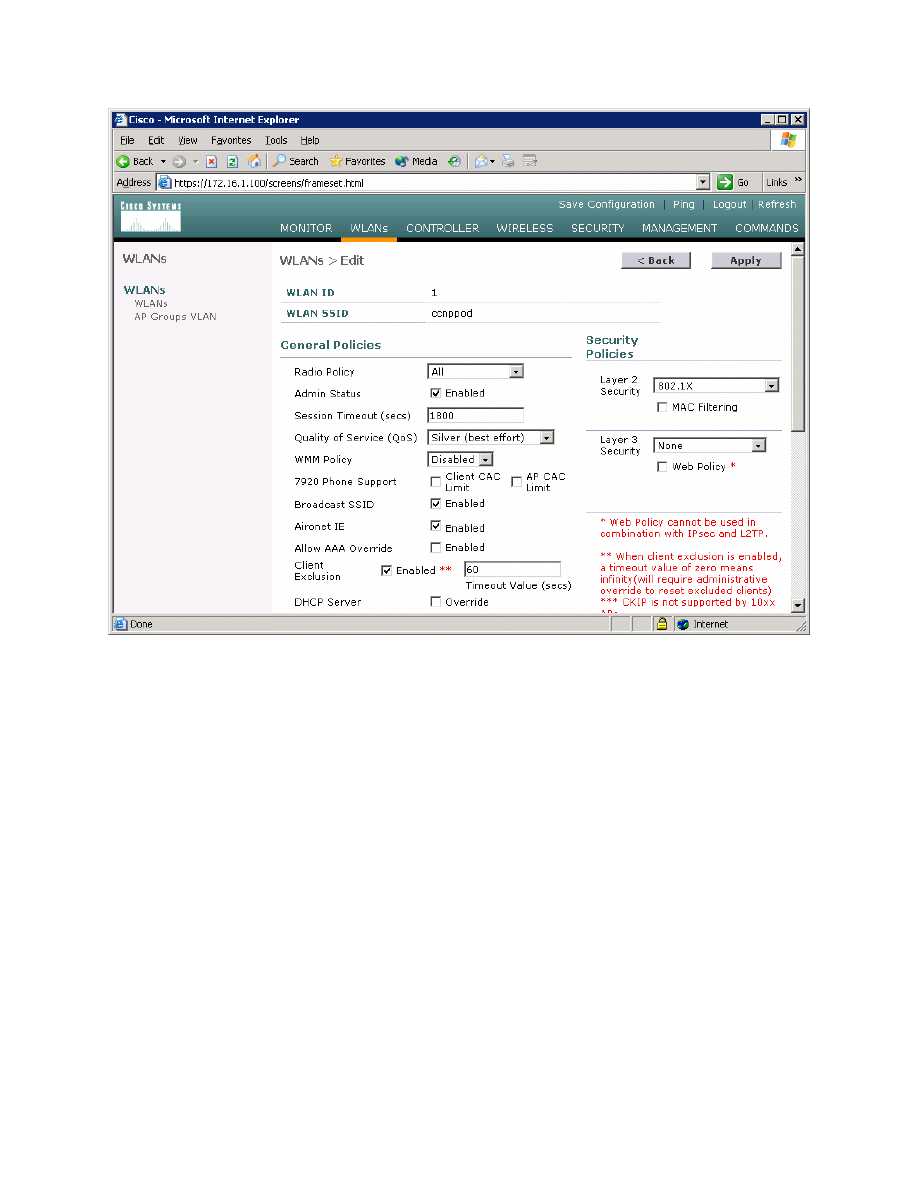
Figure 5-7: Editing the Configuration for WLAN 1
32 - 39
CCNP: Optimizing Converged Networks v5.0 - Lab 6-5
Copyright
© 2007, Cisco Systems, Inc
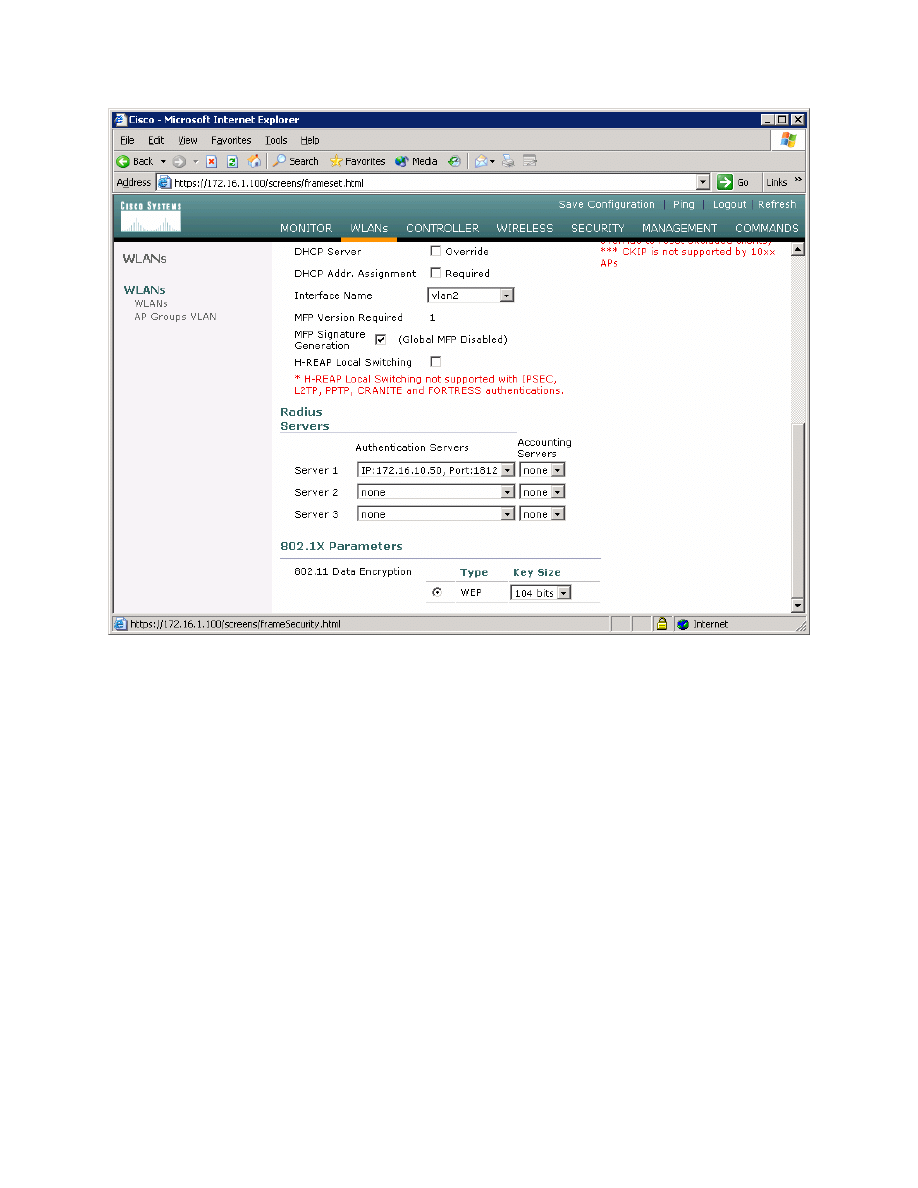
Figure 5-8: Editing the Configuration for WLAN 1, Security Options
Step 6: Configure the Wireless Client
On Host B, open up the Cisco Aironet Desktop Utility (ADU) either using the
icon on the desktop or the program shortcut in the start menu. If you do not
have the Cisco Aironet Desktop Utility installed, consult Lab 6.3: Configuring a
Wireless Client. Once in the ADU, click the Profile Management tab. Next,
click New to make a new profile.
33 - 39
CCNP: Optimizing Converged Networks v5.0 - Lab 6-5
Copyright
© 2007, Cisco Systems, Inc
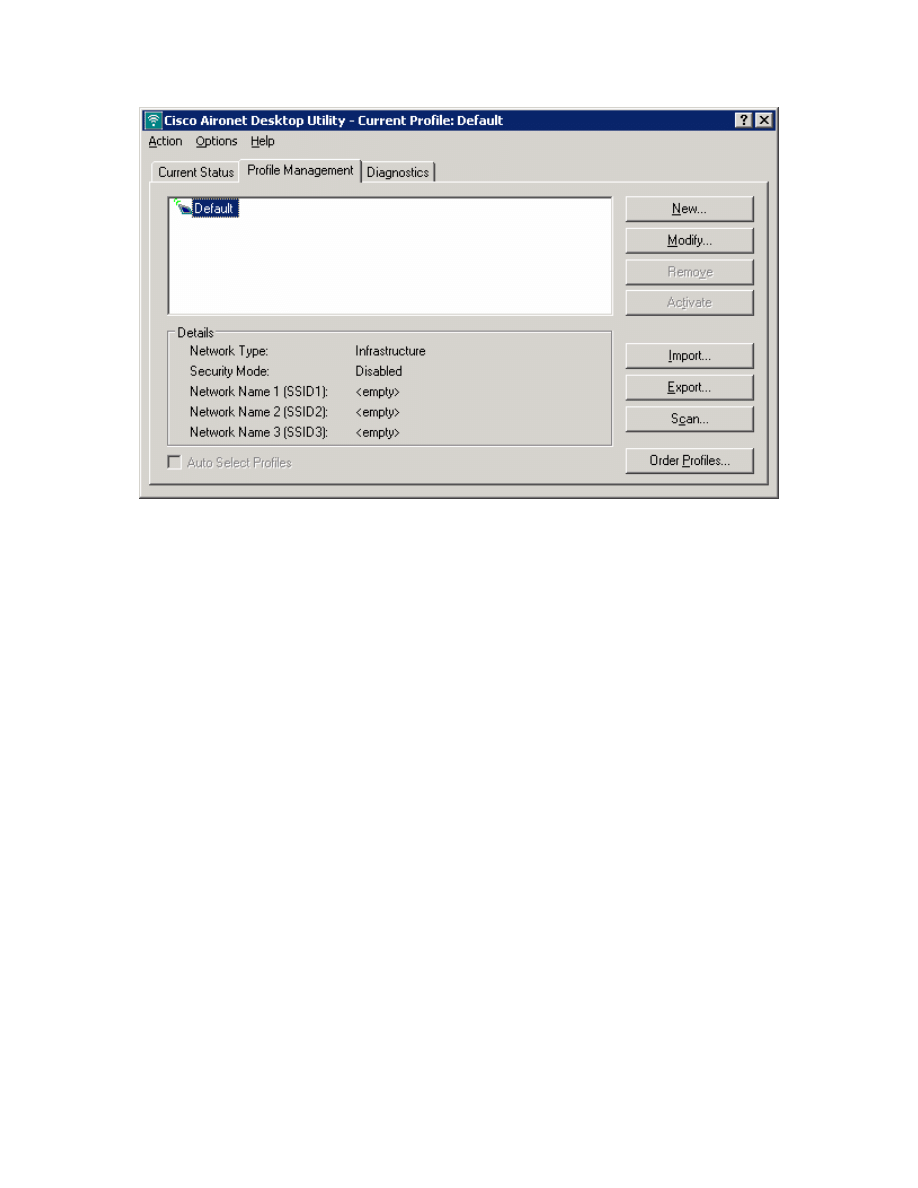
Figure 6-1: Cisco ADU Profile Management Tab
Use a profile name and service set identifier (SSID) of “ccnppod” since this was
the SSID configured earlier. Use any client name desired. Here, “cisco” is the
name used.
34 - 39
CCNP: Optimizing Converged Networks v5.0 - Lab 6-5
Copyright
© 2007, Cisco Systems, Inc
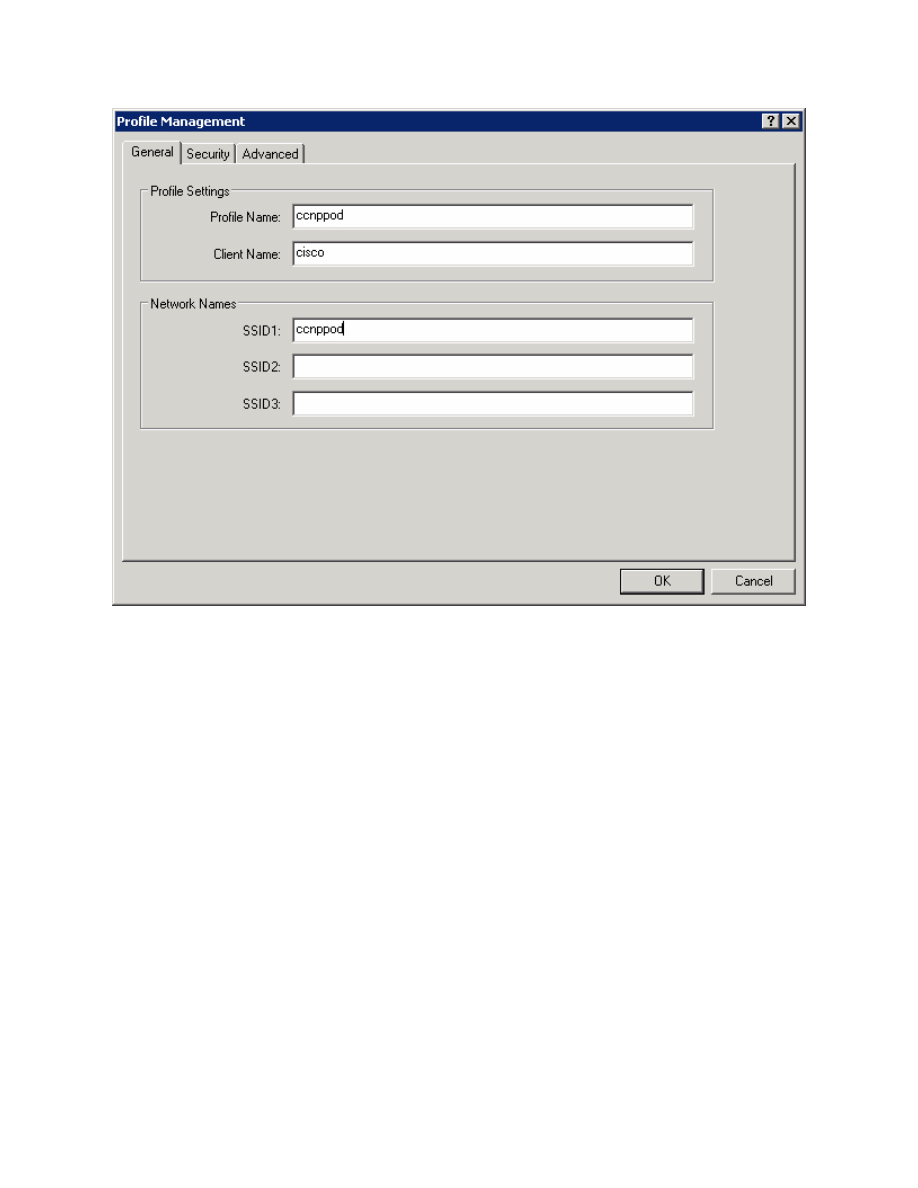
Figure 6-2: Configuring Profile Options and SSID
Under the Security tab, set the security type as 802.1x. After selecting the
security method, click Configure.
35 - 39
CCNP: Optimizing Converged Networks v5.0 - Lab 6-5
Copyright
© 2007, Cisco Systems, Inc
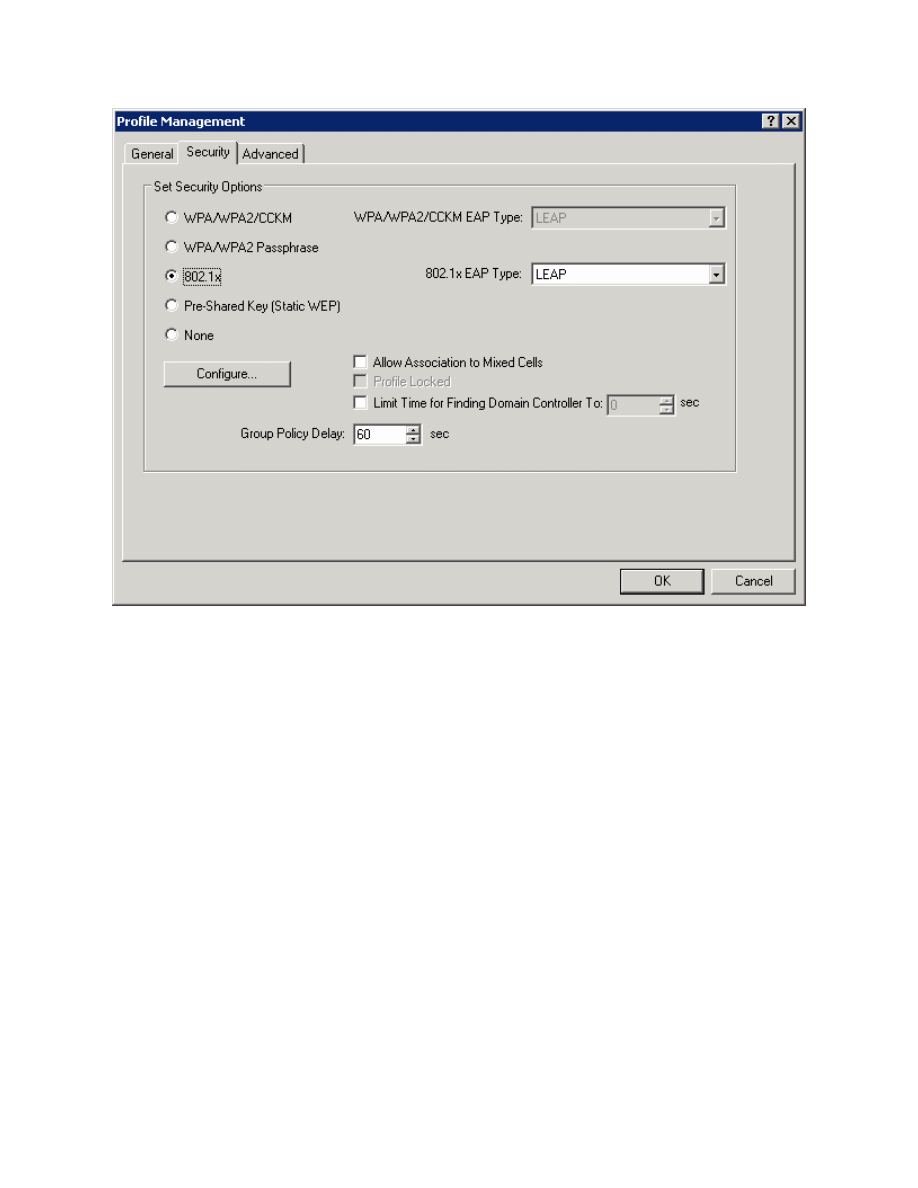
Figure 6-3: Wireless Security Options
Choose Automatically Prompt for User Name and Password as the
authentication setting. Click OK when done, and then click OK again to close
the new profile window.
36 - 39
CCNP: Optimizing Converged Networks v5.0 - Lab 6-5
Copyright
© 2007, Cisco Systems, Inc
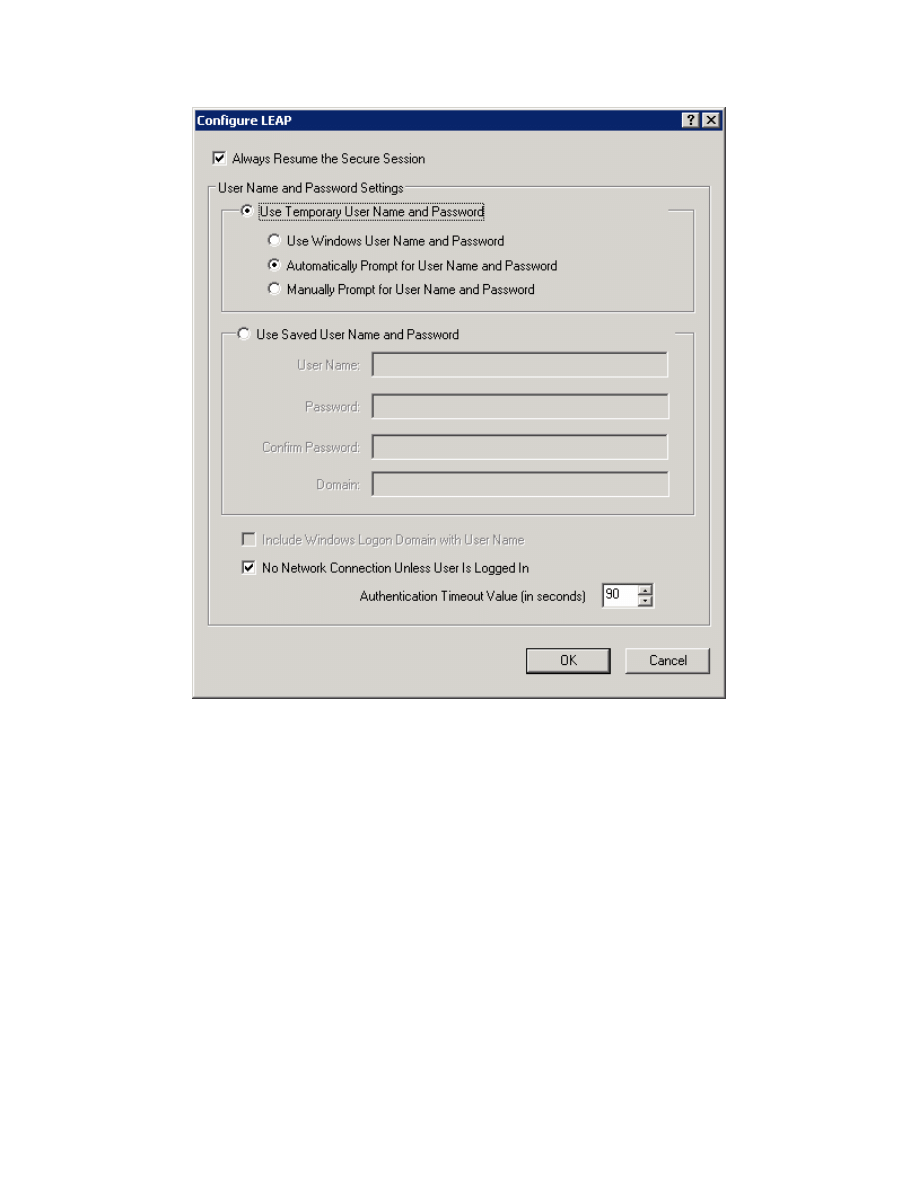
Figure 6-4: LEAP Configuration Options
On the profile list, select the new profile and click Activate.
37 - 39
CCNP: Optimizing Converged Networks v5.0 - Lab 6-5
Copyright
© 2007, Cisco Systems, Inc
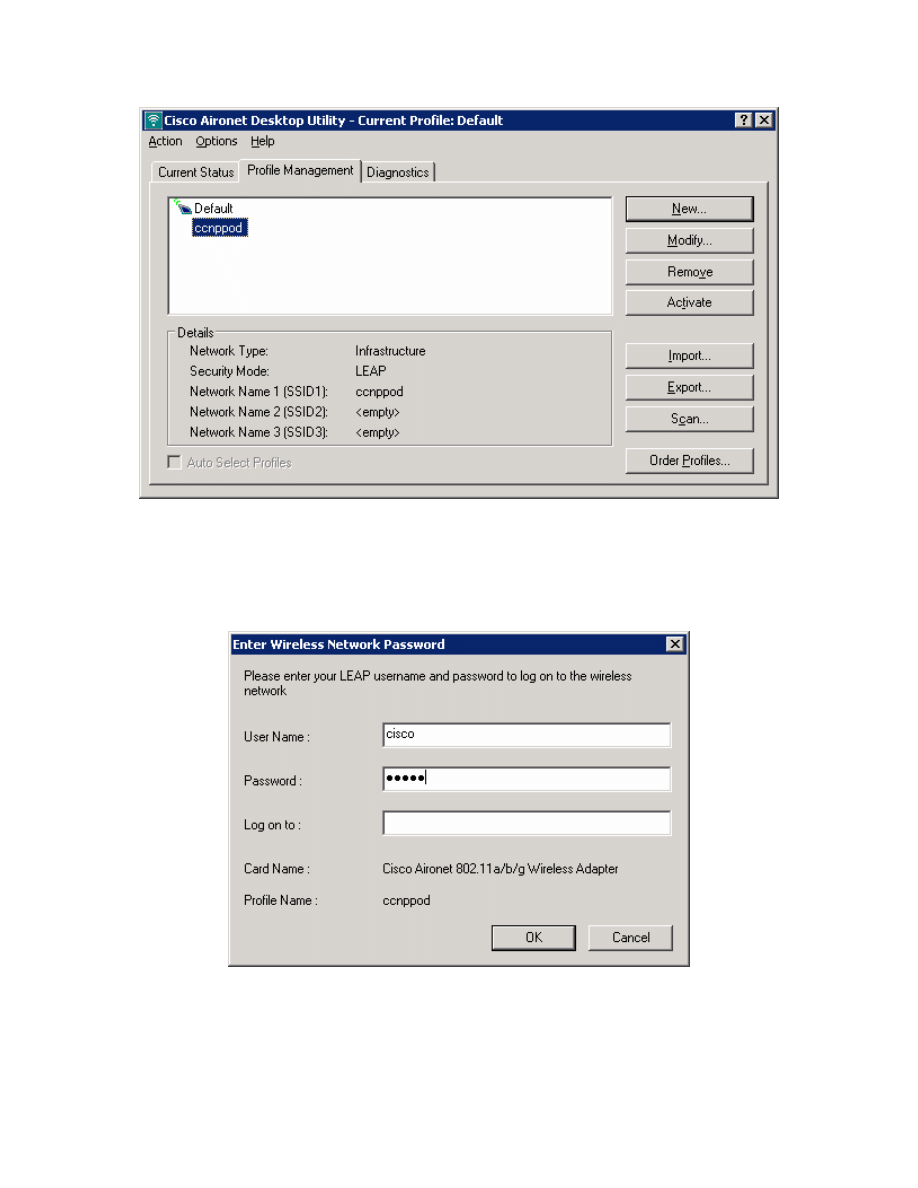
Figure 6-5: Selecting a Wireless Profile
When prompted to enter a username and password, enter in the credentials
created earlier on the ACS server, and then click OK. (username and password
of “cisco”).
Figure 6-6: ADU LEAP Authentication Dialog
You should see all authentication steps be successful. If not, troubleshoot.
38 - 39
CCNP: Optimizing Converged Networks v5.0 - Lab 6-5
Copyright
© 2007, Cisco Systems, Inc
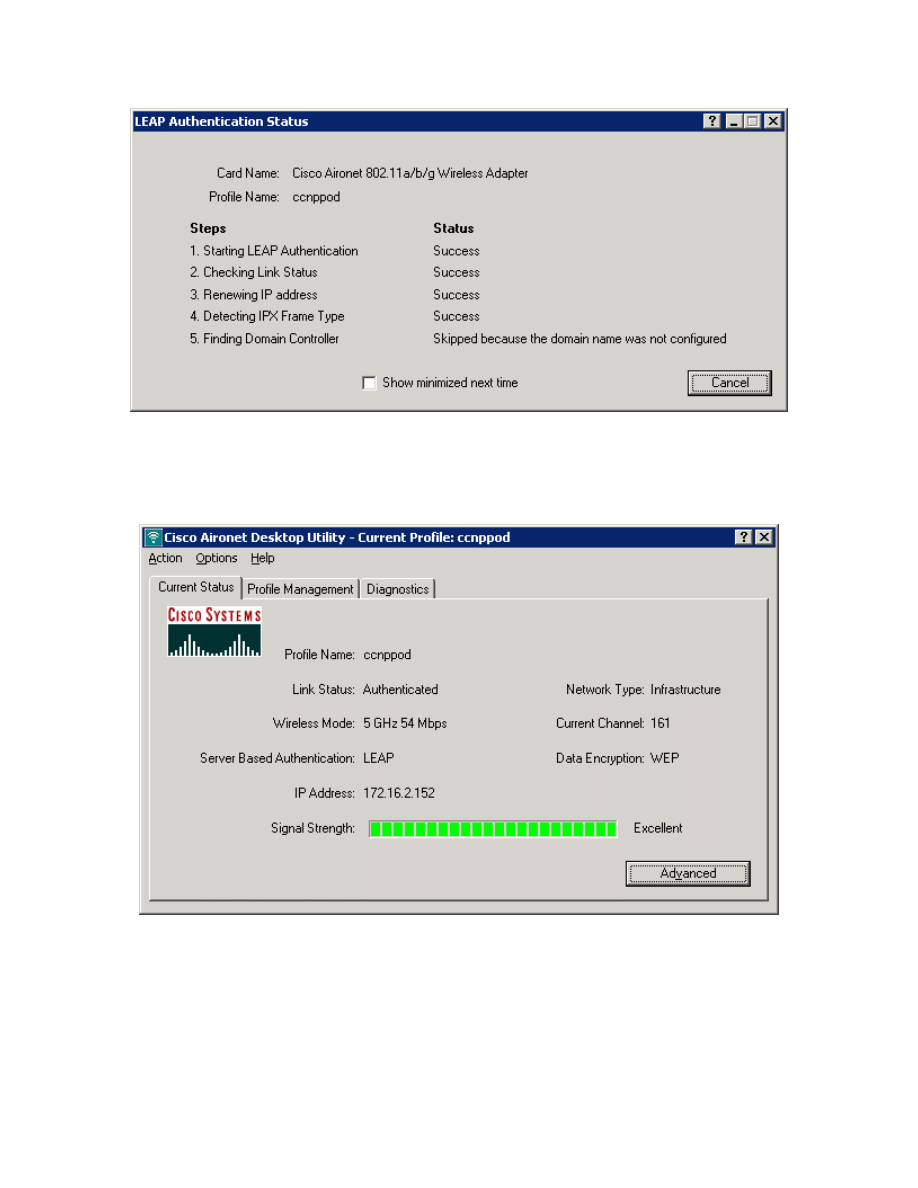
Figure 6-7: ADU LEAP Authentication Checklist
Under the Current Status tab, make sure you have received a correct IP
address for the VLAN and the link is authenticated.
Figure 6-8: Current Wireless Profile Status
39 - 39
CCNP: Optimizing Converged Networks v5.0 - Lab 6-5
Copyright
© 2007, Cisco Systems, Inc
Wyszukiwarka
Podobne podstrony:
CCNP4 lab 6 4 en
CCNP4 lab 4 9 en
CCNP4 lab 3 1 en
CCNP4 lab 4 7 en
CCNP4 lab 4 8 en
CCNP4 lab 3 2 en
CCNP4 lab 3 3 en
CCNP4 lab 4 2 en
CCNP4 lab 4 6 en
CCNP4 lab 5 1 en
CCNP4 lab 2 1 en
CCNP4 lab 4 4 en
CCNP4 lab 4 3 en
CCNP4 lab 6 3 en
CCNP4 lab 4 5 en
CCNP4 lab 4 1 en
CCNP4 lab 6 1b en
CCNP4 lab 6 2b en
więcej podobnych podstron