1 - 13
CCNP: Optimizing Converged Networks v5.0 - Lab 6-1b
Copyright
© 2007, Cisco Systems, Inc
Lab 6.1b Configuring a WLAN Controller
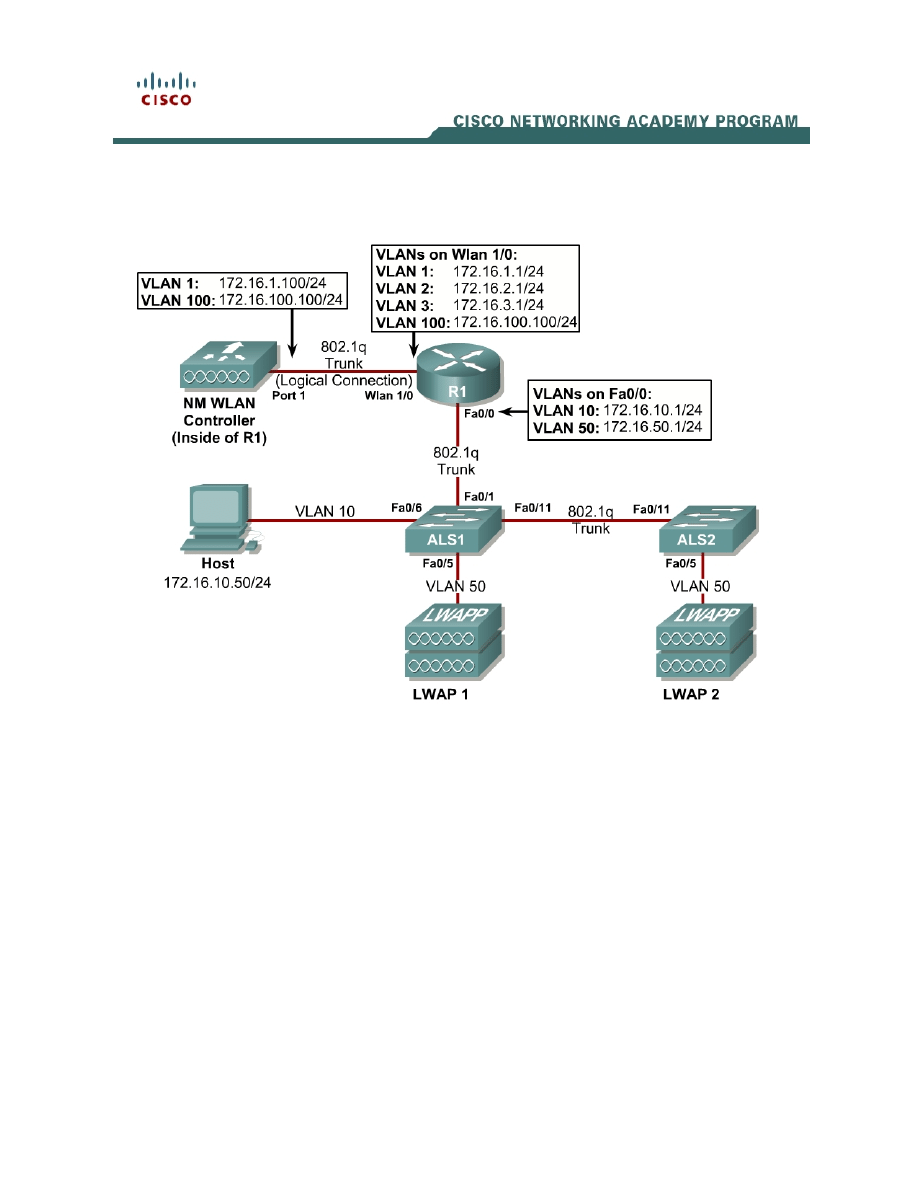
Topology Diagram
Scenario
In the next two labs, you will configure a wireless solution involving a router with
a built-in WLAN controller, two lightweight wireless access points, and a
switched wired network. You will configure a WLAN controller to broadcast
SSIDs from the lightweight wireless access points. If you have a wireless client
nearby, connect to the WLANs and access devices from the inside of your pod
to verify your configuration of the controller and access points.
Note: It is required that you upgrade the NM WLC firmware image to 4.0.206.0
or higher in order to accomplish this lab.
Step 1
Erase the startup-config file and delete the vlan.dat file from each switch, and
erase the startup-config file on each router. Set hostnames on all of the
devices.

Step 2
Explanation of VLANs:
VLAN 1 – This VLAN is the management VLAN for the WLC
VLAN 2 and VLAN 3 – These VLANs are for hosts in the WLANs
VLAN 10 – The host is in this VLAN
VLAN 50 – The APs are in this VLAN
VLAN 100 – The AP-manager interface of the WLC is in this VLAN
Configure ALS1 and ALS2 to run VTP in transparent mode in the VTP domain
“CISCO”, and create VLANs 10 and 50 on them. Also, set up a trunk link
between them as well as towards R1.
ALS1(config)# vtp mode transparent
Setting device to VTP TRANSPARENT mode.
ALS1(config)# vtp domain CISCO
Changing VTP domain name from NULL to CISCO
ALS1(config)# vlan 10,50
ALS1(config-vlan)# int fastethernet0/1
ALS1(config-if)# switchport mode trunk
ALS1(config-if)# int fastethernet0/11
ALS1(config-if)# switchport mode trunk
ALS2(config)# vtp mode transparent
Setting device to VTP TRANSPARENT mode.
ALS2(config)# vtp domain CISCO
Changing VTP domain name from NULL to CISCO
ALS2(config)# vlan 10,50
ALS2(config-if)# int fastethernet0/11
ALS2(config-if)# switchport mode trunk
Step 3
Configure the subinterfaces on R1 for both FastEthernet0/0 and wlan-
controller1/0 ports shown in the diagram. Both will be configured as 802.1q
trunks with a VLAN on each subinterface. Make sure you use the native VLAN
on the physical wlan-controller1/0 interface, as you will not be able to connect to
the controller unless there is an IP address on the physical interface. Don’t
forget to add no shutdown commands to both physical interfaces.
R1(config)# int fastethernet0/0
R1(config-if)# no shutdown
R1(config-if)# int fastethernet0/0.10
R1(config-subif)# encapsulation dot1q 10
R1(config-subif)# ip address 172.16.10.1 255.255.255.0
R1(config-subif)# int fastethernet0/0.50
R1(config-subif)# encapsulation dot1q 50
R1(config-subif)# ip address 172.16.50.1 255.255.255.0
R1(config-subif)# int wlan-controller1/0
R1(config-if)# ip address 172.16.1.1 255.255.255.0
R1(config-if)# no shutdown
R1(config-if)# int wlan-controller1/0.2
R1(config-subif)# encapsulation dot1q 2
2 - 13
CCNP: Optimizing Converged Networks v5.0 - Lab 6-1b
Copyright
© 2007, Cisco Systems, Inc

If the interface doesn't support baby giant frames
maximum mtu of the interface has to be reduced by 4
bytes on both sides of the connection to properly
transmit or receive large packets. Please refer to
documentation on configuring IEEE 802.1Q vLANs.
R1(config-subif)# ip address 172.16.2.1 255.255.255.0
R1(config-subif)# int wlan-controller1/0.3
R1(config-subif)# encapsulation dot1q 3
R1(config-subif)# ip address 172.16.3.1 255.255.255.0
R1(config-subif)# int wlan-controller1/0.100
R1(config-subif)# encapsulation dot1q 100
R1(config-subif)# ip address 172.16.100.1 255.255.255.0
Step 4
DHCP gives out dynamic IP addresses on a subnet to network devices or hosts
rather than statically setting the addresses. This is useful when dealing with
lightweight access points, which usually do not have an initial configuration. The
WLAN controller that the lightweight wireless access point associates with
defines the configuration. A lightweight access point can dynamically receive an
IP address and then communicate over IP with the WLAN controller. In this
scenario, you will also use it to assign IP addresses to hosts that connect to the
WLANs.
First, set up R1 to exclude the first 150 addresses from each subnet from
DHCP to avoid conflicts with static IP addresses by using the global
configuration command ip dhcp excluded-address low-address [high-
address].
R1(config)# ip dhcp excluded-address 172.16.1.1 172.16.1.150
R1(config)# ip dhcp excluded-address 172.16.2.1 172.16.2.150
R1(config)# ip dhcp excluded-address 172.16.3.1 172.16.3.150
R1(config)# ip dhcp excluded-address 172.16.10.1 172.16.10.150
R1(config)# ip dhcp excluded-address 172.16.50.1 172.16.50.150
R1(config)# ip dhcp excluded-address 172.16.100.1 172.16.100.150
To advertise on different subnets, create DHCP pools with the ip dhcp pool
name command. After a pool is configured for a certain subnet, the IOS DHCP
server processes requests on that subnet, because it is enabled by default.
From the DHCP pool prompt, set the network and mask to use with the
network address /mask command. Set a default gateway with the default-
router address command.
VLAN 50 also uses the option command, which allows you to specify a DHCP
option. In this case, option 43 is specified (a vendor-specific option), which
gives the lightweight wireless access points the IP address of the WLAN
controller AP Manager interface. It is specified in a hexadecimal TLV (type,
length, value) format. F1 is the hardcoded type of option, 04 represents the
length of the value (an IP address is 4 octets), and AC106464 is the
hexadecimal representation of 172.16.100.100, which is going to be the AP
manager address of the WLAN controller. DHCP option 60 specifies the
3 - 13
CCNP: Optimizing Converged Networks v5.0 - Lab 6-1b
Copyright
© 2007, Cisco Systems, Inc

identifier that access points will use in DHCP. This lab was written using Cisco
Aironet 1240 series access points. If you are using a different access point
series, consult
http://www.cisco.com/univercd/cc/td/doc/product/wireless/aero1500/1500hig5/1
500_axg.htm
.
R1(config)# ip dhcp pool pool1
R1(dhcp-config)# network 172.16.1.0 /24
R1(dhcp-config)# default-router 172.16.1.1
R1(dhcp-config)# ip dhcp pool pool2
R1(dhcp-config)# network 172.16.2.0 /24
R1(dhcp-config)# default-router 172.16.2.1
R1(dhcp-config)# ip dhcp pool pool3
R1(dhcp-config)# network 172.16.3.0 /24
R1(dhcp-config)# default-router 172.16.3.1
R1(dhcp-config)# ip dhcp pool pool10
R1(dhcp-config)# network 172.16.10.0 /24
R1(dhcp-config)# default-router 172.16.10.1
R1(dhcp-config)# ip dhcp pool pool50
R1(dhcp-config)# network 172.16.50.0 /24
R1(dhcp-config)# default-router 172.16.50.1
R1(dhcp-config)# option 43 hex f104ac106464
R1(dhcp-config)# option 60 ascii "Cisco AP c1240"
R1(dhcp-config)# ip dhcp pool pool100
R1(dhcp-config)# network 172.16.100.0 /24
R1(dhcp-config)# default-router 172.16.100.1
Step 5
On both switches, configure all access points to bypass the spanning-tree port
states with the spanning-tree portfast command. With this command, each
access point receives an IP address from DHCP immediately, without worrying
about timing out from DHCP. Configure the switchports going to the lightweight
wireless access points in VLAN 50. R1 will route the tunneled WLAN traffic
towards the WLAN controllers AP-manager interface.
ALS1(config)# int fastethernet0/5
ALS1(config-if)# switchport mode access
ALS1(config-if)# switchport access vlan 50
ALS1(config-if)# spanning-tree portfast
ALS2(config)# int fastethernet0/5
ALS2(config-if)# switchport mode access
ALS2(config-if)# switchport access vlan 50
ALS2(config-if)# spanning-tree portfast
Step 6
You have a PC running Microsoft Windows attached to ALS1. First, configure
the switchport connecting to the host in VLAN 10 with portfast. Management
traffic from the host for the WLAN controller will be routed to R1 towards the
management interface of the WLC.
ALS1(config)# int fastethernet0/6
ALS1(config-if)# switchport mode access
ALS1(config-if)# switchport access vlan 10
4 - 13
CCNP: Optimizing Converged Networks v5.0 - Lab 6-1b
Copyright
© 2007, Cisco Systems, Inc
ALS1(config-if)# spanning-tree portfast
Next, configure the host with an IP address in VLAN 10, which will later be used
to access the HTTP web interface of the WLAN controller later. Follow the
procedure below to prepare the host to access the WLAN controller.
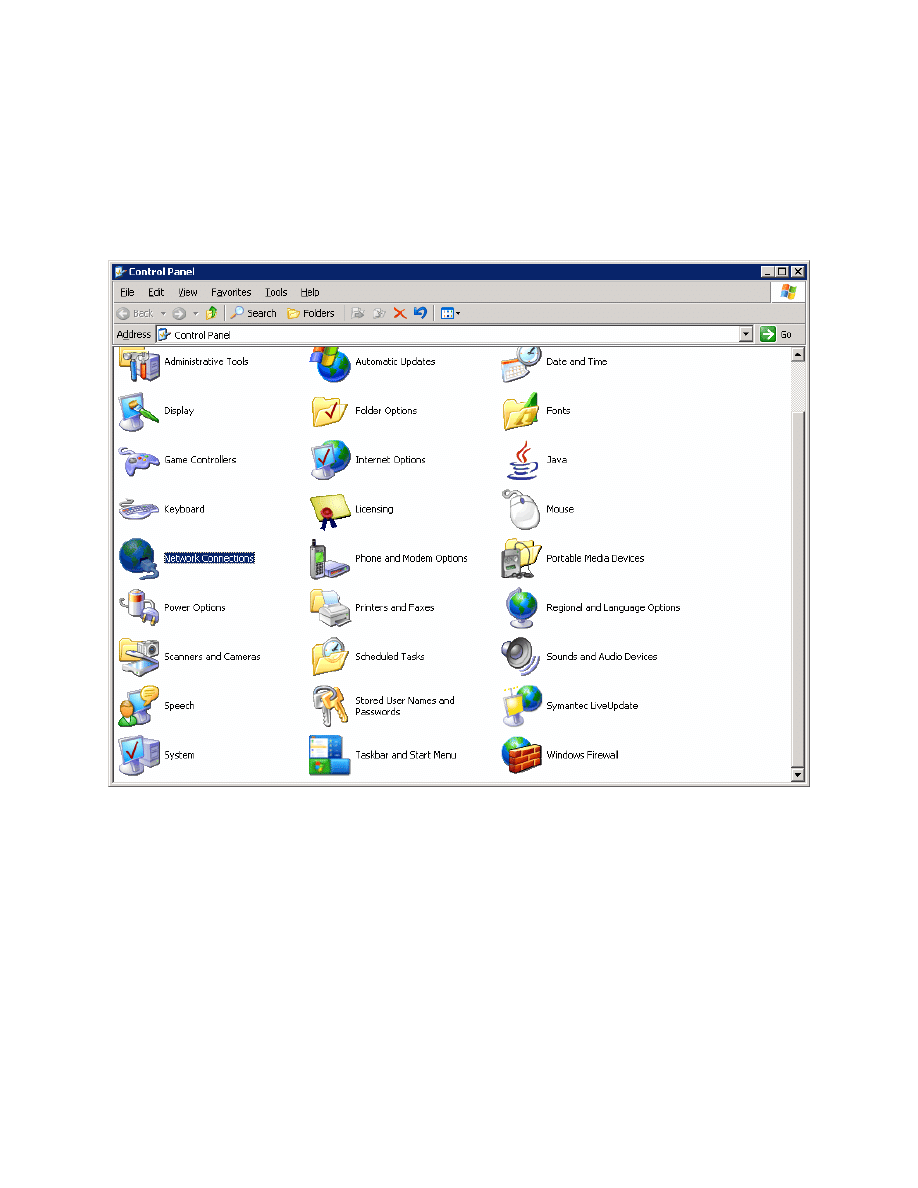
In the Control Panel, select Network Connections.
Figure 5-1: Microsoft Windows Control Panel
Right-click on the LAN interface that connects to ALS1, and select Properties.
Select Internet Protocol (TCP/IP) and then click the Properties button.
5 - 13
CCNP: Optimizing Converged Networks v5.0 - Lab 6-1b
Copyright
© 2007, Cisco Systems, Inc
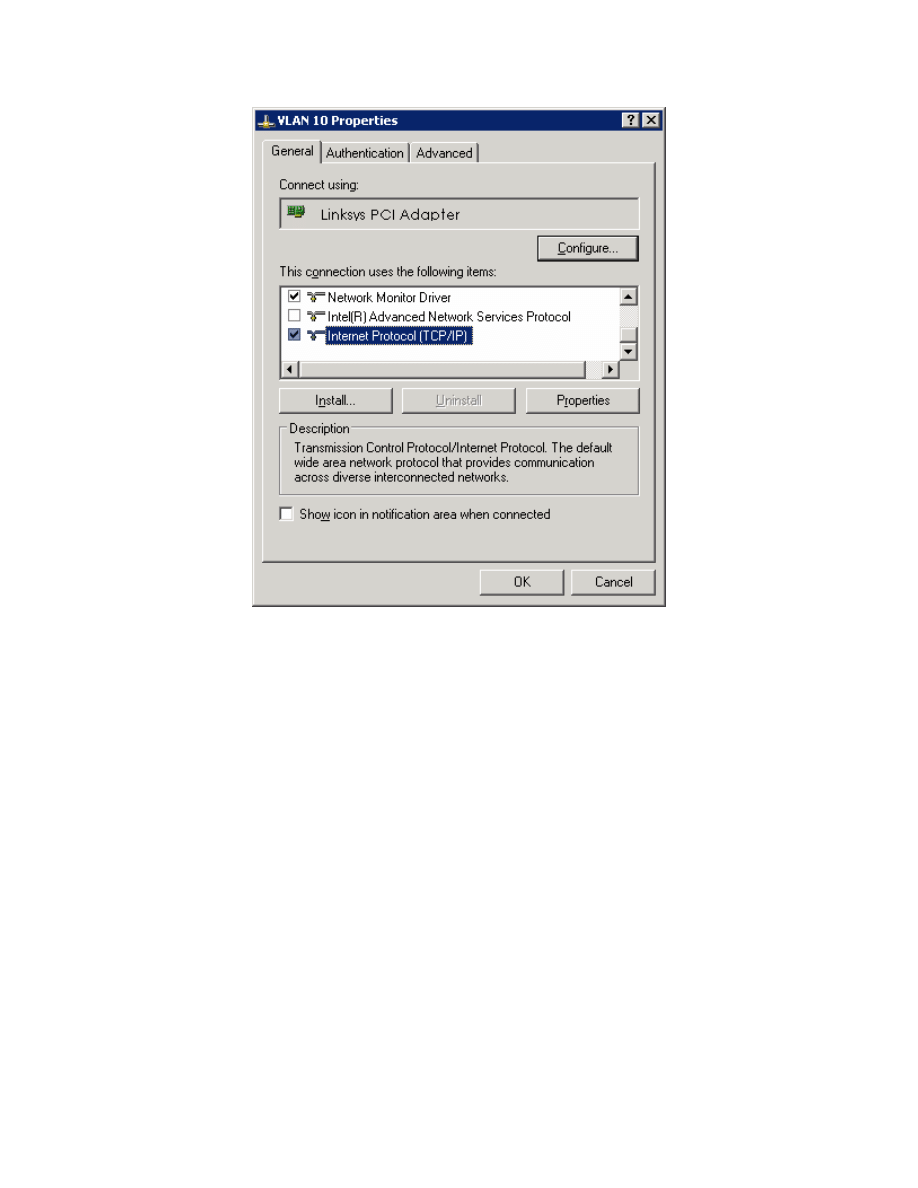
Figure 5-2: Modify the Properties for Interface on VLAN 10
Finally, configure the IP address shown in the diagram on the interface.
6 - 13
CCNP: Optimizing Converged Networks v5.0 - Lab 6-1b
Copyright
© 2007, Cisco Systems, Inc
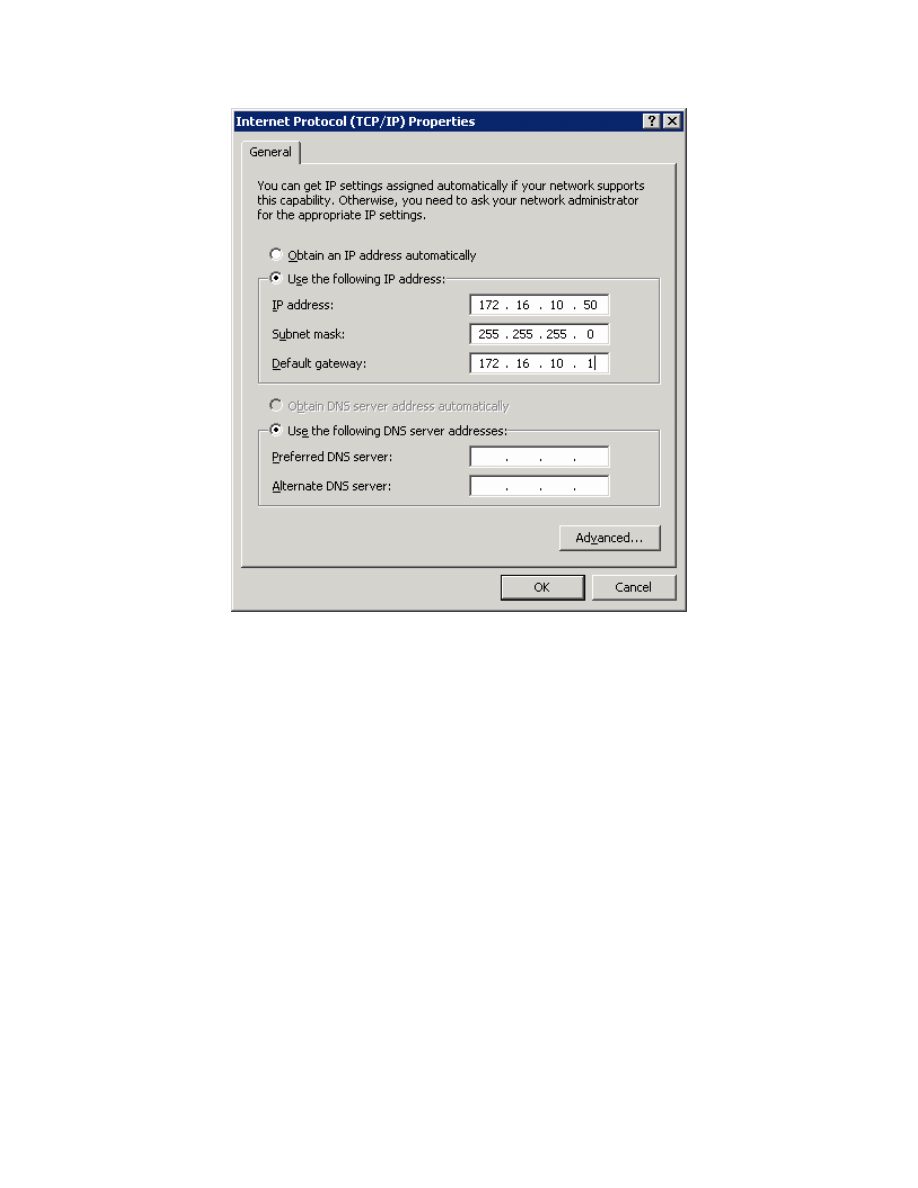
Figure 5-3: Configure IP Address, Subnet, and Gateway
Click OK to apply the TCP/IP settings, and then again to exit the configuration
dialog box. From the Start Menu, click Run. Issue the cmd command and press
the Return key. At the Windows command-line prompt, ping R1’s VLAN 10
interface. You should receive responses. If you do not, troubleshoot, verifying
the VLAN of the switchport and the IP address and subnet mask on each of the
devices on VLAN 10.
C:\Documents and Settings\Administrator> ping 172.16.10.1
Pinging 172.16.10.1 with 32 bytes of data:
Reply from 172.16.10.1: bytes=32 time=1ms TTL=255
Reply from 172.16.10.1: bytes=32 time<1ms TTL=255
Reply from 172.16.10.1: bytes=32 time<1ms TTL=255
Reply from 172.16.10.1: bytes=32 time<1ms TTL=255
Ping statistics for 172.16.10.1:
Packets: Sent = 4, Received = 4, Lost = 0 (0% loss),
Approximate round trip times in milli-seconds:
Minimum = 0ms, Maximum = 1ms, Average = 0ms
7 - 13
CCNP: Optimizing Converged Networks v5.0 - Lab 6-1b
Copyright
© 2007, Cisco Systems, Inc

Step 7
R1 will route between all subnets shown in the diagram, because it has a
connected interface in each subnet. Each IP subnet is shown in the output of
the show ip route command issued on R1.
R1#show ip route
Codes: C - connected, S - static, R - RIP, M - mobile, B - BGP
D - EIGRP, EX - EIGRP external, O - OSPF, IA - OSPF inter area
N1 - OSPF NSSA external type 1, N2 - OSPF NSSA external type 2
E1 - OSPF external type 1, E2 - OSPF external type 2
i - IS-IS, su - IS-IS summary, L1 - IS-IS level-1, L2 - IS-IS level-2
ia - IS-IS inter area, * - candidate default, U - per-user static route
o - ODR, P - periodic downloaded static route
Gateway of last resort is not set
172.16.0.0/24 is subnetted, 6 subnets
C 172.16.50.0 is directly connected, FastEthernet0/0.50
C 172.16.10.0 is directly connected, FastEthernet0/0.10
C 172.16.1.0 is directly connected, wlan-controller1/0
C 172.16.2.0 is directly connected, wlan-controller1/0.2
C 172.16.3.0 is directly connected, wlan-controller1/0.3
C 172.16.100.0 is directly connected, wlan-controller1/0.100
Step 8
Now that the underlying network infrastructure is set up, you can set up the
WLAN controller.
At R1’s privileged exec prompt, you can control the state of the WLC inside R1.
To see what types of commands you can execute, use the command service-
module interface ?.
R1#service-module wlan-controller1/0 ?
reload Reload service module
reset Hardware reset of Service Module
session Service module session
shutdown Shutdown service module
statistics Service Module Statistics
status Service Module Information
After you review what you can do to the internal wlan-controller, reset it. Right
after the line protocol comes back up on the controller, connect to it using the
session argument for service-module as shown below.
R1#service-module wlan-controller1/0 reset
Use reset only to recover from shutdown or failed state
Warning: May lose data on the hard disc!
Do you want to reset?[confirm]
Trying to reset Service Module wlan-controller1/0.
R1#
*Feb 14 06:27:03.311: %LINEPROTO-5-UPDOWN: Line protocol on Interface wlan-
controller1/0, changed state to down
*Feb 14 06:27:23.311: %LINEPROTO-5-UPDOWN: Line protocol on Interface wlan-
controller1/0, changed state to up
R1#service-module wlan-controller1/0 session
8 - 13
CCNP: Optimizing Converged Networks v5.0 - Lab 6-1b
Copyright
© 2007, Cisco Systems, Inc

Trying 172.16.1.1, 2066 ... Open
Cisco Bootloader Loading stage2...
Cisco Bootloader (Version 4.0.206.0)
.o88b. d888888b .d8888. .o88b. .d88b.
d8P Y8 `88' 88' YP d8P Y8 .8P Y8.
8P 88 `8bo. 8P 88 88
8b 88 `Y8b. 8b 88 88
Y8b d8 .88. db 8D Y8b d8 `8b d8'
`Y88P' Y888888P `8888Y' `Y88P' `Y88P'
<OUTPUT OMITTED>
If you start up the WLC and it does not have a cleared configuration, you may
use “Recover-Config” as the first username used to login after the NM has been
restarted. If you are already at a command prompt for the WLC, use the clear
config command followed by the reset system command.
Once connected to the WLAN controller with an erased configuration, a wizard
starts to allow you to configure basic settings. Pressing the Return key allows
the default configuration options to be used (whatever appears in square
brackets will be the default, and if there are multiple entries in square brackets,
the one in capital letters will be the default).
The first prompt asks for a hostname. Use the default. Use “cisco” as both the
username and password.
Welcome to the Cisco Wizard Configuration Tool
Use the '-' character to backup
System Name [Cisco_49:43:c0]:
Enter Administrative User Name (24 characters max): cisco
Enter Administrative Password (24 characters max): <cisco>
Enter the management interface information. The management interface
communicates with the management workstation in VLAN 1. The interface
number is 1, because this is the only interface on the NM WLC (it is the logical
connection to R1’s wlan-controller1/0). The VLAN number is 0 for untagged. It
is untagged it is the native 802.1q VLAN, and is going to be sent to the physical
(non-subinterface) interface of R1.
Management Interface IP Address: 172.16.1.100
Management Interface Netmask: 255.255.255.0
Management Interface Default Router: 172.16.1.1
Management Interface VLAN Identifier (0 = untagged): 0
Management Interface Port Num [1]: 1
Management Interface DHCP Server IP Address: 172.16.1.1
Configure an interface to communicate with the lightweight access points
(tunneled access point traffic will be sent here). This will be in VLAN 100 and is
tagged as such on the trunk.
AP Manager Interface IP Address: 172.16.100.100
9 - 13
CCNP: Optimizing Converged Networks v5.0 - Lab 6-1b
Copyright
© 2007, Cisco Systems, Inc

AP Manager Interface Netmask: 255.255.255.0
AP Manager Interface Default Router: 172.16.100.1
AP Manager Interface VLAN Identifier (0 = untagged): 100
AP Manager Interface Port Num [1]: 1
AP Manager Interface DHCP Server (172.16.1.1): 172.16.100.1
Configure the virtual gateway IP address as 1.1.1.1 (this is acceptable because
you are not using this for routing). The virtual gateway IP address is typically a
fictitious, unassigned IP address, such as the address we are using here, to be
used by Layer 3 Security and Mobility managers.
Virtual Gateway IP Address: 1.1.1.1
Configure the mobility group and network name as “ccnppod.” Allow static IP
addresses by hitting enter, but do not configure a RADIUS server now.
Mobility/RF Group Name: ccnppod
Network Name (SSID): ccnppod
Allow Static IP Addresses [YES][no]:
Configure a RADIUS Server now? [YES][no]: no
Warning! The default WLAN security policy requires a RADIUS server.
Please see documentation for more details.
Use the defaults for the rest of the settings by hitting enter, except for the time
settings. Do not configure a time server, but do set the current time.
Enter Country Code (enter 'help' for a list of countries) [US]:
Enable 802.11b Network [YES][no]:
Enable 802.11a Network [YES][no]:
Enable 802.11g Network [YES][no]:
Enable Auto-RF [YES][no]:
Configure a NTP server now? [YES][no]: no
Configure the system time now? [YES][no]: yes
Enter the date in MM/DD/YY format: 02/14/07
Enter the time in HH:MM:SS format: 02:17:00
Configuration correct? If yes, system will save it and reset. [yes][NO]: yes
Configuration saved!
Resetting system with new configuration...
Step 9
When the WLAN controller has finished restarting, log in with the username
“cisco” and password “cisco.”
User: cisco
Password: <cisco>
Change the controller prompt to WLAN_CONTROLLER with the config prompt
name command. Notice that the prompt changes.
10 - 13
CCNP: Optimizing Converged Networks v5.0 - Lab 6-1b
Copyright
© 2007, Cisco Systems, Inc

(Cisco Controller) > config prompt WLAN_CONTROLLER
(WLAN_CONTROLLER) >
Enable Telnet and HTTP access to the WLAN controller. HTTPS access is
enabled by default, but unsecured HTTP is not.
(WLAN_CONTROLLER) > config network telnet enable
(WLAN_CONTROLLER) > config network webmode enable
Save your configuration with the save config command, which is analogous to
the Cisco IOS copy run start command.
(WLAN_CONTROLLER) > save config
Are you sure you want to save? (y/n) y
Configuration Saved!
To verify the configuration, you can issue the show interface summary, show
wlan summary, and show run-config commands on the WLAN controller.
How is the WLAN controller’s show run-config command different than the
Cisco IOS show running-config command?
Final Configuration
R1#show run
hostname R1
!
ip dhcp excluded-address 172.16.1.1 172.16.1.150
ip dhcp excluded-address 172.16.2.1 172.16.2.150
ip dhcp excluded-address 172.16.3.1 172.16.3.150
ip dhcp excluded-address 172.16.10.1 172.16.10.150
ip dhcp excluded-address 172.16.50.1 172.16.50.150
ip dhcp excluded-address 172.16.100.1 172.16.100.150
!
ip dhcp pool pool1
network 172.16.1.0 255.255.255.0
default-router 172.16.1.1
!
ip dhcp pool pool2
network 172.16.2.0 255.255.255.0
default-router 172.16.2.1
!
ip dhcp pool pool3
network 172.16.3.0 255.255.255.0
default-router 172.16.3.1
!
ip dhcp pool pool10
network 172.16.10.0 255.255.255.0
11 - 13
CCNP: Optimizing Converged Networks v5.0 - Lab 6-1b
Copyright
© 2007, Cisco Systems, Inc

default-router 172.16.10.1
!
ip dhcp pool pool50
network 172.16.50.0 255.255.255.0
default-router 172.16.50.1
option 43 hex f104ac106464
option 60 ascii "Cisco AP c1240"
!
ip dhcp pool pool100
network 172.16.100.0 255.255.255.0
default-router 172.16.100.1
!
interface FastEthernet0/0
no shutdown
!
interface FastEthernet0/0.10
encapsulation dot1Q 10
ip address 172.16.10.1 255.255.255.0
!
interface FastEthernet0/0.50
encapsulation dot1Q 50
ip address 172.16.50.1 255.255.255.0
!
interface wlan-controller1/0
ip address 172.16.1.1 255.255.255.0
no shutdown
!
interface wlan-controller1/0.2
encapsulation dot1Q 2
ip address 172.16.2.1 255.255.255.0
!
interface wlan-controller1/0.3
encapsulation dot1Q 3
ip address 172.16.3.1 255.255.255.0
!
interface wlan-controller1/0.100
encapsulation dot1Q 100
ip address 172.16.100.1 255.255.255.0
end
ALS1#show run
hostname ALS1
!
vtp domain CISCO
vtp mode transparent
!
vlan 10,50
!
interface FastEthernet0/1
switchport mode trunk
!
interface FastEthernet0/5
switchport access vlan 50
switchport mode access
spanning-tree portfast
!
interface FastEthernet0/6
switchport access vlan 10
switchport mode access
spanning-tree portfast
!
interface FastEthernet0/11
switchport mode trunk
12 - 13
CCNP: Optimizing Converged Networks v5.0 - Lab 6-1b
Copyright
© 2007, Cisco Systems, Inc

end
ALS2#show run
hostname ALS2
!
vtp domain CISCO
vtp mode transparent
!
vlan 10,50
!
interface FastEthernet0/5
switchport access vlan 50
switchport mode access
spanning-tree portfast
!
interface FastEthernet0/11
switchport mode trunk
end
13 - 13
CCNP: Optimizing Converged Networks v5.0 - Lab 6-1b
Copyright
© 2007, Cisco Systems, Inc
Wyszukiwarka
Podobne podstrony:
CCNP4 lab 6 2b en
CCNP4 lab 6 1a en
CCNP4 lab 6 2a en
CCNP4 lab 6 4 en
CCNP4 lab 4 9 en
CCNP4 lab 3 1 en
CCNP4 lab 4 7 en
CCNP4 lab 4 8 en
CCNP4 lab 3 2 en
CCNP4 lab 3 3 en
CCNP4 lab 4 2 en
CCNP4 lab 4 6 en
CCNP4 lab 5 1 en
CCNP4 lab 2 1 en
CCNP4 lab 4 4 en
CCNP4 lab 4 3 en
CCNP4 lab 6 3 en
CCNP4 lab 4 5 en
CCNP4 lab 4 1 en
więcej podobnych podstron