Create a team site
Quick Start Guide
Make it yours
Customize your site by adding new apps, such as a team calendar and mailbox. Make the navigation links just the
ones your team requires. If permitted, you can also choose different color schemes and different backgrounds.
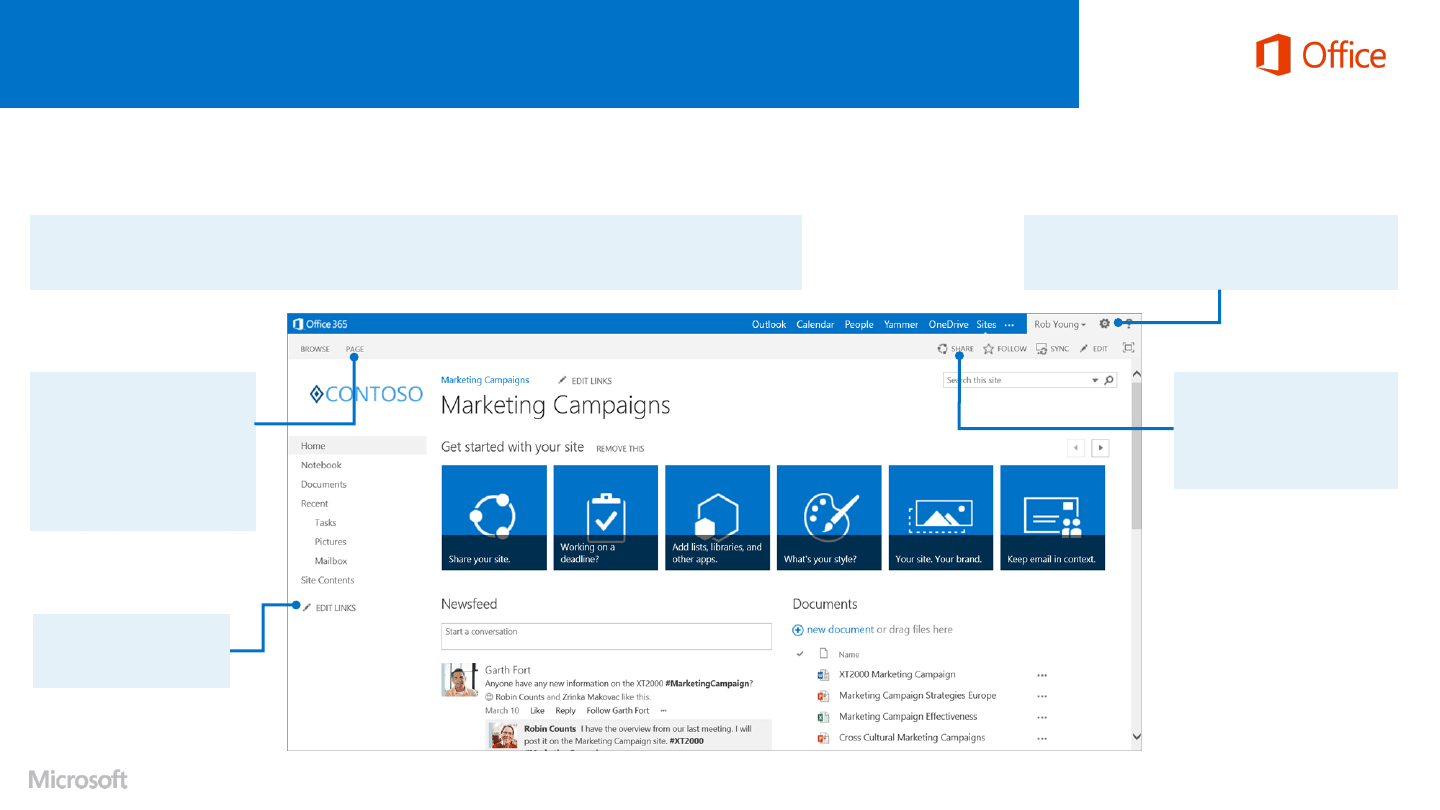
Edit this page
If you have permissions, you
can click the Page tab to:
• Add a picture from your
computer.
• Insert a table on the page.
• Change text formats.
Share the site
Invite others to collaborate on
this site. In some cases, you
can even invite external
people.
Edit Links
Go to your email, tasks, or
contacts in one click.
Customize the site
The Settings icon is your key to many commands —
add an app, create a subsite, and more.
You can also add a link to a URL
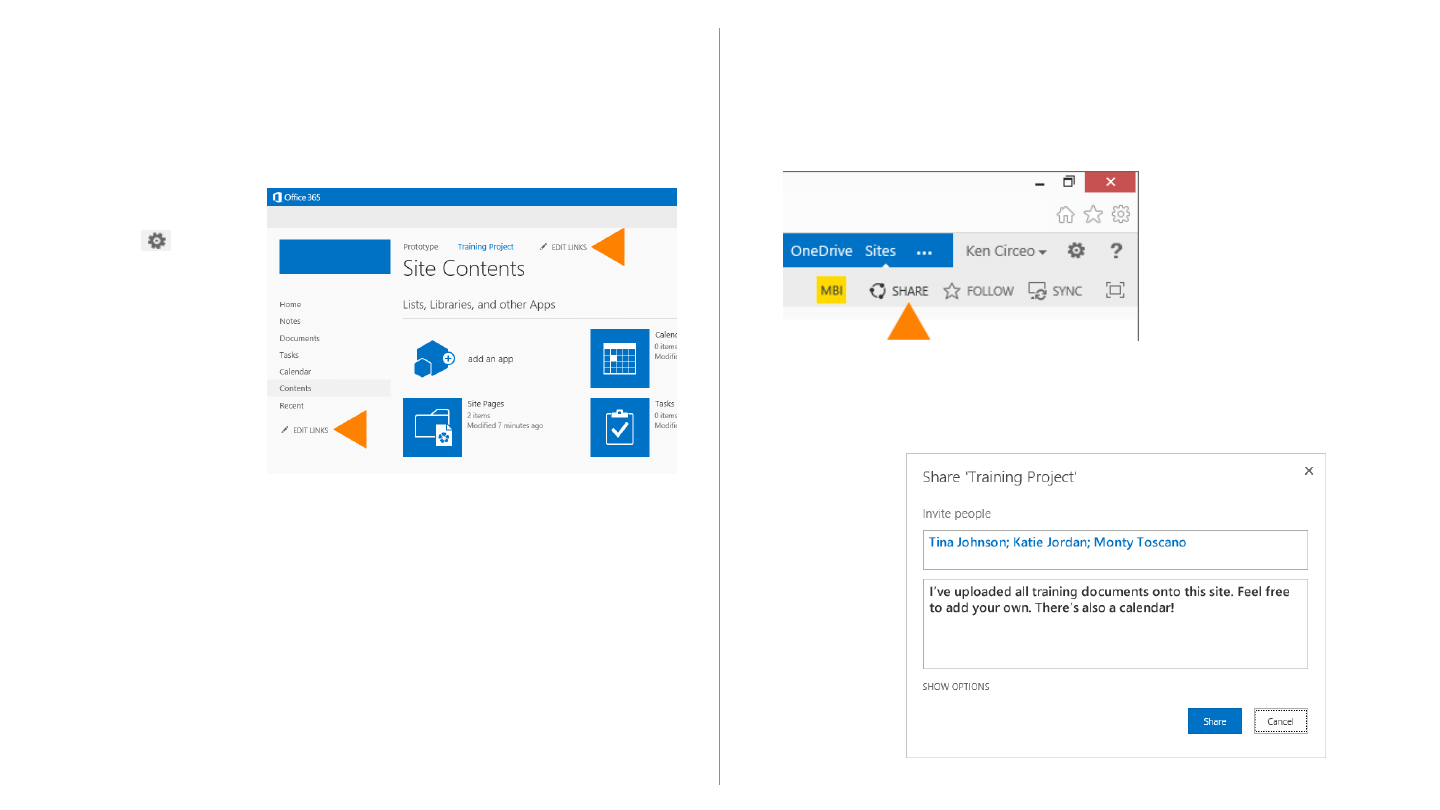
1. Click Edit Links on the Quick Launch or the top navigation, depending on where
you want the link.
2. Click Link.
3. Enter a display name for the link and the URL. Make sure you start the URL with
http://.
4. Click OK, and then click Save.
Add a link to the site page
The easiest way to add a link is to drag an app from the Site Contents page to the
navigation top links or to the Quick Launch.
Or, you can do the following:
Share a site
You can share a site with other people, and then have Office 365 send them an email
with a link to the site.
1. On the site that you want to share, click Share.
2. In the Share dialog box, type the names of the people in your organization that
you want to invite to share your site.
3. Type any message that you want to include with your invitation.
4. Click Share.
1. Go to the Site
Contents page: Click
Settings > Site
Contents.
2. Click Edit Links on the
Quick Launch or the
top navigation,
depending on where
you want the link.
3. Click the app you want
to add, and drag it to
where you want it.
Wyszukiwarka
Podobne podstrony:
AF104114261 en us quick start guide store and share documents
AF104114265 en us quick start guide lists
Red Hat Storage 2 0 Quick Start Guide en US
Red Hat Storage 2 1 Quick Start Guide en US
Parallels Desktop Mac Quick Start Guide
Quick Start Guide
Smart Box NVR Series Quick Start Guide V1 0 0
Quick Start Guide
50064982 MD80210 quick start guide PL
PAP4055DUO V1 0 Quick Start Guide PL
OUTLOOK 2016 QUICK START GUIDE
Quick Start Guide
quick start guide v2 1
Ultimate Comment Scraper Quick Start Guide
Parallels Desktop for Mac Quick Start Guide
Calibre Quick Start Guide John Schember
A Quick Start Guide to Monitor Profiling with Lprof
PAP4020DUO V1 0 Quick Start Guide PL
więcej podobnych podstron