
Fundamentals of UNIX
Lab 8.5.2– Finding, Searching and Sorting Files
(Estimated time: 45 min.)
Objectives:
• Become familiar the grep and sort file processing commands
• Find files by name using the find command
• Find files by type using the find command
• Find files by date last modified using the find command
• Search for strings in files using the grep command
• Editing files using the sed command
• Sort files with the basic sort command
• Sort files using options with the sort command
• Use CDE File Manager to find files
Background:
In this lab, advanced UNIX commands are used to find files and specific strings contained in files. CDE
File manager will be used to locate files based on file name or file contents. The find command can be
used to find files anywhere in the directory structure. The grep command is used to search for specific
string or characters in file and list the files and lines where they are found. This lab requires the user to
use the sort command to sort the contents of file and pipe the results of other command to the sort
command and to grep.
Tools / Preparation:
a) Before starting this lab, review Chapter 8, Section 2 – File Processing Commands
b) The following materials are required:
1. A login user ID (e.g. user2) and password.
2. A computer running the UNIX operating system with CDE
3. Networked computers in classroom with class file system installed
Notes:
1 - 8
Fundamentals UNIX 2.0—-Lab 8.5.2
Copyright
2002, Cisco Systems, Inc.
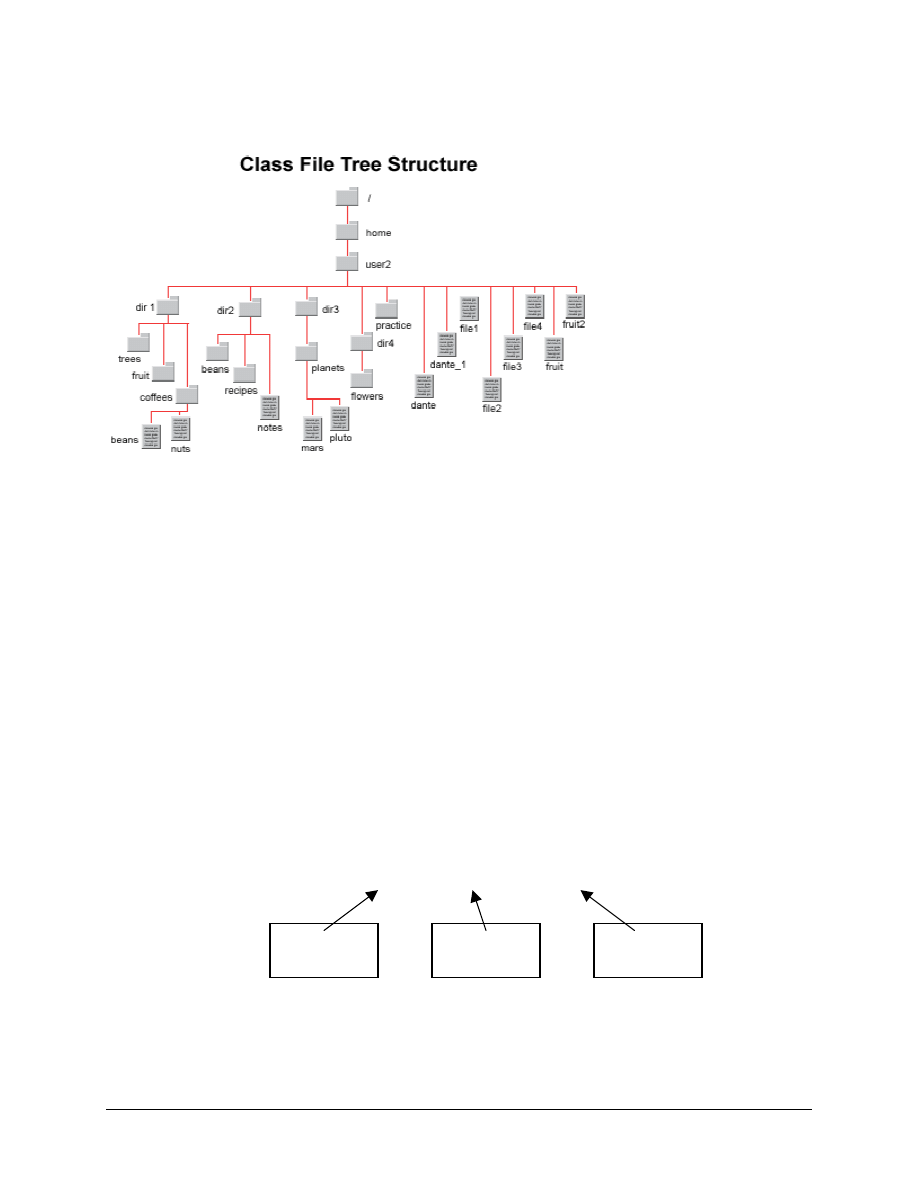
Use the diagram of the sample Class File System directory tree to assist with this lab.
Step 1. Log in to CDE
Login with the user name and password assigned to by the instructor in the CDE entry box.
Step 2. Access the Command Line
Right click on the workspace backdrop and click on Tools. Select Terminal from the menu to open a
terminal window.
Finding Files - Overview
The find command can be used to find files based on specific criteria. Once a file or group of files that
match a search criterion is found, another command can be executed on the matching files. The find
command can be used for many purposes including deleting, backing up, or printing files once they are
found. The find command can be used to locate files on a local hard drive or on remote servers.
The find command starts at the point in the directory hierarchy specified and searches all directories
and subdirectories below that point. Searching the hard drive by starting at the root can take a long time.
Once a file is found, it is listed with the starting directory and any subdirectories below it. To learn more
about the find command, refer to the man pages.
There are a number of options and variations with the find command. The format of the find
command is shown below:
Command format:
find path expression action
Optional
Commands
Starting
Directory
Search
Criteria
2 - 8
Fundamentals UNIX 2.0—-Lab 8.5.2
Copyright
2002, Cisco Systems, Inc.

Path Options
The path names the directory where the search begins. Path can be a tilde (~) representing the home
directory, a dot (.) representing the current directory, an absolute or relative pathname, or even the root
directory.
Search Expression Options
Expression is one or more search criteria options that indicate what to look for and is specified by one or
more values. Basic find options include file name, type, and size. Options must be preceded by a dash.
Note: When searching by filename the asterisk (*) and question mark (?) wildcards can be used
but the string and the wildcard character must be in quotes (single or double).
Action Options
The Action option at the end of the command is optional and can be used to execute various commands
after the desired file(s) have been found.
Step 3. Find Files by Name
In the following example, the search begins in the /usr/bin directory and finds all files whose name starts
with the letter c.
Example: find /usr/bin -name ’c*’(or “c*” )
a. Enter the command to change to the home directory. What command was entered?
b. Use
the
find command to locate a file named mars starting in the home directory. What
command was used? What directory was it located in?
c. Starting in the dir1 directory, use the find command to locate a file named beans. What
command was used?
What directory was it located in?
d. Starting in the home directory, use the find command to locate all files and directories in the
class file system tree that start with the letter p. What command was used?
e. How many directories and how many files were located?
f. What were their path and file/directory names?
Step 4. Find Files by Type
In the following example, the search starts in the /etc directory and finds all files whose type is d
(directory)
Example: find /etc -type d
a. Starting in the home directory, use the find command to identify all files with a type of d
(directories and subdirectories). What command was used?
b. How many directories were identified?
3 - 8
Fundamentals UNIX 2.0—-Lab 8.5.2
Copyright
2002, Cisco Systems, Inc.
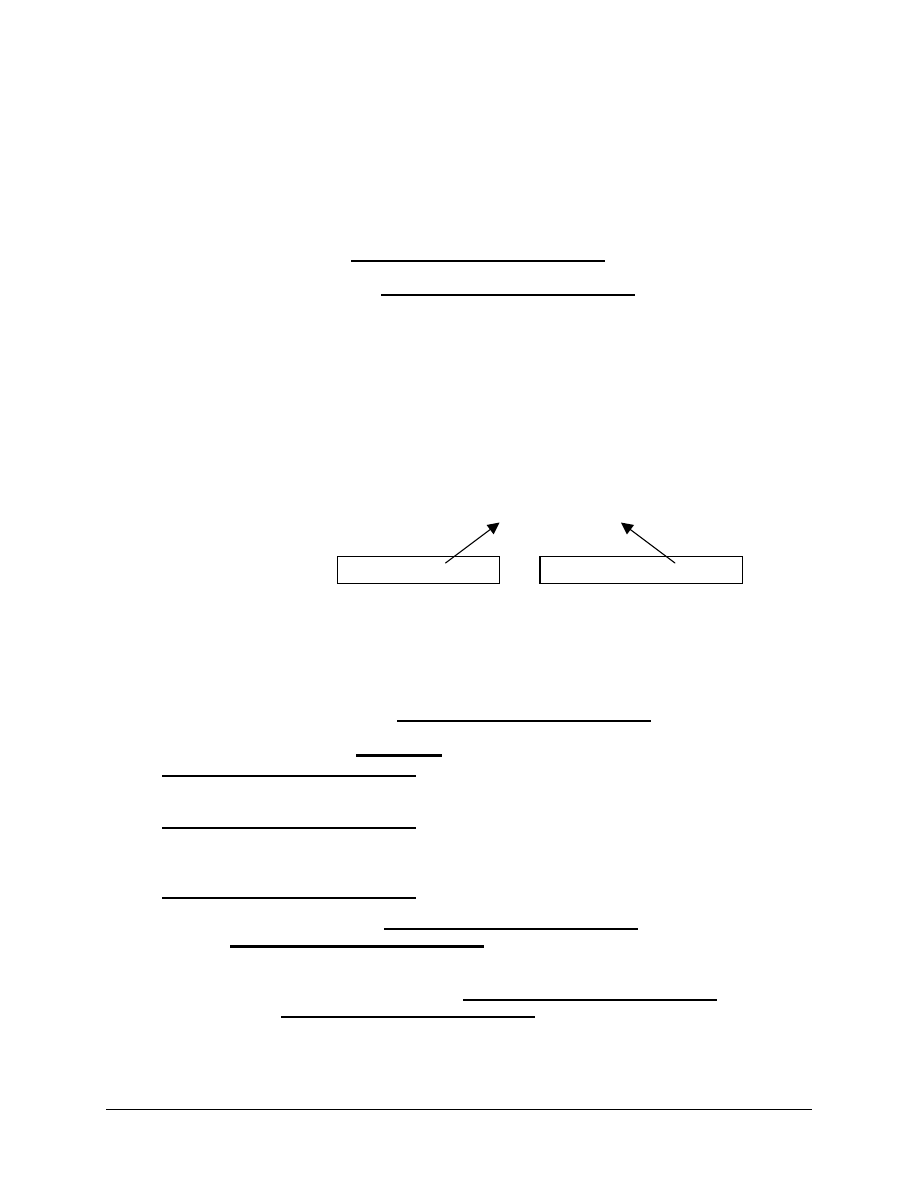
Step 5. Find Files by Date Last Modified
In the following example, the search starts in the users home directory and finds all files, which have
not been modified for more than 90 days.
Example: find ~ -mtime
+90
a. Use
the
find command to identify all files that have not been modified within the last 90 days.
What command was used?
b. How many files were identified?
Step 6. Search for Strings in files
The grep (Global Regular Expression Print) command is used to search a file or the output of a
command for a specified text string. A string is one or more characters; it can be a character, a word, or a
sentence. A string can include white space or punctuation if enclosed in quotations. The grep command
searches a file for a character string and prints all lines that contain that pattern to the screen. The grep
command is frequently used in a pipeline with other commands. For instance, one can issue the ps
(process status) command and look for all occurrences of a specific process. The grep command is case
sensitive. The pattern must match with respect to uppercase and lowercase letters, unless the -i option is
used, which ignores the case. The -v option searches for all lines that do not match the string specified.
Command format:
grep [option(s)] string
path/filename
What to Look For
What File(s) to Look in
In the following example, the grep command is used to search all files (indicated by the asterisk) in the
current directory (indicated by the ./) to locate files that have the character string xyz in them.
Example:
grep xyz
./*
a. Use
the
grep command to identify all files in the home directory that have the word mango in
them. What command was used?
b. How many files were listed?
What are the names of the files?
c. Change to the parent directory of the user home directory (/home). What command was used?
d. Use
the
grep command to search all files in the home directory and list the filename and lines
that have the word week in them. What command was used?
e. How many file/lines were listed?
. What are the names of
the files?
f. Pipe the output of the ls –l command to the grep command and search for all files owned by
current user ID. What command was used?
How many
files were listed?
4 - 8
Fundamentals UNIX 2.0—-Lab 8.5.2
Copyright
2002, Cisco Systems, Inc.

Step 7. File Editing with sed
The sed (stream editor) command is another pattern matching utility with effective processing
capabilities. The sed utility reads lines of a text file, one by one. The sed utility applies a set of editing
commands to the lines without opening the file in a text editor like vi. Like grep, sed makes no changes
to the original file and sends the results to standard output. In order to make the changes permanent, the
user must redirect the output to a file. Similar to the grep command, sed uses a number of special
metacharacters to control pattern searching. sed is a very powerful and flexible command when used
from the command line and in shell scripts
Command format:
sed [option(s)] address path/filename [>newfile] OR
Command | sed [option(s)] address
Example Result
sed –n ’20,25p’ file
Displays only lines 20 through 25
sed ‘5d’ file
Deletes line 5
ls –l | sed ‘/[Tt]est/d’ > newfile
Deletes all lines containing Test or test in the ls
–l output, placing the results in newfile.
sed ‘s/….//’ file
Deletes the first four (….) characters from each
line.
sed ‘s/….$//’ file
Deletes the last four (….) characters from each
line.
ls –l | sed ‘5,$d’ > newfile
Deletes lines 5 to the last line in the ls –l
output, placing the results in newfile.
sed –n ‘/^$/d’ file > newfile
Deletes blank lines from file placing the results
in newfile.
ls –l | sed ‘s/ */:/g’
Searches (s) for at least one or more spaces
and globally (g) replaces them with a colon (:).
Note: without the g command sed would only
replace the first space on every line with a
colon and would not continue searching for
other occurrences of a space on the same line.
sed ‘1,10s/Windows/UNIX/g’ file
Search (s) for Windows and globally (g)
replace all occurrences of Windows on every
line wherever it appears in the first 10 (1,10)
lines.
ls –l |sed ‘s/$/EOL/’
Appends EOL at the end of every line.
sed ‘s/^/ /’ file
Searches for the beginning of each line (^) of
the file and adds spaces.
sed –e ‘s/Dante/DANTE/g’ –e ‘s/poet/POET/g’
dante >newdante
Performs two edits on the same command line
and places the results in the newdante file.
a. Change directories to the user home directory then cat the fruit file.
b. Use
sed on the fruit file and delete all lines containing the word ’orange‘. By default the output
will display on the screen. What command was used?
5 - 8
Fundamentals UNIX 2.0—-Lab 8.5.2
Copyright
2002, Cisco Systems, Inc.

c. Generate a long listing of the files in the current directory. Use the output of a long listing again
with sed to delete all lines containing the number 0 (zero). What command was used?
d. Redirect the output generated in step c) to a file named ls1.file. What command was used?
e. Using
sed, delete the last line of the fruit file. What command was used?
f. Using
sed, delete line number 2 to line number 5 from the fruit file. What command was used?
g. Pipe the output of the ls –l command to sed and delete lines 4 to the last line in the output.
Place the output in a new file named ls2.file. What command was used?
h. Using
sed, search for and delete the first three characters of each line in the file3 file. What
command was used?
i. Using
sed, append a pound sign (#) character to the end of each line of the fruit2 file. What
command was used?
j. Using
sed, substitute all occurrences of the string ’the‘ with ’SUN‘ in the dante file. What
command was used?
Step 8. Sort Files with the Basic sort Command
The sort command provides a quick and easy way to organize data in either numerical or alphabetical
order. The sort command works only with ASCII text files and will produce unpredictable results with
executables or files created by applications such as FrameMaker. This command uses the ASCII
character set as its sorting order, working from left to right on a character-by-character basis. By default,
sort relies on white space to delimit (separate) the various fields within the data of a file. There are a
number of options available with the sort command. These enable the operator to define the type of
sort to perform as well as the field on which to begin sorting
Command format: sort [options] [input_filename]
In the following example, the sort command is used to produce an ASCII type of sort, beginning with
the first character of each line for file2.
Example:
sort file2
a. Display the contents of the fruit file in the home directory. What command was used?
Are the names of the fruits in the file sorted in alphabetical order?
b. Use
the
sort command to sort the contents of the fruit file. What command did was used?
Are the names of the fruits in the file sorted in alphabetical
order now?
6 - 8
Fundamentals UNIX 2.0—-Lab 8.5.2
Copyright
2002, Cisco Systems, Inc.

Step 9. Sorting Files with sort Options
There are many options that can be used with the sort command. The example below is a numerical (n)
sort on the second field of a file (sort skips one separator with the +1 syntax).
Example:
sort +1n fileX
a. Create a file called pslist by redirecting the output of the
ps –e
(process status - list every
process. Remember, the redirection symbol is a greater-than symbol) command. What
command was used?
b. Display the contents of the pslist file just created using the
more
command. How many column of
information are there?
Is the file sorted by any of these columns now?
c. The process ID or number is the first column. Sort the file on the first column (no options are
required). Was the output from the sort command sorted by process ID?
d. The process name is the last or 4
th
column. To sort this file on the 4
th
column and redirect the
output to a file named pslist2, what command would be entered?
Step 10. Find Files with File Manager
The Find option on the File manager File menu provides tools to locate files and directories based on
various search criteria. File manager Find can perform many of the functions of the find command as
well as the grep command. The criteria can be either the name of a folder or file or, in the case of a file,
the contents.
a. Start File Manager by clicking on the file folder on the front panel and click on the File menu.
Which option will search for files by name or contents?
b. Select the following from the Find window; Find items in: My home directory, Whose name:
Contains, the characters "file". Then Click on find. How many files were found?
c. Start another search but this time click on the More Criteria button. Click on the name option to
deselect it and then click on content. Click OK. Enter the word work in the field for what to
search for and click on find. What was the name of the file that contained the word work?
d. Start another search. Click on the More Criteria button. Click on the content option to deselect it
and then click on size. Click OK. Select Greater Than and enter 10 (10 Kilobytes or appx.
10,000 bytes) in the field for what to search for and click on find. Was the beans file listed?
e. Navigate to the beans file and right click on it. Click Properties and then Information. What is the
exact size of the beans file?
Step 11. Remove Files and Directories Created in this Lab
Refer to the Class file system tree structure and remove all files and directories created in the home
directory during this lab.
7 - 8
Fundamentals UNIX 2.0—-Lab 8.5.2
Copyright
2002, Cisco Systems, Inc.

Step 12. Close the File Manger Window
Click on the dash button in the upper corner of the window.
Step 13. Close the Terminal Window and Logout
Double click on the dash button in the upper left corner of the screen, then click the EXIT icon on the front
panel.
8 - 8
Fundamentals UNIX 2.0—-Lab 8.5.2
Copyright
2002, Cisco Systems, Inc.
Document Outline
- Lab 8.5.2– Finding, Searching and Sorting Files
- Use the diagram of the sample Class File System directory tree to assist with this lab.
- Step 1. Log in to CDE
- Step 12. Close the File Manger Window
- Click on the dash button in the upper corner of the window.
- Step 13. Close the Terminal Window and Logout
Wyszukiwarka
Podobne podstrony:
lab8(1) id 260269 Nieznany
[8]konspekt new, Elektrotechnika AGH, Semestr II letni 2012-2013, Fizyka II - Laboratorium, laborki,
Rafał Polak 12k2 lab8, Inżynieria Oprogramowania - Informatyka, Semestr III, Systemy Operacyjne, Spr
sprawko modelowanie?p lab8 g3
lab8 przyklad
Lab8 occ id 260283 Nieznany
lab8 1 uklady rownan liniowych
cw8 wyniki, Elektrotechnika AGH, Semestr II letni 2012-2013, Fizyka II - Laboratorium, laborki, labo
lab8 listing
lab8 AC
8 opracowanie, Elektrotechnika AGH, Semestr II letni 2012-2013, Fizyka II - Laboratorium, laborki, l
lab8 VHDL
lab8, 3.2.2.4 Packet Tracer - Configuring Trunks Instructions
lab8 konspekt
lab8 analiza mat I
lab8 odblokowany
lab8 analiza mat I
lnstrukcja Lab8
więcej podobnych podstron