Probabilistic Analysis Tutorial
8-1
Probabilistic Analysis
This tutorial will familiarize the user with the basic probabilistic analysis
capabilities of Slide. It will demonstrate how quickly and easily a
probabilistic slope stability analysis can be performed with Slide.
MODEL FEATURES:
• homogeneous, single material slope
• no water pressure (dry)
• circular slip surface search (Grid Search)
• random variables: cohesion, phi and unit weight
• type of probabilistic analysis: Global Minimum
The finished product of this tutorial (file: Tutorial 08 Probabilistic
Analysis.sli) can be found in the Examples > Tutorials folder in your
Slide installation folder.
Slide v.5.0 Tutorial
Manual
Probabilistic Analysis Tutorial
8-2
Model
This tutorial will be based on the same model used for Tutorial 1, so let’s
first read in the Tutorial 1 file.
Select: File
→ Open
Navigate to the Examples > Tutorials folder in your Slide installation
folder, and open the Tutorial 01 Quick Start.sli file.
Project Settings
To carry out a Probabilistic Analysis with Slide, the first thing that must
be done, is to select the Probabilistic Analysis option in the Project
Settings dialog.
Select: Analysis
→ Project Settings
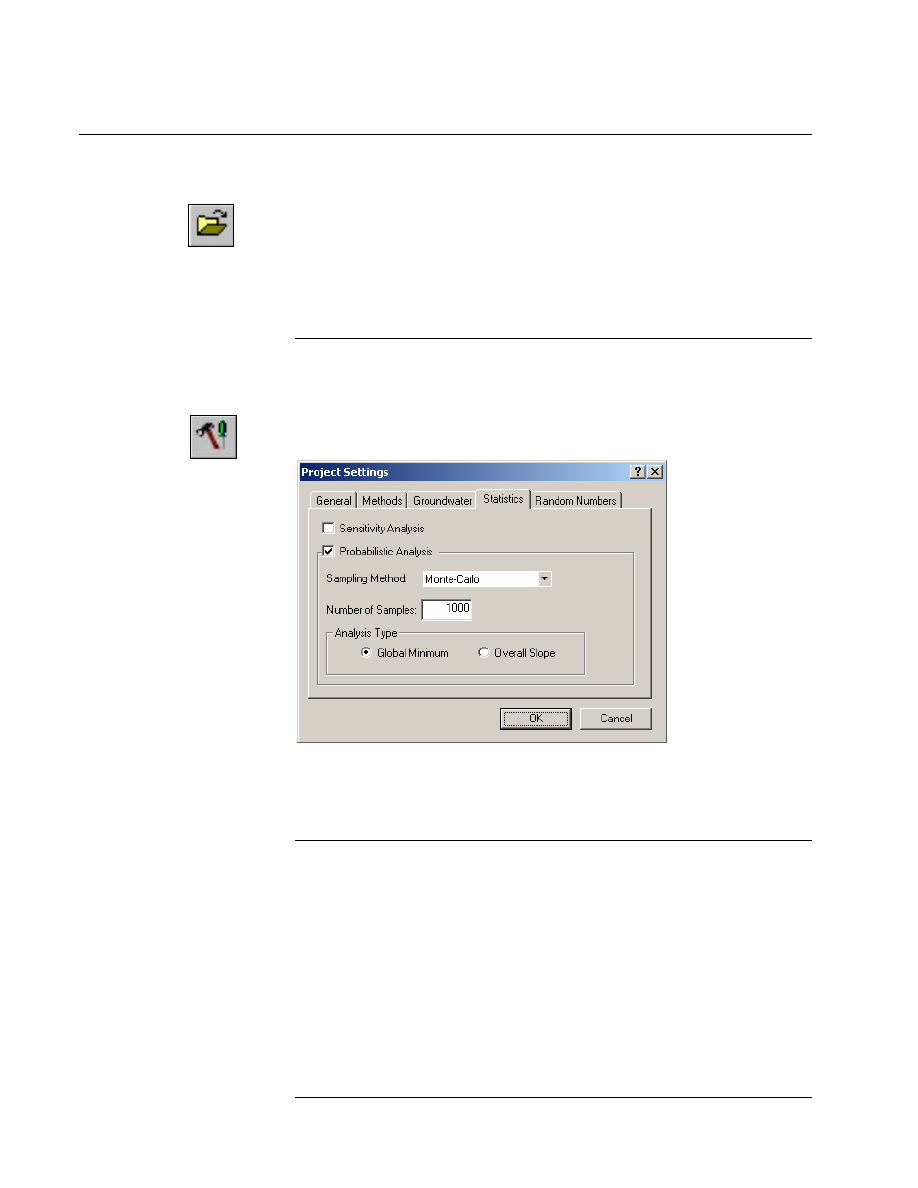
In the Project Settings dialog, select the Statistics tab, and select the
Probabilistic Analysis checkbox. Select OK.
Global Minimum Analysis
Note that we are using the default Probabilistic Analysis options:
• Sampling Method = Monte Carlo
• Number of Samples = 1000
• Analysis Type = Global Minimum
When the Analysis Type = Global Minimum, this means that the
Probabilistic Analysis is carried out on the Global Minimum slip surface
located by the regular (deterministic) slope stability analysis.
Slide v.5.0 Tutorial
Manual
Probabilistic Analysis Tutorial
8-3
The safety factor will be re-computed N times (where N = Number of
Samples) for the Global Minimum slip surface, using a different set of
randomly generated input variables for each analysis.
Notice that a Statistics menu is now available, which allows you to define
almost any model input parameter, as a random variable.
Defining Random Variables
In order to carry out a Probabilistic Analysis, at least one of your model
input parameters must be defined as a Random Variable. Random
variables are defined using the options in the Statistics menu.
For this tutorial, we will define the following material properties as
Random Variables:
• Cohesion
• Friction Angle
• Unit Weight
This is easily done with the Material Statistics dialog.
Select: Statistics
→ Materials
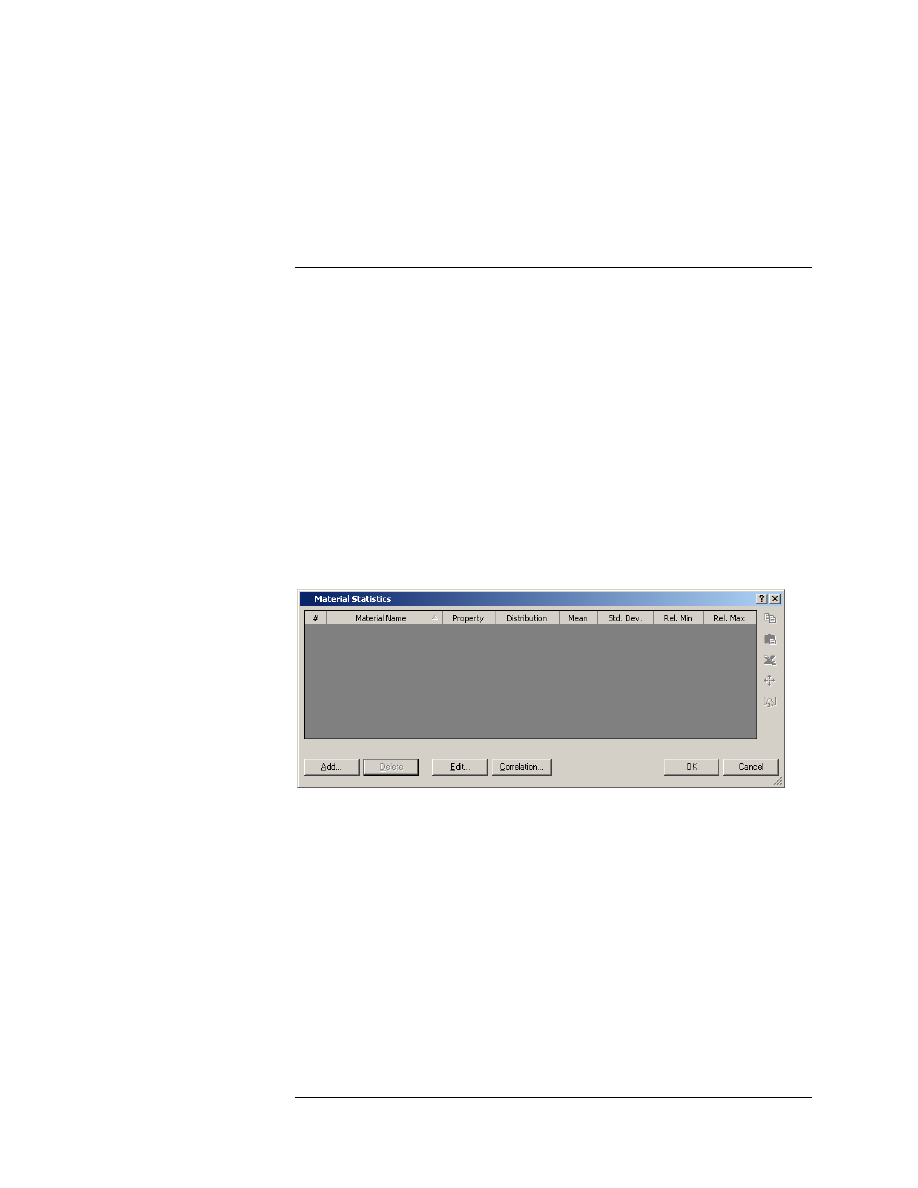
You will see the Material Statistics dialog.
First, you must select the Random Variables that you wish to use. This
can be done with either the Add or the Edit options, in the Material
Statistics dialog. Let’s use the Add option.
Select the Add button in the Material Statistics dialog.
When using the Add option, you will see a series of three dialogs, in a
“wizard” format, which allow you to quickly select the material properties
that you wish to define as Random Variables.
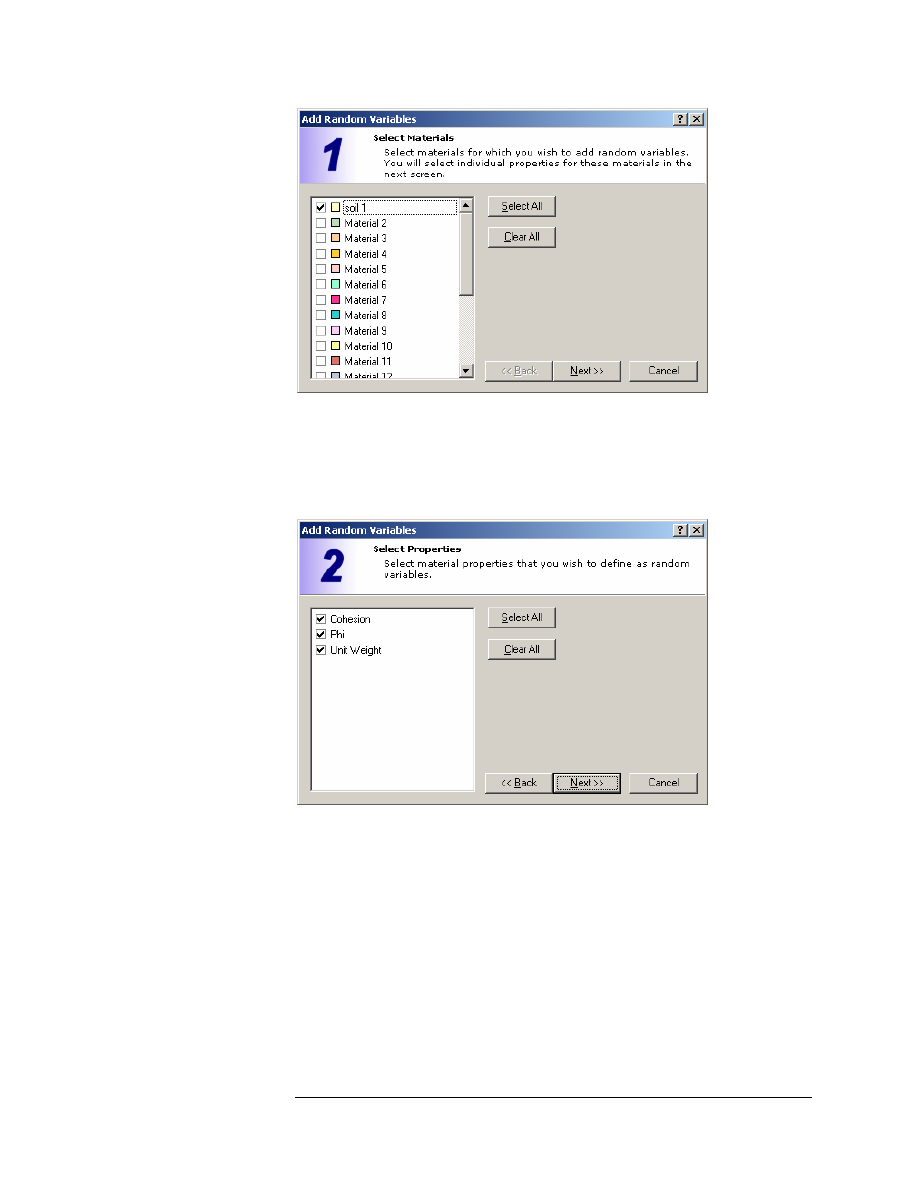
The first dialog allows you to select the materials.
Slide v.5.0 Tutorial
Manual
Probabilistic Analysis Tutorial
8-4
Select the checkbox for the “soil 1” material (our slope model only uses this
one material type). Select the Next button.
The second dialog allows you to select the material properties that you
would like to define as Random Variables.
Select the checkboxes for Cohesion, Phi and Unit Weight. Select the Next
button.
The final dialog allows you to select a Statistical Distribution for the
Random Variables.
We will be using the default (Normal Distribution), so just select the
Finish button.
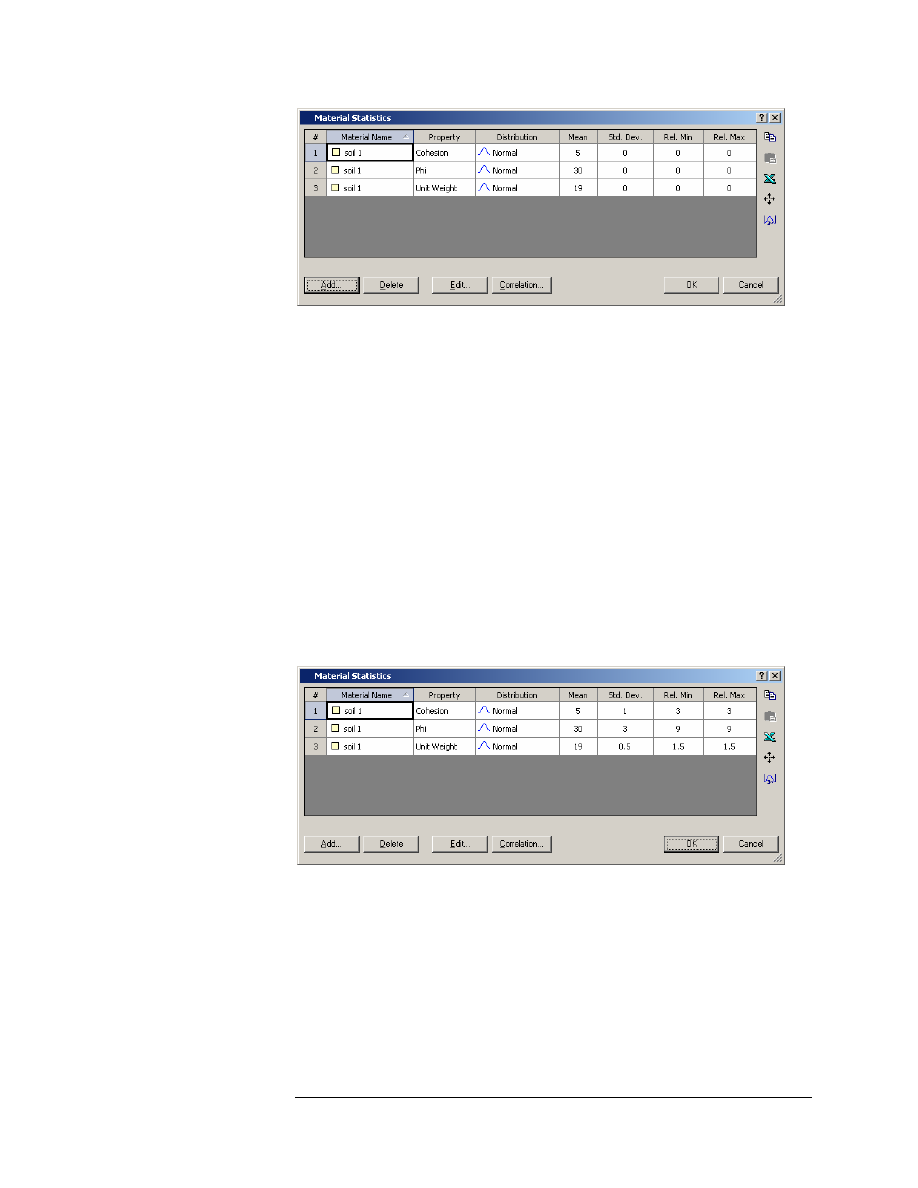
You will be returned to the Material Statistics dialog, which should now
appear as follows:
Slide v.5.0 Tutorial
Manual
Probabilistic Analysis Tutorial
8-5
In the Material Statistics dialog, the material properties which you
selected as Random Variables, now appear in the dialog in a spreadsheet
format. This allows you to easily define the statistical distribution for
each random variable.
In order to complete the process of defining the Random Variables, we
must enter:
• the Standard Deviation, and
• Minimum and Maximum values
for each variable, in order to define the statistical distribution of each
random variable.
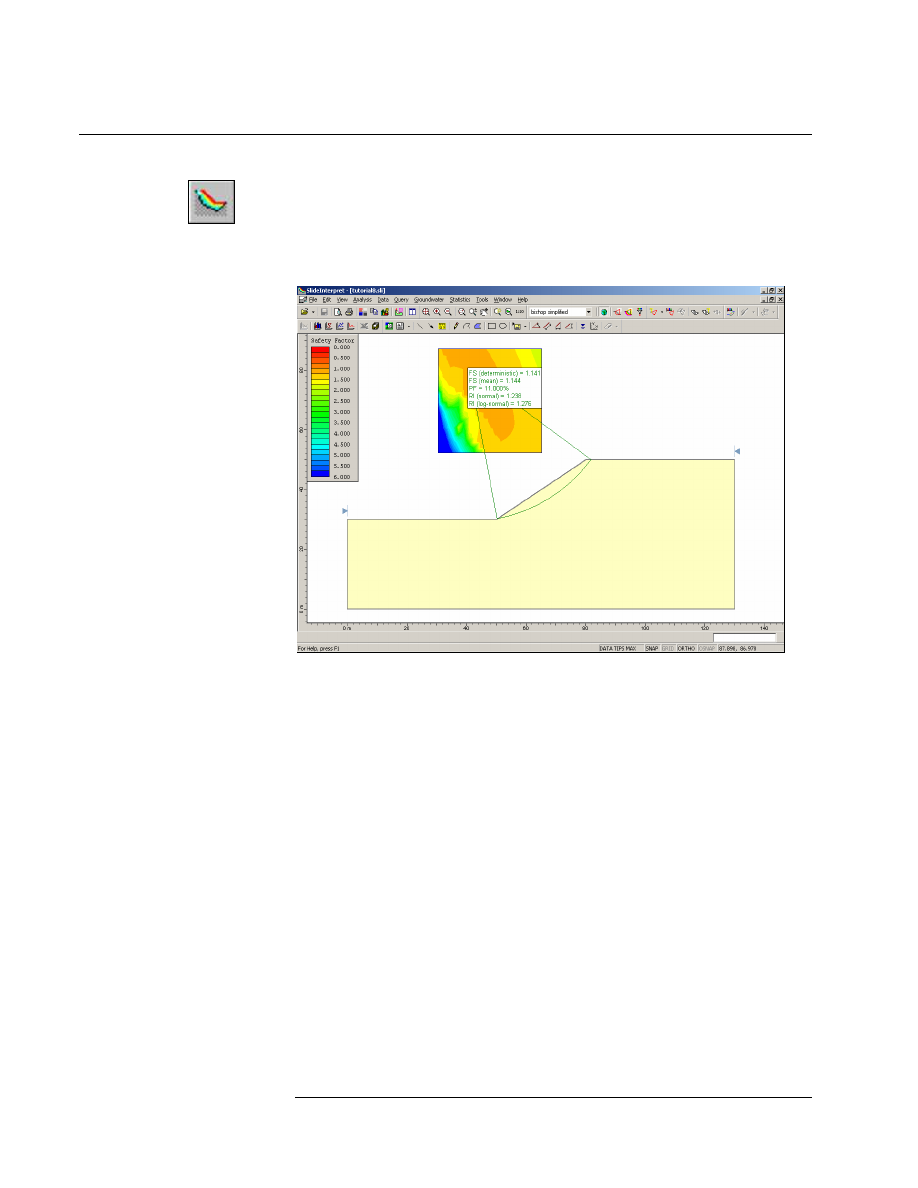
Enter the values of Standard Deviation, Relative Minimum and Relative
Maximum for each variable, as shown below. When you are finished,
select OK.
NOTE:
• The Minimum and Maximum values are specified as RELATIVE
values (i.e. distances from the MEAN value), rather than as absolute
values, because this simplifies data input.
Slide v.5.0 Tutorial
Manual

Probabilistic Analysis Tutorial
8-6
• For a NORMAL distribution, 99.7 % of all samples should fall within
3 standard deviations of the mean value. Therefore it is
recommended that the Relative Minimum and Relative Maximum
values are equal to at least 3 times the standard deviation, to ensure
that a complete (non-truncated) NORMAL distribution is defined.
• For more information about Statistical Distributions, please see the
Probabilistic Analysis section of the Slide Help system.
That’s all we need to do. We have defined 3 Random Variables (cohesion,
friction angle and unit weight) with Normal distributions.
We can now run the Probabilistic Analysis.
Compute
First, let’s save the file with a new file name: prob1.sli.
Select: File
→ Save As
Use the Save As dialog to save the file. Now select Compute.
Select: Analysis
→ Compute
NOTE:
• When you run a Probabilistic Analysis with Slide, the regular
(deterministic) analysis is always computed first.
• The Probabilistic Analysis automatically follows. The progress of the
analysis is indicated in the Compute dialog.
Slide v.5.0 Tutorial
Manual
Probabilistic Analysis Tutorial
8-7
Interpret
To view the results of the analysis:
Select: Analysis
→ Interpret
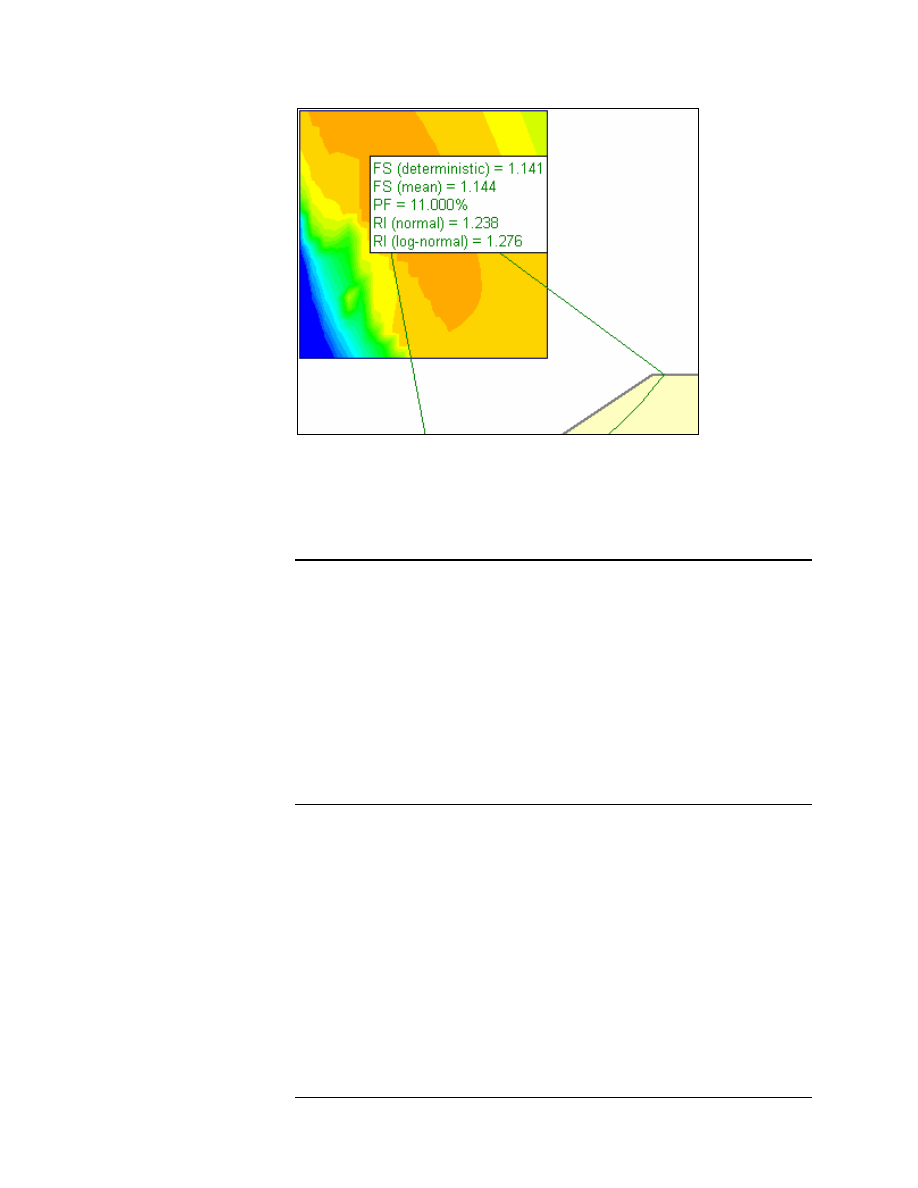
This will start the Slide INTERPRET program. You should see the
following figure.
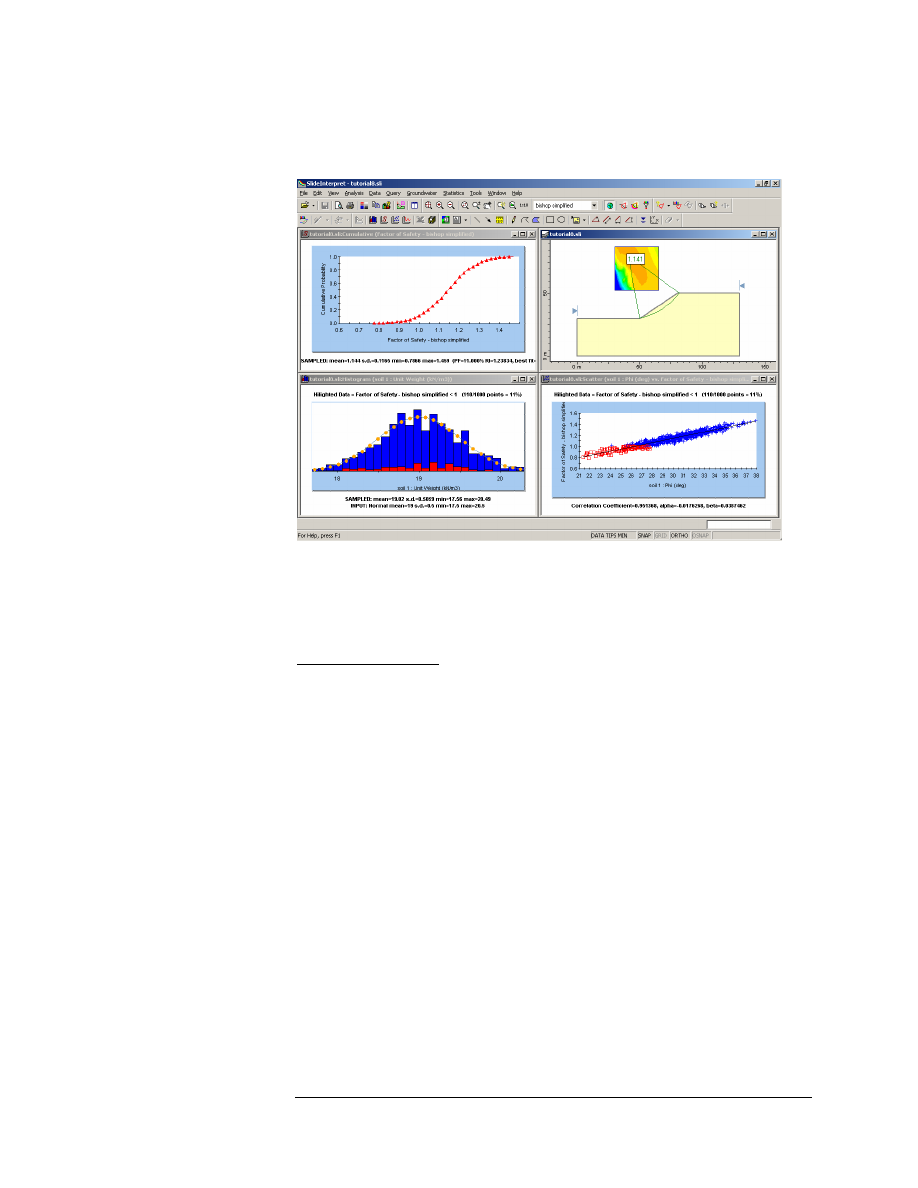
Figure 8-1: Results after probabilistic analysis.
The primary results of the probabilistic analysis, are displayed beside the
slip center of the deterministic global minimum slip surface. Remember
that when the Probabilistic Analysis Type = Global Minimum, the
Probabilistic Analysis is only carried out on this surface.
This includes the following:
• FS (mean) – the mean safety factor
• PF – the probability of failure
• RI – the Reliability Index
Slide v.5.0 Tutorial
Manual
Probabilistic Analysis Tutorial
8-8
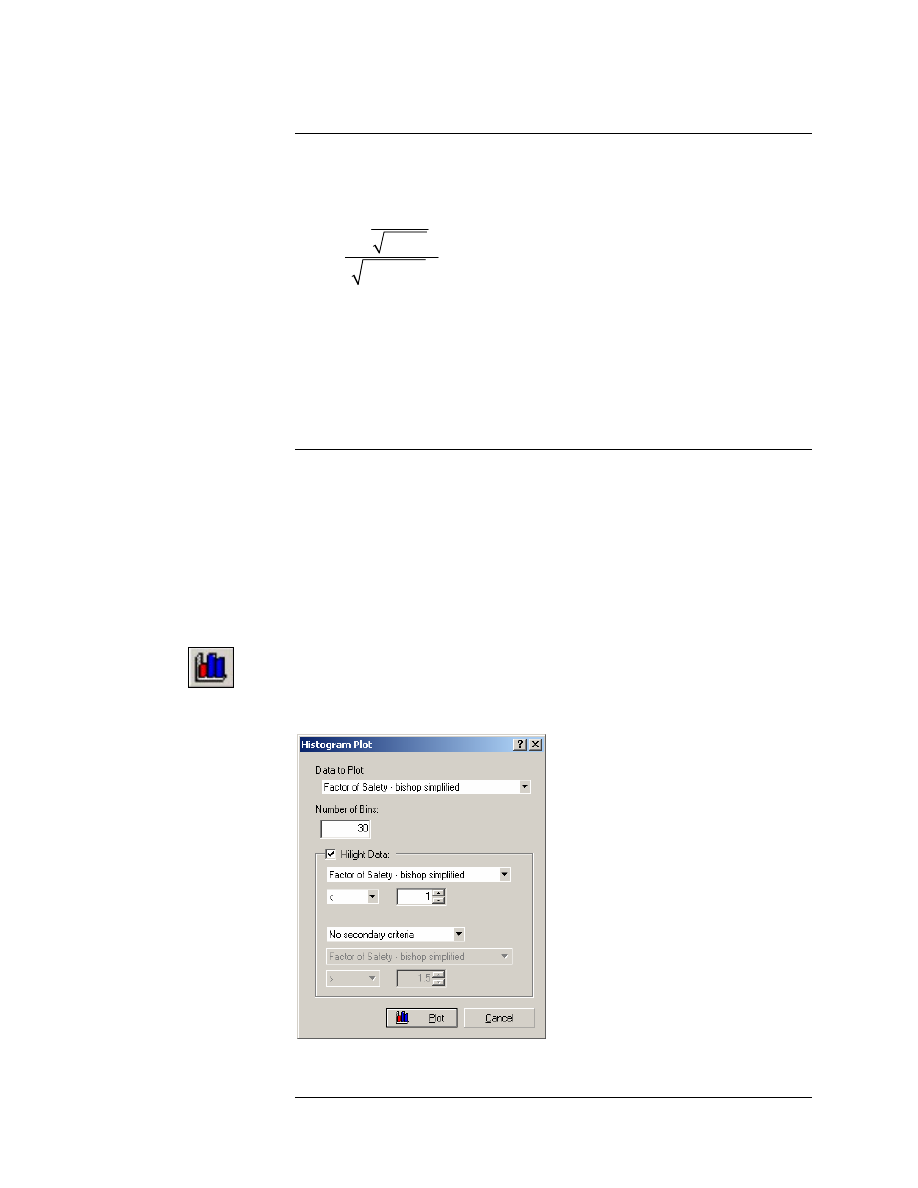
Figure 8-2: Summary of results after probabilistic analysis.
These results are discussed below.
Deterministic Safety Factor
The Deterministic Safety Factor, FS (deterministic), is the safety factor
calculated for the Global Minimum slip surface, from the regular (non-
probabilistic) slope stability analysis.
This is the same safety factor that you would see if you were only
running a regular (deterministic) analysis, and were NOT running a
Probabilistic Analysis.
The Deterministic Safety Factor is the value of safety factor when all
input parameters are exactly equal to their mean values.
Mean Safety Factor
The Mean Safety Factor is the mean (average) safety factor, obtained
from the Probabilistic Analysis. It is simply the average safety factor, of
all of the safety factors calculated for the Global Minimum slip surface.
In general, the Mean Safety Factor should be close to the value of the
deterministic safety factor, FS (deterministic). For a sufficiently large
number of samples, the two values should be nearly equal.
Slide v.5.0 Tutorial
Manual

Probabilistic Analysis Tutorial
8-9
Probability of Failure
The Probability of Failure is simply equal to the number of analyses with
safety factor less than 1, divided by the total Number of Samples.
100%
numfailed
PF
numsamples
=
×
Eqn. 1
For this example, PF = 11%, which means that 110 out of 1000 samples,
produced a safety factor less than 1.
Reliability Index
The Reliability Index is another commonly used measure of slope
stability, after a probabilistic analysis.
The Reliability Index is an indication of the number of standard
deviations which separate the Mean Safety Factor from the critical safety
factor ( = 1).
The Reliability Index can be calculated assuming either a Normal or
Lognormal distribution of the safety factor results. The actual best fit
distribution is listed in the Info Viewer, and indicates which value of RI
is more appropriate for the data.
RI (Normal)
If it is assumed that the safety factors are Normally distributed, then
Equation 2 is used to calculate the Reliability Index.
1
FS
FS
µ
β
σ
−
=
Eqn.
2
where:
β
= reliability index
FS
µ
= mean safety factor
FS
σ
= standard deviation of safety factor
A Reliability Index of at least 3 is usually recommended, as a minimal
assurance of a safe slope design. For this example, RI = 1.238, which
indicates an unsatisfactory level of safety for the slope.
Slide v.5.0 Tutorial
Manual
Probabilistic Analysis Tutorial
8-10
RI (Lognormal)
If it is assumed that the safety factors are best fit by a Lognormal
distribution, then Equation 3 is used to calculate the Reliability Index.
2
2
ln
1
ln(1
)
LN
V
V
µ
β
+
=
+
Eqn. 3
where
µ = the mean safety factor, and V = coefficient of variation of the
safety factor ( =
σ / µ ).
For more information about the Reliability Index, see the Slide Help
system.
Histogram Plots
Histogram plots allow you to view:
• The distribution of samples generated for the input data random
variable(s).
• The distribution of safety factors calculated by the probabilistic
analysis.
To generate a Histogram plot, select the Histogram Plot option from the
toolbar or the Statistics menu.
Select: Statistics
→ Histogram Plot
You will see the Histogram Plot dialog.
Slide v.5.0 Tutorial
Manual
Probabilistic Analysis Tutorial
8-11
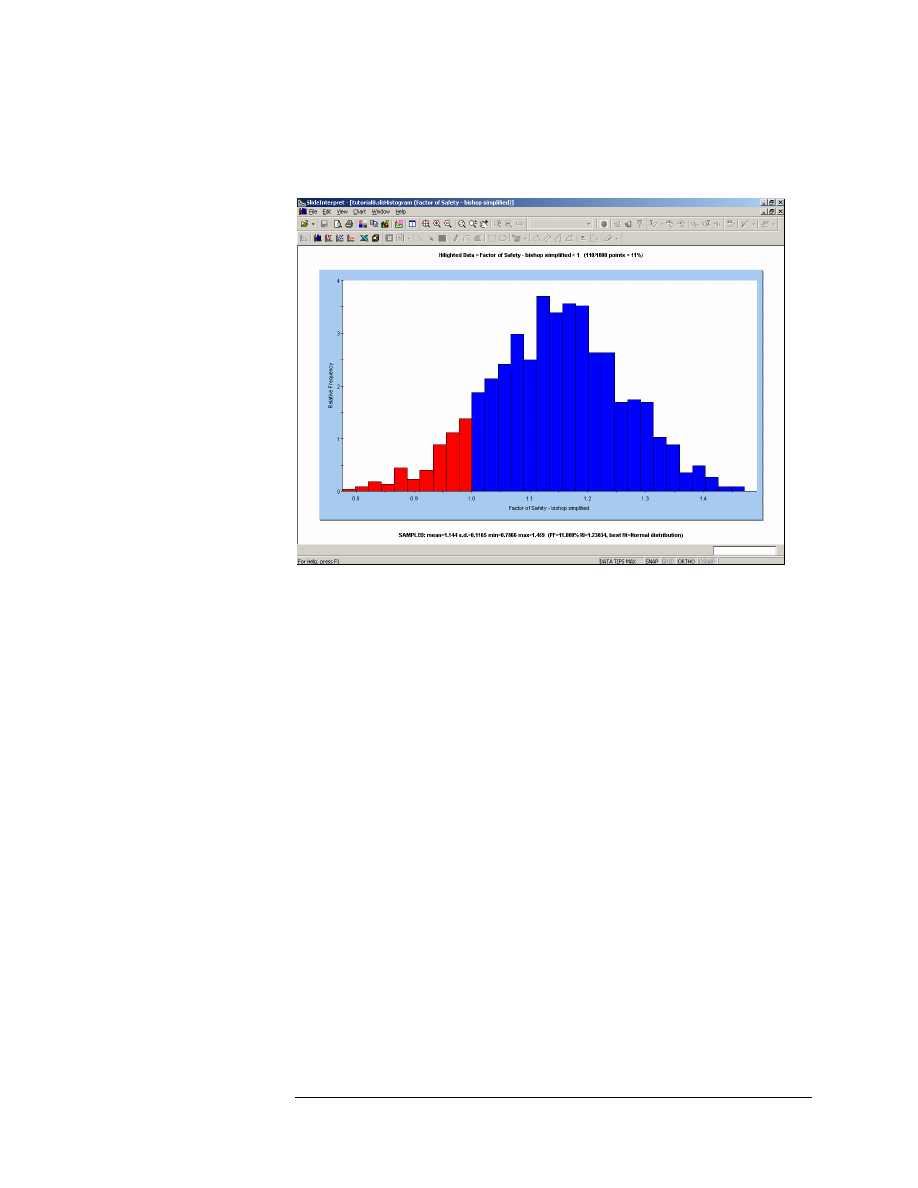
Let’s first view a histogram of Safety Factor. Set the Data to Plot = Factor
of Safety – Bishop Simplified. Select the Highlight Data checkbox. As the
highlight criterion, select “Factor of Safety – Bishop Simplified < 1”. Select
the Plot button, and the Histogram will be generated.
Figure 8-3: Histogram of Safety Factor.
As you can see on the histogram, the highlighted data (red bars) shows
the analyses which resulted in a safety factor less than 1.
• This graphically illustrates the Probability of Failure, which is equal
to the area of the histogram which is highlighted (FS < 1), divided by
the total area of the histogram.
• The statistics of the highlighted data are always listed at the top of
the plot. In this case, it is indicated that 110 / 1000 points, have a
safety factor less than 1. This equals 11%, which is the
PROBABILITY OF FAILURE (for the Bishop analysis method).
In general, the Highlight data option allows you to highlight any user-
defined subset of data on a histogram (or scatter plot), and obtain the
statistics of the highlighted (selected) data subset.
You can display the Best Fit distribution for the safety factor data, by
right-clicking on the plot, and selecting Best Fit Distribution from the
popup menu. The Best Fit Distribution will be displayed on the
Histogram. In this case, the best fit is a Normal Distribution, as listed at
the bottom of the plot.
Slide v.5.0 Tutorial
Manual
Probabilistic Analysis Tutorial
8-12
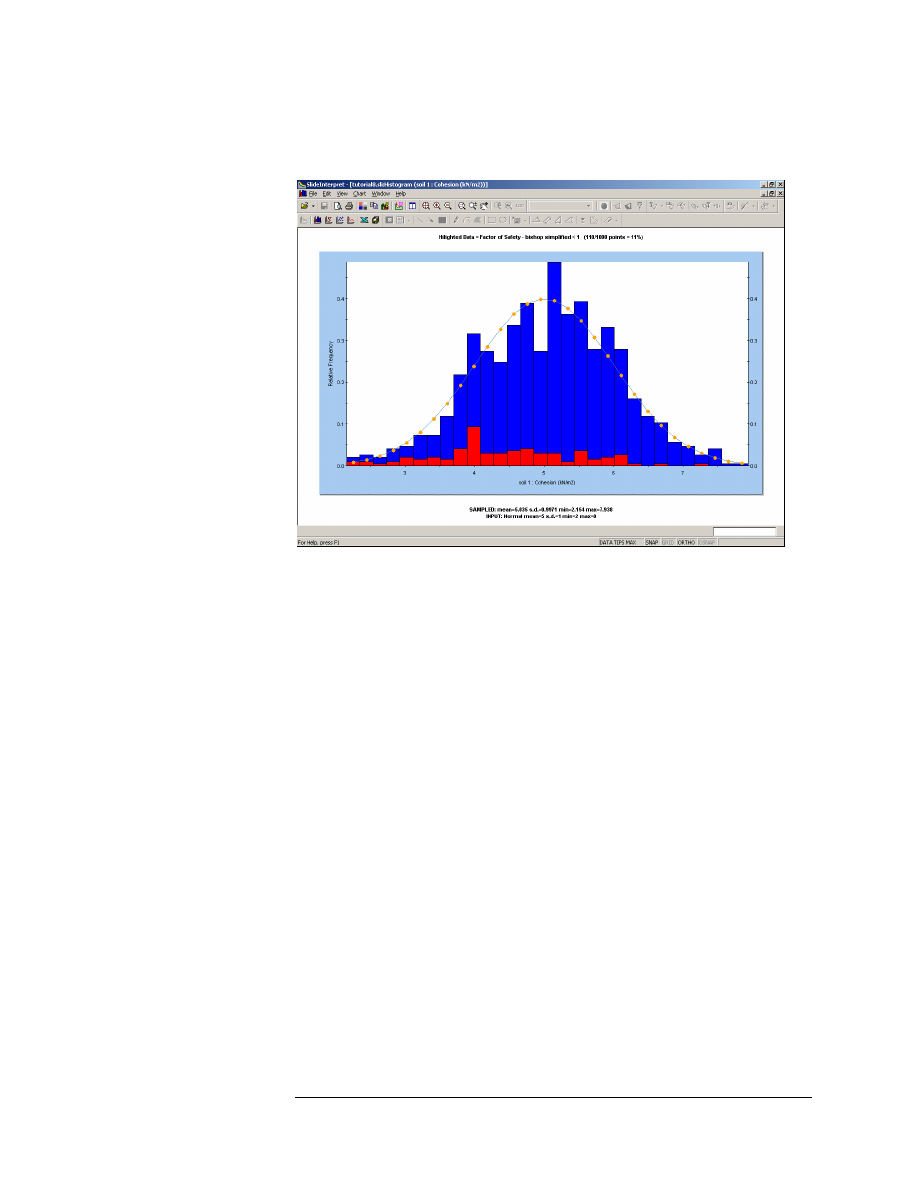
Let’s create a plot of the Cohesion random variable. Right-click on the
plot and select Change Plot Data. Set the Data to Plot = soil 1 : Cohesion.
Select Done.
Figure 8-4: Histogram Plot of Cohesion.
This plot shows the actual random samples which were generated by the
Monte Carlo sampling of the statistical distribution which you defined for
the Cohesion random variable. Notice that the data with Bishop Safety
Factor < 1 is still highlighted on the plot.
Note the following information at the bottom of the plot:
• The SAMPLED statistics, are the statistics of the raw data generated
by the Monte Carlo sampling of the input distribution.
• The INPUT statistics, are the parameters of the input distribution
which you defined for the random variable, in the Material Statistics
dialog.
In general, the SAMPLED statistics and the INPUT statistics will not be
exactly equal. However, as the Number of Samples increases, the
SAMPLED statistics should approach the values of the INPUT
parameters.
The distribution defined by the INPUT parameters is plotted on the
Histogram. The display of this curve can be turned on or off, by right-
clicking on the plot, and toggling the Input Distribution option.
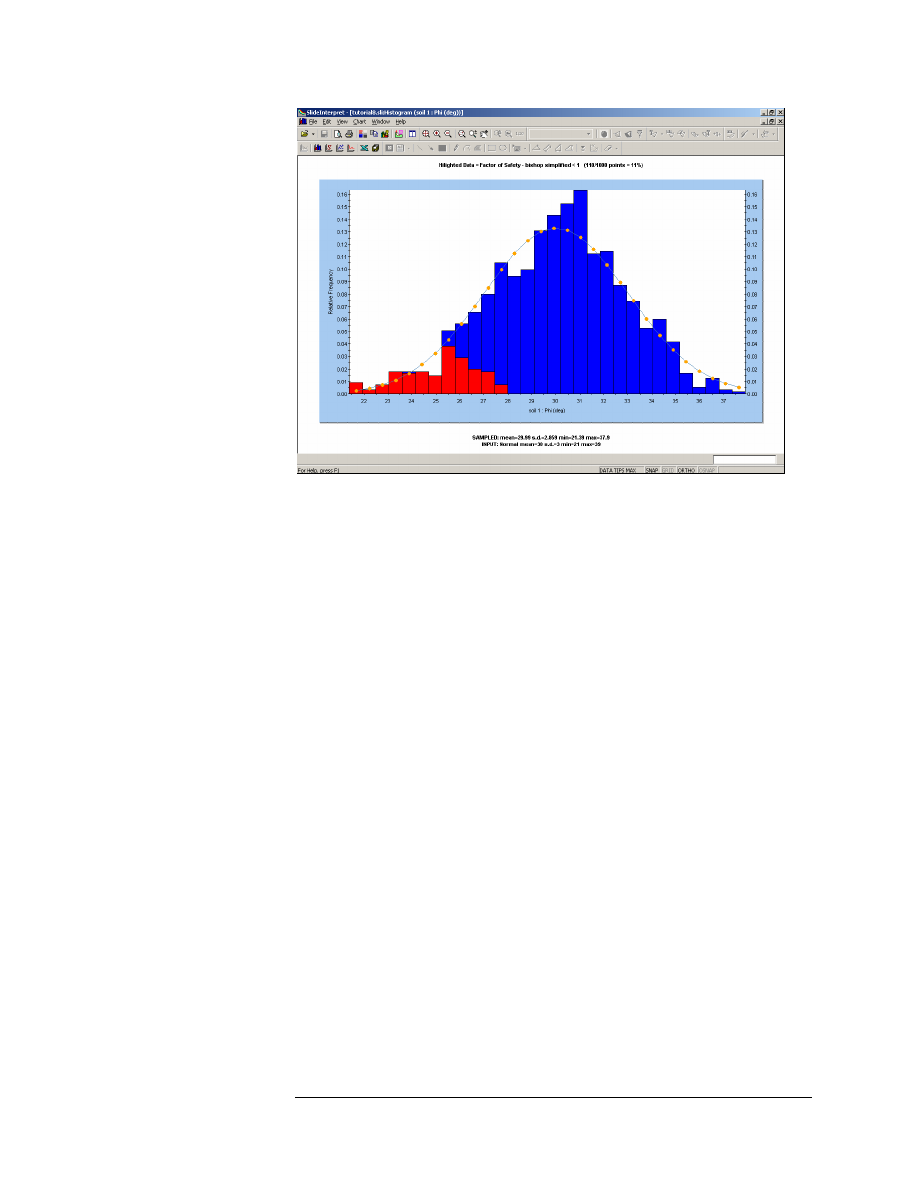
Now right-click on the plot again, and select Change Plot Data. Change
the Data to Plot to soil 1 : Phi. Select Done.
Slide v.5.0 Tutorial
Manual
Probabilistic Analysis Tutorial
8-13
Figure 8-5: Histogram Plot of Friction Angle.
Notice the data with Bishop Safety Factor < 1, highlighted on the plot.
With respect to the Friction Angle random variable, it is clear that failure
corresponds to the lowest friction angles which were generated by the
random sampling.
Slide v.5.0 Tutorial
Manual
Probabilistic Analysis Tutorial
8-14
Cumulative Plots
To generate a Cumulative plot, select the Cumulative Plot option from
the toolbar or the Statistics menu.
Select: Statistics
→ Cumulative Plot
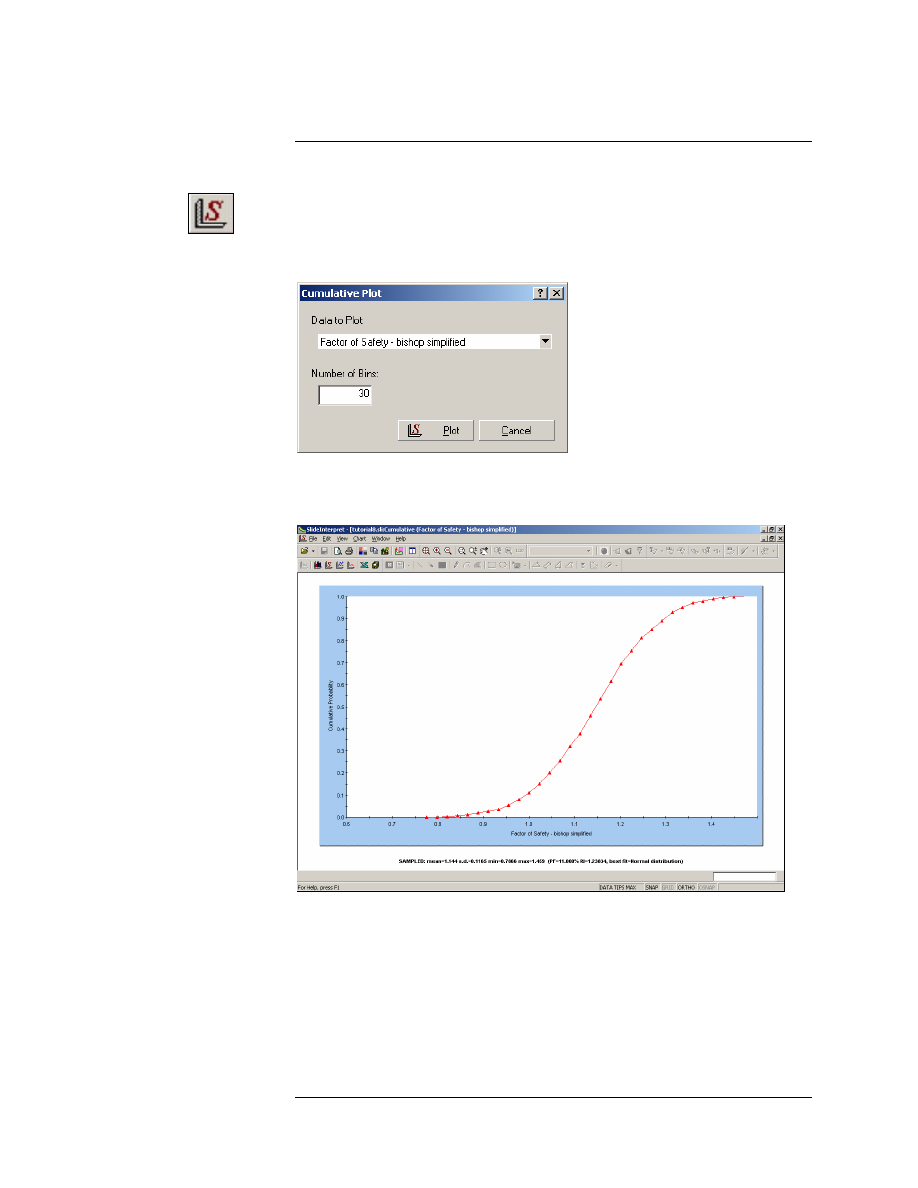
You will see the Cumulative Plot dialog.
Select the Data to Plot = Factor of Safety – Bishop Simplified. Select the
Plot button.
Figure 8-6: Cumulative Plot of Safety Factor.
A Cumulative distribution plot represents the cumulative probability
that the value of a random variable will be LESS THAN OR EQUAL TO
a given value.
Slide v.5.0 Tutorial
Manual
Probabilistic Analysis Tutorial
8-15
When we are viewing a Cumulative Plot of Safety Factor, the Cumulative
Probability at Safety Factor = 1, is equal to the PROBABILITY OF
FAILURE.
Let’s verify this as follows.
Sampler Option
The Sampler Option on a Cumulative Plot, allows you to easily determine
the coordinates at any point along the Cumulative distribution curve.
1. Right-click on the Cumulative Plot, and select the Sampler option.
2. You will see a dotted vertical line on the plot. This is the “Sampler”,
and allows you to graphically obtain the coordinates of any point on
the curve. You can do this as follows.
3. Click AND HOLD the LEFT mouse button on the plot. Now drag the
mouse along the plot. You will see that the Sampler follows the
mouse, and continuously displays the coordinates of points on the
Cumulative plot curve.
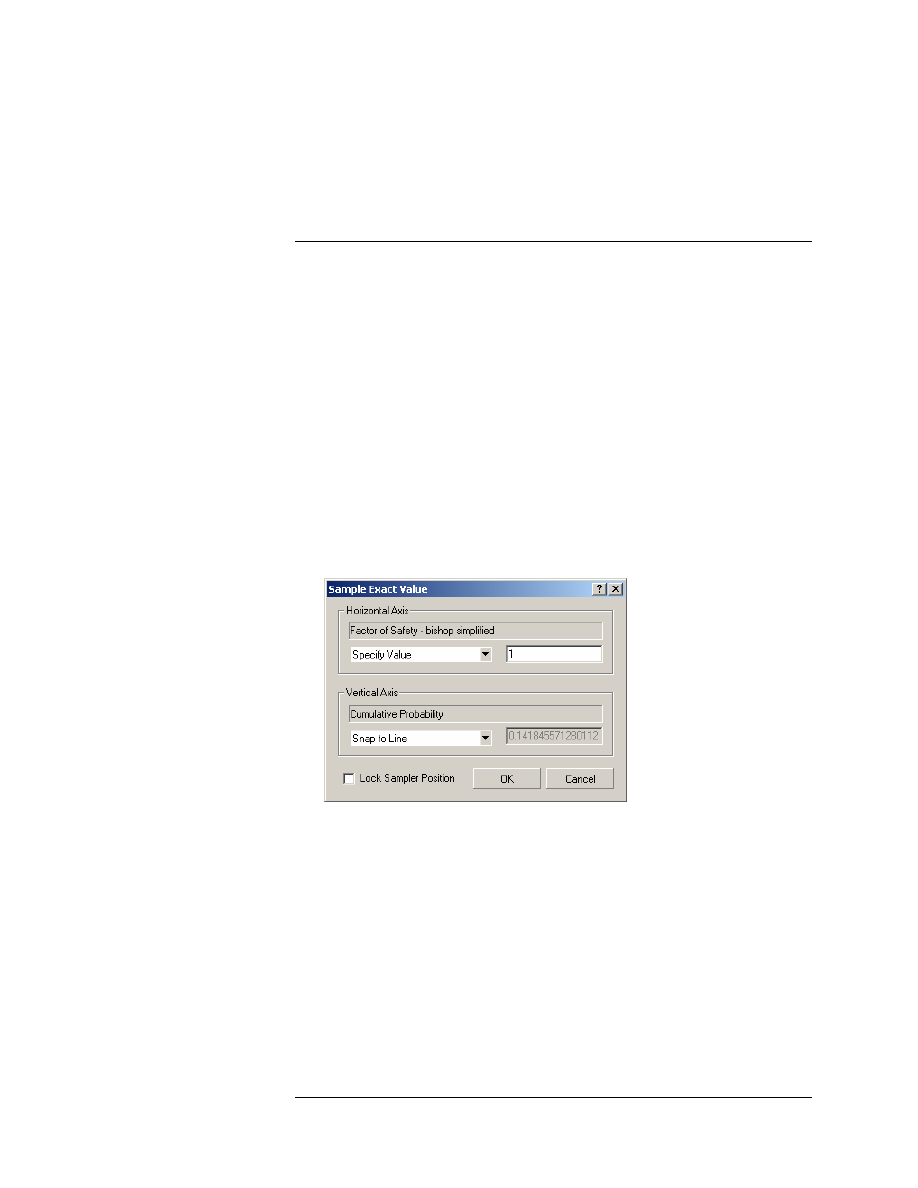
4. You can also determine exact points on the curve as follows. Right-
click on the plot, and select Sample Exact Value. You will see the
following dialog.
5. Enter 1 as the value for safety factor, and select OK.
6. Notice that the Sampler (dotted line) is now located at exactly Safety
Factor = 1. Also notice that the Cumulative Probability = 0.11. This
means that the Probability of Failure (Bishop analysis method) =
11%, which is the value we noted earlier in this tutorial, displayed at
the slip center of the Global Minimum slip surface.
Slide v.5.0 Tutorial
Manual
Probabilistic Analysis Tutorial
8-16
Scatter Plots
Scatter Plots allow you to plot any two random variables against each
other, on the same plot. This allows you to analyze the relationships
between variables.
Select the Scatter Plot option from the toolbar or the Statistics menu.
Select: Statistics
→ Scatter Plot
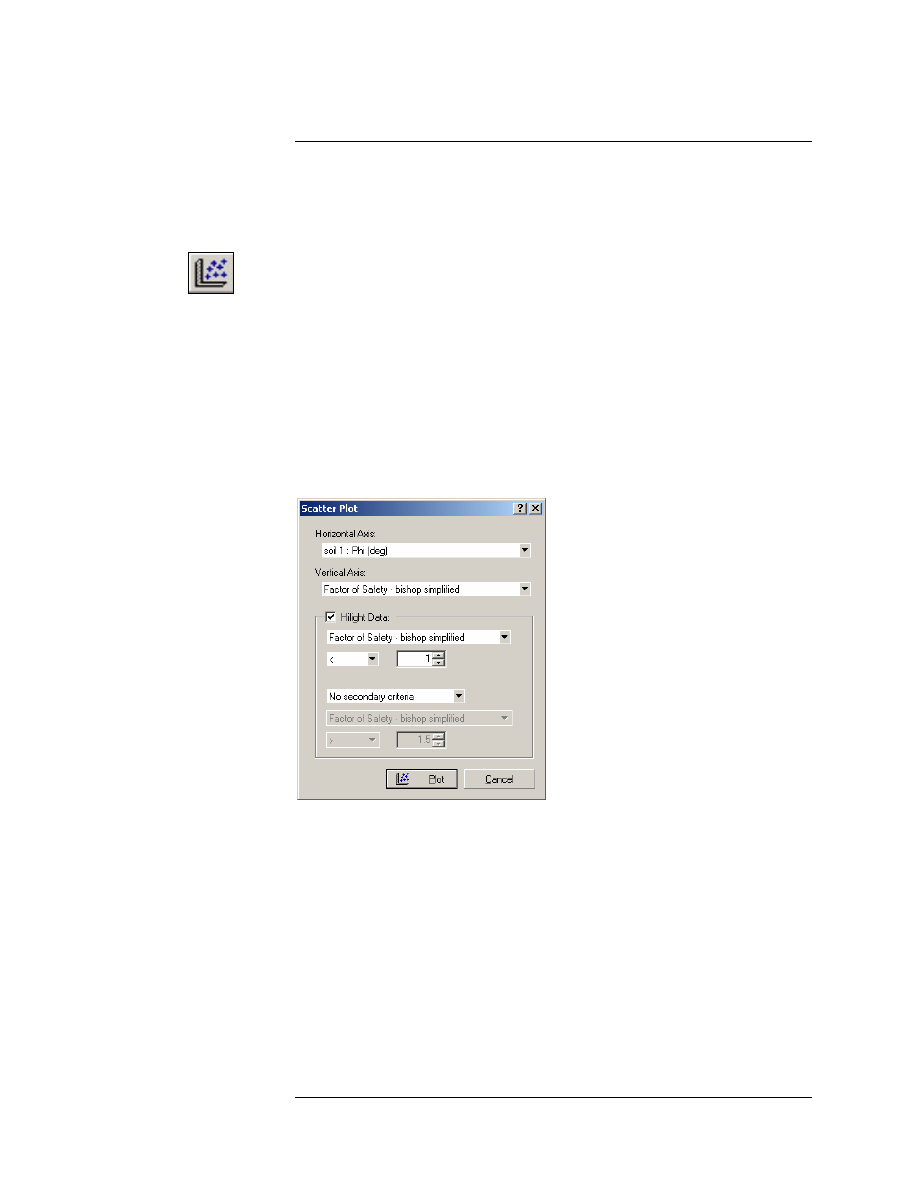
You will see the Scatter Plot dialog. Enter the following data.
1. Set the Horizontal Axis = soil 1 : Phi.
2. Set the Vertical Axis = Factor of Safety – Bishop.
3. Select Highlight Data, and select “Factor of Safety – Bishop
Simplified < 1”.
4. Select Plot.
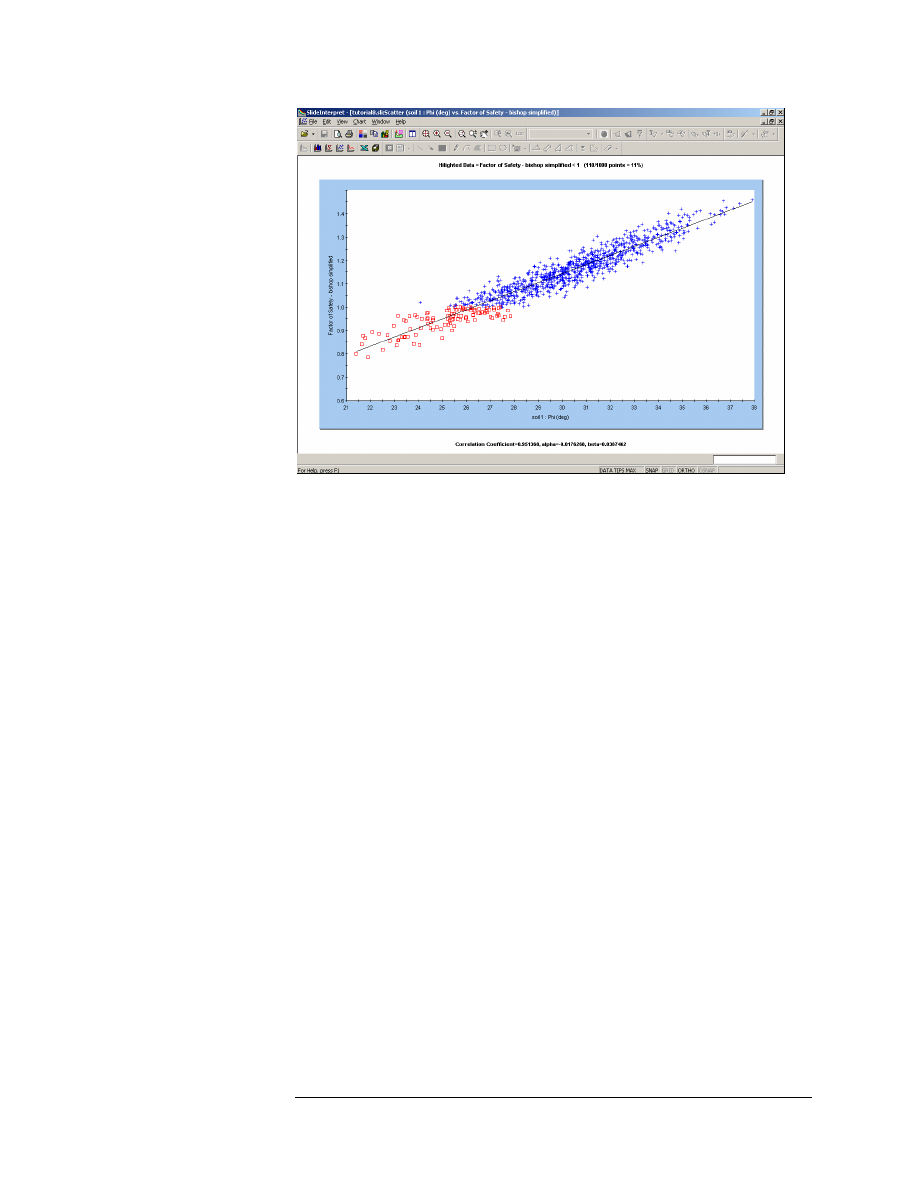
You should see the following plot.
Slide v.5.0 Tutorial
Manual
Probabilistic Analysis Tutorial
8-17
Figure 8-7: Scatter Plot – Friction Angle versus Safety Factor.
There is a well defined relationship between Friction Angle and Safety
Factor. Notice the parameters listed at the bottom of the plot.
• The Correlation Coefficient indicates the degree of correlation
between the two variables plotted. A Correlation Coefficient close to 1
(or -1) indicates a high degree of correlation. A Correlation Coefficient
close to zero, indicates little or no correlation.
• The parameters Alpha and Beta, are the slope and y-intercept,
respectively, of the best fit (linear) curve, to the data. This line can be
seen on the plot. Its display can be toggled on or off, by right-clicking
on the plot and selecting the Regression Line option.
Also notice the highlighted data on the plot. All data points with a Safety
Factor less than 1, are displayed on the Scatter Plot as a RED SQUARE,
rather than a BLUE CROSS.
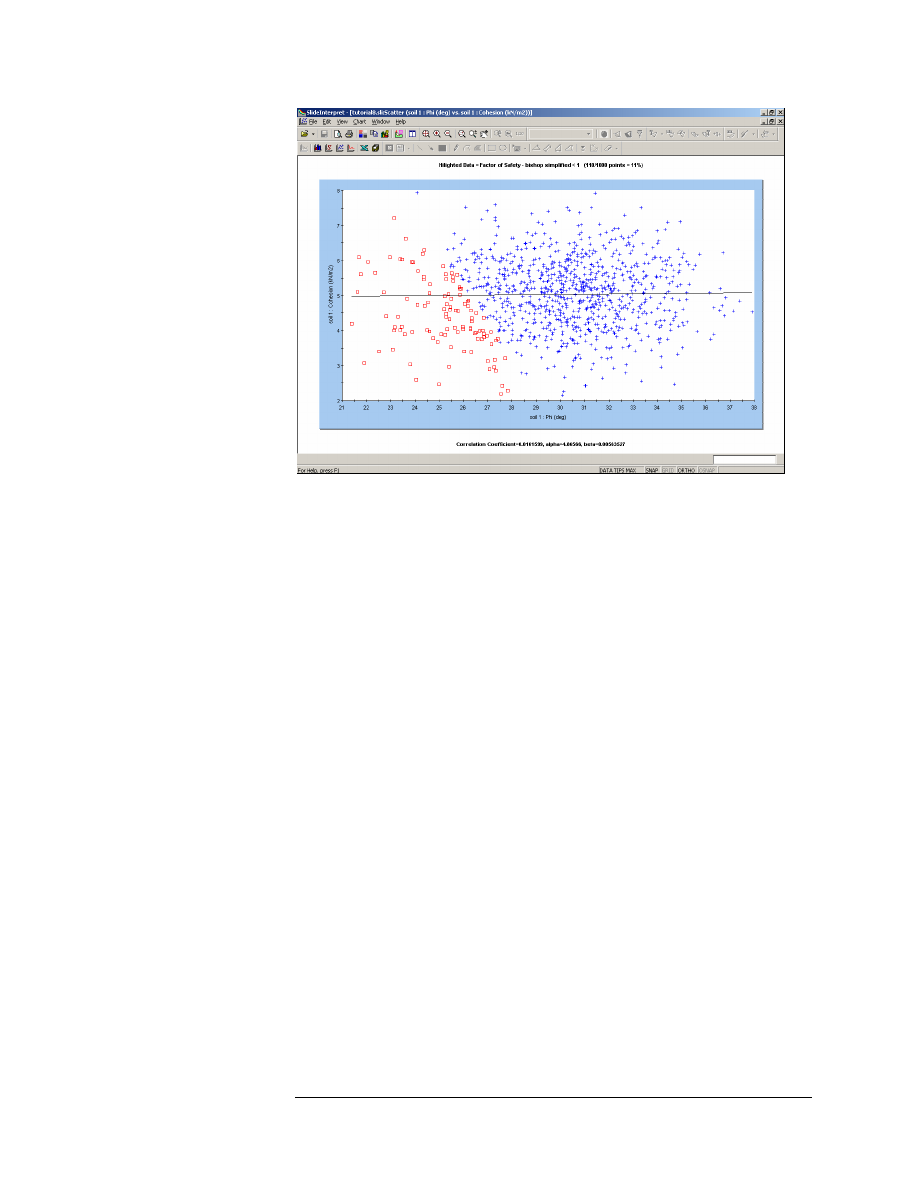
Now let’s plot Phi versus Cohesion on the Scatter Plot.
Right-click on the plot and select Change Plot Data. On the Vertical Axis,
select soil 1 : Cohesion. Select Done. The plot should look as follows:
Slide v.5.0 Tutorial
Manual
Probabilistic Analysis Tutorial
8-18
Figure 8-8: Scatter Plot – Friction Angle versus Cohesion.
This plot indicates that there is no correlation between the sampled
values of Cohesion and Friction Angle. (The Correlation Coefficient,
listed at the bottom of the plot, is a small number close to zero).
In reality, the Cohesion and Friction Angle of Mohr-Coulomb materials
are generally correlated, such that materials with low Cohesion often
have high Friction Angles, and vice versa.
In Slide, the user can define a correlation coefficient for Cohesion and
Friction Angle, so that when the samples are generated, Cohesion and
Friction Angle will be correlated. This is discussed at the end of this
tutorial.
Slide v.5.0 Tutorial
Manual
Probabilistic Analysis Tutorial
8-19
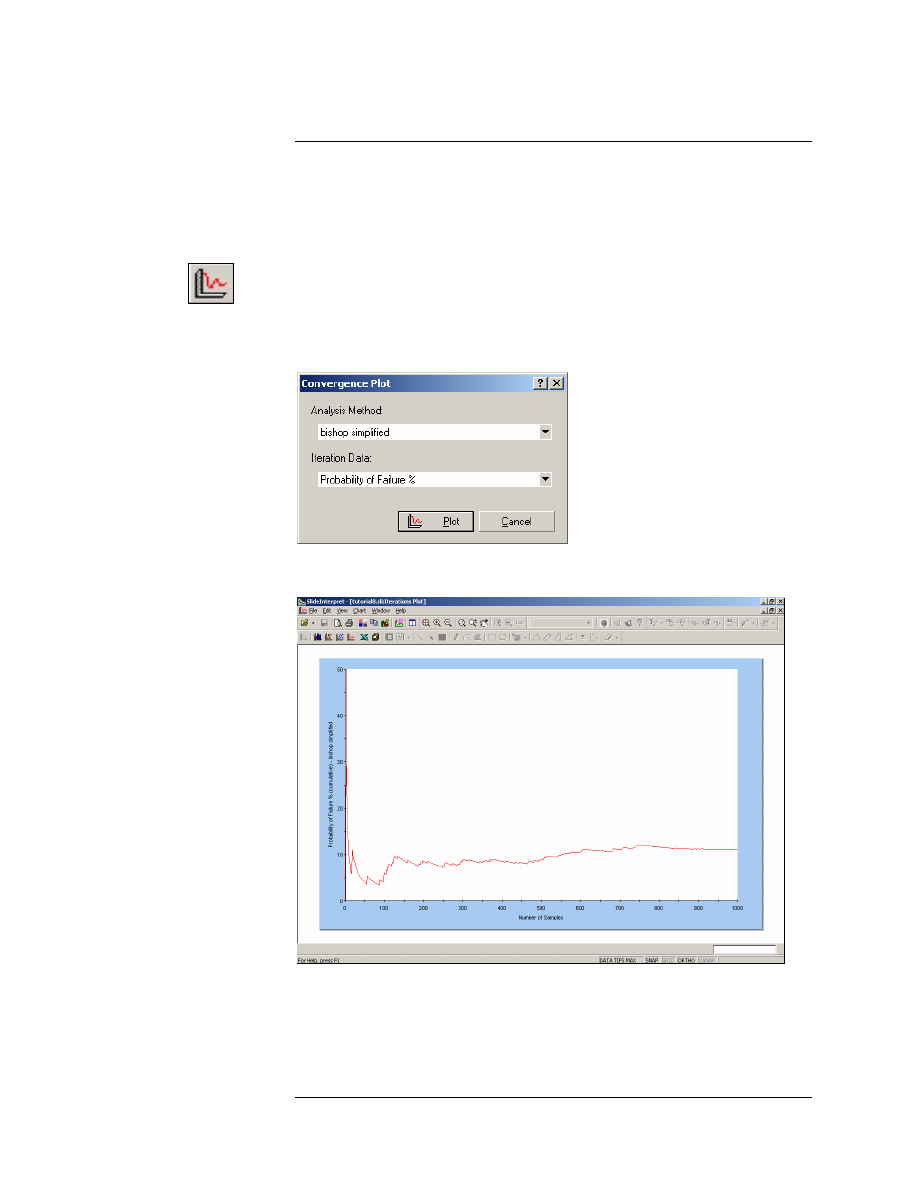
Convergence Plots
A Convergence Plot is useful for determining whether or not your
Probabilistic Analysis is converging to a final answer, or whether more
samples are required.
Select the Convergence Plot option from the toolbar or the Statistics
menu.
Select: Statistics
→ Convergence Plot
You will see the Convergence Plot dialog. Select Probability of Failure.
Select Plot.
You should see the following plot.
Figure 8-9: Convergence plot – Probability of Failure.
Slide v.5.0 Tutorial
Manual

Probabilistic Analysis Tutorial
8-20
A convergence plot should indicate that the final results of the
Probabilistic Analysis, are converging to stable, final values (i.e.
Probability of Failure, Mean Safety Factor etc.)
If the convergence plot indicates that you have not achieved a stable,
final result, then you should increase the Number of Samples, and re-run
the analysis.
Right-click on the plot and select the Final Value option from the popup
menu. A horizontal line will appear on the plot, which represents the
final value (in this case, Probability of Failure = 11%), which was
calculated for the analysis.
For this model, it appears that the Probability of Failure has achieved a
constant final value. To verify this, increase the Number of Samples (e.g.
2000), and re-run the analysis. This is left as an optional exercise.
Additional Exercises
The user is encouraged to experiment with the Probabilistic Analysis
modeling and data interpretation features in Slide. Try the following
exercises.
Correlation Coefficient (C and Phi)
Earlier in this tutorial, we viewed a Scatter Plot of Cohesion versus
Friction Angle (see Figure 8-8).
Because the random sampling of these two variables, was performed
entirely independently, there was no correlation between the two
variables.
In reality, the Cohesion and Friction Angle of Mohr-Coulomb materials
are generally correlated, such that materials with low Cohesion tend to
have high Friction Angles, and vice versa.
In Slide, the user can easily define a correlation coefficient for Cohesion
and Friction Angle, so that when the samples are generated, Cohesion
and Friction Angle will be correlated.
This can be demonstrated as follows:
1. In the Slide Model program, select the Material Statistics option in
the Statistics menu.
2. In the Material Statistics dialog, select the Correlation option. This
will display a dialog, which allows you to define a correlation
coefficient, between cohesion and friction angle (this is only
applicable for materials which use the Mohr-Coulomb strength type).
Slide v.5.0 Tutorial
Manual
Probabilistic Analysis Tutorial
8-21
3. In the correlation dialog, select the Apply checkbox for “soil 1”. We
will use the default correlation coefficient of –0.5. Select OK in the
Correlation dialog. Select OK in the Material Statistics dialog.
4. Re-compute the analysis.
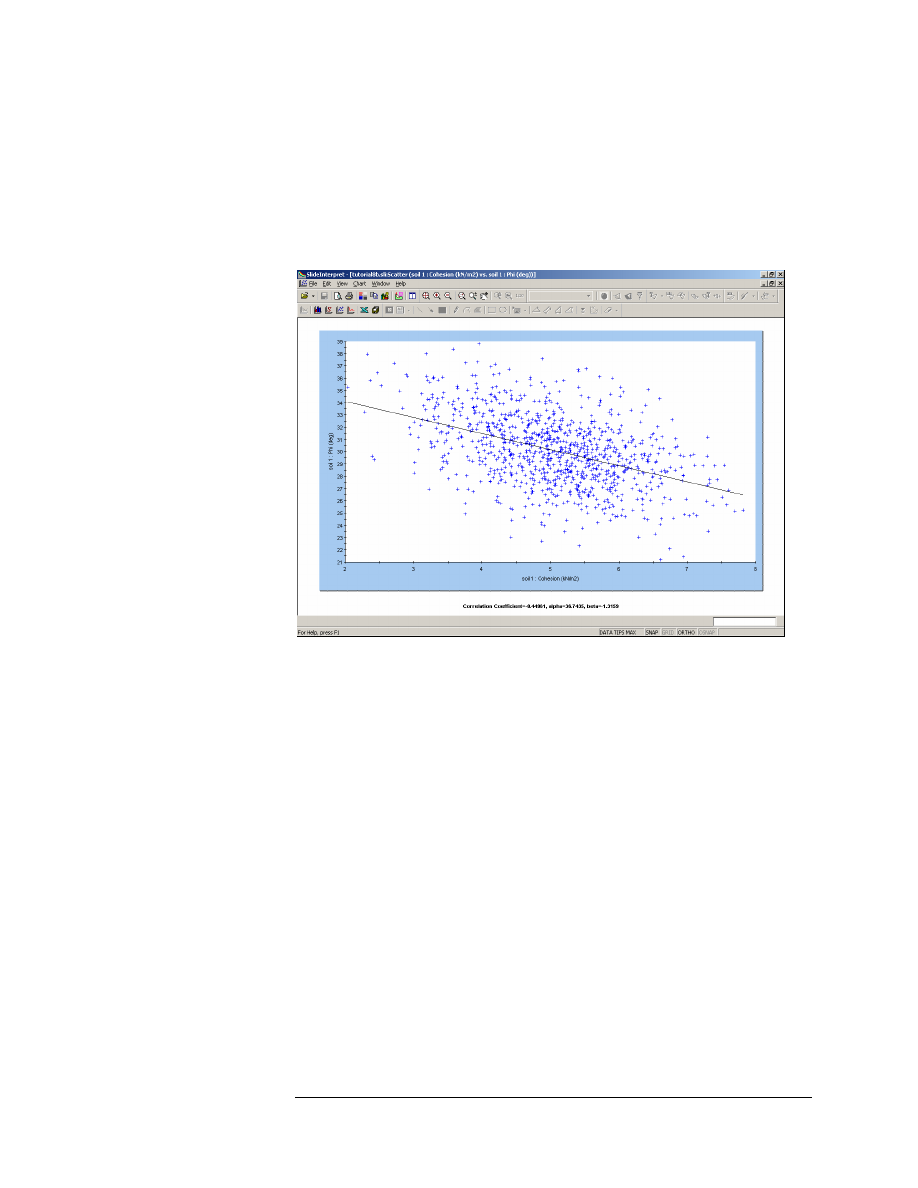
5. In the Slide Interpret program, create a Scatter Plot of Cohesion
versus Friction Angle. You should see the following.
Figure 8-10: Cohesion vs. Phi (Correlation = – 0.5).
As you can now see, Cohesion and Friction Angle are no longer
independent of each other, but are loosely correlated. NOTE:
• The actual correlation coefficient generated by the sampling, is listed
at the bottom of the plot. It is not exactly equal to – 0.5, because we
are using Monte Carlo sampling, and a relatively small number of
samples (1000).
• A NEGATIVE correlation coefficient simply means that when one
variable increases, the other is likely to decrease, and vice versa.
Now try the following:
1. Re-run the analysis using correlation coefficients of – 0.6 , – 0.7, –
0.8 , – 0.9, – 1.0. View a scatter plot of Cohesion versus Friction
Angle, after each run.
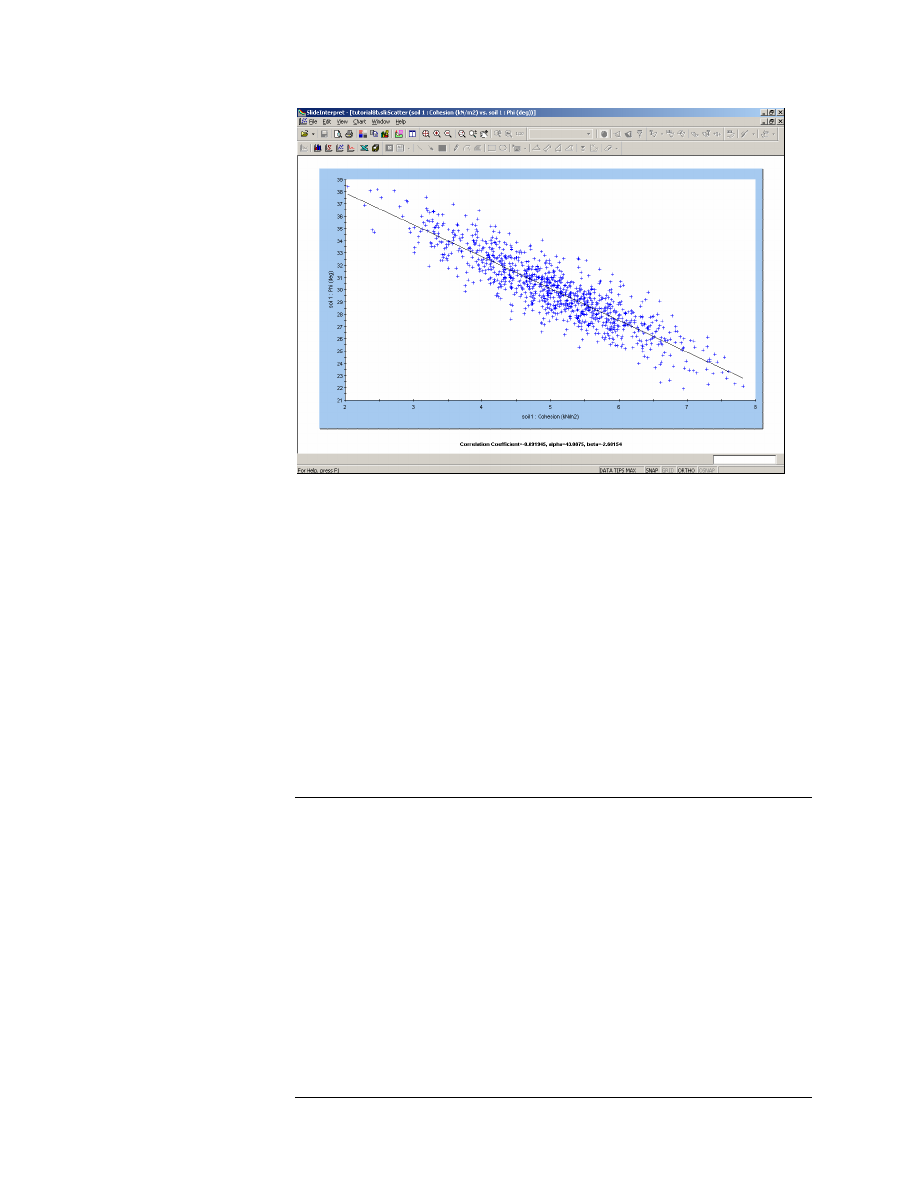
2. You will see that the two variables will be increasingly correlated.
When the correlation coefficient = – 1.0, the Scatter Plot will result in
a straight line.
Slide v.5.0 Tutorial
Manual
Probabilistic Analysis Tutorial
8-22
Figure 8-11: Cohesion vs. Phi (Correlation = – 0.9).
In general, it is recommended that a correlation coefficient is defined
between Cohesion and Friction Angle, for a Mohr-Coulomb material. This
will generate values of Cohesion and Friction Angle, which are more
likely to occur in the field.
Finally, it is interesting to note that the Probability of Failure, for this
model, decreases significantly, as the correlation between cohesion and
friction angle increases (i.e. closer to –1).
This implies that the use of a correlation coefficient, and the generation
of more realistic combinations of Cohesion and Phi, tends to decrease the
calculated probability of failure, for this model.
Sampling Method
In this tutorial we used the default method of Random Sampling, known
as Monte Carlo Sampling. Another sampling method is available in Slide
– the Latin Hypercube method.
For a given number of samples, Latin Hypercube sampling results in a
smoother, more uniform sampling of the probability density functions
which you have defined for your random variables, compared to the
Monte Carlo method.
To illustrate this, do the following:
1. In the Slide Model program, select Project Settings > Statistics, and
set the Sampling Method to Latin Hypercube.
Slide v.5.0 Tutorial
Manual
Probabilistic Analysis Tutorial
8-23
2. Re-compute the analysis.
3. View the results in Interpret, and compare with the previous (Monte
Carlo) results. In particular, plot histograms of your input random
variables (Cohesion, Phi, Unit Weight).
4. Notice that the input data distributions which you defined for your
input random variables, are much more smoothly sampled by Latin
Hypercube sampling, compared to Monte Carlo sampling.
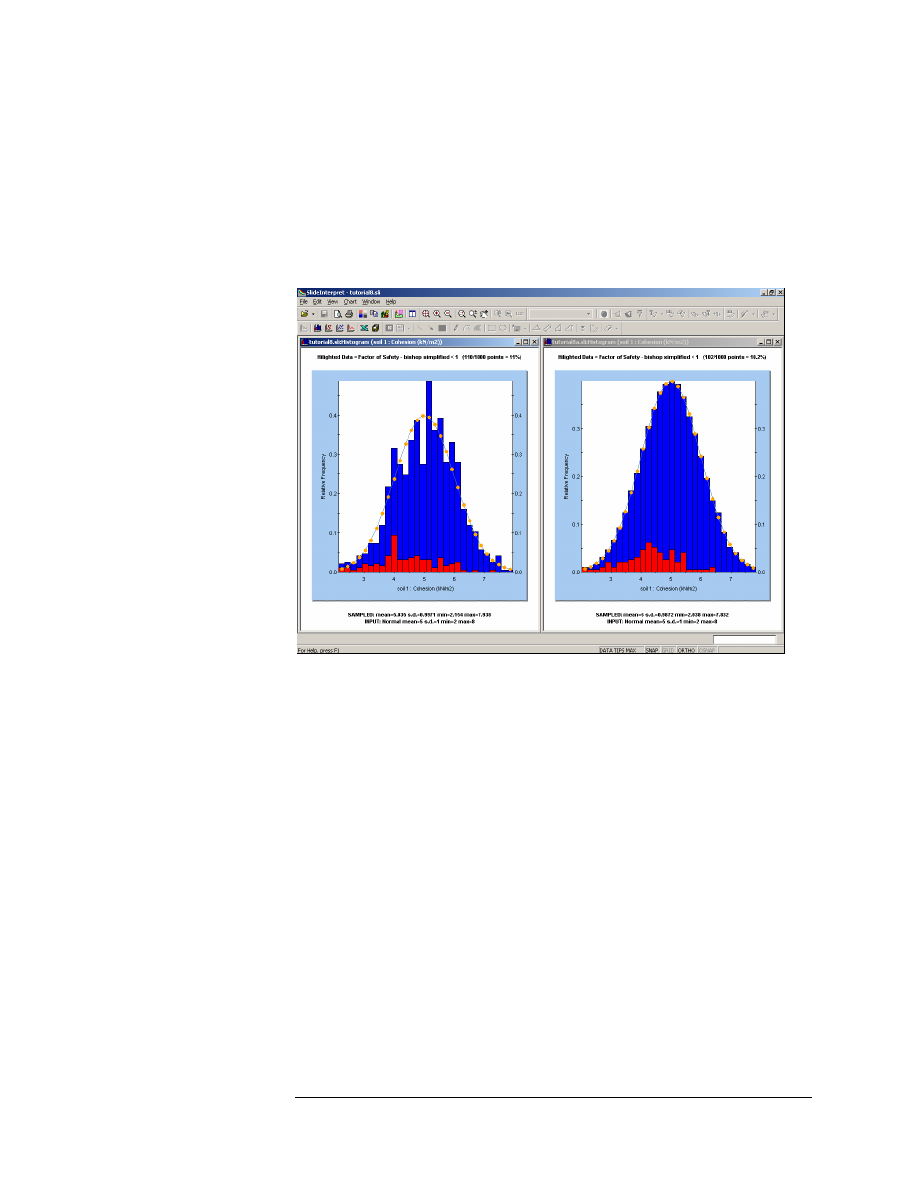
Figure 8-12: Comparison of Monte Carlo sampling (left) and Latin Hypercube
sampling (right) – Cohesion random variable – 1000 samples.
As you can see in Figure 8-12, for 1000 samples, the Latin Hypercube
sampling is much smoother than the Monte Carlo sampling.
This is because the Latin Hypercube method is based upon "stratified"
sampling, with random selection within each stratum. Typically, an
analysis using 1000 samples obtained by the Latin Hypercube technique
will produce comparable results to an analysis of 5000 samples using the
Monte Carlo method.
In general, the Latin Hypercube method allows you to achieve similar
results to the Monte Carlo method, with a significantly smaller number
of samples.
Slide v.5.0 Tutorial
Manual
Probabilistic Analysis Tutorial
8-24
Slide v.5.0 Tutorial
Manual
Random Number Generation
The sampling of the statistical distributions of your input data random
variables, is achieved by the generation of random numbers. You may
wonder why the results in this tutorial are reproducible, if they are based
on random numbers?
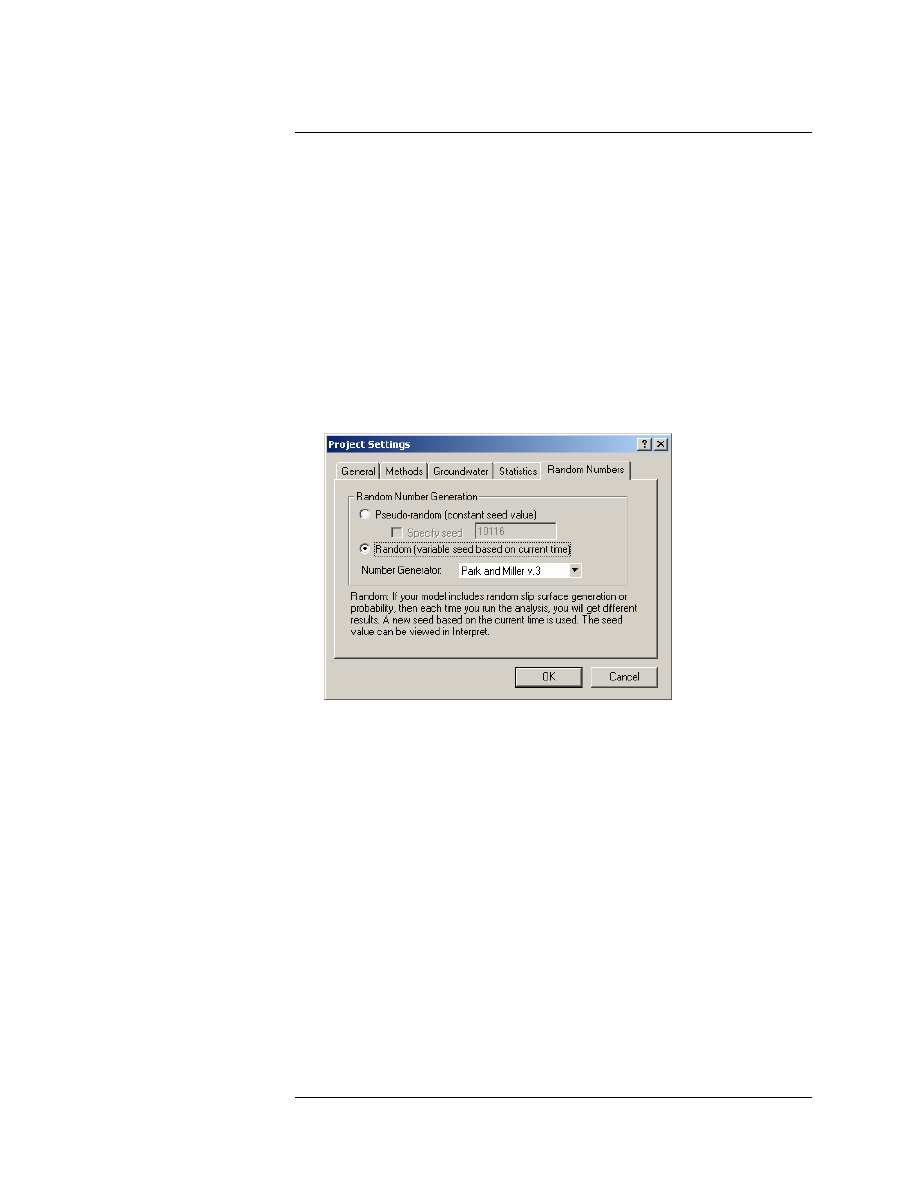
The reason for this, is because we have been using the Pseudo-Random
option, in Project Settings. Pseudo-random analysis means that the same
sequence of random numbers is always generated, because the same
“seed” value is used. This allows the user to obtain reproducible results
for a Probabilistic Analysis.
Try the following:
1. Select Project Settings > Random Numbers, and select the Random
option (instead of Pseudo-Random).
2. Re-compute the analysis.
3. You will notice that each time you re-compute, analysis results will
be different. This is because a different “seed” value is used each
time. This will give a different sequence of random numbers, and
therefore a different sampling of your random variables, each time
you re-run the analysis.
Document Outline
Wyszukiwarka
Podobne podstrony:
Tutorial 09 Sensitivity Analysis
Probabilistic slope stability analysis by finite elements
Probabilistic slope stability analysis
Probabilistic slope stability analysis by finite elements
SQL Server 2012 Tutorials Analysis Services Tabular Modeling
FIDE Trainers Surveys 2014 08 01, Andrew Martin Game analysis
Numerical Analysis with Matlab Tutorial 5 WW
GbpUsd analysis for July 06 Part 1
FP w 08
08 Elektrownie jądrowe obiegi
archkomp 08
02a URAZY CZASZKOWO MÓZGOWE OGÓLNIE 2008 11 08
ankieta 07 08
08 Kości cz Iid 7262 ppt
08 Stany nieustalone w obwodach RLCid 7512 ppt
2009 04 08 POZ 06id 26791 ppt
08 BIOCHEMIA mechanizmy adaptac mikroor ANG 2id 7389 ppt
więcej podobnych podstron