Multi-Service Business Gateways
VoIP Media Gateways
SIP Protocol
Version 6.4
May 2012
Document # LTRT-30302
Configuration Note
Restoring Factory Defaults


Configuration Note
Contents
Version 6.4
3
May 2012
Table of Contents
MSBG Series, GW & E-SBC Series, and Mediant 4000 .........................................10
MP-11x, Mediant 600, Mediant 1000, Mediant 2000, and Mediant 3000 ................11
Restoring Defaults using Hardware Reset Button ......................................... 15
Mediant 800 MSBG and Mediant 800 GW & E-SBC ............................................. 16
Mediant 1000 MSBG and Mediant 1000B GW & E-SBC ...................................... 17

Configuration Note
4
Document #: LTRT-30302
Restoring Factory Defaults
List of Figures

Configuration Note
Notices
Version 6.4
5
May 2012
Notice
This document describes how to restore the device to factory default settings.
Information contained in this document is believed to be accurate and reliable at the time of
printing. However, due to ongoing product improvements and revisions, AudioCodes cannot
guarantee accuracy of printed material after the Date Published nor can it accept
responsibility for errors or omissions. Before consulting this document, check the
corresponding Release Notes regarding feature preconditions and/or specific support in this
release. In cases where there are discrepancies between this document and the Release
Notes, the information in the Release Notes supersedes that in this document. Updates to this
document and other documents as well as software files can be downloaded by registered
customers at
http://www.audiocodes.com/downloads
© Copyright 2012 AudioCodes Ltd. All rights reserved.
This document is subject to change without notice.
Date Published: May-14-2012
Trademarks
AudioCodes, AC, AudioCoded, Ardito, CTI2, CTI², CTI Squared, HD VoIP, HD VoIP
Sounds Better, InTouch, IPmedia, Mediant, MediaPack, NetCoder, Netrake, Nuera, Open
Solutions Network, OSN, Stretto, TrunkPack, VMAS, VoicePacketizer, VoIPerfect,
VoIPerfectHD, What’s Inside Matters, Your Gateway To VoIP and 3GX are trademarks or
registered trademarks of AudioCodes Limited. All other products or trademarks are
property of their respective owners. Product specifications are subject to change without
notice.
WEEE EU Directive
Pursuant to the WEEE EU Directive, electronic and electrical waste must not be disposed
of with unsorted waste. Please contact your local recycling authority for disposal of this
product.
Customer Support
Customer technical support and service are generally provided by AudioCodes’
Distributors, Partners, and Resellers from whom the product was purchased. For technical
support for products purchased directly from AudioCodes, or for customers subscribed to
AudioCodes Customer Technical Support (ACTS), contact
Abbreviations and Terminology
Each abbreviation, unless widely used, is spelled out in full when first used.

Configuration Note
6
Document #: LTRT-30302
Restoring Factory Defaults
Reader's Notes

Configuration Note
1. Introduction
Version 6.4
7
May 2012
1
Introduction
This document describes the main methods for restoring the device to factory default
settings. When reset to factory defaults, the device's current configuration settings are lost
and any auxiliary files loaded on the device are erased. In addition, the device resets to
default values according to the software version file (i.e., cmp file) running on the device.
You can restore the device's configuration to factory defaults, using one of the following
main methods:
Command-line interface (CLI) - see Section
ini configuration file - see Section
on page
Hardware reset button - see Section
Note:
This document applies to the following devices:
•
MP-1xx (MP-11x and MP-124)
•
Mediant 600
•
Mediant 800 MSBG
•
Mediant 800 Gateway & E-SBC
•
Mediant 1000
•
Mediant 1000 MSBG
•
Mediant 1000B Gateway & E-SBC
•
Mediant 2000
•
Mediant 3000
•
Mediant 4000 E-SBC

Configuration Note
8
Document #: LTRT-30302
Restoring Factory Defaults
Reader's Notes

Configuration Note
2. Restoring Defaults using CLI
Version 6.4
9
May 2012
2
Restoring Defaults using CLI
The device can be restored to factory defaults using the CLI, as described in the procedure
below.
2.1
Establishing CLI Communication
Before you can restore defaults, you need to establish CLI communication with the device.
To restore factory defaults using CLI:
1.
Cable the device's RS-232 serial port to the COM1 or COM2 communication port on
your PC. For a detailed description on serial cabling, refer to the device's Installation
Manual.
2.
Establish a serial communication with the device, using a serial communication
program such as HyperTerminal. The table below lists the COM port settings.
Table 2-1: COM Port Settings
Parameter
Devices
Value
Baud Rate
•
Mediant 600
•
Mediant 800 MSBG
•
Mediant 800 Gateway & E-SBC
•
Mediant 1000 MSBG
•
Mediant 1000
•
Mediant 1000B Gateway & E-SBC
•
Mediant 2000
•
Mediant 3000
•
Mediant 4000 E-SBC
115,200 bps
MP-11x
9,600 bps
MP-124
115,200 bps
Data bits
All
8
Parity
All
None
Stop bits
All
1
Flow control
All
None
Configuration Note
10
Document #: LTRT-30302
Restoring Factory Defaults
2.2
CLI Command Procedure
Once you have established CLI communication, as described in Section
, you need to
run specific CLI commands for restoring defaults. The CLI command procedure depends
on the type of device you are using.
2.2.1
MSBG Series, GW & E-SBC Series, and Mediant 4000
For the MSBG Series, Gateway & E-SBC Series, and Mediant 4000 E-SBC devices, follow
the procedure below.
To restore factory defaults:
1.
At the CLI prompt, type the username (default is "Admin" - case sensitive), and then
press Enter:
# Username: Admin
2.
At the prompt, type the password (default is "Admin" - case sensitive), and then press
Enter:
# Password: Admin
3.
At the prompt, type the following, and then press Enter:
> enable
4.
At the prompt, type the password again, and then press Enter:
# Password: Admin
5.
At the prompt, type the following to reset the device to default settings, and then press
Enter:
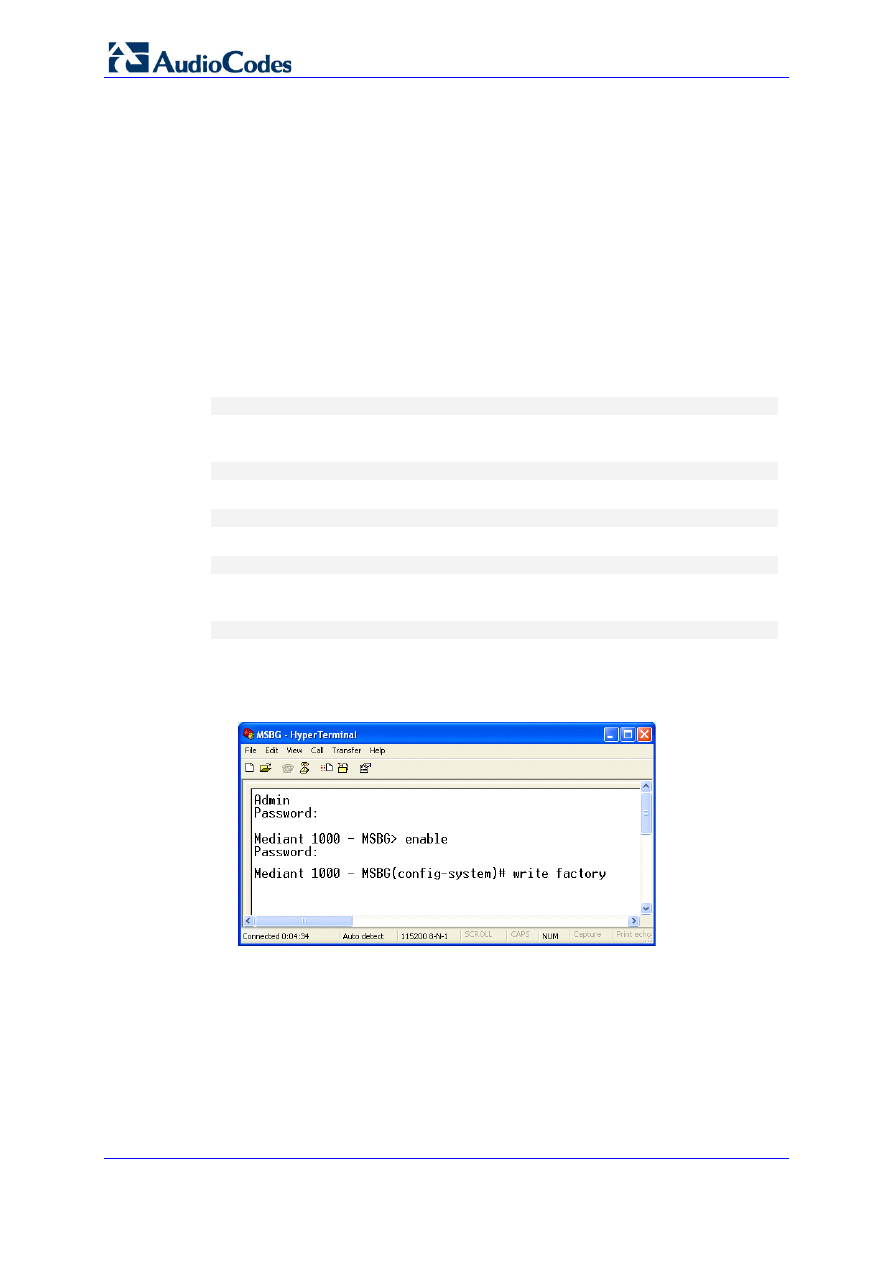
# write factory
The CLI commands mentioned in the procedure are shown in the terminal emulation
program (HyperTerminal) below:
Figure 2-1: CLI for Resetting Device to Default (MSBG Devices)
Configuration Note
2. Restoring Defaults using CLI
Version 6.4
11
May 2012
2.2.2
MP-11x, Mediant 600, Mediant 1000, Mediant 2000, and Mediant
3000
For the MP-11x, Mediant 600, Mediant 1000, Mediant 2000, and Mediant 3000 devices,
follow the procedure below.
To restore factory defaults:
1.
At the CLI prompt, type the following command to access the configuration mode, and
then press the Enter key:
# conf
2.
At the prompt, type the following command to reset the device to default settings, and
then press the Enter key:
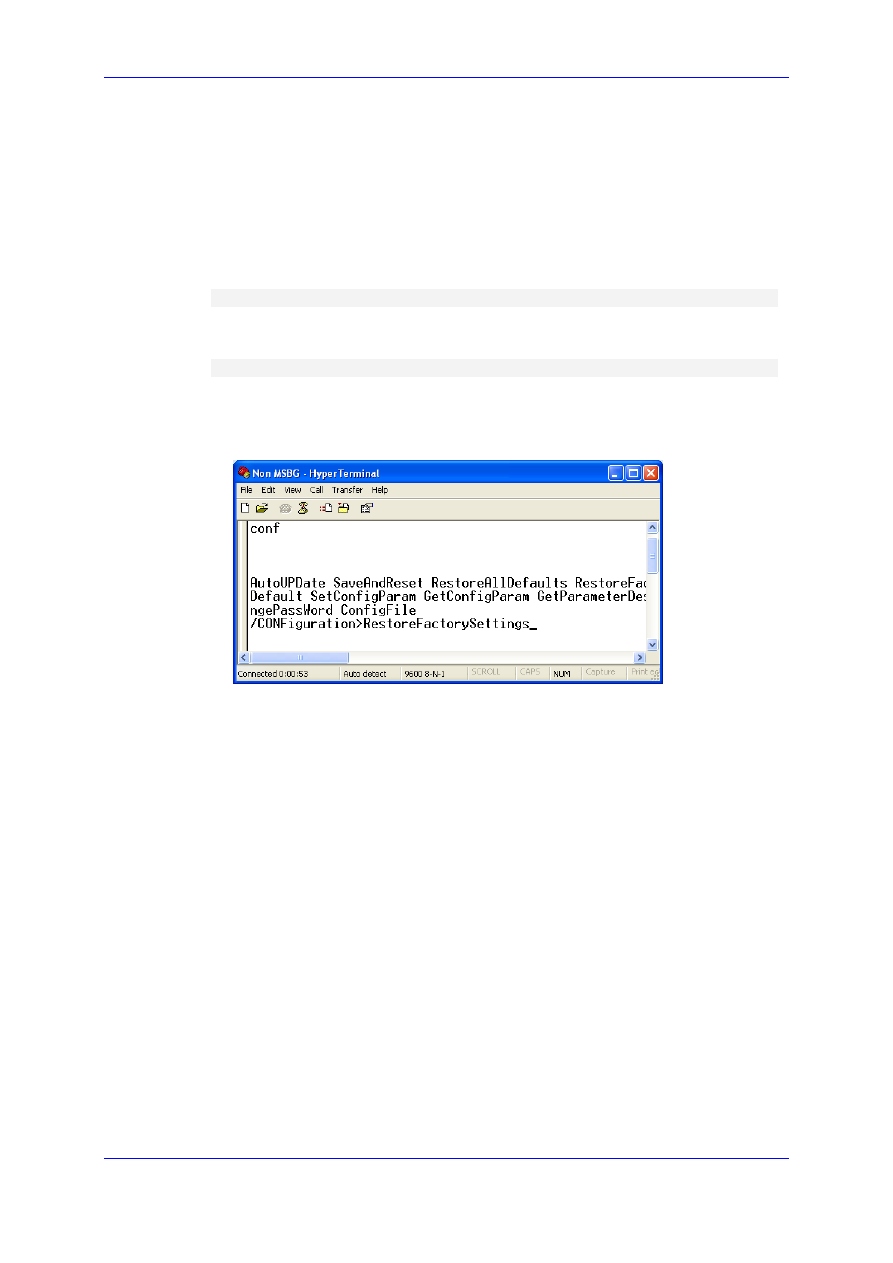
# RestoreFactorySettings
The CLI commands mentioned in the procedure are shown in the terminal emulation
program (HyperTerminal) below:
Figure 2-2: CLI for Resetting Device to Default (Non-MSBG Devices)

Configuration Note
12
Document #: LTRT-30302
Restoring Factory Defaults
Reader’s Notes
Configuration Note
3. Restoring Defaults using ini File
Version 6.4
13
May 2012
3
Restoring Defaults using ini File
You can restore the device to factory default settings by loading an empty ini file to the
device, using the Web interface. The only settings that are not restored to default are the
management (OAMP) LAN IP address and the Web interface's login user name and
password.
The ini file to be loaded must be empty (i.e., contain no parameters) or include comment
signs (i.e., semicolons ";") preceding lines (parameters).
To restore defaults using the Web interface:
1.
Prepare an empty ini file and save it in a folder on your PC.
2.
Log on to the Web interface.
3.
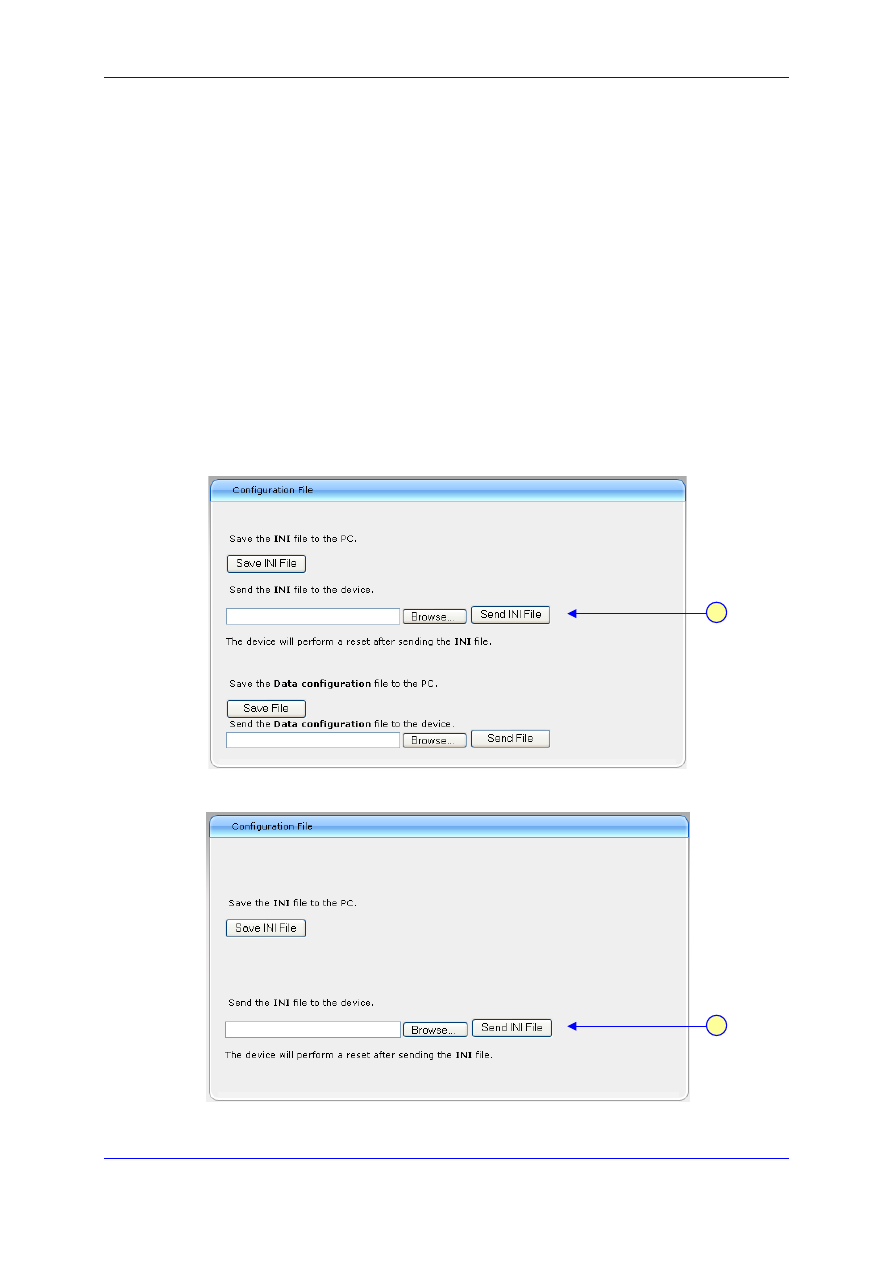
Open the 'Configuration File' page:
•
On the toolbar, click Device Actions, and then choose Load Configuration File.
•
In the Navigation tree - Maintenance tab > Software Update menu >
Configuration File.
Figure 3-1: Configuration File Page (MSBG Devices)
Figure 3-2: Configuration File Page (Non-MSBG Devices)
5
5

Configuration Note
14
Document #: LTRT-30302
Restoring Factory Defaults
4.
Click the Browse button corresponding to the Send INI File button, navigate to the
folder in which the empty ini file is located, select the file, and then click Open.
5.
Click the Send INI File button, and then at the prompt, click OK; the device uploads
the ini file and then resets the device to default settings (based on the cmp file
currently running on the device).
Configuration Note
4. Restoring Defaults using Hardware Reset Button
Version 6.4
15
May 2012
4
Restoring Defaults using Hardware Reset
Button
You can use the device's hardware reset pinhole button to restore all the device's
configuration settings to factory defaults (including the IP address and Web interface's login
user name and password).
Note:
Restoring defaults using the hardware reset button is currently not applicable
to Mediant 2000 and Mediant 3000.
4.1
MP-11x Series
The procedures below describe how to reset the MP-1xx series to default settings using
the hardware reset button.
To restore MP-11x to factory default:
1.
Disconnect the Ethernet cable from the device.
2.
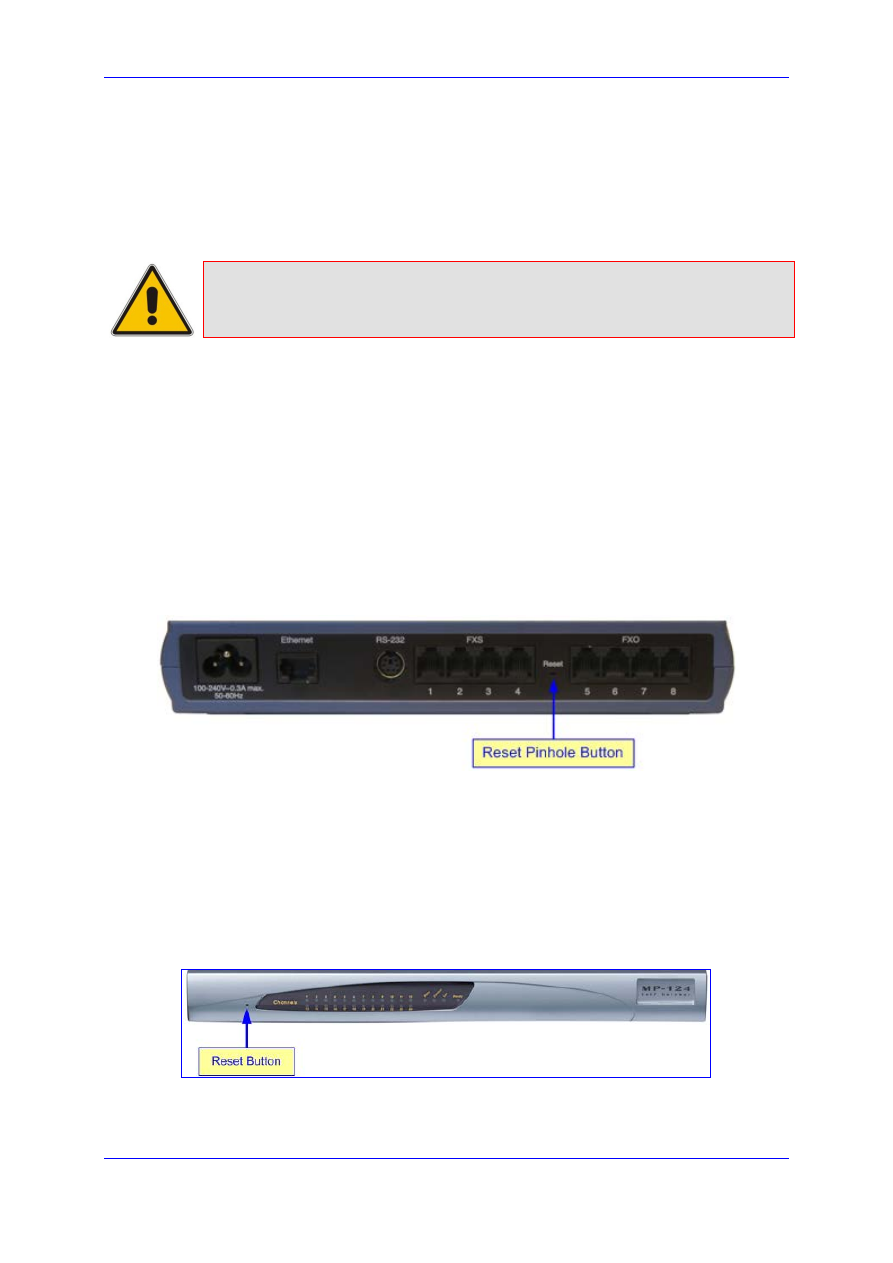
With a paper clip or any other similar pointed object, press and hold down the Reset
pinhole button (located on the rear panel) for about six seconds, and then release it;
the Fail LED turns red and the device restores to factory default settings.
Figure 4-1: Reset Pinhole Button Location on MP-11x Rear Panel
3.
When the Fail LED turns off, reconnect the Ethernet cable to the device.
To restore MP-124 to factory default:
1.
Disconnect the Ethernet cable from the device.
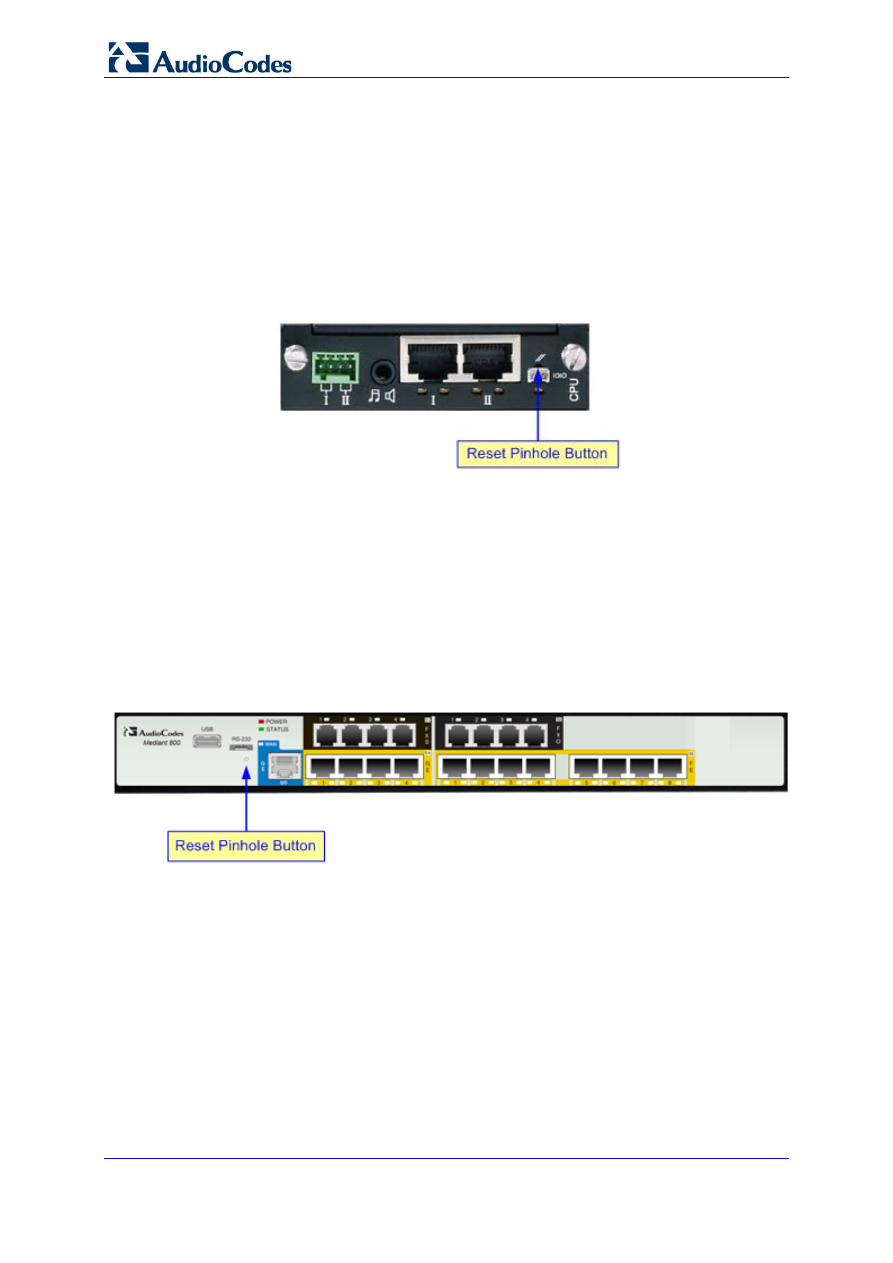
2.
With a paper clip or any other similar pointed object, press and hold down the reset
pinhole button (located on the front panel) for at least 12 seconds (but no more than
25 seconds), and then release the button.
Figure 4-2: Reset Pinhole Button Location on MP-124 Front Panel
Configuration Note
16
Document #: LTRT-30302
Restoring Factory Defaults
4.2
Mediant 600 and Mediant 1000
The procedure below describes how to reset Mediant 600 and Mediant 1000 to default
settings using the hardware reset button.
To restore Mediant 600 / Mediant 1000 to factory default:
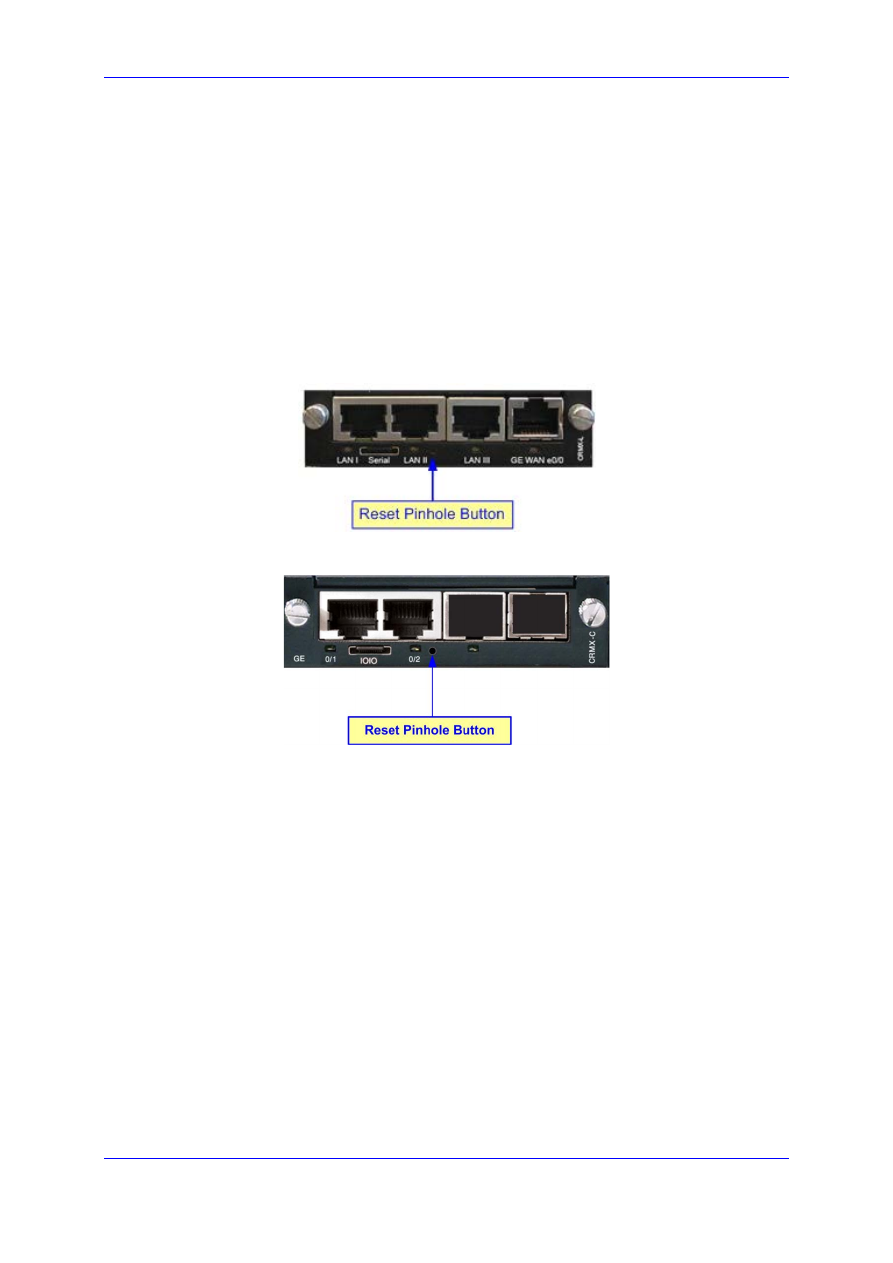
With a paper clip or any other similar pointed object, press and hold down the reset
button (located on the CPU module and labeled //) for at least 12 seconds (no more
than 25 seconds), and then release the button.
Figure 4-3: Reset Pinhole Button Location on Mediant 600 / 1000 Front Panel (CPU Module)
4.3
Mediant 800 MSBG and Mediant 800 GW & E-SBC
The procedure below describes how to reset the Mediant 800 MSBG to default settings
using the hardware reset button.
To restore Mediant 800 MSBG and Mediant 800 GW & E-SBC to factory default:
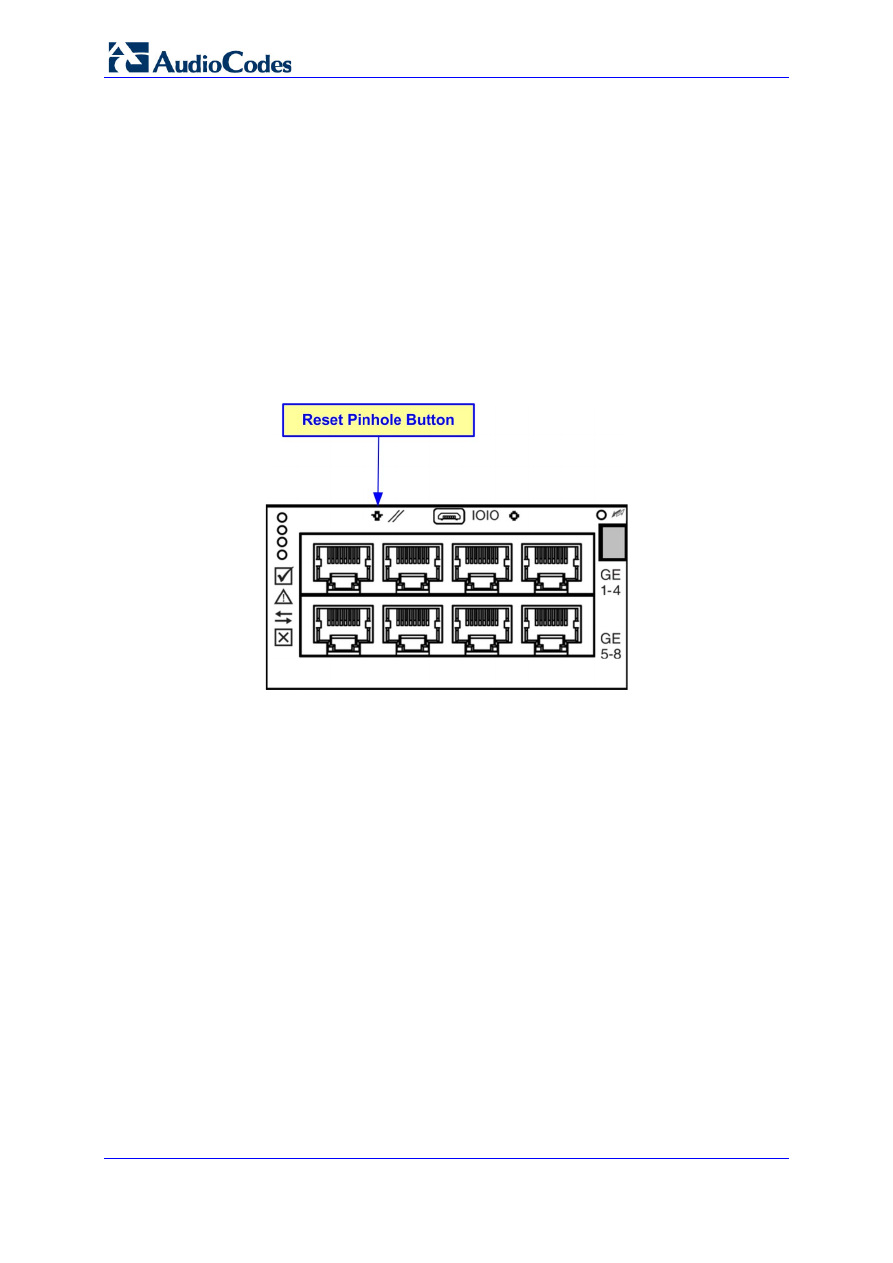
With a paper clip or any other similar pointed object, press and hold down the reset
button (located on the front panel) for at least 12 seconds, but no more than 25
seconds.
Figure 4-4: Reset Pinhole Button Location on Mediant 800 MSBG Front Panel
Configuration Note
4. Restoring Defaults using Hardware Reset Button
Version 6.4
17
May 2012
4.4
Mediant 1000 MSBG and Mediant 1000B GW & E-
SBC
The procedure below describes how to reset the Mediant 1000 MSBG and Mediant 1000B
Gateway & E-SBC to default settings using the hardware reset button.
To restore Mediant 1000 MSBG and Mediant 1000B Gateway & E-SBC to factory
defaults:
With a paper clip or any other similar pointed object, press and hold down the reset
button (located on the CRMX module) for at least 12 seconds, but no longer than 25
seconds.
Figure 4-5: Reset Pinhole Button on Mediant 1000 MSBG Front Panel (CRMX Module)
Figure 4-6: Reset Pinhole Button on Mediant 1000B Gateway & E-SBC Front Panel
Configuration Note
18
Document #: LTRT-30302
Restoring Factory Defaults
4.5
Mediant 4000
The procedure below describes how to reset Mediant 4000 to default settings using the
hardware reset button.
To reset the Mediant 4000:
With a paper clip or any other similar pointed object, press and hold down the reset
button for at least 1 second, but no longer than 10 seconds.
To restore Mediant 4000 to factory defaults:
With a paper clip or any other similar pointed object, press and hold down the reset
button for at least 11 seconds, but no longer than 20 seconds.
Figure 4-7: Reset Pinhole Button on Mediant 4000

Configuration Note
4. Restoring Defaults using Hardware Reset Button
Version 6.4
19
May 2012
Reader’s Notes

www.audiocodes.com
Configuration Note
www.audiocodes.com
Document Outline
- Configuration Note - Restoring Factory Defaults
Wyszukiwarka
Podobne podstrony:
Dell Factory Image Restore
LTRT 59815 MP 11x and MP 124 SIP Installation Manual Ver 6 6
C3A4 Transaction in foreign trade Polish ver 2010 10 17
CISCO how to configure VLAN
default 3
NS2 lab 4 4 7 en Configure Cisco IOS IPSec using Pre Shared Keys
Configuration Guide WAN Access(V100R006C00 02)
Opracowanie Teorii Bezp ver 1 2
Funai Hita9801 Service Note
Configsys
default
Floor beam ver 1 Student id 178 Nieznany
factoring00wellrich bw
6 4 1 2 Packet Tracer Configure Initial Router Settings Instructions
TEST Tenses part I ver III
Sixteenth Note Drum?ats
default
więcej podobnych podstron