CATIA V5 Workbook
Release 3
Text by:
Richard Cozzens
Southern Utah University
Graphics by:
Brandon Griffiths
Schroff Development Corporation
www.schroff.com
PUBLICATIONS
CATIA V5 Basic Workbook 1
Figure 1.1
Lesson 1 S
ketcher
W
ork
B
ench
Introduction to the Sketcher Work Bench
This lesson will take you through each step in creating a simple sketch and part that will
be referred to as the “L Shaped Extrusion”. Later in this lesson you will be asked to
save this part (file) as the “L Shaped Extrusion.CATPart”. The completed “L Shaped
Extrusion” is illustrated in Figure 1.2. In some cases optional processes will be
explained. Referenced illustrations will be used to help explain certain processes and to
compare results. It is important that you complete and understand every step in this
lesson, otherwise you will have difficulties in future lessons where much of the basic
instruction will not be covered (it will be assumed that you know it). The concepts taught
in these steps will give you the tools to navigate through the basics of the Sketcher
Work Bench. Following the step-by-step instructions there are twenty questions to help
you review the major concepts covered in this lesson. There are practice exercises at the
end of this lesson. The practice exercises will help you strengthen and test your new
found CATIA V5 knowledge. This lesson covers the most commonly used tools in the
Sketcher Work Bench. The less common and/or advanced tools will be covered in later
lessons and/or in the Advanced Workbook. It is not the intent of this book to be a
comprehensive reference manual but provide basic instructions for the most common
tools and functions in CATIA V5. CATIA V5 in the Windows NT environment allows
multiple methods of accomplishing the same task. You are encouraged to explore all the
different options.
Sketcher Work Bench Tool Bars
There are three standard tool bars found in
the Sketcher Work Bench. The three
tool bars are shown below. The
individual tools found in each of the three
tool bars are labeled to the right of the
tool icon.
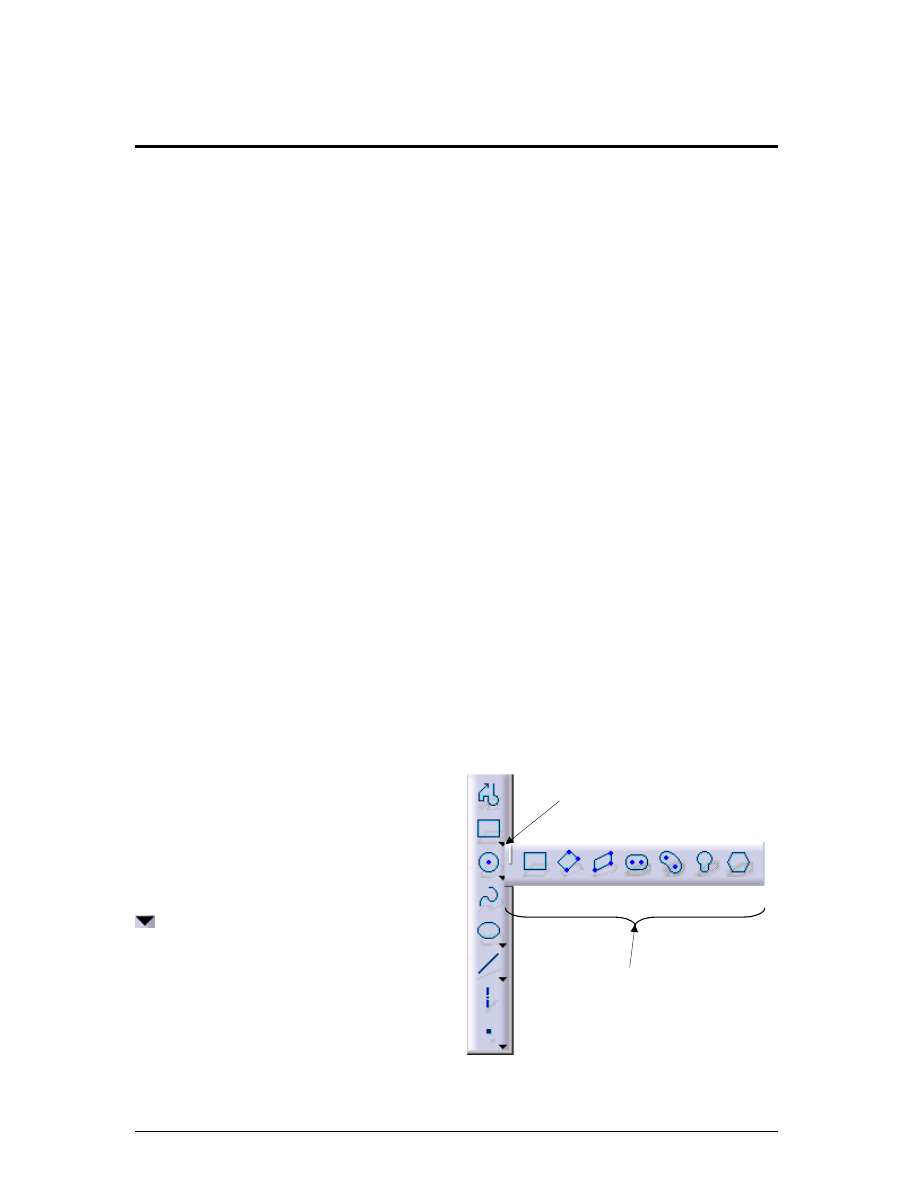
Some tools have an arrow located at the
bottom right of the tool icon. The arrow
is an indication that there is more than
one variation of that particular type of
tool. The tools that have more than one
option are listed to the right of the default
tool. To display the other tool options
you must select and hold the left mouse
button on the arrow as shown in Figure
1.1. This will bring up the optional tools
Select arrow
Optional tools
S
ketcher
W
ork
B
ench
Creating A Simple Part
CATIA V5 Basic Workbook 1.2
window. Move your mouse to the desired tool and release the mouse button. The desired
tool icon now becomes the default tool, shown on the tool bar. All you have to do to
select the new default tool is to double click on it.
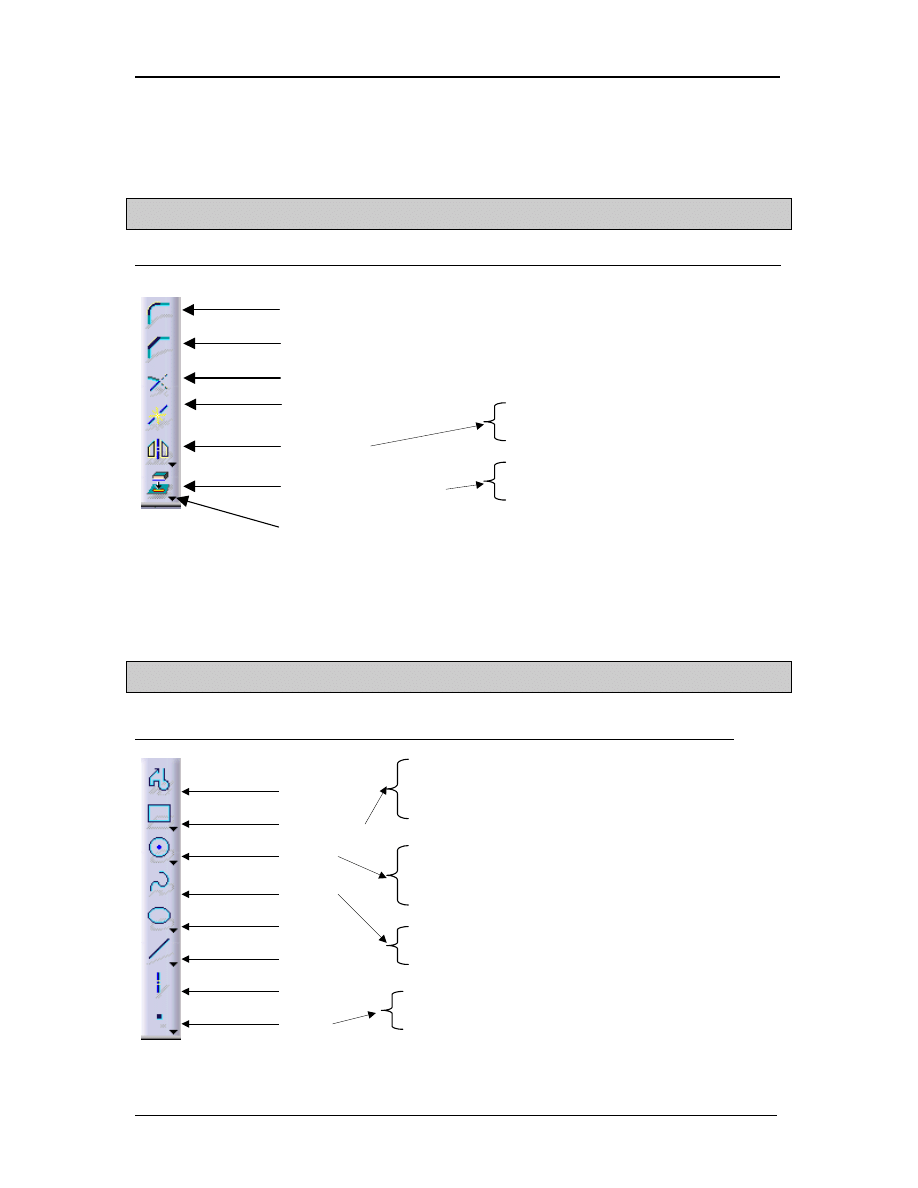
The Operation Tool Bar
Tool Bar
Tool Name (default)
Tool Type Options .
Tools covered in this lesson: Corner, Chamfer, Trim and Break. Symmetry and
Project 3D Elements tools will be covered in Lesson 2.
The Profile Tool Bar
Tool Bar
Tool Name (default)
Tool Type Options .
Tools covered in this lesson: Profile, Rectangle, Circle, Line and Point.
Corner
Chamfer
Trim
Break
Symmetry
Project 3D Elements
Symmetry, Translate, Rotate,
Scale, Offset
Project 3D Elements, Intersect 3D
Elements
Profile
Rectangle
Circle
Spline
Ellipse
Line
Axis
Point
Rectangle, Oriented Rectangle, Parallelogram,
Oblong Profile, Curved Oblong Profile, Keyhole
Profile, Hexagon
Circle, Three Point Circle, Circle Using
Coordinates, Tri-Tangent Circle, Three Point Arc,
Three Point Arc Starting With Limits, Arc
Ellipse, Parabola By Focus, Hyperbola By
Focus Line, Bi-Tangent Line
Point By Clicking, Point By Using
Coordinates, Equidistant Points
Note: Arrow indicates multiple tools are available. Click on the
arrow and the other tool options will appear.
S
ketcher
W
ork
B
ench
Creating A Simple Part
CATIA V5 Basic Workbook 1.3
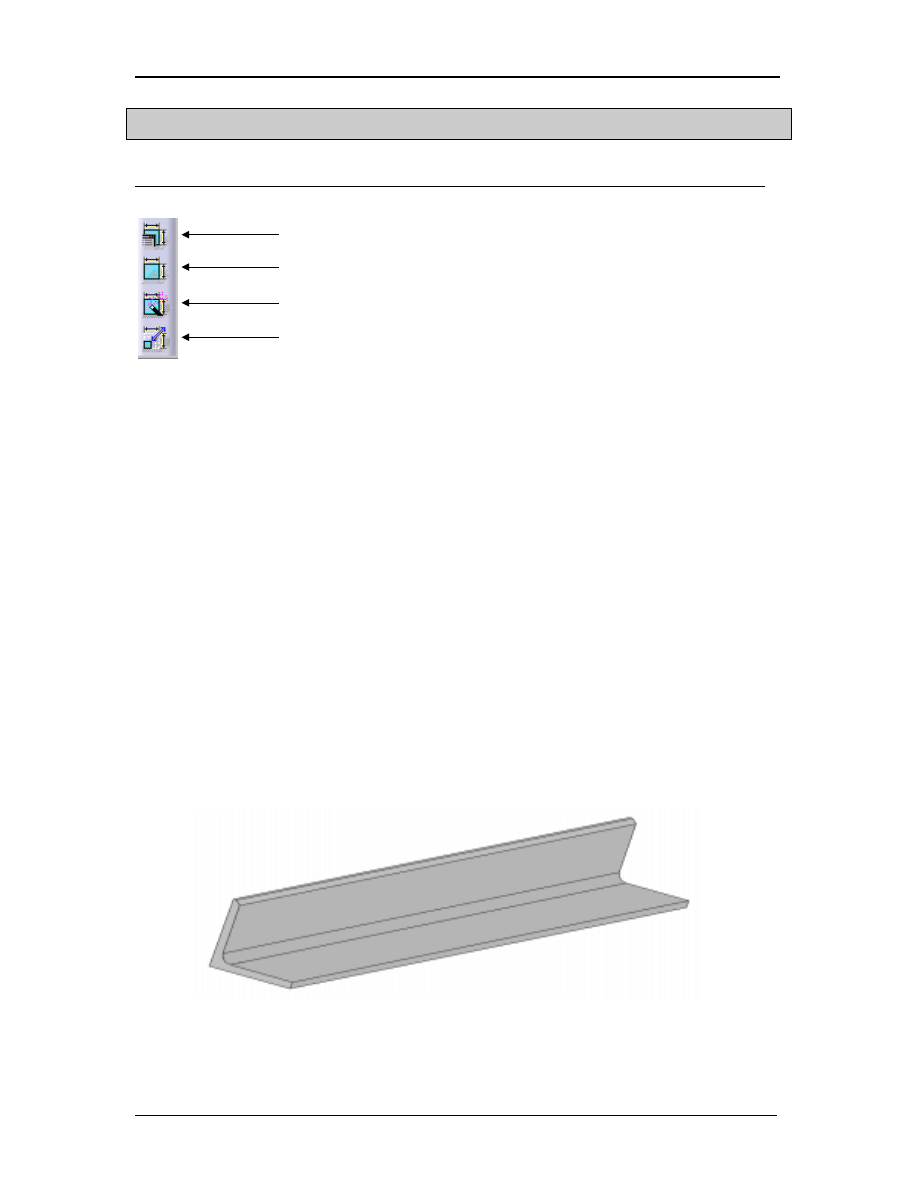
The Constraints Tool Bar
Tool Bar
Tool Name (default)
Tool Type Options .
All of the constraint tools are covered in this lesson.
NOTE: The three tool bars are by default located on the right side of the screen. The
three tool bars contain too many tools to show all of them at one time. To view
and have access to all the tools you can select the shaded tab located at the top
of each tool bar and drag it anywhere on the screen. This is important because
when you get to Step 4, by the default setup you will not be able to visually
locate the Operation tool bar. You will have to select and drag the Operation
tool bar from the right bottom side of the screen to the location you select
.
Steps To Creating A Simple Part Using The Sketcher Work Bench
You are now going to use the tools just introduced to you to create an “L Shaped
Extrusion”. The part is referred to as an “L Shaped Extrusion” because it’s profile or
shape is similar to an upper case letter L. When you complete all the steps in this lesson
the result should look similar to Figure 1.2.
Auto Constraint
Constraints Defined In Dialog Box
Animate Constraint
Constraint
Figure 1.2
S
ketcher
W
ork
B
ench
Creating A Simple Part
CATIA V5 Basic Workbook 1.4
Figure 1.3
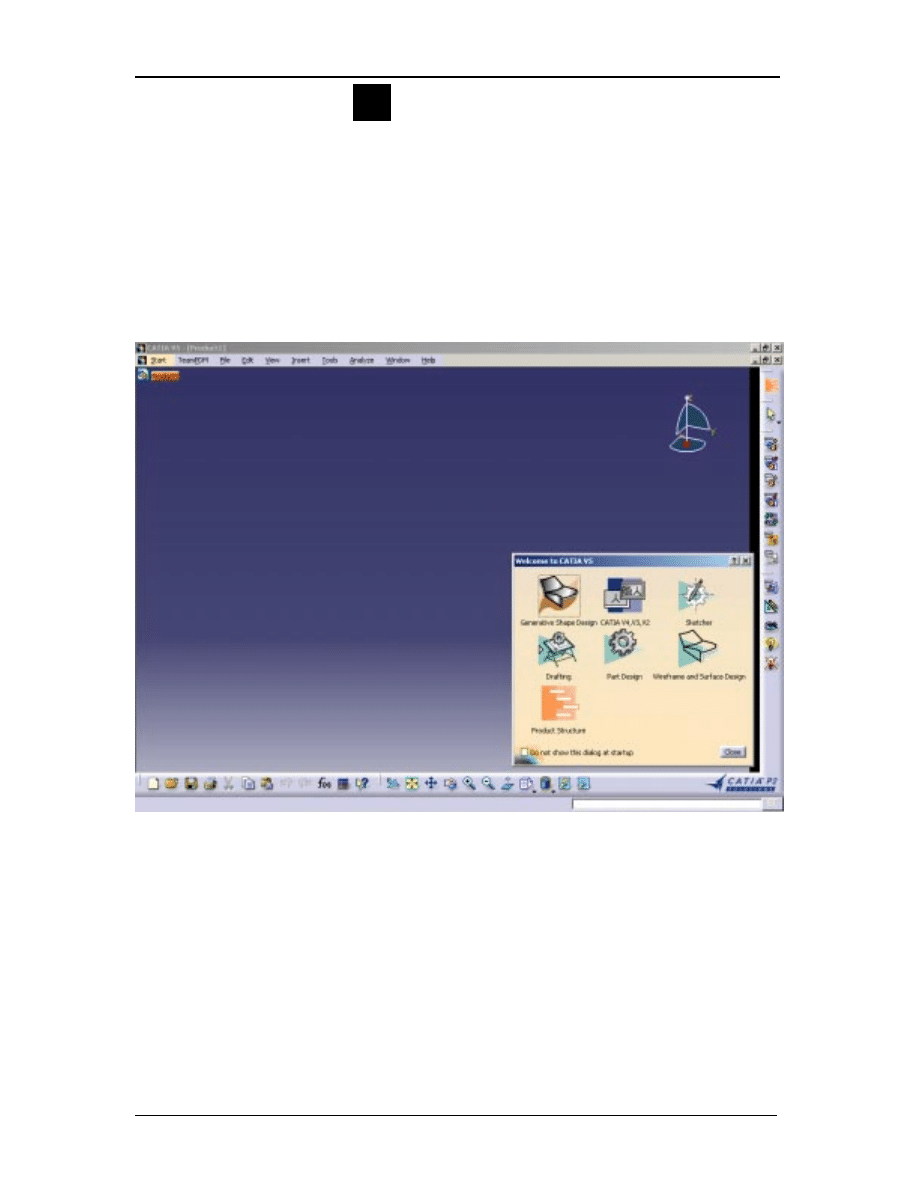
1. Start CATIA V5
From the NT Desktop double click on the CATIA V5R3 icon. Be patient it may
take a few moments to bring up the CATIA V5 start logo and the actual CATIA V5
working window. Figure 1.3 shows what the screen should look like.
If you are not able to finish all the steps in this lesson in one session you can jump to
Step 23, which covers saving and exiting CATIA V5. This will allow you to save
your work for your next session.
CATIA V5R3.lnk

S
ketcher
W
ork
B
ench
Creating A Simple Part
CATIA V5 Basic Workbook 1.5
2
Select The Sketcher Work Bench.
Every time you start CATIA V5 the CATIA V5 screen will appear as it does in
Figure 1.3. The “Welcome to CATIA V5” pop up window will be prompting you to
select a work bench. The default work bench is Product Structure. For this lesson
you will need to select the Sketcher Work Bench. Notice as you select the Sketcher
Work Bench that the tool bars on the right hand of your screen change and the
“Welcome to CATIA V5” pop up window disappears. If your CATIAV5 screen
and/or your Sketcher Work Bench screen are not maximized, maximize them using
the windows function at the top right of the screen.
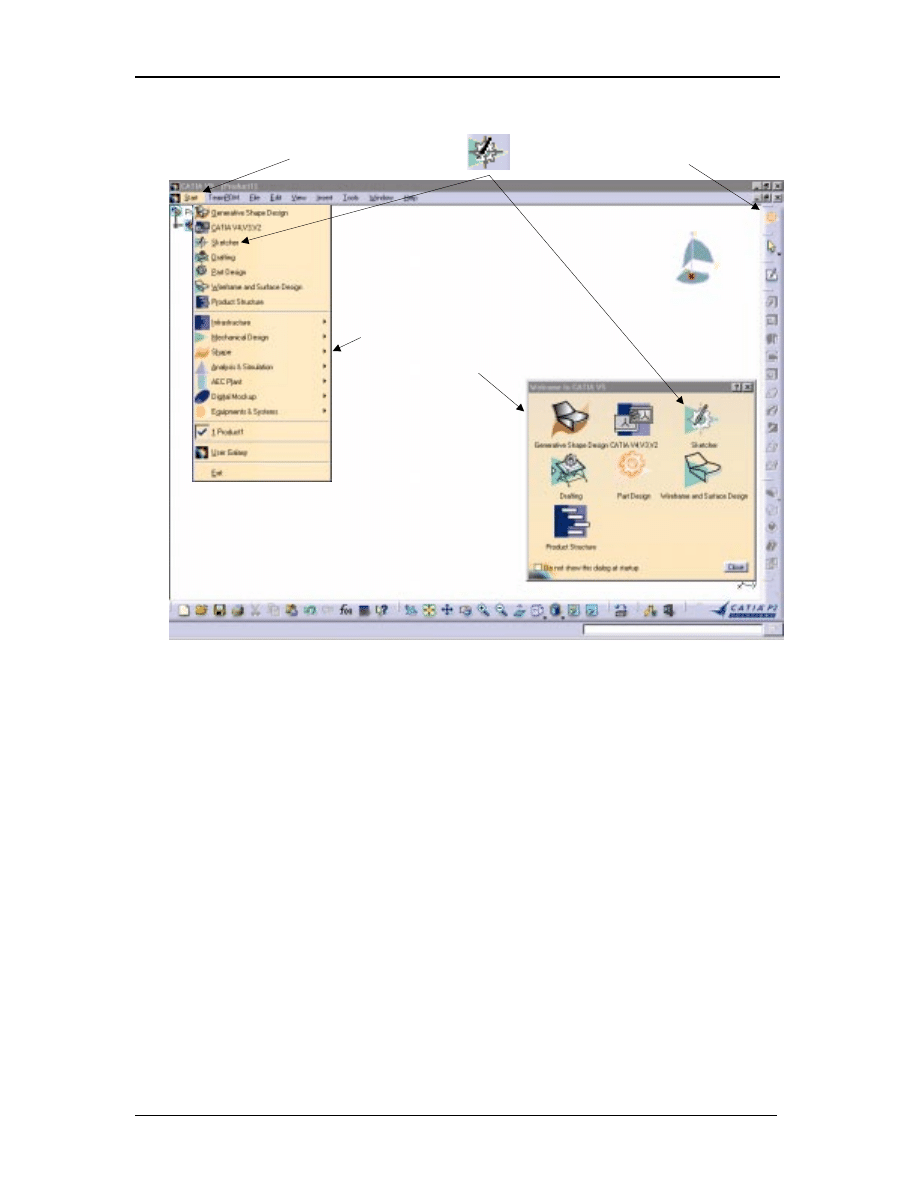
For future reference there are two methods to select a work bench in CATIA V5. As
you start CATIA V5 you are prompted by the default method. Using the “Welcome
to CATIA V5” pop up window is one way. Once you have selected a work bench
and the “Welcome to CATIA V5” window has disappeared you can bring it back up
by selecting the Work Bench icon in the top right of your screen, reference
Figure 1.4. The term work bench is used generically because the Work Bench icon
showing will be the current active work bench. Selecting that work bench will bring
up the “Welcome to CATIA V5” pop up window.
The other method of selecting another work bench is by selecting the Start icon in
the top left side of the screen, reference Figure 1.4. This will bring up a pull down
menu that includes all of the work benches. Double click on the work bench you
want to use, in this case the Sketcher Work Bench.
Figure 1.4 shows what the menus look like on the screen for both methods described
above. It is not possible to use both methods at the same time as shown in Figure 1.4
you can only use one method at a time.
S
ketcher
W
ork
B
ench
Creating A Simple Part
CATIA V5 Basic Workbook 1.6
Figure 1.4
NOTE: Selecting the Work Bench icon method will bring up the “Welcome to
CATIA V5” pop up window. This window will contain only the default
work benches at the time CATIA V5 was installed. This window can be
customized. If your system has been customized your “Welcome to
CATIA V5” window may have different work benches. The Sketcher
Work Bench should be included in the default window.
3
Specify A Working Plane
The next step is to create a 2 dimensional profile of the part. The Sketcher Work
Bench is a two dimensional (planar) work area. To use the Sketcher Work Bench
you must specify which plane the profile is to be created on. Specifying the plane can
be done several different ways.
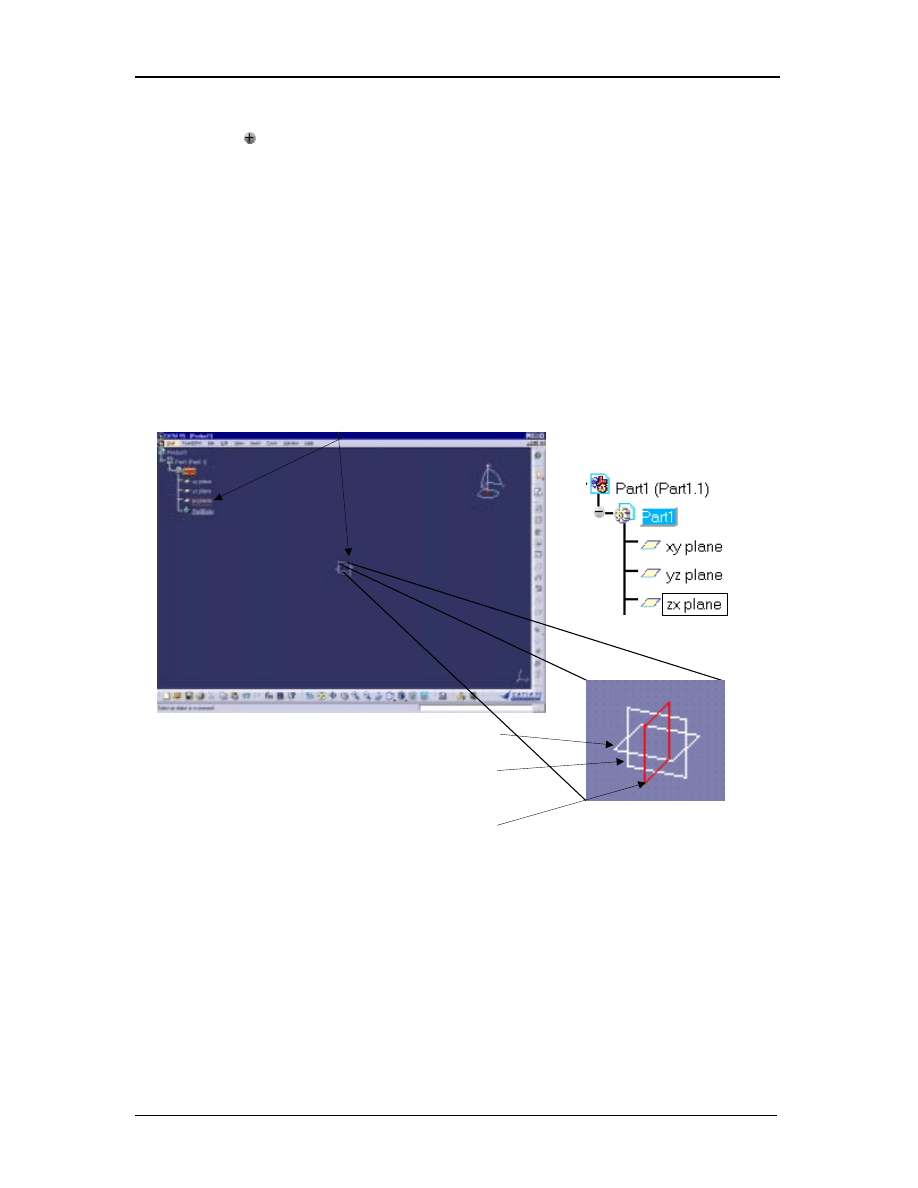
3.1 Select (highlight) the desired plane from the graphical representation in
the center of the screen as shown in Figure 1.5. Notice as a particular
plane is selected the equivalent plane in the Specification Tree is
highlighted. If the Specification Tree isn’t showing the branches with the
Pull down menu
Pop up window
Start Menu
Work bench icon (this shows the Part
Design Work Bench is the current
active work bench.
S
ketcher
W
ork
B
ench
Creating A Simple Part
CATIA V5 Basic Workbook 1.7
XY plane
YZ plane
ZX plane
planes, it will need to be expanded. To do this just select the Plus symbol
to the left of the Specification Tree or double click on the branch you
want expanded.
3.2 The step described above can be reversed. Select the plane in the
Specification Tree and the coordinating plane in the center of the screen
will also be highlighted.
3.3 Other planes, surfaces and/or other planner objects can also be selected to
define the Sketcher plane. This option will be covered in more detail later
in the book.
For this lesson select the ZX plane as shown in Figure 1.5.
4 Entering the Sketcher Work Bench
Once a plane is selected the screen will animate, rotating until the selected plane is
parallel to the computer screen (perpendicular to you, true size). The default grid will
also appear. You are now officially in the Sketcher Work Bench but before you
create the planar profile of the “L Shaped Extrusion”, you need to customize the
grid.
NOTE: As mentioned in the introduction, CATIA V5 is Windows compliant. This
means that there are several methods available to complete almost every task.
ZX plane
Figure 1.5
Specification Tree
S
ketcher
W
ork
B
ench
Creating A Simple Part
CATIA V5 Basic Workbook 1.8
5 Customizing The Grid
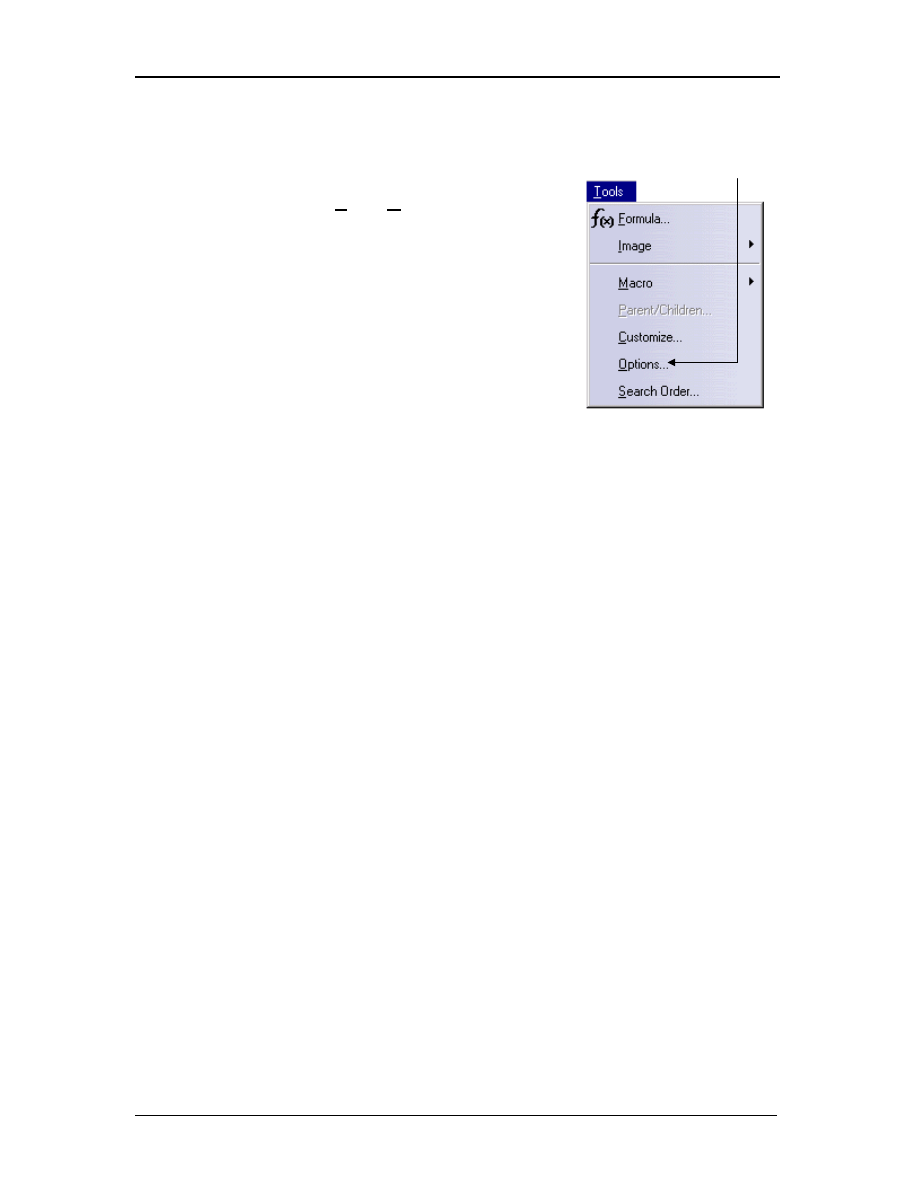
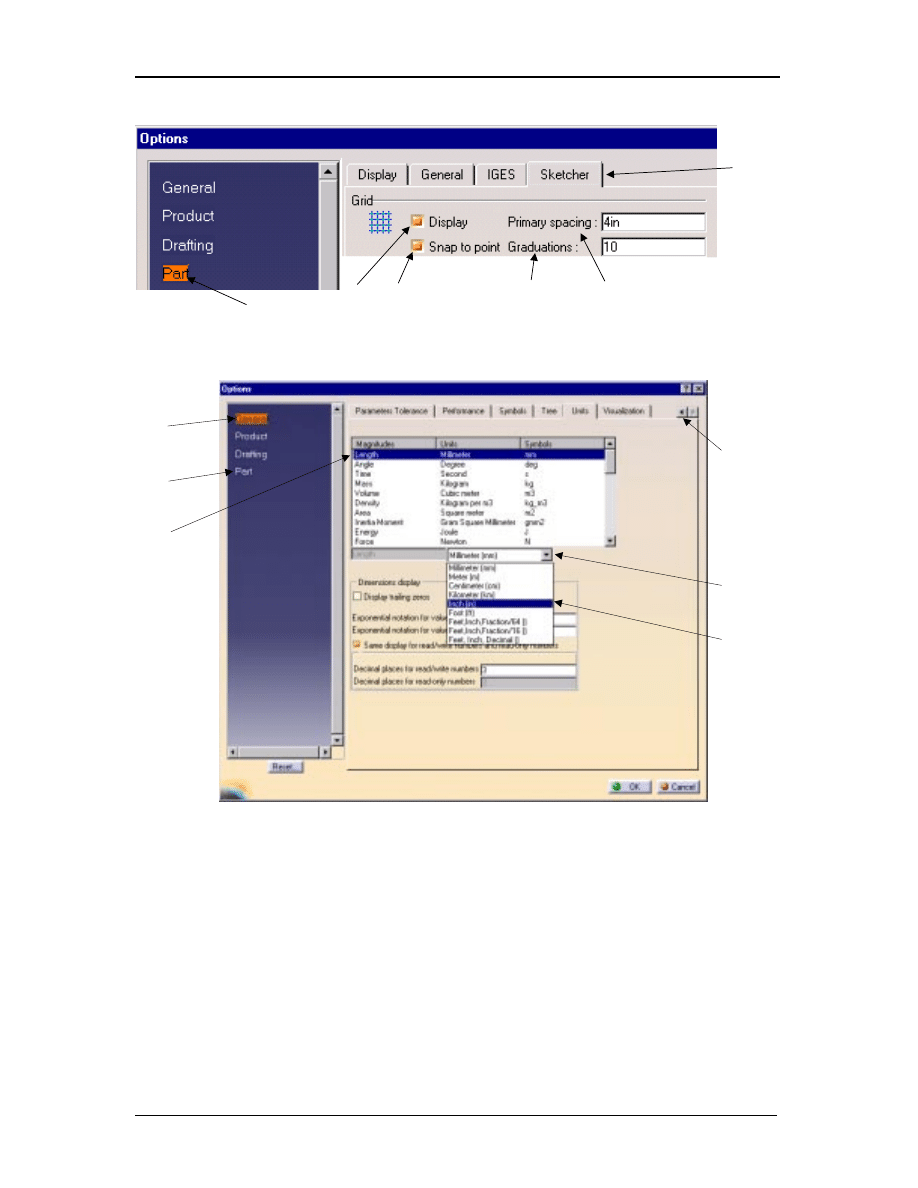
5.1 Go to the top tool bar in the pull down menu
and click on Tools, Options as shown in
Figure 1.6. This brings up file tab options
on the right side of the screen and file type
options on the left (Figure 1.7). From the
options on the left select Part, the tabbed
options on the right change accordingly.
5.2 Select
Sketcher. There are four main
options under Sketcher; you only need to
use two of them at this time, Grid and
Sketch Plane.
5.3 The first option under Grid allows the user to select Display grid or not
select it. For this particular exercise check the Display option.
5.4 The second option is to allow the user to snap to the grid points. For this
particular exercise check the Snap To option.
5.5 The third option is Primary Spacing. The user can set the desired
spacing. If the default measurement is in metric the spacing will be in
mm. To change this default complete the following steps:
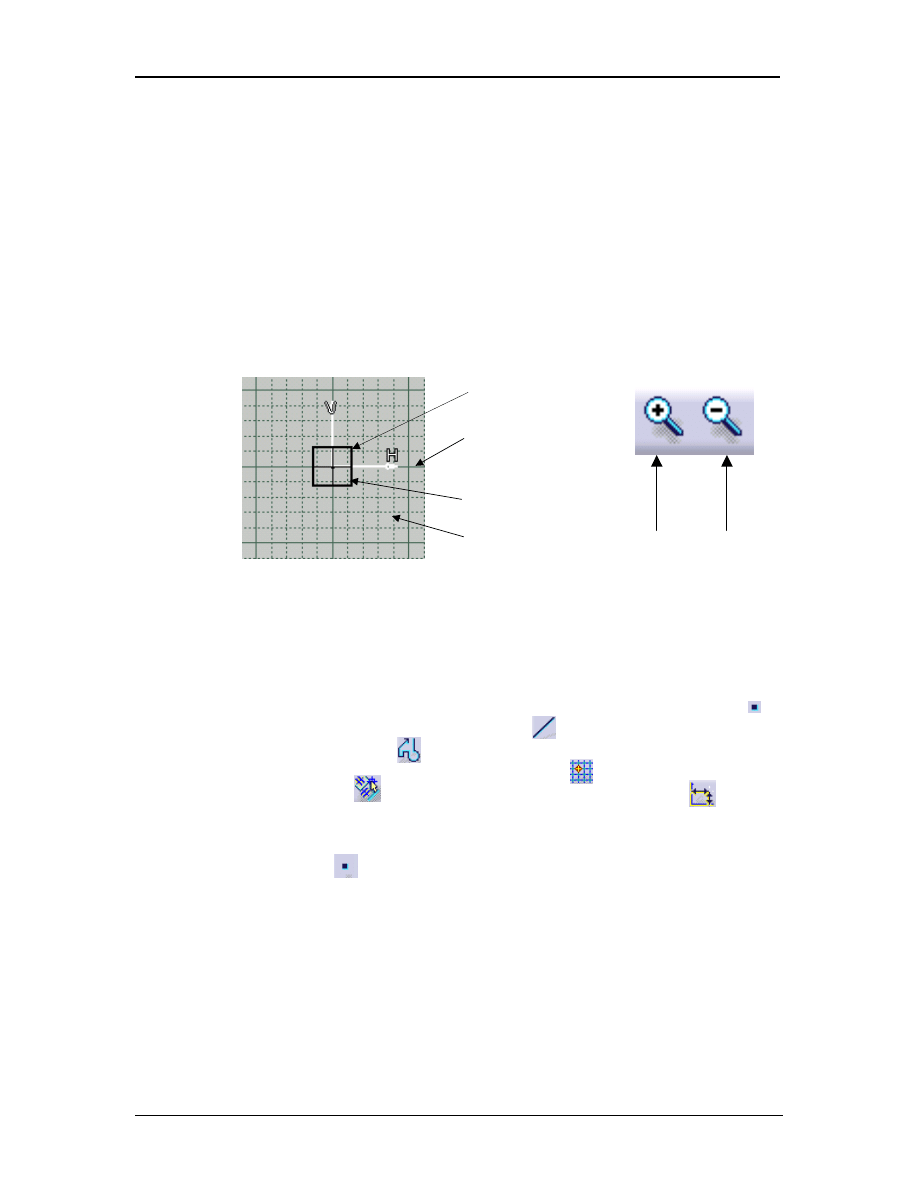
5.5.1 Select
the
General option on the left hand option bar. This
is in the same window as described in Step 5.1 above.
5.5.2 Slide the File tab to the right till you find the Units tab,
select it. The window on the screen should now look like
Figure 1.8.
5.5.3 Highlight
the
Length
option at the top of the list.
5.5.4 The length option will appear at the bottom of the window
list.
5.5.5 Selecting
the
down arrow will give you a list of all the
types of length measurements. For this exercise select
inches.
5.5.6 Now go back to the Sketcher options, by selecting the Part
option in the left window and selecting the Sketcher tab on
the right. Notice the Primary Spacing option is now
showing in inches.
Select
Figure 1.6
S
ketcher
W
ork
B
ench
Creating A Simple Part
CATIA V5 Basic Workbook 1.9
Figure 1.8
5.6 The forth option under Grid is Graduations. This option divides the
Primary Spacing in divisions defined by you, reference Figure 1.7. As
an example if the Primary Spacing is 1” and the Graduations is 1
(division), the grid will remain in 1in grids. If the Primary Spacing is 1”
and the Graduations set to 2 (divisions), the grid will be .5 in. To change
the Primary Spacing and the Graduations just select the value in the
window and type in the new value. When entering the values for the
Primary Spacing it is not necessary to enter the measurement type. The
lowest value allowed for Graduations is 1 (zero will not be accepted).
For this exercise enter 1 for the Primary Spacing and enter 10 for the
5.1
5.2
5.3 5.4
5.5
5.6
5.5.1
5.5.2
5.5.3
5.5.4
5.5.6
Figure 1.7
5.5.5
S
ketcher
W
ork
B
ench
Creating A Simple Part
CATIA V5 Basic Workbook 1.10
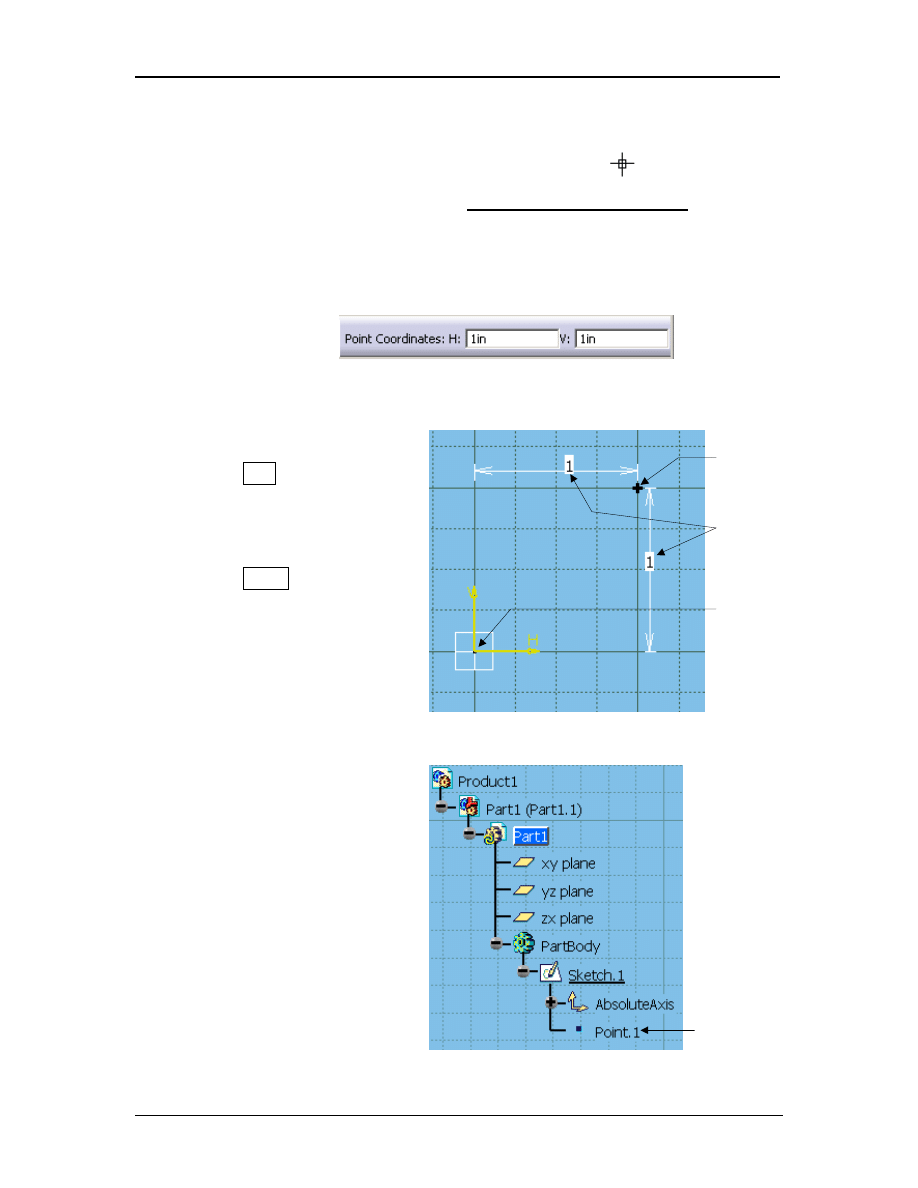
Graduations. Select the OK button to apply the Primary Spacing and
the Graduations values. The Primary Spacing is represented in the
Sketcher Work Bench with a solid line while the Graduations is a
dotted line (Figure 1.9). It is important to remember that the zoomed view
on the screen will dictate how the Primary Spacing and Graduations are
represented. If you are zoomed out, the Graduations and Primary
Spacing could look very similar to each other, not distinguishable. If you
find yourself in this situation use the Zoom tool on the tool bar at the
bottom of the screen (Figure 1.10). Continue to zoom in until the
Primary Spacing and Graduations are distinguishable.
6 Creating Geometry Using The Profile Tools
You are now ready to create the profile (periphery) of the “L Shaped Extrusion”.
The first tool you will use from the Profile tool bar is the Point by Clicking tool ,
covered in Step 7. The second tool is the Line tool , covered in Steps 8, 9 and 10.
The third tool is the Profile tool , covered in Step 11. On the Tools tool bar at the
bottom right of the screen make sure the Snap To Point is on (highlighted), the
Geometrical Constraints is on and the Dimensional Constraints is on
(Figure 1.13). With this you are ready to create geometry!
7 The Starting Point
The (0,0) point in Sketcher Work Bench is the intersection of the Horizontal (H)
and Vertical (V) axis. It can also be described as the intersection of the three planes
(XY, ZX and YZ). Reference Figure 1.5, 1.9 and 1.12a.
The starting point for your profile will be (1,1). You should be able to locate the (1,1)
location using the Primary Spacing and Graduations. To visually verify the
location and to Anchor your first two lines to the (1,1) location create a point at the
(1,1) coordinate location. To create a point complete the following steps:
Primary
Spacing
Graduation
Selected plane
Figure 1.9
Figure 1.8
Zoom
in
Zoom
out
ZX plane
Figure 1.10
S
ketcher
W
ork
B
ench
Creating A Simple Part
CATIA V5 Basic Workbook 1.11
Figure 1.12a
Figure 1.12b
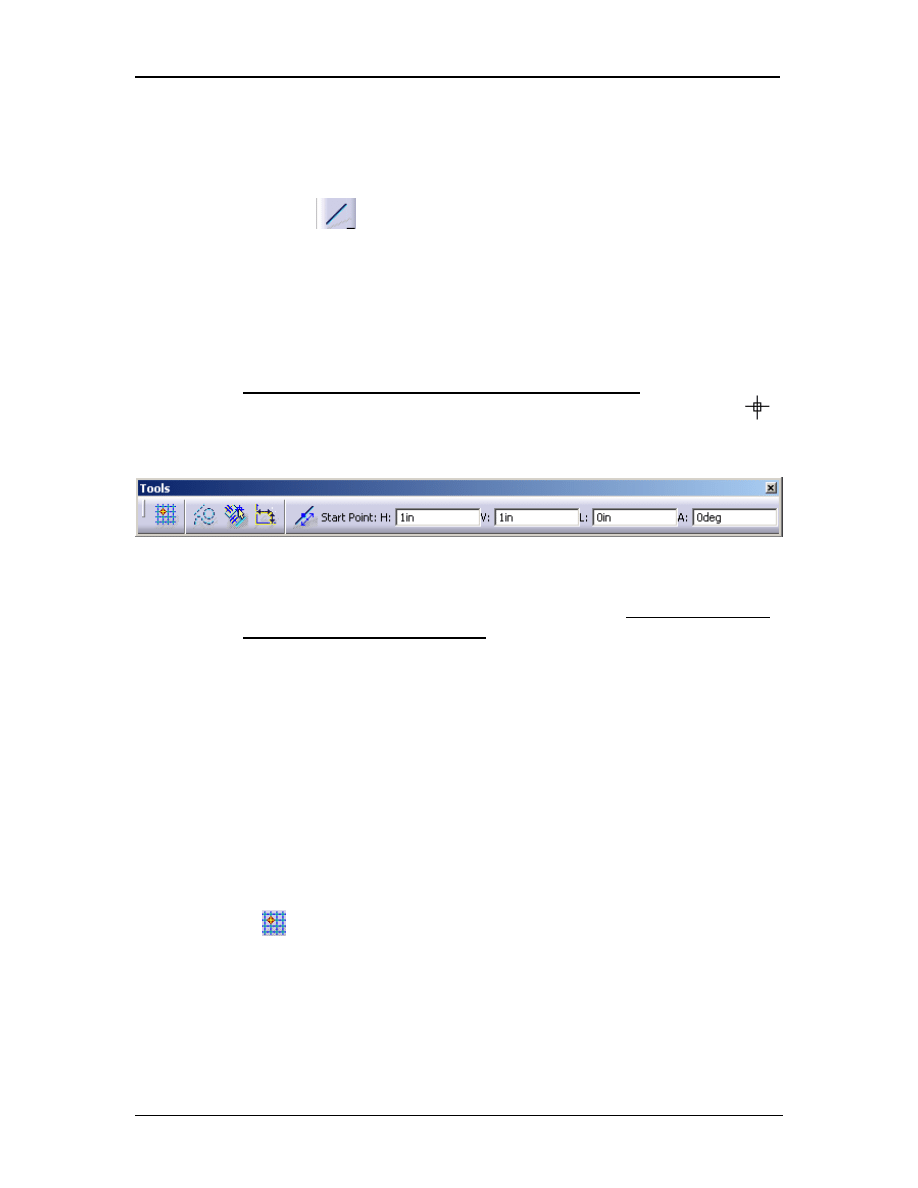
7.1 Select the Point By Clicking icon found in the Profile tool bar on the
right side of the screen. After selecting the Point By Clicking icon the
mouse will be accompanied by a Target Selector. This tool allows
you to select and snap to a location on the screen.
CATIA V5 will prompt you to “Click To Create The Point”. Another
way of specifying the location of the point is to type the location in the
Point Coordinates: H: and V: boxes. The H: is for horizontal and V: is
for vertical coordinates. Reference Figure 1.11.
7.2 For this lesson type in
1 for the Horizontal
coordinate. Hit the
Tab key to move the
cursor over to the
Vertical box. Type in 1
for the Vertical
coordinate. Hit the
Enter key to have
CATIA V5 create the
new point.
7.3 A Point “+” will appear
at the (1,1) coordinate.
It will remain
highlighted until you
make another
selection. There will
be two green
dimension lines
locating the point from
the (0,0) location. The
dimension values
should be one in the
horizontal direction and
one in the vertical
direction. The green
dimension lines
constrain the point to
that coordinate location
(Figure 1.12a). Notice
a Point.1 has been
Figure 1.11
Point (1,1)
Constraints
Point (0,0)
New point
S
ketcher
W
ork
B
ench
Creating A Simple Part
CATIA V5 Basic Workbook 1.12
added to the Specification Tree (Figure 1.12b). Remember, you may
have to expand the Specification Tree to see all the entities. Point.1 will
be under the Sketch branch.
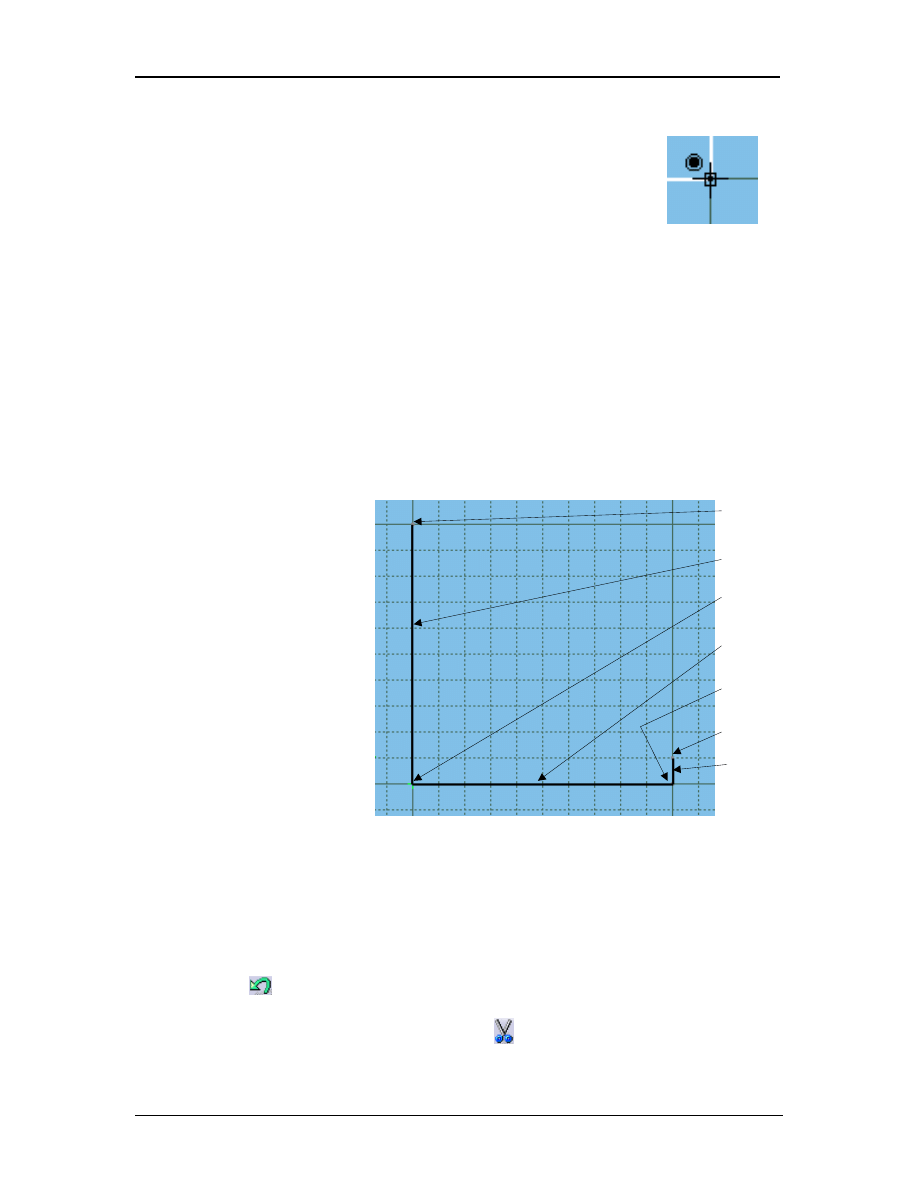
8 Creating Line 1
Remember the grid you set up is 1in Primary Spacing with 10 Graduations. This
means the dotted lines represents .1 of an inch. Complete the following steps to
create line 1.
8.1 Select the Line icon from the Profile tool bar. This will bring up the
Tools pop up window as shown in Figure 1.13. You will be prompted to
“Select A Point Or Click To Locate the Start Point”. When you select
the Line icon your mouse will be accompanied by a Target Selector.
8.2 The starting point for line 1 will be Point.1 created in Step 7. Using your
mouse select Point.1 . You will now be prompted to “Select A Point Or
Click To Locate the End Point”. The Tools pop up window will also up
date to prompt for the end point.
8.3 The end point for line 1 is (1,2). If you can use the grid to locate the
correct location do so. Move your Target Selector up one full grid line
but don’t move it to the right or left (0 in the horizontal direction). Click
on the grid line intersection (1,2). If you have any doubt where (1,2) is
type in the values, using the Tools pop up window. Type in 1 for the H:
box and 2 for the V: box.
8.4 The first line is now created. Line 1 should look like the one labeled in
Figure 1.15.
Notice: Connecting one entity to another is safer and easier when the Snap To Point
icon is on. When the Snap To Point icon is off you must be careful
when connecting one entity to another. Both entities must share the same
common point. For example, two connected lines, the end point for the first
line must be the same exact starting point for the second line. The lack of a
shared point will make the entities unlinked. This broken link will cause
problems when moving and/or modifying your profile. The entities will not
move together. Another problem with the broken link is that it creates an
unclosed profile. Unclosed profiles will be covered later in this lesson.
Figure 1.13
S
ketcher
W
ork
B
ench
Creating A Simple Part
CATIA V5 Basic Workbook 1.13
Figure 1.15
(1,2)
Figure 1.14
CATIA V5 does supply a visual tool to help you know
exactly when the point being selected is shared with
another entity. The symbol is shown in Figure 1.14, the
blue circle filled with a blue dot signifies the point being
selected is the end point of another entity. This will link
the two entities together. This is a helpful tool, especially
when the Snap To Grid tool is off.
Notice: The Tools pop up window gives you more options than the ones covered in
Step 8.1 & 8.3. If you are typing in the information to create a line you have
the option of giving Polar Coordinate information. Reference Figure 1.13,
you enter a Start Point, L: (length of line) and A: (for angle). This lesson
does not require you to use this option, it could be helpful in the future.
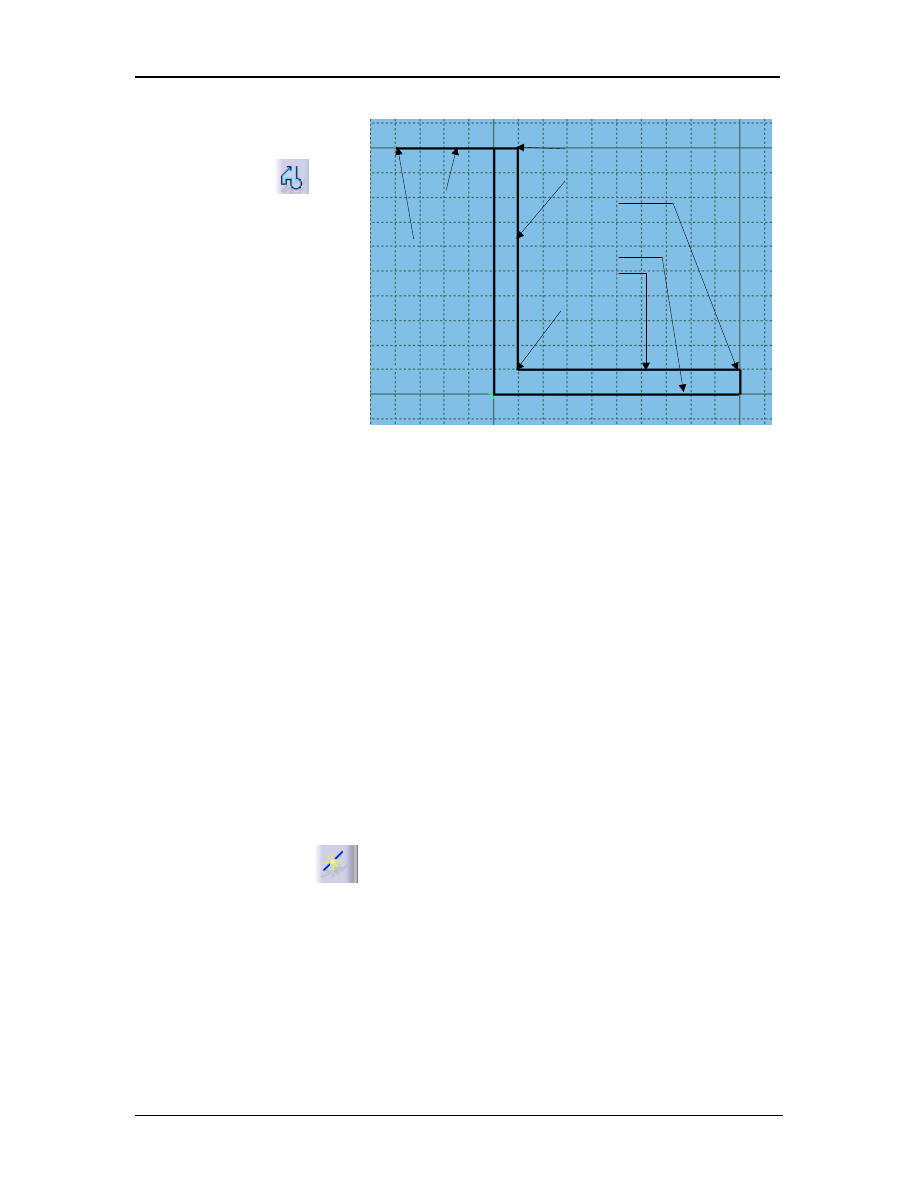
9 Creating Line 2
To create the second line
you have to re-select the
Line icon. Repeat the
same process described in
Steps 8, except use (1,1) as
the Start Point and (2,1)
as the Ending Point. This
will create the bottom
horizontal line as shown in
Figure 1.15.
10 Creating Line 3
To create the third line,
double click on the Line
icon. Double clicking on
the Line icon will allow you to create multiple lines without being required to
repeatedly select the Line icon. With the Line icon double clicked, create line 3,
Start Point (2,1). The End Point for line 3 is (2,1.1). Double clicking on the Line
icon still requires you to select a Start Point and an End Point every time, but you
will not have select the Line icon for every line.
Note: If you make a mistake when creating one of the lines you can use the Undo
icon.
The Undo icon is located at the bottom of the screen. The Undo
tool allows you to undo multiple steps. Another option to a mistake is deleting
it. This can be done using the Cut icon also located at the bottom of the
screen. Highlight the entity to be deleted then select the Cut icon.
Line 2
Line 3
(1,1)
Line 1
(2,1.1)
(2,1)
S
ketcher
W
ork
B
ench
Creating A Simple Part
CATIA V5 Basic Workbook 1.14
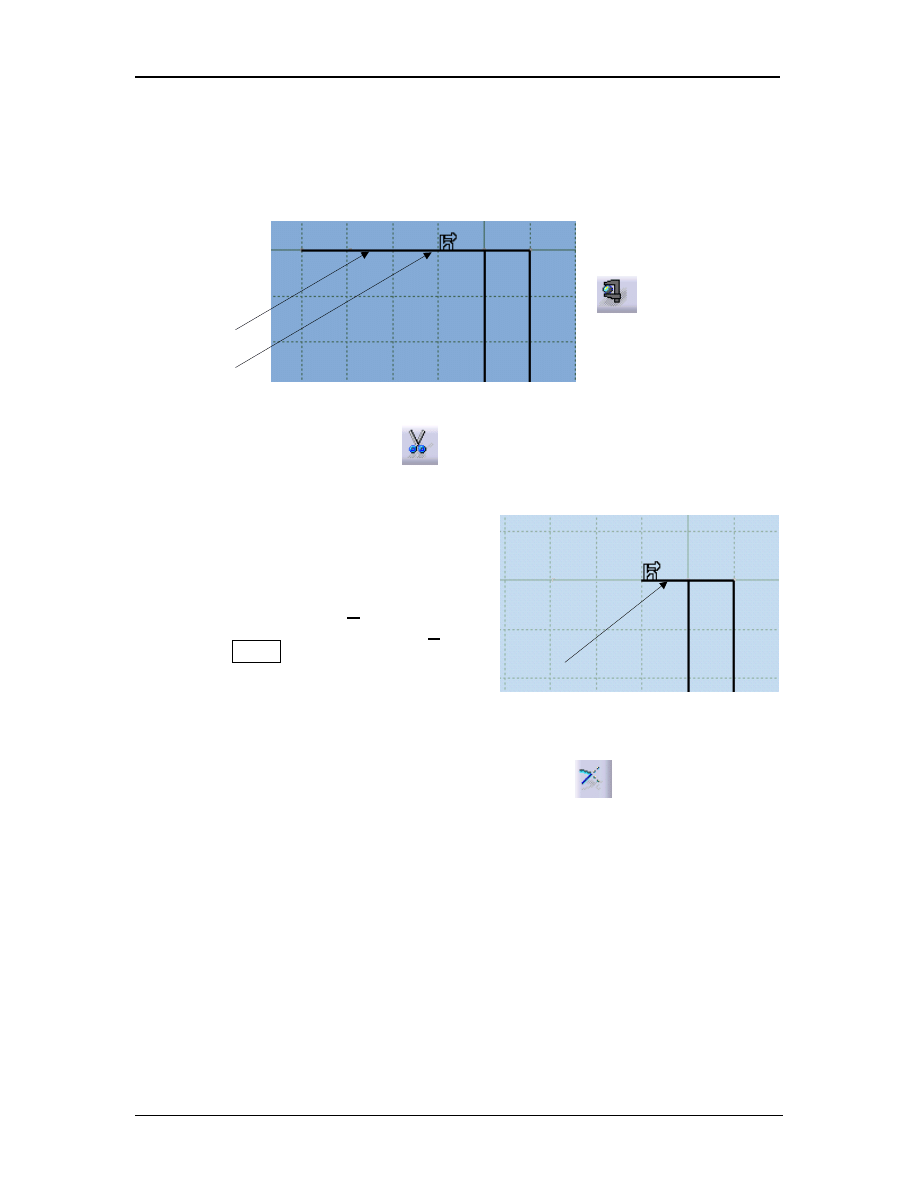
11 Creating Line 4, 5,
And 6 Using The
Profile Icon
The 4th, 5th and 6th line
will be created using the
Profile icon. The Profile
icon allows true
successive line creation.
The End Point for one
line and the Start Point
for the next line requires
only one selection. The
connected lines will
continue to be created
with every point selected until you double click. Double clicking the Ending Point
will end the Profile command. The lines created are separate entities, but the
command that created them is recognized as one, so if you select the Undo command
all the lines created in one Profile operation will be undone. With this tool added to
your toolbox of knowledge finish the “L Shaped Extrusion”. Create lines 4, 5 and 6
by selecting the following coordinates in succession, select (2,1.1), select (1.1, 1.1),
select (1.1,2) and double click on (.6, 2) to end the line creation. The finished profile
should look like Figure 1.16.
NOTE: This particular exercise does not require any features with radii but the
Profile tool has the ability to create them. Instead of selecting an End Point
and a Starting Point for line creation, select the point (where the arc is to
begin), hold down the left mouse button and drag it away from the starting
point, then release the mouse button. You will notice as you drag the mouse
button around the arc radius and location change. Move the mouse around
to where you get the radius you want then select that point on the screen.
Steps 12 through 16 give instruction on how to use additional tools to modify the
entities you have created.
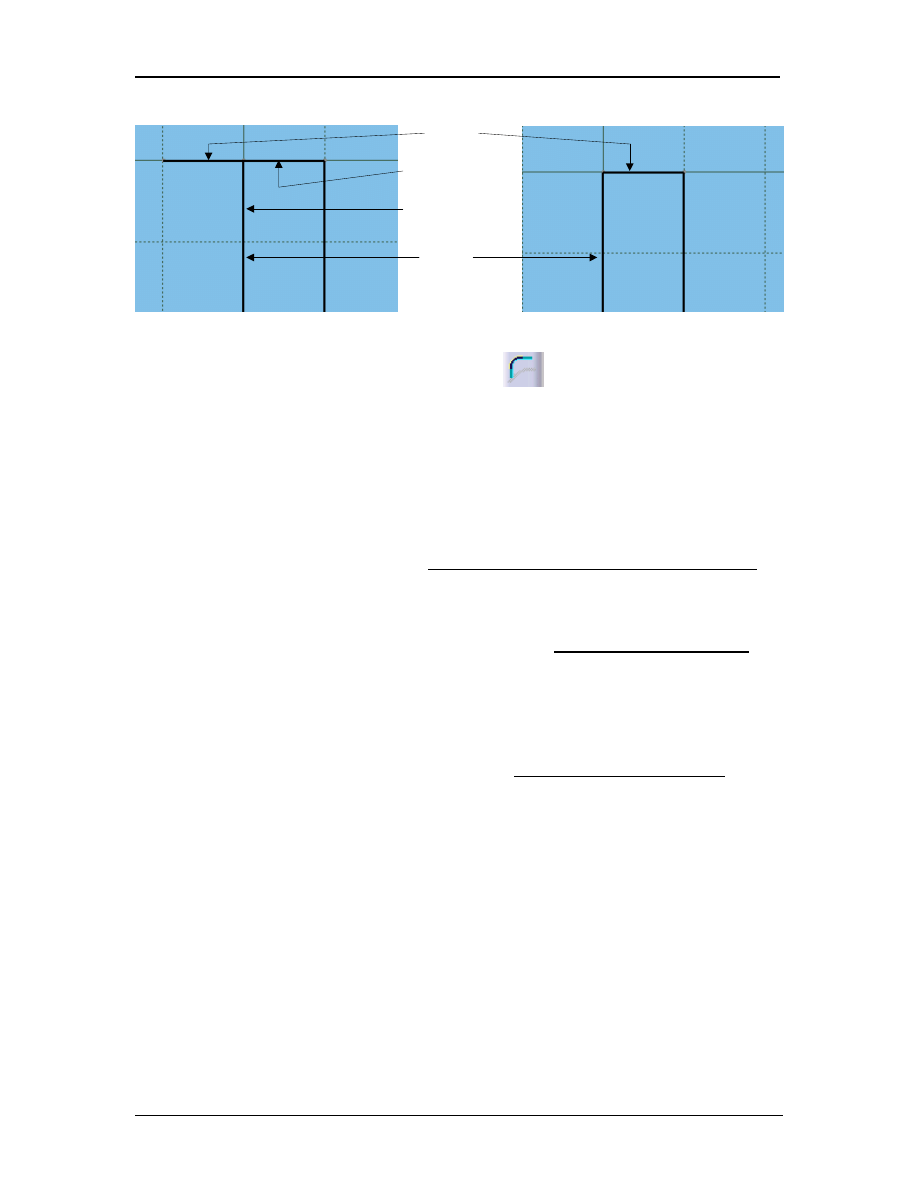
12 Breaking Line 6
Step 11 purposely instructed you to create line 6 longer than required. In this step
you will learn how to break a line. Step 13 will instruct you on how to trim line 6
back to line1. To break line 6, simply select the Break icon from the Operation tool
bar. Select line 6 as shown in Figure 1.17. The line will highlight then select a
location on the line where you want the line broken. For the purpose of this lesson
select approximately three Graduation lines from the left end point (Figure 1.17).
The line is now broken. The easiest way to verify this is to select the broken line,
only one of the two line segments will highlight. You could also select the Measure
Figure 1.13
Figure 1.16
(1.1,2)
Line 5
(1.1,1.1)
Line 4
(2,1.1)
Line 2
Line 6
(.6,2)
S
ketcher
W
ork
B
ench
Creating A Simple Part
CATIA V5 Basic Workbook 1.15
icon found at the bottom of the screen (Figure 1.18). Select the Measure icon then
select (apply to) the line you want to measure. This would tell you how long the
selected (broken) line is.
13 Deleting The Broken Line
This is another easy step but one that
should be remembered. Select the left line
fragment of the former line (known as line
6). It will highlight, now select the scissors
located at the bottom left of the screen. The
highlighted line will disappear (Figure 1.19).
You could also select the Cut command
from the top pull down menu (under Edit)
or hit the Delete key. This deleting (erase)
process is similar in all windows functions
and applies to any entity you want to delete
(as long as it is highlighted).
14 Completing The Profile Using The Trim Icon
The periphery of the “L Shaped Extrusion” is now complete, or is it? Extending
line 6 past line 1 does not close the profile properly. If you were to exit Sketcher
Work Bench at this point and try to extrude the profile you would get an error,
because line 6 is over running line 1. To fix this problem select the Trim icon and
select line 6 on the right side of line 1. Now select line 1, line 6 is automatically
trimmed to the second line selected. See Figure 1.20 for line selection and Figure
1.21 for final result, after trim.
Line 6
Break here
Figure 1.17 (trimming line 6)
Figure 1.19
Figure 1.18 Measure
icon
Select here
S
ketcher
W
ork
B
ench
Creating A Simple Part
CATIA V5 Basic Workbook 1.16
15
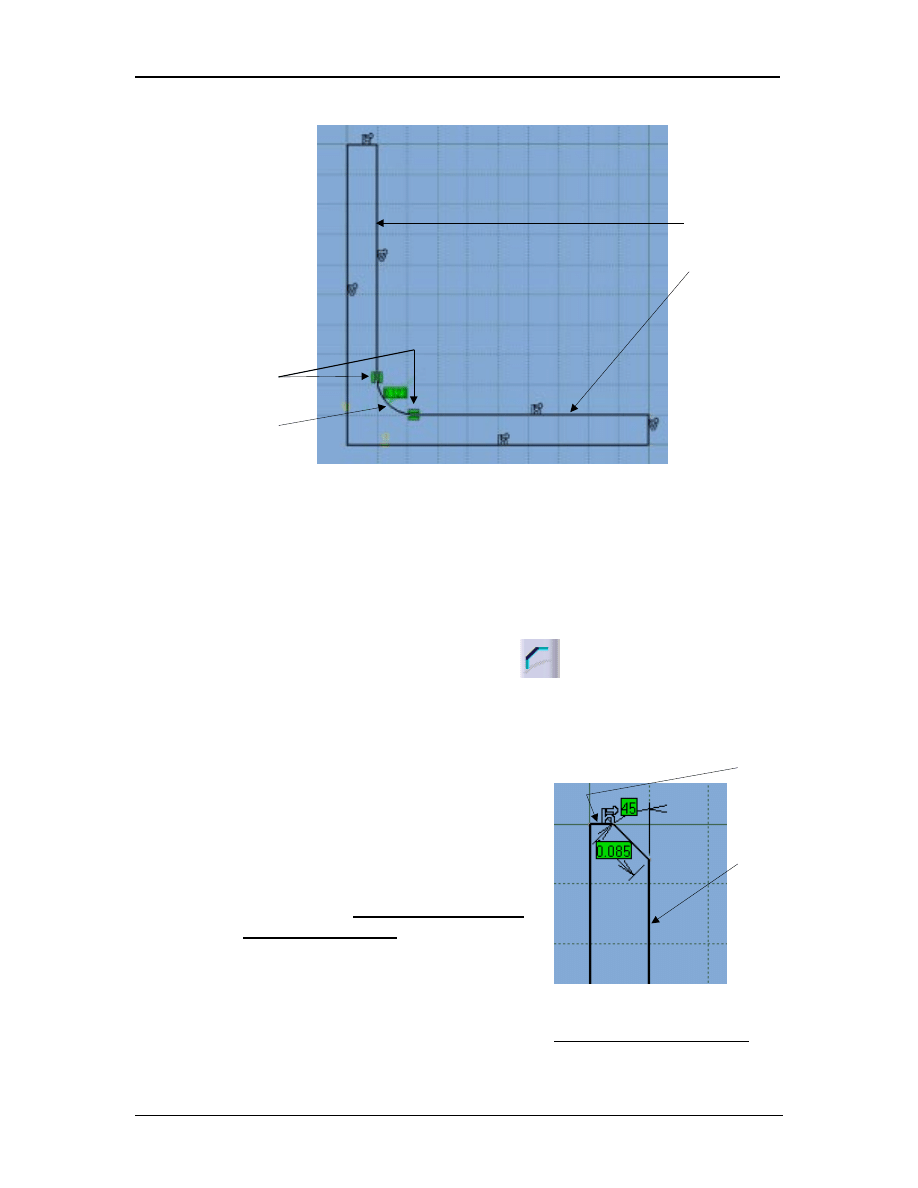
Modifying The Profile Using Corner
The Corner icon is located in the Operations tool bar. This tool modifies existing
entities; in this case it will put a specified radius in the place of a square corner. The
following instructions step you through the process of creating corners (fillets).
15.1 Select the Corner icon.
15.2 The command prompt at the bottom left hand of the screen will prompt
you with the following: “Select the first curve, or a common point”.
15.3 For this exercise select line 4 (Figure 1.22).
15.4 The next command prompt will ask you to “Select the second curve”.
15.5 For this exercise select line 5 (Figure 1.22).
15.6 Now move your mouse around, the radius of the corner you just created
will grow and shrink according to the location of your mouse. The
command prompt will prompt you to “Click to locate the corner”, in
other words move the mouse until the radius of the corner is where you
want it and click.
15.7 You now have a radius for that corner. Your part should now look similar
to the part shown in Figure 1.22. If your radius dimension does not match
the one shown below it is ok, it will be modified later.
Figure 1.20
Figure 1.21 (line six after trim)
(1) Select here
(2) Select here
Line 1
Line 6
S
ketcher
W
ork
B
ench
Creating A Simple Part
CATIA V5 Basic Workbook 1.17
NOTE: The radius will have a green dimension with a value attached to it. The
value is the radius of the corner you just created. Step 19 (modifying
constraints) will supply us with the tools to make this radius exact. This is
a two dimensional corner. Lesson 2 will explain another method of creating
a corner using a Part Design Work Bench.
16 Modifying The Profile Using Chamfer
The Chamfer icon is also located in the Operations tool bar. This procedure
assumes you know what a chamfer is. The steps required to create a chamfer are
almost identical to creating a corner.
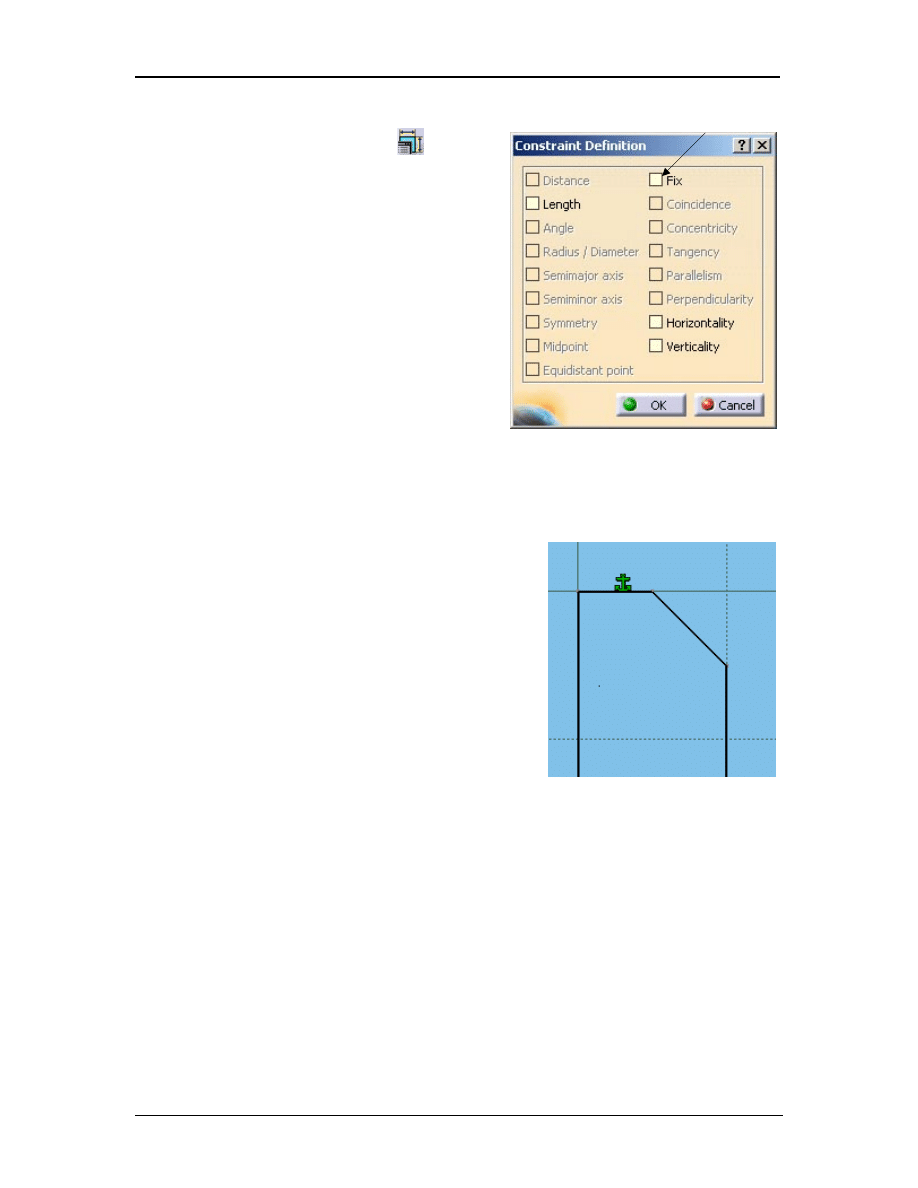
16.1 Select the Chamfer icon (shown
above).
16.2 The command prompt at the bottom left
hand of the screen will prompt you with
the following: “Select the first curve,
or a common point”.
16.3 For this exercise select line 5 (Figure
1.23).
16.4 The next command prompt will ask you to “Select the second curve”.
Figure 1.22 (sketch with radius added)
Figure 1.23
New radius
Parallelism
symbol
Line 4
Line 5
Line 5
Line 6

S
ketcher
W
ork
B
ench
Creating A Simple Part
CATIA V5 Basic Workbook 1.18
16.5 For this exercise select line 6 (Figure 1.23).
16.6 Now move your mouse around, the length of the chamfer will grow as you
move the mouse away from the intersection of the two selected lines. The
length of the chamfer will shrink as you move it back towards the
intersection. If you move the mouse to the top left quadrant you will
notice the chamfer also moves to that quadrant. CATIA V5 gives you the
option of all four quadrants. For this lesson use the bottom left quadrant.
The command prompt will prompt you to “Click to locate the chamfer”.
16.7 You should now have a chamfer that looks like the one shown in Figure
1.23.
NOTE: The chamfer has two green colored dimensions attached to it. Both
dimensions have values attached to them. One dimension is the chamfer
length and the other is the chamfer angle. Reference Step 19 (modifying
constraints) on how to modify the values to exactly what you require for
your chamfer. This chamfer is a two dimensional entity. Lesson 2 also
explains a method of creating chamfers on three-dimensional entities, using
a Part Design Work Bench.
17 Anchoring The Profile
Select line six. As you select the line hold the mouse button down, now drag the
mouse up. Notice that the entire profile expands and contracts as you drag the mouse
button around. Line 1 and 2 can be modified in length only, they can’t be moved.
All the other lines can be modified in position, length and angle. You cannot modify
the location of lines 1 and 2 because they are linked to Point.1 and Point.1 is
constrained to the location (1,1). The green dimension lines that were created with
Point.1 are constraints. It is the constraint values that tie Point.1, line 1 and 2 to their
current position. To move the point and/or either line you have to modify the
constraint, which will be covered in Step 19.
If there is a particular entity you don’t want moved in relationship to another entity
you can constrain it. Constraints are restrictions on one entity to another entity. The
Anchor tool restricts the entities movement in relationship to the coordinate location
only. Line 1 and 2 are not truly anchored because the constraint is tied to their
relationship to Point.1. The effect is the same, line 1 and 2 can not be moved. If you
want to constrain the location of an entity without constraining any other entity the
Anchor tool is a good option. For example, you may want to modify the “L Shaped
Extrusion” but you know you don’t want line 6 to move at all. You can restrict line
6 by Anchoring it. Elements can be anchored by completing the following steps.
17.1 Select the entity that you want to anchor. For this lesson select line 6.
S
ketcher
W
ork
B
ench
Creating A Simple Part
CATIA V5 Basic Workbook 1.19
Figure 1.24
Figure 1.25
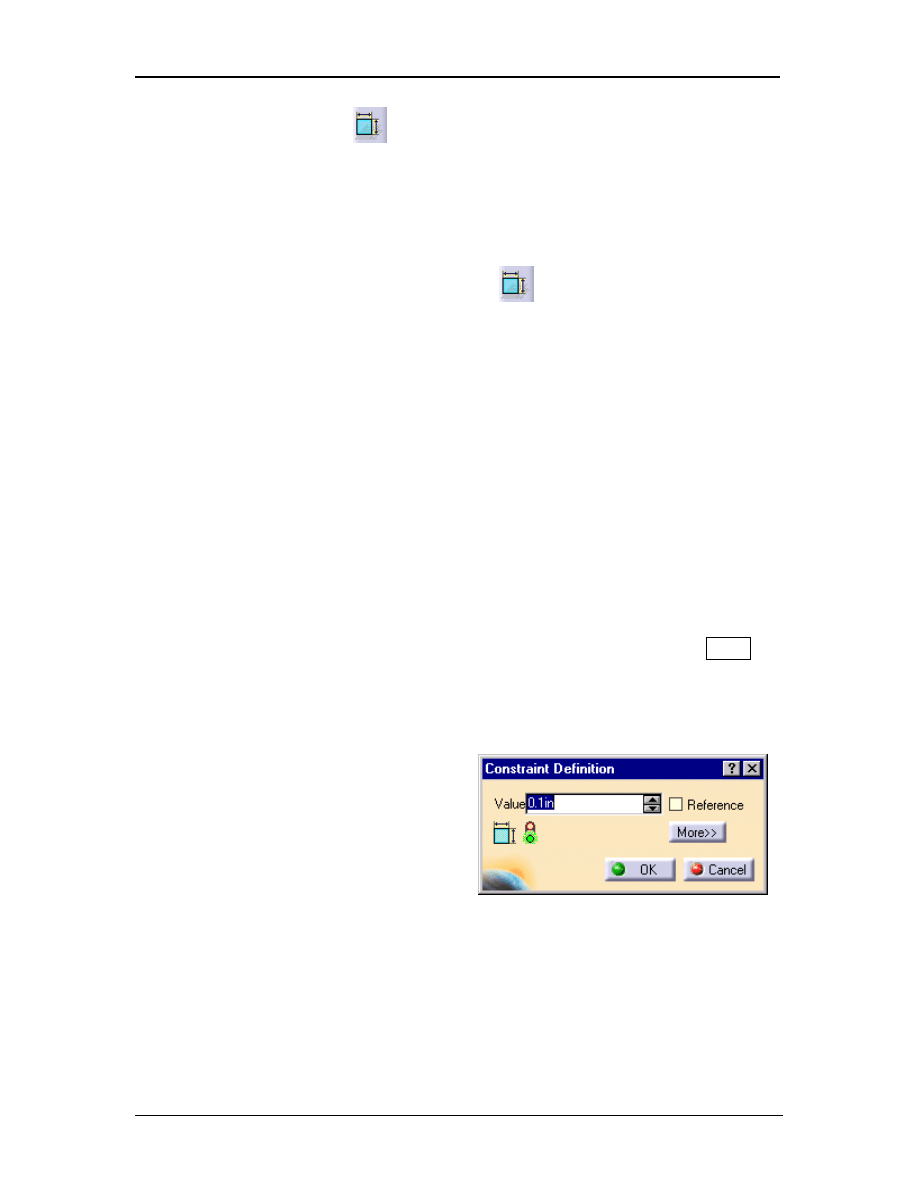
17.2 Select the Constraints Defined
In Dialog Box icon . This
will bring up the Constraint
Definition pop up window.
Reference Figure 1.24.
17.3 The Constraint Definition pop
up window gives you a lot of
options as far as selecting a
constraint. For this lesson select
the Fix constraint.
17.4 Select the OK button to apply the
Fix constraint. Notice that line 6
will turn green meaning that it is
constrained and the Anchor icon
also shows up on the line, this signifies what kind of constraint is applied
(Figure 1.25).
Allowing the quick and sometimes
uncontrolled modification to a sketch can be a
powerful tool, especially in the beginning
stages of a design. As the design nears
completion the ideas are being locked down,
there are fewer variables. This is where
CATIA V5 constraints come to the aid of the
designer. As variables become known
constants you can constrain them.
The purpose of this step was to give you a brief
introduction to how CATIA V5 allows you to
move and modify the sketched entities. It also
introduces you to how to constrain the entities.
The only way to fully understand all the tools available to you is to test them
yourself. Step 18 covers constraints in more detail.
18 Constraining The Profile
There are several reasons why you would want to constrain your profile. One reason
is that you or any one else could accidentally select a line and move it out of position,
as you experienced in Step 17. Constraints keep the required relationships between
the Sketcher entities that make up the profile. There are multiple ways of
constraining a part in CATIA V5. The nice thing about CATIA V5, constraining is
optional, not required. Hopefully this step will convince you that constraints can be a
powerful tool.
Select
S
ketcher
W
ork
B
ench
Creating A Simple Part
CATIA V5 Basic Workbook 1.20
Figure 1.26
18.1 Constraint
This tool allows you to create individual constraints, one at time. You
have already applied a constraint and may not even know it. The Anchor
icon in Step 17 is a constraint. The values attached to the Chamfer and
Corner are constraints. To apply Dimensional Constraints complete
the following steps:
18.1.1 Select the Constraint icon.
18.1.2 Select the line and/or Sketcher element to be constrained.
18.1.3 The Sketcher element will turn green (constraint symbol) along
with the appropriate dimension and box with the value in it.
18.1.4 To re-locate the constraint value, select the value box and drag the
mouse to the desired location.
18.1.5 If the initial location of the constraint is not satisfactory re-select
the dimension and drag and drop it at the new location.
18.1.6 To edit the value of the constraint double click on the value box.
This will bring up the Constraint Definition pop up window
shown in Figure 1.26. This window shows the existing value for
the Sketcher element. This value can be edited by typing the new
value over the existing value. Then select OK or hit the Enter
key. The entity linked to the constraint will automatically be
updated to the new value.
If the constraint is between
two different entities, such
as lines, select the first line
and then the second line.
CATIA V5 will constrain the
distance between the two
entities. The constraint value
will appear near the
constraint. To move the
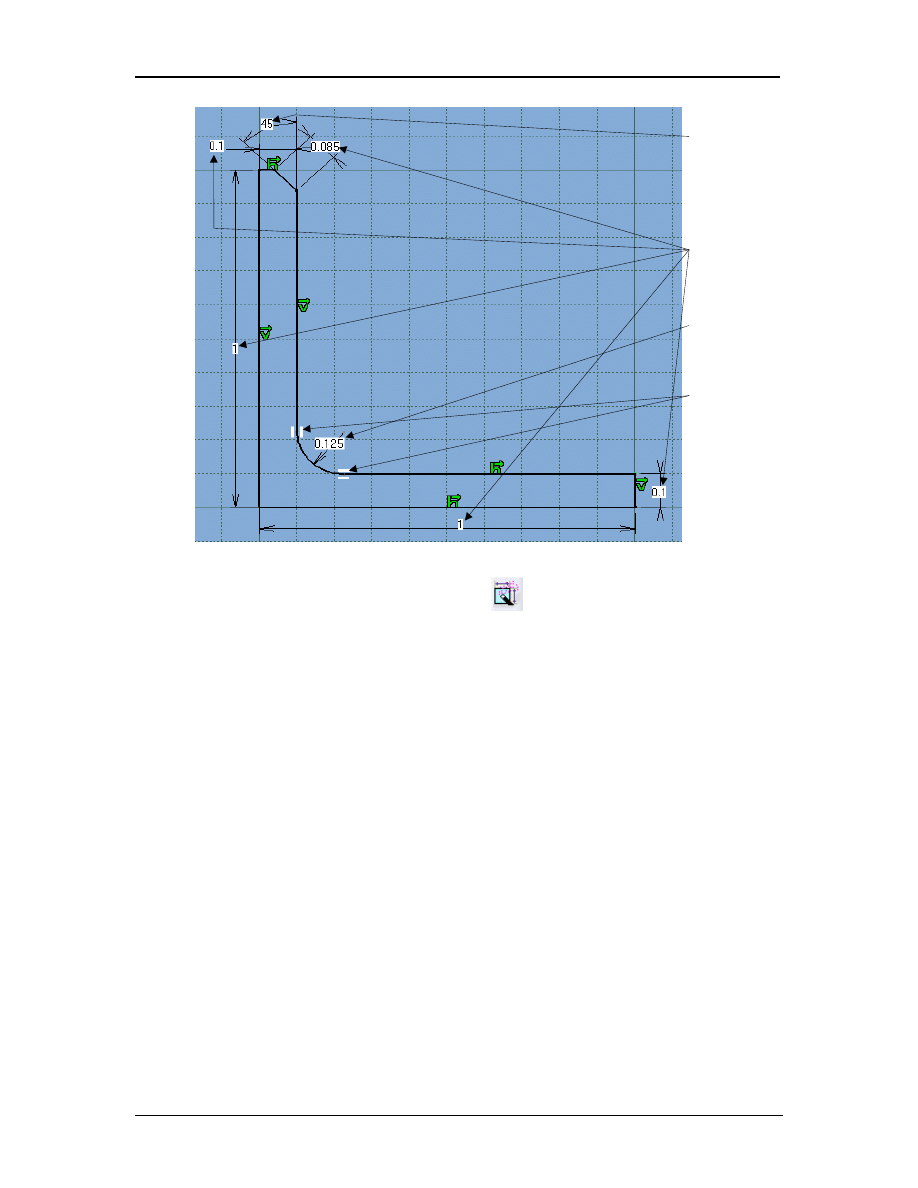
constraint value, follow Steps 18.1.4 and 18.1.5. For this lesson constrain
your “L Shaped Extrusion” similar to the one shown in Figure 1.27.
S
ketcher
W
ork
B
ench
Creating A Simple Part
CATIA V5 Basic Workbook 1.21
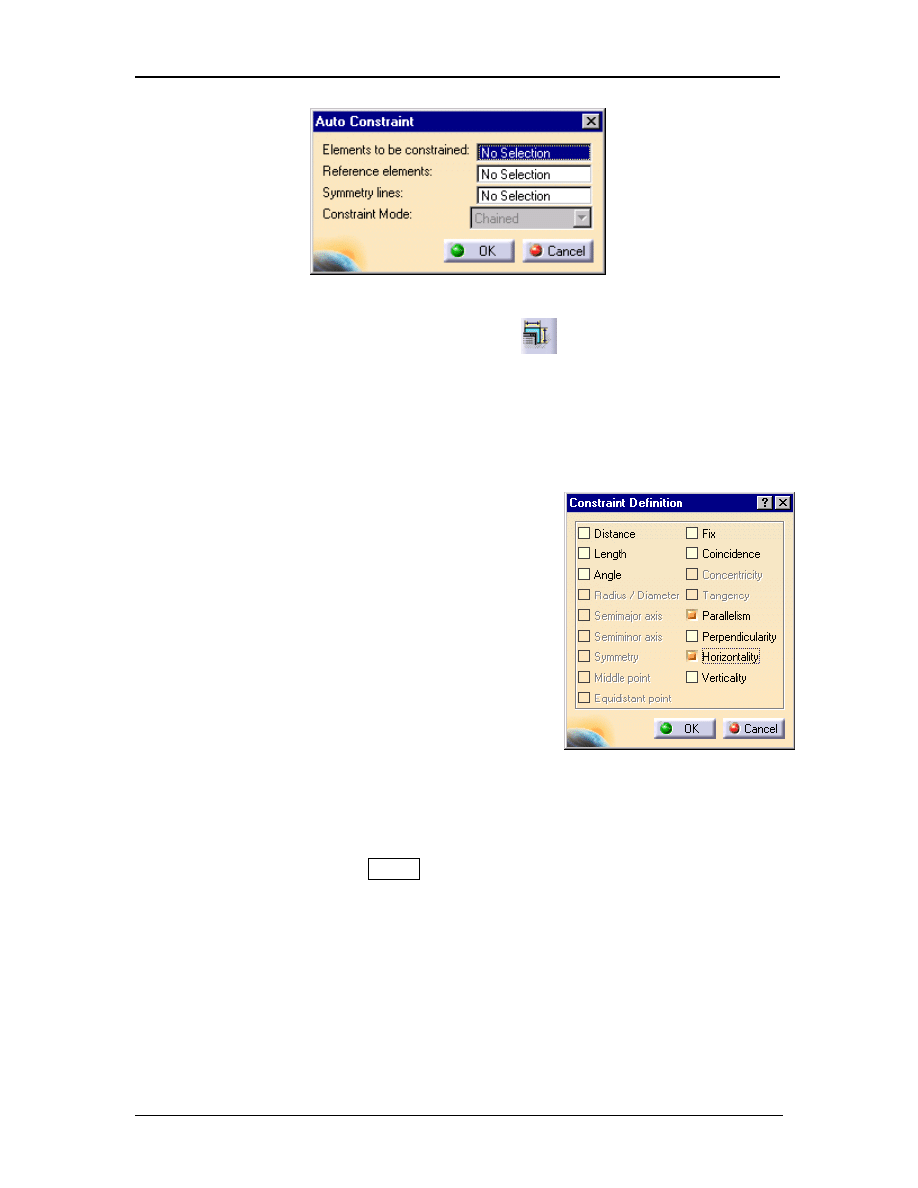
18.2 Auto Constraining The Profile
This method accomplishes the same task as the Constraint tool just
explained, except that Auto Constrain can be much quicker (automatic).
Once you select the Auto Constraint icon a pop up window comes up
prompting you to select which entities you want to constrain (Figure 1.28).
You can select one entity at a time, multi-select or select only a few
specific entities that you want constrained. After making your selection
select OK, located at the bottom of the pop up window. The entities
selected will show up in green with the constraint value box. Getting
complete control of this tool will take some practice and patience. If you
feel brave use this tool to constrain your “L Shaped Extrusion” and see if
you get the same result shown in Figure 1.27.
Distance
constraint
Radius
constraint
Angular
constraint
Parallel
constraint
Figure 1.27
S
ketcher
W
ork
B
ench
Creating A Simple Part
CATIA V5 Basic Workbook 1.22
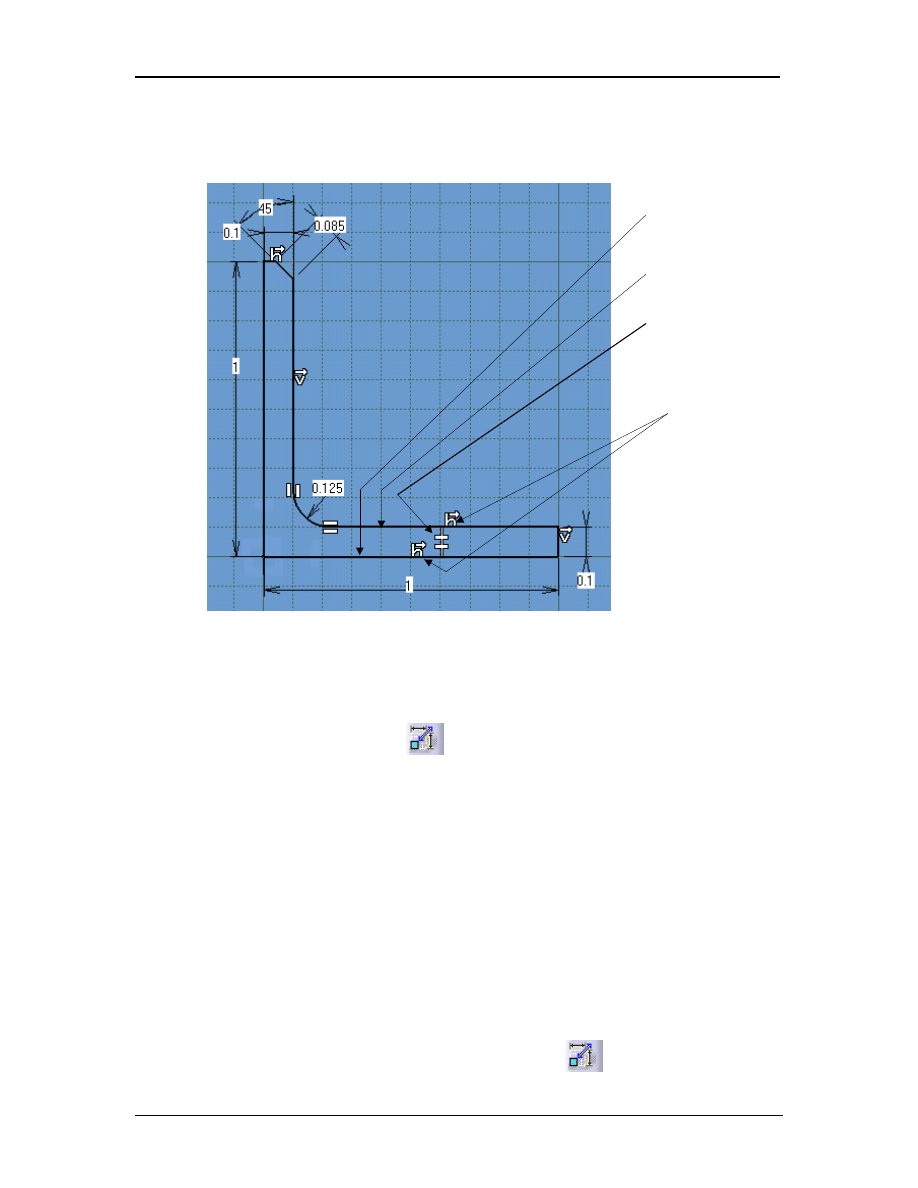
18.3 Constraint Defined In Dialog Box
To use this tool you have to select one or more entities and then select the
Constraint Definition In a Dialog Box tool. A Constraints Definition
box will pop up (Figure 1.29). The box will contain all the possible
constraints but not all will be selectable. The only selectable constraints
are the ones that apply to the entities
selected. For example, if you selected
one line you could apply the Length,
Fix and Horizontality constraints, all the
other constraints will be dimmed
(meaning they are not selectable). CATIA
V5 will not allow you to select the
Radius/Diameter constraint because it
does not apply to lines. Relationships
between entities can also be established
using this tool. For example, if you
wanted Parallelism and Horizontality
constraints between the top profile line
and the bottom profile line on the base leg
of the “L Shaped Extrusion” you would
do the following:
18.3.1 Select both the bottom and top line of the base leg of the “L
Shaped Extrusion” (lines 2 and 4 shown in Figure 1.30). This is
a windows multi-select task, which is accomplished by, holding
down the CTRL key while selecting both lines. Both lines will
highlight.
18.3.2 Select the Constraints Defined In Dialog Box icon.
18.3.3 The Constraints Definition window will pop up (Figure 1.29).
18.3.4 Select the Parallelism box and the Horizontality box.
18.3.5 Select OK.
Figure 1.29
Figure 1.28
S
ketcher
W
ork
B
ench
Creating A Simple Part
CATIA V5 Basic Workbook 1.23
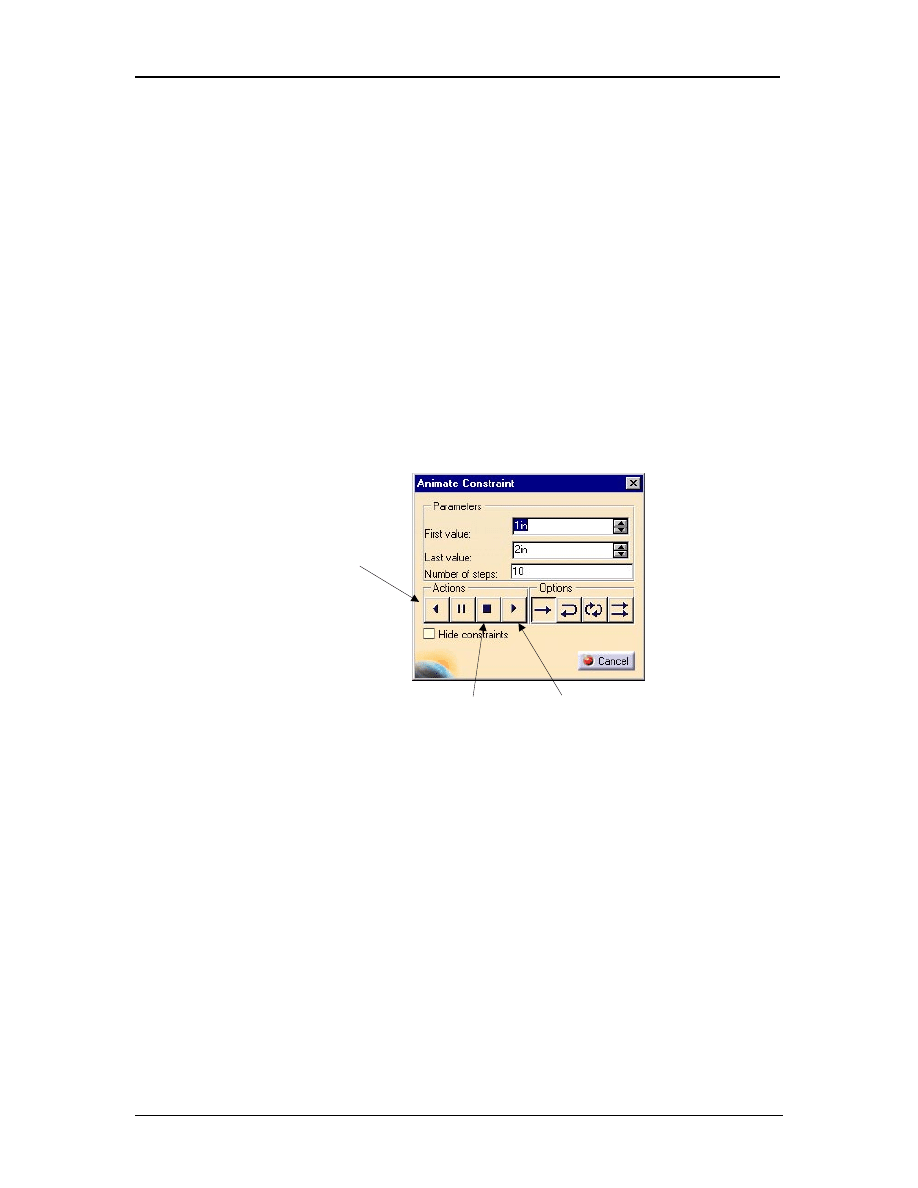
NOTE: The constraints that appear on the sketch are, the Parallelism and
Horizontality symbols reference Figure 1.30.
The only way to really get complete control of this tool is to use it, experience it,
and don’t be afraid to make a few mistakes (that’s why there is the Undo button).
18.4 Animate Constraint
The Animate Constraint tool allows you to visualize the effect one
constraint has on the entire profile. This is a very helpful tool but be aware
you may not always end up with what you started with. Remember,
entities will not always stay attached as other entity values change. CATIA
V5 will remember the relationships the different entities have with each
other, if they were created with a relationship. For example, if the end
point of one line is the same as the start point of another line it does not
mean there is any relationship between the two lines. To use this tool
follow the steps listed below:
18.4.1 Select one existing constraint, only one constraint can be animated
at one time.
18.4.2 Select the Animate Constraint icon
.
Figure 1.30
Horizontal symbols
Parallelism
symbols
Line 2
Line 4
S
ketcher
W
ork
B
ench
Creating A Simple Part
CATIA V5 Basic Workbook 1.24
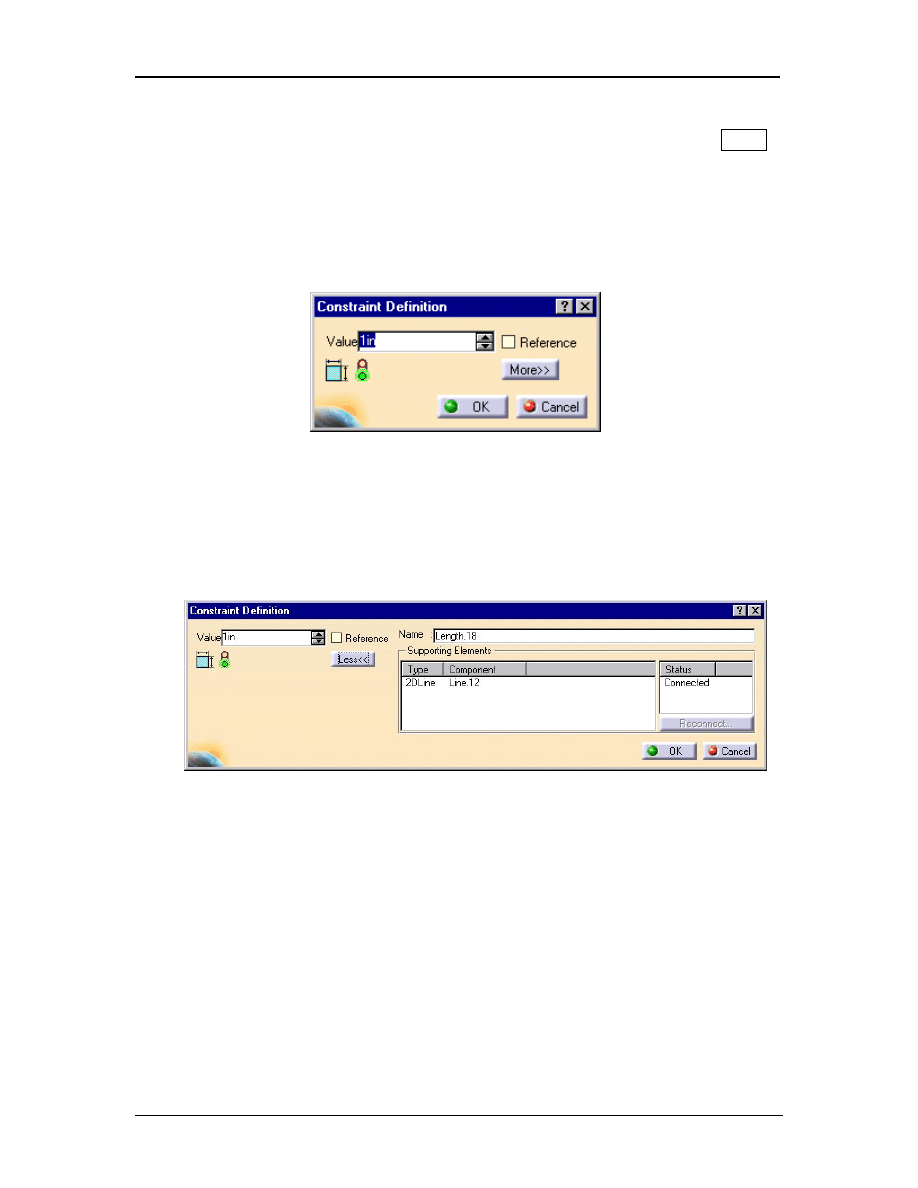
18.4.3 The Animate Constraint window will pop up (Figure 1.31).
18.4.4 Modify the parameters as desired/required and/or accept the
default values.
18.4.5 Select the Play button. This will start the animation from the
starting limit to the ending limit.
18.4.6 Watch the profile change as the selected entity animates from the
first value to the last value. The Animate Constraint window has
other options that you can test.
Notice: If your profile has entities created without relationship to other
entities the Rewind button could result in a different profile than
what you started with.
Animate Constraint is a powerful tool. It can help you visualize the
change. It allows you to visualize without committing to a particular
value.
19 Modifying The Constraints
This process was previously described in Step 18.1.6. The ability to modify
constraints in CATIA V5 is essential so the following steps are for your review.
19.1 Select the value box of the constraint you want to modify.
19.2 The Constraint Definition window will pop up (Figure 1.32). This
window shows the existing value for the Sketcher element.
19.3 Edit the value by typing over the existing value.
Play button
Rewind button
Stop button
Figure 1.31
S
ketcher
W
ork
B
ench
Creating A Simple Part
CATIA V5 Basic Workbook 1.25
19.4 Apply the new value by selecting the OK button or pushing the Enter
key.
19.5 The entity linked to the constraint will automatically be updated to the
new value. Your profile updates automatically.
If you want to know more information about a particular constraint, double click
on it and the Constraint Definition window will pop up. Select the More button
to get detailed constraint information. Figure 1.33 shows how the Constraint
Definition window looks when the More button is selected.
Let’s see what you can learn about one of your constraints on the “L Shaped
Extrusion”. Double click on the constraint on the bottom line of the base leg.
From the Constraint Definition window select the More button. The pop up
window gives you information on other entities the selected constraint is
connected (linked) to. It gives you the opportunity to change the name of the
constraint that shows up on the Specification Tree.
20 Over Constraining The Profile… Not A Good Thing !
It is possible to over constrain a profile in Sketcher Work Bench. When you
over constrain the profile CATIA V5 will inform you that you have a problem.
CATIA V5 definition of over constraining is putting two different constraints on
Figure 1.33 (Constraint Definition box with the More button selected)
Figure 1.32

S
ketcher
W
ork
B
ench
Creating A Simple Part
CATIA V5 Basic Workbook 1.26
one or more entities. The two constraints can be correct individually but
collectively have conflicting values. When an over constrained condition exists
CATIA V5 will turn all the affected constraining values purple. Purple is the
default color for over constrained sketches. Remember an over constraint
condition is not a good thing. CATIA V5 will not allow you to extrude an over
constrained profile. The easiest way to get out of the over constrained condition
is to Undo or Cut the last constraint created, the constraint that caused the over
constrained condition. You must reconsider which constraints are necessary to
accomplish what you want. In the case of the “L Shaped Extrusion” you are
creating the constraints that are used to maintain the specified dimensions. If your
profile is not over constrained, you are ready to move on to the next step. If the
instructions were followed an over constrained condition will not exist.
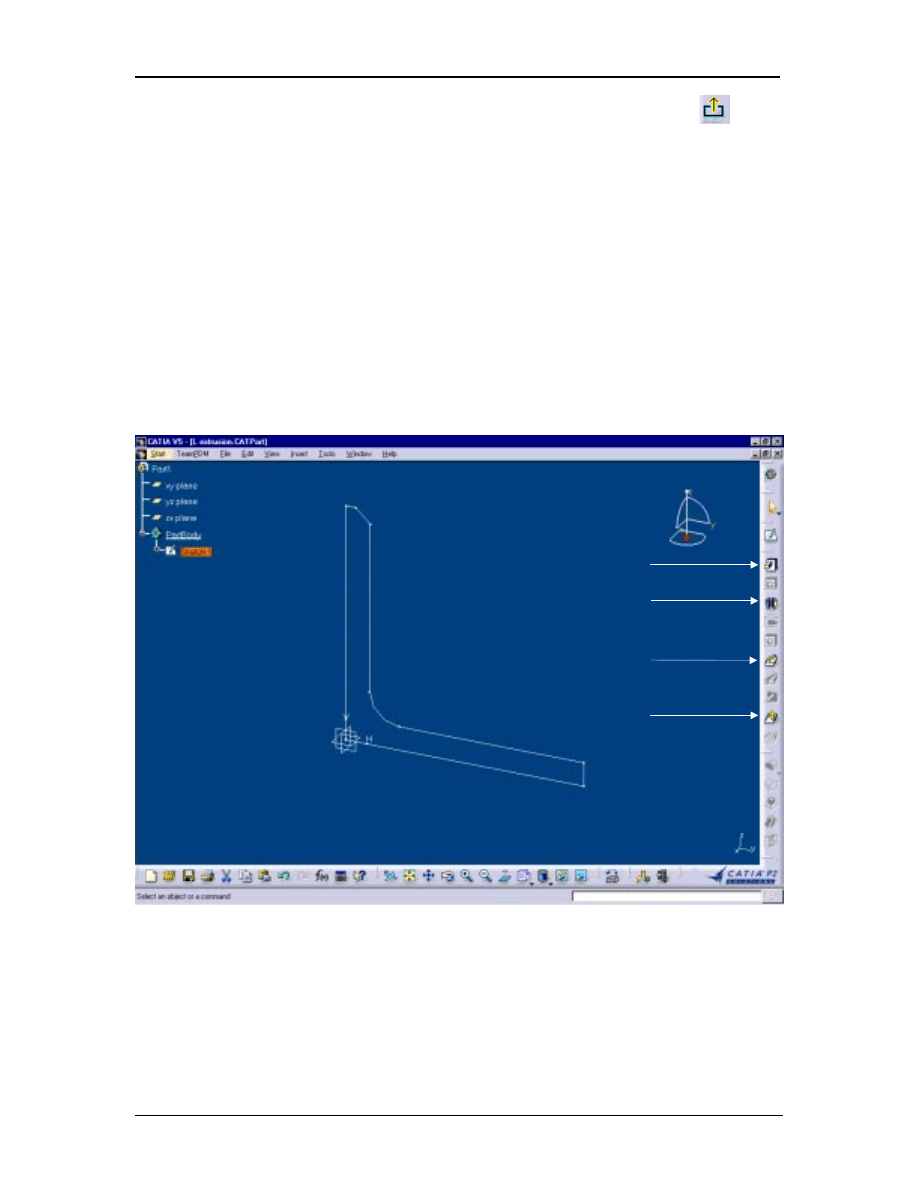
21 Exiting The Sketcher Work Bench
If your “L Shaped Extrusion” is similar to the one shown in Figure 1.27 you are
ready to move the profile into the 3D world, the Part Design Work Bench. As a
reminder the following conditions will not allow you to successfully extrude your
profile once out of the Sketcher Work Bench.
21.1 An unclosed profile as shown in Figure 1.34a. Notice the profile has a
gap in it.
21.2 A profile with floating entities as shown in Figure 1.34b. Notice there is
a line not attached to any other entity, it is floating.
21.3 Multiple profiles in one sketch as shown in Figure 1.34c. Notice both
profiles are closed profiles but there are two of them. The two profiles
have to be separate sketches.
21.4 An over constrained profile as shown in Figure 1.34d. Notice this
example shows that one line is being dimensioned two different ways.
You can exit the Sketcher Work Bench with your profile in any of the above
conditions, but CATIA V5 will not extrude the profile into a 3 dimensional part.
a Unclosed
Profile
b Floating
Entities
c Multiple
Profiles
Figure 1.34 Profiles that can not be extruded
d Over
Constraint
S
ketcher
W
ork
B
ench
Creating A Simple Part
CATIA V5 Basic Workbook 1.27
If you are ready to exit the Sketcher Work Bench select the Exit icon . The
Exit icon is located in the top right of the Sketcher Work Bench.
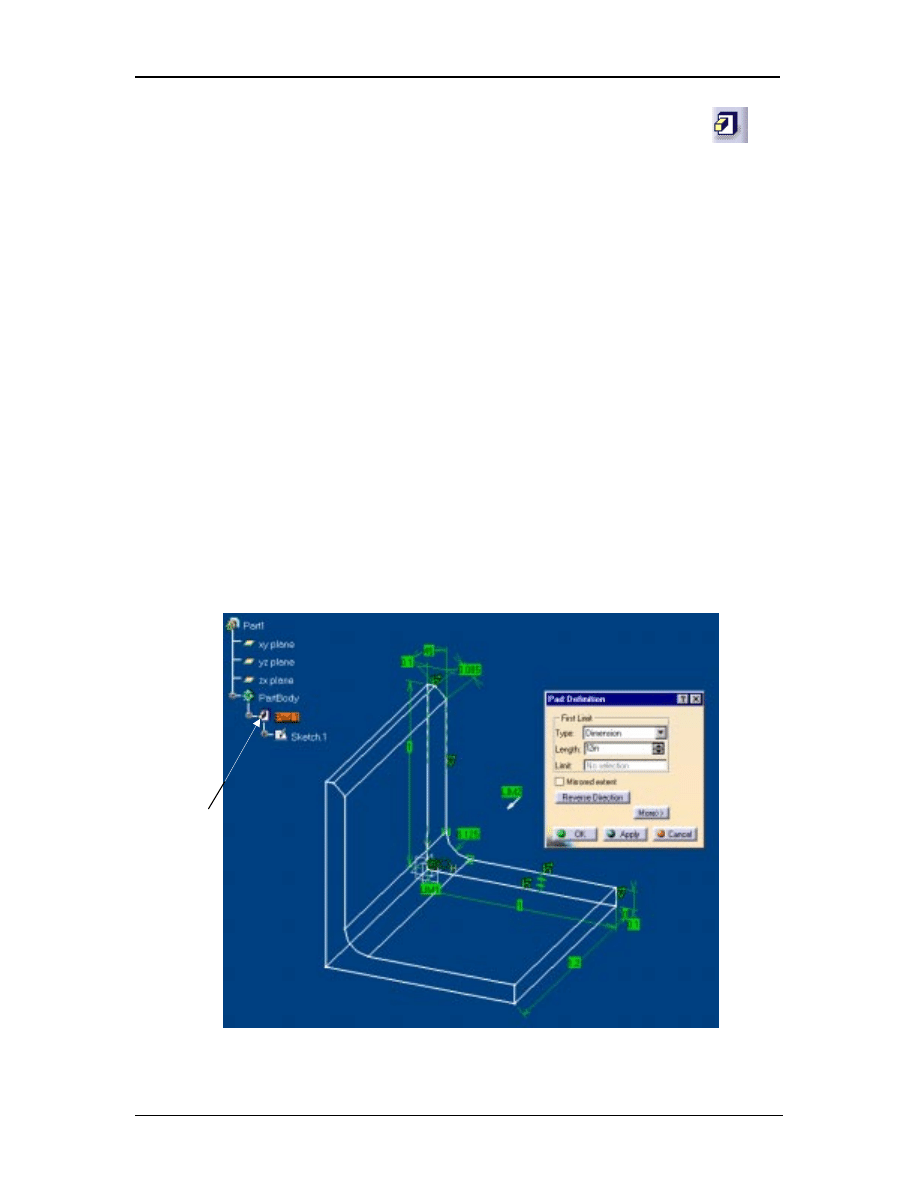
Notice the profile rotates back to the original three dimensional view with your
newly created profile of the “L Shaped Extrusion”. The Sketcher Work Bench
grid disappears. The tools on the right hand tool bar will change, as shown in
Figure 1.35. The only tools available for your use at this time are Pad, Shaft, Rib
and Loft. The Pad tool is covered in Step 22 and Lesson 2. The Shaft, Rib and
Loft tools are covered in the Advanced CATIA V5 Workbook. The next step
will tell you how to use the PAD tool.
If your screen looks similar to Figure 1.35, you are now in the Part Design Work
Bench and ready to go to Step 22.
Pad
Shaft
Loft
Rib
Figure 1.35
S
ketcher
W
ork
B
ench
Creating A Simple Part
CATIA V5 Basic Workbook 1.28
22 Extruding The Newly Created Profile Using The Pad Tool
This step will put your newly created profile of the “L Shaped Extrusion” to the
test. This is where you find out if there are any problems with your profile sketch
created in the Sketcher Work Bench.
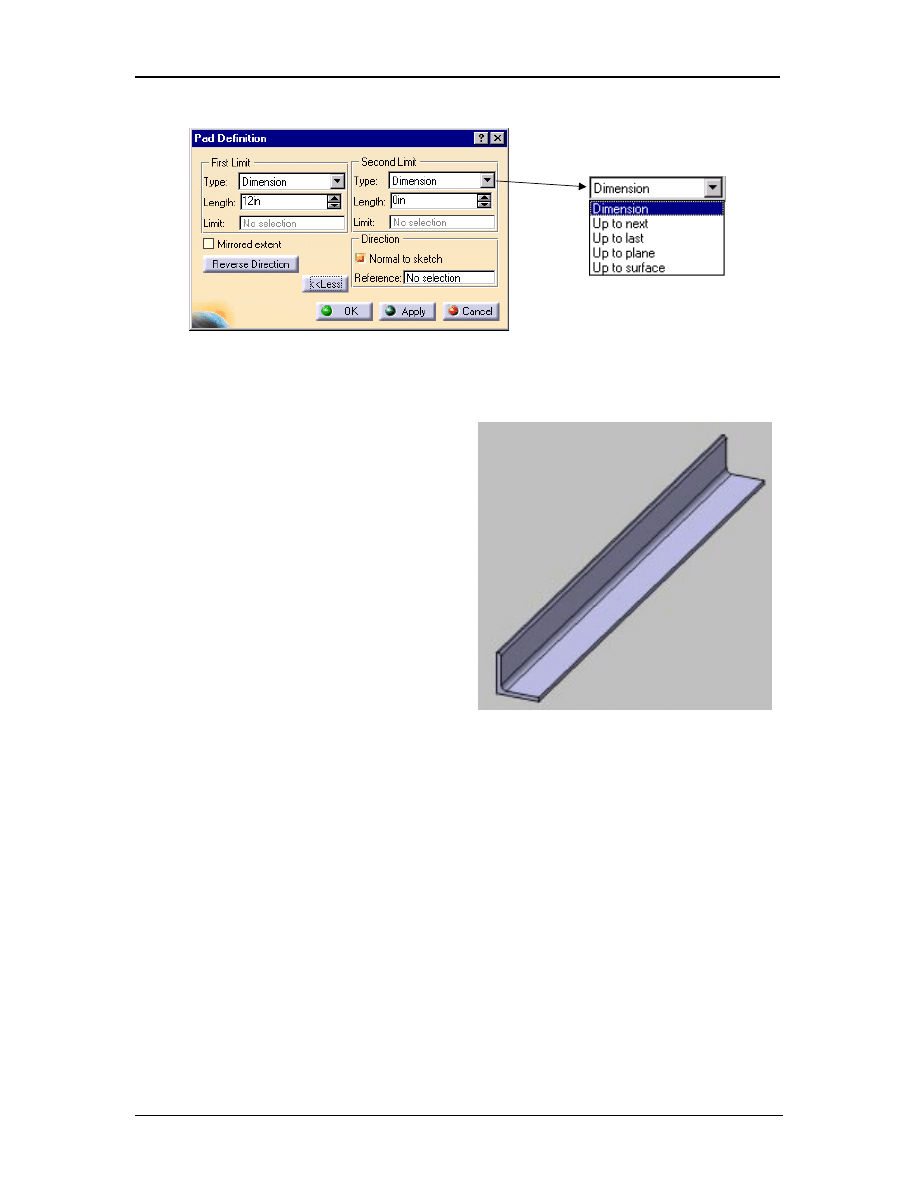
If you haven’t selected anything in the work area since exiting the Sketcher
Work Bench, your profile should still be highlighted. If it is not still highlighted,
select the profile or select the Sketch branch from the Specification Tree. When
the profile is highlighted you can select the Pad icon. This will bring the Pad
Definition window up (Figure 1.37). As the Pad Definition window pops up you
should notice your profile becomes 3 dimensional. The Specification Tree just
added another branch, the Pad Specification Branch. At this point you can
specify how long to extrude the profile. You can type it in or select the up arrow
and watch the part grow. Select the down arrow and watch it shrink. You can
reverse the direction and/or mirror the extruded length. If these are not enough
options you can select the More button in the Pad Definition window (Figure
1.37). The More button will let you specify the start location First Limit: and
the ending plane Second Limit: of the profile being extruded. The More button
will allow you to select an extruded direction other than the default direction,
which would be normal to the sketch plane.
Figure 1.36
New
branch
added
S
ketcher
W
ork
B
ench
Creating A Simple Part
CATIA V5 Basic Workbook 1.29
Figure 1.38
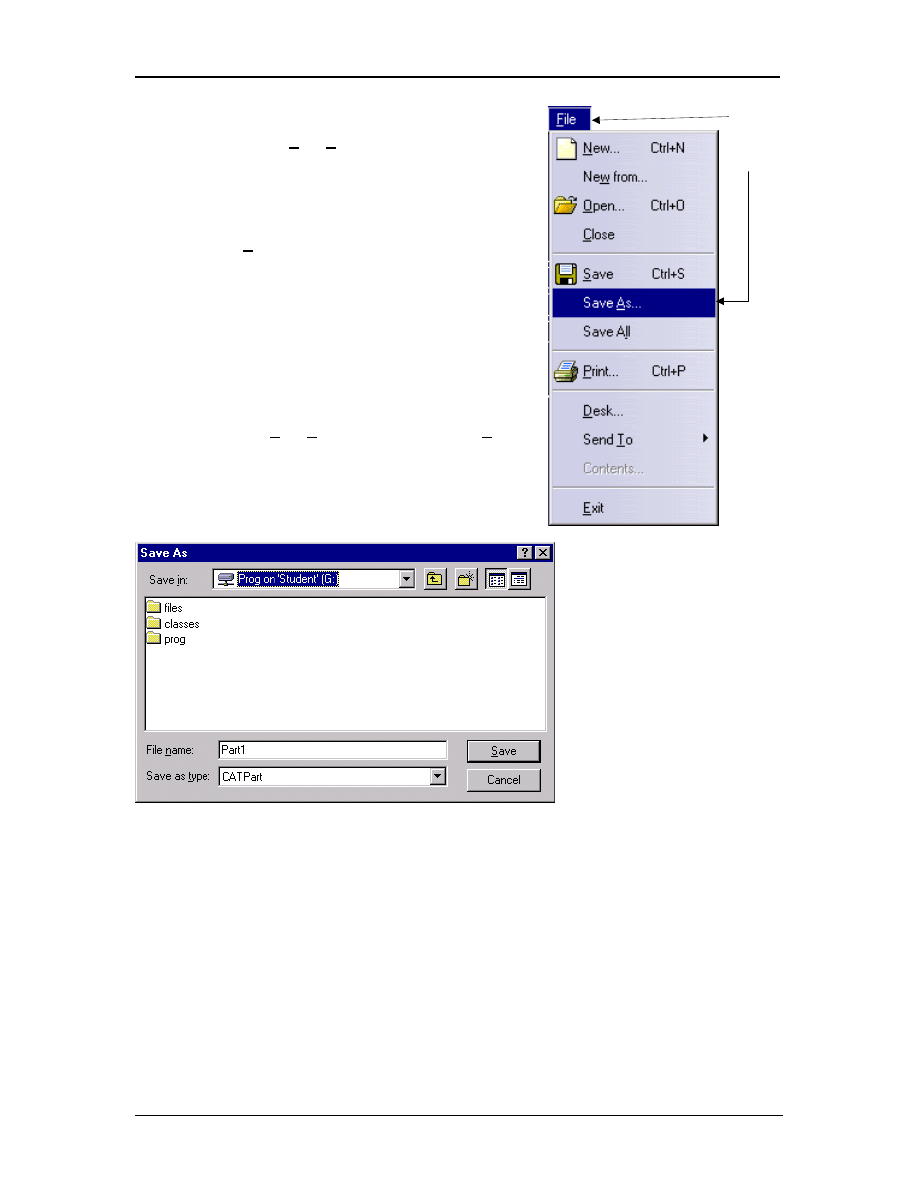
Once you have the Pad Definition
window set up the way you want it,
select the Apply button, this will
give you a preview of what you just
created. If you are not satisfied with
the result select the Cancel button. If
you are satisfied select the Ok button.
The Ok button will create a three
dimensional part from your sketch.
For the “L Shaped Extrusion”
extrude the profile 12 inches. Your
extrusion should look like Figure
1.38.
23
Saving The Newly Created “L
Shaped Extrusion”
You can stop what you are doing at any time and save the file you are working on.
CATIA V5 allows the user to set the time period for the automatic save. Before
saving and exiting make sure you have finished all operations you have started. If
you save and/or exit in the middle of an operation, the operation will not be saved.
CATIA V5 allows you to name the file as you wish. The file extension will be
*.CATPart. All files created in the Sketcher Work Bench and Part Design
Work Benches will have a *.CATAPart extension. To Save a CATIA V5 file
complete the following steps:
23.1 Verify that all operations are complete and the part (CATPart) is the way
you want it to be saved.
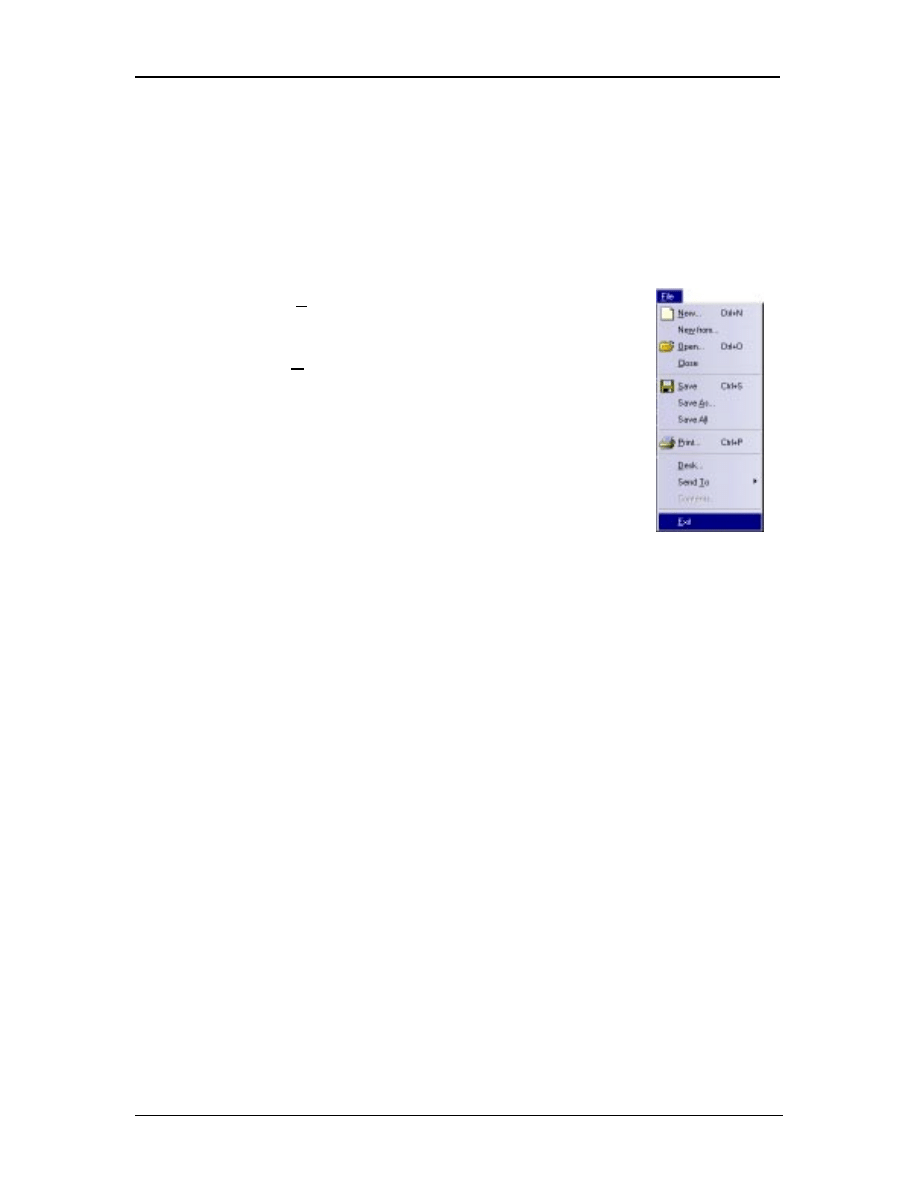
23.2 Select File from the top tool bar (Figure 1.39).
23.3 Select Save As (Figure 1.39).
These options are
the same in the
first and second
Type options available
Figure 1.37 (Pad Definition window with More selected)
S
ketcher
W
ork
B
ench
Creating A Simple Part
CATIA V5 Basic Workbook 1.30
23.4 In the File, Save window select the
directory you want the CATPart saved
in as shown in Figure 1.40.
23.5 In the same window type in the File
name. For this lesson save the file as
“L Shaped Extrusion.CATPart”. The
extension is automatic.
23.6 Notice CATIA V5 will automatically
give the file the extension
“*.CATPart”.
23.7 If everything is the way you want it in
the File, Save window select the Save
button.
NOTE: Remember the file name and the directory you saved it to, you will need to
reopen it to use in Lesson 2.
23.2
23.3
Figure 1.40
Figure 1.39
S
ketcher
W
ork
B
ench
Creating A Simple Part
CATIA V5 Basic Workbook 1.31
24 Exit CATIA V5
To exit CATIA V5 complete the following steps:
24.1 Make sure you saved the CATPart (if you wanted it saved). If you have
made any unsaved changes to the CATPart and not saved, CATIA V5
will prompt you to save when exiting.
24.2 Select File from the top pull down tool bar as shown
in Figure 1.41.
24.3 Select Exit.
24.4 If the CATPart was previously saved CATIA V5 will
shut down and your computer will go back to the NT
Desktop. As described above, if some changes were
made to the CATPart without being saved, CATIA V5
will prompt you to save before allowing you to exit
to the NT Desktop.
Figure 1.41

S
ketcher
W
ork
B
ench
Creating A Simple Part
CATIA V5 Basic Workbook 1.32
Lesson 1 Review
After completing this lesson you should be able to answer the questions and
explain the concepts listed below:
1. What is the definition of a constraint?
2. Does CATIA V5 require constraints to create a profile in the Sketcher Work
Bench?
3. What is meant by an unclosed profile?
4. Can an unclosed profile be extruded?
5. What does anchoring the profile do in the Sketcher Work Bench?
6. How many different ways can you select the XY plane?
7. Explain how you would change the Sketcher units of measurements from mm
to inches.
8. The
Sketcher Grid is made up of two different entities, one is the Primary
Spacing, name the other?
9. What is the advantage of constraining a profile in the Sketcher Work Bench?
10. How do you modify a constraint?
11. Is it a good thing to over constrain a profile?
12. Explain your answer to question 11.
13. What icon do you use to exit the Sketcher Work Bench and enter the Part
Design Work Bench?
14. How can you view all the default tool bars in Sketcher Work Bench?
15. What tool in the Part Design Work Bench is used to extrude a profile created
in the Sketcher Work Bench?
16. The actual process of extruding a profile adds what branch to the
Specification Tree?
17. List as many types of constraints as you can.
18. Can one Sketch have more than one profile?
19. While in the Sketcher Work Bench and using the mouse how would you
move (pan) the profile around the screen?
20. When you are connecting one end point of a line to another how does CATIA
V5 let you know you are Snapping to the existing end point and not just
getting close?
S
ketcher
W
ork
B
ench
Creating A Simple Part
CATIA V5 Basic Workbook 1.33
Practice Exercises:
Now that your CATIA V5 tool box has some tools in it, put them to use on the
following practice exercises. The shapes are simple and can be completed in one
sketch. The dimensions represent the constraints you are to use in the Sketcher
Work Bench. The first practice exercise has the suggested steps to completing the
task along with some helpful hints. Each subsequent practice exercise contains less
suggested steps and helpful hints. By the last practice exercise you will be on your
own!
Each practice exercise has a suggested name to use when saving the exercise. It is
critical that you use the suggested name so you can find the correct CATPart if it is
used in a later lesson. Good Luck!
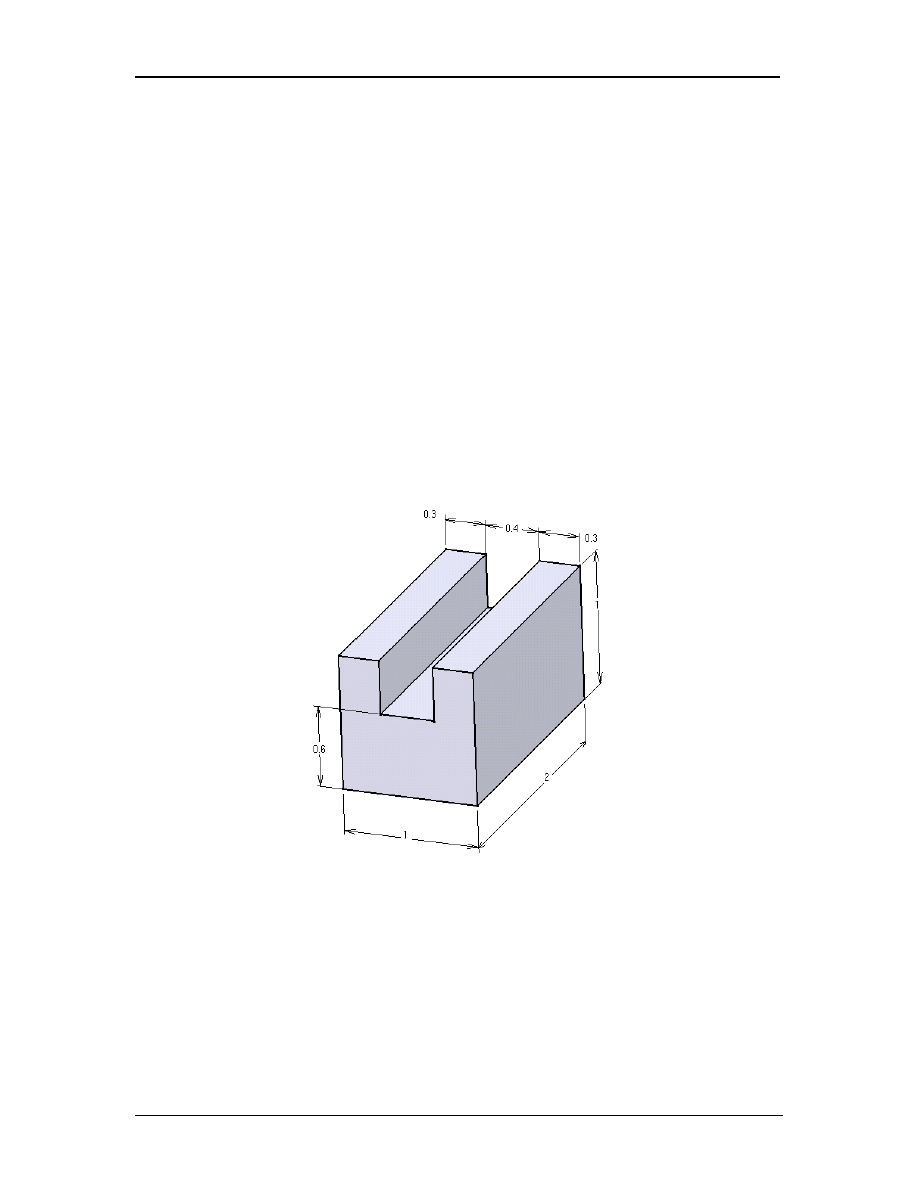
1.) Using the Sketcher Work Bench and the other tools covered in Lesson 1
create the following profile and extrude to the dimensions shown below.
When completed save as “Lesson 1 Exercise 1.CATPart”.
Suggested Steps:
1. Select the XY plane (the plane the profile will be sketched on).
Reference Step 3 for information on selecting planes.
2. Enter the Sketcher Work Bench. Reference Step 4.
3. Sketch the profile of the part.
Hint: use the Profile tool.
4. Anchor the lower left hand corner of the sketch. Reference Step 17 for
anchoring a profile.
S
ketcher
W
ork
B
ench
Creating A Simple Part
CATIA V5 Basic Workbook 1.34
5. Constrain the profile to match the dimensions shown above.
Reference Step 18 for constraining a profile.
6. Exit the Sketcher Work Bench, return to the Part Design Work
Bench (the 3D environment). Reference Step 21 for exiting the
Sketcher Work Bench and entering the Part Design Work Bench.
7. Once in the Part Design Work Bench extrude the profile to the
dimension shown (2”). Reference Step 22 for extruding a profile.
8. Save the part as “Lesson 1 Exercise 1.CATPart”. Reference Step 23
for saving a file.
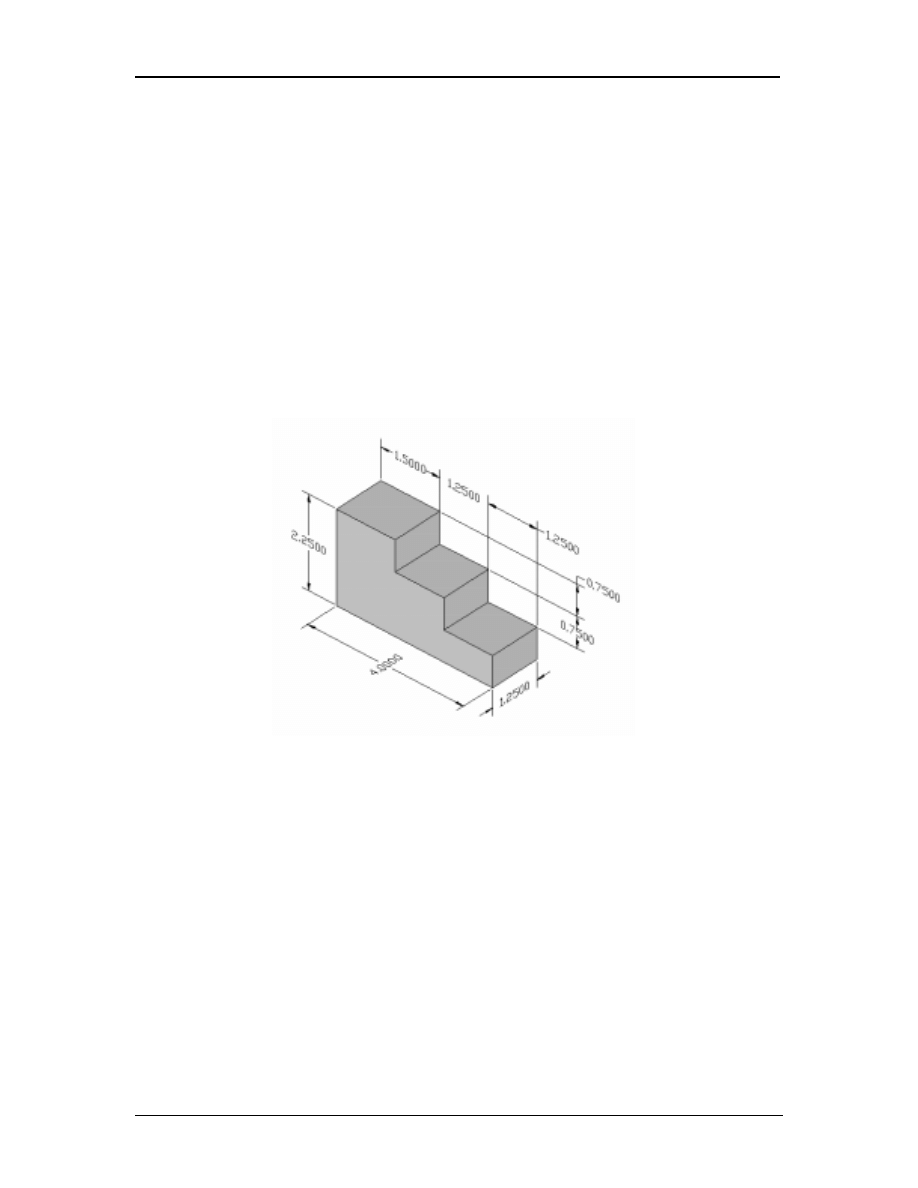
2.) This part (profile) should be straightforward. This would be a good exercise
to try different methods of constraining and testing the results. Save the shape
as “Lesson 1 Exercise 2.CATPart”.
Hint: To help make it easier to sketch this part set the grid Primary Spacing to 1
and the Graduations to 4. This will put the grid lines in the Sketcher
screen to a .25 inch spacing. With that spacing all you have to do is snap
to the intersections of the grid to sketch the part.
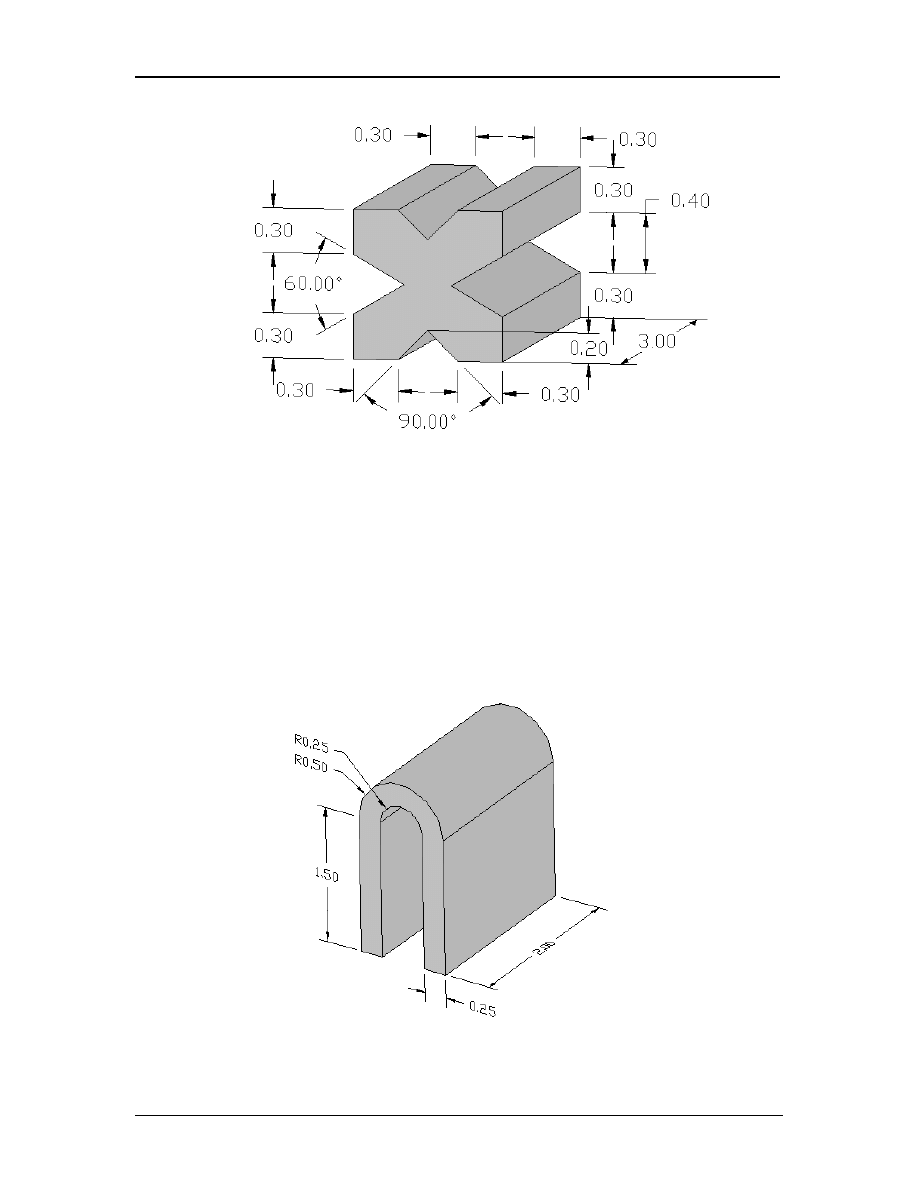
3.) This practice exercise is a little bit more challenging, lets see what you can do
with it. Save this CATPart as “Lesson 1 Exercise 3.CATPart”.
S
ketcher
W
ork
B
ench
Creating A Simple Part
CATIA V5 Basic Workbook 1.35
Hint: It is not as complicated as it looks. If your grid Graduations are set to 10
just snap to the intersections for the beginning and ending points of your
lines. To set the constraint for the angles select the angled lines and the
angle constraint will appear. Reference Step 19 for modifying the angle
value. If the profile gets over constrained delete the Parallel constraint.
Save the file as “Lesson 1 Exercise 3.CATPart”.
4.) This practice exercise should challenge you. For this part use radius values,
not angles. Save this CATPart as “Lesson 1 Exercise 4.CATPart”.
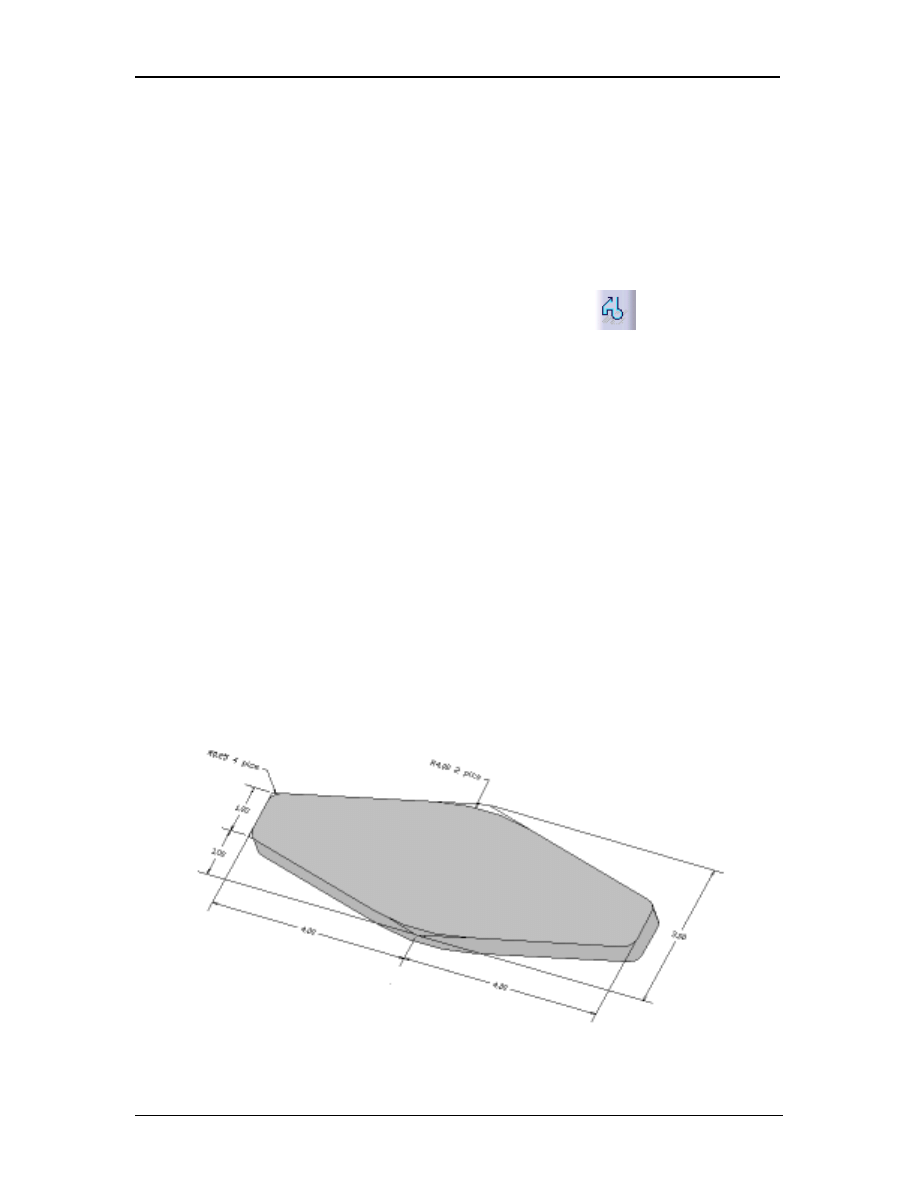
S
ketcher
W
ork
B
ench
Creating A Simple Part
CATIA V5 Basic Workbook 1.36
Hint: This part can be done using the radius option in the profile command.
Before starting, set the grid Primary Spacing to 1 and the Graduations
to 4.
Sketching with the Profile icon (radius option)
1. Starting at the bottom left corner of the part.
2. Select the Profile icon from the right menu bar.
3. Sketch the vertical 1.50 inch line that defines the left edge of the part.
4. Now sketch the first arc along the top of the part. To do this hold down
the left mouse button and drag it in the direction you want the arc to go
then release the mouse button. The arc will appear and allow you to drag
and place it where you want. Place it on the grid intersection 2 inches
above the bottom of the part and a half-inch to the right. This will only
create half of the arc needed, so the process will have to be repeated to
sketch the other half of the arc.
5. Finish sketching the rest of the part. When you reach the inside .25 radius,
just repeat Step 4.
6. When the sketch is done constrain it to double check that all the
dimensions match the part shown above. Make the necessary changes if
needed.
5.) This will give you more practice using the line and corner icons. Save this
CATPart as “Lesson 1 Exercise 5.CATPart”.
Part is .50 thk
.

S
ketcher
W
ork
B
ench
Creating A Simple Part
CATIA V5 Basic Workbook 1.37
Hint: Use the Line or Profile icon first to sketch the profile using sharp corners
(no radius). Once it is constrained to the dimensions above, go back and
add in the radiuses using the Corner icon.
Wyszukiwarka
Podobne podstrony:
nienawidze poniedzialkow darmowy ebook do pobrania pdf
blyskawiczny e mail marketing darmowy ebook do pobrania pdf
ekonomia przetrwania darmowy ebook do pobrania pdf
prawa sukcesu tom vii i tom viii darmowy ebook do pobrania pdf
(ebook self help pdf) Hypnosis The Subconscious Mind
(Ebook Erotic German Pdf) Bischoff, Staf Wie Man Erfolgreich Frauen Verführt
3 week diet plan for weight loss Tutorial PDF FREE DOWNLOAD
(ebook PDF) Perl Tutorialid 1275
(Ebook Pdf Jsf) Sun The Java Server Faces Technology Tutorial
(ebook PDF)Shannon A Mathematical Theory Of Communication RXK2WIS2ZEJTDZ75G7VI3OC6ZO2P57GO3E27QNQ
(ebook pdf) Matlab Getting started
(ebook pdf) Mathematics Statistical Signal Processing WLBIFTIJHHO6AMO5Z3SDWWHJDIBJQVMSGHGBTHI
Komandosi w bialych kolnierzykach Metody zarzadzania stosowane przez najlepszych menedzerow eBook Pd
[ebook] Assembler Intel Architecture Optimization Reference Manual [pdf]
Physics Ebook(PDF) Aristotle Physics id 804538
Mathematics SPSS Guide Statistics (ebook pdf
więcej podobnych podstron