User’s manual
XLSTAT-Pro
Copyright © 2003, Addinsoft
http://www.addinsoft.com

2
Table of Contents
Minimum system configuration .................................................................. 5
Installing XLSTAT .................................................................................... 6
Regional settings...................................................................................... 9
Data types ..............................................................................................10
Selecting data in Excel ............................................................................11
Time required for data entry .....................................................................13
Time required for calculation ....................................................................14
Time required for display .........................................................................15
Options ...................................................................................................16
Data Sampling ........................................................................................21
Distribution Sampling...............................................................................23
Discretization and histogram ....................................................................27
Coding....................................................................................................30
Presence/absence coding........................................................................32
Full Disjunctive Coding ............................................................................33
Coding by Ranks.....................................................................................34
Partition recoding ....................................................................................35
Transformation........................................................................................36
Anamorphosis.........................................................................................39
Descriptive Statistics ...............................................................................43
Histograms .............................................................................................48
Contingency Table (Two-way Table) and Chi-square .................................50
Similarity/Dissimilarity Matrix (Correlation …) ............................................52
Factor Analysis .......................................................................................56
Principal Component Analysis (PCA) ........................................................59
Discriminant Analysis (DA).......................................................................63
Correspondence Analysis (CA) ................................................................66
Multiple Correspondence Analysis (MCA) .................................................69
Multidimensional Scaling (MDS)...............................................................72
Agglomerative Hierarchical Clustering (AHC) ............................................77
k-means Clustering .................................................................................83
Univariate Clustering ...............................................................................86
Tests on Contingency Tables ...................................................................88
Correlation Tests.....................................................................................94
Mantel test..............................................................................................96
Comparing 2 Samples ........................................................................... 100
Comparing 2 Proportions ....................................................................... 106
Comparing 2 Independent Samples ........................................................ 109
Comparing 2 Paired Samples................................................................. 112
Comparing k Independent Samples (Kruskal-Wallis' Test)........................ 115
Comparing k Paired Samples (Friedman's Test)...................................... 117
Distribution Fitting ................................................................................. 119
Linear Regression ................................................................................. 124
ANOVA ................................................................................................ 131
ANCOVA .............................................................................................. 137
Logistic Regression ............................................................................... 143
Nonlinear Regression ............................................................................ 149
Kernel Regression................................................................................. 155
Categories -> Numerical Codes.............................................................. 164
Numerical Codes -> Categories.............................................................. 165
Delete the Hidden Sheets ...................................................................... 166
Delete the Hypertext Links ..................................................................... 167

3
Adjust Column widths ............................................................................ 168
AxesZoomer ......................................................................................... 169
DataFlagger .......................................................................................... 170
Easy Labels .......................................................................................... 171
MicroMover........................................................................................... 172
MinMaxSearch...................................................................................... 173
Plot Transformer ................................................................................... 174
Scatter plots.......................................................................................... 175
Charts for Exploratory Analysis .............................................................. 178
Similarities/Dissimilarities ....................................................................... 181
Rotating Factors .................................................................................... 184
P-value ................................................................................................. 185
Monte Carlo Test................................................................................... 186
Bartlett's sphericity test.......................................................................... 187

4

5
Minimum system configuration
PC with a 200 MHz Pentium or equivalent processor, 32 MB RAM, Microsoft® Windows 95, 98, Me, NT
4.0, 2000, or XP, Microsoft® Excel 97 (version 8.0) SR-2, Excel 2000 (version 9.0), or Excel 2002
(version 10.0), an installed printer driver.
Note: To provide improved security when using Excel 97 SR-2, we suggest you download the patch
called xl8p10pkg.exe from the Microsoft® Web site
http://office.microsoft.com/downloaddetails/xl8p10pkg.htm in order to upgrade to version SR-2 (l). This
patch corrects several problems with Excel 97 SR-2.

6
Installing XLSTAT
XLSTAT 6.1 Software Licence Agreement
Finishing the installation
Starting XLSTAT
XLSTAT 6.1 Software License Agreement
ADDINSOFT SARL ("ADDINSOFT") IS WILLING TO LICENSE VERSION 6.1 OF ITS XLSTAT(r)
SOFTWARE AND THE ACCOMPANYING DOCUMENTATION (THE "SOFTWARE") TO YOU ONLY
ON THE CONDITION THAT YOU ACCEPT ALL OF THE TERMS IN THIS AGREEMENT. PLEASE
READ THE TERMS CAREFULLY. BY CLICKING ON THE "YES" BUTTON BELOW YOU
ACKNOWLEDGE THAT YOU HAVE READ THIS AGREEMENT, UNDERSTAND IT AND AGREE TO
BE BOUND BY ITS TERMS AND CONDITIONS. IF YOU DO NOT AGREE TO THESE TERMS,
ADDINSOFT IS UNWILLING TO LICENSE THE SOFTWARE TO YOU. YOU SHOULD CLICK ON
THE "NO" BUTTON TO DISCONTINUE THE INSTALLATION PROCESS.
1. LICENSE. Addinsoft hereby grants you a nonexclusive license to install and use the Software in
machine-readable form on a single computer for use by a single individual if you are using the demo
version of if your have registered your demo version to use it with no time limits. If you have ordered a
multi-users license then the number of users depends directly on the terms specified on the invoice
sent to your company by Addinsoft.
2. RESTRICTIONS. Addinsoft retains all right, title, and interest in and to the Software, and any rights
not granted to you herein are reserved by Addinsoft. You may not reverse engineer, disassemble,
decompile, or translate the Software, or otherwise attempt to derive the source code of the Software,
except to the extent allowed under any applicable law. If applicable law permits such activities, any
information so discovered must be promptly disclosed to Addinsoft and shall be deemed to be the
confidential proprietary information of Addinsoft. Any attempt to transfer any of the rights, duties or
obligations hereunder is void. You may not rent, lease, loan, or resell for profit the Software, or any part
thereof. You may not reproduce, distribute, publicly perform or publicly display the Software except as
expressly permitted under Section 1, and you may not create derivative works of the Software.
3. SUPPORT. Registered users of the Software are entitled to Addinsoft's standard support services,
as such services are modified from time to time in Addinsoft's discretion. Demo version users may
contact Addinsoft for support but with no guarantee to benefit from Addinsoft's standard support
services.

7
4. NO WARRANTY. THE SOFTWARE IS PROVIDED "AS IS" AND WITHOUT ANY WARRANTY OR
CONDITION, WHETHER EXPRESS, IMPLIED OR STATUTORY. Some jurisdictions do not allow the
disclaimer of implied warranties, so the foregoing disclaimer may not apply to you. This warranty gives
you specific legal rights and you may also have other legal rights which vary from state to state.
5. LIMITATION OF LIABILITY. IN NO EVENT WILL ADDINSOFT OR ITS SUPPLIERS BE LIABLE
FOR ANY LOST PROFITS OR OTHER CONSEQUENTIAL, INCIDENTAL OR SPECIAL DAMAGES
(HOWEVER ARISING, INCLUDING NEGLIGENCE) IN CONNECTION WITH THE SOFTWARE OR
THIS AGREEMENT, EVEN IF ADDINSOFT HAS BEEN ADVISED OF THE POSSIBILITY OF SUCH
DAMAGES. In no event will Addinsoft's liability in connection with the Software, regardless of the form
of action, exceed $100. Some jurisdictions do not allow the foregoing limitations of liability, so the
foregoing limitations may not apply to you.
6. TERM AND TERMINATION. This Agreement shall continue until terminated. You may terminate the
Agreement at any time by deleting all copies of the Software. This license terminates automatically if
you violate any terms of the Agreement. Upon termination you must promptly delete all copies of the
Software.
7. CONTRACTING PARTIES. If the Software is installed on computers owned by a corporation or other
legal entity, then this Agreement is formed by and between Addinsoft and such entity. The individual
executing this Agreement represents and warrants to Addinsoft that they have the authority to bind
such entity to the terms and conditions of this Agreement.
8. INDEMNITY. You agree to defend and indemnify Addinsoft against all claims, losses, liabilities,
damages, costs and expenses, including attorney's fees, which Addinsoft may incur in connection with
your breach of this Agreement.
9. GENERAL. The Software is a "commercial item." This Agreement is governed and interpreted in
accordance with the laws of the Court of Paris, France, without giving effect to its conflict of laws
provisions. The United Nations Convention on Contracts for the International Sale of Goods is
expressly disclaimed. Any claim arising out of or related to this Agreement must be brought exclusively
in a court located in PARIS, FRANCE, and you consent to the jurisdiction of such courts. If any
provision of this Agreement shall be invalid, the validity of the remaining provisions of this Agreement
shall not be affected. This Agreement is the entire and exclusive agreement between Addinsoft and you
with respect to the Software and supersedes all prior agreements (whether written or oral) and other
communications between Addinsoft and you with respect to the Software.
COPYRIGHT (c) 2003 BY Addinsoft SARL, Paris, FRANCE. ALL RIGHTS RESERVED.
XLSTAT(r) IS A REGISTERED TRADEMARK OF Addinsoft SARL.

8
Paris, FRANCE, July 2003
Finishing the installation
When you have completed the installation of XLSTAT, you are asked whether you want to launch
XLSTAT. This is recommend as this will guarantee the smooth running of the XLSTAT button in the
Excel toolbar.
Starting XLSTAT
To start XLSTAT, click Start, choose Programs, Addinsoft, and click XLSTAT-Pro. If Excel is not
installed, Windows prompts you for the name of a program to open with XLSTAT-Pro. Click <Cancel>,
then install Microsoft® Excel 97 or Microsoft® Excel 2000.
Note: XLSTAT does not work under Microsoft® Excel 95 (version 7.0): it will not load if you try to run it
with that version.
You can also start XLSTAT-Pro by clicking directly on XLSTAT-Pro.xla, or by opening XLSTAT-Pro.xla
from Excel.
The first time XLSTAT is loaded, a button is added to the standard Excel toolbar. Afterward to load
XLSTAT-Pro, simply click this button. To remove this button from your toolbar, go to Tools/Customize,
drag the button off the toolbar and click <Close>.
Note: Under Microsoft® Excel 2002 (version 10.0), in the check of the background errors, XLSTAT
deactivates automatically the rule for the numbers stored as texts. To restore the rule, please go to
Tools/Options/Errors checking and tick the rule for "Number stored as text".

9
Regional settings
Two regional settings are vital for XLSTAT: the decimal symbol and the list separator. To view these
settings, choose Start, Settings, Control Panel, Regional Settings, Number.
XLSTAT can work with any one-character decimal symbol, even if you modify the decimal symbol
during a session. The same holds true for the list separator, used when making multiple selections.
Note: If you use a comma as the decimal symbol, and if you also use a comma for the list separator as
defined in the Number tab, then Windows uses the semicolon as the list separator.

10
Data types
XLSTAT checks the data you enter according to the algebraic structure of the variable:
•
quantitative,
•
ordinal (ranks),
•
categorical (or qualitative),
•
binary.
Quantitative variables cannot contain text. Ordinal variables coded as ranks must be numerical values.
Categorical variables may include numerical values or text because XLSTAT processes all these
values as character strings. For binary variables (e.g. full disjunctive table), the data must be numerical
data, with a value of 0 or 1.
The value of a cell that appears empty – i.e. that is indeed empty or that contains one or more
"spaces"– as well as error values returned by Excel, for instance:
•
#NUM!
•
#N/A!
•
#N/A
•
#DIV/0!
•
#VALUE!
•
#REF!
•
#NAME?
are interpreted by XLSTAT as missing data. Certain types of XLSTAT processing may create missing
data, in particular when transforming values for which the function being used is undefined (e.g. the
logarithm for a negative value). Normally missing data do not prevent XLSTAT modules from
processing your data, unless the calculation engine detects that there is not enough information to
proceed.
Note: the 0 is never considered as the value coding a missing value in the data, except in the case of
the Numerical Codes -> Categories tool.
Note : A missing weight is considered as a null weight.

11
Selecting data in Excel
You can use standard methods for selecting data:
•
hold down the left mouse button while moving the mouse pointer
•
hold down the SHIFT key while clicking on the first cell in the range, then click the last
cell in the range.
In a large table, however – containing several hundred lines – it is much faster to use the keyboard. To
select all the values starting in the current cell, press and hold down the SHIFT and CTRL keys
simultaneously, then use the arrow keys to select and define the range.
Note: This selection mode does not work if you have selected a chart, nor with Excel 2000 / Excel
2002.
XLSTAT allows you to select data directly by columns, select data from different sheets in the active
workbook, and perform multiple selections. Furthermore, you can enable the assisted entry mode in
order to avoid errors when selecting data.
Note: The names of the sheets in an Excel workbook cannot contain the following characters:"?", "/",
"\", "*", "[", "]". Furthermore, since XLSTAT allows you to make multiple selections, make sure you do
not include the current list separator in worksheet names.
See also:
Selecting by column
Selecting data in different sheets
Multiple data entry
Assisted entry mode
Selecting by column
If the data in your sheet starts on the first row, you may want to select directly via the column headers.
XLSTAT provides two modes for selecting by columns: simple entry mode and extended entry mode.
The difference between these modes concerns the criterion used to stop reading data in the selected
columns.
In simple entry mode, the number of lines in a table is determined by the longest continuous column in
the selection (i.e. that has no empty cells).
In extended entry mode, the selection depends on the number of selected columns:
•
when several columns are selected, the number of rows in the table is limited by the first
line encountered with missing data,
•
when only one column is selected, the number of rows is determined by the first value
preceding a sequence of missing data that exceeds a predefined value.

12
When using a single column with extended entry mode, you must specify the maximum length for the
sequence of missing data that can exist in your data without stopping the reading of a column (see the
Data entry tab).
Selecting data in different sheets
To select data in different sheets in the active workbook, separate the ranges entered by the current list
separator. You cannot use the mouse to select the various sheets within a given data entry field.
Multiple data entry
To select data in several ranges, hold down the CTRL key while you select data ranges. The selection
mode must be homogenous: within a given multiple selection, you cannot select both using column
headers and range selection mode. When your data appears naturally in adjacent columns (e.g.
correlation matrix), XLSTAT requires that you use simple (not multiple) data entry.
Assisted entry mode
When the assisted entry mode is enabled (see the Data entry tab), XLSTAT specifies the number of
rows and columns for the data selection. If the displayed values are incorrect, you may have made a
mistake or, for a selection by columns, XLSTAT may not be able to determine the data range due to an
unusual distribution of missing data. In the latter case, select your data by range instead of by column
headers.

13
Time required for data entry
The amount of time required for data entry by XLSTAT in an Excel sheet depends on the selection
mode used. To obtain the fastest entry, use selection by range, because XLSTAT immediately
identifies all the values you want to process. On the other hand, selection by column headers requires
an additional step in order to determine the exact data range, and this takes longer.
For very large sheets (with several hundred or thousand rows), it is much faster to use range selection
mode.

14
Time required for calculation
All the calculations performed in XLSTAT use the calculation engine, in an ActiveX DLL. You can
optionally obtain the rights to use this DLL for programs you develop yourself.
The calculations are normally fairly fast, except for modules that use iterative optimization methods
(e.g. Multidimensional Scaling) or dynamic programming (Fisher's algorithm). In these cases, the
calculation can take quite some time according to the settings used and/or the size of the data sets.
In order to get an idea of the response times for iterative methods on your system, adjust the settings
that control the number of repetitions, the maximum number of iterations, and the convergence
threshold to low values. Then gradually increase the number of repetitions and the maximum number of
iterations, and reduce the convergence threshold until the response times become unacceptable.
For the Fisher algorithm, XLSTAT manages the calculation time and displays a message as soon as
the estimated calculation time exceeds 30 seconds on a 500 MHz processor. In this case, you can
cancel the calculation in progress.

15
Time required for display
Displaying output tables in an Excel sheet is fairly slow. Therefore, if you are processing large data
sets, beware of the options proposed in dialog boxes concerning the display of certain results, such as:
•
the correlation matrix in factor analysis or in Principal Components Analysis (PCA),
•
the inertia matrices in discriminant analysis (DA),
•
the full disjunctive table in Multiple Correspondence Analysis (MCA),
•
the proximity matrix in Agglomerative Hierarchical Clustering (AHC).
The display of graphics is even slower than the display of output tables. Displaying the dendrograms
generated by an AHC can be fairly long with a large number of observations. As with tables, you should
pay attention to the options proposed during the display. Beside chart readability issues, avoid for
example displaying 500 observations in a PCA because the display time will be extremely long. To
avoid this type of situation, XLSTAT proposes a watchdog in the Charts tab that allows you to limit the
number of observations that can be displayed in a PCA or MCA chart.

16
Options
Starting with XLSTAT version 6.1, the options box allows a user to manage the various parameters of
XLSTAT. A definition of options is linked to a particular user profile, as well as the memorization of the
options of the various dialog boxes, including the user's functions library in the nonlinear regression
tool.
Default: click on this button to restore the default options of the user.
Redefine: click on this button to redefine the default options of a user, and set them to the current
options.
Restore: click on this button to restore the default options and set them to their default XLSTAT value.
Apply: click on this button to apply the options as currently defined in the options box. XLSTAT
memorizes the current options of the user.
General
Data entry
Calculations
Output
Display
Charts
Modules
General
Language: you can dynamically change the language used to display the menus, dialog boxes, and
results.
Dialog box memory: XLSTAT provides two modes for using dialog boxes: in memory off mode, dialog
boxes are always reset, while in memory on mode the ranges and options are saved. To clear the
memory of all dialog boxes for the current language, click the <Clear> button.
Memory limited to the current session: check this option if you want to erase the memory from the
previous session when the current session starts. Remove the check if you want to keep the memory
from the previous session.
Immediate memorization: check this option if you want the information to be memorized immediately
when you click the <OK> button in a dialog box. Remove the check if you prefer to wait for all the
calculations to execute correctly before memorizing the state of the dialog box.

17
Data entry
Assisted entry mode: Check this option to display a message indicating the number of rows and
columns in the data selection as identified by XLSTAT. You can use this option to check that the data
entered is correct without waiting for the processing report to be displayed.
Control of the column labels: Check this option so that XLSTAT tells you when it has detected
numerical labels in the first cell of a column which could indicate that you have mistakenly activated the
option Column labels in a dialog box, although the first cell is in fact the first value to take into account.
Select by column: With XLSTAT you can directly select data by selecting column headers. Two
modes are available: simple entry mode and extended entry mode. The difference between these
modes concerns the criterion used to stop reading data in the selected columns. In simple entry mode,
the number of lines in a table is determined by the longest quantitative column in the selection (i.e. that
has no cells containing no data). In extended entry mode, the selection depends on the number of
selected columns:
•
when several columns are selected, the number of rows in the table is limited by the first
line encountered with missing data,
•
when only one column is selected, the number of rows is determined by the first value
preceding a sequence of missing data that exceeds a predefined length.
In extended entry mode, when using a single column you must specify the maximum length for the
sequence of missing data that can exist in your sheet without stopping the reading of a column.
Codes for the user defined missing values: starting with 6.1, XLSTAT allows the user to define the
missing values he/she would like to be recognized by XLSTAT (for example Null, 9999, -99.999 etc.).
To add a new missing value code, enter it in the Missing value filed, then click on the <Add>. To delete
a code click on <Delete>. The detection of codes is case sensitive. Note: adding your own codes might
slow down the process of analyzing the data.
Calculations
Missing value estimation: Check this option if you want that XLSTAT suggests you estimating the
missing data all the times when it is possible. In current version, XLSTAT estimates the missing data of
a quantitative variable by the mean, and the missing data of a categorical variable by the mode.
Pseudo-random numbers generator: The pseudo-random numbers generator in XLSTAT is used on
several occasions in various calculation modules. Any sequence of pseudo-random numbers is
determined by the generator seed, a value that initialize the generator the first time it is used. You can
choose to always initialize the seed with a certain value, so that all calculations that use pseudo-
random numbers can be reproduced, or you can choose not to reinitialize the seed for each calculation
(e.g. when you want to simulate random data sets). With these options you can therefore control
whether the results of procedures using pseudo-random numbers can be reproduced.
Statistical tests: The statistical tests performed by XLSTAT generally include p-values (or associated
probabilities). These values are compared with a significance level or type I error. The type I error of a

18
statistical test is the probability of rejecting the null hypothesis when it is true. There is also a type II
error which is the probability of accepting a null hypothesis when it is false, but XLSTAT explicitly
processes type I error only. You can enter the value of the default type I error that will be displayed in
dialog boxes for statistical tests.
Sampling a distribution: When you generate pseudo-random values according to a probability
distribution or an empirical reference distribution, you may want to systematically produce data sets of a
certain size. To do this, enter the default number of values to be generated for the most common usage
of the Distribution Sampling module.
Output
Output option for results: When using memory off mode, you can define four default output modes for
results in Excel:
•
last option used: The output option is the one used the last time the dialog box was
displayed, i.e. a range, a sheet, or a workbook
•
always in a range: The output option is always a range
•
always in a sheet: The output option is always a sheet
•
always in a workbook: The output option is always a workbook
The last three modes are mainly used to reset the default output mode for all the dialog boxes at the
same time. The "last option used" method is often the most practical: if you choose it, XLSTAT learns
your habits as you work.
Back up workbooks automatically: If you check this option, output workbooks are saved
systematically as soon as they are created. XLSTAT automatically assigns a name to the workbooks,
so that the new workbook does not overwrite a similar workbook in the current folder.
Reach the report by a hyperlink: If you check this option, in the case of an output in a range, XLSTAT
writes directly the result and place the report in another sheet reachable by a hyperlink. This option
concerns exclusively the modules that appear in the following list (to view the list, click the <Modules>
button):
•
Data Sampling,
•
Distribution Sampling,
•
Discretization and histogram,
•
Coding,
•
Presence absence coding
•
Full Disjunctive Coding,
•
Coding by Ranks,

19
•
Partition recoding,
•
Transformation,
•
Anamorphosis,
•
Plot Transformer.
Default zoom (%): Enter the default value for the zoom on output sheets, including the charts on
separate sheets. The zoom value must be between 25 and 400.
Display
Number of decimal places: specify the number of decimal places for the non integer numerical
results. The number of decimal places (between 0 et 30) can be fixed – XLSTAT offers the possibility to
use another number of decimal places for the percentages – or variable, Excel displaying the numbers
after the comma until they are zeros (example: 0.025 instead of 0.02500 when the number of decimal
places was set to 5).
Styles: select the style of the titles and of the headers of the columns in the results tables.
Prefix: option not available in this version.
Charts
Charts on separate sheets: If you check this option, charts are always displayed in separate sheets
instead of in sheets that contain output tables.
Display the charts to the right of the tables: check this box if you want that the charts are displayed
on the right side of the tables instead of under the tables.
Show intermediate sheets: If you check this option, the intermediate sheets used to create certain
charts remain visible. When the sheets are visible, you can easily identify them and manually delete
them if you wish. Otherwise, an XLSTAT utility automatically deletes all hidden sheets in the active
workbook (see Delete the Invisible Sheets).
Request unit for stem-and-leaf plots: If you check this option, XLSTAT displays a dialog box allowing
you to change the default unit for each stem and leaf plot created by the Descriptive Statistics module.
Request the number of classes for scattergrams: If you check this option, XLSTAT displays a dialog
box allowing you to change the default number of classes for each scattergram created by the
Descriptive Statistics module.

20
Maximum number of observations: Given Excel's limited speed for displaying charts, XLSTAT allows
you to set the maximum number of observations to display in charts for Principal Component Analysis
(PCA) and for Multiple Correspondence Analysis (MCA). Default value: 100.
Chart background color: Choose from the list a background color for Excel charts produced by
XLSTAT.
Modules
Modules: list of the complementary modules installed and activated in XLSTAT. A module is installed
when it is listed. A module is activated when the box is checked. An activated module has an entry in
the XLSTAT menu and on the XLSTAT main toolbar. A specific toolbar is associated to a module. In
the list, you will find the version of the module and its status (Registered or E valuation) and, if relevant,
the corresponding limits in terms of evaluation period. Contrary to XLSTAT-Pro, the activation of a
dialog box of a module counts for one use of the module. You can inactivate a single module by un-
checking it, or you can inactivate them all by clicking on Inactivate. To remove all the inactivated
modules, click on the <Remove> button. It is not possible to remove a module that would not have
been previously inactivated. To restore all the modules installed on the computer that are compatible
with your XLSTAT-Pro version, click on the <Restore>.

21
Data Sampling
Use this module to extract a sample of size n for a variable in a table, and produce an indicator variable
that matches the resulting sample. The indicator variable contains as many rows as the table to be
sampled. The indicator variable is coded as follows:
•
0 for rows not included in the sample.
•
1 for the rows included in the sample,
•
n for the rows included n times in the sample (random with replacement)
See also:
Description
Elements of the dialog box
To know more about it
Description
Several sampling methods are provided for a table with rows and columns:
•
random without replacement: rows in the table are chosen at random and may occur
only once in the sample,
•
random with replacement: rows in the table are chosen at random and may occur
several times in the sample,
•
systematic from random start: rows in the table are chosen systematically starting from a
row k that is chosen at random (e.g. cells k , k + 2, k + 4, k + 6 etc.),
•
systematic centered: rows in the table are chosen systematically in the centers of n
sequences of equal-length rows,
•
random stratified with one item per stratum: rows in the table are chosen at random
within n sequences of equal-length rows,
•
first rows: the n first rows are extracted,
•
last rows: the n last rows are extracted.
•
user defined: an indicator variable identifies the rows to include in the sample. 0
corresponds to excluding the row from the sample, and 1 corresponds to include the row
in the sample. A value greater than 1 allows to sample with replacement the
corresponding row.

22
Elements of the dialog box
Data: choose the observations/variables table from which you want to extract the sample. When
missing data are found in the column, XLSTAT suggests ignoring the corresponding rows. If the user
refuses, the dialog box is closed and all computations are stopped.
Observation labels: enter the range for the column of the observations labels.
Sampling: choose a sampling method from the list.
Size: enter the number of rows to include in the sample.
Sampling indicator variable: in the case of a user defined sampling, select the indicator variable that
describes the composition of the target sample.
Range: the sample is displayed based on a cell located in an existing sheet, and the other results are
displayed in a sheet of the active workbook. This sheet is directly accessible via a hyperlink to the
selected cell.
Sheet: Results are displayed in a sheet of the active workbook.
Workbook: Results are displayed in a new workbook.
Column labels: the first cell of the selected column contains a label.
To know more about it
Cochran W.G. (1977). Sampling techniques. Third edition. John Wiley & Sons, New York.
Hedayat A.S. & B.K. Sinha (1991). Design and inference in finite population sampling. John Wiley &
Sons, New York.
Tomassone R., C. Dervin & J.P. Masson (1993). Biométrie. Modélisation de phénomènes
biologiques. Masson, Paris, pp. 55-62.

23
Distribution Sampling
Use this module to generate random data based on a theoretical or empirical distribution. For a
theoretical distribution, you must choose the probability distribution and define its parameters. For an
empirical distribution, you must select a column with quantitative reference data.
See also:
Description
Elements of the dialog box
To know more about it
Description
Several probability distribution are available: uniform, standard Gaussian, Gaussian, lognormal,
Student, Fisher, Chi-square, Beta, exponential, Poisson, binomial, negative binomial, Weibull.
Elements of the dialog box
Distribution theoretical / empirical: choose the type of distribution used to create random data.
Reference: for sampling an empirical distribution, enter the range for the reference variable column.
When missing data are found in the column, XLSTAT suggests ignoring the corresponding rows. If the
user refuses, the dialog box is closed and the computations are stopped.
Probability distribution:
•
Beta
a1: enter a number for the first shape parameter of the Beta distribution
a2: enter a number for the second shape parameter of the Beta distribution
•
Binomial
n: enter the number of trials that defines the binomial distribution
p: enter the probability of success that defines the binomial distribution
•
Chi-square
df: enter the number of degrees of freedom for the Chi-square distribution
•
Exponential
Lambda: enter the inverse of the average wait time between two events of a random
phenomenon to define the exponential distribution

24
•
Fisher
df 1: enter the number of degrees of freedom for the numerator of the Fisher's F
df 2: enter the number of degrees of freedom for the denominator of the Fisher's F
•
Gaussian (or normal distribution)
µ
: enter the value of the expectation
sigma²: enter the value of the variance
•
Lognormal (the logarithm of the variable distributed using a lognormal distribution follows
normal distribution with parameters
µ
and sigma² parameters)
µ
: enter the value of the expectation of normal distribution according to which ln(x) is
distributed
sigma²: enter the value of the variance of normal distribution according to which ln(x) is
distributed
•
Negative binomial (1)
There are several ways to write the negative binomial density function. Here we have
chose the following:
(
)
k
x
k
k
x
p
p
C
x
X
P
−
−
−
−
−
=
=
1
)
(
1
1
1
,
x>0
In that case the mean is k/p and the variance k(1-p)/p².
k : enter the number of successes that defines the negative binomial distribution
p : enter the probability of success that defines the negative binomial distribution
•
Negative binomial (2)
There are several ways to write the negative binomial density function. Here we have
chose the following:
x
k
x
p
k
x
p
x
k
x
X
P
+
+
Γ
+
Γ
=
=
)
1
)(
(
!
)
(
)
(
,
x>=0, k,p>0
In that case the mean is kp and the variance kp(p+1).
k : enter the number that corresponds to the first parameter
p : enter the number that corresponds to the second parameter
•
Poisson
Lambda: enter a mean value greater than 0 to define Poisson's distribution

25
•
Standard Gaussian (or standard normal distribution): Gauss' distribution with null mean
and unit variance.
•
Student
df: enter the number of degrees of freedom for the Student distribution
•
Uniform
a: enter a number that defines the lower bound of the interval for the uniform distribution
b: enter a number that defines the upper bound of the interval for the uniform distribution
•
Weibull (1)
The one parameter Weibull density function writes:
)
exp(
)
(
1
β
β
β
x
x
x
X
P
−
=
=
−
,
x>0,
β >0
β : enter a number corresponding to the shape parameter
•
Weibull (2)
The two parameters Weibull density function writes:
−
=
=
−
β
β
η
η
β
x
x
x
X
P
exp
)
(
1
, x>0,
β,η >0
β : enter a number corresponding to the shape parameter
η : enter a number corresponding to the scale parameter
Number: enter the number of values to be generated randomly.
Range: the sample is displayed based on a cell located in an existing sheet, and the other results are
displayed in a sheet of the active workbook. This sheet is directly accessible via a hyperlink to the
selected cell.
Sheet: Results are displayed in a sheet of the active workbook.
Workbook: Results are displayed in a new workbook.
To know more about it
Abramowitz M. & I.A. Stegun (1972). Handbook of mathematical functions. Dover Publications, New
York, pp. 927-964.

26
Aïvazian S., I. Enukov & L. Mechalkine (1986). Eléments de modélisation et traitement primaire des
données. Mir, Moscou, pp. 126-183.
Manoukian E.B. (1986). Guide de statistique appliquée. Hermann, Paris, pp. 19-68.
Ripley B.D. (1983). Computer generation of random variables: a tutorial. International Statistical
Review, 51: 301-319.
Ripley B.D. (1987). Stochastic simulation. John Wiley & Sons, New York.
Saporta G. (1990). Probabilités, analyse des données et statistique. Technip, Paris, pp. 30-56.
Tomassone R., C. Dervin & J.P. Masson (1993). Biométrie. Modélisation de phénomènes
biologiques. Masson, Paris, pp. 62-65.

27
Discretization and histogram
Use this module to discretize a quantitative variable in order to obtain classes of values, i.e. a
categorical ordinal variable, and to obtain a histogram.
See also:
Description
Elements of the dialog box
Editing bounds
Example
To know more about it
Description
This full-featured module allows you to define all possible classes. Several discretization modes are
provided:
•
division in constant steps between the minimum and maximum values in the selected
column of values,
•
with equal frequencies in non-weighted data, or with a constant weight, when the data
are weighted,
•
calculation of optimal classes in order to minimize within-class inertia (this makes the
classes as compact as possible). The exact result is obtained using the Fisher's
algorithm (dynamic programming algorithm) while an approximate result may be
obtained using the Anderberg's algorithm (algorithm that iteratively improves an initial
solution). The calculation time for the Fisher's algorithm increases rapidly with a large
number of different values and a large number of classes. XLSTAT displays a message
as soon as the estimated calculation time exceeds 30 seconds for a 500 MHz processor.
You can then (if so desired) change the calculation method and use the Anderberg's
algorithm instead,
•
by importing a list of class bounds, or by manually changing the class bounds using the
edit module (select the data and then click "user defined").
Elements of the dialog box
Data: enter the range for the column of values to discretize. When missing data are found in the
column, XLSTAT suggests ignoring the corresponding rows. If the user refuses, the dialog box is
closed and the computations are stopped.
Number of classes: enter the number of intervals to calculate.

28
Constant amplitude / Equal frequencies / Optimal classes / User defined: choose the type of
interval calculation:
•
Constant amplitude: the amplitude depends on the number of classes.
•
Equal frequencies: XLSTAT determines the bounds of the intervals that enable to have
as much as possible equal frequencies for the selected number of classes.
•
Optimal classes: choose between the exact method and the approximation method,
and choose the precision of the convergence threshold for successive values for within-
class inertia (criterion to be minimized). For the approximation method, you must also
choose the number of repetitions for the Anderberg's algorithm based on different
random initial solutions so that XLSTAT proposes the best final solution.
•
User defined: select the list of bounds and click on "Import". The bounds do not need to
be sorted. Even if the "Column labels" option is activated, do not select a header for the
selected column. Note that you can manually add lower and upper bounds: select the
data and the click on the "user defined option" so that the edit section appears.
Compute: click on that button to compute the bounds of the intervals corresponding to each class.
Import: this button is activated only if the "User defined" option is activated. Click on this button to
import the list of bounds.
Range: the sample is displayed based on a cell located in an existing sheet, and the other results are
displayed in a sheet of the active workbook. This sheet is directly accessible via a hyperlink to the
selected cell.
Sheet: Results are displayed in a sheet of the active workbook.
Workbook: Results are displayed in a new workbook.
Column labels: the first cell of each selected column contains a label.
Explicit classes: the categories of the resulting categorical ordinal variable are based on the class
bounds, not on a class number.
Histogram: check this option to create the histogram. Check the " Bars" option if you want a histogram
with vertical bars showing the interval bounds.
Weights: check this option if you want to weight the data, then enter the range for the weights column.
Missing data in weights are combined with the missing data found in the data.
Editing bounds
If no computations have been previously done, and if not list of bounds has been imported, only the
amplitude range is displayed. If not, the complete list of intervals is displayed .
To add an interval, click on the rows of the headers of the list of intervals, and add the value of the new
bound in the new field that appears, and click on <Add>.

29
To edit the bounds of an interval, select the interval, by clicking on it. Then modify the upper and lower
bounds by entering the values you wish, or by using an increment automatically determined depending
on the range of the values.
When the list contains two or more intervals, you can delete one interval, or remove all the intervals.
Display: click on this button to visualize the histogram of frequencies.
Modify: click on this button to modify the bounds of an interval.
Add: click on this button to add a new bound.
Delete: click on this button to delete the selected interval.
Reset : click on this button delete all the intervals. Resetting makes that the only interval remaining
corresponds to the amplitude range of the selected data.
Example
A tutorial on how to build a histogram with this tool is available on the XLSTAT website on the following
page:
http://www.xlstat.com/demo-histo.htm
To know more about it
Anderberg M.R. (1973). Cluster analysis for applications. Academic Press, New York.
Diday E., J. Lemaire, J. Pouget & F. Testu (1982). Eléments d'analyse de données. Dunod, Paris,
pp. 32-40, 45-46.
Fisher W.D. (1958). On grouping for maximum homogeneity. Journal of the American Statistical
Association, 53: 789-798.
Frontier S. (1981). Méthode statistique. Masson, Paris, pp. 42-59.

30
Coding
Use this module to code or recode the categories of a categorical variable.
See also:
Description
Elements of the dialog box
Continuation of the dialog box
Description
You have two possibilities: either you directly code the variable, or you import an existing coding table,
apply it, and (optionally) change the coding displayed in the table. The grouping of categories is only a
special form of coding in which a single code is assigned to several categories. The coding procedure
generates a recoded variable as well as a correspondence table showing the old and new codes.
Elements of the dialog box
Data: enter the range for the column containing a categorical variable. Missing data are allowed and
can be recoded if the user whishes so. Missing data are displayed in the list of old codes by an opening
bracket followed by a closing bracket.
Column labels: the first cell of each selected column contains a label.
Coding table: enter the range for a table with two columns: the first contains the old codes and the
second contains the new codes. When a code is found several times in the column of old codes,
XLSTAT will use as the code the one which corresponds to the last occurrence where the old code is
found. The notion of missing value does not exist for the coding table: any cell which is empty or which
contains an Excel error is considered as the code for the XLSTAT missing data, and not as a missing
code.
Import: click this button to start importing the entered coding table.
Range: the recoded variable is displayed based on a cell located in an existing sheet, and the other
results are displayed in a sheet of the active workbook. This sheet is directly accessible via a hyperlink
to the selected cell.
Sheet: Results are displayed in a sheet of the active workbook.
Workbook: Results are displayed in a new workbook.
Edit: click this button to edit the categories.
More: click this button to display the advanced options of the dialog box.

31
Continuation of the dialog box
In edit mode, two lists are added to the dialog box: the left-hand list displays the correspondence
between the old and new categories, and the right -hand list allows you to select the categories to
recode. To select several categories, hold down the CTRL key when you click the categories in the
right-hand list.
Label for recoding: enter the label to be assigned to all the categories selected in the right-hand list.
Restore: click this button to cancel the recoding of a category selected in the right-hand list in order to
return to the previous value. The number of coding steps and the number of undo's are unlimited, so
you can always return to a previous state.
Refresh: click on this button to refresh the list of categories when you have changed the data selection.
Recode: click this button to actually perform the recoding. The left- and right-hand lists are updated and
you can create new codes.

32
Presence/absence coding
Use this module to code a set of lists of attributes into a presence/absence table.
See also:
Description
Elements of the dialog box
Description
In many domains, the data are available as sets of lists of attributes (a list by statistical individual). It
might be a list of pharmaceutical properties for a list of plant species, or a list of occurrences of plant
species in relevés. These lists cannot be manipulated by most statistical tools, and therefore, they first
need to be transformed into a presence/absence table, where each cell has a 0 if the attribute is absent
and a 1 if the attribute is present.
Elements of the dialog box
Data: select a table that includes all data and the observations labels.
Observation labels, in rows and in columns: select the option that corresponds to the way your data
are organized. If the lists are organized in rows, observations labels must be in left column of the
selection. If the lists are organized in columns, observations labels must be in the first row of the
selection. In the case of an organization in rows, the columns selection mode is not adapted. Therefore
you need to use the range mode.
Range: the presence/absence table is displayed based on a cell located in an existing sheet, and the
other results are displayed in a sheet of the active workbook. This sheet is directly accessible via a
hyperlink to the selected cell.
Sheet: Results are displayed in a sheet of the active workbook.
Workbook: Results are displayed in a new workbook.

33
Full Disjunctive Coding
Use this module to code a table with the observations in rows and the categorical variables in columns
as a binary table (0/1) by using full disjunctive coding.
See also:
Description
Elements of the dialog box
To know more about it
Description
With full disjunctive coding, XLSTAT assigns a 1 to the category of a categorical variable for the
observation in question, and a 0 to all the other categories of that variable. If you apply this coding
method to a set of categorical variables, this procedure is repeated for each variable. The resulting
table contains as many columns as there are total categories for all the categorical variables, and as
many 1s for an observation as there are variables.
Elements of the dialog box
Data: enter the range of a table with the observations in rows and the categorical variables in columns.
If a missing value is found in an [i,j] cell (which means for the observation on row i and the categorical
variable in column j) all the categories of variable j are set to 0 for the i
th
observation.
Observation labels: if you want to create a disjunctive table with special labels for the observations,
enter the range for the labels column. By default, the label of an observation is its row number in the
table.
Range: the results are displayed based on a cell located in an existing sheet.
Sheet: Results are displayed in a sheet of the active workbook.
Workbook: Results are displayed in a new workbook.
Column labels: the first cell of each selected column contains a label.
To know more about it
Diday E., J. Lemaire, J. Pouget & F. Testu (1982). Eléments d'analyse de données. Dunod, Paris,
pp. 42-44.
Tomassone R., C. Dervin & J.P. Masson (1993). Biométrie. Modélisation de phénomènes
biologiques. Masson, Paris, p. 112.

34
Coding by Ranks
Use this module to code an array by rank, with the observations in rows and the variables in columns.
See also:
Description
Elements of the dialog box
Description
For each variable, observations are ranked in ascending order by value. Tied observations (with equal
values) are ranked by the average of their initial ranks, or by the rank of their common value.
Note: the first method for processing ties is the only valid one for performing statistical tests (for
example, to test the correlation between two variables).
Elements of the dialog box
Data: enter the range of an array with the observations in rows and quantitative variables in columns.
Missing data are allowed and their rank is set to 0.
Observation labels: if you want to create a ranks table with special labels for the observations, enter
the range for the labels column. By default, the label of an observation is its row number in the table.
Average ranking for ties: check this option if you want to use ranks to perform statistical tests.
Range: the results are displayed based on a cell located in an existing sheet.
Sheet: Results are displayed in a sheet of the active workbook.
Workbook: Results are displayed in a new workbook.
Column labels: the first cell of each selected column contains a label.

35
Partition recoding
Use this module to recode a partition while removing a level of indirection corresponding an
intermediary partition.
See also:
Description
Elements of the dialog box
Description
It is a common strategy in agglomerative hierarchical clustering to run first a k-means clustering to
obtain from the initial set of observations a reduced number of homogenous groups, and then a
hierarchical ascending clustering on the groups. By truncating the dendrogram, you obtain the final
partition. This mixture of methods gives a partition of the groups obtained from the first step, but not
from the initial observations. Partition recoding allows to eliminate the intermediary partition, and to
reassign each initial observation to its final group. Partition recoding can of course be used in any case
that you can formulate in a similar way.
Elements of the dialog box
First partition: select the column that corresponds to the intermediary partition, (that indicates to which
group belongs which initial observation).
Second partition: select the column that corresponds to the final partition.
Observation labels: activate this option if you want to use specific labels for the observations, and
select the column that corresponds to the labels. By default, the label of an observation is its row
number.
Range: the recoded partition is displayed based on a cell located in an existing sheet, and the other
results are displayed in a sheet of the active workbook. This sheet is directly accessible via a hyperlink
to the selected cell.
Sheet: results are displayed in a sheet of the active workbook.
Workbook: results are displayed in a new workbook.
Column labels: the first cell of each selected column contains a label.

36
Transformation
Use this module to transform a quantitative variable using an analytical function.
See also:
Description
Elements of the dialog box
Continuation of the dialog box
To know more about it
Description
The following transformations are available:
•
log(x): logarithmic (base 10), in order to make the variance independent of the mean in
cases where the variance and the mean of the initial variable are proportionate, for
distributions similar to lognormal distribution
•
log(x + 1): similar to the previous case, but defined for data including null values
•
ln(x): similar to log(x) but uses natural logarithms
•
ln(x + 1): similar to log(x + 1) but uses natural logarithms
•
sqrt(x): square root, in order to make the variance independent of the mean in cases
where the variance and the mean of the initial variable are proportionate, for distributions
similar to Poisson's distribution
•
sqrt(x + 0.5): similar to the previous case, but preferable in cases where the values are
relatively small
•
arcsin(sqrt(x)): angular or arc sinus, concerning binomial distributions, and used for
proportions (values between 0 and 1), where the transformed variable is asymptotically
normal
•
arcsin(sqrt(x/ a)): similar to the previous case, but may be applied to percentages if a =
100 or directly to the values if a is equal to the total size
•
arcsinh(x): hyperbolic arc sinus, concerning negative binomial distributions
•
x^a: exponentiation to the power a
•
a + bx: linear transformation
•
p -> 180°: transformation of radians in degrees
and the reciprocal functions, respectively:

37
•
10^x
•
10^x – 1
•
exp(x)
•
exp(x) – 1
•
x²
•
x² – 0.5
•
(sin(x))²
•
a(sin(x))²
•
sinh(x)
•
x^(1/a)
•
(x-a)/b
•
180° -> p
Elements of the dialog box
Data: enter the range for a column of quantitative values. Missing data in the data column are of course
still missing in the results column. Missing data are generated if the transformation is not possible (for
example, the logarithm of negative values).
Column labels: the first cell of the selected column contains a label.
Select the function to be used to transform your data.
Range: the transformed variable is displayed based on a cell located in an existing sheet, and the other
results are displayed in a sheet of the active workbook. This sheet is directly accessible via a hyperlink
to the selected cell.
Sheet: Results are displayed in a sheet of the active workbook.
Workbook: Results are displayed in a new workbook.
Scientific notation: check this option if you want values that are too small or too large to be displayed
in scientific notation. A value is considered too small if the displayed value does not include any digits
after the decimal place that are different than 0, and too large if the value is greater than 1E+9.
More: click this button to display the advanced options of the dialog box.

38
Continuation of the dialog box
Rest of the functions available. When the selected function requires a parameter, a data entry field is
displayed for you to enter the value for this parameter.
"Degrees" / "Radians": select "Degrees" if the argument of sin(x) and the result of arcsin(x) are
expressed in degrees, and select "Radians" if the argument of sin(x) and the result of arcsin(x) are
expressed in radians.
Quick transformations: select this option if you want to use the following one step transformations:
Variance en 1/(n-1): activate this option to compute the variance with n-1 as the denominator. Uncheck
this option to use n.
Center: check this option to center the values (subtract the mean).
Reduce: check this option to reduce the data (divide them by their standard deviation).
Greater or equal to 0: select this option to that all values are non negative.
Greater than 0: select this option to that all values are strictly positive.
To know more about it
Dagnelie P. (1986). Théorie et méthodes statistiques. Vol. 2. Les Presses Agronomiques de
Gembloux, Gembloux, pp. 361-375.
Sokal R.R. & F.J. Rohlf (1995). Biometry. The principles and practice of statistics in biological
research. Third edition. Freeman, New York, pp. 409-422.
39
Anamorphosis
Use this module to transform a quantitative variable using an anamorphosis of its cumulative
distribution function.
See also:
Description
Elements of the dialog box
Example
To know more about it
Description
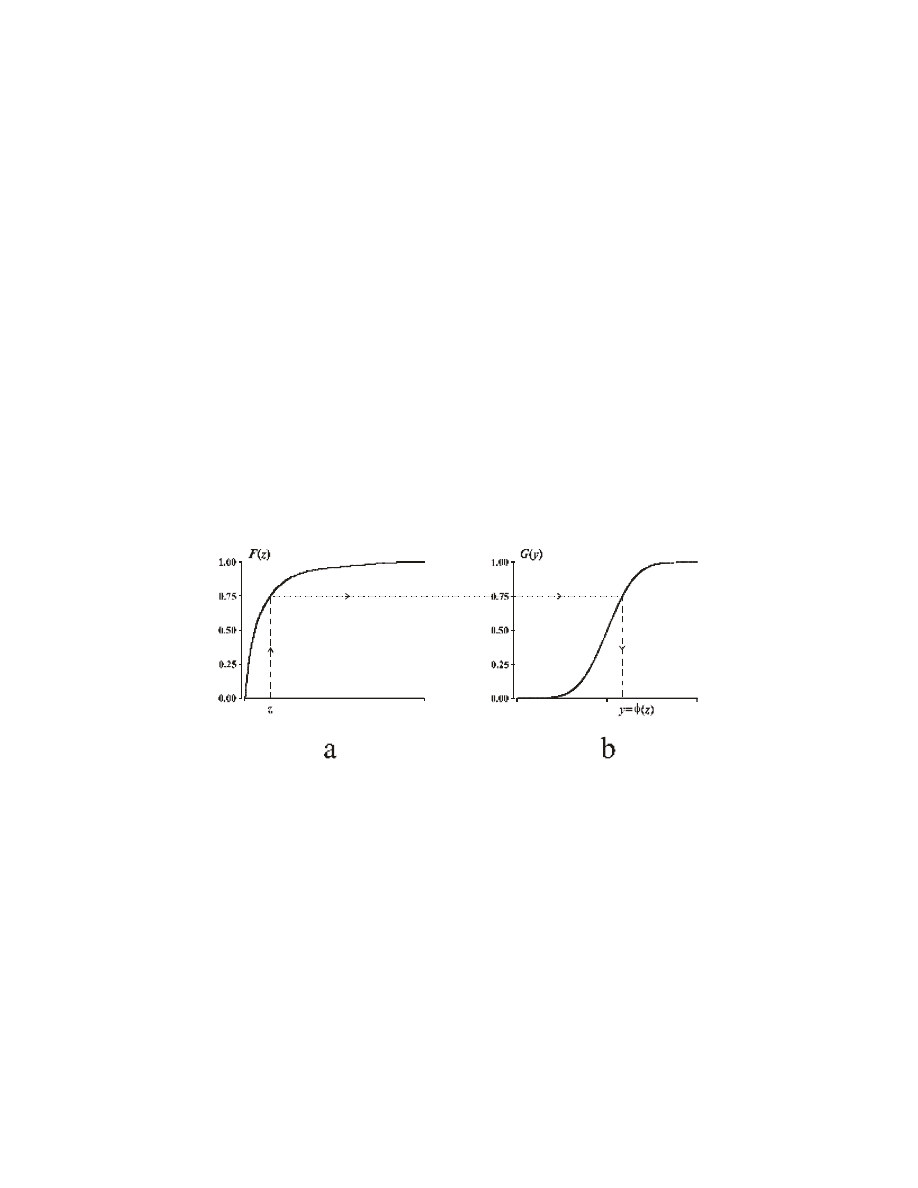
Each value of a quantitative variable Z is associated with a probability in its cumulative distribution
function. The principle of anamorphosis consists in replacing the value of the initial variable Z with the
value corresponding to the same probability in the cumulative distribution function of the resulting
variable Y. Fig. 1 illustrates the principle of anamorphosis, in cases of anamorphosis towards the
standard normal distribution (Gauss' standard distribution).
Fig.1: principle for defining the anamorphosis function
)
( z
y
φ
=
. (a) Empirical cumulative distribution
function F(z) of the data to be transformed (cumulative distribution). (b) Cumulative distribution function
G(y) of the standard normal distribution.
Three anamorphosis modes are provided: empirical, theoretical, and reciprocal theoretical.
Empirical anamorphosis is based on two empirical cumulative distribution functions: a function of the
initial variable and a function of the reference variable, or resulting variable. This procedure allows
XLSTAT to transform a variable so that it is distributed like another variable, no matter which.
Theoretical anamorphosis requires you to choose a probability distribution among those available:
uniform, standard Gaussian, Gaussian, lognormal, Student, Fisher, Chi-square, Beta, exponential. This
procedure uses a numerical approximation of the theoretical cumulative distribution function for the
probability distribution used.

40
Reciprocal theoretical anamorphosis requires you to choose a probability distribution as a model for the
initial variable, and a reference variable. This procedure uses a numerical approximation of the
reciprocal cumulative distribution function for the probability distribution used.
Notes:
•
Because the numerical approximation allowing theoretical anamorphosis of a variable
does not generally offer the same degree of accuracy as the numerical approximation of
theoretical reciprocal anamorphosis, you will not obtain exactly the same results as your
initial values if you run a full cycle Z -> Y then Y -> Z. However, empirical anamorphosis
returns the exact initial values because it is perfectly symmetrical, based on the same
cumulative distribution functions,
•
the presence of several null values, or too small a number of values makes it very
difficult (if not impossible) to obtain a satisfactory transformation using empirical
anamorphosis.
Elements of the dialog box
Variable: select the column which contains the values to be transformed. When missing data are found
in the column, XLSTAT suggests ignoring the corresponding rows. If the user refuses, the dialog box is
closed and the computations are stopped.
Anamorphosis: choose the anamorphosis method for transforming your data. Empirical anamorphosis
requires you to select the reference data. Theoretical anamorphosis requires you to select a probability
distribution. Reciprocal theoretical anamorphosis requires you to select a probability distribution for the
data to be transformed, and the reference data.
Reference: for empirical anamorphosis and reciprocal theoretical anamorphosis, enter the range for
the reference variable column. When missing data are found in the column, XLSTAT suggests ignoring
the corresponding rows. If the user refuses, the dialog box is closed and the computations are stopped.
Probability distribution: for theoretical anamorphosis, choose a probability distribution from the list:
•
Beta
a1: enter a number for the first shape parameter of the Beta distribution
a2: enter a number for the second shape parameter of the Beta distribution
•
Chi-square
df: enter the number of degrees of freedom for the Chi-square distribution
•
Exponential
Lambda: enter the inverse of the average wait time between two events of a random
phenomenon to define the exponential distribution
•
Fisher

41
df 1: enter the number of degrees of freedom for the numerator of the Fisher's F
df 2: enter the number of degrees of freedom for the denominator of the Fisher's F
•
Gaussian (or normal distribution)
µ
: enter the value of the expectation
sigma²: enter the value of the variance
•
Lognormal (the logarithm of the variable distributed using a lognormal distribution follows
normal distribution with parameters
µ
and sigma² parameters)
µ
: enter the value of the expectation of normal distribution according to which ln(x) is
distributed
sigma²: enter the value of the variance of normal distribution according to which ln(x) is
distributed
•
Standard Gaussian (or standard normal distribution): Gauss' distribution with null mean
and unit variance.
•
Student
df: enter the number of degrees of freedom for the Student distribution
•
Uniform
a: enter a number that defines the lower bound of the interval for the uniform distribution
b: enter a number that defines the upper bound of the interval for the uniform distribution
•
Weibull (1)
The one parameter Weibull density function writes:
)
exp(
)
(
1
β
β
β
x
x
x
X
P
−
=
=
−
,
x>0,
β >0
β : enter a number corresponding to the shape parameter
•
Weibull (2)
The two parameters Weibull density function writes:
−
=
=
−
β
β
η
η
β
x
x
x
X
P
exp
)
(
1
, x>0,
β,η >0
β : enter a number corresponding to the shape parameter
η : enter a number corresponding to the scale parameter

42
Column labels: the first cell of the selected column contains a label.
Range: the transformed variable is displayed based on a cell located in an existing sheet, and the other
results are displayed in a sheet of the active workbook. This sheet is directly accessible via a hyperlink
to the selected cell.
Sheet: Results are displayed in a sheet of the active workbook.
Workbook: Results are displayed in a new workbook.
To know more about it
Abramowitz M. & I.A. Stegun (1972). Handbook of mathematical functions. Dover Publications, New
York, pp. 927-964.
Aïvazian S., I. Enukov & L. Mechalkine (1986). Eléments de modélisation et traitement primaire des
données. Mir, Moscou, pp. 126-183.
Deutsch C.V. & A.G. Journel (1992). GSLIB. Geostatistical Software Library and user's guide. Oxford
University Press, New York, p. 138.
Goovaerts P. (1997). Geostatistics for natural resources evaluation. Oxford University Press, New
York, pp. 266-271.
Manoukian E.B. (1986). Guide de statistique appliquée. Hermann, Paris, pp. 19-68.

43
Descriptive Statistics
Use this module to calculate a set of descriptive statistics for one or several categorical or quantitative
variables, and to create graphical or semi-graphical displays used for exploratory data analysis.
See also:
Description
Elements of the dialog box
Continuation of the dialog box
To know more about it
Description
List of statistics calculated for quantitative data (descriptors that take weighting into account are shown
in bold):
•
No. of values used: number of values actually used in calculations, i.e. non-missing data
with a weight not equal to 0,
•
No. of values ignored: number of values ignored during calculations, i.e. missing data or
values with a weight of 0,
•
No. of min. val.: number of values equal to the minimum value,
•
% of min. val.: percentage of the number of values equal to the minimum value,
•
Minimum: minimum value,
•
1st quartile: value below which 25 % of the data are located,
•
Median: value below which 50 % of the data are located,
•
3rd quartile: value below which 75 % of the data are located,
•
Maximum: maximum value,
•
Range: difference between the maximum and the minimum,
•
Sum of the weights: for weighted data, the sum of the weights for values used in
calculations,
•
Total: sum of the values (may be weighted),
•
Mean: sum of the values (may be weighted), divided by the number of values used, or
by the sum of the weights if the data are weighted,

44
•
Geometric mean: mean that is barely affected by high values. The geometric mean is
not defined for data containing negative or null values,
•
Harmonic mean: mean that is barely affected by a few values that are much higher than
the others, but is sensitive to much smaller values. The harmonic mean is not defined for
data containing null values,
•
Kurtosis (Pearson): coefficient that represents the peaked or flattened shape of a
distribution compared to a Gaussian distribution. For a Gaussian distribution (normal
distribution), kurtosis is equal to 0. A negative value represents a flatter distribution than
the normal distribution (platycurtic distribution) while a positive value represents a more
peaked distribution than normal distribution (leptocurtic distribution),
•
Skewness (Pearson): coefficient that represents the degree of skewness for a
distribution compared to its mean. For a Gaussian distribution (normal distribution),
skewness is equal to 0. A negative value indicates that the distribution is skewed to the
left, while a positive value indicates that the distribution is skewed to the right,
•
Kurtosis: kurtosis coefficient as calculated by Excel,
•
Skewness: skewness coefficient as calculated by Excel,
•
CV (standard deviation/mean): variation coefficient that measures the relative
dispersion, obtained by dividing the standard deviation by the mean. This coefficient
allows you to compare the dispersion of variables that have different units, or that have
very different means,
•
Sample variance: variance of the data, (in case of unweighted data, the denominator is
n, i.e. the size of the sample),
•
Estimated variance: estimation of the variance for a population whose data makes up a
sample (unbiased estimator: in case of unweighted data, the denominator is n-1, with n
the size of the sample),
•
Standard deviation of a sample: square root of the variance of the data,
•
Estimated standard deviation: square root of the estimation of the variance for the
source data population,
•
Mean absolute deviation: dispersion measure that indicates the average of the
absolute values of the deviations for each value compared to the mean,
•
Standard deviation of the mean: square root of the ratio of the estimated variance to
the number of values used in the calculation. This estimation of the variance of the mean
is valid only if the data consists of a sample taken at random (and without replacement)
from an infinite population (simple random sample of an infinite population),
•
Mean absolute deviation: dispersion measure that indicates the average of the
absolute values of the deviations for each value compared to the mean,

45
•
Absolute median deviation: median of the absolute deviations from the median.
Charts created for quantitative variables
•
box plots,
•
univariate scattergrams
•
collection of bivariate scattergrams
•
Q-Q plots,
•
p-p plots,
•
stem and leaf plots.
List of statistics calculated for categorical data
Summary for all variables:
•
No. of categories: number of categories for the variable,
•
Mode: the category that occurs most often, or that has the highest weight (if the data are
weighted),
•
Mode frequency: for non-weighted data, frequency of the mode,
•
Mode weight: for weighted data, weight of the mode,
•
% mode: percentage of the mode,
•
Rel. freq. mode: relative frequency of the mode.
Statistics table for each variable:
•
Frequency: for unweighted data, frequency of the category,
•
Weight: for weighted data, weight of the category,
•
%: percentage of the category,
•
Rel. freq.: relative frequency of the category.
Charts created for categorical variables
•
histograms,
•
pie charts.

46
Elements of the dialog box
Data: enter the range for the variables to be described. When missing data are found in a column,
XLSTAT suggests ignoring them. If the user refuses, the dialog box is closed and the computations are
stopped.
Quantitative / Categorical: choose the type of variable.
Column labels: the first cell of each selected column contains a label.
Range: the results are displayed based on a cell located in an existing sheet.
Sheet: Results are displayed in a sheet of the active workbook.
Workbook: Results are displayed in a new workbook.
More: click this button to display the advanced options of the dialog box.
Continuation of the dialog box
Group descriptor: check this option if you want XLSTAT to consider a categorical variable that
describes the groups of values, then enter the range for the group descriptor column. Missing data for
group descriptor are combined with missing data for the data.
Compare: if you are applying a group descriptor, check this option to compare the results obtained for
each group with those obtained for all the values.
Weight: check this option if you want to weight the data, then enter the range for the weight column.
Missing data for the weights are set to zeros and imply the inactivation of the corresponding row.
For quantitative variables
•
Display X/Y charts: check this option to display the collection of bivariate scattergrams
obtained by comparing pairs of all the selected quantitative variables.
•
"X/Y and X/X" / "X/Y and Q-Q"/ "X/Y and p-p": choose to display either the collection of
bivariate scattergrams (including those that compare each variable with itself), or the
collection of bivariate scattergrams and Q-Q plots or p-p plots for all variables. These
charts cannot be displayed if there are more than 6 variables or 30,000 points.
•
Box plots: check this option to obtain box plot. These charts cannot be displayed if there
are more than 16 variables or 30,000 points.
•
Scattergrams: check this option to obtain univariate scattergrams. These charts cannot be
displayed if there are more than 24 variables or more than 30,000 points.
•
Vertical boxes / Horizontal boxes: choose the orientation of box plots and scattergrams.

47
•
Standardization: check this option to cancel the effect of the order of magnitude
differences between the variables when creating box plots and scattergrams, by dividing
the values of each variable by the corresponding standard deviation.
•
Stem-and-leaf plots: check this option to obtain stem-and-leaf plots.
For categorical variables
•
Histograms: check this option to display the corresponding histograms.
•
Pie charts: check this option to display the pie charts.
•
Group charts: check this option to display all the charts on a separate sheet.
To know more about it
Sokal R.R. & F.J. Rohlf (1995). Biometry. The principles and practice of statistics in biological
research. Third edition. Freeman, New York, pp. 28-30, 39-60, 151-152.
Tomassone R., C. Dervin & J.P. Masson (1993). Biométrie. Modélisation de phénomènes
biologiques. Masson, Paris, p. 115-121.

48
Histograms
Use this module to display histograms of the frequencies that approximate the probability density
function of a quantitative variable and the distribution of cumulative frequencies that approximate its
cumulative distribution function.
Note: You can also create histograms with the Discretization and histogram module using other
methods, and manually change the bounds.
See also:
Elements of the dialog box
Continuation of the dialog box
To know more about it
Elements of the dialog box
Data: enter the range for the quantitative variable. When missing data are found, XLSTAT suggests
ignoring the corresponding rows. If the user refuses, the dialog box is closed and the computations are
stopped.
Charts: check this option to display charts of the histogram and the cumulative distribution.
Tables: check this option to display tables that describe the histogram and the cumulative distribution
(interval bounds, frequencies).
Cumulative distribution: check this option to create the cumulative distribution. Check the "Bars"
option if you want a cumulative distribution with vertical bars showing the interval bounds. The
maximum number of values allowed is 30,000 when the "Bars" option is not checked, and 15,000 if it
is.
Histogram: check this option to creat e the histogram. Check the "Bars" option if you want a histogram
with vertical bars showing the interval bounds.
Number of intervals: enter the number of intervals with a constant amplitude for creating the
histogram.
Range: the results are displayed based on a cell located in an existing sheet.
Sheet: Results are displayed in a sheet of the active workbook.
Workbook: Results are displayed in a new workbook.
Column labels: the first cell of the selected column contains a label.
More: click this button to display the advanced options of the dialog box.

49
Continuation of the dialog box
Histogram / Frequency polygon: choose the type of chart. If you select "Histogram" then the chart
shows the intervals, and if you select "Frequency polygon" the chart joins the interval centers.
Weight: check this option if you want to weight the data, then enter the range for the weight column.
Missing data for weights are combined with missing data for the data.
Example
A tutorial on how to build a histogram with this tool is available on the XLSTAT website on the following
page:
http://www.xlstat.com/demo-histo.htm
To know more about it
Frontier S. (1981). Méthode statistique. Masson, Paris, pp. 42-59.
Sokal R.R. & F.J. Rohlf (1995). Biometry. The principles and practice of statistics in biological
research. Third edition. Freeman, New York, pp. 19-32.

50
Contingency Table (Two-way Table) and Chi-square
Use this module to calculate the contingency table (two-way table) for two sets of categorical variables,
as well as the derivative tables, and test the association between the rows and the columns.
Note: tests concerning contingency tables are much more fully developed in the Tests on Contingency
Tables module.
See also:
Elements of the dialog box
Continuation of the dialog box
To know more about it
Elements of the dialog box
Qualitative variables in rows: enter the range for the categorical variables whose categories will make
up the contingency table rows. When missing data are found, XLSTAT suggests ignoring them when
building the contingency table. If the user refuses, the dialog box is closed and the computations are
stopped.
Qualitative variables in columns: enter the range for the categorical variables whose categories will
make up the contingency table columns. When missing data are found, XLSTAT suggests ignoring
them when building the contingency table. If the user refuses, the dialog box is closed and the
computations are stopped.
Chi-square independence test: test the independence between the rows and columns in the
contingency table using a Chi-square test.
Significance level: enter the value of the type I error for the test.
Range: the results are displayed based on a cell located in an existing sheet.
Sheet: Results are displayed in a sheet of the active workbook.
Workbook: Results are displayed in a new workbook.
Column labels: the first cell of each selected column contains a label.
More: click this button to display the advanced options of the dialog box.
Continuation of the dialog box
Weight: select the range for the weights column. When missing data are found, XLSTAT suggests
ignoring the corresponding rows. If the user refuses, the dialog box is closed and the computations are
stopped.

51
Combinations: check this option to display a table with the combinations of categories in rows and in
columns. This table contains the same information as the contingency table and the table of
percentages in relation to the total size, but the information is presented in a different format.
Observed frequencies: check this option to display the contingency table to which the marginal totals
and the total have been added.
Expected frequency: check this option to display the table of expected frequencies calculated
assuming that the rows and columns in the contingency table are independent.
Contributions to Chi-square: check this option to display the table of the basic contributions of each
cell in the contingency table for the Chi-square value calculated for the entire contingency table.
"Chi-square by cell": check this option to display a table that shows a) whether the observed
frequency is greater than, less than, or equal to the expected frequency, and b) the result of the partial
Chi-square test called the "Chi-square by cell" test. The "Chi-square by cell" test is a Chi-square test
calculated on a table with four cells: one cell represents cell [i,j] in the original contingency table, the
other cells represent frequencies for row i minus cell [i,j], for column j minus cell [i,j], and for the rest of
the table.
Percentages/proportions in relation to rows: check this option to display the table of percentages or
proportions compared to the sums of the rows.
Percentages/proportions in relation to columns: check this option to display the table of
percentages or proportions compared to the sums of the columns.
Percentages/proportions in relation to total: check this option to display the table of percentages or
proportions compared to the total.
Percentages / Proportions: choose the display mode for the three previous tables, either as
percentages (values between 0 and 100), or as proportions (values between 0 and 1).
To know more about it
Sokal R.R. & F.J. Rohlf (1995). Biometry. The principles and practice of statistics in biological
research. Third edition. Freeman, New York, pp. 724-743.
Tomassone R., C. Dervin & J.P. Masson (1993). Biométrie. Modélisation de phénomènes
biologiques. Masson, Paris, pp. 92-95.

52
Similarity/Dissimilarity Matrix (Correlation …)
Use this module to calculate a similarity or dissimilarity matrix for a rectangular array by comparing the
rows or the columns, and test the hypothesis that there is no correlation structure in case of parametric
correlation matrix (Pearson's correlation coefficient) using Bartlett's sphericity test.
See also:
Elements of the dialog box
Continuation of the dialog box
To know more about it
Elements of the dialog box
Data: enter the range for the data array. When missing data are found,, XLSTAT suggests first ignoring
the corresponding rows. If the user refuses, XLSTAT suggest to use all the available information by
simply ignoring the missing data (pairwise deletion), otherwise the dialog box is closed and the
computations are stopped.
quantitative / binary / all types: choose the type of data. This enables XLSTAT to perform validity
checks on the data, and to avoid methodological errors concerning the choice of a
similarity/dissimilarity coefficient. For quantitative or binary variables, only the coefficients defined
specifically for these data types are proposed. For all types (quantitative data and/or categorical data),
only one coefficient is proposed as XLSTAT considers the data to be at the lowest level of algebraic
structure, i.e. at the level of a nominal categorical variable: the values are distinguished among them
only on the basis of the strict equality/inequality.
Row labels: enter the range for the column of labels that represent the data array rows.
Similarity / Dissimilarity: choose whether the calculated values should be higher if the data are similar
(similarity), or lower if the data are similar (dissimilarity). The type of measurement you choose
determines the list of coefficients proposed.
For quantitative data:
Similarity
Dissimilarity
Pearson's correlation coefficient
Euclidean distance
Spearman's coefficient of rank correlation
Chi-square distance
Kendall's coefficient of rank correlation
Manhattan distance
Inertia
Pearson's dissimilarity
Covariance (n)
Spearman's dissimilarity
Covariance (n-1)
Kendall's dissimilarity

53
Cosine
Mahalanobis' distance
Bhattacharya's distance
Chebychev
's distance
Canberra
's distance
Chord distance
Squared chord distance
Geodesic distance
Note: the only difference between "Covariance (n)" and "Covariance (n-1)" is the denominator used,
i.e. either n or n-1, where n is the size (number of rows if you compare by columns, or number of
columns if compare by rows). In the second case, this is an estimation without bias of the variance-
covariance matrix for a multivariate normal distribution.
For binary data (0/1):
Similarity/Dissimilarity
Jaccard coefficient
Dice coefficient
Sokal & Sneath coefficient (2)
Rogers & Tanimoto coefficient
Simple matching coefficient
Sokal & Sneath coefficient (1)
Phi coefficient
Ochiai's coefficient
Kulczinski's coefficient
For all types data:
Similarity
Dissimilarity
Percent agreement
Percent disagreement
Cooccurrences

54
In order to process different types of variables (quantitative and categorical), you can use a general
similarity/dissimilarity (percent agreement/disagreement) or the cooccurrences that handles all the
variables at the lowest algebraic level, i.e. the nominal variable level. This allows to identify the rows or
the columns that are considered as similar.
Range: results are displayed based on a cell located in an existing sheet.
Sheet: Results are displayed in a sheet of the active workbook.
Workbook: the results are displayed in a new workbook.
Show labels: a label appears in the first cell of each selected column.
Column labels: the first cell of each selected column contains a label.
More: click this button to display the advanced options of the dialog box.
Continuation of the dialog box
Compare "rows" / "columns": choose if the similarity/dissimilarity matrix should compare the data
array rows or columns.
Note: if the dialog box is in memory off mode, XLSTAT adapts this option according to the type of
variable and the type of coefficient (similarity or dissimilarity). For a quantitative variable, by default the
similarity calculation is performed by comparing the columns (for example, the correlation between the
variables in an observations/variables table), and the dissimilarity calculation is performed by
comparing the rows (for example, the Euclidean distance between the observations in an
observations/variables table). In the other cases, by default calculations are performed by comparing
the rows (for example, the Jaccard coefficient between the observations in an observations/variables
table).
Bartlett's sphericity test: When the Pearson's correlation coefficient is used (similarity for quantitative
data), check this option to perform Bartlett's sphericity test which checks for the existence of a
significant correlation structure within the correlation matrix, using the significance level defined by
"Significance level". For more information on this test, click here.
Significance level: enter the value of the type I error for Bartlett's sphericity test.
Detect similar data: when percent agreement is used (all types of data), check this option to highlight
similar data (rows or columns based on the option you chose previously) using the threshold defined by
"Threshold value (%)".
Threshold value (%): enter the value for the minimum similarity beyond which data are considered to
be similar. Data are declared to be similar if the similarity is greater than the threshold value, or (to put it
another way), if the dissimilarity is less than 100 % minus the threshold value.
List of similar data: check this option to display a table showing the data pairs (rows or columns)
identified as being similar.

55
To know more about it
Dillon W.R. & M. Goldstein (1984). Multivariate analysis. Methods and applications. John Wiley &
Sons, New York, pp. 157-167.
Gower J.C. & P. Legendre (1986). Metric and Euclidean properties of dissimilarity coefficients. Journal
of Classification, 3: 5-48.
Jambu M. (1978). Classification automatique pour l'analyse des données. 1 - méthodes et algorithmes.
Dunod, Paris, pp. 484-518.
Jobson J.D. (1992). Applied multivariate data analysis. Volume II: categorical and multivariate
methods. Springer-Verlag, New York, pp. 345-388.
Legendre L. & P. Legendre (1984). Ecologie numérique. Tome 2. La structure des données
écologiques. Masson, Paris, pp. 5-50.
Roux M. (1985). Algorithmes de classification. Masson, Paris, pp. 126-134.
Sokal R.R. & F.J. Rohlf (1995). Biometry. The principles and practice of statistics in biological
research. Third edition. Freeman, New York, pp. 724-743.
Tomassone R., C. Dervin & J.P. Masson (1993). Biométrie. Modélisation de phénomènes
biologiques. Masson, Paris, pp. 157-158 .

56
Factor Analysis
Use factor analysis to summarize the data correlation structure described by several quantitative
variables, by identifying the underlying factors shared by variables, that to a large extent can explain
the variability of the data.
See also:
Description
Elements of the dialog box
Continuation of the dialog box
Example
To know more about it
Description
The purpose of factor analysis is to describe a set of variables using a linear combination of common
underlying factors, and a variable representing the specific part of the original variables. The variance
of an original variable may be broken down into a part shared with other variables (explained by the
factors) called the communality of the variable, and a specific part called the specific variance.
Among the various methods available, XLSTAT uses the principal factor method applied iteratively. The
communality of each variable is initialized so that a variable with a very low correlation to the others has
a low communality and therefore a high specific variance. By default, XLSTAT initializes the
communalities using the square of the multiple correlation with the other variables. If this method
cannot be used, or if it is too time consuming, XLS TAT uses the square of the highest simple
correlation with the other variables. After the communalities are initialized, the are estimated by
iteratively using the principal factor method until the values stabilize or until the maximum number of
iterations is reached.
Note: this module accepts up to 250 variables.
Elements of the dialog box
Data: enter the range for the data, corresponding to a rectangular observations/variables table or to a
correlation matrix. In the case of rectangular observations/variables table, when missing data are found,
XLSTAT suggests first ignoring the corresponding rows. In case the user refuses, XLSTAT suggests
estimating the missing data by the mean of the corresponding variable (see the "Missing value
estimation" option). Otherwise, XLSTAT indicates it is possible to use all the available information
(pairwise deletion) by using the Similarity/Dissimilarity Matrix module, and then dialog box is closed and
the computations are stopped. For a correlation matrix, missing data are not allowed. However,
because the matrix is symmetrical, it is enough that the data of the selection allow to reconstitute
correctly the totality of the matrix. For example, only enter the lower half-matrix, the upper half-matrix,
part in the lower half-matrix and the other part in the upper half-matrix, etc.
"Obs/Variable" / "Matrix": choose the data format, observations/variables table or correlation matrix.

57
Number of factors: enter the maximum number of factors to be considered. After making all the
calculations, XLSTAT may display fewer than the requested number of factors.
Column labels: for an observations/variables table, the label of each variable appears in the first cell of
each selected column. For a correlation matrix, the labels of the rows and columns appear in the
selected range.
Range: results are displayed based on a cell located in an existing sheet.
Sheet: Results are displayed in a sheet of the active workbook.
Workbook: the results are displayed in a new workbook.
Matrix: check this option to display the correlation matrix.
Charts: check this option to display the histogram of eigenvalues and the plots of the variables.
More: click this button to display the advanced options of the dialog box.
Continuation of the dialog box
Correlation: for an observations/variables table, choose the type of correlation, parametric (Pearson),
or nonparametric (Spearman, Kendall).
Axes rotation: optionally choose the type of rotation for the axes: Varimax or Quartimax.
Cronbach's Alpha: check this option to compute the Cronbach's alpha coefficient.
Conditions to stop:
•
Iterations: enter the maximum number of iterations authorized for estimating the
communalities of the variables. Even if the convergence of the communalities has not
been reached, the iterative estimation will be stopped once the specified maximum
number of iterations is reached. Default value: 200.
•
Convergence: enter the convergence threshold between two successive communality
estimations. The convergence is reached when the absolute deviation between two
successive estimations is less than or equal to the specified threshold. Default value:
0.001.
Example
A tutorial on Factor analysis is available on the XLSTAT website on the following page:
http://www.xlstat.com/demo-fa.htm

58
To know more about it
Dillon W.R. & M. Goldstein (1984). Multivariate analysis. Methods and applications. John Wiley &
Sons, New York, pp. 53-106.
Jobson J.D. (1992). Applied multivariate data analysis. Volume II: categorical and multivariate
methods. Springer-Verlag, New York, pp. 388-426.
Johnson R.A. & D.W. Wichern (1992). Applied multivariate statistical analysis. Prentice-Hall,
Englewood Cliffs, pp. 396-458.
Lebart L., A. Morineau & M. Piron (1997). Statistique exploratoire multidimensionnelle. 2
ème
édition.
Dunod, Paris, pp. 246-250.
Sharma S. (1996). Applied multivariate techniques. John Wiley & Sons, New York, pp. 90-143.

59
Principal Component Analysis (PCA)
Use principal component analysis to summarize the structure of data described by several quantitative
variables, while obtaining the uncorrelated factors between them. These factors may be used as new
variables which allows you to:
•
avoid multicolinearity in multiple regression or in discriminant analysis,
•
perform cluster analysis while considering only essential information, i.e. by keeping the
primary factors only.
See also:
Description
Elements of the dialog box
Continuation of the dialog box
Display plots dialog box
Example
To know more about it
Description
Principal component analysis (PCA) expresses a set of variables as a set of linear combinations of
factors that are not correlated between them; these factors represent an increasingly small fraction of
the variability of the data. This method allows you to represent the original data (observations and
variables) with fewer dimensions than the original, while keeping data loss to a minimum. Representing
the data in a limited number of dimensions (2 dimensions in this case) greatly facilitates analysis.
PCA differs from factor analysis in that it creates a set of factors that have no correlation to one
another; this corresponds to the special case where all communalities are equal to 1 (null specific
variance).
Note: this module accepts up to 250 variables.
Elements of the dialog box
Data: enter the range for the data, corresponding to a rectangular observations/variables table or to a
correlation matrix. In the case of rectangular observations/variables table, when missing data are found,
XLSTAT suggests first ignoring the corresponding rows. In case the user refuses, XLSTAT suggests
estimating the missing data by the mean of the corresponding variable (see the "Missing value
estimation" option). Otherwise, XLSTAT indicates it is possible to use all the available information
(pairwise deletion) by using the Similarity/Dissimilarity Matrix module, and then closes the dialog box
and stops the computations. For a correlation matrix, missing data are not allowed. However, because
the matrix is symmetrical, it is enough that the data of the selection allow to reconstitute correctly the
totality of the matrix. For example, only enter the lower half-matrix, the upper half-matrix, part in the
lower half-matrix and the other part in the upper half-matrix, etc.

60
"Obs/Variables" / "Matrix": choose the data format: observations/variables table or correlation matrix.
Column labels: for an observations/variables table, the label of each variable appears in the first cell of
each selected column. For a correlation matrix, the labels of the rows and columns appear in the
selected range.
Observation labels: for an observations/variables table, enter the range for the labels column that
correspond to the rows of the data array.
Range: results are displayed based on a cell located in an existing sheet.
Sheet: Results are displayed in a sheet of the active workbook.
Workbook: the results are displayed in a new workbook.
Observations: for an observations/variables table, check this option to display the results concerning
the observations.
Matrix: check this option to display the correlation or covariance matrix.
Charts: check this option to display the histogram of eigenvalues and the plots.
More: click this button to display the advanced options of the dialog box.
Continuation of the dialog box
Supplementary observations: For an observations/variables table, enter the range for the
supplementary or passive observations. Passive observations are not used in the calculations but are
included in the plots with the active observations. Missing data are combined with missing data for the
active data: XLSTAT suggests ignoring the corresponding rows or estimating the missing data by the
mean of the variable (see the "Missing value estimation" option), computed using all the available
information, which means taking into account the supplementary observations.
Supplementary variables: For an observations/variables table, enter the range for the supplementary
or passive observations. Passive variables are not used in the calculations but are included in the plots
with the active variables. Missing data are combined with missing data for the active data: XLSTAT
suggests ignoring the corresponding rows or estimating the missing data by the mean of the variable
(see the "Missing value estimation" option).
Type of PCA: for an observations/variables table, if you want to perform a normalized PCA, choose the
type of correlation, either parametric (Pearson) or nonparametric (Spearman, Kendall), or choose
"Covariance (n)" or "Covariance (n-1)" to perform a non-normalized PCA.
Supplementary categorical variable: for an observations/variables table, enter the range for a
supplementary categorical variable. The m categories for this variable define m observation groups,
and each group is represented in plots by its centroid. Missing data are combined with missing data for
the active data: XLSTAT suggests ignoring the corresponding rows or estimating the missing data by
the mode of the variable (see the "Missing value estimation" option).
Weight: for an observations/variables table, enter the range for the observation weights column.
Missing data for weights are combined with missing data for the active data: XLSTAT suggests ignoring

61
the corresponding rows or estimating the missing data by the mean of the weights (see the "Missing
value estimation" option), computed without taking into account the weights equal to zero.
Rotate axes: optionally choose the type of rotation for the axes, Varimax or Quartimax.
Display plots dialog box
Number of observations: enter the number of active observations to be plotted, sorted in descending
order of contribution (average of the contributions on both axes defining the plot, weighted by the
percentage of variance corresponding to each axis). Supplementary observations are always
represented.
Plot for observations, observations labels: if you check this option, XLSTAT uses the observations
labels in the plot.
Observations/variables plot, observations: if you check this option, XLSTAT uses the observations
labels in the observations/variables plot.
Observations/variables plot, supplementary quantitative variables: If you check this option, the
supplementary quantitative variables are displayed on the observations/variables plot.
Note: unlike active variables, supplementary quantitative variables do not constitute original axes for
the location of the observations, their representation on the observations/variables plot is thus left to the
initiative of the user.
Example
A tutorial on PCA is available on the XLSTAT website on the following page:
http://www.xlstat.com/demo-pca.htm
To know more about it
Dillon W.R. & M. Goldstein (1984). Multivariate analysis. Methods and applications. John Wiley &
Sons, New York, pp. 23-52.
Escofier B. & J. Pages (1990). Analyses factorielles simples et multiples. Objectifs, méthodes et
interprétation. Dunod, Paris, pp. 7-24.
Jobson J.D. (1992). Applied multivariate data analysis. Volume II: categorical and multivariate
methods. Springer-Verlag, New York, pp. 345-388.
Johnson R.A. & D.W. Wichern (1992). Applied multivariate statistical analysis. Prentice-Hall,
Englewood Cliffs, pp. 356-395.
Lebart L., A. Morineau & M. Piron (1997). Statistique exploratoire multidimensionnelle. 2
ème
édition.
Dunod, Paris, pp. 32-66.

62
Saporta G. (1990). Probabilités, analyse des données et statistique. Technip, Paris, pp. 159-186.
Sharma S. (1996). Applied multivariate techniques. John Wiley & Sons, New York, pp. 58-89.
Tomassone R., C. Dervin & J.P. Masson (1993). Biométrie. Modélisation de phénomènes
biologiques. Masson, Paris, pp. 134-143.

63
Discriminant Analysis (DA)
Use discriminant analysis to classify new observations described by several quantitative variables,
based on a sample of observations described by those variables, that have known groups, and to
analyze how the descriptive variables contribute to the makeup of the groups.
Note: discriminant analysis is closely linked to multivariate analysis of variance (MANOVA).
See also:
Description
Elements of the dialog box
Continuation of the dialog box
Example
To know more about it
Description
Discriminant analysis (DA) is a method used to model the extent to which an observation belongs to a
group based on the values of several variables, then to determine the most likely group for a given
observation knowing only the values of the variables for this observation. In XLSTAT, the variables that
describe the observations must be quantitative variables and the groups are specified by a categorical
variable. DA may be considered to be an extension of multiple regression in cases where the variable
to be explained is a categorical variable that describes the groups.
Note: the calculations performed in DA will not work if the explanatory variables are linearly dependent
(multicolinearity). Therefore, no variables should be inferred from another variable based on a linear
relationship. For example, in a set of explanatory variables that represent the percentage of votes cast
for a set of candidates, you should not include in the explanatory variables the percentage of votes not
cast, because this variable is inferred linearly from the others (100 % minus the sum of the percentages
of votes cast). For up to 50 explanatory variables, XLSTAT proposes to automatically verify that the
explanatory variables are indeed linearly independent by calculating the multiple correlation of each
variable with all the others. You can also detect the problem of the multicolinearity with the
Similarity/Dissimilarity Matrix module by calculating the correlation matrix between the variables and by
checking that there are no closely correlated variable pairs.
Note: this module accepts up to 250 explanatory variables.
Elements of the dialog box
Variable to be explained: enter the range for the categorical variable that describes the groups of
observations. When missing data are found, XLSTAT suggests first ignoring the corresponding rows. In
case the user refuses, XLSTAT suggests estimating them using the mode of the variable (see the
"Missing value estimation" option); otherwise, the dialog box is closed and the computations are
stopped.

64
Explanatory variables: enter the range for the quantitative variables that determine how observations
belong to various groups. Missing data are combined with the possible missing data of the variable to
be explained. XLSTAT suggests ignoring the corresponding rows, or estimating the missing data for
each variable by the mean of the variable (see the "Missing value estimation" option).
Observation labels: enter the range for the column of observations labels.
Range: results are displayed based on a cell located in an existing sheet.
Sheet: Results are displayed in a sheet of the active workbook.
Workbook: the results are displayed in a new workbook.
Observations: check this option to display the results concerning the observations.
Matrices: check this option to display the inertia matrices.
Charts: check this option to display the histogram of eigenvalues and the plots.
More: click this button to display the advanced options of the dialog box.
Continuation of the dialog box
Supplementary observations: enter the range for the supplementary or passive observations.
Passive observations are not used in the calculations but are included in the plots with the active
observations. Missing data are combined with missing data for the active data: XLSTAT suggests
ignoring the corresponding rows or estimating the missing data by the mean of the variable (see the
"Missing value estimation" option), computed using all the available information, which means taking
into account the supplementary observations).
Weight: enter the range for the observations weights column. Missing data for weights are combined
with missing data for the active data: XLSTAT suggests ignoring the corresponding rows or estimating
the missing data by the mean of the weights (see the "Missing value estimation" option), computed
without taking into account the weights equal to zero.
Equality of the within-group variance/covariance matrices: check this option if you assume that the
variance/covariance matrices for the various groups are not significantly different. XLSTAT performs a
test so that you can verify that your assumption is reasonable. When this option is not checked, the
table of the squares of the Mahalanobis distances between groups is different, the associated Fisher's
F and the p- values are not available, the classification functions are different. The other calculations
are performed nevertheless with the common within-group covariance matrix.
Significance level: enter the value for the type I error of the tests.
Verify linear independence: If you check this option, XLSTAT will verify the linear independence
between variables (up to 50 variables). When this verification is disabled and/or when the number of
explanatory variables exceeds 50, the problem of the multicolinearity is detected during the actual DA
calculations. In that case, the analysis is stopped. The error message displayed does not specify the
reason for the DA failure but it does indicate that the calculations cannot be carried out with the
selected data.

65
Cross validation: check this option to calculate the classification error rate on a test-sample (where the
DA is performed on a learning-sample), and enter the range for the binary variable (1/0) that indicates
the observations of the learning-sample (value 1) and the observations of the sample-test (value 0).
Missing data are not allowed for the binary variable.
Note: the classification error rate that is calculated only on the learning-sample (i.e. without cross-
validation) automatically increases with the number of explanatory variables and may be excellent if the
number of variables is high, without ensuring that the model will correctly predict the supplementary
observations groups. The resubstitution rate calculated on the learning-sample or the apparent error
rate is fairly optimistic because it systematically underestimates the real error rate. It is preferable to
use the cross-validation in order to estimate the error rate using the resubstitution rate calculated on the
test-sample, e.g. by taking 75% of the observations for the learning-sample and the 25% remaining for
the error rate estimation.
Example
A tutorial on Discriminant analysis is available on the XLSTAT website on the following page:
http://www.xlstat.com/demo-da.htm
To know more about it
Dillon W.R. & M. Goldstein (1984). Multivariate analysis. Methods and applications. John Wiley &
Sons, New York, pp. 360-429.
Jobson J.D. (1992). Applied multivariate data analysis. Volume II: categorical and multivariate
methods. Springer-Verlag, New York, pp. 209-278.
Johnson R.A. & D.W. Wichern (1992). Applied multivariate statistical analysis. Prentice-Hall,
Englewood Cliffs, pp. 246-284.
Lebart L., A. Morineau & M. Piron (1997). Statistique exploratoire multidimensionnelle. 2
ème
édition.
Dunod, Paris, pp. 251-277.
Saporta G. (1990). Probabilités, analyse des données et statistique. Technip, Paris, pp. 403-428.
Sharma S. (1996). Applied multivariate techniques. John Wiley & Sons, New York, pp. 287-316.
Tomassone R., M. Danzart, J.J. Daudin & J.P. Masson (1988). Discrimination et classement.
Masson, Paris.
Tomassone R., C. Dervin & J.P. Masson (1993). Biométrie. Modélisation de phénomènes
biologiques. Masson, Paris, pp. 348-352, 358-367.

66
Correspondence Analysis (CA)
Use correspondence analysis to study the link between two sets of categories that make up the rows
and columns of a contingency table.
See also:
Description
Elements of the dialog box
Continuation of the dialog box
Display plots dialog box
Example
To know more about it
Description
Correspondence analysis (CA) seeks the best simultaneous representation of two sets that make up
the rows and columns of a contingency table, where these two sets have symmetrical roles.
Correspondence analysis can be transformed into principal component analysis (PCA) by making
appropriate changes to variables; it is also a special case of discriminant analysis (DA).
Elements of the dialog box
"Contingency table" / "Observations/variables": choose the data format, either as an
observations/variables table or directly as a contingency table.
Categorical variables in rows: for an observations/variables table, enter the range for the categorical
variables whose categories will make up the rows of the contingency table. When missing data are
found, XLSTAT suggests ignoring them when building the contingency table. In case the user refuses,
XLSTAT suggests estimating them using the mode of the variable (see the "Missing value estimation"
option); otherwise, the dialog box is closed and the computations are stopped.
Categorical variables in columns: for an observations/variables table, enter the range for the
categorical variables whose categories will make up the columns of the contingency table. When
missing data are found, XLSTAT suggests ignoring them when building the contingency table. In case
the user refuses, XLSTAT suggests estimating them using the mode of the variable (see the "Missing
value estimation" option); otherwise, the dialog box is closed and the computations are stopped.
Data: for a contingency table, enter the range for the table. Missing data are not allowed.
Range: results are displayed based on a cell located in an existing sheet.
Sheet: Results are displayed in a sheet of the active workbook.
Workbook: the results are displayed in a new workbook.

67
Column labels / Labels included: the first cell of each selected column contains a label. For a
contingency table, the labels of the rows and columns appear in the selected range.
Charts: check this option to display the histogram of eigenvalues and the plots.
More: click this button to display the advanced options of the dialog box.
Continuation of the dialog box
Variables in additional rows: for an observations/variables table, enter the range for the
supplementary categorical variables whose categories will make up the additional rows of the
contingency table. Missing data are combined with the missing data found in the active data: XLSTAT
suggests ignoring them when building the contingency table. In case the user refuses, XLSTAT
suggests estimating them using the mode of the variable (see the "Missing value estimation" option);
otherwise, the dialog box is closed and the computations are stopped.
Variables in additional columns: for an observations/variables table, enter the range for the
supplementary categorical variables whose categories will make up the additional columns of the
contingency table. Missing data are combined with the missing data found in the active data: XLSTAT
suggests ignoring them when building the contingency table. In case the user refuses, XLSTAT
suggests estimating them using the mode of the variable (see the "Missing value estimation" option);
otherwise, the dialog box is closed and the computations are stopped.
Weight: for an observations/variables table, enter the range for the observation weights column. When
missing data are found for the weights, XLSTAT suggests ignoring the corresponding rows or
estimating the missing data by the mean of the weights (see the "Missing value estimation" option),
computed without taking into account the weights equal to zero.
Number of supplementary rows: for a contingency table, enter the number of consecutive rows at the
end of the table that represent the supplementary rows (passive rows).
Number of supplementary columns: for a contingency table, enter the number of consecutive
columns at the right of the table that represent the supplementary columns (passive columns).
Display plots dialog box
Number of points-rows: enter the number of active points-rows to be displayed, sorted in descending
order by contributions (average of the contributions on the two axes that define the chart, weighted by
the percentage of variance corresponding to each axis). The additional points-rows are always
displayed.
Number of points-columns: enter the number of active points-columns to be displayed, sorted in
descending order by contributions (average of the contributions on the two axes that defines the chart,
weighted by the percentage of variance corresponding to each axis). The additional points-columns are
always displayed.
Rows labels: check this option in order to use the row labels in the plot.
Column labels: check this option in order to use the column labels in the plot.

68
Contingency table chart: check this option to display the contingency table as a 3D chart.
Example
A tutorial on Correspondence analysis is available on the XLSTAT website on the following page:
http://www.xlstat.com/demo-ca.htm
To know more about it
Escofier B. & J. Pages (1990). Analyses factorielles simples et multiples. Objectifs, méthodes et
interprétation. Dunod, Paris, pp. 25-45.
Jobson J.D. (1992). Applied multivariate data analysis. Volume II: categorical and multivariate
methods. Springer-Verlag, New York, pp. 433-462.
Lebart L., A. Morineau & M. Piron (1997). Statistique exploratoire multidimensionnelle. 2
ème
édition.
Dunod, Paris, pp. 67-107.
Saporta G. (1990). Probabilités, analyse des données et statistique. Technip, Paris, pp. 199-216, pp.
199-216.
Tomassone R., C. Dervin & J.P. Masson (1993). Biométrie. Modélisation de phénomènes
biologiques. Masson, Paris, pp. 143-150.

69
Multiple Correspondence Analysis (MCA)
Use multiple correspondence analysis to study your data as a table of observations described by
several categorical variables. This method is well-suited to analyzing surveys for which the array rows
are usually the observations (there may be several thousand) and the columns are categories of
categorical variables, usually categories of answers to questions.
See also:
Description
Elements of the dialog box
Continuation of the dialog box
Display plots dialog box
Example
To know more about it
Description
Multiple Correspondence Analysis (MCA) is an extension of correspondence analysis (CA); but while
CA is applied to a contingency table, MCA is applied to a full disjunctive table. This method may also be
seen as the equivalent of principal component analysis (PCA) for categorical variables.
Elements of the dialog box
Data: enter the range for the data, corresponding to an observations/variables table or to a full
disjunctive table.
Array / Disjunctive table: choose the data format, either as an array with the observations in rows and
the categorical variables in columns, or directly as a full disjunctive table with the observations in rows
and the categorical variables categories in columns. In the case of an observations/variables table,
when missing data are found, XLSTAT suggests first ignoring them. If the user refuses, XLSTAT
suggests estimating them using the mode of the corresponding variable (see the "Missing value
estimation" option), otherwise, the dialog box is closed and the computations are stopped. In the case
of a disjunctive table, when missing data are found, XLSTAT suggests ignoring them, otherwise, the
dialog box is closed, and the computations are stopped.
Column labels: the first cell of each selected column contains a label.
Observation labels: enter the range for the column of the observations labels.
Range: the results are displayed based on a cell located in an existing sheet.
Sheet: results are displayed in a sheet of the active workbook.
Workbook: results are displayed in a new workbook.
Observations: check this option to display the results concerning the observations.

70
Disjunctive table: check this option to display the full disjunctive table submitted to the MCA (if it is not
already in the data), either because the data consists of an observations/variables table, or because
weights are used to weight an original full disjunctive table.
Charts: check this option to display the histogram of eigenvalues and plots
More: click this button to display the advanced options of the dialog box.
Continuation of the dialog box
Supplementary observations: enter the range for the supplementary or passive observations.
Passive observations are not used in the calculations but are included in the plots with the active
observations. Missing data are combined with the missing data found in the active data: XLSTAT
suggests ignoring them, and in case of an observations/variables table, estimating them using the
mode of the variable (see the "Missing value estimation" option), computed using all the available
information, which means taking into account the supplementary observations.
Supplementary variables: enter the range for the supplementary or passive variables. Passive
variables are not used in the calculation but are included in the plots with the active variables. Missing
data are combined with the missing data found in the active data: XLSTAT suggests ignoring them, and
in case of an observations/variables table, estimating them using the mode of the variable (see the
"Missing value estimation" option).
Supp. quantitative variables: enter the range of an array with the active observations in rows and the
supplementary quantitative variables in columns. When missing data are found for a variable, XLSTAT
suggests estimating them using the mean of the variable (see the "Missing value estimation" option),
otherwise the dialog box is closed, and all computations are stopped, because the missing data for the
supplementary quantitative variables are not allowed.
Weight: enter the range for the observation weights column. Null weights are not allowed. When
missing data are found for the weights, XLSTAT suggests estimating them using the mean of the
weights (see the "Missing value estimation" option), computed without taking into account the null
weights, otherwise the dialog box is closed and the computations are stopped, because missing
weights are equivalent to null weights which are not allowed.
Display plots dialog box
Number of observations: enter the number of active observations to be displayed, sorted in
decreasing order by the [contributions-weight] deviations (average of the [contribution-weight]
deviations on the two axes that define the plot, weighted by the variance percentage corresponding to
each axis). Supplementary observations are always represented.
Number of categories: enter the number of supplementary categories to be displayed, sorted in
descending order by test-values (average of the test-values on the two axes that define the plot,
weighted by the variance percentage for each axis).
Observation labels: if you check this option, XLSTAT uses the observation labels in the plot.
Category labels: check this option in order to use category labels in the plot.

71
Contingency table chart: check this option to display the contingency table as a 3D chart.
Example
A tutorial on Multiple Correspondence Analysis is available on the XLSTAT website on the following
page:
http://www.xlstat.com/demo-mca.htm
To know more about it
Escofier B. & J. Pages (1990). Analyses factorielles simples et multiples. Objectifs, méthodes et
interprétation. Dunod, Paris, pp. 47-66.
Jobson J.D. (1992). Applied multivariate data analysis. Volume II: categorical and multivariate
methods. Springer-Verlag, New York, pp. 462-465.
Lebart L., A. Morineau & M. Piron (1997). Statistique exploratoire multidimensionnelle. 2
ème
édition.
Dunod, Paris, pp. 108-142.
Saporta G. (1990). Probabilités, analyse des données et statistique. Technip, Paris, pp. 217-239.
Tomassone R., C. Dervin & J.P. Masson (1993). Biométrie. Modélisation de phénomènes
biologiques. Masson, Paris, pp. 150-155.

72
Multidimensional Scaling (MDS)
Use multidimensional scaling to represent in a limited number of dimensions the observations for which
only a similarity or dissimilarity matrix is available.
See also:
Description
Elements of the dialog box
Continuation of the dialog box
Example
To know more about it
Description
Multidimensional scaling (MDS) is a method for analyzing a (similarity or dissimilarity) proximity matrix
based on a set of observations. The purpose of MDS is to model the proximity of observations in order
to represent them as accurately as possible in a limited number of dimensions (usually 2). There are
different MDS algorithms: XLSTAT uses the SMACOF (Scaling by MAjorizing a COnvex Function)
algorithm that minimizes the "normalized stress" function. Furthermore, there are several MDS models
(or representation functions), i.e. several ways to transform the dissimilarities into disparities. The
disparities are the distances that describe the optimal representation for the observations. The
difference between the disparities and the distances measured on the representation resulting from the
MDS is called the stress: the lower the stress, the better the representation of the observations.
When the representation function simply respects the relative order of the observations, one speaks
about ordinal MDS or nonmetric MDS. When the dissimilarities are transformed into disparities using a
specific parametric function, one speaks about metric MDS. The following models are available in the
current version of XLSTAT:
Metric MDS
•
absolute MDS: each dissimilarity dij must exactly match the distance between points i
and j in the representation space.
•
ratio MDS: the ratio of all distance pairs in the representation space must correspond to
the ratio of the corresponding dissimilarities.
•
interval MDS: the ratio of all differences between distances in the representation space
must correspond to the ratio of the differences of the corresponding dissimilarities.
Note: the current version of XLSTAT does not support negative disparities that may occur if you use
the "interval" model. If an error message is displayed on this subject, you must use another model to
process your data.

73
Nonmetric MDS
•
ordinal (1): the order of the distances in the representation space must correspond to the
order of the corresponding dissimilarities. If there are two dissimilarities of the same
rank, then there are no restrictions on the corresponding distances.
•
ordinal (2): identical to the previous model, but if dissimilarities exist in the same rank,
the corresponding distances must be equal.
The stress measures the quality of the representation for a given number of dimensions. The lower it
is, the better the representation. Various formulas have been proposed by different authors. Although
the minimization is always based on the normalized stress, XLSTAT allows to show the results using
the four formulas defined below:
•
Raw stress: it gives the quality of the representation based on the squared errors of the
representation compared with the disparities. The formula gives:
(
)
∑
<
−
=
j
i
ij
ij
ij
r
d
D
w
2
σ
where Dij is the disparity between individuals i and j, and dij is the Euclidean distance
on the representation for the same individuals. wij is the weight of the ij proximity (value
is 1 by default).
•
Normalized Stress: it gives the quality of the representation based on the squared errors
of the representation compared with the disparities, divided by the sum of the squared
disparities. The formula gives:
(
)
∑
∑
<
<
−
=
j
i
ij
ij
j
i
ij
ij
ij
n
D
w
d
D
w
2
2
σ
•
Kruskal's stress 1: it gives the quality of the representation based on the square root of
the squared errors of the representation compared with the disparities, divided by the
sum of the squared distances on the representation. The formula gives:
(
)
∑
∑
<
<
−
=
j
i
ij
ij
j
i
ij
ij
ij
d
w
d
D
w
2
2
1
σ
•
Kruskal's stress 2: it gives the quality of the representation based on the square root of
the squared errors of the representation compared with the disparities, divided by the
sum of the squared centered distances on the representation. The formula gives:
74
(
)
(
)
∑
∑
<
<
−
−
=
j
i
ij
ij
j
i
ij
ij
ij
d
d
w
d
D
w
2
2
2
σ
where
d
is the average of the distances on the representation. This formula usually
results in a stress value that is approximately twice the value obtained for Kruskal's
stress 1.
In order to know if the representation quality is good enough, some rules exist, mostly based on the
Kruskal's stress 1. However, the Shepard diagram that allows to compare the dissimilarities with the
distances and to observe some ruptures in the ordination of the values is a empirical but reliable
method. The more the chart looks linear, the better the representation. The way the stress evolves
when the number of dimensions decreases is also interesting to detect if a significant amount of
information is being lost in the selected representation.
Elements of the dialog box
Data: enter the range corresponding to a (similarity or dissimilarity) proximity matrix. Because the
matrix is symmetrical, it is enough that the data of the selection allow to reconstitute correctly the
totality of the matrix. For example, only enter the lower half-matrix, the upper half-matrix, part in the
lower half-matrix and the other part in the upper half-matrix, etc. Missing data are allowed until the
quantity of available information is insufficient. Missing data are equivalent to data which weight is null.
Similarity / Dissimilarity: choose the type of data, either a similarity matrix or a dissimilarity matrix.
XLSTAT works only with dissimilarities; therefore a similarity matrix must be transformed into a
dissimilarity matrix.
Column labels / Labels included : the first cell of each selected column contains a label. For a
proximity matrix, the labels of the rows and columns appear in the selected range.
Model: choose the model to be used as a representation function of the dissimilarities (see above for
the corresponding definitions).
Dimension: enter the range for the number of dimensions in the representation, between a minimum
and maximum number of dimensions. XLSTAT will run the MDS for all the dimensions included in the
range. Default values: from 2 to 2.
Range: the results are displayed based on a cell located in an existing sheet.
Sheet: results are displayed in a sheet of the active workbook.
Workbook: results are displayed in a new workbook.
Best dimension: check this option to display the detailed results for the best dimension only, i.e. the
dimension with the lowest stress value.

75
Charts: check this option to display the configurations of the observations, the Shepard diagram
illustrating the quality of the resulting solution, and possibly the graph showing the changes in the
stress of the best solution according to the dimension of the representation space.
More: click this button to display the advanced options of the dialog box.
Continuation of the dialog box
Weight: enter the range for the matrix of weights corresponding to the proximities. Missing data are not
allowed, However, because the matrix is symmetrical, it is enough that the data of the selection allow to
reconstitute correctly the totality of the matrix. For example, only enter the lower half-matrix, the upper
half-matrix, part in the lower half-matrix and the other part in the upper half-matrix, etc.
Stress: select in this list the Stress formula you want XLSTAT to use while computing the results (see
above for the corresponding formulas).
Initial configuration "fixed " / "random": choose the origin for the initial configuration, i.e. the
configuration before the optimization carried out by the MDS. You can set this configuration, or XLSTAT
can generate it at random.
Coordinates: for a fixed initial configuration, enter a coordinates array of the observations that includes
one column for each of the maximum number of dimensions specified in the range of dimensions.
Missing data are not allowed.
Repetitions: for a random initial configuration, enter the number of repetitions for the algorithm.
Several repetitions allow you to obtain several final configurations and to choose the best one. Default
value: 10.
Conditions to stop:
•
Iterations: enter the maximum authorized number of iterations to minimize the stress.
Even if the convergence of the stress has not been reached, the iterative optimization
will be stopped when the specified maximum number of iterations is reached. Default
value: 50.
•
Convergence: enter the convergence threshold between two successive stress values.
Convergence is reached when the absolute deviation between two successive values is
less than or equal to the specified threshold. Default value: 0.0001.
Example
A tutorial on Multidimensional Scaling is available on the XLSTAT website on the following page:
http://www.xlstat.com/demo-mds.htm

76
To know more about it
Borg I. & P. Groenen (1997). Modern multidimensional Scaling. Theory and applications. Springer
Verlag, New York.
Dillon W.R. & M. Goldstein (1984). Multivariate analysis. Methods and applications. John Wiley &
Sons, New York, pp. 107-156.
Jobson J.D. (1992). Applied multivariate data analysis. Volume II: categorical and multivariate
methods. Springer-Verlag, New York, pp. 568-605.
Kruskal J.B., Wish M. (1978). Multidimensional Scaling. Sage Publications, London.
Tomassone R., C. Dervin & J.P. Masson (1993). Biométrie. Modélisation de phénomènes
biologiques. Masson, Paris, pp. 172-173.

77
Agglomerative Hierarchical Clustering (AHC)
Use agglomerative hierarchical clustering to create similar observation groups (clusters) on the basis of
their description by a set of quantitative variables, binary variables (0/1), or possibly all types of
variables.
Note: for non-binary categorical variables, it is preferable to first perform a Multiple Correspondence
Analysis (MCA) and to consider the coordinates of the observations on the factorial axes as new
variables.
See also:
Description
Elements of the dialog box
Continuation of the dialog box
Display dendrogram box
Example
To know more about it
Description
Agglomerative hierarchical classification (AHC) gradually builds an aggregate of observations based on
their similarity, measured using a similarity or dissimilarity coefficient. The algorithm first gathers all the
most similar observation pairs, then progressively aggregates the other observations or observation
groups according to their similarity until all the observations are in a single group. The AHC produces a
binary clustering tree (dendrogram), whose root is the class that contains all the observations. This
dendrogram represents a hierarchy of partitions, where a partition is obtained by truncating the
dendrogram at a certain level of similarity. The partition contains fewer and fewer clusters as the
truncation is made in the top of the dendrogram (i.e. towards the root). If you truncate underneath the
first node in the tree, then each cluster will contain one observation only (this partition is the base of the
dendrogram) and if you truncate beyond the root level of the dendrogram, you will create a single
cluster containing all the observations.
There are several ways to measure similarity (similarities or dissimilarities), and several ways to
recalculate the similarity when the algorithm creates groups (aggregation criteria). XLSTAT proposes
selected coefficients and criteria based on their mathematical properties and their practical or
pedagogical interest.
List of similarities/dissimilarities
XLSTAT proposes several similarities/dissimilarities that are suitable for a particular type of data.
For quantitative data:
Similarity
Dissimilarity
Pearson's correlation coefficient
Euclidean distance
Spearman's coefficient of rank correlation Chi-square distance

78
Kendall's coefficient of rank correlation
Manhattan distance
Inertia
Pearson's dissimilarity
Covariance (n)
Spearman's dissimilarity
Covariance (n-1)
Kendall's dissimilarity
Cosine
Mahalanobis' distance
Bhattacharya's distance
Chebychev
's distance
Canberra
's distance
Chord distance
Squared chord distance
Geodesic distance
For binary data (0/1):
Similarity/Dissimilarity
Jaccard coefficient
Dice coefficient
Sokal & Sneath coefficient (2)
Rogers & Tanimoto coefficient
Simple matching coefficient
Sokal & Sneath coefficient (1)
Phi coefficient
Ochiai's coefficient
Kulczinski's coefficient
For all types data:
Similarity
Dissimilarity
Percent agreement
Percent disagreement
Cooccurrences

79
Note: in order to process different types of variables (quantitative and categorical), you can use a
general similarity/dissimilarity (percent agreement/disagreement) that handles all the variables at the
lowest algebraic level, i.e. the nominal variable level. This inevitably results in the loss of information. It
may be more interesting to discretize the quantitative variables using the Discretization and histogram
module, then jointly analyze the categorical variables using Multiple Correspondence Analysis (MCA),
in order to use the observation factor coordinates as new variables.
List of aggregation criteria
The dissimilarity between two groups of objects A and B may be calculated using different methods,
called aggregation criteria, where each criterion determines the structure of the binary hierarchy
produced by the AHC algorithm. XLSTAT offers seven of the existing criteria: simple linkage, complete
linkage, unweighted pair-group average linkage, weighted pair-group average linkage, flexible linkage,
strong linkage, as well as Ward's method based on the increase of inertia.
Simple linkage: the dissimilarity between A and B is the dissimilarity between the object of A and the
object of B that are the most similar. Aggregation using simple linkage tends to contract the data space
and to flatten the levels of each step in the dendrogram. As the dissimilarity between two elements of A
and of B is sufficient to link A and B, this criterion can lead to connect very lengthened clusters
(chaining effect).
Complete linkage: the dissimilarity between A and B is the largest dissimilarity between an object of A
and an object of B. Aggregation using complete linkage tends to dilate the data space and to produce
compact clusters.
Unweighted pair-group average linkage: the dissimilarity between A and B is the average of the
dissimilarities between the objects of A and the objects of B. Aggregation using Unweighted pair-group
average linkage is a good compromise between the two preceding extremes, and provides a fair
representation of the data space properties.
Weighted pair-group average linkage: the average dissimilarity between the objects of A and of B is
calculated as the sum of the weighted dissimilarities, so that equal weights are assigned to both
groups. As with unweighted pair-group average linkage, this criterion provides a fairly good
representation of the data space properties.
Flexible linkage: this criterion uses a ß parameter that varies between [-1,+1]; this can generate a family
of aggregation criteria. For ß = 0 the criterion is weighted pair-group average linkage. When ß is near to
1, chain-like clusters result, but as ß decreases and becomes negative, you obtain more and more
dilatation.
Strong linkage: this criterion uses both the average of the distances within each group and the average
of the distances between the groups. It tends to create very compact clusters.
Ward's method: this method aggregates two groups so that within-group inertia increases as little as
possible to keep the clusters homogeneous. This criterion, proposed by Ward (1963), can only be used
in cases with quadratic distances, i.e. cases of Euclidian distance and Chi-square distance.
Note: by default, XLSTAT proposes to use Ward's method for quadratic distances (Euclidian and Chi-
square distances) and unweighted pair-group average linkage in all other cases. Other criteria should
be applied by knowledgeable users only.

80
Elements of the dialog box
Data: select the range for the data corresponding to a rectangular observations/variables table or to a
similarity/dissimilarity matrix.
Obs/Variables / Matrix: choose the data format: observations/variables table or similarity/dissimilarity
matrix. In the case of a table containing missing data, XLSTAT suggests ignoring the corresponding
rows, otherwise XLSTAT indicates it is possible to use all the available information (pairwise deletion)
by using the Similarity/Dissimilarity Matrix module and then closes the dialog box, and stops the
computations. For a similarity/dissimilarity matrix, missing data are not allowed. However, because the
matrix is symmetrical, it is enough that the data of the selection allow to reconstitute correctly the
totality of the matrix. For example, only enter the lower half-matrix, the upper half-matrix, part in the
lower half-matrix and the other part in the upper half-matrix, etc.
Row labels: for an observations/variables table, enter the range for the column of labels that
correspond to the data array rows.
Similarity / Dissimilarity: choose whether the values calculated from the observations/variables table
or the values contained in the matrix are similarities or dissimilarities. This choice determines the list of
aggregation criteria that are proposed as well as how the data are processed.
Range: the results are displayed based on a cell located in an existing sheet.
Sheet: results are displayed in a sheet of the active workbook.
Workbook: results are displayed in a new workbook.
Column labels: the first cell of each selected column contains a label. For a proximity matrix, the labels
of the rows and columns appear in the selected range.
Center / Reduce: for an observations/variables table containing quantitative data, check these two
options to standardize the variables.
Proximity matrix: for an observations/variables table, check this option to display the proximity matrix
calculated by XLSTAT before performing the AHC.
Charts: check this option to display the histogram of the node levels as well as the dendrogram.
More: click this button to display the advanced options of the dialog box.
Continuation of the dialog box
Clustering "of the rows" / "of the columns": for an observations/variables table, choose whether the
similarity/dissimilarity matrix should cross the rows or the columns of the data array.
Weights of the columns/rows: for an observations/variables table, enter the range (one column) for
the weights of the columns (when you are analyzing rows) or for the weights of the rows (when you are
analyzing columns).
Truncate: check this option to truncate the dendrogram and obtain a partition.

81
• •
Automatic: the truncation level of the dendrogram – and as a result the number of
clusters in the partition – is determined automatically by XLSTAT according to the structure
of the levels histogram.
• •
Number of clusters: enter the desired number of clusters in the partition.
• •
Level: enter the truncation level. Normally you must execute the module once before
being able to decide on a correct truncation level.
Display dendrogram box
Objects labels: If you check this option, the labels of the clustered objects are displayed at the base of
the dendrogram.
On a separate sheet: If you check this option, the dendrogram is displayed on a separate sheet.
"Vertical dendrogram " / "Horizontal dendrogram": if you choose "Vertical dendrogram ", the root of
the dendrogram appears at the top of the chart, while if you choose "Horizontal dendrogram " the root
appears at the right of the chart.
Nodes labels: check this option to display a label for each node in the dendrogram.
"Rank" / "Level": if you choose "Rank", the label of each node has a rank that matches the
aggregation order; if you choose "Level" then the label of each node is the value of the coefficient,
calculated during the aggregation.
Labels can be edited: when the dendrogram is not displayed on a separate sheet, the title of the chart,
the axis, and the objects labels are dissociated so that you can edit them.
Example
A tutorial on Agglomerative Hierarchical Clustering is available on the XLSTAT website on the following
page:
http://www.xlstat.com/demo-cluster.htm
To know more about it
Benzécri J.P. (1984). L'analyse des données. 1. La taxinomie. Quatrième édition. Dunod, Paris.
Diday E., J. Lemaire, J. Pouget & F. Testu (1982). Eléments d'analyse de données. Dunod, Paris,
pp. 46-116.
Dillon W.R. & M. Goldstein (1984). Multivariate analysis. Methods and applications. John Wiley &
Sons, New York, pp. 157-186.
Jambu M. (1978). Classification automatique pour l'analyse des données. 1 - méthodes et algorithmes.
Dunod, Paris.

82
Jobson J.D. (1992). Applied multivariate data analysis. Volume II: categorical and multivariate
methods. Springer-Verlag, New York, pp. 483-568.
Johnson R.A. & D.W. Wichern (1992). Applied multivariate statistical analysis. Prentice-Hall,
Englewood Cliffs, pp. 584-602.
Lebart L., A. Morineau & M. Piron (1997). Statistique exploratoire multidimensionnelle. 2
ème
édition.
Dunod, Paris, pp. 155-206.
Roux M. (1985). Algorithmes de classification. Masson, Paris.
Saporta G. (1990). Probabilités, analyse des données et statistique. Technip, Paris, pp. 251-260.
Tomassone R., C. Dervin & J.P. Masson (1993). Biométrie. Modélisation de phénomènes
biologiques. Masson, Paris, pp. 166-174.
Ward J.H. (1963). Hierarchical grouping to optimize an objective function. Journal of the American
Statistical Association, 58: 238-244.

83
k-means Clustering
Use the k-means method to divide the observations into homogeneous clusters, based on their
description by a set of quantitative variables.
Note: for categorical variables, you must first perform a Multiple Correspondence Analysis (MCA) and
consider the resulting coordinates of the observations on the factorial axes as new variables.
See also:
Description
Elements of the dialog box
Continuation of the dialog box
Example
To know more about it
Description
The k -means algorithm consists in iteratively improving an initial partition by minimizing with-group
inertia. At each iteration, the algorithm calculates the centroids of the clusters in the current partition,
then assigns each observation to the nearest centroid in order to form a new partition whose within-
group inertia is lower than the previous one. The variation used by XLSTAT ensures that all clusters
contain at least one observation.
This method does not ensure that the solution at convergence is the optimal solution, i.e. the best of all
possible solutions. In this sense, this algorithm should be viewed as a heuristic, that simply provides a
good solution; the exact resolution of the underlying combinatorial optimization problem is not generally
possible except for very small data sets. The best strategy to obtain a very good solution with a
reasonable calculation time is to execute the k -means algorithm based on several different initial
partitions, then to select the best final partition from those that are created.
When several repetitions of the method are carried out based on different initial partitions, XLSTAT
identifies the stable groups, i.e. the observation groups that have always been classified together. The
stable groups are the intersection of all the partitions considered. Observations that are not part of any
stable group are assigned to one cluster or another depending on the initial partition used. These
observations are generally in intermediate regions located between stable groups. To identify stable
groups, XLSTAT considers at most the 10 best partitions obtained via several executions of the
algorithm.
Note: using within-group inertia as a criterion to be minimized leads to the creation of compact clusters.
For example, in a two-dimensional space, the k -means algorithm tends to propose clusters that are as
round as possible. As a result, you should not use this method if you know a priori that the shape of
natural clusters underlying your data is not compact but is lengthened (for example): in this case the
optimized criterion is not suitable.

84
Elements of the dialog box
Data: select the range corresponding to a rectangular observations/variables table. When missing data
are found, XLSTAT suggests first ignoring the corresponding rows. If the user refuses, XLSTAT
suggests estimating the missing data of the variable by the mean of the variable (see the "Missing
value estimation" option), otherwise the dialog box is closed and the computations are stopped.
Number of clusters: enter the number of clusters of the desired partition.
Column labels: the first cell of each selected column contains a label.
Observation labels: enter the range for the column of labels that represent the data array rows.
Range: the results are displayed based on a cell located in an existing sheet.
Sheet: results are displayed in a sheet of the active workbook.
Workbook: results are displayed in a new workbook.
Standardize: check this option to standardize the variables, i.e. divide the values by the standard
deviation of the corresponding variable in order to cancel the effect of the differences between units.
More: click this button to display the advanced options of the dialog box.
Continuation of the dialog box
Weights of the observations: enter the range for the observations weights column. Missing data for
weights are combined with missing data for the data: XLSTAT suggests ignoring the corresponding
rows or estimating the missing data by the mean of the weights (see the "Missing value estimation"
option), computed without taking into account the weights equal to zero.
Weights of the variables: enter the range for the variables weights column. Missing data for weights
are combined with missing data for the data: XLSTAT suggests ignoring the corresponding columns or
estimating the missing data by the mean of the weights (see the "Missing value estimation" option),
computed without taking into account the weights equal to zero.
Initial partition "fixed" / "automatic": choose the initial partition, i.e. the partition of the observations
prior to optimization carried out by the k -means algorithm. You can set this partition, or XLSTAT can
generate it automatically using a random procedure.
Partition: for a fixed initial partition, enter the range corresponding to a column that describes the
partition (categorical variable). Missing data are not allowed.
Repetitions: for an automatic initial partition, enter the number of repetitions for the algorithm. Several
repetitions allow you to obtain several final partitions and to choose the best one. Default value: 10.
Conditions to stop:
•
Iterations: enter the maximum authorized number of iterations for minimizing within-
group inertia. Even if the convergence of the within-group inertia has not yet been
reached, the iterative improvement will be stopped when the specified maximum number
of iterations is reached. Default value: 50.

85
•
Convergence: enter the convergence threshold of the algorithm. The convergence is
reached when the absolute deviation between two successive values, compared to the
current within-group inertia, is less than or equal to the specified threshold. Default
value: 0.0001.
Example
A tutorial on k-means Clustering is available on the XLSTAT website on the following page:
http://www.xlstat.com/demo-cluster2.htm
To know more about it
Diday E. (1971). Une nouvelle méthode en classification automatique et reconnaissance des formes, la
méthode des nuées dynamiques. Revue de Statistique Appliquée, 19 19-33.
Diday E., J. Lemaire, J. Pouget & F. Testu (1982). Eléments d'analyse de données. Dunod, Paris,
pp. 116-129.
Jobson J.D. (1992). Applied multivariate data analysis. Volume II: categorical and multivariate
methods. Springer-Verlag, New York, pp. 560-562.
Johnson R.A. & D.W. Wichern (1992). Applied multivariate statistical analysis. Prentice-Hall,
Englewood Cliffs, pp. 596-602.
Lebart L., A. Morineau & M. Piron (1997). Statistique exploratoire multidimensionnelle. 2
ème
édition.
Dunod, Paris, pp. 148-154.
Roux M. (1985). Algorithmes de classification. Masson, Paris, pp. 61-75.
Tomassone R., C. Dervin & J.P. Masson (1993). Biométrie. Modélisation de phénomènes
biologiques. Masson, Paris, pp. 159-165.

86
Univariate Clustering
Use univariate clustering to optimally partition observations in homogeneous clusters, based on their
description using a single quantitative variable.
See also:
Description
Elements of the dialog box
Continuation of the dialog box
Example
To know more about it
Description
Univariate clustering provides a partition that minimizes within-group inertia. XLSTAT uses a dynamic
programming algorithm: the Fisher's algorithm (1958). This algorithm ensures that the resulting solution
is the optimal solution, i.e. the best possible solution.
Note: The calculation time increases quickly if you have a large number of different values in your data
and if you request a large number of clusters. XLSTAT displays a message as soon as the estimated
calculation time exceeds 30 seconds for a 500 MHz processor. In that case you can choose to cancel
the current procedure and use the k-means method in order to quickly obtain a good solution (that is
not necessarily the optimal solution).
Elements of the dialog box
Data: select the range corresponding to the column containing the variable. When missing data are
found, XLSTAT suggests first ignoring the corresponding rows. If the user refuses, XLSTAT suggests
estimating the missing data of the variable by the mean of the variable (see the "Missing value
estimation" option), otherwise the dialog box is closed and the computations are stopped.
Number of clusters: enter the desired number of clusters for the partition.
Observation labels: enter the range for the column of labels that represent the data array rows.
Range: the results are displayed based on a cell located in an existing sheet.
Sheet: results are displayed in a sheet of the active workbook.
Workbook: results are displayed in a new workbook.
Column labels: the first cell of each selected column contains a label.
More: click this button to display the advanced options of the dialog box.

87
Continuation of the dialog box
Weights of the observations: enter the range for the observations weights column. Missing data for
weights are combined with missing data for the data: XLSTAT suggests ignoring the corresponding
rows or estimating the missing data by the mean of the weights (see the "Missing value estimation"
option), computed without taking into account the weights equal to zero.
Example
A tutorial on Univariate Clustering is available on the XLSTAT website on the following page:
http://www.xlstat.com/demo-unicluster.htm
To know more about it
Aubry P. & C. Egretaud (1994). Classification non dirigée optimale d'une image monocanal.
International Journal of Remote Sensing, 15: 3839-3843.
Diday E., J. Lemaire, J. Pouget & F. Testu (1982). Eléments d'analyse de données. Dunod, Paris,
pp. 129-132.
Fisher W.D. (1958). On grouping for maximum homogeneity. Journal of the American Statistical
Association, 53: 789-798.
Sakarovitch M. (1984). Optimisation combinatoire. Méthodes mathématiques et algorithmiques.
Programmation Discrète. Hermann, Paris, pp. 185-223.

88
Tests on Contingency Tables
Use this module to calculate tables derived from a contingency table, to test the association between
rows and columns, and to calculate various specific statistics.
Note: to calculate a contingency table (or two-way table) for two sets of categorical variables, use the
Contingency Table (Two-way Table) and Chi square module.
See also:
Description
Elements of the dialog box
Continuation of the dialog box
Example
To know more about it
Description
A wide variety of statistics is available to test the null hypothesis of independence between rows and
columns, or simply to describe the association between the rows and columns in a contingency table.
These statistics may be grouped according to the structure of the table (number of rows and columns);
a few of them are specific to ordinal categories.
Contingency tables containing any number of rows and columns (R × C tables)
Chi-square Pearson statistic: tests the independence between rows and columns. The higher the value
of the Pearson's Chi-square ?², the stronger the evidence against the null hypothesis.
Wilks' G²: statistic corresponding to the Chi-square likelihood ratio, obtained using the maximum
likelihood method. The higher the value of G², the stronger the evidence against the null hypothesis.
The Wilks' G² is sometimes preferable to Chi-square, but the conclusions of the associated tests are
identical when the sizes are large enough, because the Wilks' G² is asymptotically equivalent to Chi-
square.
Approximation of the exact test (two-tailed): the p-value corresponding to the test for independence
between the rows and columns is approximated using the Monte Carlo test proposed by Raymond &
Rousset (1995).
Phi coefficient: measure of association related to Chi-square based on the relation ?² = nf ², where n is
the total frequency. The phi coefficient f has the advantage of not being dependent on the total
frequency.
Cramer V: association measurement related to the Chi-square but that does not depend on the total
frequency. The Cramer V varies between [0,1]; a value near 0 indicates independence and a value
near 1 indicates dependence. The Cramer V can reach its maximum even when the number of rows is
different from the number of columns.
Tschuprow T: measurement of association related to the Chi-square but that does not depend on the
total frequency. The Tschuprow T varies between [0,1]; a value near 0 indicates independence and a

89
value near 1 indicates dependence. The Tschuprow T can reach its maximum only in a square
contingency table.
Contingency coefficient: measurement of association related to the Chi-square but that does not
depend on the total frequency. The contingency coefficient C varies between [0,1], and values near 0
indicate independence while values near 1 indicate dependence. Note that the contingency coefficient
C never reaches the value 1. The maximum value Cmax is approached as a direct function of the
degree of freedom so that C cannot be used to compare several contingency tables of different
dimensions. For example, for a 2 × 2 table, Cmax = 0.71 while for a 4 × 4 table, Cmax = 0.87. The
contingency coefficient C is recommended for tables that are 5 × 5 and larger.
Note: for a 2 × 2 contingency table, the Cramer V and the Tschuprow T coefficients are equal, the
square of Cramer V is equal to the square of the phi coefficient, and is also equal to the averaged
Goodman & Kruskal Tau.
Theil U (R|C): uncertainty coefficient for the rows defined as an increase in the log-likelihood obtained
for the most general model compared to the independence model, divided by the marginal log-
likelihood for the rows.
Theil U (C|R): coefficient defined like the previous one, but for columns, and conditionally for rows.
Averaged Theil U: coefficient with the same numerator as the previous two, but whose denominator is
the average of both.
Goodman & Kruskal Tau (R|C): prediction measurement that tends to describe the explained proportion
of variation for a row given a column. The Goodman & Kruskal Tau is calculated as the reduction of the
total variation of the rows taken into account by the columns, divided by the total variation of the rows.
A high value represents a strong association.
Goodman & Kruskal Tau (C|R): measurement defined like the previous one, but for columns, and
conditionally for rows.
Averaged Goodman & Kruskal Tau: average of the two previous measures.
Note: the Goodman & Kruskal Tau and Theil U (or uncertainty coefficient) are two alternative statistics
with identical objectives. Both are measures of association that indicate the reduction of error when
categories of rows (or of columns) are used to predict the categories of columns (or of rows). A value
equal to 0 indicates independence, meaning that it is impossible to predict rows (columns) given the
columns (rows). One difficulty with this type of measurement is to determine as of which value the
statistic represents a strong association.
R × C contingency tables whose categories appearing in rows and columns are ordered
Goodman & Kruskal Gamma: measurement of the association between ordinal variables, defined as
the deviation between the probability of concordance and the probability of discordance. The Goodman
& Kruskal gamma ? varies between [-1,+1]. The measurement ? has an absolute value of 1 when the
relation between the two ordinal variables is monotone. Note that a perfect association is obtained even
when the relation is not strictly monotone. The value ? = 1 is obtained for a null discordance probability,
and the value ? = -1 is obtained when the concordance probability is null. The independence between
rows and columns implies ? = 0 but the opposite is not true. The Goodman & Kruskal gamma
processes variables symmetrically: if you invert the order of categories for one of the variables, only the
sign of ? changes.
R × R square contingency table

90
Cohen Kappa: measurement of agreement calculated only for a square contingency table. For the
Kappa statistic, the rows and columns correspond to the replies of two judges (in the abstract sense of
the term). The judges agree with one another along the diagonal and disagree away from the diagonal.
The statistic measures how much higher the frequencies along the diagonal compared to the expected
frequencies calculated assuming independence. Kappa is equal to 0 when the agreement between the
judges matches the expected frequencies assuming independence, and is equal to 1 in a perfect
agreement.
2 × 2 contingency table
There are several specific statistics that describe the association between rows and columns in a
contingency table comparing two variables, where each variable has two categories. The
corresponding contingency table may look like this:
Chi-square with Yates'correction: it is traditionally accepted that in the special case of a 2 × 2
contingency table, the Chi-square should be corrected using the Yates' correction for continuity.
Fisher's exact test: the p-value for the independence test between the rows and columns of the
contingency table is calculated by considering all the contingency tables that have the same marginal
totals, and by using hypergeometric probability distribution. The test may be either one-tailed or two-
tailed.
Odds ratio: the odds ratio ? is the ratio of the products ad / bc. The odds ratio ? can have any non-
negative value. When a, b, c and d are all positive, the independence between the rows and columns
implies ? = 1. When 1 < ? < 8, the observations corresponding to row 1 have a higher probability of
giving a response 1 than the observations corresponding to row 2. When 0 < ? < 1, response 1 is less
probable in row 1 than in row 2. When a cell in the table has zero probability, ? equals 0 or 8. The odds
ratio does not change when the orientation of the table is reversed so that the rows become columns
and the columns become rows. A value of ? farther from 1 in a given direction represents a high degree
of association between the rows and the columns. Two values of ? represent the same level of
association, but in opposite directions, when one value is the inverse of the other. When the order of
the rows (or columns) is reversed, the new value of ? is the inverse of the original value. Finally, ? does
not vary if you change the scale in the rows and the columns, in that, if r1>0, r2>0, c1>0 and c2>0, then
(r1c1a)(r2c2d) / (r1c2b)(r2c1c) = ad / bc = ?.
ln(odds ratio): it is often easier to use ln(?) instead of ?. The logarithm of ? can have any value between
-8 and +8. Independence represents ln(?) = 0. The function ln(?) is symmetrical to 0, and the reversion
of the rows or columns changes its sign. Thus, two values ?1 and ?2 where ln(?1) = -ln(?2) represent
the same level of association, but in opposite directions.
Yule Q : coefficient based on the products of the concordances ad and of the differences bc, linked to
the odds ratio ? by the following formula: Q = (? - 1) / (? + 1). The Yule Q is a monotone transformation
of ? from the interval [0, 8] to the interval [-1,+1]. The Yule Q is a special case of the Goodman &
Kruskal gamma calculated for a 2 × 2 table. Values with an absolute value near 1 correspond to a close
association between the rows and columns. A negative value indicates dissimilarity, a positive value
indicates similarity, and a null value indicates independence. The Yule Q is often interpreted as the
difference between the conditional probability of agreement and the conditional probability of
disagreement, when two observations are chosen at random from the same population.

91
Yule Y: coefficient based on the products of the concordances ad and of the differences bc, linked to
the odds ratio ? by the following formula: Q = (v? - 1) / (v? + 1). The Yule Y is similar to the Yule Q but
is more sensitive to differences in the margins of the 2 × 2 table.
Phi coefficient: measure of association related to Chi-square based on the relation ?² = nf ², where n is
the total frequency. For a 2 × 2 table, the phi coefficient f varies between [-1,+1] and may be
interpreted as a correlation coefficient, where f = 0 represents independence.
Elements of the dialog box
Data: enter the range corresponding to the contingency table. Missing data are not allowed.
Ordinal categories: check this option if the categories in rows and columns are ordered.
Comments on tests: check this option to display the explicit conclusions of the tests or comments.
Significance level: enter the value of the type I error for the test.
Range: the results are displayed based on a cell located in an existing sheet.
Sheet: Results are displayed in a sheet of the active workbook.
Workbook: Results are displayed in a new workbook.
Column labels: the row and column labels appear in the selected range.
More: click this button to display the advanced options of the dialog box.
Continuation of the dialog box
Fisher's exact test: check this option to perform the Fisher's exact test for a 2 × 2 contingency table.
" one-tailed " / " two-tailed": choose the type of Fisher's exact test, either one-tailed or two-tailed.
Approximation of the exact test: check this option to perform the approximate calculation of the p-
value using the exact test for an R × C contingency table, using a Monte Carlo test.
Number of iterations: enter the number of iterations for the Monte Carlo method that approximates the
p-value of the exact test for a R × C contingency table. The fewer the iterations, the less accurate the
approximation. Default value: 50,000.
Combinations: check this option to display a table with the combinations of categories in rows and in
columns. This table contains the same information as the contingency table and the table of
percentages in relation to the total size, but the information is presented in a different format.
Observed frequencies: check this option to display the contingency table to which the marginal totals
and the total have been added.
Expected frequency: check this option to display the table of expected frequencies calculated
assuming that the rows and columns in the contingency table are independent.

92
Contributions to Chi-square: check this option to display the table of the basic contributions of each
cell in the contingency table for the Chi-square value calculated for the entire contingency table.
"Chi-square by cell": check this option to display a table that shows a) whether the observed
frequency is greater than, less than, or equal to the expected frequency, and b) the result of the partial
Chi-square test called the "Chi-square by cell" test. The "Chi-square by cell" test is a Chi-square test
calculated on a table with four cells: one cell represents cell [i,j] in the original contingency table, the
other cells represent frequencies for row i minus cell [i,j], for column j minus cell [i,j], and for the rest of
the table.
Percentages/proportions in relation to rows: check this option to display the table of percentages or
proportions compared to the sums of the rows.
Percentages/proportions in relation to columns: check this option to display the table of
percentages or proportions compared to the sums of the columns.
Percentages/proportions in relation to total: check this option to display the table of percentages or
proportions compared to the total.
"Percentages" / "Proportions": choose the display mode for the three previous tables, either as
percentages (values between 0 and 100), or as proportions (values between 0 and 1).
Example
To know more about it
Agresti A. (1990). Categorical data analysis. John Wiley & Sons, New York.
Bloch D.A. & H.C. Kraemer (1989). 2 × 2 Kappa coefficients: measures of agreement or association.
Biometrics, 45: 269-287.
Conlon M. & R.G. Thomas (1993). The power function for Fisher's exact test. Applied Statistics, 42:
258-260.
Dagnelie P. (1986). Théorie et méthodes statistiques. Vol. 2. Les Presses Agronomiques de
Gembloux, Gembloux, pp. 81-90, 395-397.
Dillon W.R. & M. Goldstein (1984). Multivariate analysis. Methods and applications. John Wiley &
Sons, New York, pp. 302-315.
Fleiss J.L. (1981). Statistical methods for rates and proportions. John Wiley & Sons, New York.
Herman J. (1986). Analyse de données qualitatives. 1. Traitement d'enquêtes, échantillons,
répartitions, associations. Masson, Paris.
Hudson W.D. & C.W. Ramm (1987). Correct Formulation of the Kappa Coefficient of Agreement.
Photogrammetric Engineering and Remote Sensing, 53: 421-422.

93
Lehmann E.L. & H.J.M. D'Abrera (1975). Nonparametrics. Statistical methods based on ranks.
Holden-Day, San Francisco.
Raymond M. & F. Rousset (1995). An exact test for population differentiation. Evolution, 49: 1280-
1283.
Siegel S. (1956). Nonparametric statistics for the behavioral sciences. McGraw-Hill Kogakusha, Tokyo,
Japan.
Sokal R.R. & F.J. Rohlf (1995). Biometry. The principles and practice of statistics in biological
research. Third edition. Freeman, New York, pp. 724-743, 760-778.

94
Correlation Tests
Use this module to measure and test the linear correlation between two quantitative variables, ordinal
variables, or even binary variables.
See also:
Description
Elements of the dialog box
Example
To know more about it
Description
XLSTAT proposes three traditional correlation coefficients to measure and test the intensity of the linear
relation between two variables. These coefficients range between [-1,+1], and both limits correspond to
a perfectly linear relation. This is a reverse relation when the correlation is negative (the values of a
variable increase when those of the other decrease), and a direct relation when the correlation is
positive (both variables vary in the same direction, either by increasing or by decreasing). The null
value represents the absence of a linear relation.
Note: the independence between the two variables implies a null correlation, but the opposite is not
necessarily true. The absence of a linear relation does not mean that there is no relation between the
variables: the relation may be different than that of a simple direct linear relation. You can try to change
the variables in order to linearize a non-linear relation for the original variables.
Pearson's correlation coefficient: covariance of the compared variables, standardized by the standard
deviations, or (which amounts to the same thing), covariance calculated on the normalized data.
Spearman's coefficient of rank correlation: nonparametric correlation coefficient, strictly equivalent to
the Pearson's correlation coefficient calculated on the ranks of the values.
Kendall's coefficient of rank correlation: nonparametric correlation coefficient, i.e. calculated on the
ranks of the values.
Note: for two binary variables, the Pearson's correlation coefficient (or its equivalent in this case,
Spearman's coefficient of rank correlation) is equal to the phi coefficient calculated in the Tests on
Contingency Tables module for the corresponding 2 × 2 contingency table.
Elements of the dialog box
Variable 1: enter the range for the column of the first variable. Missing data are not allowed.
Variable 2: enter the range for the column of the second variable. Missing data are not allowed.
Column labels: the first cell of each selected column contains a label.
Correlation: choose a correlation coefficient from the list.

95
Range: the results are displayed based on a cell located in an existing sheet.
Sheet: Results are displayed in a sheet of the active workbook.
Workbook: Results are displayed in a new workbook.
Significance level: enter the value of the type I error for the test.
Example
To know more about it
Dagnelie P. (1986). Théorie et méthodes statistiques. Vol. 2. Les Presses Agronomiques de
Gembloux, Gembloux, pp. 309-320, 397-398.
Siegel S. (1956). Nonparametric statistics for the behavioral sciences. McGraw-Hill Kogakusha, Tokyo,
Japan, pp. 202-223.
Sokal R.R. & F.J. Rohlf (1995). Biometry. The principles and practice of statistics in biological
research. Third edition. Freeman, New York, pp. 569-583, 593-598.
Tomassone R., C. Dervin & J.P. Masson (1993). Biométrie. Modélisation de phénomènes
biologiques. Masson, Paris, pp. 98-108.

96
Mantel test
Use this module to measure and test the linear correlation between two proximity matrices (simple
Mantel test) or between two matrices while taking into account the linear correlation with a third matrix
(partial Mantel test).
See also:
Description
Elements of the dialog box
Continuation of the dialog box
Missing values
Results
Example
To know more about it
Description
To test the correlation between two matrices, it is not possible to use the classical correlation tests,
even by reformatting the matrices into a vector. As a matter of fact, the proximity values in each matrix
are not independent from each other, which violates the application conditions of the classical
correlation tests, whether they are parametric or non parametric tests. Therefore, there is a need for
specific tests, the most known being the Mantel test.
The standardized Mantel statistic is a Pearson correlation coefficient computed between all the cells of
an A and a B matrix. However, the way to determine the p-value is different from the classical
correlation coefficient test. The p-value can be exactly computed by considering all the permutations of
the rows and the columns of one of the two matrices, under the null hypothesis H0, that each
permutation has the same probability. It is the position of the observed value (that means for the
particular permutation corresponding to the data) in the distribution established under H0, that defines
the p-value. When the dimension of the matrix is too high (n>10), it is almost impossible to compute the
statistic for all the permutations. However, it is possible to sample randomly in the permutations to
obtain a precise estimate of the p-value (the precision increases with the number of random
permutations).
An extension of the Mantel test allows to treat the problem of the partial correlation between two
proximity matrices while taking into account a third proximity matrix, C.
XLSTAT expects matrices with dimension n>2, not necessarily symmetric, with similarities or
dissimilarities. When interpreting the sign of the correlation, it is recommended to be cautious and to
take into account the nature of the matrix (similarities or dissimilarities), and it is advised to use the
same type of matrices (either similarities, or dissimilarities) to avoid confusions.

97
Elements of the dialog box
Matrix A: select the data corresponding to the proximity matrix (similarities or dissimilarities).
Matrix B: select the data corresponding to the proximity matrix (similarities or dissimilarities), as for
matrix A.
Matrix C: check this option if you want to run a partial Mantel test, and select the data corresponding to
the third proximity matrix, as for matrices A and B.
Correlation: choose the type of correlation, whether parametric (Pearson) or non parametric
(Spearman).
Significance level: enter the value of the type I error for the test.
Labels included: activate this option if the the labels of the rows and columns have been selected with
the matrices.
Symmetric matrices: check this option if all the matrices are symmetric, which is the default option for
proximity matrices, and which allows to restrict the computations to the half of the matrices instead of
the full matrices.
Distribution: check this option to display the values of the statistic under H0.
Charts: check this option to display the charts (dispersion of the values and distribution histogram
under H0).
More: click this button to display the advanced options of the dialog box.
Continuation of the dialog box
Set of permutations, exhaustive/sample: choose exhaustive if you want to compute the exact p-
value by computing all the permutations, or choose sample if you want to estimate the p-value by
randomly sampling with replacement in the set of permutations. The option exhaustive is not possible if
n>10. The randomized permutations are obtained with the method of Edgington (1987) and not with the
method used by Manli (1993) which does not approximate as well the exact distribution.
Sample size: enter the size of the permutations sample to use when estimating the p-value. A value
lower than 1000 is not accepted. The maximum number of randomized permutations has been fixed to
10 000 000. Default value is 10 000. Use the default value for a prototype, and use higher values for
publications (for example 100 000 or 1 000 000). The estimation of the p-value is unbiased, and the
distribution of the p-value is asymptotically normal with mean p and variance p(1-p)/m, where m is the
sample size.
Two-tailed test: check this option to run a two-tailed test.

98
Missing values
Because the matrix is symmetrical, it is enough that the data of the selection allow to reconstitute
correctly the totality of the matrix. For example, only enter the lower half-matrix, the upper half-matrix,
part in the lower half-matrix and the other part in the upper half-matrix. Otherwise, missing values are
not accepted.
Results
Permutation test / Randomization test: in the case of an exhaustive permutation test, the value
corresponds to the number of permutations, and in the case of a randomization test, the value
corresponds to the number of randomized permutations to estimate the p-value, and to the seed of the
pseudo-random numbers generator (so that you can reproduce exactly the same results if you wish).
Correlation (A, B): correlation between A and B. If the test is partial, the correlations between A and B,
B and C, A and C, A and B conditionally to C are displayed.
A table displays the observed value, the p-value with comments, and the significance level of the test.
The conclusion of the test is also displayed.
Distribution under H0: vector of the values of the statistic that build the distribution under H0.
Charts: dispersion chart of the values (Pearson correlation) or the ranks of the values (Spearman
correlation) and histogram of the distribution under H0.
Example
A tutorial on the Mantel test is available on the XLSTAT website on the following page:
http://www.xlstat.com/demo-mantel.htm
To know more about it
Dietz E.J. (1983). Permutation tests for association between two distance matrices. Systematic
Zoology, 32 : 21-26.
Edgington E.S. (1987). Randomization tests. Second edition. Marcel Dekker, New York, 341 p.

99
Faust K. & A.K. Romney (1995). The effect of skewed distributions on matrix permutation tests. British
Journal of Mathematical and Statistical Psychology, 38 : 152-160.
Jackson D.A. & K.M. Somers (1989). Are probability estimates from the permutation model of
Mantel's test stable? Canadian Journal of Zoology, 67 : 766-769.
Luo J. & B.J. Fox (1996). A review of the Mantel test in dietary studies: effect of sample size and
inequality of samples sizes. Wildlife Research, 23 : 267-288.
Oden N.L. & R.R. Sokal (1992). An investigation of three-matrix permutation tests. Journal of
Classification, 9 : 275-290.
Manly B.J.F. (1993). Randomization, bootstrap and Monte Carlo methods in biology. Chapman & Hall,
London, 399 p.
Mantel N. (1967). A technique of disease clustering and a generalized regression approach. Cancer
Research, 27 : 209-220.
Mantel N. & R.S. Valand (1970). A technique of nonparametric multivariate analysis. Biometrics, 26 :
547-558.
Mielke P.W. (1978). Clarification and appropriate inference for Mantel and Valand's nonparametric
multivariate analysis technique. Biometrics, 34 : 277-282.
Smouse P.E., J.C. Long & R.R. Sokal (1986). Multiple regression and correlation extension of the
Mantel test of matrix correspondence. Systematic Zoology, 35 : 627-632.

100
Comparing 2 Samples
Use this parametric test module when you have two samples, in order to determine if the samples
come from populations:
•
that have the same variance (Fisher's F test),
•
whose expectations (theoretical means) differ by a given quantity D (Student's t test, test
z).
Note: the samples may be independent for all the tests, and may be paired for tests concerning means.
The Fisher's F test requires independent samples.
See also:
Description of the Fisher's F test
Description of the Student t test for independent samples
Dialog box for selecting hypotheses
Description of the Student t test for paired samples
Dialog box for selecting hypotheses
Description of the z test for independent samples
Dialog box for selecting hypotheses
Description of the z test for paired samples
Dialog box for selecting hypotheses
Elements of the dialog box
Example
To know more about it
Description of the Fisher's F test
The Fisher's F is the ratio of the variance estimations for populations 1 and 2. XSTAT always divides
the largest variance
2
max
σ
by the smallest
2
min
σ
. The value of the statistic is tested against Fisher's
distribution for degrees of freedom
1
max
−
n
and
1
min
−
n
, where
max
n
is the size of the sample having
the largest variance and
min
n
is the size of the sample having the smallest variance. A right one-tailed
test is carried out, and the following null (H0) and alternative (H1) hypotheses are used:
•
H0:
2
max
σ
/
2
min
σ
= 1
•
H1:
2
max
σ
/
2
min
σ
> 1

101
Description of the Student t test for independent samples
Samples 1 and 2 are taken respectively from two populations with expectations µ1 and µ2. The two-
tailed test evaluates the difference between µ1 - µ2 and D, using the null (H0) and alternative (H1)
hypotheses shown below:
•
H0: µ1 - µ2 = D
•
H1: µ1 - µ2
≠
D
In the one-tailed case, you should note the left (or lower) one-tailed test and the right (or higher) one-
tailed test.
In the left one-tailed test, the following hypotheses are tested:
•
H0: µ1 - µ2 = D
•
H1: µ1 - µ2 < D
In the right one-tailed test the following hypotheses are tested:
•
H0: µ1 - µ2 = D
•
H1: µ1 - µ2 > D
This test is based on the following assumptions:
•
both samples were taken at random from their respective populations, distributed using
normal distributions with the same variance,
•
besides the independence within each sample, both samples are mutually independent,
•
the data are quantitative.
Note: the test supposes in principle that theoretical variances of both populations are equal. However,
XLSTAT can perform this test even if the variances are not equal, by using a linear combination of
critical values of t.
Dialog box for selecting hypotheses
Null hypothesis, "H0: Mean 1 – Mean 2 = D": enter the value of D. Default value: 0, in order to test
that the means are equal.
Alternative hypothesis to be tested: choose the type of test to perform: two-tailed, left one-tailed, or
right one-tailed (see Description of the Student t test for independent samples).
Hypothesis of equality of the theoretical variances: check this option to assume that the theoretical
variances are equal.
Note: if the Fisher test is performed, XLSTAT uses the conclusion of the variance equality test to add
or remove the check from the previous option.

102
Description of the Student t test for paired samples
Let d represent the expectation of the differences di = xi2 - xi1, where xi2 is the i
th
value for sample 2
and xi1 the i
th
value for sample 1. The two-tailed test corresponds to the test of the difference between
d and D, and the null (H0) and alternative (H1) hypotheses are as follows:
•
H0: d = D
•
H1: d
≠
D
This test is based on the following assumptions:
•
both samples are random samples taken from their respective populations,
•
the samples are paired,
•
the difference is distributed using a normal distribution (this is a less restrictive condition
than the normality of the two original populations),
•
the data are quantitative.
Dialog box for selecting hypotheses
Null hypothesis, "H0: Mean 1 – Mean 2 = D": enter the value of D. Default value: 0, in order to test
that the averages are equal.
Alternative hypothesis to be tested: the test to be performed is two-tailed (see Description of the
Student t test for paired samples).
Description of the z test for independent samples
The z test is performed against the standard normal distribution and does not require equality for the
variances of populations from which the samples are taken. There are two situations where theoretical
variances are known, or are simply estimated based on the samples. In a special dialog box, XLSTAT
allows you to directly enter theoretical variance values, or to transfer the estimated variances to
theoretical variances fields. When you replace theoretical variances with their estimates, the use of the
z test means realizing two separate estimations of the variances and not a global estimation of the
common variance as in the Student's t test. The z test may be used whenever the sizes of both
samples are large enough (where n1 and n2 are at least around 20 or 30).
The tested hypotheses are identical to those of the Student's t test for independent samples (see
Description of the Student t test for independent samples).
Dialog box for selecting hypotheses
Null hypothesis, "H0: Mean 1 – Mean 2 = D": enter the value of D. Default value: 0, in order to test
that the averages are equal.

103
Alternative hypothesis to be tested: choose the type of test to perform: two-tailed, left one-tailed, or
right one-tailed (see Description of the z test for independent samples).
Variances, Theoretical 1: enter the value of theoretical variance for the original population of sample
1. If you click the double-arrow, you can copy the value of the estimated variance to the theoretical
variance field.
Variances, Theoretical 2: enter the value of theoretical variance for the original population of sample
2. If you click the double-arrow, you can copy the value of the estimated variance to the theoretical
variance field.
Description of the z test for paired samples
For paired samples, the variance is that of the difference di = xi2 - xi1, with xi2 the i
th
value for sample 2
and xi1 the i
th
value for sample 1.
The tested hypotheses are identical to those of the Student t test for paired samples (see Description of
the Student t test for paired samples).
Dialog box for selecting hypotheses
Null hypothesis, "H0: Mean 1 – Mean 2 = D": enter the value of D. Default value: 0, in order to test
that the means are equal.
Alternative hypothesis to be tested: the test to be performed is two-tailed (see Description of the z
test for paired samples).
Variances, Theoretical: enter the value of theoretical variance of the difference. If you click the double-
arrow, you can copy the value of the estimated variance to the theoretical variance field.
Elements of the dialog box
Data "by sample" / "grouped": if the samples appear in different columns, select samples 1 and 2
(the columns may have different sizes). If the data are grouped, the data range represents a column of
values, and the membership in samples is expressed by a sample descriptor.
Sample 1: if the samples appear in different columns, select the range for the first sample. Missing data
are not allowed.
Sample 2: if the samples appear in different columns, select the range for the second sample. Missing
data are not allowed.
Data: for grouped data, select the range for the values of both samples.
Sample descriptor: for grouped data, select the range corresponding to a categorical variable that
indicates the sample to which each value belongs. Missing data are not allowed.

104
Samples: "independent" / " paired": choose the type of relation between the two samples. Paired
samples may correspond for example to two treatments that concern a single set of experimental
subjects.
Comparison of means:
Student's t Test: check this option to perform a test on the means of the populations, using the
Student's t distribution. A second dialog box allows you to choose the tested hypothesis.
z Test: check this option to perform a test on the means of the populations, using the standard normal
distribution. A second dialog box allows you to choose the tested hypothesis.
Comparison of variances:
The following options are automatically disabled in the case of paired samples.
Fisher's F Test: check this option to test whether the variances of the populations are equal, using the
Fisher's distribution.
Bartlett's test: check this option to test whether the variances of the populations are equal, using
Bartlett's statistic and the Chi-square distribution.
Levene's test: check this option to test whether the variances of the populations are equal, using
Levene's statistic and the Fisher distribution.
Significance level: enter the value of the type I error for the test.
Range: the results are displayed based on a cell located in an existing sheet.
Sheet: Results are displayed in a sheet of the active workbook.
Workbook: Results are displayed in a new workbook.
Column labels: the first cell of each selected column contains a label.
Chart: check this option to display the dominance diagram comparing both samples (up to 50 × 50
values).
Example
To know more about it
Dagnelie P. (1986). Théorie et méthodes statistiques. Vol. 2. Les Presses Agronomiques de
Gembloux, Gembloux, pp. 16-17, 21-29, 35-39, 50-53.
Frontier S. (1981). Méthode statistique. Masson, Paris, pp. 119-127, 189-190.
Manoukian E.B. (1986). Guide de statistique appliquée. Hermann, Paris, pp. 125-132, 135-136.

105
Sokal R.R. & F.J. Rohlf (1995). Biometry. The principles and practice of statistics in biological
research. Third edition. Freeman, New York, pp. 184-190, 223-227.
Tomassone R., C. Dervin & J.P. Masson (1993). Biométrie. Modélisation de phénomènes
biologiques. Masson, Paris, pp. 70-72.

106
Comparing 2 Proportions
Use this module to compare two proportions.
See also:
Description
Elements of the dialog box
Dialog box for selecting hypotheses
Example
To know more about it
Description
The number n of the observations that check a given property, among the total N observations
considered, follows a binomial distribution of parameters N (number of trials) and p (probability of
success). When N is large enough and p is neither too close to 0 or too close to 1, the binomial
distribution may be approximated by a normal distribution of expectation Np and of variance Np(1-p).
Therefore the proportion n/ N approximately follows a normal distribution of mean p and of variance p(1-
p)/N. XLSTAT carries out a z test suited to cases with two proportions by approximating the binomial
distribution using the normal distribution.
The two-tailed test corresponds to testing the difference between p1 - p2 and D, using the null (H0) and
alternative (H1) hypotheses shown below:
•
H0: p1 - p2 = D
•
H1: p1 - p2
≠
D
In the one-tailed case, you should note the left (or lower) one-tailed test and the right (or higher) one-
tailed test. In the left one-tailed test, the following hypotheses are used:
•
H0: p1 - p2 = D
•
H1: p1 - p2 < D
In the right one-tailed test the following hypotheses are used:
•
H0: p1 - p2 = D
•
H1: p1 - p2 > D
This test is based on the following assumptions:
•
the observations are mutually independent,
•
the probability p of having the property in question is identical for all observations,
•
the number of observations is large enough, and p is neither too close to 0 nor to 1.

107
Elements of the dialog box
"proportions" / "frequencies": choose the type of data, either proportions (values between 0 and 1)
or frequencies (values less than or equal to the respective size).
Proportion 1 / Frequency 1: enter the proportion or the frequency of observations with the property C1
in the group 1.
Size 1: enter the size for group 1.
Proportion 2 / Frequency 2: enter the proportion or the frequency of observations with the property C2
in group 2.
Size 2: enter the size for group 2.
Significance level: enter the value of the type I error for the test.
Range: the results are displayed based on a cell located in an existing sheet.
Sheet: Results are displayed in a sheet of the active workbook.
Workbook: Results are displayed in a new workbook.
Dialog box for selecting hypotheses
Null hypothesis, "H0: Proportion 1 – Proportion 2 = D": enter the value of D. Default value: 0, in order to
test that the proportions are equal.
Alternative hypothesis to be tested: choose the type of test to perform: two-tailed, left one-tailed, or right
one-tailed (see Description).
Example
To know more about it
Dagnelie P. (1986). Théorie et méthodes statistiques. Vol. 2. Les Presses Agronomiques de
Gembloux, Gembloux, pp. 90-96.
Fleiss J.L. (1981). Statistical methods for rates and proportions. John Wiley & Sons, New York.
Frontier S. (1981). Méthode statistique. Masson, Paris, pp. 128-134.
Manoukian E.B. (1986). Guide de statistique appliquée. Hermann, Paris, pp. 133-134.
Sokal R.R. & F.J. Rohlf (1995). Biometry. The principles and practice of statistics in biological
research. Third edition. Freeman, pp. 686-687.

108
Tomassone R., C. Dervin & J.P. Masson (1993). Biométrie. Modélisation de phénomènes
biologiques. Masson, Paris, p. 70.

109
Comparing 2 Independent Samples
Use this non-parametric test module when you have2 independent samples, in order to determine if the
samples come from the same population or from 2 different populations. XLSTAT propose two tests:
•
the Kolmogorov-Smirnov test,
•
the Mann-Whitney test.
Note: the Mann-Whitney test is a nonparametric alternative to the Student's t test (equivalent to the
one-way analysis of variance for two samples). As for the Student's t test, the samples may be of
different sizes.
See also:
Description of the Kolmogorov-Smirnov test
Description of the Mann-Whitney test
Dialog box for selecting hypotheses
Elements of the dialog box
Example
To know more about it
Description of the Kolmogorov-Smirnov test
The purpose of the Kolmogorov-Smirnov test is to determine if the populations from which the samples
were taken have different cumulative distribution functions. XLSTAT performs a two-tailed test.
Assume that F(x) and G(x) are the cumulative distribution functions of two populations from which the
samples were taken. The two-tailed test corresponds to the test of the difference between these two
populations, and the null (H0) and alternative (H1) hypotheses are as follows:
•
H0: F(x) = G(x) for all values of x
•
H1: F(x)
≠
G(x) for at least one value of x
Description of the Mann-Whitney test
The purpose of the Mann-Whitney test is to determine if the samples come from a single population or
from two different populations. XLSTAT can perform a two-tailed or a one-tailed test.
Assume two populations A and B from which samples are taken that include values a and b. The two-
tailed test corresponds to the test of the difference between A and B, and the null (H0) and alternative
(H1) hypotheses are as follows:
•
H0: P(a < b) = 1/2
•
H1: P(a < b)
≠
1/2

110
In the one-tailed case, you should note the left (or lower) one-tailed test and the right (or higher) one-
tailed test. In the left one-tailed test, the alternative hypothesis indicates that population A generally has
lower values than those in population B:
•
H0: P(a < b)
≤
1/2
•
H1: P(a < b) > 1/2
In the right one-tailed test, the alternative hypothesis indicates that population A generally has higher
values than population B:
•
H0: P(a < b)
≥
1/2
•
H1: P(a < b) < 1/2
This test is based on the following assumptions:
•
both samples are random samples taken from their respective populations,
•
besides the independence within each sample, both samples are mutually independent,
•
the data is at least ordinal data.
Note: the Mann-Whitney statistic is related to the Wilcoxon statistic, in that the (unsigned) Wilcoxon test
is equivalent to the Mann-Whitney test.
Dialog box for selecting hypotheses
Alternative hypothesis to be tested: choose the type of test to perform: two-tailed, left one-tailed, or right
one-tailed (see Description of the Mann-Whitney test).
Elements of the dialog box
Data "by sample" / "grouped": if the samples appear in different columns, select samples 1 and 2
(the columns may have different sizes). If the data are grouped, the data range represents a column of
values, and the membership in samples is expressed by a sample descriptor.
Sample 1: if the samples appear in different columns, select the range for the first sample. Missing data
are not allowed.
Sample 2: if the samples appear in different columns, select the range for the second sample. Missing
data are not allowed.
Data: for grouped data, select the range corresponding to the values of both samples.
Sample descriptor: for grouped data, select the range corresponding to a categorical variable that
indicates the sample to which each value belongs. Missing data are not allowed.
Significance level: enter the value of the type I error for the test.
Range: the results are displayed based on a cell located in an existing sheet.

111
Sheet: results are displayed in a sheet of the active workbook.
Workbook: results are displayed in a new workbook.
Column labels: the first cell of each selected column contains a label.
Chart: check this option to display the dominance diagram comparing both samples (up to 50 × 50
values).
Example
To know more about it
Dagnelie P. (1986). Théorie et méthodes statistiques. Vol. 2. Les Presses Agronomiques de
Gembloux, Gembloux, pp. 381-385.
Lehmann E.L. & H.J.M. D'Abrera (1975). Nonparametrics. Statistical methods based on ranks.
Holden-Day, San Francisco, pp. 5-31.
Manoukian E.B. (1986). Guide de statistique appliquée. Hermann, Paris, pp. 139-140, 146.
Siegel S. (1956). Nonparametric statistics for the behavioral sciences. McGraw-Hill Kogakusha, Tokyo,
Japan, pp. 116-136.
Sokal R.R. & F.J. Rohlf (1995). Biometry. The principles and practice of statistics in biological
research. Third edition. Freeman, New York, pp. 427-439.
Tomassone R., C. Dervin & J.P. Masson (1993). Biométrie. Modélisation de phénomènes
biologiques. Masson, Paris, pp. 216-220.

112
Comparing 2 Paired Samples
Use this module of nonparametric tests when you have 2 paired samples, in order to determine if the
samples come from the same population or from two different populations. XLSTAT includes two tests:
•
the Wilcoxon signed-ranks test,
•
the sign test.
Notes: The use of these tests provide a nonparametric alternative to the Student's t test for paired
data. Because the samples are paired, they must include the same number of observations.
See also:
Description of the Wilcoxon signed-ranks test
Dialog box for selecting hypotheses
Description of the sign test
Dialog box for selecting hypotheses
Elements of the dialog box
Example
To know more about it
Description of the Wilcoxon signed-ranks test
The purpose of the Wilcoxon signed-ranks test is to determine if the samples come from a single
population or from two different populations. XLSTAT can perform a two-tailed test or a one-tailed test.
Assume two populations A and B from which samples are taken that contain the values a and b. Let d
represent the median of the differences db-a = b-a for all the data pairs. The two-tailed test
corresponds to the test of the difference between A and B, and the null (H0) and alternative (H1)
hypotheses are as follows:
•
H0: d = 0
•
H1: d
≠
0
In the one-tailed case, you should note the left (or lower) one-tailed test and the right (or higher) one-
tailed test. In the left one-tailed test, the alternative hypothesis indicates that population A has generally
lower values than population B:
•
H0: d
≤
0
•
H1: d > 0
In the right one-tailed test, the alternative hypothesis indicates that population A has in general higher
values than in population B:
•
H0: d
≥
0

113
•
H1: d < 0
This test is based on the following assumptions:
•
the distribution of db-a is symmetrical,
•
db-a are independent,
•
db-a are real values.
Dialog box for selecting hypotheses
Alternative hypothesis to be tested: choose the type of test to perform: two-tailed, left one-tailed, or right
one-tailed (see Description of the Wilcoxon signed-ranks test).
Description of the sign test
The purpose of the sign test is to determine if the samples come from a single population or from two
different populations. XLSTAT can perform a two-tailed or a one-tailed test.
Assume two populations A and B from which samples are taken that include values a and b. The sign
test considers the number of differences b-a with a positive sign. The two-tailed test evaluates the
difference between A and B, and the null (H0) and alternative (H1) hypotheses are as follows:
•
H0: P(a < b) = P(a > b)
•
H1: P(a < b)
≠
P(a > b)
In the one-tailed case, you should note the left (or lower) one-tailed test and the right (or higher) one-
tailed test. In the left one-tailed test, the alternative hypothesis indicates that population A generally has
lower values than those in population B:
•
H0: P(a < b)
≤
P(a > b)
•
H1: P(a < b) > P(a > b)
In the right one-tailed test, the alternative hypothesis indicates that population A generally has higher
values than population B:
•
H0: P(a < b)
≥
P(a > b)
•
H1: P(a < b) < P(a > b)
This test is based on the following assumptions:
•
the data pairs are independent,
•
the data are at least ordinal data.

114
Note: to calculate the p-value associated with the number of positive differences, XLSTAT uses the
binomial distribution in all cases; it does not approximate the binomial distribution by using the normal
distribution.
Dialog box for selecting hypotheses
Alternative hypothesis to be tested: choose the type of test to perform: two-tailed, left one-tailed, or right
one-tailed (see Description of the sign test).
Elements of the dialog box
Sample 1: select the range for the first sample. Missing data are not allowed.
Sample 2: select the range for the second sample. Missing data are not allowed.
Significance level: enter the value of the type I error of the tests.
Wilcoxon signed-ranks Test: check this option to perform the Wilcoxon signed-ranks test.
Sign test: check this option to perform the sign test.
Range: the results are displayed based on a cell located in an existing sheet.
Sheet: Results are displayed in a sheet of the active workbook.
Workbook: Results are displayed in a new workbook.
Column labels: the first cell of each selected column contains a label.
Chart: check this option to display the dominance diagram comparing both samples (up to 50 × 50
values).
Example
To know more about it
Dagnelie P. (1986). Théorie et méthodes statistiques. Vol. 2. Les Presses Agronomiques de
Gembloux, Gembloux, pp. 385-389.
Lehmann E.L. & H.J.M. D'Abrera (1975). Nonparametrics. Statistical methods based on ranks.
Holden-Day, San Francisco, pp. 120-132.
Siegel S. (1956). Nonparametric statistics for the behavioral sciences. McGraw-Hill Kogakusha, Tokyo,
Japan, pp. 68-83.
Sokal R.R. & F.J. Rohlf (1995). Biometry. The principles and practice of statistics in biological
research. Third edition. Freeman, New York, pp. 440-444.

115
Comparing k Independent Samples (Kruskal-Wallis' Test)
Use this nonparametric test when you have k independent samples, in order to determine if the
samples come from a single population or if at least one sample comes from a different population than
the others.
Note: you can use the Kruskal-Wallis' test as a nonparametric alternative to the one-way analysis of
variance (ANOVA 1). As with ANOVA 1, the sample may have different sizes.
See also:
Description
Elements of the dialog box
Example
To know more about it
Description
The purpose of the Kruskal-Wallis' test is to determine if the samples come from a single population or
if at least one sample comes from a different population than the others. The null (H0) and alternative
(H1) hypotheses for the test are therefore as follows:
•
H0: the k samples come from the same population
•
H1: at least one of the samples comes from a different population than the others
This test is based on the following assumptions:
•
all the samples are random samples taken from their respective populations,
•
besides the independence within each sample, the samples are mutually independent,
•
the data are at least ordinal data.
Elements of the dialog box
Data: select the range for the data. Missing data are not allowed.
"by sample" / "grouped": if the samples appear in different columns, the data range represents an array
with the observations in rows and the samples in columns; the columns may have different sizes.
Missing data are not allowed. Thus, when the samples are selected directly via the column headers; if a
missing value is found, the column is considered as ending at the corresponding row. If the data are
grouped, the range represents a column of values, and the membership for the samples is indicated by
a sample descriptor.
Sample descriptor: for grouped data, select the range corresponding to a categorical variable that
indicates the sample to which each value belongs. Missing data are not allowed.

116
Significance level: enter the value of the type I error of the tests.
Range: the results are displayed based on a cell located in an existing sheet.
Sheet: results are displayed in a sheet of the active workbook.
Workbook: results are displayed in a new workbook.
Column labels: the first cell of each selected column contains a label.
Example
To know more about it
Dagnelie P. (1986). Théorie et méthodes statistiques. Vol. 2. Les Presses Agronomiques de
Gembloux, Gembloux, pp. 390-392.
Lehmann E.L. & H.J.M. D'Abrera (1975). Nonparametrics. Statistical methods based on ranks.
Holden-Day, San Francisco, pp. 204-210.
Manoukian E.B. (1986). Guide de statistique appliquée. Hermann, Paris, pp. 181-182.
Siegel S. (1956). Nonparametric statistics for the behavioral sciences. McGraw-Hill Kogakusha, Tokyo,
Japan, pp. 184-194.
Sokal R.R. & F.J. Rohlf (1995). Biometry. The principles and practice of statistics in biological
research. Third edition. Freeman, New York, pp. 423-427.
Tomassone R., C. Dervin & J.P. Masson (1993). Biométrie. Modélisation de phénomènes
biologiques. Masson, Paris, pp. 240-241.

117
Comparing k Paired Samples (Friedman's Test)
Use this nonparametric test when you have k paired samples corresponding to k treatments concerning
the same blocks, in order to illustrate a difference between the treatments.
Note: you can use the Friedman's test as a nonparametric alternative to the two-way analysis of
variance with fixed effects (ANOVA 2). The terms "treatment" and "block" should be interpreted very
broadly. A few sample applications:
•
k medical treatments, where the blocks are volunteer subjects,
•
ratings given by a panel of consumers concerning k food products, where the blocks are
the consumers and the treatments are the food products,
•
a population density rating for biological species in k different geographical regions,
where the blocks are the species and the treatments are the geographical regions and
their ecological conditions.
Because the samples are paired, they must include the same number of blocks.
See also:
Description
Elements of the dialog box
Example
To know more about it
Description
The purpose of the Friedman's test is to determine if all the treatments give the same result, or if at
least one treatment is different from the others. The null (H0) and alternative (H1) hypotheses for the
test are therefore as follows:
•
H0: the k samples were taken from the same population
•
H1: at least one of the samples comes from a different population than the others
This test is based on the following assumptions:
•
the blocks are randomized,
•
the samples are paired,
•
the data are at least ordinal data.

118
Elements of the dialog box
Data: select the range corresponding to an array with the blocks in rows and the treatments in columns
(without rows labels). Missing data are not allowed.
Column labels: the first cell of each selected column contains a label.
Significance level: enter the value of the type I error of the tests.
Range: the results are displayed based on a cell located in an existing sheet.
Sheet: Results are displayed in a sheet of the active workbook.
Workbook: Results are displayed in a new workbook.
Example
To know more about it
Dagnelie P. (1986). Théorie et méthodes statistiques. Vol. 2. Les Presses Agronomiques de
Gembloux, Gembloux, pp. 393-394.
Lehmann E.L. & H.J.M. D'Abrera (1975). Nonparametrics. Statistical methods based on ranks.
Holden-Day, San Francisco, pp. 262-270.
Manoukian E.B. (1986). Guide de statistique appliquée. Hermann, Paris, pp. 183-184.
Siegel S. (1956). Nonparametric statistics for the behavioral sciences. McGraw-Hill Kogakusha, Tokyo,
Japan, pp. 166-173.
Sokal R.R. & F.J. Rohlf (1995). Biometry. The principles and practice of statistics in biological
research. Third edition. Freeman, New York, pp. 440-442.
Tomassone R., C. Dervin & J.P. Masson (1993). Biométrie. Modélisation de phénomènes
biologiques. Masson, Paris, pp. 242-243.

119
Distribution Fitting
Use this module to fit a probability distribution to your quantitative data (continuous or discrete data),
and to check the quality of the resulting fit.
See also:
Description
Elements of the dialog box
Example
To know more about it
Description
Fitting a probability distribution to a distribution of values involves seeking the best parametric model
from those proposed by XLSTAT. This consists of choosing a probability distribution and the values of
parameters for that distribution, so that the difference between the values of the data and the values of
the model is as small as possible.
Several probability distributions are available: uniform, Gaussian, lognormal, Student, Fisher, Chi-
square, Beta, exponential, Poisson, binomial, negative binomial and Weibull. XLSTAT allows you to
directly enter the parameters values for the chosen probability distribution, or to automatically estimate
them.
In order to evaluate the quality of the fit, XLSTAT displays the values of the expectation, the variance,
the skewness, and the kurtosis, estimated using the data, and the calculated values for the selected
probability distribution, given its parameters (entered or estimated). If both sets of values agree, this is
an initial indication that the distribution of the values and the fitted model also agree.
XLSTAT also includes two nonparametric tests:
•
the Kolmogorov-Smirnov test that evaluates the similarity between the cumulative
distribution of the data and the cumulative distribution function of the fitted probability
distribution,
•
the Chi-square goodness of fit test between the histogram of observed frequencies and
the histogram of theoretical frequencies.
The Chi-square test requires you to define the histogram by:
•
entering the number of classes with a constant amplitude,
•
importing the class bounds,
•
using the discrete bounds in the case of a discrete distribution (Poisson distribution,
binomial and negative binomial distributions).
Sometimes the Chi-square test reports a bad fit due to a class that makes a high contribution to the
Chi-square value. This may be due to the way the histogram is broken down into classes, and a

120
different breakdown may change the test results. In order to evaluate the impact of the highest
contribution to the Chi-square in the test results, XLSTAT also runs the Chi-square test without taking
the highest contribution into account.
Elements of the dialog box
Data: select the range corresponding to the column of values. Missing data are not allowed.
Parameters "enter" / "estimate": choose whether the parameters for the probability distribution
should be entered manually or estimated automatically.
Estimation method: for some distributions, two estimation methods are available: maximum likelihood
and moments. For the binomial distribution, if you choose to automatically estimate the parameters,
check this option to perform an estimation using an iterative method (maximum likelihood). When this
option is not checked, XLSTAT asks if you want to enter the value of n (number of trials): if this value is
known, you will obtain a better estimation of p (probability of success).
Probability distribution: choose the probability distribution to be fitted from the list. If you choose to
enter the parameter values, additional fields are displayed in the dialog box, according to the chosen
probability distribution:
•
Beta
a1: enter a number for the first shape parameter of the Beta distribution
a2: enter a number for the second shape parameter of the Beta distribution
•
Binomial
n: enter the number of trials that defines the binomial distribution
p: enter the probability of success that defines the binomial distribution
•
Chi-square
df: enter the number of degrees of freedom for the Chi-square distribution
•
Exponential
Lambda: enter the inverse of the average wait time between two events of a random
phenomenon to define the exponential distribution
•
Fisher
df 1: enter the number of degrees of freedom for the numerator of the Fisher's F
df 2: enter the number of degrees of freedom for the denominator of the Fisher's F
•
Gaussian (or normal distribution)
µ
: enter the value of the expectation

121
sigma²: enter the value of the variance
•
Lognormal (the logarithm of the variable distributed using a lognormal distribution follows
normal distribution with parameters
µ
and sigma² parameters)
µ
: enter the value of the expectation of normal distribution according to which ln(x) is
distributed
sigma²: enter the value of the variance of normal distribution according to which ln(x) is
distributed
•
Negative binomial (1)
There are several ways to write the negative binomial density function. Here we have
chose the following:
(
)
k
x
k
k
x
p
p
C
x
X
P
−
−
−
−
−
=
=
1
)
(
1
1
1
,
x>0
In that case the mean is k/p and the variance k(1-p)/p².
k : enter the number of successes that defines the negative binomial distribution
p : enter the probability of success that defines the negative binomial distribution
•
Negative binomial (2)
There are several ways to write the negative binomial density function. Here we have
chose the following:
x
k
x
p
k
x
p
x
k
x
X
P
+
+
Γ
+
Γ
=
=
)
1
)(
(
!
)
(
)
(
,
x>=0, k,p>0
In that case the mean is kp and the variance kp(p+1).
k : enter the number that corresponds to the first parameter
p : enter the number that corresponds to the second parameter
•
Poisson
Lambda: enter a mean value greater than 0 to define Poisson's distribution
•
Standard Gaussian (or standard normal distribution): Gauss' distribution with null mean
and unit variance.
•
Student
df: enter the number of degrees of freedom for the Student distribution
•
Uniform

122
a: enter a number that defines the lower bound of the interval for the uniform distribution
b: enter a number that defines the upper bound of the interval for the uniform distribution
•
Weibull (1)
The one parameter Weibull density function writes:
)
exp(
)
(
1
β
β
β
x
x
x
X
P
−
=
=
−
,
x>0,
β >0
β : enter a number corresponding to the shape parameter
•
Weibull (2)
The two parameters Weibull density function writes:
−
=
=
−
β
β
η
η
β
x
x
x
X
P
exp
)
(
1
, x>0,
β,η >0
β : enter a number corresponding to the shape parameter
η : enter a number corresponding to the scale parameter
Parameters: check this option to display the values of the parameters for position (mean), dispersion
(variance) and shape (skewness and kurtosis), estimated using the data, and the calculated theoretical
values for the fitted probability distribution.
Kolmogorov-Smirnov test: check this option to test if the empirical and theoretical cumulative
distributions are equal.
Chi-square conformity test: check this option to test if the histograms of observed and theoretical
frequencies are equal.
"Constant amplitude" / "Import" / "Discrete bounds": choose the mode for creating the histogram of
observations, either by specifying the number of classes with a constant amplitude, either by importing
the list of class bounds, or (for a discrete distribution) by specifying the maximum number of classes. In
case the list of class bounds is imported, missing data are not allowed.
Significance level: enter the value of the type I error of the tests.
No. of estimated parameters: when the parameters are entered, you must specify the number of
estimated parameters in order to calculate properly the number of degrees of freedom for the Chi-
square goodness of fit test.
Number of classes/ Maximum number of classes: enter the number of classes with a constant
amplitude in the histogram. If you are using discrete bounds, XLSTAT optimizes the grouping of limits
according to the maximum number of classes.
Range: the results are displayed based on a cell located in an existing sheet.

123
Sheet: the results are displayed in a sheet of the active workbook.
Workbook: the results are displayed in a new workbook.
Example
A tutorial for the Distribution fitting is available on the XLSTAT website on the following page:
http://www.xlstat.com/demo-dfit.htm
To know more about it
Abramowitz M. & I.A. Stegun (1972). Handbook of mathematical functions. Dover Publications, New
York, pp. 927-964.
Aïvazian S., I. Enukov & L. Mechalkine (1986). Eléments de modélisation et traitement primaire des
données. Mir, Moscou, pp. 126-183.
Dagnelie P. (1986). Théorie et méthodes statistiques. Vol. 2. Les Presses Agronomiques de
Gembloux, Gembloux, pp. 61-72.
Manoukian E.B. (1986). Guide de statistique appliquée. Hermann, Paris, pp. 19-68.
Sokal R.R. & F.J. Rohlf (1995). Biometry. The principles and practice of statistics in biological
research. Third edition. Freeman, New York, pp. 686-724.
Tomassone R., C. Dervin & J.P. Masson (1993). Biométrie. Modélisation de phénomènes
biologiques. Masson, Paris, pp. 90-97.

124
Linear Regression
This tool supplies all the classic results (including the charts) of simple and multiple linear regression
analysis. Automatic model selection is possible using three different methods.
Note: with this tool you can select multiple dependent variables and model them one by one in the
same report with just one click.
See also:
Elements of the dialog box
Continuation of the dialog box
Missing data
Results
Example
To know more about it
Elements of the dialog box
Dependent variable(s): you can model one ore more quantitative variable(s) at the same time. Select
the quantitative variable(s) that you want to model. If more than one variable is selected, the models will
be computed for each variable one after the other.
Weights: activate this option and select the data corresponding to the weights of the observations. This
is only necessary is some weights are not equal to 1.
Quantitative variables: select the quantitative explanatory variables to use in the model.
Qualitative variables: if you activate this option, you will switch to the ANCOVA model (analysis of
covariance).
Observation labels: select the labels corresponding to the rows if they are available. If the option
"Column labels" has been selected, make sure that the first cell of the selection is the header of the
column.
Range: results are displayed from the cell of an existing sheet. Once you choose this option, select in
the corresponding box the cell that will correspond to the top left corner of the results tables.
Sheet: results are displayed in a new sheet of the active workbook.
Workbook: results are displayed in a new workbook.
Intercept = 0 : select this option to constrain the model to have constant equal to 0.

125
Column labels: select this option if the first row of the selected variables (dependent variables,
weights, explanatory variables and labels column) are labeled.
Charts: activate this option to display the charts.
Residuals: select this option to let XLSTAT display the tables corresponding to the analysis of the
predictions and residuals.
Confidence intervals: activate this option if you want that the confidence intervals are displayed on the
chart.
More: click this button to display the advanced options of the dialog box.
Continuation of the dialog box
Once you have clicked on the "More" button, the second part of the dialog box is displayed. To go back
to the previous size of the dialog box, click on the "Less" button.
Confidence interval (%): this value (between 1 and 99) is used to compute the confidence intervals on
the estimators.
Cook's D: activate this option is you want the Cook's distance to be computed and displayed for each
observation. Note: activating this option might slow down the computations.
Type I SS, Type III SS: activate this option is you wish to compute the F statistics for the various Type I
SS and Type III SS (SS stands for sum of squares).
Model selection: activate this option if you want that XLSTAT automatically selects the best model.
Four model selection methods are available:
•
Forward: the explanatory variables are added to the model step by step, starting from
the constant model, until none of the variables that are not included in the model, has a
p-value lower than the threshold value (see below) when being added to the model. At
each step, the variable that influences best the model considering the chosen criterion is
selected.
•
Backward: starting from the full model (all the explanatory variables are selected), the
variables are removed from the model one by one, until the all the variables left in the
model have a p-value (corresponding to their Student's t statistic) lower than the
threshold value. At each step, the variable that has the lowest impact on the criterion is
removed.
•
Stepwise: the process of adding and removing variables is progressive. The method
starts by a forward regression process for the first two variables. Then it alternates
forward and backward selection, to avoid that previously selected variables are
redundant with a combine of later selected variables, and to make sure that all the
selected variables have a significant impact on the model, given the criterion. The
procedure stops when no more variables can be added to the model.

126
•
Best: for a criterion and a range of number of variables [p, q] set by the user, XLSTAT
looks for the best model among all possible combinations of variables. Note: this method
can be very time consuming because the number of models to explore is the sum of the
Cn,k, where k varies from p to q and Cn,k equals n!/[(n-k)!k !]. However, before it starts
the computations, XLSTAT gives you an estimation of the time that might be necessary.
Criteria: three criteria are available:
•
R² : coefficient of determination. This criterion does not take into account the number of
variables that are included in the model, but only the quality of the fit.
)
1
(
)
(
1
2
2
−
−
−
=
n
s
p
n
s
R
y
é
where n is the number of observations, p the number of parameters in the model, s² is
the mean square root of the residuals for the model with p parameters, and where
2
y
s
is
the sample variable of the dependent variable.
Note: if the intercept of the model is fixed to zero, XLSTAT uses the coefficient of
determination between the observed and predicted values of the dependent variable.
This formula gives the same results as the one above when the intercept is not fixed to
zero.
•
Adjusted R²: adjusted coefficient of determination. Ce critère prend en compte le nombre
de variables utilisées.
p
n
p
R
n
R
−
−
−
−
=
1
)
1
(
ˆ
2
2
where n is the number of observations and p the number of parameters in the model.
•
Cp : Mallows' Cp. This criterion is available only with the Best method. XLSTAT displays
detailed results for the model that gives the lowest Cp.
n
p
p
n
s
C
p
−
+
−
=
2
ˆ
)
(
2
2
σ
where n is the number of observations, p the number of parameters in the model,
2
ˆ
σ
is
the mean square root of the residuals for the full model (all the available variables are
selected), and s² is the mean square root of the residuals for the model with p
parameters.
Threshold value (%): enter the value that is used by the Forward, Backward and Stepwise methods to
determine when to stop. This value is compared with the p-value of each variable. For example, when
this value is set to 5, the forward selection will stop when none of the variables that have not yet been
selected have a p-value lower than 0.05, meaning that the impact of the remaining variables do not
have a significant impact on the model.

127
Min nbr of var: when the Best method is selected, enter the minimum of number of variables that
XLSTAT should use when looking for the best model.
Max nbr of var: when the Best method is selected, enter the maximum of number of variables that
XLSTAT should use when looking for the best model.
Supplementary observations: activate this option if you want XLSTAT to compute predictions on
observations that have not been used to build the model. XLSTAT offers you two ways to define the
supplementary observations:
•
Rows: use this option if you want XLSTAT to run the regression model on the last N rows.
The value N must be entered in the "Number of rows" field.
•
Select: use this option if you want XLSTAT to run the regression model on additional
observations that you want to select. Select the explanatory variables as you did for the data
used to build the model. Do not include column labels in the selection.
Missing data
If is some missing data are detected you can choose to either estimate them or to remove the
corresponding observations. This is true for the observations used to build the model, and for the
supplementary observations.
If you choose to replace the missing data, the mean is used for the quantitative explanatory variables,
dependent variable(s) and the weights.
When the remove option is chosen, an observation is removed only for a given model and not for all the
variables to model to avoid loosing some valuable information.
Results
XLSTAT displays several tables and charts after the model has been calculated to ease the
interpretation of the results. The following results are computed for each of the models that have
estimated, which means for each dependent variable to model.
Summary for the dependent variable: table displaying the mean and the standard error for the
variable that is being modeled.
Summary Statistics for Quantitative variables: table displaying the mean and the standard error for
the quantitative explanatory variables.
Goodness of fit coefficients: you will find here
•
the coefficient of correlation (R), which is the square-root of the coefficient of
determination;

128
•
the coefficient of determination (R-square or R²), which allows to evaluate the proportion
of the variability of the dependent variable that is explained by the selected explanatory
variables. This coefficient ranges between 0 et 1. The closer the model to 1, the better
the model;
•
the adjusted coefficient of determination (or adjusted R²) which writes
1
)
1
(
ˆ
2
2
−
−
−
−
=
p
n
p
R
n
R
where n is the number of observations and p the number of explanatory variables.
•
the sum of squares of residuals (SSR), also named sum of squares of errors (SSE)
which writes
(
)
∑
=
−
=
n
i
i
i
y
y
SSR
1
2
ˆ
where yi is the observed value and
ÿi is the predicted value.
Evolution of R² (or adjusted R²) during the variables selection process: XLSTAT displays this
table if the "model selection" option has been activated. When a variable is added to the model (forward
and stepwise methods), the "In" label is displayed next to the variable name in the "Status" column, and
the new value of the selected criterion is displayed. When a variable is deleted from the model, the
"Out" label is displayed in the "Status" column.
Selection of the N best models : table displayed when the model selection and the Best options have
been activated. La Best method allows to look for the best model among an increasing number of
variables. If the minimum number of variables is equal to the maximum number of variables, (see dialog
box), XLSTAT gives the 10 best models for the selected criterion, with the name of the selected
variables and the value of the criterion. If the minimum number of variables is lower than the maximum
number of variables, XLSTAT displays the for each number of variables, the name of the variables and
the value of the criterion for the best model.
Evaluating the information brought by the variables (H0 = Y=Mean(Y)): this table is also known as
the analysis of variance table. If allows to evaluate if the selected variables bring a significant amount of
information to explain the variability of the dependent variable compared with a constant model (the
constant being the mean of the dependent variable). The lower the probability associated with the
Fisher's F, the more the explanatory variables are useful. Contrary to the R², the "cost" related to the
number of explanatory variables that have been selected is taken into account. Therefore, adding a
new variable that would bring little information to the model could imply a diminution of F and/or of the
corresponding probability.
Model analysis (Type I SS): this table is displayed if the corresponding option is has been selected in
the main dialog box. It allows for each variable to evaluate its impact on the quality of the model when it
is being added to the previously selected variables. Therefore, the values displayed in this table
depend on the order of the selection of the variables. The lower the probability associated to the F
value, the bigger the impact of the variable on the model.

129
Model analysis (Type III SS): this table is displayed if the corresponding option is has been selected in
the main dialog box. It allows for each variable to evaluate its impact on the quality of the model when it
is removed from the full model. Therefore, contrary to the previous table, these results do not depend
on the order of the selection of the variables. The lower the probability associated to the F value, the
bigger the impact of the variable on the model.
Estimating the parameters of the model: this table displays the estimate for each parameter of the
model. The standard error of the estimator, the corresponding Student's t value and probability, and the
confidence interval are also included. If the probability is low, it means the parameter brings a
significant amount of information to the model. If it is high, removing the corresponding variable would
have little effect on the quality of the fit of the model.
Predictions, Residuals, and confidence ranges: this table gives for each observation input value, the
value estimated by the model, the residuals, and the standardized, and two confidence intervals. The
first interval is for the mean value and is using a Fisher's F (
α
, p+1, n-p-1), and the second is for a
punctual value and is using a Student's t (
α
/2, n-p-1). The Cook's distance is added if the
corresponding option has been selected.
Durbin-Watson statistic: the Durbin-Watson statistic is automatically computed by XLSTAT. This
value can be used to test if the residuals are correlated with a lap 1 (reminder: the linear model makes
the assumption that the residuals are independent). This test is mostly used for time series analysis.
Predictions for the supplementary observations: if supplementary observations have been
selected, XLSTAT computes the model for the various observations, as well as a confidence interval.
Charts:
If only one quantitative explanatory variable has been selected, the first chart shows the regression line,
with the input data, and the confidence intervals if the corresponding option has been selected.
If only one quantitative explanatory variable has been selected, the second chart shows the
standardized residuals (ordinates) given the explanatory variable (abscissa). This chart is useful to
detect regions where the model is more or less well fitted, or correlations between residuals.
A chart with standardized residuals as ordinates, and the input data for the variable to model (abscissa)
is displayed, followed by a histogram of the standardized residuals. The histogram is useful to detect
outliers or a misfit of the model: given the normality assumptions, there shouldn't be more than 95% of
the standardized residuals out of the [-1.96,1.96] interval.
Example
Tutorials for the tool Regression are available on the XLSTAT website on the following pages:
http://www.xlstat.com/demo-reg.htm
http://www.xlstat.com/demo-reg2.htm

130
To know more about it
Jobson J. D. (1996). Applied Multivariate Data Analysis: Regression and Experimental Design,
Springer Verlag, New York.
Mallows C.L. (1973). Some comments on Cp, Technometrics, 15, pp. 661-675.
Montgomery D.C. (2001). Introduction to Linear Regression Analysis, 3rd Edition, Wiley, New York.

131
ANOVA
This tool supplies all the classic results (including the charts) of simple and multiple regression analysis.
Automatic model selection is possible using three different methods.
Note: with this tool you can select multiple dependent variables and model them one by one in the
same report with just one click. This feature is useful for those who do sensory data analysis.
See also:
Elements of the dialog box
Continuation of the dialog box
Multiple Comparisons tests dialog box
Missing data
Results
Example
To know more about it
Elements of the dialog box
Dependent variable(s): you can model one ore more quantitative variable(s) at the same time. Select
the quantitative variable(s) that you want to model. If more than one variable is selected, the models will
be computed for each variable one after the other.
Weights: activate this option and select the data corresponding to the weights of the observations. This
is only necessary is some weights are not equal to 1.
Quantitative variables: if you activate this option, you will switch to the ANCOVA model (analysis of
covariance).
Qualitative variables: select the qualitative explanatory variables to use in the model.
Observation labels: select the labels corresponding to the rows if they are available. If the option
"Column labels" has been selected, make sure that the first cell of the selection is the header of the
column.
Range: results are displayed from the cell of an existing sheet. Once you choose this option, select in
the corresponding box the cell that will correspond to the top left corner of the results tables.
Sheet: results are displayed in a new sheet of the active workbook.
Workbook: results are displayed in a new workbook.

132
Intercept = 0 : select this option to constrain the model to have constant equal to 0.
Column labels: select this option if the first row of the selected variables (dependent variables,
weights, explanatory variables and labels column) are labeled.
Charts: activate this option to display the charts.
Residuals: select this option to let XLSTAT display the tables corresponding to the analysis of
predictions and residuals.
Confidence intervals: activate this option if you want that the confidence intervals are displayed on the
chart.
More: click this button to display the advanced options of the dialog box.
Continuation of the dialog box
Once you have clicked on the "More" button, the second part of the dialog box is displayed. To go back
to the previous size of the dialog box, click on the "Less" button.
Confidence interval (%): this value (between 1 and 99) is used to compute the confidence intervals on
the estimators.
Cook's D: activate this option is you want the Cook's distance to be computed and displayed for each
observation. Note: activating this option might slow down the computations.
Type I SS, Type III SS: activate this option is you wish to compute the F statistics for the various Type I
SS and Type III SS (SS stands for sum of squares).
Constraints: some constraints need to be applied to allow the ANOVA model to be fitted. These
constraints have no influence on the fit of the model and on the predicted values. The user can choose
the type of constraints that eases the most the interpretation of the results.
•
a1 = 0 : for each qualitative variable, the parameter corresponding to the first category is
fixed to zero. This constraint is useful when the first category corresponds to a standard
or to a "null" effect.
•
Sum (ai) = 0 : for each qualitative variable, the sum of the parameters corresponding to
the various categories is fixed to zero.
•
Sum (ni.ai) = 0 : for each qualitative variable, the weighted sum of the parameters
corresponding to the various categories is fixed to zero. The weights are the frequency
of the categories.
Interactions: activate this option if you want to take into account the interactions between the first two
qualitative variables.

133
Comparisons: activate this option if you want XLSTAT to perform multiple comparisons tests between
the categories for each qualitative variable. If this option is activated, a dialog box dedicated to these
tests will be displayed during the computations.
Supplementary observations: activate this option if you want XLSTAT to compute predictions on
observations that have not been used to build the model. XLSTAT offers you two ways to define the
supplementary observations:
•
Rows: use this option if you want XLSTAT to run the ANOVA model on the last N rows.
The value N must be entered in the "Number of rows" field.
•
Select: use this option if you want XLSTAT to run the regression model on additional
observations that you want to select. Select the explanatory variables as you did for the
data used to build the model. Do not include column labels in the selection.
Multiple comparisons tests dialog box
If the "comparisons" options has been activated in the main dialog box, the Multiple comparisons tests
is displayed during the computations to allow the user to choose the tests to run, for each qualitative
variable.
Tukey's HSD test: this is among the most commonly used tests (HSD: honestly significant difference).
Fisher's LSD test: this is Student's t test that tests the hypothesis that all the means for the various
categories are equal (LSD: least significant difference).
Bonferroni's t* test: this test is derived from the Student's test. It is slightly better, although criticized,
as it takes into account that several comparisons are done at the same time by modifying the
significance level.
Dunn-Sidak's test: derived from the Bonferroni's test, it is more reliable in some situations.
The following tests are more complexe as they are based on iterative procedures where the results
depends on the number of combines that are to be tested for each category.
Newman-Keuls's test (SNK) : this test is derived from the Student's t est (SNK: Student Newman-
Keuls), and is very often used although not very reliable.
Duncan's test: this test is criticized by several authors.
REGWQ procedure: this test is among the most reliable multiple comparisons procedure and should
be used (REGW: Ryan-Einot-Gabriel-Welsch).
Sort Ascending/Descending: select how the groups should be sorted when the results are displayed.
Dunnett's test: this test allows to compare the categories of a qualitative variable with one of the
categories, often called the control group. The control group can be selected from the list which is
updated for each qualitative variable. The Dunnett's test can be two-tailed (you test the difference with
the control), left-tailed (you test if the category is less than the control), or right-tailed (you test if the
category is greater than the control).

134
Confidence interval: enter the value of the confidence range you want to use for the multiple
comparisons tests.
Missing data
If is some missing data are detected you can choose to either estimate them or to remove the
corresponding observations. This is true for the observations used to build the model, and for the
supplementary observations.
If you choose to replace the missing data, the mean is used for the quantitative explanatory variables,
the dependent variable(s) and the weights. For the qualitative variables, the mode of the variable is
used.
When the remove option is chosen, an observation is removed only for a given model and not for all the
variables to model to avoid loosing some valuable information.
Results
XLSTAT displays several tables and charts after the model has been calculated to ease the
interpretation of the results. The following results are computed for each of the models that have
estimated, which means for each dependent variable.
Summary for the dependent variable: table displaying the mean and the standard error for the
variable that is being modeled.
Summary for the qualitative variables: table displaying for each qualitative variable, the number of
categories, the name of the categories and their respective frequency.
Goodness of fit coefficients: you will find here
•
the coefficient of correlation (R), which is the square-root of the coefficient of
determination;
•
the coefficient of determination (R-square or R²), which allows to evaluate the proportion
of the variability of the dependent variable that is explained by the selected explanatory
variables. This coefficient ranges between 0 et 1. The closer the model to 1, the better
the model;
•
the adjusted coefficient of determination (or adjusted R²) which writes
1
)
1
(
ˆ
2
2
−
−
−
−
=
p
n
p
R
n
R
where n is the number of observations and p the number of explanatory variables.

135
•
the sum of squares of residuals (SSR), also named sum of squares of errors (SSE)
which writes
(
)
∑
=
−
=
n
i
i
i
y
y
SSR
1
2
ˆ
where yi is the observed value and
ÿi is the predicted value.
Evaluating the information brought by the variables (H0 = Y=Mean(Y)): this table is also known as
the analysis of variance table. If allows to evaluate if the selected variables bring a significant amount of
information to explain the variability of the dependent variable compared with a constant model (the
constant being the mean of the dependent variable). The lower the probability associated with the
Fisher's F, the more the explanatory variables are useful. Contrary to the R², the "cost" related to the
number of explanatory variables that have been selected is taken into account. Therefore, adding a
new variable that would bring little information to the model could imply a diminution of F and/or of the
corresponding probability.
Model analysis (Type I SS): this table is displayed if the corresponding option is has been selected in
the main dialog box. It allows for each variable to evaluate its impact on the quality of the model when it
is being added to the previously selected variables. Therefore, the values displayed in this table
depend on the order of the selection of the variables. The lower the probability associated to the F
value, the bigger the impact of the variable on the model.
Model analysis (Type III SS): this table is displayed if the corresponding option is has been selected in
the main dialog box. It allows for each variable to evaluate its impact on the quality of the model when it
is removed from the full model. Therefore, contrary to the previous table, these results do not depend
on the order of the selection of the variables. The lower the probability associated to the F value, the
bigger the impact of the variable on the model.
Estimating the parameters of the model: this table displays the estimator for each parameter of the
model. The standard error of the estimator, the corresponding Student's t value and probability, and the
confidence interval are also included. If the probability is low, it means the parameter brings a
significant amount of information to the model. If it is high, removing the corresponding variable would
have little effect on the quality of the fit of the model.
Predictions, Residuals, and confidence ranges: this table gives for each observation input value, the
value estimated by the model, the residuals, and the standardized, and two confidence intervals. The
first interval is for the mean value and is using a Fisher's F (
α
, p+1, n-p-1), and the second is for a
punctual value and is using a Student's t (
α
/2, n-p-1). The Cook's distance is added if the
corresponding option has been selected.
Multiple comparisons tests: if the option "comparisons" has been selected in the main dialog box,
and if some tests have been chosen in the tests dialog box, XLSTAT displays the results of the tests for
each qualitative variable.
Except for the Dunnett's test, the first table displays the results for the one to one comparisons for all
the categories for a given variable. For each comparison, the test is considered significant (the
difference is significant) if the probability is out of the confidence interval. A second table shows the
sorting and the groupings of the categories based on the significance results. If two categories are not
significantly different, they share the same letter (A, B, …).

136
For the Dunnett's test, there is only one table where the various categories are compared with the
control category.
Predictions for the supplementary observations: if supplementary observations have been
selected, XLSTAT computes the model for the various observations, as well as a confidence interval.
Charts: a chart with standardized residuals as ordinates, and the input data for the variable to model
(abscissa) is displayed, followed by a histogram of the standardized residuals. The histogram is useful
to detect outliers or a misfit of the model: given the normality assumptions, there shouldn't be more
than 95% of the standardized residuals out of the [-1.96,1.96] interval.
Example
Tutorials on ANOVA are available on the XLSTAT website on the following pages:
http://www.xlstat.com/demo-ano.htm
http://www.xlstat.com/demo-ano2.htm
To know more about it
Hsu J.C. (1996). Multiple Comparisons: Th eory and Methods, CRC Press, Boca Raton.
Jobson J. D. (1996). Applied Multivariate Data Analysis: Regression and Experimental Design,
Springer Verlag, New York.
Lea P. et al. (1997). Analysis of Variance for Sensory Data, John Wiley & Sons, London.
Sahai H., Ageel M. (2000). The Analysis of Variance: Fixed, Random and Mixed Models, Springer
Verlag, New York.

137
ANCOVA
ANCOVA is just a mixture of ANOVA and regression : to explain the variations of a Y variable, you can
use numerical and categorical variables. The regression options are not valid, contrary to the ANOVA
ones.
See also:
Elements of the dialog box
Continuation of the dialog box
Multiple Comparisons tests dialog box
Missing data
Results
Example
To know more about it
Elements of the dialog box
Dependent variable(s): you can model one ore more quantitative variable(s) at the same time. Select
the quantitative variable(s) that you want to model. If more than one variable is selected, the models will
be computed for each variable one after the other.
Weights: activate this option and select the data corresponding to the weights of the observations. This
is only necessary is some weights are not equal to 1.
Quantitative variables: if you unselect this option, you will switch to an ANOVA model (analysis of
variance).
Qualitative variables: if you unselect this option, you will switch to an Regression model.
Observation labels: select the labels corresponding to the rows if they are available. If the option
"Column labels" has been selected, make sure that the first cell of the selection is the header of the
column.
Range: results are displayed from the cell of an existing sheet. Once you choose this option, select in
the corresponding box the cell that will correspond to the top left corner of the results tables.
Sheet: results are displayed in a new sheet of the active workbook.
Workbook: results are displayed in a new workbook.
Intercept = 0 : select this option to constrain the model to have constant equal to 0.
Column labels: select this option if the first row of the selected variables (dependent variables,
weights, explanatory variables and labels column) are labeled.

138
Charts: activate this option to display the charts.
Residuals: select this option to let XLSTAT display the tables corresponding to the analysis of
predictions and residuals.
Confidence intervals: activate this option if you want that the confidence intervals are displayed on the
chart.
More: click this button to display the advanced options of the dialog box.
Continuation of the dialog box
Once you have clicked on the "More" button, the second part of the dialog box is displayed. To go back
to the previous size of the dialog box, click on the "Less" button.
Confidence interval (%): this value (between 1 and 99) is used to compute the confidence intervals on
the estimators.
Cook's D: activate this option is you want the Cook's distance to be computed and displayed for each
observation. Note: activating this option might slow down the computations.
Type I SS, Type III SS: activate this option is you wish to compute the F statistics for the various Type I
SS and Type III SS (SS stands for sum of squares).
Constraints: some constraints need to be applied to allow the ANOVA model to be fitted. These
constraints have no influence on the fit of the model and on the predicted values. The user can choose
the type of constraints that eases the most the interpretation of the results.
•
a1 = 0 : for each qualitative variable, the parameter corresponding to the first category is
fixed to zero. This constraint is useful when the first category corresponds to a standard
or to a "null" effect.
•
Sum (ai) = 0 : for each qualitative variable, the sum of the parameters corresponding to
the various categories is fixed to zero.
•
Sum (ni.ai) = 0 : for each qualitative variable, the weighted sum of the parameters
corresponding to the various categories is fixed to zero. The weights are the frequency
of the categories.
Interactions: activate this option if you want to take into account the interactions between the first two
qualitative variables.
Comparisons: activate this option if you want XLSTAT to perform multiple comparisons tests between
the categories for each qualitative variable. If this option is activated, a dialog box dedicated to these
tests will be displayed during the computations.

139
Supplementary observations: activate this option if you want XLSTAT to compute predictions on
observations that have not been used to build the model. XLSTAT offers you two ways to define the
supplementary observations:
•
Row s: use this option if you want XLSTAT to run the ANCOVA model on the last N
rows. The value N must be entered in the "Number of rows" field.
•
Select: use this option if you want XLSTAT to run the regression model on additional
observations that you want to select. Select the explanatory variables as you did for the
data used to build the model. Do not include column labels in the selection.
Multiple comparisons tests dialog box
If the "comparisons" options has been activated in the main dialog box, the Multiple comparisons tests
is displayed during the computations to allow the user to choose the tests to run, for each qualitative
variable.
Tukey's HSD test: this is among the most commonly used tests (HSD: honestly significant difference).
Fisher's LSD test: this is Student's t test that tests the hypothesis that all the means for the various
categories are equal (LSD: least significant difference).
Bonferroni's t* test: this test is derived from the Student's test. It is slightly better, although criticized,
as it takes into account that several comparisons are done at the same time by modifying the
significance level.
Dunn-Sidak's test: derived from the Bonferroni's test, it is more reliable in some situations.
The following tests are more complexe as they are based on iterative procedures where the results
depends on the number of combines that are to be tested for each category.
Newman-Keuls's test (SNK): this test is derived from the Student's t est (SNK: Student Newman-
Keuls), and is very often used although not very reliable.
Duncan's test: this test is criticized by several authors.
REGWQ procedure: this test is among the most reliable multiple comparisons procedure and should
be used (REGW: Ryan-Einot-Gabriel-Welsch).
Sort Ascending/Descending: select how the groups should be sorted when the results are displayed.
Dunnett's test: this test allows to compare the categories of a qualitative variable with one of the
categories, often called the control group. The control group can be selected from the list which is
updated for each qualitative variable. The Dunnett's test can be two-tailed (you test the difference with
the control), left-tailed (you test if the category is less than the control), or right-tailed (you test if the
category is greater than the control).
Confidence interval: enter the value of the confidence range you want to use for the multiple
comparisons tests.

140
Missing data
If is some missing data are detected you can choose to either estimate them or to remove the
corresponding observations. This is true for the observations used to build the model, and for the
supplementary observations.
If you choose to replace the missing data, the mean is used for the quantitative explanatory variables,
the dependent variable(s) and the weights. For the qualitative variables, the mode of the variable is
used.
When the remove option is chosen, an observation is removed only for a given model and not for all the
variables to model to avoid loosing some valuable information.
Results
XLSTAT displays several tables and charts after the model has been calculated to ease the
interpretation of the results. The following results are computed for each of the models that have
estimated, which means for each dependent variable.
Summary for the dependent variable: table displaying the mean and the standard error for the
variable that is being modeled.
Summary for the quantitative variables: table displaying the mean and the standard error for the
quantitative explanatory variables.
Summary for the qualitative variables: table displaying for each qualitative variable, the number of
categories, the name of the categories and their respective frequency.
Goodness of fit coefficients: you will find here
•
the coefficient of correlation (R), which is the square-root of the coefficient of
determination;
•
the coefficient of determination (R-square or R²), which allows to evaluate the proportion
of the variability of the dependent variable that is explained by the selected explanatory
variables. This coefficient ranges between 0 et 1. The closer the model to 1, the better
the model;
•
the adjusted coefficient of determination (or adjusted R²) which writes
1
)
1
(
ˆ
2
2
−
−
−
−
=
p
n
p
R
n
R
where n is the number of observations and p the number of explanatory variables.

141
•
the sum of squares of residuals (SSR), also named sum of squares of errors (SSE)
which writes
(
)
∑
=
−
=
n
i
i
i
y
y
SSR
1
2
ˆ
where yi is the observed value and
ÿi is the predicted value.
Evaluating the information brought by the variables (H0 = Y=Mean(Y)): this table is also known as
the analysis of variance table. If allows to evaluate if the selected variables bring a significant amount of
information to explain the variability of the dependent variable compared with a constant model (the
constant being the mean of the dependent variable). The lower the probability associated with the
Fisher's F, the more the explanatory variables are useful. Contrary to the R², the "cost" related to the
number of explanatory variables that have been selected is taken into account. Therefore, adding a
new variable that would bring little information to the model could imply a diminution of F and/or of the
corresponding probability.
Model analysis (Type I SS): this table is displayed if the corresponding option is has been selected in
the main dialog box. It allows for each variable to evaluate its impact on the quality of the model when it
is being added to the previously selected variables. Therefore, the values displayed in this table
depend on the order of the selection of the variables. The lower the probability associated to the F
value, the bigger the impact of the variable on the model.
Model analysis (Type III SS): this table is displayed if the corresponding option is has been selected in
the main dialog box. It allows for each variable to evaluate its impact on the quality of the model when it
is removed from the full model. Therefore, contrary to the previous table, these results do not depend
on the order of the selection of the variables. The lower the probability associated to the F value, the
bigger the impact of the variable on the model.
Estimating the parameters of the model: this table displays the estimator for each parameter of the
model. The standard error of the estimator, the corresponding Student's t value and probability, and the
confidence interval are also included. If the probability is low, it means the parameter brings a
significant amount of information to the model. If it is high, removing the corresponding variable would
have little effect on the quality of the fit of the model.
Predictions, Residuals, and confidence ranges: this table gives for each observation input value, the
value estimated by the model, the residuals, and the standardized, and two confidence intervals. The
first interval is for the mean value and is using a Fisher's F (
α
, p+1, n-p-1), and the second is for a
punctual value and is using a Student's t (
α
/2, n-p-1). The Cook's distance is added if the
corresponding option has been selected.
Multiple comparisons tests: if the option "comparisons" has been selected in the main dialog box,
and if some tests have been chosen in the tests dialog box, XLSTAT displays the results of the tests for
each qualitative variable.
Except for the Dunnett's test, the first table displays the results for the one to one comparisons for all
the categories for a given variable. For each comparison, the test is considered significant (the
difference is significant) if the probability is out of the confidence interval. A second table shows the
sorting and the groupings of the categories based on the significance results. If two categories are not
significantly different, they share the same letter (A, B, …).

142
For the Dunnett's test, there is only one table where the various categories are compared with the
control category.
Predictions for the supplementary observations: if supplementary observations have been
selected, XLSTAT computes the model for the various observations, as well as a confidence interval.
Charts: a chart with standardized residuals as ordinates, and the input data for the variable to model
(abscissa) is displayed, followed by a histogram of the standardized residuals. The histogram is useful
to detect outliers or a misfit of the model: given the normality assumptions, there shouldn't be more
than 95% of the standardized residuals out of the [-1.96,1.96] interval.
Example
A tutorial on ANCOVA is available on the XLSTAT website on the following page:
http://www.xlstat.com/demo-anco.htm
To know more about it
Hsu J.C. (1996). Multiple Comparisons: Theory and Methods, CRC Press, Boca Raton.
Jobson J. D. (1996). Applied Multivariate Data Analysis: Regression and Experimental Design,
Springer Verlag, New York.
Lea P. et al. (1997). Analysis of Variance for Sensory Data, John Wiley & Sons, London.
Sahai H., Ageel M. (2000). The Analysis of Variance: Fixed, Random and Mixed Models, Springer
Verlag, New York.

143
Logistic Regression
Use this module to run logistic regression and other related binary response models. Results include
goodness of fit tests, residuals analysis, probability analysis and a chart.
See also:
Description
Elements of the dialog box
Continuation of the dialog box
Missing data
Results
Example
To know more about it
Description
Logistic regression and the other binary response data models available in this section are of high
interest for people doing medical tests, epidemiological or social research, pharmaceutical and
agricultural experiments, quantitative marketing, and risk modeling (scoring).
Imagine a doctor is doing a clinical experiment in a hospital. He wants to test doses of a new
pharmaceutical product, to test it's effect on the remission of a particular disease. The response will not
be as in agricultural sciences a yield (a quantitative value), but "yes" or "not" (categorical binary results)
or counts of "yes" and "no". So usual linear models cannot be used.
The powerful tool to be used in such a case is a Model for Binary Response Data. What the doctor will
try to determine is the probability that a patient will be cured if he takes the D dose. So the model must
give its results between 0 and 1.
The most commonly used models are the Logit (based on the logistic function) and the Probit (based
on the normal distribution function) models. These two functions are sigmoidal and symmetric. XLSTAT
offers two other choices which are close the Logit function : the Log-log complementary model is also
sigmoidal, but not symmetric : the function is closer to the upper asymptote. The Gompertz function is
on the contrary closer the axis of abscissa.
The analytical expression of the models are as follow:
•
Logit: P = exp(aX+b) / (1+ exp(aX+b))
•
Probit: P = F(aX+b) where F is the standard normal cumulative distribution function,
•
Gompertz: P = exp(-exp(-(aX+b)))
•
Complementary Log-log: P = 1- exp(-exp(aX+b))
This is what the results could be:

144
Dose
People tested People cured
5
25
0
10
50
5
20
60
15
30
55
30
As in ANOVA or ANCOVA, you can model the effect of categorical variables on the response. In our
example it could be Smoker/ Occasional smoker / Non-smoker. If you want to introduce such
explanatory variables in your model, select the corresponding variables in the "Categorical variables"
box.
Elements of the dialog box
Response : select the data that correspond to the response variable. The data can be either binary
data (categorical or numerical, eg Yes/No, 0/1 …) representing whether an event occurred or not, or a
quantitative variable counting the number of cases for the which the event occurred.
Weights: select the data that correspond to the weights of the observations. If the "Response" is binary
data, and if the weights are all "1", it won't be necessary to fill in the box as the default weight will
automatically be 1. On the other hand, if the "Response" is numerical discrete data, you are required to
select the weights. Example: if the response corresponds to the number of insects that died for a given
dose, then the corresponding "Weights" represent the number of the insects exposed to same dose
during the experiment. The "Weight" for each observation must always be greater or equal to the
"Counts".
Quantitative variables: select the quantitative (numerical, continuous or discrete) explanatory
variable(s) that you want to include in the model. There can be one or more variables.
Observation labels: select the rows labels if available.
Confidence interval (%): the value (between 1 and 99) used to determine the confidence range in the
model analysis. Default value is 95.
Range: results are displayed from the cell of an existing sheet. Once you choose this option, select in
the corresponding box the cell that will correspond to the top left corner of the results tables.
Sheet: results are displayed in a new sheet of the active workbook.
Workbook: results are displayed in a new workbook.
OK: click this button to start the computations.
Cancel: click this button to close the dialog box.

145
Help: click this button to activate the XLSTAT online help.
Column labels: select this option if the first row of the selected variables (response variable and
explanatory variables) are labeled.
Residuals: select this option to let XLSTAT display the tables corresponding to the analysis of
predictions and residuals.
Chart: activate this option to display the chart. A chart is displayed only when there is one quantitative
explanatory variable.
Confidence intervals: activate this option if you want that the confidence intervals are displayed on the
chart.
Model: XLSTAT offers you the possibility to fit four different models to the data:
•
Probit:
∫
∞
−
−
=
X
dx
x
β
π
π
2
exp
2
1
2
•
Logit:
)
exp(
1
)
exp(
X
X
β
β
π
+
=
•
Gompertz:
(
)
[
]
X
β
π
−
−
=
exp
exp
•
Complementary Log-log:
( )
[
]
X
β
π
exp
exp
1
−
−
=
βX represents the linear combine of the explanatory variables
NB: to fit the model, XLSTAT maximizes the likelihood function.
Intercept=0: Select this option to constrain the model to have a constant term equal to 0.
Continuation of the dialog box
Qualitative variables: Select the qualitative explanatory variable(s) that you want to include in the
model. There can be one or more qualitative variables, and can include two or more categories each.
The variables can be binary variables (exposed to light yes/no) or multinomial variables (age category
or citizenship, for example).
Convergence: the value used to determine when the likelihood value have converged. Default value is
0.00001.

146
Constraints: select here the constraint to put on the qualitative variables
•
a1 = 0: the parameter corresponding to the first category is set to 0, for each qualitative variable.
•
Sum (ai) = 0: the sum of the parameters corresponding to the categories is set to 0 for each
qualitative variable.
Supplementary observations: activate this option if you want XLSTAT to compute predictions on
observations that have not been used to build the model. XLSTAT offers you two ways to define the
supplementary observations:
•
Rows: use this option if you want XLSTAT to run the logistic regression model on the last N
rows. The value N must be entered in the "Number of rows" field.
•
Select: use this option if you want XLSTAT to run the regression model on additional
observations that you want to select. Select the explanatory variables as you did for the data
used to build the model. Do not include column labels in the selection.
Missing data
If is some missing data are detected you can choose to either estimate them or to remove the
corresponding observations. This is true for the observations used to build the model, and for the
supplementary observations.
If you choose to replace the missing data, the mean is used for the quantitative explanatory variables,
and the response variable if it is quantitative and the weights. For the qualitative variables, and the
response variable if it is binary, the mode of the variable is used.
Results
XLSTA T displays several tables and charts after the model has been calculated to ease the
interpretation of the results. The following results are computed for each of the models that have
estimated, which means for each dependent variable.
Summary Statistics for the variable to model: table displaying several statistics for the variable to
model including the mean and the standard deviation.
Summary Statistics for Quantitative variables: table displaying the mean and the standard deviation
for the quantitative explanatory variables.
Summary Statistics for Qualitative variables: table displaying the number of different categories, the
name of each category, and the respective frequency for all the qualitative explanatory variable.
Model parameters: table displaying the estimator for each parameter of the model. The standard error
of the estimator, the corresponding Chi-square value and the corresponding probability are also
included. If the probability is low, it means the parameter brings a significant amount of information to

147
the model. If it is high, removing the corresponding variable would have little effect on the quality of the
fit of the model.
Evaluating the goodness of fit of the model:
•
Observations: the total number of observations taken into account to estimate the model
parameters (sum of the weights);
•
Log likelihood: the logarithm of the likelihood function (the higher, the better the model).
Note: the parameters estimators are computed by maximizing the likelihood function;
•
Log likelihood (indep): the logarithm of the likelihood function corresponding to the
independent model. Note: the independent model is the constant model where the
probability is equal to the average probability for the event to occur computed for the
selected data; the independent model can be interpreted as the case where no
information is available; the greater the difference between the Log likelihood and the
Log likelihood (indep), the more information the selected variables bring to the model
•
Pearson's Chi-Sq: measures the Chi-square distance between the observed frequencies
and the predicted frequencies. The lower the value, the better the fit;
•
Pearson's DF: the degrees of freedom of the Chi-square distribution associated to the
Pearson's Chi-Sq. (DF = sum of the weights – number of parameters used in the model);
•
Prob>Pearson's Chi-Sq: the probability corresponding to the Pearson's Chi-Sq. This value
gives the probability of being wrong when saying that the explanatory variables bring
significant information to explain the observed values;
•
L.R. Chi-Sq: the Log ratio between the likelihood and the likelihood (indep) - the exact
formula is 2.Log[likelihood indep / likelihood];
•
DF (L.R. Chi-Sq): the degrees of freedom of the Chi-Square distribution corresponding to
the L.R. Chi-Sq value;
•
Prob>L.R. Chi-Sq: the probability corresponding to the L.R. Chi-Sq. This value gives the
probability of being wrong when saying that the explanatory variables bring significant
information compared to the independent model.
•
R²: the determination coefficient (R-Square) for the observed and predicted values. Not as
well suited as for linear regression;
•
R² (McFadden): a modified R² which is better suited for this kind of models. As the R², the
McFadden's R² is contained between 0 and 1.
Predictions and residuals: Table giving for each observation the details the input data and the
outputs of the selected model, including the estimated probability (model and independent model), the
residuals, and the standardized residuals.
Probability analysis with the fitted model: this table is displayed only when there is one quantitative
variable and no qualitative variable. It presents a range of probabilities and the corresponding values
for the quantitative variable, given the model. This is a reverse analysis of the model. The
corresponding confidence intervals are also displayed. The Heterogeneity factor is computed when the
Probability (Prob>Pearson's Chi-Sq) is lower than 0.1, in which case a second set of confidence
intervals is added. These values cannot always be computed because of numerical constraints.

148
Predictions for the supplementary observations: if supplementary observations have been selected,
XLSTAT computes the model for the various observations, as well as a confidence interval.
Charts: if only one quantitative explanatory variable has been selected, the chart shows the model line,
with the input data, and the confidence intervals if the corresponding option has been selected.
Example
A tutorial on Logistic regression is available on the XLSTAT website on the following page:
http://www.xlstat.com/demo-log.htm
To know more about it
Abbott, W.S. (1925). A method for computing the effectiveness of an insecticide. Jour. Econ.
Entomol. 18: 265-267.
Agresti A. (1990). Categorical data analysis. John Wiley & Sons, New York.
Finney, D.J. (1971). Probit Analysis. 3rd ed., Cambridge, London and New-York.

149
Nonlinear Regression
Use this tool allows to fit any function to any data by optimizing the parameters of the function. The
function can either be a function included in the XLSTAT package, or a function coded and added to
the functions library by the end user. This tool performs simple and multiple nonlinear regression (one
or more explanatory variables can be used).
See also:
Description
Elements of the dialog box
Continuation of the dialog box
Elements of the functions dialog box
Adding a function to the functions user's library
Missing data
Results
Example
To know more about it
Description
Nonlinear regression allows to model complex phenomena. XLSTAT provides you with a list of
pregrogrammed functions within which the user can select one or more models he believes are relevant
for the subject of interest. If the relevant model is not listed, you can add your own function, and if
possible the derivatives of the function for each parameter to speed up the computations.
When it is possible (pregrogrammed functions or user defined functions when the derivatives are
available) the Levenberg-Marquardt algorithm is used. When the derivatives are not available, a more
complex and slower but efficient algorithm is used.
The model(s) are fitted to the observations by minimizing the SSR (sum of square of residuals).
Elements of the dialog box
Dependent variable: select the quantitative variable that you want to model. If more than one variable
is selected, the models will be computed for each variable one after the other.
Quantitative variables: select the quantitative explanatory variables to use in the model.
Column labels: select this option if the first row of the selected variables (dependent variables,
weights, explanatory variables and labels column) are labeled.
Observation labels: select the labels corresponding to the rows if they are available. If the option
"Column labels" has been selected, make sure that the first cell of the selection is the header of the
column.

150
Range: results are displayed from the cell of an existing sheet. Once you choose this option, select in
the corresponding box the cell that will correspond to the top left corner of the results tables.
Sheet: results are displayed in a new sheet of the active workbook.
Workbook: results are displayed in a new workbook.
OK: click this button to start the computations.
Cancel: click this button to close the dialog box.
Help: click this button to activate the XLSTAT online help.
Residuals: select this option to let XLSTAT display the tables corresponding to the analysis of
predictions and residuals.
Charts: activate this option to display the charts.
More: click this button to display the advanced options of the dialog box.
Continuation of the dialog box
Weights: activate this option and select the data corresponding to the weights of the observations. This
is only necessary is some weights are not equal to 1.
Supplementary observations: activate this option if you want XLSTAT to compute predictions on
observations that have not been used to build the model. XLSTAT offers you two ways to define the
supplementary observations:
•
Rows: use this option if you want XLSTAT to run the logistic regression model on the last N
rows. The value N must be entered in the "Number of rows" field.
•
Select: use this option if you want XLSTAT to run the regression model on additional
observations that you want to select. Select the explanatory variables as you did for the data
used to build the model. Do not include column labels in the selection.
Parameters bounds: if you activate this option, you have to select on an Excel sheet the lower (left
column) and upper (right column) for the various parameters of the model.
Starting point: if you activate this option, select on an Excel sheet the values that will be used as a
starting point for the computations. The values must be the one under the other, and there must be as
many values as there are parameters in the model.
Parameters labels: if you want to give names to the parameters, select on an Excel sheet the names
that will be used when displaying the results. The names must be the one under the other, and there
must be as many names as there are parameters in the model.

151
Elements of the functions dialog box
Preprogrammed functions:
In that section you will find the list of preprogrammed functions. You may select one, several or all
functions. Each selected function will be fitted to the observations. Detailed results are displayed only
for the function that best fits the observations.
Notes:
•
If you select the first function (polynomial function) XLSTAT needs that you enter the order
of the polynomial function (default value: 2).
•
If, in the previous dialog box, you have selected a starting point, bounds for the parameters
or the parameters names, XLSTAT will only fit the models that have the same number of
parameters.
Conditions to stop:
•
Iterations: this value is used to determine the maximum number of iterations that should
be run for the fitting of the model(s), and, if no starting point has been specified, this value
is also used to determine the number of random repetitions to find the best starting point.
The more complex the function, the higher this value should be. Default value is 500.
•
Convergence: the value used to determine when the likelihood value have converged.
Default value is 0.00001.
User defined functions: in that section you will find the list of preprogrammed functions. You may
select one, several or all functions. Each selected function will be fitted to the observations. Detailed
results are displayed only for the function that best fits the observations.
Note: If, in the previous dialog box, you have selected a starting point, bounds for the parameters or the
parameters names, XLSTAT will only fit the models that have the same number of parameters.
Delete: if you select one or more functions, you can delete them from the user defined functions library
by clicking on this button. The removal of a function is irreversible.
Add: click this button to add a new function to the user defined functions list.
Adding a function to the user defined functions library
To add a function to the user defined functions, you have to write the function in the «Function: Y = »
box, while following the syntax rules:
•
The N parameters of the function must be written pr1, pr2, …, prN.
•
The P explanatory variables must be represented as X1, X2, …, XP.
•
The Excel functions can be used (Exp(), Sin(), Pi(), Sqrt(), …).

152
If you want, you can select the function derivatives of each parameter. The derivatives must follow the
same conventions as the function. They must be written (the one under the other) in an Excel sheet. To
avoid Excel producing errors (especially when they begin with a minus) you can put a quote ‘ at the
beginning of the derivatives.
Note: there must be as many derivatives as there are parameters in the function.
To add the function to the user defined functions library and to able to use it, click on the Save button.
When you click that button, the function is automatically saved and selected in the list of user defined
functions.
Note:
The library is saved as genfunct.txt in the XLSTAT folder. The library is built as follow:
Row 1: number of functions defined by user
Row 2: N1= number of parameters in function 1
Row 3: function 1 definition
Rows 4 to (3 + N1): derivatives definition for function 1
Row 4+N1: N2= number of parameters in function 2
Row 5+N1: function 2 definition
…
When the derivatives have not been supplied by the user, "Unknown" replaces the derivatives of the
function.
You can modify manually the items of this file but you should be cautious not to make an error.
Missing data
If is some missing data are detected you can choose to either estimate them or to remove the
corresponding observations. This is true for the observations used to build the model, and for the
supplementary observations.
If you choose to replace the missing data, the mean is used for the quantitative explanatory variables,
the dependent variable and the weights.
Results
XLSTAT displays several tables and charts after the model has been optimized, to ease the
interpretation of the results.

153
Summary Statistics for the dependent variable: Table displaying several statistics for the dependent
variable including the mean and the standard deviation.
Summary Statistics for Quantitative variables: Table displaying the mean and the standard
deviation for the quantitative explanatory variables.
Results for the selected models: Table displaying a quick summary for each of the computed
models. The summary includes the model definition, the equation after the model has been fitted to the
data, and the corresponding R² and SSR (sum of square residuals). The following results are only
displayed for the best model – the model with the lowest SSR.
Goodness of fit coefficients: Table displaying
•
the coefficient of correlation (R), which is the square-root of the coefficient of
determination;
•
the coefficient of determination (R-square or R²), which allows to evaluate the proportion
of the variability of the dependent variable that is explained by the selected explanatory
variables. This coefficient ranges between 0 et 1. The closer the model to 1, the better
the model;
•
the sum of square residuals (SSR), which is criterion used for the optimization.
Model parameters: Table displaying the estimator for each parameter of the model. The standard error
of the estimator, is displayed when possible (preprogrammed functions and user defined functions
when the derivatives are available.
Predictions and residuals: Table giving for each observation the details the input data and the
outputs of the selected model, including the estimated value for the dependent variable, the residuals,
and the standardized residuals.
Charts: If only one quantitative explanatory variable has been selected, the first chart shows the model
line, with the input data. If only one quantitative explanatory variable has been selected, the second
chart shows the standardized residuals (ordinates) given the explanatory variable (abscissa). This chart
is useful to detect regions where the model is more or less well fitted, or correlations between residuals.
A chart with standardized residuals as ordinates, and the input data for the variable to model (abscissa)
is displayed, followed by a histogram of the standardized residuals.
Predictions for the supplementary observations: if supplementary observations have been
selected, XLSTAT computes the model for the various observations, as well as a confidence interval.
Example
A tutorial on nonlinear regression is available on the XLSTAT website on the following page:
http://www.xlstat.com/demo-nonlin.htm

154
To know more about it
Ramsay J.O. et al. (1997).
Functional Data Analysis
. Springer-Verlag, New York.
Ramsay J.O. et al. (2002).
Applied Functional Data Analysis
. Springer-Verlag, New York.
Ratkowsky D.A. (1983). Nonlinear Regression Modeling. Marcel Dekker, New York.

155
Kernel Regression
Kernel Regression is one class of modeling methods that belongs to the smoothing methods family.
Kernel Regression is used on longitudinal data, for example in finance. Other smoothing methods,
related to time series analysis are available in the XLSTAT-Time module. Kernel regression does not
take into account seasonalities, as the Holt-Winters method does, but it is able to take into account a
set of explanatory variables. Kernel regression allows you to base the prediction of a value on passed
observations, and to weight the impact of passed observations depending on how similar they are
compared with the current values of the explanatory variables. The classical and robust LOWESS
(Locally weighted scatter plot smoother) regressions are available in this section.
See also:
Description
Elements of the dialog box
Missing data
Results
Example
To know more about it
Description
Kernel Regression is a powerful non parametric smoothing method. Unlike linear regression which is
both used to explain phenomena and for prediction, Kernel regression is mostly used for prediction.
The model is often complex and its structure varies with the data, making any "physical" interpretation
difficult.
As with any modeling method, a learning sample of size nlearn is used to estimate the parameters of
the model. A sample of size nvalid can then be used to cross-validate the quality of the model, and to
adjust some characteristics of the model. Last, the model can be applied on a prediction sample of size
npred, for which the values of the dependent variable Y are unknown.
The first characteristic of Kernel Regression is the use of a kernel function, to weigh the observations
of the learning sample, depending on their "distance" to the predicted observation. The more the
values of the explanatory variables for a given observation of the learning sample are close to the
values observed for the observation being predicted, the higher the weigh. Many kernel functions have
been suggested. XLSTAT includes the following kernel functions: Uniform, Triangle, Epanechnikov,
Quartic, Triweight, Tricube, Gaussian, and Cosine.
The second characteristic is the bandwidth associated to each variable. It is involved in the
computation of the weight, and it allows to differentiate or rescale the effect of the variables on the
weights, while at the same time reduce or augment the impact of observations of the learning sample,
depending on how far they are from the observation to predict.
Example: let Y be the dependent variable, and (X1, X2, …, Xk) being k explanatory variables. For the
prediction of yi from observation i (1
≤
i
≤
nvalid), given the observation j (1
≤
j
≤
nlearn), the weight is

156
determined using a Gaussian kernel, with a bandwidth fixed to hl for each of the Xl variables (l = 1…k),
the weight is computed by using a Gaussian kernel:
( )
∑
−
−
=
=
=
∏
k
l
l
il
jl
k
l
l
k
ij
h
x
x
h
w
1
2
1
exp
2
1
π
The third characteristic is the polynomial degree used when fitting the model to the observations of
the learning sample. In the case where the polynomial degree is 0 (constant polynomial), the Nadaraya-
Watson formula is used to compute the i
th
prediction:
∑
∑
=
=
=
lean
lean
n
j
ij
n
j
j
ij
i
w
y
w
y
1
1
In the case of the constant polynomial, the explanatory variables are taken into account only for the
computing of the weight. For higher polynomial degrees (XLSTAT allows to work with polynomials of
degrees 0 to 2), the variables are also involved in the fitting of the polynomial. Once the model has
been fitted, it is applied on the validation or prediction sample in order to estimate the values of the
dependent variable. The formula to compute the prediction yi write:
•
Degree 1:
∑
+
=
=
k
l
l
il
l
i
x
a
a
y
1
0
•
Degree 2:
∑ ∑
+
∑
+
=
=
=
=
k
l
k
m
im
il
lm
k
l
l
l
i
l
i
x
x
b
x
a
a
y
1
1
1
,
0
Notes:
•
Before we estimate the parameters of the polynomial model, the observations of the
learning sample are previously weighted using the Nadaraya-Watson formula.
•
In the case of the degrees 1 and 2 polynomial, for each observation of the validation and
prediction samples, the polynomial parameters are estimated. This makes Kernel
Regression a numerically intensive method.
Two strategies are suggested in order to restrict the size of the learning sample taken into account for
the estimation of the parameters of the polynomial:
•
Moving window: to estimate yi, we take into account a fixed number of observations
previously observed. Consequently, with this strategy, the learning sample evolves at
each step.
•
k nearest neighbours: this method, complementary of the previous, allows to restrict the
size of the learning sample to a fixed number of the observations or to a fixed
percentage of the total size of the learning sample.

157
Details on the kernel functions:
The weight wij computed for observation j, for the estimation of prediction yi, writes:
( )
∏
=
=
k
l
l
ijl
ij
h
u
K
w
1
m where
l
jl
il
ijl
h
x
x
u
−
=
where K is a kernel function. The kernel functions available in XLSTAT are:
•
Uniform: the kernel function writes:
( )
1
.
2
1
≤
Ι
=
u
u
K
•
Triangle: the kernel function writes:
( )
(
)
1
.
1
≤
Ι
−
=
u
u
u
K
•
Epanechnikov: the kernel function writes:
( )
(
)
1
2
.
1
4
3
≤
Ι
−
=
u
u
u
K
•
Quartic : the kernel function writes:
( )
(
)
1
2
2
.
1
16
15
≤
Ι
−
=
u
u
u
K
•
Triweight: the kernel function writes:
( )
(
)
1
3
2
.
1
32
35
≤
Ι
−
=
u
u
u
K
•
Tricube: the kernel function writes:
( )
( )
1
3
3
.
1
≤
Ι
−
=
u
u
u
K
•
Gaussian: the kernel function writes:
( )
2
2
2
1
u
e
u
K
−
=
π
•
Cosine: the kernel function writes:
( )
1
.
2
cos
4
≤
Ι
=
u
u
u
K
π
π

158
Details on the LOWESS regression:
The LOWESS method (locally weighted regression and smoothing scatter plots) was first introduced by
Cleveland in 1979. New versions have since then been proposed in order to increase the robustness of
the models. LOWESS regression is close to Kernel regression as it is also based on polynomial
regression and as it requires a kernel function to weight the observations.
The LOWESS algorithm can be described as follows: for each point i to predict:
1 - First, the euclidean distances (i,j) between the observations i and j are computed. The fraction f of
the closest observations to observation i are selected among the N observations. For the selected
observations, the weights are computed using the Tricube kernel on the following distance:
))
,
(
(
)
,
(
)
,
(
j
i
d
Max
j
i
d
j
i
D
j
=
(
)
)
,
(
)
(
j
i
D
Tricube
j
Weight
=
2 - A regression model is then fitted, and a prediction is computed for observation i.
For the Robust LOWESS regression, additional computations are performed:
3 - The weights are computed again using the following distance:
))
(
(
.
6
)
(
)
,
(
'
j
r
Median
j
r
j
i
D
j
=
where r(j) is the residual corresponding to observation j after the previous step,
the weights are computed using the Quartic kernel:
(
)
)
,
(
'
)
(
j
i
D
Quartic
j
Weight
=
4 - A regression is then fitted again using the new weights.
5 - Steps 3 and 4 are performed a second time. A final prediction is then computed for observation i.
Notes:
- With the LOWESS and Robust LOWESS regression methods, the only input parameters apart from
the observations are the f fraction (in % in XLSTAT) and the polynomial degree.
- Robust LOWESS regression is about three times more time consuming than LOWESS regression.

159
Elements of the dialog box
Dependent variable: select the quantitative variable that you want to model. If more than one variable
is selected, the models will be computed for each variable one after the other.
Quantitative variables: select the quantitative explanatory variables to use in the model.
Column labels: select this option if the first row of the selected variables (dependent variables,
weights, explanatory variables and labels column) are labeled.
Observation labels: select the labels corresponding to the rows if they are available. If the option
"Column labels" has been selected, make sure that the first cell of the selection is the header of the
column.
Range: results are displayed from the cell of an existing sheet. Once you choose this option, select in
the corresponding box the cell that will correspond to the top left corner of the results tables.
Sheet: results are displayed in a new sheet of the active workbook.
Workbook: results are displayed in a new workbook.
OK: click this button to start the computations.
Cancel: click this button to close the dialog box.
Help: click this button to activate the XLSTAT online help.
Residuals: select this option to let XLSTAT display the tables corresponding to the analysis of
predictions and residuals.
Charts: activate this option to display the charts.
•
Time as abscissa: select this option if you want that the charts that displays the model
curve and the residuals, do not use the explanatory variable but a time variable.
Learning sample:
•
Moving window: choose this option if you want the size of the learning sample to be
constant. You need to enter the size S of the window. In that case, to estimate Y(i+1),
the observations i-S-1 to i will be used, and the first observation XLSTAT will be able to
compute a prediction for, is the S+1 observation.
•
Expanding window: choose this option if you want the size of the learning sample to be
expanding step by step. You need to enter the initial size S of the window. In that case,
to estimate Y(i+1), the observations 1 to i will be used, and the first observation XLSTAT
will be able to compute a prediction for, is the S+1 observation.
•
Rows: if the total sample size is N, XLSTAT will subdivide it into n rows for the learning
sample, and N-n rows for the validation and/or prediction samples, where n is the
number of rows you need enter in the corresponding box.

160
•
%: if the total sample size is N, XLSTAT will subdivide it into n rows for the learning
sample, and N-n rows for the validation and/or prediction samples, where n is
round(p.N), and where p is percentage to enter in the corresponding box.
•
1/1: the learning and validation/prediction samples are built taking iteratively one
observation for the learning sample, and one observation for the validation/prediction
sample.
•
2/1: the learning and validation/ prediction samples are built taking iteratively two
observations for the learning sample, and one observation for the validation/prediction
sample.
•
1/2: the learning and validation/prediction samples are built taking iteratively one
observation for the learning sample, and two observations for the validation/prediction
sample.
•
All: the learning and validation/prediction samples are identical. This method has no
interest for prediction, but it is a way to evaluate the method in case of perfect
information.
Method:
•
LOWESS: choose this option so that the predictions are computed using the LOWESS
method. If you choose this option, the other settings will automatically be changed. The
only parameters you can change are the polynomial degree, and the K nearest
neighbours % that corresponds to the fraction of points taken into account.
•
Robust LOWESS: choose this option so that the predictions are computed using the
Robust LOWESS method. If you choose this option, the other settings will automatically
be changed. The only parameters you can change are the polynomial degree, and the
K nearest neighbours % that corresponds to the fraction of points taken into account.
•
Mean: choose this option so that the predictions are computed using the Nadaraya-
Watson formula.
•
Median: choose this option so that the predictions are computed using a weighted
median.
•
Polynomial: choose this option so that the predictions are computed using a
polynomial.
Polynomial degree: enter here the degree of the polynomial. The accepted values are 0,1,2. Choosing
a polynomial of degree 0 is equivalent to choosing the "Mean" method.
K nearest neighbours: activate this option to define the size of the learning sample. Two options are
available:
•
Rows: the k points retained for the analysis are k points which are the closest to the
point to predict, for a given bandwidth and a given kernel function. k is the value to enter
here.

161
•
%: the points retained for the analysis are the closest to the point to predict, for a given
bandwidth and a given kernel function, and they represent x% of the total learning
sample available, where x is the value to enter.
Kernel: the kernel function that will be used. The possible options are: Uniform, Triangle,
Epanechnikov, Quartic, Triweight, Tricube, Gaussien, Cosine. A description of these functions is
available in the description section.
Bandwidth: XLSTAT vous permet de choisir une méthode de calcul automatique de la bande passante
ou de fixer les valeurs. Les différentes options possibles sont :
•
Constant: the bandwidth is constant and equal to the value to enter.
•
Fixed: the bandwidth is defined for each variable in a cell of an Excel sheet, which you
need to select. The cells must be the one under the other, and in the same order as the
variables.
•
Range: the value hl of the bandwidth for each variable Xl is determined by the following
formula:
( )
( )
learn
learn
n
i
il
n
i
il
l
x
Min
x
Max
h
..
1
..
1
=
=
−
=
•
Standard deviation: the value hl of the bandwidth for each variable Xl is equal to the
standard deviation of the variable computed on the learning sample.
Missing data
If is some missing data are detected in the explanatory variables, you can choose to either estimate
them or to remove the corresponding observations.
If is some missing data are detected in the dependent variable, and if you choose to estimate the
missing values, if the missing data belong to the learning sample, they will be replaced by an estimator
given by the Nadaraya-Watson using the selected kernels and bandwidths. If the missing data do not
belong to the learning sample, they will be estimated as any value to predict, using the selected
method.
Results
XLSTAT displays several tables and charts after the model has been optimized, to ease the
interpretation of the results.
Summary Statistics for the dependent variable: Table displaying several statistics for the dependent
variable including the mean and the standard deviation.

162
Summary Statistics for Quantitative variables: Table displaying the mean and the standard
deviation for the quantitative explanatory variables.
Goodness of fit coefficients: Table displaying
•
the coefficient of correlation (R), which is the square-root of the coefficient of
determination;
•
the coefficient of determination (R-square or R²), which allows to evaluate the proportion
of the variability of the dependent variable that is explained by the selected explanatory
variables. This coefficient ranges between 0 et 1. The closer the model to 1, the better
the model;
•
the sum of square residuals (SSR), which is criterion used for the optimization.
Predictions and residuals: Table giving for each observation the details the input data and the
outputs of the selected model, including the estimated value for the dependent variable and the
residuals.
Charts: If only one quantitative explanatory variable has been selected, or if the "time as abscissa"
option has been selected, the first chart shows the model line, with the input data. If only one
quantitative explanatory variable has been selected, or if the "time as abscissa" option has been
selected, the second chart shows the residuals (ordinates) given the explanatory variable (abscissa) or
the time. This chart is useful to detect regions where the model is more or less well fitted, or
correlations between residuals. A chart with residuals as ordinates, and the input data for the variable
to model (abscissa) is displayed, followed by a histogram of the residuals. If the "time as abscissa"
option has been selected, the abscissa correspond to the time variable. If not, the abscissa correspond
to the observation labels.
Example
A tutorial on Kernel regression is available on the XLSTAT website on the following page:
http://www.xlstat.com/demo-kernel.htm
To know more about it
Cleveland W.S. (1979). Robust locally weighted regression and smoothing scatterplots. J. Amer.
Statist. Assoc., 74 829-836.

163
Cleveland W.S. (1994). The Elements of Graphing Data. Hobart Press, Summit, New Jersey.
Härdle W. (1992). Applied Nonparametric Regression. Cambridge University Press, Cambridge.
Nadaraya E.A. (1964). On estimating regression. Theory Probab. Appl., 9 141-142.
Wand M.P., Jones M.C. (1995). Kernel Smoothing. Chapman and Hall, New York.
Watson G.S. (1964). Smooth regression analysis. Sankhya Ser.A, 26 101-116.

164
Categories -> Numerical Codes
Use this tool to recode the categories of a categorical variable and to indicate the numerical codes in
the comments area of the cell containing the variable label.
The first line of comments contains the variable label as it appears in the first cell of the selected
column (e.g. "Q9"). The second line of comments contains by default the label of the variable (this
already exists in the first line). You can replace the contents of the second line with a detailed
description (e.g. "Global satisfaction" instead of "Q9"). The other lines represent the variable
categories, whose codes start at 1.
This procedure may be run on several columns at once, located anywhere in a sheet of the active
workbook.

165
Numerical Codes -> Categories
Use this tool to replace the numerical codes of a categorical variable with the categories that appear in
the comments area of the cell containing the variable label. Following this procedure, the comments
area is deleted.
Note: the code 0 represents a missing value.
Use detailed variable description: check this option if you want to replace the variable label with the
detailed description that appears in the comments.
Typically the first line of the comments contains the variable label (e.g. "Q9"), the second line contains
the detailed variable description (e.g. "Global Satisfaction"), and the following lines contain the variable
categories, whose codes start at 1.There can also be only one line before the list of numerical codes: in
this case, the content of the first line is used as the detailed variable description.
This procedure may be run on several columns at once, located anywhere in a sheet of the active
workbook.

166
Delete the Hidden Sheets
Use this utility to delete all the hidden sheets in the active workbook. XLSTAT disables Excel warnings
asking you to confirm the deletion.

167
Delete the Hypertext Links
Use this tool to delete all the hypertext links in the active sheet as well as all the sheets to which it
refers. XLSTAT disables Excel warnings asking you to confirm the deletion.

168
Adjust Column widths
Use this tool to automatically adjust the column widths according to column contents, especially when
the column label is not fully readable.
Note: this adjustment never reduces the column width.

169
AxesZoomer
This tool allows you to modify the minimum and maximum values of the abscissa and ordinates axes of
an Excel chart, until you are satisfied.

170
DataFlagger
This tool allows you to identify some Excel cells - within a selected range - that correspond to some
criterion you define. The criterion can be a text, a value or an interval.
For highlighting the cells you can change the color, the font size, or select the bold or italic format.

171
Easy Labels
A very simple thing that Excel can't do: add labels which are not values to a data series. To use easy
labels, double click on a plot, and select a data series. then click on the Easy Labels button, and select
the range where the labels are stored (in column). The number of labels should be equal to the number
of values.
The formats of the labels can optionally be replicated from the spreadsheet to the chart (colors, size,
…).

172
MicroMover
This tool allows you to move any object with a full control on the direction and on the number of pixels
your object is moved.
Note: Before activating the MicroMover, make sure you have selected an object on an Excel sheet, or
that a chart is activated (to activate a chart, double-click on it).

173
MinMaxSearch
Use this tool to quickly locate the minimum or the maximum value in a dataset.

174
Plot Transformer
With this tool, just by selecting a plot (a chartsheet or chart object on a sheet) and indicating what
transformation you want to do, you will obtain a new plot taking into account the transformations you
asked for.
Note: transformations are done as follow:
1. symmetry
2. translation
3. rotation

175
Scatter plots
Use the Scatter plots to create 2 dimensional or 3 dimensional graphics (the third dimension is
represented by the size of the point) while taking into account the following elements:
•
the possible belonging of an observation to a group,
•
the possible superimposition of some points on the graphic,
•
the possible presence of observation labels,
•
the need to cross several X variables (abscissa) and Y variables (ordinates).
The Scatter plots tool allows you to save a lot of time when avoiding your manipulating the Excel
graphics to reach a satisfactory result.
See also:
Description
Elements of the dialog box
Continuation of the dialog box
Example
To know more about it
Description
Many options are available in the Scatter plots tool, to allow you to take into account complex
situations. For example, if you want to include a third dimension, and if your observations are grouped,
and if you want to avoid that the large bubbles cover the small bubbles, Scatter plots will help you to
create the best graphic as possible with Excel. If several points have the same coordinates, it is
possible to let XLSTAT display the sum of the frequencies next to the point displayed.
Elements of the dialog box
X(s): Select here the variable(s) that you want to be used as the coordinates on the abscissa axis

176
Y(s): Select here the variable(s) that you want to be used as the coordinates on the ordinates axis
Switch Xs and Ys: click on this button to switch the selections of Xs and Ys.
Column labels: activate this option if the first cell of each selected column contains a label.
Observations Labels: Activate this option if there are observations labels. Then select the data that
you want to be used to determine label for each observation.
Show Observations Labels: Activate this option if you want the observations labels to be displayed
Range: the results are displayed based on a cell located in an existing sheet.
Sheet: results are displayed in a sheet of the active workbook.
Workbook: results are displayed in a new workbook.
Frequencies: Activate this option if you want the frequencies to be displayed
Only if >1: Activate this option if you want the frequencies to be displayed only if the frequency is
greater than 1
Legend: Activate this option if you want the legend to be displayed
Axes Titles: Activate this option if you want the axes titles to be displayed
More: click here to display the next part of the dialog box
Continuation of the dialog box
Z: Activate this option if there is a third dimension. Then select the variable that you want to be used to
determine the size of the bubbles (the third dimension)
Weights: Activate this option if the data are weighted. Then select the data that you want to be used to
weight the data in the corresponding box.
Groups: Activate this option if you want to group the data. Then select the data that correspond to the
group to which each observation belongs.
Example
A tutorial for the tool Scatter plots is available on the XLSTAT website on the following page:
http://www.xlstat.com/demo-scatter.htm

177
To know more about it
Jacoby W. G. (1997). Statistical Graphics for Univariate and Bivariate Data, Sage Publications,
London.
Wilkinson L. (1999). The Grammar of Graphics, Springer Verlag, New York.

178
Charts for Exploratory Analysis
Box plot
Stem and leaf plot
Q-Q plot and p-p plot
To know more about it
Box plot
A box plot is a chart that indicates the central tendency of the values, their variability, the symmetry of
the distribution, and the presence of outliers (values very different from the others). Box plots are often
used to compare several sets of data.
There are several ways to display a box plot. XLSTAT uses the following format:
•
the lower edge of the box represents the first quartile Q1,
•
a black line represents the median Q2 ,
•
a red line represents the average,
•
the upper edge of the box represents the third quartile Q3
Two intervals are defined on either side of the first and third quartiles:
•
IQ1 = [Q1 - 1.5 × (Q3 – Q1) , Q1]
•
IQ3 = [Q3 , Q3 + 1.5 × (Q3 – Q1)]
•
the lower part of the box plot reaches from Q1 to the value nearest to the lower bound of
IQ1, while remaining within IQ1,
•
the upper part of the box plot reaches from Q3 to the value nearest to the upper bound
of IQ3, while remaining within IQ3,
•
the values underneath the lower part and above the upper part are represented
individually by circles. These circles are filled in when the values are more than 3 times
the distance between the quartiles (Q3 – Q1), and are empty if they are within that
interval,
•
the minimum and maximum values are shown in the box plot.
Stem and leaf plot
A stem and leaf plot is a semi-graphical representation of frequency distribution for a set of data, by
using the values themselves. The stem represents classes of values, and the leaf shows the number of
data items in the class, represented by the various values.

179
To build a stem and leaf plot, you must divide each value into a main part (the stem) and a secondary
part (the leaf); this division does not have to be at the decimal point. The stems are displayed vertically
in ascending order, and the leaves are displayed horizontally to the right of the stems, also in
ascending order. XLSTAT automatically calculates the most appropriate unit to divide the values into
stems and leaves, but you can modify that unit (see the Charts tab). To improve readability, before
each diagram XLSTAT displays the unit used, and describes the meaning of a basic 1|1 stem and leaf.
Q-Q plot and p-p plot
The Q-Q plot (or normal probability plot, or "quantile-quantile" chart) and the p-p plot (or probability-
probability plot) provides a graphical view to help you determine if the data appears to follow a normal
distribution, by comparing the cumulative frequency distribution for the data with the cumulative
distribution function of the normal distribution for identical mean and variance. The Q-Q plot compares
values, while the p-p plot compares probabilities. In both cases, if the points are aligned along the
chart's first bisector, then the normal distribution is compatible with the data.
p-p plot
In a p-p plot, the axis of the abscissa corresponds to the relative frequencies of the values and the
ordinates correspond to the probabilities that the values would have if they were distributed using a
normal distribution, with the same mean and variance as the data.
Thus each abscissa of the p-p plot represents the ordinate of each value on the cumulative frequency
distribution of the data, and the corresponding ordinate in the p-p plot is the ordinate of the cumulative
distribution function of the normal distribution, with the same mean and variance as the data, for the
value in question.
Q-Q plot
In a Q-Q plot, the axis of the abscissas corresponds to the observed values and the ordinates
correspond to the values of the normal distribution with the same mean and variance as the data,
calculated for the relative frequencies of the observed values.
Thus each abscissa of the Q-Q plot represents the abscissa of each value on the cumulative frequency
distribution of the data, and the corresponding ordinate in the Q-Q plot is the abscissa of the cumulative
distribution function of the normal distribution, with the same mean and variance as the data, for the
probability in question.
To know more about it
Jobson J.D. (1991). Applied multivariate data analysis. Volume I: regression and experimental design.
Springer-Verlag, New York, pp. 35-36, 45-46, 62-65.
Johnson R.A. & D.W. Wichern (1992). Applied multivariate statistical analysis. Prentice-Hall,
Englewood Cliffs, pp. 154-158.
Sokal R.R. & F.J. Rohlf (1995). Biometry. The principles and practice of statistics in biological
research. Third edition. Freeman, New York, pp. 28-30, 116-123, 151-152.

180
Tomassone R., C. Dervin & J.P. Masson (1993). Biométrie. Modélisation de phénomènes
biologiques. Masson, Paris, pp. 119-121.

181
Similarities/Dissimilarities
There are several ways to measure similarity (or dissimilarity). XLSTAT proposes selected coefficients
based on their mathematical properties and their practical or pedagogical interest.
See also:
Quantitative Data
Binary Data
To know more about it
Quantitative Data
Pearson's correlation coefficient: covariance of two compared rows or columns, standardized by the
standard deviations, or (which amounts to the same thing), covariance calculated on the normalized
data. Result in the interval [-1,+1].
Spearman's coefficient of rank correlation: nonparametric correlation coefficient identical to the
Pearson's correlation coefficient calculated on the ranks of the values. Result in the interval [-1,+1].
Kendall's coefficient of rank correlation: nonparametric correlation coefficient, i.e. calculated on the
ranks of the values. Result in the interval [-1,+1].
Note: The correlation coefficients were created in order to measure the similarity between variables. To
evaluate the similarity between observations, they should be used carefully.
Euclidean distance: metric of Euclidian space (classical geometrical space). The Euclidean distance
equals 0 for two identical rows or columns, but it has no upper bound. The Euclidean distance
increases as the number of variables increases, and its value also depends on the scale of each
variable. Therefore by simply changing the scales, you can obtain very different results. To avoid this,
you should standardize the variables.
Chi-square distance: To overcome the problems related to the Euclidean distance, you can use the
Chi-square distance which is based on the sums of the rows and the columns in the data table. For
example, when calculating the Chi-square distance between two rows, the terms in each row are
compared to their sum and a column contributes to the distance in inverse proportion to its weight.
Calculating the Chi-square distance is equivalent to calculating the Euclidean distance on data
transformed using the following equation: xij -> xij / (xi.vx.j) where xi. is the sum on the columns for row
i and x.j is the sum on the rows for column j. The Chi-square distance satisfied the principle of
distributional equivalence i.e. the distance does not change between the rows or columns if you replace
two columns or two rows with the same profile by their sum. The Chi-square distance is especially
suited to homogeneous arrays of frequencies or additive sizes (e.g. tons, kilometers, percentages).
Manhattan distance: L1 metric, calculated using the absolute differences instead of quadratic
differences in the case of the Euclidean distance.
Pearson's dissimilarity: transformation of Pearson's coefficient into a dissimilarity in the range of [0,1],
or r -> (1 - r) / 2

182
Spearman's dissimilarity: transformation of Spearman's coefficient into a dissimilarity in the range [0,1],
or rS -> (1 – rS) / 2.
Kendall's dissimilarity: transformation of Kendall's coefficient into a dissimilarity in the range [0,1], or t -
> (1 – t ) / 2.
Binary Data
If i and j are two entries in a table (two rows or two columns), let a represent the number of 1s present
in both i and j, let b represent the number of 1s of i that correspond to 0s for j, let c represent the
number of 1s for j that correspond to 0s for i, and let d represent the number of 0s common to both i
and j. The binary data coefficients are defined using a, b and c, and possibly d. Note that the data a, b,
c and d are simply the observations in the following 2 × 2 contingency table:
i / j
1
0
1
a
b
a+b
0
c
d
c+d
a+c
b+d
n=a+b+c+d
The coefficients are presented as similarities S, but may be easily expressed as dissimilarities D by
calculating D = 1 – S when S varies from [0,1], and by calculating D = (1 – S)/2 when S varies from [-
1,+1].
Jaccard coefficient: a / (a + b + c). Result in the interval [0,1]. Assigns an equal weight for the various
terms, and does not consider double 0s (term d).
Dice coefficient: 2a / (2a + b + c), where a is divided by the arithmetic mean number of 1s for i and j.
Result in the interval [0,1]. Based on the model for the Jaccard coefficient, the Dice coefficient assigns
weights that are twice as large as double 1s (term a).
Sokal & Sneath coefficient (2): a / (a + 2b +2c). Result in the interval [0,1]. Based on the model for the
Jaccard coefficient, the Sokal & Sneath (2) coefficient assigns weights that are twice as large as the
differences appearing in the denominator (terms b and c).
Note: the Jaccard, Dice, and Sokal & Sneath (2) coefficients return the same ordinal relationship
between the observations. As a result, in an agglomerative hierarchical clustering you obtain
dendrograms with the same structure (or topology).
Simple matching coefficient (1): (a + d) / (a + b + c + d). Result in the interval [0,1]. This coefficient is
based on the principle that double 1s (term a) and double 0s (term d) play a symmetrical role, which
implies that both categories of the variable may indifferently be coded with either 1 or 0.
Rogers & Tanimoto coefficient: (a + d) / (a + 2b + 2c + d). Result in the interval [0,1]. Based on the
model for the simple matching coefficient, this coefficient assigns to the differences (terms b and c) a
weight that is twice as high as the matches (terms a and d).

183
Sokal & Sneath coefficient (1): (2a + 2d) / (2a + b + c + 2d). Result in the interval [0,1]. Based on the
model for the simple matching coefficient, this coefficient assigns to the matches (terms a and d) a
weight that is twice as high as the differences ( terms b et c ).
Note: the simple matching, Rogers & Tanimoto, and Sokal & Sneath (1) coefficients return the same
ordinal relationship between the observations. As a result, in an agglomerative hierarchical clustering
you obtain dendrograms with the same topology.
Phi coefficient: (ad – bc) /
√
(a + b)(c + d)(a + c)(b + d). Result in the interval [-1,+1]. This coefficient
subtracts the product of the differences (term bc) from the product of the matches (term ad). The phi
coefficient f is related to the Chi-square as follows: ?² = nf ², where n is the total of the 2 × 2 table. To
obtain a dissimilarity, XLSTAT performs a transformation to the interval [0,1]: f -> (1 – f )/2.
Ochiai coefficient: a /
√
(a + b) (a + c) where a is divided by the geometric mean of the number of 1s for i
and j. Result in the interval [0,1].
Kulczinski coefficient: a(1/(a + b) + 1/(a + c))/2 where a is divided by the harmonic mean of the number
of 1s for i and j. Result in the interval [0,1].
Note: the Ochiai and Kulczinski coefficients are variations of the Dice coefficient using the geometric
mean and the harmonic mean, respectively, instead of the arithmetic average. Therefore the values of
these coefficients are usually fairly close, with a wider variation when (a + b) and (a + c) are very
different.
To know more about it
Dagnelie P. (1986). Théorie et méthodes statistiques. Vol. 2. Les Presses Agronomiques de
Gembloux, Gembloux, pp. 88-90, 395-398.
Dillon W.R. & M. Goldstein (1984). Multivariate analysis. Methods and applications. John Wiley &
Sons, New York, pp. 157-167.
Gower J.C. & P. Legendre (1986). Metric and Euclidean properties of dissimilarity coefficients. Journal
of Classification, 3: 5-48.
Jambu M. (1978). Classification automatique pour l'analyse des données. 1 - méthodes et algorithmes.
Dunod, Paris, pp. 484-518.
Jobson J.D. (1992). Applied multivariate data analysis. Volume II: categorical and multivariate
methods. Springer-Verlag, New York, pp. 345-388.
Legendre L. & P. Legendre (1984). Ecologie numérique. Tome 2. La structure des données
écologiques. Masson, Paris, pp. 5-50.
Roux M. (1985). Algorithmes de classification. Masson, Paris, pp. 126-134.

184
Rotating Factors
There are two types of techniques for rotating factors in order to simplify analysis: orthogonal and
oblique rotation. Unlike an oblique rotation, an orthogonal rotation retains the original orientation
between the factors so that they are always orthogonal (not correlated) after the rotation. XLSTAT
offers the two most commonly used orthogonal rotation techniques: varimax and quartimax rotations.
See also:
Varimax Rotation
Quartimax Rotation
To know more about it
Varimax Rotation
Use the varimax rotation to simplify the interpretation of factors by minimizing the number of variables
that contribute significantly to each factor.
The goal of the orthogonal varimax rotation is to identify a factorial structure where for each factor, a
few variables have strong contributions and the other factors have very weak contributions. This goal is
obtained by maximizing, for a given factor, the variance of the squares of the contributions among the
variables, with the constraint that the variance of each variable must remain unchanged.
Quartimax Rotation
Use the quartimax rotation to simplify the analysis of variables by minimizing the number of factors
required to explain each variable.
The goal of the quartimax rotation is to identify a factorial structure where the variables have strong
contributions for a given factor. Furthermore, each variable must have a non-null contribution for
another factor, and practically null contributions for all the remaining factors. This goal is obtained by
maximizing the variance of the contributions among the factors with the constraint that the variance of
each variable must remain unchanged.
To know more about it
Dillon W.R. & M. Goldstein (1984). Multivariate analysis. Methods and applications. John Wiley &
Sons, New York, pp. 87-95.
Sharma S. (1996). Applied multivariate techniques. John Wiley & Sons, New York, pp. 137-141.

185
P-value
In XLSTAT, each statistical test has an associated p-value. The p-value is defined as the probability,
calculated under the null hypothesis, of obtaining a value of the statistic that is as extreme as the one
observed for the data (in a given direction). This definition implies that a p-value is useful in a one-tailed
test because the direction used for the calculation represents the alternative hypothesis of the test. For
example, in a right one-tailed Student t test, the p-value represents the area under the right Student
distribution of tobs, while in a left one-tailed test, the p-value represents the area under the left Student
distribution of tobs.
Intuitively, you can think of the p-value as the strength the evidence against the null hypothesis. The
weaker the p-value, the lower the probability of obtaining by chance a result that is as extreme as the
observed result, and therefore the more significant the result. The traditional way to use a type I error a
is to accept the alternative hypothesis if the p-value is less than or equal to a. The relation between the
p-value and the type I error leads one to interpret the p-value as the lowest level of significance for
which the observed value of the statistic is significant, in a given direction.
See also:
To know more about it
To know more about it
Berger J.O. & T. Sellke (1987). Testing a point null hypothesis: the irreconcilability of P values and
evidence (with discussion, pp. 123-139). Journal of the American Statistical Association, 82: 112-122.
Casella G. & R.L. Berger (1987). Reconciling bayesian and frequentist evidence in the one-sided
testing problem (with discussion, pp. 123-139). Journal of the American Statistical Association, 82:
106-111.
Gibbons J.D. (1986). P values. In: Kotz S. & N.L. Johnson (Eds.), Encyclopedia of statistical sciences,
John Wiley & Sons, New York, pp. 366-368.
Yoccoz N.G. (1991). Use, overuse, and misuse of significance tests in evolutionary biology and
ecology. Bulletin of the Ecological Society of America, 72: 106-111.

186
Monte Carlo Test
The principle of a Monte Carlo test is to estimate the p-value associated with the observed statistic
using a method that implements random numbers. This type of method is called a computer intensive
statistical method because it is based on the power of the computer.
For example, consider the test of the Pearson's correlation coefficient between two random variables X
and Y, using a sample of X values and a sample of Y values. The Monte Carlo test would involve the
following steps:
1.
model one of the two variables. For example, the Distribution Fitting module can identify a
parametric model for the Y variable based on the data of the corresponding sample, of
size n,
2.
simulate a large number of random samples of size n based on the previously fitted
model,
3.
calculate the distribution of the correlation coefficient under the null hypothesis H0 by
calculating the correlation between each simulated sample for Y and the observed sample
for X,
4.
calculate the p-value of the observed value of the correlation based on the distribution
defined under H0.
This type of method is especially useful for obtaining approximate solutions to statistical problems that
are too complex to be solved mathematically.
See also:
To know more about it
To know more about it
Besag J. & P. Clifford (1989). Generalized Monte Carlo significance tests. Biometrika, 76: 633-642.
Besag J. & P. Clifford (1991). Sequential Monte Carlo p-values. Biometrika, 78: 301-304.
Manly B.F.J. (1993). Randomization, bootstrap and Monte Carlo methods in biology. Second edition.
Chapman & Hall, London, UK.
Marriot F.H.C. (1979). Barnard's Monte Carlo Tests: How many simulations ? Applied Statistics, 28:
75-77.
Noreen E.W. (1989). Computer-intensive methods for testing hypotheses: an introduction. John Wiley
& Sons, New York.
Sokal R.R. & F.J. Rohlf (1995). Biometry. The principles and practice of statistics in biological
research. Third edition. Freeman, New York, pp. 810-819.

187
Bartlett's sphericity test
Within the framework of the multivariate Gaussian model, it is possible to test the hypothesis that p
random variables are mutually independent with identical variance. If the hypothesis is confirmed, the
multivariate distribution function is said to be spherical.
The sphericity test is a global independence test for the p random variables that allows to decide if the
variables are significantly linearly related or not. This test can be applied on the empirical covariance or
correlation matrices computed for the p variables. In both cases, the statistic used for the test follows a
Chi-square distribution. However the statistics have different values and a different number of degrees
of freedom.
Note: in some software, the formula corresponding to the statistic for the covariance matrix is used for
the correlation matrix. Other software test the correlation matrix even when the covariance matrix is
computed. XLSTAT computes the appropriate sphericity test for both cases with the correct formula.
However, in the case of a covariance matrix, XLSTAT displays as well the the result for the
corresponding covariance matrix. When the number of observations is small, or when the multivariate
Gaussian model does not seem to be appropriate, the sphericity test must be considered with caution.
To know more about it
Dillon W.R. & M. Goldstein (1984). Multivariate analysis. Methods and applications. John Wiley &
Sons, New York, pp. 44-47.
Jobson J.D. (1992). Applied multivariate data analysis. Volume II: categorical and multivariate
methods. Springer-Verlag, New York, pp. 165-166.
Wyszukiwarka
Podobne podstrony:
HD Tune Pro Manual
Auditor Pro Manual v1 0 5
ProtoPlasmTSM Pro Manual
mb ir key pro manual
mikropascal avr pro manual v100(1)
Ermo482X PRO Manual
Epson Stylus Pro 9000 Auto Take Up Reel Unit Manual
Epson Stylus Pro XL Service Manual
Operation Manual for Ladder Pro Nieznany
468 key pro third generation operation manual
Manual Metastock Pro Version 10
super ak500 pro user manual
manual smash pro v1 0 1
manual red phatt pro v1 0 3
manual isone pro surround v1 0 1
Long Tail Pro User Manual
Radio Shack Pro 2045 VHF Scanner Recieverr Manual
więcej podobnych podstron