Smiley’s Workshop 13: More ALP Projects
Smiley’s Workshop 13: More ALP Projects
Joe Pardue June 15, 2009
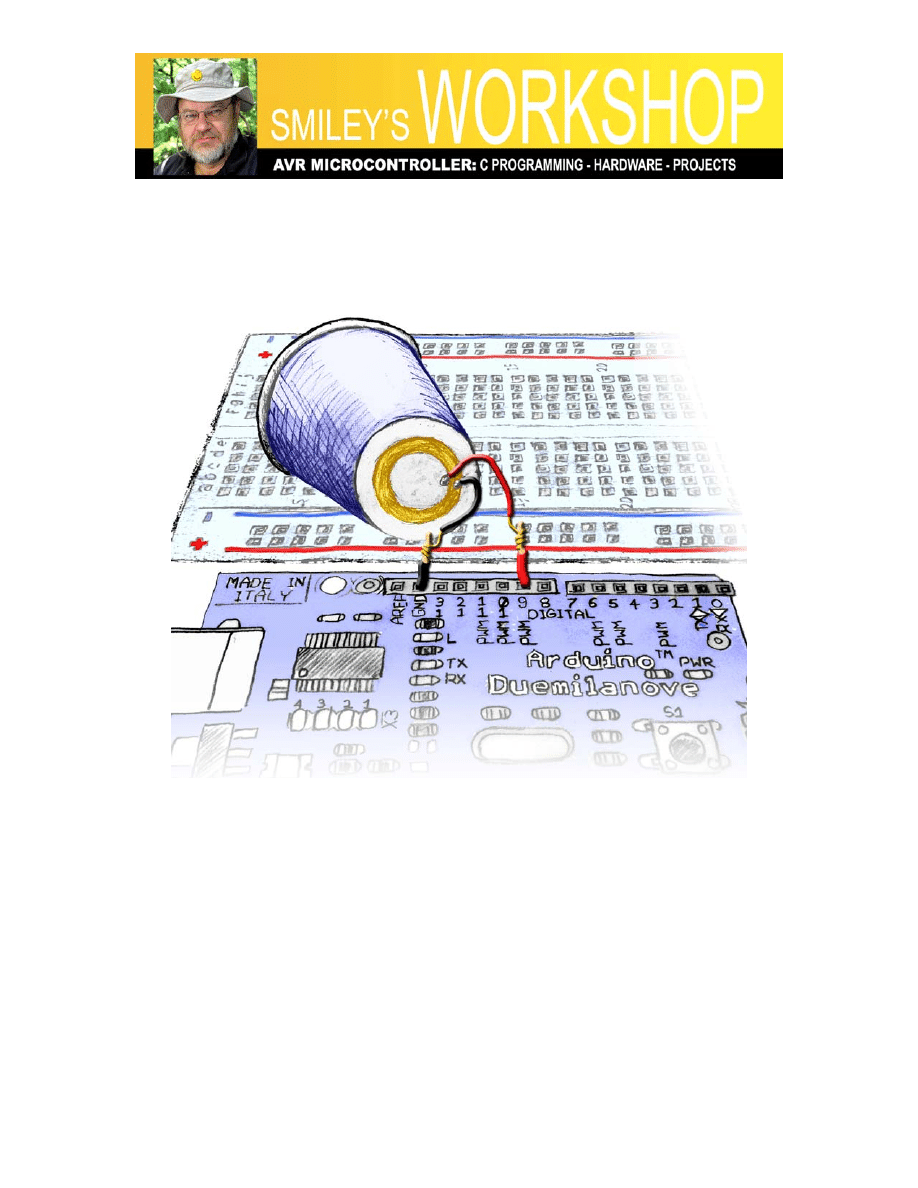
Figure 1: ALP with piezo element
Recap:
In Workshop 9 we began using a new development board, the Arduino Duemilanove
recognizing that The Arduino Way (TAW) is a very simple and easy way to begin using
microcontrollers. We learned, that while TAW uses a C-like language and has an easy to
use IDE, it does not IMHO (In My Humble Opinion) provide a clear path to learning the
C programming language or the details of the AVR architecture -- both of which are our
long-term goals for this Workshop series. To help overcome this, we learned how to
convert TAW code to work with the more standard, IMHO, Atmel AVR tools:
AVRStudio, WinAVR, and AVRDude using A C Way (ACW). And we put together the
AVR Learning Platform (ALP) that uses the Smiley Micros Arduino Projects Kit
(available from Nuts&Volts and Smiley Micros). This will provide our hardware
development system for many Workshops to come. For the next few workshops we will

Smiley’s Workshop 13: More ALP Projects
show the code in The Arduino Way (TAW) and leave A C Way (ACW) in the associated
workshop zip files. After we finish with this introduction to using the kit parts, we will
continue the series using ACW since we will want to do things that cannot be easily done
TAW (such as using timer interrupts). So if you are feeling a little confused, that’s a good
thing. It means you’ve been paying attention.
Last month we did another communications project, learned to read the voltage across a
potentiometer and then revisited some Cylon Optometry. This month we are going to
develop a command interpreter, and then make some noise.
ALP Number Command Interpreter
In WS12 we learned how to send data from a PC terminal to the ALP to set the brightness
of an LED. Let’s expand on that to allow us to send number commands to the ALP and
then use those commands to select different functions in our software, specifically we
will use this in a little while to select some tunes. In a later Workshop we will expand on
this so that we can send words, not just numbers, and pretend that we are having a natural
language conversation with our AVR. We won’t be, but it can get downright spooky how
well these things can pretend to be talking to you.
This code is shown here in TAW. The ACW code is in the Workshop13.zip download.
We will be using the function cmdParse to decide what other functions to call depending
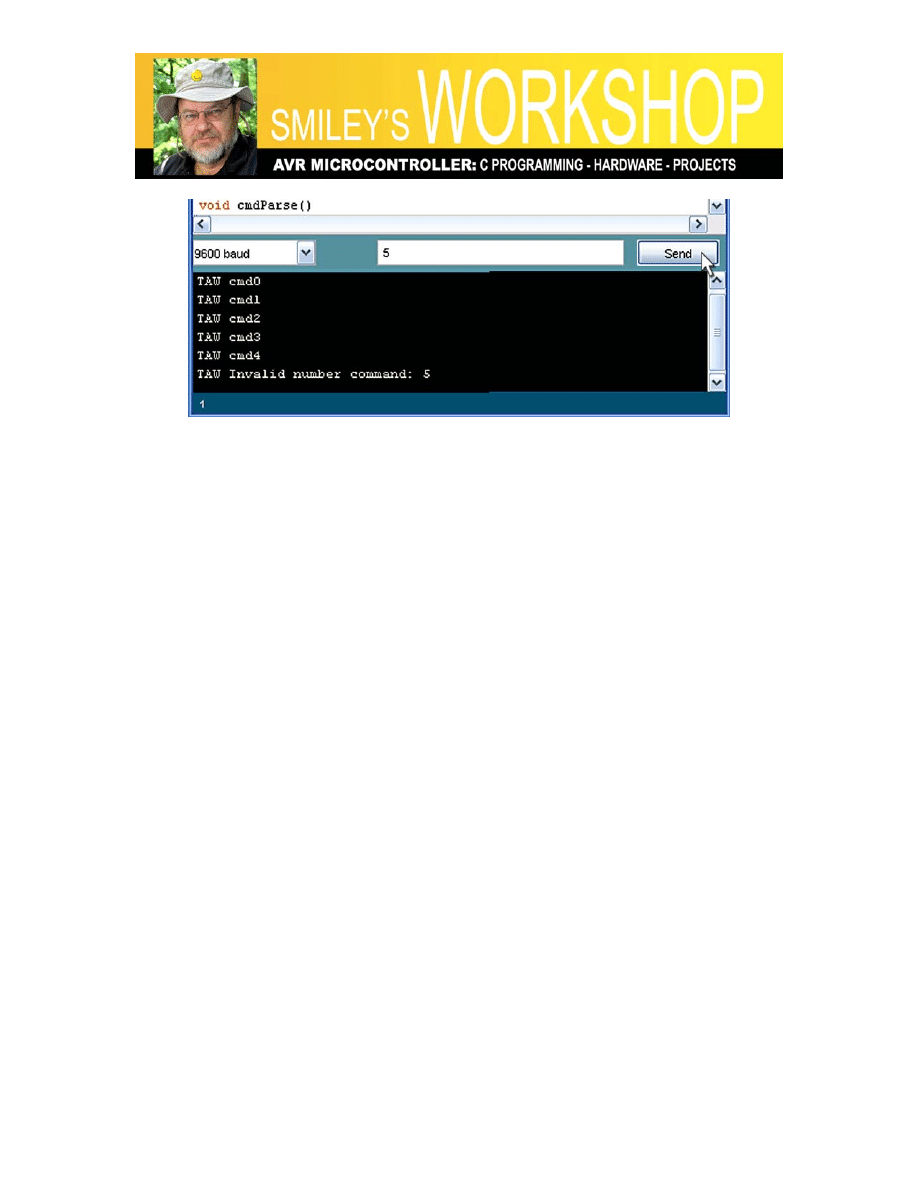
on the user input of a number. The user opens a terminal program, such as the Serial
Monitor in the Arduino IDE (Figure 3: Number Commander in the Serial Monitor) and
sends a number from 0 to 4 to call one of the cmd#() functions (where # is 0 to 4).
Sending any other number will cause the program to send an error message. In this
example code each command function simply sends back a string noting that the
command has been received.
[It will probably help if you refer to the source code cmdParse() function in the
Number_Commander while reading this paragraph.] Our command parser uses a C
programming language switch statement that takes the command number as a parameter
and then looks through a list of case statements to find the case corresponding to the
command number. For each case there is a list of things to do if that particular case is the
correct one. We use this to call a function associated with the particular command and
when the function returns, we call ‘break’ so that the code exits the switch statement (no
need to look further down the list since we have already run the case it was looking for).
If the switch statement gets to the bottom of the case list and still hasn’t found the correct
case, then a ‘default’ case is run, which in our case tells the user that an bad command
was sent and shows that invalid number.

Smiley’s Workshop 13: More ALP Projects
In C there are two main methods for deciding among a list of possibilities, the
switch/case or the if/else constructions. Some folks want to know why C needs both or
how to decide when to use which one. If you want to start an argument, bring this up on
any C related forum, but my rule of thumb is that if you have fewer than four choices, the
if/else will probably be best, and if you have four or more then the switch will probably
be best, but the only real way to decide this is to do both and then look at the compiler
output and see how it handled it. Different C compilers might handle the same code
differently. For our purposes either way would suffice since we aren’t code size or speed
constrained, but I tend to use the switch statement because it just looks better to me.
// Number_Commander TAW
// Joe Pardue May 11, 2009
int cmd = 0;
void setup()
{
Serial.begin(9600);
}
void loop()
{
// check if data has been sent from the computer
if (Serial.available()) {
cmdParse();
}
}
void cmdParse()
{
cmd = Serial.read();
switch(cmd)
{
case '0':
cmd0();
break;
case '1':
cmd1();
break;
case '2':
cmd2();
break;
case '3':
cmd3();
break;
case '4':
cmd4();
break;
Smiley’s Workshop 13: More ALP Projects
default:
Serial.print("TAW Invalid number command: ");
Serial.println(cmd, BYTE);
break;
}
}
void cmd0()
{
Serial.println("TAW cmd0");
}
void cmd1()
{
Serial.println("TAW cmd1");
}
void cmd2()
{
Serial.println("TAW cmd2");
}
void cmd3()
{
Serial.println("TAW cmd3");
}
void cmd4()
{
Serial.println("TAW cmd4");
}
A few folks have informed me that my Developer’s Terminal is printing in Chinese under
some circumstances that I can’t duplicate (at first I though ‘Chinese’ was just a way of
them saying it was random characters, but no, in fact it was Chinese), so check my
website to see if this is fixed yet, and if not use either my Simple Terminal or Bray’s
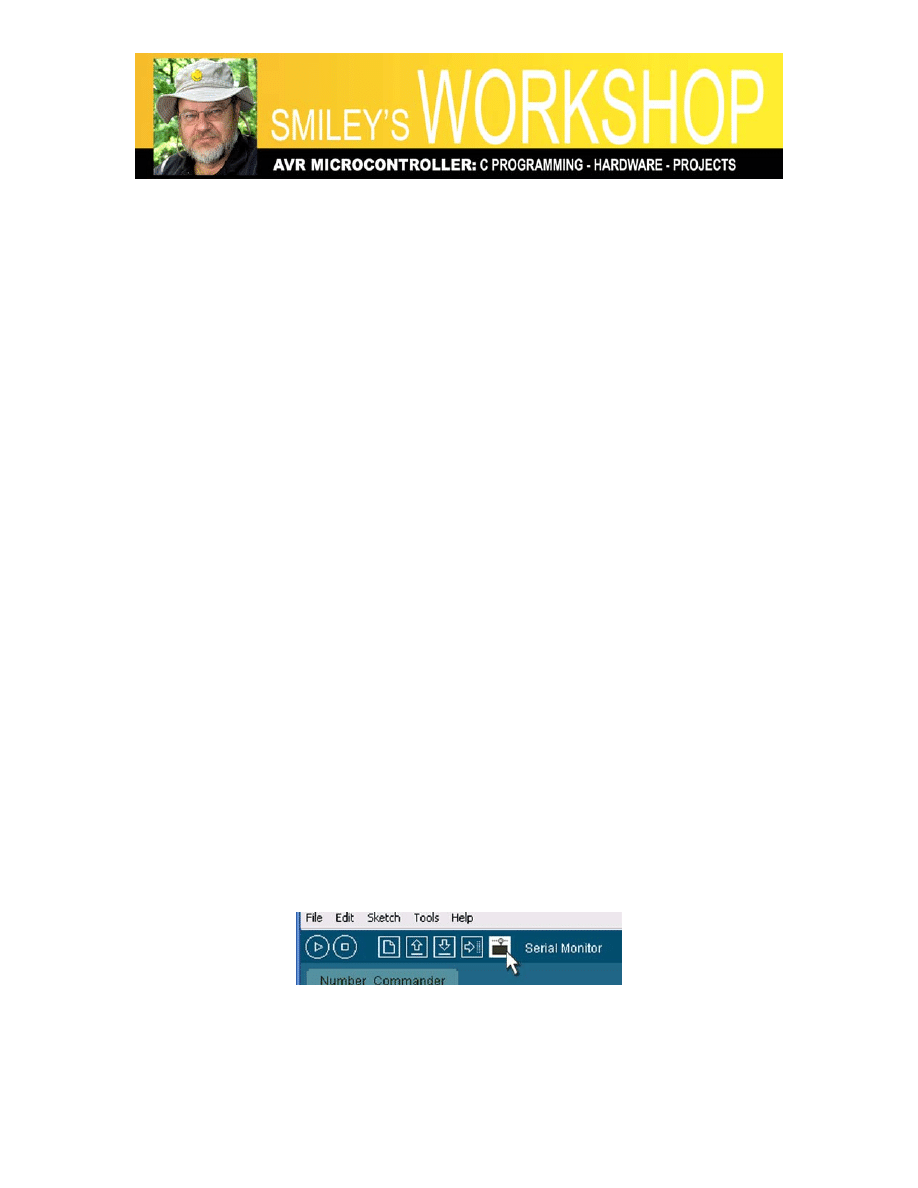
Terminal or, as we will do for this example, use the Serial Monitor (as shown in Figures
2 and 3) that comes with the Arduino IDE.
Figure 2: Select the Arduino IDE Serial Monitor
Smiley’s Workshop 13: More ALP Projects
Figure 3: Number Commander in the Serial Monitor
Making Sounds with a Piezo Element
We are advised to make a joyful noise, and what better than a piezo element? Well,
honestly, just about anything would be better – you don’t get much more low-fidelity
than this. Even calling the sound it makes ‘noise’ is being generous - so lets ask ‘what
cheaper’? And now we are getting somewhere since these things are cheap and don’t
require any external amplification circuitry.
We will listen to high-pitched squeaky renditions of ‘Twinkle Twinkle Little Star’,
‘Happy Birthday to You’ and a couple of alarms [WARNING: only listen to a tune once
or twice or it will get stuck in your head forcing you to listen to an hour of Johnny Rotten
just to get it out].
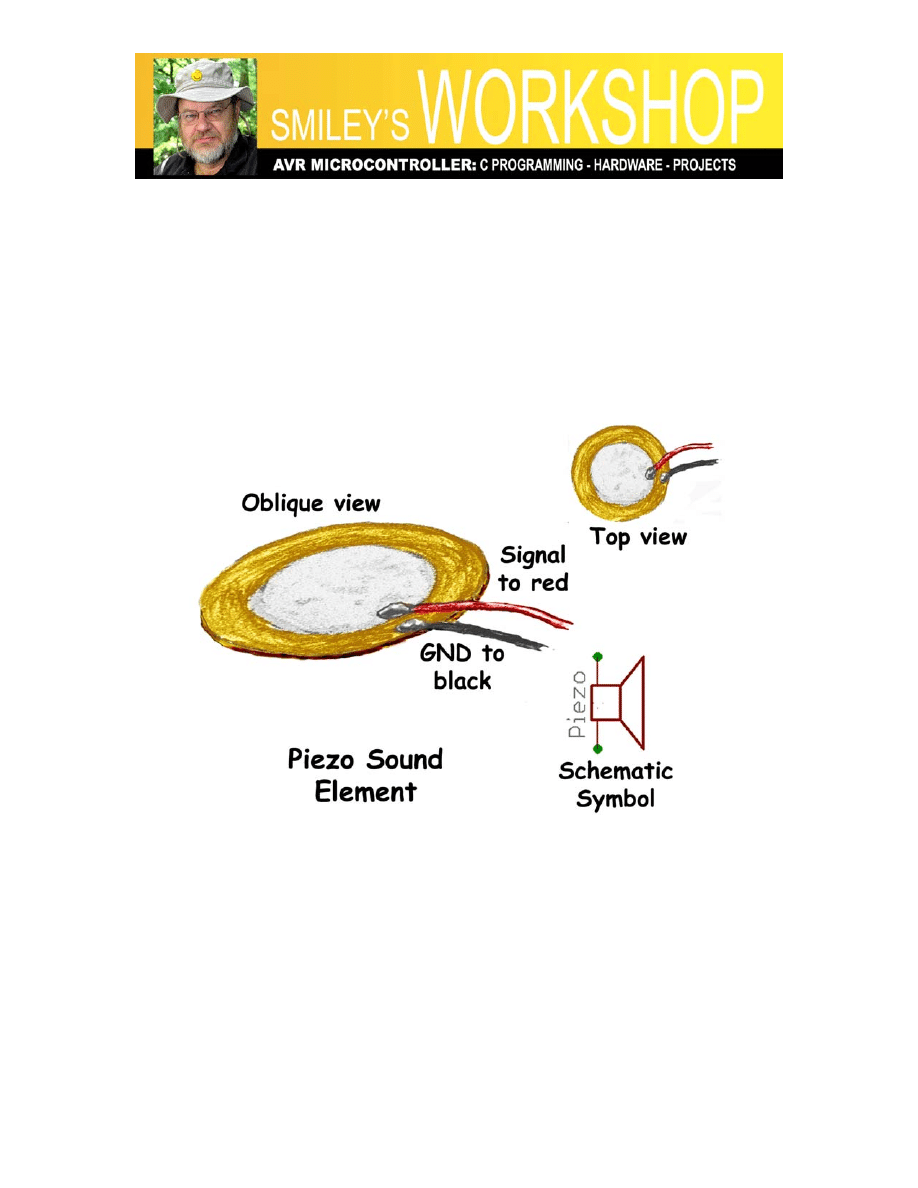
The piezo element in the Arduino Projects Kit is made from a brass disc with a ceramic
disc adhered to it. The brass has the negative (black) wire and the ceramic has the
positive (red) wire soldered to it. These wires are stranded and can’t be used directly with
a breadboard, so take two pieces of 22 AWG solid wire and solder them as extensions to
the piezo wires. See Figure 1: ALP with piezo element.
The piezo element warps in response to voltage changes and if this warping is at audible
frequencies you can hear it. I glued (Elmer’s©)
the brass side of the piezo to the outside
base of a Dixie© cup (one of those small cups you sometimes see in bathroom
dispensers). You may be able to hear the sound without the cup, but the cup provides a
resonant cavity (or some such techno-buzz words) that mechanically amplifies and
directs the sound.
Smiley’s Workshop 13: More ALP Projects
BTW, there are many piezo-buzzers out there and they often have special circuitry to
create their own buzz, meaning they are either quiet or squalling, but can’t be made to
output a specific frequency and are not suitable for this project.
Sounds Components, Schematic, Layout
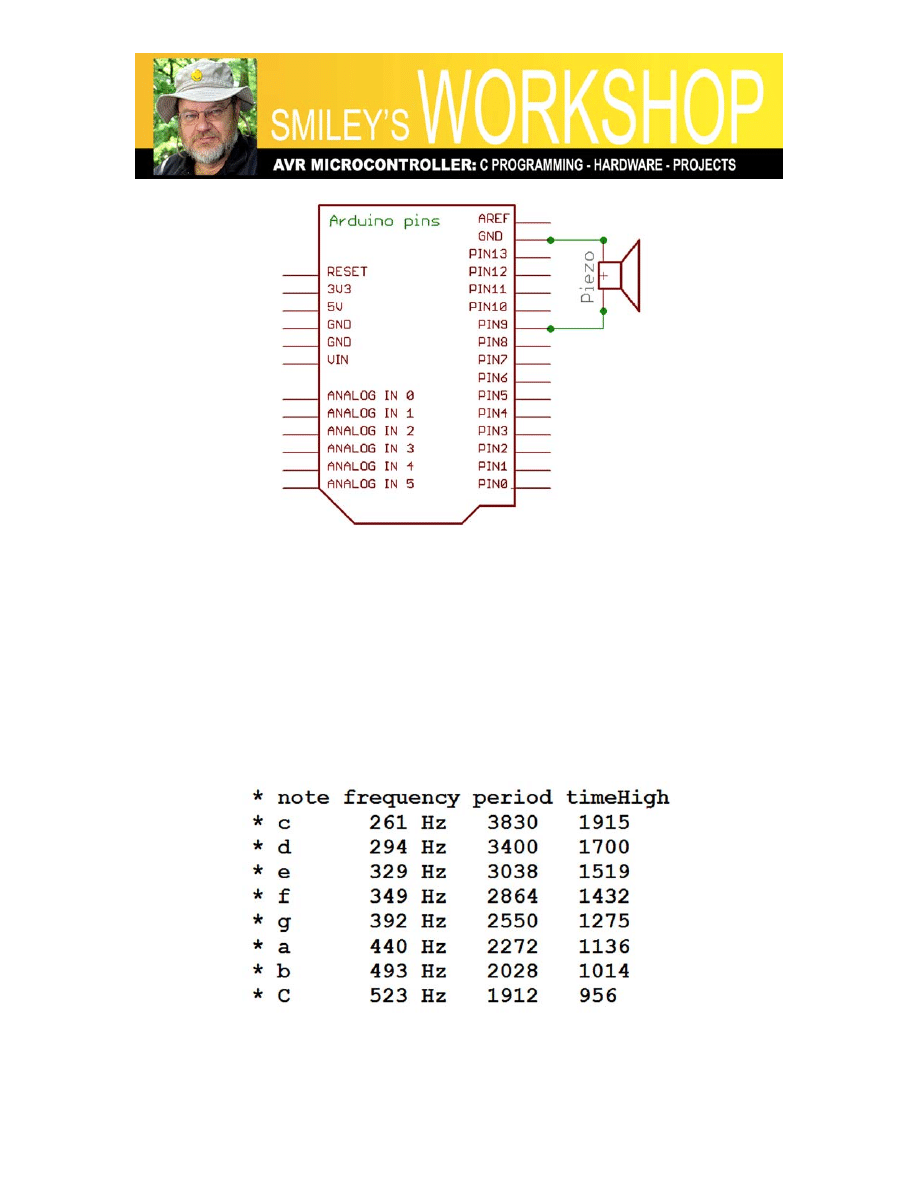
The piezo element drawing and schematic symbol from the Arduino Projects Kit are
shown in Figure 4: Piezo sound element; the schematic for the project in Figure 5:
Arduino with piezo element schematic; and the layout illustration is in Figure 1: ALP
with piezo element.
Figure 4: Piezo sound element
Smiley’s Workshop 13: More ALP Projects
Figure 5: Arduino with piezo element schematic
Tunes
The musical part of the code is based on the Arduino IDE example Melody code written
by D. Cuartielles that I expanded to include another tune and some interesting noises.
For us to create a recognizable tune we need to control the musical notes (tones) and the
duration between the notes (beat). For simple tunes we can live with eight tones (a music
octave) each having a specific a frequency. Each of these tones has a letter ‘note’
assigned to it by musicians as in Figure 6: Note table.
Figure 6: Note table
Smiley’s Workshop 13: More ALP Projects
We will keep this as simple as possible and generate these notes using the Arduino
library delayMicroseconds function. (A microsecond is 1/1,000,000 second - yes: one
millionth of a second – you have heard that computers are fast haven’t you?).
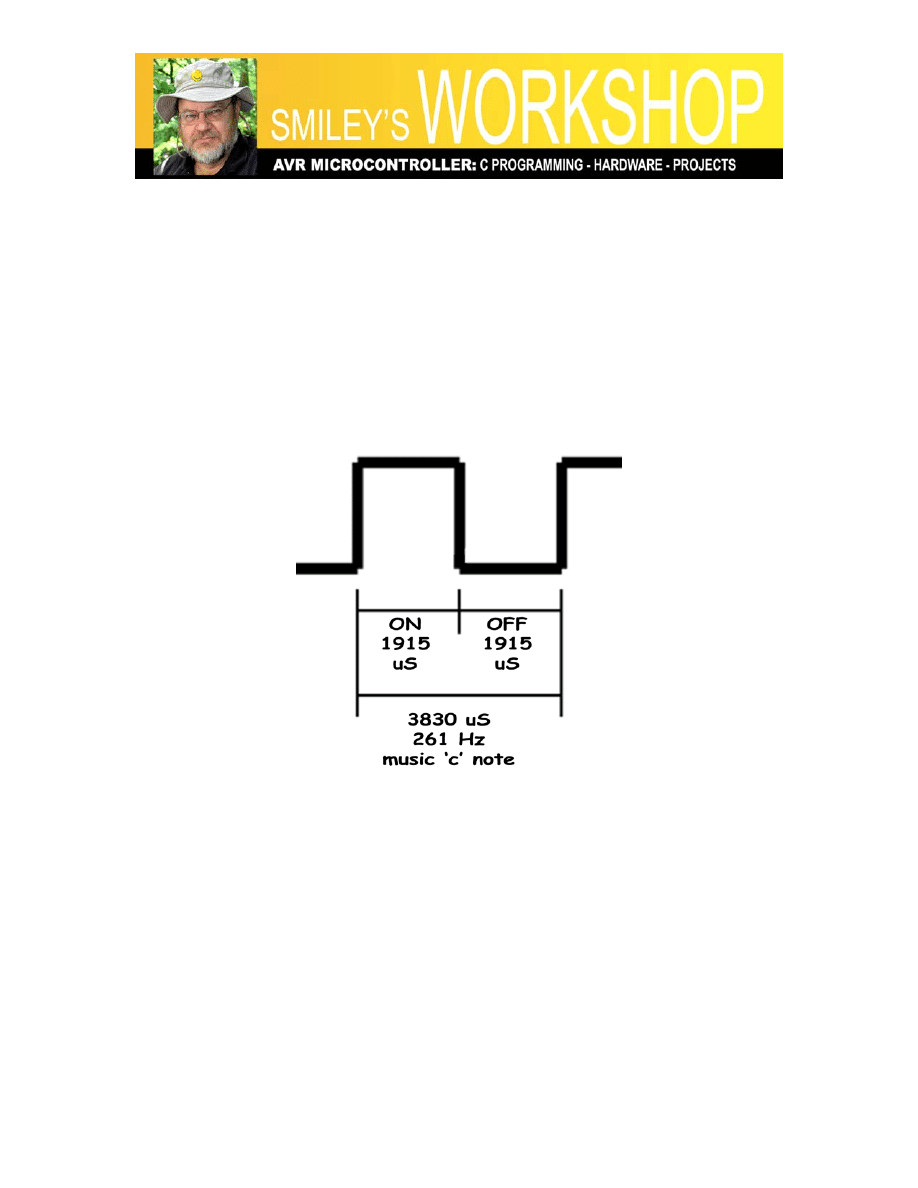
To generate the ‘c’ note we create an output waveform (see Figure 7: ‘c’ note waveform)
that turns on and off with a frequency of 261 cycles per second. Each of these on/off
cycles occurs in 1/261 of a second or 0.003831 seconds. Since we are dealing with
microseconds we multiply this by 1,000,000 to get 3831 microseconds per cycle. And
since we need to cycle the pin (turn the pin on and off) in that time, we turn it on for
3831/2 = 1915 microseconds (throwing away the fractional part) and off for 1915
microseconds giving us a total of 3830 - we lost 1 due to our not wanting to use fractions,
but who is going to miss a microsecond?
Figure 7: ‘c’ note waveform
In the Tunes program we use a playTone function that takes the tone and the duration as
parameters. A loop repeats the on/off cycle for the note parameter for a length of time in
the duration parameter. It might, for instances, turn the speaker on for 1915 uS and off for
1915 uS repeating for a full second to give a rather long ‘c’ note. The playTone function
is called by the playNote function that has the job of reading through the tune array to get
the next note/duration combination.
Each tune is played by an individual function that contains two arrays, one for the tune
notes and one for the tune beat. It calculates the duration from the beats and sends that
duration along with the tune note to the playNote function. The playNote function reads
through an array of note names and uses that name position in that array to get the
number for the microseconds needed to play that note. It then calls playTone with the

Smiley’s Workshop 13: More ALP Projects
tone microseconds and the duration as parameters. The playTone uses those parameters
to turn the pin connected to the piezo element on and off thus generating exquisite music
like none heard since the last pterodactyl blundered into a fern tree.
Tunes Source Code
The Tunes source code is shown here in TAW abridged from the full code that is
available along with the ACW version in Workshop13.zip. It is shortened since there is a
lot of repetition in how the tunes are played. Twinkle, Twerdle, Euro Siren, and Beep
Beep are in the zip file. AND a note to more experienced programmers: yes I know this
isn't the 'best' way to do this, but this is instructional code for novices. I have some
comments with the zipped code about better ways and I will show those ways in a future
workshop.
/* TAW Tunes
* Joe Pardue May 13, 2009
* based on Arduino example code Melody
* www.arduino.cc/en/Tutorial/Melody
* (cleft) 2005 D. Cuartielles for K3
*/
// define numbers for tunes
#define Twinkle 0
#define Happy_Birthday 1
#define Euro_Siren 2
#define Twerdle 3
#define Beep_Beep 4
// create and intialize global variables
int speakerPin = 9; // pin to drive the piezo element
int tune = 0; // tune to play
void setup() {
Serial.begin(9600);
pinMode(speakerPin, OUTPUT);
// greetings
Serial.println("TAW Tunes");
Serial.println("Enter 0 for Twinkle Twinkle Little Star");
Serial.println("Enter 1 for Happy Birthday");
Serial.println("Enter 2 for Euro Siren");
Serial.println("Enter 3 for Twerdle Alarm");
Serial.println("Enter 4 for Beep Alarm");
}
void loop() {

Smiley’s Workshop 13: More ALP Projects
// check if data has been sent from the computer
if (Serial.available()) {
cmdParse(); // if true, get the data and parse it
}
}
// use a switch statement to decide which tune to play
void cmdParse(){
tune = Serial.read();
switch(tune){
case '0':
play_Twinkle();
break;
case '1':
play_Happy();
break;
case '2':
play_Euro();
break;
case '3':
play_Twerdle();
break;
case '4':
play_Beep();
break;
default:
Serial.print("TAW Invalid tune: ");
Serial.println(tune, BYTE);
break;
}
}
void playTone(int tone, int duration) {
for (long i = 0; i < duration * 1000L; i += tone * 2) {
digitalWrite(speakerPin, HIGH);
delayMicroseconds(tone);
digitalWrite(speakerPin, LOW);
delayMicroseconds(tone);
}
}
void playNote(char note, int duration) {
char names[] = { 'c', 'd', 'e', 'f', 'g', 'a', 'b', 'C' };
int tones[] = { 1915, 1700, 1519, 1432, 1275, 1136, 1014, 956 };
// play the tone corresponding to the note name
for (int i = 0; i < 8; i++) {
if (names[i] == note) {
playTone(tones[i], duration);

Smiley’s Workshop 13: More ALP Projects
}
}
}
//Happy Birthday
int Happy_length = 26; // the number of notes
char Happy_notes[] = "ccdcfeccdcgfccCafedbbafgf "; // a space
represents a rest
int Happy_beats[] = { 1, 1, 2, 2, 2, 4, 1, 1, 2, 2, 2, 4, 1, 1, 2, 2,
2, 2, 6, 1, 1, 2, 2, 2, 2, 4 };
int Happy_tempo = 150;
void play_Happy(){
for (int i = 0; i < Happy_length; i++) {
if (Happy_notes[i] == ' ') {
delay(Happy_beats[i] * Happy_tempo); // rest
} else {
playNote(Happy_notes[i], Happy_beats[i] * Happy_tempo);
}
// pause between notes
delay(Happy_tempo / 2);
}
}
Well, that’s all the room for this month. Next month we will look at the Arduino Projects
Kit light and temperature sensors along with some coding techniques for presenting
fractional values of data without having to store fractions.
The Arduino Projects Kit:
Smiley Micros and Nuts&Volts are selling a special kit: The Arduino Projects Kit.
Beginning with Workshops 9 we started learning simple ways to use these components,
and in later Workshops we will use them to drill down into the deeper concepts of C
programming, AVR microcontroller architecture, and embedded systems principles.
With the components in this kit you can:
• Blink 8 LEDs (Cylon Eyes)
• Read a pushbutton and 8-bit DIP switch
• Sense voltage, light, and temperature
• Make music on a piezo element
• Detect objects and edges
• Optically isolate voltages
• Fade LED with PWM
• Control motor speed
• And more…

Smiley’s Workshop 13: More ALP Projects
And a final note: the USB serial port on the Arduino uses the FTDI FT232R chip that
was discussed in detail in the article “The Serial Port is Dead, Long Live the Serial Port’
by yours truly in the June 2008 issue of Nuts&Volts.
You can also get the book “Virtual
Serial Programming Cookbook” (also by yours truly) and associated projects kit from
either Nuts&Volts or Smiley Micros.
LINKS: You can find the source code and supplements for this article in Workshop13.zip
on the Nuts&Volts and Smiley Micros websites.
Document Outline
Wyszukiwarka
Podobne podstrony:
lp a Worksheet 13
eim2 13 worksheet
eim1 13 worksheet
eim3 13 worksheet
phonics worksheet v1 13
13 Workshop Klimaanlage
CE Elementary module 13 web worksheet
13 ZMIANY WSTECZNE (2)id 14517 ppt
13 zakrzepowo zatorowa
Zatrucia 13
pz wyklad 13
13 ALUid 14602 ppt
pz wyklad 13
ZARZ SRODOWISKIEM wyklad 13
Biotechnologia zamkniete użycie (2012 13)
więcej podobnych podstron