17
3.3.1
Auto-Backup
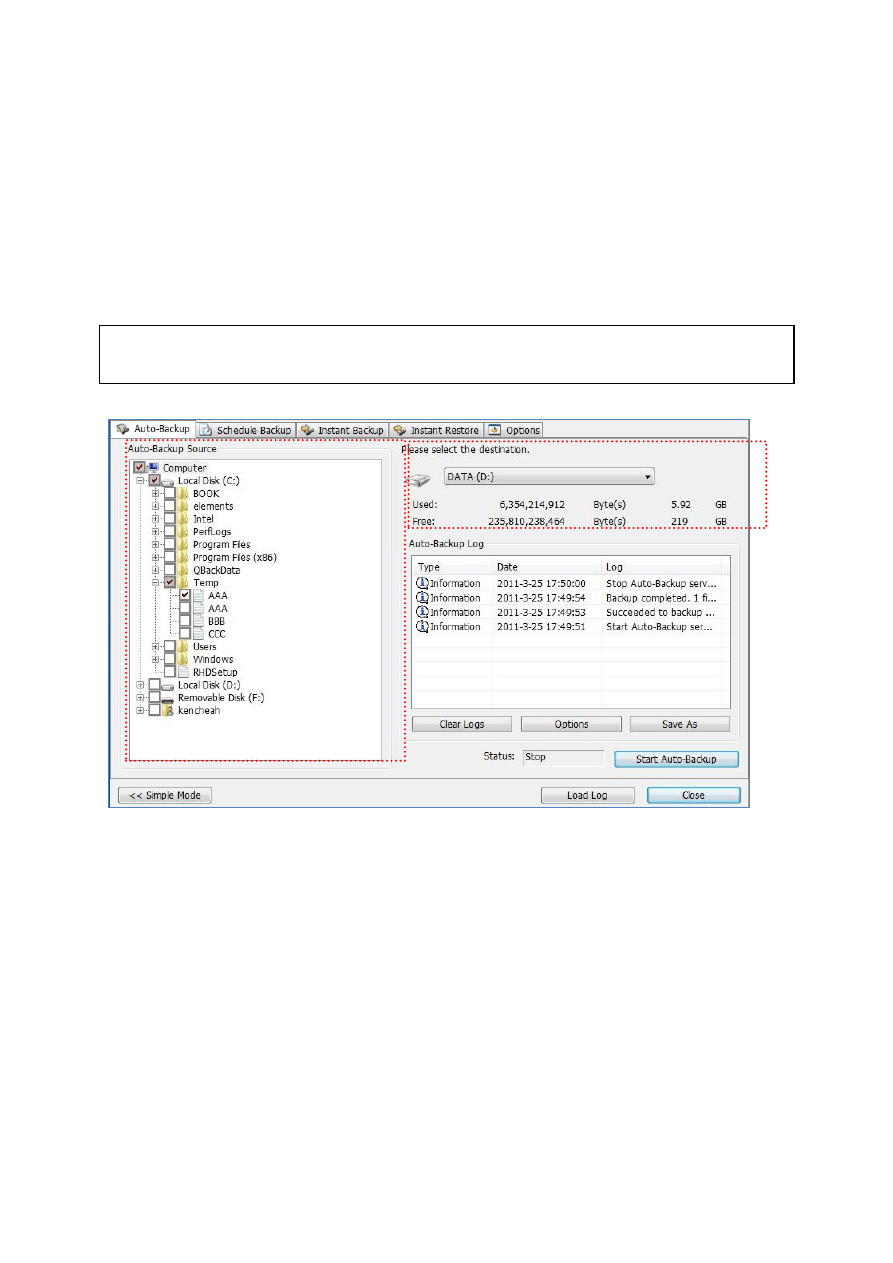
The NetBak Replicator software supports automatic backup of the computer drives, My
Documents, Desktop, and Favorites to QNAP QBack devices, local or external disk drives, or
network shares. When source files are added, modified or deleted, the changes will be
synchronized with the destination automatically.
Note: Incremental backup is used for this feature. After the first time data backup,
NetBak Replicator only copies the changed files since the last backup.
Source
Destination

18
Function
Description
Source
Select the files and folders for automatic backup.
Destination
Select the destination drive to back up the data to. The
destination can be a QNAP QBack device, a local or an
external disk drive, or a network share.
Clear Logs
Mouse over the log to view the details. To clear the logs,
click “Clear Logs”.
Options
Click “Options” and select to view all event logs or view
warning and error logs only.
Save As
To save the backup information, click “Save As” to save
the logs as *.log file.
Start Auto-Backup/Stop
To execute automatic backup, click “Start Auto-Backup”.
If the files have never been backed up before, the backup
will start automatically. The backup logs and the status
will be displayed.
Click “Stop” to disable the auto-backup.
Simple Mode
Return to Simple Mode.
Load Logs
To view the previously saved logs, click “Load Log” and
select the log file.
Close
Close NetBak Replicator.
Wyszukiwarka
Podobne podstrony:
NetBak Replicator Manual ENG Część14
NetBak Replicator Manual ENG Część11
NetBak Replicator Manual ENG Część5
NetBak Replicator Manual ENG Część13
NetBak Replicator Manual ENG Część1
NetBak Replicator Manual ENG Część12
NetBak Replicator Manual ENG Część10
NetBak Replicator Manual ENG Część4
NetBak Replicator Manual ENG Część3
NetBak Replicator Manual ENG Część2
NetBak Replicator Manual ENG Część7
NetBak Replicator Manual ENG Część8
NetBak Replicator Manual ENG Część6
Manual eng
LOTR War in the North manual ENG
Manual eng
więcej podobnych podstron