WE MAKE THE WORLD MOVE
KEB
COMBIVIS setup for Ethernet Operator
Communication with PC
2
fixed date
description of the
presentation
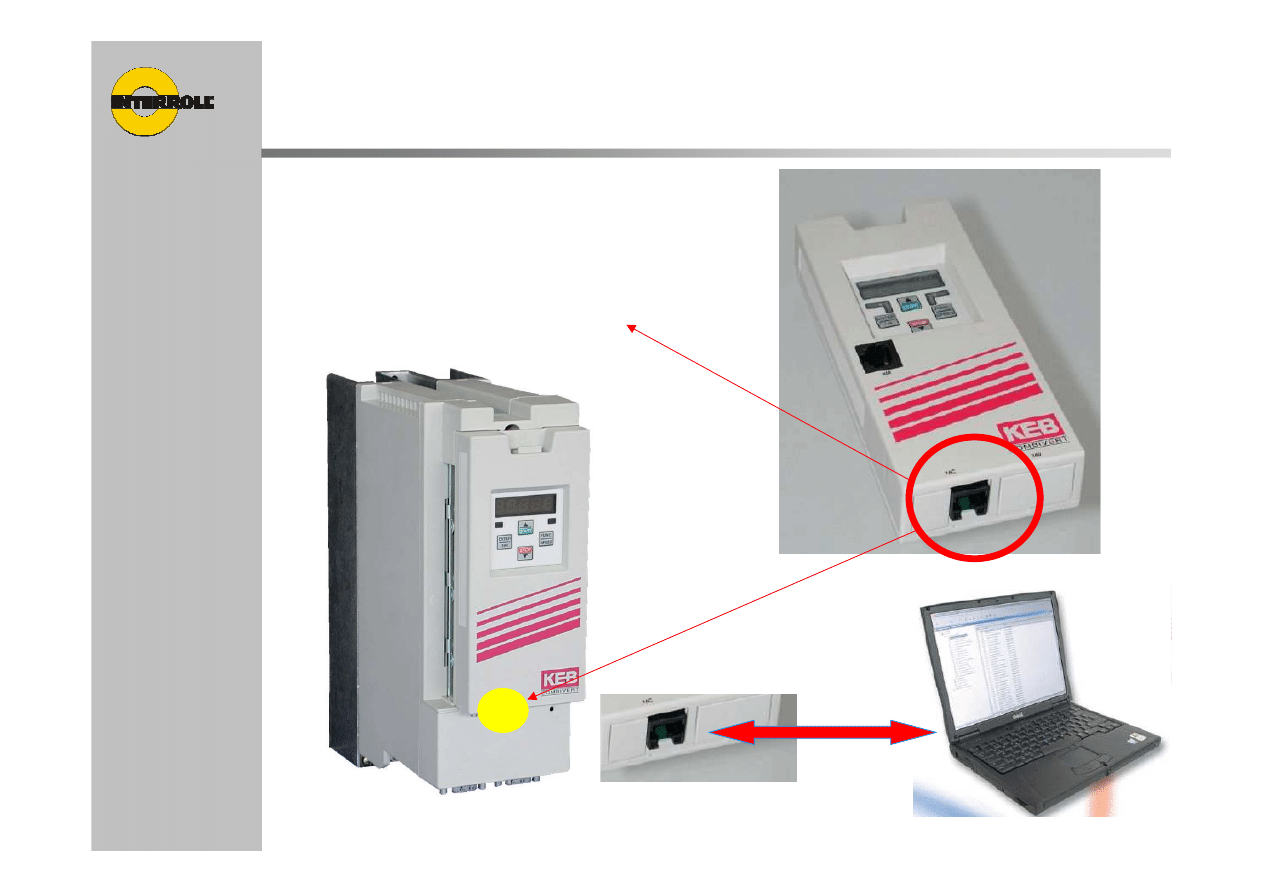
KEB Ethernet Operator
Ethernet socket “X6C”
For connection to PC
Standard RJ45 ethernet cable
3
fixed date
description of the
presentation
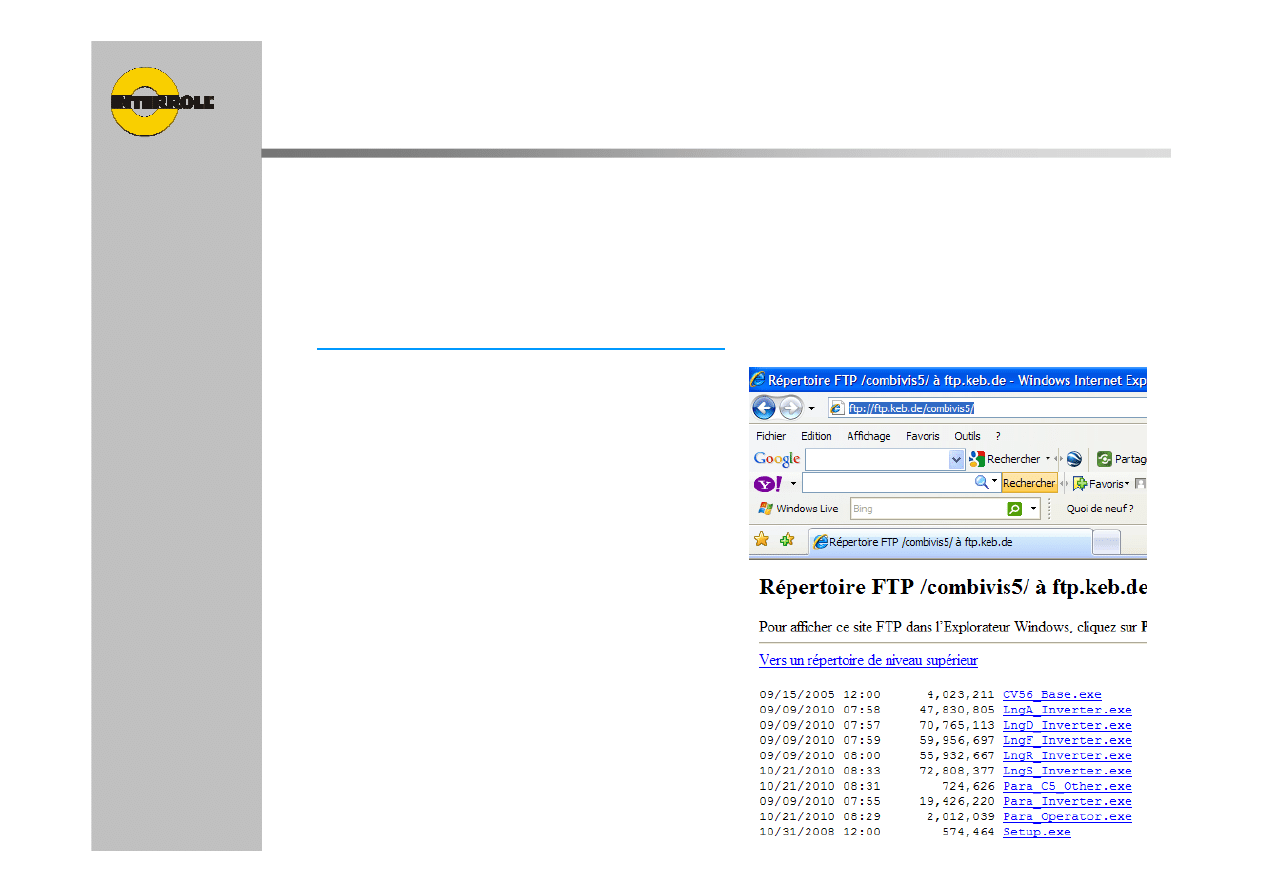
Install the Combivis on the PC
To use the Ethernet operator and PC, the Combivis
software must be installed on the PC
To install the Combivis, please download
(
ftp://ftp.keb.de/combivis5/
) and execute the
following .exe
CV56_Base
Para_Inverter
4
fixed date
description of the
presentation
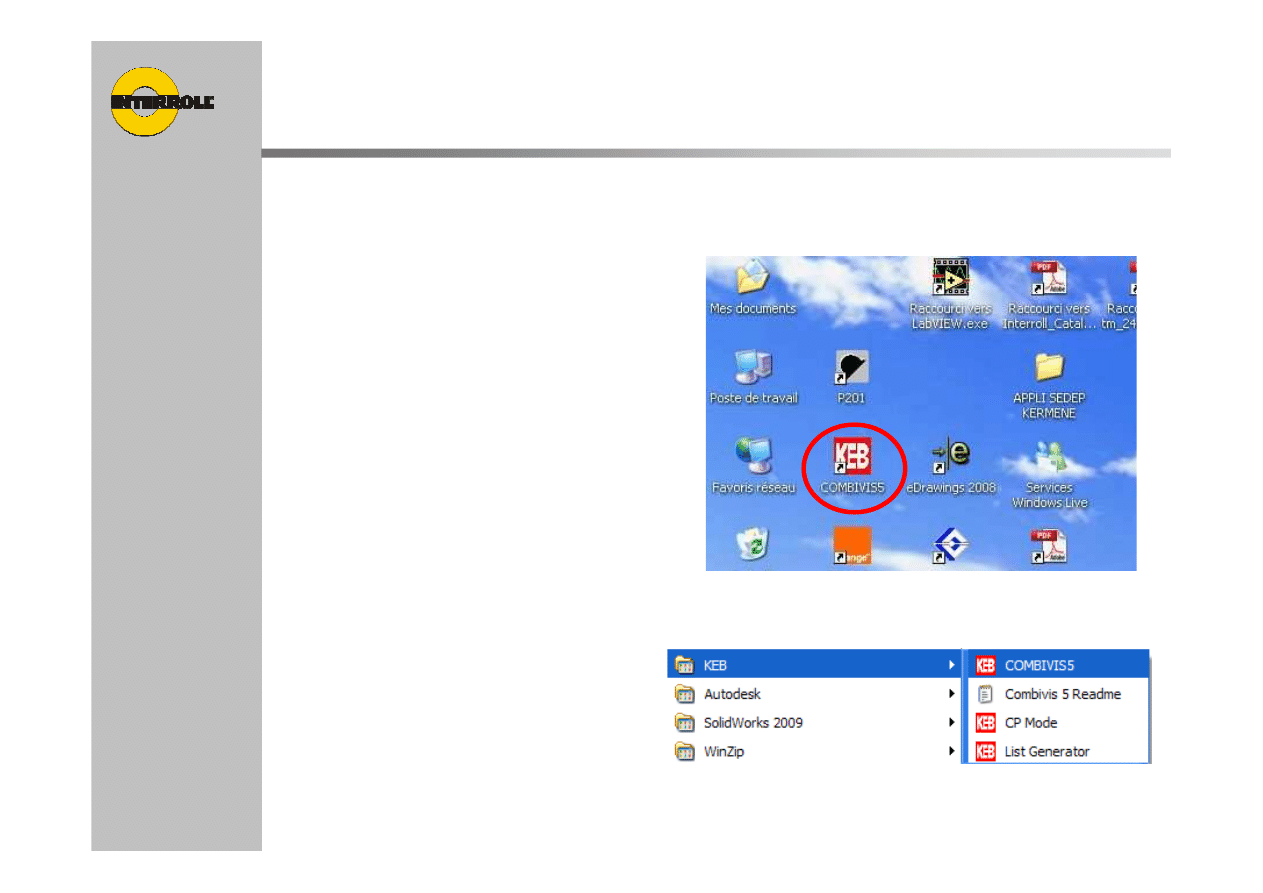
Start / Launch Combivis
Start the Combivis
by the desktop link
Or by software selection
5
fixed date
description of the
presentation
Start / Launch Combivis
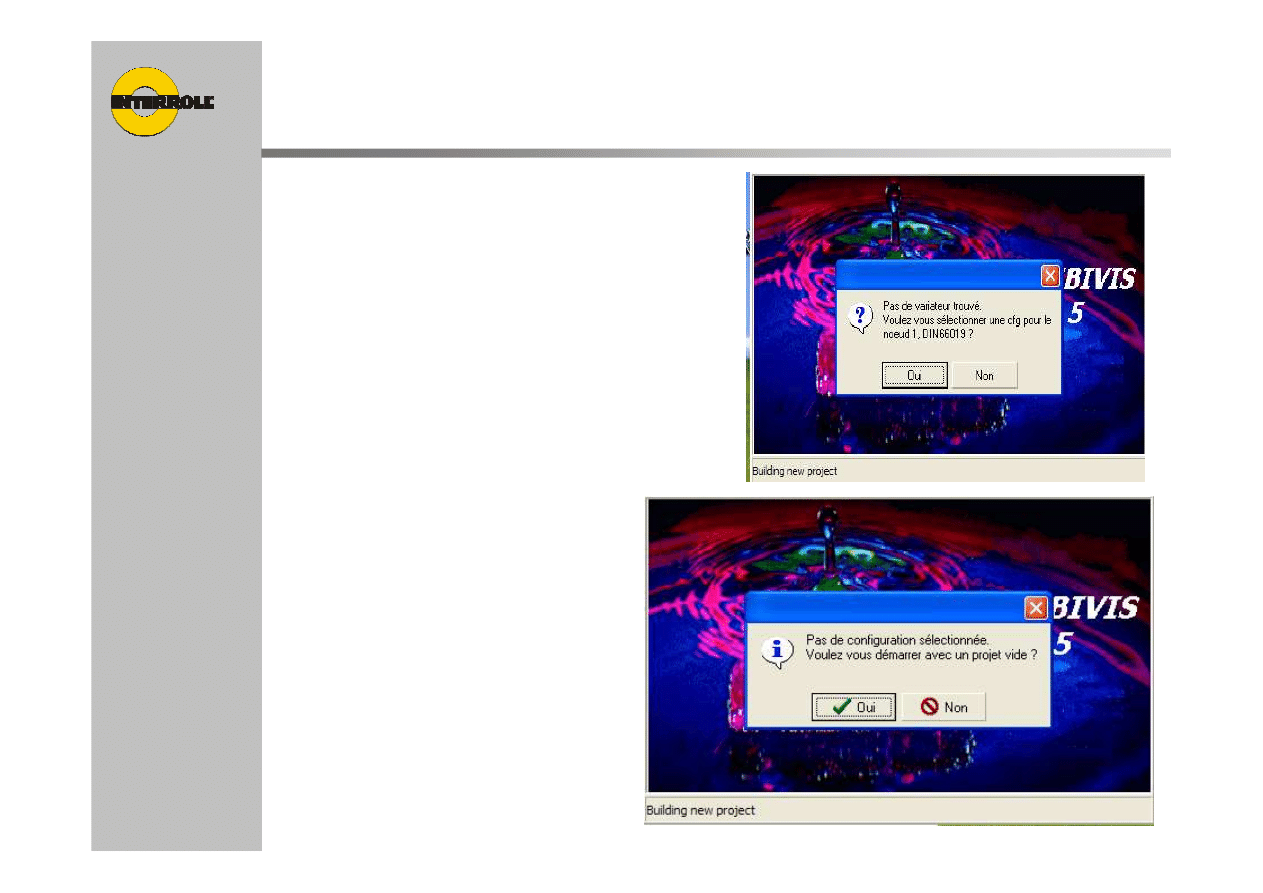
You get a message saying that no
Inverter has been founded.
Please click on “NO”
You get a 2
nd
message asking to start
With an empty project
Please click on “YES”
6
fixed date
description of the
presentation
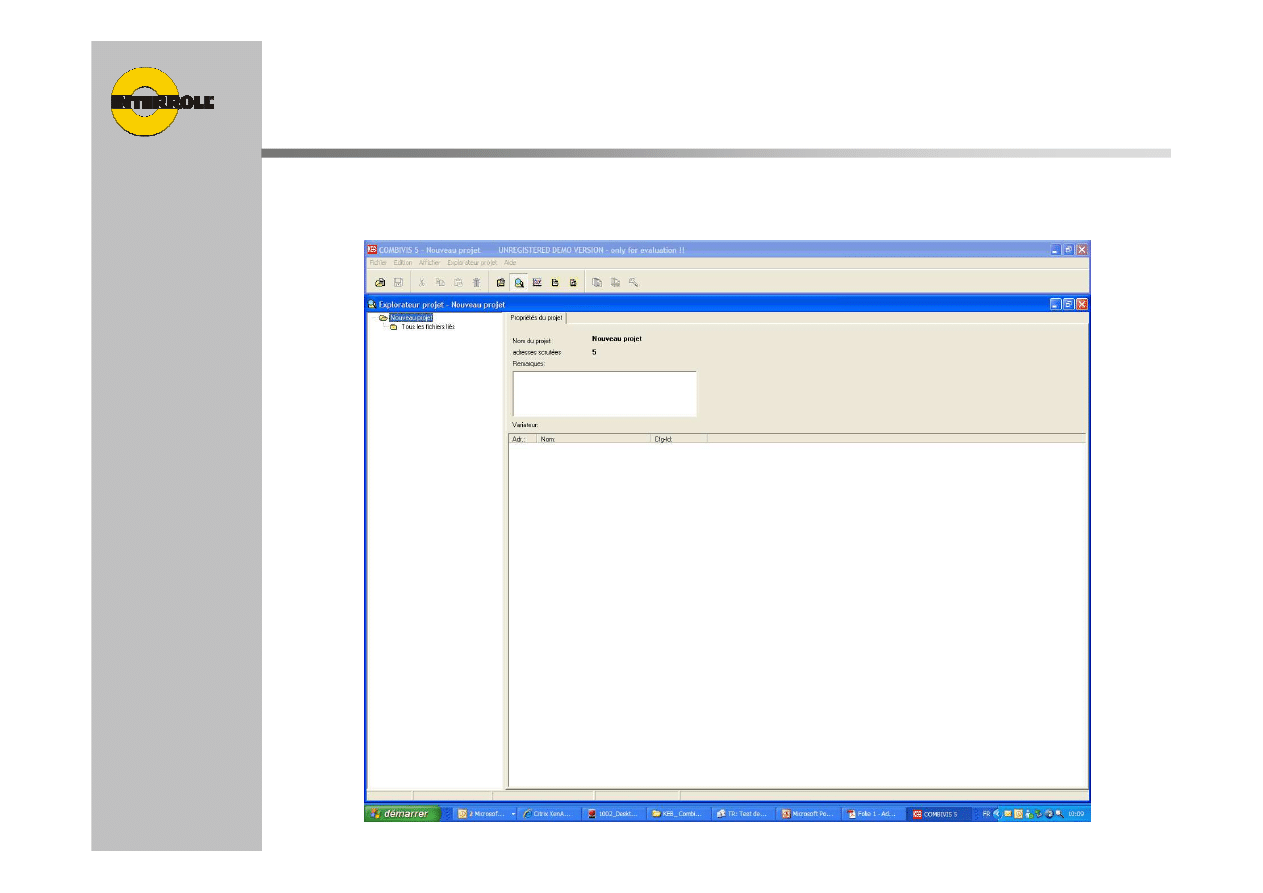
New project screen
Then the global screen of Combivis is opened
7
fixed date
description of the
presentation
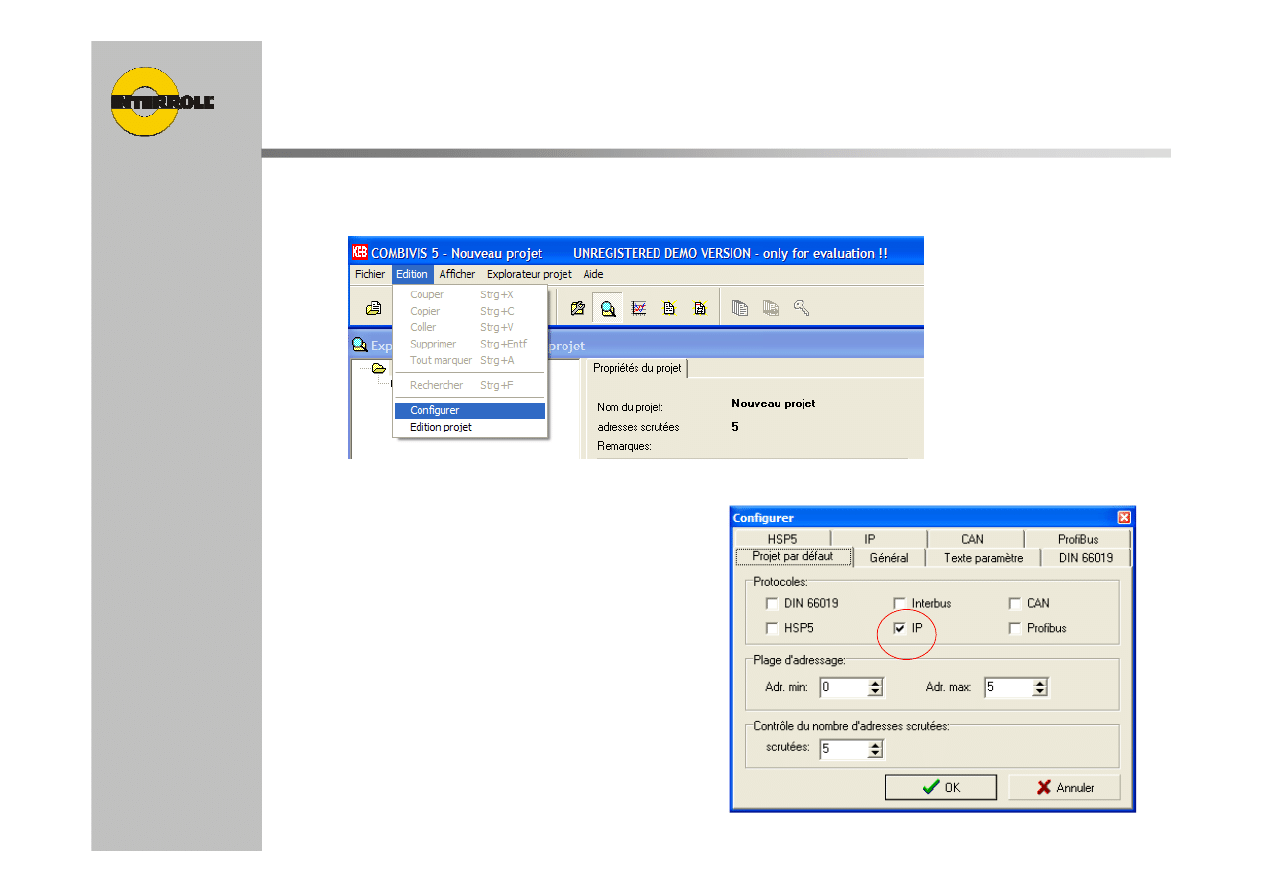
Setup the IP connection
Go into the tool bar “Edit / Configuration”
Select the field “project
by default” and select only “IP”
8
fixed date
description of the
presentation
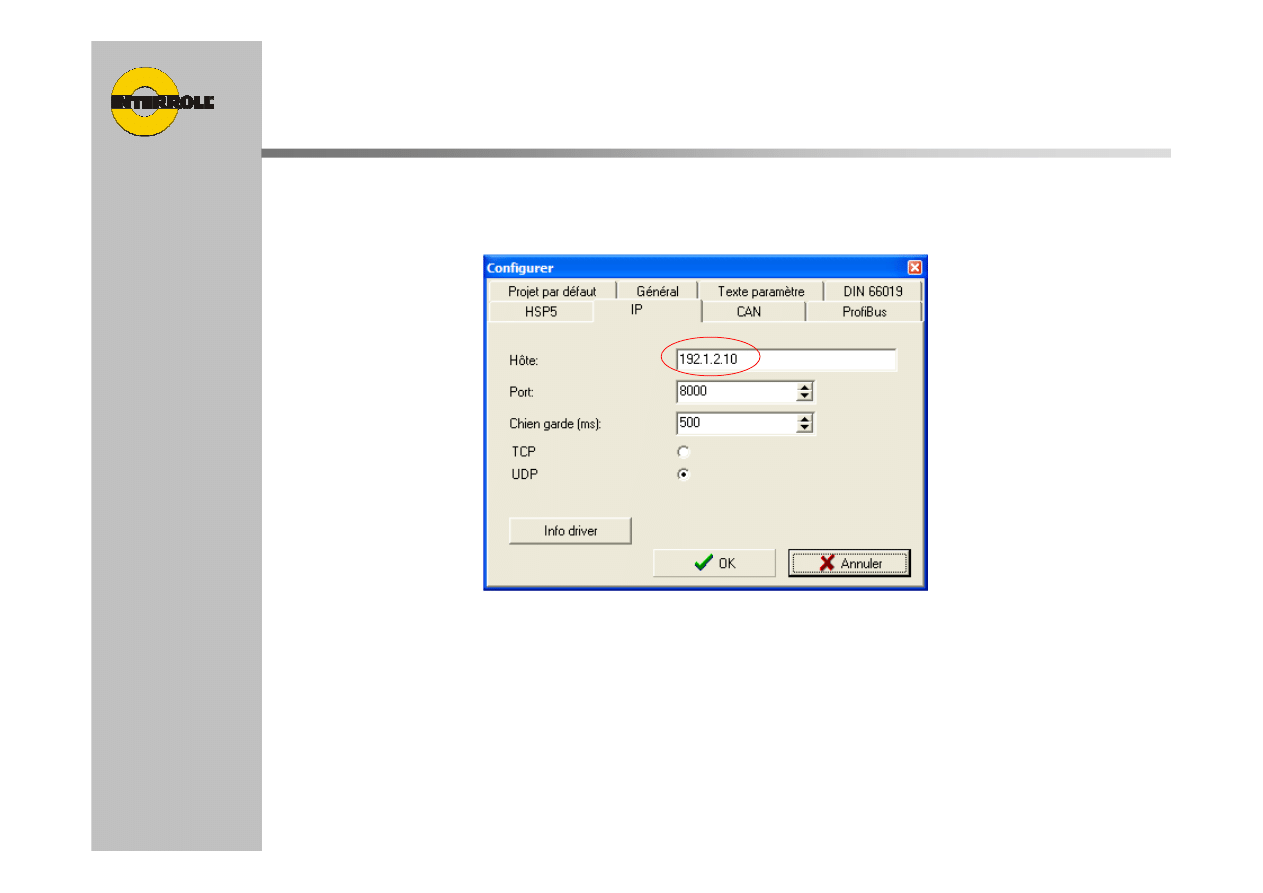
Combivis IP address setup
Select the field “IP” and fill in the IP address
needed
Click on “OK” to finish the setup
9
fixed date
description of the
presentation
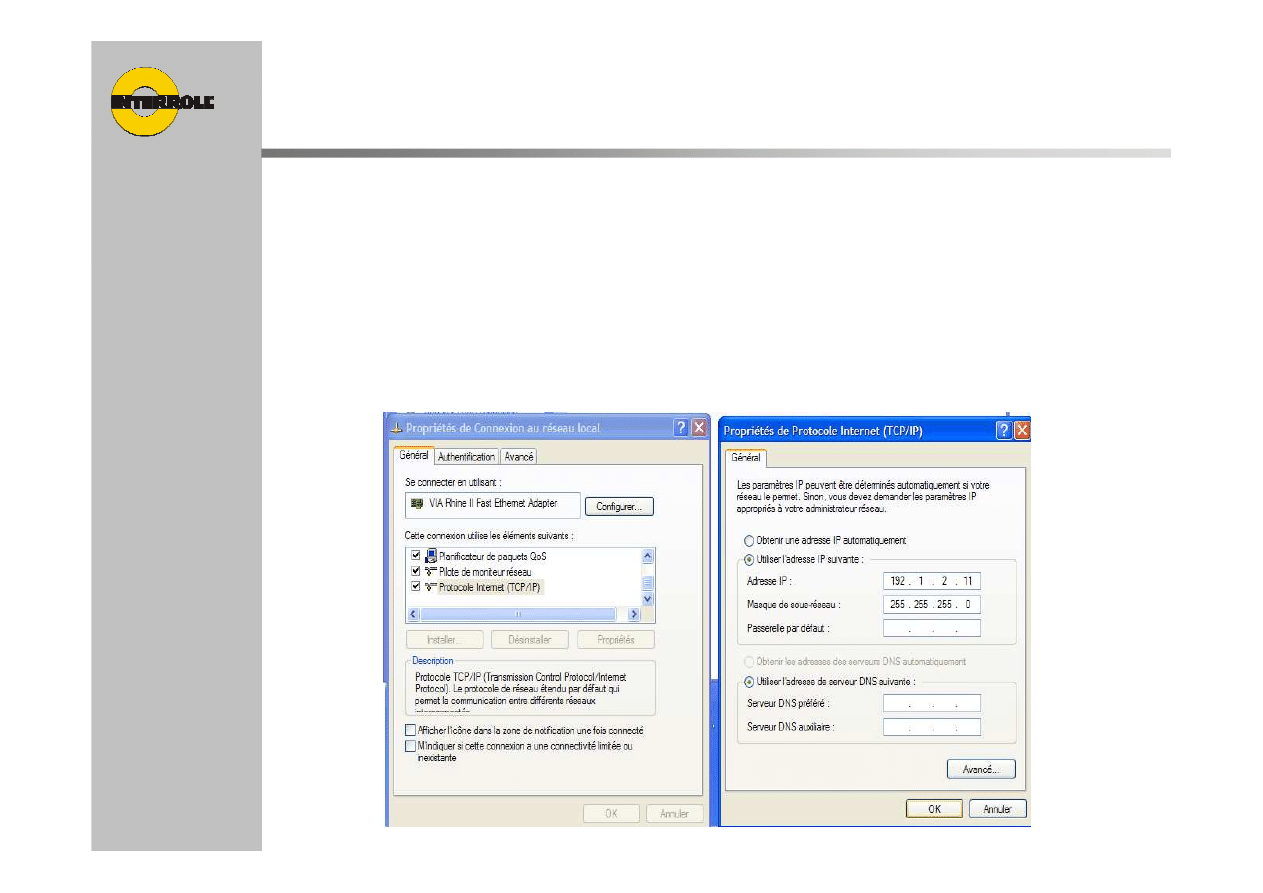
Setup IP adress of the PC
Connection via Ethernet
It can be required to make adjustments in the network
manager of the PC
Set the network manager/LAN connection to a fix IP adress =
adress of the KEB operators.
Take only the first 3 bytes and let the last byte blank.
10
fixed date
description of the
presentation
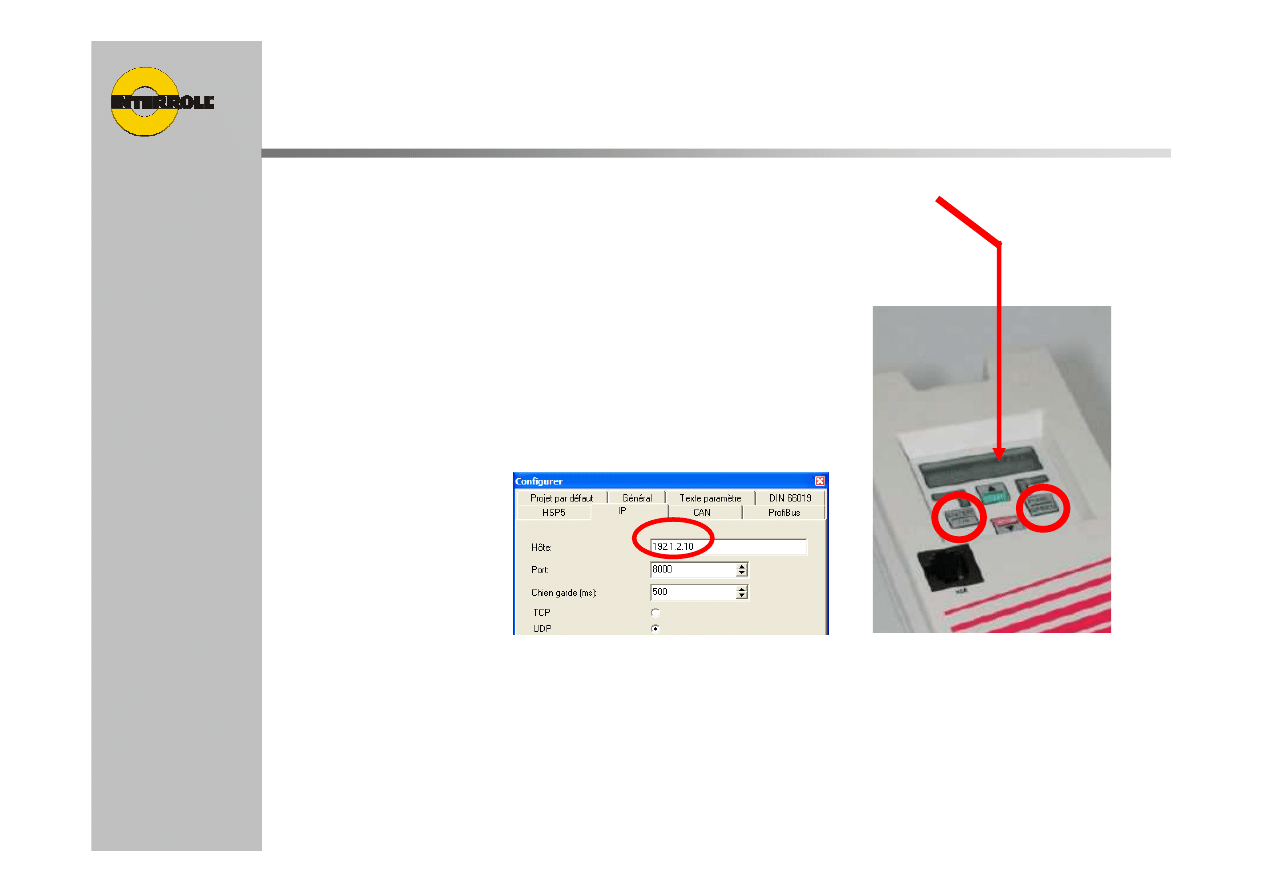
Check or Setup IP adress of the Operator
The keys ENTER and FUNC are to be pressed simultaneously and
been hold until the display shows five dots
With the FUNC-key the desired parameter is selected
IP_1 = highest byte of the IP-address
IP_2 = 2.nd byte of IP-address
IP_3 = 3.rd byte of IP-address
IP_4 = lowest byte of IP-address
Enter IP address must be same
as Combivis IP setup
UP or DOWN shows and changes the value
With the ENTER-key the value is stored (FUNC without previous
ENTER does not change the value !).
For leaving the setup mode the keys FUNC and ENTER are hold
simultaneously again until the display shows five dots
11
fixed date
description of the
presentation
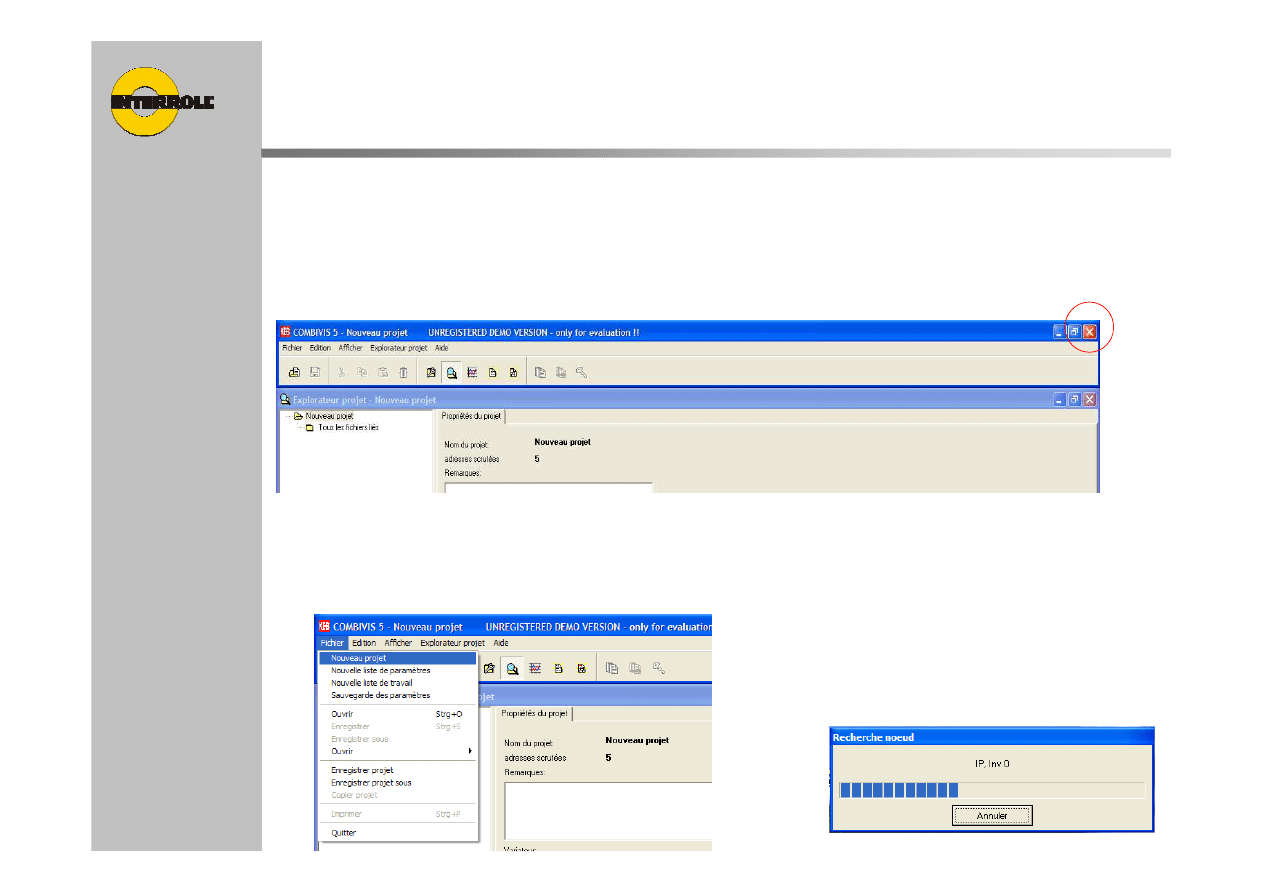
Search for connected inverter to PC
Close the Combivis by clicking on the red cross
When restarting the Combivis, the PC will
automatically search for inverter connected
Or search for a new inverter by clicking on
“File/New project”
Combivis then starts to search for
a connected inverter
12
fixed date
description of the
presentation
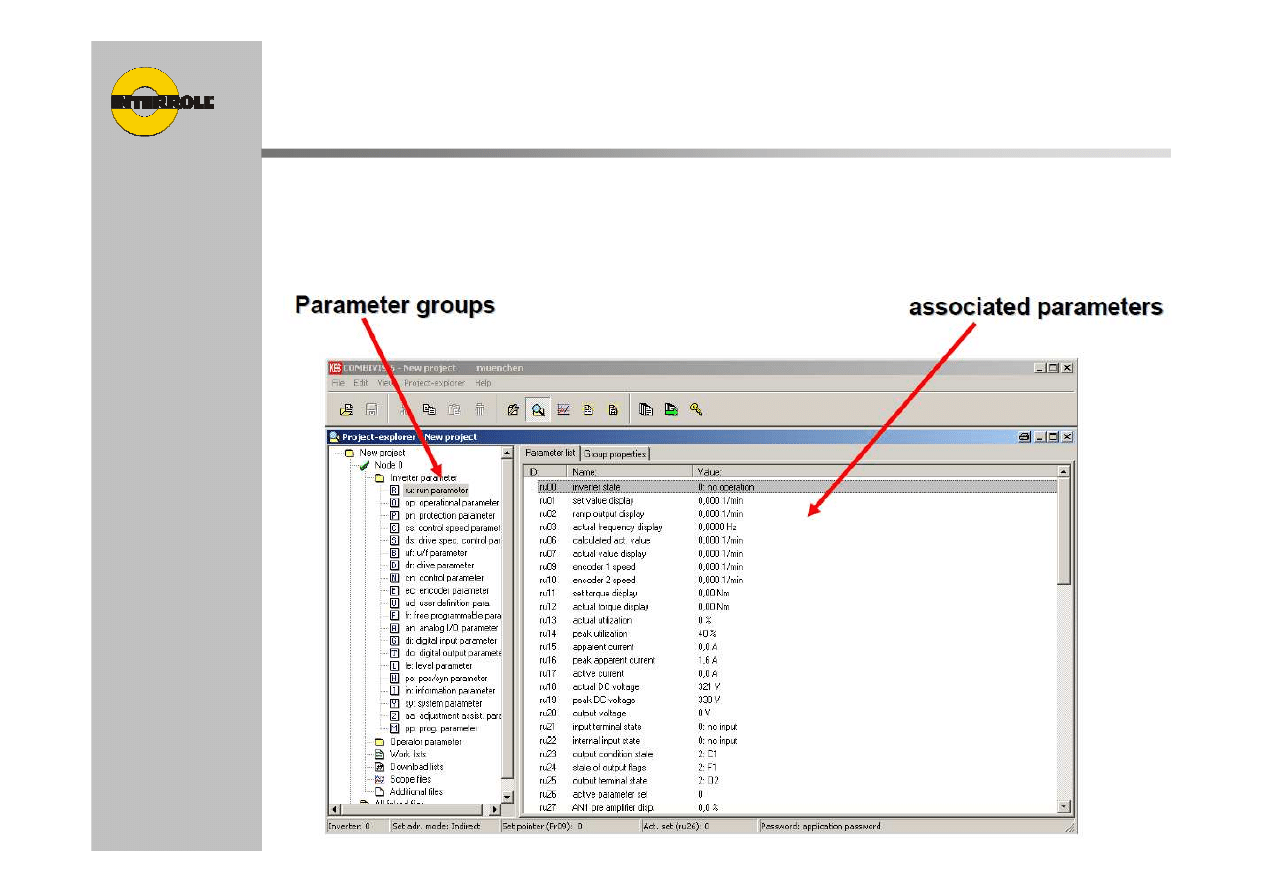
When inverter is detected, the inverter parameters
are shown on the Combivis
Search for connected inverter to PC
Wyszukiwarka
Podobne podstrony:
Procedury operatorskie, Radiokomunikacja
Przepisy i Procedury Operatorskie Krajowe i Międzynarodowe, Radiokomunikacja
F 16 Operational Procedures
OPERATIONAL PROCEDURES
Procedury operatorskie, Radiokomunikacja
PRZEPISY I PROCEDURY OPERATORSKIE cz2
Using Formal Grammar and Genetic Operators to Evolve Malware
PRZEPISY I PROCEDURY OPERATORSKIE
PROCEDURA OLUP
06 pamięć proceduralna schematy, skrypty, ramyid 6150 ppt
LAB PROCEDURY I FUNKCJE
3 using c
The uA741 Operational Amplifier[1]
proces nbsp pomocy nbsp, nbsp strategie nbsp i nbsp procedury nbsp SWPS[1][1] 4
więcej podobnych podstron