FEBRUARY 2002
CATIA V5 TRAINING
BASICS
page 2/19
C O N S U L T I N G
CATIA V5 – START UP
When CATIA is started, it opens the same workbench that was used last time the
software was launched. It will also automatically create a new document of type
related to that workbench.
A welcome window will also open, which contains all the user favorites
workbenches (you can choose if you want or not to see that window at startup).
The main window of CATIA V5 is similar to a normal Windows program, with its
File-Edit-View menus. At the right of the main window are located the icon
commands that are specific to each CATIA workbench. At the bottom of the main
window are located the general icon commands used in nearly all workbenches.
Icon commands are usually located at the bottom and right of the screen but they
can also be added to the left and at the top (below the main commands) as you see
fit.
CATIA’s design area can be divided into two main sections:
ã Specification Tree : The structured information describing the design
process. This is a very important tool to understand the product structure (It
is the core feature of designing with CATIA V5).
ã Geometric Area : This is where geometrical elements actually takes place.
It is always located behind the specification tree and can occupy all the
screen.
page 3/19
C O N S U L T I N G
CATIA V5 – SPECIFICATION TREE
ã The Specification Tree is located on the left part of the screen.
ã Like the “Windows Explorer” tree, you can expand or contract the
Specification Tree by clicking on nodes (+ or – signs).
ã It contains all the operations done during your design session (parts
creation, Boolean operations, part copies, symmetry, etc.). These
operations are easily retraceable because they each have a different icon.
First-made operations are located higher in the tree than the last-made ones.
The same hierarchy than the tree of Windows Explorer is used : by deleting
upper-level features, you will also delete all downward-level elements.
ã It is important to pay attention to the icons in the specification tree. A small
specific sign can appear on the icon to let us know that some features need
an update, have a broken link, are deactivated, etc.
ã Every CATIA workbench has its own specific way of showing the
Specification Tree (i.e. the current workbench show the tree in a relevant
way to work with, hiding or showing new information usable to that
workbench only). For example, when you are in the Part Design
workbench, the main branch of the tree is PartX (where X is a number)
while in the Assembly Design workbench, the main branch of the tree is
ProductX.
ã By right clicking on an object of the tree, you have access to some
operations like cut, copy, paste, properties, etc.
ã By left clicking on the white branches of the Specification Tree, you
deactivate the Geometric Area (it then becomes dark blue) so that zooming,
panning and moving will now affect the Specification Tree instead of the
Geometric Area. To reactivate the Geometric area, left-click a second time
on a white branch of the Specification Tree.
page 4/19
C O N S U L T I N G
CATIA V5 – GEOMETRIC AREA
ã This is the place where you are drawing, designing and analyzing. It covers
the whole screen but is always placed behind the Specification Tree.
ã Left-clicking : Selecting components (face, edge, hole, etc.).
ã Holding left button : Allow you to drag components (if they are outlined in
orange when you start dragging them) or to create a “selection trap” to
select more then one object.
ã Left-button double-click: Re-open feature Dialog box for modification of a
feature).
ã Clicking the middle button : Center the point of rotation on the selected
feature (face, circle, etc.).
ã Holding middle button : Activate the panning feature.
ã Holding middle button + left-clicking (or right-clicking) : Activate the
zoom function, then move the mouse up/down to zoom in/zoom out.
ã Holding middle button AND left button (or right button) : Activate the
rotate function.
ã Right-clicking: Open the contextual menu of a feature.
ã CTRL key : Enable the multi-selecting feature.
page 5/19
C O N S U L T I N G
CATIA V5 – SCROLLING-MENU BAR
The main scrolling-menu bar is always visible and available. It contains every
document-related commands and CATIA environment commands.
ã Start Menu : Used to start or change workshop.
ã File Menu : Usual Windows menu that contain the
New/Open/Save/Close/Print commands. It also contains a list of recently
used files.
ã Edit Menu : Contain editing commands like Cut/Copy/Paste and others like
the Update command. This menu is similar to the contextual menu.
ã View Menu : Important menu that contain all the Toolbars viewing options,
the Manipulating options (Zoom, Pan, etc.) and the Rendering options.
ã Insert Menu : This is the menu which contain all available commands
which can be inserted in the bottom and right toolbars under an icon-form
command. This is also the menu where you can call the insert command to
insert bodies and parts in a document.
ã Tools Menu : Very important menu for setting CATIA’s environment.
This menu contains all the options and customization settings and the macro
commands.
ã Window Menu : This menu allows toggling between all the opened
documents and allows viewing of more than one document at the same time
(by splitting the screen in two or more).
ã Help Menu : This is where you can call CATIA Online Help
documentation.
page 6/19
C O N S U L T I N G
CATIA V5 – COMPASS
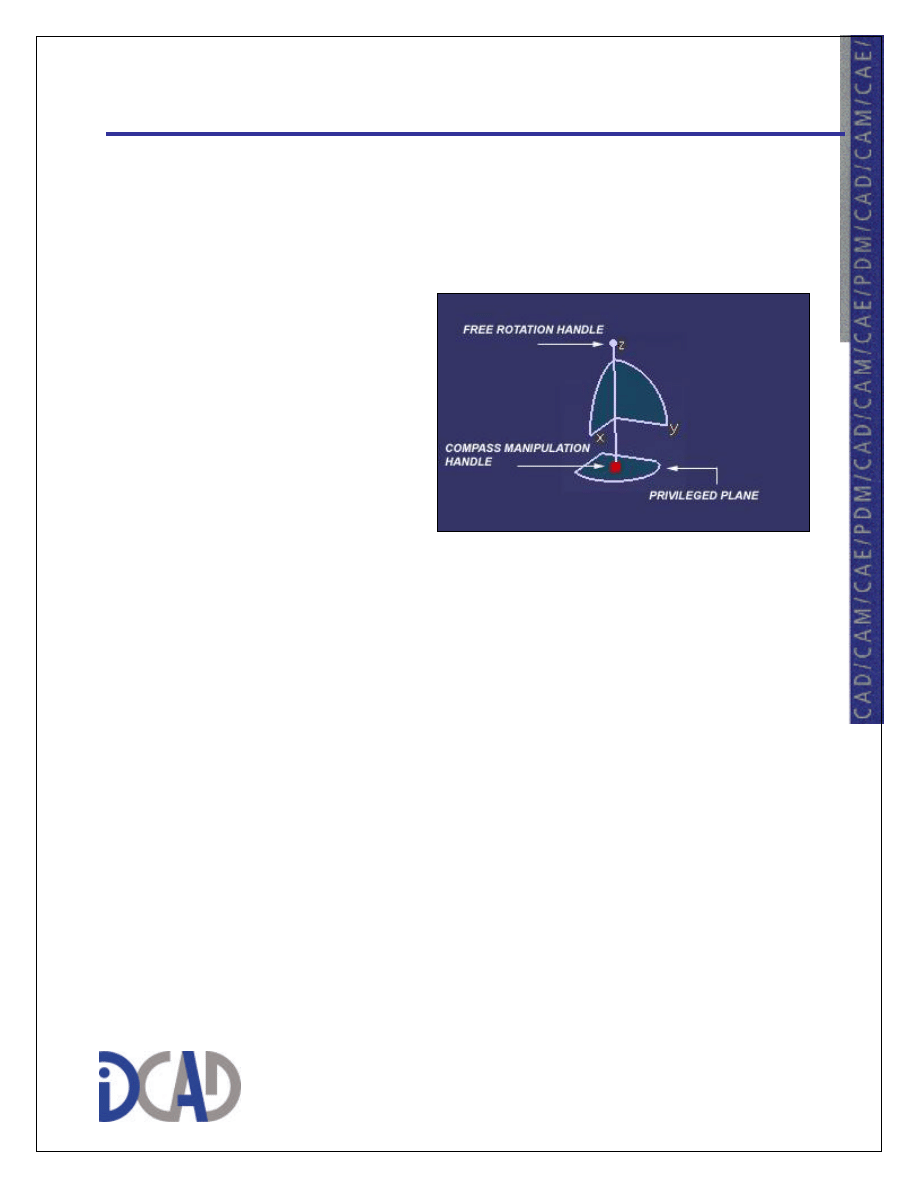
The Compass object is a feature located at the top right of the screen. It is a virtual
3D tool used for manipulating objects for better viewing, designing and analyzing.
To select a specific part of the Compass, just move the cursor over it. The selected
portion will then turn orange.
The 3 main parts of the Compass
are :
ã Free Rotation Handle :
After selecting this handle
and holding the left-
button, you will be able to
rotate your object just in
the same way as while
holding the left and middle buttons.
ã Compass Manipulation Handle : When selecting this handle and holding
the left-button, you can move the compass and snap it to a face on the
object. After that, the Compass will turn green to indicate that it is now
"assigned" to an object. From now on, while moving the Compass, the
object will also follow. N.B.: Note that you are actually moving the object
instead of just moving around for viewing. This will change the object's
position from the xy/yz/zx planes. To "de-assign" the Compass, re-select it
by its Manipulation Handle and move it away from the object. It will then
return to its original place at the top right of the screen.
ã Privileged Plane : The Privileged Plane is the base of the Compass. It is
normaly used when manipulating working planes (like in the FreeStyle
Shaper workbench).
To best way to understand the manipulations that can be done with the Compass is
to experiment! Just be sure to save your document before, because you could
inadvertently change the actual position of objects.
page 7/19
C O N S U L T I N G
CATIA V5 – KEYBOARD SHORTCUTS
These are the most common key shortcuts while using CATIA V5 :
(Warning : These key shorcuts work under a Windows environment, they can
differ or not work at all under a Unix environment!)
ã ESC = Cancel the current command
ã F1 = Open CATIA V5 Online Help (If a Command Dialog Box is already
opened, than the associated help will appear automatically)
ã SHIFT+F1 = Get help on toolbar icons
ã SHIFT+F2 = Specification Tree Overview ON/OFF
ã F3 = To Hide/Show the Specification Tree
ã SHIFT+F3 = Switch between Geometric Area
⇔
Specification Tree
ã ALT+F4 = Exit CATIA
ã ALT+F8 = Run Macros
ã CTRL+C = Copy
ã ALT+E = Edit (from the main toolbar)
ã CTRL+F = Search
ã ALT+F = File (from the main toolbar)
ã ALT+H = Help (from the main toolbar)
ã ALT+I = Insert (from the main toolbar)
ã CTRL+N = New document
page 8/19
C O N S U L T I N G
ã CTRL+O = Open document
ã CTRL+P = Print document
ã ALT+Q = Window (from the main toolbar)
ã CTRL+S = Save document
ã ALT+S = Start (from the main toolbar)
ã CTRL+U = Update
ã CTRL+V = Paste
ã ALT+V = View (from the main toolbar)
ã CTRL+X = Cut
ã CTRL+Y = Repeat
ã CTRL+Z = Undo
ã Del = Delete
ã Alt+Enter = Properties (like in the contextual menu)
ã Home = Display the top of the Specification Tree, if active)
ã End = Display the end of the Specification Tree, if active)
ã Page Up = Relocate the Specification Tree one page up, if active)
ã Page Down = Relocate the Specification Tree one page down, if active)
ã CTRL+Page Up = Zoom In (Geometric Area OR Specification Tree)
ã CTRL+Page Down = Zoom Out (Geometric Area OR Specification Tree)
ã CTRL+Tab = Switch between open documents
page 9/19
C O N S U L T I N G
CATIA V5 – DOCUMENT TYPE
While working with CATIA’s different workbenches, you will work with different
types of documents. Here is a short description of the most common ones :
ã CATPart : This is the most common file, representing a part. This file
contains all the geometrical informations of an object. This is the file
obtained while using the Part Design workbench (as well as the Sketcher).
ã CATProduct : This file is created while using the Assembly Design
workbench. This file does not contain any geometrical elements but is
rather referencing CATPart files together, thus creating the assembly.
ã CATDrawing : This document is used with the Generative Drawing and
Interactive Drafting workbench. It is essentially a 2D drawing.
ã CATAnalysis : This document is used while analyzing a part or an
assembly (i.e. stress analysis, kinematic analysis, etc.). It will contain all
the parameters of the analysis done on the object.
ã CATMaterial : This document is a material library which can contain
customized material not existing in CATIA standard material library.
ã Catalog : This document can contains standard parts (like nuts, bolts, etc.)
which can thereafter be used while creating an assembly. It is used to
regroup elements of the same family.
page 10/19
C O N S U L T I N G
CATIA V5 – TOOLBARS & ICONS
ã To learn the name of an icon, place the cursor on it and wait a little for the
description to appear.
ã Every workbench has its own set of toolbars, which can be configured to
suit your needs. Each toolbars can be placed where you want: to the left of
the screen, to the right or at the bottom or even placed right in the screen.
ã Every icon visible to the right of the geometric area can also be selected by
using the Insert> command from the main toolbar at the top.
ã You can create your own function with a batch file associated with an icon
of your choice.
ã If you can't find an icon in the toolbars on the main screen, you can go in
the View>Toolbars
command in the top menu to check which toolbar icon
you want to see. If it is already selected, make sure they are not hidden by
checking the end of the bottom horizontal toolbar and the right vertical
toolbar. If some icons are hidden, you will see a separation bar and the >>
sign to show that other commands are following.
ã If a command does not seem to work correctly, make sure that the
associated feature in the specification tree is selected. Some commands will
work only if a Body or the PartBody is selected (underlined). To make a
body the active one, right-click on it and choose Define in Work Object.
ã When using a command, always look at the bottom left of the screen where
CATIA send text information. This information is usually specifying which
feature you have to select to complete the active command.
page 11/19
C O N S U L T I N G
CATIA V5 – TOOLS DESCRIPTION
In the top toolbar menu of CATIA, there is the Tools command that allows you
to access useful tools included in CATIA V5 software. Here are some hints on
how to use the ones available in the Part Design workbench.
Formula Tool
The Formula tool is useful to associate formulas to existing parameters. This tool
is one of the basic features of the Knowledgeware process in CATIA V5. By
choosing Tools>Formula or by clicking on the Formula Icon in the bottom
toolbar, you will access the Formula Main Dialog Box :
ã Incremental check : This check is used when you only want to see the
parameters of a selected feature in the Specification Tree. Thus, selecting a
Sketch feature in the Specification Tree (while the Incremental option is
checked) will only display the parameters associated with this specific
feature.
ã Import : Click this button if you want to create parameters & formulas with
informations coming from an external data file (Excel file, Lotus file, etc.).
ã Filter applied to Parameters : This help you to find a specific parameter
among all of them by filtering with the appropriate category.
ã List box : This contain all the existing parameters of the selected category
(See Filter applied to Parameters) :
- Under the Parameter column are parameter's name and their location
(parents).
- Under the Value column is found the value of the parameter
(numerical value or not, depending on the parameter type).
page 12/19
C O N S U L T I N G
- Under the Formula column is the formula associated to the parameter.
There can be more than one formula for each parameter but only one
at a time can be activated.
- Under the Active column is the status of the formula, if it is activated
or not.
ã Edit box : This box allows you to change the name of a parameter and its
value. N.B.: The value of a parameter can only be changed if no formula is
associated to it.
ã New parameter of type button : This button allows you to create new
"virtual" parameter with a specified type and having a single value or
multiple values.
It is called a virtual parameter because it is not automatically linked to a
physical feature of an object. It can be a length as well as the ratio of two
dimensions or even a specific calculation.
Multiple values parameters are parameters that can have a value chosen
from a pre-established list. For example, the values of a multiple values
parameter can be 2, 4 and 6 without having the options of choosing another
value than these three.
ã Add formula button : This button is used to associate a formula with an
existing parameter. The same function can be called by double-clicking a
parameter's name in the list box.
Image Tool
The Image tool is used to grab 2D pictures of a part for future use in presentations
or in documentations.
ã Capture : With this command you can grab a 2D picture of your CATIA
session in pixel or vector mode. You can select the picture limits with a
selecting trap or by using the geometry-only option. You can then put this
picture in the Album or save it to the hard disk. The file format can be any
of the most common pictures format.
page 13/19
C O N S U L T I N G
ã Album : This command allows you to visualize all the pictures previously
grabbed and inserted in the Album. You can then decide which pictures
you want to keed and save or preview then before printing.
ã Video : The Video command allows you to create AVI movies or Still
Image Captures (succession of snapshot in JPG file-format). You can also
choose the compression level of AVI movies, the total length of the movie,
the rate of snapshot per seconds, etc.
Macro Tool
The Macro tool is a very important and useful tool of CATIA V5. It allows you to
record and run macros in CATScript file-format, which is similar but not exactly
equal to the VBScript language. These recorded macros can than be used to
automate the creation of simple features.
ã Macros : This command is used to load and run macros either from an
external file or directly from a previously recorded macro of the current
session.
ã Start Recording / Stop Recording : This command start/stop the recording
of the manipulations realized on the part. N.B.: Not all the manipulations
can be recorded! The macro can thereafter be modified with the use of a
text editor. For more information on macros, please refer to CATIA V5
original documentation.
Customize Tool
This tool allows you to customize the Start Menu dialog box, which invites you to
choose a CATIA workbench to start with. You can add/delete workbench from
this Start Menu depending on the installed software and your license agreement.
You can also add/delete Icons/Commands from Toolbars, add/delete Toolbars
from Workbench/Workbench, add/delete Workbench (i.e. create your own
customized set of toolbars/icons/commands.
page 14/19
C O N S U L T I N G
Visualization Filters Tool
The Visualization Filters have been introduced for those who were used to work
with CATIA V4 layers. It is not really recommended to work with them since the
main aspect of CATIA V5 is the Specification Tree and the use of
activate/deactivate and hide/show commands.
Options Tool
This is a very important tool in CATIA V5 and it contains a lot of information.
This tool will then be discussed in a separate topic later.
Conferencing Tool
This tool is used for meeting on the Internet and/or intranet, for sharing
information between several peoples with the use of Microsoft Windows
NetMeeting application.
page 15/19
C O N S U L T I N G
CATIA V5 – SETTING OPTIONS
The present topic discusses the Options tool, which can be found in the main
toolbar in Tools>Options. This is the place where mostly all CATIA V5 settings
are done. Some knowledge of these options will allow you to understand and
overcome some problems that you might encounter during your utilization of the
software.
Since there are an extensive number of options in CATIA V5, only those applied to
widely used commands will be discussed here.
General > General Tab
ã User Interface Style : This is where you choose which CATIA V5
platform you want to work with (P1, P2 or P3). Usually, you choose the
highest available platform allowed by the installed software and license.
Note that only user with administrative rights can change that option.
ã Save : This option allows you to change the time between every automatic
save.
ã Referenced documents : This option is checked by default. It can be
unchecked for efficency and performance reasons. If a file is open with
links to other files (e.g.: a CATProduct file) it will also load the other files if
this option is checked.
ã CATIA Document Location : This is where you set the doc installation
path (i.e. the location of the online documentation which is called when
using F1 or Help>CATIA V5 Help.
page 16/19
C O N S U L T I N G
General > Licensing Tab
This is where you set the List of Available Configurations/Products according to
your license. This option is only available to user with administrative rights.
General > Display > Visualization Tab
This is where you can set colors of CATIA features (background, selected
elements, update needed, etc.).
General > Parameters > Knowledge Tab
Under Parameter Tree View, you can select if you want to view, in the
Specification Tree, parameters with value and/or with formula.
It is recommended to check only the with value option. The with formula option
will only duplicate in the Parameters branch, right to its associated parameter, the
formulas under the Relations branch.
Under Parameter names, it is recommended to check the Surrounded by the
symbol ' option. This will allows you to recognize more easily parameters from
other features in the Specification Tree.
N.B.: Even with these options checked, you will not be able to visualize the
parameters in the Specification Tree, unless the Parameter option (under
Specification Tree) in Mechanical Design>Part Design>Display Tab is also
checked!
General > Parameters > Units Tab
This is an important Tab where you can select units systems. There is no
standardization system (ISO, ANSI, etc.) in CATIA V5 (Not as V5R6). You can
select a unit mix between metric, American and British system. To set the unit of a
specific feature, select it in the list box and then choose the unit under the drop-
down list (right of the grayed feature name). You can also set in this Tab the
dimensions display (number of trailing zeros).
page 17/19
C O N S U L T I N G
Infrastructure > Product Structure > Cache
Management Tab
Under this Tab is a useful option when you are working with Digital Mockup.
You can check whether or not you want to use the cache system (Under Cache
Activation).
N.B.: You will have to restart your CATIA session for this option change to be
acknowledged.
Infrastructure > Material Library
Under this tab, you can choose options about materials.
ã Material Catalog Location : If you have created your own material stored
in a catalog, you can set the catalog file's path there.
ã Material Parameter Creation : If you check the "Creation of material
parameter on Product/Part" option, it will automatically create a material
parameter at the opening of a file. This parameter (included even if no
material is applied to the part) is located under the Parameters branch in the
Specification Tree.
Mechanical Design > Part Design > General Tab
This is the tab to setup some general options about the Part Design workbench.
ã Update : In this section, you can decide if you want an automatic update or
a manual update. In manual mode, you have to press the update icon every
time you want to update your part (e.g. when you have changed some
dimensions). It is useful to set the update mode to automatic so that all
changes are automatically applied to your design.
ã CGR previsualization : This option lets you decide if you want to save or
not a CGR document in your CATPart file. A CGR document is used for
visualization, when design is not necessary. It is very useful when working
page 18/19
C O N S U L T I N G
with large assemblies or with digital mockup (DMU) since it reduce the
utilization of system's ressources. By default, this option is checked.
Mechanical Design > Part Design > Display Tab
In this tab, you choose which features you want to see in the Specification Tree. It
is recommended to check all the features, especially if you are working with
Knowledgeware capabilities.
Mechanical Design > Assembly Design > General Tab
The main option to choose in this tab is the update mode. Instead of the automatic
mode recommended in the Part Design workbench, it is better to use a manual
update in the Assembly Design. This is due to the positioning of parts in the
assembly. By creating assembly constraints between parts, it is easier to link them
while they are apart and easily selectable than all assembled in a big chunk.
Mechanical Design > Sketcher
A very useful group of options in this tab is the customization of the Sketcher grid.
Under the grid group, you can modify the following options :
ã Display : To display or not the grid while drawing in the Sketcher.
ã Snap to point : To activate/deactivate the snapping option, allowing the
cursor to automatically snap to grid lines.
ã Allow Distorsions : To allows the use of different horizontal and vertical
graduations and spacing.
ã Primary spacing : This is the length of the primary spacing in the Sketcher.
ã Graduations : This is the number of graduations inside the specified
Primary spacing. 10 graduations in a primary spacing of 100mm will give a
grid line every 10mm.

Wyszukiwarka
Podobne podstrony:
Airbus Catia V5 Training Wireframe and Surface
CATIA V5 kurs podstawowy
CATIA V5 Modelowanie PL
Catia v5 Structural Analysis For The Designer
catia v5 modelowanie kurs podstawowy LZIVC3JESPF2KJV3WU7KPG7Z742RKIM3LA77XXA
CATIA V5 tutorial advanced
CATIA V5 Workbook
Bewegungssimulation mit Catia V5
Advanced Catia v5 Workbook
catia v5 machining brochure
1997 biofeedback relax training and cogn behav modif as treatment QJM
2009 11 17 arduino basics
LV Basics I (2)
Excel VBA Course Notes 1 Macro Basics
10 Principles of Marathon Training
COL S7 SCL V5 3
więcej podobnych podstron