
Microsoft Dynamics
®
GP
Payment Document Management

Copyright
Copyright © 2010 Microsoft. All rights reserved.
Limitation of liability
This document is provided “as-is”. Information and views expressed in this document, including
URL and other Internet Web site references, may change without notice. You bear the risk of using
it.
Some examples depicted herein are provided for illustration only and are fictitious. No real
association or connection is intended or should be inferred.
Intellectual property
This document does not provide you with any legal rights to any intellectual property in any
Microsoft product.
You may copy and use this document for your internal, reference purposes.
Trademarks
Microsoft and Microsoft Dynamics are trademarks of the Microsoft group of companies. FairCom
and c-tree Plus are trademarks of FairCom Corporation and are registered in the United States
and other countries.
All other trademarks are property of their respective owners.
Warranty disclaimer
Microsoft Corporation disclaims any warranty regarding the sample code contained in this
documentation, including the warranties of merchantability and fitness for a particular purpose.
License agreement
Use of this product is covered by a license agreement provided with the software product. If you
have any questions, please call the Microsoft Dynamics GP Customer Assistance Department at
800-456-0025 (in the U.S. or Canada) or +1-701-281-6500.
Publication date
May 2010

P A Y M E N T
D O C U M E N T
M A N A G E M E N T
i
Contents
...............................................................................................................................................
1
What’s in this manual...................................................................................................................................1
Symbols and conventions ............................................................................................................................2
Resources available from the Help menu..................................................................................................2
Send us your documentation comments ...................................................................................................4
..........................................................................................................................
5
Understanding Payment Document Management..................................................................................5
Enabling Payment Document Management.............................................................................................5
.....................................................................................................
7
Setting up default accounts for purchasing ..............................................................................................7
Setting up user preferences .........................................................................................................................7
Creating and defining payment documents .............................................................................................8
Setting up a chequebook for payment documents .................................................................................. 9
Assigning a default payment document to a creditor...........................................................................10
.................................................................................................................
13
Setting up default accounts for sales........................................................................................................13
Setting up user preferences .......................................................................................................................14
Creating and defining payment documents ...........................................................................................15
Setting up a chequebook for payment documents ................................................................................16
Assigning a default payment document .................................................................................................17
Chapter 4: Purchasing Transactions
................................................................................
21
Entering a purchasing payment document.............................................................................................21
Settling payment documents.....................................................................................................................22
...............................................................................................
25
Entering a sales payment document ........................................................................................................25
Entering payment document remittances ...............................................................................................26
Chapter 6: Transaction Maintenance
..............................................................................
31
Voiding payment documents ....................................................................................................................31
Returning payment document..................................................................................................................31
Voiding a sales payment document remittance......................................................................................32
Chapter 7: Enquiries and Reports
.......................................................................................
33
Viewing collections made with payment documents............................................................................33
Viewing restricted sales payment documents ........................................................................................34
Viewing payments made with payment documents ............................................................................35
Viewing restricted purchasing payment documents.............................................................................36
...........................................................................................................................
39
Removing sales payment document history...........................................................................................39
Removing purchasing payment document history ...............................................................................40
..............................................................................................................................................................
41

ii
P A Y M E N T
D O C U M E N T
M A N A G E M E N T
P A Y M E N T
D O C U M E N T
M A N A G E M E N T
1
Introduction
Payment Document Management allows you to enter sales and purchasing
transactions using payment methods other than cash, check or credit card. You can
submit these documents for risk assessment, discounting and collection to your
bank or similar entity.
Payment Document Management uses the information in the Payables
Management and Receivables Management modules, and updates the General
Ledger and Bank Reconciliation modules.
Check for current instructions
This information was current as of May 2010. The documentation may be updated
as new information becomes available. Check the Microsoft Dynamics
®
GP online
Web site (
http://go.microsoft.com/fwlink/?LinkID=161199
) for the most current
documentation.
This introduction is divided into the following sections:
•
•
•
Resources available from the Help menu
•
Send us your documentation comments
What’s in this manual
This manual is designed to give you an understanding of how to use the features of
Payment Document Management, and how it integrates with the Microsoft
Dynamics GP system.
To make best use of Payment Document Management, you should be familiar with
systemwide features described in the System User’s Guide, the System Setup
Guide, and the System Administrator’s Guide.
Some features described in the documentation are optional and can be purchased
through your Microsoft Dynamics GP partner.
To view information about the release of Microsoft Dynamics GP that you’re using
and which modules or features you are registered to use, choose Help >> About
Microsoft Dynamics GP.
The manual is divided into the following chapters:
•
explains how Payment Document Management works,
and how you can enable it.
•
describes the procedure to set up payment
documents for purchasing transactions.
•
describes the procedure to set up payment documents
for sales transactions.
•
Chapter 4, “Purchasing Transactions”
gives information on entering purchaisng
transactions using payment documents.
I N T R O D U C T I O N
2
P A Y M E N T
D O C U M E N T
M A N A G E M E N T
•
Chapter 5, “Sales Transactions”
gives information on entering sales transactions
using payment documents.
•
Chapter 6, “Transaction Maintenance”
provides information on voiding and
returning payment documents.
•
Chapter 7, “Enquiries and Reports”
provides information on viewing inquiries
and printing reports.
•
provides information on removing historical information
for payment documents.
Symbols and conventions
For definitions of unfamiliar terms, see the glossary in the manual or refer to the
glossary in Help.
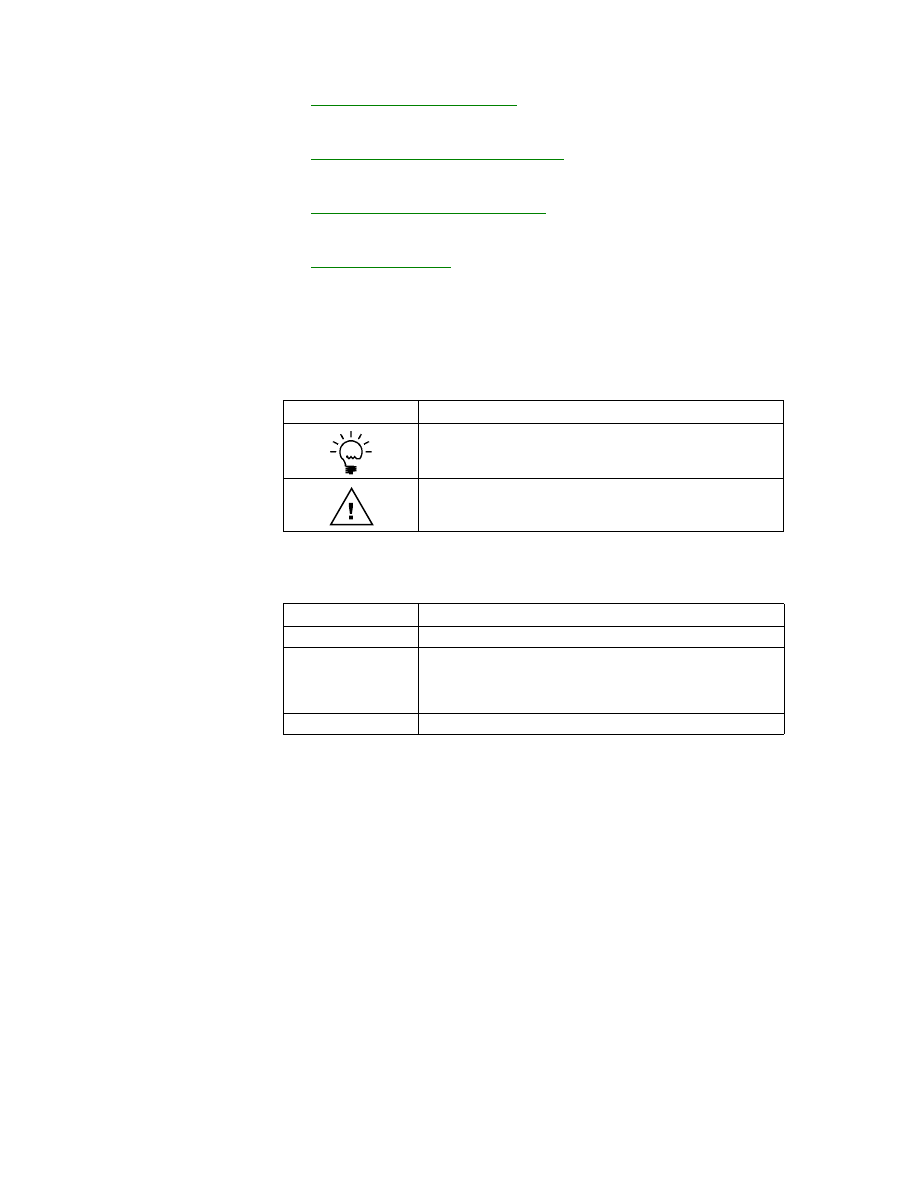
This manual uses the following conventions to refer to sections, navigation and
other information.
Resources available from the Help menu
The Microsoft Dynamics GP Help menu gives you access to user assistance
resources on your computer, as well as on the Web.
Contents
Opens the Help file for the active Microsoft Dynamics GP component, and displays
the main “contents” topic. To browse a more detailed table of contents, click the
Contents tab above the Help navigation pane. Items in the contents topic and tab
are arranged by module. If the contents for the active component includes an
“Additional Help files” topic, click the links to view separate Help files that
describe additional components.
To find information in Help by using the index or full-text search, click the
appropriate tab above the navigation pane, and type the keyword to find.
To save the link to a topic in the Help, select a topic and then select the Favorites tab.
Click Add.
Symbol Description
The light bulb symbol indicates helpful tips, shortcuts and
suggestions.
The warning symbol indicates situations you should be
especially aware of when completing tasks.
Convention
Description
Creating a batch
Italicized type indicates the name of a section or procedure.
File >> Print or File >
Print
The (>>) or (>) symbol indicates a sequence of actions, such as
selecting items from a menu or toolbar, or pressing buttons in
a window. This example directs you to go to the File menu and
choose Print.
TAB
or
ENTER
All capital letters indicate a key or a key sequence.

P A Y M E N T
D O C U M E N T
M A N A G E M E N T
3
I N T R O D U C T I O N
Index
Opens the Help file for the active Microsoft Dynamics GP component, with the
Index tab active. To find information about a window that’s not currently displayed,
type the name of the window, and click Display.
About this window
Displays overview information about the current window. To view related topics
and descriptions of the fields, buttons, and menus for the window, choose the
appropriate link in the topic. You also can press F1 to display Help about the current
window.
Lookup
Opens a lookup window, if a window that you are viewing has a lookup window.
For example, if the Checkbook Maintenance window is open, you can choose this
item to open the Checkbooks lookup window.
Show Required Fields
Highlights fields that are required to have entries. Required fields must contain
information before you can save the record and close the window. You can change
the font color and style used to highlight required fields. On the Microsoft
Dynamics GP menu, choose User Preferences, and then choose Display.
Printable Manuals
Displays a list of manuals in Adobe Acrobat.pdf format, which you can print or
view.
What’s New
Provides information about enhancements that were added to Microsoft Dynamics
GP since the last major release.
Microsoft Dynamics GP Online
Opens a Web page that provides links to a variety of Web-based user assistance
resources. Access to some items requires registration for a paid support plan.
Current implementation and upgrade information
The most recent
revisions of upgrade and implementation documentation, plus documentation
for service packs and payroll tax updates.
User documentation and resources
The most recent user guides, how-
to articles, and white papers for users.
Developer documentation and resources
The most recent
documentation and updated information for developers.
Product support information
Information about the Microsoft Dynamics
GP product support plans and options that are available, along with
information about peer support and self-support resources.
Services information
Information about Microsoft Dynamics GP support,
training, and consulting services.
Microsoft Dynamics GP Community
Access to newsgroups, where you
can ask questions or share your expertise with other Microsoft Dynamics GP
users.

I N T R O D U C T I O N
4
P A Y M E N T
D O C U M E N T
M A N A G E M E N T
CustomerSource home page
A wide range of resources available to
customers who are registered for a paid support plan. Includes access to
Knowledge Base articles, software downloads, self-support, and much more.
Customer Feedback Options
Provides information about how you can join the Customer Experience
Improvement Program to improve the quality, reliability, and performance of
Microsoft
®
software and services.
Send us your documentation comments
We welcome comments regarding the usefulness of the Microsoft Dynamics GP
documentation. If you have specific suggestions or find any errors in this manual,
send your comments by e-mail to the following address:
To send comments about specific topics from within Help, click the Documentation
Feedback link, which is located at the bottom of each Help topic.
Note: By offering any suggestions to Microsoft, you give Microsoft full permission to use
them freely.
P A Y M E N T
D O C U M E N T
M A N A G E M E N T
5
Chapter 1:
Overview
Payment Document Management allows you to make and receive payments using
special payment documents. Use this information to enable Payment Document
Management and to understand how it works.
When you set up Payment Document Management, you can open each setup
window and enter information, or you can use the Setup Checklist window
(Microsoft Dynamics GP menu >> Tools >> Setup >> Setup Checklist) to guide you
through the setup process. See your System Setup Guide (Help >> Contents >>
select Setting up the System) for more information about the Setup Checklist
window.
This information is divided into the following sections:
•
Understanding Payment Document Management
•
Enabling Payment Document Management
Understanding Payment Document Management
Certain European and Latin American countries deal in payment documents such
as bills of exchange or promissory notes, apart from making payments by cash,
check and credit cards. Payment Document Management allows users to enter
receipts and payments using such payment methods. Payment documents that do
not have a due date specified can be settled at any time. However, the documents
that have specific due dates can only be settled after the due date. To receive the
payment for such documents before the due date, the creditor must submit these
documents to a bank or similar entity for collection. The bank then performs a risk
assessment to assign a risk level to the debtors. Based on this assessment, the bank
decides which documents it will accept. The creditor is then paid the document
amount after deducting the commission or discount amount. The bank submits
these documents to the debtor on the due date and collects the settlement.
Enabling Payment Document Management
You must enable payment documents before you can start using them in purchasing
and sales transactions.
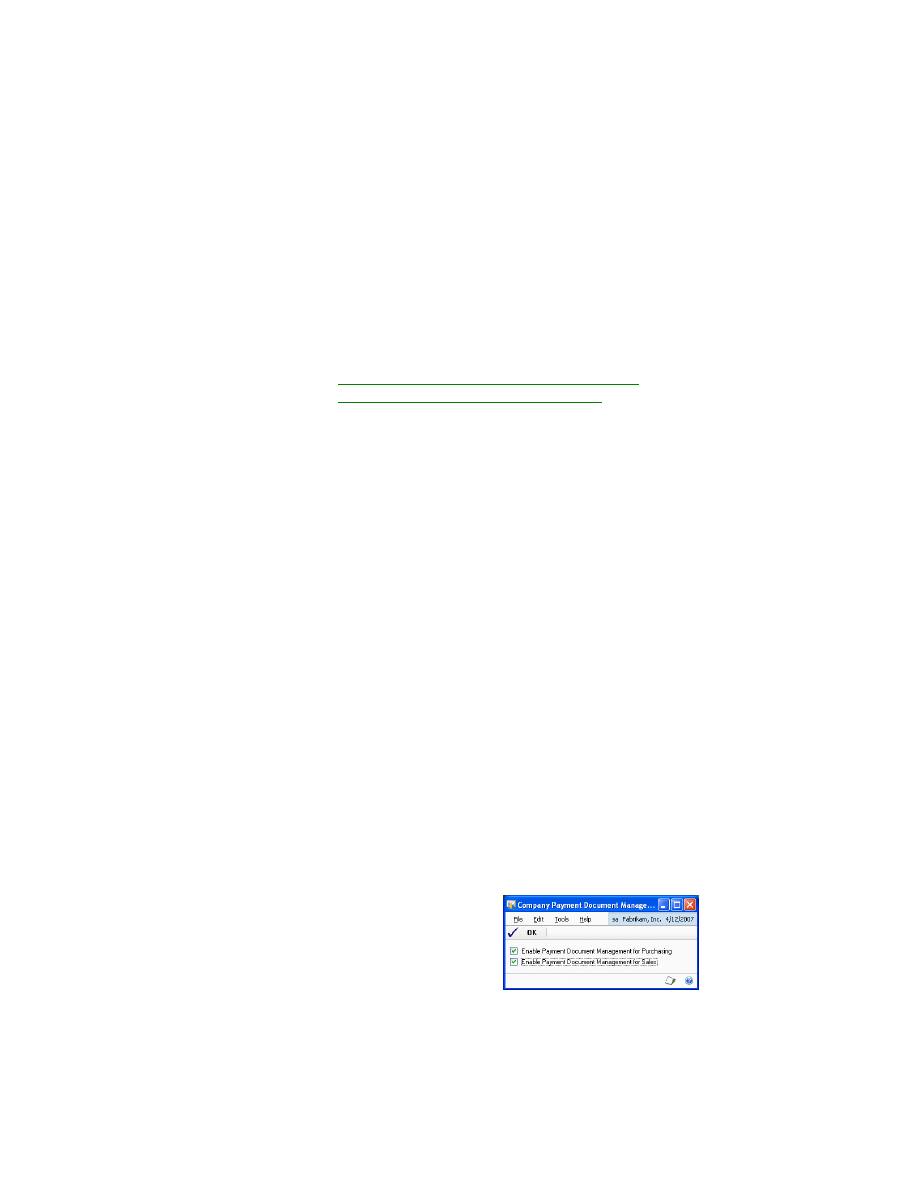
To enable Payment Document Management:
1.
Open the Company Payment Document Management Setup window.
(Microsoft Dynamics GP menu >>Tools >> Setup >> Company >> Payment
Document Setup)

C H A P T E R 1 O V E R V I E W
6
P A Y M E N T
D O C U M E N T
M A N A G E M E N T
2.
Mark the respective options to enable Payment Document Management for
purchasing and sales. The setup windows will be available only for the
module/s for which you have marked the required option.
3.
Choose OK to save the changes and close the window.
P A Y M E N T
D O C U M E N T
M A N A G E M E N T
7
Chapter 2:
Purchasing Setup
Use this information to set up default accounts required to use payment documents
in the purchasing module.
This information is divided into the following sections:
•
Setting up default accounts for purchasing
•
•
Creating and defining payment documents
•
Setting up a chequebook for payment documents
•
Assigning a default payment document to a creditor
Setting up default accounts for purchasing
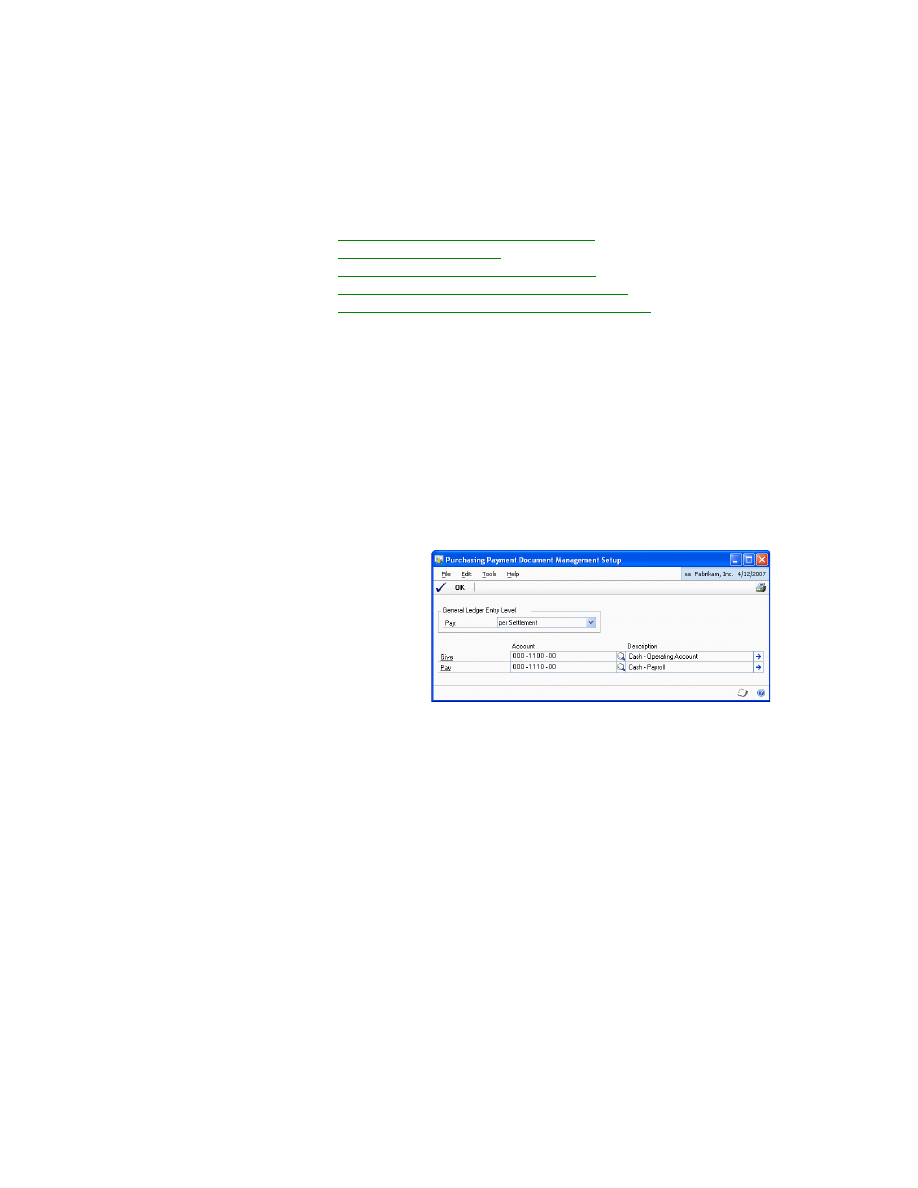
The Purchasing Payment Document Management Setup window allows you to set
up default accounts for payment documents from the purchasing module for
General Ledger posting.
To set up default accounts for purchasing:
1.
Open the Purchasing Payment Document Management Setup window.
(Microsoft Dynamics GP menu >> Tools >> Setup >> Purchasing >> Payment
Document Setup)
2.
Select whether to set the General Ledger Entry Level to per Settlement or per
Payment Document. If you select per Settlement, all the documents will be
posted as a single summary entry. If you select per Payment Document, the
payment documents will be posted as a single entry per document.
3.
Select the accrual accounts for Give and Pay.
Setting up user preferences
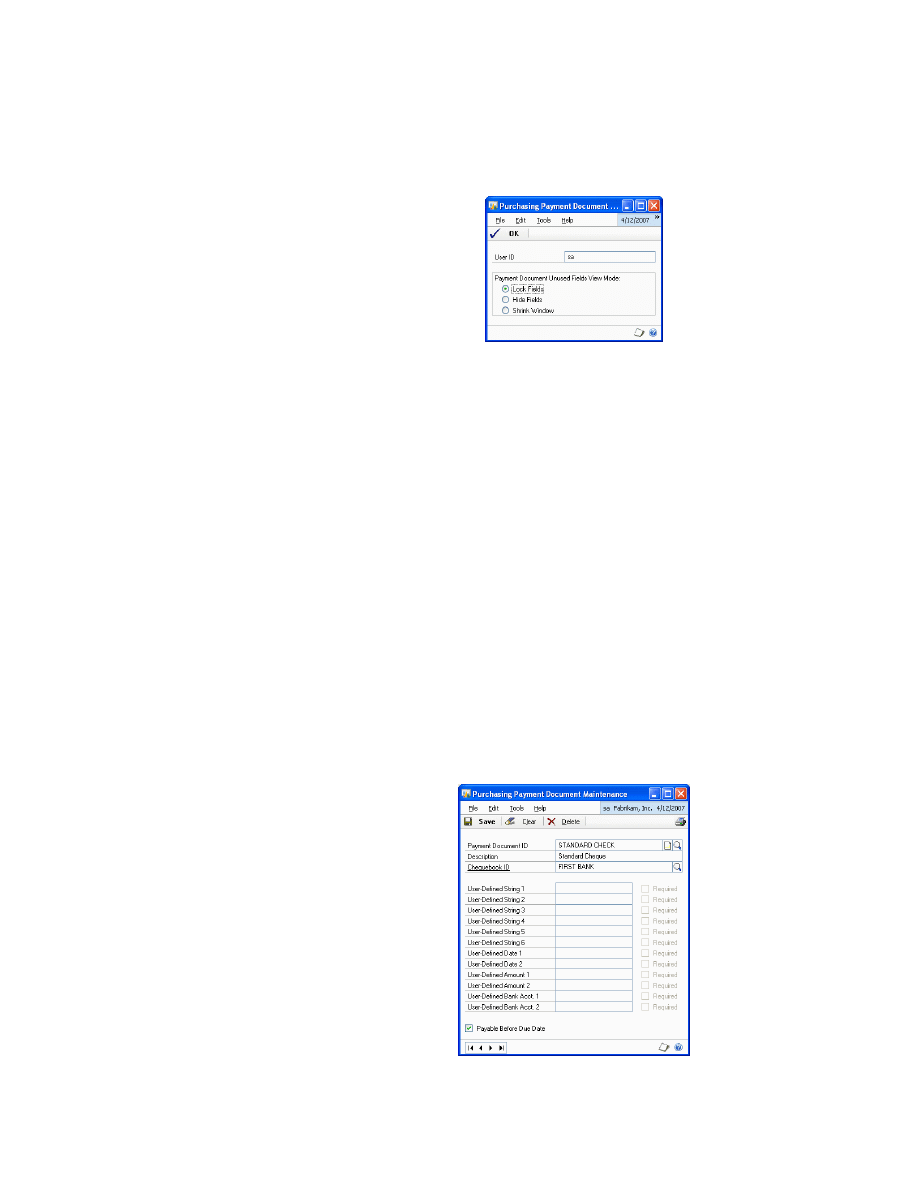
The Purchasing Payment Document User Preferences window allows the user to set
the preferences for the payment document information entry windows. You can set
the way in which you want to open the purchasing Payment Document Entry
windows in order to enter additional information relating to the payment
document.
C H A P T E R 2 P U R C H A S I N G S E T U P
8
P A Y M E N T
D O C U M E N T
M A N A G E M E N T
To set up user preferences:
1.
Open the Purchasing Payment Document User Preferences window.
(Microsoft Dynamics GP menu >>Tools >> Setup >> Purchasing >> Payment
Document User Preference)
2.
Select from the following options to open this window:
Lock Fields
This is the default view for all users.
Hide Fields
Only the fields in which the user can enter a value are displayed
in the window.
Shrink Window
This option modifies the window size and field position to
adjust it exclusively to the information that must be completed by the user for
each payment document.
3.
Choose OK to save and close the window.
Creating and defining payment documents
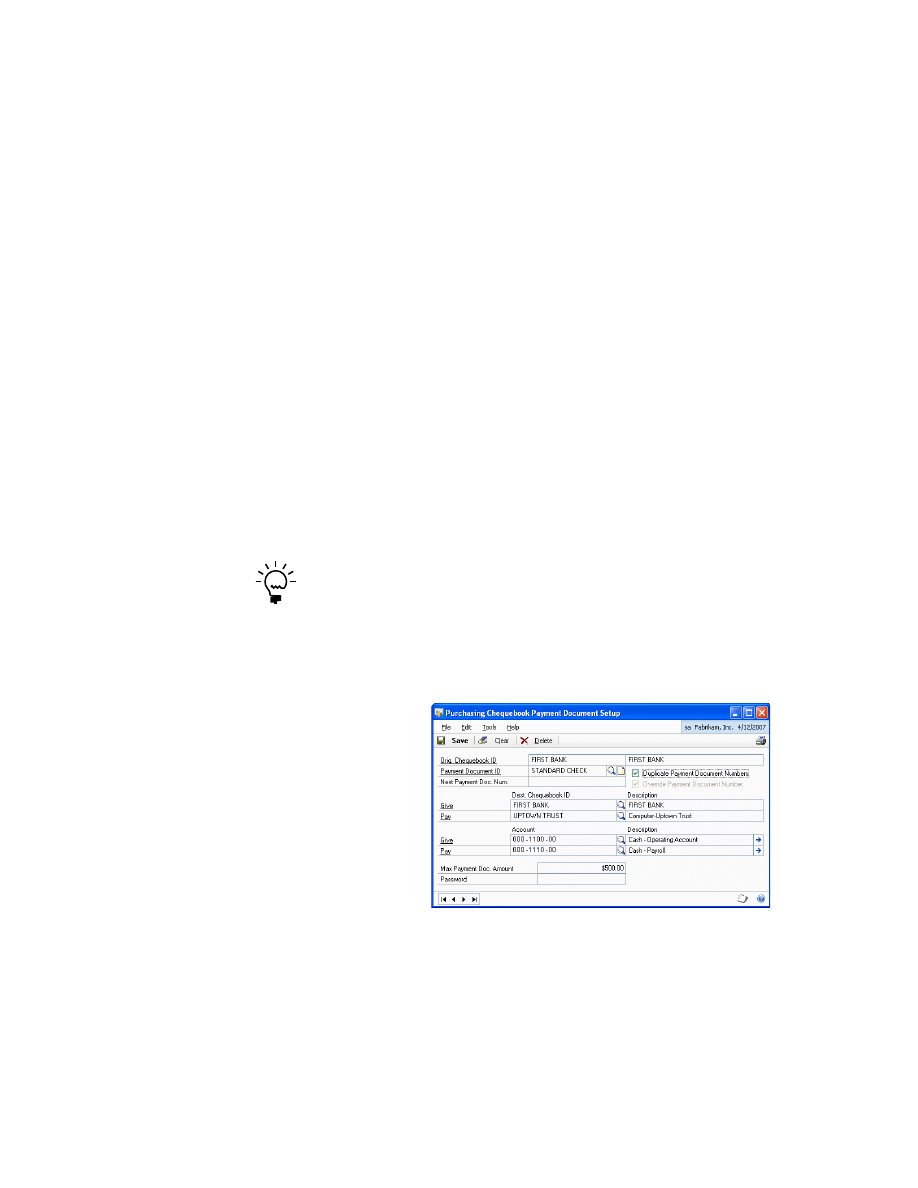
The Purchasing Payment Document Maintenance window allows you to create and
define payment documents that will be used in Purchasing.
To create and define payment documents:
1.
Open the Purchasing Payment Document Maintenance window.
(Cards >> Purchasing >> Payment Document Maintenance)
2.
Enter or select the payment document ID.
P A Y M E N T
D O C U M E N T
M A N A G E M E N T
9
C H A P T E R 2 P U R C H A S I N G S E T U P
3.
Select the chequebook ID for the payment document. When using the payment
document for a creditor payment, the chequebook associated with the
document will appear as the default value in the Payment Document ID field in
the Payment Document Entry window.
4.
Enter a value in the user-defined fields. The Required option will be available
for the user defined fields for which you have entered a value. When making a
payment, additional information can be stored for this specific document. For
this purpose, the system incorporates various fields of different types and
formats (text, date, amount and bank account number 0000-0000-00-
0000000000) for entering text that will later appear for this payment document.
The purpose of these fields is to store information in the system in order to
establish search conditions or to have data in the system that can be used with
other tools (e.g. printing devices).
5.
Mark the Payable Before Due Date option for payment documents with no due
date (e.g. cheques). Leave the option unmarked for documents with due dates
(Promissory Notes, Bills of Exchange, etc.).
6.
Choose Save to save changes and close the window.
Setting up a chequebook for payment documents
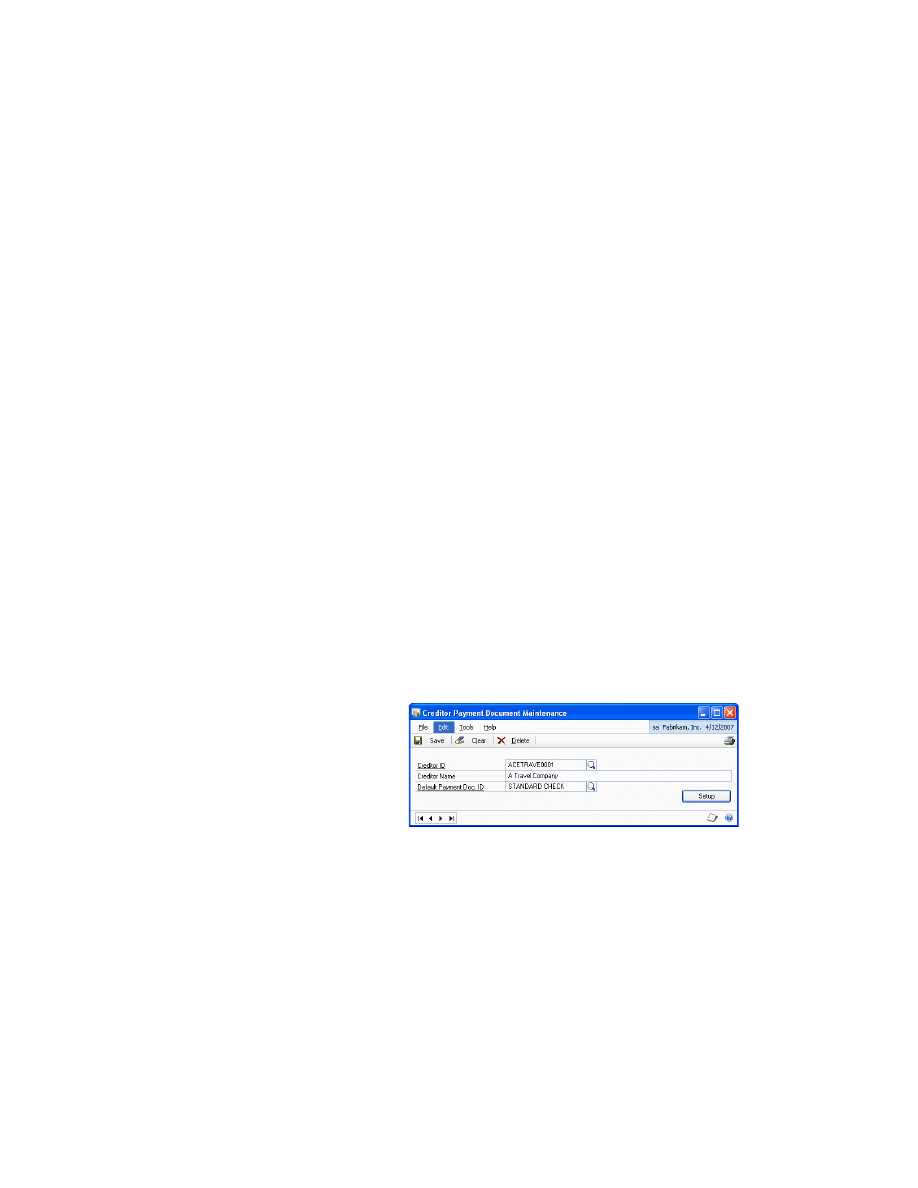
You can establish a more specific set up level by selecting the options that will be
taken into account when using a chequebook with a specific payment document.
You can assign the same chequebook to various payment documents.
To set up a chequebook for payment documents:
1.
Open the Purchasing Chequebook Payment Document Setup window.
(Cards >> Financial >> Chequebook >> Additional >> Purchasing Pmnt. Doc.
Setup)
2.
Enter or select the payment document ID.
3.
Mark the Duplicate Payment Document Numbers option to allow duplicate
payment document numbers.
4.
Enter the Next Payment Doc. Num. option if you want the document number to
be generated automatically.
C H A P T E R 2 P U R C H A S I N G S E T U P
10
P A Y M E N T
D O C U M E N T
M A N A G E M E N T
5.
Mark the Override Payment Document Number option to indicate whether the
number generated automatically for the payment document can be overridden.
This option is available only if you’ve entered the next payment document
number.
For example, if a value is entered in the Mark the Next Payment Doc. Num field
(e.g. 020000001), marking this field will allow you to modify the automatically
generated number.
6.
In the Dest. Chequebook ID column, select the chequebooks to which the bill
will be transferred once the operation from the current chequebook has been
performed.
7.
In the Account column, select the accrual accounts for Give and Pay. If the
accounts are not entered, the default accounts indicated in the module setup
will be used if a properly-configured transaction is performed.
8.
In the Max Payment Doc. Amount field, enter the maximum amount for
payment for the document with the selected chequebook (e.g. to prevent banks
from charging a commission for surpassing a certain amount).
9.
Enter a password to override the maximum amount specified in the Max.
Payment Doc. Amount field.
Assigning a default payment document to a creditor
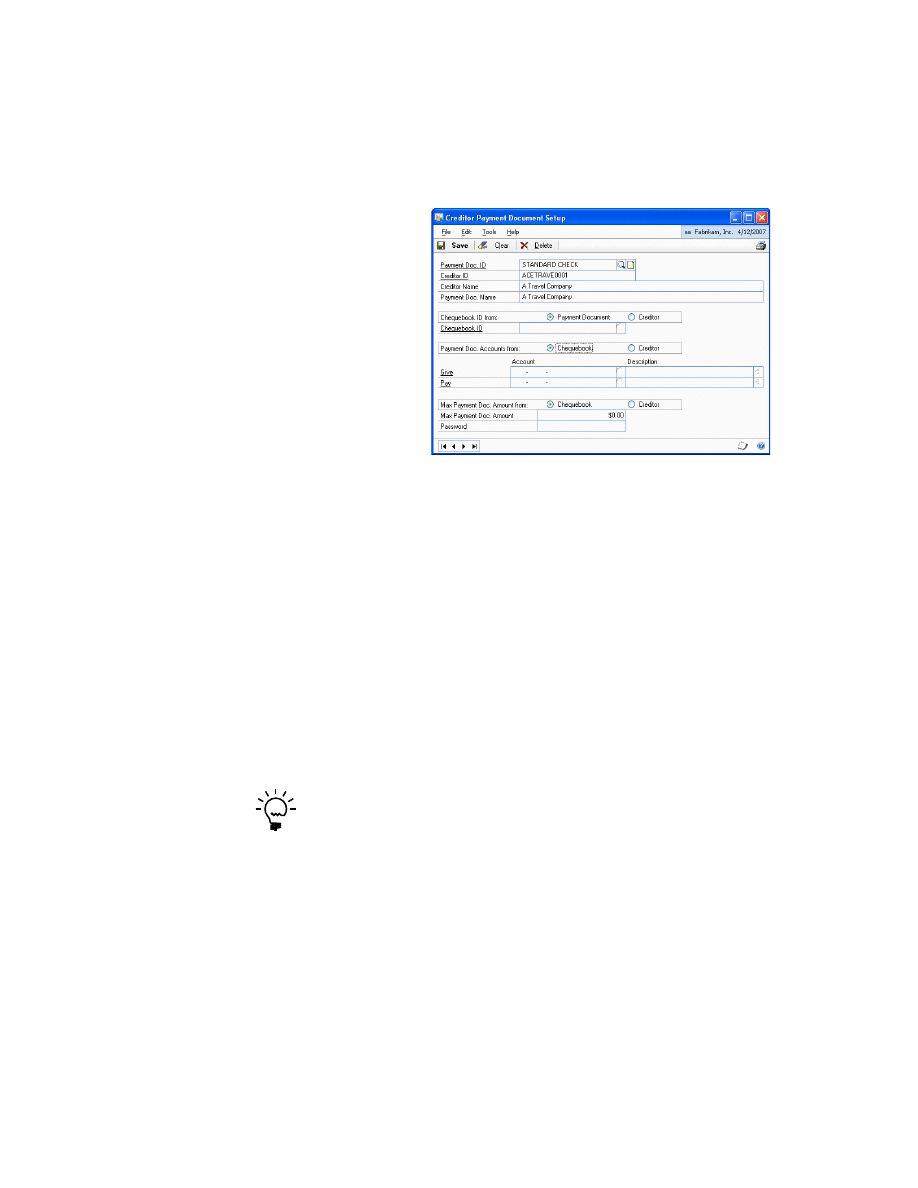
You can assign a default payment document to each creditor in the Creditor
Payment Document Maintenance window.
To assign a default payment document to a creditor:
1.
Open the Creditor Payment Document Maintenance window.
(Cards >> Purchasing >> Creditor Payment Document)
2.
Select the Creditor ID for the payment document.
3.
Select the default payment document ID.
P A Y M E N T
D O C U M E N T
M A N A G E M E N T
11
C H A P T E R 2 P U R C H A S I N G S E T U P
4.
Choose Setup to open the Creditor Payment Document Setup window. This
window allows you to set the default payment document for the selected
creditor. If there is more than one payment document defined for the creditor,
you can view their information using this window. The set up in this window is
optional. If it is not defined, the default set up in Purchasing will be used.
•
Select the payment document in the Payment Doc. ID field.
•
Enter a description for the payment document in the Payment Doc Name
field.
•
In the Chequebook ID from field, select whether you want to use the
chequebook ID from the payment document or the creditor by default. This
is taken from the chequebook selected for the payment document. If it is
taken from the actual creditor, select the Creditor option and enter the
chequebook ID. This chequebook ID will be used in collections from
creditors with this type of payment document.
•
In the Payment Doc. Accounts from field, select whether the accounts used
to enter transactions for the payment document will be taken from the
chequebook associated with the payment document or from the creditor. If
you select Creditor, enter the Give and Pay accounts.
If accounts are not set in the chequebook or for the creditor, the default accounts
indicated in the purchasing module set up will be used.
•
In the Max Payment Doc Amount from field, select whether to take the
maximum amount limit from the Chequebook or the Creditor.
If you select Creditor, enter the maximum amount that will be allowed in a
creditor payment in the payment document.
Enter a password to override the a maximum amount limit specified in a
transaction with the selected payment document.
•
Choose Save to save the details and return to the Creditor Payment
Document Maintenance window.

12
P A Y M E N T
D O C U M E N T
M A N A G E M E N T
P A Y M E N T
D O C U M E N T
M A N A G E M E N T
13
Chapter 3:
Sales Setup
Use this information to set up default accounts in the ledger posting of payment
documents.
This information is divided into the following sections:
•
Setting up default accounts for sales
•
•
Creating and defining payment documents
•
Setting up a chequebook for payment documents
•
Assigning a default payment document
Setting up default accounts for sales
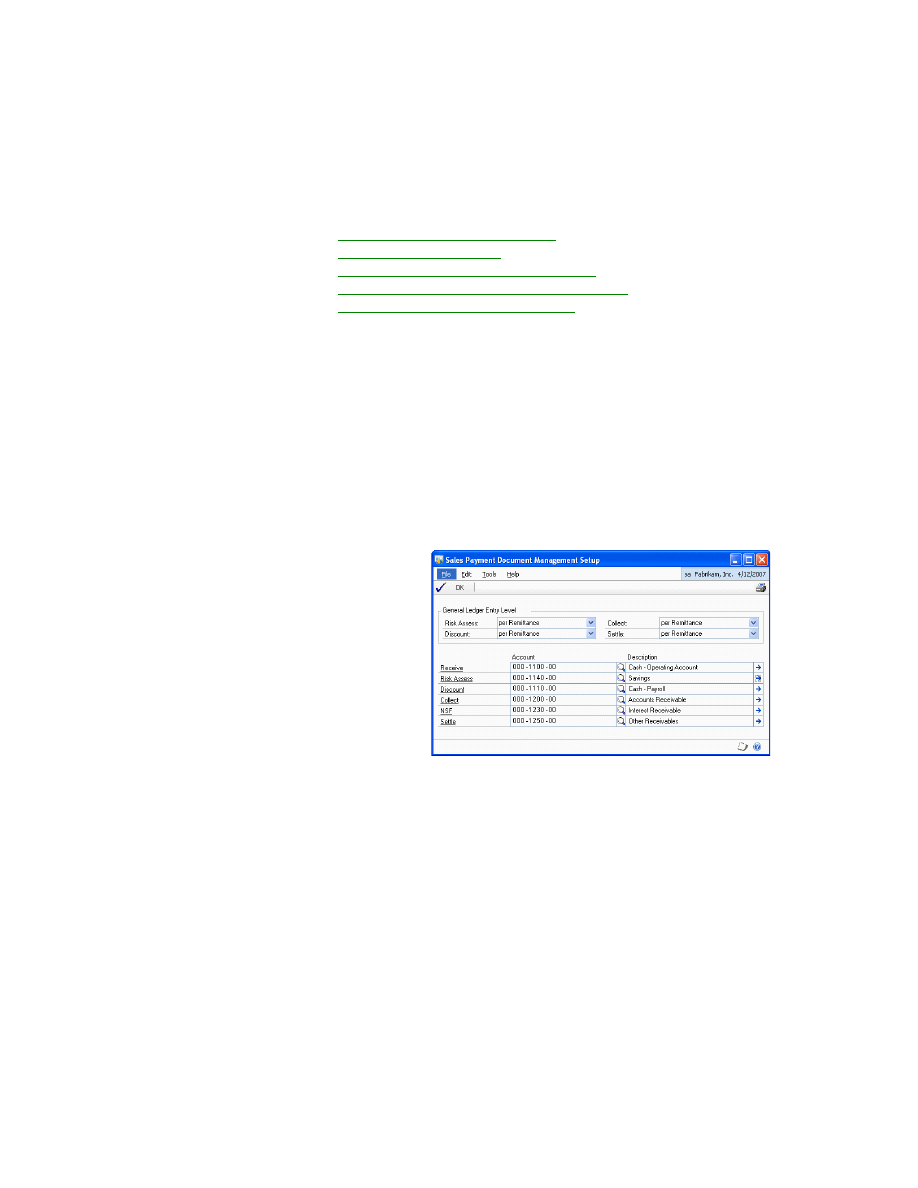
The Sales Payment Document Management Setup window allows you to set up
default accounts in the Ledger posting of payment documents, as well as the
General Ledger Entry Level used in the payment document remittance process.
To set up default accounts for sales:
1.
Open the Sales Payment Document Management Setup window.
(Microsoft Dynamics GP menu >> Tools >> Setup >> Sales >> Payment
Document Setup)
2.
Transactions with payment documents require specific accounting entries.
There may be one entry per payment document, or, alternatively, one entry for
a whole remittance consisting of several payment documents. You can choose
to set up each of the payment document operations (risk assessment, discount,
collection, or settlement) in either way.
3.
Risk assessment, discount, and collection are normally posted in one entry per
document (to improve transaction monitoring) and per settlement process, in a
single summary entry of all the documents, where a single amount appears on
bank statements for total cheques transacted.
C H A P T E R 3 S A L E S S E T U P
14
P A Y M E N T
D O C U M E N T
M A N A G E M E N T
4.
Enter or select the accounts for the following fields:
Receive
For cheques received.
Risk Assessment
For risk assessing cheques.
Discount
For discounted cheques.
Collect
For collecting cheques.
NSF
For bounced cheques.
Settle
For settled cheques.
This payment document setup level is required, as these accounts make sure
that all transactions entered are properly configured. If accounts are established
at this higher level, there are no restrictions on the accounts to be used when
preparing a remittance.
5.
Choose Save to save the changes and close the window.
Setting up user preferences
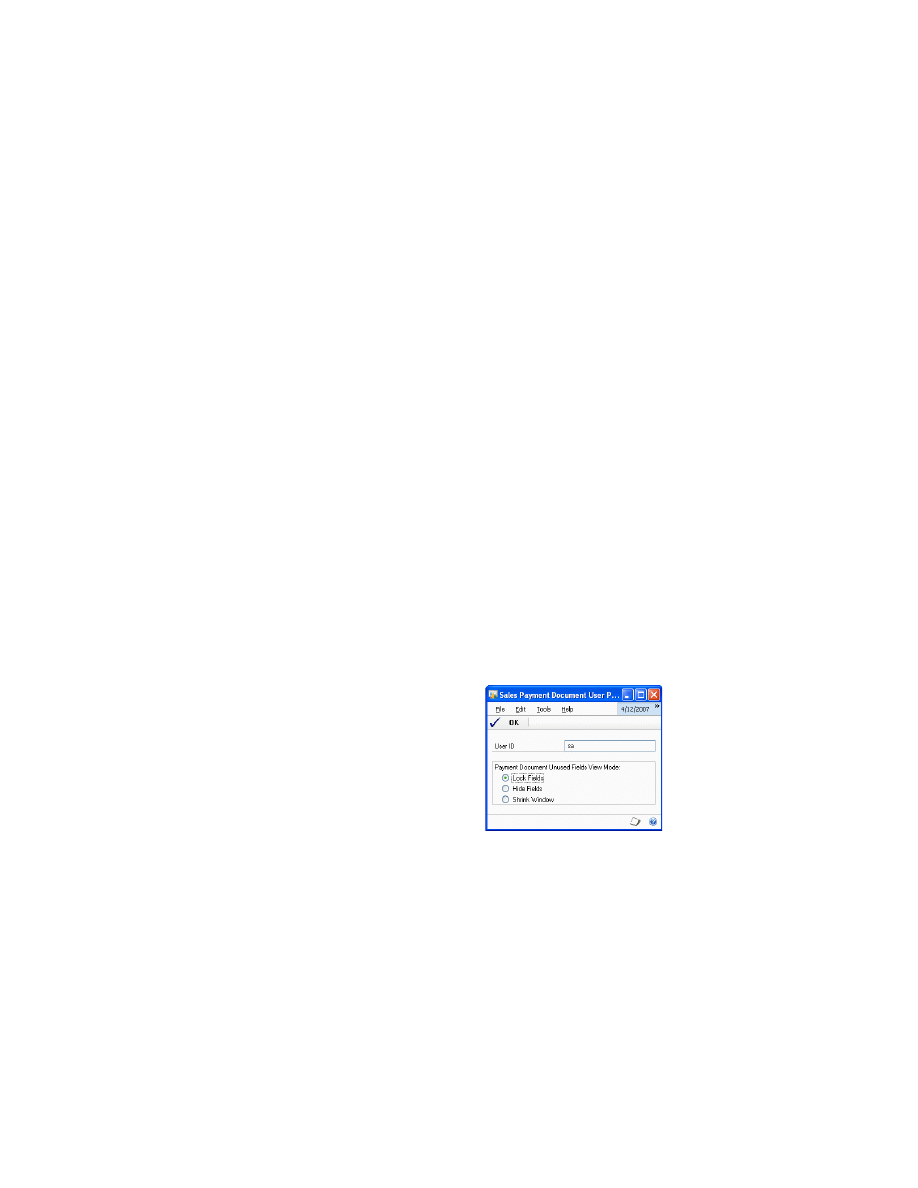
You can select the way in which you want the sales payment document entry
windows to open in order to enter additional information relating to the payment
document.
To set up user preferences:
1.
Open the Sales Payment Document User Preferences window.
(Microsoft Dynamics GP menu >> Tools >> Setup >> Sales >> Payment
Document User Preference)
2.
You can set the way in which you want to open this window in order to enter
additional information relating to the payment document. The different options
are as follows:
Lock Fields
This is the default view for all users.
Hide Fields
Only the fields in which the user can enter a value are displayed
in the window.
Shrink Window
This option modifies the window size and field position to
adjust it exclusively to the information that must be completed by the user for
each payment document.
P A Y M E N T
D O C U M E N T
M A N A G E M E N T
15
C H A P T E R 3 S A L E S S E T U P
3.
Choose OK to save the changes and close the window.
Creating and defining payment documents
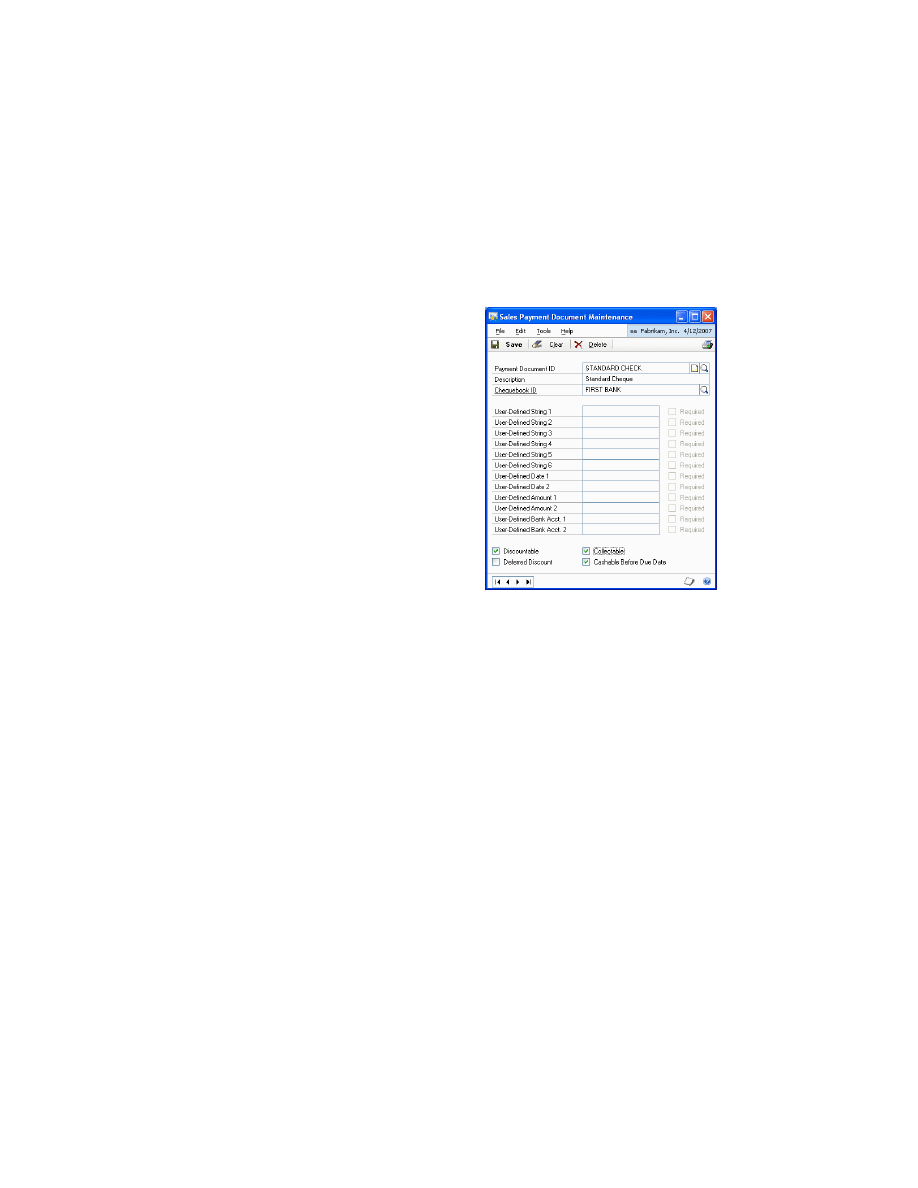
You can create and define payment documents that will be used in sales in the Sales
Payment Document Maintenance window.
To create and define payment documents:
1.
Open the Sales Payment Document Maintenance window.
(Cards >> Sales >> Payment Document Maintenance)
2.
Enter or select the payment document ID and enter a description for the
document.
3.
Select the chequebook ID for the payment document.
4.
When using the payment document in question in a collection process, the
chequebook associated with the document will be set as the default value in the
Chequebook ID field in the Collections window.
5.
When collecting an amount using a payment document, additional information
can be stored in this document. For this purpose, the system incorporates
various fields of different types and formats (text, date, amount and bank
account number 0000-0000-00-0000000000) for entering text that will later
appear linked to this payment document to allow users to complete this
information. Each of these fields can be selected as Required, in order to specify
whether it is compulsory for the user to complete this information. The purpose
of these fields is to store information on the system in order to establish search
conditions or in the future to have data on the system that can be used with
other tools (e.g. printing devices).
6.
Mark the Discountable option if you want the payment document to be
discounted.
7.
Mark whether the document can be presented as discountable or not.
The Deferred Discount option will be available if you select the Discountable
option.
C H A P T E R 3 S A L E S S E T U P
16
P A Y M E N T
D O C U M E N T
M A N A G E M E N T
8.
Mark the Collected option if you want the document to be collected.
9.
Mark whether the document is Cashable Before Due Date. This must be
selected for payment documents with no due date (e.g. cheques). This must be
left unmarked for documents with due date (Promissory Notes, Bills of
Exchange, etc.).
10. Choose Save to save the values entered in this window.
Setting up a chequebook for payment documents
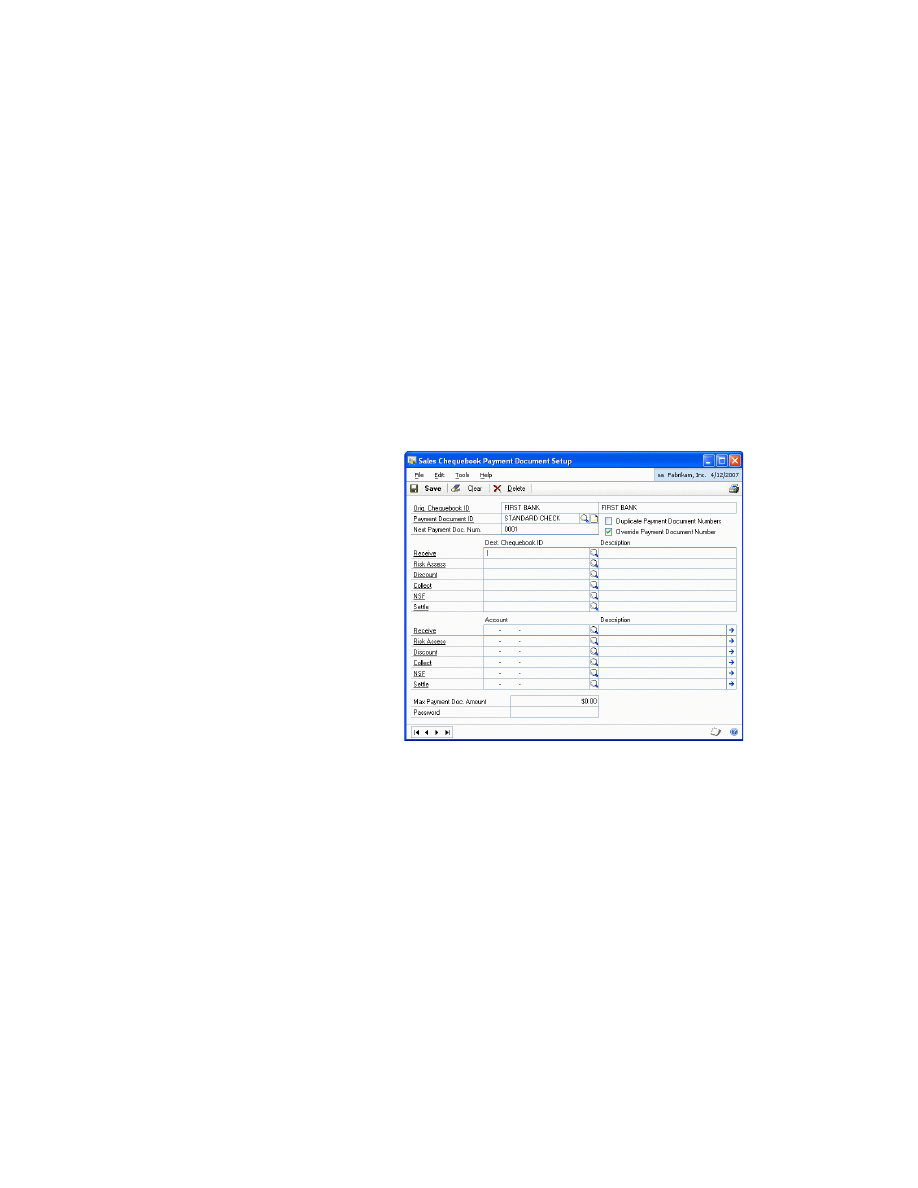
The Sales Chequebook Payment Document Setup window allows you to establish a
more specific set up level by selecting the options that will be taken into account
when using the chequebook with a specific payment document.
To set up a chequebook for payment documents:
1.
Open the Sales Chequebook Payment Document Setup window.
(Cards >> Financial >> Chequebook >> Additional >> Sales Pmnt. Doc. Setup)
2.
Enter or select a Payment Document ID.
3.
Mark the Duplicate Payment Document Numbers option to indicate whether
duplicate payment document numbers are accepted or rejected in the system.
4.
In the Next Payment Doc Num. field, enter a document number, if required.
5.
Mark the Override Payment Document Number option to indicate whether the
number generated by the system for the payment document can be overridden.
If a value is entered in the previous field (e.g. 020000001), unmarking this field
will prevent users from modifying the number generated by the system.
6.
If you want to identify chequebooks with document statuses, e.g. received bills
of exchange and discounted bills of exchange, for each operation that is
performed in this chequebook, the Destination chequebook can be set to pass
the bill once the indicated operation has been performed.
P A Y M E N T
D O C U M E N T
M A N A G E M E N T
17
C H A P T E R 3 S A L E S S E T U P
7.
Enter or select the account to be used in each transaction to customize this
account for the specific payment document and chequebook. If this information
is not entered, the default accounts indicated in the module set up will be used
when a properly configured transaction is performed.
In order to prevent the account entry generated on the remittance from using the default
accounts, the accounts must be customized for every chequebook.
8.
Enter the Max Payment Doc. Amount. This allows you to establish a maximum
collectable amount for the specific payment document by setting a limit for the
acceptance of risk.
9.
Enter a password if a maximum amount has been assigned in the previous
field, as no collections exceeding this amount will be accepted. You need to
enter this password to continue with an operation even though the maximum
value has been exceeded.
10. Choose Save to save the entries made in this window.
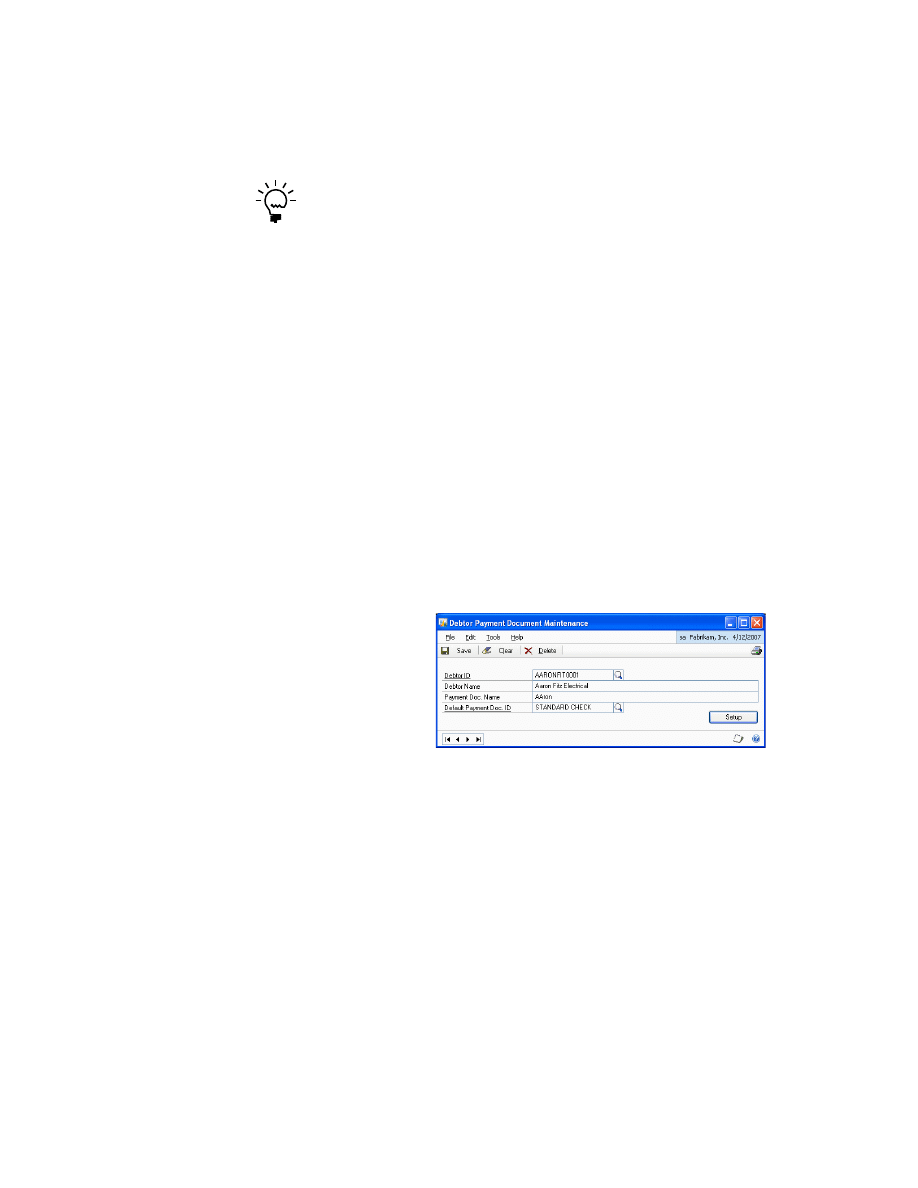
Assigning a default payment document
Use the Debtor Payment Document Maintenance window to assign a default
payment document to each debtor.
To assign a default payment document:
1.
Open the Debtor Payment Document Maintenance window.
(Cards >> Sales >> Debtor Payment Document)
2.
Enter or select the debtor ID.
3.
Enter a payment document name which will be used when printing payment
documents (receipts, bills, etc.), if you want to display the debtor name in a
different way.
C H A P T E R 3 S A L E S S E T U P
18
P A Y M E N T
D O C U M E N T
M A N A G E M E N T
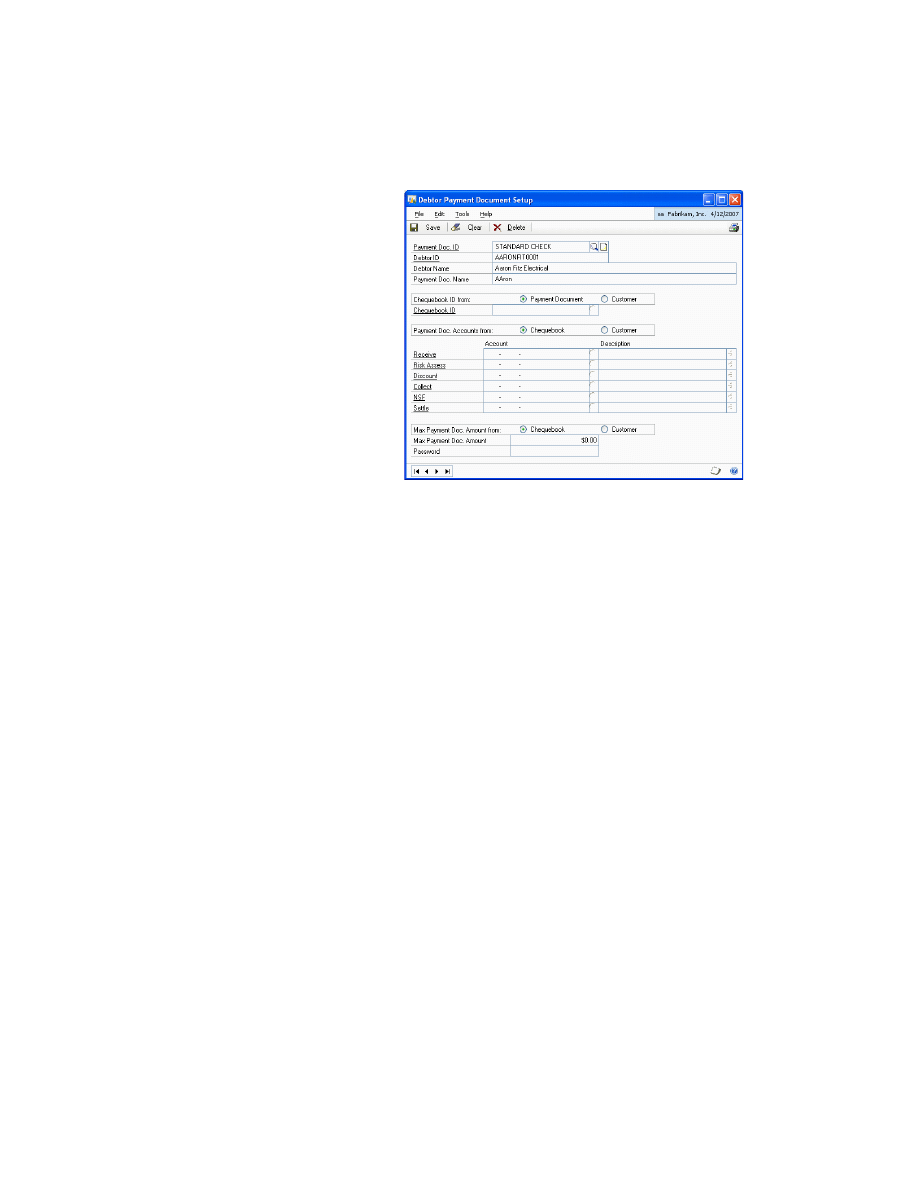
4.
Choose Setup to open the Debtor Payment Document Setup window. You can
view the setup of the payment document for the selected debtor. This set up
level is not compulsory (if it is not defined, the system default set up in Sales
will be used).
You can set the debtor default payment document and the other payment
documents that the debtor may use in this window. For this reason, and by
default, when this window is opened the Payment Doc. ID field is blank since
you may want to set up another payment document for the debtor.
•
Enter a Payment Doc. Name which will be used when printing payment
documents (receipts, bills, etc.) to display the debtor name in a different
way.
•
Select whether to take the chequebook ID from Payment Document or
Debtor. This allows you to set the chequebook that is used by default in
debtor collections performed with this payment document. This is taken
according to the chequebook set up in the payment document. If it is taken
from the actual debtor, select the Debtor option and enter the Chequebook
ID, which corresponds to the chequebook that you want to use in
collections from debtors with this type of payment document.
•
Select whether to take the Payment Doc. Account from the Chequebook or
Debtor. This allows you to determine whether the accounts that will be
used to perform transactions with this payment document are those that
have been set in the chequebook associated with the payment document, or
whether you want to modify them for this specific debtor in this payment
document. If special accounts were not set in the chequebook the default
accounts indicated in the sales module set up will be used.
•
Select whether to take the Max. Payment Doc. Amount from the
Chequebook or the Debtor. This allows you to determine the origin of the
maximum amount that will be accepted in a debtor payment collection. For
example, in the case of a high-risk debtor, only a given account for
collection on paper is admitted; if this maximum is exceeded, only cash
payments would be accepted from the debtor.

P A Y M E N T
D O C U M E N T
M A N A G E M E N T
19
C H A P T E R 3 S A L E S S E T U P
•
Enter a password if a maximum amount has been assigned in the previous
field, as no collections exceeding this amount will be accepted. You need to
enter this password to continue with an operation even though the
maximum value has been exceeded.
•
Choose Save to save the changes.

20
P A Y M E N T
D O C U M E N T
M A N A G E M E N T
P A Y M E N T
D O C U M E N T
M A N A G E M E N T
21
Chapter 4:
Purchasing Transactions
Use this information to enter payment documents for purchasing.
This information is divided into the following sections:
•
Entering a purchasing payment document
•
Entering a purchasing payment document
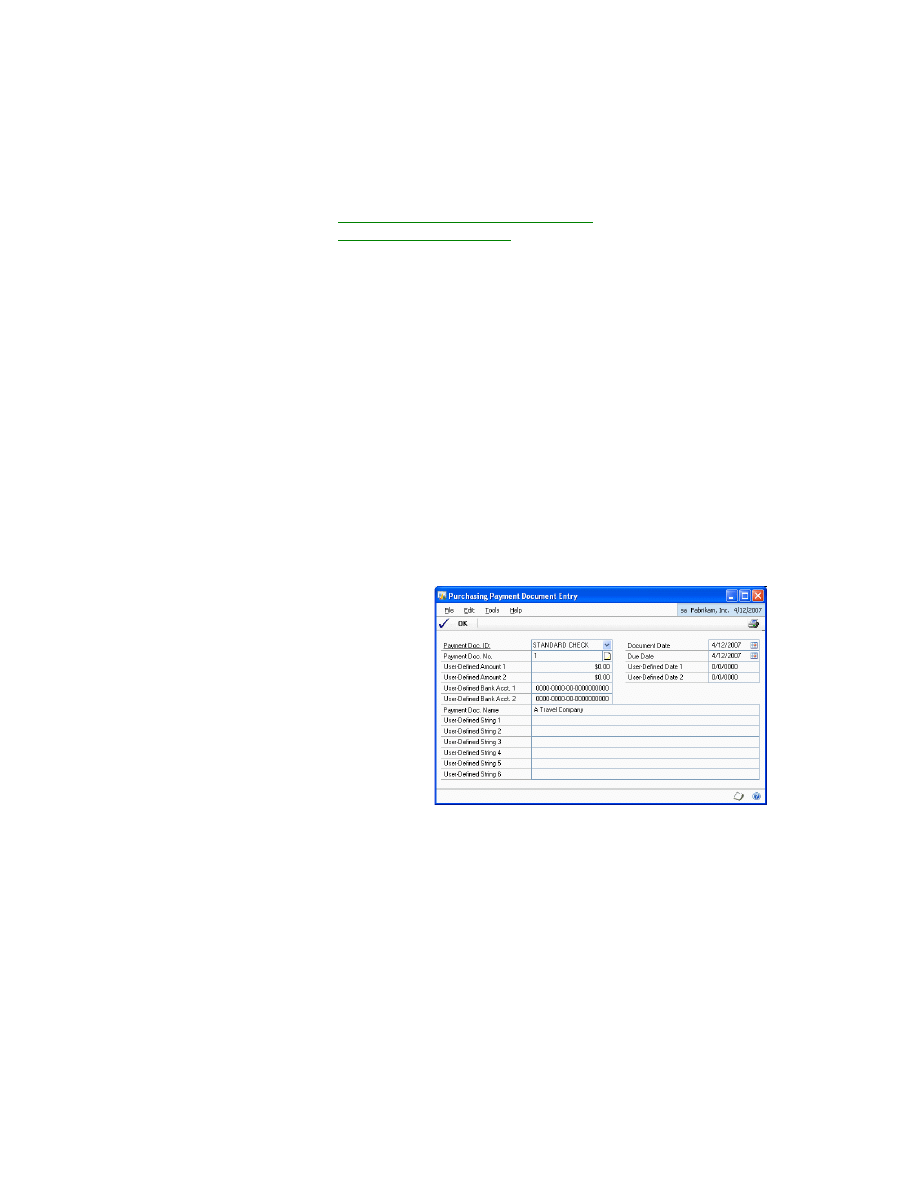
Use the Purchasing Payment Document Entry window to enter a collection
transaction in Payables with payment documents.
To enter a purchasing payment document:
1.
Open the Payables Manual Payments Entry window.
(Transactions >> Purchasing >> Manual Payments)
2.
Enter the document number and date.
3.
Select the Creditor ID. This allows you to introduce additional information in
connection with the payment and the selected payment document.
4.
Choose Additional >> Payment Document Entry to open the Purchasing
Payment Document Entry window.
5.
The Payment Doc. No. field displays the value entered in the Document No.
field in the main Payables window.
6.
The Document Date field displays the value entered in the Date field in the
Payables window.
7.
The Due Date field displays the value entered in the Date field in the Payables
window. If the payment document has been associated with a due date for
making the payment, this date must be modified accordingly.
C H A P T E R 4 P U R C H A S I N G T R A N S A C T I O N S
22
P A Y M E N T
D O C U M E N T
M A N A G E M E N T
The fields that were selected as Required in the Payment Document
Maintenance window will appear as compulsory fields in this window. Fields
that were left blank will not be available in this window.
If no user field was selected as Required in the Payment Document Maintenance
window, you do not need to open this window through the Additional option, since all
the compulsory fields of the window are displayed by default with the values that are
entered in the Payables window.
8.
Choose OK to save the changes and close the window.
Settling payment documents
You can settle payment documents and identify the origin and destination
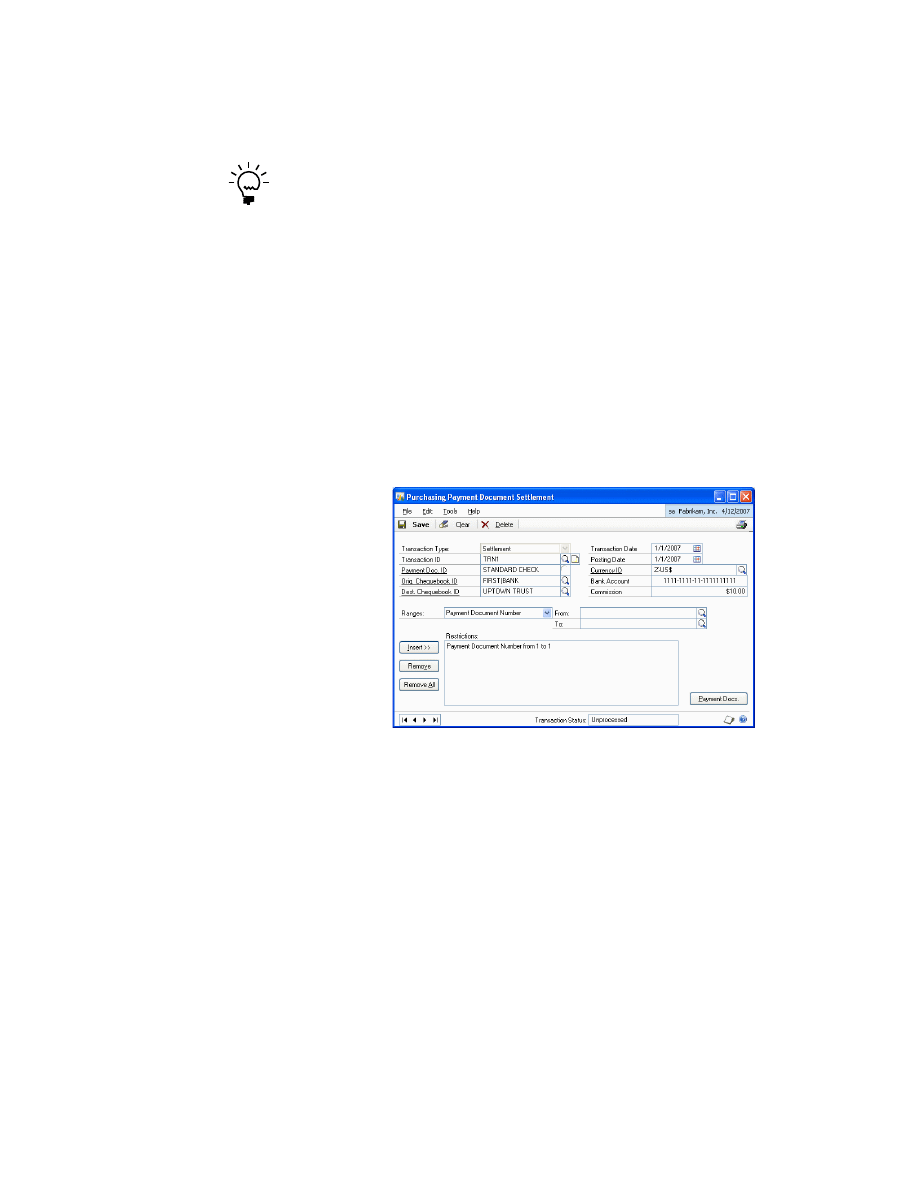
chequebooks for the payment documents in the Purchasing Payment Document
Settlement window.
To settle payment documents:
1.
Open the Purchasing Payment Document Settlement window.
(Transactions >> Purchasing >> Payment Document Settlement)
2.
Enter a transaction ID for the settlement that you are going to create. For
example, you can enter the transaction ID using the settlement date. If the
settlement is stored rather than processed, it can be recovered later.
3.
In the Payment Doc. ID field, select the type of payment document for which
the settlement will be made.
4.
In the Orig. Chequebook ID field, select the chequebook from which you want
to recover the payment documents that are going to be remitted.
5.
The Dest. Chequebook ID field will display the chequebook that is set up for the
settlement type. If not, you can select the chequebook to which the bills will be
transferred after the settlement.
6.
Enter the transaction date. This is the date on which the settlement will be paid.
It acts as the cut-off date of payment documents that will be included in the
settlement. Only those documents whose due date is earlier than or the same as
the date indicated in this field will be settled, i.e., it only allows settlement of
payments that have fallen due on the settlement date.
P A Y M E N T
D O C U M E N T
M A N A G E M E N T
23
C H A P T E R 4 P U R C H A S I N G T R A N S A C T I O N S
7.
Enter the posting date. This is the date on which the settlement entry is posted.
8.
In the Bank Account field, enter the current account from which the settlement
will be paid.
9.
Enter the commission amount that the bank charges for paying the settlement.
10. You can restrict the list of documents that will be included in the settlement by
establishing different ranges by different criteria. The User-Defined fields that
were indicated in the Payment Document Maintenance will be included in the
Ranges field in order to allow it to filter this information.
11. Choose Insert to add the condition entered in the Ranges, From, and To fields to
the Restrictions list.
12. Choose Remove to delete the selected condition in the Restrictions list.
13. Choose Remove All to delete all the filter conditions from the Restrictions list.
14. Choose Payment Docs. to open the Purchasing Payment Document Settlement
Selection window, where you can view all the selected collections for the criteria
specified in the Purchasing Payment Document Settlement window. You can
select the documents that you want to include in the settlement.
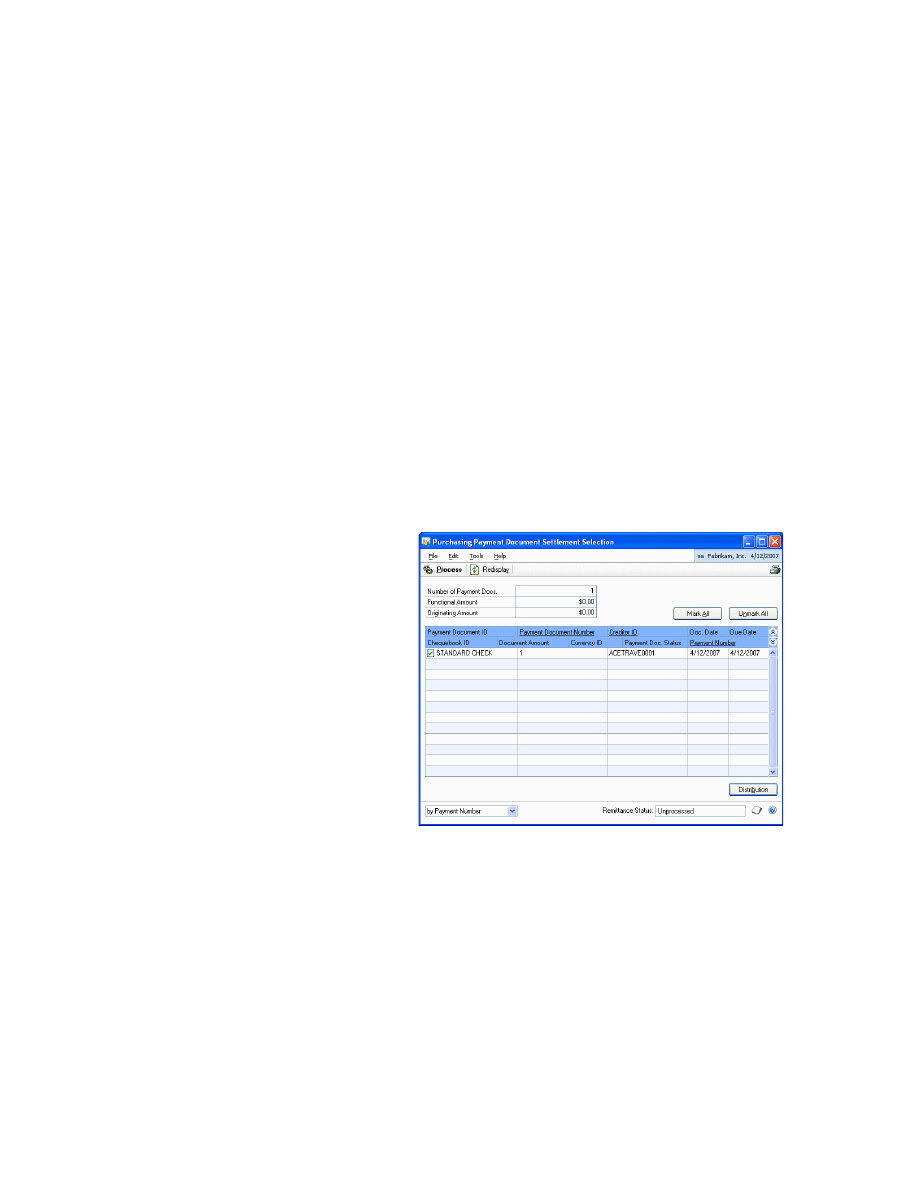
•
The Number of Payment Docs. field indicates the total number of payments
selected.
•
The Functional Amount field indicates the total amount of collections
selected on the settlement in the currency of the company.
•
The Originating Amount field indicates the total amount of collections that
have been made in another currency.
15. Select a payment document in the scrolling window and click on the Payment
Document Number link to view the purchasing payment document details in
the Purchasing Payment Document Zoom window.
C H A P T E R 4 P U R C H A S I N G T R A N S A C T I O N S
24
P A Y M E N T
D O C U M E N T
M A N A G E M E N T
16. Choose the Settlement button in the Purchasing Payment Document Zoom
window to view the purchasing payment document settlement details in the
Purchasing Payment Document Settlement Zoom window.
17. Choose Mark All to select all the collections displayed in the scrolling window.
18. Choose Unmark All to unmark all the collections selected in the scrolling
window.
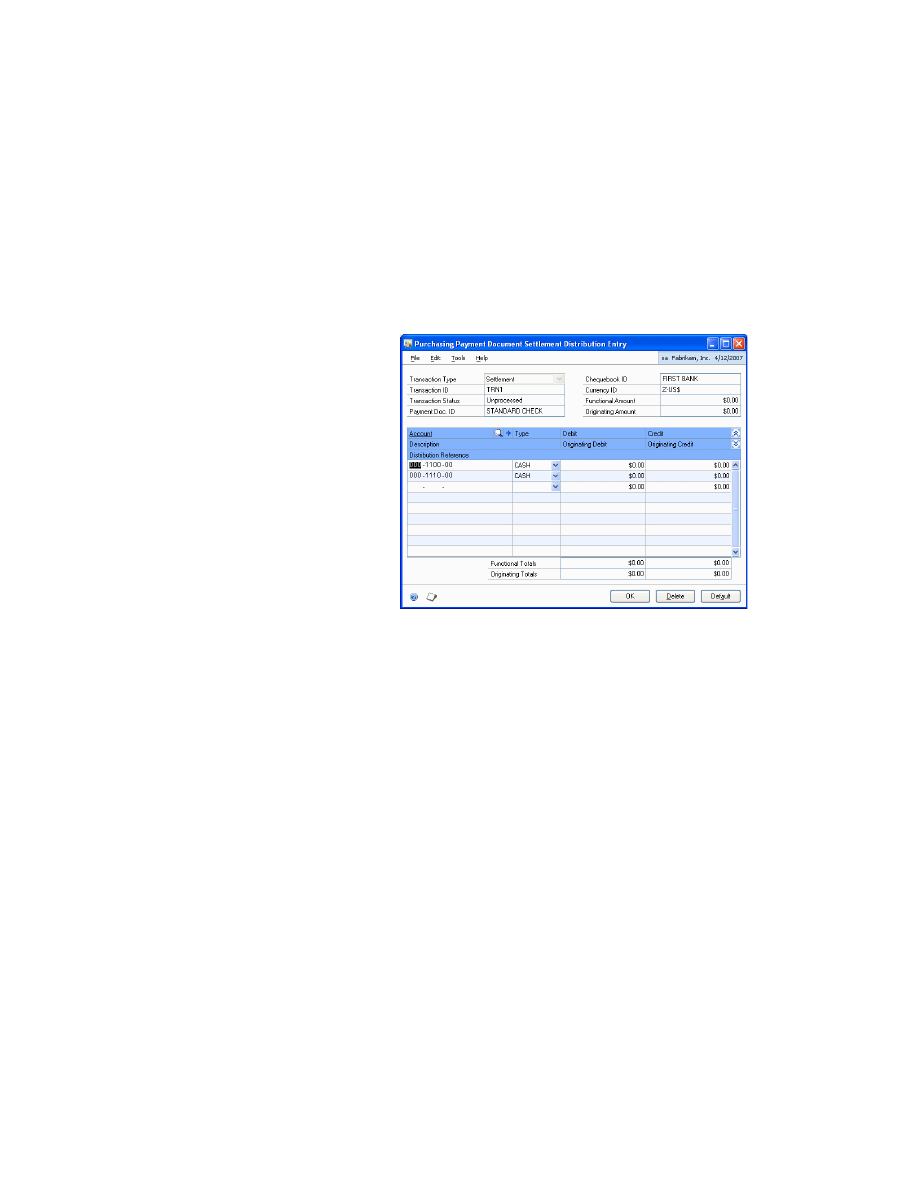
19. Choose Distribution to open the Purchasing Payment Document Settlement
Distribution Entry window, where you can view the distributions of the
selected settlements.
20. Choose OK to close the window and return to Purchasing Payment Document
Settlement Selection window.
21. Choose Process to post the settlement. The settlement entry is posted in
Finances in a PMPDC-type batch (Purchasing Management Payment Doc.
Settlement). Once you have processed the settlement, you cannot edit it.
22. Close the window to return to Purchasing Payment Document Settlement
window.
23. Choose Save to save the changes made in the window.
P A Y M E N T
D O C U M E N T
M A N A G E M E N T
25
Chapter 5:
Sales Transactions
Use this information to enter payment documents for sales.
This information is divided into the following sections:
•
Entering a sales payment document
•
Entering payment document remittances
Entering a sales payment document
Use the Sales Payment Document Entry window to enter a collection transaction in
Receivables Management with payment documents.
To enter a sales payment document:
1.
Open the Cash Receipts Entry window.
(Transactions >> Sales >> Cash Receipts)
2.
Enter the receipt number, document and the date of the receipt.
3.
Enter the debtor ID.
4.
Select the Cheque form of payment.
5.
Enter the cheque number in the Cheque/Card Number field.
6.
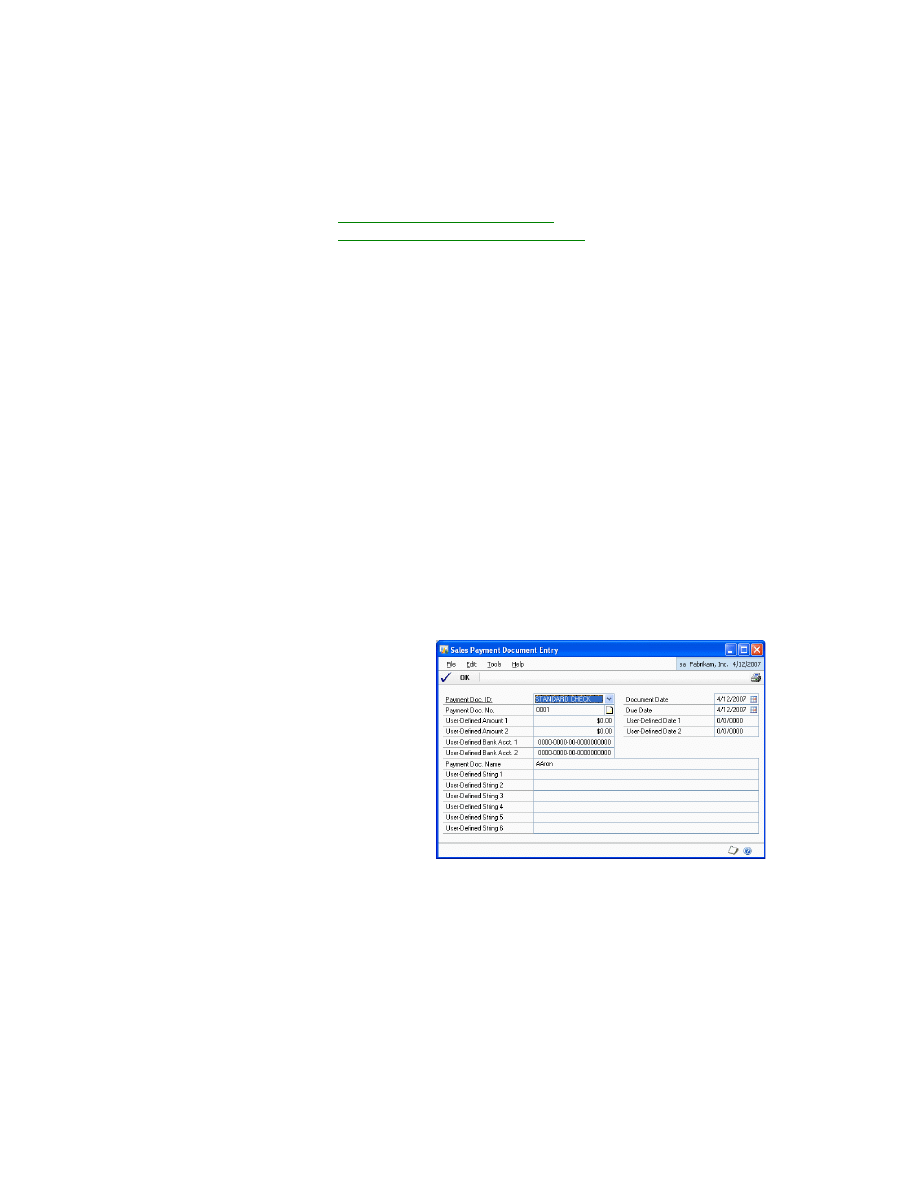
Choose Additional and select Payment Document Entry to open the Sales
Payment Document Entry window.
7.
The Payment Doc No. field will display the value entered in the Card/Cheque
Number field in the Cash Receipts window.
8.
The Document Date field displays the value entered in the Date field in the
Cash Receipts window.
9.
The Due Date field will display the value entered in the Date field in the Cash
Receipts window. If the payment document has been associated with a due date
for collection of the receivable, this date must be modified accordingly.
C H A P T E R 5 S A L E S T R A N S A C T I O N S
26
P A Y M E N T
D O C U M E N T
M A N A G E M E N T
10. If the default payment document setting for the debtor indicates that the
printout of the document should display a different name than the one that
appears on the Debtor Maintenance window, the default value will appear in
the Payment Doc Name field. This may be modified or overwritten.
11. The Guarantor field will appear if it was selected as Required in the Payment
Document Maintenance window. Fields for which no values were entered in the
Payment Document Maintenance window, will not be available in this window.
If no user field was selected as Required in the Payment Document Maintenance
window, you do not need to open this window through the Additional option, since
all the compulsory fields of the window are displayed by default with the values
that are entered in the Receivables window.
Additional information that is entered in this window for each payment document
could be used by third parties to develop search and print utilities.
Entering payment document remittances
You can make payment document remittances in the Sales Payment Document
Remittances window, and identify the type of remittance, and the origin and
destination chequebooks for the payment document.
To enter payment document remittances:
1.
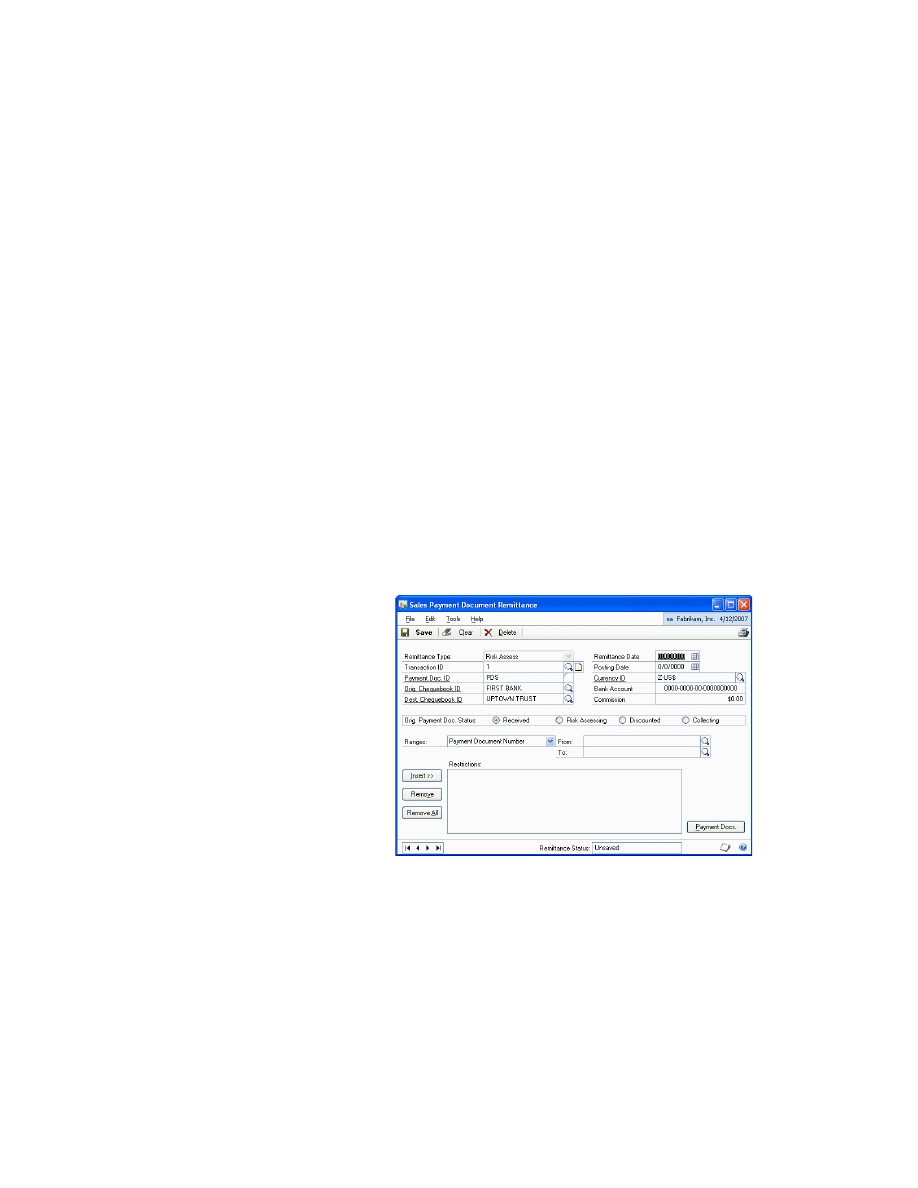
Open the Sales Payment Document Remittance window.
(Transactions >> Sales >> Payment Document Remittance)
2.
Select the remittance type to identify the remittance.
3.
Select the Transaction ID for the remittance. This will identify the remittance
that you are going to create. For example, you can compose the name assigned
to you using the remittance date. If the remittance is stored rather than
processed, it can be recovered later for modification and processing.

P A Y M E N T
D O C U M E N T
M A N A G E M E N T
27
C H A P T E R 5 S A L E S T R A N S A C T I O N S
4.
Select the Payment Doc ID. This indicates the type of payment document from
which the remittance will be made. If, for example, no indication was made in
the Payment Document Maintenance window that this document could be used
to make a Deferred Discount, and if the Risk Assessment value was selected as
the remittance type, then you cannot select a payment document for which this
option has not been selected.
5.
Select the chequebook from where you want to recover the payment documents
that are to be remitted in the Orig. Chequebook ID field.
6.
Select the destination chequebook in the Dest. Chequebook ID field. The default
value appears based on the chequebook set as default earlier.
7.
In the Remittance Date field, enter the date on which the remittance will be
paid. This date will be the cut-off date of payment documents that will be
included in the remittance. Only those documents whose due date (the date
that appears in the Receivable Information Entry window) is earlier than, or the
same as, the date indicated in this field will be remitted, i.e., it only allows
remittance of receivables that have fallen due on the remittance date.
8.
Enter the date on which the remittance entry is posted in the Posting Date field.
9.
In the Bank Accounts field, enter the current account number into which the
remittance will be paid. This helps you to later establish the search conditions
for that field.
10. In the Commission field, enter the amount that the bank charges for payment of
the remittance. It is only for your information and will not be used anywhere in
the application.
11. In the Orig. Payment Doc Status field, select the collections that must be
included in the current remittance. The options are:
Received
Collection authorized in the system.
Risk Assessing
If a deferred discount has been indicated, in order to make a
remittance discountable, you must select only collections for which risk has
been evaluated.
Discount
by recovering collections that have already been presented for
discount, a Settlement or Unpaid remittance can be made.
Collecting
by recovering collections that have already been presented for
collection, a Settlement or Unpaid remittance can be made.
12. Select the document type in the Range field. The fields you entered in the
Payment Document Maintenance window will appear in the Range list.
13. Enter the range of documents to be included in the remittance in the From and
To fields.
14. Choose Insert to add the range and documents selected in the Restrictions list.
15. Choose Remove to delete the selected condition from the Restrictions list.
16. Choose Remove All to delete all the filter conditions from the Restrictions list.
C H A P T E R 5 S A L E S T R A N S A C T I O N S
28
P A Y M E N T
D O C U M E N T
M A N A G E M E N T
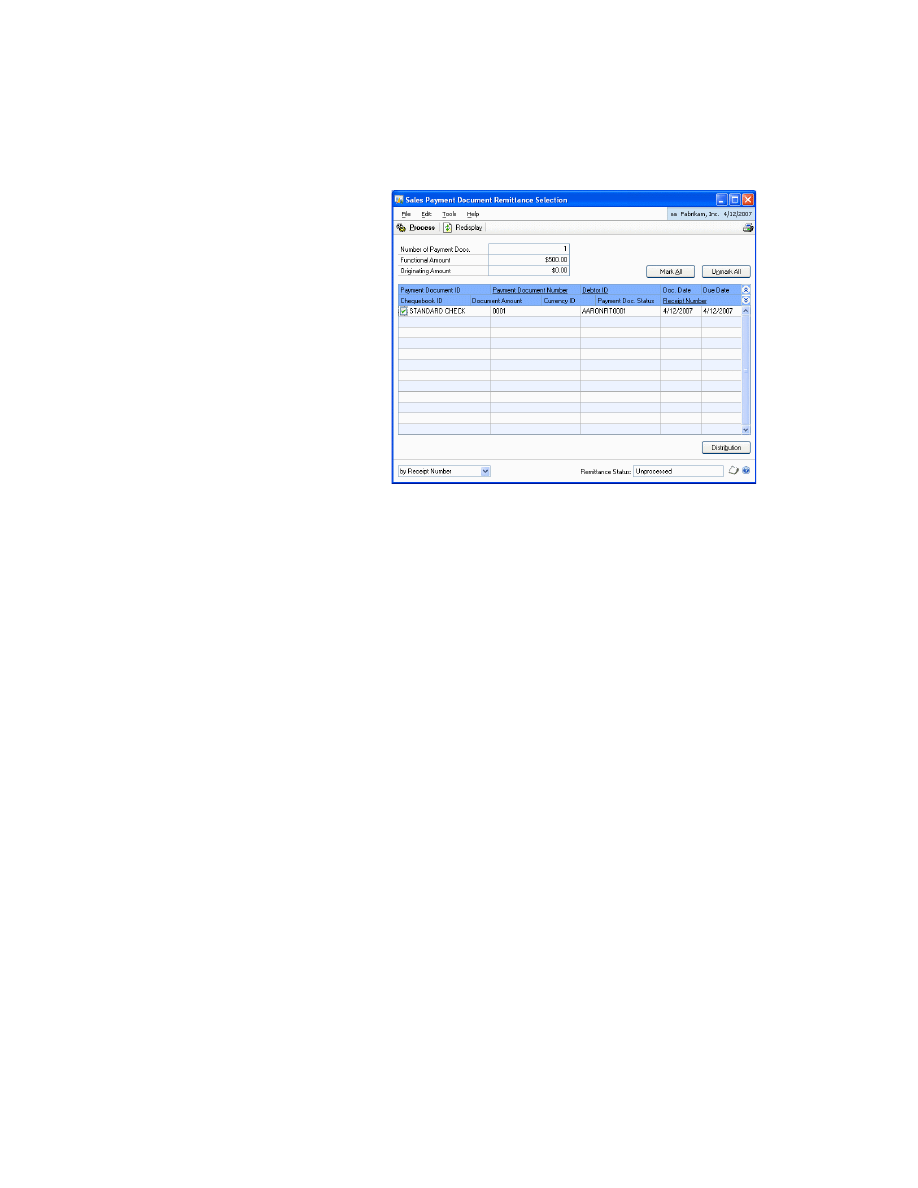
17. Choose Payment Docs. to open the Sales Payment Document Remittance
Selection window that shows all the selected collections according to the
established filter criteria. You can select all the collections that you want to
include in the remittance.
•
The Number of Payment Docs. field displays the total number of payments
selected.
•
The Functional Amount field displays the total amount of collections
selected on the remittance in the currency of the company.
•
The Originating Amount field displays the total amount of collections that
have been made in another currency.
•
Mark the payment document ID for the collections that you want to include
in the remittance.
18. Select a payment document in the scrolling window and click on the Payment
Document Number link to view the sales payment document details in the
Sales Payment Document Zoom window.
19. Choose Remittances button in the Sales Payment Document Zoom window to
view the sales payment document remittance details in the Sales Payment
Document Remittance Zoom window.
20. Choose Mark All to select all the collections.
21. Choose Unmark All to unmark all the collections.
P A Y M E N T
D O C U M E N T
M A N A G E M E N T
29
C H A P T E R 5 S A L E S T R A N S A C T I O N S
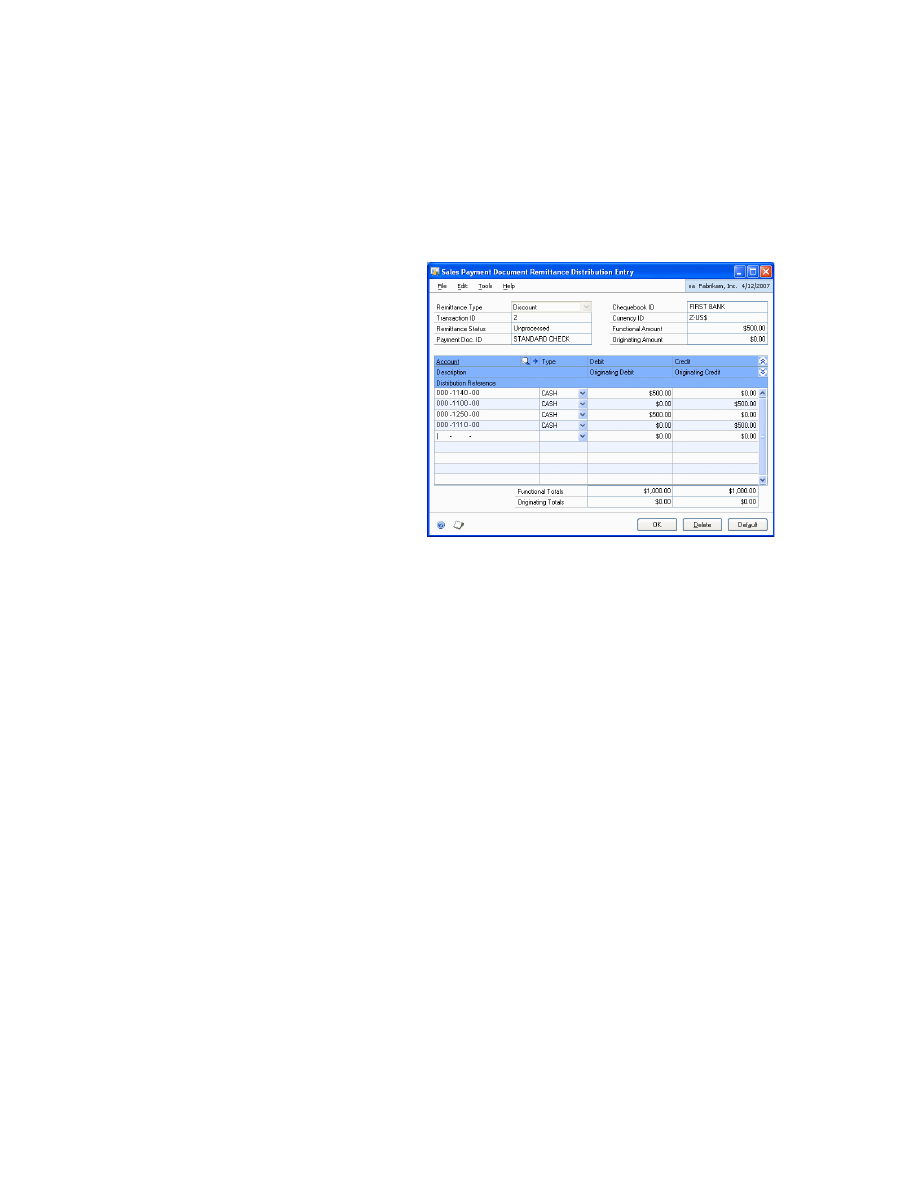
22. Choose Distribution to open the Sales Payment Document Remittance
Distribution Entry window, where you can view the distributions for the
selected remittance. According to the level of entry set in accounts for the sales
module for the remittance type, a post entry will be made for each collection
included and marked on the remittance or a single summary posting entry for
the total of all the amounts. If the distributions window is opened and a change
is then made in the collections marked in the window, you will have to open the
distributions window again and choose Redisplay.
23. Choose OK to return to the Sales Payment Document Remittance Selection
window.
24. Choose Process to post the selected remittance. The remittance entry is posted
in a RMPDC-type batch (Receivables Management Payment Docs.Remittance).
The total amount of the remittance transferred between the origin and
destination chequebooks is indicated on the remittance. The status of the
remitted payment documents is changed and displayed as Remitted.
25. Choose OK to close the window.

30
P A Y M E N T
D O C U M E N T
M A N A G E M E N T

P A Y M E N T
D O C U M E N T
M A N A G E M E N T
31
Chapter 6:
Transaction Maintenance
Use this information to void and return payment documents.
This information is divided into the following sections:
•
•
•
Voiding a sales payment document remittance
Voiding payment documents
You can void a payment document in the Receivables Posted Transaction
Maintenance window (Transactions >> Sales >> Posted Transactions). You can void
a collection with an associated payment document only if:
•
The collection is Open, i.e. it must not be in History.
•
The payment document has the status as Received.
•
If the payment document has been remitted, the remittance must be cancelled
first in order to void the collection and its corresponding payment document.
When you void a collection with an associated payment document the results are:
•
The voiding is posted (reversal of the original account entry)
•
A negative entry is made in the chequebook associated with the collection and
the voided payment document.
Returning payment document
You can return a payment document only if:
•
The collection is Open, i.e. it must not be in History.
•
The payment document is in a stage preceding Settled.
When you return a collection with an associated payment document, the results are:
•
The return is posted.
•
The chequebooks associated with collection and the returned payment
document is updated. As the origin account, the chequebook associated with
the document is used as the default chequebook; the destination account used is
the account that has been indicated in the posting definition window, which
appears as a default value, if it was entered earlier.
C H A P T E R 6 T R A N S A C T I O N M A I N T E N A N C E
32
P A Y M E N T
D O C U M E N T
M A N A G E M E N T
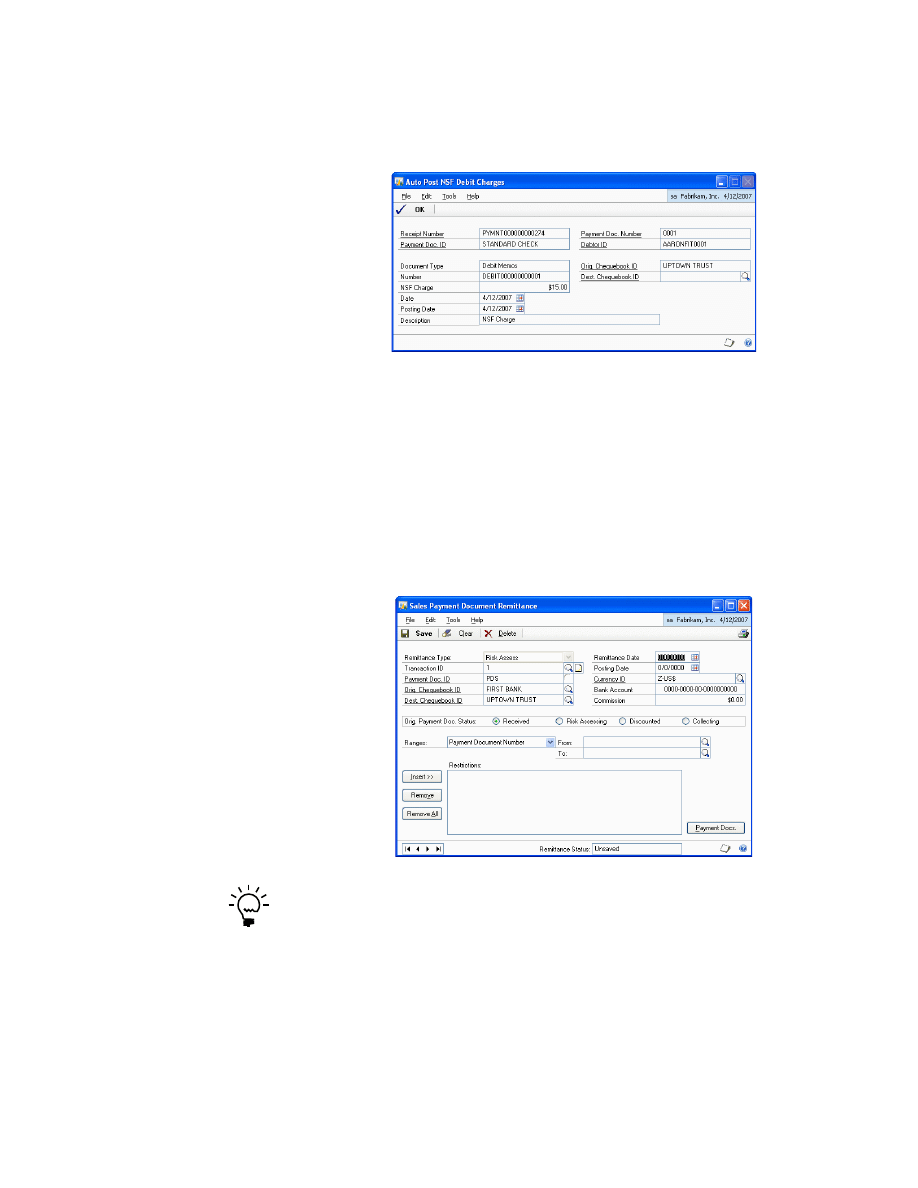
Optionally, the indicated amount is charged. The Auto Post NSF Debit Charges
window shows a payment document when you choose NSF in the Receivables
Posted Transaction Maintenance window.
Choose OK to close the window.
Voiding a sales payment document remittance
You can void a payment document remittance in the Sales Payment Document
Remittance window.
To void a sales payment document remittance:
1.
Open the Sales Payment Document Remittance window.
(Transactions >> Sales >> Payment Document Remittance)
The Void button is available only if the Remittance Status at the bottom of the screen
displays Processed.
2.
Choose Void to void the remittance. The remittance void entry is posted in a
RMPDC-type batch (Receivables Management Payment Docs.Remittance).
The status of the remitted payments document is reverted to the status prior to
the remittance.
The remittance status at the bottom of the screen changes to Voided and the
document may only be viewed for enquiry.
P A Y M E N T
D O C U M E N T
M A N A G E M E N T
33
Chapter 7:
Enquiries and Reports
You can use enquiries and reports to view and analyze the information you have
entered for payment documents.
This information is divided into the following sections:
•
Viewing collections made with payment documents
•
Viewing restricted sales payment documents
•
Viewing payments made with payment documents
•
Viewing restricted purchasing payment documents
Viewing collections made with payment documents
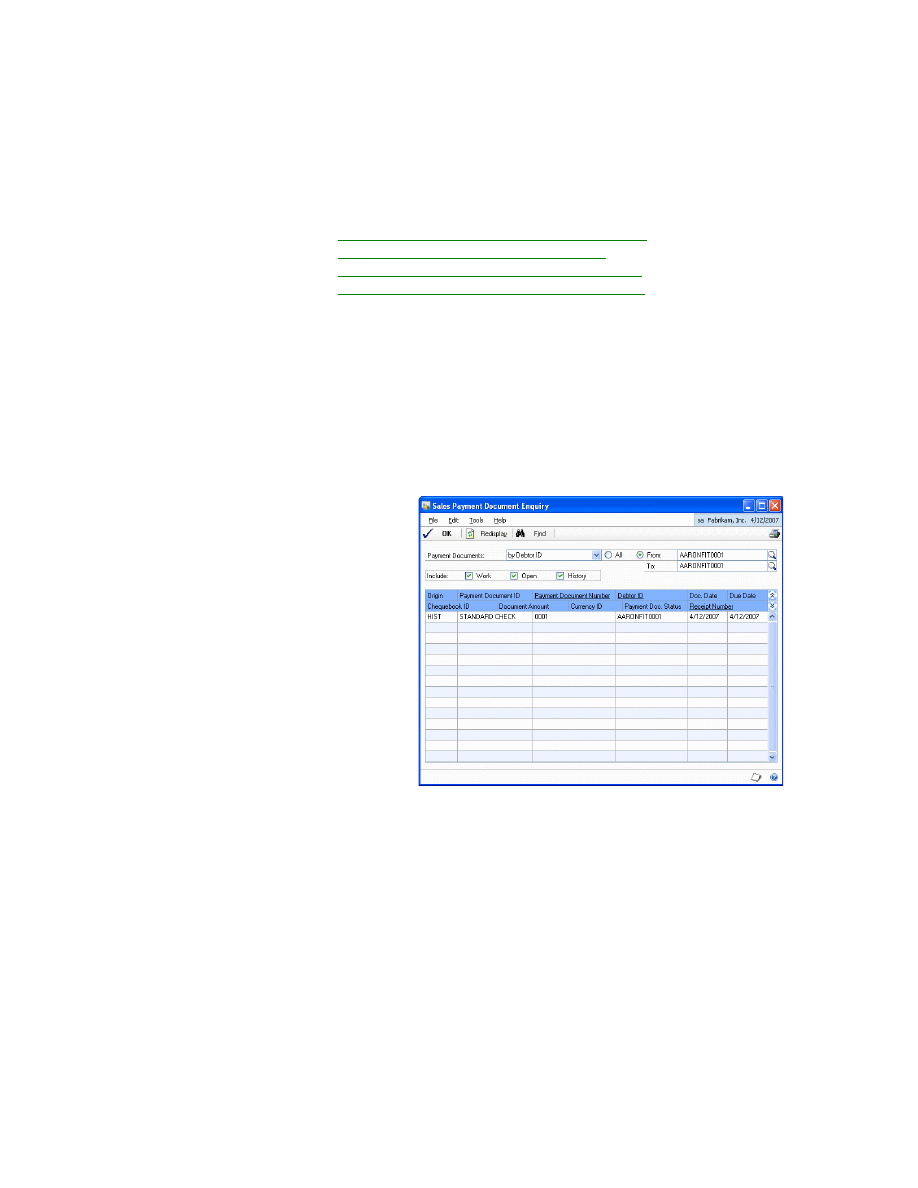
You can view all the collections made with payments documents and the status of
the collection in the Sales Payment Document Enquiry window.
To view the collections made with payment documents:
1.
Open the Sales Payment Document Enquiry window.
(Enquiry >> Sales >> Payment Documents)
2.
Select whether you want to view the payment document by Debtor ID,
Chequebook ID or Payment Doc. Status.
3.
Select whether to include unposted, posted or history payment documents.
Work
The collection is in a batch pending posting.
Open
The collection is posted pending transfer to History once it has been
totally applied.
History
The collection is posted and totally applied and has been transferred
to history.
The scrolling window displays the payment documents for the specified
criteria.
C H A P T E R 7 E N Q U I R I E S A N D R E P O R T S
34
P A Y M E N T
D O C U M E N T
M A N A G E M E N T
4.
The Payment Doc. Status displayed in the scrolling window can be any of the
following:
•
Received
•
In Risk Assessment
•
Discounted
•
Collecting (in Collections Management)
•
Unpaid
•
Settled
•
Voided
5.
Choose Find to specify a search criterion to find a payment document.
6.
Choose OK to close the window.
Viewing restricted sales payment documents
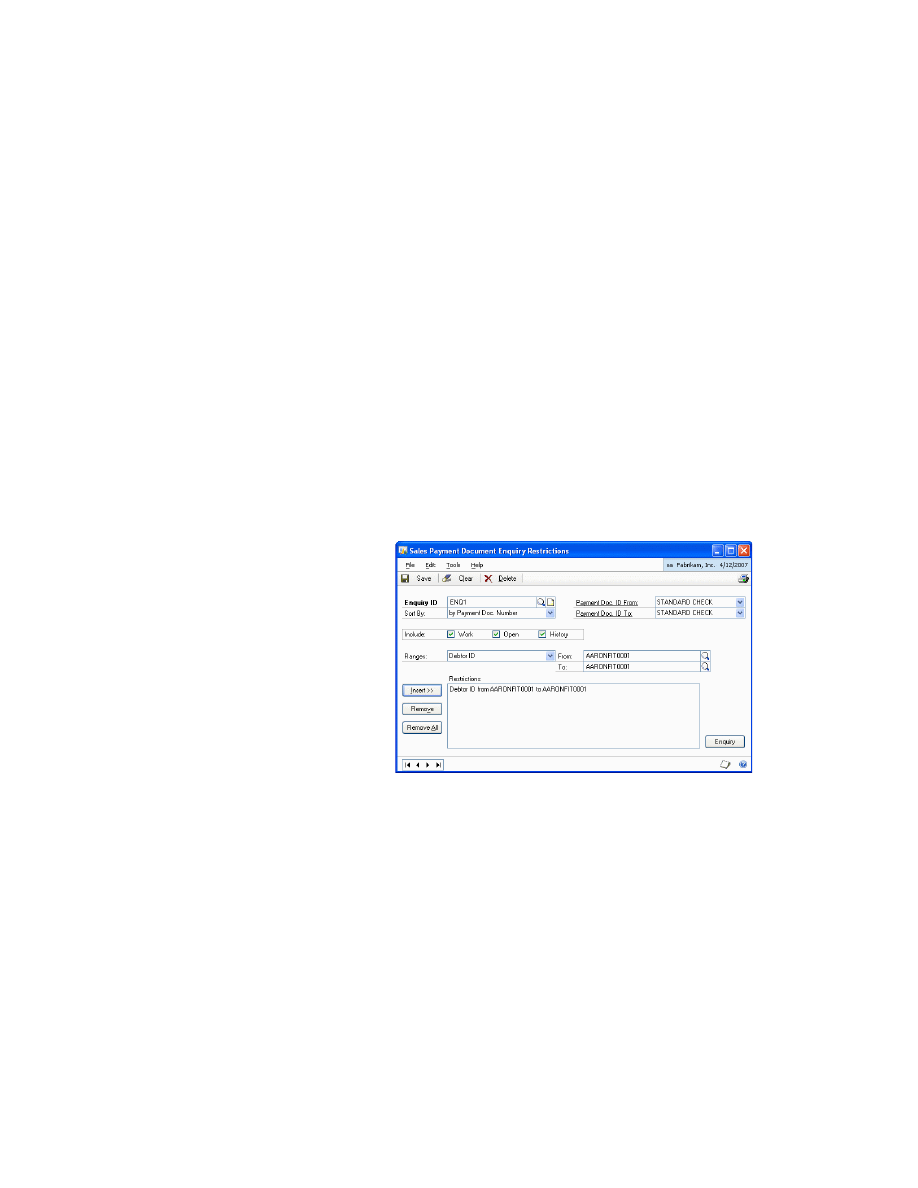
You can view collections on the payment documents in the Sales Payment
Document Enquiry Restrictions window.
To view restricted sales payment documents:
1.
Open the Sales Payment Document Enquiry Restrictions window.
(Enquiry >> Sales >> Restrict Payment Documents)
2.
Enter an Enquiry ID.
3.
Select the Payment Doc. ID From to specify the starting range of payment
documents to view.
4.
In the Payment Doc. ID to field, select the end of a search range to view from the
different types of Payment Documents set up.
5.
In the Include field, select whether you want to view posted, unposted or
history payment documents. This allows you to filter the documents that you
want to view by filtering according to the status of receivable associated with
the payment document.
P A Y M E N T
D O C U M E N T
M A N A G E M E N T
35
C H A P T E R 7 E N Q U I R I E S A N D R E P O R T S
6.
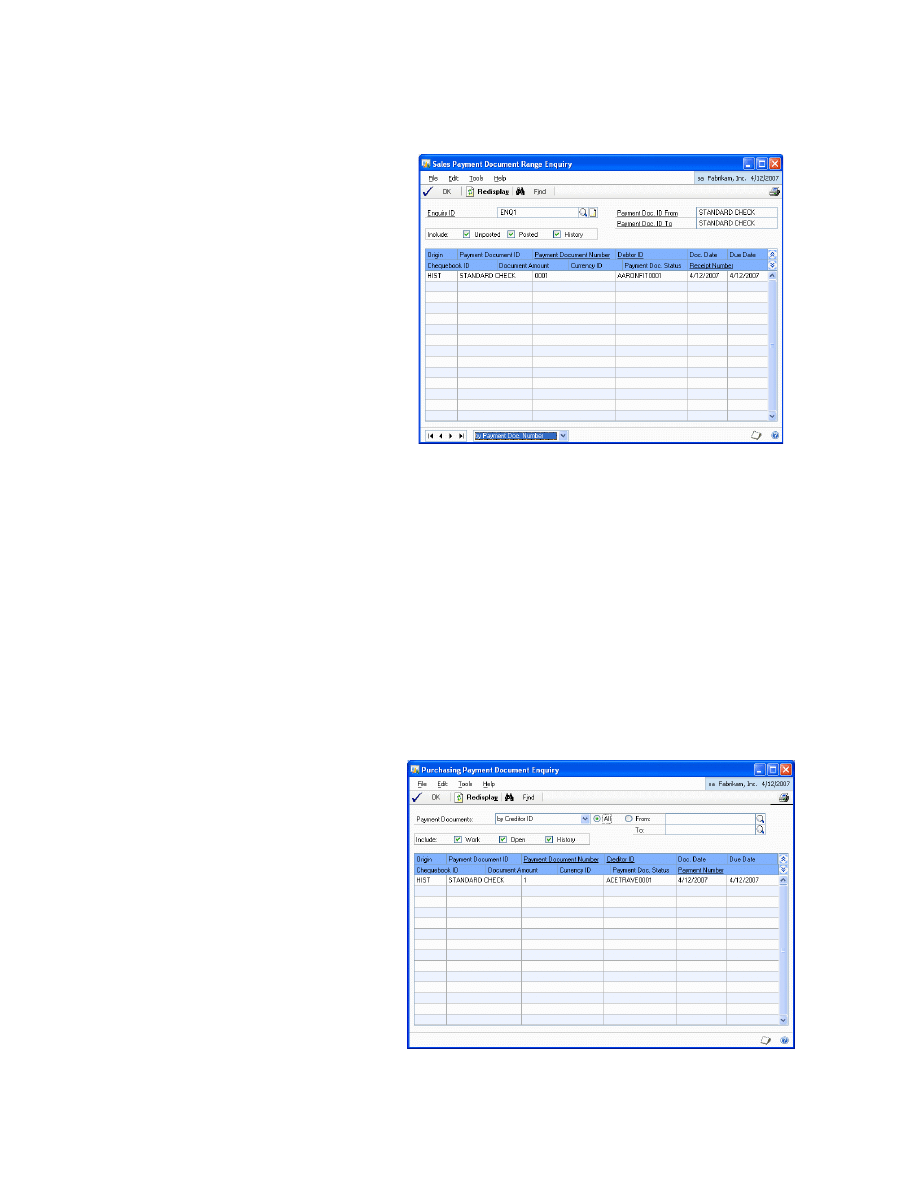
Choose Enquiry to open the Sales Payment Document Range Enquiry window
where you can view the result of the enquiry as per the search criteria specified.
•
Choose Find to specify a search criterion to find a payment document.
•
Choose OK to close the window.
7.
Choose Save to save the values entered and close the window.
Viewing payments made with payment documents
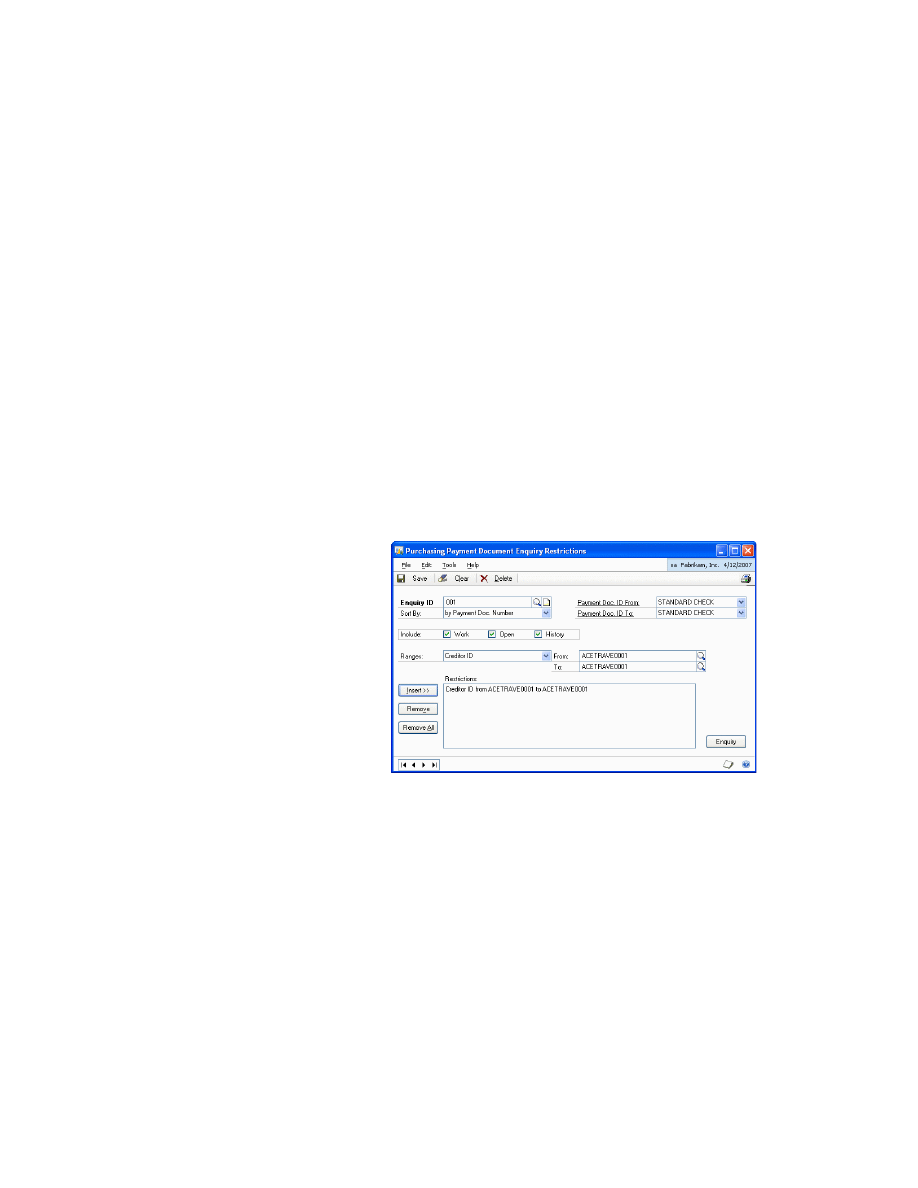
You can view a list of all the payments made with payment documents and their
status in the Purchasing Payment Document Enquiry window.
To view payments made with payment documents:
1.
Open the Purchasing Payment Document Enquiry window.
(Enquiry >> Purchasing >> Payment Documents)
C H A P T E R 7 E N Q U I R I E S A N D R E P O R T S
36
P A Y M E N T
D O C U M E N T
M A N A G E M E N T
2.
Select whether you want to view the documents by Creditor ID, Chequebook
ID or Payment Document Status.
3.
Select All or enter a range of documents in the From and To fields.
4.
Select whether you want to include posted, unposted or history documents.
5.
The scrolling window displays the payment documents for the specified
criteria.
6.
Choose Find to specify a search criterion to find a payment document.
7.
Choose OK to close the window.
Viewing restricted purchasing payment documents
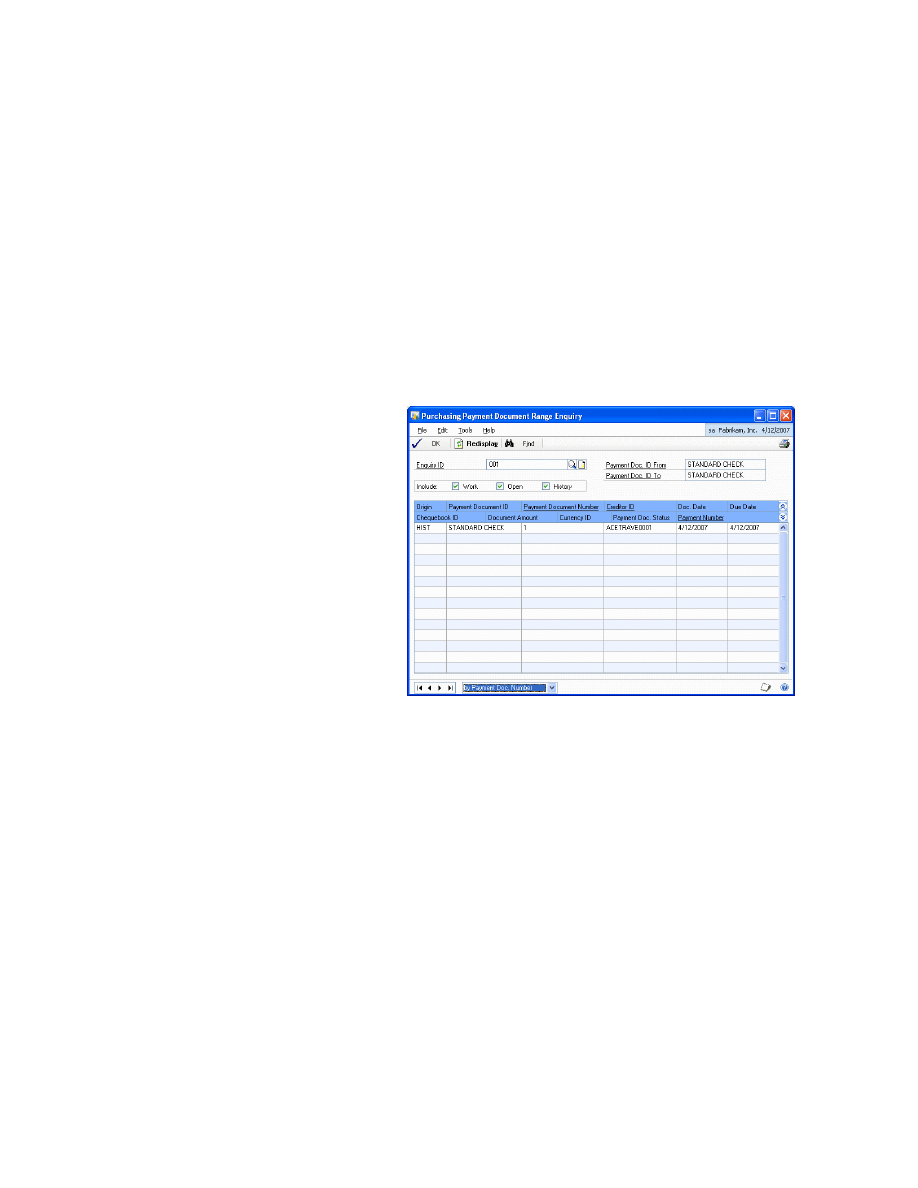
This enquiry allows you to define various conditions (in a similar way to the
method of report generation) to obtain a specific enquiry on payments with
payment documents.
To view restricted purchasing payment documents:
1.
Open the Purchasing Payment Document Enquiry Restrictions window.
(Enquiry >> Purchasing >> Restrict Payment Documents)
2.
Select the Payment Doc. ID From to specify the starting search range for the
payment documents.
3.
Select the Payment Doc. ID To to specify the end of a search range for the
payment documents.
4.
In the Include field, mark whether to include unposted or posted documents.
P A Y M E N T
D O C U M E N T
M A N A G E M E N T
37
C H A P T E R 7 E N Q U I R I E S A N D R E P O R T S
5.
In the Ranges field, specify the condition to view the payment documents. The
options available are:
•
Chequebook ID
•
Payment Document Status
•
Currency
•
Payment Document Number
•
Payment Document Date
•
Due Date
•
Payment Number
•
Creditor ID
•
Comments
•
Audit Code
6.
Choose Enquiry to open the Purchasing Payment Document Range Enquiry
window that shows the result of the enquiry.
•
Choose Find to specify a search criterion to find a payment document.
•
Choose OK to close the window and return to Purchasing Payment
Document Enquiry Restrictions window.
7.
Choose Save to save the changes and close the window.

38
P A Y M E N T
D O C U M E N T
M A N A G E M E N T
P A Y M E N T
D O C U M E N T
M A N A G E M E N T
39
Chapter 8:
Utilities
This information will help you remove the history of payment documents. Once
you have decided how much historical information is necessary, you can remove
the information that is no longer needed. When you remove historical records, the
system removes records only for the range you specify.
Be sure to back up your accounting data before performing any of these procedures as they
might remove data from your system.
This information is divided into the following sections:
•
Removing sales payment document history
•
Removing purchasing payment document history
Removing sales payment document history
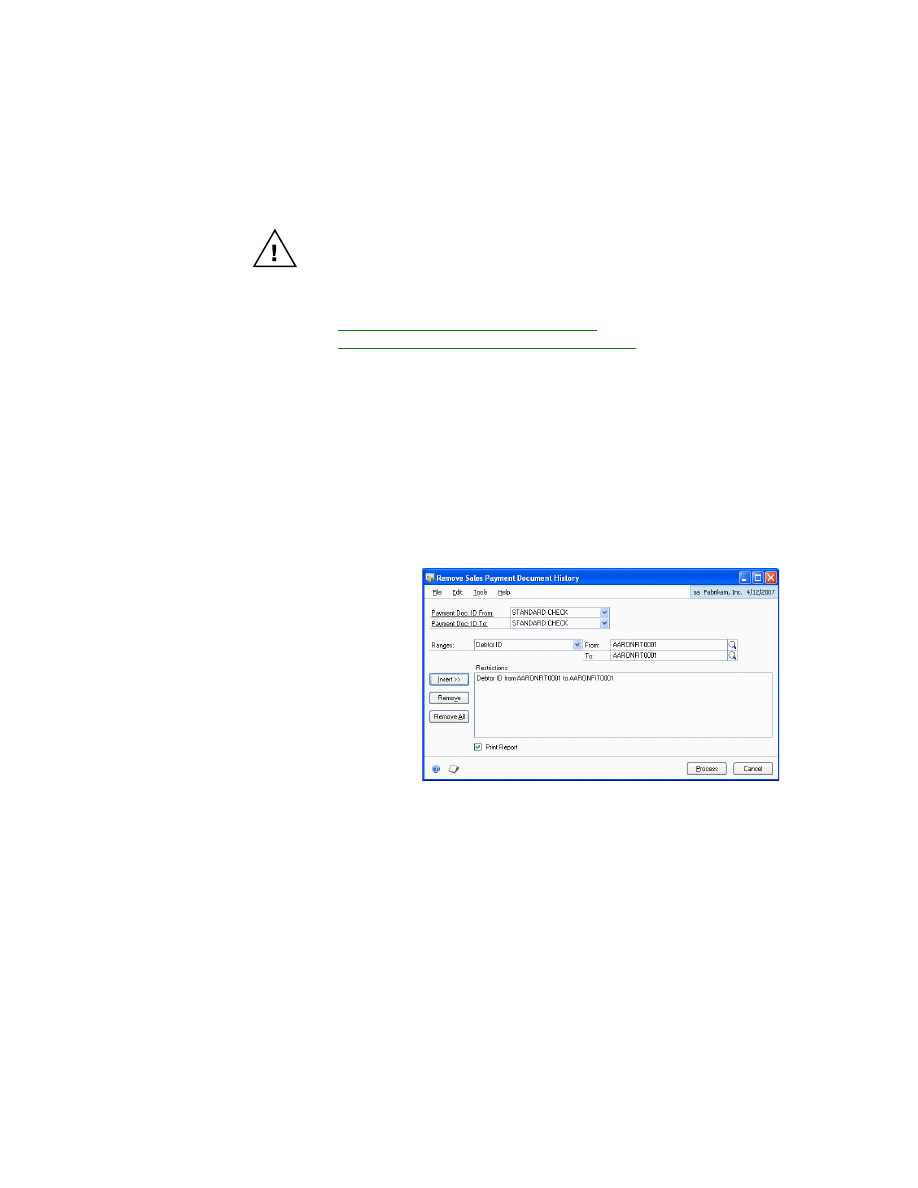
Use the Remove Sales Payment Document History window to remove the history of
sales payment documents.
To remove sales payment document history:
1.
Open the Remove Sales Payment Document History window.
(Microsoft Dynamics GP menu >> Tools >> Utilities >> Sales >> Remove
Payment Document)
2.
Select a payment document ID in the Payment Document ID From and
Payment Document ID To fields to specify the range for payment documents.
3.
Select an option for range and enter the range restrictions.
4.
Choose Insert to insert the restrictions in the Restrictions list.
5.
Mark the Print Report option if you want to print the Sales Payment Document
History Removal Report. This report displays all the historical sales payment
document transactions that have been removed.
6.
Choose Process to remove the sales payment document history. If you have
marked the Print Report option, the Sales Payment Document History Removal
Report will be printed.
C H A P T E R 8 U T I L I T I E S
40
P A Y M E N T
D O C U M E N T
M A N A G E M E N T
Removing purchasing payment document history
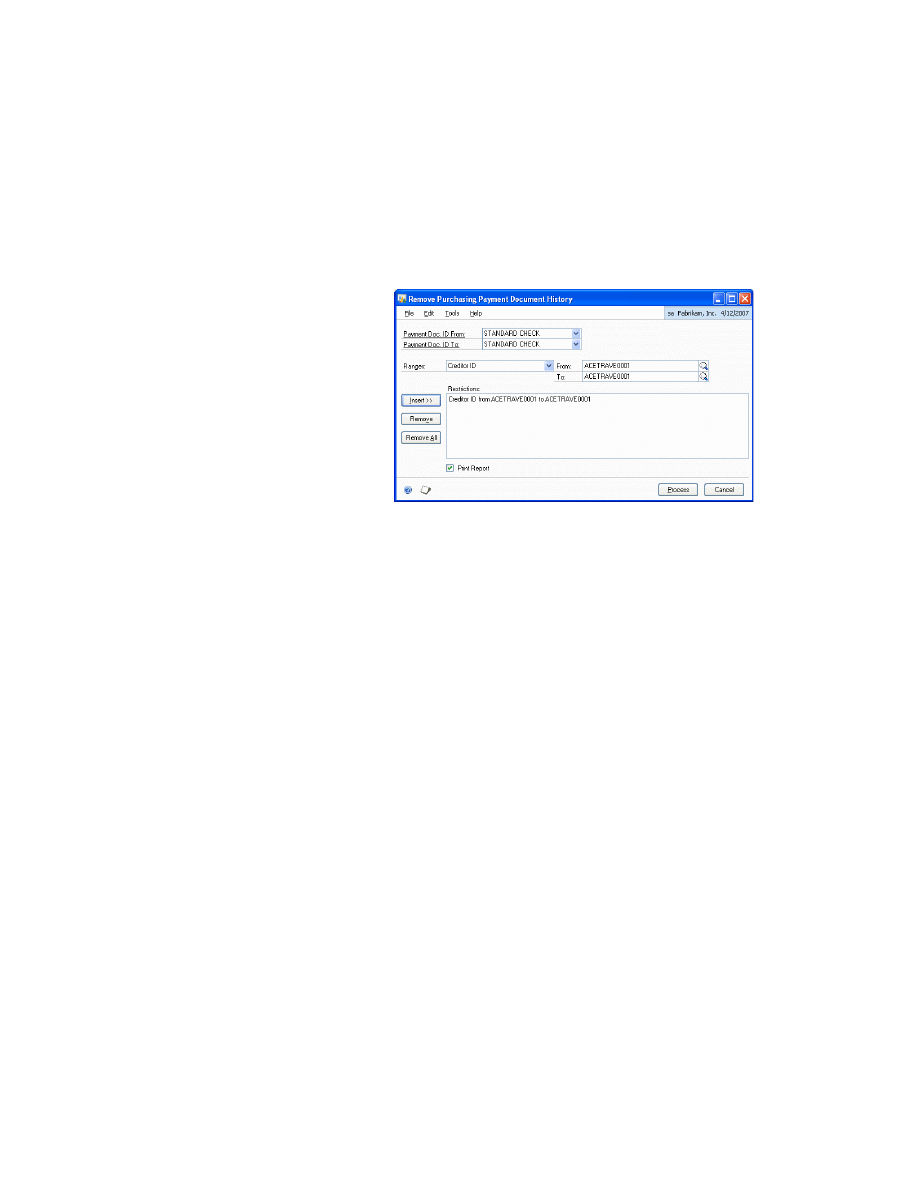
Use the Remove Purchasing Payment Document History window to remove the
history of purchasing payment documents.
To remove purchasing payment document history:
1.
Open the Remove Purchasing Payment Document History window.
(Microsoft Dynamics GP menu >> Tools >> Utilities >> Purchasing >> Remove
Payment Document)
2.
Select a payment document ID in the Payment Document ID From and
Payment Document ID To fields to specify the range for payment documents.
3.
Select an option for range and enter the range restrictions.
4.
Choose Insert to insert the restrictions in the Restrictions list.
5.
Mark the Print Report option if you want to print the Purchasing Payment
Document History Removal Report. This report displays all the historical
purchasing payment document transactions that have been removed.
6.
Choose Process to remove the purchasing payment document history. If you
have marked the Print Report option, the Purchasing Payment Document
History Removal Report will be printed.

P A Y M E N T
D O C U M E N T
M A N A G E M E N T
41
Index
A
C
changes since last release, information
checkbook for payment document,
checkbook for payment documents,
Management Setup window displaying
5
Creditor Payment Document Maintenance
Creditor Payment Document Setup
current upgrade information, accessing on
D
Debtor Payment Document Maintenance
Debtor Payment Document Management
default accounts for purchasing, setting
default accounts for sales, setting up 13
default payment document, assigning 17
destination checkbook, specifying 22
documentation, symbols and conventions
duplicate document numbers, allowing 16
H
help, displaying 2
Help menu, described 2
I
icons, used in manual 2
information on payment document,
L
lessons, accessing 3
lookup window, displaying 3
N
navigation, symbols used for 2
new features, information about 3
O
originating checkbook, specifying 22
P
password, entering 16
payment document for debtor, viewing 17
Payment Document Management,
payment document management
payment document number, overriding 16
payment document remittances, entering
payment document, settling 22
payment documents
creating 8, 15
defining 8, 15
returning 31
voiding 31
Document Setup window, viewing 9
Purchasing Payment Document Enquiry
Restrictions window, viewing 36
Purchasing Payment Document Enquiry
purchasing payment document enquiry,
Purchasing Payment Document Entry
Maintenance window, displaying 8
Management Setup window, viewing 7
Purchasing Payment Document Range
Settlement Distribution Entry window,
displaying 24
Settlement Selection window,
displaying 23
Purchasing Payment Document User
Preferences window, displaying 7
R
remittance type, selecting 26
Remove Purchasing Payment Document
History window
Remove Sales Payment Document History
window
reports, printing 33
required fields, described 3
resources, documentation 2
restricted purchasing payment
S
Sales Checkbook Payment Document
sales payment document, entering 25
Sales Payment Document Enquiry
Restrictions window, viewing 34
Sales Payment Document Enquiry
Sales Payment Document Entry window,
Sales Payment Document Maintenance
Sales Payment Document Management
Sales Payment Document Remittance
Selection window, displaying 28
Sales Payment Document Remittance
sales payment document remittance,
sales payment document restrictions
Preferences window, viewing 14
single summary entry, posting 13
symbols, used in manual 2
T
U
upgrade information, accessing on the
user preferences for purchasing payment
user preferences for sales payment
W

42
P A Y M E N T
D O C U M E N T
M A N A G E M E N T
Document Outline
- Copyright
- Contents
- Introduction
- Chapter 1: Overview
- Chapter 2: Purchasing Setup
- Chapter 3: Sales Setup
- Chapter 4: Purchasing Transactions
- Chapter 5: Sales Transactions
- Chapter 6: Transaction Maintenance
- Chapter 7: Enquiries and Reports
- Chapter 8: Utilities
- Index
Wyszukiwarka
Podobne podstrony:
Microsoft Dynamics GP 2010 Guides Financials CashFlowManagement
Microsoft Dynamics GP 2010 Guides Financials MultilingualChecks
Microsoft Dynamics GP 2010 Guides Financials IntercompanyProcessing
Microsoft Dynamics GP 2010 Guides Financials ScheduledInstalments
Microsoft Dynamics GP 2010 Guides Financials MultidimensionalAnalysis
Microsoft Dynamics GP 2010 Guides Financials ExportFinancialData
Microsoft Dynamics CRM Online security and compliance planning guide
Microsoft Dynamics CRM 2011 Implementation Guide MicrosoftDynamicsCRM2011WindowsLogo
Microsoft Lync Server 2010 Resource Kit Chapter 04 Conferencing and Collaboration
Microsoft Dynamics CRM 2013 for Outlook Installing Guide
Microsoft Lync Server 2010 Security Guide
Microsoft Dynamics AX zarzadzanie sprzedaza
Microsoft Dynamics CRM 2011 Implementation Guide Microsoft Dynamics CRM 2011 and Claims based Authen
Microsoft Lync Server 2010 Resource Kit Tools Privacy Statement
Getting started with Microsoft SharePoint Foundation 2010
Microsoft Dynamics AX handel
Microsoft Excel 2010 PL Jezyk VBA i makra Akademia Excela e21vba
więcej podobnych podstron