
Steps
1.
1
Ensure that your motherboard is compatible with dual video cards. Either check your
motherboard's manual, or, if you don't have that, find out what model it is and check the
manufacturer's web site.
2.
3
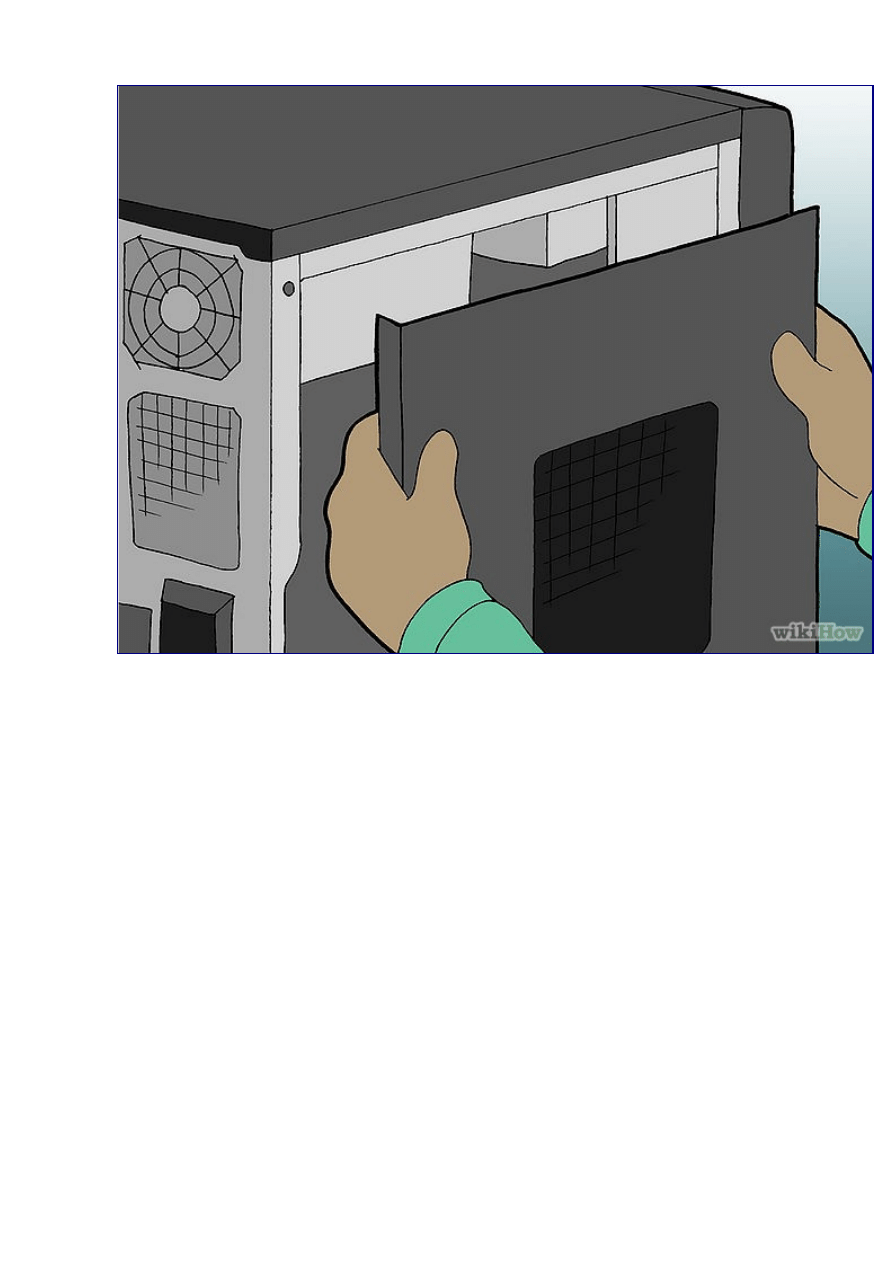
Remove the side of your computer case or the whole cover, depending on how your case
is configured.
4.
5
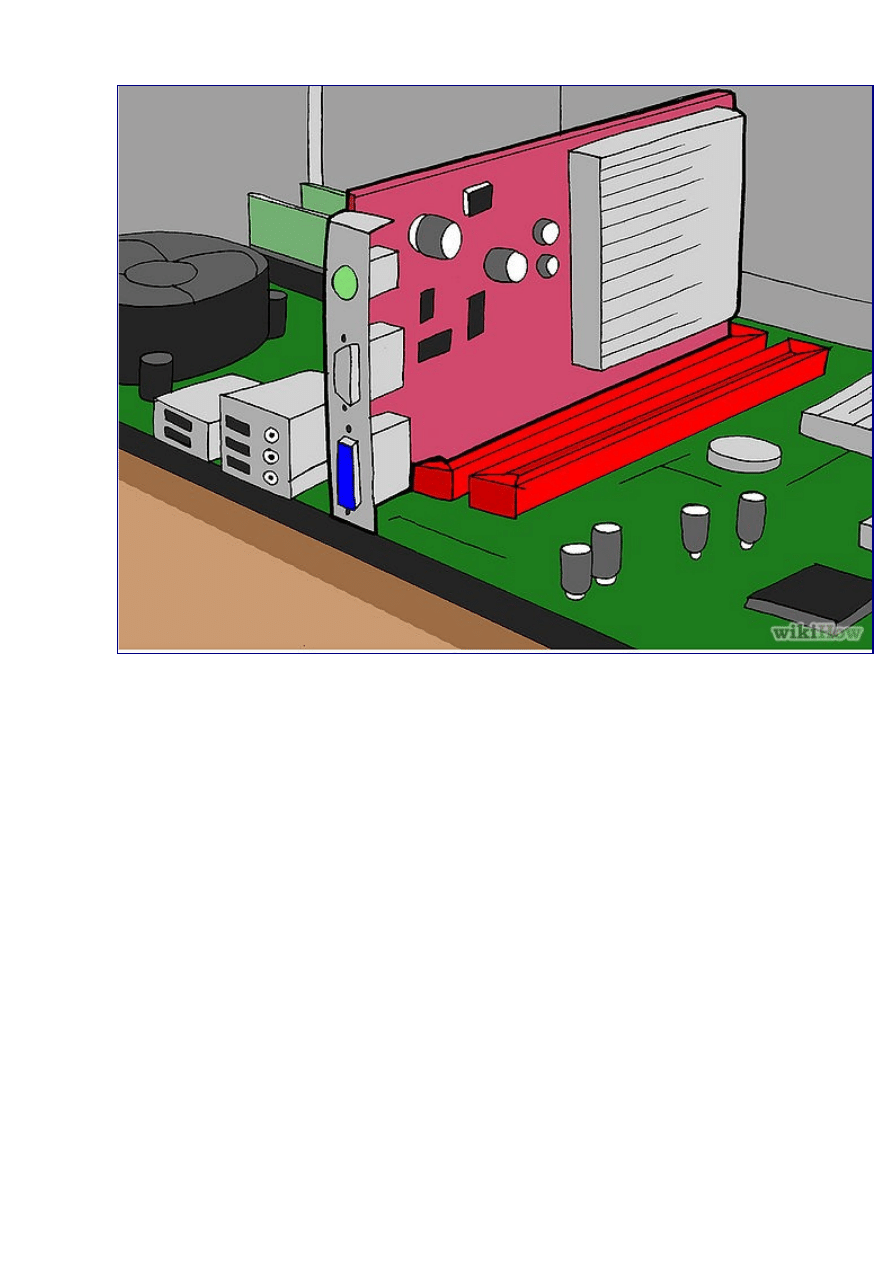
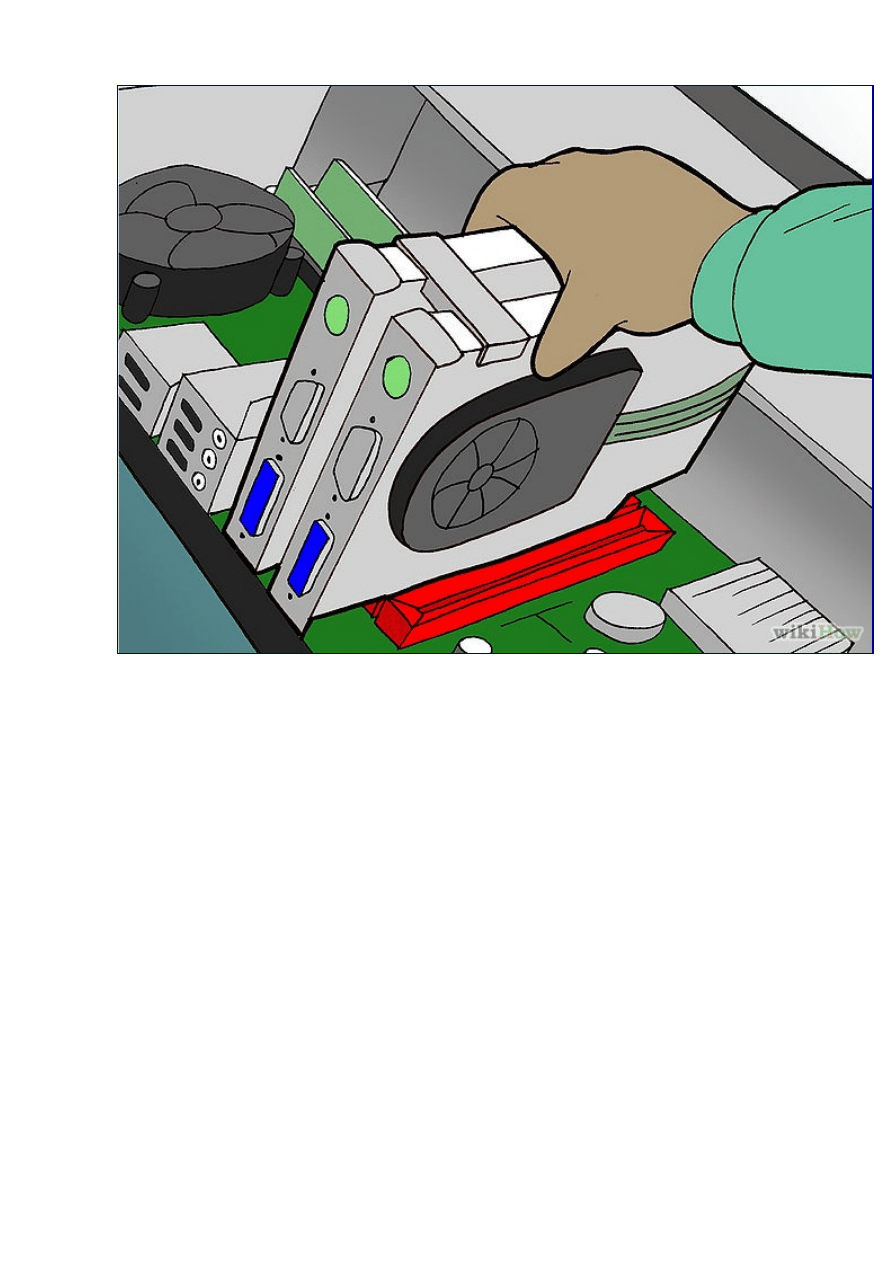
Depending on how new your motherboard is, you may have to flip the "Single/SLI
Video Card" switch into the dual card position. This switch is located between the two
video cards' PCI Express slots. On some newer motherboards this is not necessary.
6.



7
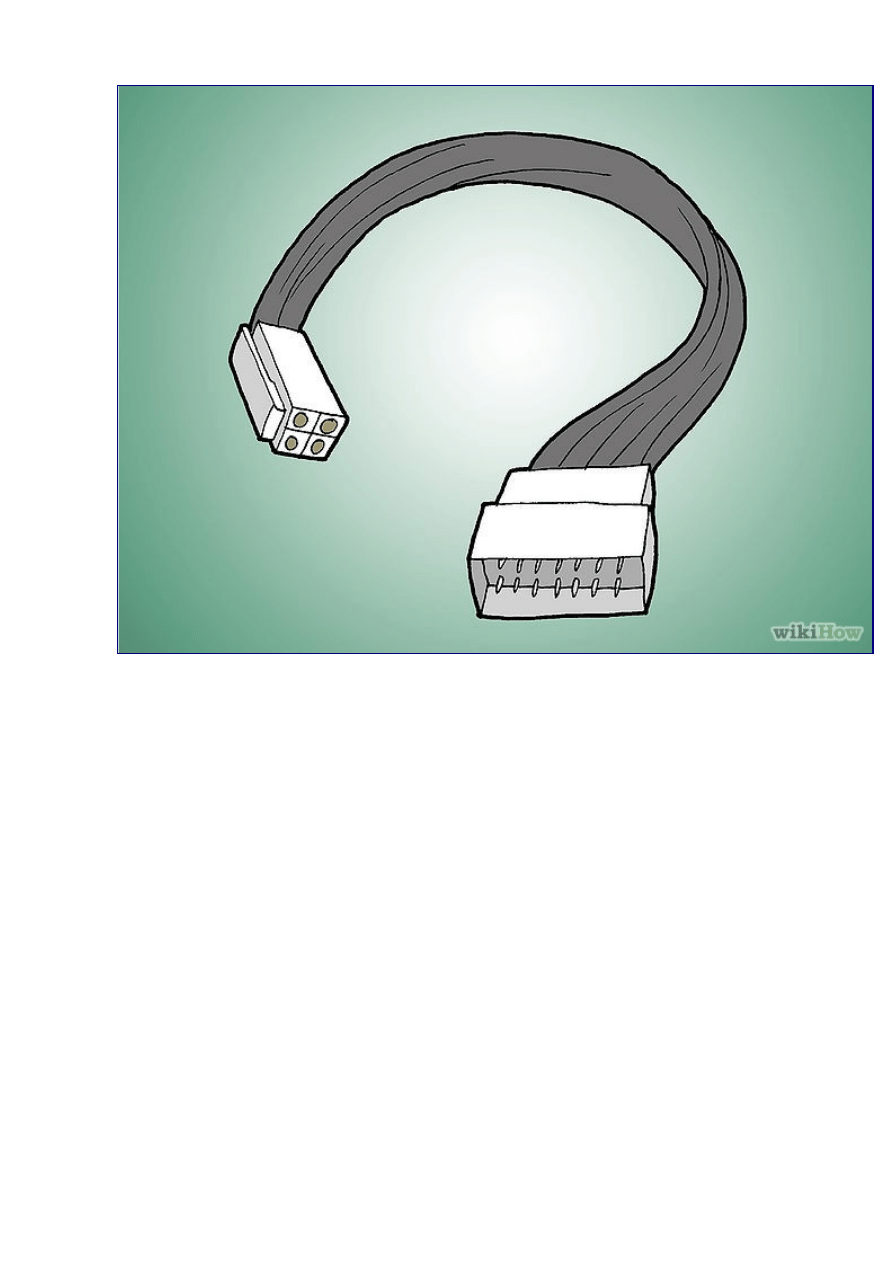
Connect the "bridge" that is supplied with your motherboard. The "bridge" connects to
the top of each video card. Bridges come in more than one size; if one was included with
your motherboard it is the right size to span between the cards.
8.

8
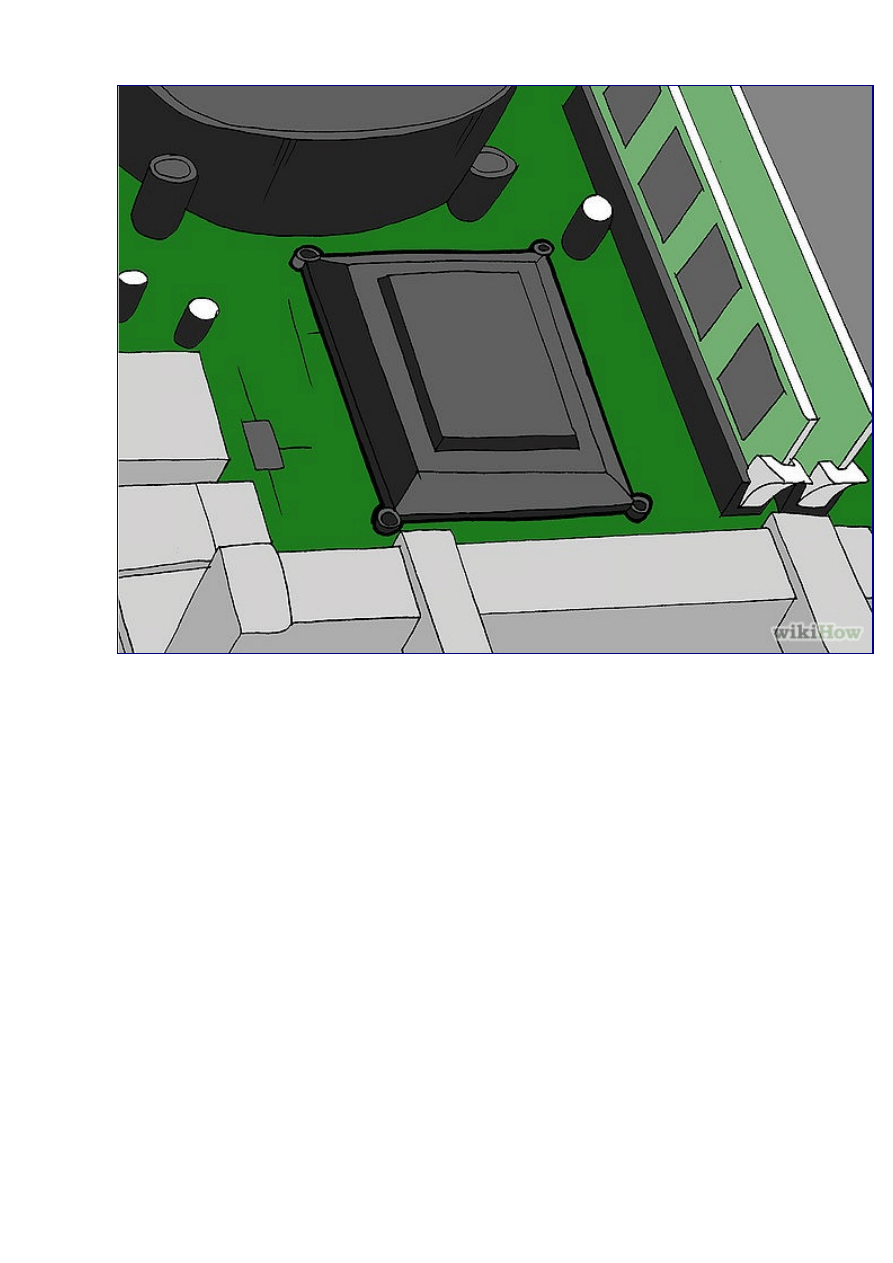
Depending on your motherboard, you may need to connect an additional 4 pin molex
PSU connector, referred to as the "Easy Plug Molex". This will enable additional power
to run your video cards. Also, depending on your video cards you may need to connect each
card to the power supply.
9.

9
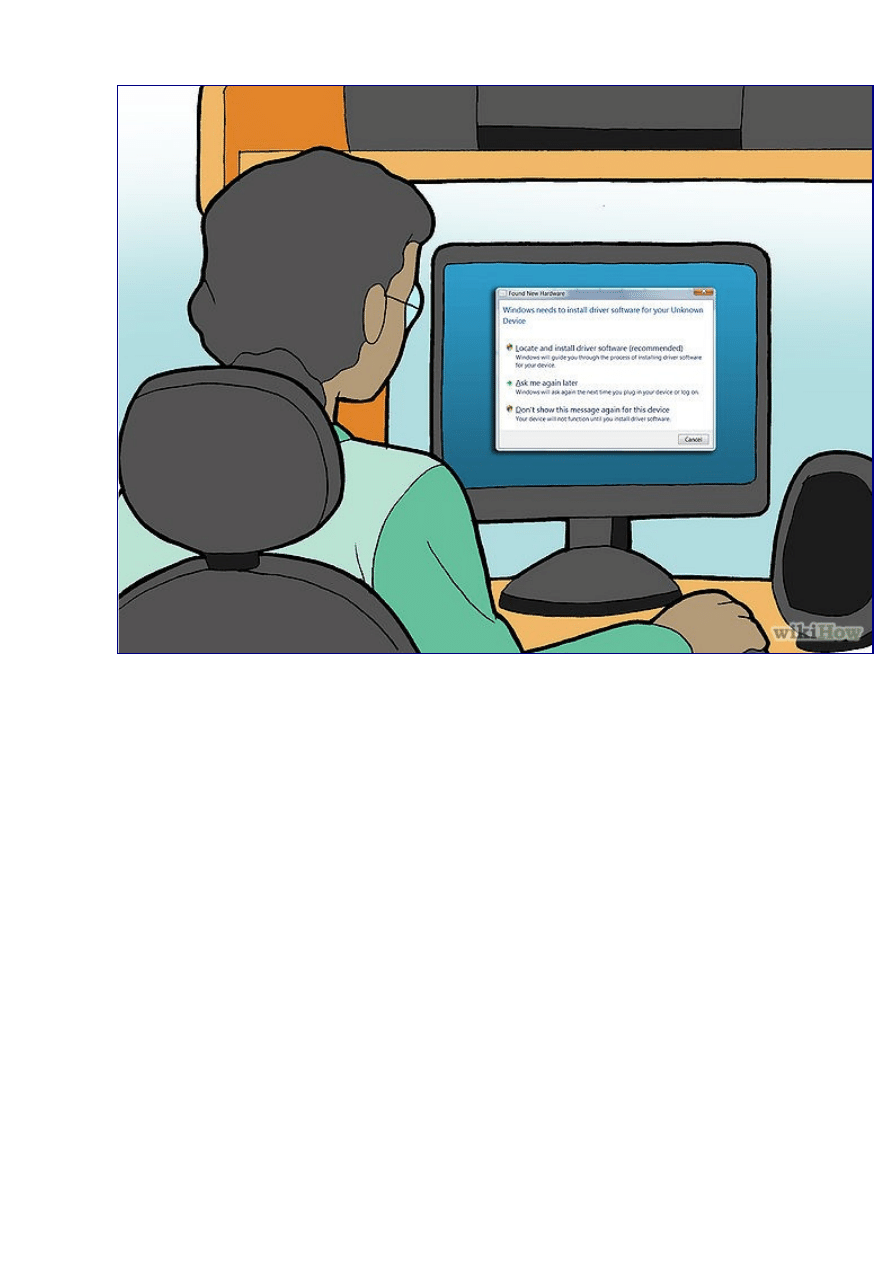
Once the physical installation is finished, install your device drivers and reboot your
system.
10.
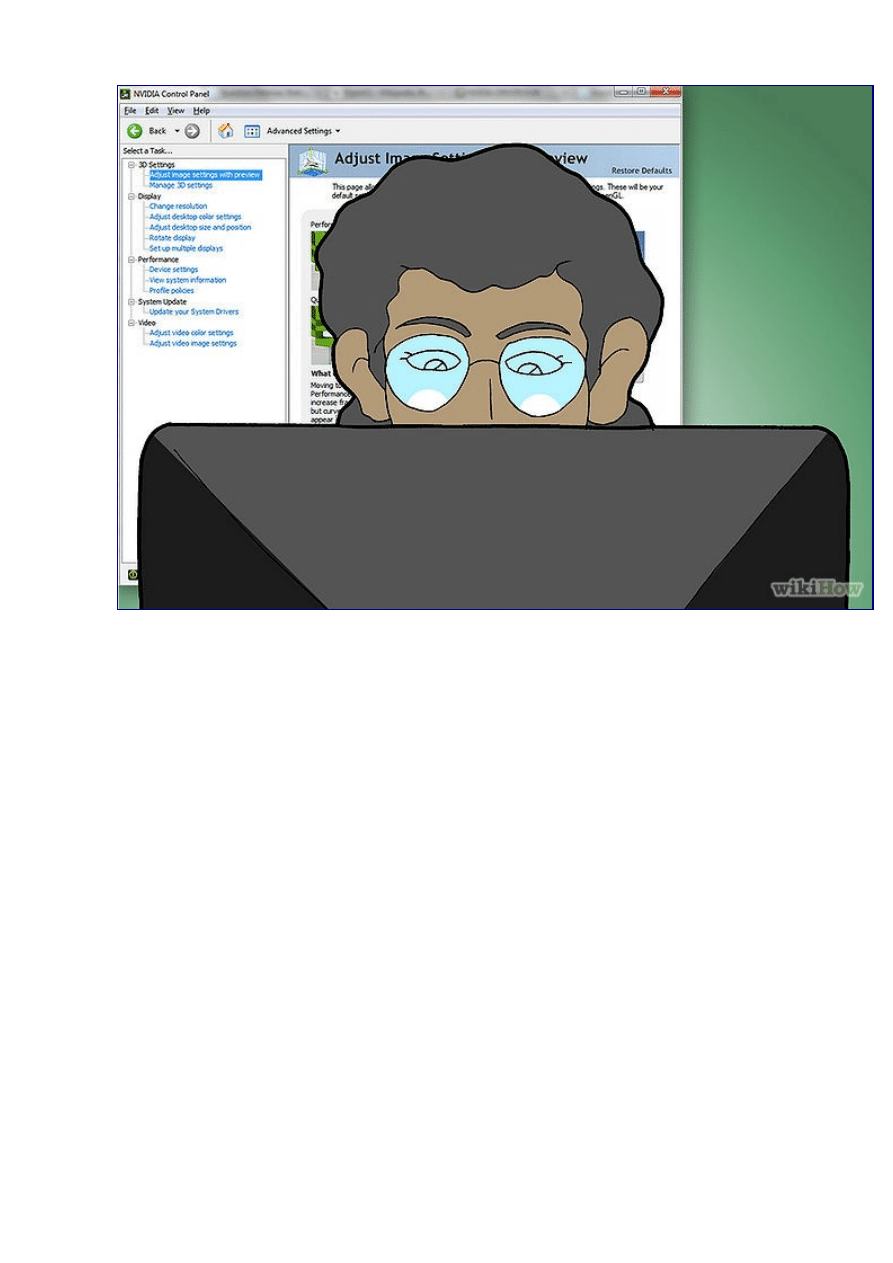

10.
You should see a message from your Nvidia control panel (if not you need to
navigate to the control panel), stating that your system is configured to take advantage
of multiple GPU's. Click to enable.

11.
You must enable "SLI Mode" or "Crossfire mode" to take advantage of the dual
video cards. Once this is done you might be required to reboot your system again. You
should be set to go.
Document Outline
Wyszukiwarka
Podobne podstrony:
rozdzielacz sygnału video, Instalacje elektryczne i elektronika
3 6 3 Lab Install Adapter Cards
Install a Video Card
~$ 3D Printer Installation Video
GFX Video Writer Installation Guide
A8 3D Printer Installation Video
Przebieg porodu z video
instalacja debiana
INSTALACJE TRYSKACZOWE I ZRASZACZOWE
Urządzenia i instalacje elektryczne w przestrzeniach zagrożonych wybuchem
Instalacje elektroenergetObl1
Projekt Instalacji deponowanie 2
Instalacje odgromowe
Wybrane elementy automatyki instalacyjnej
instalacje grzewczaet
monter instalacji gazowych 713[07] z2 03 u
8 Instalacja spalin wylotowych id
więcej podobnych podstron