FRANÇAIS
ENGLISH
GET0649-003A
[E/EU]
EN, FR
1209DTSMDTJEIN
© 2009 Victor Company of Japan, Limited
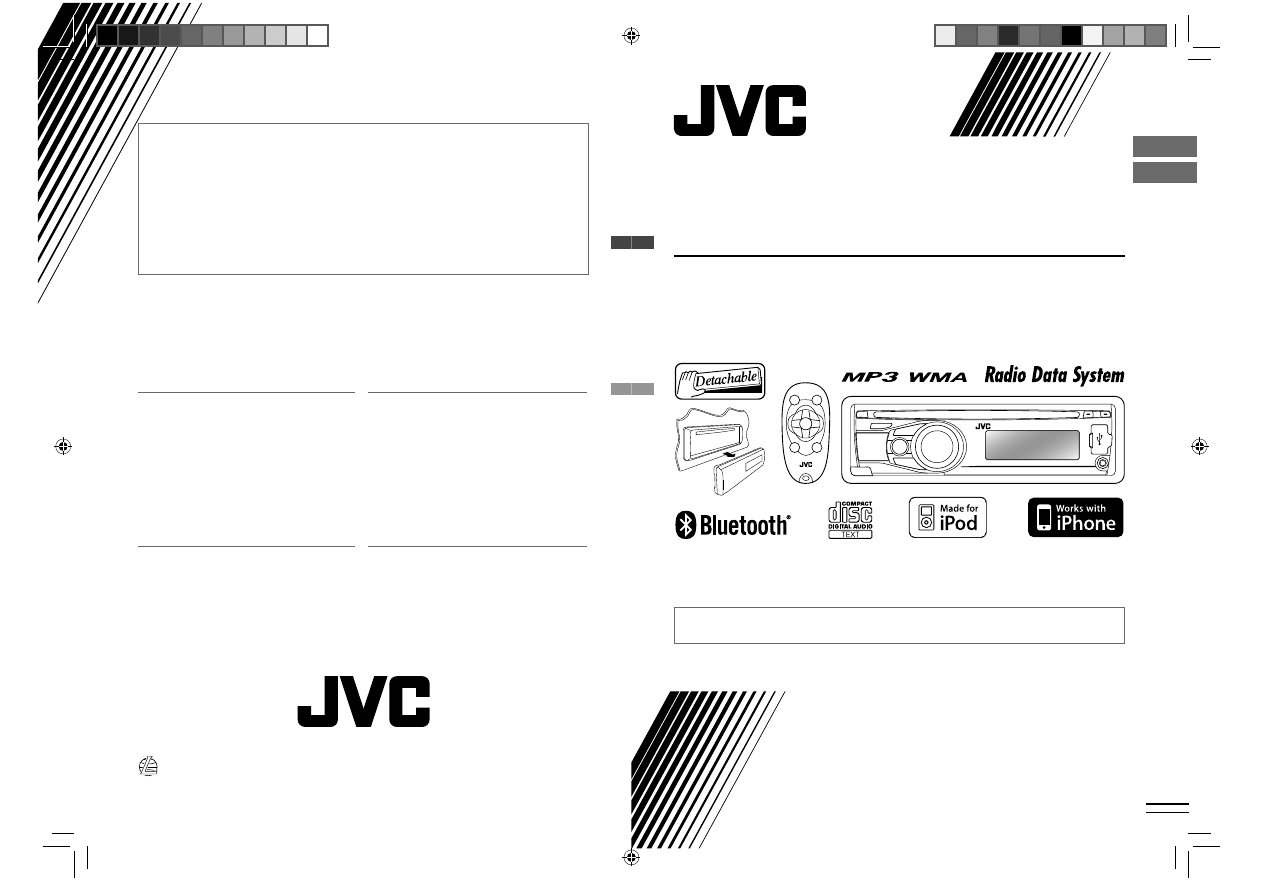
For canceling the display demonstration, see page 4. / Pour annuler la démonstration des
affichages, référez-vous à la page 4.
CD RECEIVER / RÉCEPTEUR CD
KD-R711
INSTRUCTIONS
MANUEL D’INSTRUCTIONS
For installation and connections, refer to the separate manual. / Pour l’installation et les
raccordements, se référer au manuel séparé.
Dear Customer,
This apparatus is in conformance with the valid
European directives and standards regarding
electromagnetic compatibility and electrical safety.
European representative of Victor Company of
Japan, Limited is:
JVC Technical Services Europe GmbH
Postfach 10 05 04
61145 Friedberg
Germany
Cher(e) client(e),
Cet appareil est conforme aux directives et
normes européennes en vigueur concernant la
compatibilité électromagnétique et à la sécurité
électrique.
Représentant européen de la société Victor
Company of Japan, Limited:
JVC Technical Services Europe GmbH
Postfach 10 05 04
61145 Friedberg
Allemagne
Having TROUBLE with operation?
Please reset your unit
Refer to page of How to reset your unit
Vous avez des PROBLÈMES de fonctionnement?
Réinitialisez votre appareil
Référez-vous à la page intitulée Comment réinitialiser votre appareil
CoverRear_KD-R711_003A_f.indd 1-2
CoverRear_KD-R711_003A_f.indd 1-2
12/10/09 11:05:49 AM
12/10/09 11:05:49 AM
2
ENGLISH
Thank you for purchasing a JVC product.
Please read all instructions carefully before operation, to ensure your complete understanding and
to obtain the best possible performance from the unit.
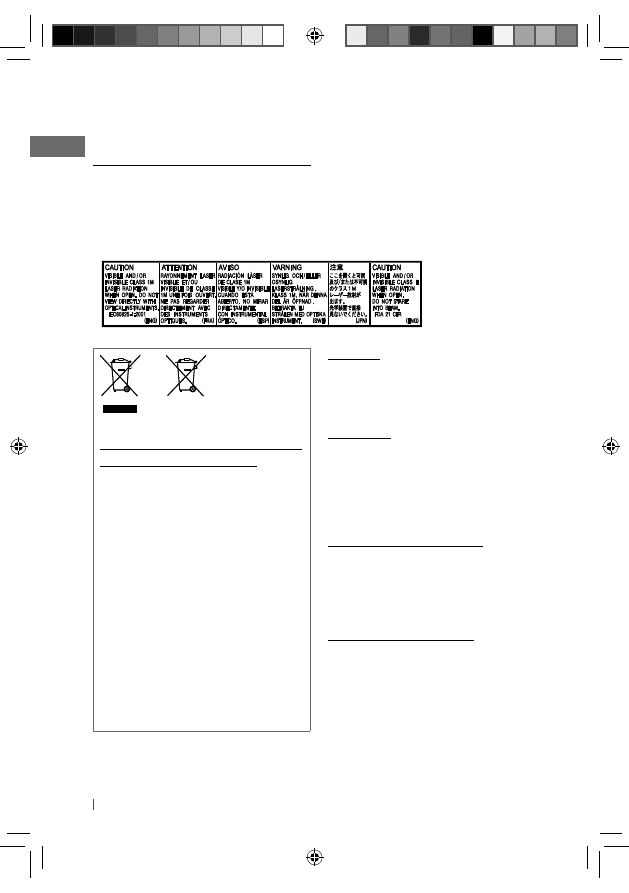
IMPORTANT FOR LASER PRODUCTS
1. CLASS 1 LASER PRODUCT
2. CAUTION: Do not open the top cover. There are no user serviceable parts inside the unit; leave
all servicing to qualified service personnel.
3. CAUTION: Visible and/or invisible class 1M laser radiation when open. Do not view directly with
optical instruments.
4. REPRODUCTION OF LABEL: CAUTION LABEL, PLACED OUTSIDE THE UNIT.
Warning:
If you need to operate the unit while driving,
be sure to look around carefully or you may be
involved in a traffic accident.
For safety...
• Do not raise the volume level too much, as
this will block outside sounds, making driving
dangerous.
• Stop the car before performing any
complicated operations.
Temperature inside the car...
If you have parked the car for a long time in
hot or cold weather, wait until the temperature
in the car becomes normal before operating
the unit.
Caution on volume setting:
Digital devices (CD/USB) produce very little
noise compared with other sources. Lower the
volume before playing these digital sources to
avoid damaging the speakers by the sudden
increase of the output level.
Information for Users on Disposal of
Old Equipment and Batteries
[European Union only]
These symbols indicate that the product and
the battery with this symbol should not be
disposed as general household waste at its
end-of-life.
If you wish to dispose of this product and
the battery, please do so in accordance with
applicable national legislation or other rules
in your country and municipality.
By disposing of this product correctly, you
will help to conserve natural resources and
will help prevent potential negative effects
on the environment and human health.
Notice:
The sign Pb below the symbol for batteries
indicates that this battery contains lead.
Products
Battery
EN02-11_KD-R711_003A_5.indd 2
EN02-11_KD-R711_003A_5.indd 2
12/17/09 5:23:51 PM
12/17/09 5:23:51 PM
3
ENGLISH
CONTENTS
3
How to read this manual
3
How to attach/detach the control
panel
3
How to reset your unit
3
How to forcibly eject a disc
4
Canceling the display
demonstration
4
Setting the clock
5
Preparing the remote controller
(RM-RK50)
6
Basic operations
7
Listening to the radio
10
Listening to a disc
11
Listening to the USB device
13
Using the Bluetooth ® device
15
Using a Bluetooth mobile phone
17
Using a Bluetooth audio player
18
Changing the Bluetooth settings
20
Listening to the iPod/iPhone
22
Listening to the other external
components
23
Selecting a preset sound mode
24
Menu operations
27
More about this unit
31
Maintenance
32
Troubleshooting
36
Specifications
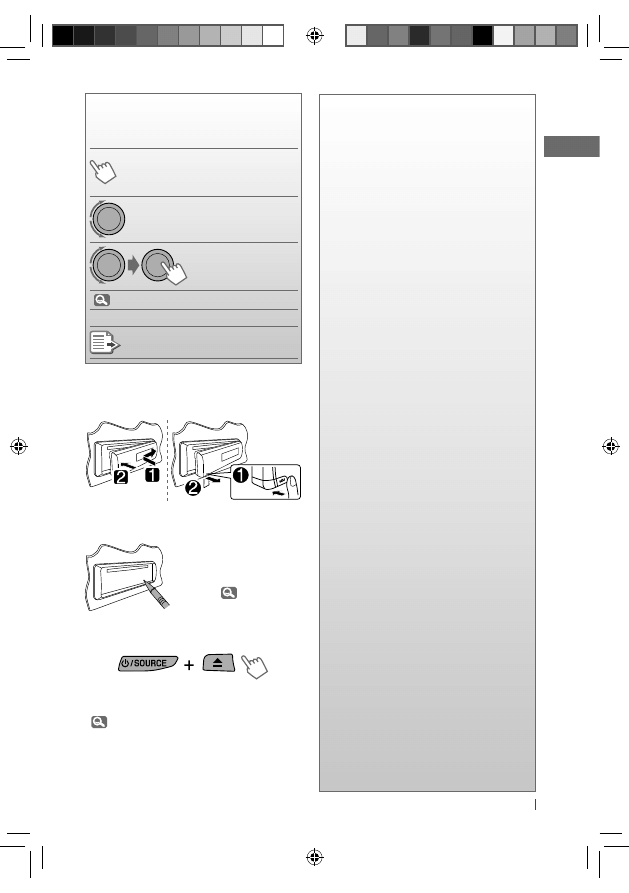
How to read this manual
The following icons/symbols are used to
indicate:
Press and hold the button(s)
until the desired operation
begins.
Turn the control dial.
Turn the control dial
to make a selection,
then press to confirm.
(
XX)
Reference page number
<XXXX>
Menu setting item
Continued on the next page
How to attach/detach the control
panel
How to reset your unit
Your preset adjustments
will also be erased (except
the registered Bluetooth
device). (
14)
How to forcibly eject a disc
• You can forcibly eject the loaded disc even
if the disc is locked. To lock/unlock the disc,
10.
• Be careful not to drop the disc when it ejects.
• If this does not work, reset your unit.
[Hold]
[Hold]
EN02-11_KD-R711_003A_5.indd 3
EN02-11_KD-R711_003A_5.indd 3
12/17/09 5:23:52 PM
12/17/09 5:23:52 PM
4
ENGLISH
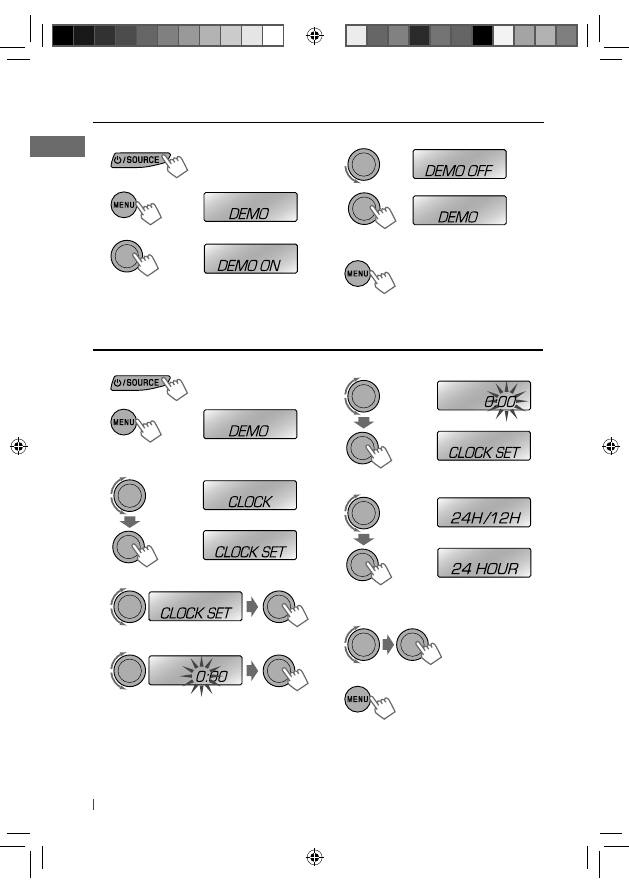
1
Turn on the power.
2
3
4
Select <DEMO OFF>.
5
6
Finish the procedure.
Canceling the display demonstration
(Initial setting)
[Hold]
Setting the clock
6
Adjust the minute.
7
Select <24H/12H>.
8
Select <24 HOUR> or
<12 HOUR>.
9
Finish the procedure.
1
Turn on the power.
2
3
Select <CLOCK>.
4
Select <CLOCK SET>.
5
Adjust the hour.
(Initial setting)
[Hold]
EN02-11_KD-R711_003A_5.indd 4
EN02-11_KD-R711_003A_5.indd 4
12/17/09 5:23:52 PM
12/17/09 5:23:52 PM
5
ENGLISH
Warning (to prevent accidents and
damage):
• Do not install any battery other than CR2025
or its equivalent.
• Do not leave the remote controller in a place
(such as dashboards) exposed to direct
sunlight for a long time.
• Store the battery in a place where children
cannot reach.
• Do not recharge, short, disassemble, heat the
battery, or dispose of it in a fire.
• Do not leave the battery with other metallic
materials.
• Do not poke the battery with tweezers or
similar tools.
• Wrap the battery with tape and insulate when
throwing away or saving it.
This unit is equipped with the steering wheel
remote control function.
Before operating, connect an exclusive remote
adapter (not supplied) which matches your car
to the steering wheel remote input terminal on
the rear of the unit.
• For details, refer also to the instructions
supplied with the remote adapter.
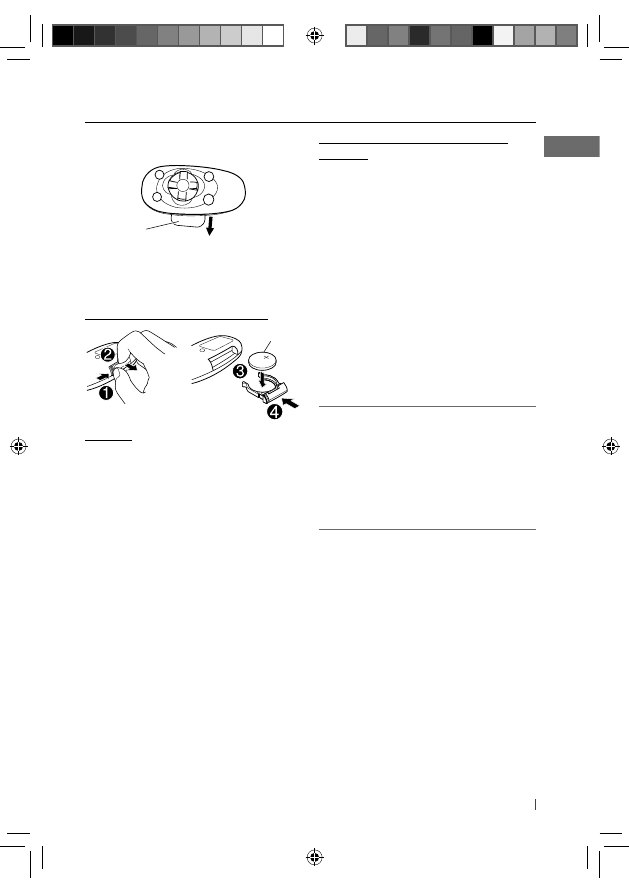
Preparing the remote controller (RM-RK50)
When you use the remote controller for the first
time, pull out the insulation sheet.
If the effectiveness of the remote controller
decreases, replace the battery.
Replacing the lithium coin battery
CR2025
Caution:
• Danger of explosion if battery is incorrectly
replaced. Replace only with the same or
equivalent type.
• Battery shall not be exposed to excessive heat
such as sunshine, fire, or the like.
Insulation sheet
EN02-11_KD-R711_003A_5.indd 5
EN02-11_KD-R711_003A_5.indd 5
12/17/09 5:23:53 PM
12/17/09 5:23:53 PM
6
ENGLISH
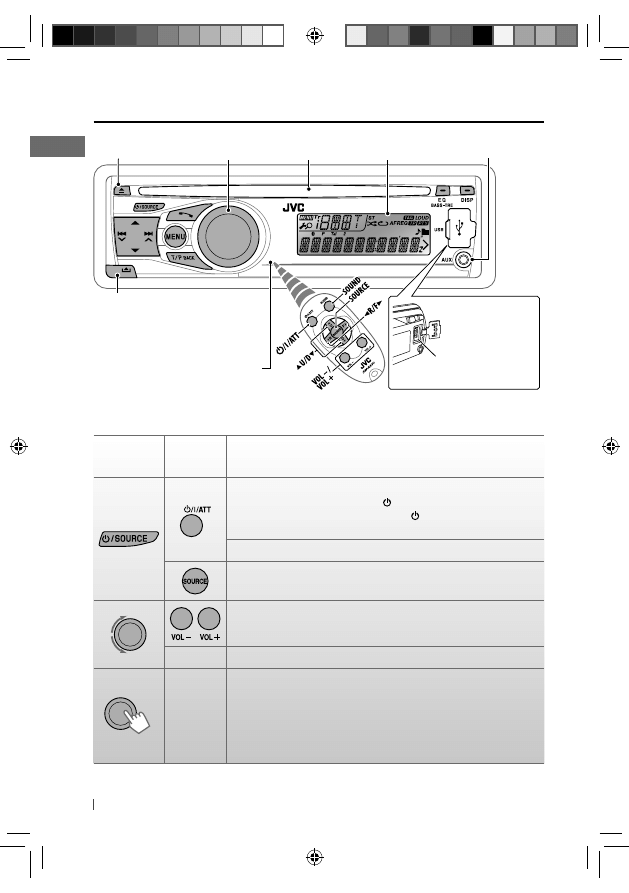
Basic operations
Control dial
Ejects the disc
Loading slot
USB (Universal Serial Bus)
input terminal
Display window
Auxiliary input jack
Detaches the panel
When you press or hold the following button(s)...
Main unit
Remote
controller
General operation
Turns on.
• When the power is on, pressing /I/ATT on the remote controller
also mutes the sound or pauses. Press /I/ATT again to cancel
muting or resume playback.
Turns off if pressed and held.
Selects the available sources (if the power is turned on).
• If the source is ready, playback also starts.
Adjusts the volume level.
—
Selects items.
—
• Mutes the sound while listening to a source. If the source is “CD,”
“USB FRONT/USB REAR,” or “IPOD-FRONT/IPOD-REAR,” playback
pauses. Press the control dial again to cancel muting or resume
playback.
• Enters playback mode menu directly if pressed and held.
• Confirms selection.
Remote sensor
• DO NOT expose to bright sunlight.
EN02-11_KD-R711_003A_5.indd 6
EN02-11_KD-R711_003A_5.indd 6
12/17/09 5:23:53 PM
12/17/09 5:23:53 PM
7
ENGLISH
Manual search
“M” flashes, then press
the button repeatedly.
When an FM stereo broadcast is
hard to receive
1
2
] <TUNER> ] <MONO> ]
<MONO ON>
Reception improves, but stereo effect
will be lost.
To restore the stereo effect, repeat the same
procedure to select <MONO OFF>.
Automatic presetting (FM)—
SSM (Strong-station Sequential Memory)
You can preset up to 18 stations for FM.
While listening to a station...
1
2
] <TUNER> ] <SSM> ]
<SSM 01 – 06> / <SSM 07 – 12> /
<SSM 13 – 18>
“SSM” flashes and local stations with
the strongest signals are searched and
stored automatically.
To preset another 6 stations, repeat the above
procedure by selecting one of the other 6 SSM
setting ranges.
Main unit
Remote
controller
General operation
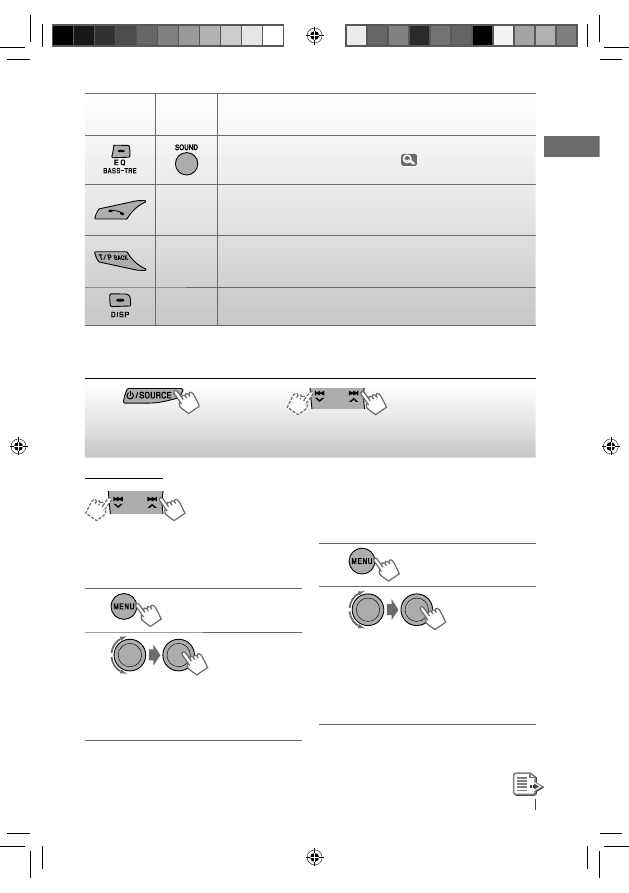
Selects the sound mode.
• Enters tone level adjustment directly (
23) if pressed and held
EQ/BASS-TRE
on the main unit.
—
• Enters “Call Menu” screen or answers incoming call when the unit
rings.
• Ends a call if pressed and held.
—
• Activates/deactivates TA Standby Reception.
• Enters PTY Searching mode if pressed and held.
• Returns to the previous menu.
—
Power off : Checks the current clock time.
Power on : Changes the display information.
[Hold]
[Hold]
[Hold]
Listening to the radio
~
] “FM” or “AM”
Ÿ
“ST” lights up when receiving an FM stereo broadcast
with sufficient signal strength.
EN02-11_KD-R711_003A_5.indd 7
EN02-11_KD-R711_003A_5.indd 7
12/17/09 5:23:54 PM
12/17/09 5:23:54 PM
8
ENGLISH
Manual presetting (FM/AM)
You can preset up to 18 stations for FM and 6
stations for AM.
Ex.: Storing FM station of 92.50 MHz into preset
number “04.”
1
] “92.50MHz”
2
“PRESET MODE” flashes.
3
] Selects preset number “04.”
“P04” flashes and “MEMORY” appears.
Selecting a preset station
or
1
2
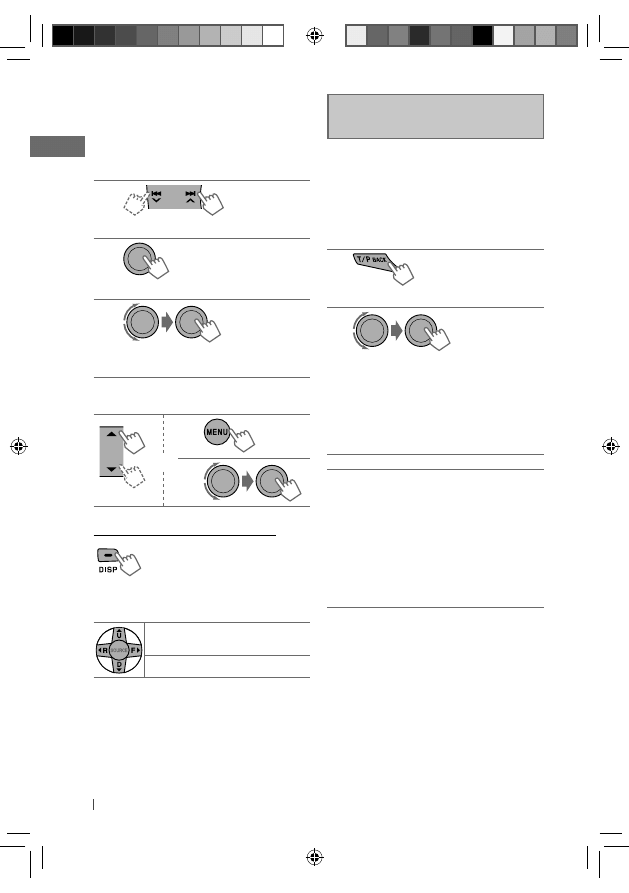
Changing the display information
Frequency
= Clock = (back to
the beginning)
Using the remote controller
5 U / D ∞ : Changes the preset
stations
2 R / F 3 : Searches for stations
[Hold]
The following features are available
only for FM Radio Data System stations.
Searching for your favourite
FM Radio Data System
programme—
PTY Search
You can tune in to a station broadcasting your
favourite programme by searching for a PTY
code.
1
The last selected PTY code appears.
2
] Select one of your favourite
programme types or a PTY code, and
start searching.
If there is a station broadcasting a
programme of the same PTY code as you
have selected, that station is tuned in.
PTY codes: NEWS, AFFAIRS, INFO, SPORT,
EDUCATE, DRAMA, CULTURE, SCIENCE,
VARIED, POP M (music), ROCK M (music),
EASY M (music), LIGHT M (music), CLASSICS,
OTHER M (music), WEATHER, FINANCE,
CHILDREN, SOCIAL, RELIGION, PHONE IN,
TRAVEL, LEISURE, JAZZ, COUNTRY,
NATION M (music), OLDIES, FOLK M (music),
DOCUMENT
[Hold]
EN02-11_KD-R711_003A_5.indd 8
EN02-11_KD-R711_003A_5.indd 8
12/17/09 5:23:54 PM
12/17/09 5:23:54 PM
9
ENGLISH
Standby receptions
TA Standby Reception
TA Standby Reception allows the unit to switch
temporarily to Traffic Announcement (TA) from
any source other than AM.
• The volume changes to the preset TA volume
level if the current level is lower than the
preset level. (<TA VOLUME>,
25)
To activate TA Standby Reception
If the TP indicator lights up, TA
Standby Reception is activated.
If the TP indicator flashes, TA
Standby Reception is not yet
activated.
• To activate the reception, tune in to another
station providing Radio Data System signals
required for TA Standby Reception.
• To deactivate the reception, press T/P BACK
again.
PTY Standby Reception
PTY Standby Reception allows the unit to
switch temporarily to your favourite PTY
programme from any source other than AM.
To activate and select your favourite
PTY code for PTY Standby Reception, see
<PTY-STANDBY> (
25)
If the PTY indicator lights up, PTY Standby
Reception is activated.
If the PTY indicator flashes, PTY Standby
Reception is not yet activated.
• To activate the reception, tune in to another
station providing these signals.
• To deactivate the reception, select <PTY OFF>
(
25) for the PTY code. The PTY indicator
goes off.
• The unit will not switch to Traffic
Announcement or PTY programme when
a call connection is established through
“BT-PHONE.”
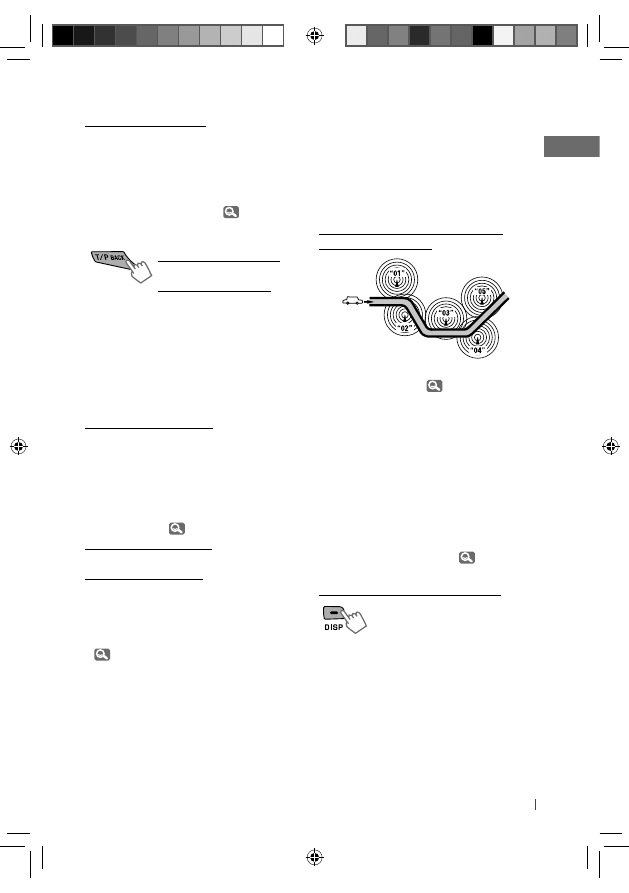
Tracing the same programme—
Network-Tracking Reception
When driving in an area where FM reception is
not sufficient enough, this unit automatically
tunes in to another FM Radio Data System
station of the same network, possibly
broadcasting the same programme with
stronger signals.
Programme A broadcasting on different
frequency areas (01 – 05)
To change the Network-Tracking Reception
setting, see <AF-REG> (
25).
Automatic station selection—
Programme Search
Usually when you select a preset number, the
station preset in that number is tuned in.
If the signals from the FM Radio Data System
preset station are not sufficient for good
reception, this unit, using the AF data, tunes in
to another frequency possibly broadcasting the
same programme as the original preset station
is broadcasting. (<P-SEARCH>,
25)
Changing the display information
Station name (PS)
= Station
Frequency
= Programme
type (PTY)
= Clock = (back to
the beginning)
EN02-11_KD-R711_003A_5.indd 9
EN02-11_KD-R711_003A_5.indd 9
12/17/09 5:23:54 PM
12/17/09 5:23:54 PM
10
ENGLISH
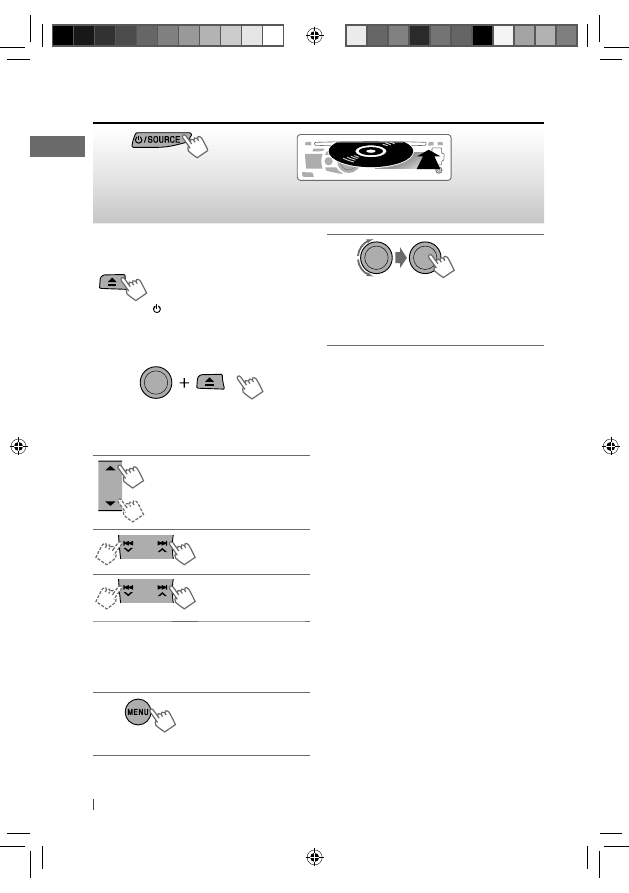
Stopping playback and ejecting
the disc
“NO DISC” appears.
Remove the disc, then press
/ SOURCE to listen to another
playback source.
Prohibiting disc ejection
To cancel the prohibition, repeat the same
procedure.
Selects folder of the MP3/WMA
Selects track
Fast-forwards or
reverses the track
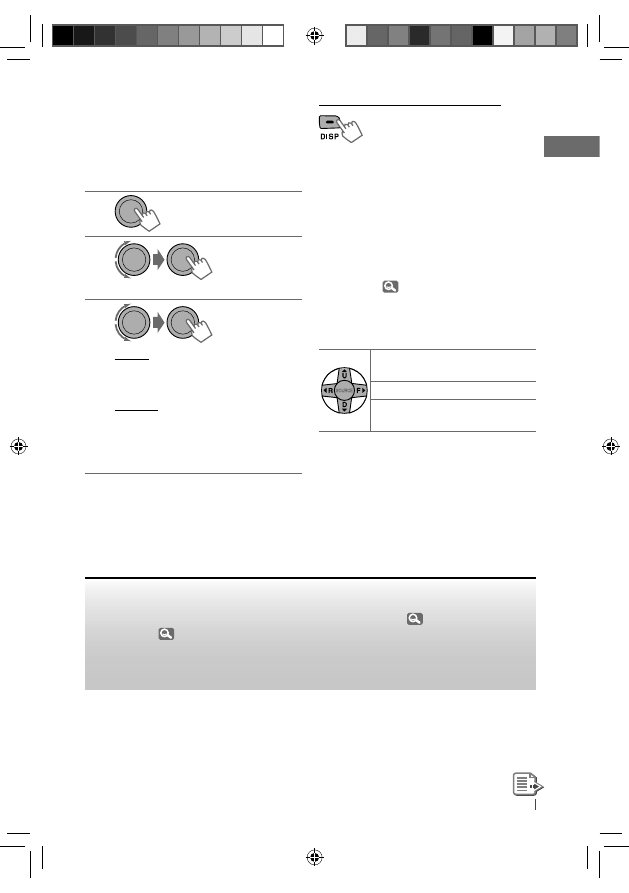
Selecting a folder/track on the
list
While listening to a disc....
1
] Enter the list menu.
Listening to a disc
~
] Turn on the power.
Ÿ
All tracks will be played repeatedly until you change
the source or eject the disc.
[Hold]
[Hold]
2
] Select your desired item.
MP3/WMA: Select your desired folder,
then the desired track by repeating
this step.
• If the MP3/WMA disc contains many tracks,
you can fast search (±10, ±100, ±1000)
through the disc by turning the control dial
quickly.
• To return to the previous menu, press
T/P BACK.
For MP3/WMA disc, you can also use the search
menu (A to Z, 0 to 9, and OTHERS) to scroll
through the list menu.
• “OTHERS” appears if the 1st character is not A
to Z or 0 to 9, such as #, —, !, and etc.
While in list menu....
1 Press
5/∞ to show the search menu.
• The first character of the current folder/file
name appears.
2 Press
5/∞ to select your desired character.
Then press the control dial to confirm.
• The track list with the selected character
appears.
3 Turn the control dial to select your desired
track. Then press the control dial to confirm.
• Only the existing characters will be shown on
the search menu.
• Press and hold
5/∞ to continuously change
the character of the search menu.
EN02-11_KD-R711_003A_5.indd 10
EN02-11_KD-R711_003A_5.indd 10
12/17/09 5:23:55 PM
12/17/09 5:23:55 PM
11
ENGLISH
• If your disc contains many tracks, searching
take some time.
Selecting the playback modes
You can use only one of the following playback
modes at a time.
1
2
] “REPEAT” j “RANDOM”
3
REPEAT
TRACK RPT : Repeats current track
FOLDER RPT : Repeats current folder
RANDOM
FOLDER RND : Randomly plays all tracks
of current folder, then
tracks of next folders
ALL RND
: Randomly plays all tracks
To cancel repeat play or random play, select
“RPT OFF” or “RND OFF.”
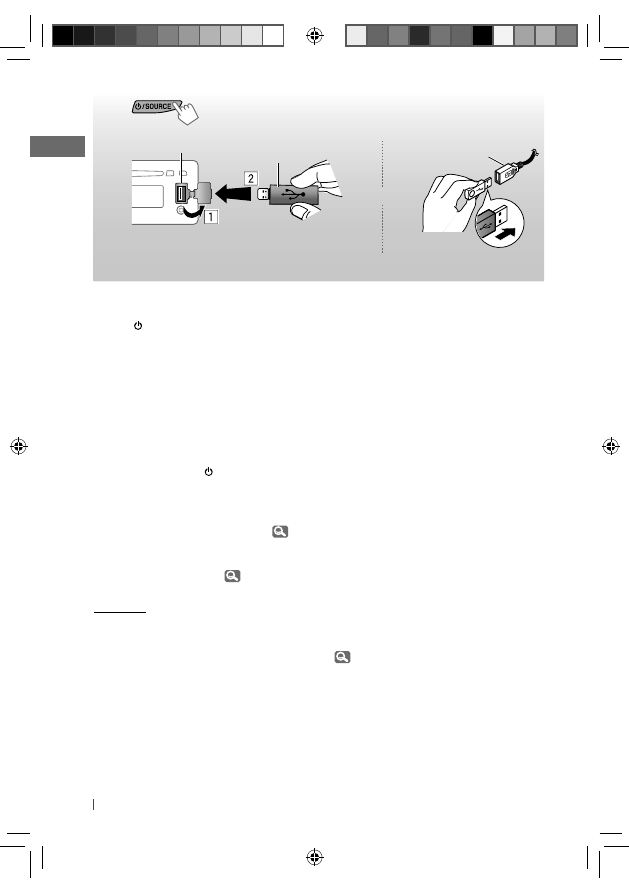
Listening to the USB device
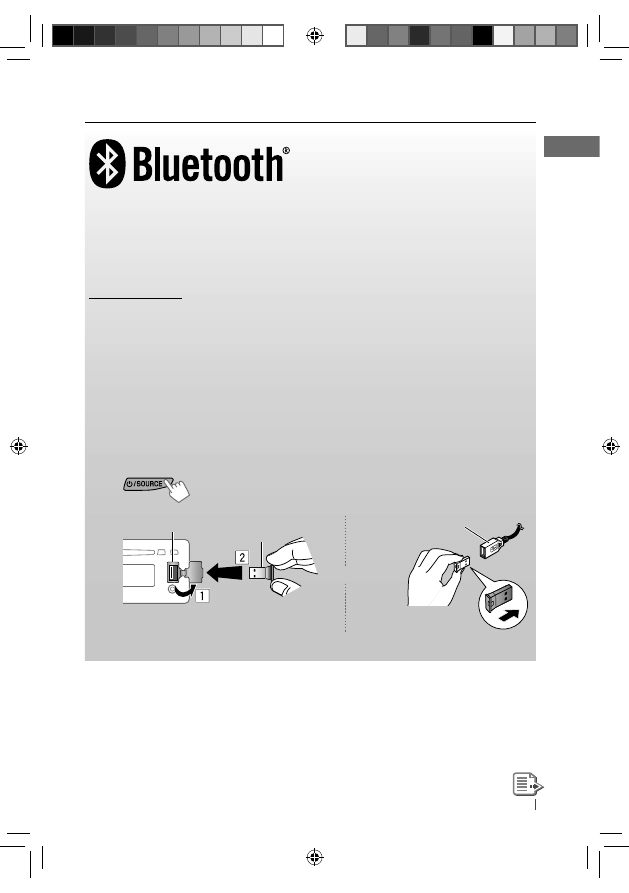
This unit is equipped with two USB input terminals (on the control panel and USB cable from the
rear of the unit). You can use these two terminals at the same time.
• You can also connect a USB Bluetooth Adapter, KS-UBT1 (supplied), (
13) and/or an Apple
iPod/iPhone (
20) to the USB input terminal(s).
This unit can play MP3/WMA/WAV tracks stored in a USB mass storage class device (such
as a USB memory, Digital Audio Player, etc.).
Changing the display information
Disc title/Album name/performer (folder
name)*
= Track title (file name)* = Current
track number with the elapsed playing time
= Current track number with the clock
time
= (back to the beginning)
* If the current disc is an audio CD (except for CD
Text), “NO NAME” appears.
If an MP3/WMA file does not have Tag
information or <TAG DISPLAY> is set to
<TAG OFF> (
24), folder name and file name
appear.
Using the remote controller
5 U / D ∞ : Selects folder of the
MP3/WMA
2 R / F 3 : Selects track
2 R / F 3
[Hold]
: Fast-forwards or
reverses the track
[Hold]
EN02-11_KD-R711_003A_5.indd 11
EN02-11_KD-R711_003A_5.indd 11
12/17/09 5:23:55 PM
12/17/09 5:23:55 PM
12
ENGLISH
~
] Turn on the power.
Ÿ
and / or
All tracks will be played repeatedly until you change the source or detach the USB device.
If you have turned off the power (without
detaching the USB device)...
Pressing / SOURCE turns on the power and
playback starts from where it has been stopped
previously.
• If a different USB device is currently attached,
playback starts from the beginning.
Stopping playback and detaching
the USB device
Straightly pull it out from the unit.
“NO USB” appears. Press / SOURCE to listen to
another playback source.
You can operate the USB device in the same
way you operate the files on a disc. (
10, 11)
• You can listen to WAV files by following the
MP3/WMA file operations. (
10, 11)
Cautions:
• Avoid using the USB device if it might hinder
your safety driving.
• While “READING” is shown on the display:
– Do not pull out and attach the USB device
repeatedly.
– Do not pull out or attach another USB
device.
• Do not start the car engine if a USB device is
connected.
• This unit may not be able to play the files
depending on the type of USB device.
• Operation and power supply may not work as
intended for some USB devices.
• You cannot connect a computer to the USB
input terminal of the unit.
• Make sure all important data has been backed
up to avoid losing the data.
• Electrostatic shock at connecting a USB device
may cause abnormal playback of the device.
In this case, disconnect the USB device then
reset this unit and the USB device.
• Do not leave a USB device in the car, expose
to direct sunlight, or high temperature to
avoid deformation or cause damages to the
device.
• Some USB devices may not work immediately
after you turn on the power.
• The detect time and response time may
be very long for some USB devices (such as
Digital Audio Player, etc.).
• For more details about USB operations,
29, 30.
USB input terminal
USB memory
USB cable from the
rear of the unit
EN12-21_KD-R711_003A_5.indd 12
EN12-21_KD-R711_003A_5.indd 12
12/17/09 5:24:04 PM
12/17/09 5:24:04 PM
13
ENGLISH
Using the Bluetooth ® device
Bluetooth is a short-range wireless radio communication technology for the mobile device such
as mobile phones, portable PCs, and other devices. The Bluetooth devices can be connected
without cables and communicate with each other.
• Refer to pages i and ii at the end of the manual to check the countries where you may use the
Bluetooth® function.
Bluetooth profile
This unit supports the following Bluetooth profiles;
HFP (Hands-Free Profile) 1.5 ; OPP (Object Push Profile) 1.1 ; PBAP (Phonebook Access Profile)
1.0 ; A2DP (Advanced Audio Distribution Profile) 1.2 ; AVRCP (Audio/Video Remote Control
Profile) 1.3
Refer also to the instructions supplied with the Bluetooth device.
Preparation:
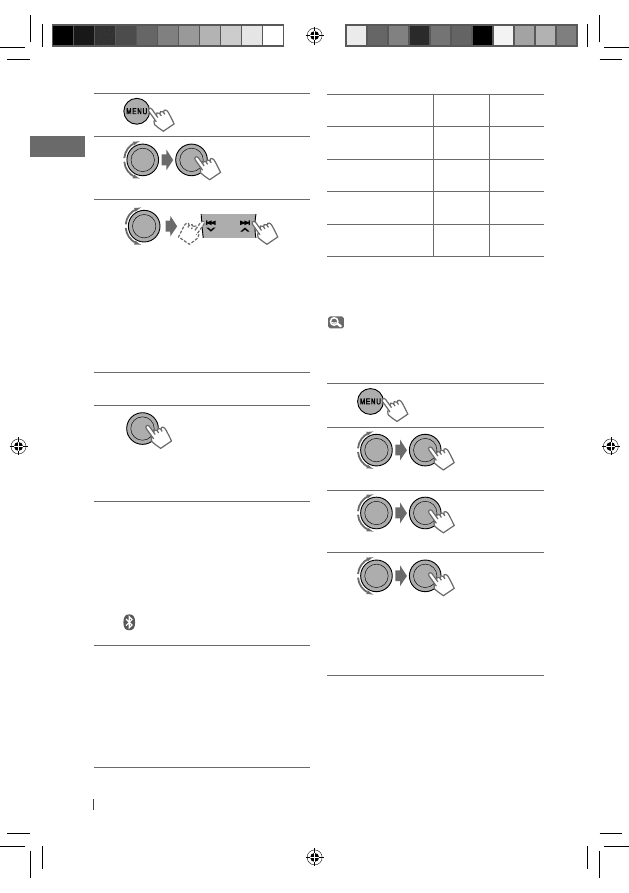
• Connect the supplied USB Bluetooth Adapter (KS-UBT1) to one of the USB input terminals of the
unit.
• Operate the device to turn on its Bluetooth function.
~
] Turn on the power.
Ÿ
or
Only one USB Bluetooth Adapter can be detected at a time.
Pairing a device
When you connect a Bluetooth device to the unit for the first time, make pairing between the unit
and the device.
• Once the connection is established, it is registered in the unit even if you reset the unit. Up to five
devices can be registered in total.
• Only one device for Bluetooth phone and one for Bluetooth audio can be connected at a time.
USB input terminal
KS-UBT1
USB cable from the
rear of the unit
EN12-21_KD-R711_003A_5.indd 13
EN12-21_KD-R711_003A_5.indd 13
12/17/09 5:24:04 PM
12/17/09 5:24:04 PM
14
ENGLISH
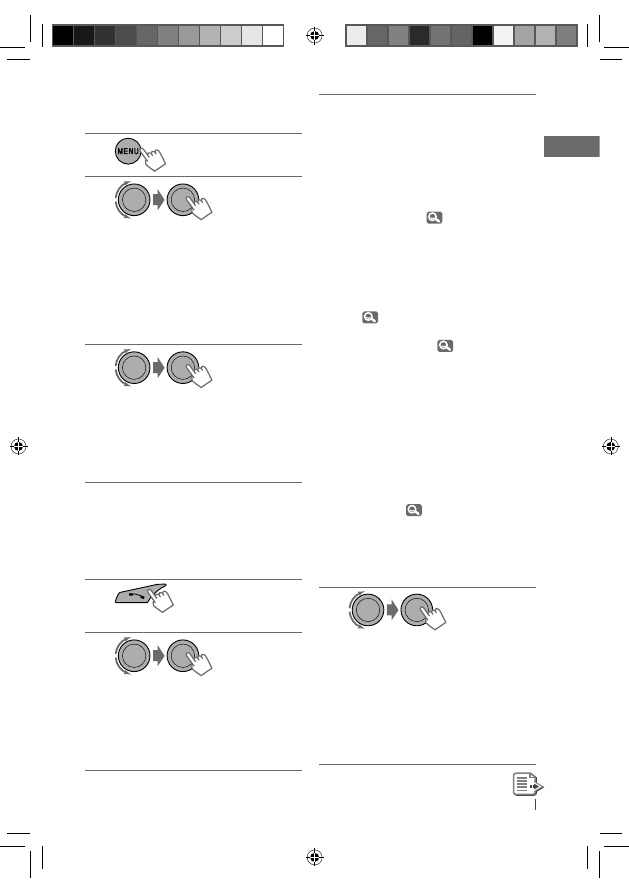
1
2
] <BLUETOOTH> ] <NEW PAIRING>
3
] Enter a PIN (Personal Identification
Number) code in to the unit.
You can enter any number you like
(1-digit to 16-digit number).
[Initial: 0000]
• Some devices have their own PIN
code. Enter the specified PIN code in
to the unit.
4
Repeat step 3 until you have finished
entering the PIN code.
5
] Confirm the entry.
“SEARCH NOW” and “USING PHONE”
appear alternately on the display.
6
Use the Bluetooth device to search.
On the device to be connected, enter
the same PIN code you have just
entered for this unit.
“PAIRING OK“ and “[Device Name]”
appear alternately when the pairing is
established.
appears when Bluetooth connection
is established.
7
Use the Bluetooth device to connect *
when “CONNECT NOW” and “USING
PHONE” alternate on the display.
• Refer to the table on the right column
for connectivity results shown on the
display.
* Operations may be different according
to the connected device.
Display result
Hands-
Free Call
Audio
Streaming
CONNECT OK
j
[Device Name]
‡
‡
H.FREE OK
j
[Device Name]
‡
—
A. STREAM OK
j
[Device Name]
—
‡
CONNCT FAIL
j
TRY CONNECT
—
—
The device remains registered even after you
disconnect the device. Use <CONNECT PH> or
<CONNECT AU> (or activate <AUTO CNNCT>,
19) to connect the same device from next
time on.
Deleting a registered device
1
2
] <BLUETOOTH> ] <DELETE PAIR>
3
] Select a device you want to delete.
4
] Select <DELETE YES> to confirm.
“DELETED” appears when the device is
deleted.
• If <DELETE NO> is selected, the unit
returns to step 3 above.
[Hold]
[Hold]
EN12-21_KD-R711_003A_5.indd 14
EN12-21_KD-R711_003A_5.indd 14
12/17/09 5:24:05 PM
12/17/09 5:24:05 PM
15
ENGLISH
Connecting/disconnecting a
registered device
1
2
] <BLUETOOTH> ] <CONNECT PH/
CONNECT AU> or <DISCONNT PH/
DISCONNT AU>.
• For connecting a device, go to step 3.
• For disconnecting a device,
“DISCONNECT” and “[Device Name]”
appear alternately on the display
when the device is disconnected.
3
] Select a device you want to connect.
• “CONNECTING” and “[Device Name]”
appear alternately, then “CONNECTED”
and “[Device Name]” appear
alternately on the display when the
device is connected.
Using a Bluetooth mobile
phone
Making a call
1
] Enter “Call Menu” screen.
2
] Select the method to make a call.
• DIALED *
1
: Shows the list of the phone
numbers you have dialed. Go to the
following step.
• RECEIVED *
1
: Shows the list of the
received calls. Go to the following step.
[Hold]
• MISSED CALL *
1
: Shows the list of the
missed calls. Go to the following step.
• PHONEBOOK *
2
: Shows the name/
phone number of the phonebook
registered in the unit or from the
connected phone *
3
. Go to the
following step.
– To copy the phonebook memory, <P.
BOOK WAIT>,
19.
– If the phonebook contains many
numbers, you can fast search (±10,
±100, ±1000 numbers) through the
phonebook by turning the control
dial quickly.
– To search through the phonebook,
16.
• DIAL NUMBER: Shows the “Dial
Number” screen. (
16)
• VOICE DIAL (only accessible when
the connected mobile phone has the
voice recognition system): Speak the
name (registered words) you want to
call when “SAY NAME” appears *
4,
*
5
.
*
1
“NO HISTORY” appears if there is no
history stored.
*
2
“NO DATA” or “SEND P. BOOK”
j
“MANUALLY” appears depending on
the <P. BOOK SEL> settings.
*
3
Depends on the <P. BOOK SEL>
settings,
19.
*
4
Operations may be different according
to the connected device.
*
5
“NOT SUPPORT” appears if the
connected phone does not support
this feature.
3
] Select the name/phone number you
want to call.
• When the sound is stopped or
interrupted during the use of a
Bluetooth device, turn off, then turn
on the unit.
– If the sound is not yet restored,
connect the device again using
<CONNECT PH>.
EN12-21_KD-R711_003A_5.indd 15
EN12-21_KD-R711_003A_5.indd 15
12/17/09 5:24:05 PM
12/17/09 5:24:05 PM
16
ENGLISH
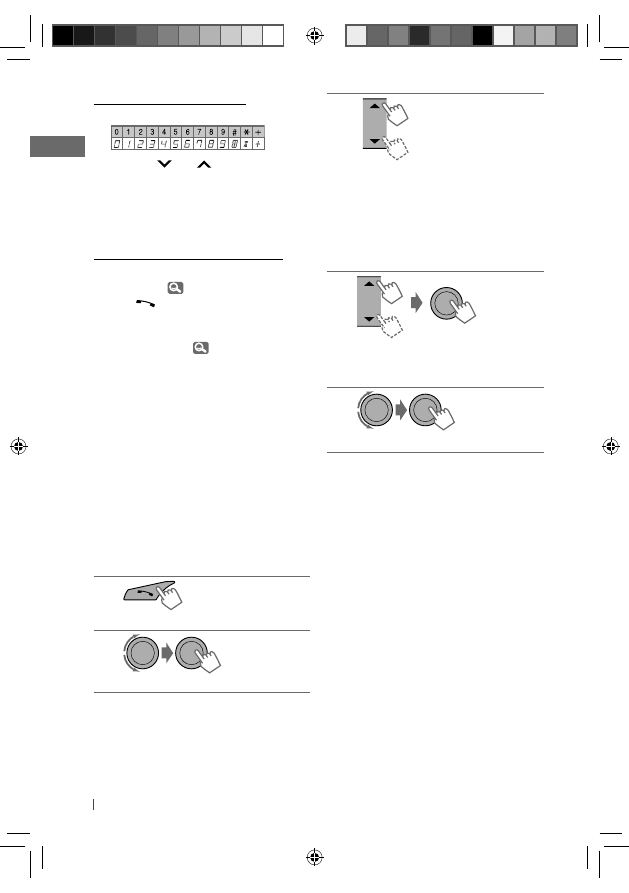
How to enter phone number
1 Turn the control dial to select a number.
2 Press
4 /¢ to move the entry
position.
3 Repeat steps 1 and 2 until you finish
entering the phone number.
4 Press the control dial to confirm the entry.
How to delete name/phone number
Only when <PB IN UNIT> is selected for
<P. BOOK SEL>,
19.
1 Press
to enter “Call Menu” screen.
2 Display the list of name/phone numbers
using one of the dialing method (see step 2
of “Making a call,”
15).
3 Turn the control dial to select the name/
phone number you want to delete.
4 Press and hold T/P BACK to enter the “Delete
Entries” screen.
5 Turn the control dial to select “DELETE” or
“DELETE ALL.”
• If “DELETE” is selected, the selected name/
phone number in step 3 is deleted.
• If “DELETE ALL” is selected, the listed
numbers in step 2 selection are deleted.
6 Press the control dial to confirm.
Selecting a contact from the
phonebook
1
] Enter “Call Menu” screen.
2
] <PHONEBOOK>
3
] Show the search menu (A to Z, 0 to
9, and OTHERS).
The first character of the first contact on
the phonebook appears.
• “OTHERS” appears if the 1st character
is not A to Z or 0 to 9, such as #, —, !,
and etc.
4
] Select your desired character.
The name list of the selected character
appears.
5
] Select your desired contact.
• To return to the previous menu, press
T/P BACK.
• Only the existing characters will be shown on
the search menu.
• Press and hold
5/∞ to continuously change
the character of the search menu.
• If your phonebook contains many contacts,
searching take some time.
Receiving a call
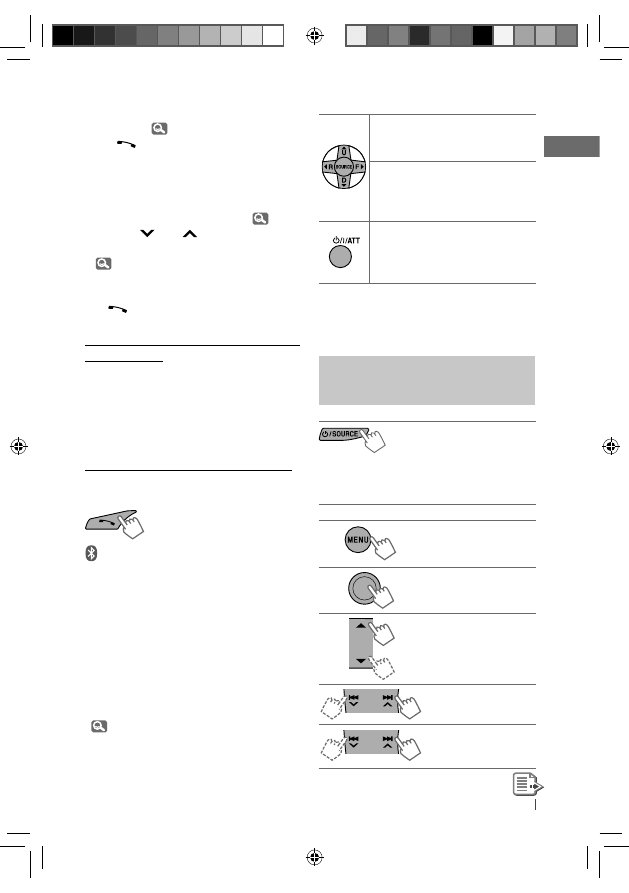
When a call comes in, the source is
automatically changed to “BT FRONT/BT REAR.”
“RECEIVING” appears for a while, then the
phone number or name appears on the display.
EN12-21_KD-R711_003A_7.indd 16
EN12-21_KD-R711_003A_7.indd 16
1/4/10 12:17:51 PM
1/4/10 12:17:51 PM
17
ENGLISH
When <AUTO ANSWER> is activated....
The unit answers the incoming calls
automatically,
19.
• Press
or the control dial to answer the
incoming call when <AUTO ANSWER> is
deactivated.
• Press
5/∞ to adjust the microphone volume
(01 – 03) during a phone call conversation.
To preset the microphone volume,
19.
• Press
4 / ¢ to turn on/off the
Noise Reduction and Echo Cancelation mode.
(
19)
To end the call an incoming call, press and
hold
or the control dial.
Switching conversation media (the unit/
mobile phone)
Press the control dial during a phone call
conversation, then continue your conversation
using the other media.
• Operations may be different according to the
connected Bluetooth device.
Switching the connected mobile phone
You can switch the current connected mobile
phone to the last connected mobile phone.
and “CONNECTING” flashes on the display.
When the last connected phone is being
reconnected again, “CONNECTED” and “[Device
Name]” appear alternately on the display. Now
you can use the last connected mobile phone
with the unit.
Arriving of a text message
When a text message comes in, the unit rings
if your mobile phone is compatible with text
message and <MSG NOTICE> is set to <ON>
(
19).
• You cannot read, edit, or send a message
through the unit.
[Hold]
[Hold]
Using the remote controller
5 U / D ∞ /
2 R / F 3 /
SOURCE
: Answers calls
5 U / D ∞ /
2 R / F 3 /
SOURCE
[Hold]
: Rejects calls
: Switches the conversation media
(between the unit and mobile
phone) during a phone call
conversation
Using a Bluetooth audio
player
Operations and display indications differ
depending on their availability on the
connected device.
] Select “BT FRONT” or
“BT REAR.”
• If playback does not start automatically,
operate the Bluetooth audio player to start
playback.
Starts or resumes
playback
Mutes the sound
Selects group/folder
Forward skips or
reverse skips
Fast-forwards or
reverses the track
EN12-21_KD-R711_003A_5.indd 17
EN12-21_KD-R711_003A_5.indd 17
12/17/09 5:24:06 PM
12/17/09 5:24:06 PM
18
ENGLISH
Warning messages
ERROR CNNCT : The device is registered but
the connection has failed. Use <CONNECT
PH/CONNECT AU> to connect the device
again.
ERROR : Try the operation again. If <ERROR>
appears again, check if the device supports
the function you have tried.
PLEASE WAIT : The unit is preparing to use
the Bluetooth function. If the message does
not disappear, turn off and turn on the unit,
then connect the device again (or reset the
unit).
HW ERROR : Reset the unit and try the
operation again. If “HW ERROR” appears
again, consult your nearest JVC car audio
dealers.
Bluetooth Information:
If you wish to receive more information about
Bluetooth, visit the following JVC web site:
<http://www.jvc.co.jp/english/car/> (English
website only).
Changing the Bluetooth
settings
1
2
] <BLUETOOTH> ] <SETTINGS>
3
] Select a setting item, then repeat
the procedure to change the setting
accordingly.
• To return to the previous menu, press
T/P BACK.
• To exit from the menu, press DISP or MENU.
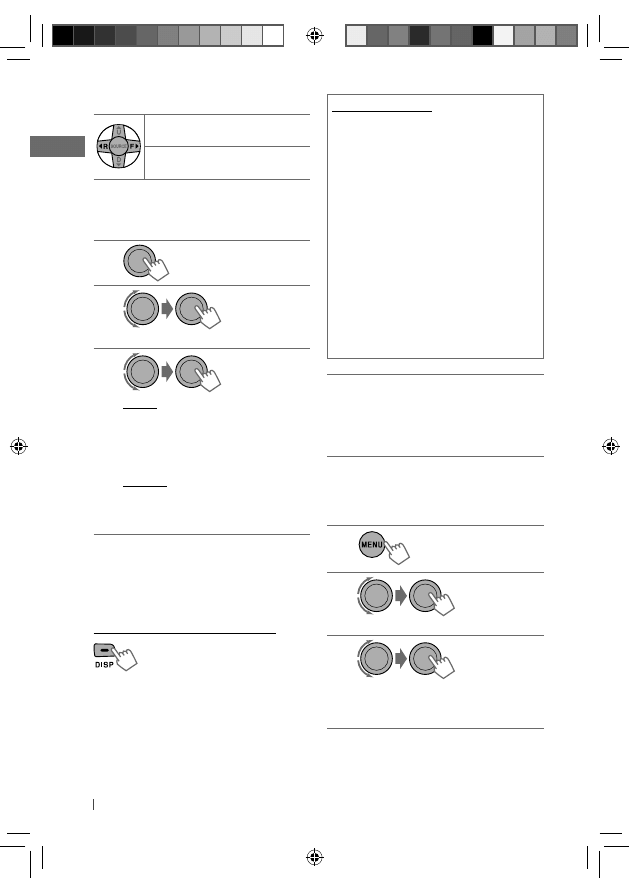
Using the remote controller
2 R / F 3 : Reverse skips/
Forward skips
2 R / F 3
[Hold]
: Fast-forwards or
reverses the track
Selecting the playback modes
• For Bluetooth devices that support AVRCP 1.3.
1
2
] “REPEAT” j “RANDOM”
3
REPEAT
TRACK
ALL
GROUP
: Repeats current track
: Repeats all tracks
: Repeats all track of current
group
RANDOM
ALL
GROUP
: Randomly plays all tracks
: Randomly plays all track of
current group
To cancel repeat play or random play, select
“RPT OFF” or “RND OFF.”
• To return to the previous menu, press
T/P BACK.
Changing the display information
Current track number with the elapsed
playing time
= Current track number with
the clock time
= Album name/performer
= Track title = (back to the beginning)
[Hold]
[Hold]
EN12-21_KD-R711_003A_7.indd 18
EN12-21_KD-R711_003A_7.indd 18
12/24/09 11:17:29 AM
12/24/09 11:17:29 AM
19
ENGLISH
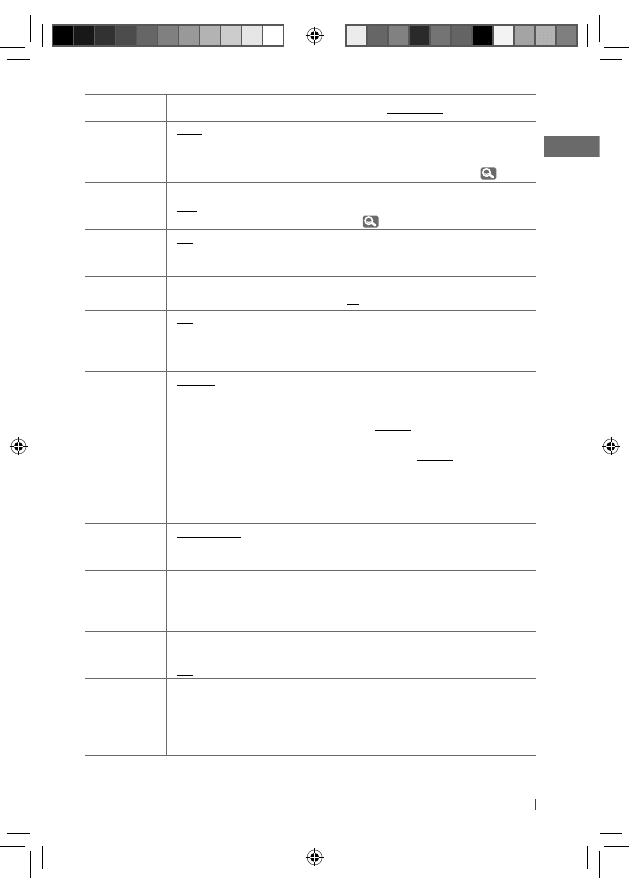
Setting item
Selectable setting, [
Initial: Underlined
]
AUTO CNNCT
• LAST
• OFF
: The connection is established automatically with the last
connected Bluetooth device when you turn on the unit.
: The unit does not connect the Bluetooth device
automatically. Connect the device manually. (
15)
AUTO
ANSWER
• ON
• OFF
: The unit answers the incoming calls automatically.
: The unit does not answer the calls automatically. Answer
the calls manually. (
16, 17)
MSG NOTICE
• ON
• OFF
: The unit informs you of the arrival of a message by
ringing and displaying “RCV MESSAGE.”
: The unit does not inform you of the arrival of a message.
MIC LEVEL
—
: Adjust the volume of the microphone connected to the
unit. [ LEVEL 01/02/03 ]
NR/EC MODE
• ON
• OFF
: The unit adjusts the Noise Reduction and Echo
Cancelation of the microphone connected to the unit for
clearer sound.
: Cancels.
RING TONE
• IN UNIT
• IN PHONE
: The unit rings to alert you when a call/Text Message
comes in.
CALL:
Select your preferred ring tone when a call
comes in. [ TONE 1/2/3 ]
MESSAGE: Select your preferred ring tone when a Text
Message comes in. [ TONE 1/2/3 ]
: The unit rings (using the connected phones’ ring tone)
to alert you when a call/Text Message comes in. (The
connected mobile phone rings if it does not support this
feature.)
P. BOOK SEL *
1
• PB IN PHONE
• PB IN UNIT
: The unit browses the phonebook of the connected
phone.
: The unit browses the phonebook registered in the unit.
P. BOOK WAIT
—
: You can copy the phonebook memory of a mobile
phone into the unit (via OPP).
Enter the PIN code to the unit to transfer the phonebook
into the unit. You can transfer a maximum of 400 numbers.
INITIALIZE
• YES
• NO
: Initialize all the Bluetooth settings (including stored
pairing, phonebook, and etc.).
: Cancels.
INFORMATION • MY BT NAME
• MY ADDRESS
• BT SW VER
• PH CNNT DEV *
2
• AU CNNT DEV *
2
: Shows the unit name.
: Shows address of USB Bluetooth Adapter.
: Shows the software version.
: Shows connected phone name.
: Shows connected audio device name.
*
1
Selectable only when the connected phone supports PBAP.
*
2
Displayed only when a Bluetooth phone/audio player is connected.
EN12-21_KD-R711_003A_5.indd 19
EN12-21_KD-R711_003A_5.indd 19
12/17/09 5:24:06 PM
12/17/09 5:24:06 PM
20
ENGLISH
Listening to the iPod/iPhone
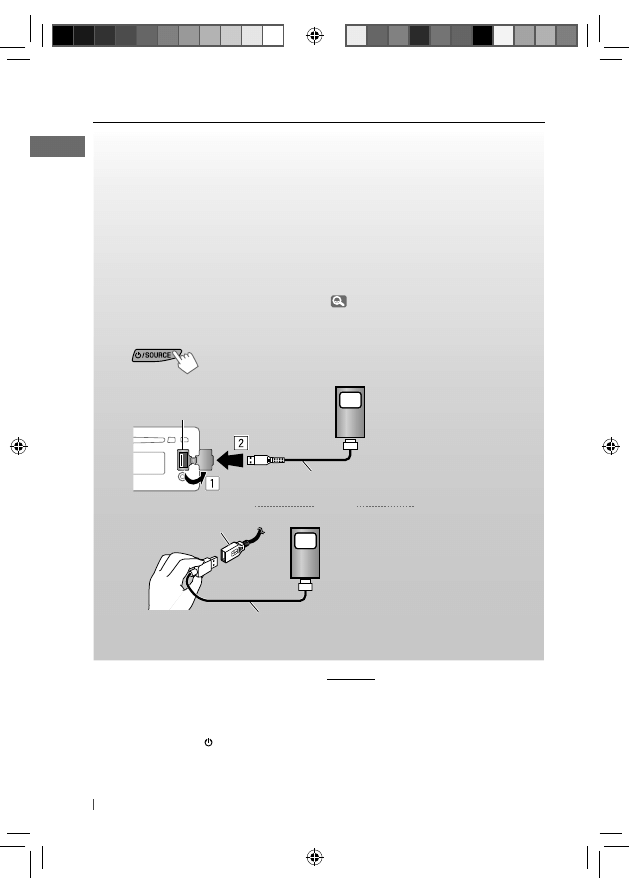
You can connect the iPod/iPhone using the USB 2.0 cable (accessory of the iPod/iPhone) to the
USB input terminal on the control panel or USB cable from the rear of the unit.
There are three control terminals: <HEAD MODE>, control by this unit; <IPOD MODE>, control
by the connected iPod/iPhone; <EXT MODE>, the sound of any functions (musics, games,
applications, etc.) running on the connected iPod/iPhone is emitted through the speakers
connected to this unit.
Preparation:
Select the controlling terminal, <HEAD MODE>, <IPOD MODE>, or <EXT MODE> for iPod
playback:
• Press and hold T/P BACK button.
• Make the selection from <IPOD SWITCH> setting,
27.
The operations explained below are under <HEAD MODE>.
~
] Turn on the power.
Ÿ
and/or
Playback starts automatically.
USB input terminal
USB cable from the
rear of the unit
iPod/iPhone
iPod/iPhone
USB 2.0 cable (accessory of the iPod/iPhone)
USB 2.0 cable (accessory of the iPod/iPhone)
Caution:
• Some of the applications in the connected
iPod/iPhone may not work correctly with this
unit.
• Avoid using the iPod/iPhone if it might hinder
your safety while driving.
• Make sure all important data has been backed
up to avoid losing the data.
Stopping playback and
detaching the iPod/iPhone
Straightly pull the USB 2.0 cable out from the
unit.
“NO USB” appears. Press / SOURCE to listen to
another playback source.
• For details, refer also to the instructions
supplied with your iPod/iPhone.
EN12-21_KD-R711_003A_5.indd 20
EN12-21_KD-R711_003A_5.indd 20
12/17/09 5:24:06 PM
12/17/09 5:24:06 PM
21
ENGLISH
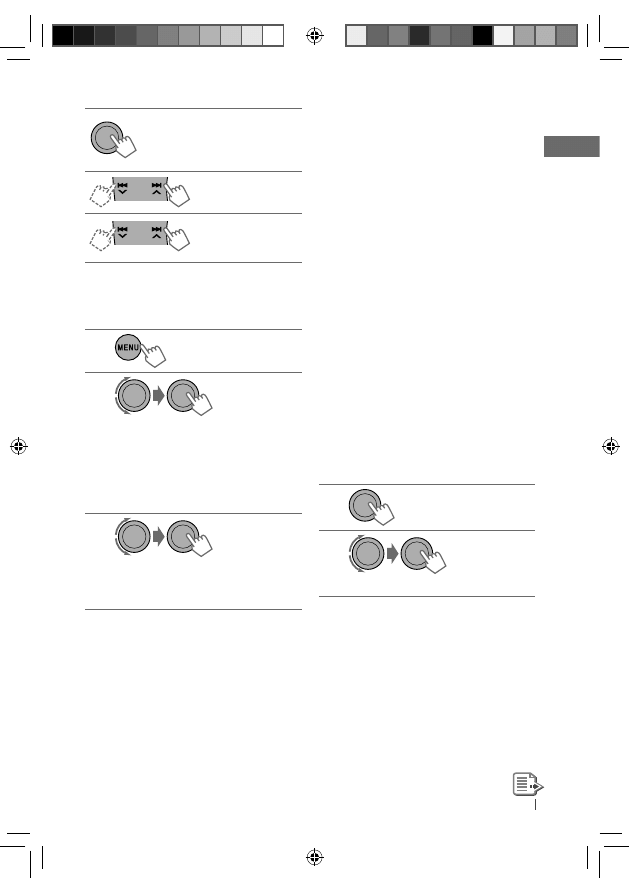
You can also use the search menu (A to Z and 0
to 9) to scroll through the desired menu.
After you have selected your desired menu (in
step 2)....
1 Press
5/∞ to show the search menu.
• The first character of the current file name
appears.
2 Press
5/∞ to select your desired character.
Then press the control dial to confirm.
• The track list with the selected character
appears.
3 Turn the control dial to select your desired
track. Then press the control dial to confirm.
• Only the existing characters will be shown on
the search menu.
• Press and hold
5/∞ to continuously change
the character of the search menu.
• If your iPod/iPhone contains many tracks,
searching take some time.
• Searching may not work on some of the layers
of the selected menu.
Selecting the playback modes
The following is not applicable in
<IPOD MODE> and <EXT MODE>.
1
2
] “REPEAT” j “RANDOM”
The following is not applicable in <EXT MODE>.
Starts playback or pauses/
resumes playback
• While in <EXT MODE>, the
sound mutes.
Selects track or
chapter
Fast-forwards or
reverses the track
Selecting a track from the menu
The following is not applicable in
<IPOD MODE> and <EXT MODE>.
1
2
] Select the desired menu.
PLAYLISTS
j ARTISTS j ALBUMS
j SONGS j PODCASTS j
GENRES
j COMPOSERS j
AUDIOBOOKS
j (back to the
beginning)
3
] Select your desired track.
Repeat this procedure until the desired
track is selected.
• If the selected menu contains many tracks,
you can fast search (±10, ±100, ±1000)
through the menu by turning the control dial
quickly.
• To return to the previous menu, press
T/P BACK.
[Hold]
[Hold]
EN12-21_KD-R711_003A_5.indd 21
EN12-21_KD-R711_003A_5.indd 21
12/17/09 5:24:07 PM
12/17/09 5:24:07 PM
22
ENGLISH
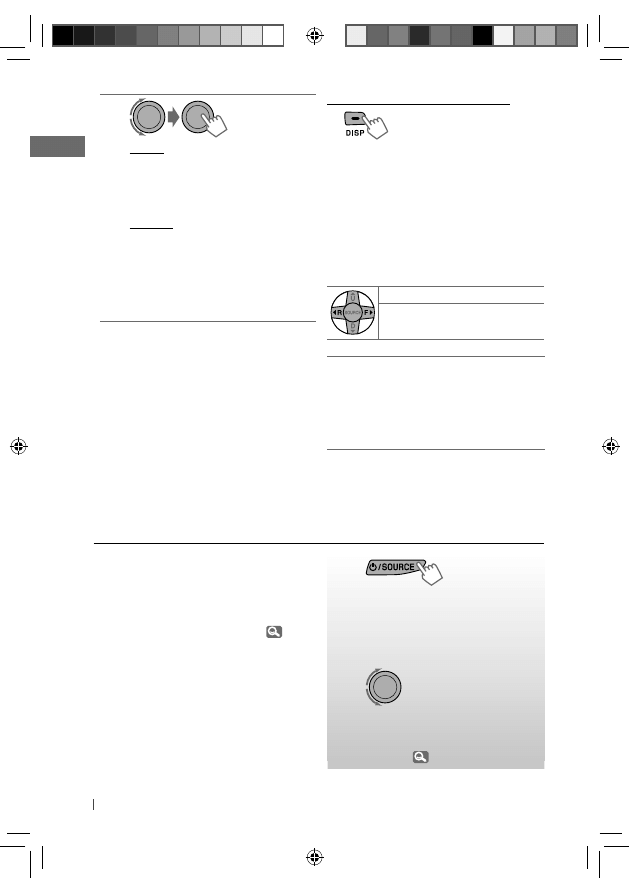
Changing the display information
Album name/performer
= Track title =
Current track number with the elapsed
playing time
= Current track number with
the clock time
= (back to the beginning)
In <EXT MODE>: EXT MODE
j EXT MODE
with clock time
Using the remote controller
The following is not applicable in <EXT MODE>.
2 R / F 3 : Selects track or chapter
2 R / F 3
[Hold]
: Fast-forwards or
reverses the track
Notice:
When operating an iPod, some operations
may not be performed correctly or as
intended. In this case, visit the following JVC
web site: <http://www.jvc.co.jp/english/car/>
(English website only).
~
] “AUX IN”
Ÿ
Turn on the connected
component and start
playing the source.
!
] Adjust the volume.
⁄
Adjust the sound as you
want.
(
23)
Listening to the other external
components
You can connect an external component to the
AUX (auxiliary) input jack on the control panel.
Preparation:
Make sure <AUX ON> is selected for the
<SRC SELECT>
= <AUX IN> setting. ( 27)
• For details, refer also to the instructions
supplied with the external components.
3
REPEAT
ONE RPT
: Functions the same as
“Repeat One” of the iPod
ALL RPT
: Functions the same as
“Repeat All” of the iPod
RANDOM
SONG RND : Functions the same as
“Shuffle Songs” of the
iPod
ALBUM RND : Functions the same as
“Shuffle Albums” of the
iPod
• To cancel repeat play or random play, select
“RPT OFF” or “RND OFF.”
• “ALBUM RND” is not available for some iPod/
iPhone.
• To return to the previous menu, press
T/P BACK.
EN22-29_KD-R711_003A_5.indd 22
EN22-29_KD-R711_003A_5.indd 22
12/17/09 5:23:34 PM
12/17/09 5:23:34 PM
23
ENGLISH
Selecting a preset sound mode
You can select a preset sound mode suitable
for the music genre.
FLAT
= NATURAL = DYNAMIC = VOCAL
BOOST
= BASS BOOST = USER = (back to
the beginning)
While listening, you can adjust the tone level of
the selected sound mode.
1
2
Adjust the level (–06 to +06) of the
selected tone (BASS / MID / TRE).
The sound mode is automatically stored
and changed to “USER.”
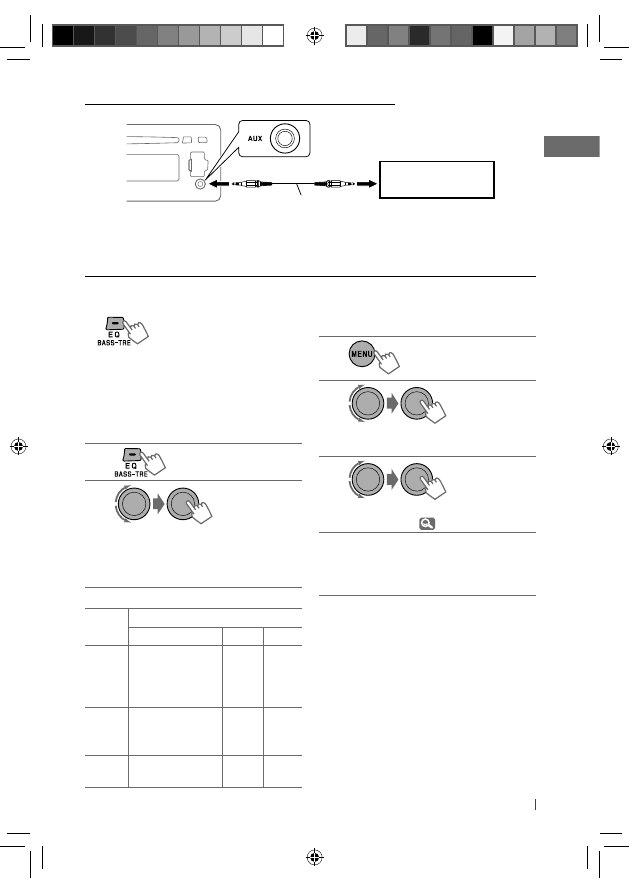
Tone
Sound element
Frequency
Level
Q
BASS
60 Hz, 80 Hz,
100 Hz, 200 Hz
–06 to
+06
Q1.0,
Q1.25,
Q1.5,
Q2.0
MIDDLE 0.5 kHz, 1.0 kHz,
1.5 kHz, 2.5 kHz
–06 to
+06
Q0.75,
Q1.0,
Q1.25
TREBLE 10.0 kHz, 12.5 kHz,
15.0 kHz, 17.5 kHz
–06 to
+06
Q FIX
Storing your own sound mode
You can store your own adjustments in
memory.
1
2
] <PRO EQ> ] <BASS> / <MIDDLE> /
<TREBLE>
3
Adjust the sound elements of the
selected tone. (
table on the left)
4
Repeat steps 2 and 3 to adjust other
tones.
The adjustments made will be stored
automatically in “USER.”
The current sound mode changes to “USER”
automatically.
[Hold]
[Hold]
Connecting an external component to the AUX input jack
3.5 mm stereo mini plug
(not supplied)
Portable audio player,
etc.
EN22-29_KD-R711_003A_5.indd 23
EN22-29_KD-R711_003A_5.indd 23
12/17/09 5:23:35 PM
12/17/09 5:23:35 PM
24
ENGLISH
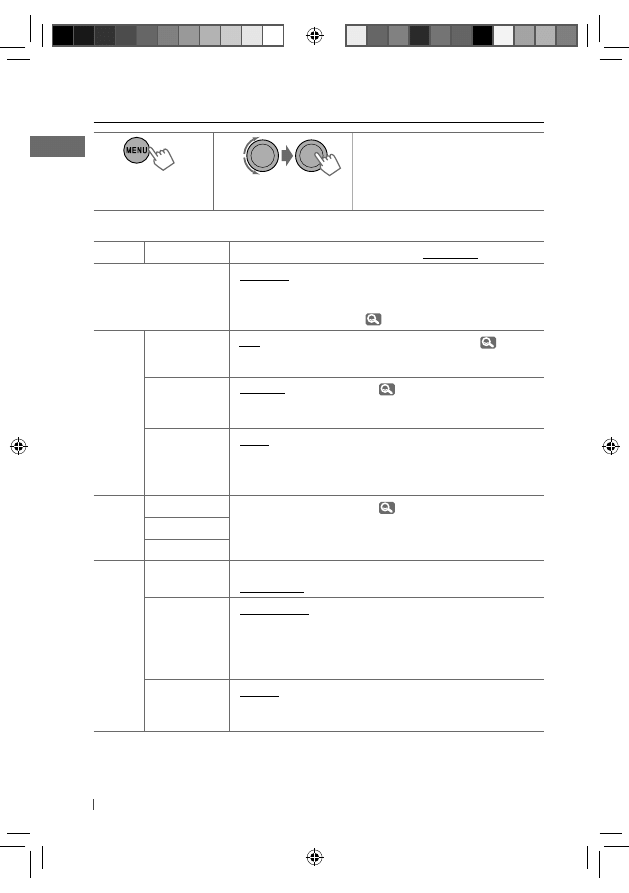
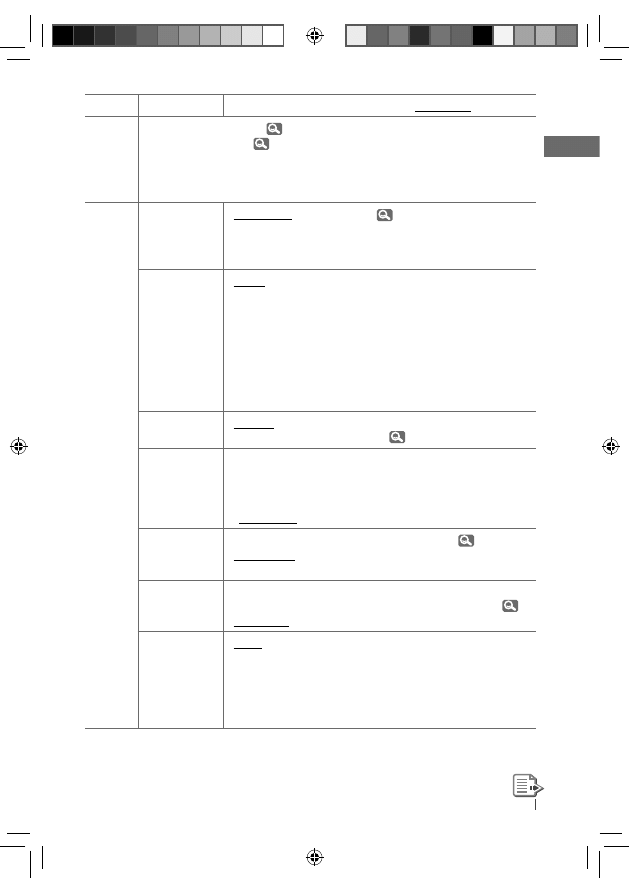
Menu operations
1
2
3
Repeat step 2 if necessary.
• To return to the previous menu,
press T/P BACK.
• To exit from the menu, press DISP
or MENU.
Category
Menu item
Selectable setting, [
Initial:
Underlined
]
DEMO
Display demonstration
• DEMO ON
• DEMO OFF
: Display demonstration will be activated
automatically if no operation is done for about
20 seconds.
: Cancels. (
4)
CLOCK
CLOCK SET
Clock setting
[ 0:00 ]
: Adjust the hour, then the minute. (
4)
24H/12H
Time display
mode
• 24 HOUR
• 12 HOUR
: For settings,
4.
CLOCK ADJ *
1
Clock
adjustment
• AUTO
• OFF
: The built-in clock is automatically adjusted
using the CT (clock time) data in the Radio Data
System signal.
: Cancels.
PRO EQ
BASS
—
: For settings,
23.
MIDDLE
TREBLE
DISPLAY
DIMMER
• DIMMER ON
• DIMMER OFF
: Dims the display and button illumination.
: Cancels.
SCROLL *
2
• SCROLL ONCE
• SCROLL AUTO
• SCROLL OFF
: Scrolls the displayed information once.
: Repeats scrolling (at 5-second intervals).
: Cancels.
Pressing DISP for more than one second can scroll the display
regardless of the setting.
TAG DISPLAY
• TAG ON
• TAG OFF
: Shows the Tag information while playing MP3/
WMA/WAV tracks.
: Cancels.
*
1
Takes effect only when CT (clock time) data is received.
*
2
Some characters or symbols will not be shown correctly (or will be blanked) on the display.
[Hold]
EN22-29_KD-R711_003A_5.indd 24
EN22-29_KD-R711_003A_5.indd 24
12/17/09 5:23:35 PM
12/17/09 5:23:35 PM
25
ENGLISH
Category
Menu item
Selectable setting, [
Initial:
Underlined
]
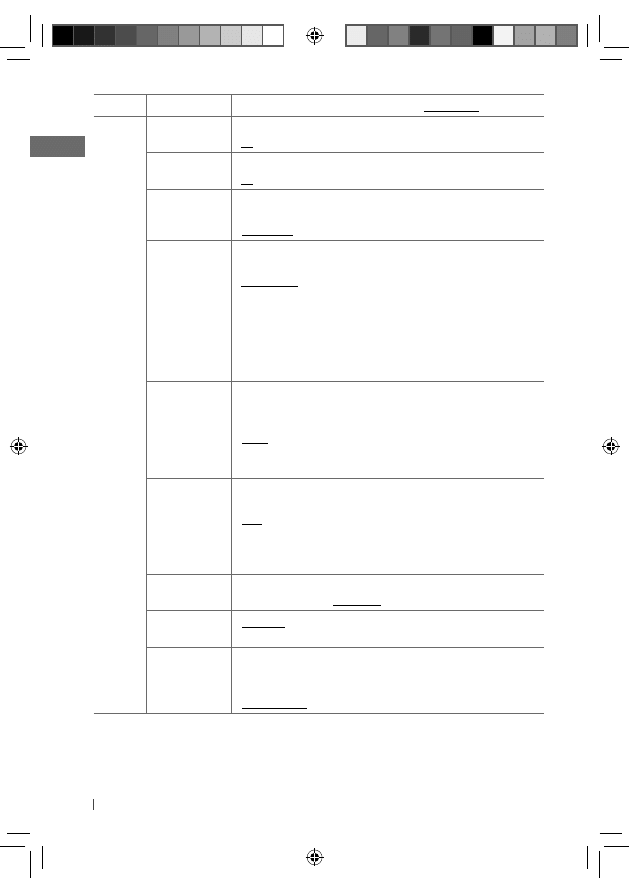
BLUETOOTH
*
3
: For Bluetooth operations,
14 – 17.
: For Bluetooth settings,
18, 19.
TUNER
SSM *
4
Strong-station
Sequential
Memory
• SSM 01 – 06
• SSM 07 – 12
• SSM 13 – 18
: For settings,
7.
AF-REG *
5
Alternative
frequency/
regionalization
reception
• AF ON
• AF-REG ON
• OFF
: When the currently received signals become
weak, the unit switches to another station (the
programme may differ from the one currently
received). (The AF indicator lights up.)
: When the currently received signals become
weak, the unit switches to another station
broadcasting the same programme. (The AF
and REG indicators light up.)
: Cancels.
PTY-
STANDBY *
4,
*
5
• PTY OFF, PTY
codes
: Activates PTY Standby Reception with one of
the PTY codes (
8).
TA VOLUME *
5
Traffic
announcement
volume
• VOLUME 00 –
VOLUME 50 (or
VOLUME 00 –
VOLUME 30) *
6
[ VOLUME 15 ]
: —
P-SEARCH *
5
Programme
search
• SEARCH ON
• SEARCH OFF
: Activates Programme Search. (
9)
: Cancels.
MONO *
4
Monaural mode
• MONO ON
• MONO OFF
: Activate monaural mode to improve FM
reception, but stereo effect will be lost. (
7)
: Restore the stereo effect.
IF BAND
Intermediate
frequency band
• AUTO
• WIDE
: Increases the tuner selectivity to reduce
interference noises between adjacent stations.
(Stereo effect may be lost.)
: Subject to interference noises from adjacent
stations, but sound quality will not be
degraded and the stereo effect will remain.
*
3
Displayed only when the USB Bluetooth Adapter (KS-UBT1) is connected.
*
4
Displayed only when the source is “FM.”
*
5
Only for FM Radio Data System stations.
*
6
Depends on the amplifier gain control.
EN22-29_KD-R711_003A_5.indd 25
EN22-29_KD-R711_003A_5.indd 25
12/17/09 5:23:35 PM
12/17/09 5:23:35 PM
26
ENGLISH
Category
Menu item
Selectable setting, [
Initial:
Underlined
]
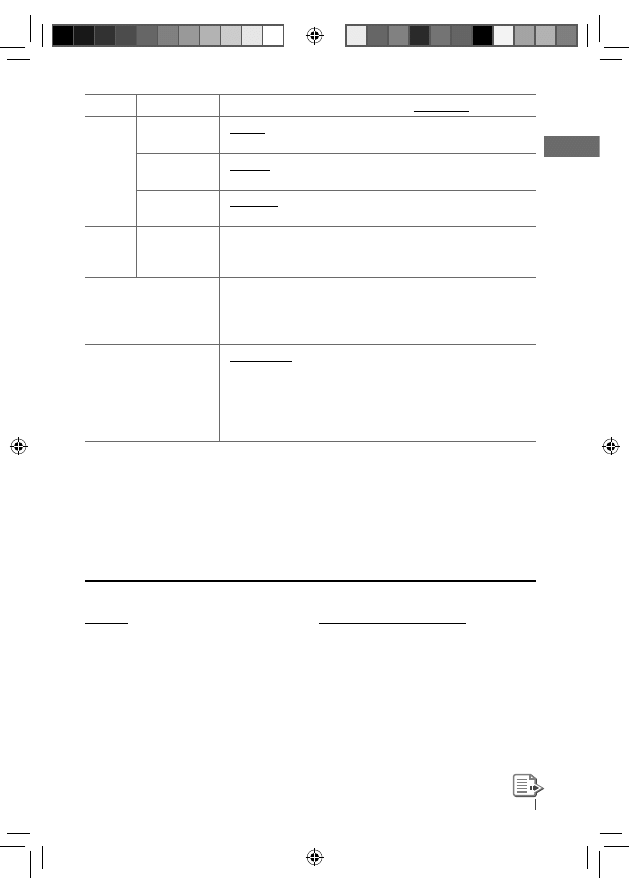
AUDIO
FADER *
7
R06 – F06
[ 00 ]
: Adjust the front and rear speaker output
balance.
BALANCE *
8
L06 – R06
[ 00 ]
: Adjust the left and right speaker output
balance.
LOUD
Loudness
• LOUD ON
• LOUD OFF
: Boost low and high frequencies to produce a
well-balanced sound at a low volume level.
: Cancels.
VOL ADJUST
Volume adjust
VOL ADJ –05 —
VOL ADJ +05
[ VOL ADJ 00 ]
: Preset the volume adjustment level of
each source (except FM), compared to the
FM volume level. The volume level will
automatically increase or decrease when you
change the source.
• Before making an adjustment, select the
source you want to adjust.
• “VOL ADJ FIX” appears on the display if “FM”
is selected as the source.
L/O MODE
Line output
mode
• SUB.W
• REAR
: Select if the REAR LINE OUT terminals are
used for connecting a subwoofer (through an
external amplifier).
: Select if the REAR LINE OUT terminals are
used for connecting the speakers (through an
external amplifier).
SUB.W FREQ *
9
Subwoofer
cutoff frequency
• LOW
• MID
• HIGH
: Frequencies lower than 72 Hz are sent to the
subwoofer.
: Frequencies lower than 111 Hz are sent to the
subwoofer.
: Frequencies lower than 157 Hz are sent to the
subwoofer.
SUB.W LEVEL *
9
Subwoofer level
SUB.W 00 —
SUB.W 08
: Adjust the subwoofer output level.
[ SUB.W 04 ]
BEEP
Keytouch tone
• BEEP ON
• BEEP OFF
: Activates the keypress tone.
: Deactivates the keypress tone.
AMP GAIN *
10
• LOW POWER
• HIGH POWER
: VOLUME 00 — VOLUME 30 (Select if the
maximum power of each speaker is less than
50 W to prevent damaging the speakers.)
: VOLUME 00 — VOLUME 50
*
7
If you are using a two-speaker system, set the fader level to “00.”
*
8
This adjustment will not affect the subwoofer output.
*
9
Displayed only when <L/O MODE> is set to <SUB.W>.
*
10
The volume level automatically changes to “VOLUME 30” if you change to <LOW POWER> with the
volume level is set higher than “VOLUME 30.”
EN22-29_KD-R711_003A_5.indd 26
EN22-29_KD-R711_003A_5.indd 26
12/17/09 5:23:35 PM
12/17/09 5:23:35 PM
27
ENGLISH
Category
Menu item
Selectable setting, [
Initial:
Underlined
]
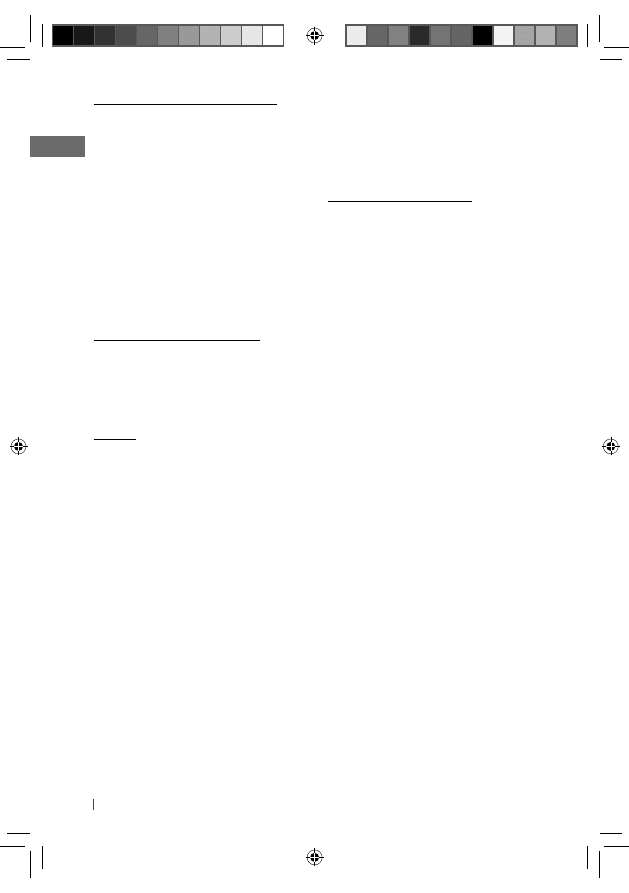
SRC SELECT
AM *
11
• AM ON
• AM OFF
: Enable “AM” in source selection.
: Disable “AM” in source selection.
AUX IN *
12
• AUX ON
• AUX OFF
: Enable “AUX IN” in source selection.
: Disable “AUX IN” in source selection.
BT AUDIO *
13
• BT AU ON
• BT AU OFF
: Enable “BT FRONT/BT REAR” in source selection.
: Disable “BT FRONT/BT REAR” in source selection.
USB
*
14
DRIVECHANGE
: Select to change the drive when a multiple drives device is
connected to the USB input terminal (FRONT/REAR).
AUDIOBOOKS *
15
• NORMAL
• FASTER
• SLOWER
: You can select the playback speed of the
“Audiobooks” sound file in your iPod/iPhone.
• Initial selected item depends on your iPod/
iPhone setting.
IPOD SWITCH *
15
• HEAD MODE
• IPOD MODE
• EXT MODE *
16
: Controls iPod playback through the unit.
: Controls iPod playback through the iPod/iPhone.
: The sound of any functions (musics, games,
applications, etc.) running on the connected
iPod/iPhone is emitted through the speakers
connected to this unit.
*
11
Displayed only when any source other than “AM” is selected.
*
12
Displayed only when any source other than “AUX IN” is selected.
*
13
Displayed only when any source other than “BT FRONT/BT REAR” is selected.
*
14
Displayed only when the source is “USB FRONT/USB REAR.”
*
15
Displayed only when the source is “IPOD FRONT/IPOD REAR.”
*
16
While in <EXT MODE>, the display always show “EXT MODE.”
More about this unit
Basic operations
General
• If you turn off the power while listening to
a track, playback will start from where it had
been stopped previously next time you turn
on the power.
• If no operation is done for about 60 seconds
after pressing MENU button, the operation will
be canceled.
Tuner operations
Storing stations in memory
• During SSM search...
– All previously stored stations are erased and
the stations are stored anew.
– When SSM is over, the station stored in the
lowest preset number will be automatically
tuned in.
• When storing a station manually, the
previously preset station is erased when
a new station is stored in the same preset
number.
EN22-29_KD-R711_003A_5.indd 27
EN22-29_KD-R711_003A_5.indd 27
12/17/09 5:23:35 PM
12/17/09 5:23:35 PM
28
ENGLISH
• MP3 and WMA “tracks” (words “file” and “track”
are used interchangeably) are recorded in
“folders.”
• While fast-forwarding or reversing on an MP3
or WMA disc, you can only hear intermittent
sounds.
Playing a CD-R or CD-RW
• Use only “finalized” CD-Rs or CD-RWs.
• This unit can only play back files of the same
type as those detected first if a disc includes
both audio CD (CD-DA) files and MP3/WMA
files.
• This unit can play back multi-session discs;
however, unclosed sessions will be skipped
while playing.
• Some CD-Rs or CD-RWs may not play back on
this unit because of their disc characteristics,
or for the following reasons:
– Discs are dirty or scratched.
– Moisture condensation has occurred on the
lens inside the unit.
– The pickup lens inside the unit is dirty.
– The files on the CD-R/CD-RW are written
using the “Packet Write” method.
– There are improper recording conditions
(missing data, etc.) or media conditions
(stained, scratched, warped, etc.).
• CD-RWs may require a longer readout time
since the reflectance of CD-RWs is lower than
that of regular CDs.
• Do not use the following CD-Rs or CD-RWs:
– Discs with stickers, labels, or a protective seal
stuck to the surface.
– Discs on which labels can be directly printed
by an ink jet printer.
Using these discs under high temperature
or high humidity may cause malfunctions or
damage to the unit.
FM Radio Data System operations
• Network-Tracking Reception requires two
types of Radio Data System signals—PI
(Programme Identification) and AF
(Alternative Frequency) to work correctly.
• If a Traffic Announcement is received by
TA Standby Reception, the volume level
automatically changes to the preset level
(TA VOLUME) if the current level is lower than
the preset level.
• When Alternative Frequency Reception is
activated (with AF selected), Network-Tracking
Reception is also activated automatically.
Disc/USB operations
Caution for DualDisc playback
• The Non-DVD side of a “DualDisc” does not
comply with the “Compact Disc Digital Audio”
standard. Therefore, the use of Non-DVD side
of a DualDisc on this product may not be
recommended.
General
• This unit has been designed to reproduce
CDs/CD Texts, and CD-Rs (Recordable)/CD-
RWs (Rewritable) in audio CD (CD-DA), MP3
and WMA formats.
• If you change the source while listening to a
disc, playback stops. Next time you select “CD”
as the playback source, playback will start
from where it had been stopped previously.
• When a disc is inserted upside down, “PLEASE”
and “EJECT” appear alternately on the display.
Press
0 to eject the disc.
• If the ejected disc is not removed within
15 seconds, it is automatically inserted into
the loading slot again to protect it from dust.
Playback starts automatically.
EN22-29_KD-R711_003A_5.indd 28
EN22-29_KD-R711_003A_5.indd 28
12/17/09 5:23:36 PM
12/17/09 5:23:36 PM
29
ENGLISH
– WMA files which are not based upon
Windows Media® Audio.
– WMA files copy-protected with DRM.
– Files which have data such as AIFF, ATRAC3,
etc.
• The search function works but search speed is
not constant.
Playing MP3/WMA/WAV tracks from a
USB device
• While playing from a USB device, the playback
order may differ from other players.
• This unit may be unable to play back some
USB devices or some files due to their
characteristics or recording conditions.
• This unit is compatible with the USB
Full-Speed.
• Depending on the shape of the USB devices
and connection ports, some USB devices may
not be attached properly or the connection
might be loose.
• This unit may not work properly with some
USB hub or USB card reader.
• If the connected USB device does not have
the correct files, “NO FILE” appears.
• This unit can show Tag (Version 1.0, 1.1, 2.2,
2.3, or 2.4) for MP3 and WMA/WAV Tag.
• This unit can play back MP3/WMA/WAV files
meeting the conditions below:
MP3:
– Bit rate: 32 kbps — 320 kbps (for MPEG-1)
8 kbps — 160 kbps (for MPEG-2)
–
Sampling frequency:
32 kHz, 44.1 kHz, 48 kHz (for MPEG-1)
16 kHz, 22.05 kHz, 24 kHz (for MPEG-2)
WMA:
– Bit rate: 5 kbps — 320 kbps
– Sampling frequency: 8 kHz — 48 kHz
– Channel: 1 ch/2 ch
WAV:
– Bit rate: Linear PCM at 705 kbps and
1 411 kbps
– Sampling frequency: 44.1 kHz
– Channel: 1 ch/2 ch
Playing an MP3/WMA disc
• This unit can play back MP3/WMA files with
the extension code <.mp3> or <.wma>
(regardless of the letter case—upper/lower).
• This unit can show the names of albums,
artists (performer), and Tag (Version 1.0, 1.1,
2.2, 2.3, or 2.4) for MP3 files and show WMA
Tag.
• This unit can display only one-byte characters.
No other characters can be correctly
displayed.
• This unit can play back MP3/WMA files
meeting the conditions below:
– Bit rate of MP3/WMA: 5 kbps — 320 kbps
– Sampling frequency of MP3:
32 kHz, 44.1 kHz, 48 kHz (for MPEG-1)
16 kHz, 22.05 kHz, 24 kHz (for MPEG-2)
– Sampling frequency of WMA:
8 kHz — 48 kHz
• The maximum number of characters for file/
folder names is 25 characters (including
<.mp3>, <.wma>); 128 characters for MP3/
WMA Tag.
• This unit can recognize a total of 20 000
files and 2 000 folders (999 files per folder).
However, the display can show until 999
folders/files.
• This unit can play back files recorded in VBR
(variable bit rate).
Files recorded in VBR have a discrepancy
in the elapsed time display, and do not
show the actual elapsed time. In particular,
this difference becomes noticeable after
performing the search function.
• This unit cannot play back the following files:
– MP3 files encoded in MP3i and MP3 PRO
format.
– MP3 files encoded in an inappropriate
format.
– MP3 files encoded with Layer 1/2.
– WMA files encoded in lossless, professional,
and voice format.
EN22-29_KD-R711_003A_7.indd 29
EN22-29_KD-R711_003A_7.indd 29
12/24/09 11:21:33 AM
12/24/09 11:21:33 AM
30
ENGLISH
• This unit can play back MP3 files recorded in
VBR (variable bit rate).
• The maximum number of characters for folder
and file names is 25 characters (including
<.mp3>, <.wma>, <.wav>); 128 characters for
MP3/WMA/WAV Tag.
• This unit can recognize a total of 20 000
files and 2 000 folders (999 files per folder).
However, the display can shows until 999
folders/files.
• The unit cannot recognize a USB mass storage
class device whose rating is other than 5 V
and exceeds 500 mA.
• USB devices equipped with special functions
such as data security functions cannot be
used with the unit.
• Do not use a USB device with 2 or more
partitions.
• When connecting with a USB cable, use the
USB 2.0 cable.
• This unit may not recognized some of the USB
device connected through a USB card reader.
• This unit may not play back files in a USB
device properly when using a USB extension
cord.
• This unit cannot assure proper functions or
supply power to all types of USB devices
Bluetooth operations
• While driving, do not perform complicated
operation such as dialing the numbers, using
phonebook, etc. When you perform these
operations, stop your car in a safe place.
• Some Bluetooth devices may not be
connected to this unit depending on the
Bluetooth version of the device.
• If you connect a different USB Bluetooth
Adapter, all the registered devices and
information will be cleared.
• This unit may not work for some Bluetooth
devices.
• Connecting condition may vary depending
on the circumstances around you.
• If you turn off the unit, detach the control
panel, or unplug the USB Bluetooth Adapter
during a phone call conversation, the
Bluetooth connection is disconnected.
Continue the conversation using your mobile
phone.
• When the unit is turned off, the device is
disconnected.
iPod/iPhone operations
• You can control the following types of iPods/
iPhone:
– iPod with video (5th Generation) *
–
iPod classic
– iPod nano (1st Generation) *
– iPod nano (2nd, 3rd, 4th, 5th Generation)
–
iPod touch
– iPod touch (2nd Generation)
– iPhone/iPhone 3G/iPhone 3GS
* <IPOD MODE> and <EXT MODE> are not
available.
• It is not possible to browse video files on the
“Videos” menu in <HEAD MODE>.
• If the iPod does not play correctly, please
update your iPod software to the latest
version. For details about updating your iPod,
visit <http://www.apple.com>.
• When you turn on this unit, the iPod is
charged through this unit.
• iPod shuffle cannot be used with this unit.
• The song order displayed on the selection
menu of this unit may differ from that of the
iPod.
• The text information may not be displayed
correctly (eg. accented letters).
• This unit can display up to 128 characters
(ASCII code).
EN30-37_KD-R711_003A_5.indd 30
EN30-37_KD-R711_003A_5.indd 30
12/17/09 5:24:13 PM
12/17/09 5:24:13 PM
31
ENGLISH
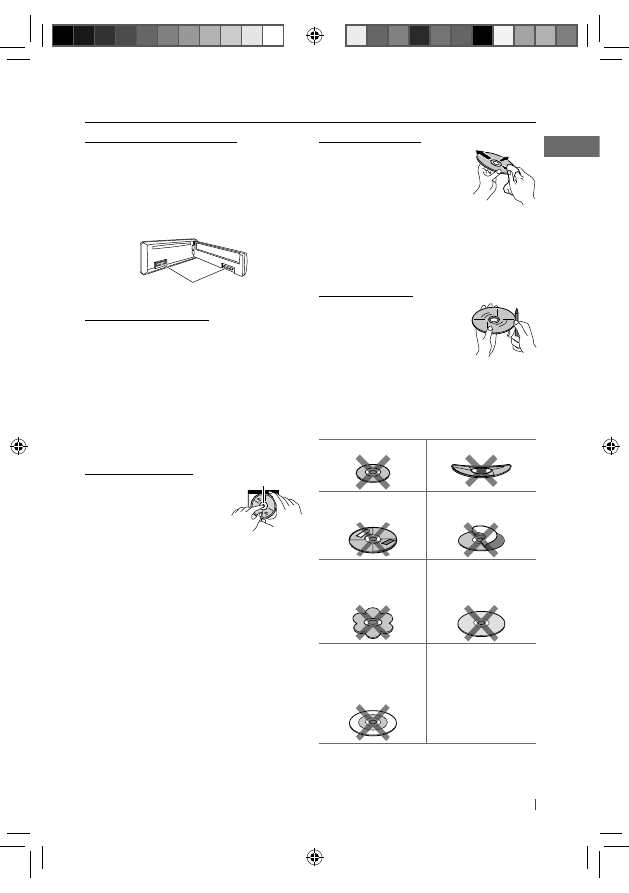
To keep discs clean
A dirty disc may not play
correctly. If a disc does become
dirty, wipe it with a soft cloth
in a straight line from center to
edge.
• Do not use any solvents (for example,
conventional record cleaner, spray, thinner,
benzine, etc.) to clean discs.
To play new discs
New discs may have some
rough spots around the inner
and outer edges. If such a disc
is used, this unit may reject the
disc.
To remove these rough spots, rub the edges
with a pencil or ball-point pen, etc.
Do not use the following discs:
Single CD (8 cm disc)
Warped disc
Sticker and sticker
residue
Stick-on label
Unusual shape
C-thru Disc
(semitransparent
disc)
Transparent or
semitransparent
parts on its recording
area
Maintenance
How to clean the connectors
Frequent detachment will deteriorate the
connectors.
To minimize this possibility, periodically wipe
the connectors with a cotton swab or cloth
moistened with alcohol, being careful not to
damage the connectors.
Moisture condensation
Moisture may condense on the lens inside the
unit in the following cases:
• After starting the heater in the car.
• If it becomes very humid inside the car.
Should this occur, the unit may malfunction.
In this case, eject the disc and leave the unit
turned on for a few hours until the moisture
has evaporated.
How to handle discs
When removing a disc
from its case, press down
the center holder of the case
and lift the disc out, holding
it by the edges.
• Always hold the disc by the edges. Do not
touch its recording surface.
When storing a disc in its case, gently insert
the disc around the center holder (with the
printed surface facing up).
• Make sure to store discs in cases after use.
Connectors
Center holder
EN30-37_KD-R711_003A_5.indd 31
EN30-37_KD-R711_003A_5.indd 31
12/17/09 5:24:13 PM
12/17/09 5:24:13 PM
32
ENGLISH
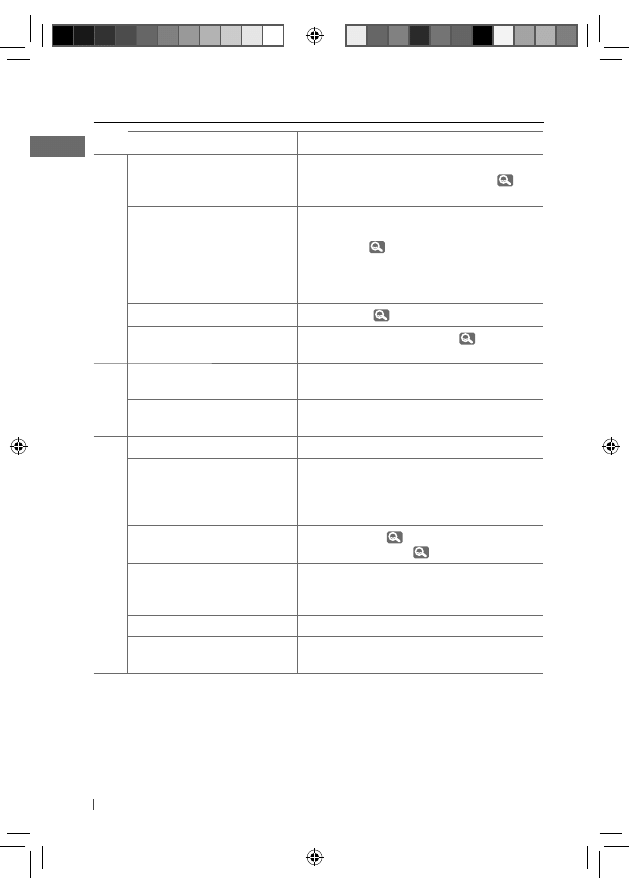
Troubleshooting
Symptom
Remedy/Cause
General
Sound cannot be heard from the
speakers.
• Adjust the volume to the optimum level.
• Make sure the unit is not muted/paused (
6).
• Check the cords and connections.
“PROTECT” appears on the display
and no operations can be done.
Check to be sure the terminals of the speaker leads
are covered with insulating tape properly, then
reset the unit (
3).
If “PROTECT” does not disappear, consult your JVC
IN-CAR ENTERTAINMENT dealer or a company
supplying kits.
The unit does not work at all.
Reset the unit. (
3)
“AM,” “AUX IN,” or “BT AUDIO”
cannot be selected.
Check the <SRC SELECT> setting. (
27)
FM/AM
SSM automatic presetting does
not work.
Store stations manually.
Static noise while listening to the
radio.
Connect the aerial firmly.
Disc playback
Disc cannot be played back.
Insert the disc correctly.
• CD-R/CD-RW cannot be played
back.
• Tracks on the CD-R/CD-RW
cannot be skipped.
• Insert a finalized CD-R/CD-RW.
• Finalize the CD-R/CD-RW with the component
which you used for recording.
Disc can neither be played back
nor ejected.
• Unlock the disc. (
10)
• Eject the disc forcibly. (
3)
Disc sound is sometimes
interrupted.
• Stop playback while driving on rough roads.
• Change the disc.
• Check the cords and connections.
“NO DISC” appears on the display.
Insert a playable disc into the loading slot.
“PLEASE” and “EJECT“ appear
alternately on the display.
Press
0, then insert a disc correctly.
EN30-37_KD-R711_003A_5.indd 32
EN30-37_KD-R711_003A_5.indd 32
12/17/09 5:24:14 PM
12/17/09 5:24:14 PM
33
ENGLISH
Symptom
Remedy/Cause
MP3/WMA playback
Disc cannot be played back.
• Use a disc with MP3/WMA tracks recorded in a format
compliant with ISO 9660 Level 1, Level 2, Romeo, or
Joliet.
• Add the extension code <.mp3> or <.wma> to the file
names.
Noise is generated.
Skip to another track or change the disc. (Do not add
the extension code <.mp3> or <.wma> to non-MP3 or
WMA tracks.)
A longer readout time is
required (“READING” keeps
flashing on the display).
Do not use too many hierarchical levels and folders.
Tracks are not played back in
the order you have intended.
The playback order is determined by the file name.
Folder with numbers on the initial as their names
are sorted in numerical order. However, folder with
no numbers on the initial of their names are sorted
according to the file system of the CD.
“NOT SUPPORT” appears on the
display and track skips.
Skip to the next track encoded in an appropriate format
or to the next non-copy-protected WMA track.
The elapsed playing time is not
correct.
This sometimes occurs during playback. This is caused
by how the tracks are recorded on the disc.
The correct characters are not
displayed (e.g. album name).
This unit can only display letters (upper case), numbers,
and a limited number of symbols.
USB device playback
Noise is generated.
The track played back is not an MP3/WMA/WAV track.
Skip to another file. (Do not add the extension code
<.mp3>, <.wma>, or <.wav> to non-MP3/WMA/WAV
tracks.)
“READING” keeps flashing on
the display.
• Readout time varies depending on the USB device.
• Do not use too many hierarchy or folders.
• Turn off the power then on again.
• Reattach the USB device again.
“NO FILE” appears on the
display.
Check whether the selected folder, the connected USB
device, or the iPod/iPhone contains a playable file.
“NOT SUPPORT” appears and
track skips.
Check whether the track is a playable file format.
EN30-37_KD-R711_003A_5.indd 33
EN30-37_KD-R711_003A_5.indd 33
12/17/09 5:24:14 PM
12/17/09 5:24:14 PM
34
ENGLISH
Symptom
Remedy/Cause
USB device playback
Tracks/folders are not played
back in the order you have
intended.
The playback order is determined by the file name.
Folders with numbers on the initial of their names
are sorted in numerical order. However, folders with
no numbers on the initial of their names are sorted
according to the file system of the USB device.
• “READ FAILED” or “NO USB”
appears.
• The unit cannot detect the
USB device.
• Check whether the connected USB device or the iPod/
iPhone is compatible with this unit.
• The USB device is not connected properly. Connect
the USB device again.
While playing a track, sound is
sometimes interrupted.
The tracks have not been properly copied into the USB
device. Copy tracks again into the USB device, and try
again.
Correct characters are not
displayed (e.g. album name).
This unit can only display letters (upper case), numbers,
and a limited number of symbols.
Bluetooth
The unit does not detect the
Bluetooth device.
• Search from the Bluetooth device again.
• Reset the unit, then search from the Bluetooth device
again.
The unit does not make pairing
with the Bluetooth device.
Enter the same PIN code for both the unit and target
device.
Echo or noise occurs.
Adjust the microphone unit’s position.
Phone sound quality is poor.
• Reduce the distance between the unit and the
Bluetooth mobile phone.
• Move the car to a place where you can get a better
signal reception.
The unit does not response
when you tried to copy the
phonebook to the unit.
You may have tried to copy the same entries (as stored)
to the unit. Press DISP or T/P BACK to exit.
The sound is interrupted or
skipped during playback of a
Bluetooth audio player.
• Reduce the distance between the unit and the
Bluetooth audio player.
• Disconnect the device connected for Bluetooth
Phone.
• Turn off, then turn on the unit.
• Connect the player again, when the sound is not yet
restored.
The connected audio player
cannot be controlled.
• Check whether the connected audio player supports
AVRCP (Audio/Video Remote Control Profile).
(Operations depend on the connected audio player.)
• Disconnect and connect the Bluetooth player again.
EN30-37_KD-R711_003A_5.indd 34
EN30-37_KD-R711_003A_5.indd 34
12/17/09 5:24:14 PM
12/17/09 5:24:14 PM
35
ENGLISH
Symptom
Remedy/Cause
Bluetooth
“VOICE DIAL” is not successful.
• Use “VOICE DIAL” calling method in a more quiet
environment.
• Reduce the distance from the microphone when
you speak the name.
• Change the <NR/EC MODE> to <OFF> (
19),
then try again.
iPod/iPhone
The iPod/iPhone does not turn on
or does not work.
• Check the connecting cable and its connection.
• Update the firmware version of the iPod/iPhone.
• Charge the battery of the iPod/iPhone.
• Reset the iPod/iPhone.
• Check whether <IPOD SWITCH> setting is
appropriate (
27).
The sound is distorted.
Deactivate the equalizer on the iPod/iPhone.
A lot of noise is generated.
Turn off (uncheck) the “VoiceOver” feature of the
iPod. For details, visit <http://www.apple.com>.
Playback stops.
The headphones are disconnected during playback.
Restart the playback operation.
“NO FILE” appears on the display.
No tracks are stored. Import tracks to the iPod/
iPhone.
“RESTRICTED” appears on the
display.
Check whether the connected iPod/iPhone is
compatible with this unit (
30).
JVC bears no responsibility for any loss of data in an iPod/iPhone and/or USB mass storage class
device while using this System.
• Microsoft and Windows Media are either registered trademarks or trademarks of Microsoft
Corporation in the United States and/or other countries.
• The Bluetooth word mark and logos are owned by the Bluetooth SIG, Inc. and any use of such
marks by Victor Company of Japan, Limited (JVC) is under license. Other trademarks and trade
names are those of their respective owners.
• “Made for iPod” means that an electronic accessory has been designed to connect specifically
to iPod and has been certified by the developer to meet Apple performance standards.
• “Works with iPhone” means that an electronic accessory has been designed to connect
specifically to iPhone and has been certified by the developer to meet Apple performance
standards.
• Apple is not responsible for the operation of this device or its compliance with safety and
regulatory standards.
• iPod is a trademark of Apple Inc., registered in the U.S. and other countries.
• iPhone is a trademark of Apple Inc.
EN30-37_KD-R711_003A_5.indd 35
EN30-37_KD-R711_003A_5.indd 35
12/17/09 5:24:14 PM
12/17/09 5:24:14 PM
36
ENGLISH
Specifications
AUDIO AMPLIFIER SECTION
Maximum Power Output:
Front/
Rear:
50 W per channel
Continuous Power Output (RMS):
Front/
Rear:
20 W per channel into 4 Ω, 40 Hz to
20 000 Hz at no more than 1% total
harmonic distortion.
Load Impedance:
4 Ω (4 Ω to 8 Ω allowance)
Tone Control Range:
Bass:
±12 dB (60 Hz, 80 Hz, 100 Hz, 200 Hz)
Q1.0, Q1.25, Q1.5, Q2.0
Middle:
±12 dB (0.5 kHz, 1.0 kHz, 1.5 kHz, 2.5 kHz)
Q0.75, Q1.0, Q1.25
Treble:
±12 dB (10.0 kHz, 12.5 kHz, 15.0 kHz,
17.5 kHz)
Q (Fixed)
Frequency Response:
40 Hz to 20 000 Hz
Signal-to-Noise Ratio:
70 dB
Line-Out Level/Impedance:
2.5 V/20 kΩ load (full scale)
Subwoofer-Out Level/Impedance:
2.5 V/20 kΩ load (full scale)
Output Impedance:
1 kΩ
Other Terminal:
USB input terminal, USB rear cable, Aerial input,
AUX (auxiliary) input jack, Steering wheel remote
input
TUNER SECTION
Frequency Range:
FM:
87.5 MHz to 108.0 MHz
AM:
MW: 522 kHz to 1 620 kHz
LW: 144 kHz to 279 kHz
FM Tuner:
Usable Sensitivity:
9.3 dBf (0.8 μV/75 Ω)
50 dB Quieting
Sensitivity:
16.3 dBf (1.8 μV/75 Ω)
Alternate Channel
Selectivity (400 kHz):
65 dB
Frequency Response:
40 Hz to 15 000 Hz
Stereo Separation:
40 dB
MW Tuner:
Sensitivity:
20 μV
Selectivity:
40 dB
LW Tuner:
Sensitivity:
50 μV
EN30-37_KD-R711_003A_5.indd 36
EN30-37_KD-R711_003A_5.indd 36
12/17/09 5:24:14 PM
12/17/09 5:24:14 PM
37
ENGLISH
CD PLAYER SECTION
Type:
Compact disc player
Signal Detection System:
Non-contact optical pickup
(semiconductor laser)
Number of Channels:
2 channels (stereo)
Frequency Response:
5 Hz to 20 000 Hz
Dynamic Range:
96 dB
Signal-to-Noise Ratio:
98 dB
Wow and Flutter:
Less than measurable limit
MP3 Decoding Format: (MPEG1/2 Audio Layer 3)
Max. Bit Rate: 320 kbps
WMA (Windows Media® Audio) Decoding Format: Max. Bit Rate: 320 kbps
USB SECTION
USB Standard:
USB 1.1, USB 2.0
Data Transfer Rate (Full Speed):
Max. 12 Mbps
Compatible Device:
Mass storage class (except HDD)
Compatible File System:
FAT 32/16/12
Playable Audio Format:
MP3/WMA/WAV
Max. Current:
DC 5 V
500 mA
BLUETOOTH
Version:
Bluetooth 2.0 certified
Power Class:
Class 2 Radio (possible distance 10 m)
Service Area:
10 m
Profile:
HFP 1.5, OPP 1.1, A2DP 1.2, AVRCP 1.3,
PBAP 1.0
GENERAL
Power Requirement:
Operating Voltage:
DC 14.4 V (11 V to 16 V allowance)
Grounding System:
Negative ground
Allowable Operating Temperature:
0°C to +40°C
Dimensions (W × H × D):
(approx.)
Installation Size:
182 mm × 52 mm × 160 mm
Panel Size:
188 mm × 58 mm × 12 mm
Mass:
1.4 k
g (excluding accessories)
Design and specifications are subject to change without notice.
EN30-37_KD-R711_003A_5.indd 37
EN30-37_KD-R711_003A_5.indd 37
12/17/09 5:24:14 PM
12/17/09 5:24:14 PM
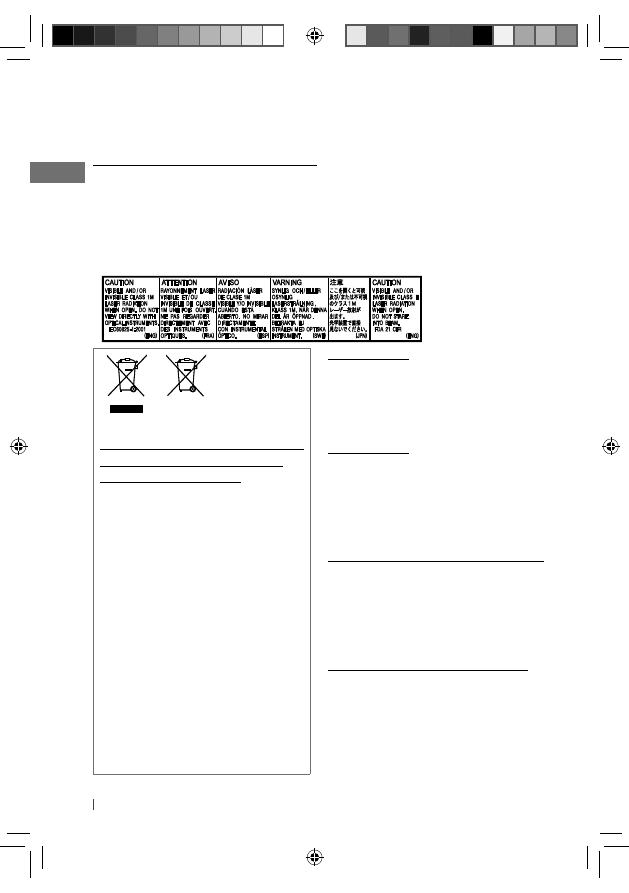
2
FRANÇAIS
Merci pour avoir acheté un produit JVC.
Veuillez lire attentivement toutes les instructions avant d’utiliser l’appareil afin de bien comprendre
son fonctionnement et d’obtenir les meilleures performances possibles.
IMPORTANT POUR PRODUITS LASER
1. PRODUIT LASER CLASSE 1
2. ATTENTION: N’ouvrez pas le couvercle supérieur. Il n’y a aucune pièce réparable par l’utilisateur
à l’intérieur de l’appareil; confiez toute réparation à un personnel qualifié.
3. ATTENTION: Rayonnement laser visible et/ou invisible de classe 1M une fois ouvert. Ne pas
regarder directement avec des instruments optiques.
4. REPRODUCTION DE L’ÉTIQUETTE: ÉTIQUETTE DE PRÉCAUTION PLACÉE À L’EXTÉRIEUR DE
L’APPAREIL.
Avertissement:
Si vous souhaitez opérer l’appareil pendant
que vous conduisez, assurez-vous de bien
regarder autour de vous afin de ne pas causer
un accident de la circulation.
Pour sécurité...
• N’augmentez pas trop le volume car cela
bloquerait les sons de l’extérieur rendant la
conduite dangereuse.
• Arrêtez la voiture avant de réaliser toute
opération compliquée.
Température à l’intérieur de la voiture...
Si votre voiture est restée garée pendant
longtemps dans un climat chaud ou froid,
attendez que la température à l’intérieur de
la voiture redevienne normale avant d’utiliser
l’appareil.
Précautions sur le réglage du volume:
Les appareils numériques (CD/USB) produisent
très peut de bruit par rapport aux autres
sources. Réduisez le volume avant de
reproduire ces sources numériques afin d’éviter
d’endommager les enceintes par la soudaine
augmentation du niveau de sortie.
Informations relatives à l’élimination
des appareils et des piles usagés, à
l’intention des utilisateurs
[Union européenne seulement]
Ces symboles signifient que le produit et les
piles ne doivent pas être éliminés en tant
que déchet ménager à la fin de son cycle
de vie.
Si vous souhaitez éliminer ce produit et les
piles, faites-le conformément à la législation
nationale ou autres règles en vigueur dans
votre pays et votre municipalité.
En éliminant correctement ce produit, vous
contribuez à la conservation des ressources
naturelles et à la prévention des éventuels
effets négatifs sur l’environnement et la
santé humaine.
Notification:
La marque Pb en dessous du symbole des
piles indique que cette pile contient du
plomb.
Produits
Pile
FR02-11_KD-R711[E-EU]1.indd 2
FR02-11_KD-R711[E-EU]1.indd 2
12/14/09 11:24:13 AM
12/14/09 11:24:13 AM
Wyszukiwarka
Podobne podstrony:
instrukcja obs ugi do ekspresu do kawy JURA Impressa XS90 One Touch black PL (videotesty pl)
Instrukcja obs ugi do konsoli Xbox 360 Kinect PL
Instrukcja obs ugi do routera D Link DIR 300 PL (videotesty pl)
instrukcja obs ugi do ekspresu do kawy JURA Impressa XS90 One Touch black PL (videotesty pl)
Instrukcja obs ugi do nawigacji PENTAGRAM PathFinder P 3101 PL
instrukcja obs ugi do licznika rowerowego Sigma Sport BC 16 12 STS PL (videotesty pl)
instrukcja obs ugi do tabletu Lenovo Yoga Tablet 10 B8000 PL (videotesty pl)
Instrukcja obs ugi do nawigacji Lark FreeMe 70 3GPS PL
Instrukcja obs ugi do aparatu instrumentu klawiszowego Korg PA 500 EN (videotesty pl)
Instrukcja obs ugi dla zestawu g o nom wi cego Nokia HF 210 PL (videotesty pl)
myPhone 6650 Skr cona instrukcja obs ugi PL
myPhone 3350 D uga instrukcja obs ugi PL
myPhone 6650 Pe na instrukcja obs ugi PL
Instrukcja obs ugi dla odkurzacza Zelmer Voyager Twix 01Z014 ST PL
INSTRUKCJA OBS UGI LICZNIK2
myPhone 6670 city Kr tka instrukcja obs ugi PL
myPhone 6651 young Kr tka instrukcja obs ugi PL
więcej podobnych podstron