
1
www.gateway.com
Replacing the Gateway M505 Keyboard
This package includes a replacement keyboard for your Gateway M505
notebook and these printed instructions.
Tools you need
You need a small Phillips and a small flat-blade screwdriver.
Preventing static electricity discharge
The components inside your notebook are extremely sensitive to static
electricity, also known as electrostatic discharge (ESD).
Before replacing the keyboard, follow these guidelines:
■
Turn off your notebook.
■
Wear a grounding wrist strap (available at most electronics stores) and
attach it to a bare metal part of your workbench or other grounded
connection.
■
Touch a bare metal surface on your workbench or other grounded object.
■
Unplug the power cord and the modem and network cables.
■
Remove the battery. For more information, see “Changing batteries” in
your user guide.
■
Disconnect all peripheral devices and remove any PC Cards.
Warning
ESD can permanently damage electrostatic
discharge-sensitive components in your notebook. Prevent
ESD damage by following ESD guidelines every time you
replace the keyboard.
Warning
To avoid exposure to dangerous electrical voltages and
moving parts, turn off your notebook and unplug the power
cord and modem and network cables before replacing the
keyboard.
Warning
To prevent risk of electric shock, do not insert any object
into the vent holes of the notebook.
2
www.gateway.com
Before working with notebook components, follow these guidelines:
■
Avoid static-causing surfaces such as carpeted floors, plastic, and packing
foam.
■
Remove components from their antistatic bags only when you are ready
to use them. Do not lay components on the outside of antistatic bags
because only the inside of the bags provide electrostatic protection.
■
Always hold components by their edges. Avoid touching the edge
connectors. Never slide components over any surface.
To remove the keyboard:
1
Follow the instructions under “Preventing static electricity discharge” on
page 1.
2
Turn off your notebook, then unplug the AC adapter, modem and network
cables.
3
Turn your notebook over so the bottom is facing up, then remove the
battery.
4
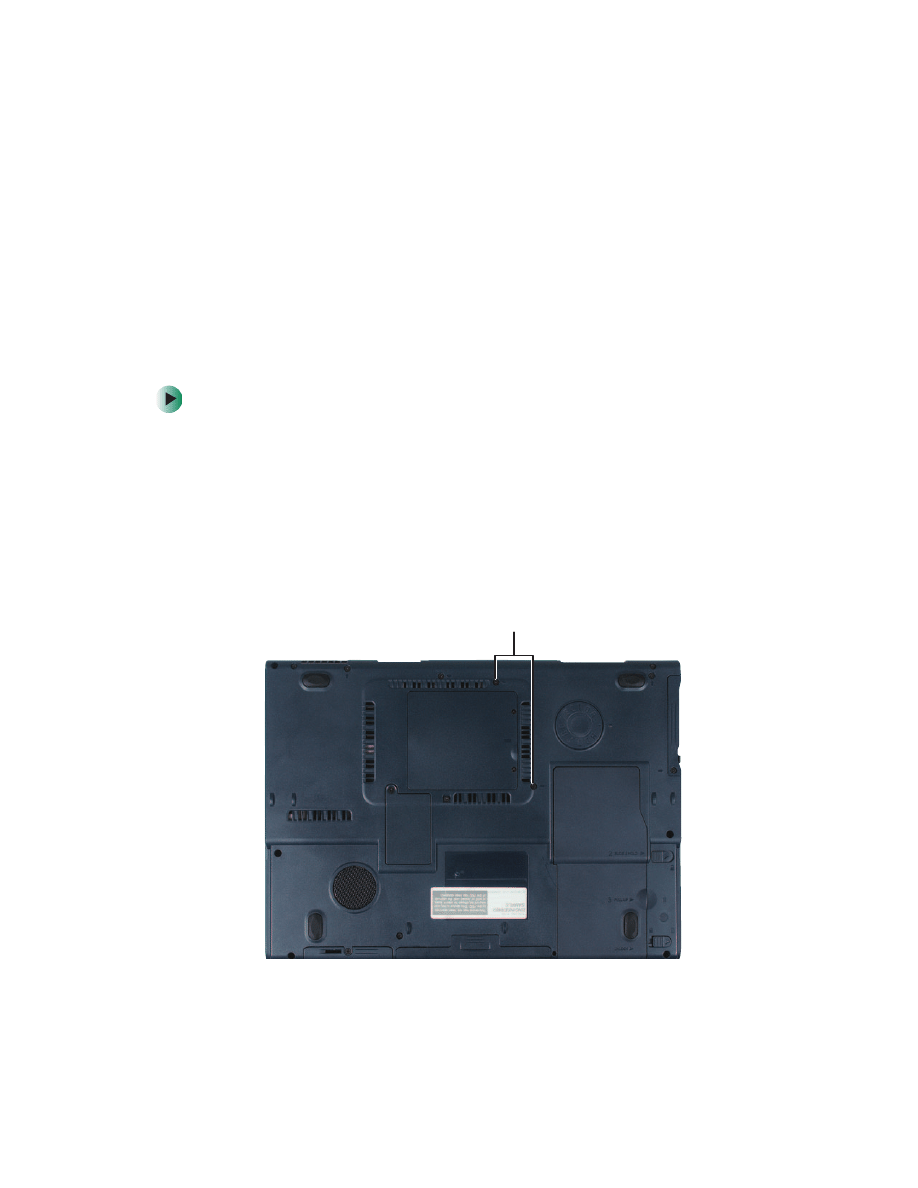
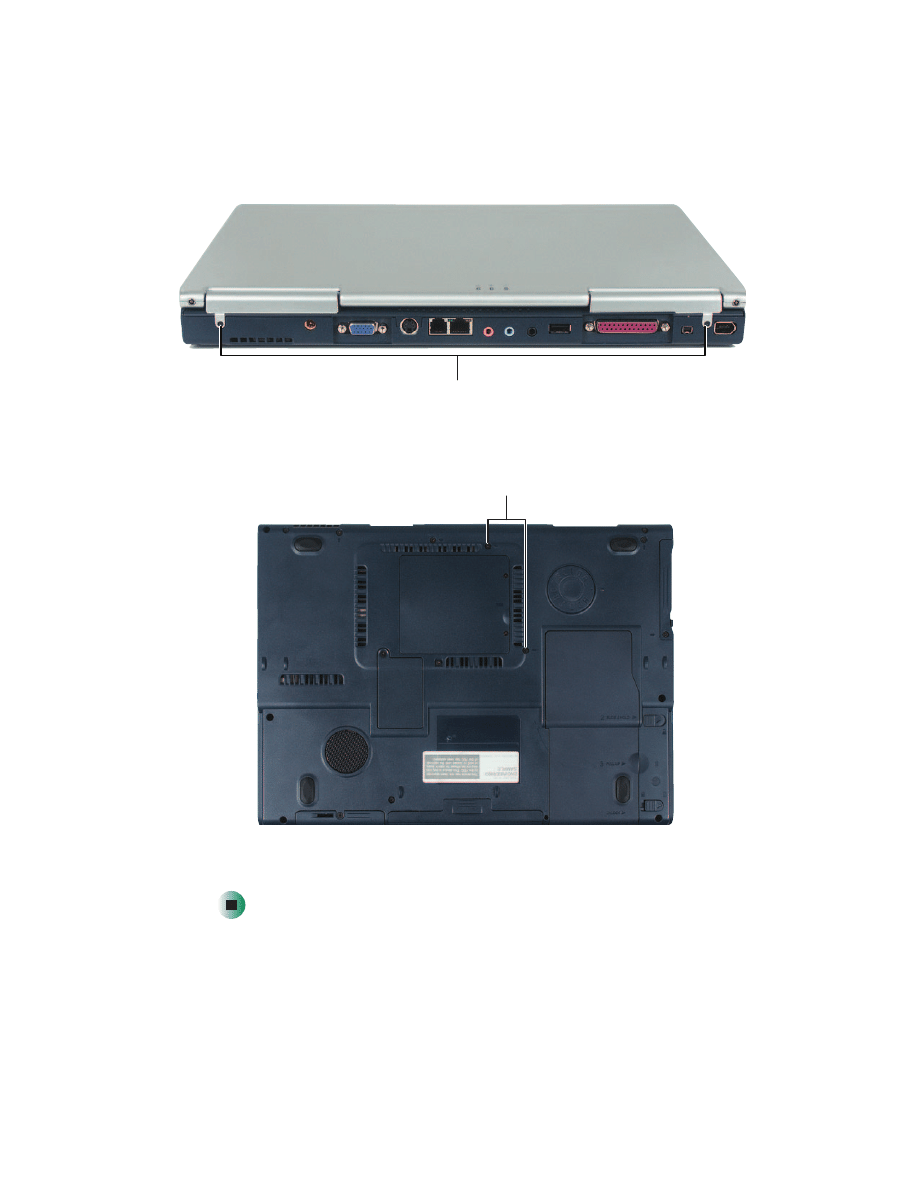
Remove the two screws securing the keyboard and the keyboard cover.
Screws
3
www.gateway.com
5
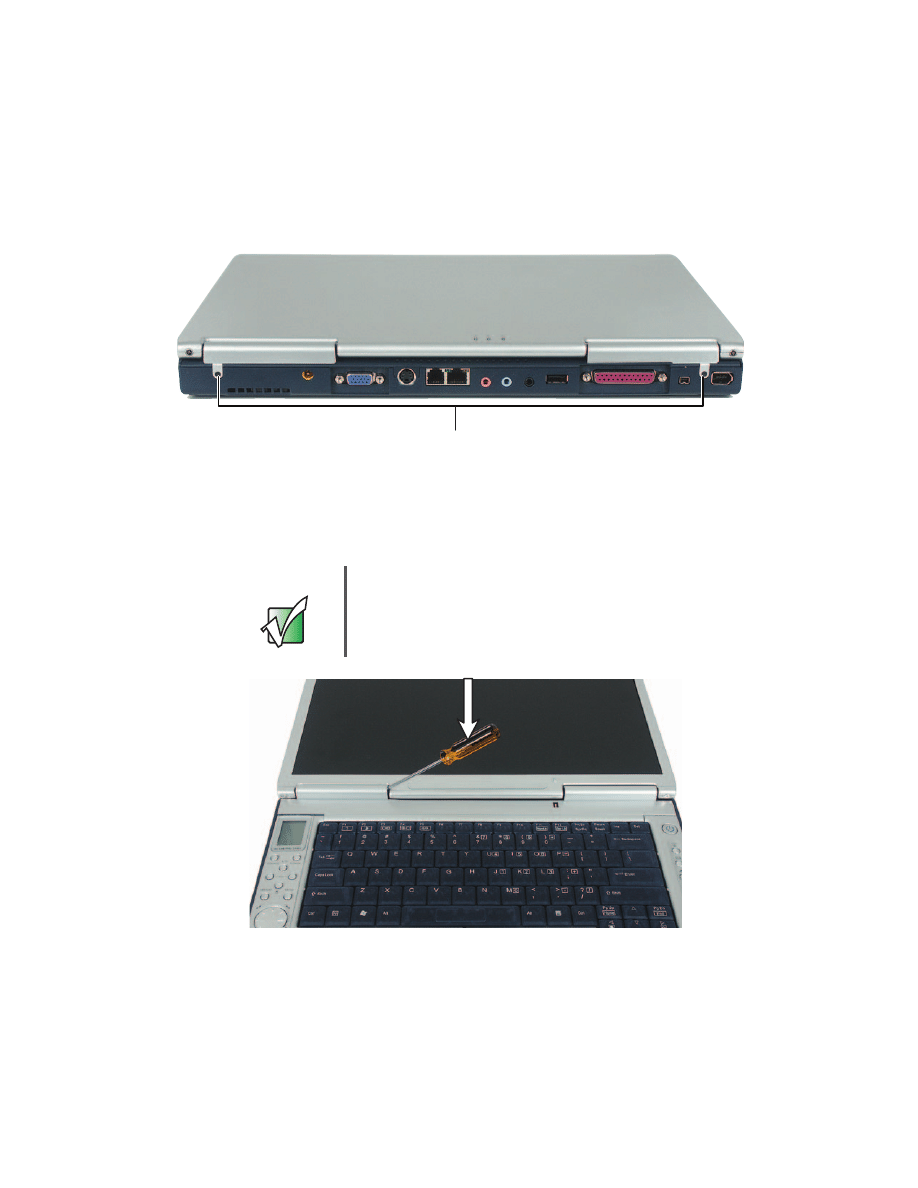
Turn your notebook over so the top is facing up, then remove the hinge
screws.
6
Open the LCD panel to the fully open position.
Be careful not to use too
much force when opening the LCD panel.
7
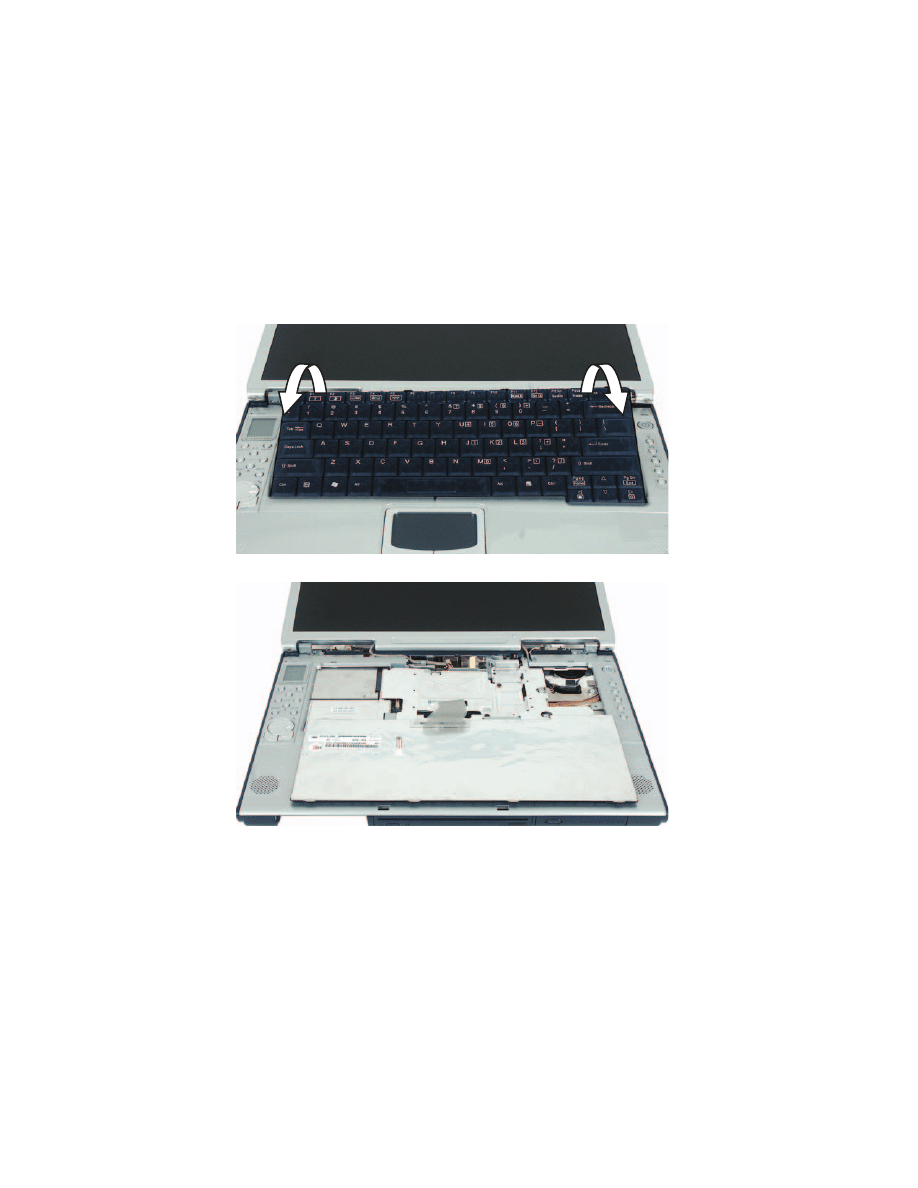
Insert the small flat-blade screwdriver under the edge of the hinge and
gently pry up the keyboard cover.
Important
Inserting a piece of cloth between the screwdriver and
keyboard and notebook case will help prevent damage to
your notebook.
Screws
4
www.gateway.com
8
Pull the cover off your notebook. You will hear small snapping sounds as
the cover comes away from your notebook. Be careful not to break off the
tabs found on the front of the cover.
9
Lift the back edge of the keyboard, then slowly rotate it toward you so it
lies keys-down on top of your notebook. Be careful not to damage the
LCD panel.
5
www.gateway.com
10
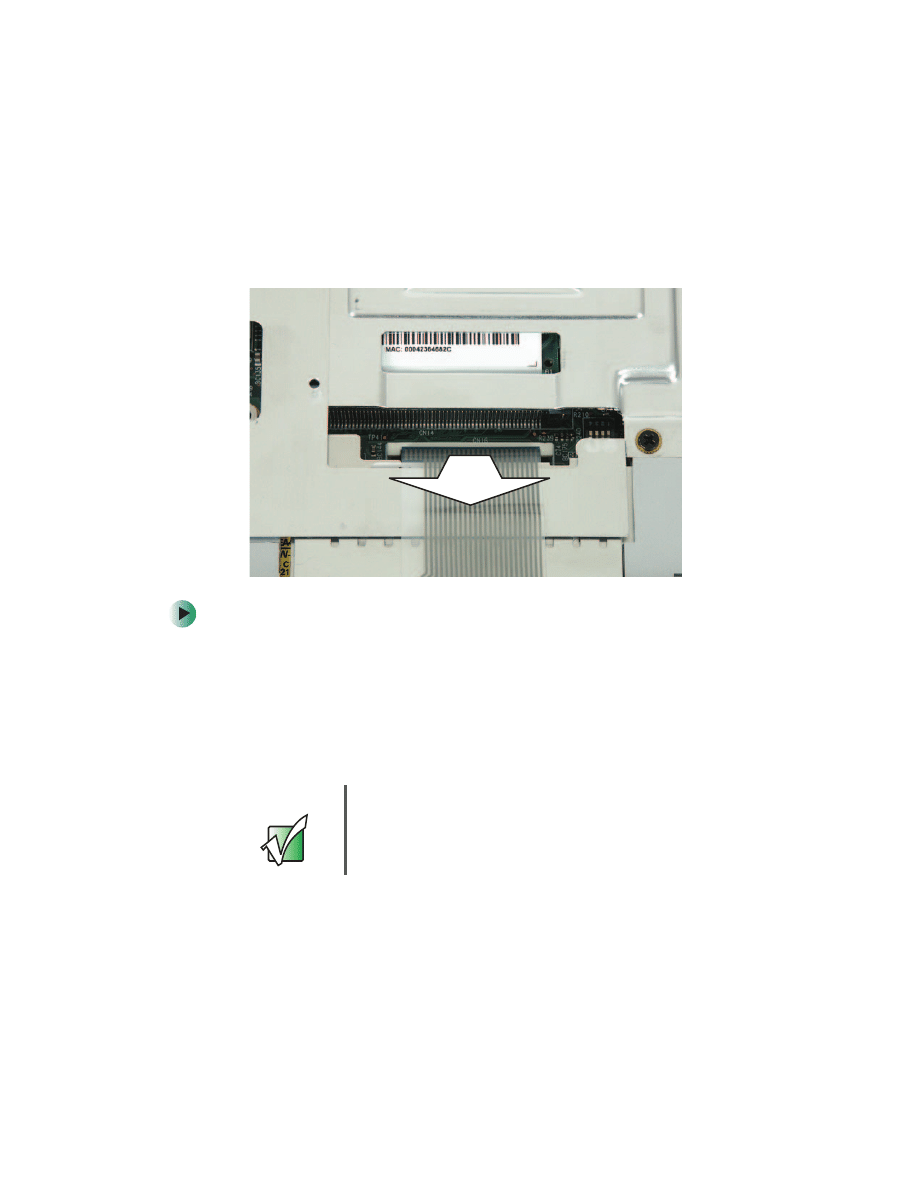
Carefully insert the small flat-blade screwdriver between the keyboard
cable and the black plastic hinge where the cable connects to the system
board. Gently lift the hinge off the cable. The cable is now free and you
can remove the keyboard.
To install the keyboard:
1
Place the new keyboard keys-down on your notebook with the space bar
away from you.
2
Verify the black plastic hinge on the system board keyboard connector is
in the raised position.
3
Insert the end of the keyboard cable between the black plastic hinge and
the white connector.
4
Press the black plastic hinge onto the keyboard cable.
5
Rotate the keyboard toward the LCD panel until the keyboard is
almost face-up.
Important
The plug is correctly oriented if the cable is not twisted.
6
www.gateway.com
6
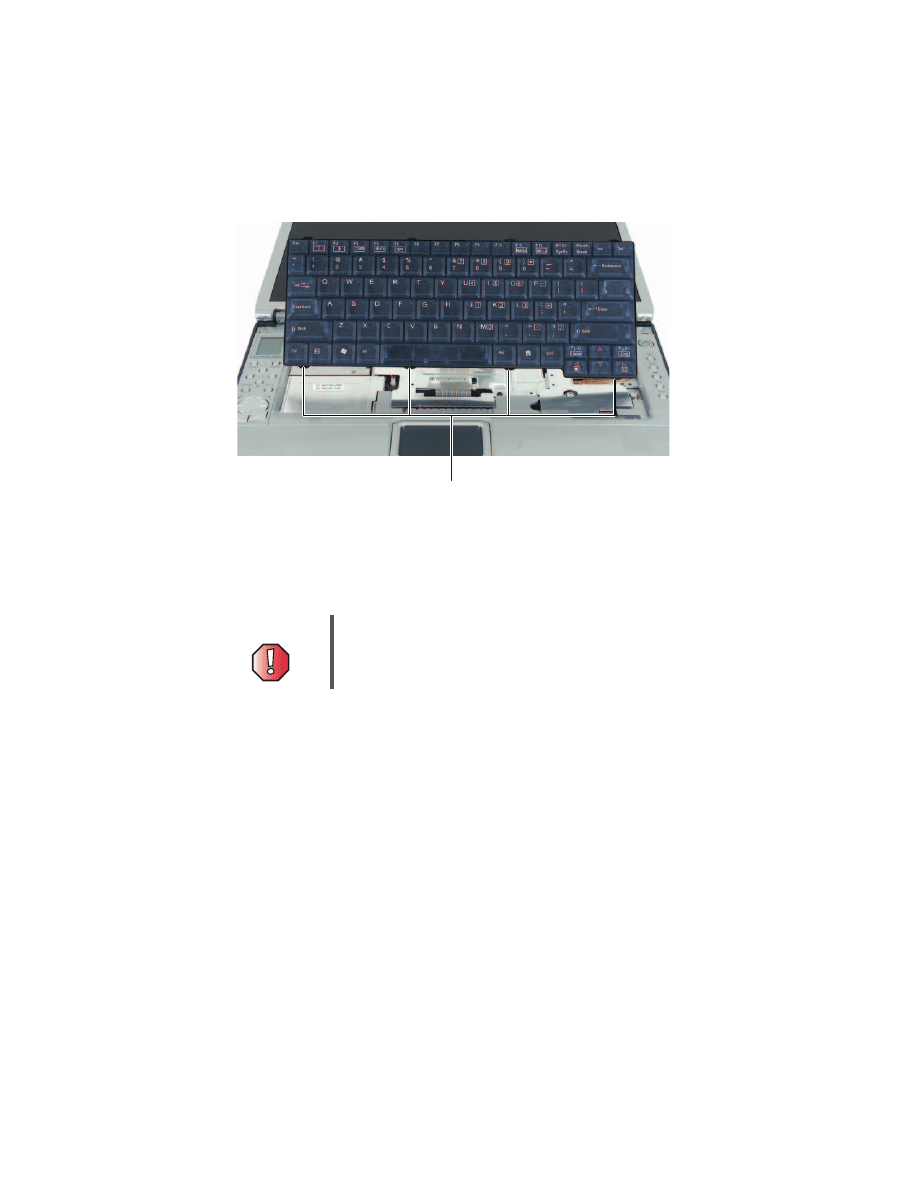
Insert the tabs on the front of the keyboard under the palm rest.
7
Gently press the keyboard down until it is flat. The keyboard should easily
fall into place. Be careful not to damage the LCD panel.
8
Slide the front keyboard cover tabs under your notebook frame and align
the hinges. Press down on the cover in several places until it clicks in place.
9
Close the LCD panel and turn your notebook so the back is facing you.
10
Install the hinge screws.
Warning
If the cover is not correctly replaced, your notebook could
be damaged when you try to close the LCD panel.
Tabs
7
www.gateway.com
11
Turn your notebook over so the bottom is facing up, then install the two
screws securing the keyboard and the keyboard cover.
12
Replace the battery, connect the power adapter and modem and network
cables, then turn on your notebook.
Screws
Screws

8
www.gateway.com
See your user’s guide for important technical support, safety, regulatory, and
legal information.
© 2003 Gateway, Inc. All rights reserved. Gateway, Gateway Country, the Gateway stylized logo, and the
black-and-white spot design are trademarks or registered trademarks of Gateway, Inc. in the United States and
other countries. All other brands and product names are trademarks or registered trademarks of their respective
companies.
MAN RPL M505 KB INST R0 10/03
8509520
Document Outline
Wyszukiwarka
Podobne podstrony:
400VTX REMOVE REPLACE KEYBOARD
SOLO 5300 5350 REMOVE REPLACE KEYBOARD
M305 REMOVE REPLACE KEYBOARD
200ARC REMOVE REPLACE KEYBOARD
M405 REMOVE REPLACE OPTICAL DRIVE
SOLO 1400 REMOVE REPLACE HARD DRIVE
SOLO 3350 REMOVE REPLACE HARD DRIVE
SOLO 1200 REMOVE REPLACE HARD DRIVE
M305 REMOVE REPLACE OPTICAL DRIVE
SOLO 1150 REMOVE REPLACE HARD DRIVE
M320 REMOVE REPLACE OPTICAL DRIVE
M520 REMOVE REPLACE OPTICAL DRIVE
SOLO 5300 5350 REMOVE REPLACE HARD DRIVE
400VTX REMOVE REPLACE DVD DRIVE
M350 REMOVE REPLACE OPTICAL DRIVE
TABLET PC REMOVE REPLACE HARD DRIVE
Procedure to remove and replace 12v battery2
Advanced Polyphthalamide (PPA) Metal Replacement Trends
ARTICLE SUSPENSION STRUT FRONT REPLACE INSTALL
więcej podobnych podstron