Microsoft
®
Excel 2013
Quick Reference Card
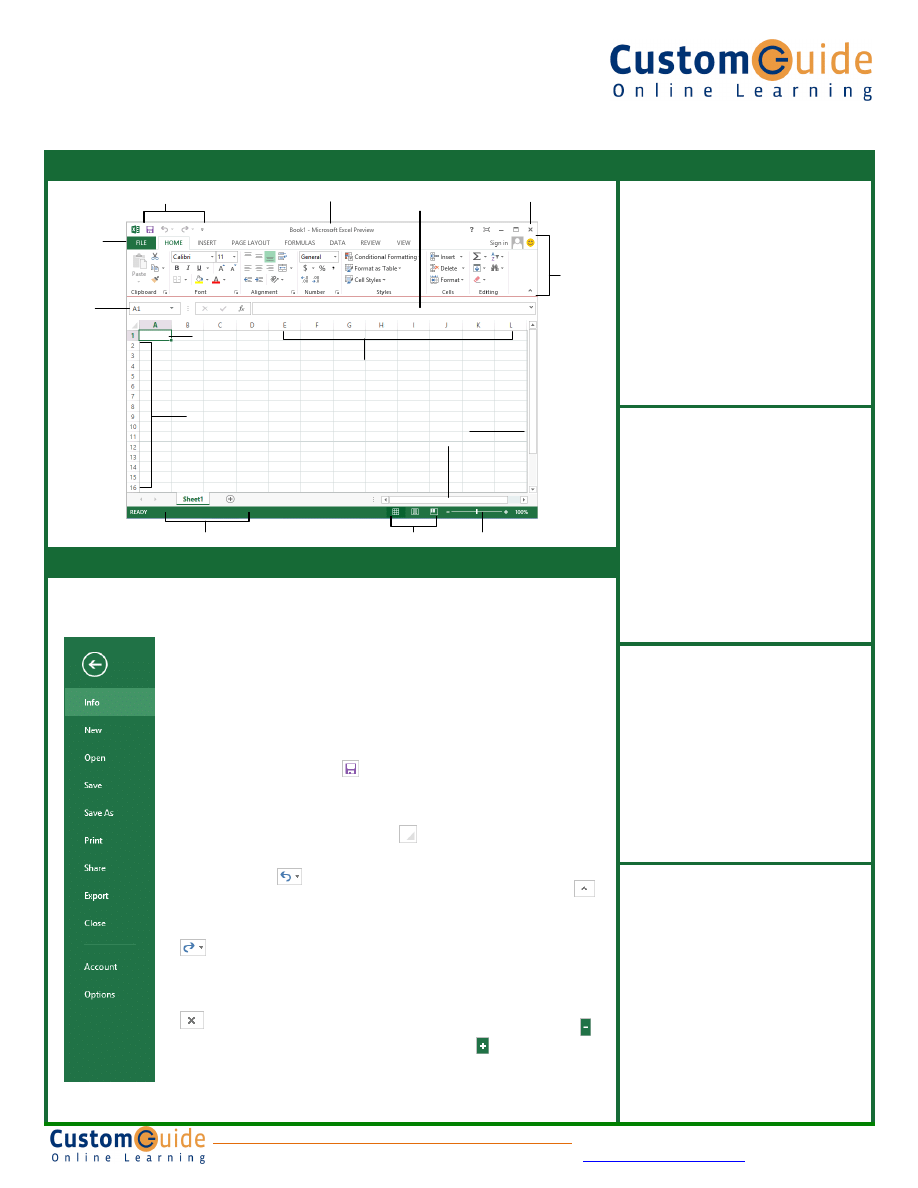
The Excel 2013 Screen
Keyboard Shortcuts
General
Open a Workbook
<Ctrl> + <O>
Create New
<Ctrl> + <N>
Save
<Ctrl> + <S>
Preview and Print
<Ctrl> + <P>
Close a Workbook
<Ctrl> + <W>
Help
<F1>
Run Spelling Check <F7>
Calculate worksheets <F9>
Create an absolute,
<F4>
normal, or mixed reference
Navigation:
Move Between Cells <
↑>, <↓>,
<
←>, <→>
Right One Cell
<Tab>
Left One Cell
<Shift> + <Tab>
Down One Cell <Enter>
Up One Cell <Shift> + <Enter>
Down One Screen
<Page Down>
Up One Screen
<Page Up>
To Cell A1
<Ctrl> + <Home>
To Last Cell
<Ctrl> + <End>
Go To Dialog Box
<F5>
Editing
Cut
<Ctrl> + <X>
Copy
<Ctrl> + <C>
Paste
<Ctrl> + <V>
Undo
<Ctrl> + <Z>
Redo
<Ctrl> + <Y>
Find <Ctrl>
+ <F>
Replace <Ctrl>
+ <H>
Select All <Ctrl>
+ <A>
Edit active cell <F2>
Clear cell contents <Delete>
Formatting
Bold
<Ctrl> + <B>
Italics
<Ctrl> + <I>
Underline
<Ctrl> + <U>
Open Format Cells <Ctrl> + <Shift>
Dialog Box
+ <F>
Select All <Ctrl>
+ <A>
Select entire row
<Shift> + <Space>
Select entire column <Ctrl> + <Space>
Hide selected rows <Ctrl> + <9>
Hide selected
<Ctrl> + <0>
columns
The Fundamentals
•
The File tab menu and Backstage view contain commands
for working with a program’s files, such as Open, Save,
Close, New, and Print.
•
Cell addresses: Cells are referenced by
addresses made from their column letter
and row number, such as cell A1, A2, B1,
B2, etc. You can find the address of a cell
by looking at the Name Box under the
clipboard
•
To Select a Cell: Click a cell or use the
keyboard arrow keys to select it.
•
To Select a Cell Range: Click and drag to
select a range of cells. Or, press and hold
down the
<Shift>
key while using the
<arrow keys>
to move the mouse
pointer to the last cell of the range.
•
To Select an Entire Worksheet: Click the
Select All button
where column and
row headings meet. Or press
<Ctrl>
+
<A>
.
• To Minimize the Ribbon: Click the
Minimize Ribbon
button
on the Ribbon.
Or, press
<Ctrl>
+
<F1>
. Or, right-click a
tab
and select
Unpin the Ribbon
from the
contextual menu.
• To Change Program Settings: Click the
File
tab
and select
Options
.
• To Use Zoom: Click and drag the zoom
slider to the left or right. Or, click the
Zoom Out
and
Zoom In
buttons
on
the slider.
• To Change Views: Click a
View
button
in
the status bar. Or, click the
View
tab
and
select a view.
• To Create a New Workbook: Click
the
File
tab
, select
New
, and
double-click workbook, or press
<Ctrl>
+
<N>
.
• To Open a Workbook: Click the
File
tab
and select
Open
, or press
<Ctrl>
+
<O>
.
• To Save a Workbook: Click the
Save button
on the Quick Access
Toolbar, or press
<Ctrl>
+
<S>
.
• To Preview and Print a Workbook:
Click the
File tab
and select
, or
press
<Ctrl>
+
<P>
.
• To Undo: Click the
Undo
button
on the Quick Access Toolbar,
or press
<Ctrl>
+
<Z>
.
• To Redo or Repeat: Click the
Redo
button
on the Quick
Access Toolbar, or press
<Ctrl>
+
<Y>
.
• To Close a Workbook: Click the
Close
button
, or press
<Ctrl>
+
<W>
.
• To Get Help: Press
<F1>
to open
the Help window. Type your question
and press
<Enter>
.
File tab
Quick Access Toolbar
Title bar
Scroll
bars
Zoom slider
Ribbon
View buttons
Close button
Name
box
Worksheet tabs
Formula Bar
Columns
Rows
Active cell
Free Cheat Sheets!
Visit:
cheatsheet.customguide.com
Interactive Online Learning
9 Courseware 9 Online Learning 9 Skills Assessments
© 2013 CustomGuide
cheatsheet.customguide.com
| Phone 888.903.2432
Editing
Formatting
• To Edit a Cell’s Contents: Select the cell and click the
Formula Bar
, or
double-click the cell. Edit the cell contents and press
<Enter>
.
• To Clear a Cell’s Contents: Select the cell(s) and press the
<Delete>
key.
• To Cut or Copy Data: Select cell(s) and click the
Cut
or
Copy
button
in the Clipboard group on the Home tab.
• To Paste Data: Place the insertion point where you want to paste and click
the
Paste
button
in the Clipboard group on the Home tab.
• To Preview an Item Before Pasting: Place the insertion point where you
want to paste, click the
Paste
button list arrow
in the Clipboard group on the
Home tab, and hold the mouse over the paste option to preview.
• To Paste Special: Select the destination cell(s), click the
Paste
button list
arrow
in the Clipboard group on the Home tab, and select
Paste
Special
.
Select an option and click
OK
.
• To Copy Using Auto Fill: Point to the fill handle at the bottom-right corner of
the selected cell(s), then drag to the destination cell(s).
• To Complete a Series Using AutoFill: Select the cells that define the series.
Click and drag the fill handle to complete the series.
• To Move or Copy Cells Using Drag and Drop: Select the cell(s) you want to
move or copy, position the pointer over any border of the selected cell(s), then
drag to the destination cells. To copy, hold down
<Ctrl>
key while dragging.
• To Insert a Column or Row: Right-click to the right of the column, or below
the row you want to insert. Select
Insert
from the contextual menu, or click the
Insert
button
in the Cells group on the Home tab.
• To Delete a Column or Row: Select the row or column heading(s). Right-
click and select
Delete
from the contextual menu, or click the
Delete
button
in the Cells group on the Home tab.
• To Insert a Comment: Select the cell where you want to insert a comment
and click the
Review
tab
on the Ribbon. Click the
New Comment
button
in
the Comments group. Type a comment and click outside the comment box.
Formulas and Functions
•
To Total a Cell Range: Click the cell where you want to insert the total and
click the
Sum
button
in the Editing group on the Home tab. Verify the
selected cell range and click the
Sum
button
again.
•
To Enter a Formula: Select the cell where you want to insert the formula.
Type
=
and enter the formula using values, cell references, operators, and
functions. Press
<Enter>
when you’re finished.
•
To Insert a Function: Select the cell where you want to enter the function
and click the
Insert Function
button
on the Formula Bar.
•
To Reference a Cell in a Formula: Type the cell reference (for example, B5)
in the formula or click the cell you want to reference.
•
To Create an Absolute Cell Reference: Precede the cell references with a $
sign or press
<F4>
after selecting cell(s) to make it absolute.
•
To Use Several Operators or Cell Ranges: Enclose the part of a formula
you want to calculate first in parentheses.
Charts
•
To Create a Chart: Select the cell range that contains the data you want to
chart and click the
Insert
tab
on the Ribbon. Click a chart type button in the
Charts group and select the chart you want to use from the list.
•
To Insert a Sparkline: Select the cell range that contains the data you want
to chart and click the
Insert
tab
on the Ribbon. Select the sparkline you want
to insert from the Sparkline group. Select the cell or cell range where you want
to add the sparkline and click
OK
.
• To Format Text: Use the commands in the Font group on the Home tab, or
click the
Dialog Box Launcher
in the Font group to open the dialog box.
• To Format Values: Use the commands in the Number group on the Home
tab, or click the
Dialog Box Launcher
in the Number group to open the
Format Cells dialog box.
• To Copy Formatting with the Format Painter:
Select the cell(s) with the
formatting you want to copy and click the
Format Painter
button
in the
Clipboard group on the Home tab. Then, select the cell(s) you want to apply
the copied formatting to.
• To Apply a Cell Style:
Select the cell(s) you want to apply a cell style to.
Click the
Cell Styles
button
in the Styles group of the Home tab on the
Ribbon and select a style from the gallery.
• To Format a Cell Range as a Table: Select the cells you want to apply table
formatting to. Click the
Format as Table
button
in the Styles group of the
Home tab on the Ribbon and select a table format from the gallery.
• To Apply a Document Theme: Click the
Page Layout
tab
on the Ribbon,
click the
Themes
button
in the Themes group, and select a theme from the
gallery.
• To Apply Conditional Formatting: Select the cells to which you want to
apply conditional formatting. Click the
Conditional Formatting
button
in the
Styles group of the Home tab. Select the formatting scheme you wish to use,
then set the conditions in the dialog box.
• To Adjust Column Width or Row Height: Drag the right border of the
column header, or the bottom border of the row header. Double-click the
border to AutoFit the column or row according to its contents.
Workbook Management
•
To Insert a New Worksheet: Click the
Insert Worksheet
button
next to
the sheet tabs at the bottom of the program screen. Or, press
<Shift>
+
<F11>
.
•
To Delete a Worksheet: Select the sheet want to delete, click the
Delete
button
in the Cells group on the Home tab, and select
Delete Sheet
. Or,
right-click the sheet tab and select
Delete
from the contextual menu.
•
To Rename a Worksheet: Double-click the sheet tab, enter a new name for
the worksheet, and press
<Enter>
.
•
To Change a Worksheet’s Tab Color: Right-click the sheet tab, select
Tab
Color
, and choose the color you want to apply.
•
To Move or Copy a Worksheet: Click and drag a tab to move a worksheet.
Hold down the
<Ctrl>
key while clicking and dragging to copy the worksheet.
•
To Split a Window: Click the
View tab
and click the
Split button
in the
Window group. Or, press
<Alt>
+
WS
(one at a time).
•
To Freeze Panes: Place the cell pointer where you want to freeze the
window, click the
View
tab
on the Ribbon, click the
Freeze Panes
button
in
the Window group, and select an option from the list.
•
To Select a Print Area: Select the cell range you want to print, click the
Page
Layout
tab
on the Ribbon, click the
Area
button
in the Page Setup
group, and select
Set
Area
.
• To Adjust Page Margins, Orientation, Size, and Breaks: Click the
Page
Layout
tab
on the Ribbon and use the commands in the Page Setup group,
or click the
Dialog Box Launcher
in the Page Setup group to open the
Page Setup dialog box.
•
To Protect or Share a Workbook: Click the
Review
tab
on the Ribbon and
use the commands in the Changes group.
• To Recover Autosaved Versions: Click the
File tab
on the Ribbon and
select
Info
. Select an autosaved version from the Versions list. Or, click the
Manage Versions
button
and select
Recover Unsaved Workbooks
.
Interactive Online Learning
9 Courseware 9 Online Learning 9 Skills Assessments
© 2013 CustomGuide
cheatsheet.customguide.com
| Phone 888.903.2432
Wyszukiwarka
Podobne podstrony:
Lean Excel Top Functions Quick Reference Guide with 500 Examples! by Scott Ratliff
For Dummies Visual Studio NET C++ for Dummies Quick Reference Guide
BPMN Quick Reference Guide
2007 Nissan Maxima Quick Reference Guide
HONDA Music Link Quick Reference Guide
Commodore 64 BASIC Quick Reference Guide
quick reference guide
Electric Starter Quick Reference Guide for engines built after 1976 BRIGGS & STRATTON
w cusb37 Microsoft Word 2013 Free Reference Card
2008 Versa Quick Reference Guide
Microsoft Excel 2013 Budowanie modeli danych przy uzyciu PowerPivot
EXCEL 2016 QUICK START GUIDE
Life Skills Kenrick Cleveland Maximum Persuasion Quick Reference Guide
Quick Reference Guide
w cusbXX Microsoft Excel 2010 Free Quick Reference Card
w cusb32 Microsoft Outlook 2013 Free Quick Reference Card
więcej podobnych podstron