8,6 31,239 me mb e rs and g ro wing !
E
m
a
i
l
P
a
s
s
w
o
r
d
Sig n in
Jo in
o
s
t
p
a
s
s
w
o
r
d
?
Search site
Art icle
Bro wse Co de St at s Re visio ns Alt e rnat ive s
Licence
First Posted 11 Fe b 2008
Views
4 8,133
Downloads 515
Bookmarked 79 t ime s
B
u
i
l
d
i
n
g
a
n
M
V
P
F
r
a
m
e
w
o
r
k
f
o
r
.
N
E
T
.
P
a
r
t
2
:
I
m
p
l
e
m
e
n
t
i
n
g
C
o
r
e
F
u
n
c
t
i
o
n
a
l
i
t
y
| 11 Feb 2008
Basing on the concepts introduced in the first part, this article proceeds to implement the core MVP Framework funtionality.
See Also
More like this
More by this author
4.81 (19 votes)
Table of Contents
Introduction
Basic Requirements
Designing Key Classes
Designing a Simple Views Manager
Summary
Introduction
, we have made our choice in favour of the Model- View- Presenter architectural pattern. Thus our final goal
is the creation of the MVP Framework. However we should firstly make it clear what does “MVP Framework” mean by deciding
what the future system will be intended for and what problems it will solve.
In this article, we will start with clarifying the aim of our system and gathering some basic requirements for it. After that we will
proceed to the design and implementation stages creating fundamental classes that will meet our basic requirements.
Basic Requirements
The aim of our system can be formulated as follows: it should simplify the usage of the MVP pattern by developers. The system
should make it easier to fulfill every common task within the MVP approach. For example it should simplify such actions as
navigating between views, accessing controllers, etc. For each common operation, we will analyz e how our system can help in
performing it and by doing so we will construct requirements to the system. We will express the requirements in a popular form
of use cases, each describing the desired interactions between a user and the system.
Starting a Task
To begin with, let us consider how a user would start a task. Starting a task implies certain processing (registering and
initializ ing the task) so it would be nice to delegate this work to the system (MVP Framework). A user should be able to specify
actions performed on a task started by implementing some
OnStart
method. Thus given a task descriptor the system should
perform necessary processing and call the task
OnStart
handler.
Collapse | Copy Code
Starting a task
User: Pass the task descriptor to the system and ask to start the task.
System: Register the task, initialize it and invoke OnStart handler.
Here a task descriptor is something that describes the task, specifically its structure and its properties. Let us decide what will
be convenient to use as a task descriptor.
Since every task is a part of an application we might want to describe tasks directly in the source code of the application. A
good way of defining an entity (such as task) in source code is using a type definition construct. Therefore a task type can be
used as its descriptor. Moreover a task type (class) may define
OnStart
handler method and an instance of this type can
hold the task state at runtime. So this is how the revised version of the “Starting a task” use case looks:
Collapse | Copy Code
Starting a task (revision 1)
User: Pass the task type to the system and ask to start the task.
System: Create a task instance, register and initialize it and invoke its
OnStart operation.
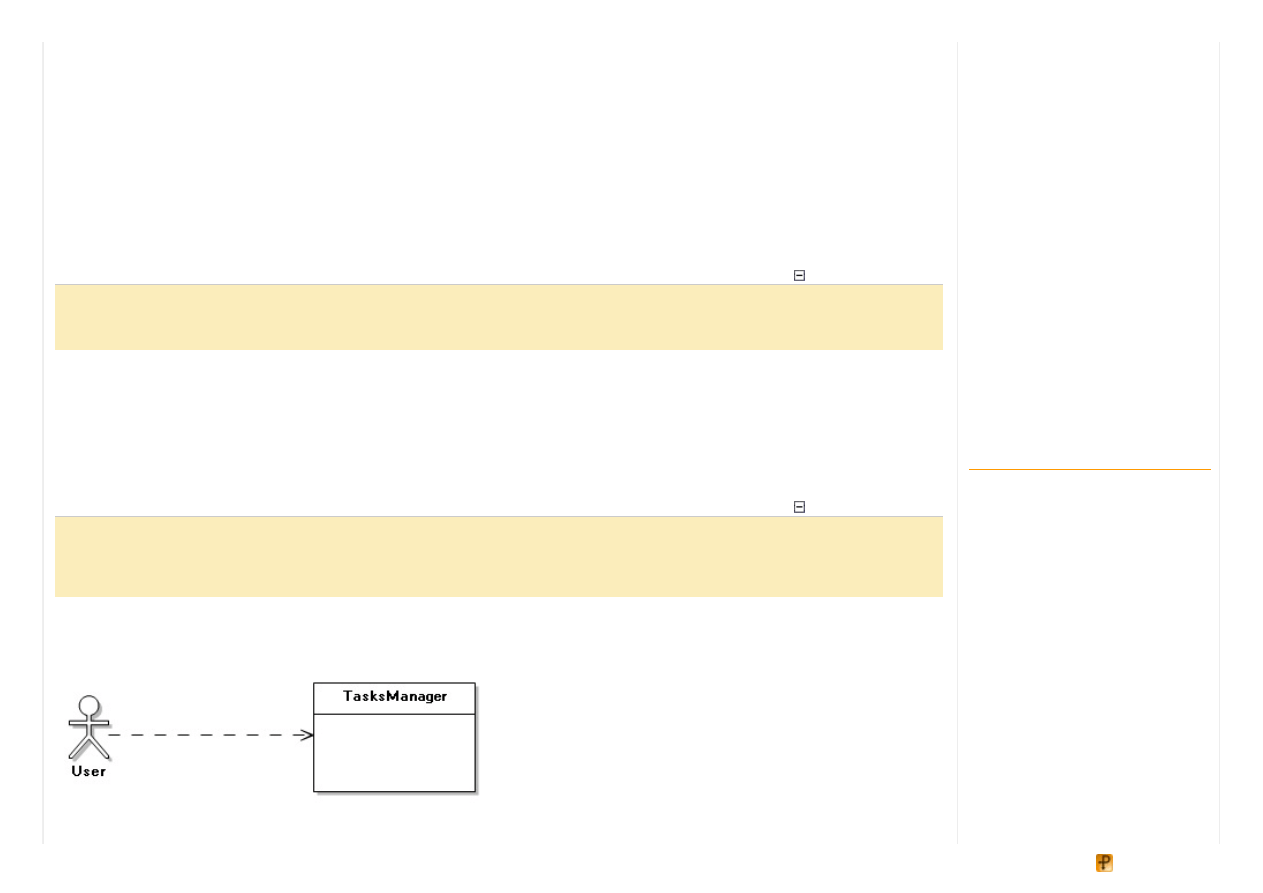
Of course there must be some Framework class which processes start task requests from a user. Let us call it
TasksManager
:
Navigating From Within a Task
Related Articles
Building an MVP Framework for .NET.
Part 1: The Basics of MVC and MVP
Building an MVP Framework for .NET.
Part 4: Strongly Typed Associations
Building an MVP Framework for .NET.
Part 3: Designing a Windows Forms
Views Engine
Advanced Unit Testing, Part II - Core
Implementation
Implementing Audit Trail using Entity
Framework Part - 1
Entity Framework Implementation
Using ASP.NET MVP
Building Applications with the
SharpDevelop Core
Implementing Audit Trail using Entity
Framework - Part 2
The Raz or Framework :: Part 1 ::
Plugins/Extensibility
MVP Dependency Chaining
Framework
Navigating From Within a Task
Every task involves a number of views with transitions possible between them. At this point, let us discuss how a user would
navigate to some view from a task code. Say some view should be activated in the
OnStart
handler code. It would be
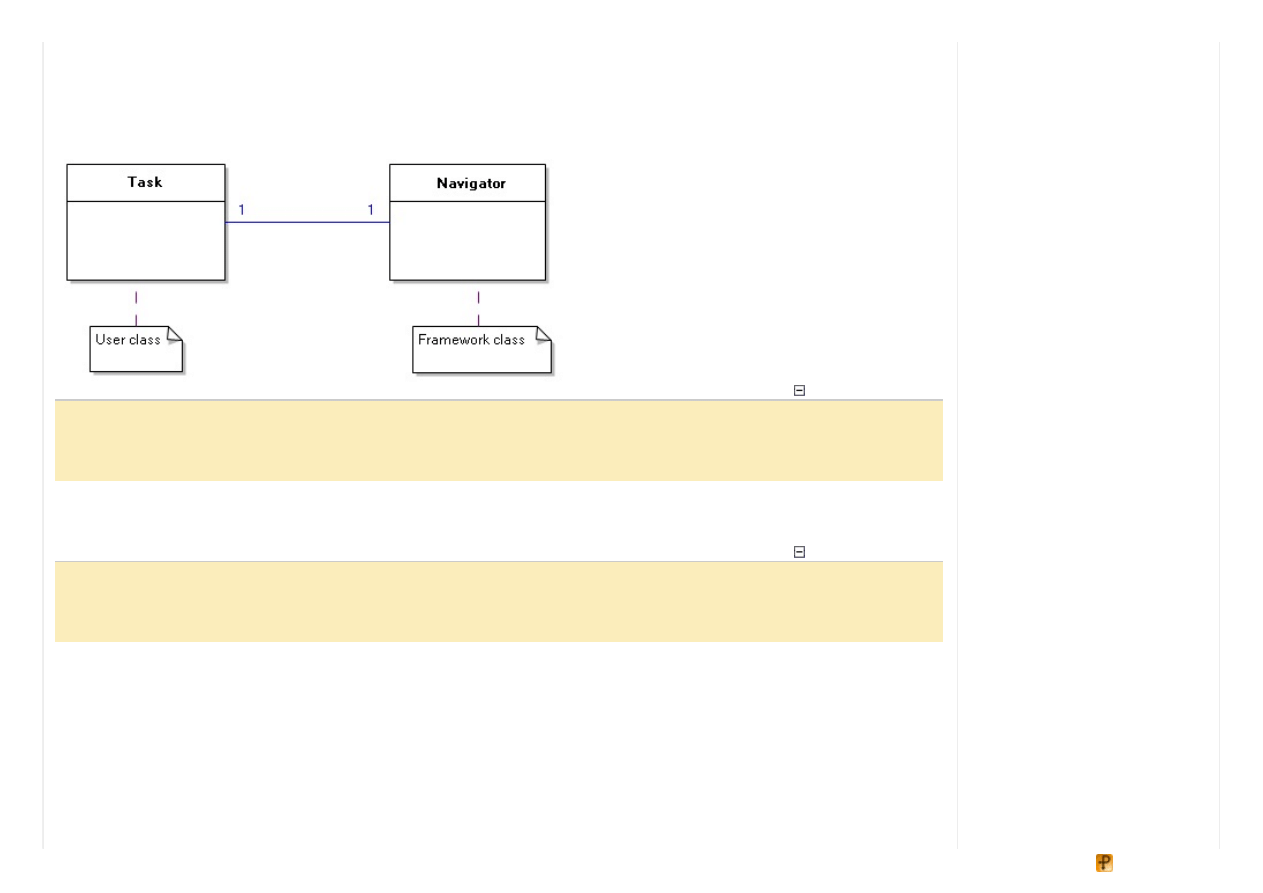
convenient if the navigation is done by the Framework and the navigation logic is isolated in some
Navigator
class. Then
each user task instance should be associated with a proper navigator instance.
Collapse | Copy Code
Navigating from within a task
Precondition: The task is associated with a proper navigator instance.
User: Ask that associated navigator to navigate to some view.
System: Do the navigation, alter the task state.
It is important to note that the precondition requires each task to be linked to its navigator. Such linking may be done during the
task start process. So here is the modified version of “Starting a task” use case:
Collapse | Copy Code
Starting a task (revision 2)
User: Pass the task type to the system and ask to start the task.
System: Create a task and a navigator instances, initialize and link them
together. Invoke the OnStart operation on the task instance.
Using Various Presentation Mechanisms
According to the MVP paradigm the system should make it easy to use different presentation mechanisms for example Web or
Windows UI. A presentation mechanism has influence upon how switching between views is done. Therefore it seems quite
reasonable to encapsulate view- switching code in a separate
ViewsManager abstract
class with subclasses for each
specific UI kind. Then the
Navigator
class containing some common navigation logic will be associated with the
ViewsManager
class.
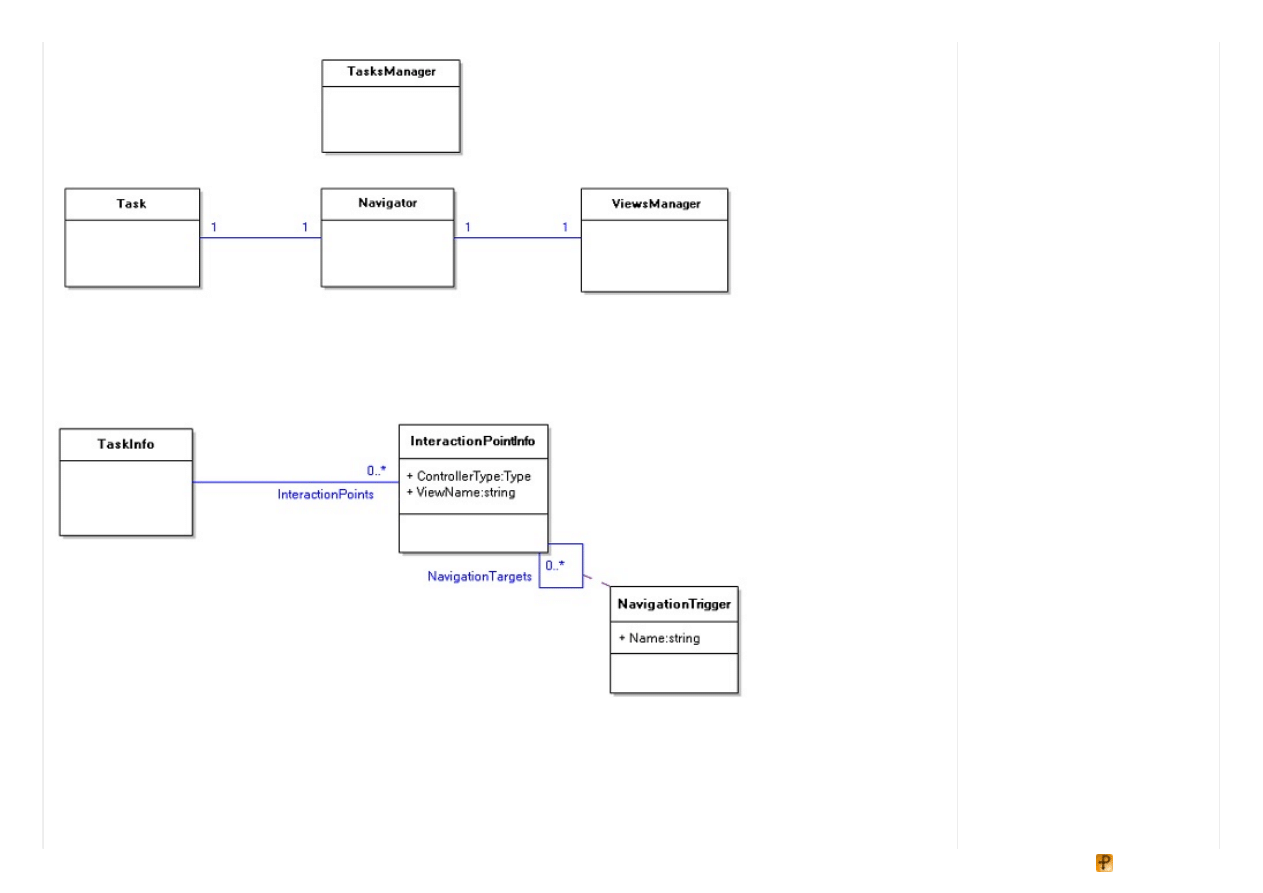
We cannot yet formulate any use case for this requirement however the arguments above proves the need of the
ViewsManager
concept. Thus the domain model at the moment looks as follows:
A framework for building of WP7
application
Dependency Injection Frameworks -
Part 1 - Introduction
Implement Script Callback Framework
in ASP.NET 1.x
Driver Development Part 2:
Introduction to Implementing IOCTLs
The Raz or Framework :: Part 2 ::
Configuration/Options
Implementing the Factory Pattern
(Part 1 of 2 or 3)
Managed Extensibility Framework:
Part 2
Cinch V2: Version 2 of my Cinch
MVVM framework: Part 1 of n
Genesis Hybrid Smart Client
Framework - Part I
Genesis Hybrid Smart Client
Framework part II
Describing a Task Structure
From the previous article we know that every task consists of a number of interaction points. Each interaction point in its turn is
characteriz ed by its view, controller and possible transitions to the other interaction points (in the previous article we decided to
use "Controller" notation instead of "Presenter" so do not get confused with such naming). A picture illustrating this is below:
For each linked pair of source and target interaction points, the
NavigationTrigger
instance defines a trigger which
should be called to perform the navigation. For example a trigger “Next” may cause a transition from “Step1” view to “Step2”
view in a wiz ard- like application.
Notice that we don't specify any view type in the
InteractionPointInfo
class since specific view implementations are
the prerogative of view managers.
As we have decided to describe a task by its type, let us find out how we can accompany a type definition in .NET with a task
As we have decided to describe a task by its type, let us find out how we can accompany a type definition in .NET with a task
structural information. Interaction points can be declared in a form of constant fields inside the task type. This allows referencing
interaction points in a compiler- checked way rather than using literal strings. For example one may call
Navigate(MyTask.View1)
instead of
Navigate("View 1")
.
Collapse | Copy Code
class
WashDishesTask
{
// Below are three interaction point definitions
// with the view names specified
public
const
string
SelectDishes =
"Select dishes view"
;
public
const
string
Dishwasher =
"Dishwasher view"
;
public
const
string
WashComplete =
"Wash complete view"
;
}
Such constant field alone describes an interaction point party, specifying only the view name. We need a means to accompany
such fields with controller type and navigation triggers declarations. A good way to equip language elements (fields, in
particular) in .NET with some additional info is using .NET custom attributes. In our case it might look as follows:
Collapse | Copy Code
class
WashDishesTask
{
[InteractionPoint(
typeof
(SelectDishesController))]
[NavTarget(
"Next"
, Dishwasher)]
public
const
string
SelectDishes =
"Select dishes view"
;
[InteractionPoint(
typeof
(DishwasherController))]
[NavTarget(
"Next"
, WashComplete)]
[NavTarget(
"Previous"
, SelectDishes)]
public
const
string
Dishwasher =
"Dishwasher view"
;
[InteractionPoint(
typeof
(WashCompleteController))]
public
const
string
WashComplete =
"Wash complete view"
;
}
The suggested approach here for describing tasks seems to be more or less handy to start with. With it the revised version of
the "Starting a task" use case looks so:
Collapse | Copy Code
Starting a task (revision 3)
User: Add fields describing interaction points to the task type. Equip these
fields with [InteractionPoint] and [NavTarget] attributes. Then pass
the task type to the system and ask to start the task.
System: Extract the task information from its type. Create a task and a
navigator instances, initialize and link them together. Invoke the
OnStart operation on the task instance.
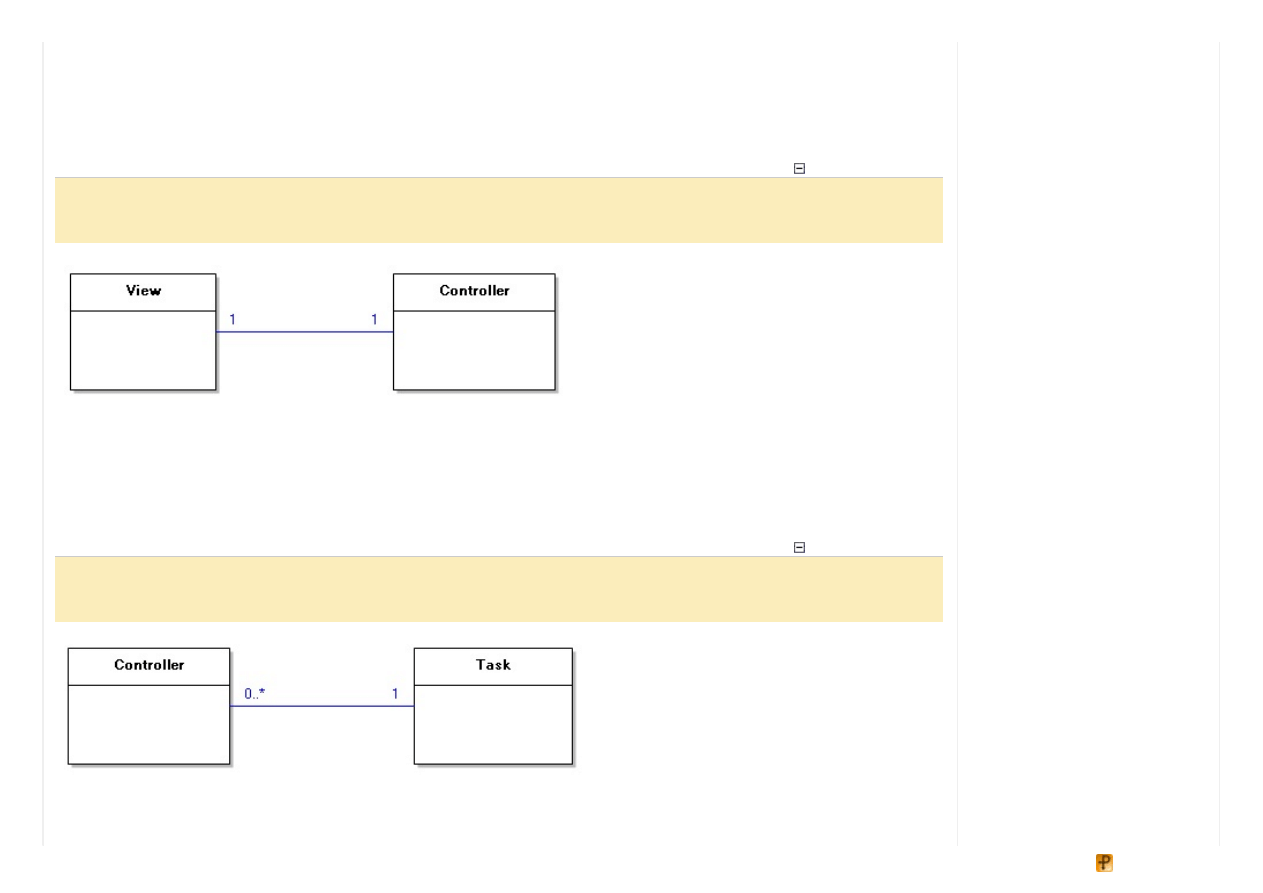
Accessing the Controller From a View and Vice Versa
According to the MVP pattern views handle user gestures and then pass control to the corresponding controller (and again I
recall that we are using the "controller" name instead of "presenter"). Moreover in MVP (in contrast to MVC) controllers may
access their views as well. Hence it should be easy for a user to access the controller from a view code and vice versa. In
MVP this is solved by linking together each view with the corresponding controller instance.
Collapse | Copy Code
Accessing the controller from a view and vice versa
Precondition: View and its controller are linked to each other.
User: Access that associated controller/view.
For user’s convenience it should be the Framework job to link views and controllers together. Later when designing classes we
will discuss which class will be responsible for such linking.
Accessing the Task and Navigating From a Controller
Controllers often need to request/modify their task state. So we may require each controller to be linked to its task.
Collapse | Copy Code
Accessing the task from a controller
Precondition: Controller is linked to its task.
User: Access that associated task.
A controller may also need to trigger navigation to some view. This is done easily by accessing the task and then getting its
navigator.
Collapse | Copy Code
Navigating from within a controller
Precondition: Controller is linked to its task which is connected to the
navigator
User: Access the navigator through the associated task. Invoke the navigation.
We have discussed the most fundamental requirements for the future system. Based on these requirements, we are going to
proceed to designing classes.
Designing Key Classes
Above we have introduced a number of fundamental concepts such as task, navigator and others by analyz ing requirements
for our system. These concepts with the relationships between them make up so called analysis model of the system. Analysis
classes from this model usually turn into design classes by being equipped with operations, additional attributes and other
details.
Here we are going to walk through all the requirements we have formulated and design classes based on the analysis model in
order to meet these requirements.
TasksManager
First let us deal with the “Starting a task (revision 3)” use case and the
TasksManager
concept. According to this use case
we may introduce a
TasksManager
class with a
StartTask(taskType: Type)
method. This method should create
task and navigator instances, connect them to each other and invoke the task’s
OnStart()
method. It should also create a
TaskInfo
instance based on the task type. Tasks are designed by users however in order for the Framework to
communicate with task instances the latter should conform to some interface. Let us call it
ITask
. There is also a requirement
we have missed: tasks should be able to access their tasks manager, that is why the
TasksManager
should also link the
created task to itself.
Collapse | Copy Code
public
class
TasksManager
{
public
ITask StartTask(Type taskType)
{
TaskInfo ti = GetTaskInfo(taskType);
// get TaskInfo from task type
Navigator n =
new
Navigator();
// create navigator
ITask t = CreateHelper.Create(taskType)
as
ITask;
// create task
t.TasksManager =
this
;
// link the created task to itself
n.Task = t;
// connect the navigator to the task
t.Navigator = n;
// and the task to the navigator
t.OnStart();
// invoke the task's OnStart()
return
t;
}
}

GetTaskInfo
is a method that extracts task information from a task type. Above we suggested to describe tasks by inserting
constant fields to the type definition. However there may be other ways to equip a task type with the task information. Hence
different methods to extract such information may exist. We will isolate the extraction logic in a
ITaskInfoProvider
interface with a
GetTaskInfo(taskType: Type): TaskInfo
method.
Collapse | Copy Code
public
interface
ITaskInfoProvider
{
TaskInfo GetTaskInfo(Type taskType);
}
It is worth keeping all configuration data including task and view descriptions in a centraliz ed
MVCConfiguration
class.
Then each tasks manager will be linked to its own
MVCConfiguration
instance:
Collapse | Copy Code
public
class
TasksManager
...
public
MVCConfiguration Config
public
class
MVCConfiguration
...
public
ITaskInfoProvider TaskInfoProvider
A user may start a task of the same type more then once; and extracting the task information each time is redundant. That is
why we need a repository object for all tasks configuration data. Let it be
TaskInfoCollection
instance.
Collapse | Copy Code
public
class
MVCConfiguration
...
public
TaskInfoCollection TaskInfos
If the necessary task info object already exists in the inner hash table the
TaskInfoCollection
will return it, otherwise it
will extract a new
TaskInfo
object from the task type with the help of the
TaskInfoProvider
class:
Collapse | Copy Code
public
class
TaskInfoCollection
{
private
Hashtable taskInfos =
new
Hashtable();
private
MVCConfiguration mvcConfig;
public
TaskInfo
this
[Type taskType]
{
get
{
TaskInfo ti = taskInfos[taskType]
as
TaskInfo;
if
(ti ==
null
)
if
(ti ==
null
)
{
ti = mvcConfig.TaskInfoProvider.GetTaskInfo(taskType);
taskInfos[taskType] = ti;
}
return
ti;
}
set
{ taskInfos[taskType] = value; }
}
}
Finally this is how the
TasksManager.GetTaskInfo(...)
method looks:
Collapse | Copy Code
public
class
TasksManager
...
private
TaskInfo GetTaskInfo(Type taskType)
{
return
Config.TaskInfos[taskType];
}
Navigator
Now let us look into how the navigation occurs.
Navigator
class should have a
public Navigate(..)
method with a
navigation trigger name passed as parameter.
For a navigator to switch to another view it needs to know the task navigation structure. Therefore it should be linked to the
TaskInfo
instance describing that task. Such linking can be done in the
TasksManager.StartTask(...)
method:
Collapse | Copy Code
public
class
TasksManager
...
public
ITask StartTask(Type taskType)
{
...
n.TaskInfo = ti;
...
}
Task information is not the only needed component for a navigator to do the navigation. Another important thing we have
introduced in the analysis phase is the views manager concept. Its responsibility is actual view switching, with different views
manager implementations capable of different presentation mechanisms. The navigator will be connected to the views
manager in the
TasksManager.StartTask(...)
method:
Collapse | Copy Code
public
class
TasksManager
...

public
ITask StartTask(Type taskType)
{
...
IViewsManager vm = CreateHelper.Create(Config.ViewsManagerType)
as
IViewsManager;
n.ViewsManager = vm;
vm.Navigator = n;
...
}
Note that we are using the
MVCConfiguration
class to store the used views manager type.
Now we are ready to write code for the
Navigator.Navigate(...)
operation:
Collapse | Copy Code
public
class
Navigator
{
...
public
TaskInfo TaskInfo
...
public
IViewsManager ViewsManager
...
public
void
Navigate(
string
triggerName)
{
string
nextViewName = TaskInfo.GetNextViewName(Task.CurrViewName,
triggerName);
if
(nextViewName == Task.CurrViewName)
return
;
NavigateDirectly(nextViewName);
}
public
void
NavigateDirectly(
string
viewName)
{
Task.CurrViewName = viewName;
ViewsManager.ActivateView(Task.CurrViewName);
}
}
Designing a Simple Views Manager
Up to the moment, we have roughly designed all key classes except for a views manager class. Let us build a simple
IViewsManager
implementation. Although simple, it will be a basis for more complicated real- life views managers.
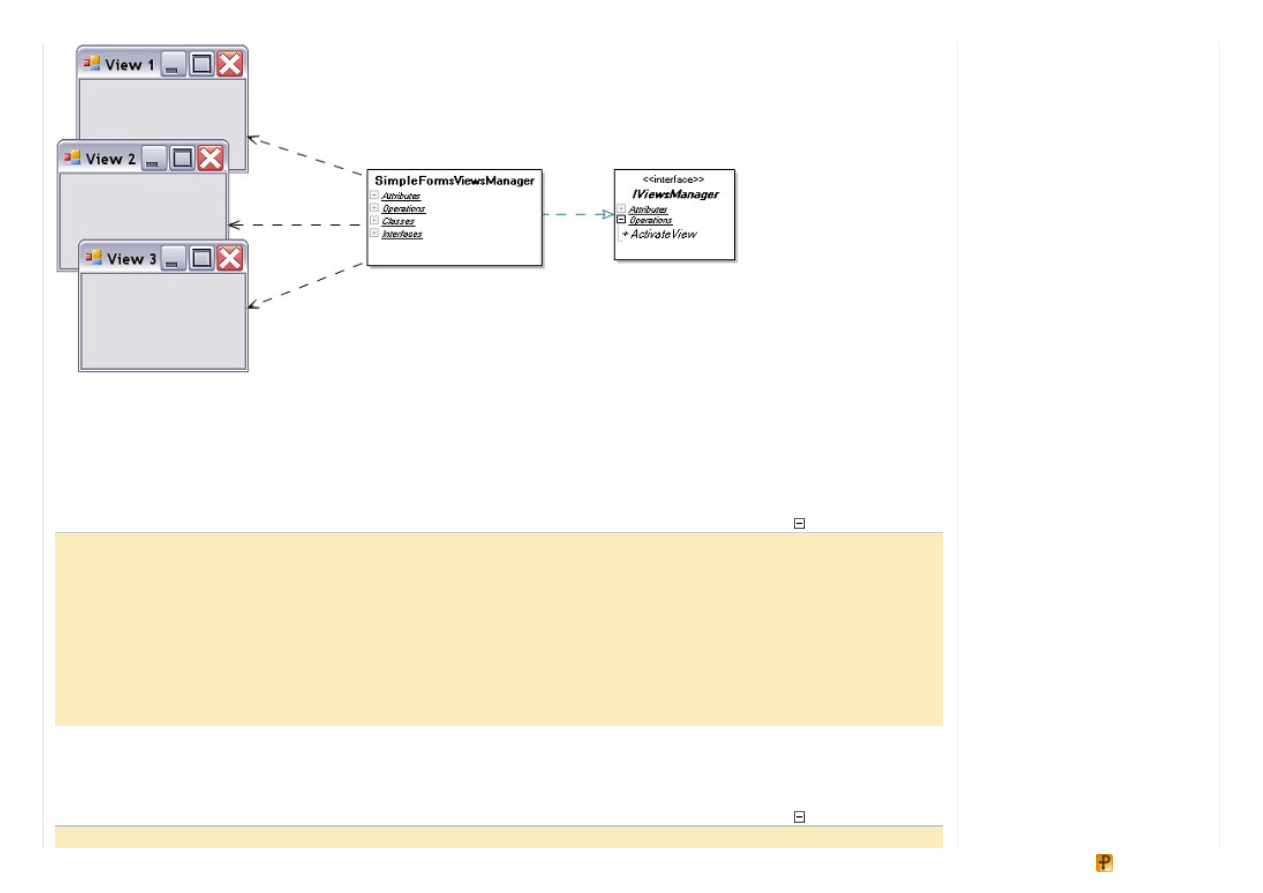
To make our views manager as simple as possible let us assume that views are usual Windows Forms. Then our
SimpleFormsViewsManager
will be responsible for switching between those Forms.
ViewInf o
In order to activate a form for the first time it needs to be created. Therefore the views manager should know the view type by
its name. We will encapsulate the information about a view type in a
ViewInfo
class instance. Thus, given a view name, the
view manager should retrieve the corresponding
ViewInfo
object through the intermediate
ViewInfoCollection
object.
Collapse | Copy Code
public
class
ViewInfoCollection
...
public
ViewInfo
this
[
string
viewName]
{
get
{
return
viewInfoCollection[viewName]
as
ViewInfo; }
set
{ viewInfoCollection[viewName] = value; }
}
public
class
ViewInfo
...
public
Type ViewType
Subsequent (second, third, etc.) view activations don't require the view creation. Instead they require locating the already
created view by its name. For this, the views manager should have an association to a
FormCollection
class returning
already created views by their names.
Collapse | Copy Code
public
class
SimpleFormsViewsManager : IViewsManager
public
class
SimpleFormsViewsManager : IViewsManager
...
private
Dictionary<
string
, Form> forms
=
new
Dictionary<
string
, Form>();
The question is where a views manager takes the view descriptions (
ViewInfo
objects) from. As views are parts of a task it
is natural to store their descriptions within that task’s description:
Collapse | Copy Code
public
class
TaskInfo
...
public
ViewInfoCollection ViewInfos
This approach does not bind tasks to any specific presentation mechanism since the base
ViewInfo
class is independent
of a specific presentation.
Next question is how a
ViewInfoCollection
gets populated. Obviously a user can modify the collection at runtime.
However usually a task structure is known at design time, and a declarative syntax to describe it may apply. A good solution is
to mark view types with a
[View]
attribute like this:
Collapse | Copy Code
[View(
typeof
(Task1), “View1”)]
class
Form1: Form
…
Here we declare that the
TaskInfo
object for
Task1
should contain a
ViewInfo
instance pointing to the
Form1
type.
Of course there should be a class which will generate
ViewInfo
objects from such declarations. Let us assign this
responsibility to a
IViewInfosProvider
interface with a
GetFromAssembly(assembly:Assembly)
operation. It
will generate
ViewInfo
objects from the declarations in the input assembly:
Collapse | Copy Code
public
interface
IViewInfosProvider
{
ViewInfosByTaskCollection GetFromAssembly(Assembly assembly);
}
public
class
DefaultViewInfosProvider : IViewInfosProvider
...
ActivateView Implementation
In general the view activation mechanism is quite simple: the necessary form should be found by its name and then the
Form.Show()
and
Form.Activate()
methods should be called on it.
Collapse | Copy Code
public
class
SimpleFormsViewsManager : IViewsManager

...
public
void
ActivateView(
string
viewName)
{
Form f = FindOrCreateView(viewName);
f.Show();
f.Activate();
}
The
FindOrCreate
operation above should create the view in case it does not exist yet. Of course a view creation implies
certain initializ ation steps. These steps may be derived from the requirements to our system. Take a look at the “Accessing the
controller from a view and vice versa” use case. It requires a view to be linked to the controller during the initializ ation process:
Collapse | Copy Code
public
class
SimpleFormsViewsManager : IViewsManager
...
private
Form FindOrCreateView(
string
viewName)
{
Form result;
if
(!forms.TryGetValue(viewName,
out
result))
{
result = CreateHelper.Create(ViewInfos[viewName].ViewType)
as
Form;
forms[viewName] = result;
(result
as
IView).ViewName = viewName;
InitializeView(result
as
IView);
}
return
result;
}
private
void
InitializeView(IView view)
{
view.Controller = Navigator.GetController(view.ViewName);
view.Controller.View = view;
}
In this code we make the
Navigator
class responsible for holding the controllers for its task.
Navigator
will also create
and initializ e controllers if needed. According to the “Accessing the task and navigating from a controller” use case, a controller
initializ ation should include its linking to the task:
Collapse | Copy Code
public
class
Navigator
...
public
IController GetController(
string
viewName)
{
IController result = controllers[viewName]
as
IController;
if
(result ==
null
)
{
InteractionPointInfo iPointInf = TaskInfo.InteractionPoints[viewName];
result = CreateHelper.Create(iPointInf.ControllerType)
as
IController;
result.Task = Task;
controllers[viewName] = result;
}
return
result;
}
Manual View Activation
What happens when a user himself clicks on a form and activates it? That means the user decides to do the navigation to the
selected view. Thus the
Navigator.Navigate(…)
operation should be called in response to the manual view activation.
We can implement this by handling the
Form.Activated
event:
Collapse | Copy Code
public
class
SimpleFormsViewsManager : IViewsManager
...
void
view_Activated(
object
sender, EventArgs e)
{
Navigator.TryNavigateToView((sender
as
IView).ViewName);
}
public
class
Navigator
...
public
void
TryNavigateToView(
string
viewName)
{
if
(TaskInfo.CanNavigateToView(Task.CurrViewName, viewName))
Task.CurrViewName = viewName;
ViewsManager.ActivateView(Task.CurrViewName);
}
Navigator.TryNavigateToView(...)
does the following: if navigation to the destination view is possible via any of
the navigation tree ribs (i.e.
CanNavigateToView
returns
true
) then the destination view gets activated, otherwise the
source view is activated. Thus if a user clicks on a view that is not accessible from the current one, then the task will remain in
the current view and the views manager will switch back to the current view.
Summary
Throughout this article we have developed the core classes of the future MVP Framework. These classes help users in fulfilling
the main Model- View- Presenter usage scenarios, and establish a firm ground for the further Framework's growth and extension.
Note that the
SimpleFormsViewsManager
class sources as well as examples on using MVC# Framework are bundled
with MVC# sources and located in the Examples folder.
to vote Poor
Excellent
Vo t e
Se arch t his f o rum
G o
Project Website
License
This article, along with any associated source code and files, is licensed under
The Code Project Open License (CPOL)
About the Author
Architect
Russian Federation
Member
Oleg Zhukov, born and living in Russia is a software development consultant in a company which
provides business solutions. He has graduated from Moscow Institute of Physics and Technology
(MIPT) (department of system programming) and has got a M.S. degree in applied physics and
mathematics. His research and development work concerns architectural patterns, domain- driven
development and systems analysis. Being the adherent of agile methods he applies them
extensively in the projects managed by him.
Comments and Discussions
Yo u must
t o use t his me ssag e b o ard . (
)
Profile popups Noise
Me d ium
Layout
No rmal
Per page
10
Up d at e
First
Prev
Next
|
We b 0 1 | 2 .5 .1 2 0 4 0 5 .1 | La s t Up d a te d 11 Fe b 2 0 0 8
Ar ti cl e Co p yr i g h t 2 0 0 8 b y O l e g Z h u ko v
Eve r yth i n g e l s e Co p yr i g h t ©
, 1 9 9 9 -2 0 1 2
3:59 5 De c ' 08
18:49 5 Dec '08
3:4 4 27 Jun ' 08
8:13 27 Jun '08
23:4 4 18 Jun ' 08
23:53 18 Jun '08
Last Visit: 19:00 31 Dec '99 Last Update: 8:27 6 Apr '12
1
General
News
Suggestion
Question
Bug
Answer
Joke
Rant
Admin
Use Ctrl+Left/Right to switch messages, Ctrl+Up/Down to switch threads, Ctrl+Shift+Left/Right to switch pages.
Nice ly t ho ug ht o ut - b ut co nsid e r t his...
Re: Nicely thought out - but consider this...
G re at art icle ...b ut t he co d e is no t d o wnlo ad ab le !!!
Wyszukiwarka
Podobne podstrony:
Building an MVP Framework for NET Part 1
Building an MVP Framework for NET Part 3
Building An Online Shopping Cart Using C Sharp And Asp Net Part 1
An FPGA Based Framework for Technology Aware Prototyping of Multicore Embedded Architectures CLT
An FPGA Based Framework for Technology Aware Prototyping of Multicore Embedded Architectures CLT
Building An Online Shopping Cart Using C Sharp Part 2
Basel II and Regulatory Framework for Islamic Banks
4 2 2 7 Lab Building an Ethernet Crossover?ble
Framework for Project preparation
From dictatorship to democracy a conceptual framework for liberation
BOARD GAME for KIDS part 2 id 9 Nieznany (2)
An Intermediate Google SketchUp Tutorial Part 5A
Building An Outdoor Playhouse
Basel II and Regulatory Framework for Islamic Banks
ASP NET AJAX Server Controls Zaawansowane programowanie w nurcie NET Framework 3 5 Microsoft NET Dev
An Igbt Inverter For Interfacing Small Scale Wind Generators To Single Phase Distributed Power Gener
managing corporate identity an integrative framework of dimensions and determinants
więcej podobnych podstron