Thermal - Mixed Boundary Example
(Conduction/Convection/Insulated)
Introduction
This tutorial was created using ANSYS 7.0 to solve simple thermal examples. Analysis of a simple conduction
as well a mixed conduction/convection/insulation problem will be demonstrated.
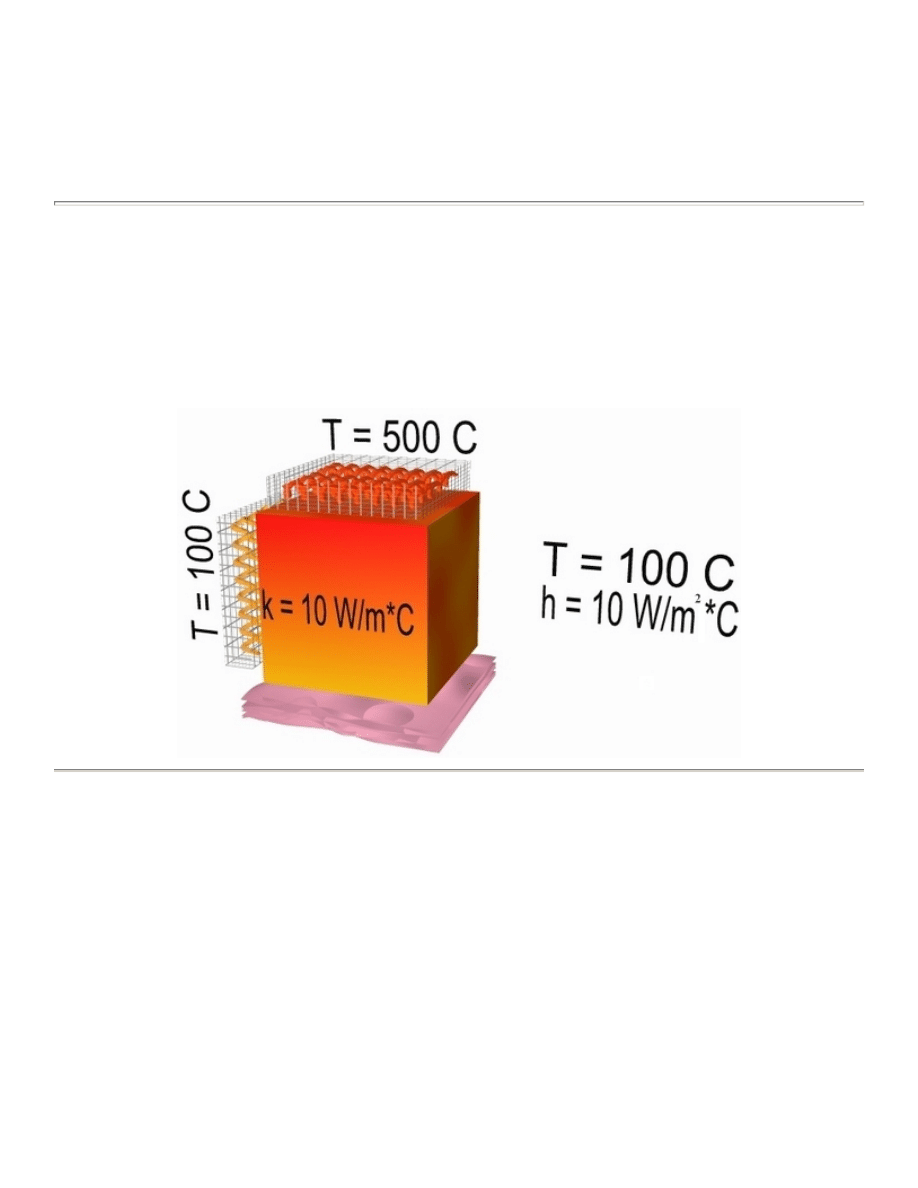
The Mixed Convection/Conduction/Insulated Boundary Conditions Example is constrained as shown in the
following figure (Note that the section is assumed to be infinitely long):
Preprocessing: Defining the Problem
1. Give example a Title
2. Create geometry
Preprocessor > Modeling > Create > Areas > Rectangle > By 2 Corners > X=0, Y=0, Width=1,
Height=1
BLC4,0,0,1,1
3. Define the Type of Element
Preprocessor > Element Type > Add/Edit/Delete... > click 'Add' > Select Thermal Solid, Quad
4Node 55
ET,1,PLANE55
University of Alberta ANSYS Tutorials - www.mece.ualberta.ca/tutorials/ansys/IT/Convection/Convection....
Copyright © 2001 University of Alberta

As in the conduction example, we will use PLANE55 (Thermal Solid, Quad 4node 55). This element has
4 nodes and a single DOF (temperature) at each node. PLANE55 can only be used for 2 dimensional
steady-state or transient thermal analysis.
4. Element Material Properties
Preprocessor > Material Props > Material Models > Thermal > Conductivity > Isotropic > KXX =
10
MP,KXX,1,10
This will specify a thermal conductivity of 10 W/m*C.
5. Mesh Size
Preprocessor > Meshing > Size Cntrls > ManualSize > Areas > All Areas > 0.05
AESIZE,ALL,0.05
6. Mesh
Preprocessor > Meshing > Mesh > Areas > Free > Pick All
AMESH,ALL
Solution Phase: Assigning Loads and Solving
1. Define Analysis Type
Solution > Analysis Type > New Analysis > Steady-State
ANTYPE,0
2. Apply Conduction Constraints
In this example, all 2 sides of the block have fixed temperatures, while convection occurs on the other 2
sides.
{
Solution > Define Loads > Apply > Thermal > Temperature > On Lines
{
Select the top line of the block and constrain it to a constant value of 500 C
{
Using the same method, constrain the left side of the block to a constant value of 100 C
3. Apply Convection Boundary Conditions
{
Solution > Define Loads > Apply > Thermal > Convection > On Lines
{
Select the right side of the block.
The following window will appear:
University of Alberta ANSYS Tutorials - www.mece.ualberta.ca/tutorials/ansys/IT/Convection/Convection....
Copyright © 2001 University of Alberta
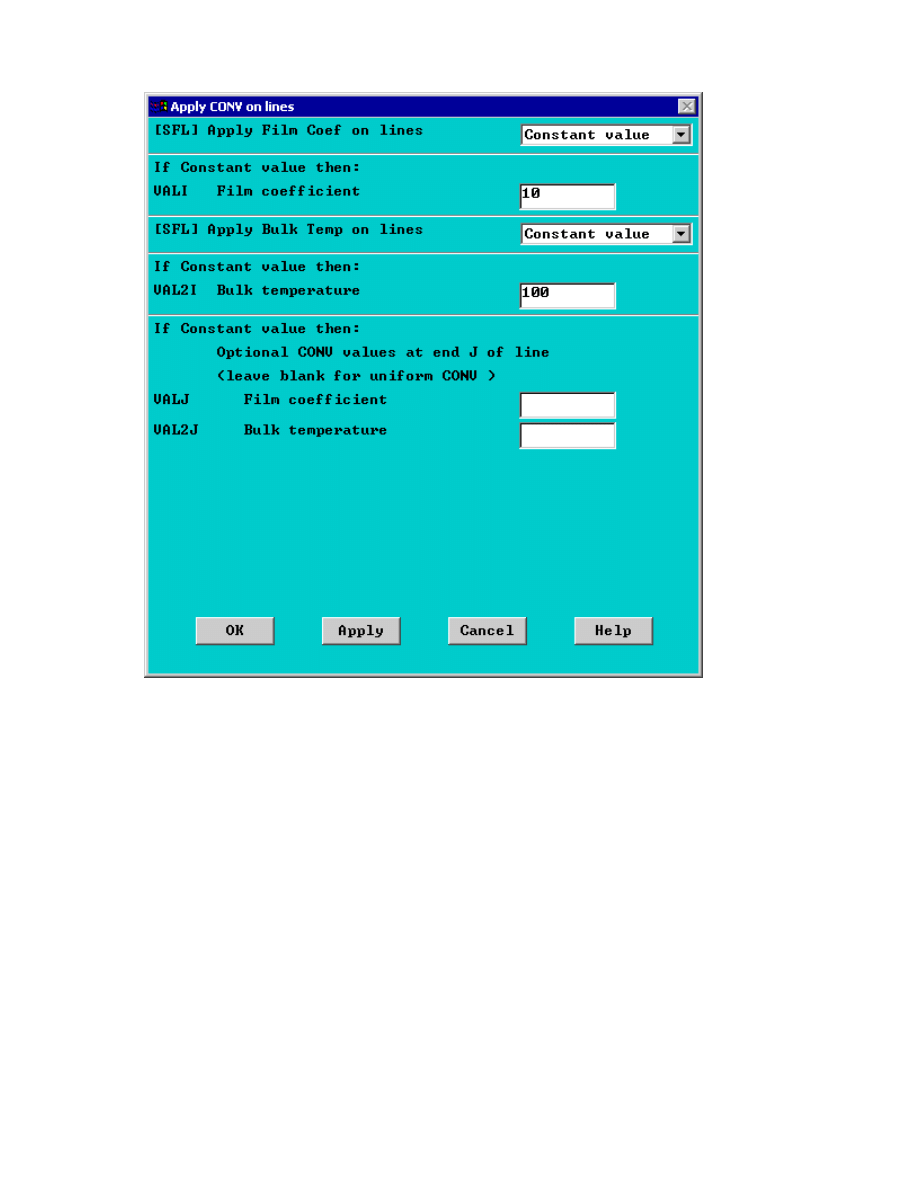
{
Fill in the window as shown. This will specify a convection of 10 W/m
2
*C and an ambient
temperature of 100 degrees Celcius. Note that VALJ and VAL2J have been left blank. This is
because we have uniform convection across the line.
4. Apply Insulated Boundary Conditions
{
Solution > Define Loads > Apply > Thermal > Convection > On Lines
{
Select the bottom of the block.
{
Enter a constant Film coefficient (VALI) of 0. This will eliminate convection through the side,
thereby modeling an insulated wall. Note: you do not need to enter a Bulk (or ambient) temperature
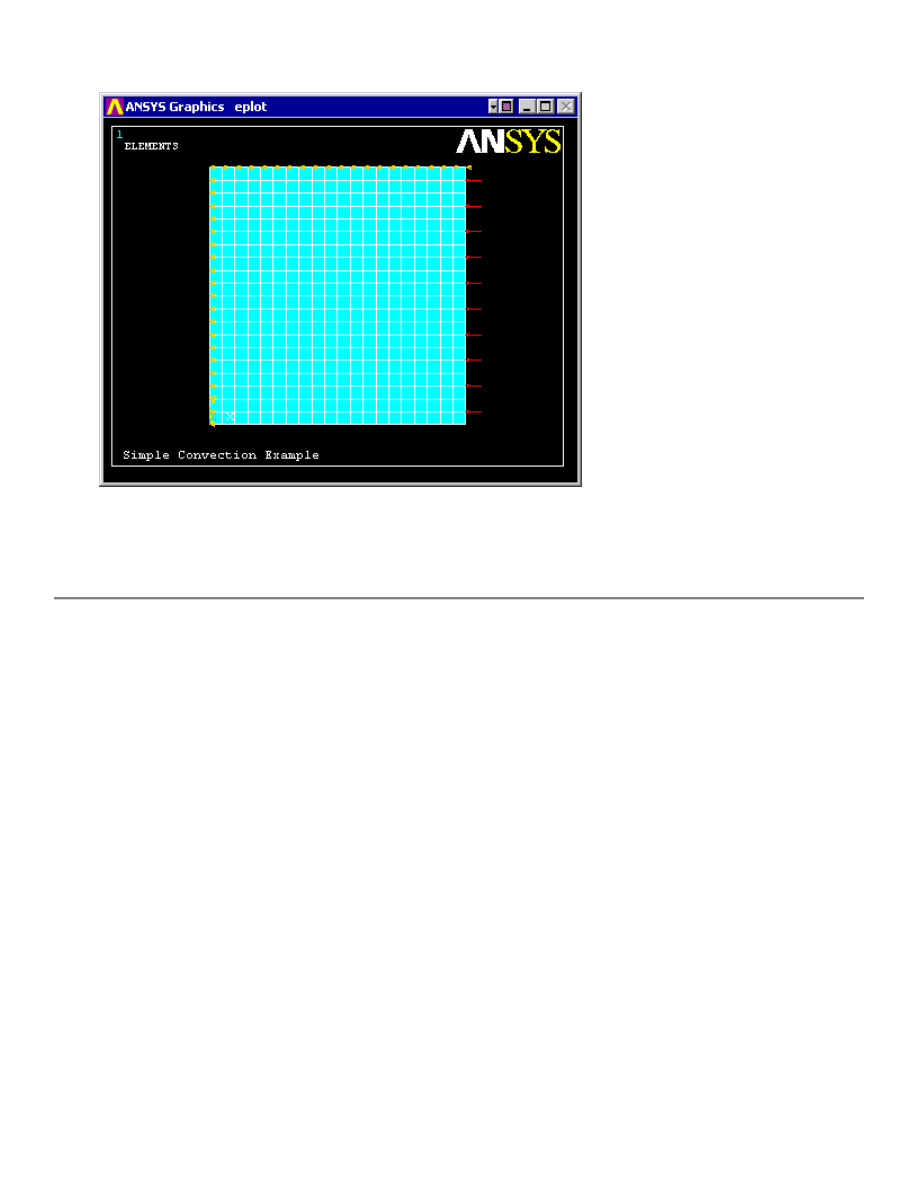
You should obtain the following:
University of Alberta ANSYS Tutorials - www.mece.ualberta.ca/tutorials/ansys/IT/Convection/Convection....
Copyright © 2001 University of Alberta
5. Solve the System
Solution > Solve > Current LS
SOLVE
Postprocessing: Viewing the Results
1. Results Using ANSYS
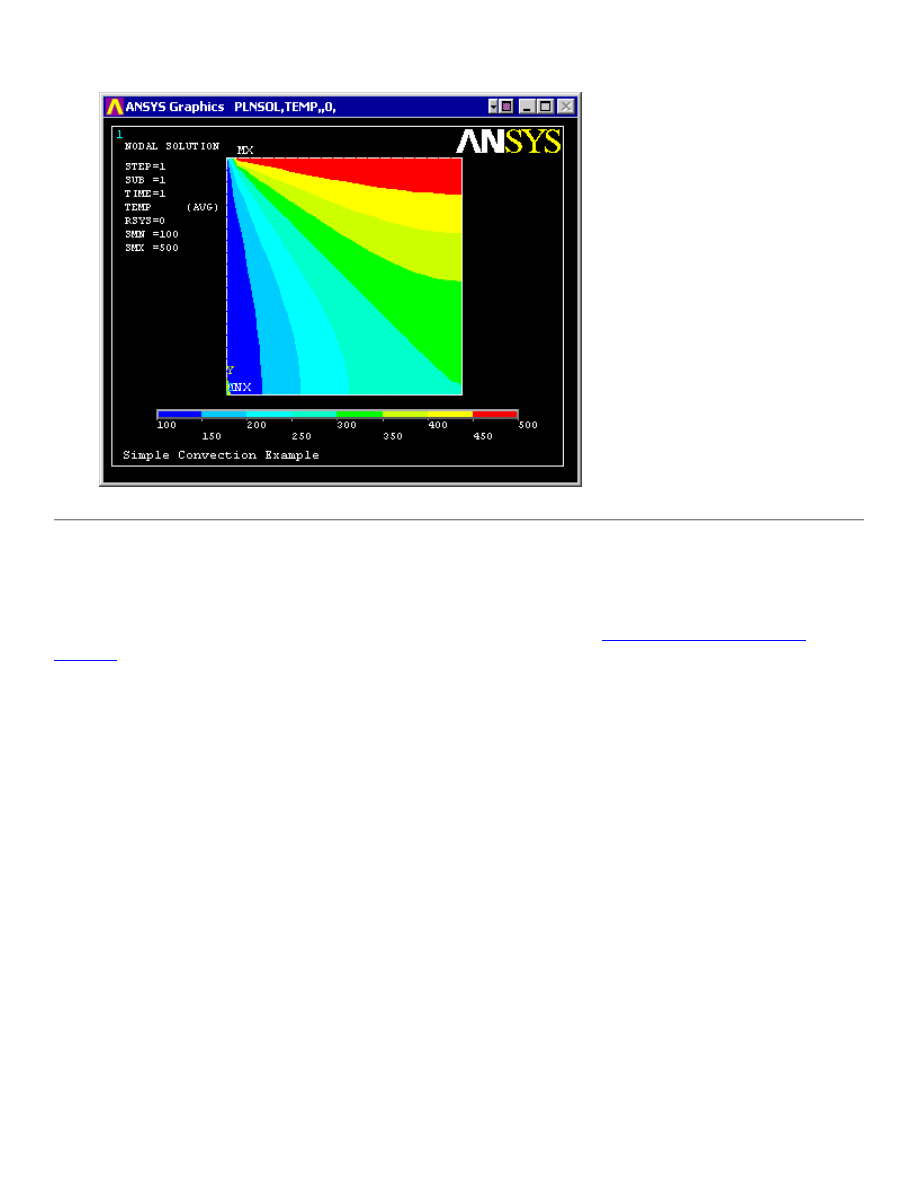
Plot Temperature
General Postproc > Plot Results > Contour Plot > Nodal Solu ... > DOF solution, Temperature
TEMP
University of Alberta ANSYS Tutorials - www.mece.ualberta.ca/tutorials/ansys/IT/Convection/Convection....
Copyright © 2001 University of Alberta
Command File Mode of Solution
The above example was solved using a mixture of the Graphical User Interface (or GUI) and the command
language interface of ANSYS. This problem has also been solved using the
ANSYS command language
interface
that you may want to browse. Open the file and save it to your computer. Now go to 'File > Read
input from...' and select the file.
University of Alberta ANSYS Tutorials - www.mece.ualberta.ca/tutorials/ansys/IT/Convection/Convection....
Copyright © 2001 University of Alberta
Wyszukiwarka
Podobne podstrony:
12 Transient Thermal Conduction Example
Example CV 11 CV Example with detailed instructions and tips embedded
Zarz[1] finan przeds 11 analiza wskaz
11 Siłowniki
11 BIOCHEMIA horyzontalny transfer genów
PKM NOWY W T II 11
wyklad 11
R1 11
CALC1 L 11 12 Differenial Equations
Prezentacje, Spostrzeganie ludzi 27 11
zaaw wyk ad5a 11 12
budzet ue 11 12
EP(11)
W 11 Leki działające pobudzająco na ośrodkowy układ
Zawal serca 20 11 2011
więcej podobnych podstron