E-MSG
MÁSTER EN SOFTWARE DE GESTIÓN DE EMPRESA
SAP R/3
2003-2004
Certificación MM (7131)
Xavier Rovira-Juan Carlos Sarrasi
TSCM 52-2ª parte (1-5)

SAP AG 2002
TSCM52 Procurement II Part2
TSCM52 Procurenment II PartII
THE BEST-RUN E-BUSINESSES RUN SAP
© SAP AG 2002
TSCM52
Procurement II
Part 2 of 2
SAP R/3, Release 46C
2002/Q4
Material Number: 50057370

SAP AG 2002
Copyright 2002 SAP AG. All rights reserved.
No part of this publication may be reproduced or transmitted in
any form or for any purpose without the express permission of
SAP AG. The information contained herein may be changed
without prior notice.
All rights reserved.
Copyright
Trademarks:
Some software products marketed by SAP AG and its distributors contain proprietary software
components of other software vendors.
Microsoft
®
, WINDOWS
®
, NT
®
, EXCEL
®
, Word
®
, PowerPoint
®
and SQL Server
®
are registered
trademarks of Microsoft Corporation.
IBM
®
, DB2
®
, OS/2
®
, DB2/6000
®
, Parallel Sysplex
®
, MVS/ESA
®
, RS/6000
®
, AIX
®
, S/390
®
,
AS/400
®
, OS/390
®
, and OS/400
®
are registered trademarks of IBM Corporation.
ORACLE
®
is a registered trademark of ORACLE Corporation.
INFORMIX
®
-OnLine for SAP and INFORMIX
®
Dynamic Server
TM
are registered trademarks of
Informix Software Incorporated.
UNIX
®
, X/Open
®
, OSF/1
®
, and Motif
®
are registered trademarks of the Open Group.
HTML, DHTML, XML, XHTML are trademarks or registered trademarks of W3C
®
, World Wide
Web Consortium, Massachusetts Institute of Technology.
JAVA
®
is a registered trademark of Sun Microsystems, Inc.
JAVASCRIPT
®
is a registered trademark of Sun Microsystems, Inc., used under license for
technology invented and implemented by Netscape.
SAP, SAP Logo, R/2, RIVA, R/3, ABAP, SAP ArchiveLink, SAP Business Workflow, WebFlow,
SAP EarlyWatch, BAPI, SAPPHIRE, Management Cockpit, mySAP.com Logo and mySAP.com
are trademarks or registered trademarks of SAP AG in Germany and in several other countries all
over the world. All other products mentioned are trademarks or registered trademarks of their
respective companies.
SAP AG 1999
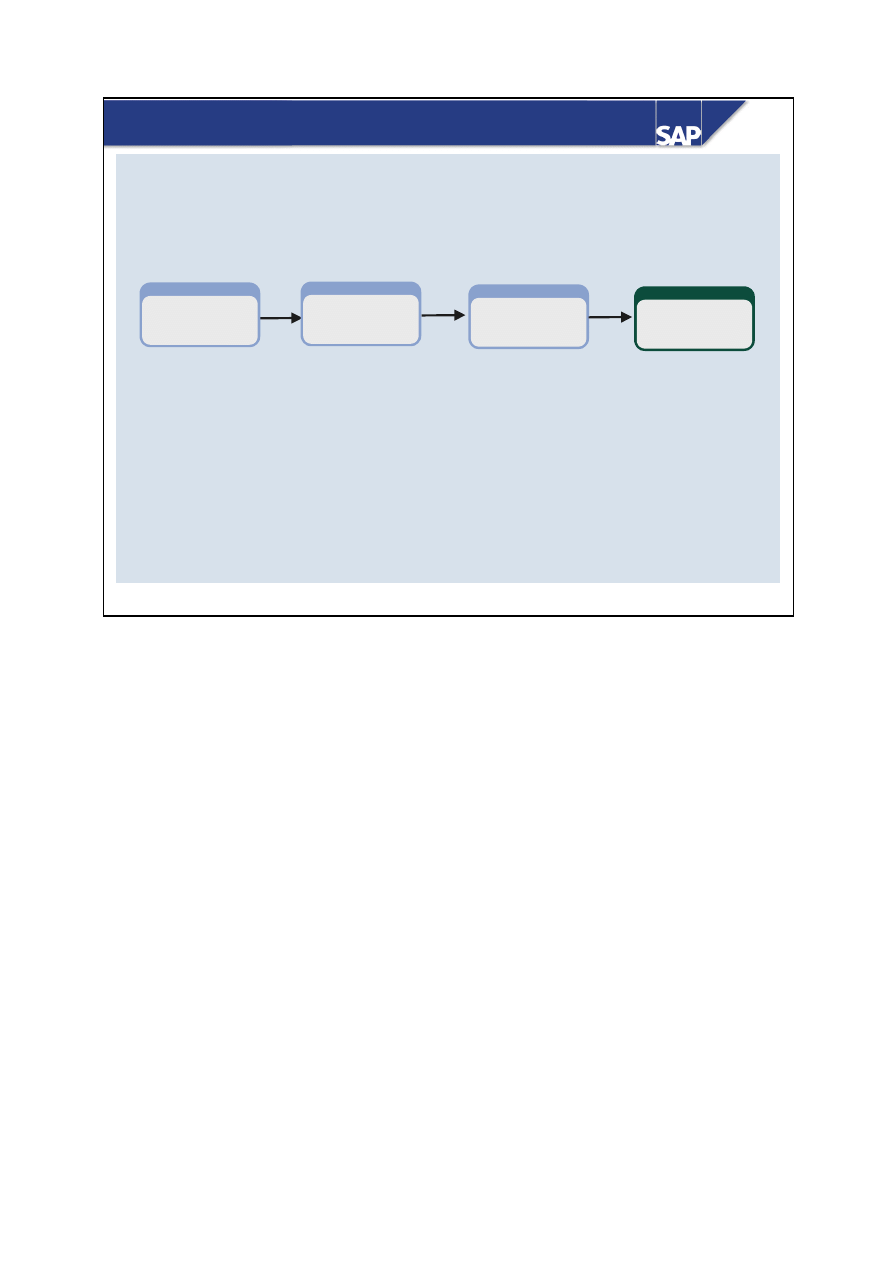
Solution Consultant mySAP SCM - Procurement
TSCM52
Procurement II
10 days
TSCM50
Procurement I
10 days
TSCM54
Procurement III
(Case Study)
5 days
Certification
Solution Consultant
mySAP SCM-
Procurement 2002
SAP AG 2002
Course Prerequisites
Essential:
z
TSCM50 (Procurement I)

SAP AG 2002
Target Audience
z
Participants
Application consultants who are responsible for
introducing procurement with mySAP SCM
User notes
These training materials are not a teach-yourself program. They complement the explanations
provided by your course instructor. Space is provided on each page for you to note down additional
information.
There may not be sufficient time during the course to complete all the exercises. The exercises
provide additional examples that are covered during the course. You can also work through these
examples in your own time to increase your understanding of the topics.

© SAP AG
TSCM52
1-1
SAP AG 2002
Content:
z
Course Goals
z
Course Objectives
z
Course Content
Course Overview

© SAP AG
TSCM52
1-2
SAP AG 2002
z
Execute goods movements in SAP R/3 and make
relevant settings for particular processes
z
Prepare and carry out a physical inventory
z
Enter invoices and credit memos with SAP R/3
Logistics Invoice Verification
Course Goals
This course will prepare you to:
© SAP AG
TSCM52
1-3
SAP AG 2002
Course Invoice Verification
Course Mini Case Study
Course Customizing Valuation
and Account
Assignment
Course ASAP
Course Overview
Course Inventory Management
Course Physical Inventory
Course Customizing Inventory
Management
Preface
TSCM 52: Content
This Consultant Training contains different courses each discussing a specific topic.
Each single course is divided into different units.
© SAP AG
TSCM52
1-4
SAP AG 2002
Course Content: Inventory Management
Unit
Course Overview
Unit
Goods Receipts
Unit
Reservations and Goods Issues
Unit
Stock Transfers/Transfer Postings
Unit
Special Inventory Management Features
Unit
Consignment
Appendix: Pipeline Processing
This Consultant Training contains different courses each discussing a specific topic.
Each single course is divided into different units.
© SAP AG
TSCM52
1-5
SAP AG 2002
Course Content: Physical Inventory
Unit
Course Overview
Unit
Physical Inventory Management
Unit
Cycle Counting
Unit
Inventory Sampling
This Consultant Training contains different courses each discussing a specific topic.
Each single course is divided into different units.
© SAP AG
TSCM52
1-6
SAP AG 2002
Course Content: Customizing Inventory Management
Unit
Course Overview
Unit
MM Organizational Levels
Unit Inventory Management
Unit
Master Data in Materials Management
This Consultant Training contains different courses each discussing a specific topic.
Each single course is divided into different units.

© SAP AG
TSCM52
1-7
SAP AG 2002
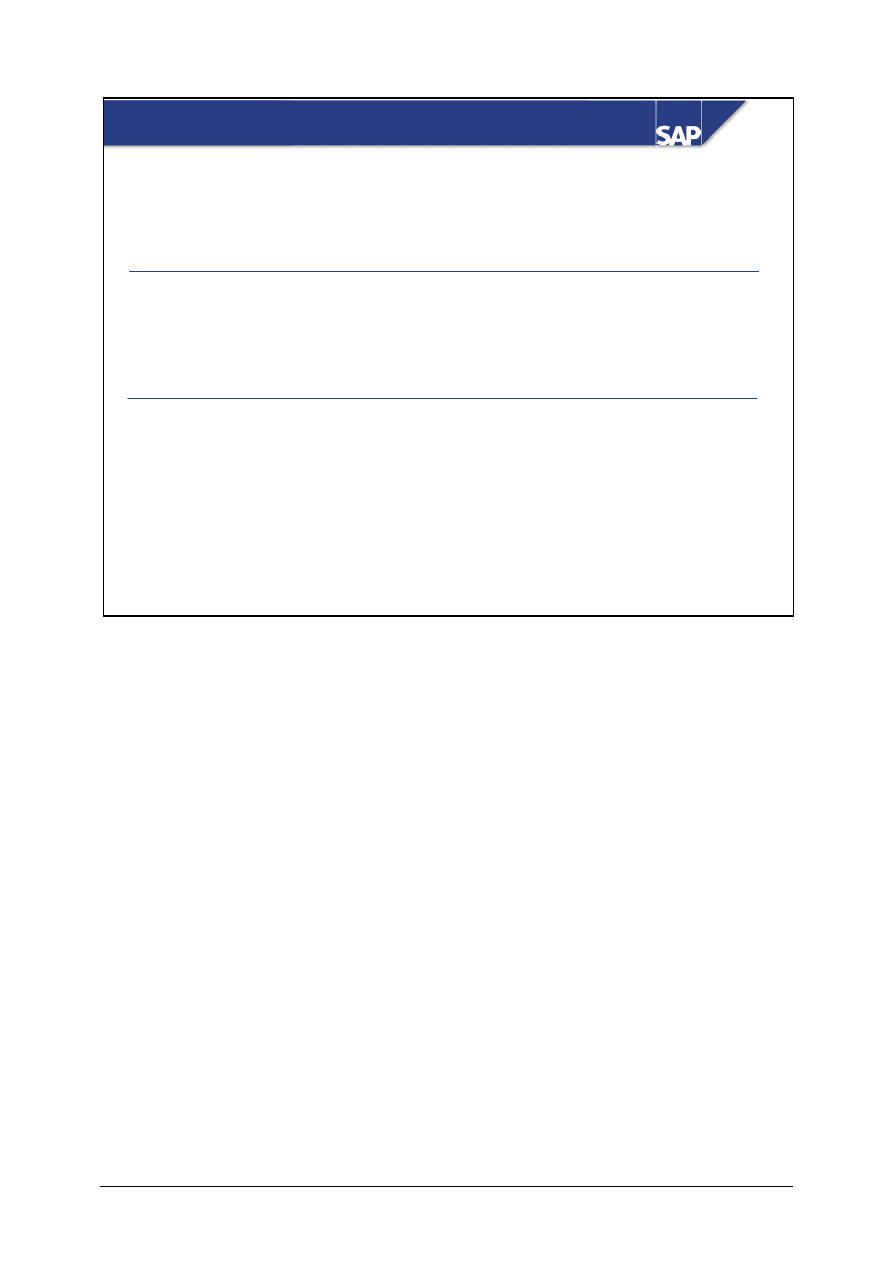
Unit Course Overview
Unit
Introduction to Invoice
Verification
Unit
Basic Invoice Verification
Procedure
Unit
Taxes, Cash Discounts,
and Foreign Currency
Unit
Variances and Blocking
Reasons
Unit
Invoice Reduction
Unit
Variances Without
Reference to an Item
Unit
Invoices for POs with
Account Assignment
Unit
Delivery Costs
Unit Subsequent Debits/Credits
Unit
Invoices Without Reference
to Purchase Orders
Unit
Document Parking
Unit
Credit Memos and
Reversals
Unit
Releasing Blocked Invoices
Unit
Invoice verification in the
Background
Unit
Automated Processing
Unit
GR/IR Account
Maintenance
Unit
Customizing
Course Content: Invoice Verification
This Consultant Training contains different courses each discussing a specific topic.
Each single course is divided into different units.
© SAP AG
TSCM52
1-8
SAP AG 2002
Course Content: Customizing - Valuation and
Account Assignment
Unit
Valuation and Account
Assignment
© SAP AG
TSCM52
1-9
SAP AG 2002
Unit
AcceleratedSAP - Overview
Unit
Appendix: Implementation Roadmap and
ASAP-Related Topics
Course Content: ASAP
This Consultant Training contains different courses each discussing a specific topic.
Each single course is divided into different units.
© SAP AG
TSCM52
2-1
SAP AG 2002
Course: Invoice Verification
SAP AG 2002

© SAP AG
TSCM52
2-2
SAP AG 1999
z
Course Goals
z
Course Objectives
z
Course Content
z
Course Overview Diagram
z
Main Business Scenario
Contents
Course Overview

© SAP AG
TSCM52
2-3
SAP AG 1999
This course will prepare you to:
z
Enter invoices relating to purchase orders
z
Block invoices
z
Release invoices for payment
Course Goals

© SAP AG
TSCM52
2-4
SAP AG 2002
Unit Course Overview
Unit
Introduction to Invoice
Verification
Unit
Basic Invoice Verification
Procedure
Unit
Taxes, Cash Discounts,
and Foreign Currency
Unit
Variances and Blocking
Reasons
Unit
Invoice Reduction
Unit
Variances Without
Reference to an Item
Unit
Invoices for POs with
Account Assignment
Unit
Delivery Costs
Unit Subsequent Debits/Credits
Unit
Invoices Without Reference
to Purchase Orders
Unit
Document Parking
Unit
Credit Memos and
Reversals
Unit
Releasing Blocked Invoices
Unit
Invoice verification in the
Background
Unit
Automated Processing
Unit
GR/IR Account
Maintenance
Unit
Customizing
Course Content: Invoice Verification
This Consultant Training contains different courses each discussing a specific topic.
Each single course is divided into different units.

© SAP AG
TSCM52
2-5
SAP AG 1999
At the conclusion of this course, you will be able to:
z
Enter invoices for inventory and non-inventory
items
z
Describe the updates and account postings that
result
z
Modify cash discount terms and tax information
z
Set tolerances for price, quantity, and amounts,
and release blocked invoices
z
Enter planned and unplanned delivery costs
Course Objectives (1)

© SAP AG
TSCM52
2-6
SAP AG 1999
At the conclusion of this course, you will be able to:
z
Post invoices in the background
z
Adjust values with subsequent debits and credits
or with invoice reduction postings
z
Process evaluated receipt settlements
z
Maintain the GR/IR clearing account
z
Configure the Invoice Verification functions
Course Objectives (2)
© SAP AG
TSCM52
2-7
SAP AG 1999
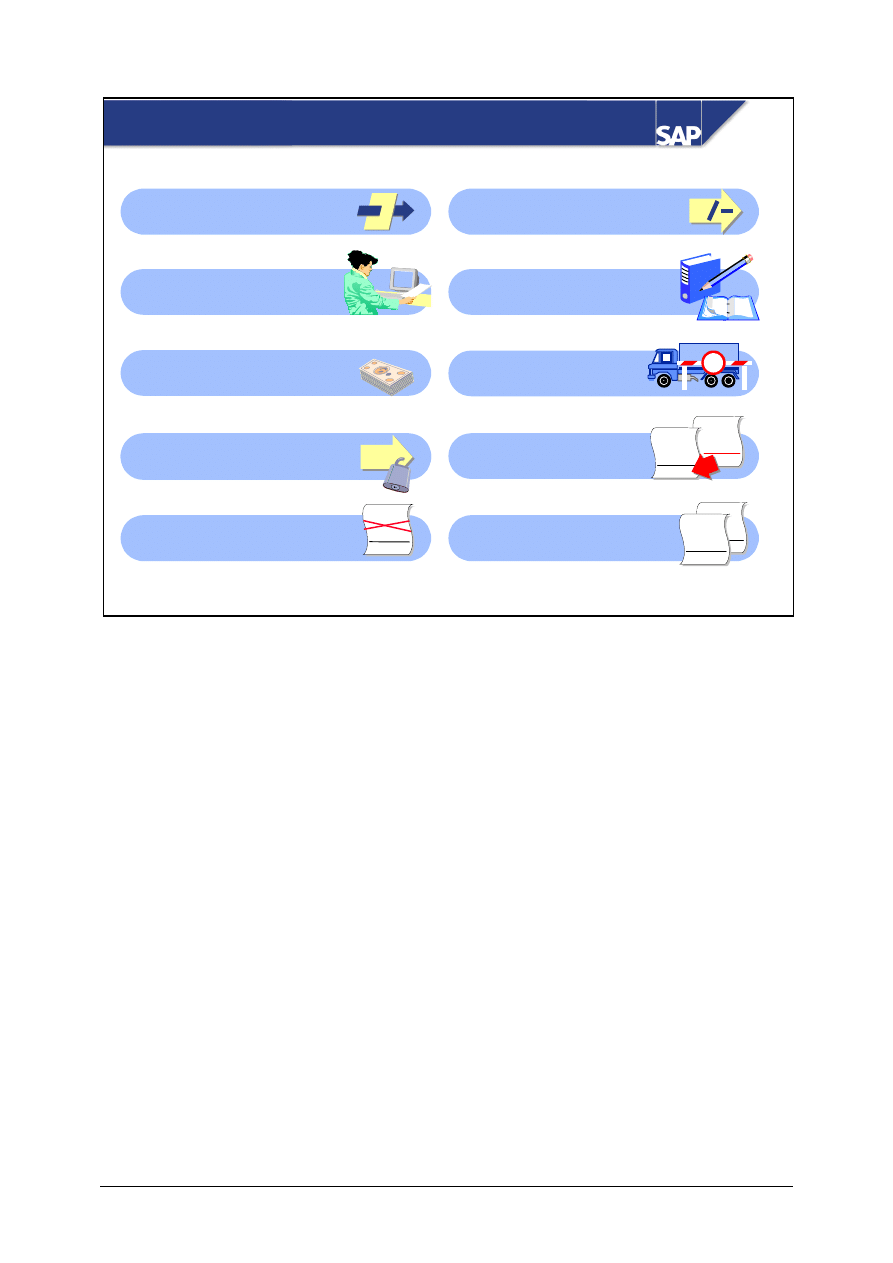
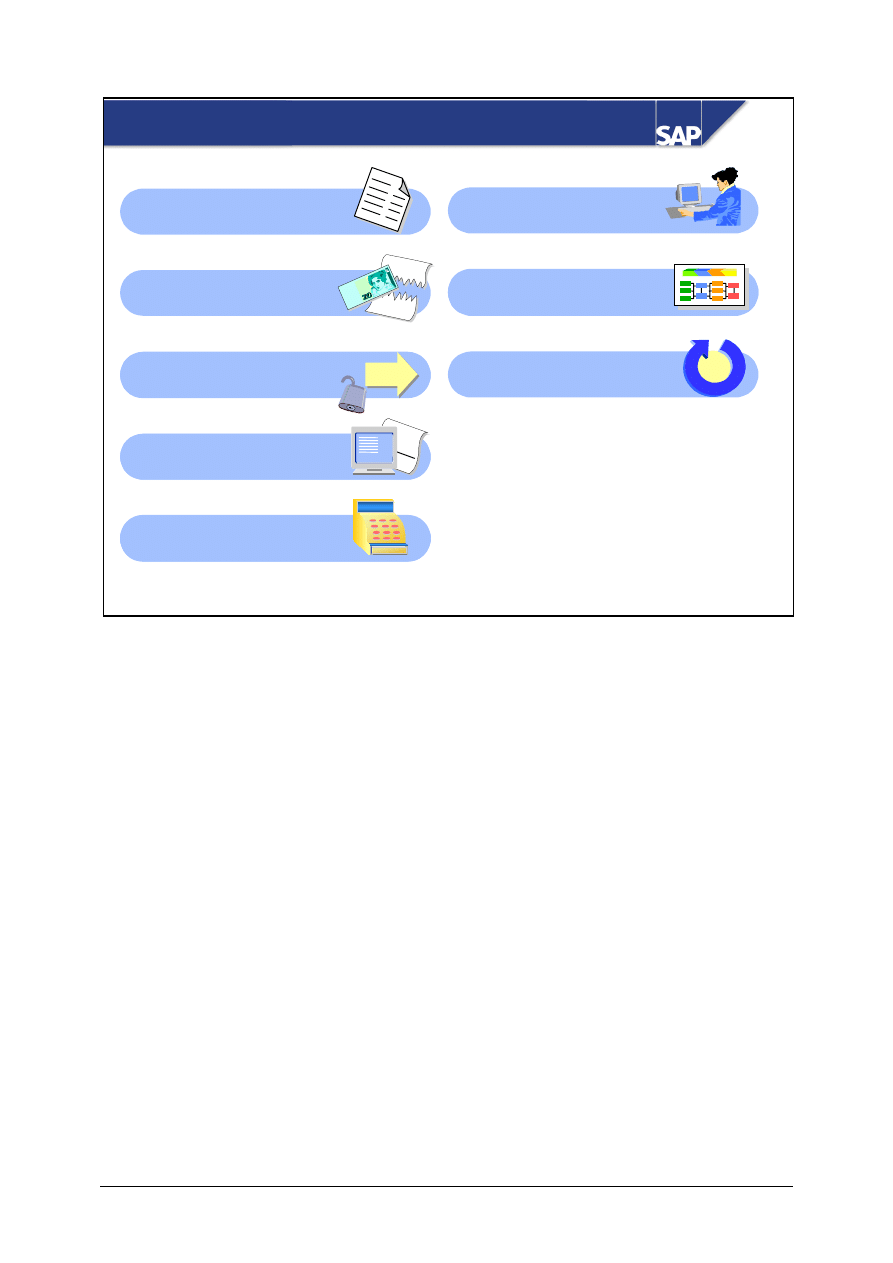
Variances Without
Reference to an Item
Course Overview Diagram (1)
Basic Invoice Verification
Procedure
Taxes, Cash Discounts,
and Foreign Currency
Variances and
Blocking Reasons
Invoice Reduction
Introduction to
Invoice Verification
Invoices for POs with
Account Assignment
Delivery Costs
Subsequent
Debits/Credits
Invoices Without
Reference to POs
§
%
WWW
+ XXXX
+ YYY
= ZZZZ
+
Customs
WW
+ XX
= ZZ
WWW
+ XXXX
= ZZZZ
WWW
+ XXXX
+ YYY
= ZZZZ
WWW
+ XXXX
+ YYY
= ZZZZ
© SAP AG
TSCM52
2-8
SAP AG 1999
Course Overview Diagram (2)
Automated
Processing
Document Parking
GR/IR Account
Maintenance
Invoice Verification in
the Background
Automated
Processing
Releasing Blocked
Invoices
Customizing for
Invoice Verification
XXXX
+ YY
Y
= ZZZ
Z
Credit Memos and
Reversals
Conclusion

© SAP AG
TSCM52
2-9
SAP AG 1999
z
In your company, you have various invoice
verification requirements. You are a member of the
R/3 implementation team and need to identify the
processes and functions available in Invoice
Verification.
Main Business Scenario

© SAP AG
TSCM52
3-1
SAP AG 1999
Introduction to Invoice Verification
z
Invoice Verification as Part of Materials Management
z
Invoice Verification Tasks
z
Posting an Invoice
z
Account Movements
z
Price Control
Contents:

© SAP AG
TSCM52
3-2
SAP AG 1999
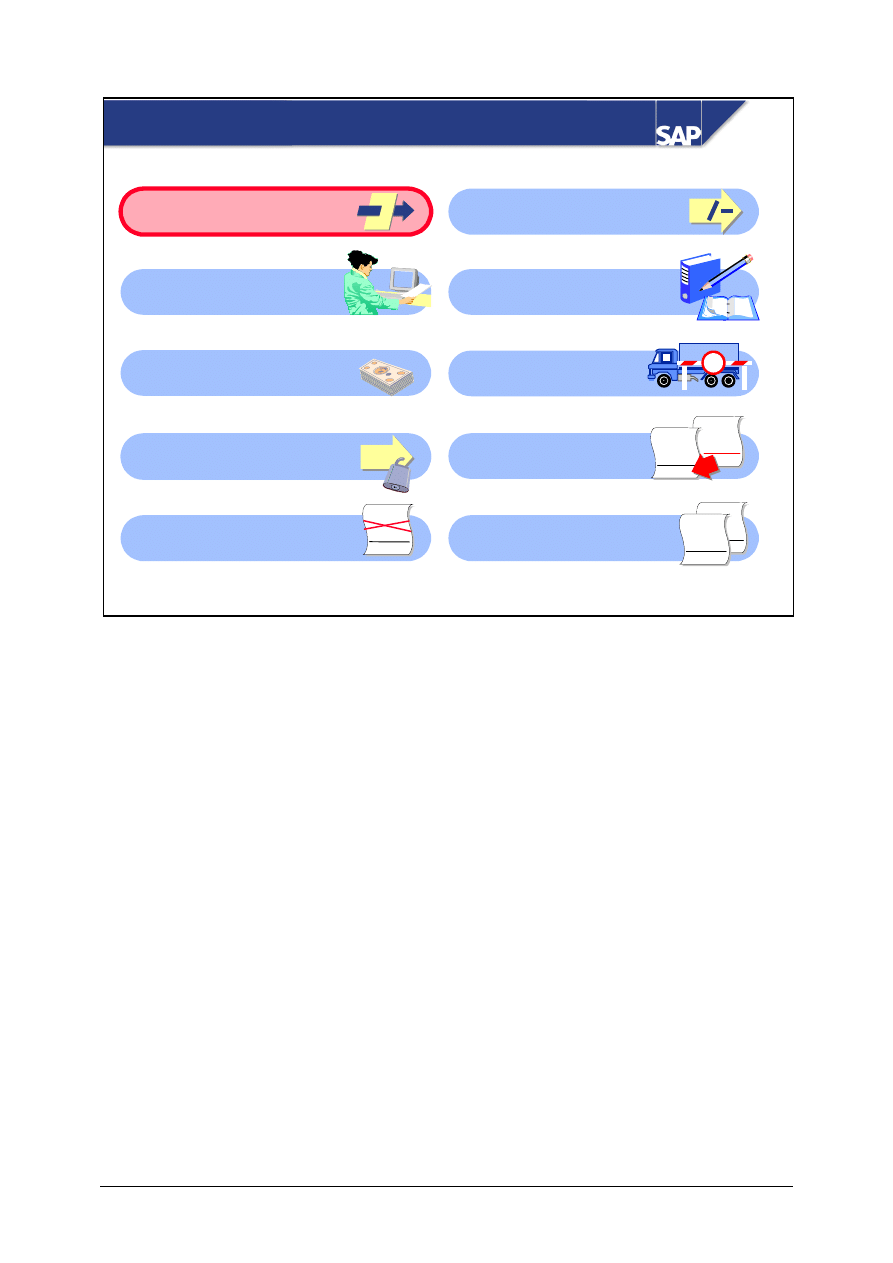
Introduction to Invoice Verification: Objectives
z
Demonstrate where the Invoice Verification
component is located within the R/3 System
z
List which tasks are performed using this
component
z
Explain which updates occur as a result of an
invoice being posted
z
List which account movements occur as a result
of posting a simple invoice
At the conclusion of this unit, you will be able to:
© SAP AG
TSCM52
3-3
SAP AG 1999
Introduction to Invoice Verification: Course
Overview Diagram
Variances Without
Reference to an Item
Basic Invoice Verification
Procedure
Taxes, Cash Discounts,
and Foreign Currency
Variances and
Blocking Reasons
Invoice Reduction
Introduction to
Invoice Verification
Invoices for POs with
Account Assignment
Delivery Costs
Subsequent
Debits/Credits
Invoices Without
Reference to POs
§
%
WWW
+ XXXX
+ YYY
= ZZZZ
+
Customs
WW
+ XX
= ZZ
WWW
+ XXXX
= ZZZZ
WWW
+ XXXX
+ YYY
= ZZZZ
WWW
+ XXXX
+ YYY
= ZZZZ

© SAP AG
TSCM52
3-4
SAP AG 1999
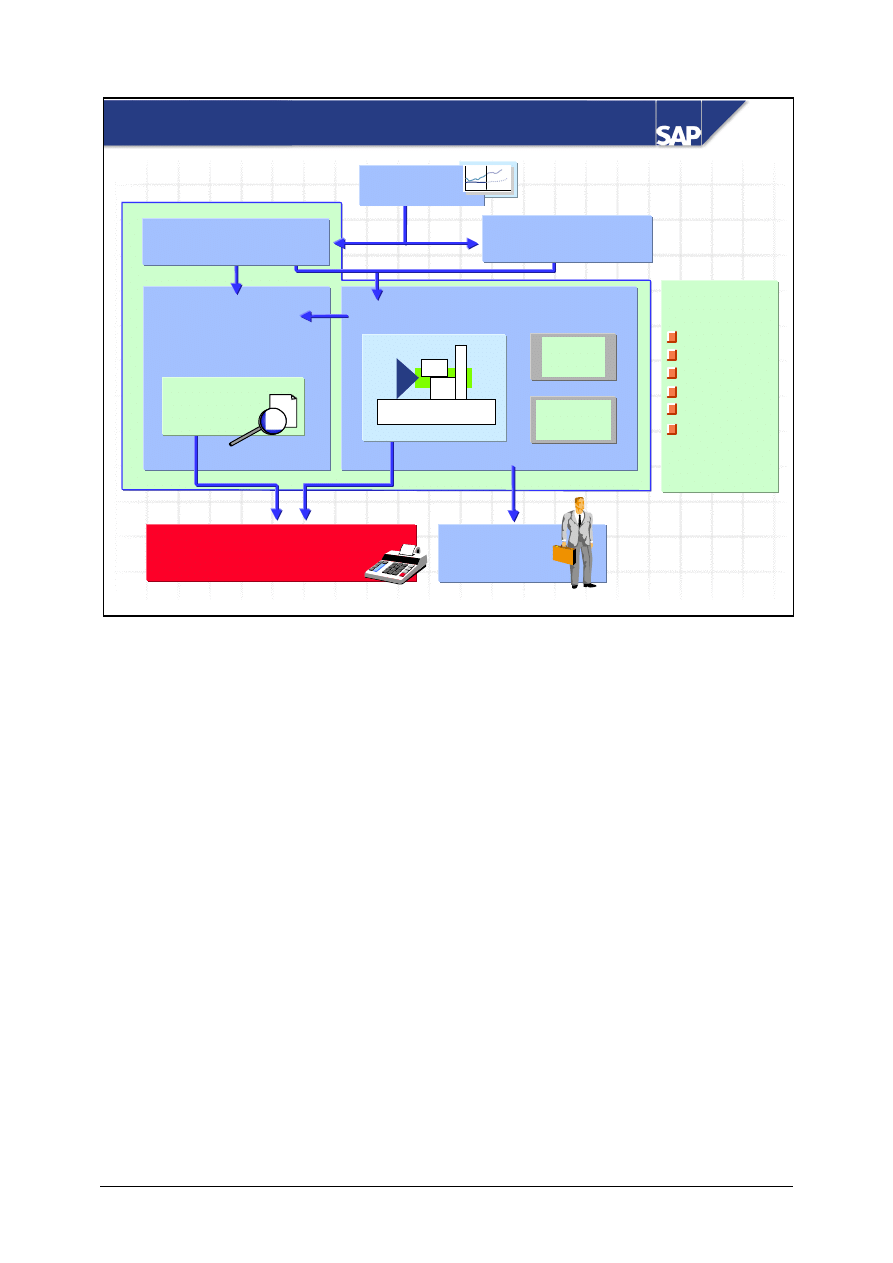
z
Your company receives a large volume of vendor
invoices every day. The invoice data is based on
the purchase orders for stock or non-stock
materials requested and shipped to your company.
You want to review the type of information that the
vendors send.
Introduction to Invoice Verification: Business
Scenario
© SAP AG
TSCM52
3-5
SAP AG 1999
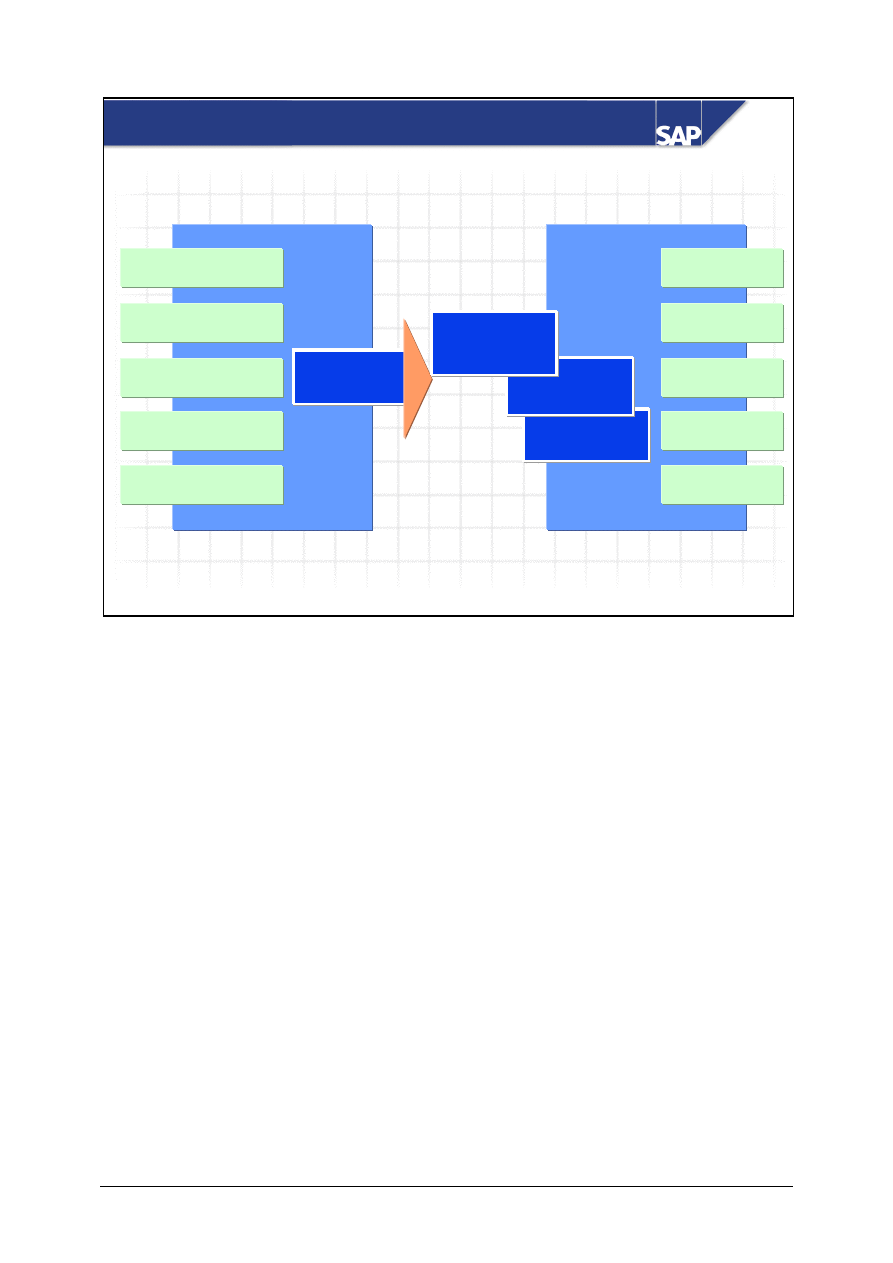
Materials
planning
Invoice
Verification
Internal and external
Internal and external
accounting
accounting
Sales and
distribution
Master Data
Materials
Batches
Vendors
G/L accounts
Customers
Warehouses
.
.
Goods receipt
Transfer
posting
Goods
issue
Invoice
receipt
?
Inventory Management
Internal Procurement
Production
External Procurement
Purchasing
MM Overview
The Invoice Verification component is part of Materials Management.
The main task of the Invoice Verification component is to complete the procedure of materials
procurement by posting the vendor invoice and to pass on information concerning the invoice to
Financial Accounting and subsequent applications.
Invoices that do not originate in materials procurement can also be processed.
© SAP AG
TSCM52
3-6
SAP AG 1999
Purchase order
Invoice
Invoice
Verification
Verification
Purchase order
history
Delivery
costs
Material master
Vendor
master
Further
Further
documents
documents
G/L accounts
Assets
Cost centers
Projects
Orders
Invoice Verification Environment
FI
FI
invoice
invoice
document
document
MM
MM
invoice
invoice
document
document
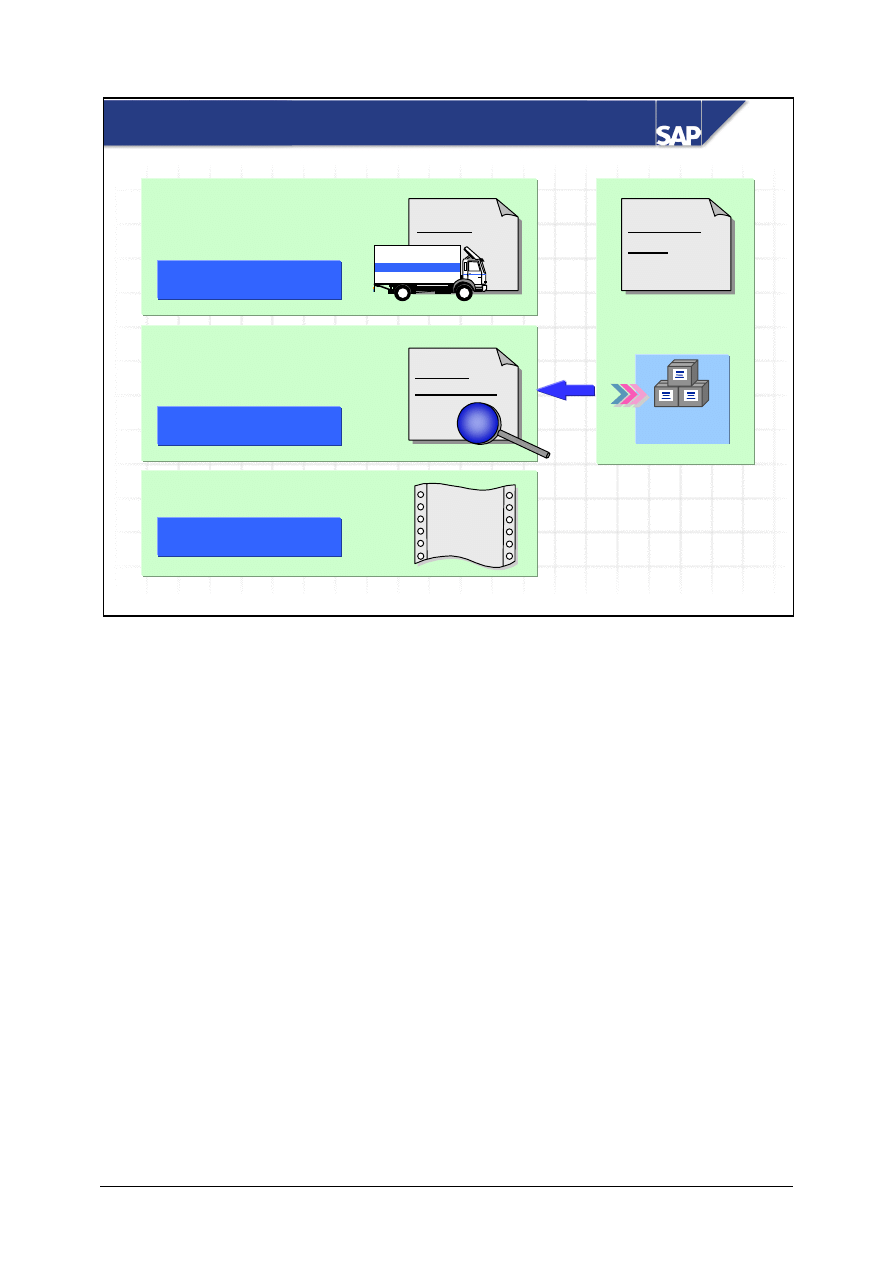
Invoice Verification is not an isolated component within the R/3 System. It operates in conjunction
with the Purchasing and Inventory Management components.
Invoice Verification accesses data located in preceding application areas.
For each incoming invoice, Invoice Verification creates an MM invoice document and an FI invoice
document.
The invoice document updates data in:
y
Materials Management
y
Financial Accounting
In addition, further documents can be created automatically in application areas that follow.
© SAP AG
TSCM52
3-7
SAP AG 1999
Vendor invoice
Vendor invoice
Invoice verification
Invoice verification
Open vendor items
Open vendor items
Invoice
Invoice
verification
?
=
Vendor
Purchase
order
Goods
receipt
Invoice Verification
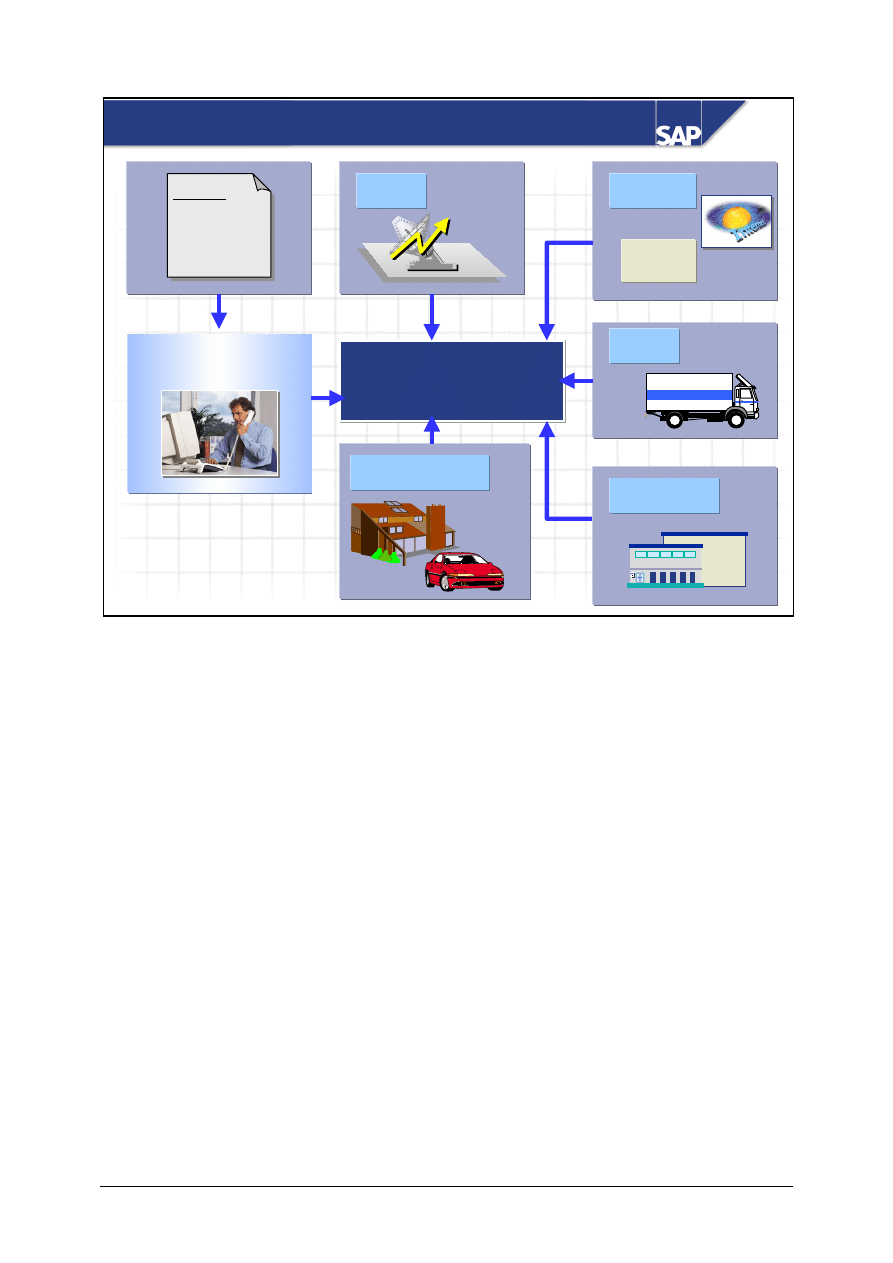
You can post an incoming invoice with reference to a purchase order, a service, or a goods receipt.
The R/3 System suggests the invoice items according to the reference entered – the corresponding
account postings are carried out automatically.
After the invoice has been posted, the document appears as an open item on the vendor account
(payment proposal list).
© SAP AG
TSCM52
3-8
SAP AG 1999
Invoicing plan
EDI
Invoice Receipt
SAP System
Delivery
User Department
Invoice Verification
Rent
Leasing
ERS
Invoice
Consignment
Internet
XML
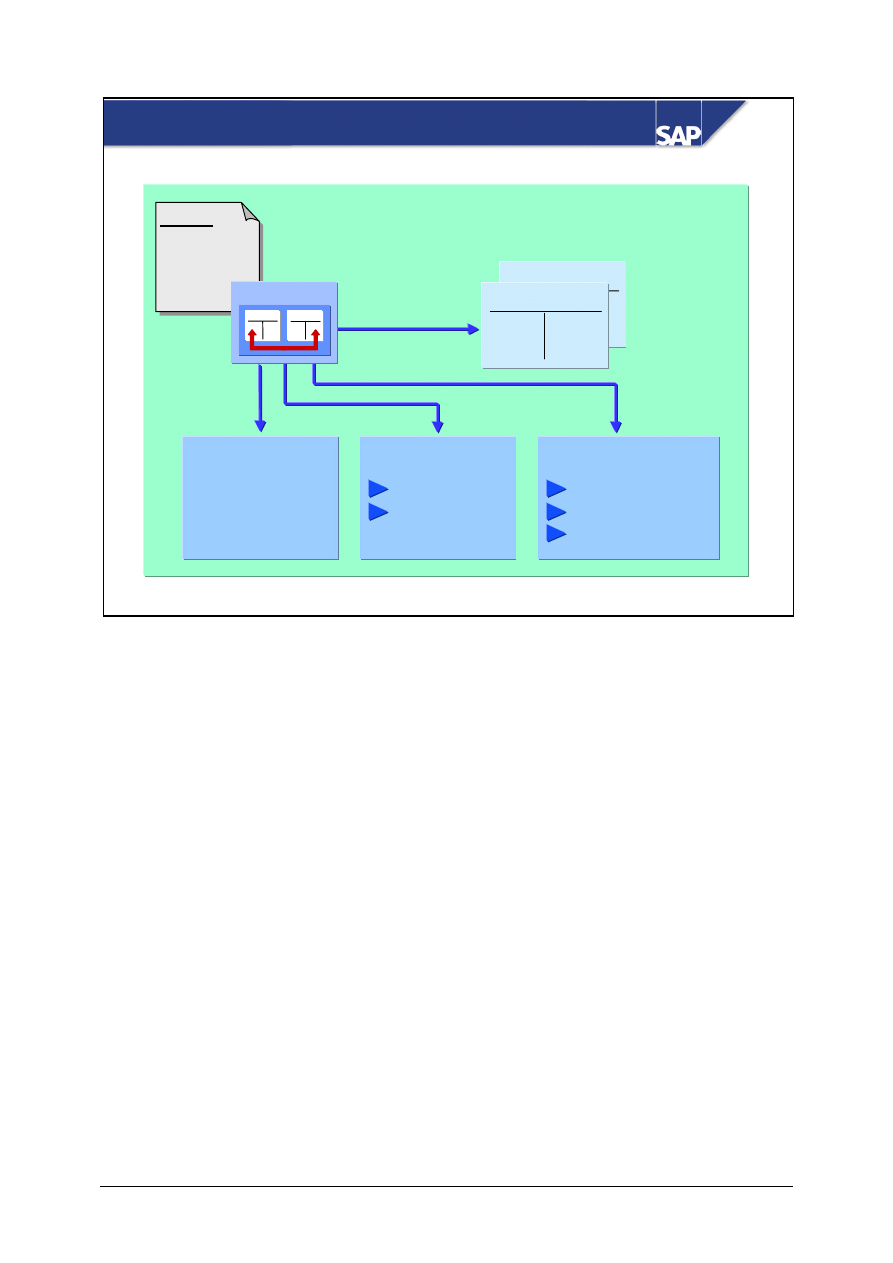
Invoices can be posted in the R/3 System in several different ways.
The company receives invoices by post, then an employee enters and posts them.
The company receives invoices via electronic transfer and the system posts them automatically (if
the information transferred matches that expected by the system).
The system creates invoices using settlement programs that run at regular intervals (evaluated receipt
settlement, invoicing plan, consignment settlement).
© SAP AG
TSCM52
3-9
SAP AG 1999
Invoice
for purchase
order
Doc. no. 51000123
Vendor
100 -
GR/IR
100 +
Material master
MAP
Value
Purchase order history
Goods receipts
Down payments
Invoices
Posting
A
B
XX
XX
GR/IR account
Vendor account
Posting an Invoice
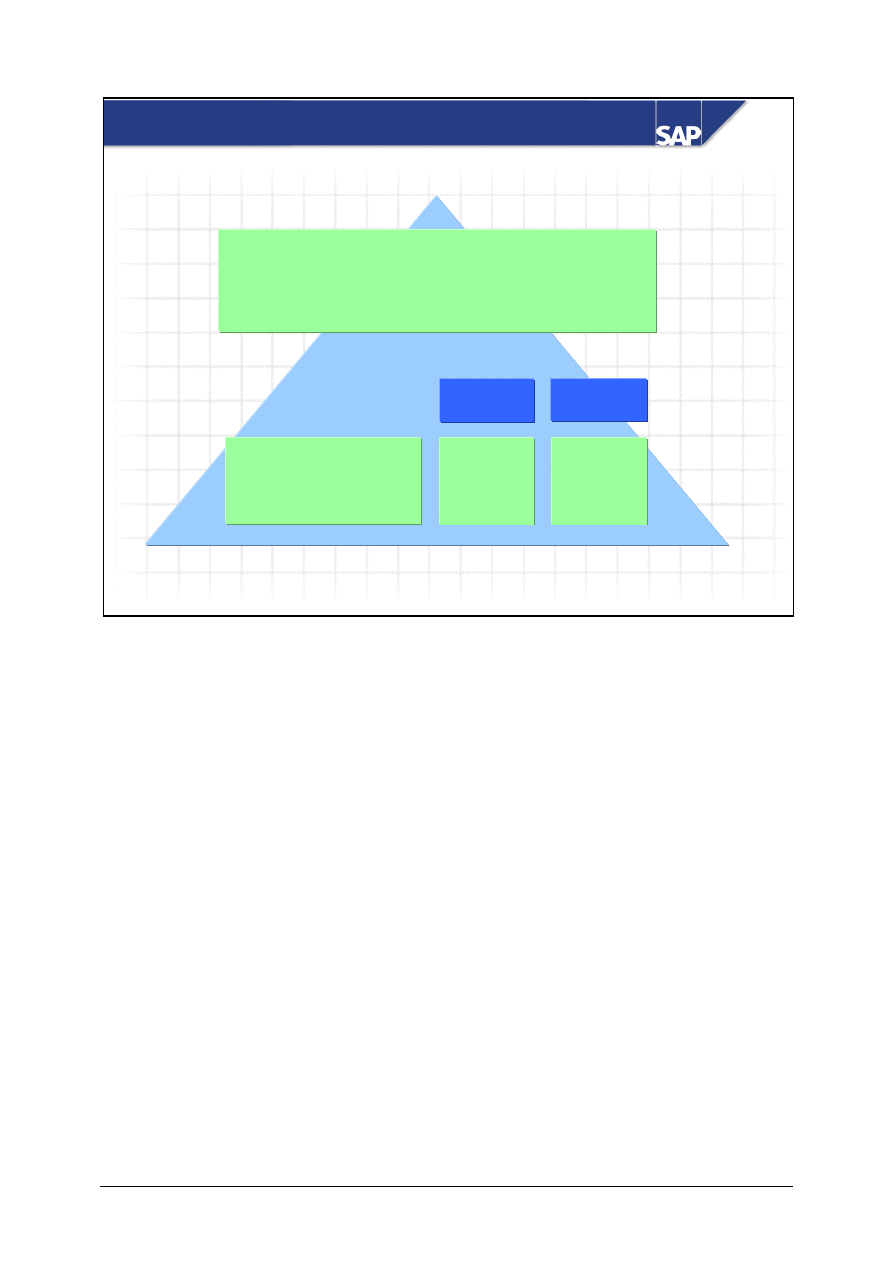
When an invoice is posted, the following occurs:
y
The R/3 System posts the individual line items to the appropriate accounts.
y
It creates an MM invoice document and an FI document.
y
It updates the purchase order history.
y
It updates the material master, if necessary.
© SAP AG
TSCM52
3-10
SAP AG 1999
Purchase order
:
50 pcs at 2.00 UNI/pc.
Goods receipt for this purchase order:
50 pcs
Invoice
:
50 pcs at 2.00 UNI/pc.
Goods
Goods
receipt
receipt
Invoice
Invoice
Account Movements
Stock account
GR/IR account
Vendor
100 +
100 -
100 +
100 -
When goods are received, the R/3 System debits the stock account and posts the offsetting entry to
the GR/IR clearing account.
y
In the case of material with a moving average price, the R/3 System posts the stock account with
the value of the net order price multiplied by the quantity of goods received.
y
In the case of material with a standard price, the R/3 System posts the stock account with the value
of the standard price multiplied by the quantity of goods received. The R/3 System posts the
difference to an account for expenses or revenue from price differences.
When the invoice is posted, the GR/IR clearing account is cleared and the vendor account is credited.
© SAP AG
TSCM52
3-11
SAP AG 1999
PO:
50 pcs at 2.20 UNI/pc.
Goods receipt:
50 pcs
Invoice
:
50 pcs at 2.20 UNI/pc.
Stock account
GR/IR clearing account
Vendor account
Price difference account
Price control V
Total quantity 50
Total value 100.00
Price 2.00
Material master record
Material master record
Price control S
Total quantity 50
Total value 100.00
Price 2.00
110 +
110 -
110 +
110 -
GR
GR
IR
IR
100 +
110 -
10 +
110 +
110 -
GR
GR
IR
IR
Total quantity 100
Total value 210.00
Price 2.10
Total quantity 100
Total value 200.00
Price 2.00
Material master record
Material master record
Standard price
Moving average
price
Price Control
In the material master record of each material, you define how the material is to be valuated.
There are two types of price control:
y
Standard price
y
Moving average price
When a material is valuated at a moving average price, the price changes in line with the delivered
costs. If the purchase order price or the invoice price varies from the price in the material master
record, the R/3 System posts the difference to the stock account if there is stock coverage for the
invoice quantity. As a result, the value and the price of the material change.
When a material is valuated at a standard price, the R/3 System posts differences between the
purchase order price or the invoice price and the price in the material master record to a price
difference account. As a result, the price in the material master record remains constant.
© SAP AG
TSCM52
3-12
SAP AG 1999
Introduction to Invoice Verification: Summary
z
Demonstrate where the Invoice Verification
component is located within the R/3 System
z
List which tasks are performed using this
component
z
Explain which updates occur as a result of an
invoice being posted
z
List which account movements occur as a result
of posting a simple invoice
You are now able to:

© SAP AG
TSCM52
4-1
SAP AG 1999
Basic Invoice Verification Procedure
z
Invoice Verification Procedure
z
Purchase-Order-Based Invoice Verification
z
Goods-Receipt-Based Invoice Verification
z
Basic Invoice Verification Functions
Contents:

© SAP AG
TSCM52
4-2
SAP AG 1999
z
Enter an invoice referencing a purchase order
z
Post a simple invoice
z
List the special features of goods-receipt-based
Invoice Verification
At the conclusion of this unit, you will be able to:
Basic Invoice Verification Procedure: Objectives
© SAP AG
TSCM52
4-3
SAP AG 1999
Basic Invoice Verification Procedure: Course
Overview Diagram
Variances Without
Reference to an Item
Basic Invoice Verification
Procedure
Taxes, Cash Discounts,
and Foreign Currency
Variances and
Blocking Reasons
Invoice Reduction
Introduction to
Invoice Verification
Invoices for POs with
Account Assignment
Delivery Costs
Subsequent
Debits/Credits
Invoices Without
Reference to POs
§
%
WWW
+ XXXX
+ YYY
= ZZZZ
+
Customs
WW
+ XX
= ZZ
WWW
+ XXXX
= ZZZZ
WWW
+ XXXX
+ YYY
= ZZZZ
WWW
+ XXXX
+ YYY
= ZZZZ

© SAP AG
TSCM52
4-4
SAP AG 1999
z
Your company recently implemented SAP R/3 and
must define the standard procedure for invoice
verification.
z
Your company would like to decide if it should
implement goods-receipt-based Invoice
Verification.
Basic Invoice Verification Procedure
© SAP AG
TSCM52
4-5
SAP AG 1999
Rogers & Hart
415 Walnut Street
Philadelphia PA 19101
03.05.
SAP America
701 Lee Road
Wayne PA 19087
Invoice no. 1266/33
Re: Your purchase order 4151599001 dated 24.04
We have supplied you with the following goods:
Bearings
50 pcs
1 000.00 UNI
Supports
8 pcs
800.00 UNI
1 800.00 UNI
10% Tax
180.00 UNI
1 980.00 UNI
Payable within 20 days of invoice date,
2% cash discount if payment received within 10 days.
Account 11223344 Bank of California (bank code 300 210 55)
R H
Invoice items
Material
Quantity
Unit of measure
Terms of payment
Amount per item
Tax amount
Tax rate
Invoicing party
Document date
Purchase order
Currency
Addressee
Bank information
Reference
Invoice amount
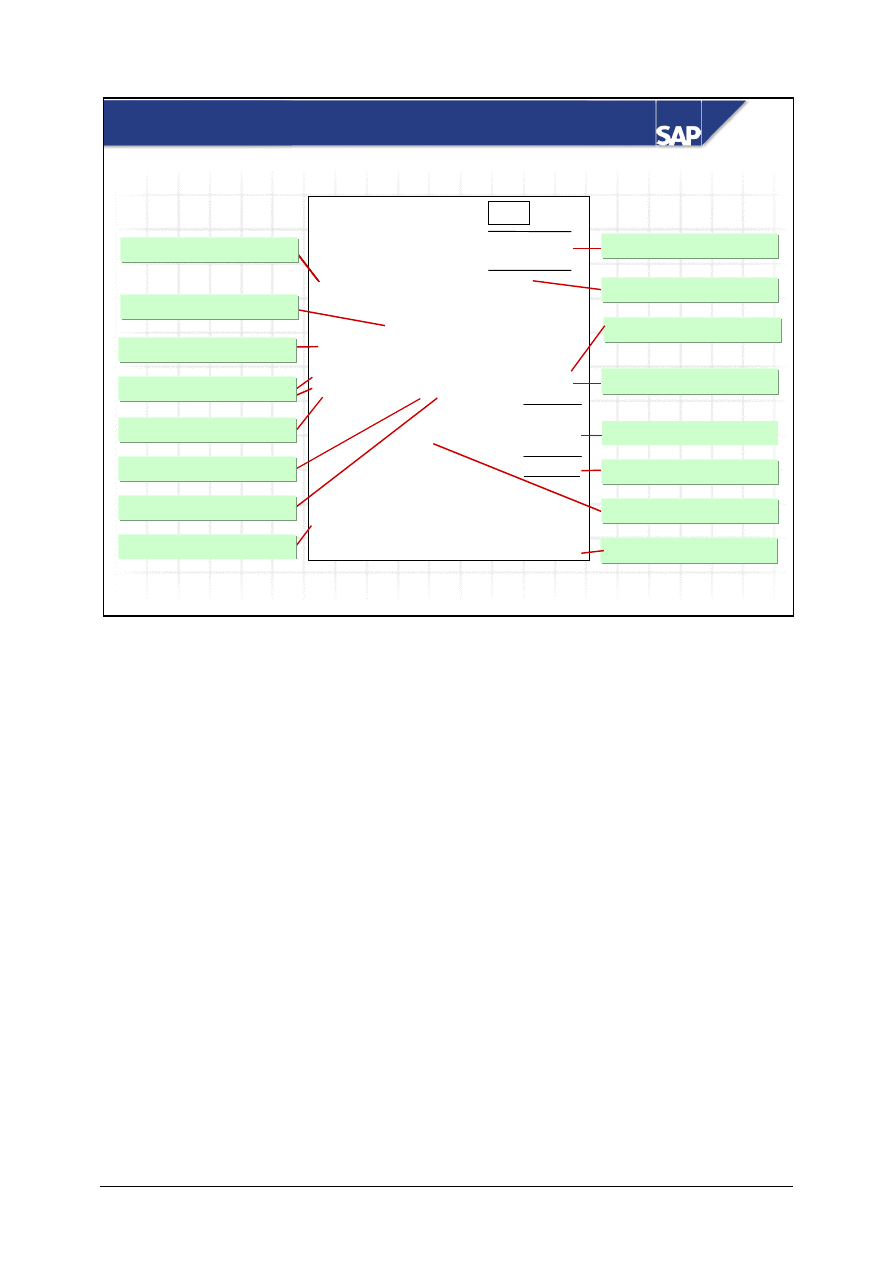
Information in an Invoice
The user must enter the following information:
y
Document date, purchase order number
y
Invoice amount, tax amount, terms of payment (if necessary)
The following information is copied from the purchase order:
y
Vendor, terms of payment (if defined there), currency
y
Invoice items
The following information is derived from the purchase order history:
y
Quantity, amount
The following information is proposed based on the R/3 System settings:
y
Rate at which tax is calculated
The bank information is stored in the vendor master record.
© SAP AG
TSCM52
4-6
SAP AG 1999
Logistics Invoice Verification: Initial Screen
Vendor data
Vendor data
PO structure
PO structure
Invoice
Invoice
items
items
Header
Header
Allocation
Allocation
Balance
Balance
Transaction
Transaction
Worklist
Worklist
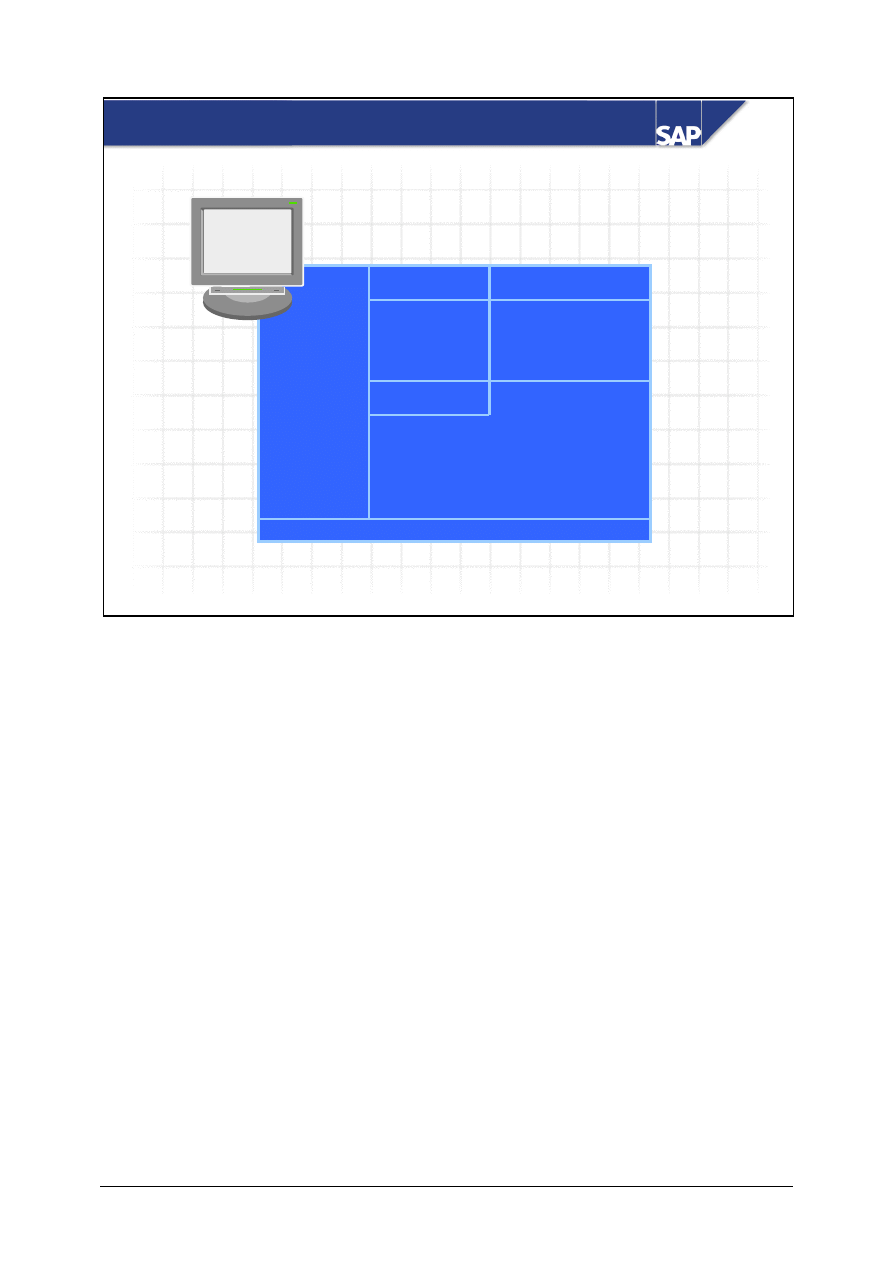
The screen for entering invoices is divided as follows:
In the Transaction area, you define whether you want to enter an invoice or a credit memo.
The Header area is divided into various tab pages. You enter the document date, the invoice amount
and the tax information here.
In the Allocation area, you enter the number of the document that the invoice refers to (such as a
purchase order number, a delivery note number, a bill of lading number).
In the Invoice items area, the system suggests the invoice items that are ready to be invoiced.
In the Vendor data area, the system displays the name, address, and bank information for the
vendor, once you have matched up the invoice. You can change the data from this screen.
In the Balance area, the system displays the current balance. A traffic light icon indicates whether
the invoice can be posted or not.
In the PO structure area, the system displays the purchase order history for the allocation entered.
You can hide this screen area, if you do not need it. In place of the PO structure, you can display a
brief description of the Invoice Verification functions.
© SAP AG
TSCM52
4-7
SAP AG 1999
Basic Invoice Verification Procedure: Allocation
Purchase order/
sched. agreement
Delivery note
Bill of lading
Service
entry sheet
Invoice
refers
to a:
Goods/
delivery costs
Vendor
Multiple
references
Deliveries/
returns
Plants
Further
allocation criteria
Vendor
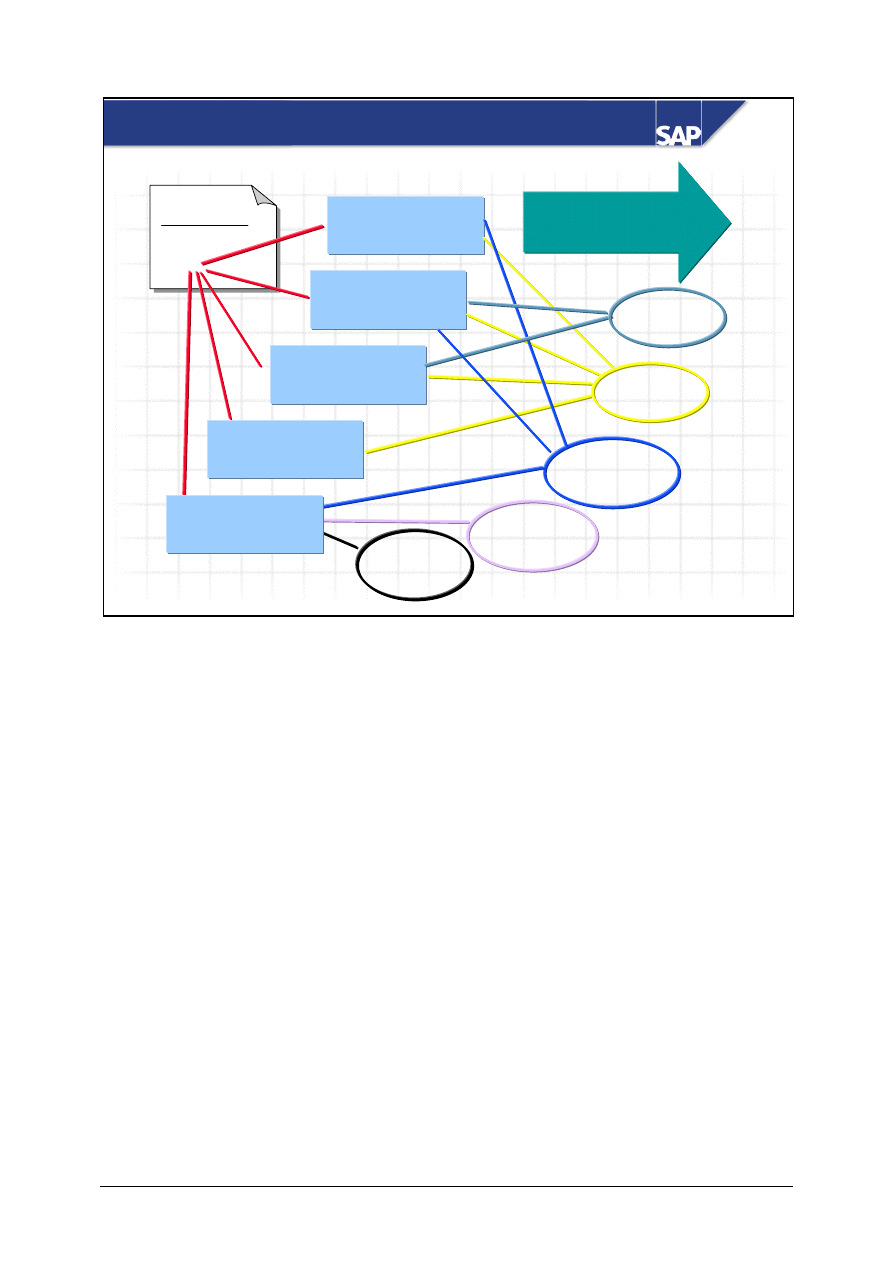
An invoice can refer to various objects, such as a purchase order or a delivery note.
An invoice for delivery costs can refer to a bill of lading.
An invoice for a service can refer to a service entry sheet.
All deliveries or services provided by a vendor can be settled in a single invoice.
You can choose More allocation criteria to enter additional objects (purchase orders, delivery notes,
and so on) or to enter more search criteria.
© SAP AG
TSCM52
4-8
SAP AG 1999
Basic Invoice Verification Procedure: Item List
Sort
Search
Delete items
not selected
Change
layout
PO
4151599002
4151599002
4151599002
4151599002
4151599005
4151599005
Item
0010
0020
0030
0040
0010
0020
PO price
25.00
60.00
18.00
25.00
35.50
22.00
Material
CF499d
RP433a
AC123c
CC487d
EG801j
CP093e
Quantity
40
10
40
20
Amount
1000.00
600.00
1000.00
440.00
Tax
10%
10%
10%
10%
9
9
9
9
Layout Purchase order
Purch. Order
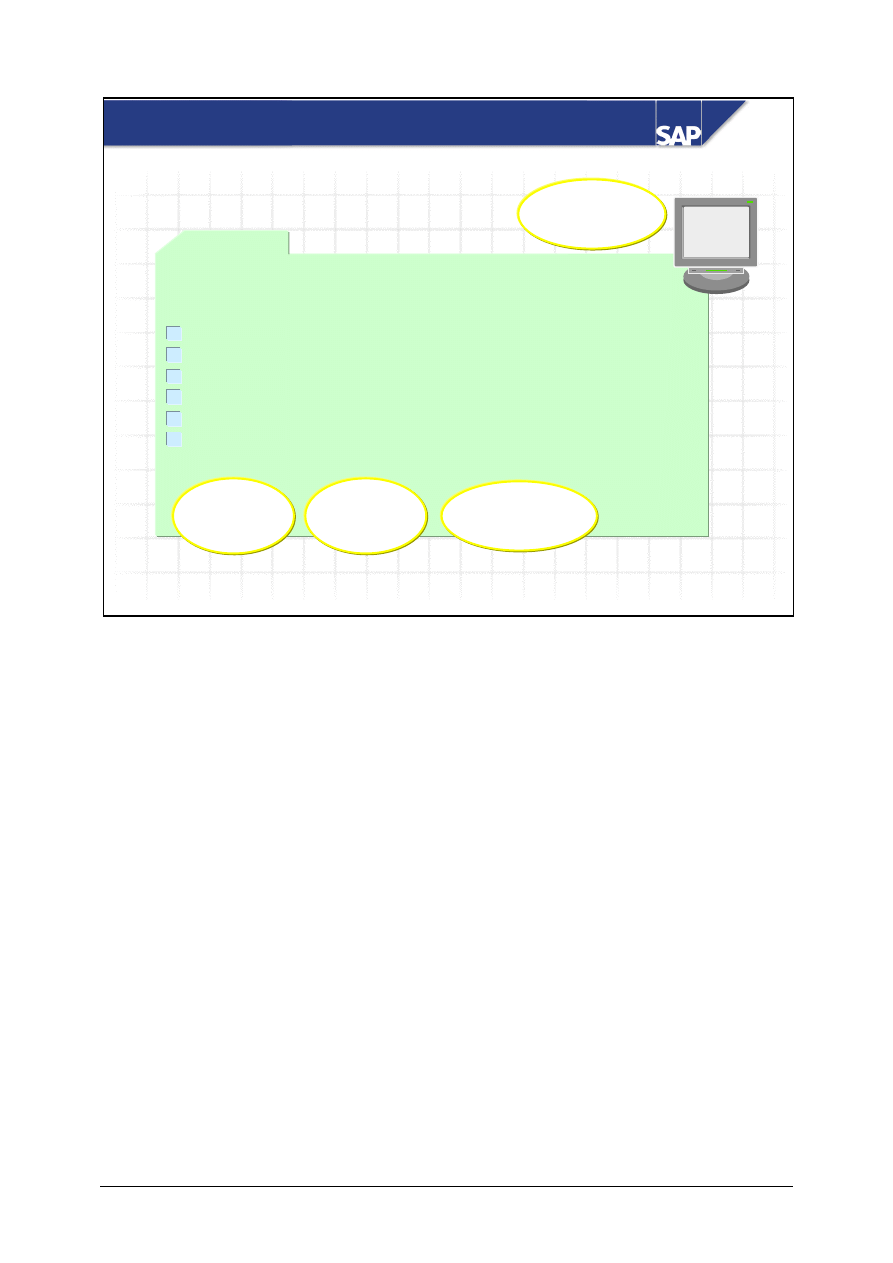
On the item list, the system suggests all purchase order items that match the allocation and that are
ready to be settled.
There are various layouts for the item list, which enable you to see the item data that is important for
you. You can define new layouts in Customizing for Invoice Verification.
You can sort the item list on a particular column.
You can search for particular terms in the item list.
You can delete the items that are not selected to make the item list easier to read.
© SAP AG
TSCM52
4-9
SAP AG 1999
Purchase
order
4151599002
100 pcs
GR-based IV
Selection via
goods receipt/
delivery note
Delivery note AX123
50 pcs
Selection via
purchase order
Delivery 3
Delivery 2
Delivery 1
Delivery note AX456
40 pcs
Delivery note AX789
10 pcs
Invoice
for purch. order
4151599002
40 pcs
Item list
4151599002
100 pcs
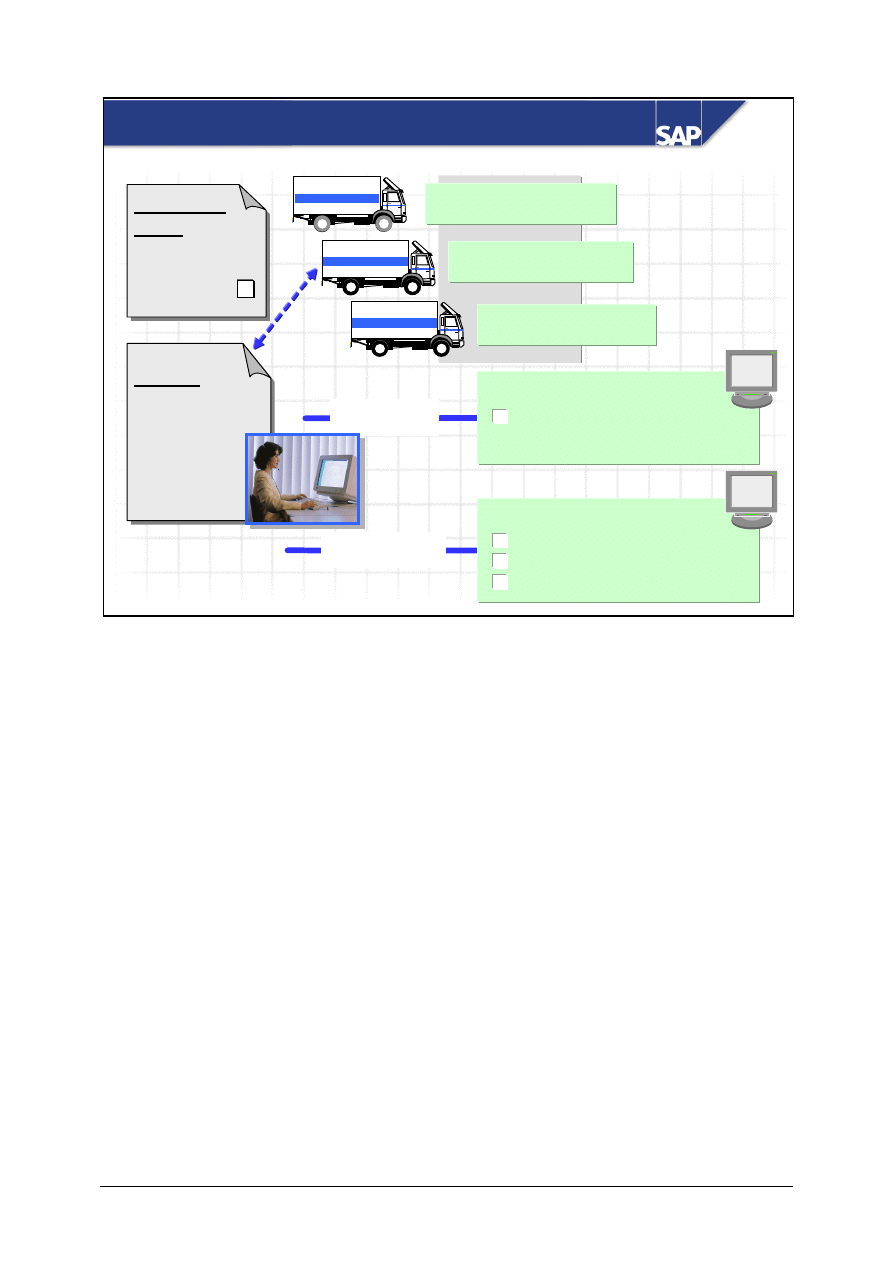
Purchase-Order-Based Invoice Verification
9
When purchase-order-based Invoice Verification has been defined, all items in the purchase order are
presented on the item list.
The suggested quantity is the difference between the total delivered quantity and the total invoiced
quantity.
When you enter an invoice and match it using the delivery note number, the R/3 System looks for the
corresponding purchase order item and then proceeds in the same way as when you enter an invoice
using the purchase order number.
If there are several goods receipts and invoices for a purchase order item, the purchase order history
does not tell you which invoice came from which vendor.
© SAP AG
TSCM52
4-10
SAP AG 1999
Item list
4151599003 40 pcs
Item list
4151599003 50 pcs
4151599003 40 pcs
4151599003 10 pcs
Delivery note BX123
50 pcs
Delivery 2
Delivery 1
Delivery note BX456
40 pcs
Delivery note BX789
10 pcs
Delivery 3
Invoice
for purch. order
4151599003
Del. note
BX456
40 pcs
Purchase
order
4151599003
100 pcs
GR-based IVX
Selection via
delivery note
Selection via
purchase order
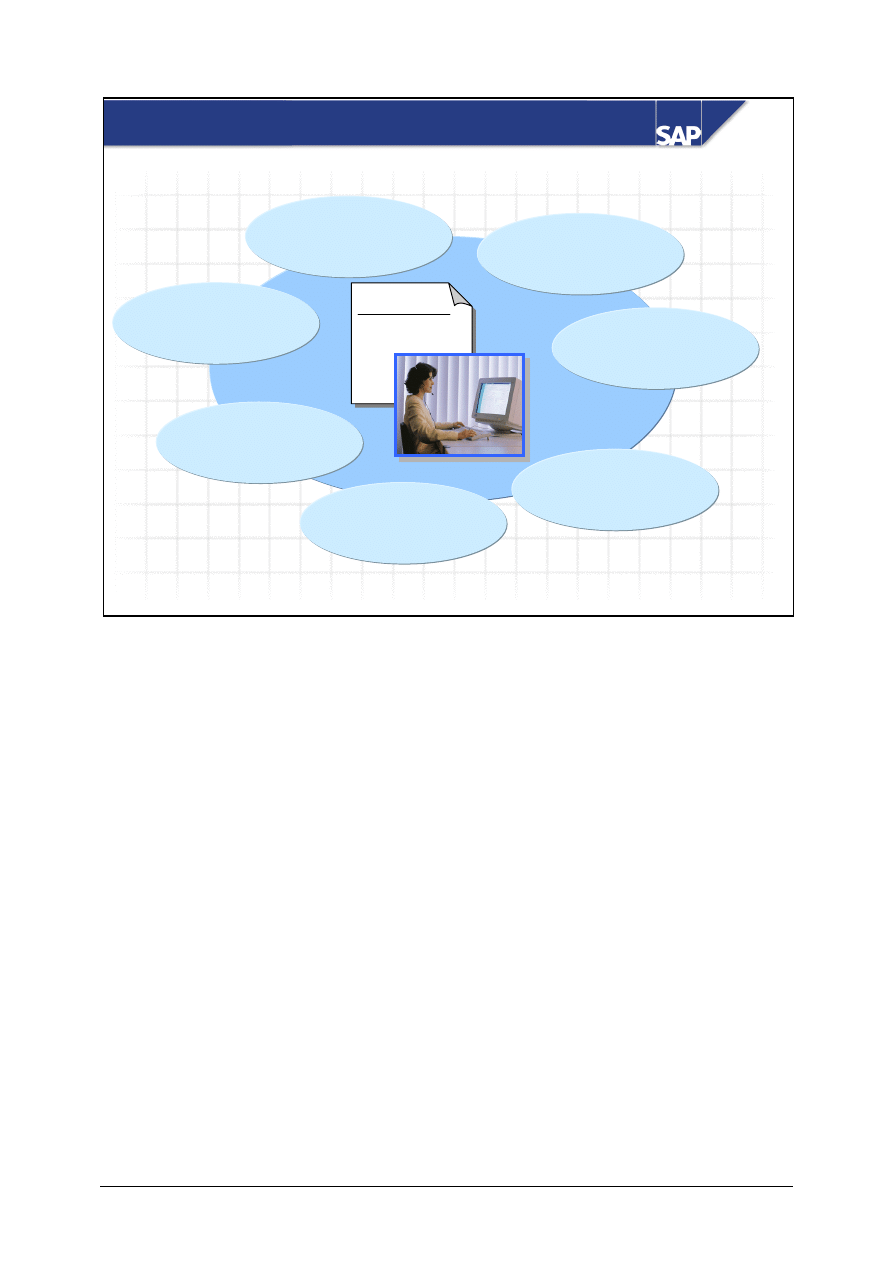
Goods-Receipt-Based Invoice Verification
9
9
9
9
Goods-receipt-based Invoice Verification must be defined in the purchase order.
When you work with goods-receipt-based Invoice Verification, each goods receipt is settled
separately.
Goods receipts and invoices are matched in the purchase order history.
When you work with goods-receipt-based Invoice Verification, it is not possible to post an invoice
before the first goods receipt.
When you work with goods-receipt-based Invoice Verification, the invoice quantity should not be
greater than the actual delivered quantity. However, it is possible to post a larger invoice amount.
You cannot “reassign” invoices from one goods receipt to another.
© SAP AG
TSCM52
4-11
SAP AG 1999
Invoice
for purchase
order
Note last setting
Communication
with vendor
Error log
Simulate
postings
Environment
information
Hold document
Search for
allocation
Other Functions
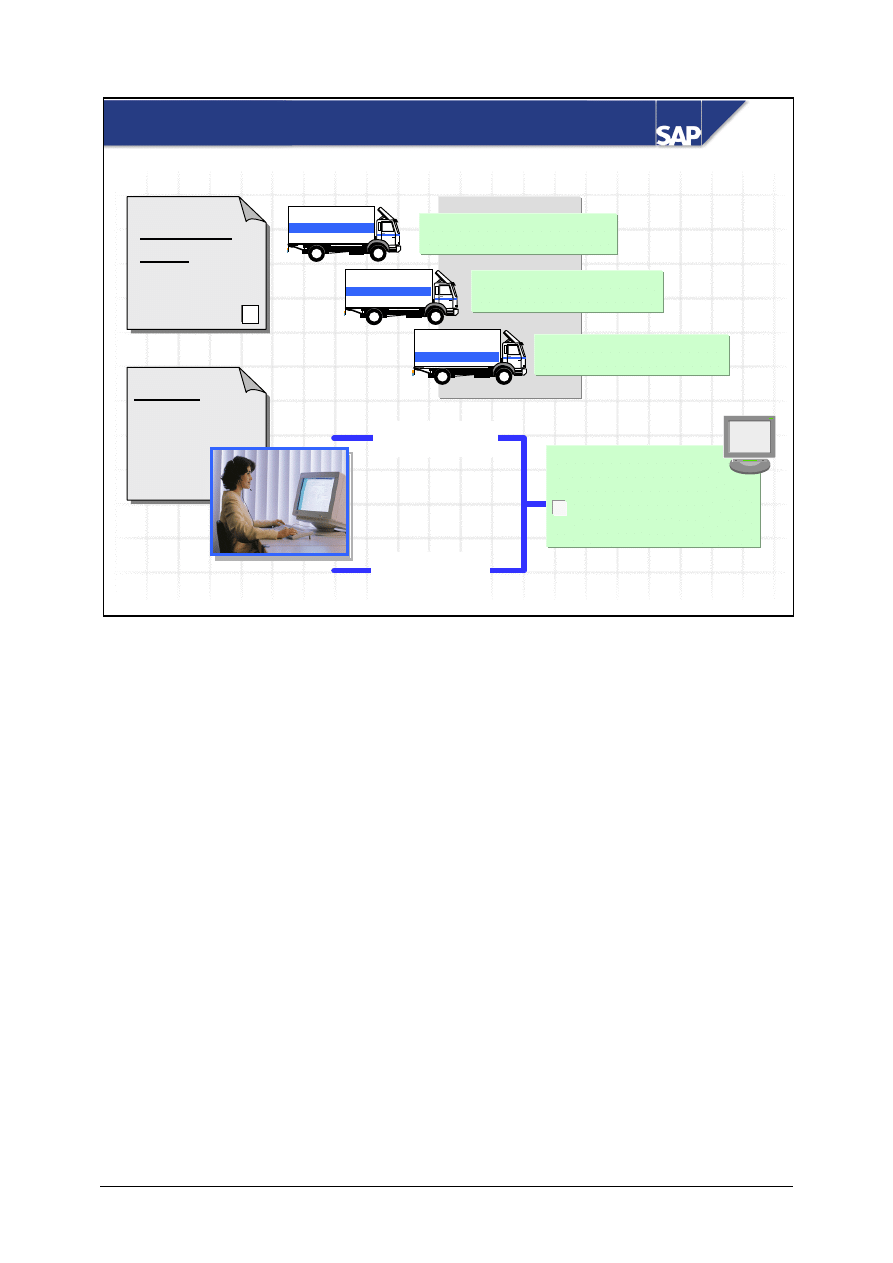
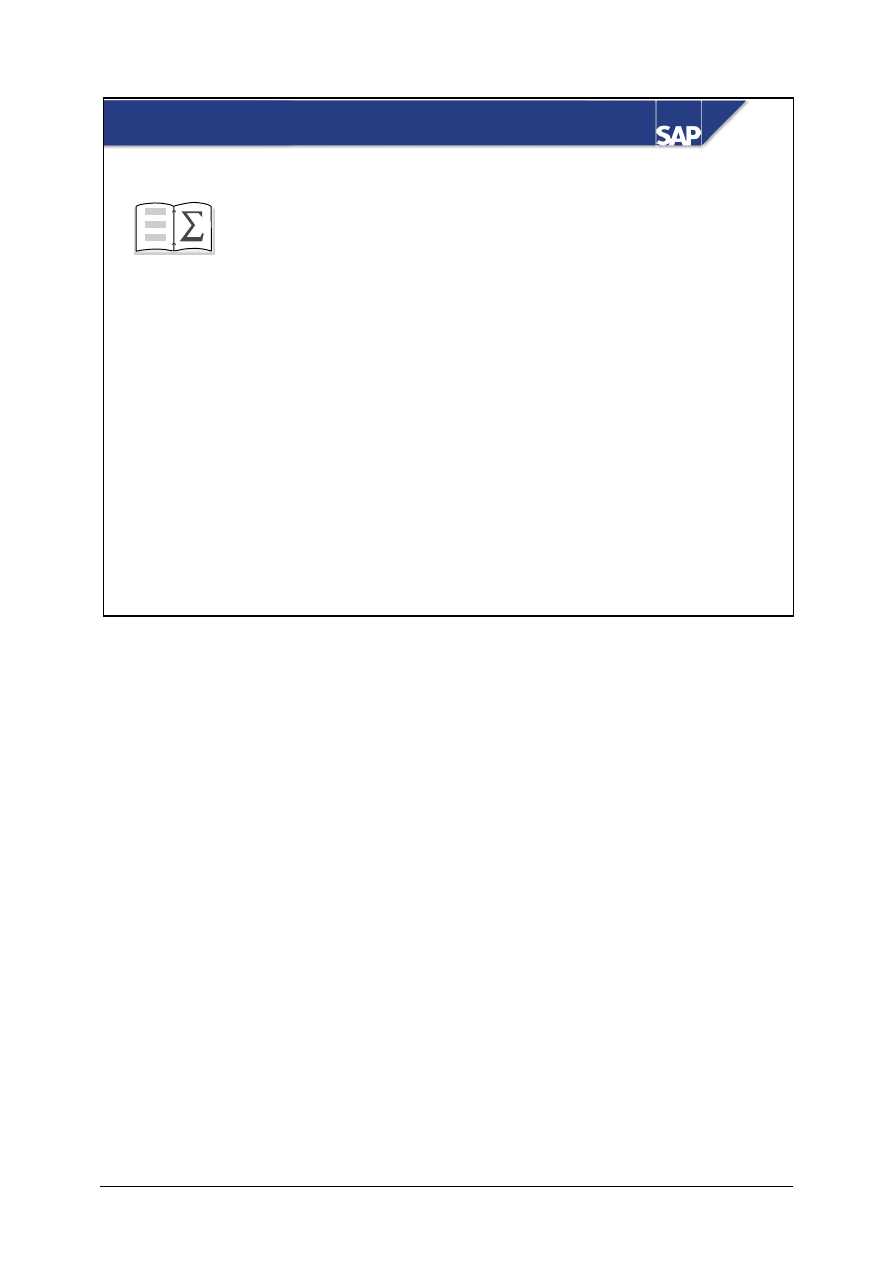
Before posting the invoice, you can simulate the postings to be made.
If the wrong reference is given in the invoice, you can search for possible matches using the F4 help
function (purchase orders by vendor and so on).
You can display various information about the environment for the current session, for example, the
purchase order history, purchase order, processors to date for the purchasing transactions, or material
data.
You can communicate directly with the vendor while entering the invoice.
You can “hold” the data entered for an invoice in a temporary MM document. You can change and
post a held document at a later time.
Error log – The R/3 System collects error messages in a log.
The R/3 System notes the last control data used and suggests them again the next time that the user
logs on. This data includes transaction, header tab page, allocation, item list display variant, and
show/hide PO structure.
© SAP AG
TSCM52
4-12
SAP AG 1999
z
Enter an invoice referencing a purchase order
z
Post a simple invoice with EnjoySAP
z
List the special features of goods-receipt-based
Invoice Verification
You are now able to:
Basic Invoice Verification Procedure: Summary
© SAP AG
TSCM52
4-13
Exercise Data Sheet
Key to Icons in Exercises and Solutions
Exercises
Solutions
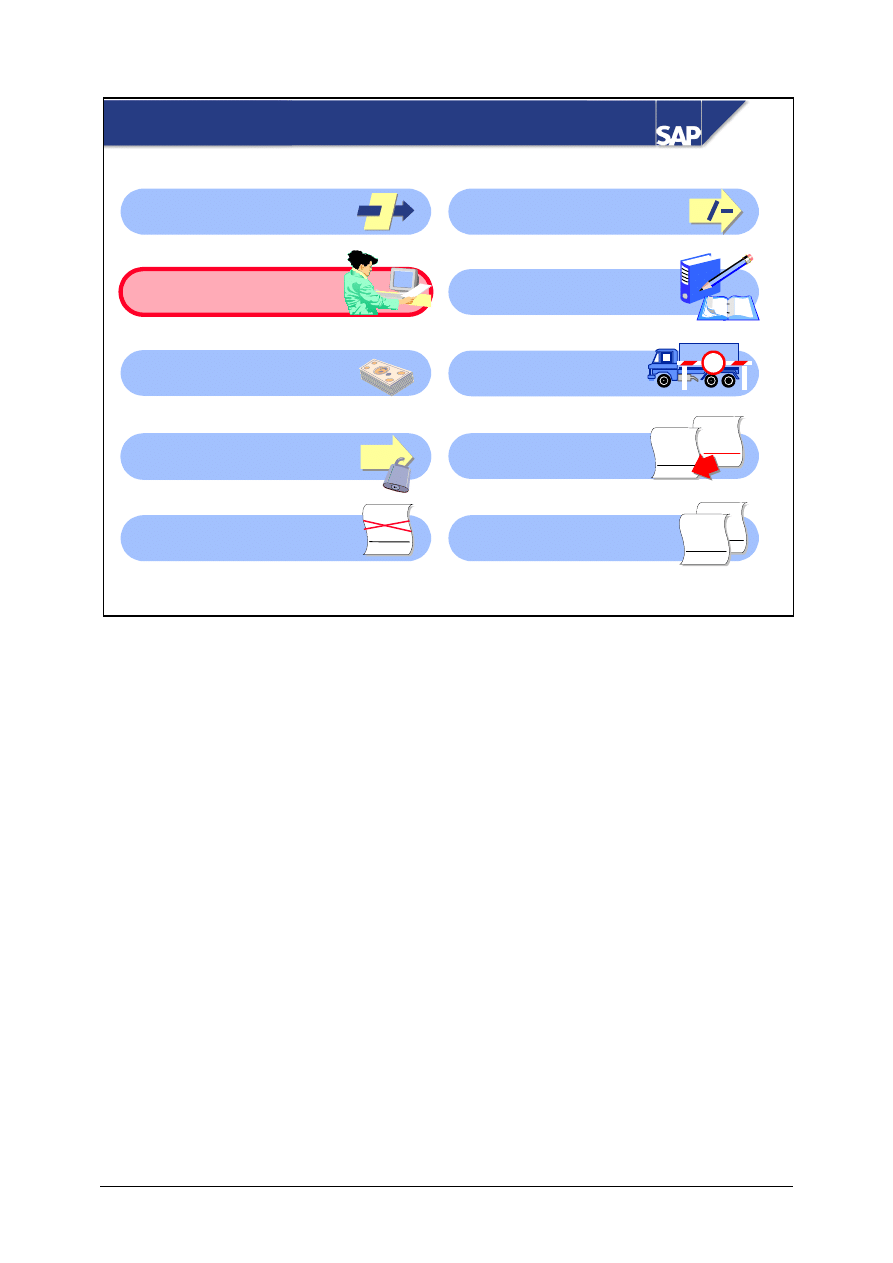
Course Objectives
Business Scenario
Hints and Tips
Warning or Caution
Data Used in Exercises
Type of Data
Data in Training System
Company code
1000
Vendor
T-L15A##
T-L15B##
T-L15C##
T-L15D##
Materials T-M15A##
T-M15B##
T-M15C##
T-M15D##
T-M15E##
Tax rate 0%
0I
Tax rate 10%
1I
Tax rate 5%
5I
G/L account
400000
GR/IR clearing account
191100
Cost center
T-L##
Currency UNI
© SAP AG
TSCM52
4-14
Type of Data
Data in Training System
Purchase orders:
41515031##
41515032##
41515033##
41515034##
41515041##
41515042##
41515043##
41515051##
41515061##
41515071##
41515081##
41515082##
41515091##
41515092##
41515093##
41515101##
41515111##
41515121##
41515131##
41515132##
41515133##
41515134##
41515141##
41515142##
41515143##
41515161##
41515162##
© SAP AG
TSCM52
4-15
Basic Invoice Verification Procedure:
Exercises
Unit: Basic Invoice Verification Procedure
At the end of this exercise, you will be able to:
• Post a simple invoice in Logistics Invoice Verification
• Compare goods-receipt-based invoice verification with
purchase-order-based invoice verification
Your company wants to learn about entering invoices in Logistics
Invoice Verification. The company also wants to decide whether
to implement goods-receipt-based invoice verification.
1-1
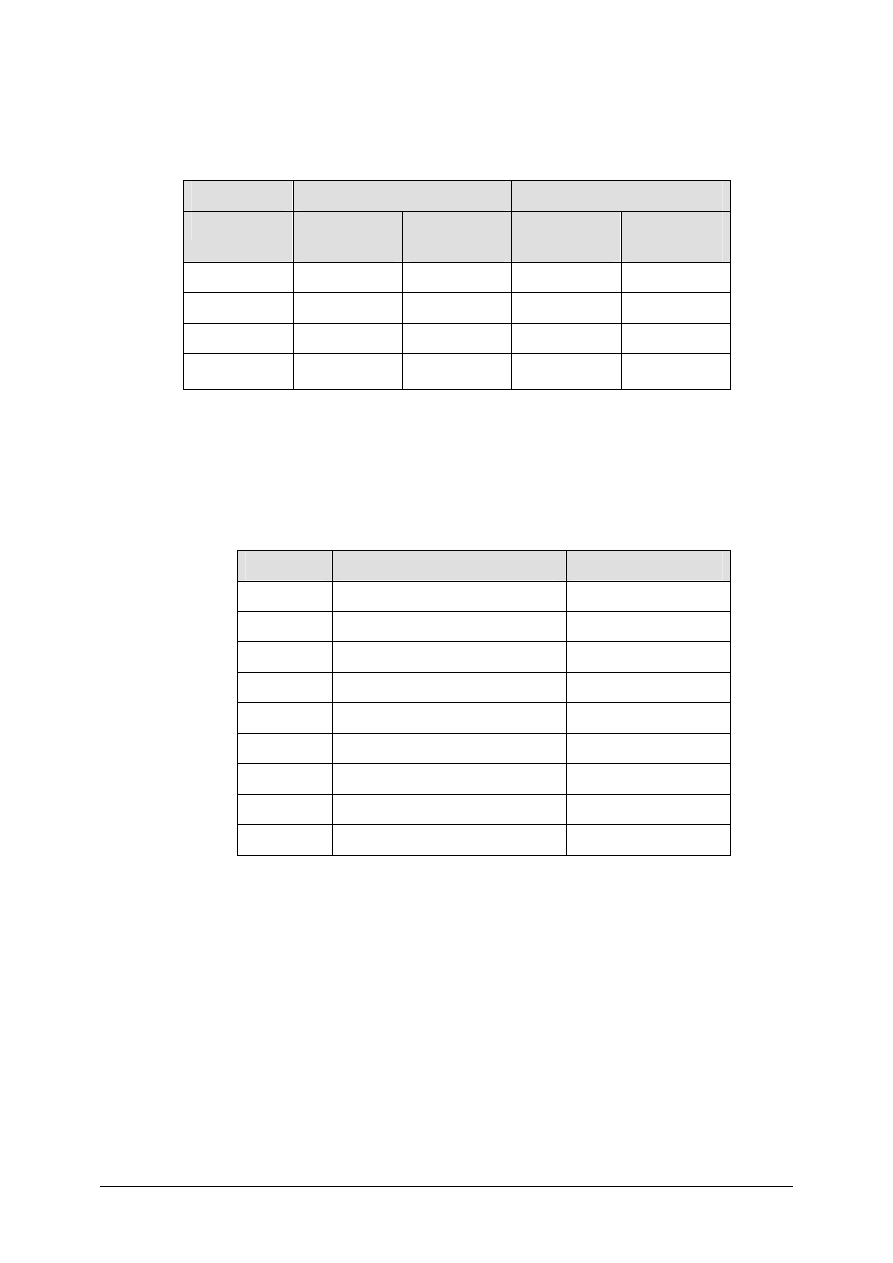
You receive an invoice from Sapsota Company Limited. Enter the invoice in
Logistics Invoice Verification.
INVOICE
Sapsota Company Limited Vendor T-L15A##
Invoice date: (today’s date)
Invoice 2003##
This invoice refers to your purchase order number 41515031##
T-M15C##
Packing gaskets
100 pcs
2000 UNI
T-M15D##
Lantern rings
50 pcs
250 UNI
Tax:
10% tax
225 UNI
Total due:
2475 UNI
1-1-1 Enter the basic data and allocate the invoice.
© SAP AG
TSCM52
4-16
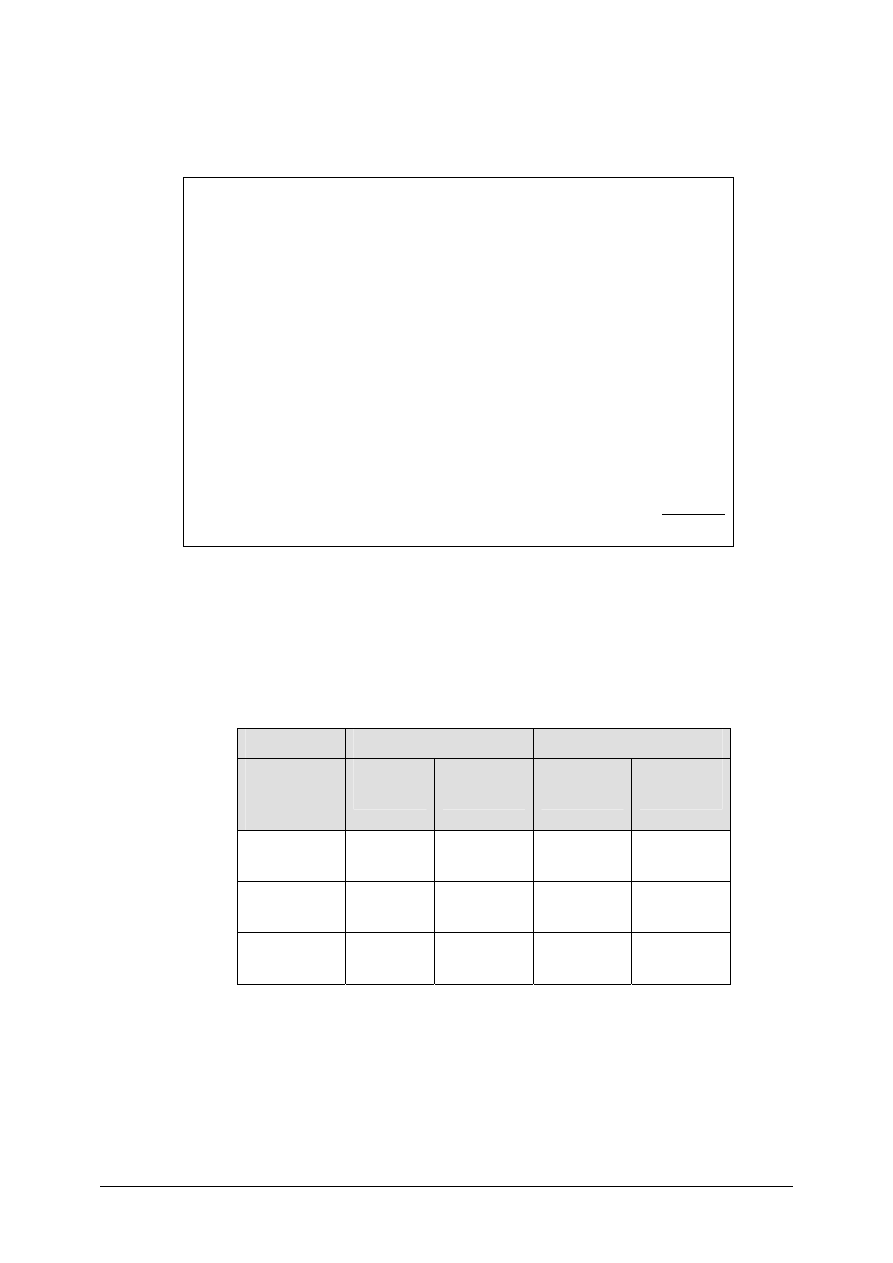
1-1-2 On the item list, the system proposes a number of items with quantities and
values. Display the PO structure to analyze the purchase order history for
the individual item. Fill in the following table.
Current invoice
Purchase order history
Order item
Proposed
amount
Proposed
quantity
GR
quantities
Invoice
quantities
10
20
30
40
1-1-3 If necessary, correct the proposed values until there are no differences.
1-1-4 Simulate the postings that will take place. Fill in the table.
Item
Account
Amount
001
002
003
004
005
006
007
008
Post the document.
Invoice number: _________________________________________
© SAP AG
TSCM52
4-17
1-2
This invoice refers to several delivery notes. You want to post it using Logistics
Invoice Verification.
INVOICE
Sapsota Company Limited Vendor T-L15A##
Invoice date: (today’s date)
Invoice 2004##
This invoice refers to your delivery notes 30R3## and 58E4##
T-M15A##
Slugs for cast iron
spiral casings
10 pcs
100 UNI
T-M15B##
Flat gaskets
20 pcs
1000 UNI
T-M15C## Packing
gaskets
20 pcs
400 UNI
Tax:
10%
tax
150
UNI
Total due:
1650 UNI
1-2-1 Enter the basic data and allocate the invoice. Choose the More allocation
criteria arrow to enter the delivery note numbers.
1-2-2 On
the
Item List, the system proposes a number of items with quantities and
values. Display the purchase order history for all items and fill in the table
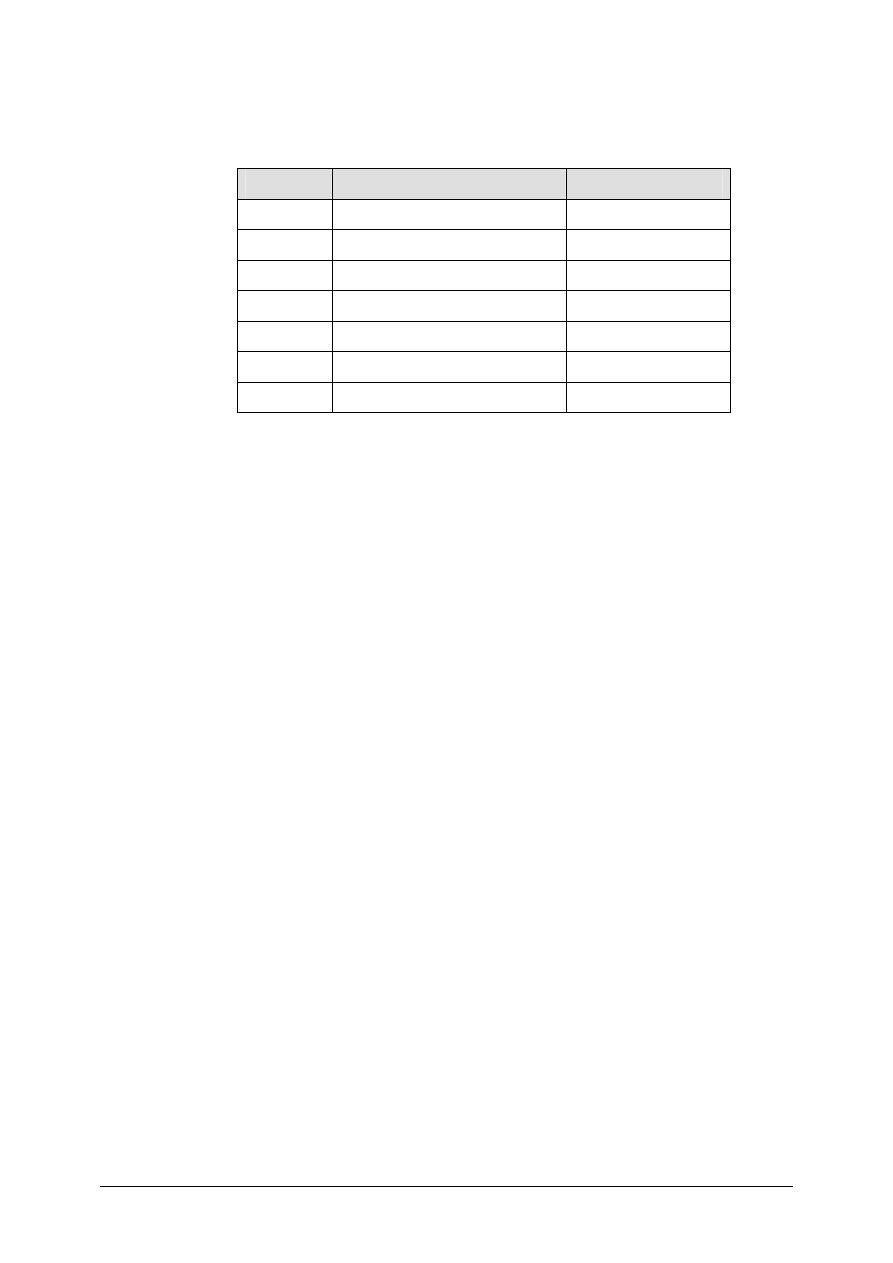
below:
Current invoice
Purchase order history
Purchase
order/PO
item
Proposed
amount
Proposed
quantity
GR
quantities
Invoice
quantities
41515032##
/10
41515032##
/20
41515033##
/10
1-2-3 Why does the system not propose all quantities received for the goods-
receipt-based invoice verification items?
______________________________________________________
______________________________________________________
© SAP AG
TSCM52
4-18
1-2-4 If necessary, correct the proposed values until there are no differences.
1-2-5 Simulate the postings that will take place. Fill in the table.
Item
Account
Amount
001
002
003
004
Post the document.
Invoice number: _________________________________________
1-2-6 Describe
the
differences between goods-receipt-based invoice verification
and purchase-order-based invoice verification.
______________________________________________________
______________________________________________________
______________________________________________________

© SAP AG
TSCM52
4-19
1-3
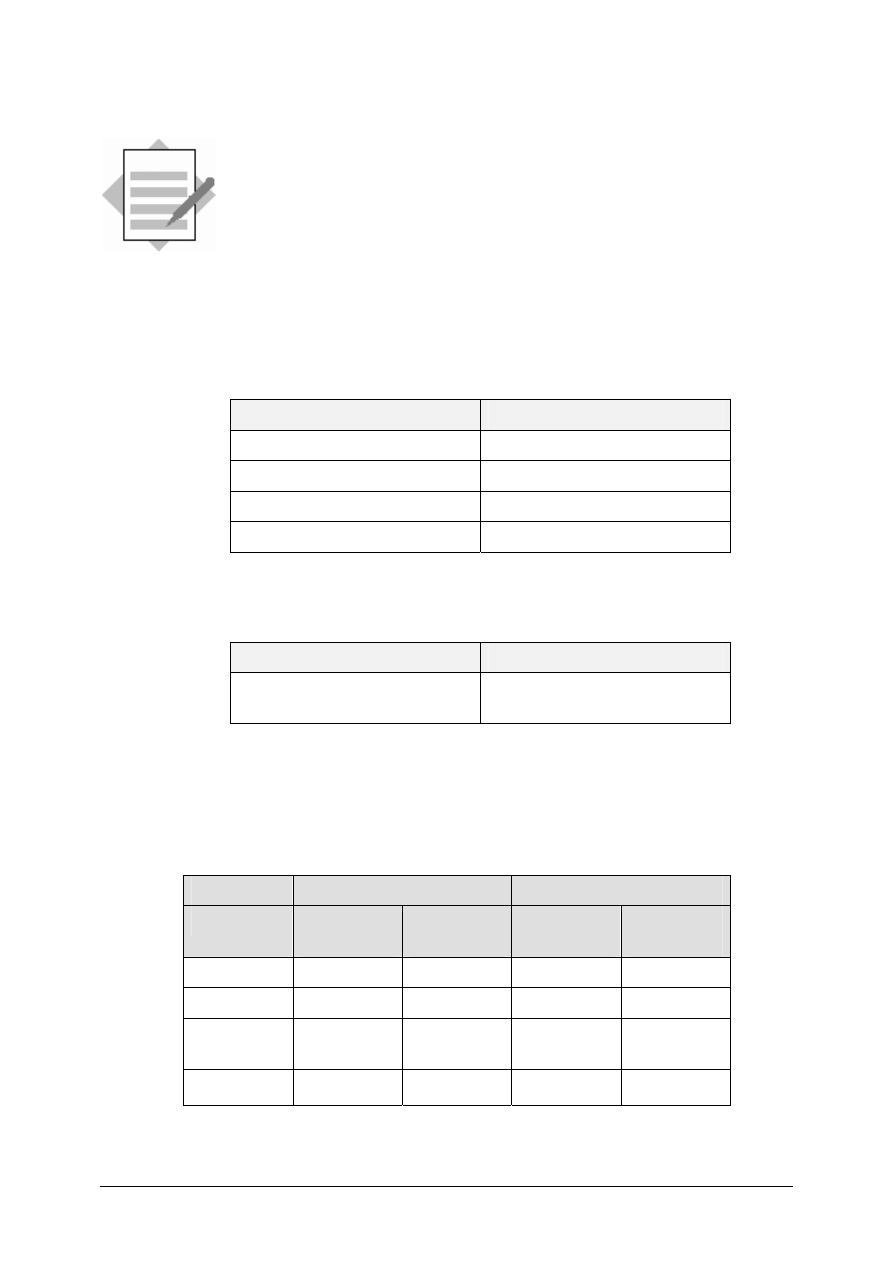
You receive the following invoice and enter it in Logistics Invoice Verification.
INVOICE
Sapsota Company Limited Vendor T-L15A##
Invoice date: (today’s date)
Invoice 3001##
This invoice refers to your purchase order number 41515034##
T-M15A##
Slugs for cast iron
spiral casings
100 pcs
900 UNI
T-M15C##
Packing gaskets
20 pcs
400 UNI
T-M15D##
Lantern rings
100 pcs
300 UNI
Tax:
10% tax
320 UNI
Total due:
19200 UNI
1-3-1 Enter the basic data and allocate the invoice.
1-3-2 On the item list, the system proposes a number of items with quantities and
values. You establish that there are obviously differences. What direct
support does the system give you to find out the reasons?
______________________________________________________
______________________________________________________
______________________________________________________
______________________________________________________
1-3-3 Since you cannot contact anyone about this invoice at the moment, you
choose Hold.
Invoice number: _________________________________________
1-3-4 What happens when you hold an invoice? How can you display a held
document? Does the system display held documents in the purchase order
history? How can you reprocess the document? Is there an accounting
document?
______________________________________________________
______________________________________________________
______________________________________________________
______________________________________________________
© SAP AG
TSCM52
4-20
Basic Invoice Verification Procedure:
Solutions
Unit: Basic Invoice Verification Procedure
1-1
Logistics
→ Materials Management → Logistics Invoice Verification →
Document Entry
→ Enter Invoice
1-1-1 You enter the following data on the Basic data tab page:
Field name or data type
Values
Document date
<today’s date>
Reference 2003##
Amount 2475
Tax amount
225
Enter the purchase order number as the allocation:
Field name or data type
Values
Purchase order/scheduling
agreement
41515031##
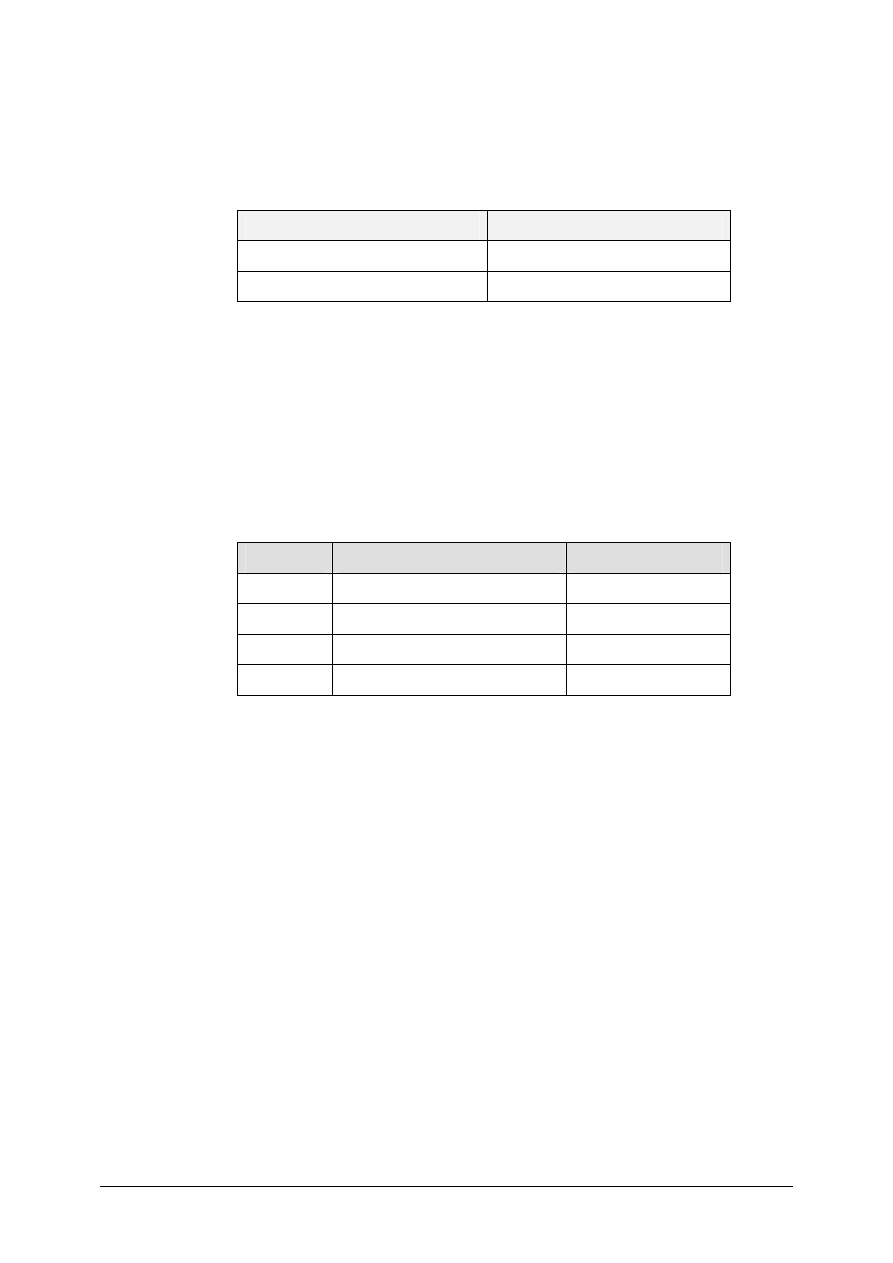
1-1-2 The R/3 System proposes the purchase order items with the quantities and
values to be invoiced. When you choose Show PO structure, you can
display the transactions that have already been posted for the purchase order
items.
Current invoice
Purchase order history
Order item
Proposed
amount
Proposed
quantity
GR
quantities
Invoice
quantities
10
1000
100
100
0
20
0
0
100
100
30
2000
100
80
+
20
0
40
0
0
0
0
© SAP AG
TSCM52
4-21
1-1-3 Since the invoice does not contain item 10, which the R/3 System has
proposed, you delete the selection of that item in the relevant selection field.
Since the invoice contains item 40, which the system has not proposed, you
enter the following data for this item:
Field name or data type
Values
Quantity 100
Amount 250
You choose Enter to confirm your changes.
The R/3 System checks the quantity for item 40. If necessary, you receive a
warning message informing you that the delivered quantity is zero. You
acknowledge this message by choosing Enter.
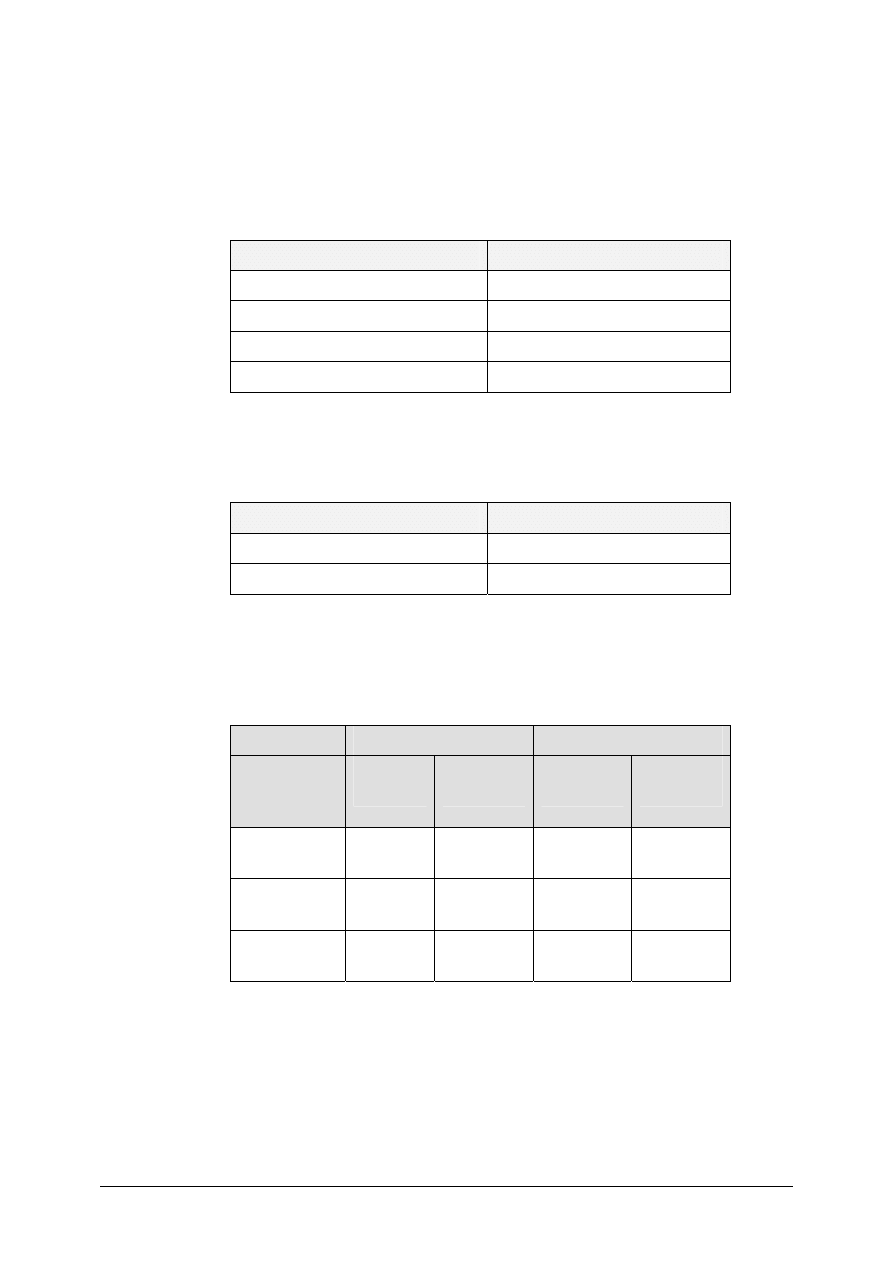
1-1-4 When you choose Simulate, a dialog box appears in which you see the
account movements that will take place when the invoice is posted.
Item
Account
Amount
001
Vendor account
2475 -
002
GR/IR clearing account
2000
003
GR/IR clearing account
250
004 Tax
account
225
You choose Post to post the document. A message appears displaying the
document number.
© SAP AG
TSCM52
4-22
1-2
Logistics
→ Materials Management → Logistics Invoice Verification →
Document Entry
→ Enter Invoice
1-2-1 You enter the following data on the Basic data tab page:
Field name or data type
Values
Document date
<today’s date>
Reference 2004##
Amount 1650
Tax amount
150
Then you change the allocation from Purchase order/scheduling agreement
to Delivery note and choose More allocation criteria.
Field name or data type
Values
Delivery note
30R3##
Delivery note
58E4##
1-2-2 The system proposes the purchase order items with the quantities and values
to be invoiced. When you choose Show PO structure, you can display the
transactions that have already been posted for the purchase order items.
Current invoice
Purchase order history
Purchase
order/PO
item
Proposed
amount
Proposed
quantity
GR
quantities
Invoice
quantities
41515032##/
10
100
10
20 + 10
0
41515032##/
20
1000
20
20 + 20
0
41515033##/
10
1400
70
20 + 50
0
© SAP AG
TSCM52
4-23
1-2-3 Since goods-receipt-based invoice verification is defined for both items of
purchase order 41515032## and you have entered the delivery note numbers
as the allocation, the system does not propose other goods receipts for these
items.
Since goods-receipt-based invoice verification is not defined for purchase
order 41515033##, the system proposes the total of all goods receipts.
1-2-4 You change the proposed values in purchase order 41515033##.
Field name or data type
Values
Quantity 20
Amount 400
You choose Enter to confirm your changes.
1-2-5 When you choose Simulate, a dialog box appears in which you see the
account movements that will take place when the invoice is posted.
Item
Account
Amount
001
Vendor account
1650 -
002
GR/IR clearing account
100
003
GR/IR clearing account
1000
004
GR/IR clearing account
400
005 Tax
account
150
You choose Post to post the document. A message appears displaying the
document number.
1-2-6 The differences between goods-receipt-based invoice verification and
purchase-order-based invoice verification:
In goods-receipt-based invoice verification, there is a clear allocation of
invoice items to individual deliveries.
In goods-receipt-based invoice verification, it is not possible to enter an
invoice before the first goods receipt.
© SAP AG
TSCM52
4-24
1-3
Logistics
→ Materials Management → Logistics Invoice Verification →
Document Entry
→ Enter Invoice
1-3-1 You enter the following data on the Basic data tab page:
Field name or data type
Values
Document date
<today’s date>
Reference 3001##
Amount 3520
Tax amount
320
Enter the purchase order number as the allocation:
Field name or data type
Values
Purchase order/scheduling
agreement
41515034##
1-3-2 The following functions are available for analyzing the variances:
Display the purchase order history by choosing Show PO structure
Display the purchase order by double-clicking the purchase order number
Display the internal contacts on the Contacts tab page
Contact the vendor
1-3-3 When you choose Hold, the system saves a document containing the data
entered so far. A message appears displaying the document number.
1-3-4 When you hold a document, the system creates an MM document in which
the data entered is saved.
The system does not display held documents in the purchase order history.
You can display and continue processing a held document by choosing
Logistics
→ Materials Management → Logistics Invoice
Verification
→ Further Processing → Invoice Overview.
There is no accounting document for a held document.

© SAP AG
TSCM52
5-1
SAP AG 1999
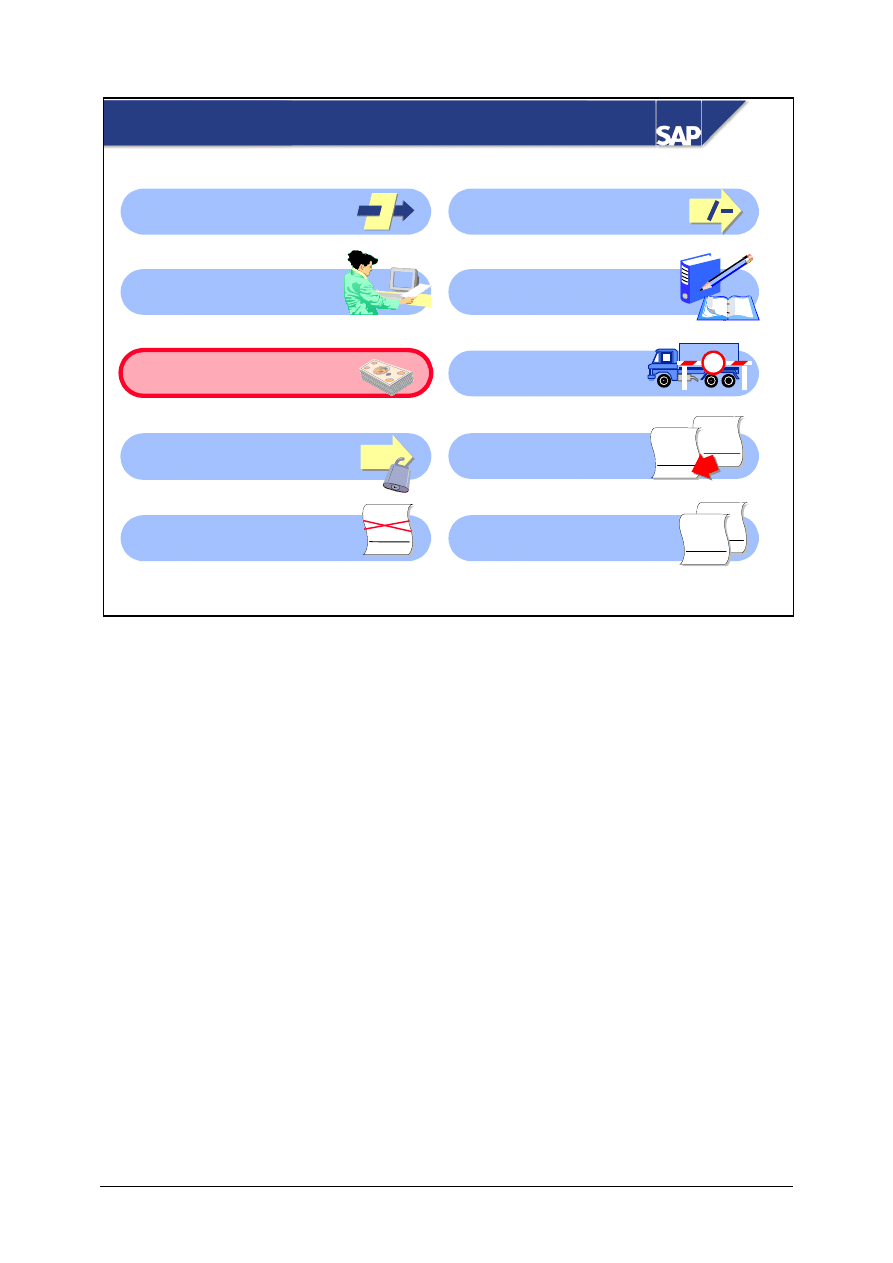
Taxes, Cash Discounts, and Foreign Currency
z
Enter and Post Taxes
z
Enter and Post Cash Discounts
z
Invoices in a Foreign Currency
Contents:

© SAP AG
TSCM52
5-2
SAP AG 1999
z
Enter or change tax information
z
Enter or change cash discount information
z
Post both gross or net of cash discounts
z
Enter invoices in a foreign currency
At the conclusion of this unit, you will be able to:
Taxes, Cash Discounts, and Foreign Currency
© SAP AG
TSCM52
5-3
SAP AG 1999
Taxes, Cash Discounts, and Foreign Currency:
Course Overview Diagram
Variances Without
Reference to an Item
Basic Invoice Verification
Procedure
Taxes, Cash Discounts,
and Foreign Currency
Variances and
Blocking Reasons
Invoice Reduction
Introduction to
Invoice Verification
Invoices for POs with
Account Assignment
Delivery Costs
Subsequent
Debits/Credits
Invoices Without
Reference to POs
§
%
WWW
+ XXXX
+ YYY
= ZZZZ
+
Customs
WW
+ XX
= ZZ
WWW
+ XXXX
= ZZZZ
WWW
+ XXXX
+ YYY
= ZZZZ
WWW
+ XXXX
+ YYY
= ZZZZ

© SAP AG
TSCM52
5-4
SAP AG 1999
z
Most of the invoices received by your company are
taxable. You need to verify that taxes can be
entered for VAT amounts or according to a
different tax procedure.
z
The invoices contain different terms of payment.
z
Occasionally, the invoice currency varies from the
purchase order currency.
Taxes, Cash Discounts, and Foreign Currency:
Business Scenario
© SAP AG
TSCM52
5-5
SAP AG 1999
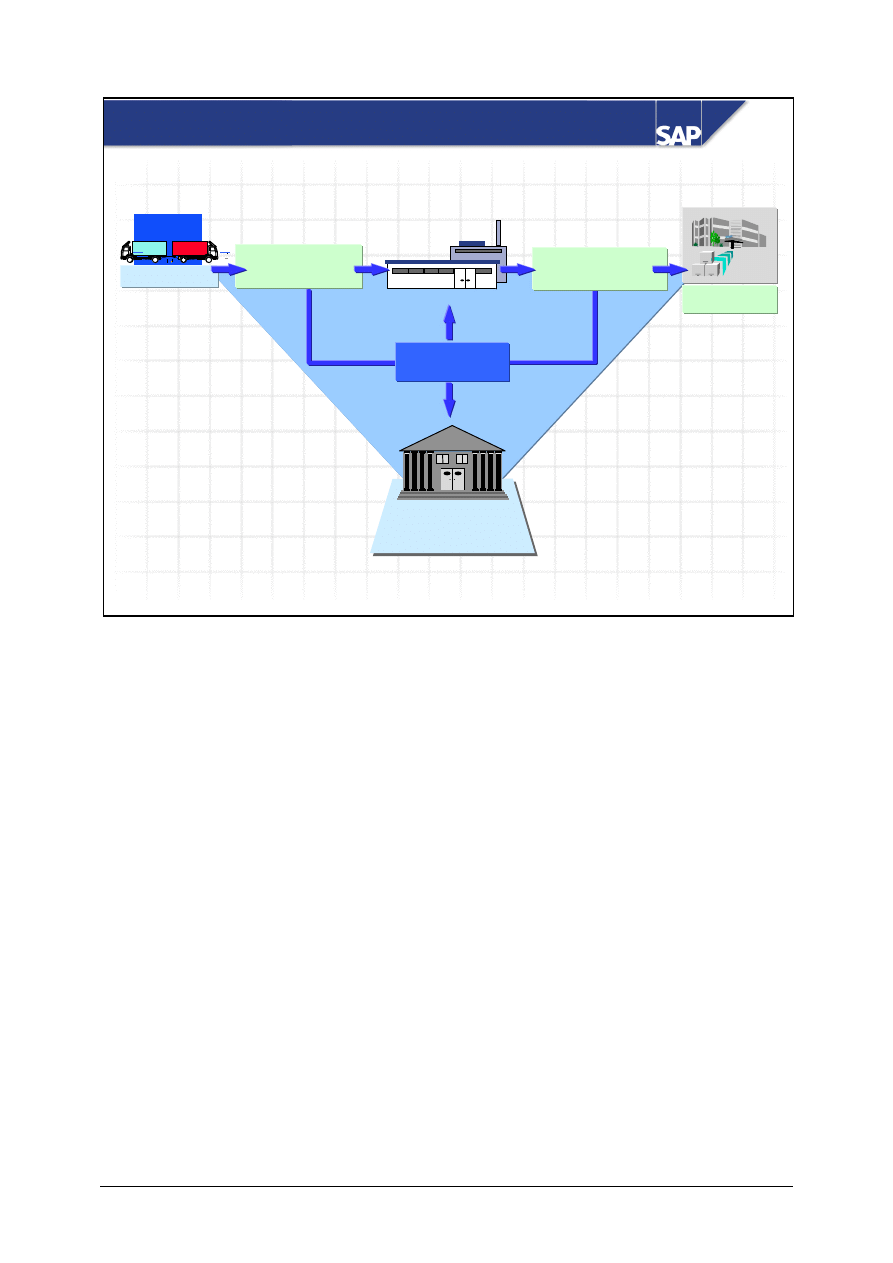
Tax authorities
A
A A
Customer
Vendor
Material value
+ Input tax
Material value
+ Output tax
Tax payable
Tax payable
Company
Sales Tax
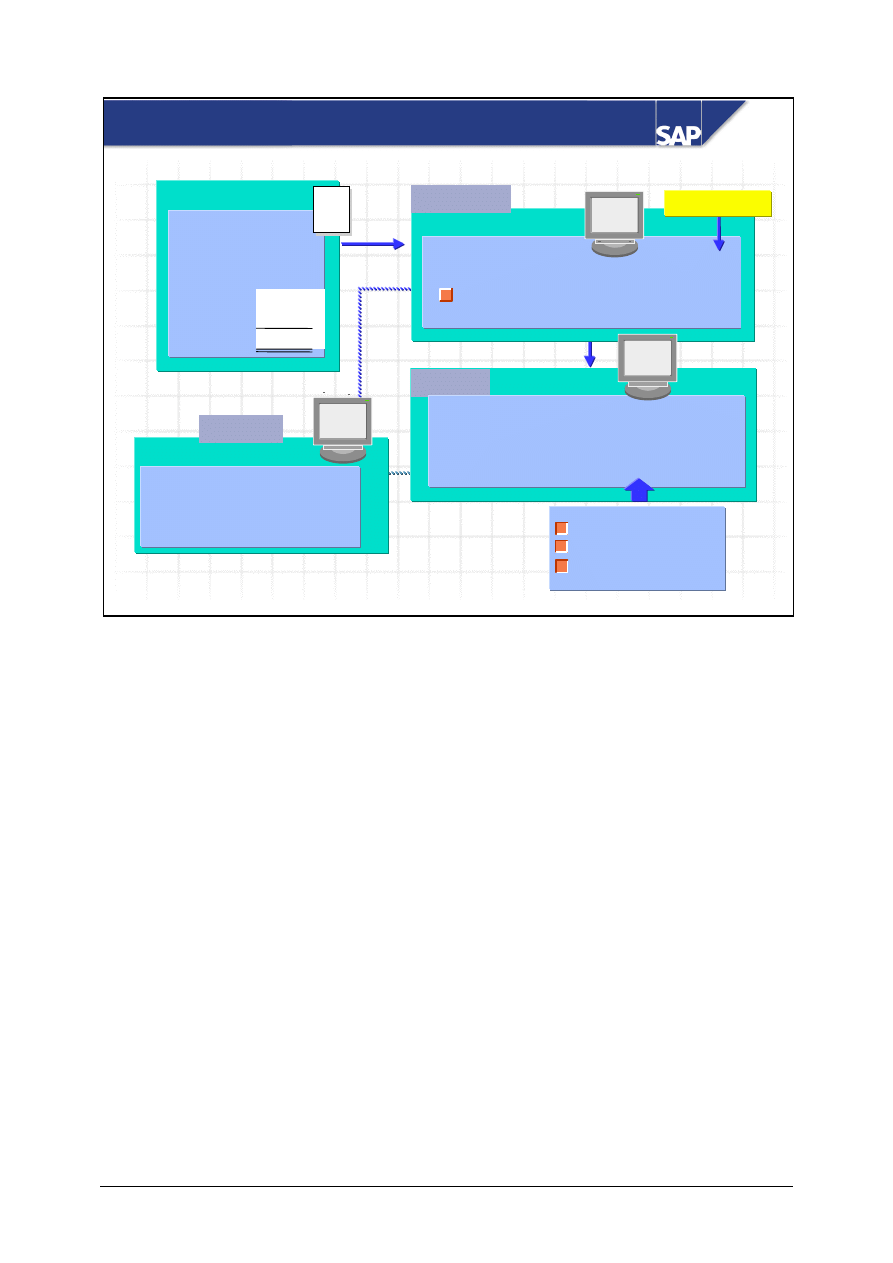
The value added to goods results from the difference between the purchase price and the sales price.
An example of value-added tax, more commonly referred to in the USA as sales tax, would be the
amount the State adds on top of the sales price.
Sales tax can be divided into input tax and output tax.
The difference between output tax and input tax is the tax payable, which must be paid to the tax
authorities.
© SAP AG
TSCM52
5-6
SAP AG 1999
Entering Tax Data
Invoice
Material A
1000
Material B
2000
Material C
4000
5% tax
150
10% tax
400
7750
Basic data
Amount
7550
Tax amount
400
Tax code 1I
Calculate tax
Tax data
Tax
Tax
Base
amount code
amount
400
1I
4000
150
5I
3000
Purchase order item
G/L account
Last used tax code
Customizing
Item list
Material
Amount
Tax code
A
1000
5I
B
2000
5I
C
4000
1I
Tax data
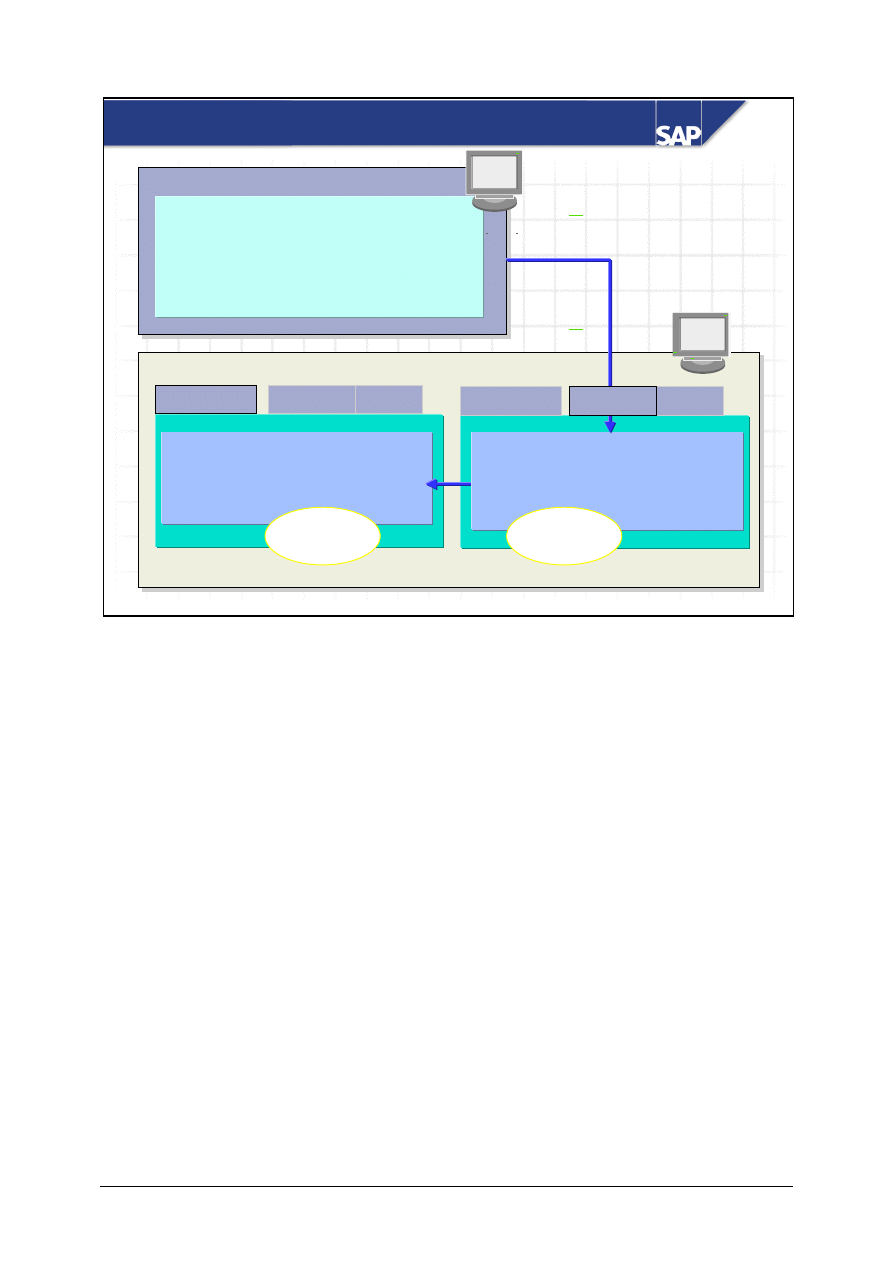
A tax code is defined for each tax rate in Customizing for Financial Accounting. This tax code
defines how the R/3 System calculates the tax and how it is to post the tax.
You enter the tax rates and tax amounts specified in the invoice in the header screen area when you
enter the invoice. If the tax amounts are not specified in the invoice, you select Calculate tax. The
R/3 System then calculates the tax amounts.
Each tax-relevant item is allocated a tax code. The R/3 System reads the relevant tax code for each
item from the purchase order or from the account to be posted to. If it cannot determine a tax code
for an item, the R/3 System uses the one that was last used.
The item tax codes are displayed in the item list and can be changed there, if necessary.
The R/3 System calculates the tax base for each tax code from the amounts and tax codes of the
individual items.
It verifies the tax data when you simulate or post an invoice. You can make corrections and changes
on the tab page Taxes.
© SAP AG
TSCM52
5-7
SAP AG 1999
Payment
Terms of Payment
Purchase order header
TERMS OF DELIVERY AND PAYMENT
Terms of payment 0003
Payment in
10 days 3%
Payment in
20 days 2%
Payment in
30 days net
Purchase order
Purchase order
Invoice
Invoice
Basic data
Amount
Tax amount
Tax code
Terms of payt
10 days 3%, 20 days 2%,
30 net
Display
Baseline date _______
Cash discount amount ______
Terms of payt 0003 10 days 3%
20 days 2%
30 days net
Change
Details
Basic data
Details
Payment
Payment
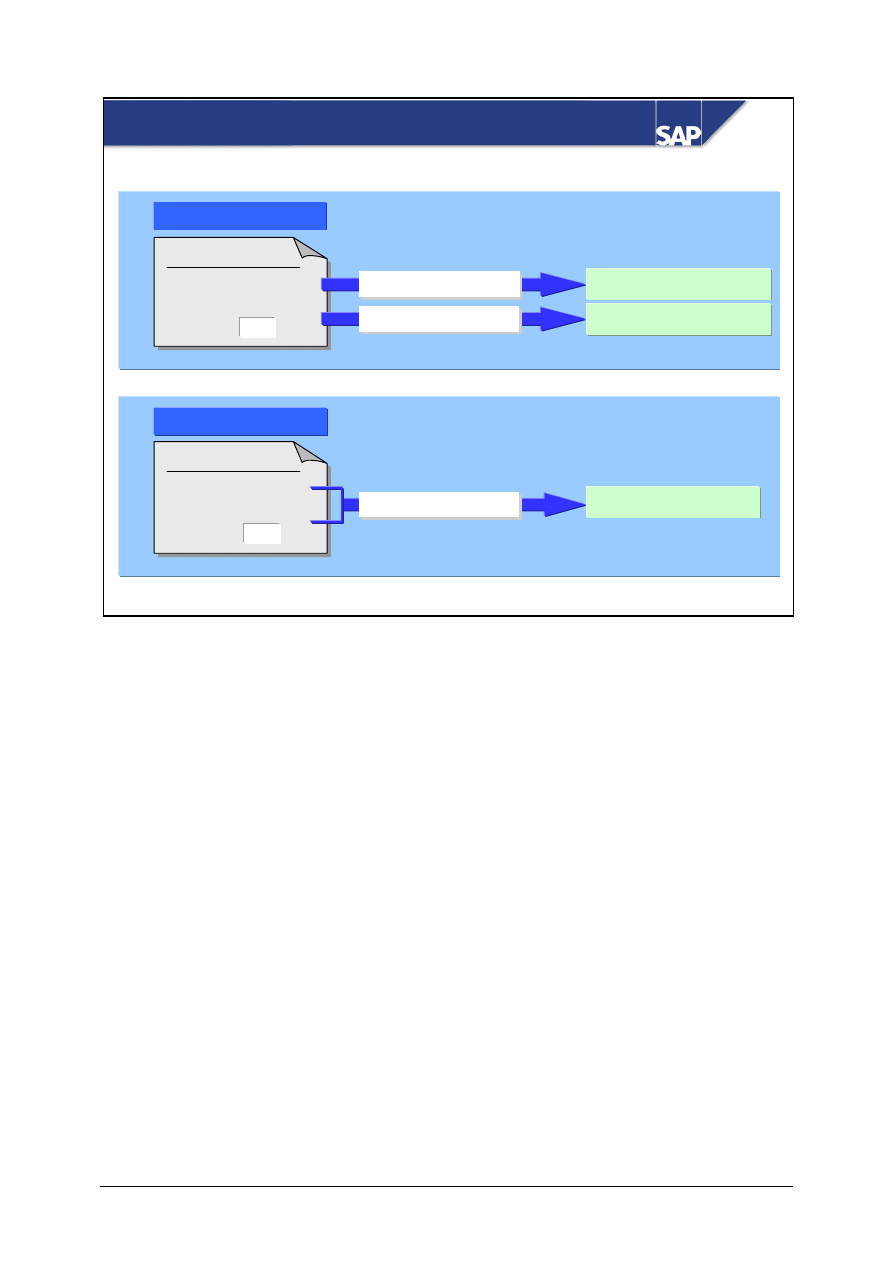
The system contains keys that represent terms of payment, for example:
y
ZB01
within 14 days: 5% cash discount
within 21 days: 3% cash discount
within 40 days: no deduction
When you enter an invoice, the system suggests the terms of payment in the purchase order. You can
change these default values.
In Invoice Verification, you can enter terms of payment or a fixed cash discount amount.
You can define installment conditions in Customizing for Financial Accounting. If you enter an
installment condition in Invoice Verification, the system creates a separate vendor line in the
accounting document for each installment at the time of posting.
© SAP AG
TSCM52
5-8
SAP AG 1999
Post invoice
Post invoice
Material/costs
Payment program
Payment program
Non-operating result
Posting gross
Posting gross
Posting net
Posting net
Post invoice
Post invoice
Material/costs
Invoice
Total
100
% disc. 3
Invoice
Total
100
% disc. 3
Posting Gross/Net
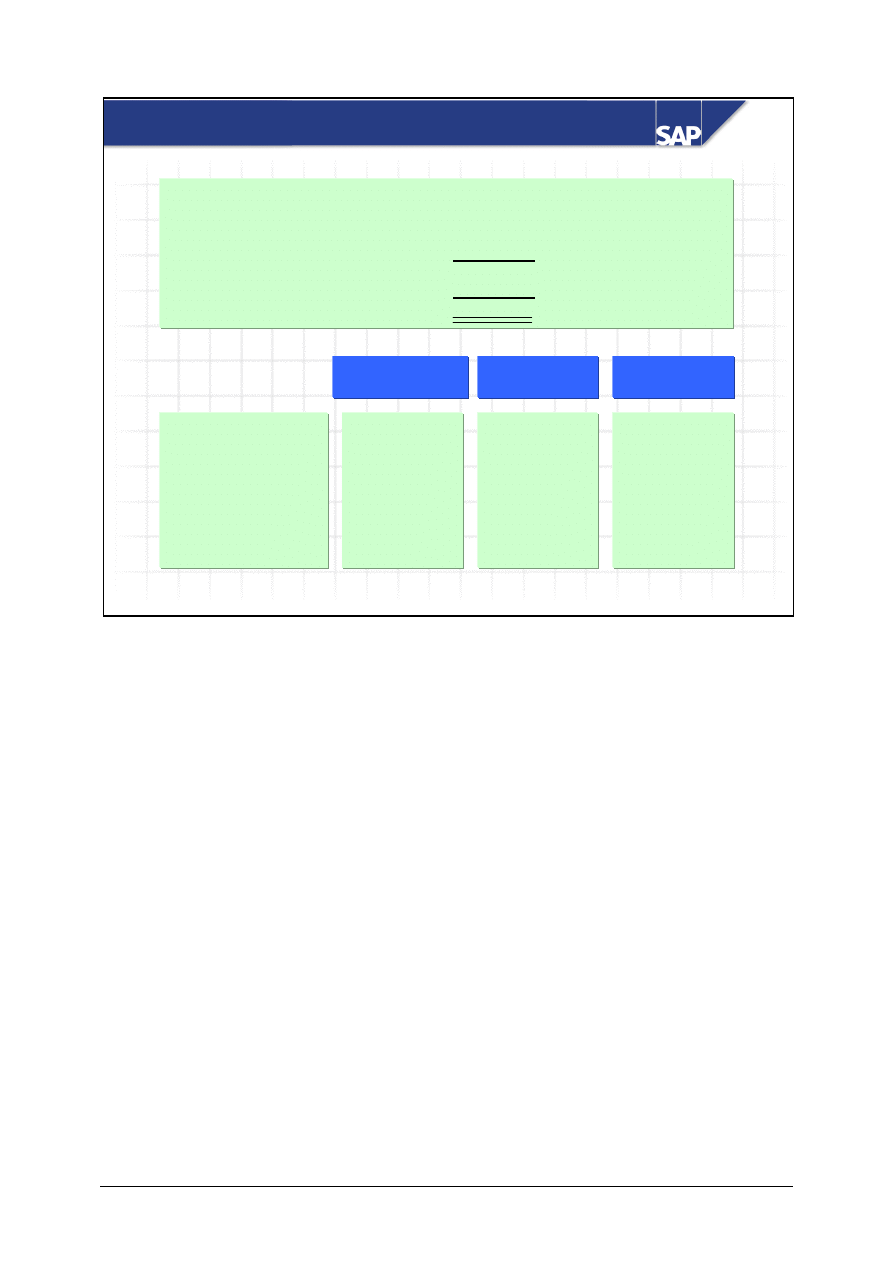
There are two ways of posting the cash discount amount:
Gross
y
If you post the gross amount of an invoice, the R/3 System ignores the cash discount amount when
you enter the invoice; it posts the cash discount amount to a “cash discount” account at the time of
payment. Therefore, the cash discount amount is not credited to the stock or cost account.
Net
y
If you post the net amount of an invoice, the R/3 System posts the cash discount amount from a
cash discount clearing account to the stock or cost account. The cash discount clearing account is
cleared at the time of payment.
Whether an invoice is posted gross or net depends on the document type.
You define the document types in Customizing for Invoice Verification. For each document type,
you indicate whether postings should be made gross or net. You also set the type of document that
the R/3 System suggests when an invoice is entered.
When you are entering invoices, you can change the document type on the tab page Extras.
© SAP AG
TSCM52
5-9
SAP AG 1999
Purchase order: 5 pcs at 20.00 UNI/pc.
Goods receipt for this purchase order: 5 pcs
Invoice: 5 pcs at 20.00 UNI/pc.
= 100.00 UNI
10% tax
= 10.00 UNI
= 110.00 UNI
less 5% cash discount
= 5.50 UNI
104.50 UNI
Stock account
GR/IR account
Vendor account
Input tax
Bank
Non-operating result
110 +
0.50 -
104.50 -
5 -
100 +
110 -
10 +
100 +
100 -
Goods receipt
Goods receipt
Invoice
Invoice
FI payment
FI payment
Account Movements: Gross Posting
The R/3 System ignores the cash discount amount when posting the invoice.
The cash discount amount is posted at the time of payment:
y
The cash discount amount for the net invoice value is posted as a non-operating result.
y
A cash discount difference is created as a result of the input tax. The R/3 System therefore corrects
the input tax posted, so that the tax amount is the tax on the net value of the invoice.
© SAP AG
TSCM52
5-10
SAP AG 1999
Purchase order: 5 pcs at 20.00 UNI/pc.
Goods receipt for this purchase order: 5 pcs
Invoice: 5 pcs at 20.00 UNI/pc.
= 100.00 UNI
10% tax
= 10.00 UNI
= 110.00 UNI
less 5% cash discount = 5.50 UNI
104.50 UNI
Stock account
GR/IR account
Vendor account
Input tax
Bank
Cash discount
clearing account
5 -
100 +
110 -
10 +
5 +
100 +
100 -
110 +
0.50 -
104.50 -
5 -
Goods receipt
Goods receipt
Invoice
Invoice
FI payment
FI payment
Account Movements: Net Posting
The cash discount amount is already taken into account when the invoice is posted.
The cash discount amount is posted to a cash discount clearing account. This is cleared at the time of
payment.
The offsetting entry for the posting to the cash discount clearing account is made to the stock
account, except in the following cases:
y
If the material is subject to standard price control, the R/3 System posts the difference to a price
difference account.
y
If the material is subject to moving average price control and there is insufficient stock coverage,
the R/3 System posts to the stock account only the amount for which stock coverage is available. It
posts the remainder to a price difference account.
© SAP AG
TSCM52
5-11
SAP AG 1999
Invoices in a Foreign Currency
Purchase order
10 pcs at $63/pc.
Ex. rate M2
Fixed ex. rate
X
Conversion using current ex. rate
Conversion using PO ex. rate
Invoice
10 pcs
at $63/pc.
= $630
Local currency
M2
10 pcs
315 UNI
315 UNI
M1.8
350 UNI
300 UNI
M2.1
UNI
PO currency
$
Exchange rate differences
Invoice
10 pcs
at $63/pc.
= $630
10 pcs
PO ex. rate
Current ex. rate
Current ex. rate
or
entered ex. rate
In the case of a purchase order in a foreign currency, you can use a fixed exchange rate. If this is the
case, the R/3 System uses this exchange rate to convert the foreign currency to the local currency at
goods receipt and at invoice receipt.
If the exchange rate is not fixed in the purchase order, the R/3 System uses the current exchange rate
to convert the foreign currency to the local currency at goods receipt. In Invoice Verification, it also
suggests the current exchange rate, but you can change it.
If the exchange rate is not fixed in the purchase order, exchange rate differences can occur as a result
of using different exchange rates. Exchange rate differences are actually the same as price
differences. The way that the R/3 System posts exchange rate differences depends on the settings in
Customizing for Invoice Verification.
© SAP AG
TSCM52
5-12
SAP AG 1999
z
Enter or change tax information
z
Enter or change cash discount information
z
Post both gross or net of cash discounts
z
Enter invoices in a foreign currency
You are now able to:
Taxes, Cash Discounts, and Foreign Currency:
Summary
© SAP AG
TSCM52
5-13
Taxes, Cash Discounts, and Foreign Currency
:
Exercises
Unit: Taxes, Cash Discounts, and Foreign Currency
At the end of this exercise, you will be able to:
• Enter and change tax data
• Enter and change cash discount information
• Post gross or net of cash discounts
• Post an invoice in foreign currency
There are several factors that affect the total amount of an invoice.
Your company must follow local tax regulations. You often have
to enter tax codes if they were not entered in the purchase order.
Your company would like to deduct cash discounts whenever
possible. You can enter or change the vendor early-payment
discount.
1 -1
You receive an invoice containing several tax rates.
INVOICE
Sapsota Company Limited Vendor T-L15A##
Invoice date:
(today’s date)
Invoice 4001##
This invoice refers to your purchase order number 41515041##
T-M15A##
Slugs for cast iron
spiral casings
100 pcs
1000 UNI
T-M15B##
Flat gaskets
20 pcs
1000 UNI
T-M15C## Packing
gaskets
150 pcs
3000 UNI
5000
UNI
Tax:
10% Tax items
1, 3
400 UNI
Tax:
5% Tax items 2, 3
50 UNI
Total due:
5450 UNI
© SAP AG
TSCM52
5-14
1-1-1 Enter this invoice in Logistics Invoice Verification.
1-1-2 Did the system propose tax codes for the invoice?
______________________________________________
________
1-1-3 Display the purchase order. Were tax codes defined for each item?
______________________________________________________
1-1-4 If required, correct the tax rates on the item list.
1-1-5 Simulate the postings that will take place.
OPTIONAL: Fill in the table.
Item
Account
Amount
001
002
003
004
005
006
Post the document.
Invoice number: _________________________________________

© SAP AG
TSCM52
5-15
1-2
This invoice arrived with different payment terms than usual for the supplier. You
would like to post the document net to take advantage of the discount immediately.
INVOICE
Sapsota Company Limited Vendor T-L15A##
Invoice date: (today’s date)
Invoice 4002##
This invoice refers to your purchase order number 41515042##
T-M15A##
Slugs for cast iron
spiral casings
20 pcs
200 UNI
T-M15B##
Flat gaskets
30 pcs
1500 UNI
T-M15E##
HD brake system
10 pcs
600 UNI
2300
UNI
Tax:
10% tax
230 UNI
Total due:
2530 UNI
Payable within 10 days with 3% cash discount, payable within 15 days
with 2% cash discount, payable net within 60 days
1-2-1 Enter this invoice net in Logistics Invoice Verification. Check the default
document type and change it to Net invoice receipt, if necessary.
1-2-2 Check the terms of payment and change them, if necessary.
1-2-3 Before you simulate the postings, answer the following questions: How does
the system post the cash discounts? Does the valuation of the material affect
the postings?
______________________________________________________
______________________________________________________
1-2-4 Which discount percentage does the system use in the calculation?
______________________________________________________
© SAP AG
TSCM52
5-16
1-2-5
Simulate the postings that will take place.
OPTIONAL: Fill in the table.
Item
Account
Amount
001
002
003
004
005
006
007
008
009
Post the document.
Invoice number: _________________________________________
© SAP AG
TSCM52
5-17
1-3
This invoice refers to a purchase order in foreign currency. You want to post the
document gross.
INVOICE
ECD, Forster City
Vendor T-L15D##
Invoice date: (today’s date)
Invoice 4003##
This invoice refers to your purchase order number 41515043##
T-M15A##
Slugs for cast iron
spiral casings
20 pcs
120 USD
T-M15B##
Flat gaskets
10 pcs
200 USD
320
USD
Tax: not subject to tax
1-3-1 Enter this invoice in Logistics Invoice Verification. Leave the field
Currency blank to start with. Which currency does the system propose once
you have allocated the invoice?
______________________________________________________
1-3-2 Which exchange rate is specified in the purchase order? Check if the goods
receipt was posted using this exchange rate.
______________________________________________________
1-3-3 Can you change the exchange rate in Invoice Verification?
______________________________________________________
1-3-4 Simulate the document. Display the document simulation in the local
currency and the document currency.
Item
Account
Amount in
UNI
Document
currency
001
002
003
004
005
Post the document.
Invoice number: _________________________________________
© SAP AG
TSCM52
5-18
Taxes, Cash Discounts, and Foreign Currency:
Solutions
Unit: Taxes, Cash Discounts, and Foreign Currency
1-1
Logistics
→ Materials Management → Logistics Invoice Verification →
Document Entry
→ Enter Invoice
1-1-1 You enter the following data on the Basic data tab page:
Field name or data type
Values
Document date
<today’s date>
Reference 4001##
Amount 5450
You choose the Tax tab page and enter the tax information:
Field name or data type
Values
Tax amount
400
Tax code
10% input tax
Tax amount
50
Tax code
5 % input tax
You enter the purchase order number as the allocation:
Field name or data type
Values
Purchase order/scheduling agreement
41515041##
You check the items that the system proposes on the item list.
© SAP AG
TSCM52
5-19
1-1-2 On
the
Basic data tab page, the system proposes the tax code defined in
Customizing.
On the item list, the system proposes 10% input tax for all items.
1-1-3 You branch to the display of the purchase order item by double-clicking the
purchase order number on the item list. On the Invoice tab page, you can see
which tax code was preplanned. When you choose Back, you return to
Invoice Verification. Ten percent input tax was planned in all the items.
1-1-4 You change the tax code for the second item to 5% input tax on the item list.
1-1-5 When you choose Simulate, a dialog box appears in which you see the
account movements that will take place when the invoice is posted.
Item
Account
Amount
001
Vendor account
5450 -
002
GR/IR clearing account
1000
003
GR/IR clearing account
1000
004
GR/IR clearing account
3000
005 Tax
account
400
006 Tax
account
50
You choose Post to post the document. A message appears displaying the
document number.
© SAP AG
TSCM52
5-20
1-2
Logistics
→ Materials Management → Logistics Invoice Verification →
Document Entry
→ Enter Invoice
1-2-1 You enter the following data on the Basic data tab page:
Field name or data type
Values
Document date
<today’s date>
Reference 4002##
Amount 2530
Tax amount
230
You enter the purchase order number as the allocation:
Field name or data type
Values
Purchase order/scheduling agreement
41515042##
On the Details tab page, you verify the document type and change it to a net
document type, if necessary.
You check the items that the system proposes on the item list.
1-2-2 The system displays the terms of payment on the Basic data tab page. To
change the terms of payment, you go to the Payment tab page and enter the
days and percentages specified in the invoice.
1-2-3 If the material in an item is subject to valuation at a moving average price,
the system credits the stock account for the material with the amount of the
cash discount revenue for the item. This changes the moving average price
of the material.
1-2-4 The system uses the first percentage rate to calculate the cash discount.
© SAP AG
TSCM52
5-21
1-2-5 When you choose Simulate, a dialog box appears in which you see the
account movements that will take place when the invoice is posted.
Item
Account
Amount
001
Vendor account
2530 -
002
GR/IR clearing account
200
003
Stock account
6 -
004
GR/IR clearing account
1500
005
Stock account
45 -
006
GR/IR clearing account
600
007
Price difference account
18 -
008 Tax
account
230
009
Cash discount clearing
account
69
The system credits the stock account for the first two materials. It posts the
amount of the cash discount to a price differences account for the third
material, which is subject to valuation at a standard price.
You choose Post to post the document. A message appears displaying the
document number.
1-3
Logistics
→ Materials Management → Logistics Invoice Verification →
Document Entry
→ Enter Invoice
1-3-1 You enter the following data on the Basic data tab page:
Field name or data type
Values
Document date
<today’s date>
Reference 4003##
Amount 320
© SAP AG
TSCM52
5-22
You enter the purchase order number as the allocation:
Field name or data type
Values
Purchase order/scheduling agreement
41515043##
The system proposes the currency planned in the purchase order: USD.
1-3-2 You reach the display of the purchase order item by double-clicking the
purchase order number on the item list.
You see in the purchase order header that the planned exchange rate is
1.8875.
You see in the purchase order history for item 10 that the goods receipt was
posted with a value of 120.00 USD and 226.50 UNI in local currency, so the
exchange rate was 1.8875.
1-3-3 You can display the exchange rate on the Details tab page. You can change
the exchange rate, if it has not been fixed in the purchase order header.
1-3-4 When you choose Simulate, a dialog box appears in which you see the
account movements that will take place when the invoice is posted.
When the balance of the document is zero, you can display the account
movements in local currency (and in other currencies, if available) by
choosing Change display currency.
Item
Account
Amount in
UNI
Document
currency
001
Vendor account
640
320 -
002 GR/IR
clearing
account
226.50 120
003
Stock account
13.50
0
004 GR/IR
clearing
account
377.50 200
005 Stock
account 22.50
0
Wyszukiwarka
Podobne podstrony:
7133 TSCM 52 2 parte (11 16)
7130 TSCM 52 1 parte (14 16)
7136 TSCM 52 2 parte (23)
7135 TSCM 52 2 parte (22)
7138 TSCM 52 2 parte (24)
7127 TSCM 52 1 parte (1 4)
7128 TSCM 52 1 parte (5 7)
7137 TSCM 52 2 parte (24)
7132 TSCM 52 2 parte (6 10)
7129 TSCM 52 1 parte (8 13
7134 TSCM 52 2 PARTE (17 21)
7133 TSCM 52 2 parte (11 16)
więcej podobnych podstron