E-MSG
MÁSTER EN SOFTWARE DE GESTIÓN DE EMPRESA
SAP R/3
2003-2004
Certificación MM (7050)
Juan Carlos Sarrasi-Xavier Rovira
TSCM 50-1ª parte (6-7)

© SAP AG
TSCM50
6-1
SAP AG 2002
Contents:
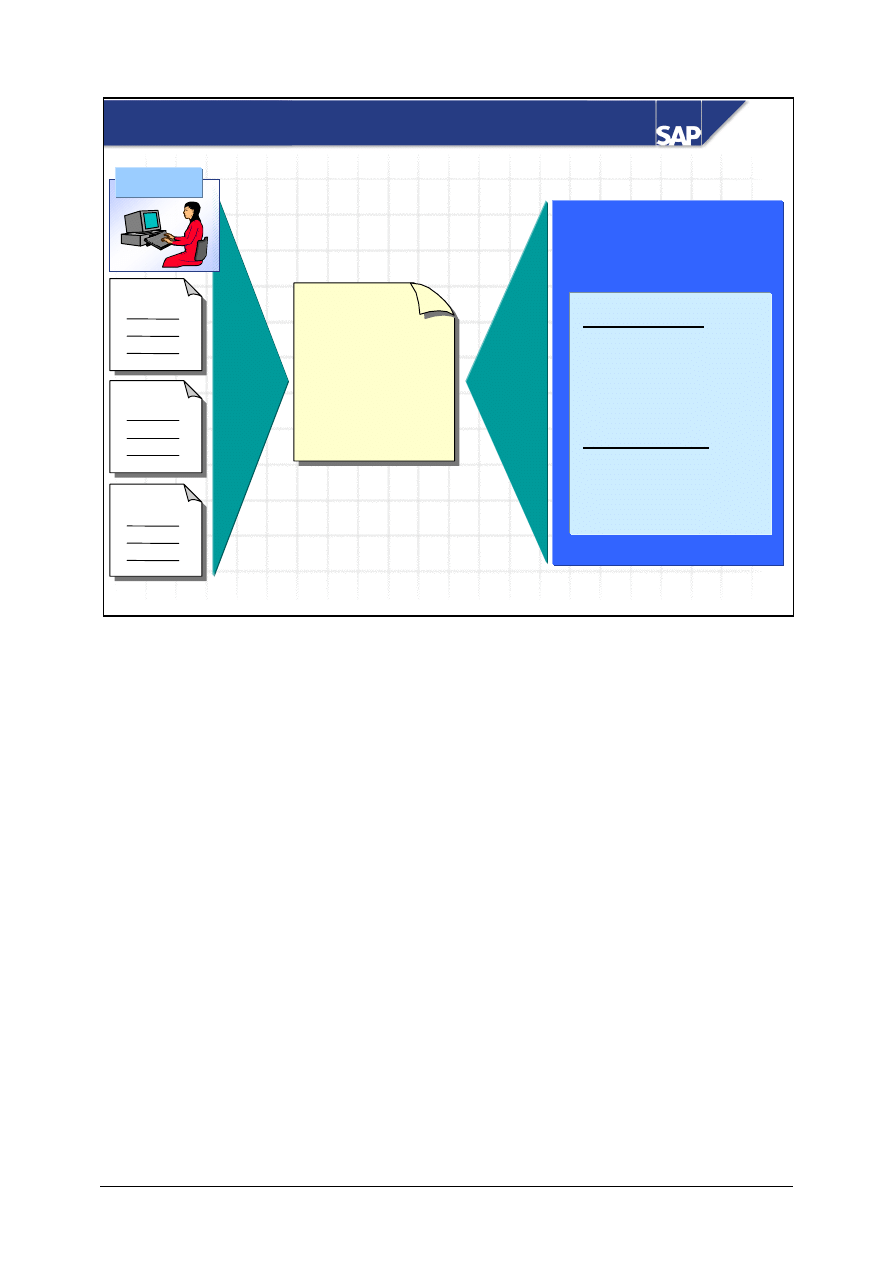
Organizational Levels in the Procurement Process
Purchase Order Processing
Goods Receipt
Checking the Vendor Invoice
Basics of Procurement Process
© SAP AG
TSCM50
6-2
SAP AG 2002
At the conclusion of this unit, you will be able to:
Basics of Procurement Process: Unit Objectives
List the organizational levels in the SAP R/3
System that are relevant to the procurement
process
Explain the relationship between these
organizational levels
Identify the basic procurement process
© SAP AG
TSCM50
6-3
SAP AG 2002
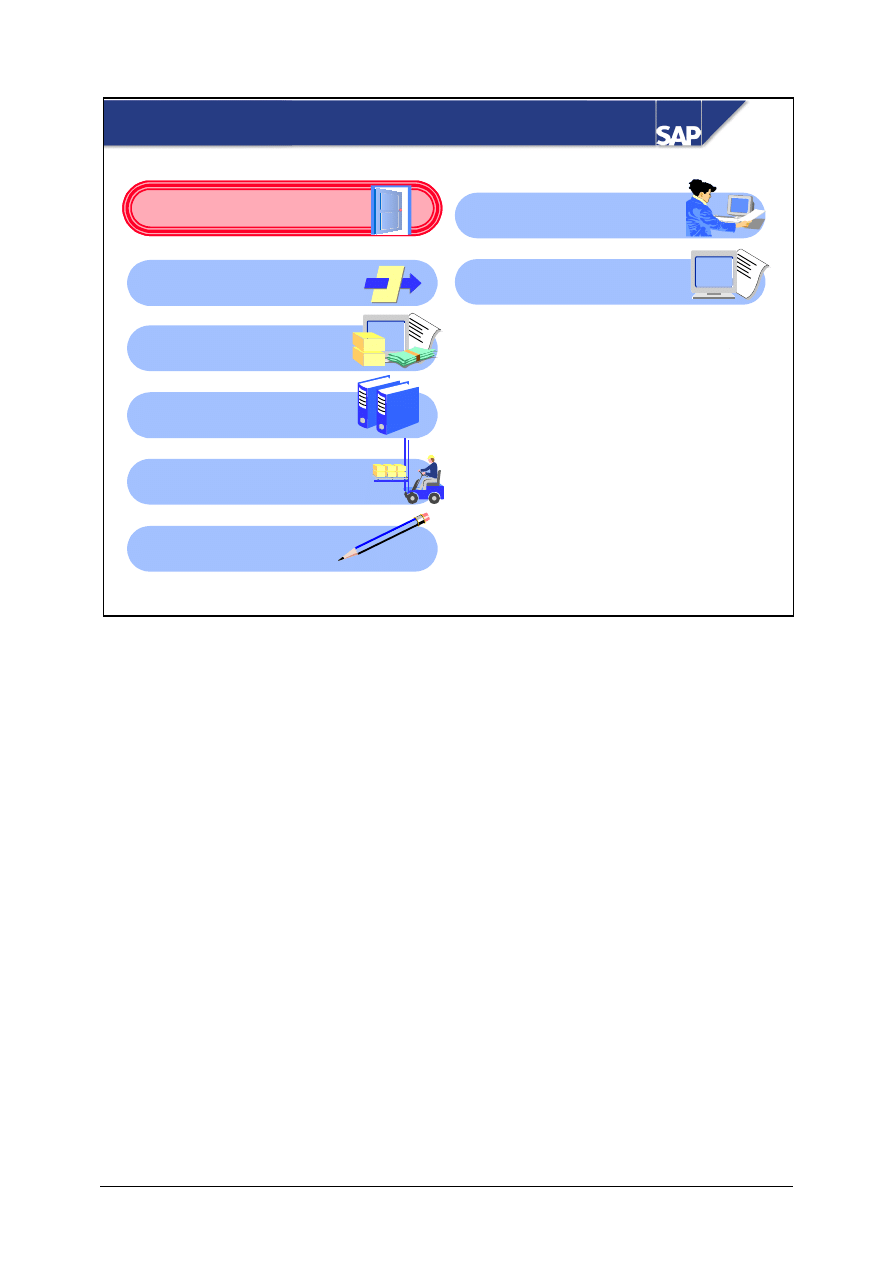
Basics of Procurement Process: Course Overview
Diagram
Procurement of Stock
Material
Reporting in Material
Management
External Procurement
with mySAP SCM
Procurement of
External Services
Subcontracting
Basic of Procurement
Process
Master Data
Procurement of
Consumable Material
© SAP AG
TSCM50
6-4
SAP AG 2002
Basics of Procurement Process: Business Scenario
In your enterprise, the responsibilities of the
departments in Purchasing, in the warehouse,
and Invoice Verification are organized by
regional and functional considerations.
The project team is testing how it can map this
enterprise structure in the SAP R/3 System,
using the relevant organizational levels.
© SAP AG
TSCM50
6-5
SAP AG 2002
Organizational Levels in the Procurement Process
Client
Company code
Plant
Storage location
Purchasing organization/
purchasing group
In the SAP R/3 System, organizational levels are structures that represent the legal or organizational
views of a company.
Defining organizational levels is an essential step in your project and is vital for all subsequent
activities.
Analyze the organizational structures and the process structures in your company and match them
with SAP structures.
Once you have decided on an organizational structure, it is very difficult to change it.
© SAP AG
TSCM50
6-6
SAP AG 2002
The client is a commercial, organizational unit within
the R/3 System, with its own data, master records, and
set of tables.
From a business perspective, the client forms a
corporate group.
Client
Examples of Client-specific data includes:
User Master data- such as parameters, authorization, and user groups
Customizing data-such as organizational units, assignments, and document types
Application data- such as business transaction data and material master data
A client is assigned a unique three-character key.
© SAP AG
TSCM50
6-7
SAP AG 1999
Company Code
The company code is the smallest organizational unit
for which you can have an independent Accounting
department within external Accounting.
A company code represents an independent
accounting unit, for example, a company within a
corporate group (client).
Balance sheets and Profit and Loss statements, required by law, are created at company code level.
You can set up several company codes in one client in order to manage various separate legal entities
simultaneously, each with their own balanced set of financial books.
You can use a special Customizing function to copy a company code. This copies the company code
specifications to your new company code.
© SAP AG
TSCM50
6-8
SAP AG 1999
Plant
A plant is an organizational logistics unit that
structures the enterprise from the perspective of
production, procurement, plant maintenance, and
materials planning.
A plant is a manufacturing facility or branch within a
company.
A plant can be one of the following types of locations:
Central delivery warehouse
Regional sales office
Manufacturing facility
Corporate headquarters
Maintenance plant
When creating a new plant, you can use the plant copying function. When you use this function, the
system processes the entry in the plant table and in all dependent Customizing and system tables in
which the plant is included as a key.
© SAP AG
TSCM50
6-9
SAP AG 2002
The storage location is an organizational unit that
allows the differentiation of material stocks within a
plant.
Inventory Management on a quantity basis is carried
out at storage location level in the plant.
Physical inventory is carried out at storage location
level.
Storage Location
A storage location has the following attributes:
Physical inventory is carried out at the storage location level
There may be one or more storage locations within a plant
A storage location has a description and at least one address
It is possible to store material data specific to a storage location
Stock are managed on a quantity basis only and not on a value basis at storage location level
Storage Locations are always created for a plant
© SAP AG
TSCM50
6-10
SAP AG 2002
Purchasing Organization / Group
Purchasing
organization
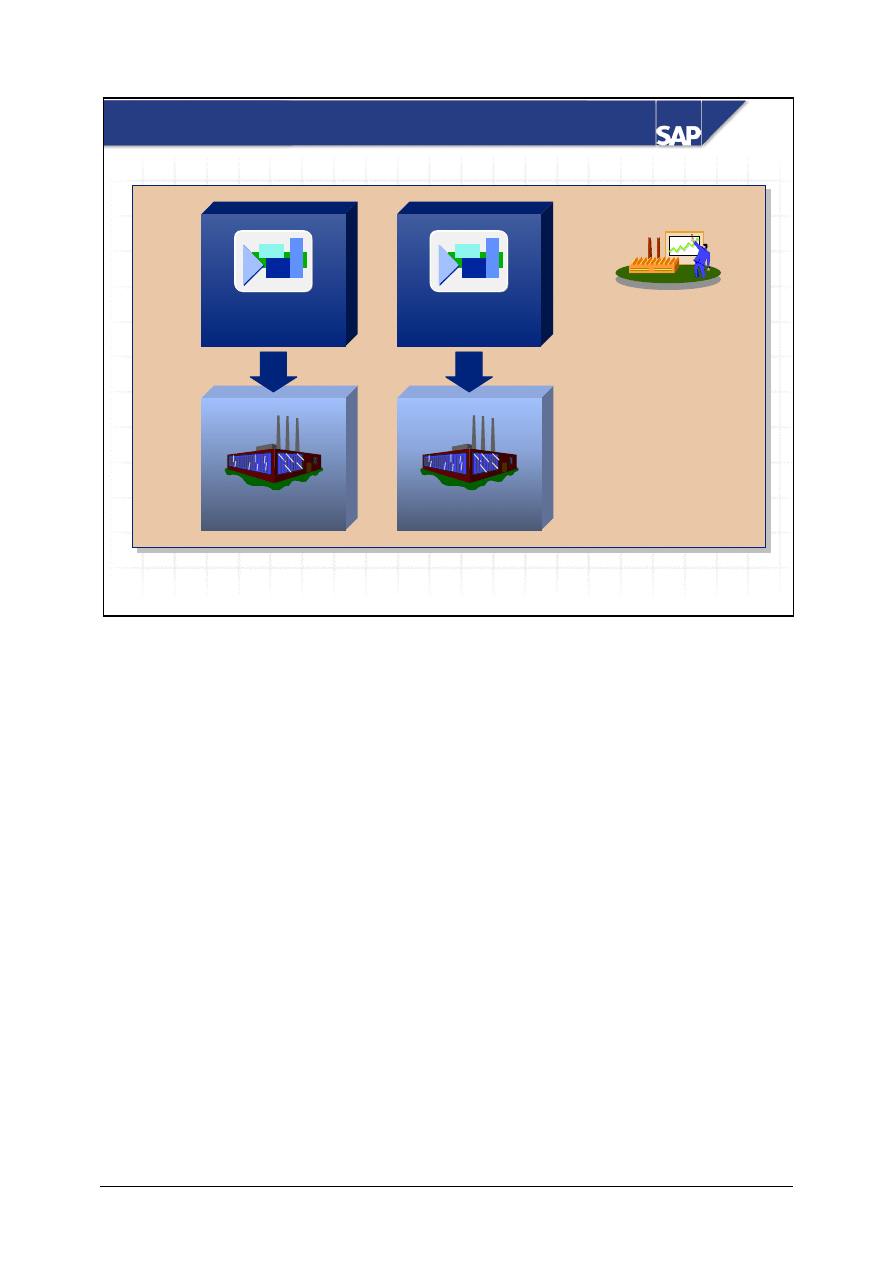
A purchasing organization is an organizational level
that negotiates conditions of purchase with vendors for
one or more plants. It is legally responsible for completing
purchasing contracts.
A purchasing group is the key for a buyer or group of
buyers responsible for certain purchasing activities.
The purchasing organization is responsible for the company's purchasing requirements.
You can incorporate purchasing into the company structure by assigning the purchasing organization
to company codes and plants. This means that you can determine whether purchasing is organized
centrally or decentrally in your company. You can have a combination of both.
© SAP AG
TSCM50
6-11
SAP AG 2002
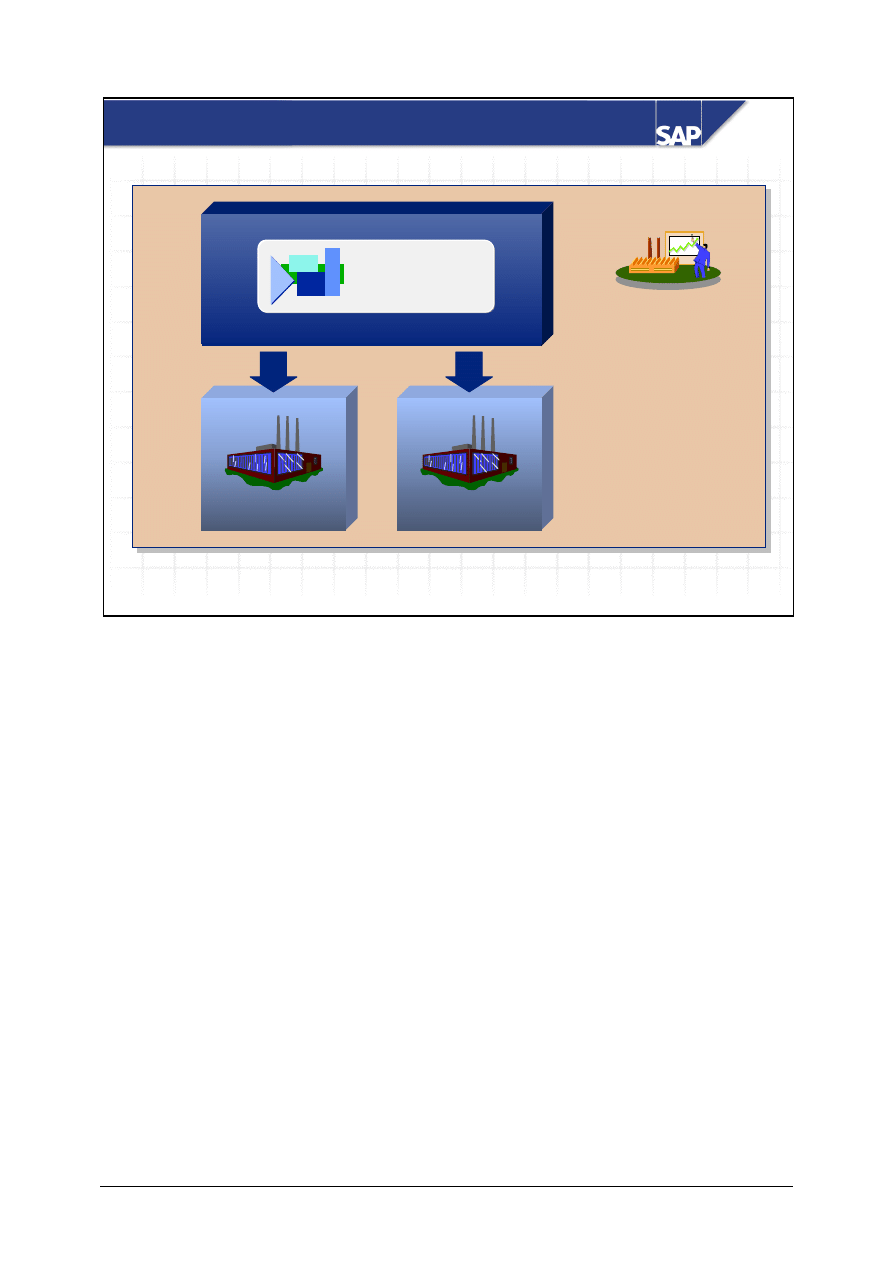
Plant-Specific Purchasing Organization
Purchasing
organization A
Company code
Plant 1100
Plant 1000
Purchasing
organization B
In plant-specific procurement, a purchasing organization is responsible for procuring materials for
one plant only.
© SAP AG
TSCM50
6-12
SAP AG 2002
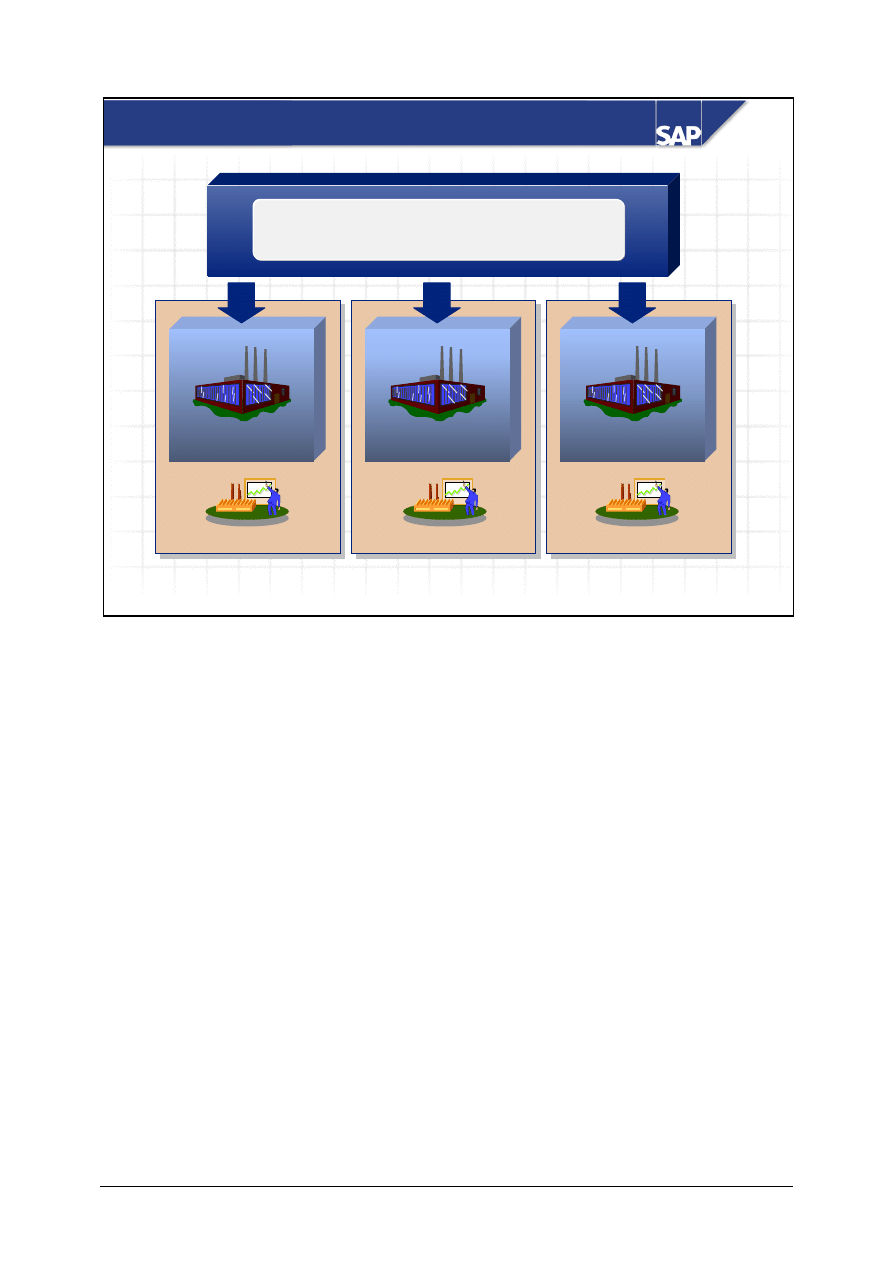
Cross-Plant Purchasing Organization
Company code
Plant 2
Plant 2
Plant 1
Plant 1
Plant 1100
Plant 1000
Purchasing
organization
1000
You can set up a cross-plant purchasing organization for each company code. This purchasing
organization procures material and services for all plants assigned to the company code.
© SAP AG
TSCM50
6-13
SAP AG 2002
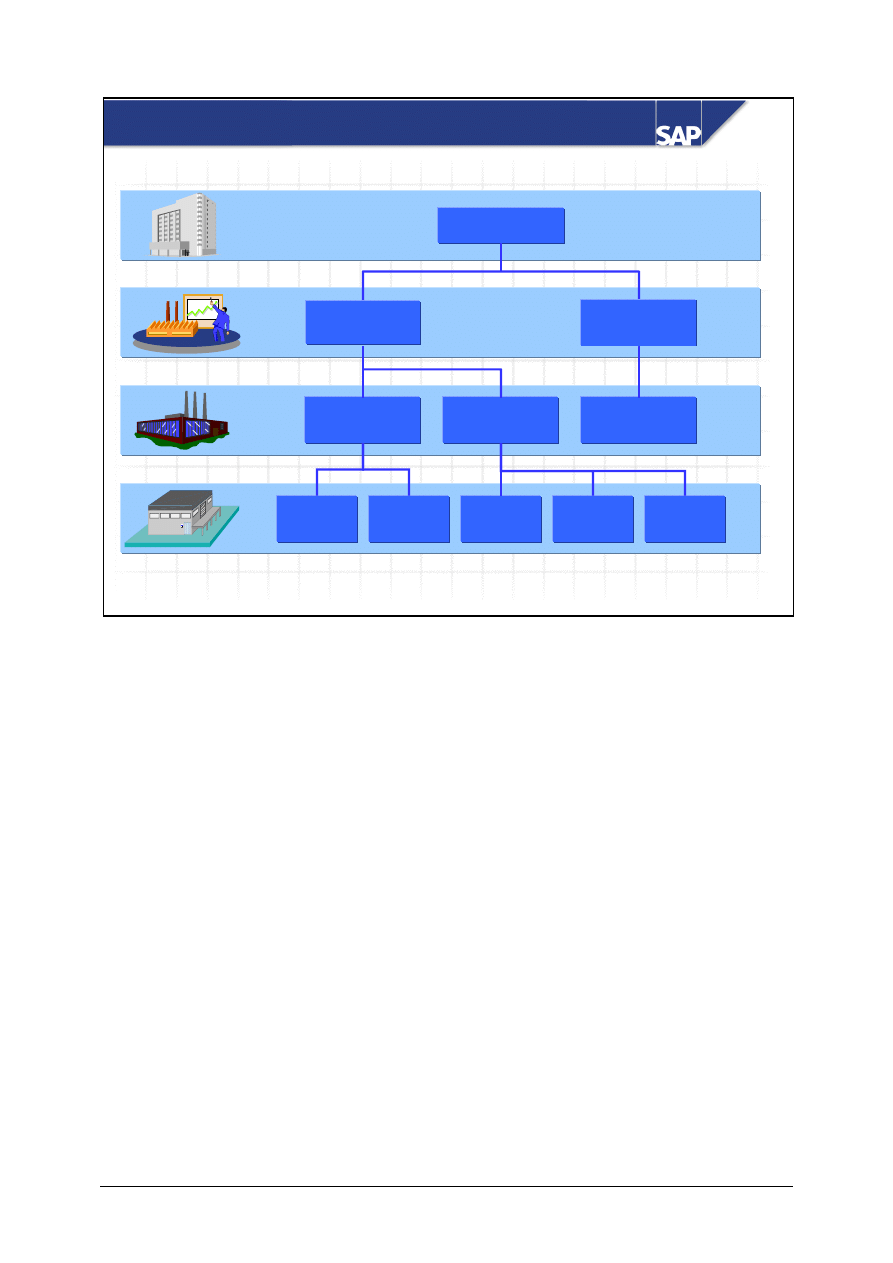
Company code 1000
Company code 2000
Company code 3000
Cross-Company-Code Purchasing Organization
Plant 3000
Plant 2000
Purchasing organization
C100
Plant 1000
If you want to organize purchasing on a cross-company-code basis, you cannot assign a company
code to the purchasing organization in Customizing. When you create a purchase order, for example,
the system asks you to enter the company code for which you want to procure the material.
© SAP AG
TSCM50
6-14
SAP AG 2002
Client
Client
400
400
Company
Company
code
code
0001
0001
Company
Company
code
code
0002
0002
Plant 1000
Plant 1000
Plant 1100
Plant 1100
Plant 2000
Plant 2000
SLoc
SLoc
0003
0003
SLoc
SLoc
0002
0002
Lagerort
002
SLoc
SLoc
0001
0001
SLoc
SLoc
0002
0002
SLoc
SLoc
0001
0001
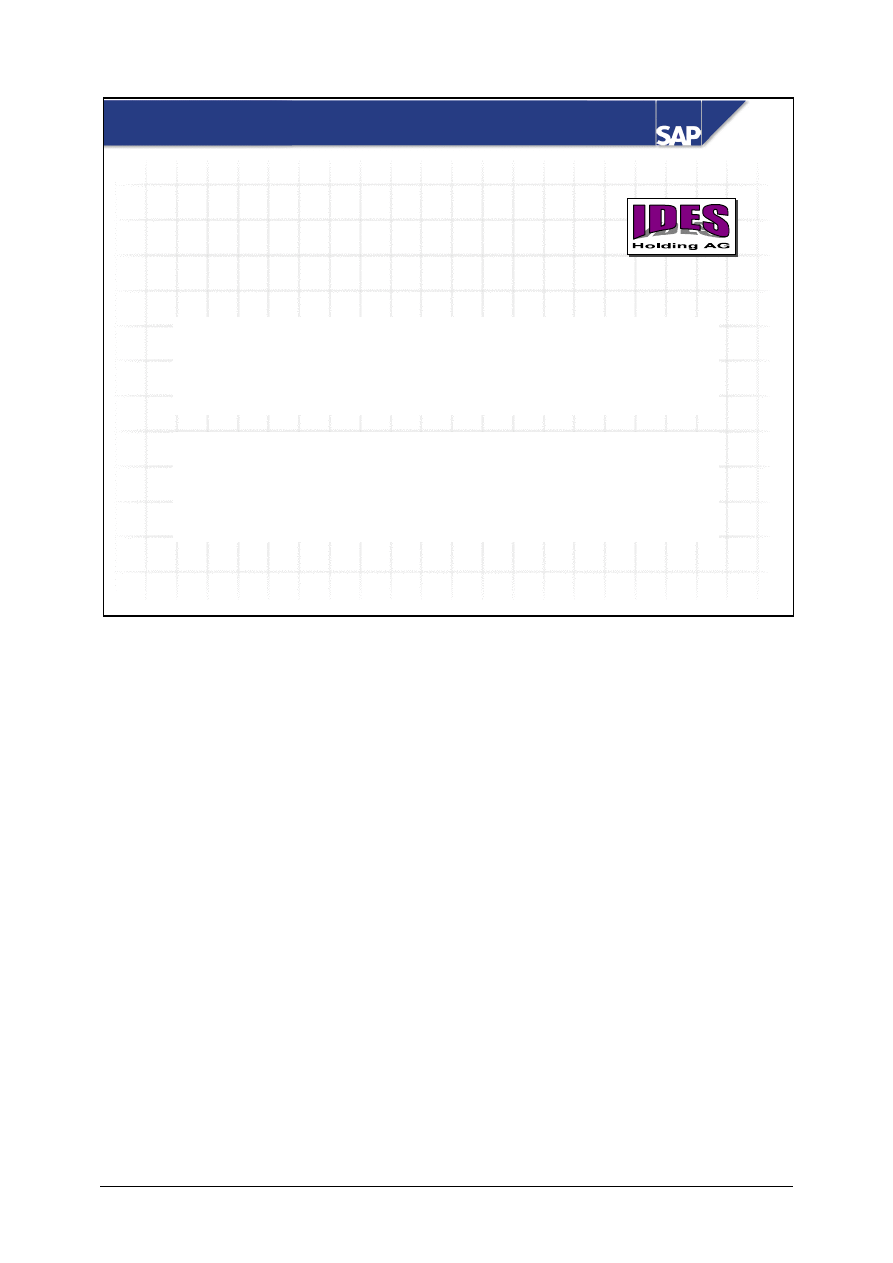
Organizational Levels in Inventory Management
The client is uniquely defined in the system by a three-digit alphabetic, alphanumeric or numeric
key.
A unique four-digit alphanumeric key in the client defines the organizational levels company code
and plant.. A unique four-digit alphabetic, alphanumeric or numeric key in the plant uniquely defines
the storage location.
Organizational structures are assigned to each other. For example, several plants may be assigned to
one company code. However, a plant can be assigned to one company code only in the R/3 System.
© SAP AG
TSCM50
6-15
SAP AG 2002
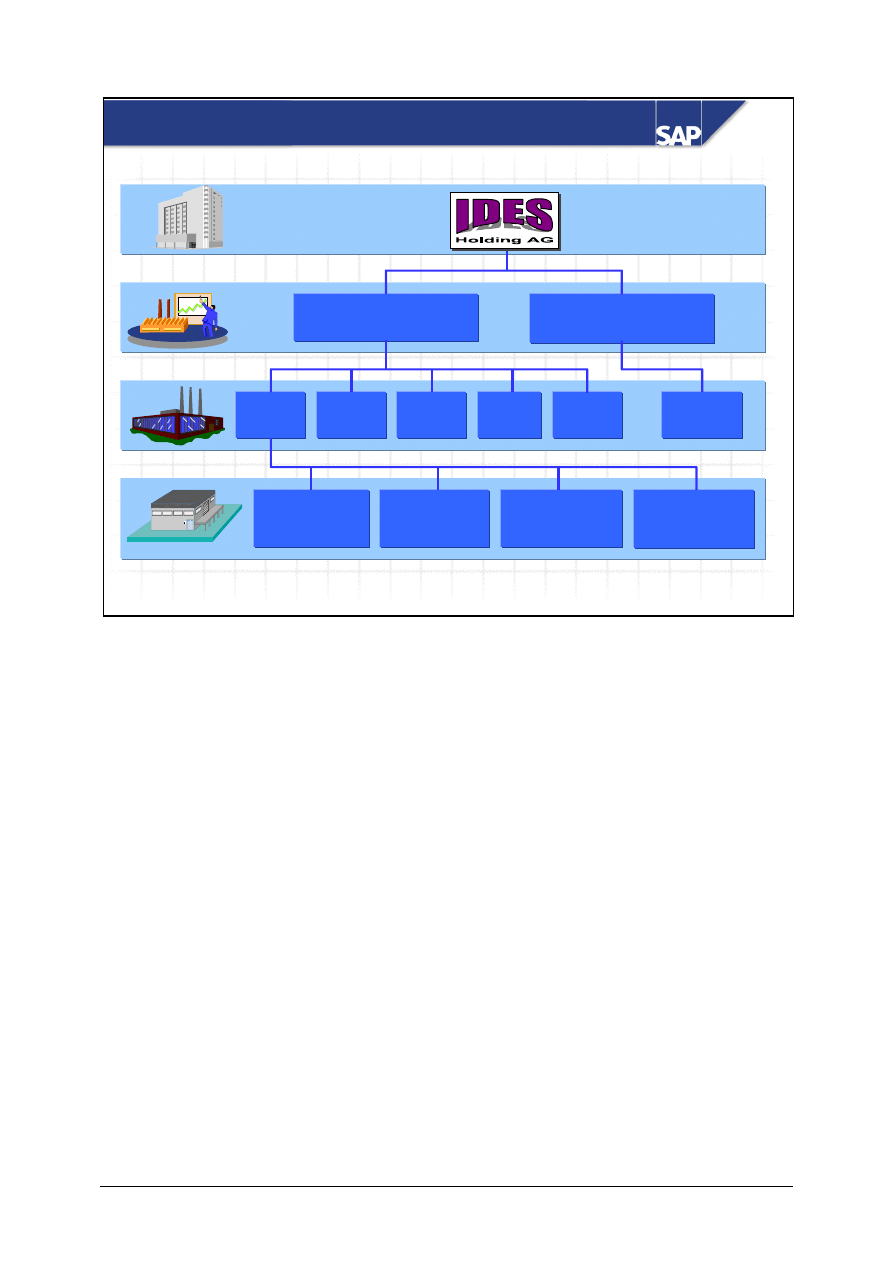
Organizational Levels at IDES
IDES is the R/3 International Demo and Education
System. The IDES group comprises several model
companies that map the business processes of the R/3
System.
The example of the IDES group structure shows you how
the organizational levels relevant to procurement
processes can be mapped in the SAP R/3 System.
The IDES System is delivered along with the Standard R/3 System. It contains sample data that you
can use for internal and external training.
© SAP AG
TSCM50
6-16
SAP AG 1999
2000
2000
IDES UK
IDES UK
0001
0001
Raw materials
Raw materials
0003
0003
Operating
Operating
supplies
supplies
0002
0002
Fin. products
Fin. products
0099
0099
Goods receipt
Goods receipt
1000
1000
Hamburg
Hamburg
1100
1100
Berlin
Berlin
1200
1200
Dresden
Dresden
1300
1300
Frankfurt
Frankfurt
2000
2000
Heathrow
Heathrow
1400
1400
Stuttgart
Stuttgart
1000
1000
IDES
IDES
Deutschland
Deutschland
IDES: Overview
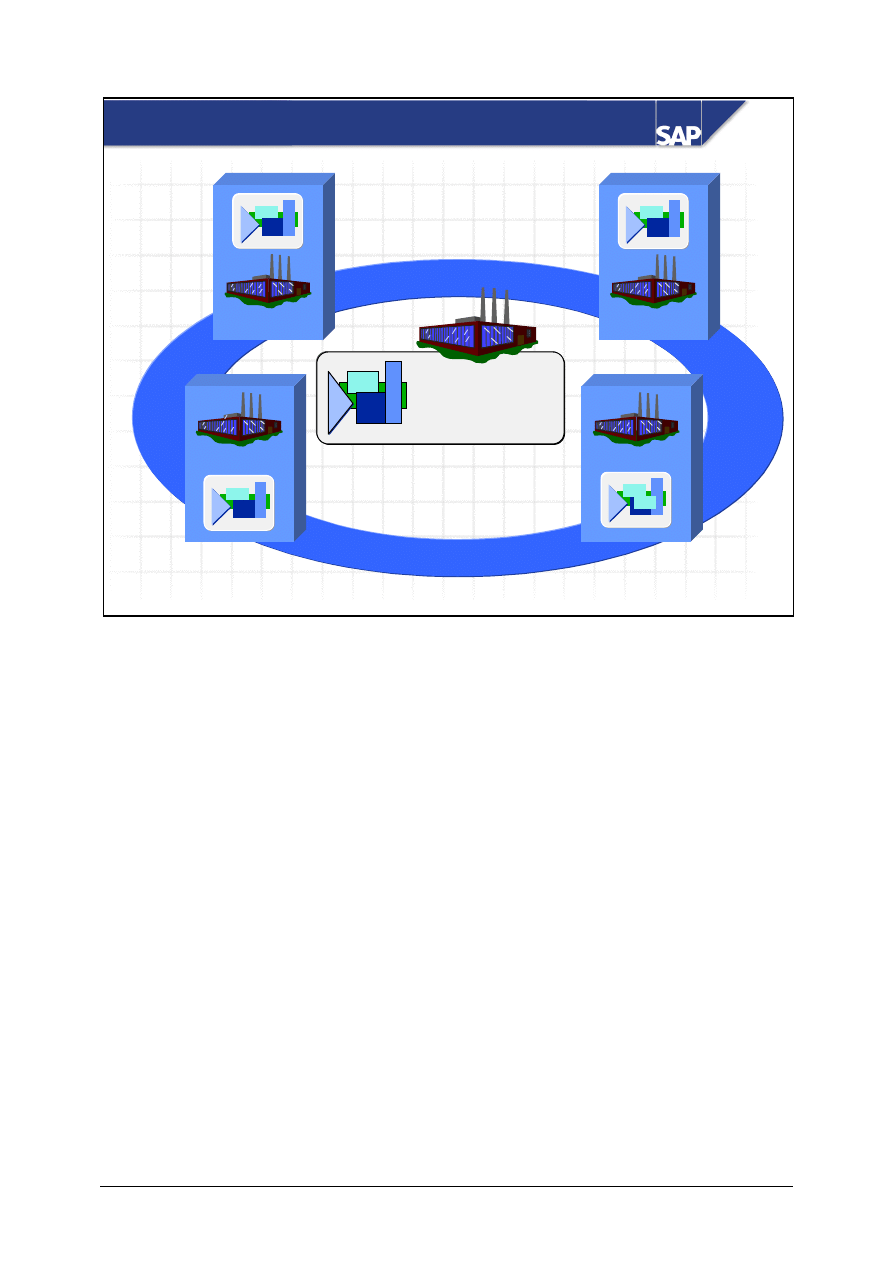
IDES is a multinational group, with companies in Europe, Asia, and North America. In Europe,
IDES has companies in Germany and Great Britain. Due to different legal regulations concerning the
balancing of accounts and Profit and Loss statements, IDES needs two company codes in Europe.
IDES has five manufacturing plants in Germany. The motor bikes are assembled in the Hamburg
plant, the Berlin plant manufactures the crankcases, the Dresden plant manufactures the gearboxes,
the Frankfurt plant is responsible for producing the brake systems, and the electric components are
made in the Stuttgart plant.
IDES has four storage locations in its Hamburg plant. These enable the plant to differentiate its
material stocks.
© SAP AG
TSCM50
6-17
SAP AG 1999
Frankfurt
Frankfurt
Dresden
Dresden
Berlin
Berlin
Stuttgart
Stuttgart
PurchOrg. 1000
Central Purch.
Hamburg
Purchasing at IDES
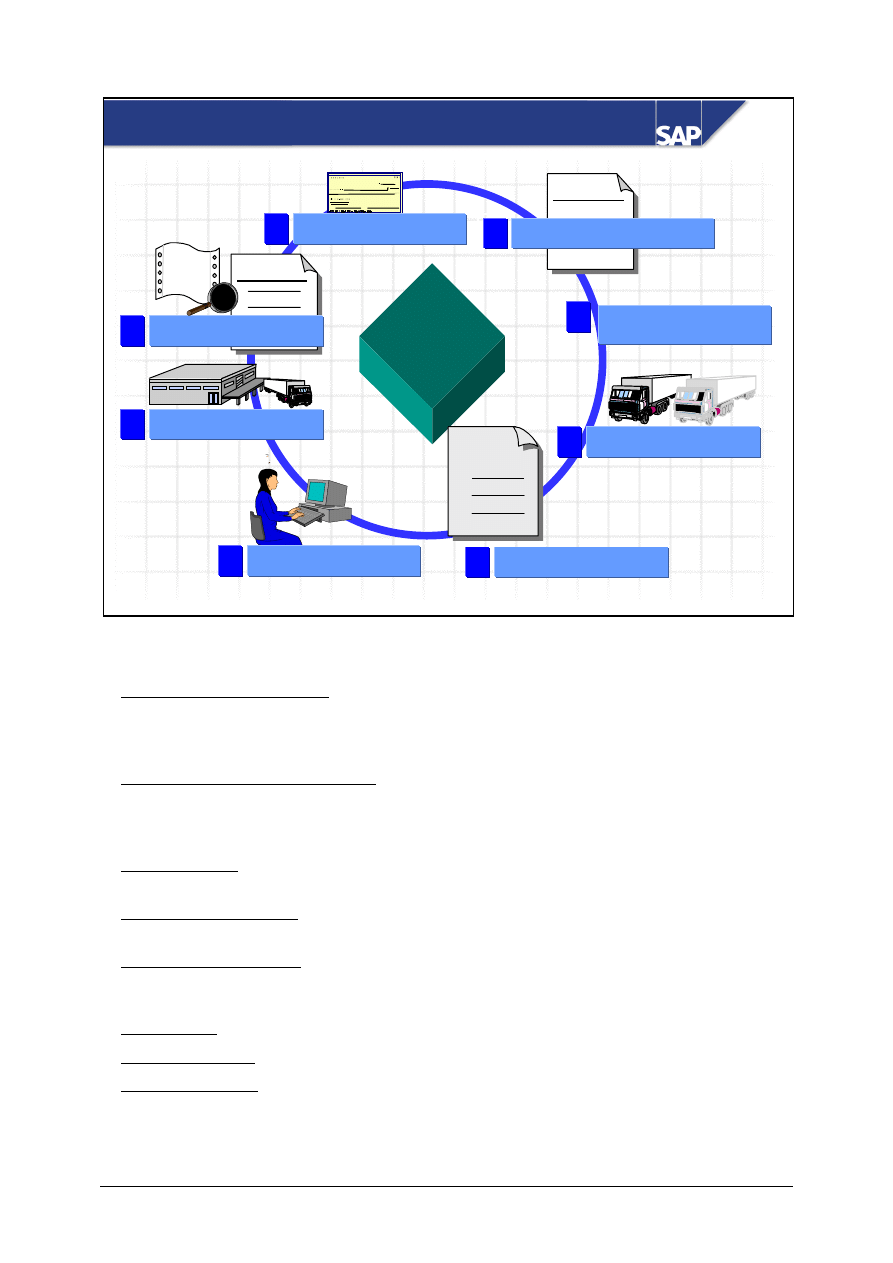
IDES Germany has centralized purchasing for tires, steel, electronics, accessories, and equipment.
The central Purchasing department is based in Hamburg and is responsible for procuring all the
above materials for all of the company's plants in Germany.
Each plant also has its own local Purchasing organization. This local, decentralized purchasing
organization, is responsible for procuring office equipment and goods for which central procurement
would not be economical (for example, due to transportation costs).
© SAP AG
TSCM50
6-18
SAP AG 1999
Purch. req.
Procurement
Procurement
Determination of reqmts
Payment processing
1
1
8
8
Vendor selection
3
3
Source determination
2
2
PO processing
4
4
Purch. ord.
10
20
30
Goods receipt
6
6
Invoice verification
7
7
Invoice
?
?
PO monitoring
5
5
Procurement Cycle
Purchase
order
10
20
30
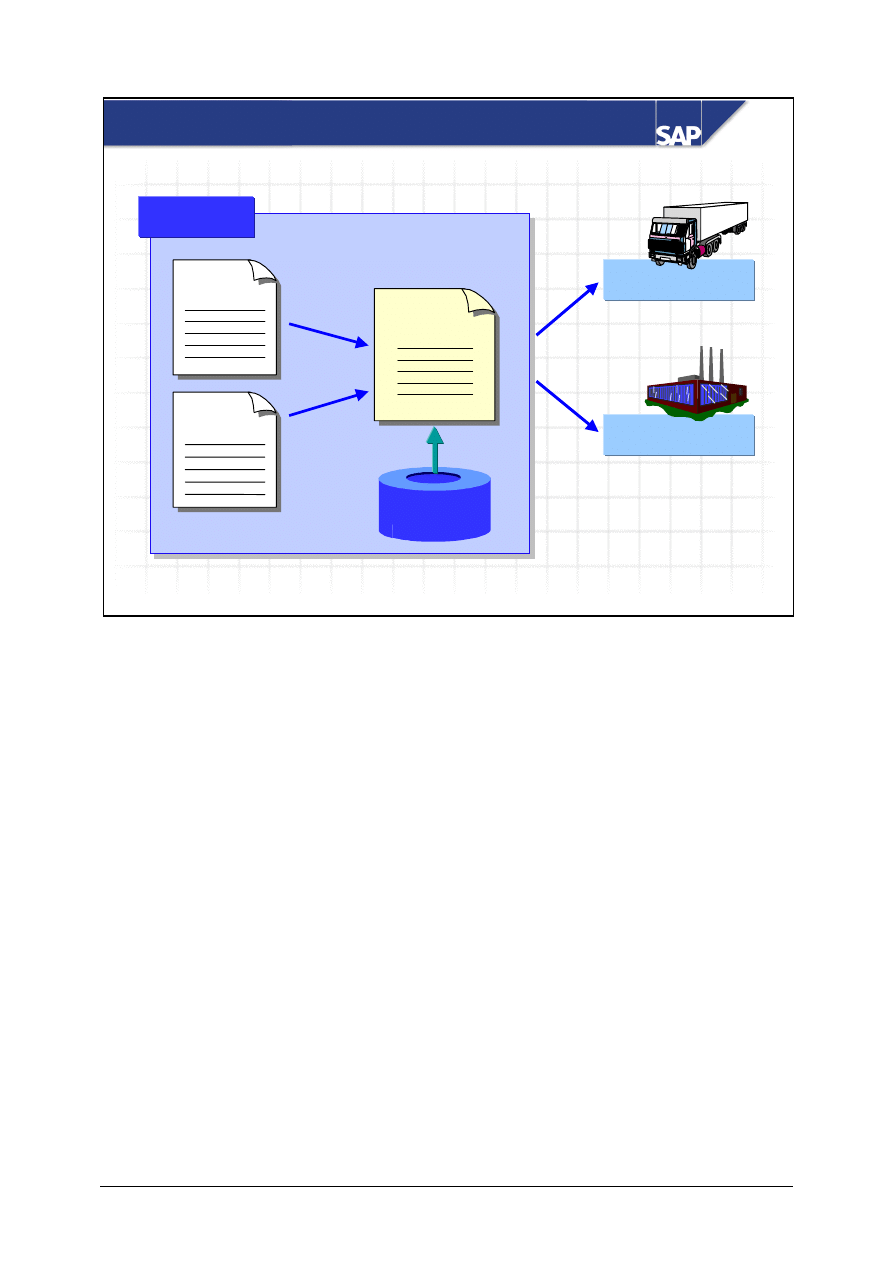
Determination of requirements: The user department responsible can manually pass a requirement
for materials to the Purchasing department via a purchase requisition. If you have set a MRP
procedure for a material in the material master, the R/3 System automatically generates a purchase
requisition.
Determination of the source of supply: The R/3 System helps the buyer determine possible sources
of supply. You can use determination of the source of supply to create requests for quotation (RFQs)
and then enter the quotations. You can also access existing purchase orders and conditions in the
system.
Vendor selection: The system simplifies the selection of vendors by making price comparisons
between the various quotations. It automatically sends rejection letters.
Purchase order processing: The system facilitates data entry by providing entry aids when you are
entering purchase orders.
Purchase order monitoring: The buyer can monitor the processing status of the purchase order online
at any time and can determine whether goods or an invoice have been received for the relevant
purchase order item. The system also supports reminder procedures.
Goods receipt: The system compares the goods receipt quantity with the purchase order quantity.
Invoice verification: Vendor invoices are checked for accuracy of prices and contents.
Payment processing: Financial Accounting normally deals with vendor payments.
© SAP AG
TSCM50
6-19
SAP AG 1999
Purchase
requisition
RFQ
Purchase
order
Purchasing
Purchasing
Vendor
Other plant
Master data
Master data
Purchase Order
A purchase order is a formal request to a vendor to supply certain goods or services under the stated
conditions.
You can create purchase orders without reference, or with reference to a purchase requisition, a
request for quotation, or another purchase order.
When you enter the purchase order data, the system suggests default values. For example, it suggests
the ordering address, as well as the terms of payment and freight (incoterms) from the vendor master
record. If you have maintained a material master for a given material in the R/3 System, the system
suggests the material short text or the material group, for example. If a purchasing info record
already exists in the system, the system copies a price proposal to the purchase order.
You either send the purchase order to a vendor or you carry out a stock transport order in another
plant belonging to your company or group. With a stock transport order, you can take into account
the associated freight costs in the purchase order.
Note: For more information about stock transport orders, refer to the Materials Management
documentation on the topic of Inventory Management: Special Stocks and Special Forms of
Procurement in Materials Management.
© SAP AG
TSCM50
6-20
SAP AG 1999
Purchase Order
PO history for item 20:
PO history for item 20:
Goods receipt:
Jan. 21.98 5 PCs ...
Jan. 23.98 3 PCs ...
Jan. 27.98 2 PCs ...
Invoice receipt:
Jan. 30.98 10 pcs ...
Manual
Purchase order
Quotation
Purchase
requisition
Reference
10
20
30
............................
...10 pcs of SL-01
............................
. . .
. . .
. . .
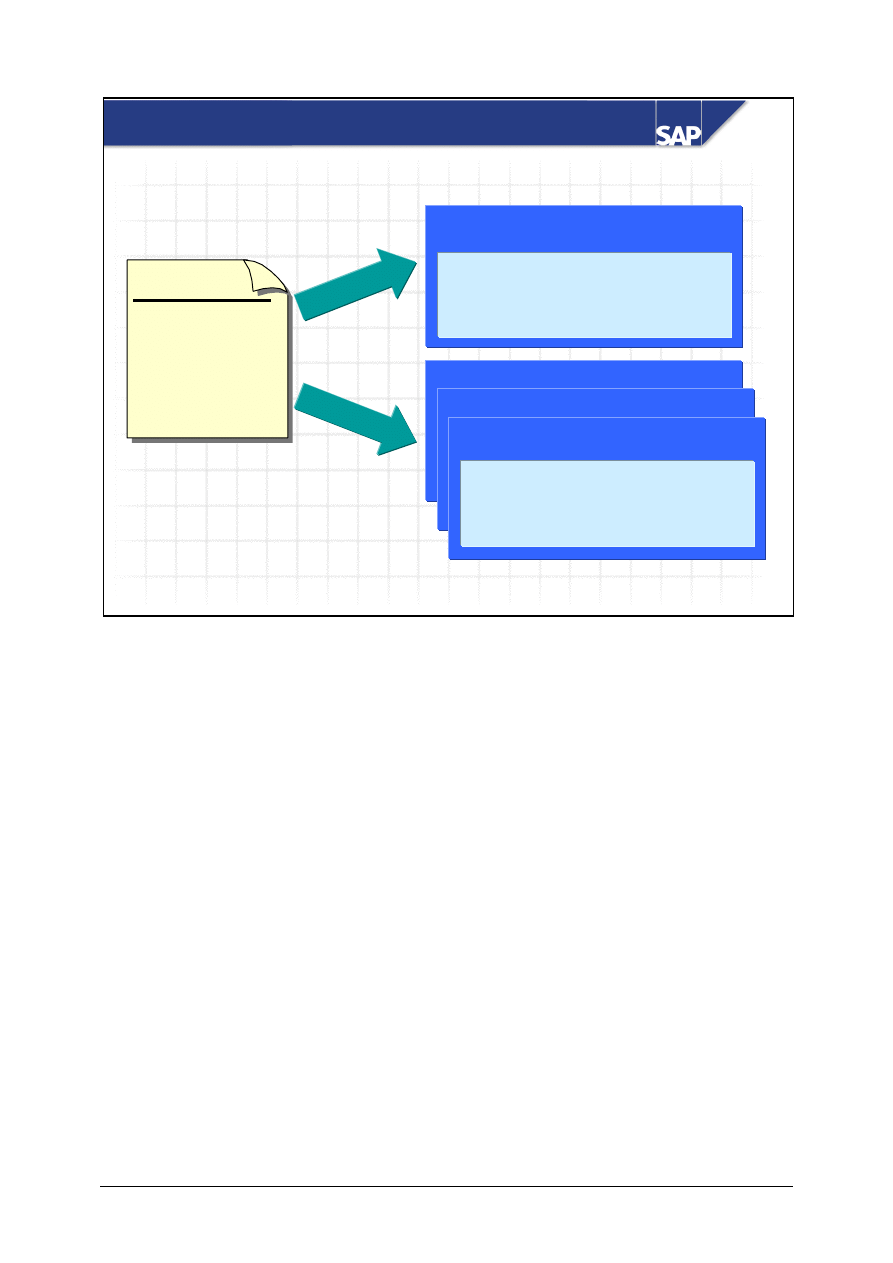
A purchase order is a formal request to a vendor to supply you with goods or services at the
conditions stated in the purchase order. You specify in the purchase order whether the material is
delivered for stock or for direct consumption (for example, cost center, asset or project). The goods
receipt and invoice verification are usually carried out on the basis of the purchase order.
You can minimize data-entry time by creating purchase order items with reference to an existing
purchase requisition, RFQ or purchase order. You can also enter a purchase order without reference
to preceding documents in the system.
If you want assistance choosing a vendor when you create the purchase order, you can use the source
determination function in the R/3 System. The system suggests possible vendors on the basis of the
defined sources of supply (outline agreements, info records) and, if required, on the basis of other
master data (source list entries, quota arrangements).
You can determine the current processing status for each purchase order item. For example, you can
determine whether goods receipts or invoice receipts have already been posted for an item. You can
display the follow-on documents (material document and invoice document) from the purchase order
history screen.
© SAP AG
TSCM50
6-21
SAP AG 1999
Header data
Header data
Item:
Item:
10
10
Document number
Payment conditions
Purchase order date
Item:
Item:
20
20
Item:
Item:
30
30
Purchase order
10 .....................
20 .....................
30 .....................
Vendor
Currency
...
Material number
Short text
Order quantity
Delivery date
PO price
...
Purchase Order Format
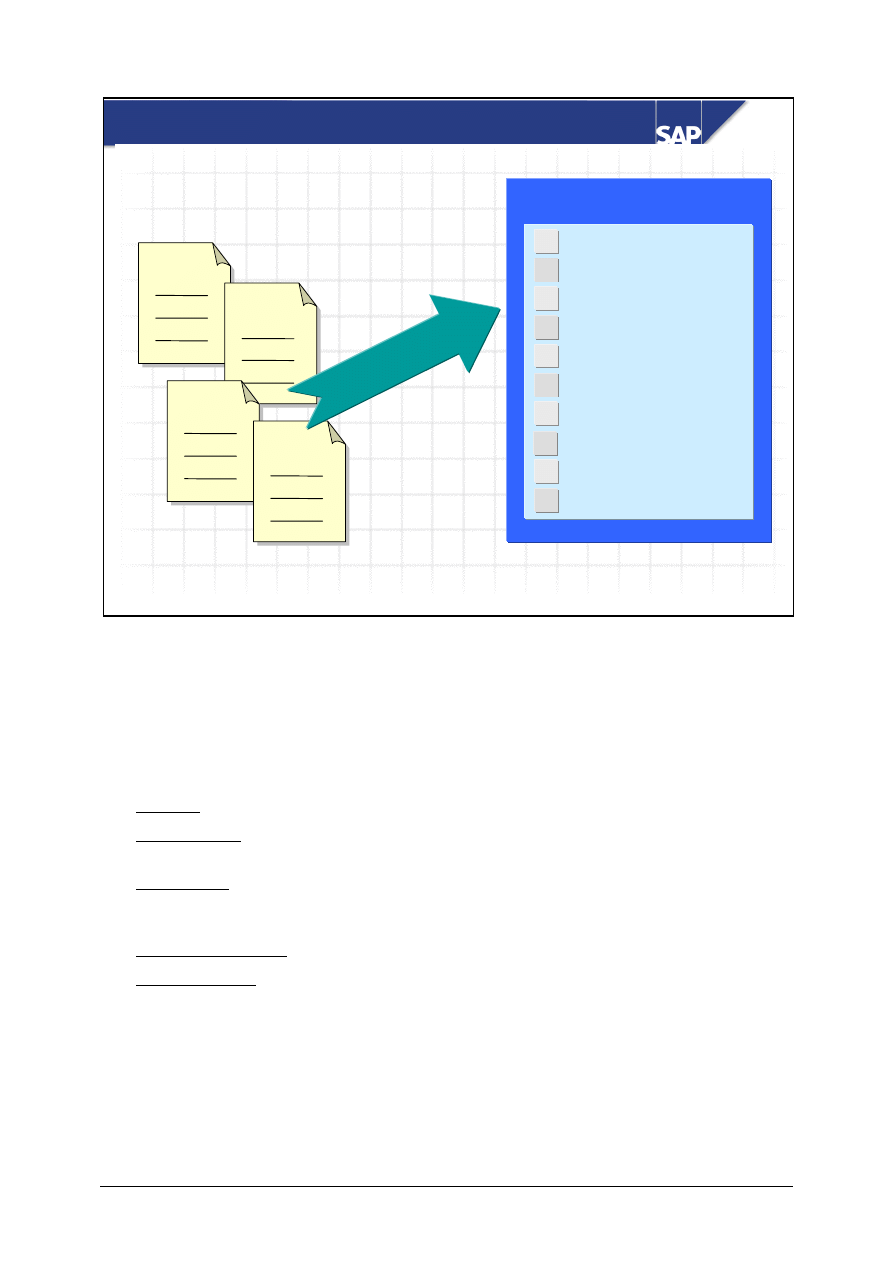
Like other purchasing documents in the R/3 System, the purchase order consists of a document
header and one or more items.
The document header contains information that refers to the entire purchase order. Examples of this
include the document currency, the document date, and the terms of payment.
The item part of the document contains data describing the materials or services ordered. You can
maintain additional information for each item (for example, delivery schedules or item-based text).
In a purchase order, you can procure materials or services for all plants attached to your purchasing
organization.
© SAP AG
TSCM50
6-22
SAP AG 1999
Item Category
Purchase
requisition
RFQ
Purchase
order
Outline
agreement
De
pen
den
t on
the
do
cum
ent
typ
e
Item Categories
Item Categories
W
U
K
L
M
S
T
D
B
Standard
Limit
Consignment
Subcontracting
Material unknown
Third-party
Text
Stock transfer
Material group
Services
%
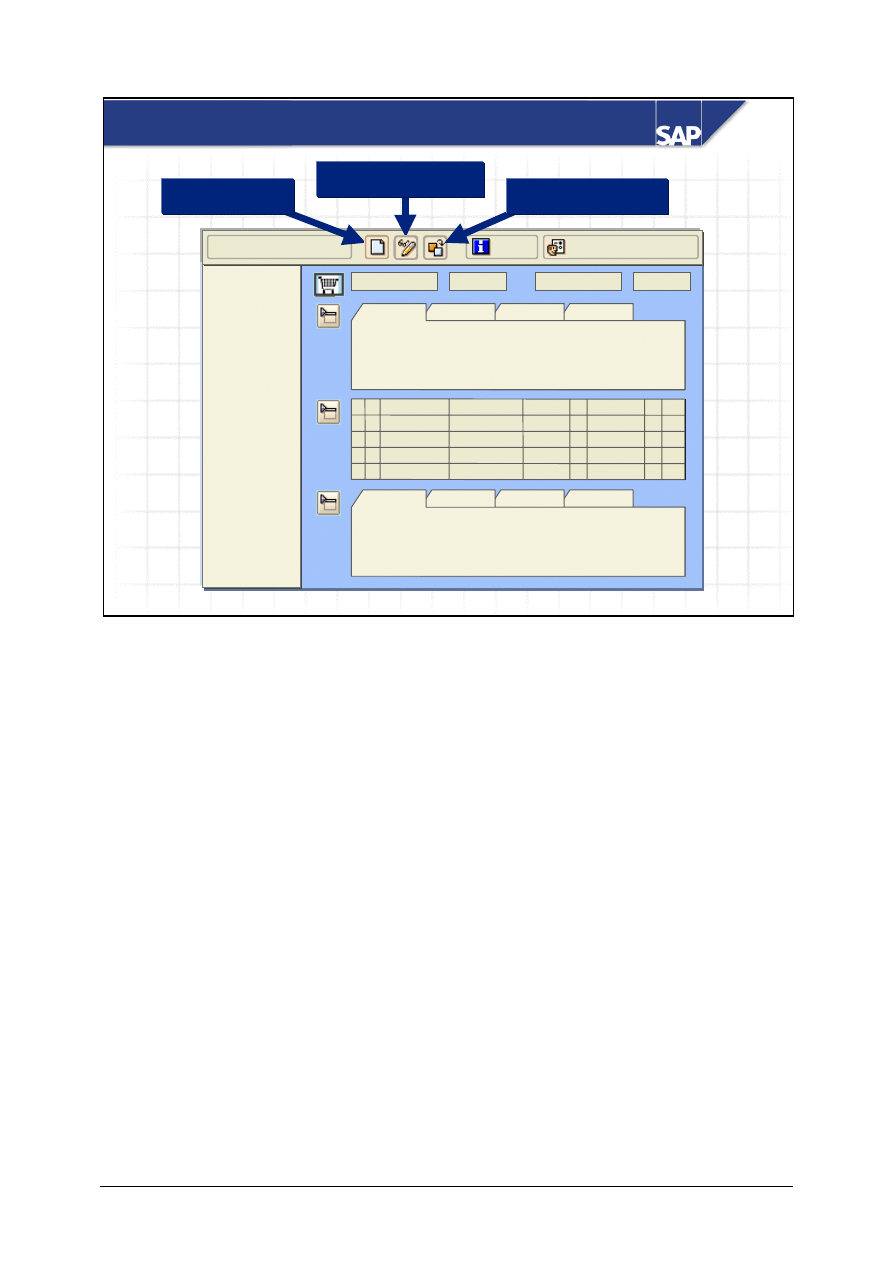
The item category defines whether an item requires and/or can have a material number, account
assignment, goods receipt, and/or invoice receipt. The item categories displayed depend on the
document type. In Customizing, you can define which item categories are allowed for which
documents.
The items categories that are defined include the following:
Standard: Used for materials that are to be procured externally.
Subcontracting: The finished product is ordered from a vendor. The components that the vendor
needs to manufacture the finished product are entered as “material to be provided” items.
Consignment: The vendor makes material available, which you then manage as consignment
stock. A liability only arises when material is withdrawn from consignment stock, not when the
stock is placed in the consignment stores.
Stock transport orders: The material is transferred from one plant to another.
Third-party order: The ordered material should be delivered directly to a third party (for example,
a customer). The vendor sends your company an invoice for the material.
%
Note: Subcontracting, consignment, stock transfer orders and third-party orders are covered in the
Materials Management documentation on Inventory Management: Special Stocks and Special Forms
of Procurement in Materials Management.
© SAP AG
TSCM50
6-23
SAP AG 2002
Document
overview
SAP Ordering Transactions – ME21N / ME22N /
ME23N
Item overview
Header
Item detail
Doc. overview off
Personal setting
Help
Other Pur. Order
Create
Display / Change
Item overview
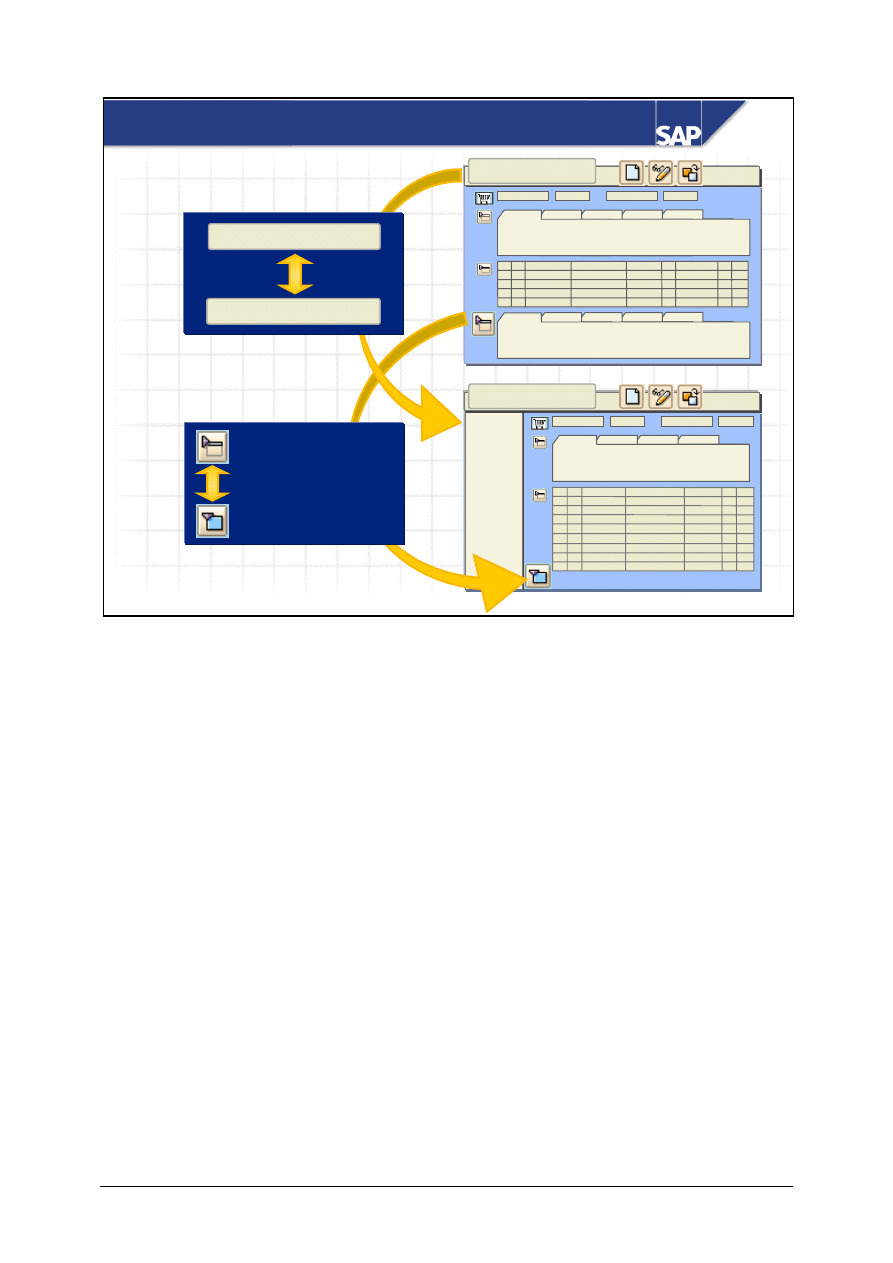
The SAP ordering transaction (ME21N) is a single-screen transaction, in other words, you can
maintain all relevant data on a central screen. The single-screen transaction is divided into four
screen areas:
Header: This is where you enter all data relevant for the whole order, for example, the vendor
address or the organizational levels.
Item overview: In this list, you can enter the items with the data most important to you, for
example, material, quantity, price.
Item detail: Here you enter additional data, if required or necessary, for a particular item, for
example, additional texts, account assignment specifications and confirmations.
Document overview: In the document overview, you can display different purchasing documents,
for example, purchase orders, requests for quotations and purchase requisitions. For more detail on
the document overview, see the "Procurement of Stock Material" unit.
With the personal settings, user-specific requirements can be taken into account. Each user can set
his or her own default values, or specify that the document overview is automatically set up when the
transaction is called.
In addition, there is a help function that can be displayed like the document overview. You can
choose to show or hide this help area. If the help function is open, you can work in the transaction at
the same time.
© SAP AG
TSCM50
6-24
SAP AG 2002
SAP Ordering Transactions - Navigation
Item overview
Doc.
over-
view
Item overview
Doc. overview off
Item detail
Doc. overview off
Doc. overview on
Doc. overview on
Item detail
Expand area
Collapse area
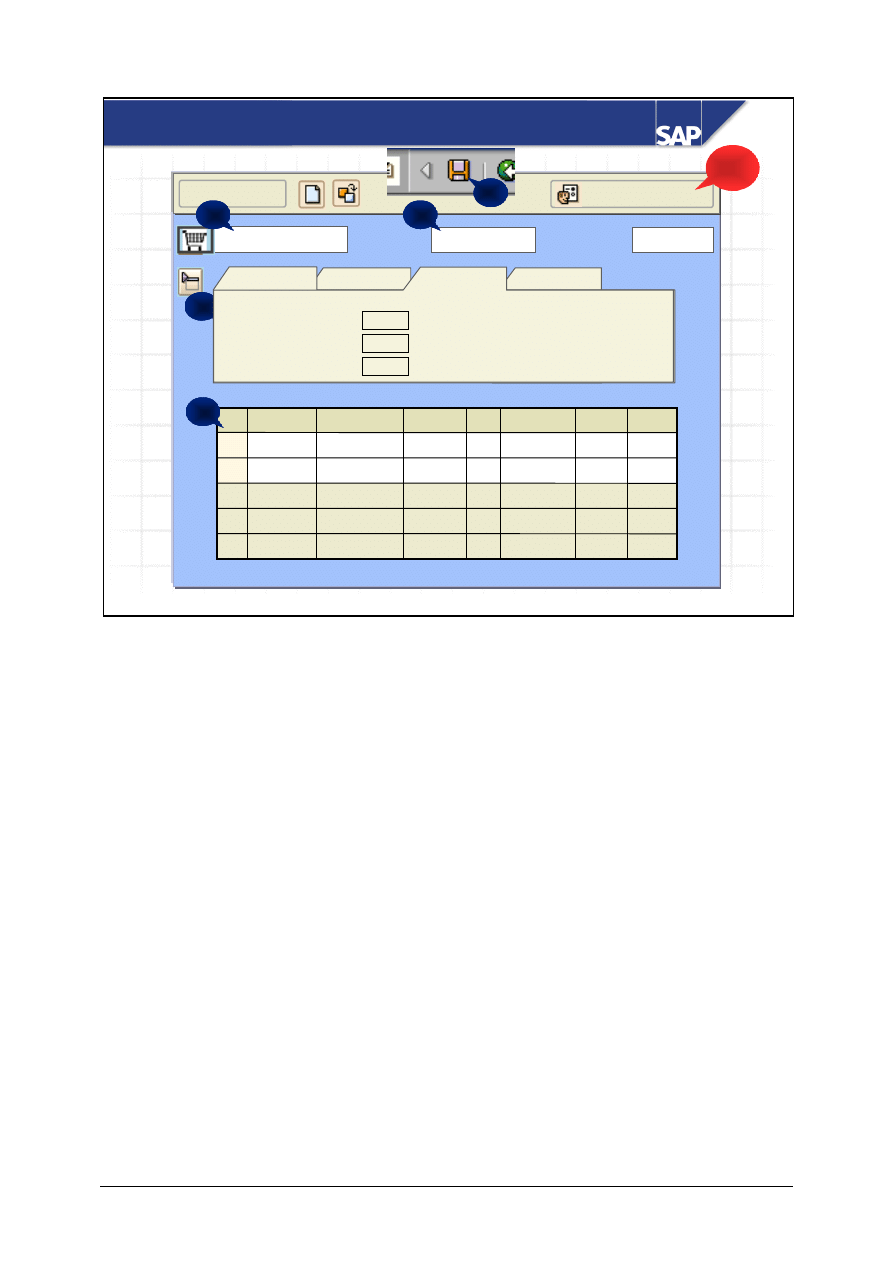
In the ordering transaction, you can collapse and expand all screen areas individually, and therefore
influence the size of these screen areas. If you close the header and item detail, for example, the size
of the item overview is then increased. The same goes for the purchase order header, item overview
and the item details, and also for the document overview and the help function.
If you close and then reenter the ordering transaction, the screen is in the same format as it was when
you left it. If the document overview and the header were collapsed and the item overview and item
detail were open, this same screen format is displayed.
It does not matter which function you use to access the purchase order (create, change, display). You
can switch between the functions using the "Create" or "Change/Display" icons. From the "Other
Purchase Order" icon, you can also go directly to another purchase order or purchase requisition.
© SAP AG
TSCM50
6-25
SAP AG 2002
Create a Purchase Order
01.12.2001
Standard PO
CEB Chicago
UNI
50
10.12.01
Pc
15
Keyboard
R-1130
20
UNI
1000
12.12.01
Pc
10
Monitor
M-01
10
Curr.
Price
Del. date
B..
Qty
Short Text
Material
Overview on
2
4
Vendor
Doc. date
OrgData
019
IDES USA
Parker, J.
IDES USA
1000
1000
Purch. org.
Purch. group
Company code
1
Personal setting
3
5
!
Purch. org.
Purch. group
Company code
IDES USA
Parker, J.
IDES USA
1000
019
1000
OrgData
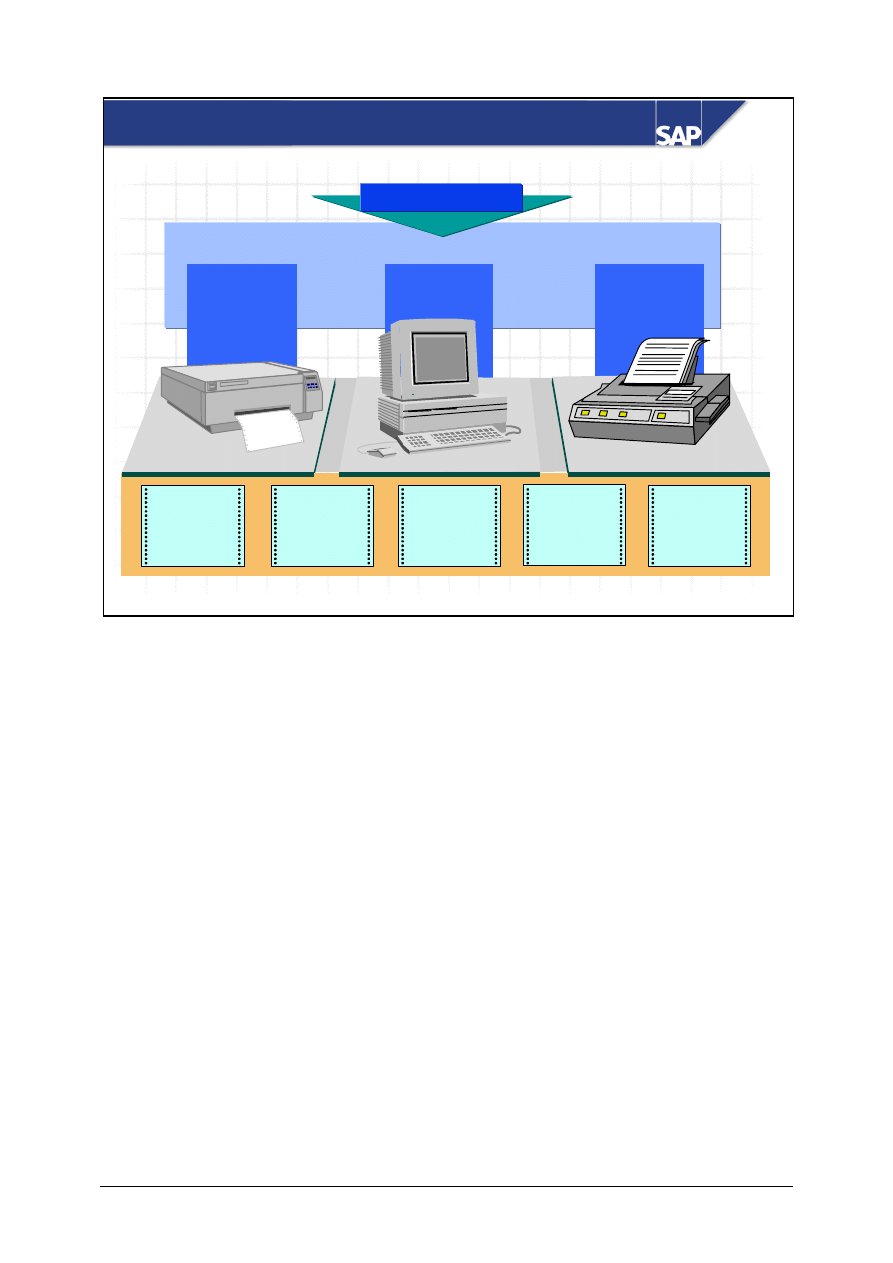
On this slide, you can see the most important steps for creating a purchase order:
Before you start to enter purchase order data, maintain your personal settings (as long as you have
not already made corresponding entries in your user-parameters). You can specify default values for
the organizational data and the items. For example, you can specify the purchasing organization and
the purchasing group, but also the plant for the purchase order items. Then you will not have to enter
these values manually every time you create a purchase order. The personal settings take priority
over the user parameters.
Select the order type (1) and specify the vendors you want to order from (2). If the organizational
data cannot be determined from the default values or the user master record, you must enter it in the
header data (3).
Now you can enter the individual items (4). You must also specify the material, quantity required,
delivery date and the price. The plant to receive the goods must be entered at item level. If there is a
purchasing information record for the material and the vendors, its net price is suggested. If you have
not entered a delivery date, it is calculated from the planned delivery time in the info record. When
you save and close, a number is automatically assigned for the purchase order (5).
Note: In the Vendor, Material, Plant, Material group and Storage location fields, youc an work with
the names and keys. In other words, when you enter part of the name, the system automatically
determines the existing vendors with the corresponding name part, for example.
© SAP AG
TSCM50
6-26
SAP AG 1999
Output
Printer
Printer
EDI
EDI
Fax
Fax
Telex
Telex
Teletex
Teletex
Purchasing doc.
Purchasing doc.
Printout
Delivery
schedule
Expeditor/
Reminder
Rejection
letter
Order
acknmt
expeditor
Issuing Messages
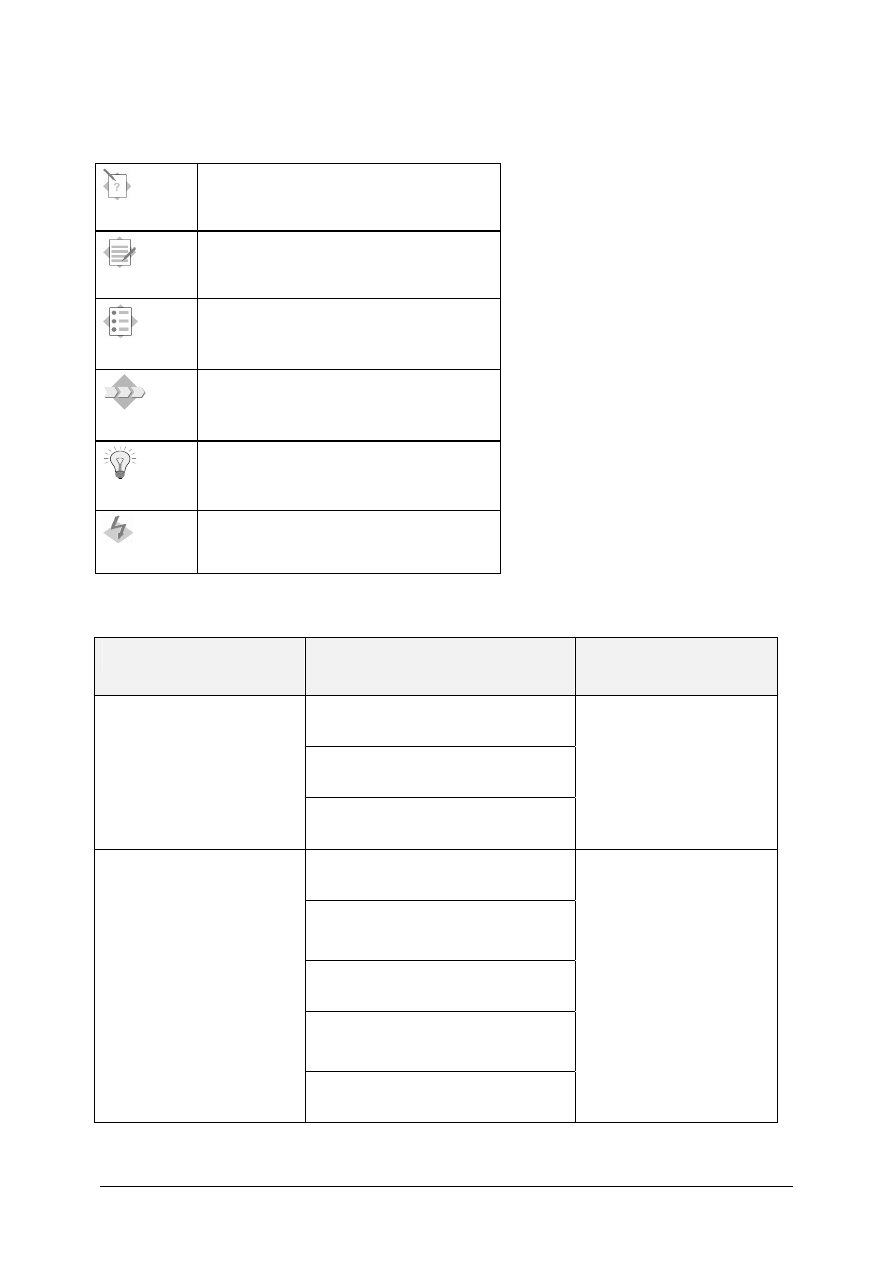
You can issue purchase orders, changes to purchase orders, and order acknowledgements as
messages via printer, fax, EDI or e-mail.
You can configure which header texts and item-based texts the system issues. The header text is
printed at the top of the purchase order and contains general information. Item texts describe a
purchase order item in more detail. You can also include and issue standard texts.
Note: You will find more detailed information about outputting purchasing documents in the
Materials Management documentation on Purchasing: Entering Texts, Print Functions and
Information Transmission.
© SAP AG
TSCM50
6-27
Exercise Data Sheet
Key to Icons in Exercises and Solutions
Exercises
Solutions
Course Objectives
Business Scenario
Hints and Tips
Warning or Caution
Data Used in Exercises
Type of Data
Data in Training System
Notes
T-RM1##
Standard Taillight-##
T-RM3##
Sensor-##
Material Master
Records
T-HM1##
Cylindrical Ball Bearing-##
T-K12A##
(Motolux Ltd Group##)
T-K12C##
CEB Chicago Group##
T-K12D##
Paper Chain Group##
T-K12E##
Elektroblitz GmbH Gr.##
Vendor Master Records
1950
One-Time Vendor
All vendors in group ##
are grouped under the
search term SCM500-
##
(= User of group).
© SAP AG
TSCM50
6-28
T-LM1##
Dismantling of Fluorescent
Lamp Ballasts
Service Master Records
T-LM2##
Dismantling of Fluorescent
Lamp Ballasts
© SAP AG
TSCM50
6-29
Basics of Procurement Process 1-
Exercises
Unit: Basics of Procurement Process
Topic: Purchase Order Processing
At the conclusion of this exercise, you will be able to:
• Create and process a purchase order
• Display and output the purchase order
For stock material, the procurement process at your company
generally includes creating a purchase order, posting the goods
receipt, and processing the vendor invoice. The Purchasing
department is responsible for procuring the various required
materials. Familiarize yourself with purchase order processing for
stock material.
1-1
Create a purchase order
Order 100 pieces of the material T-RM1## standard taillight-## for immediate
delivery from the vendor T-K12A##, Motolux GmbH Gr.##. Use the following
information:
Vendor: T-K12A##
Organizational data:
Purchasing organization IDES (1000)
Purchasing group LO020-## (T##)
Company code IDES (1000)
Item data:
Delivery date
Current date
Plant
1000 (Hamburg)
Storage location 0001 (Material store)
Accept the default purchase order price suggested by the system. Save your
purchase order and make a note of the purchase order number.
PO number:
1-2
Display the purchase order
Display your purchase order again and check that you have entered the data
correctly.
Use the document overview for your own personal purchase orders.

© SAP AG
TSCM50
6-30
1-3
Issue a message
Display your purchase order in the print preview.
When you are sure you have chosen the correct purchase order and have checked
that the data is correct, you can print the purchasing document. The system
automatically uses the output device you set in Customizing for Message
Determination (for example, printer or fax).
1-4
Maintain a list of favorites
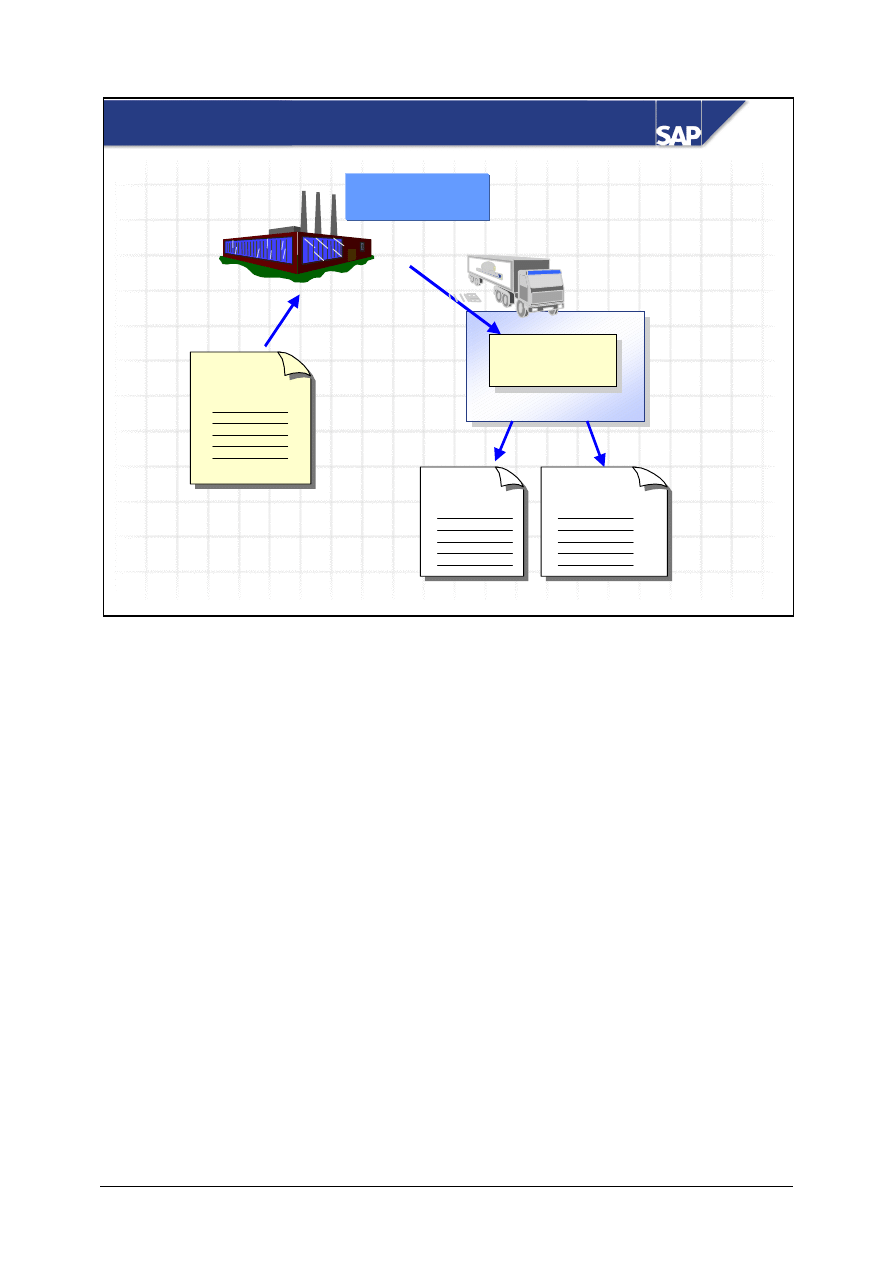
Since you work with purchase orders frequently, it is a good idea to include the
most important transactions in a list of favorites
You can use the options below:
• “Drag and drop”:
Use the mouse to drag the transaction you require into the list of favorites.
• The right mouse button:
Click the required transaction with the right mouse button and choose
Add
to favorites
.
• The button in the toolbar:
The system accepts the current entry when you choose the button in the
toolbar.
• The transaction code:
Make sure that you are on the initial screen. From the top toolbar, choose
Extras
→ Settings
and select
Display technical name
.
Select the transaction and make a note of the transaction code. To include the
transaction in your list of favorites, click the favorites folder with the right mouse
button.
Note that the format of the list of favorites varies depending on the procedure you
use.
If you would prefer to use a different description for your favorites, you can use the
right mouse button and
(Change favorites)
to assign individual descriptions.
© SAP AG
TSCM50
6-31
SAP AG 1999
Goods Receipt
Purchase
order
Material
document
Accounting
document(s)
GR area
GR area
Ext. vendor or
other plant
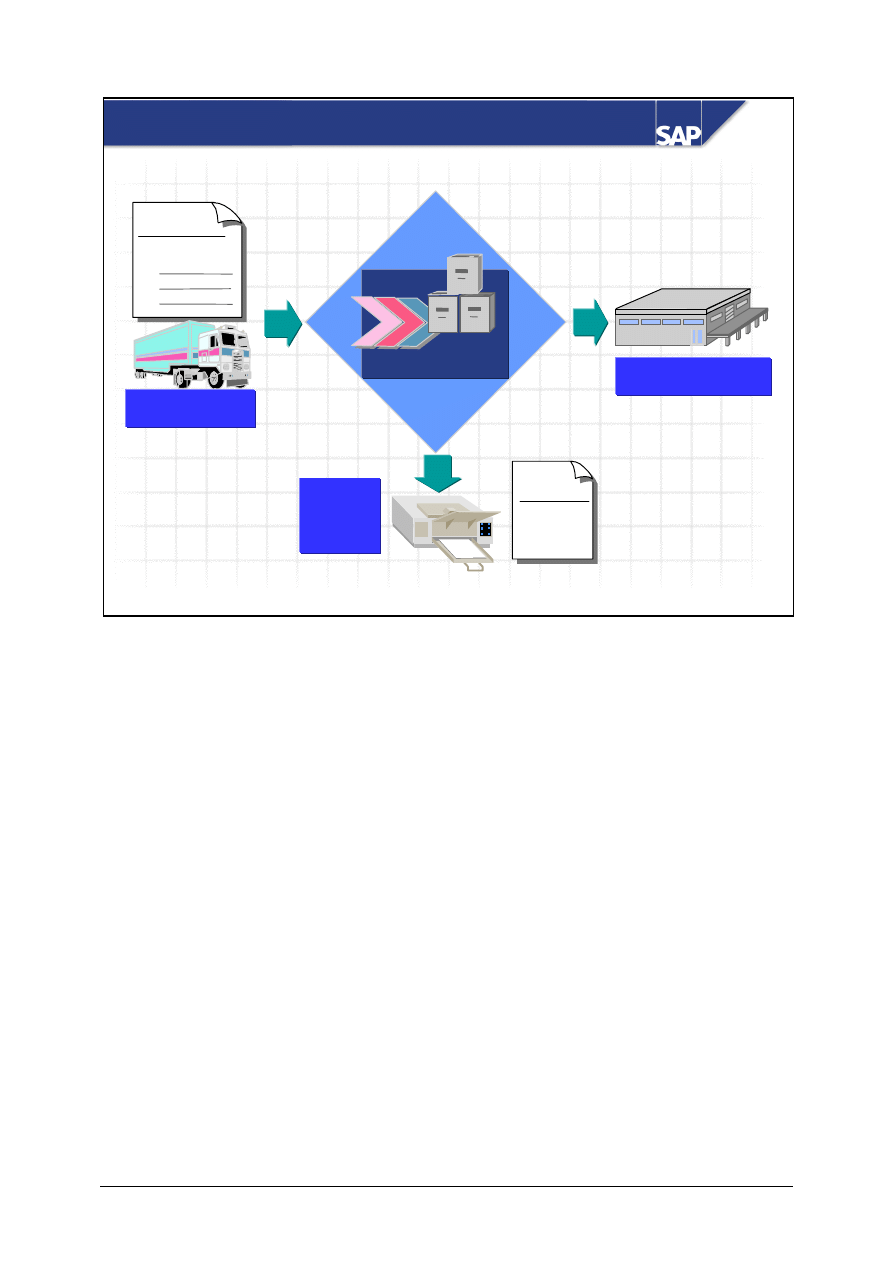
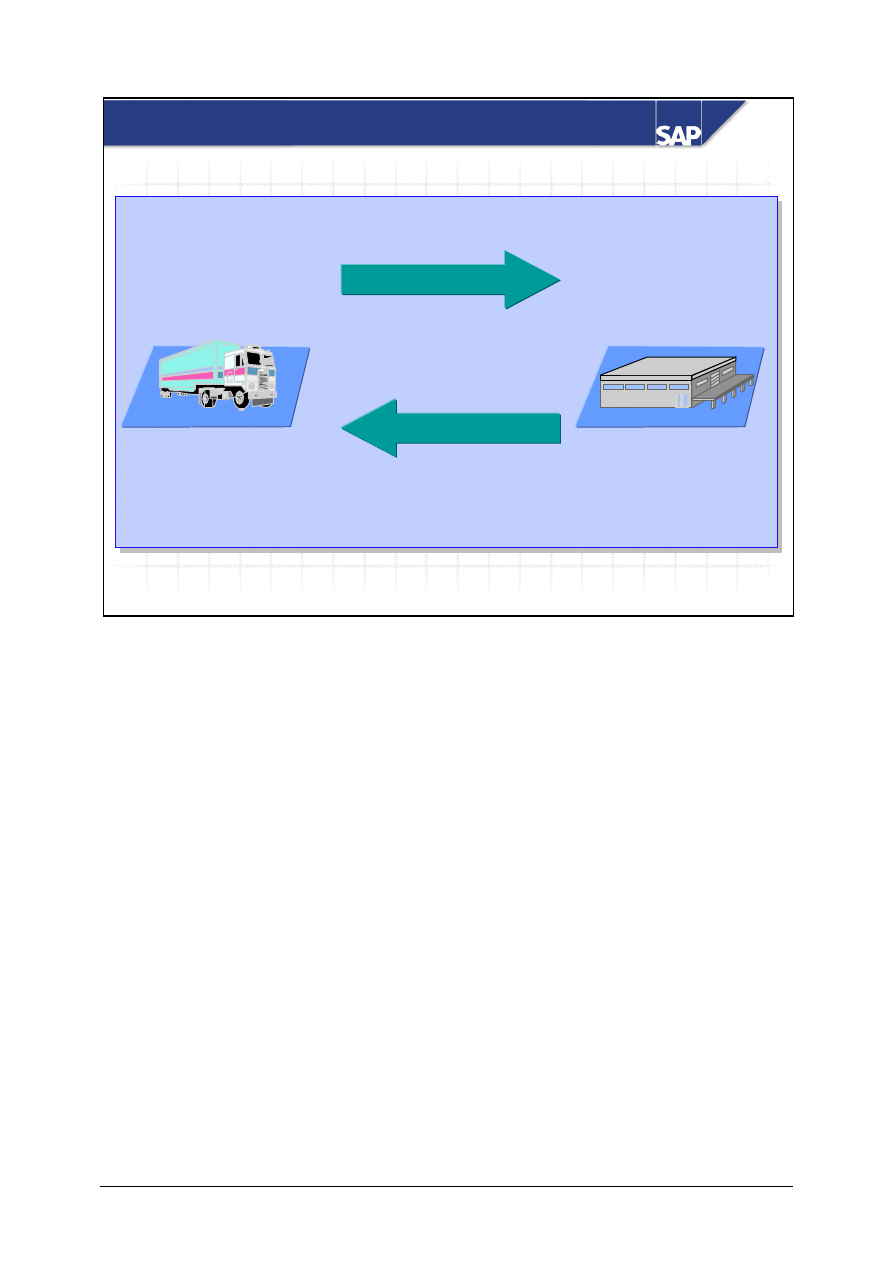
Posting a goods receipt to stock with reference to a purchase order has a number of advantages for
you, including:
The goods receiving point can check whether the delivery is the same as the purchase order data, that
is, whether the goods that were ordered have been delivered.
The system suggests data from the purchase order when you enter the goods receipt (for example,
items and quantities). This makes it easier to enter the goods receipt and check overdeliveries and
underdeliveries when goods arrive.
Among other things, the purchase order history is automatically updated as a result of the deliveries.
The Purchasing Department can send a reminder about late deliveries.
When you post a goods receipt to the warehouse, the system creates a material document containing
information such as the material delivered and the quantity delivered. The system also records the
storage location in which you place the material into stock in the plant concerned.
In transactions relevant for material valuation, the system creates at least one accounting document,
which records the effects of the goods movement on the value of the stock.
© SAP AG
TSCM50
6-32
SAP AG 1999
Goods Receipt for Stock Material
Goods receipt
Goods receipt
Warehouse
Warehouse
Purchase
order
Vendor
Vendor
GR
slip
Printout
Printout
(optional)
(optional)
Item:
1
2
3
1 ______
2 ______
3 ______
If you entered a purchase order to procure a material, you have to reference the purchase order when
you enter the goods receipt. The system can check, for example, whether the material delivered is the
same as the material ordered, whether the order quantity matches the goods receipt quantity or
whether the shelf life is still guaranteed for highly perishable goods (when the shelf life expiration
date check is active for the relevant material).
The purchase order history for a purchasing document item is also updated when a goods receipt is
posted with reference to a purchase order. This allows the buyer to send the vendor a reminder about
outstanding deliveries, for example.
Several goods receipt items can be entered for a purchase order item in one operation. This is
advisable if, for example, the material is delivered in batches or is distributed among several storage
locations. You enter the goods receipt data in a single material document.
If the delivery note accompanying the goods receipt does not contain a purchase order number, you
can use the material number or the vendor number to search for the corresponding purchase order
number.
You can print a goods receipt slip when entering the goods receipt.
© SAP AG
TSCM50
6-33
SAP AG 1999
Return delivery to the vendor
122
122
101
101
Goods receipt to the warehouse
Movement Type: Examples
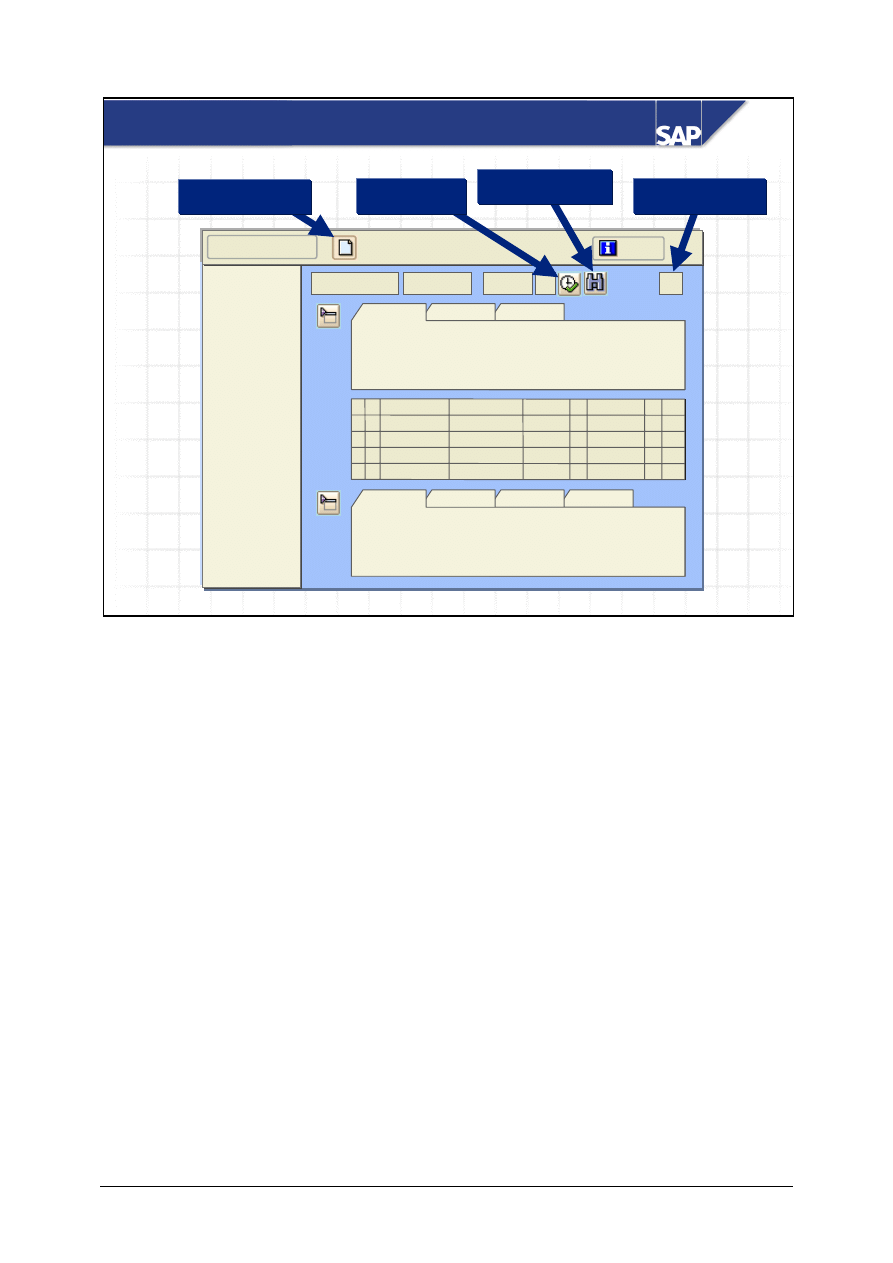
The movement type is a three-digit key used to differentiate between goods movements in the R/3
System. Examples of these goods movements are goods receipts, goods issues or transfer postings.
The movement type has important control functions in Inventory Management. It plays a central role
in automatic account determination in the R/3 System. Together with other influencing factors, the
movement type determines which stock or consumption accounts are updated in Financial
Accounting. The movement type also determines the format of the screen when you enter documents
and how the quantity fields are updated.
© SAP AG
TSCM50
6-34
SAP AG 2002
Overview
tree
Goods Movements – Transaction MIGO
Transaction
Doc.
Item overview
Header data
Item detail
Overview off
Help
Execute
Movement type
Find document
Restart
Item overview
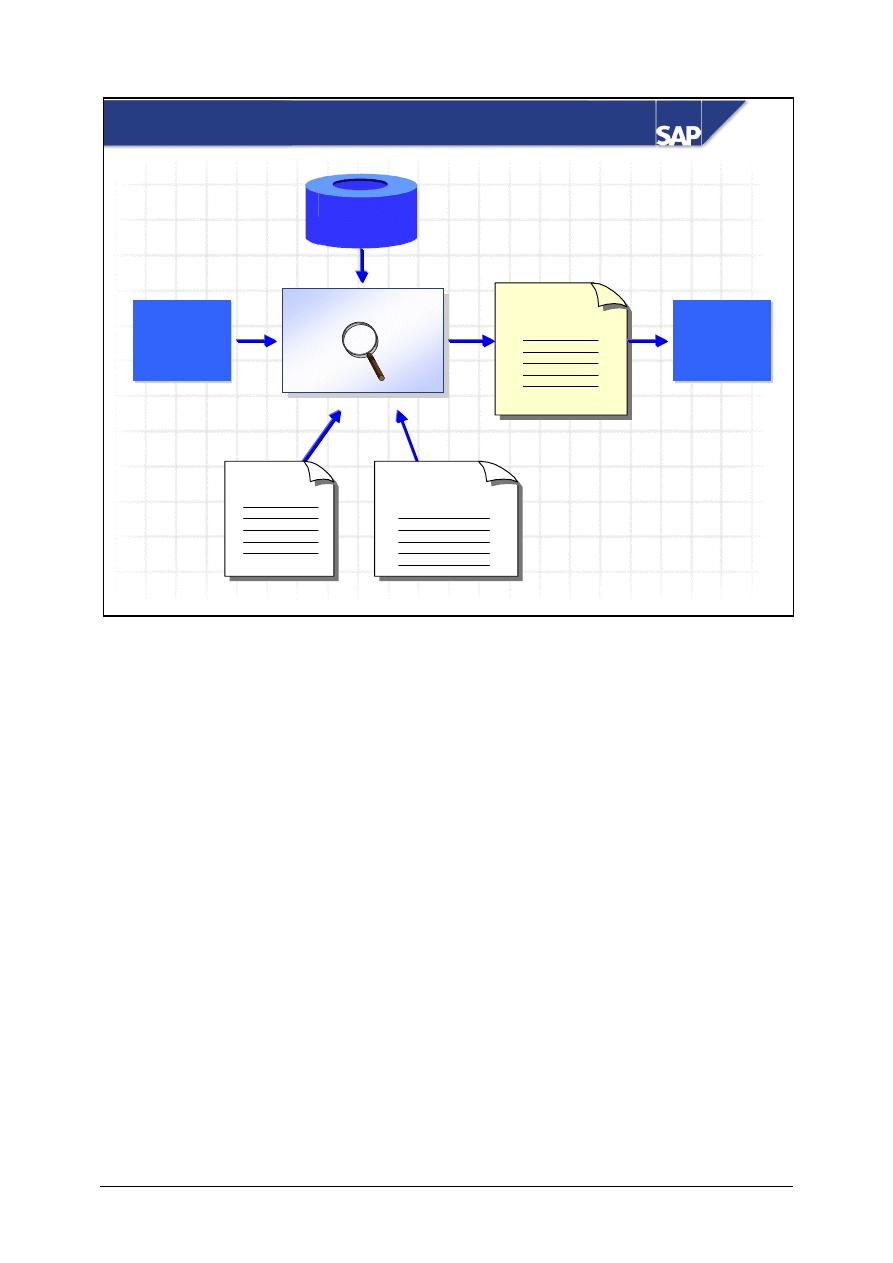
Like the purchase order (ME21N), the goods movement transaction (MIGO) is also a single-screen
transaction. The division into four screen areas (header data, item overview, item detail, document
overview) and the navigation options correspond with those of the purchase order. You can also
maintain personal default values in this transaction, by choosing Settings -> Default values.
You use the transaction field to determine whether you enter a goods receipt, goods issue, return
delivery or a cancellation. It depends on the selected transaction which documents you can refer to
when entering the goods movement, and which you can do without.
Note that you cannot change the document overview. The documents displayed here are
automatically inserted by the system. These documents (purchase orders, orders, reservations) are
ones you referred to when posting a goods movement, and the material documents created as a
result.
Do not use the document overview in MIGO to search for documents. If you do not know the
number of a document, use the Find document icon.
To terminate processing in MIGO, you do not have to leave the transaction. Just choose Restart and
you can start again.
© SAP AG
TSCM50
6-35
SAP AG 1999
Payment
Payment
program
program
Invoice
Invoice
Invoice verification
Purchase
order
Mat. doc. for
goods receipt
Invoice
document
Master data
Master data
Invoice Processing
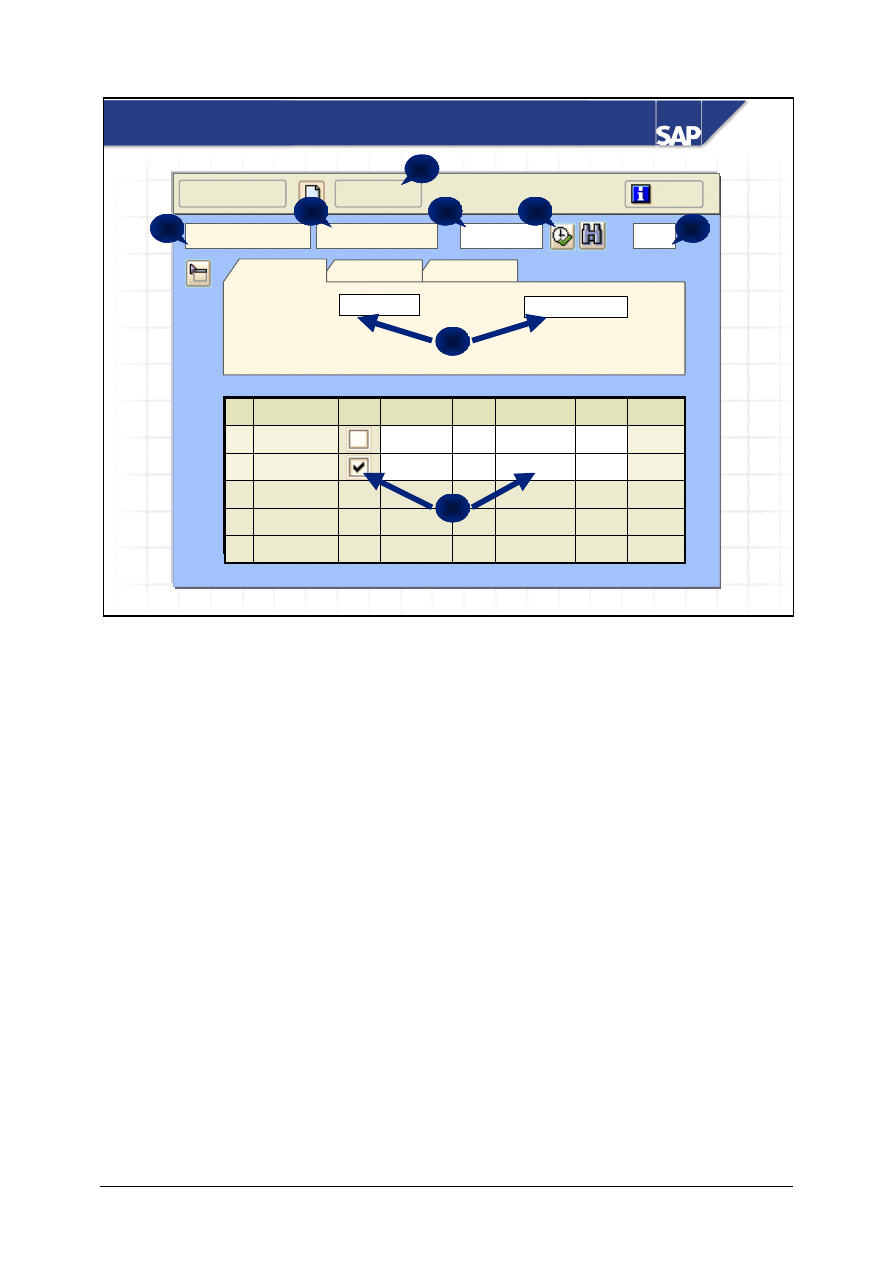
In Materials Management, the procurement process is concluded by the invoice verification process,
during which invoices and credit memos are entered and the contents and prices are checked for
accuracy. However, payment and evaluation of invoices is not part of Invoice Verification; the
appropriate information for these tasks is passed on to other departments. Invoice Verification
therefore creates a link between Materials Management and external or internal accounting.
When you enter an invoice with reference to a purchase order, the system suggests data from the
purchase order and the goods receipts for the purchase order (for example, vendor, material, quantity
still to be invoiced, terms of payment, and so on).
If there are discrepancies between the purchase order or goods receipt and the invoice, the system
warns the user, and depending on how the system is configured, blocks the invoice for payment.
The posting of the invoice completes the invoice verification process. The system updates the
purchase order history and Financial Accounting initiates payment for the open invoice items.
Invoice Verification creates a link between Materials Management and external or internal
accounting.
© SAP AG
TSCM50
6-36
SAP AG 2002
Enter Goods Receipt for Purchase Order
45000074
101
Goods Receipt
Purchase Order
Post
Help
Document Date
Delivery Note
General
DN 08/15
16.10.2001
1000
101
Whse 1
PC
15
Keyboard
2
1000
101
PC
10
Monitor
1
Plant
MvT
Stor. loc.
Un
Qty
OK
Material
Show overview
1
2
4
7
6
5
3
8
The most important steps for entering the goods receipt are shown on this slide.
Choose
Goods Receipt (1) as the transaction and Purchase Order (2) as the reference document.
Before you enter the purchase order number, check the default value for the movement type (3). You
can either enter the purchase order directly, or determine it from the Search function (4). With
Execute (5), the items are dragged from the purchase order into the item overview. Enter the
document date and the delivery note number in the header data (6) and process the items. Select the
items that were delivered with the OK indicator. If necessary, change the proposed quantity and
enter a storage location (7). Finally, post the goods receipt (8).
Notes:
You can set in your personal default values that the OK indicator is selected for all items. In this
case, you must deselect it, as this is a goods receipt with items that were not delivered.
If the detail data for an item is open, you can only enter changes to this item in the detail
data!
To display a material document, change the transaction to Display and choose Material document,
enter the number of the material document and choose execute. You can determine the document
number from the search function, or select it from the overview. In the overview, only the last 10
used or created material documents are displayed.
© SAP AG
TSCM50
6-37
Basics of Procurement Process 2-
Solutions
Unit: Basics of Procurement Process
Topic: Goods Receipt Processing
At the conclusion of this exercise, you will be able to:
• Enter goods receipts for existing purchase orders
• Check that the purchase order was updated as a result of the
goods receipt
As an employee in the warehouse, you are responsible for
entering goods receipts in the SAP R/3 System. You enter the
goods receipt with reference to its purchase order so that you can
check whether the delivery matches the purchase order. When
you enter the goods receipt, the system updates the purchase
order history, thus allowing the buyer to get information on the
status of the delivery directly from the purchase order document.
2-1
Post the goods receipt
The standard taillights you ordered are delivered complete and undamaged. Post the
goods receipt with reference to your purchase order into unrestricted-use stock in
storage location 0001 (Material store), plant 1000 (Hamburg).
Pay attention to the details in the delivery note on the next page (for example, the
delivery note number). Post the goods receipt and make a note of the material
document number.
Note that the purchase order number is not displayed in the document
overview of the goods receipt transaction. To search for your document, use
the search function
.
For example, search for vendor T-K12A## and material T-RM1##.

© SAP AG
TSCM50
6-38
Delivery note
Motolux GmbH Gr.##
Sonnenweg 3
68145 Mannheim
Delivery note number:
LS-A1##
IDES
Hamburg Plant
Altersdorferstr. 13
13
22299 Hamburg
Mannheim, [current date]
With reference to purchase order no. 450000xxxx we deliver the following materials:
Item
Material number
Description
Quantity / Un
10
T-RM1##
Standard taillight-##
100 pc
Best regards,
Motolux GmbH Gr.##
Material document no.: _________________________________________
2-2
Display the material document
Display the material document that was created as a result of the goods receipt.
2-3
Display the purchase order
Display the purchase order from exercise 1-1 again and check that the system
updated the purchase order history as a result of the goods receipt. Compare the
material document number from the purchase order history with the material
document number from exercise 2-1.
____________________________________________________________
2-4
Add to list of favorites
Add the goods receipt transaction to your list of favorites.
© SAP AG
TSCM50
6-39
SAP AG 1999
Theil & Söhne
Martinsplatz 39
60049 Frankfurt
I
IDES AG
Überseering 110
22045 Hamburg
April 7, 1999
With reference to your purchase order 45000895 from
March 3, 1999, we delivered the following goods:
10VGE-roh 1
1,000 pcs
UNI 2,500
VGE-hal 1
300 kg
UNI 1,500
UNI 4,000
plus 10% tax
UNI 400
UNI 4,400
Payable within 20 days of invoice date.
2% cash discount for payment within 10 days.
Acct no. 11223344, MBS Bank (code 300 210 55).
Theil & Söhne
Martinsplatz 39
60049 Frankfurt
I
IDES AG
Überseering 110
22045 Hamburg
April 7, 1999
With reference to your purchase order 45000895 from
March 3, 1999, we delivered the following goods:
10VGE-roh 1
1,000 pcs
UNI 2,500
VGE-hal 1
300 kg
UNI 1,500
UNI 4,000
plus 10% tax
UNI 400
UNI 4,400
Payable within 20 days of invoice date.
2% cash discount for payment within 10 days.
Acct no. 11223344, MBS Bank (code 300 210 55).
T
S
Purchase order
Invoice items
Material
Quantity
Unit of measure
Payment conditions
Document date
Vendor
Bank information
Tax rate
Invoice amount
Tax amount
Amount per item
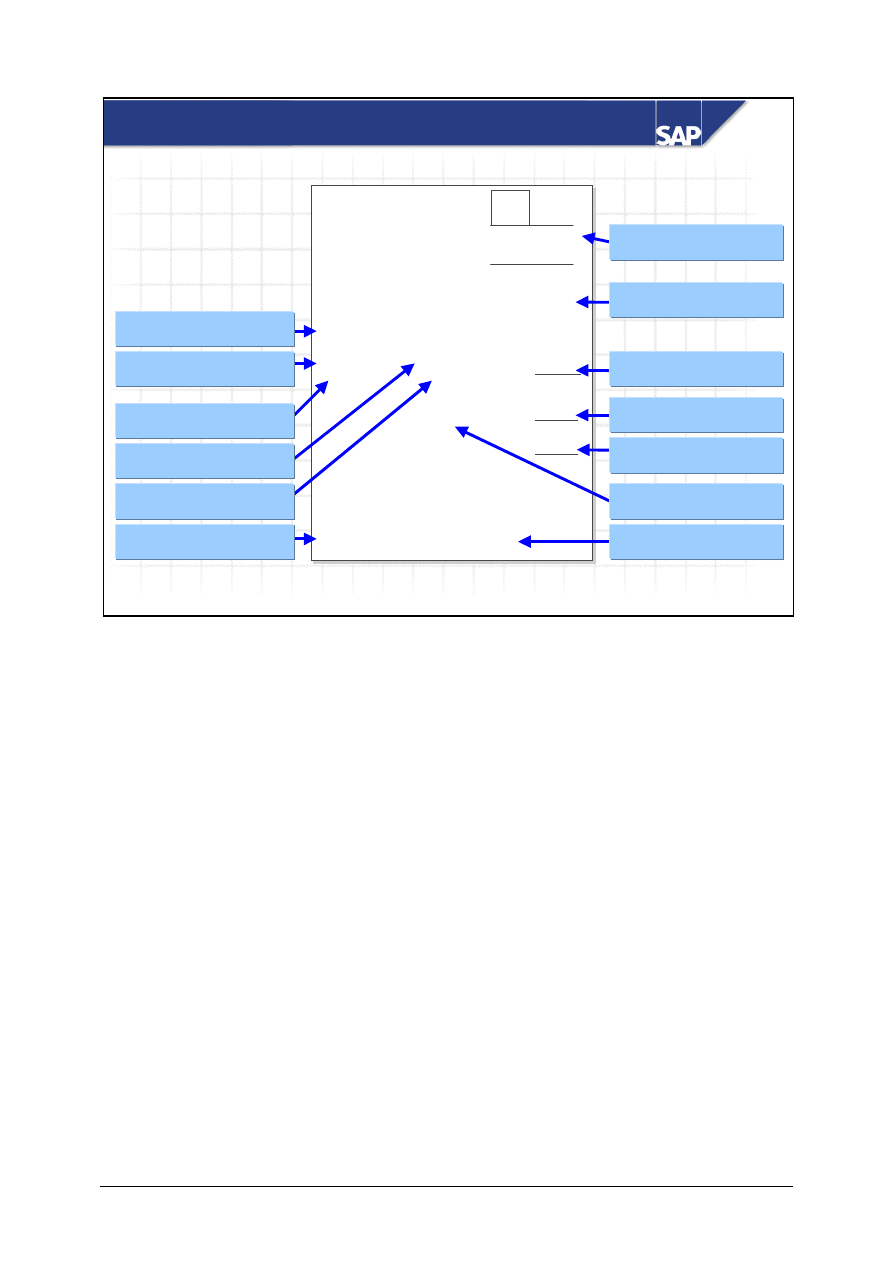
Information in an Invoice
In Invoice Verification, you enter all the relevant data for the vendor invoice (for example gross
amount, tax, invoice date, and so on). The system checks this data in subsequent processing steps
and compares it with data that already exists in the system, such as the purchase order document and
the goods receipt document.
The invoice document can be optically archived and sent via workflow to the department responsible
for invoice verification. This is an important step towards the realization of the paperless office.
© SAP AG
TSCM50
6-40
SAP AG 1999
Invoice Verification with Reference to PO
PO
Item:
1 __________
2 __________
3 __________
Invoice
Item:
1 __________
2 __________
3 __________
?
Delivery note number
Delivery note number
Delivery note number
Purchase order no.
Purchase order no.
Purchase order no.
Bill of lading number
Bill of lading number
Bill of lading number
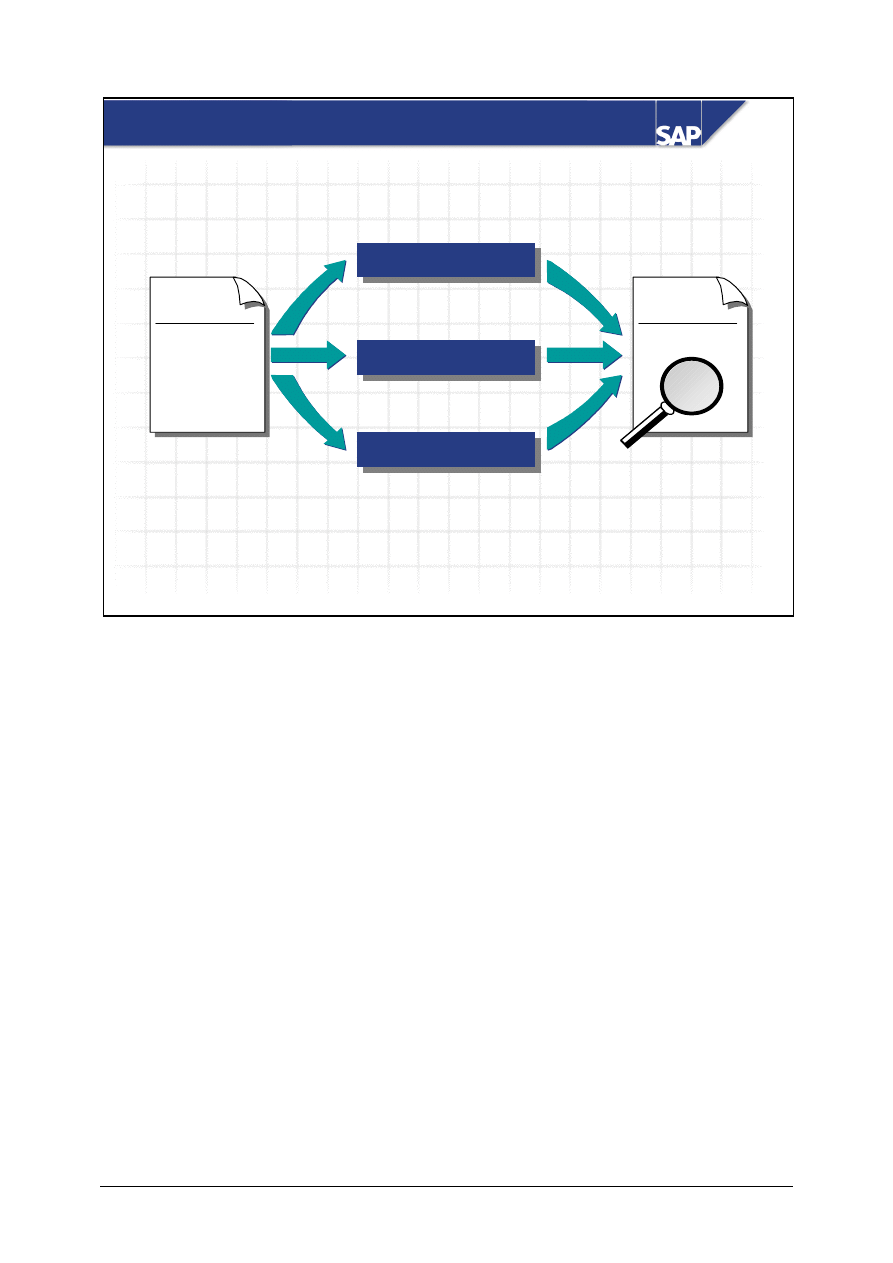
Where possible, invoices should be posted with reference to a purchase order. The advantage of this
procedure is that the system suggests the order prices from the order document and the goods receipt
quantities from the GR documents for the purchase order.
You can also assign the invoice items to a purchase order using the number of the delivery note or
bill of lading, provided that these numbers were entered at goods receipt.
© SAP AG
TSCM50
6-41
SAP AG 1999
Selection screen
Selection screen
X 4500012345 100
X 4500012345 100
Access via
purchase order
Purch
Purch
.
.
ord
ord
.
.
GR 1 50
50
GR 2 40
40
GR 3 10
10
Incoming
invoice
Purchase order
no. 4500012345
Goods receipt
Goods receipt
Purch. ord.
100 pcs
GR-IV
Goods receipt
Goods receipt
Goods receipt
Goods receipt
Reference to Purchase Order
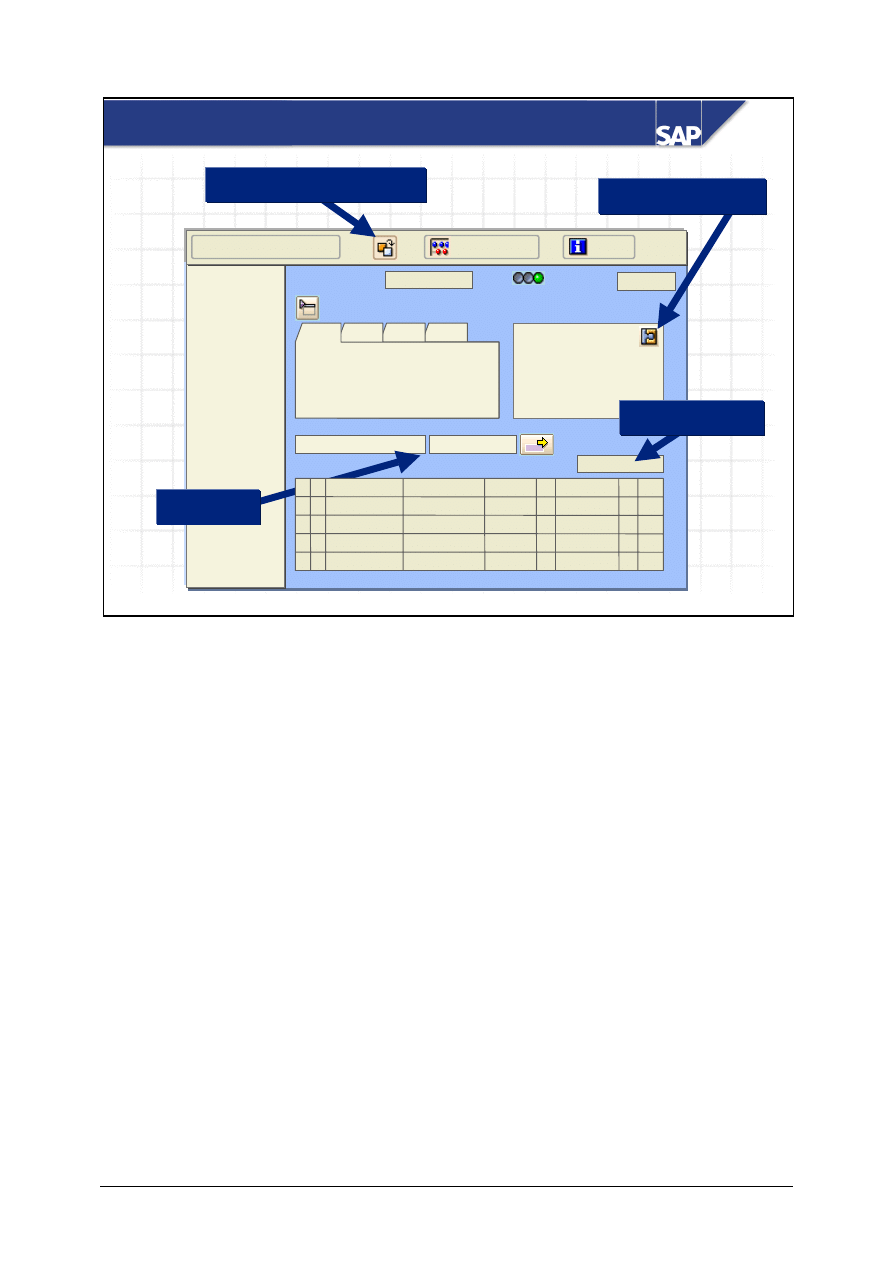
If the indicator for goods-receipt-based Invoice Verification was not set in the purchase order, the
vendor invoice can be entered before or after the goods are received.
If the invoice is entered with reference to a purchase order, only the amount that has already been
delivered but not yet invoiced appears on the selection screen as the default value if you are working
with standard settings. You can overwrite the default value and consequently settle the entire
purchase order quantity when partial deliveries have been received. The system automatically blocks
the invoice for payment if tolerances defined in the system are exceeded (for example, if the invoice
price varies greatly from the purchase order price).
With goods-receipt-based Invoice Verification, invoice entry is based on the goods receipts. If you
have entered several partial deliveries for an order item, the system displays them as separate invoice
items. Invoices for quantities greater than the goods receipt quantity cannot be posted. You must set
this type of Invoice Verification in the purchase order.
© SAP AG
TSCM50
6-42
SAP AG 2002
PO
structure
Invoice Entry – Transaction MIRO
Ref. doc. cat.
Invoice items
Header data
Hide PO structure
Transaction
Balance
Creditor
data
Doc no.
Help
Simulate
Other invoice document
Layout
Display creditor
Assignment
Invoice items
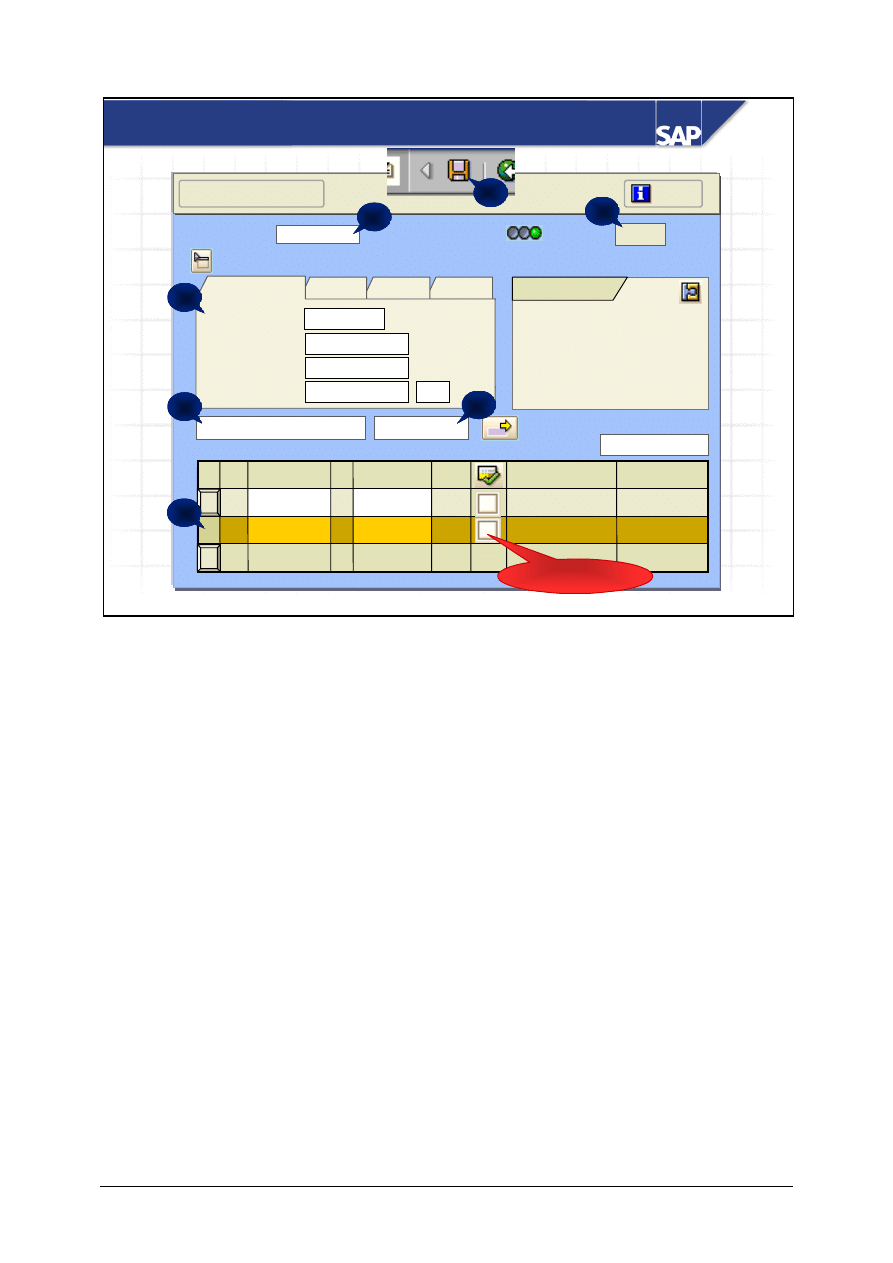
Invoice entry is a single-screen transaction. It is divided into the following screen areas:
Transaction: From this field you can determine whether you create an invoice, a credit memo, or
a subsequent credit or debit.
Header: In this area, enter the header data of an invoice, for example, invoice number and date,
gross invoice amount and tax amount, invoicing party and the terms of payment.
Assignment: Here you assign an ordering transaction to the invoice, so that the system proposes
the invoice items to be processed.
Invoice items: In this list, you can check the proposed invoice items and change the invoice
accordingly. You can use the layout to change the columns displayed and the sequence they are in.
Creditor data: Detail data on the invoicing party from the creditor master record is displayed, and
you can go straight to the master record.
Balance: Here, the balance and the invoice status are displayed, for example, whether an invoice
can be posted (green traffic light) or whether the invoice was blocked for payment during posting
(yellow traffic light).
PO structure: In this area, the person entering the invoice can see the purchase order histories of
the order items from the item overview.
© SAP AG
TSCM50
6-43
SAP AG 2002
0,00
Pur.ord./sched.agrmnt
Invoice items
Show PO structure
Transaction
Balance
Invoice
All info
45000074
Enter Invoice for Purchase Order
Help
45000074
Keyb oa rd
Pc
15
+
750
2
45000074
Monitor
Pc
10
+
1
Material
Un
Qty
Amount
RE 08/15
1I
Invoice date
Reference
Amount
Tax
825
75
19.10.2001
Basic data
UNI
Creditor 1000
CEB Chicago
15, Oak Street
12001 Chicago
UNI
1
2
5
6
3
7
Posting OK
Purch. order
4
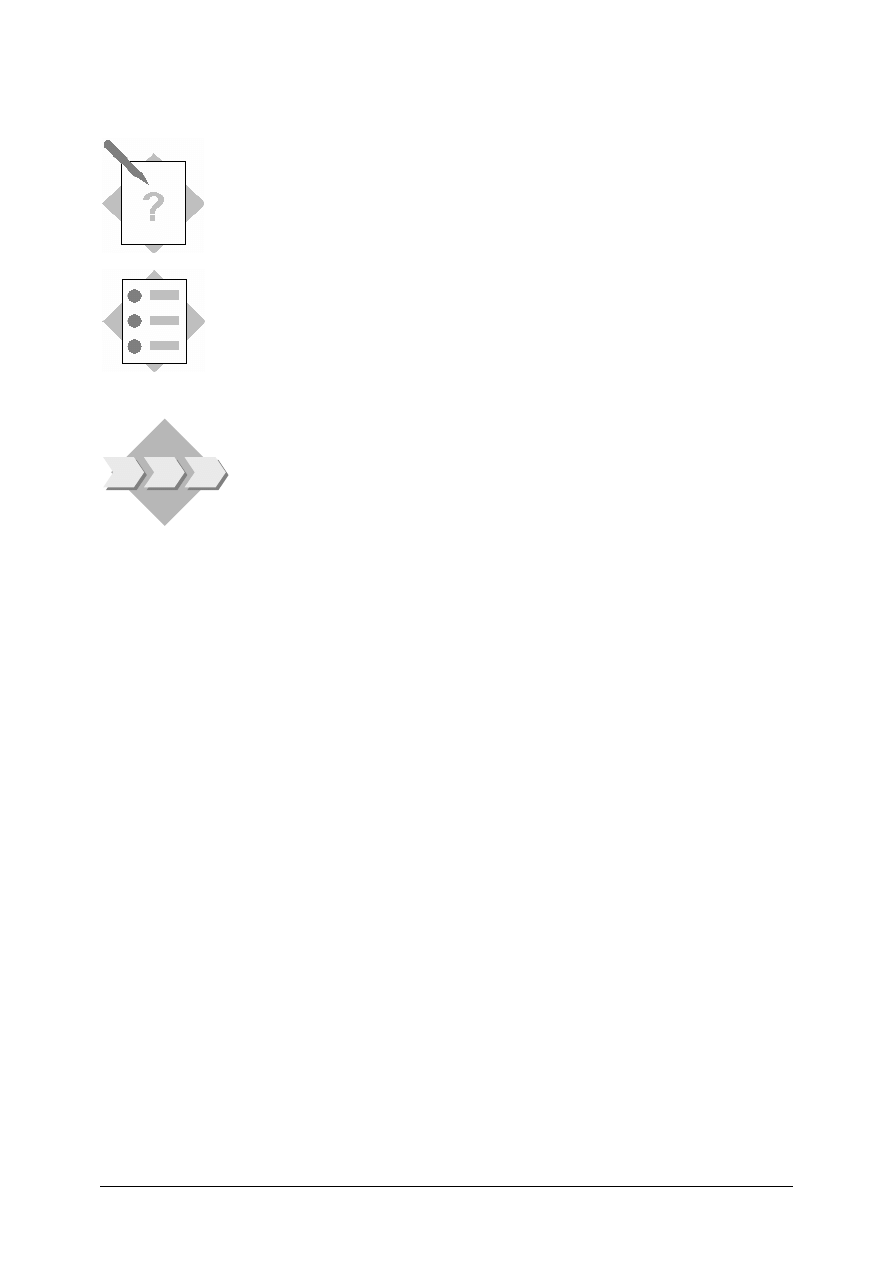
The most important steps for entering the invoice are shown on the slide.
Choose
the
Invoice (1) transaction. In the document header, enter the document date, invoice number
of the vendor invoice (reference) and the gross invoice amount, as well as the tax amount with tax
indicators (2). Then determine the assignment to a procurement transaction. You can refer to
purchase orders, but also delivery notes of the goods receipts (3). Enter the number of the document
that the invoice refers to (4). In the item list, the system proposes all order items that fulfill the
assignment criteria met (5). Compare the proposed invoice items with the items in the vendor
invoice, and correct the default values if necessary. The items to be posted must be selected (yellow).
If the balance equals zero (6), the invoice can be posted (7).
Note: Do not confuse the Posting OK indicator in the invoice (MIRO) with the OK indicator in the
goods movement (MIGO). With this indicator, you can select previously checked and processed
items. This indicator does not affect whether or not the item is considered during posting of the
invoice.
© SAP AG
TSCM50
6-44
Basics of Procurement Process 3-
Exercises
Unit: Basics of Procurement Process
Topic: Invoice Verification
At the conclusion of this exercise, you will be able to:
• Use Logistics Invoice Verification to enter an invoice and
check that it is correct
• Explain the effects of invoice verification on the purchase
order data
In Invoice Verification you enter the invoice you have received
from the vendor. Compare the invoice price with the purchase
order price, and the invoiced quantity with the quantity already
delivered.
3-1
Enter the vendor invoice
The vendor T-K12A## invoices you for the delivery of the standard taillights-##
T-RM1##. Use Logistics Invoice Verification to enter the invoice with today’s
date.
Use the data from the vendor invoice on the following page.
Compare the invoice price and invoice quantity with the data the system proposes
from the purchase order and the goods receipt. Post the invoice.
© SAP AG
TSCM50
6-45
Invoice
Motolux GmbH Gr.##
Sonnenweg 3
68145 Mannheim
Invoice number:
RE-A1##
IDES
Hamburg Plant
Altersdorferstr. 13
13
22299 Hamburg
Mannheim, [current date]
With reference to your purchase order no. 450000xxxx, we are invoicing you for the
following items:
Itm
Qty
Matl no. Description
Unit price
Total price
10
100 pcs T-RM1##
Standard taillight##
50 UNI 5000 UNI
Total net value: 5000 UNI
plus 10 % tax 500 UNI
Invoice amount
5500 UNI
The agreed payment conditions apply
Best regards
Motolux GmbH Gr.##
Invoice document number:
_______________________________________
3-2
Display the invoice document
Display the material document that was created as a result of the goods receipt.
Analyze the purchase order history and make sure it has been updated correctly.
3-3
Add to list of favorites
Add to your list of favorites the Logistics Invoice Verification transactions for
entering and displaying invoices.
© SAP AG
TSCM50
6-46
SAP AG 2002
You are now able to:
Basics of Procurement Process: Unit Summary
List the organizational levels in the R/3 System
that are relevant to the procurement process
Explain the relationship between these
organizational levels
Identify the basic procurement process
© SAP AG
TSCM50
6-47
Basics of Procurement Process 1-
Solutions
Unit: Basics of Procurement Process
Topic: Order Processing
1-1
Maintain personal settings
(Logistics)
→ Materials Management → Purchasing → Purchase Order →
Create
→ Vendor/Supplying Plant Known
(transaction ME12N).
,
Default values tab, then Purchase order header:
Purchasing organization
IDES USA (1000)
Purchasing group
SCM500-## (T##)
Company code
IDES USA 1000 (1000)
Save
your personal default values. These values are now used in the purchase
order until you change them again.
1-2
Create a purchase order
(Logistics)
→ Materials Management → Purchasing) → Purchase Order →
Create
→ Vendor/Supplying Plant Known
(transaction ME12N).
PO type
Standard PO
Vendor
T-K12A##
Item data: Item 10
Material
T-RM1##
Order quantity
100
Delivery date
today
Net price
(Proposed by the system)
Plant
1000 (Hamburg)
Storage location
0001 (Material store)
Accept the default purchase order price suggested by the system.
© SAP AG
TSCM50
6-48
1-3
Display the purchase order
After saving your purchase order, stay in the ordering transaction and open the
document overview
.
As the selection variant (icon
) choose "My purchase orders". You can display
your document in the list by double-clicking on the document number.
1-4
Issue a message
(Logistics)
→ Materials Management → Purchasing → Purchase Order → Messages
→ Print/Transmit (transaction ME9F).
In the overview, select your document and choose
and
.
1-5
Maintain a list of favorites
The solution corresponds with the task.
© SAP AG
TSCM50
6-49
Basics of Procurement Process 2-
Solutions
Unit: Basics of Procurement Process
Topic: Goods Receipt Processing
2-1
Post the goods receipt
(Logistics)
→ Materials Management → Inventory Management → Goods
Movement
→ Goods Receipt → For Purchase Order
→ PO Number Known
(transaction MIGO).
Select your purchase order using the search function
(Find purchase order) or
enter your purchase order number directly.
2-2
Display the material document
Switch from entering the goods receipt to the display mode. To do this, change the
transaction from Goods Receipt to Display. The last material document you
posted is automatically proposed. To confirm it, use Enter.
You can select an older material document by either double-clicking on the
document overview, or using
.
2-3
Display the purchase order
You can display the purchase order from the material document. You only need to
double-click on the purchase order number in the item overview or in the item
detail tab page Purchase order data.
In the purchase orders, open the details on the requested item and display the detail
tab Purchase order history.
It is also possible to display the purchase order history of an item directly from the
item detail of the material document. Open the item detail tab page Purchase order
data and click on the icon
(History).
2-4
Add to list of favorites
Use one of the following options:
• “Drag and drop”
• The right mouse button
• The button in the toolbar
• The transaction code
© SAP AG
TSCM50
6-50
Basics of Procurement Process 3-
Solutions
Unit: Basics of Procurement Process
Topic: Invoice Verification
3-1
Enter the vendor invoice
(Logistics
→ Materials Management)
→ Logistics Invoice Verification → Document Entry
→ Enter Invoice
Document date
Current date
Reference
RE-A1##
Amount
5500
Tax amount
500
Choose your purchase order document for vendor T-K12A## via F4 help, or
enter the purchase order number.
Simulate and post the invoice.
3-2
Display the invoice document
On the Invoice Verification screen, choose
Invoice document
→ Display.
You can see the purchase order history in the purchase order structure.
3-3
Add to list of favorites
Use one of the following options:
• “Drag and drop”
• The right mouse button
• The button in the toolbar
• The transaction code
© SAP AG
TSCM50
7-1
SAP AG 1999
Contents:
Master Data
Material Master Record
Vendor Master Record
© SAP AG
TSCM50
7-2
SAP AG 1999
At the conclusion of this unit, you will be able to:
Master Data: Unit Objectives
Create and maintain material and vendor
master records
Explain the impact of organizational levels
on the material and vendor masters
© SAP AG
TSCM50
7-3
SAP AG 1999
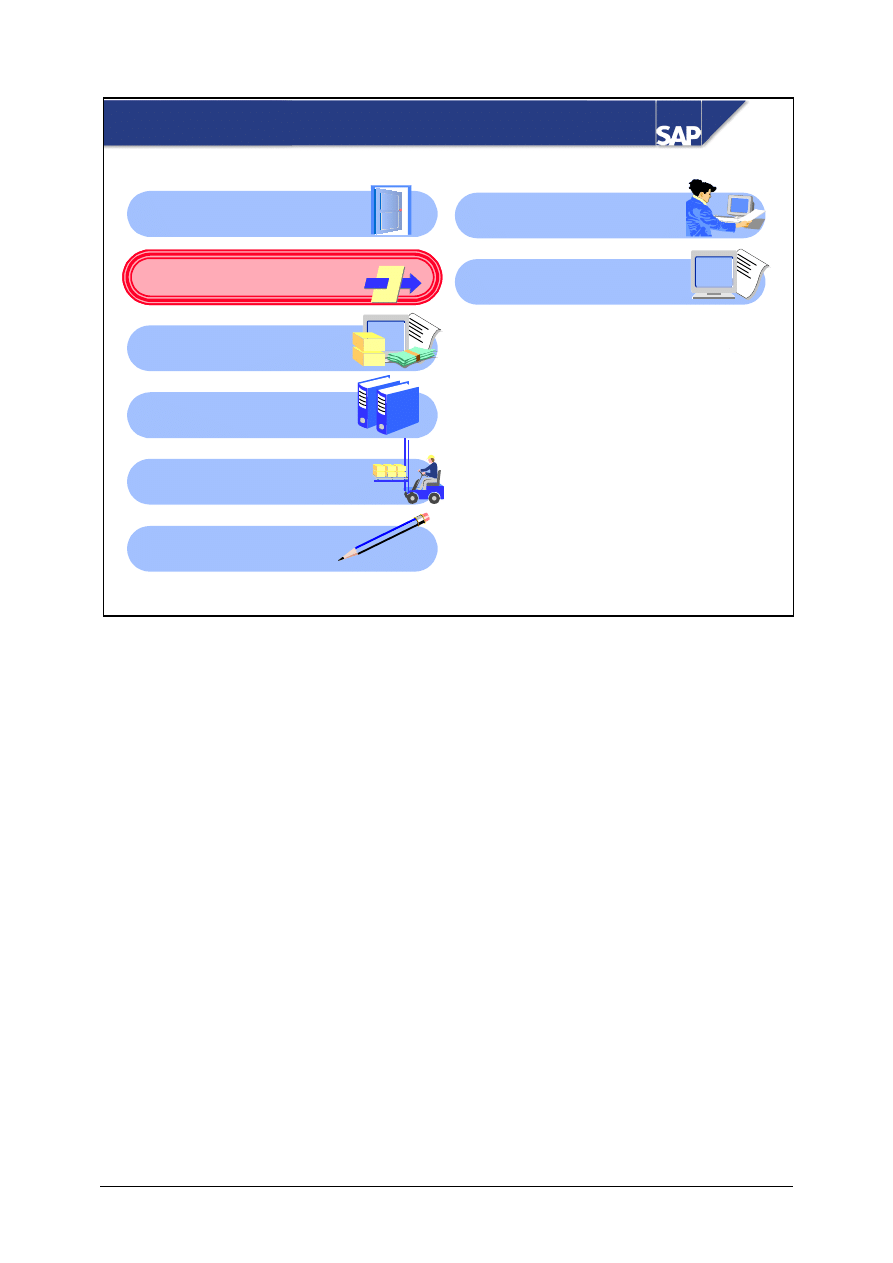
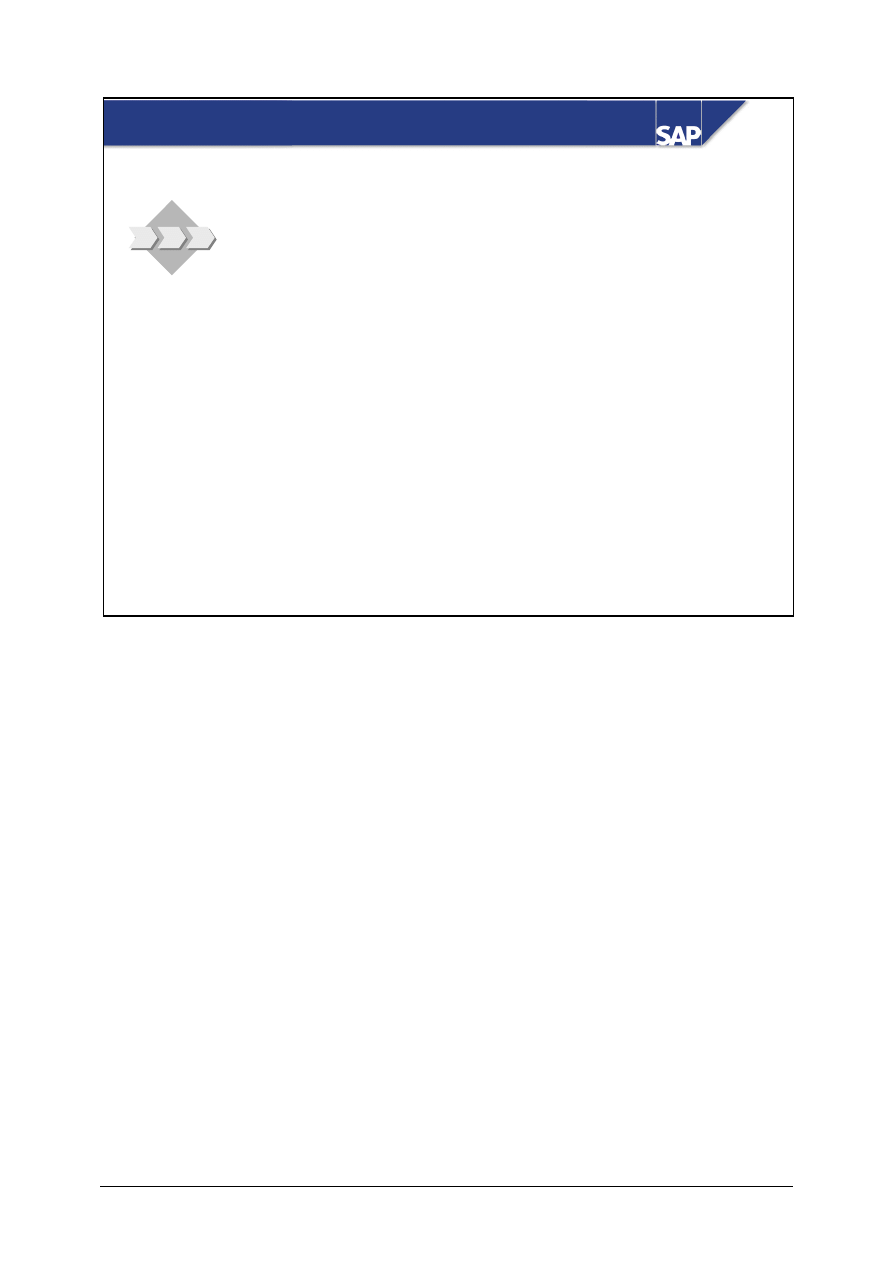
Master Data: Course Overview Diagram
Procurement of Stock
Material
Reporting in Material
Management
External Procurement
with mySAP SCM
Procurement of
External Services
Subcontracting
Basic of Procurement
Process
Master Data
Procurement of
Consumable Material
© SAP AG
TSCM50
7-4
SAP AG 1999
Master Data: Business Scenario
Your company has decentralized
responsibilities affecting the material
master. You need to add and maintain
records for a new material.
The company has a business relationship
with a new vendor. To enable you to order
from this vendor, you have to create a new
vendor master record in the R/3 System.
© SAP AG
TSCM50
7-5
SAP AG 1999
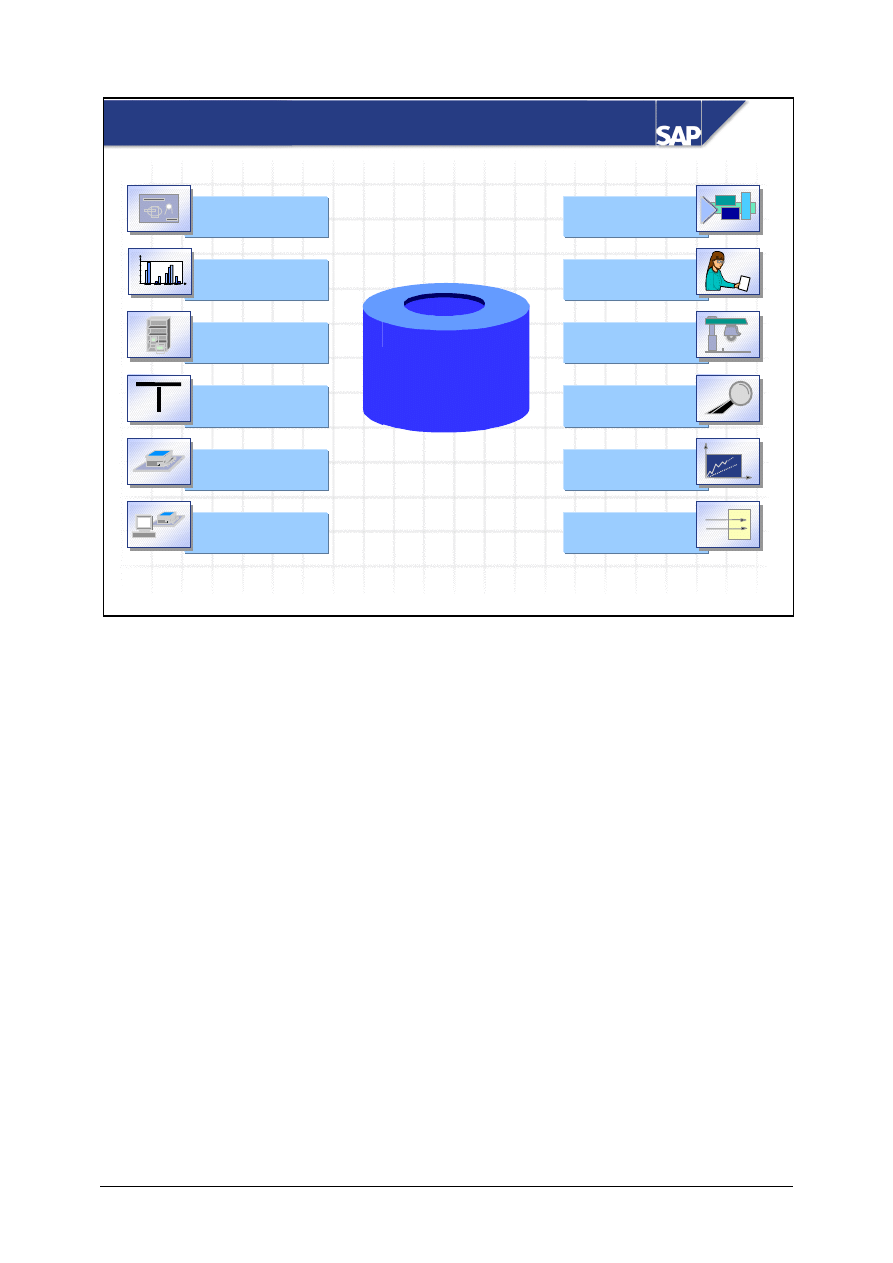
Master Data in the Procurement Process
Purchasing
info record
Material
Material
master
master
recd
recd
Vendor
Vendor
master recd
master recd
Purchase order
Header
Items
10 __________
20 __________
30 __________
Master data contains data records that are stored in the database for a long period of time. These are
stored centrally and used and processed on a cross-application basis. This prevents the multiple
storage (redundancy) of data.
The material master record and vendor master record are the most important master data in the
procurement process.
When you create purchasing documents, the R/3 System facilitates data entry by copying the data
from existing master records as default values into the purchasing documents. It also copies data
such as units of measure and material short texts from the material master record. The data in the
vendor master record includes addresses and payment data. You can store data for a particular
material (for example, delivery time and purchase price) on a vendor basis in info records.
© SAP AG
TSCM50
7-6
SAP AG 1999
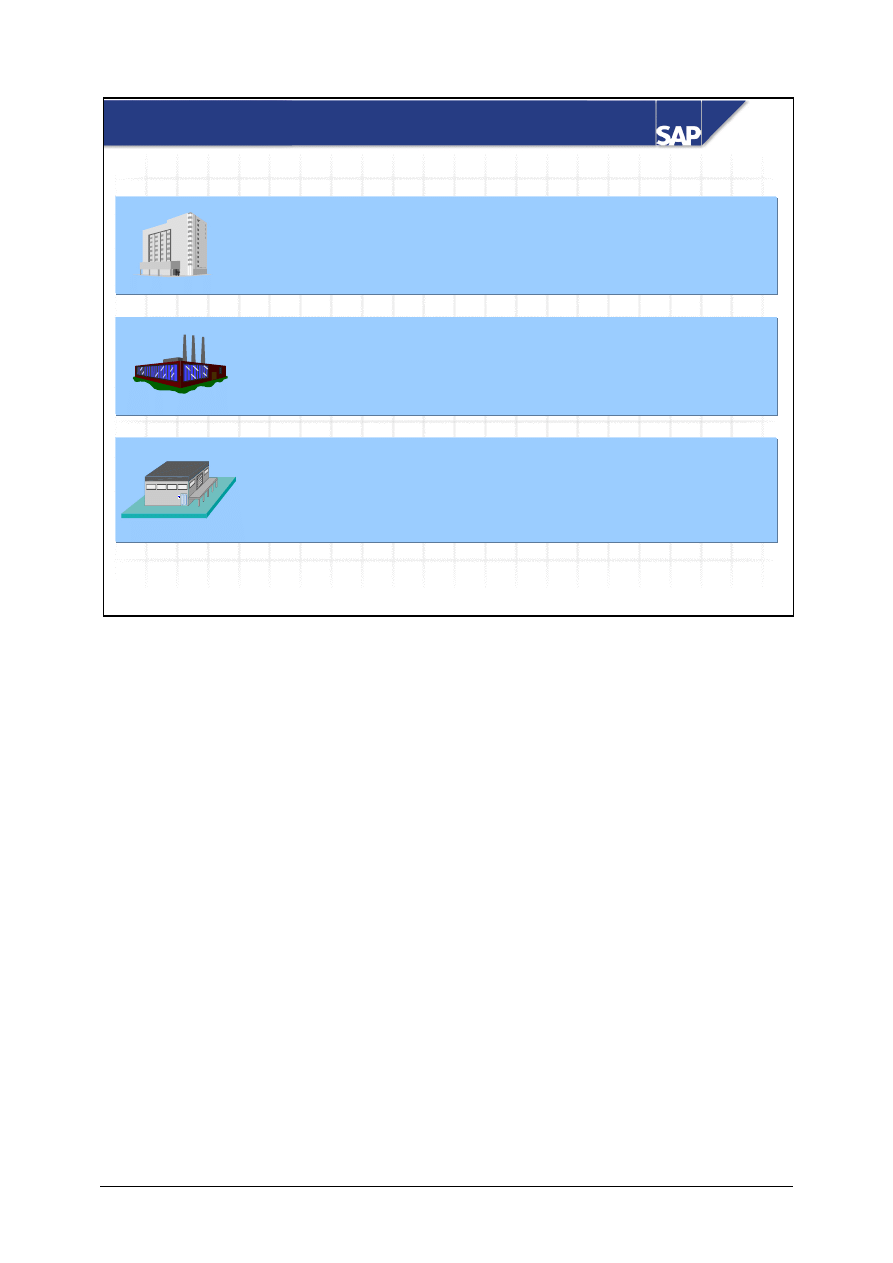
Work
scheduling
Purchasing
Warehouse Mgmt
Storage
Accounting
Stocks in
plant/storage loc.
Materials planning
Basic data
S&D
Quality
management
Classification
Forecasting
A
B
Pc
t
Material
Material
master record
master record
Material Master Data
The material master record is a company's main source of material-specific data. It is used by all
components in the R/3 Logistics System.
The integration of all material data in a single database object prevents the problem of data
redundancy. Every area, such as Purchasing, Inventory Management, Materials Planning, and
Invoice Verification can use the data stored.
The data contained in the material master record is required for many functions within the R/3
Logistics System, for example:
Purchasing data for ordering
Inventory management data for posting goods movements and managing physical inventory
Accounting data for material valuation
MRP data for Material Requirements Planning
Since materials are processed by various user departments within a company and each department
stores different information for the materials, the material master is subdivided into information
grouped by user departments. Each user department has a different view of the material master
record and is responsible for maintaining the data to support its function.
The data maintained within a view may be valid for more than one organizational level.
© SAP AG
TSCM50
7-7
SAP AG 1999
Data that is valid for the whole company:
For example, material no., material short text, material
group, base and alternative units of measure, ...
Data that is valid within one plant:
For example, purchasing data, MRP data, forecasting
data, work scheduling data, ...
Data that is valid for one storage location:
For example, storage bin description, picking area, ...
Material Master: Organizational Levels
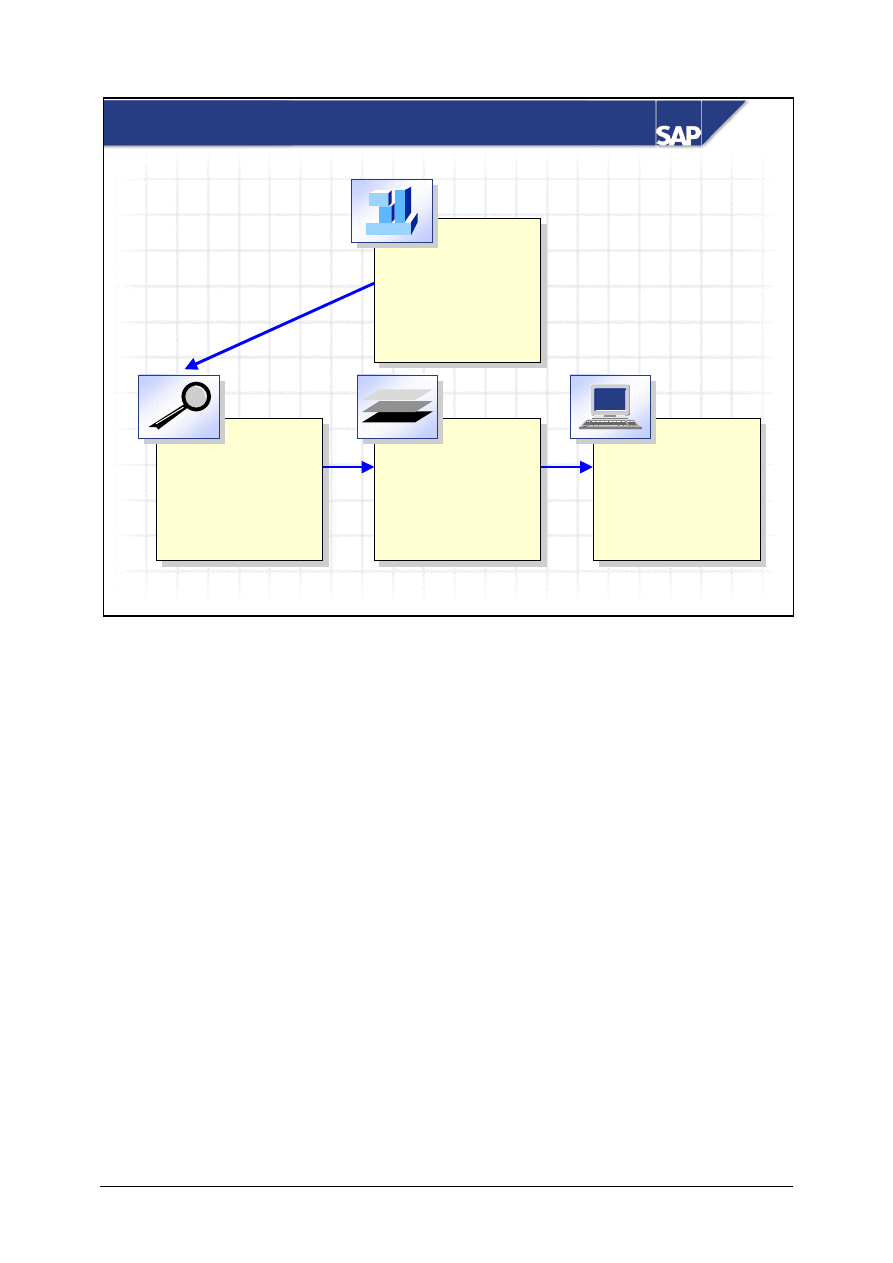
Some material data is valid for all organizational levels, while some is only valid for certain levels.
The material master is designed to reflect the structure of your enterprise so that you can manage the
material data in your enterprise centrally, without overloading your datasets with redundant
information.
Data at client level: General material data that is valid for the whole company is stored at client level.
Data at plant level: All data that is valid within a plant, and for all storage locations in it, is stored at
plant level.
Data at storage location level: All data that is valid for a particular storage location is stored at
storage location level.
© SAP AG
TSCM50
7-8
SAP AG 1999
Material
(Industry sector)
(Material type)
(Reference)
Material
(Industry sector)
(Material type)
(Reference)
Views
- Basic data
- Purchasing
- Storage
- Accounting
Views
- Basic data
- Purchasing
- Storage
- Accounting
Organizational
levels
- Plant
- Storage location
- ...
Organizational
levels
- Plant
- Storage location
- ...
Data screen(s)
Data screen(s)
Material
Material
Maintaining a Material Master Record: Screens
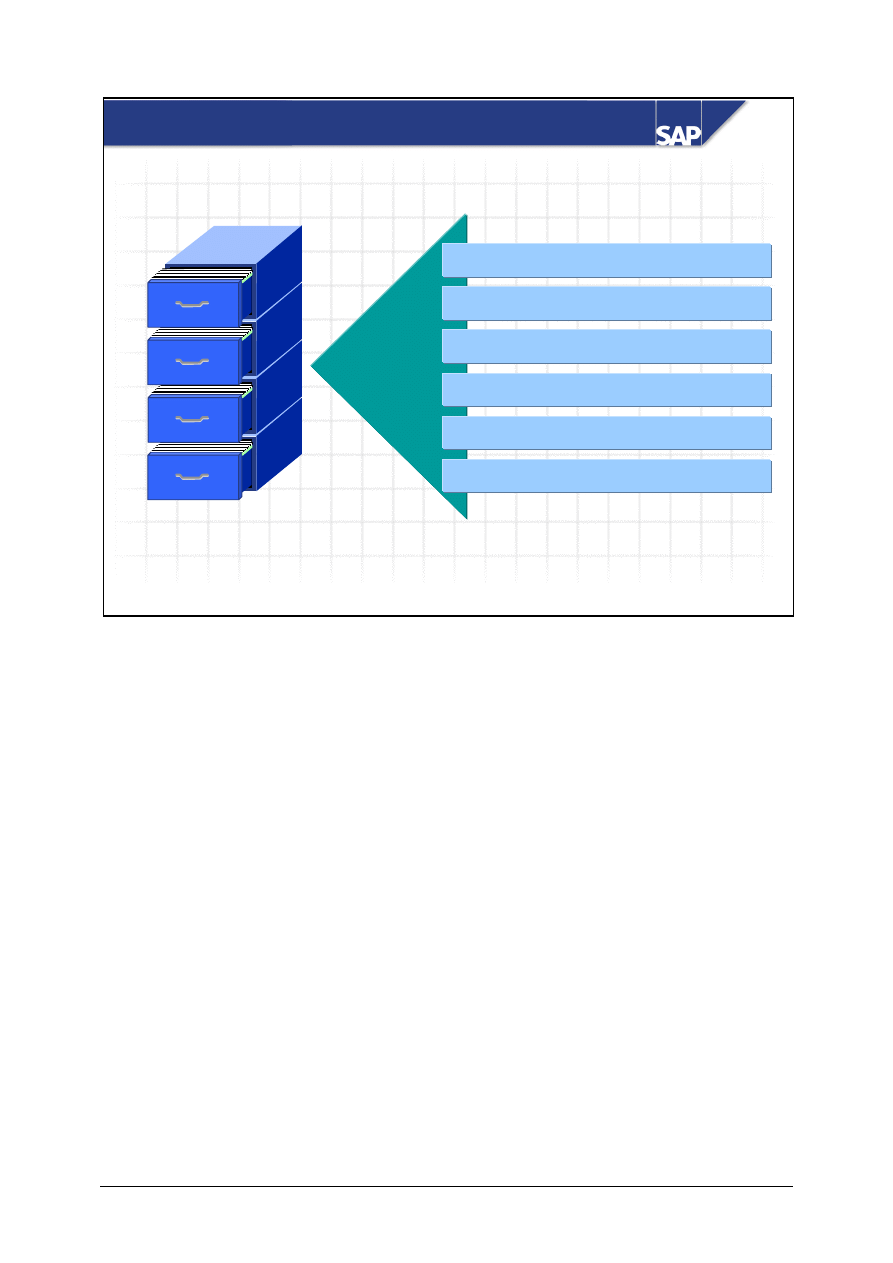
When editing material master data, you go through a number of screens.
From the initial screen, you go to two successive dialog boxes. In the first dialog box, you specify
the views you want to process. In the second, you specify the relevant organizational levels. You
then go to the data screens.
You can change the standard screen sequence by changing the default values.
Some screens are not integrated in the standard screen sequence. You can only access these screens
by specifically choosing them from the menu bar.
© SAP AG
TSCM50
7-9
SAP AG 1999
Finished
Finished
products
products
Semi-finished
Semi-finished
products
products
Operating
Operating
supplies
supplies
Raw materials
Raw materials
Number assignment
Procurement type
User departments
Field selection
Account determination
. . .
Control
Control
Material Type
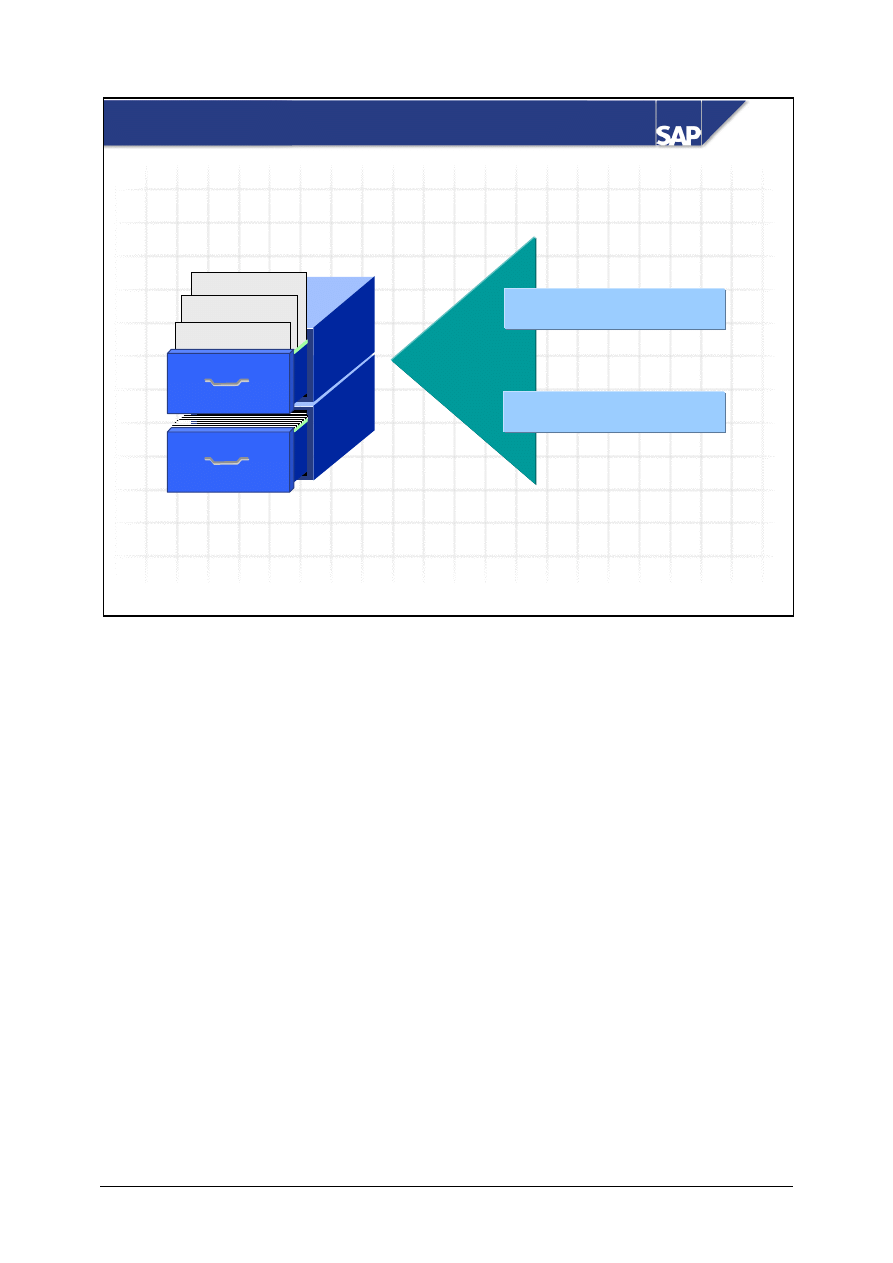
You can assign materials with the same characteristics to the same material type. Material types
include raw materials, semi-finished products, and finished products, for example.
The material type controls:
The type of number assignment (internal or external).
The permitted number range interval.
Which screens are displayed and in which order.
Which user-department-specific data (view) is suggested for entry.
Which procurement type is permitted for a material; that is, whether the material is produced in-
house, procured externally, or whether both options are allowed.
Along with the plant, the material type determines a material's inventory management requirement;
that is, whether the system updates quantity changes in the material master record or updates changes
in value in the stock accounts in Financial Accounting.
The material type also determines which accounts are posted when a material is posted to stock or
leaves the warehouse.
Various material types are provided in the standard SAP R/3 System. If your company needs
additional material types, you can define these in Customizing according to your requirements.
© SAP AG
TSCM50
7-10
SAP AG 1999
Industry Sector
Chemical industry
Operating
Operating
sppls
sppls
Raw materials
Raw materials
Mech.engineering
Chemical industry
Plant eng./constr.
Screen selection
Field selection
Control
Control
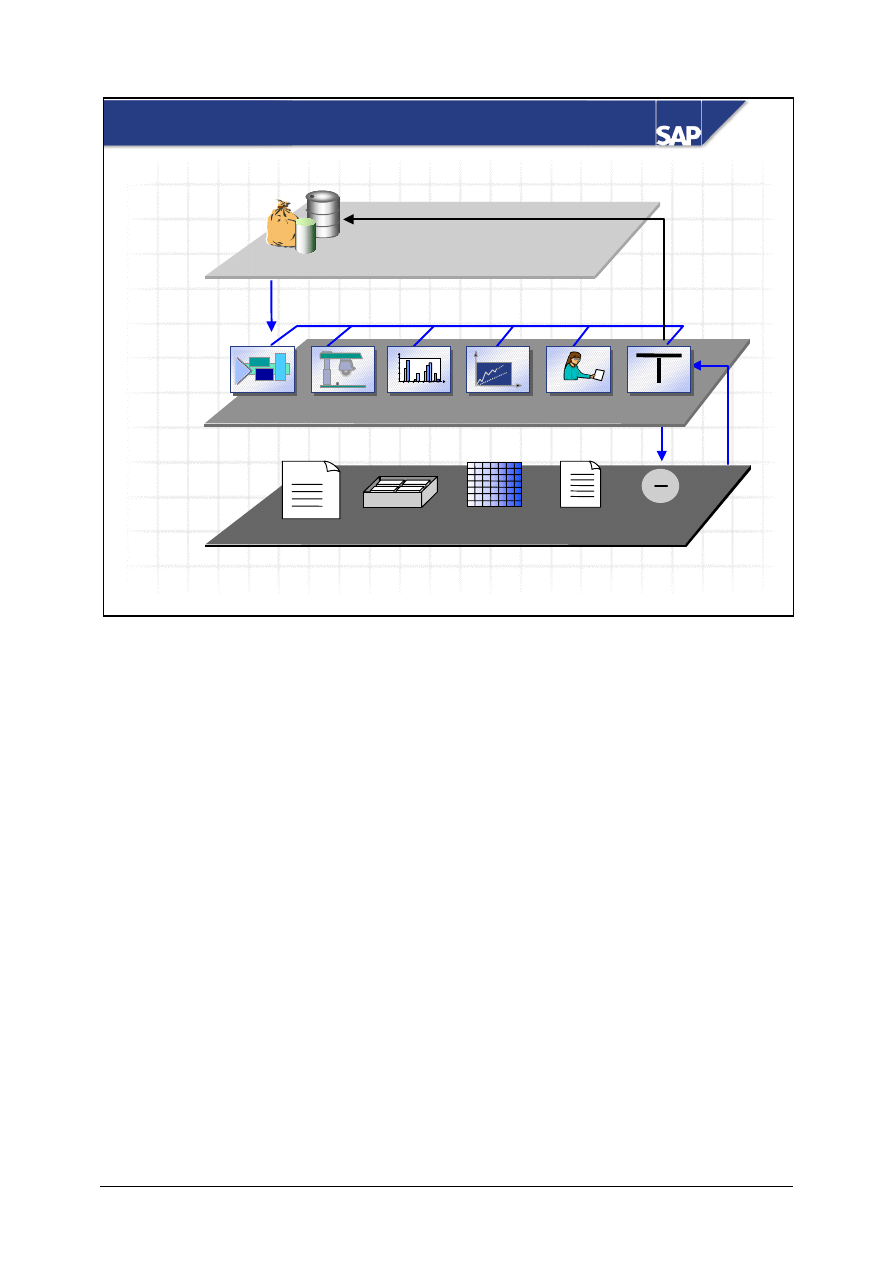
Like the material type, the industry sector has a control function in the R/3 System.
When you create a material master record, the industry sector defines:
Which screens are displayed and in which order
Which industry-specific fields are displayed on each screen
The industry sector you assign to a material cannot be changed later.
In Customizing, you can define new industry sectors and maintain the field reference for field
selection control according to your company-specific requirements.
© SAP AG
TSCM50
7-11
SAP AG 1999
Ini
tia
l le
ve
l
Ma
in
w
or
k a
re
a
Ad
dit
ion
al
da
ta
lev
el
Work
Work
scheduling
scheduling
MRP
MRP
SD
SD
Forecasting
Forecasting
Accounting
Accounting
Units of
Units of
measure
measure
Document
Document
data
data
Additional
Additional
EANs
EANs
Consumption
Consumption
Material
Purch
Purch
.
.
Texts
St
t
Data Screens in Material Master Maintenance
The data screens used in processing material master records can be subdivided into the following
types of screens:
Main work level
These are the screens for each user-department, such as basic data, materials planning, and so
on.
Additional data level
These are screens you use to maintain additional information, such as units of measure,
material descriptions, consumption values, and forecasting data.
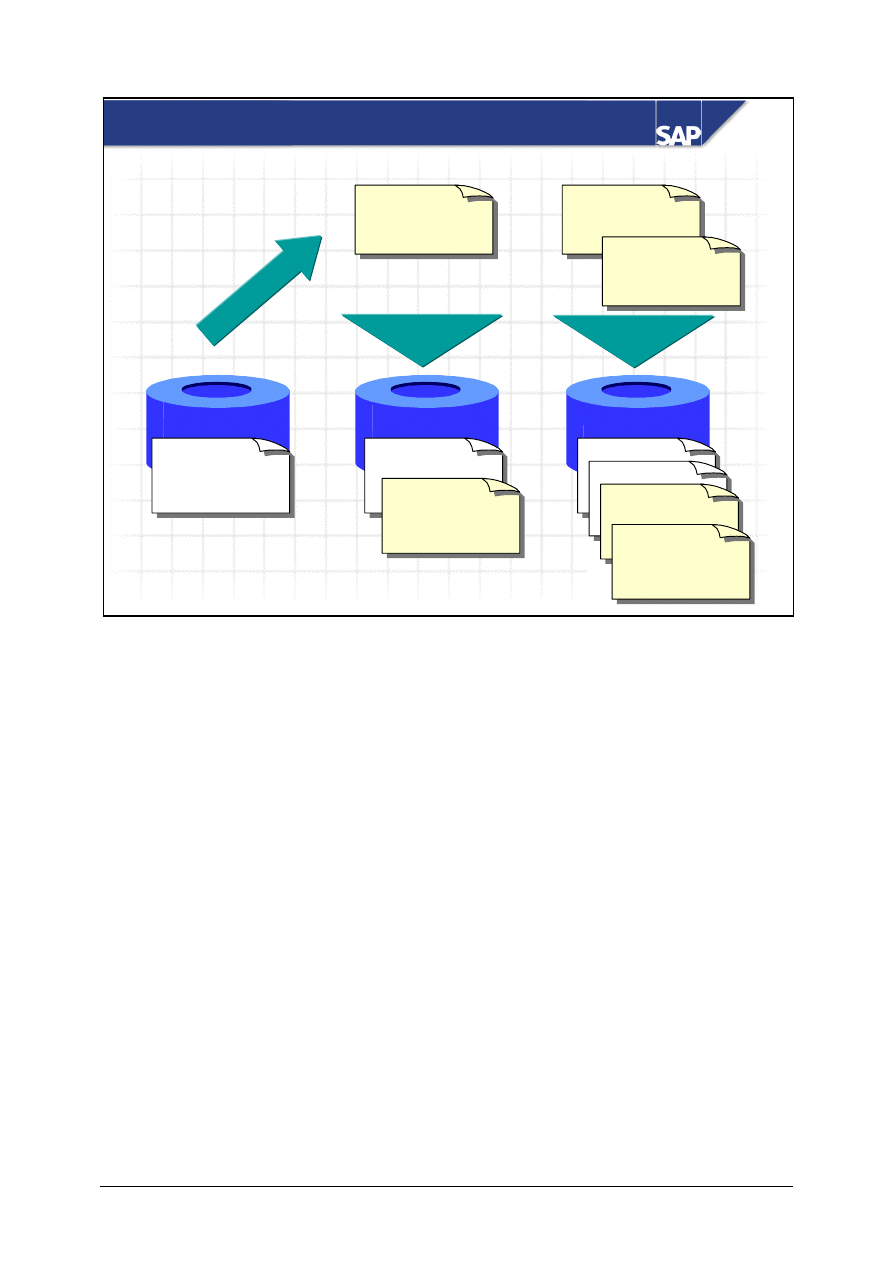
Most data in the material master record can be maintained directly by the user. But some information
is automatically updated by the system. When you enter goods movements, for example, the system
updates the stock and consumption data. Via the Information on material icon, you can call up
statistical information (for example, the date on which the data was first created and when it was last
changed).
Some data in the material master is only used for information purposes (for example, description,
size, and dimensions).
Other types of material data have a controlling function in an application. For example, the MRP
type controls the MRP procedure, and the price control indicator determines which material
valuation procedure is used.
© SAP AG
TSCM50
7-12
SAP AG 1999
Purchasing
Material 4711
Material 4711
Accounting
Material 4711
Material 4711
Material 4711
Material 4711
Purchasing
Plant 1000
Purchasing
Plant 1000
Accounting
Plant 1000
Purchasing
Plant 1200
Accounting
Plant 1200
Purchasing
Plant 1200
Ext
en
d
wi
th
Ex
te
nd
w
ith
Accounting
Plant 1200
Accounting
Plant 1000
Create
Create
Create
Create
Extending the Material Master Record: Example
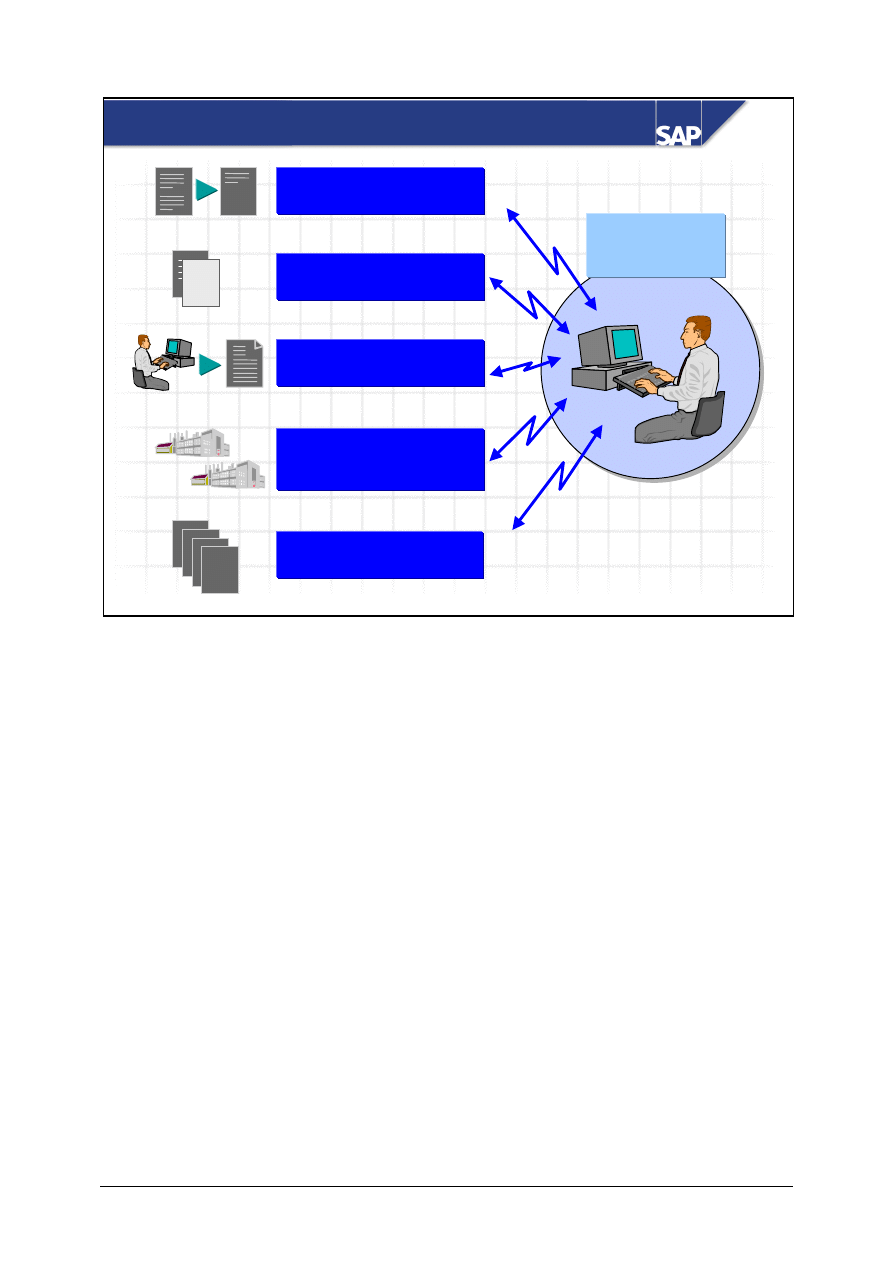
Once a department has created data for a material, a material master record is created for it in the
database. If someone from another department then wants to enter data, he or she has to extend (add)
the information from his or her department. The system also extends a material master record when
data for a material is saved for other organizational levels.
You can add the missing views or organizational levels to the material master by choosing the
transaction Create material master record..
You can only change the data for views and organizational levels that have already been maintained
by choosing the transaction Change material master.
Any changes (creation or change) you make to data in the material master record are saved in a
change document. This means that you can check the change history at any time.
You can also activate engineering change management for materials.
© SAP AG
TSCM50
7-13
SAP AG 1999
Settings
Profiles
Collective entry of
storage location data
Reference material
Mass maintenance
Material master
maintenance
Entry Aids in Material Master Maintenance
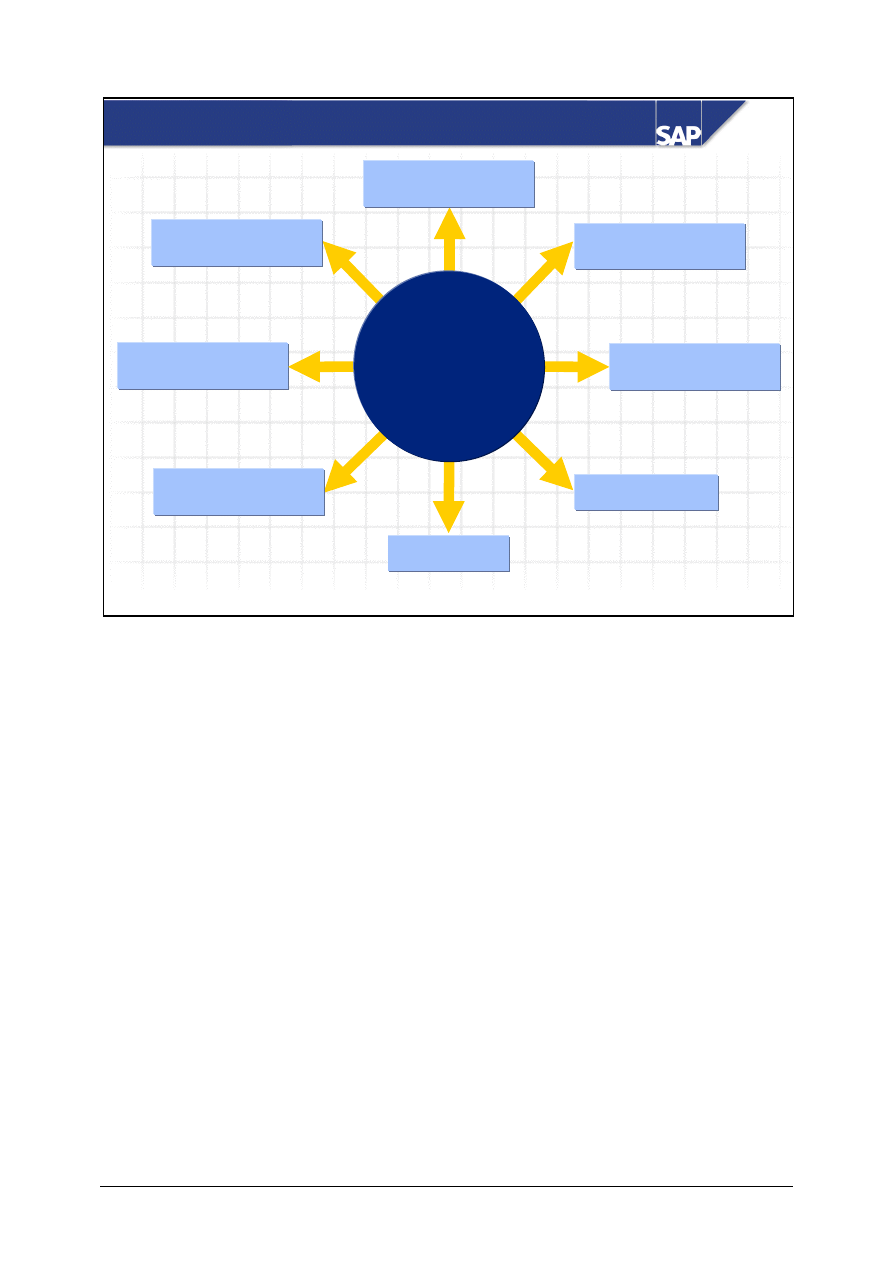
The following entry aids facilitate material master maintenence:
Settings: Quicker data entry by presetting the organizational levels and views most often used. These
default values are user-specific, and you can overwrite them.
Reference material: Quicker data entry by copying the relevant data from existing material master
records.
Profiles: Quicker data entry by copying data from the materials planning or forecast profile to the
relevant views.
Collective entry of storage location data: Creation of several storage locations in one step
significantly reduces data entry time.
Mass maintenance: Changes data in several material master records in one procedure.
© SAP AG
TSCM50
7-14
SAP AG 2002
Mass Maintenance for Data Objects in Procurement
Sales order
Material master
(Industry and Retail)
Customer master
Business
partner
Vendor master
Purchasing
info record
Purchase
requisition
Purchase order
Mass
maintenance
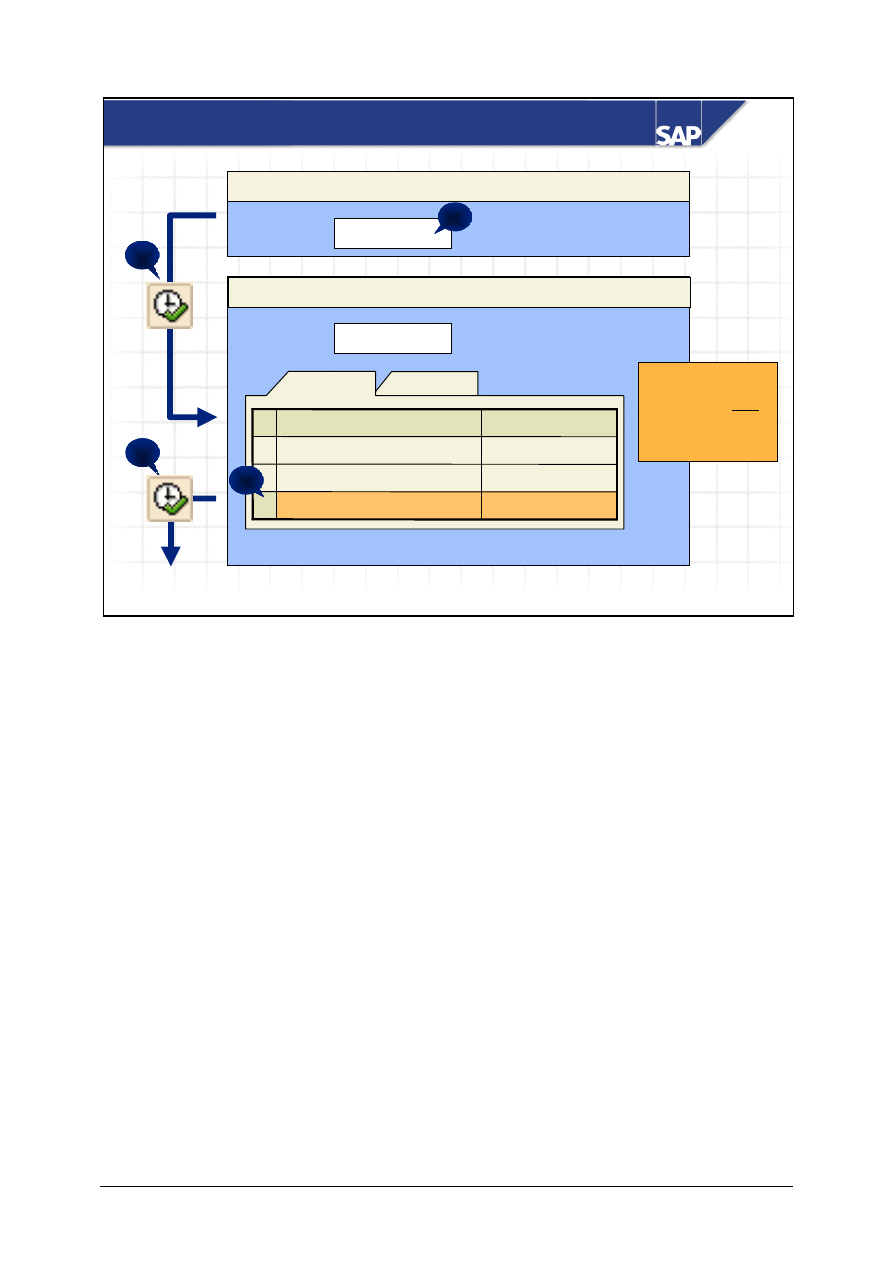
As of SAP R/3 4.5A, it is possible to change several objects at the same time using the mass
maintenance tool. This tool can currently be used by the applications mentioned above.
You can, for example, change the data in the material master records quickly and easily in one
simple step. You have the option of changing the purchasing group or adjusting the GR processing
time in particular materials.
You can perform mass maintenance either online or in the background. If you want to change lots of
objects at the same time, choose the background mode to avoid system strain. In this case, the system
issues a log with the changes executed and any errors that have occurred.
The system executes a consistency check for the changed data. The system does not execute changes
that would lead to data inconsistencies, but notes them in the log.
As many objects can be changed at the same time, this tool should only be used by experienced
users.
© SAP AG
TSCM50
7-15
SAP AG 2002
Perform Mass Maintenance (1)
Mass Maintenance: Materials (industry)
Materials (industry)
Object Type
BUS1001
Mass Maintenance
Materials (industry)
Object Type
BUS1001
Table Names
Short Text
MARC
Plant Data for Material
MARA
General Material Data
1
2
3
Tip:
Only select one
table
(performance)!
4
Fields
Tables
MAKT
Material Descriptions
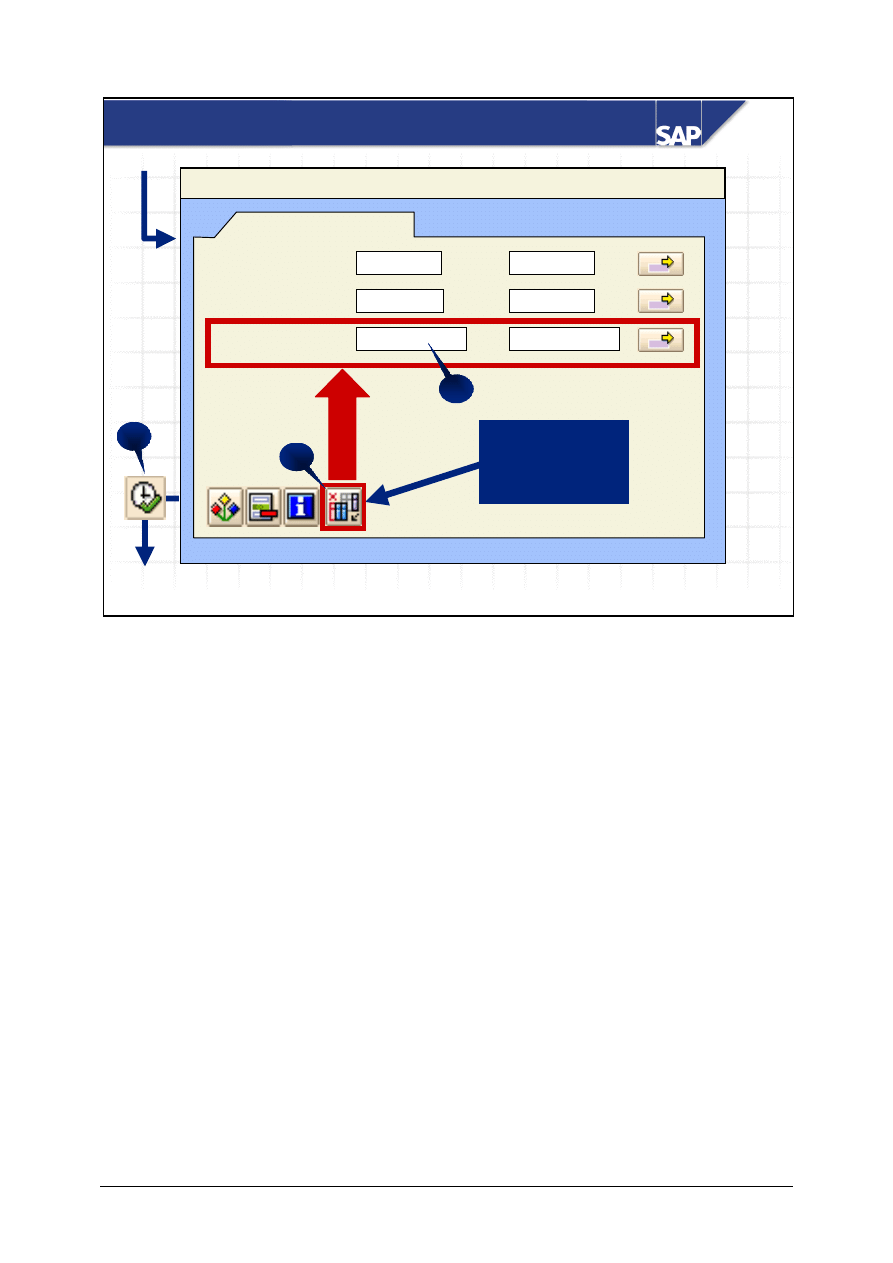
You can find the mass maintenance tool under Logistics -> Central Functions. You use the object
type to decide which application you want to use it for.
If you call the mass maintenance from the menu of an application, the correct object type appears
automatically (for example, Logistics -> Materials Management -> Material Master -> Material ->
Mass Maintenance).
When you have selected the object type, the relevant tables and fields are displayed. Select the tables
in which you want to change data. Only select several tables, if you want to make the changes in all
tables at the same time to keep the data consistent. Otherwise, edit the tables one at a time to avoid
low system performance.
You can select the fields with the values you want to change on the initial screen. However, the
fields can only be determined at a later point in time.
© SAP AG
TSCM50
7-16
SAP AG 2002
Perform Mass Maintenance (2)
Data Recs to Be Changed
Mass Maintenance: Materials (industry)
To
Purchasing group 004
To
Plant
1000
To
M-20
Material
M-01
+
1
2
Add additional
selection fields
3
To limit the number of objects to be changed, enter the relevant selection criteria. With Choose
selection fields, you can choose more fields to enter selection criteria for. With Execute, the system
selects the data records. Depending on the number of selected data records, the system asks if you
want to execute the changes online or in the background
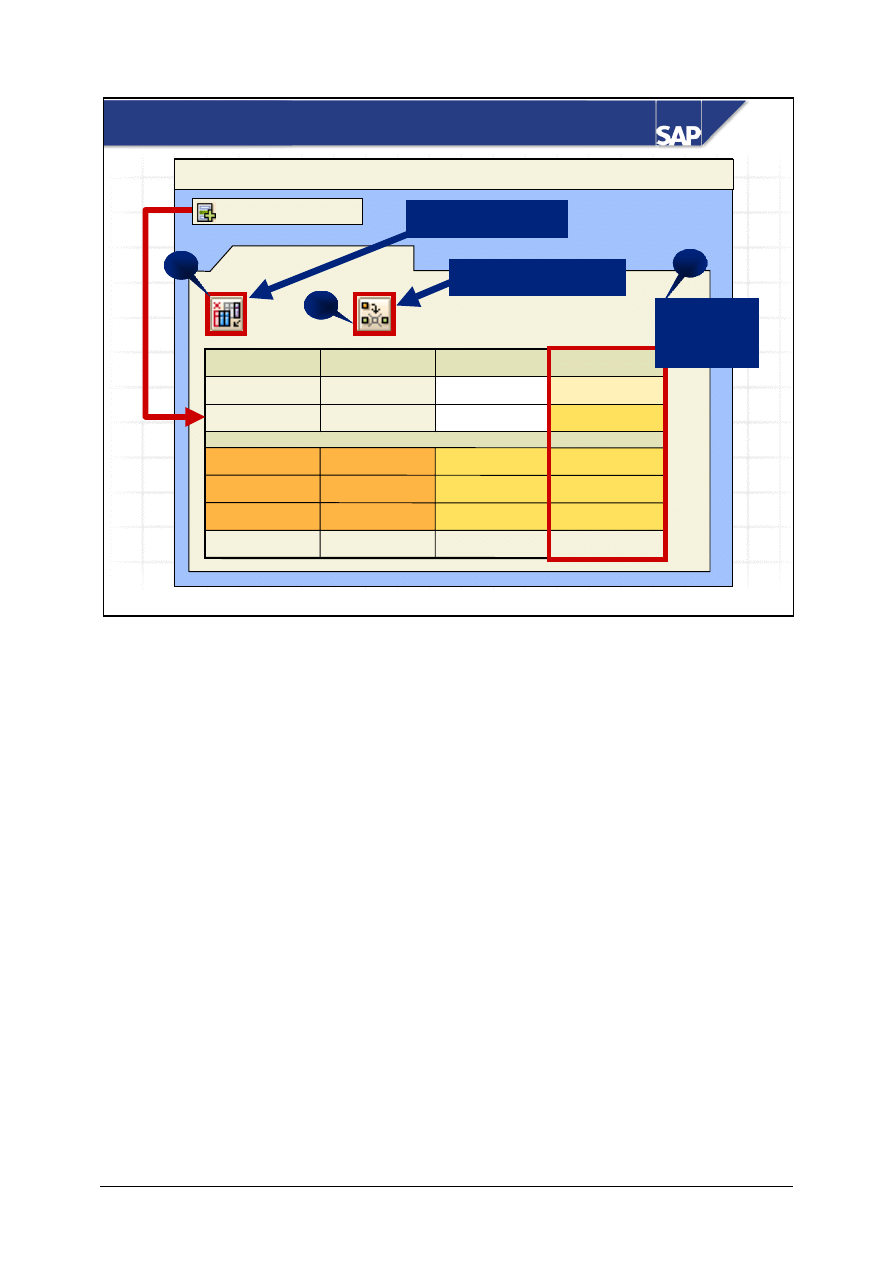
© SAP AG
TSCM50
7-17
SAP AG 2002
Perform Mass Maintenance (3)
Plant Data for Material
3
Mass Maintenance: Materials (industry)
1
2
2
004
1000
M-03
2
004
1000
M-02
1
004
1000
M-01
2
Only Replace
1
New Values
GR proc...
Buyer...
Plant
Restrictions
Select fields
Change field values
Select
column
Then select the fields, enter new values in the corresponding columns, select the column overview
and the data records you want to change, and select Change field values.
You also have the option of only changing a field value when it has a particular current value. To do
this, choose Restrictions and enter the new value in the first line, and the value to be replaced in the
second line.
Finally, save your changes. The system then executes the consistency check.
© SAP AG
TSCM50
7-18
Master Data 1 -
Exercises
Unit: Master Data
Topic: Material Master Record
At the conclusion of this exercise, you will be able to:
• Create and maintain material master records
• Explain the impact of organizational levels on the material
master record
You are responsible for creating and maintaining material master
records in your company. Create a material master record for a
new headlamp.
1-1
Create material master record
In coordination with the other departments involved, you create a material master
record for raw materials. The material is to be used in plant 1000 first. Therefore,
you have to maintain several views of the material master record.
Initial screen:
Material:
T-RM2##
Ind. sector:
Mech.engineering
Material type:
Raw material
Select view(s):
Choose the views Basic Data 1, Purchasing, Purchase Order Text, and
General Plant Data/Storage 1.
Organizational levels:
Plant: 1000 (Hamburg)
SLoc.:
0001 (Material store)
© SAP AG
TSCM50
7-19
Basic data:
The material description is headlamp extra bright-##.
Piece is the base unit of measure for the headlamp. The headlamp is assigned to
material group 003 lighting. The gross weight is 4 kg and the net weight 3.8 kg.
Because you use the headlamp in more than one country, you can also maintain the
material description in another language.
You can enter other short texts in the additional data by
choosing
[Additional data].
Purchasing:
The purchasing group T## is responsible for procuring the headlamp. Urging letters
about undelivered goods should be sent after 10, 20, and 30 days. Under or
overdeliveries are not accepted. Choose the relevant purchasing value key. It takes
1 day to process goods receipts for this material.
Purchase order text:
Maintain the text below: “The delivered material must meet our technical
specification number 65432”.
You can also enter the purchase order text in another language.
When you create a purchase order, the system proposes the
language that is used in the vendor master record. The
material short text and the purchase order text from the
material master record are transferred and printed in the
language used in the purchase order.
Storage 1:
The headlamp is to be stored in storage location 0001, storage bin BL-01.
Once you have entered all the data, save the material master record.

© SAP AG
TSCM50
7-20
1-2 Display
material
Display the material master record. Which views are proposed for you to display?
____________________________________________________________
____________________________________________________________
1-3
Extend material master record
The accounting data for material T-RM2## is passed on to you later. Maintain this
data for plant 1000.
The material is assigned to the valuation class raw materials 1 and is valuated
using the moving average price procedure. The valuation price is 80 UNI.
1-4
Copy material master record
Material T-RM2## is also to be used in plant 1200, storage location 0001. Create a
new material master record for this plant. Use the data from material T-RM2## in
plant 1000 and storage location 0001 as a reference.
Maintain the views Basic Data 1, Purchasing, Purchase Order Text,
Accounting 1, and General Plant Data/Storage 1. Check that all the data has
been copied correctly and save your entries.
You have to go through each view at least once before
saving it to make sure that all the data has been copied from
the reference document.
1-5
Change material master record
Change the purchasing and accounting data for material T-RM2## in plant 1200.
The changes should take effect immediately.
In plant 1200, the system should always propose that the material be posted to
quality inspection stock when it is received. It is also assigned to the valuation
class 3001 in this plant, and is valuated with the standard price of 80 UNI. Save
your entries.
© SAP AG
TSCM50
7-21
1-6
Display change documents for a material
Find out when the accounting data for material T-RM2## in plant 1200 was last
changed.
Date: ________________________
1-7
Enter material data for several storage locations
You store material T-RM2## in plant 1200 in several storage locations. Enter the
additional storage locations via collective entry.
SLoc Bin
0002 BL-02
0003 From-10
To do so, use the transaction
Enter storage locations
from
the
Others
menu in the
Material master record
application area.
1-8 Materials
list
Check whether your material is actually available for plants 1000 and 1200 by
displaying the materials list for T-RM2## and the aforementioned plants. It is
particularly important that you check whether the valuation data is consistent with
the information from the previous exercises.
Try to limit as much as possible the information you
specify in the materials list, so that the system does not
have to search too many data records.
1-9
Optional: Add to list of favorites
Add to your list of favorites the most important transactions for working with
material master records.
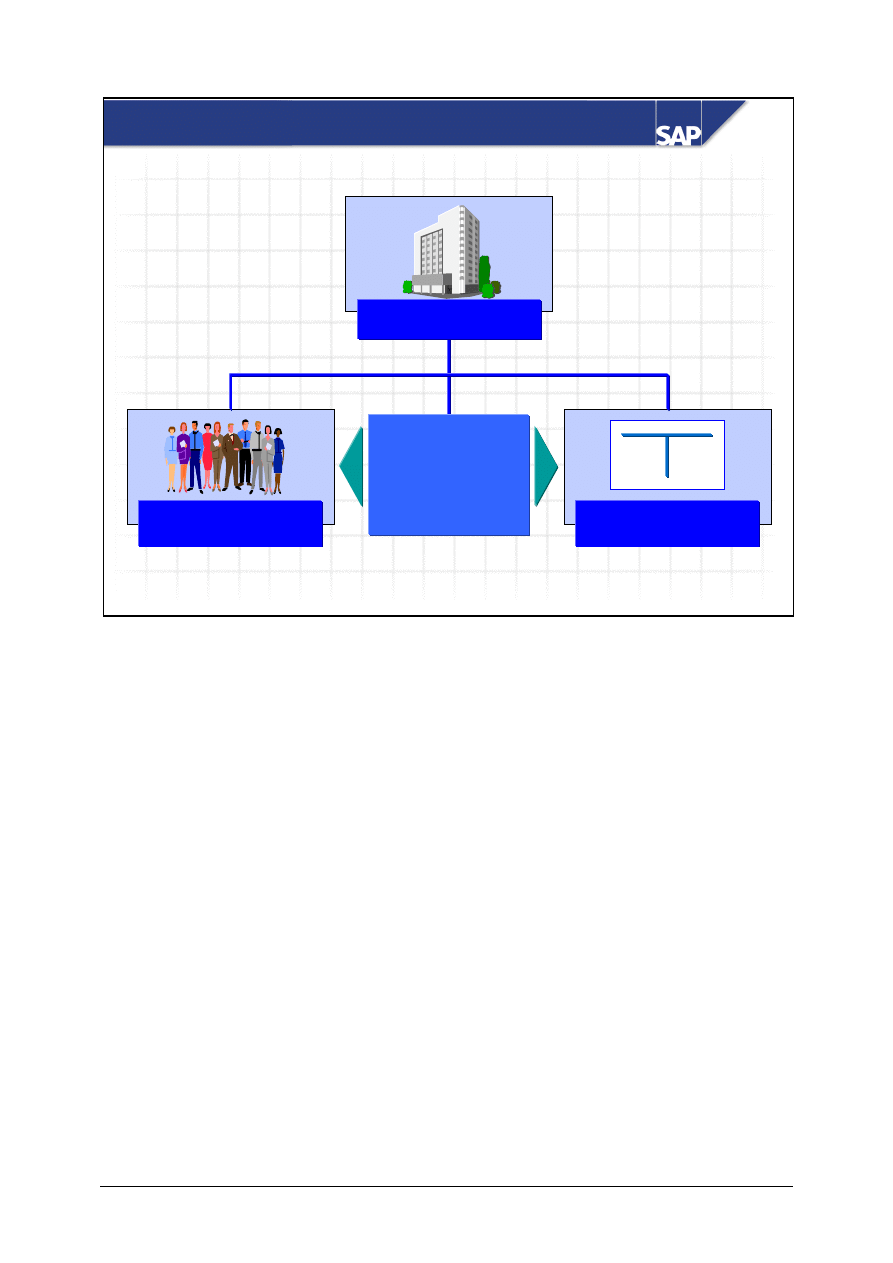
© SAP AG
TSCM50
7-22
SAP AG 1999
Accounting data
Purchasing and
accounting data
can be maintained
centrally or
independently of
each other
Purchasing
organization data
General data
Vendor Master Record: Organizational Levels
In Accounting, the vendor is regarded as the company's crediting business partner. The vendor
master record is therefore maintained by Accounting and Purchasing.
You can use the R/3 System authorization concept to define how data maintenance should be
organized in the vendor master record.
Each user department can maintain both general data and Purchasing and Accounting-specific data
centrally or decentrally. In addition, Purchasing often maintains data at corporate group level.
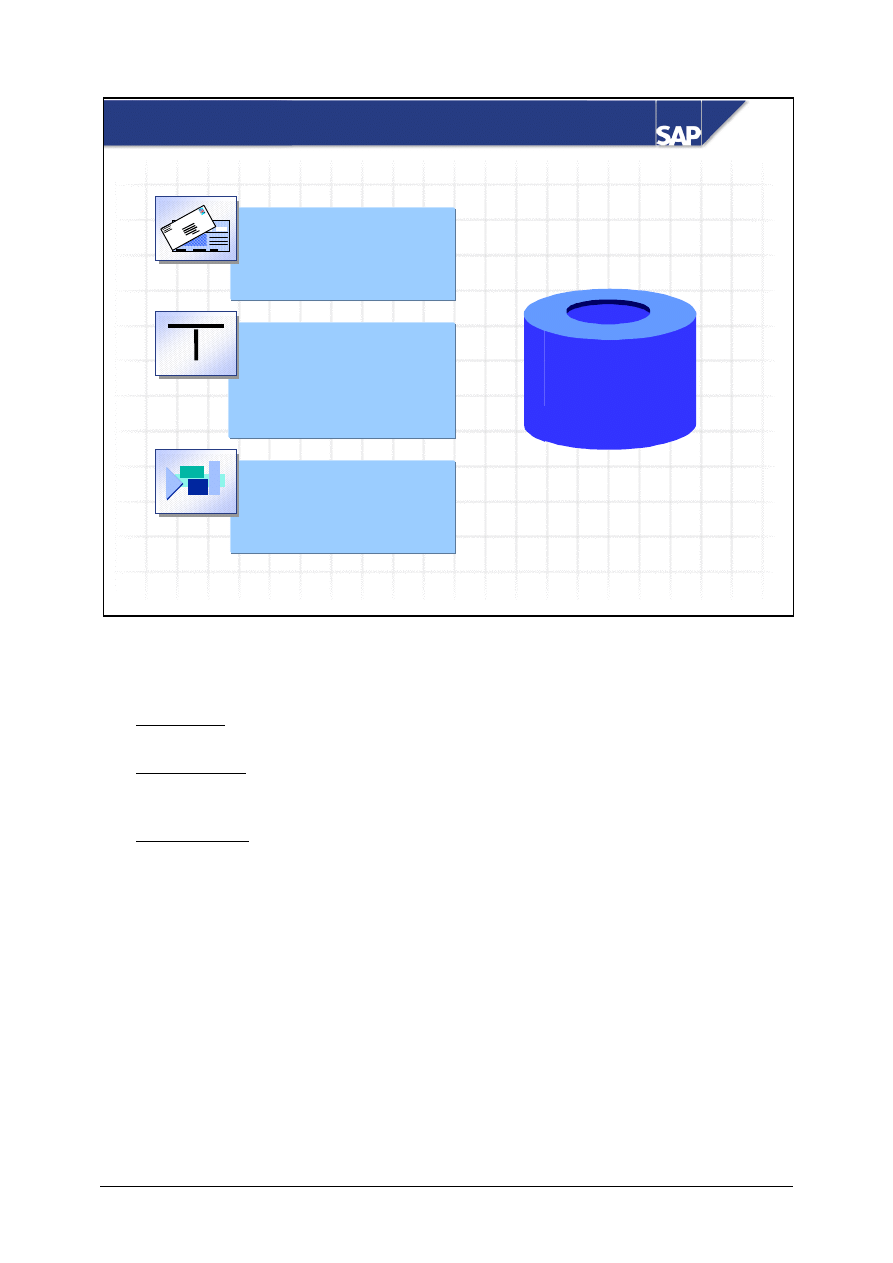
© SAP AG
TSCM50
7-23
SAP AG 1999
Purchasing organization
data
Purchasing data
Partner roles
Company code data
Account management
Payment transactions
Correspondence
Withholding tax
General data
Address, communication,
control data, bank details
Vendor Master Data
Euro
check
Vendor master
Vendor master
record
record
Data in the vendor master record is subdivided into three categories:
General data: This includes the vendor's address and bank details, for example. This data is valid
for the whole client.
Purchasing data: This includes the purchase order currency, incoterms, and the vendor's tax data.
This data is maintained for each purchasing organization. You can also maintain different data on
a plant-dependent basis or for vendor sub-ranges.
Accounting data: This comprises data such as the number of the reconciliation account and the
payment methods for automatic payment transactions. This is maintained at company code level.
You can block a vendor master record, for example, if the quality of the vendor's products is poor.
You can block a vendor for an individual material via the source list.
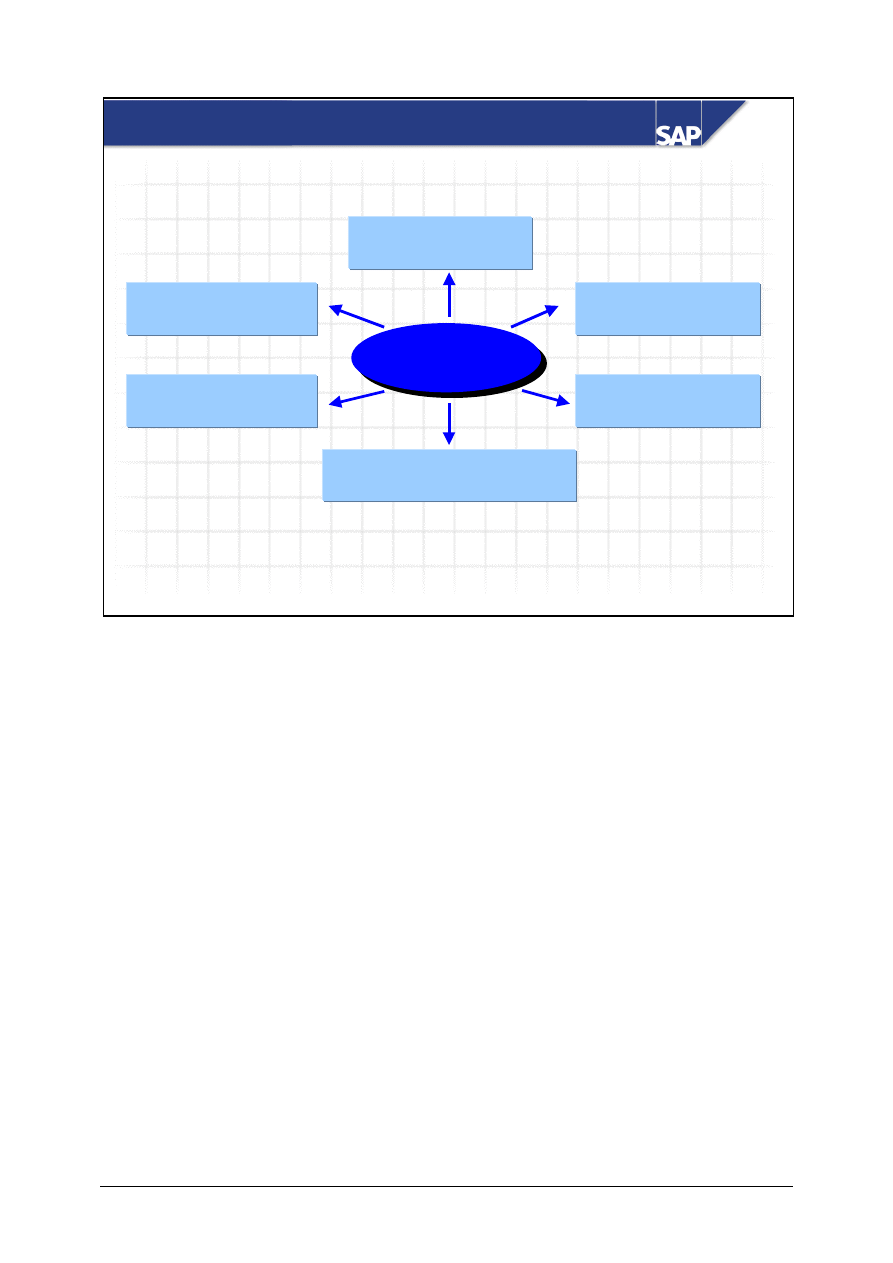
© SAP AG
TSCM50
7-24
SAP AG 1999
Type of number assgt
Number interval
Field selection
Vendor sub-ranges or
plant-specific data
Partner schema
The account
group determines
The account
The account
group determines
group determines
Status (vendor or
one-time vendor)
Vendor Master Record: Account Group
When creating a vendor master record, you have to enter an account group. The account group has
controlling characteristics.
You can create special master records for vendors from whom you only procure a material once or
very rarely. These are called one-time vendor master records and, in contrast to other master records,
you can use a vendor master record for several vendors. Therefore, no vendor-specific data is stored
for one-time vendors. You can control this using the relevant field selection for account groups for
one-time vendors.
When creating a purchasing document or accounting document with a one-time vendor, the system
automatically goes to an additional data screen. This is where you enter specific data, such as the
vendor's name, address, or bank details.
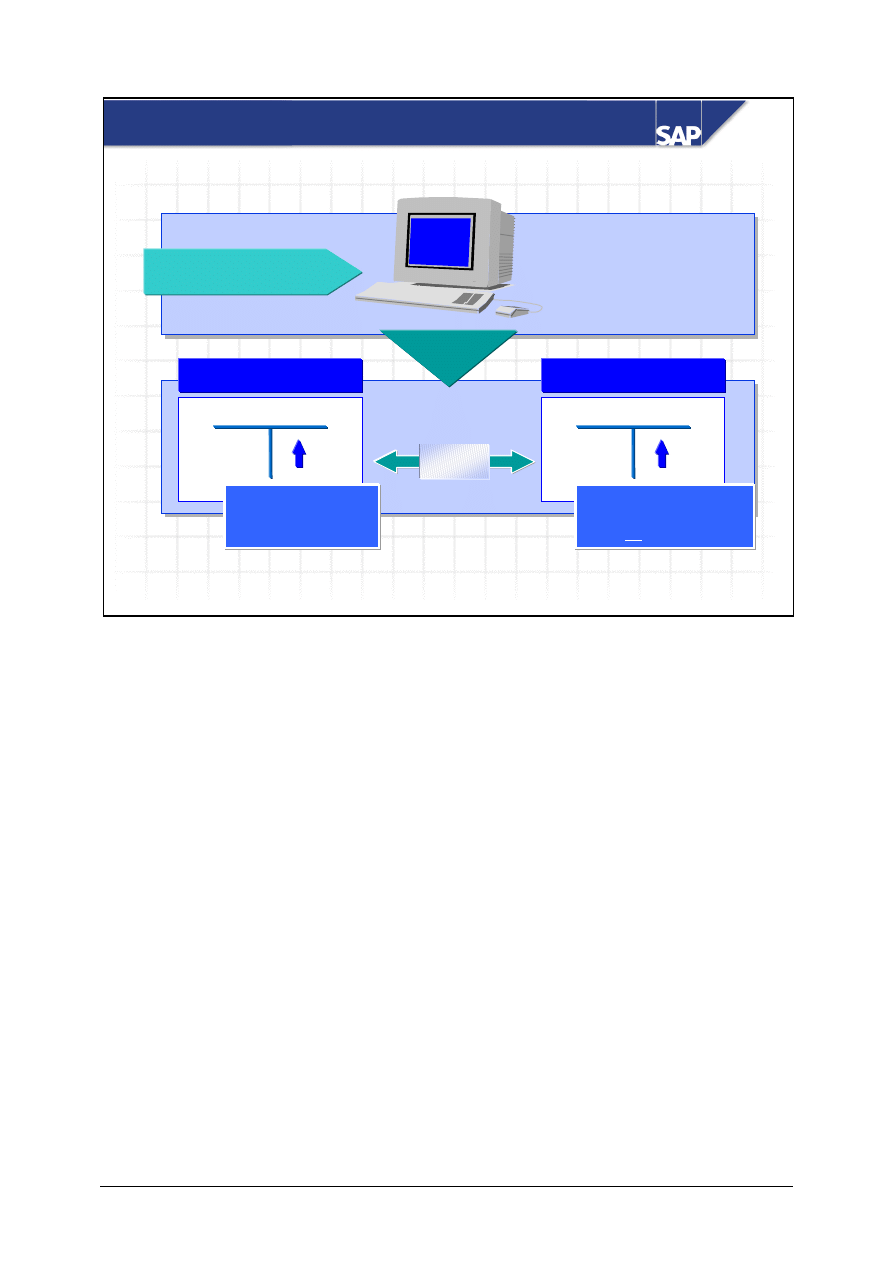
© SAP AG
TSCM50
7-25
SAP AG 1999
R/3
System
Enter vendor
invoice
Subledger accounting
Financial accounting
Reconciliation account
Vendor A
Total
liabilities
per vendor
Total
liabilities for
all vendors
parallel
Reconciliation Account for Vendor Master Record
When you create a vendor master record, you need a unique number for the vendor. Depending on
the account group, the system assigns this automatically or the person responsible assigns it
manually. The vendor number is also used as the subledger number in Financial Accounting. In
subledger accounting, the total liabilities are updated per vendor.
When you create a vendor master record, you have to maintain a reconciliation account. The
reconciliation account is a G/L account in G/L accounting. It reproduces a company's liabilities
towards several vendors in G/L accounting.
When entering invoices, you enter the vendor and the system uses the reconciliation account from
the vendor master record.
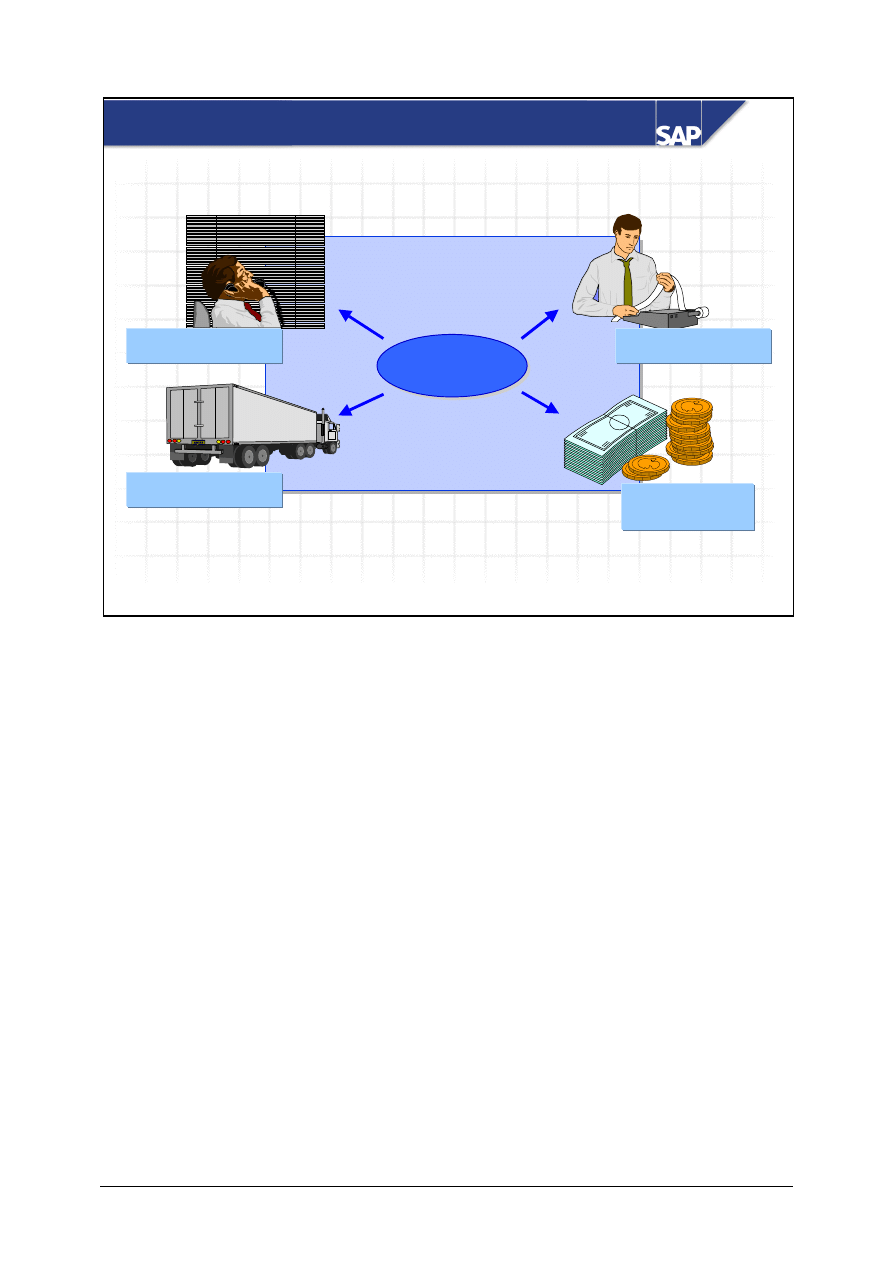
© SAP AG
TSCM50
7-26
SAP AG 1999
Vendor
Vendor
Order recipient
Supplier of goods
Invoicing party
Payee
Partner Roles
The vendor can have various functions in its interaction with your company. For example, during the
procurement transaction the vendor is the order recipient, then the supplier of goods, the invoicing
party, and finally, the payee.
By maintaining partner roles in the vendor master record, you can distribute one or more of these
roles among different vendor master records.
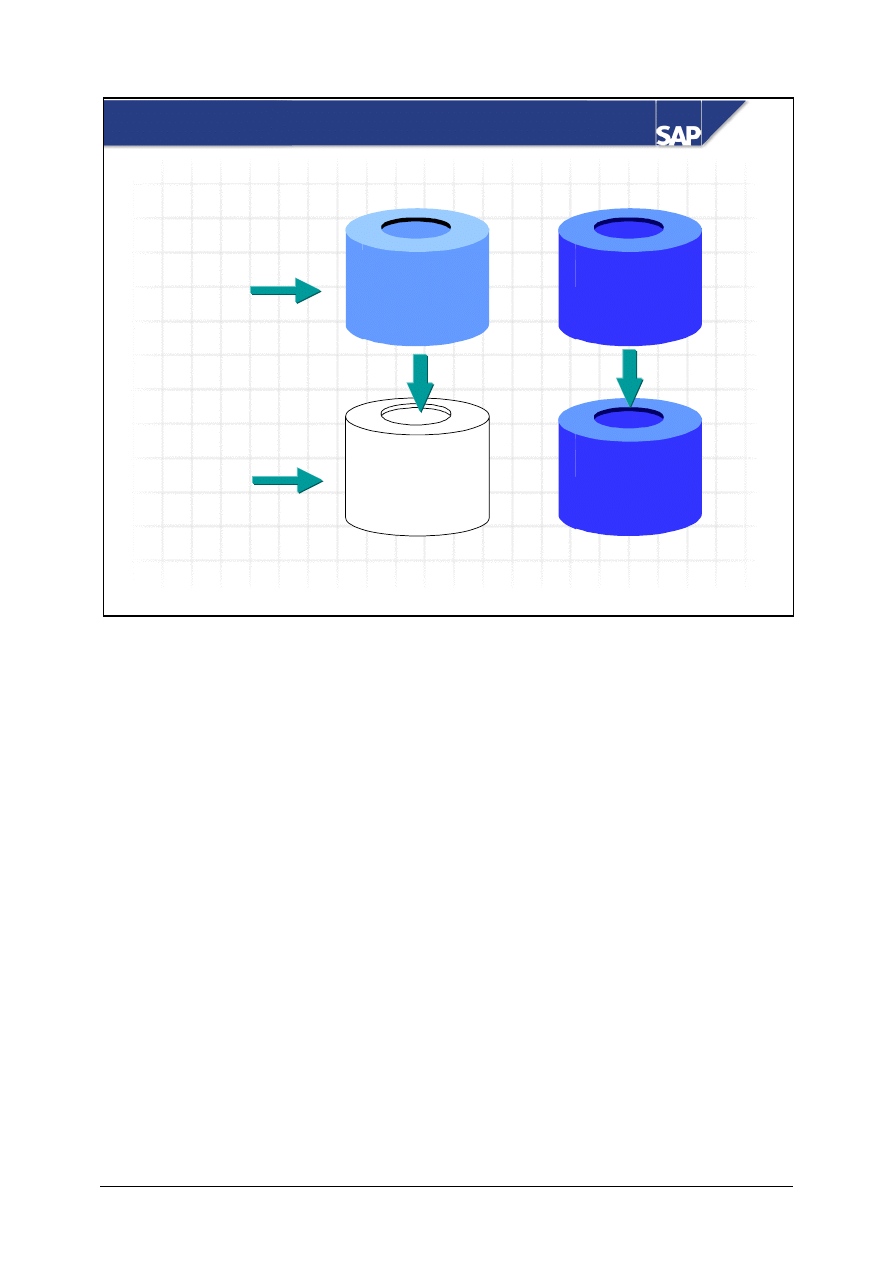
© SAP AG
TSCM50
7-27
SAP AG 1999
Control
Control
data
data
Address data
Blank
Control
Control
data
data
Reference
Copy
Creating a Vendor Master Record with Reference
X
To help you create a vendor master record, you can use an existing vendor as a reference. The system
prompts you to maintain the data (for example, address). The control data is copied from the
reference, but you can overwrite it.
You can block the vendor master record (for example, for vendors who deliver products of poor
quality). Once you have set the block indicator, you can no longer place purchase orders with this
vendor.
Note: In the source list, you can block a vendor for a single material.
© SAP AG
TSCM50
7-28
Master Data 2 -
Exercises
Unit: Master Data
Topic: Vendor Master Record
At the conclusion of this exercise, you will be able to:
• Create and maintain vendor master records
Your company has a business relationship with a new vendor. To
enable you to order from this vendor, you have to create a new
vendor master record in the R/3 system.
2-1 Organizational
levels
When creating a material master record, you discovered that data is maintained
dependently of the various organizational levels.
For which organizational levels do you enter data in the vendor master record?
Which menu paths do you need in Purchasing to create or call up a vendor master
record? What is the difference between the various options for creating or calling
up the vendor master record?
Organizational levels:__________________________________________
Menu paths:_________________________________________________
___________________________________________________________
___________________________________________________________

© SAP AG
TSCM50
7-29
2-2
Create vendor master record
You already have the Purchasing and Accounting data for a new vendor. From the
perspective of head office, create a vendor master record T-K12B## for the
organizational levels company code 1000 and purchasing organization 1000.
Assign it to account group LIEF.
(Default values for address data)
Form of address:
Company
Name:
Rasch Gr.##
KFZ-Zubehör
Search term:
LO020-##
Street:
Daimlerstrasse 127
Postal code:
69134
City:
Heidelberg
Country:
DE
Region:
08 (Baden-Württemberg)
Language:
English
Note that you do not have to enter anything in the views below:
Control, General Payment Transactions, Accounting Correspondence, Financial
Accounting, Partner Functions
Account Management (Accounting)
The reconciliation account in G/L accounting has the description “Trade Payables
– domestic”. Use F4 input help to determine the number of the reconciliation
account and enter this in the relevant field.
Number of reconciliation account:_______________________________
Payment transactions (Accounting)
Automatic payment transactions can be carried out by check or bank transfer.

© SAP AG
TSCM50
7-30
Purchasing data
The purchase order currency used for the vendor is UNI. Purchasing has agreed on
the following conditions of payment: If we pay the invoice within 14 days, the
vendor grants a discount of 3 %, and if we pay within 30 days, 2 % is deducted.
The invoice has to be settled within 45 days. In this case, there is no cash discount.
Use F4 input help to determine the relevant payment conditions.
Payment conditions: _________________________________________
The freight and shipping conditions are FOB Mannheim. Maintain the incoterms
accordingly. In the field provided, enter a contact person and telephone number for
the vendor’s Purchasing department.
After you enter the data, save your entries.
2-3
Change vendor master record
The payment conditions for vendor T-K12B## agreed by Purchasing are also valid
for accounting transactions. Enter the relevant payment conditions key on the
Payment Transactions Accounting screen.
You have also arranged with the vendor that purchase requistions can
automatically be converted into purchase orders for some materials. To enable the
system to convert these automatically, you have to set the required indicator in the
vendor master record. Change the control data on the Purchasing screen of the
vendor master record accordingly.
(Note: For automatic PO, you must also set a flag in the purchasing view of the
material master.)
Entry in field:_______________________________________________
2-4
Optional: Add to list of favorites
Add to your list of favorites the most important transactions for working with
vendor master records.
© SAP AG
TSCM50
7-31
SAP AG 1999
You are now able to:
Master Data: Unit Summary
Create and maintain material master
records
Create and maintain vendor master
records
Name the organizational levels important
for the maintenance of material and
vendor masters.
© SAP AG
TSCM50
7-32
Master Data 1 -
Solutions
Unit: Master Data
Topic: Material Master Record
1-1
Create material master record
Logistics
→ Materials Management → Material Master → Material
→ Create (general) → Immediately
Material
T-RM2##
Industry sector
Mech.engineering
Material type
Raw material
Select view(s)
Basic Data 1, Purchasing,
Purchase order text,
General plant data/
Storage1
Organizational levels
Plant 1000 (Hamburg)
Storage location
0001(Material store)
Basic data
Material description
Headlamp extra bright-##.
Base unit of measure
Pc
Material group
003
Gross weight
4
Net weight
3.8
Unit of weight
kg
→ Additional data
Short text in other language (for
example, German)
Scheinwerfer Extrahell-
##.
© SAP AG
TSCM50
7-33
Purchasing
Purchasing group
T##
Purchasing value key
1
GR processing time
1
PO text
English
The delivered…
→
0
[Create text]
→
German
German Das
gelieferte…
Plant data/Storage 1
Storage bin
BL-01
1-2 Display
material
Logistics
→ Materials Management → Material Master → Material
→ Display → Display current
The system proposes the views below:
Basic Data (1 and 2), Purchasing views (Purchasing, Foreign Trade: Import,
Purchase Order Text), General Plant Data/Storage (1 and 2), Plant Stock, Storage
Location Stock
1-3
Extend material master record
Logistics
→ Materials Management → Material Master → Material
→ Create (general) → Immediately
Material
T-RM2##
Industry sector
Mech.engineering
Material type
Raw material
Select view(s)
Accounting1
Organizational levels
Plant
1000 (Hamburg)
© SAP AG
TSCM50
7-34
Accounting 1
Valuation class
3000 raw materials 1
Price control
V
Moving ave.
price
80
1-4
Copy material master record
→ Material Master → Material → Create (general) → Immediately
Material
T-RM2##
Industry sector
Mech.engineering
Material type
Raw material
Reference
T-RM2##
Select view(s)
Basic Data 1, Purchasing,
Purchase Order Text,
Accounting 1
General Plant Data/
Storage1
Organizational levels
Plant 1200 (Dresden)
Storage location
0001(Material store)
Reference
Plant 1000 (Hamburg)
Storage location
0001(Material store)
You have to go through each screen, choosing <ENTER> on each one, to make
sure that all the data from the reference document has been copied. Save your
material master record.
1-5
Change material master record
→ Material Master → Material → Change→ Immediately
Material
T-RM2##
Views
Purchasing, Accounting1
Organizational levels
1200 (Dresden)
Purchasing
Post to insp. stock
© SAP AG
TSCM50
7-35
Accounting 1
Valuation class
3001 (raw materials 2)
Price control
S
Standard price
80
1-6
Display change documents for a material
→ Material Master → Material → Display changes
→ Active changes
Material
T-RM2##
Plant
1200
To display the change documents, double click or choose the [Magnifying glass]
icon.
1-7
Enter material data for several storage locations
→ Material Master → Other → Enter storage locations
Material
T-RM2##
Plant
1200
Storage location
Bin
0002
BL-02
0003
From-10
1-8 Materials
list
→ Material Master → Other → Materials list
Material
T-RM2##
Plant
1000 to 1200
© SAP AG
TSCM50
7-36
Master Data 2-
Solutions
Unit: Master Data
Topic: Vendor Master Record
2-1 Organizational
levels
(Logistics
→ Materials Management → Purchasing)
→ Master Data → Vendor
Organizational levels: Client, company code, and purchasing organization
Menu path: a)
→ Central → Create
b)
→ Purchasing → Create
2-2
Create a vendor master record
(Logistics
→ Materials Management → Purchasing)
→ Master Data → Vendor → Central→ Create
Vendor
T-K12B##
Company code
1000
Purchasing organization
1000
Account group
LIEF
Address
Address data
See default values
Control, payment
transactions
Input not required
Account Management (Accounting)
Reconciliation account
160000
Payment transactions Accounting
Payment methods
SU
Correspondence Accounting
Input not required
Purchasing data
Order currency
UNI
Terms of payment
0002
Incoterms
FOB Mannheim
© SAP AG
TSCM50
7-37
Salesperson
(Any)
Phone no.
(Any)
2-3
Change the vendor master record
(Logistics
→ Materials Management → Purchasing)
→ Master Data → Vendor → Central→ Change
Vendor
T-K12B##
Company code
1000
Purchasing organization
1000
Company code data
⌧ Payment transactions
Purchasing organization data
⌧ Purchasing data
Payment transactions Accounting
Payment conditions
0002
Purchasing data
Automatically generated
purchase orders
Wyszukiwarka
Podobne podstrony:
7053 TSCM 50 1 parte (12 13)
7059 TSCM 50 2 parte (12 16)
7057 TSCM 50 2 parte (0 5)
7051 TSCM 50 1 Parte (8)
7049 TSCM 50 1 parte (1 5)
7058 TSCM 50 2 parte (6 11)
7052 TSCM 50 1 parte (9 11)
7131 TSCM 52 2 parte (1 5)
7133 TSCM 52 2 parte (11 16)
7130 TSCM 52 1 parte (14 16)
7136 TSCM 52 2 parte (23)
więcej podobnych podstron