
1
Developing Java Applications: A
Tutorial
Sections
You can now write Mac OS X and Yellow Box for Windows programs in Javaª as
well as in Objective-C, C++, C, and PostScript. You can build a Yellow Box
application that is written exclusively in Java or that is a mix of Java and another
supported language.
This tutorial walks through the basic steps for developing a Java Yellow Box
application with the features available in the current release. The feature set will be
extended and reÞned in future releases, and the procedure will thus be even easier.
Fast Track to Java Development
summarizes the different steps in Java development
for programmers with experience in developing Objective-C Yellow Box
applications.
What YouÕll Learn in This Tutorial
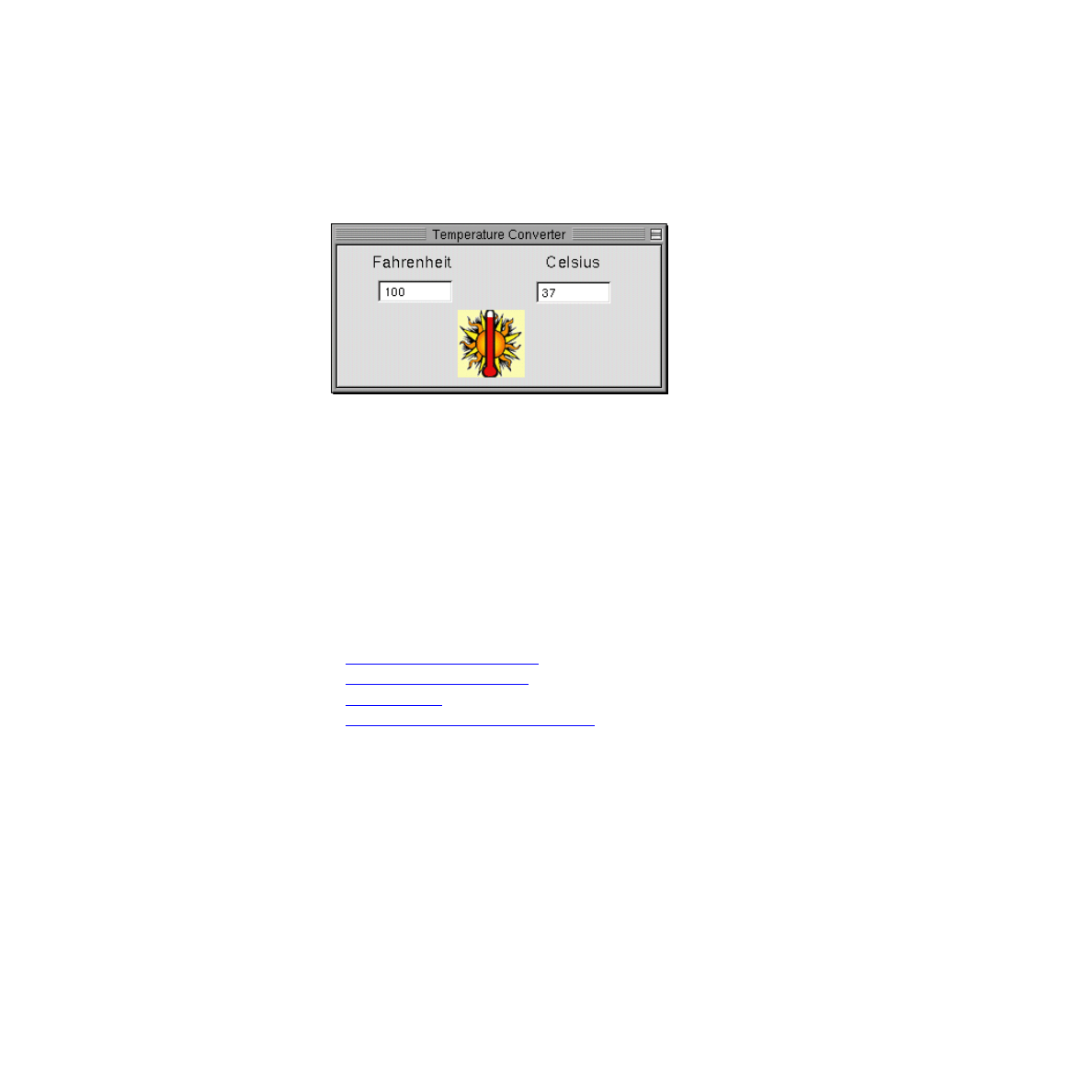
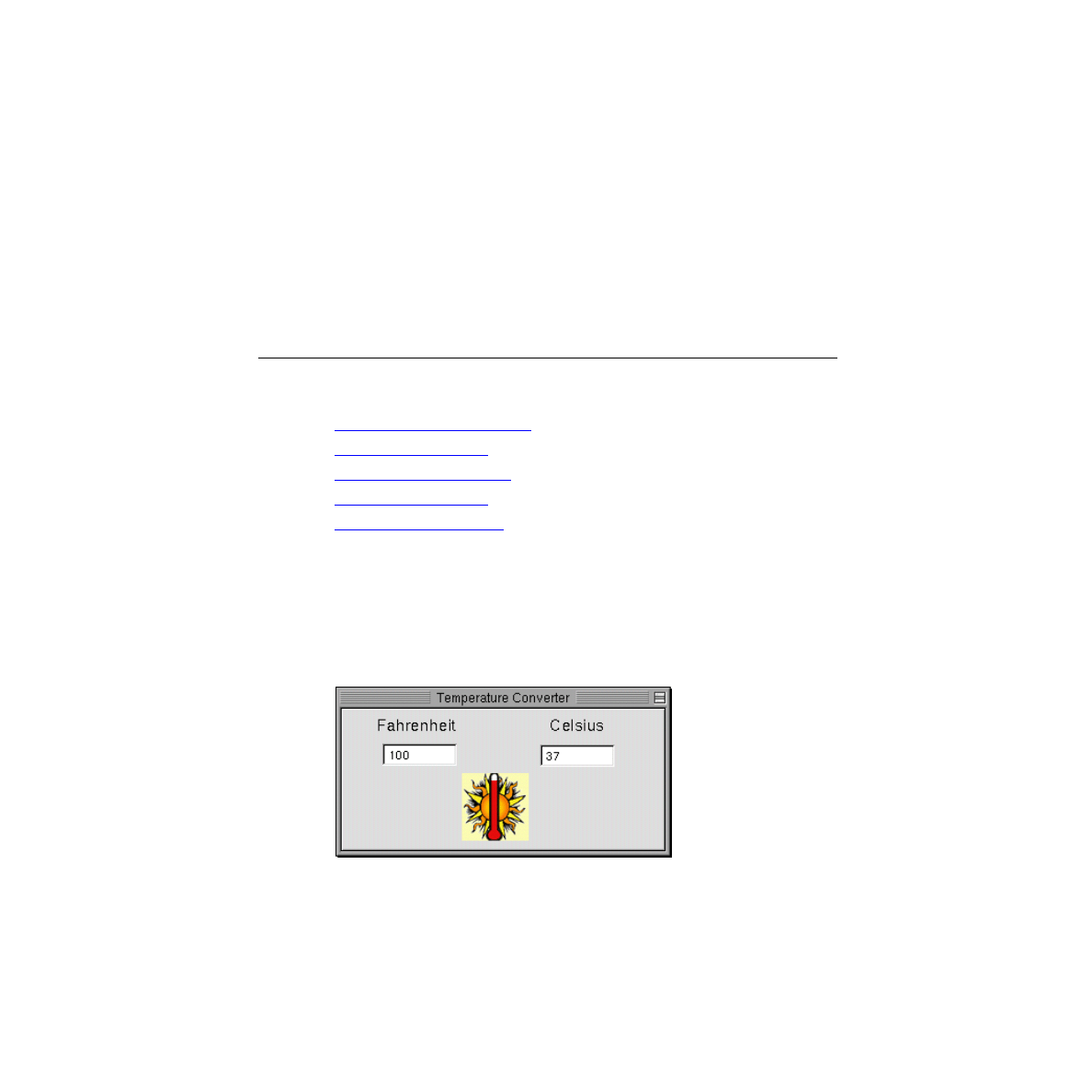
In this tutorial you will build a simple application that converts temperature values
between Celsius and Fahrenheit. The application will display a different image
depending on the temperature range. HereÕs what the Þnished application looks
like:
2
C H A P T E R
The tutorial has three parts, which you should complete in the following order:
1.
Building a simple application
. Explains how to create a project and a graphical
user interface, deÞne a custom controller class, and connect an instance of that
class to other objects in the application. It also shows how you must change the
source code Þles generated by Inteface Builder to be valid Java Þles.
2.
Creating a custom view
. Shows how to create a custom view object using
Interface Builder and Project Builder. (The procedure varies from that for
controller classes.)
3.
Debugging Java applications
. Illustrates the use of Project Builder and its
JavaDebug facility to debug Yellow Box Java applications. It also shows how you
can debug projects that contain both Java code and Objective-C code.
Related Concepts
Fast Track to Java Development
The Yellow BoxÕs Java Feature
The Java Bridge
Developing 100% Pure Java Applications
Building a Simple Application
Major Tasks:
Implementing the Controller Class
Building and Running the Application
This part of the tutorial guides you through the creation of a very simple application
and in the process teaches you the steps essential to building a Yellow Box
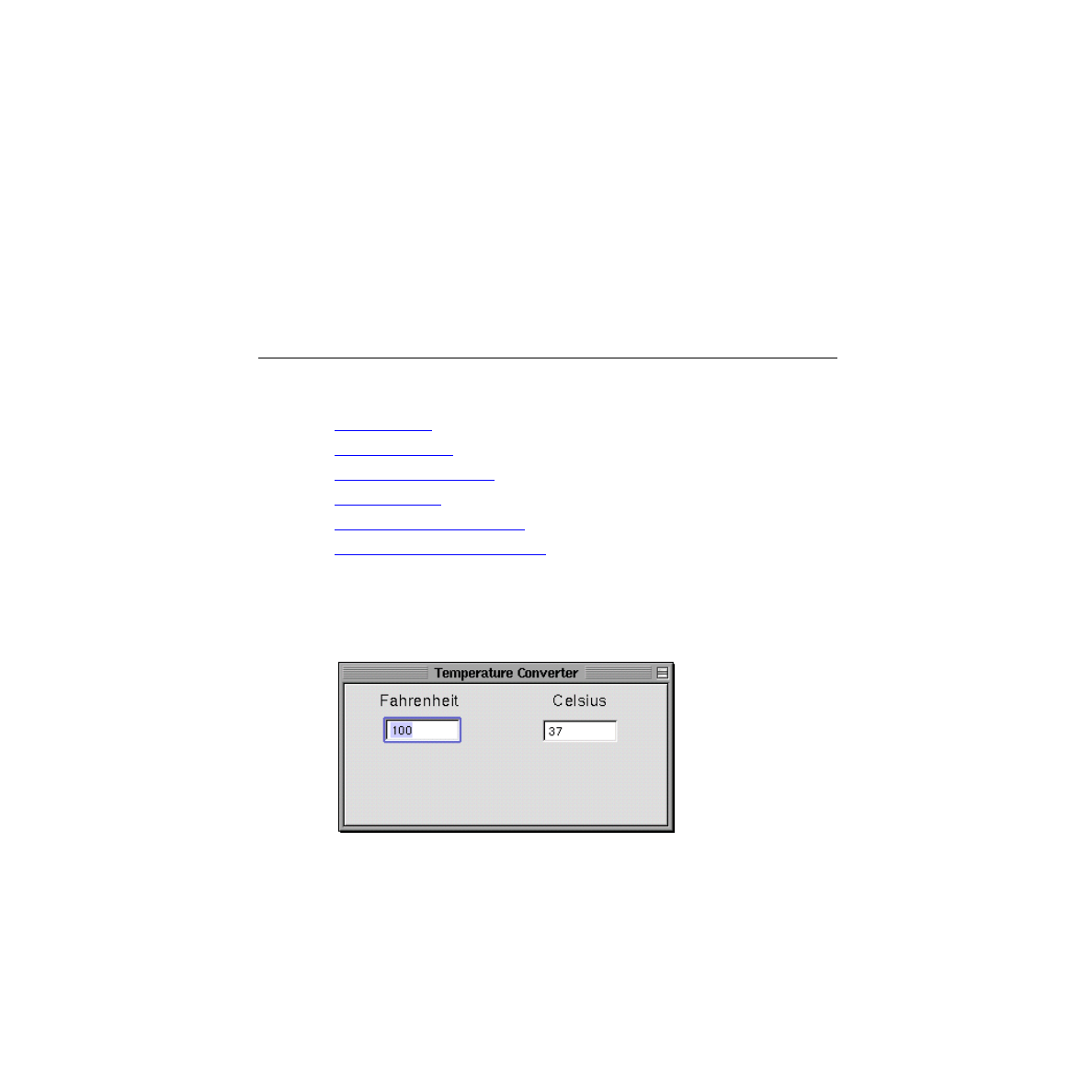
application written in Java. By the end of this tutorial you will have created an
application called Temperature Converter that looks like this:

6
Creating a Project
C H A P T E R
Building a Simple Application
This application does exactly what its name suggests, converting Celsius values to
Fahrenheit, and vice versa. The user just types a value in one of the text Þelds and
presses the Return key. The converted value is shown in the other Þeld.
Although this application is simple, the experience of putting it together will clarify
a few central techniques and paradigms in Yellow Box Java development, among
them:
■
Creating graphical user interfaces with Interface Builder
■
DeÞning custom Java controller classes with Interface Builder
■
Connecting an instance of the controller class with other objects in the
application
■
Generating source Þles from Interface Builder deÞnitions and modifying those
Þles to be suitable for Java compilation
■
Building the project, after writing the necessary Java code
I m p o r t a n t
In future releases you wonÕt have to prepare the generated
source Þles for Java, as you now must do in the current
release. Interface Builder will automatically create proper
Java Þles from the deÞnitions of subclasses. Thus some of
the details in this tutorial are applicable only to the
development environment in the current release.
Creating a Project
The procedure for creating an Objective-C project is the same as the procedure for
creating a Java project.

C H A P T E R
Building a Simple Application
Creating a Project
7
Launch Project Builder
Project Builder is the application typically used for creating and managing
development projects in the Yellow Box. To launch Project Builder:
1. Find
ProjectBuilder.app
in
/System/Developer/Applications
and select it.
2. Double-click the icon in the File Viewer.
Choose the New Command
When Project Builder is launched, only its menus appear. To create a project, choose
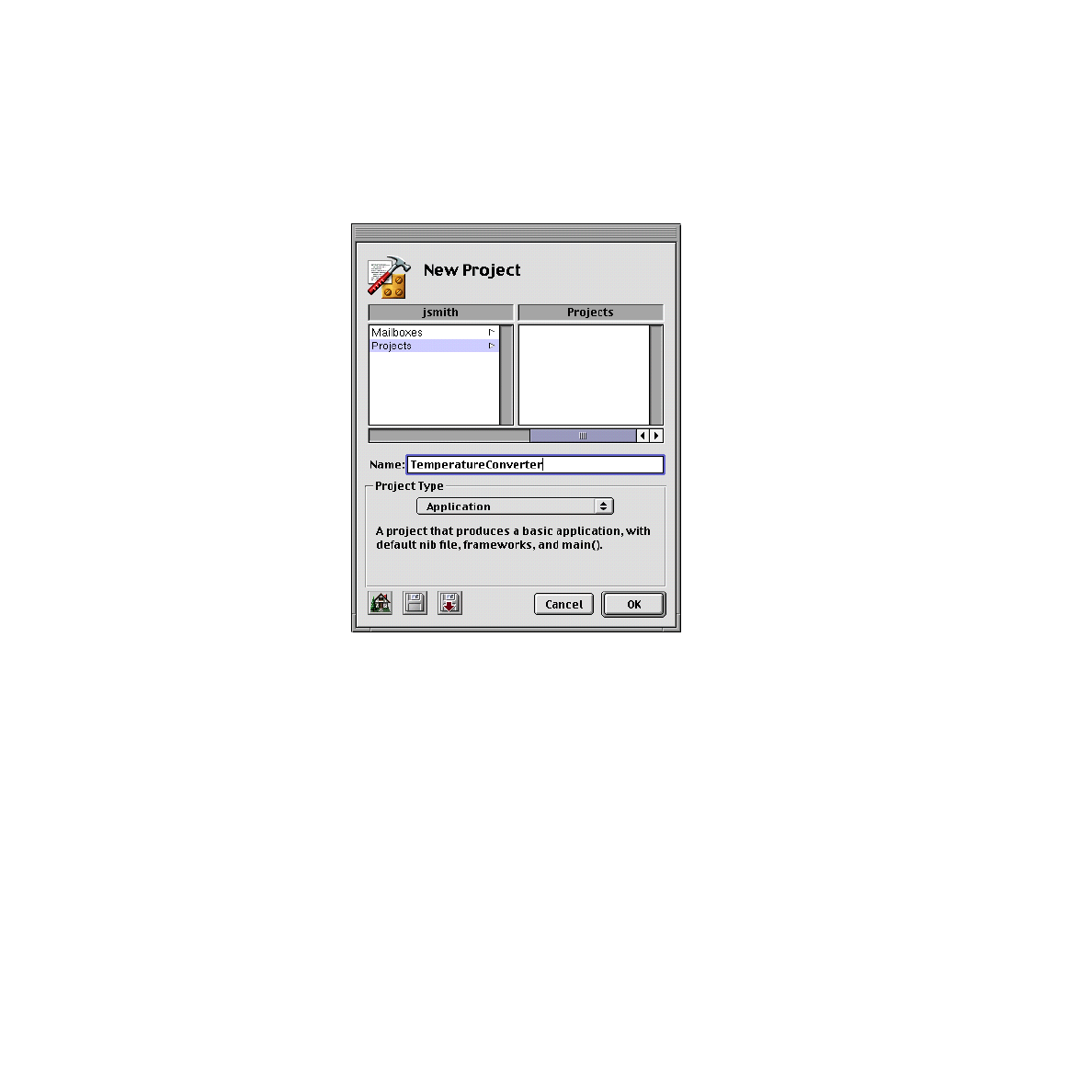
New from the Project menu. This action causes the New Project panel to appear.
Name the Project
All projects must have a name, a location in the Þle system, and a type designation.
The New Project panel allows you to set all these things.
8
Creating a Project
C H A P T E R
Building a Simple Application
1. Using the Þle-system browser, navigate to the directory where you want your
project to be.
One convention, as shown in the example, is to have a subdirectory in your
home directory named Projects.
2. Type the name of the project in the Name Þeld. For the current project, type the
name ÒTemperatureConverter.Ó
The name of the project becomes, by default, the name of the project directory
and the resulting program.
3. Make sure the project type, as displayed in the pop-up list, is Application.
4. Click OK.

C H A P T E R
Building a Simple Application
Creating the Interface
9
When you click OK, Project Builder creates and displays a project window. After it
opens the window, it indexes the project.
Related Concepts
You might want to look in the project directory to see what kind of Þles it now
contains. Among the project Þles are:
MakeÞles
Three Þles contain build information related to the project. The
MakeÞle
Þle is maintained by Project Builder itself using the choices you make in
inspector panels and elsewhere. Do not modify this Þle. You can
however, customize the
MakeÞle.preamble
and
MakeÞle.postamble
Þles.
Templates
Templates for both Objective-C and Java souce code Þles.
English.lproj/
A directory containing resources localized to your preferred language.
In this directory are nib Þles automatically created for the project.
TemperatureConverter_main.m
A Þle, generated for each project, that contains the entry-point code for
the application in
main()
.
YouÕll also see a Þle named
PB.project
. This Þle contains information that deÞnes
the project (donÕt modify this Þle either). You can open the project for subsequent
sessions by double-clicking this Þle.
Related Concepts
Creating the Interface

10
Creating the Interface
C H A P T E R
Building a Simple Application
Set Attributes of the Text Fields
Add Labels for the Text Fields
The procedure for creating a graphical user interface in an Objective-C project is the
same as the procedure for creating a graphical user interface in a Java project.
Open the Main Nib File
Each application project, when Þrst created, includes a blank nib Þle called the
Òmain nib Þle.Ó This nib Þle contains the application menu and perhaps one or more
windows. Applications automatically load the main nib Þle when they are
launched.
1. Locate the Þle
TemperatureConverter.nib
in the Interfaces category in the
project browser.
The main nib Þle has the same name as the project. A default main nib Þle is also
provided for other platforms (in this case, Windows NT).
2. Double-click the icon for nib Þles (four screws in a plate) in the upper-right
corner of the project window.
Related Concepts
The Windows of Interface Builder
Resize the Window
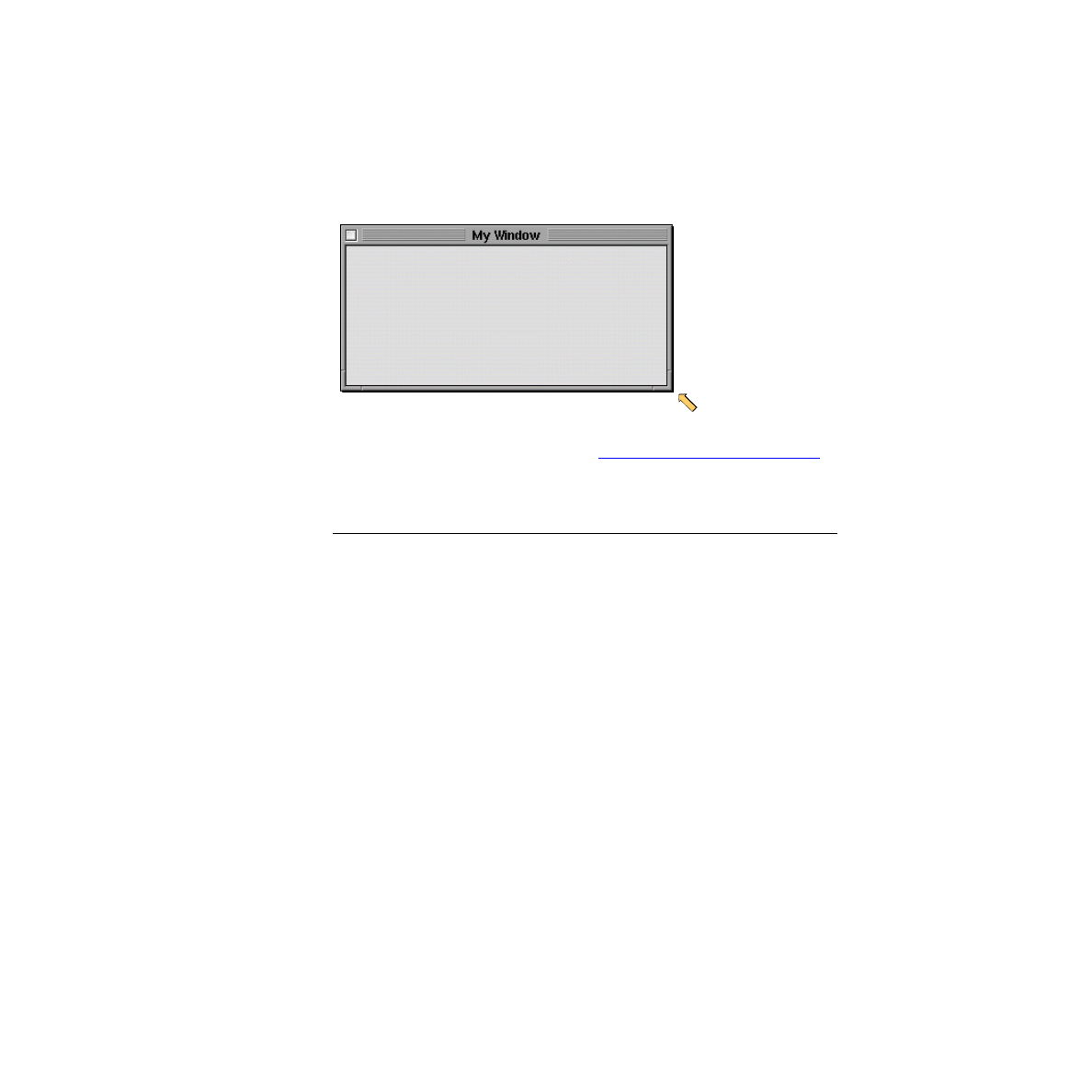
The window provided for you in the main nib Þle is too large. To resize a window,
drag either lower corner of the window in any direction (up, down, diagonal).
C H A P T E R
Building a Simple Application
Creating the Interface
11
You can resize a window to exact dimensions by entering pixel values in the Size
display of Interface BuilderÕs Inspector (see
Place and Resize the CustomView Object
the second part of the tutorial for an example of how this is done).
Rename the Window
Windows usually carry distinctive titles in, of course, their title bars. In the Yellow
Box, each window in a screen is based on an instance of NSWindow. The title of a
window is an attribute of this object. Interface Builder allows you to set the
attributes of NSWindows and many other objects in its Inspector.
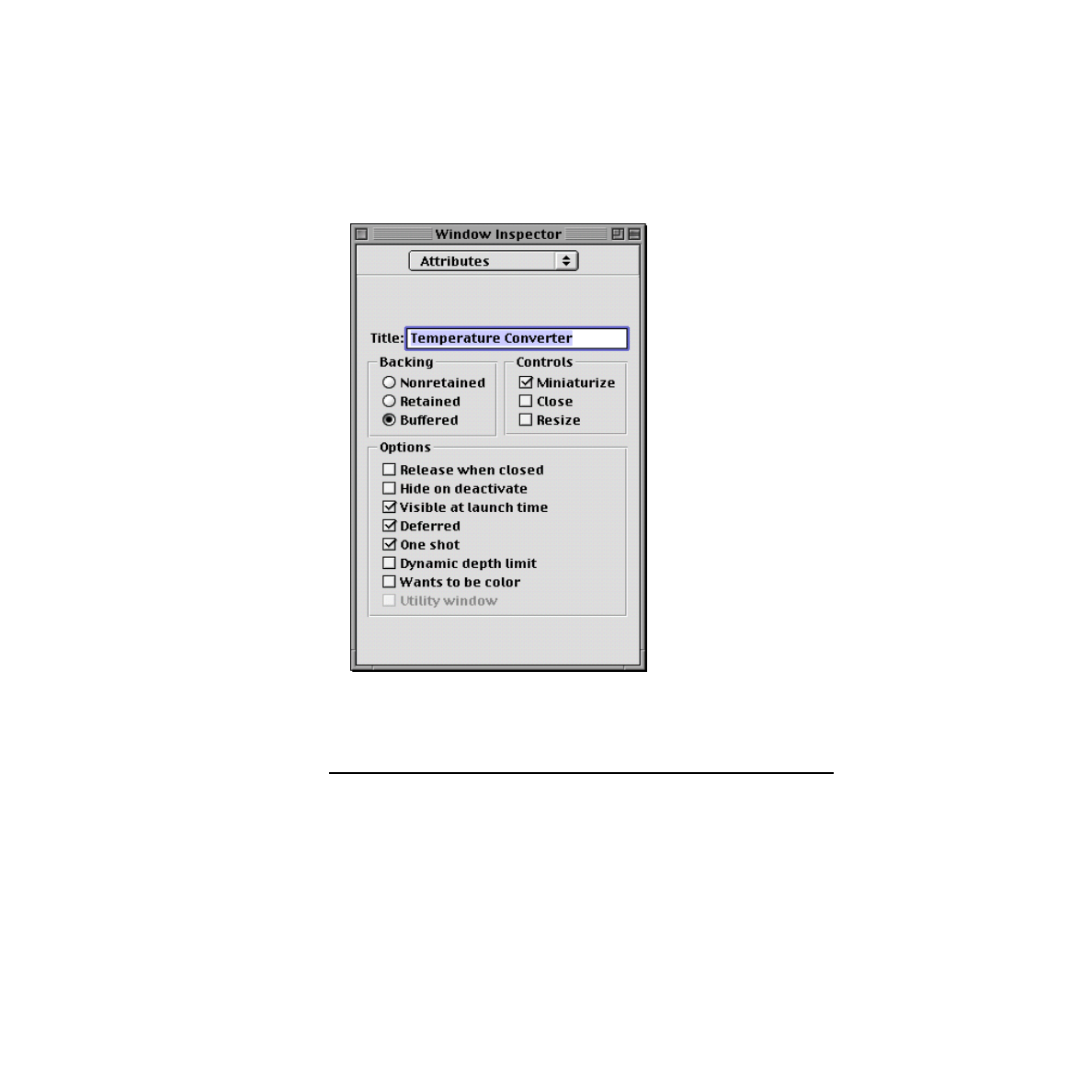
To set the title of the TemperatureConverter window:
1. Select the window by clicking it.
2. Choose Inspector from Interface BuilderÕs Tools menu.
3. Choose Attributes from the pop-up menu (if it is not already chosen).
4. In the Attributes display of the Inspector, enter ÒTemperature ConverterÓ in the
Title Þeld, replacing ÒMy Window.Ó
12
Creating the Interface
C H A P T E R
Building a Simple Application
5. Uncheck the Close and Resize checkboxes. These window attributes donÕt make
sense with an application as simple as this.
Put Text Fields in the Window
Interface BuilderÕs Palette window has several palettes full of Application Kit
objects. The Views palette holds many of the smaller objects, among which is the
text-Þeld object. You now will add two text Þelds to the TemperatureConverter
interface:
1. Select the Views palette.
C H A P T E R
Building a Simple Application
Creating the Interface
13
This is what the button for the Views palette looks like this when itÕs selected:
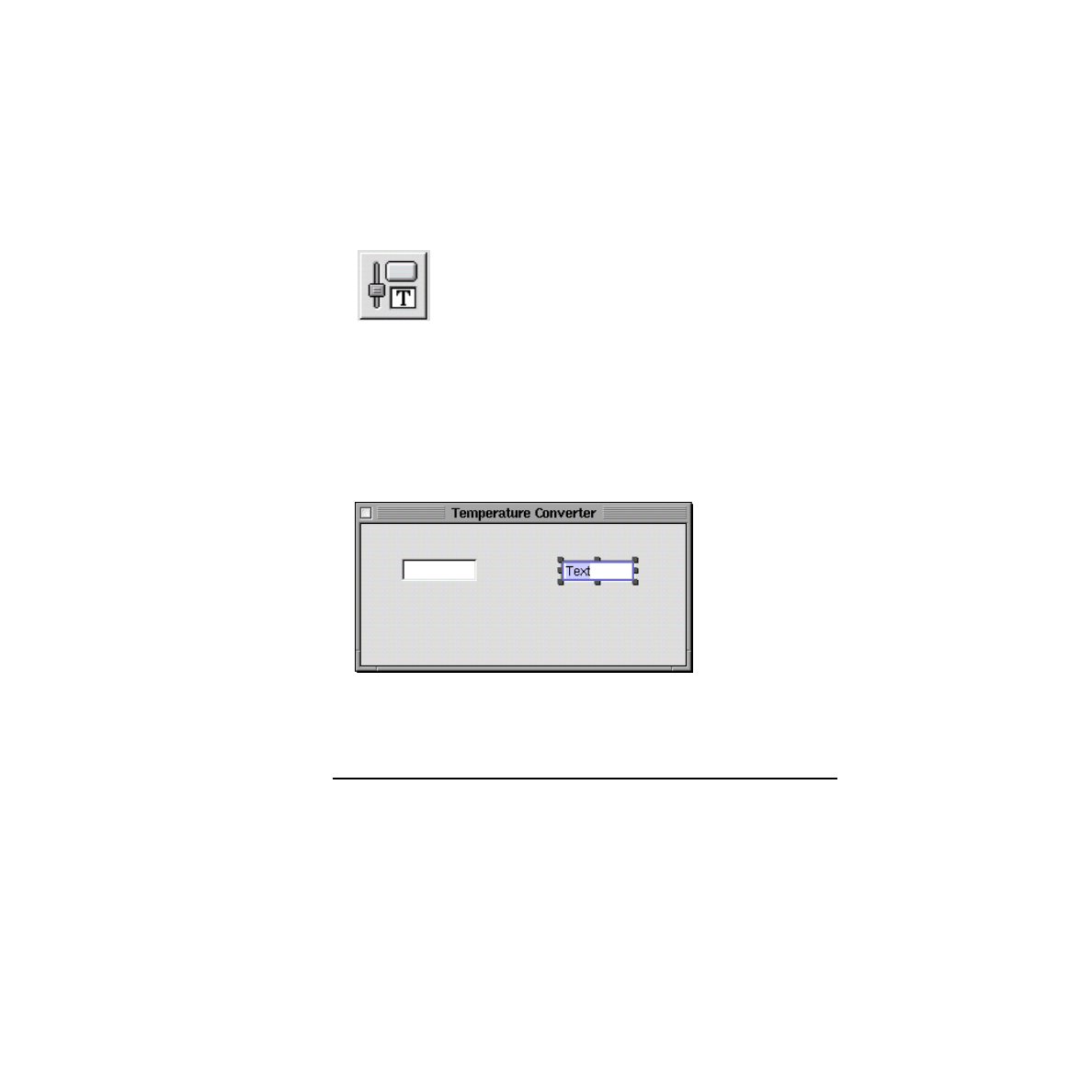
2. Drag a text Þeld object from the palette toward the Temperature Converter
window.
3. Drop the object (by releasing the mouse button) in the window at one of the
locations shown below.
Once you drop the object, you can reposition it in the window by dragging it.
4. Delete the string ÒTextÓ from the object.
To delete the string, double-click to highlight it, then press the Delete key.
5. Repeat steps 2 through 4 for the other text Þeld.
If you need to delete an object in the interface, just select it and press the Delete key.
Set Attributes of the Text Fields
Earlier you set an attribute of the TemperatureConverter window (its title). Now
you need to set an attribute of each of the text Þelds. All objects on Interface
BuilderÕs palettes have attributes that you can set through the Inspector.
1. Select a text Þeld.
2. Choose Inspector from the Tools menu.

14
Creating the Interface
C H A P T E R
Building a Simple Application
3. Choose Attributes from the InspectorÕs pop-up list, if it is not already selected.
4. Click on the radio button labeled ÒOnly on enterÓ in the Send Action group.
Repeat this sequence for the other text Þeld.
I m p o r t a n t
You do not have to set the ÒSend ActionÑOnly on enterÓ
attribute. If what you want is the the default behavior for
text ÞeldsÑthe Þeld sends its action message to its target
whenever the insertion point leaves itÑthen leave the
ÒOnly on enterÓ radio button turned off. When this button
is turned on, the text Þeld sends its action message only
when the user presses the Enter or Return key while the
insertion point is in the Þeld.
Add Labels for the Text Fields
Text Þelds without labels would be confusing to users, so solve that problem by
labeling each Þeld.
1. Drag the ÒMessage TextÓ object from the Views palette and drop it so itÕs just
above the left text Þeld.
2. Triple-click the text to select all of it.
3. Type ÒFahrenheitÓ.
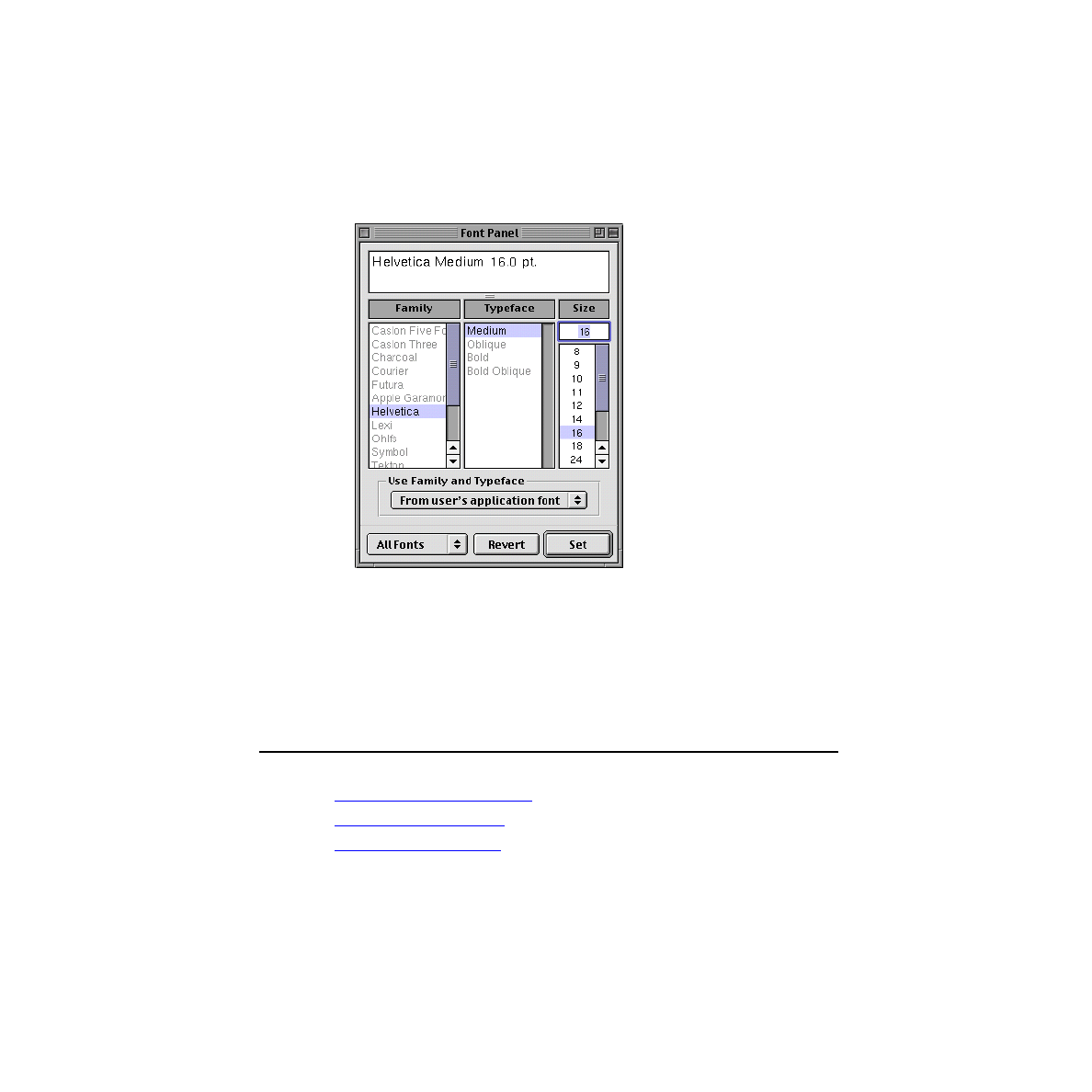
4. Change the font size of the label (since itÕs too large):
a. Double-click the label to select it.
b. Choose Format>Font>Fonts.
c. Select ÒFrom userÕs application fontÓ from the Use Family and Typeface
pop-up list.
d. In the Font panel, select 16 under Size and click Apply (Set on Yellow Box for
Windows).
C H A P T E R
Building a Simple Application
Defining the Controller Class
15
Repeat the steps for the other label (ÒCelsiusÓ).
I m p o r t a n t
Occasionally you should save the nib Þle containing your
work. Now is a good time: choose Save from the
Document menu.
DeÞning the Controller Class
Identify the Class and Its Superclass
16
Defining the Controller Class
C H A P T E R
Building a Simple Application
Interface Builder not only lets you construct the user interface of an application
from real objects stored on palettes, but lets you partially deÞne a class in terms of
its name, its superclass, its outlets, and its actions.
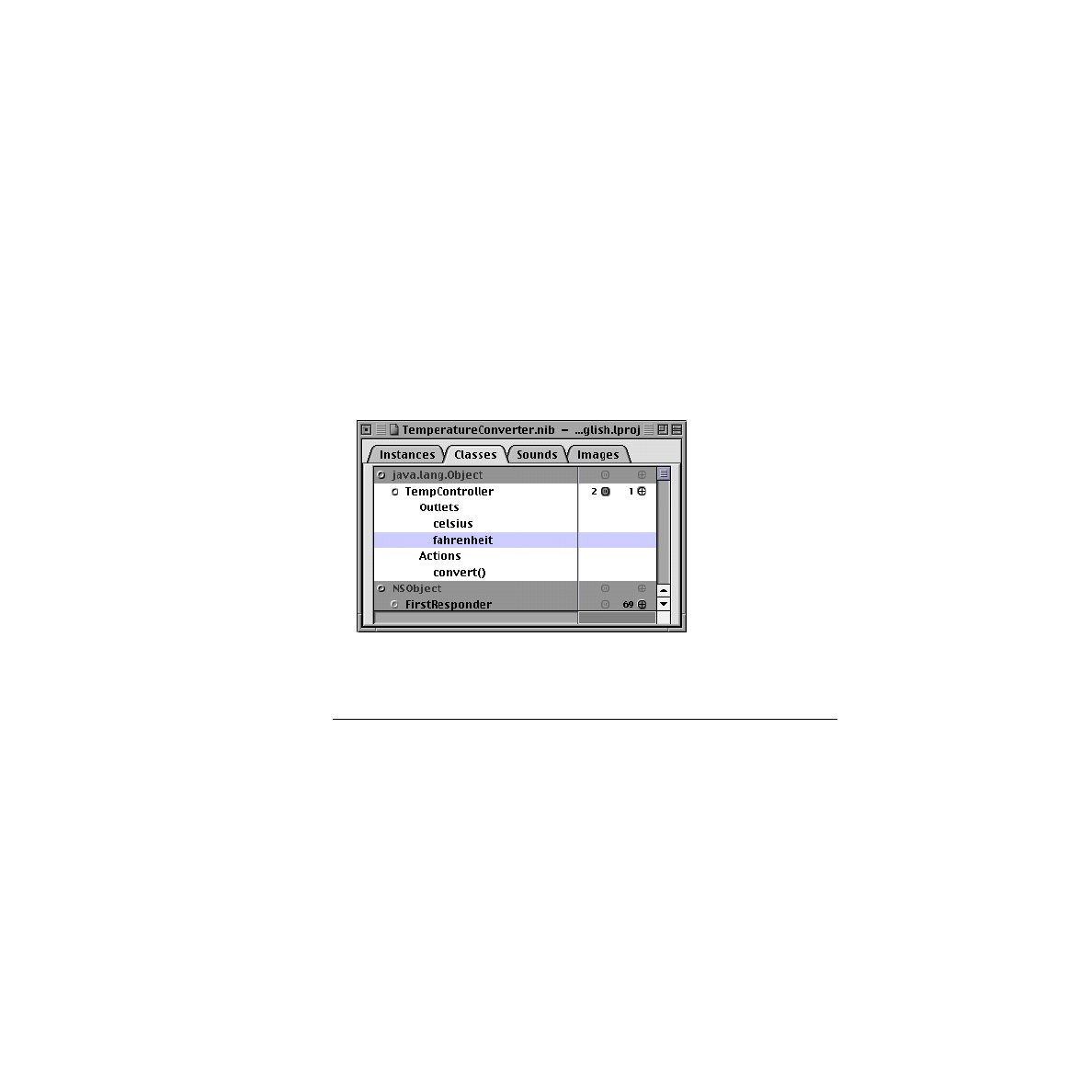
Identify the Class and Its Superclass
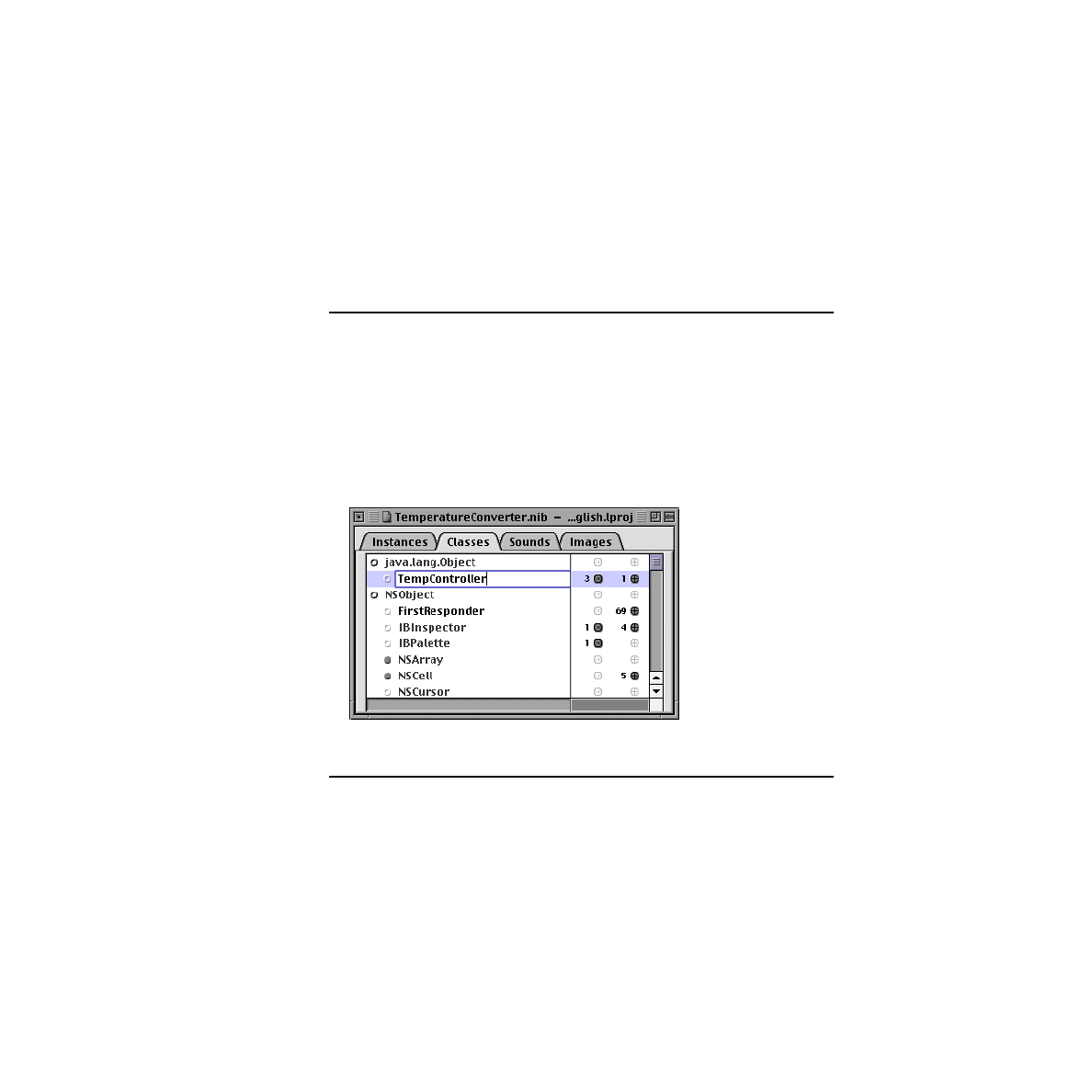
You deÞne a custom class using the Classes menu and the Classes display of the nib
Þle window.
1. Click the Classes tab of the
TemperatureConverter nib
Þle window.
2. Highlight java.lang.Object in the list of classes.
3. Choose Subclass from the Classes menu.
ÒMyObjectÓ appears in an editable Þeld below java.lang.Object.
4. Type ÒTempControllerÓ in place of ÒMyObjectÓ and press Return.
Specify the Outlets of the Class
An outlet is a reference one object holds to another object so that it can easily send
that object messages; it is an instance variable of type
id
or
IBOutlet
. The
TempController class has two outlets, one to each of the text Þelds in the user
interface.
C H A P T E R
Building a Simple Application
Defining the Controller Class
17
1. Click the small electric-outlet icon to the right of TempController in the Classes
display.
Tthe area under TempController expands to include ÒOutletsÓ and ÒActions.Ó
2. Select ÒOutlets.Ó
3. Choose Add Outlet from the Classes menu.
You can press the Return key instead of choosing the menu command.
4. Type ÒcelsiusÓ in place of ÒmyOutlet.Ó
Repeat steps 2 through 4, this time naming the outlet ÒfahrenheitÓ.
To collapse the TempController item, click any other class. in the Classes display.
Specify the Action of the Class
An action refers to a method invoked in a target object when a user event occurs,
such a the click of a button or the movement of a slider. We want a method in
TempController to be invoked whenever the user presses the Return key in a text
Þeld.
1. Click the small target icon to the right of TempController in the Classes display.
The area under TempController expands to include ÒOutletsÓ and ÒActions.Ó
2. Select ÒActions.Ó

18
Connecting Objects
C H A P T E R
Building a Simple Application
3. Choose Add Action from the Classes menu.
You can press the Return key instead of choosing the menu command.
4. Type ÒconvertÓ in place of ÒmyActionÓ (parentheses are automatically
appended to the method name).
See the illustration above for an example of what things look like when you
complete this task.
Related Concepts
Connecting Objects
Create an Instance of the Controller Class
Connect the Controller to Its Outlets
Connect the Action of the Controller
Interface Builder enables you to connect a custom object to its outlets and to the
objects in the user interface that invoke action methods of the custom object. This
connection information is stored in the nib Þle along with the user interface objects,
class deÞnitions, and nib resources.
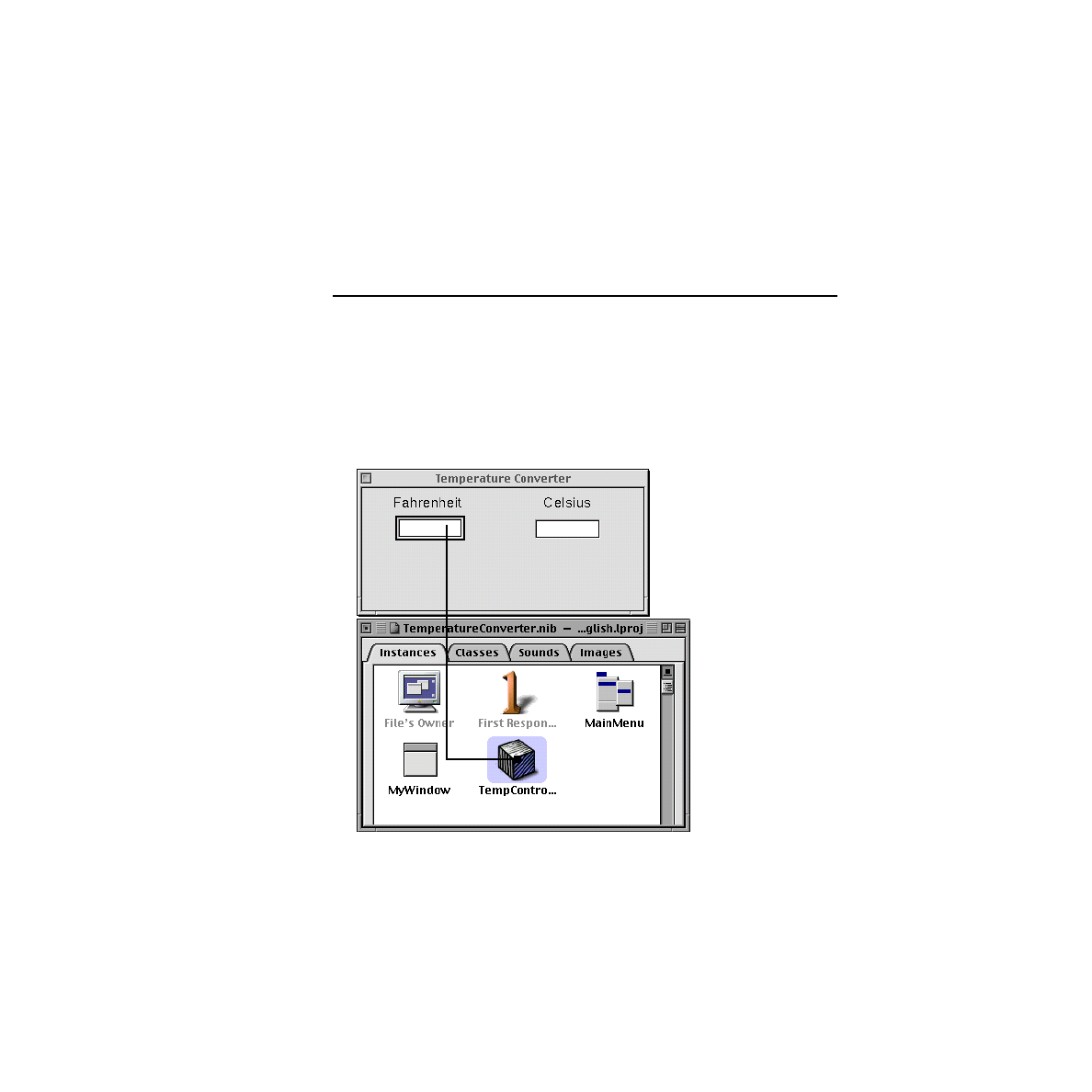
Create an Instance of the Controller Class
Before you can connect a custom object to objects in the user interface, you must
create an instance of the object. (This is not a real instance, but a ÒproxyÓ instance
representing the connections to the object. The real instance is created when the nib
Þle is loaded.)
1. Select the TempController class in the Classes display of the nib Þle window.
2. Choose Instantiate from the Classes menu.
C H A P T E R
Building a Simple Application
Connecting Objects
19
The nib Þle window automatically changes to the Instances display, and an instance
of the TempController class (depicted as a cube) appears in the display.
Connect the Controller to Its Outlets
Follow this Interface Builder procedure to connect the TempController custom
object to its outlets:
1. Control-drag from the cube representing the custom object to the Fahrenheit text
Þeld (the editable Þeld, not the label). A thick black line follows the cursor while
you drag.
ÒControl-dragÓ means to hold down the Control key while dragging the mouse
(moving it with the mouse button pressed).
2. When a box encloses the Fahrenheit Þeld, release the mouse button.
20
Connecting Objects
C H A P T E R
Building a Simple Application
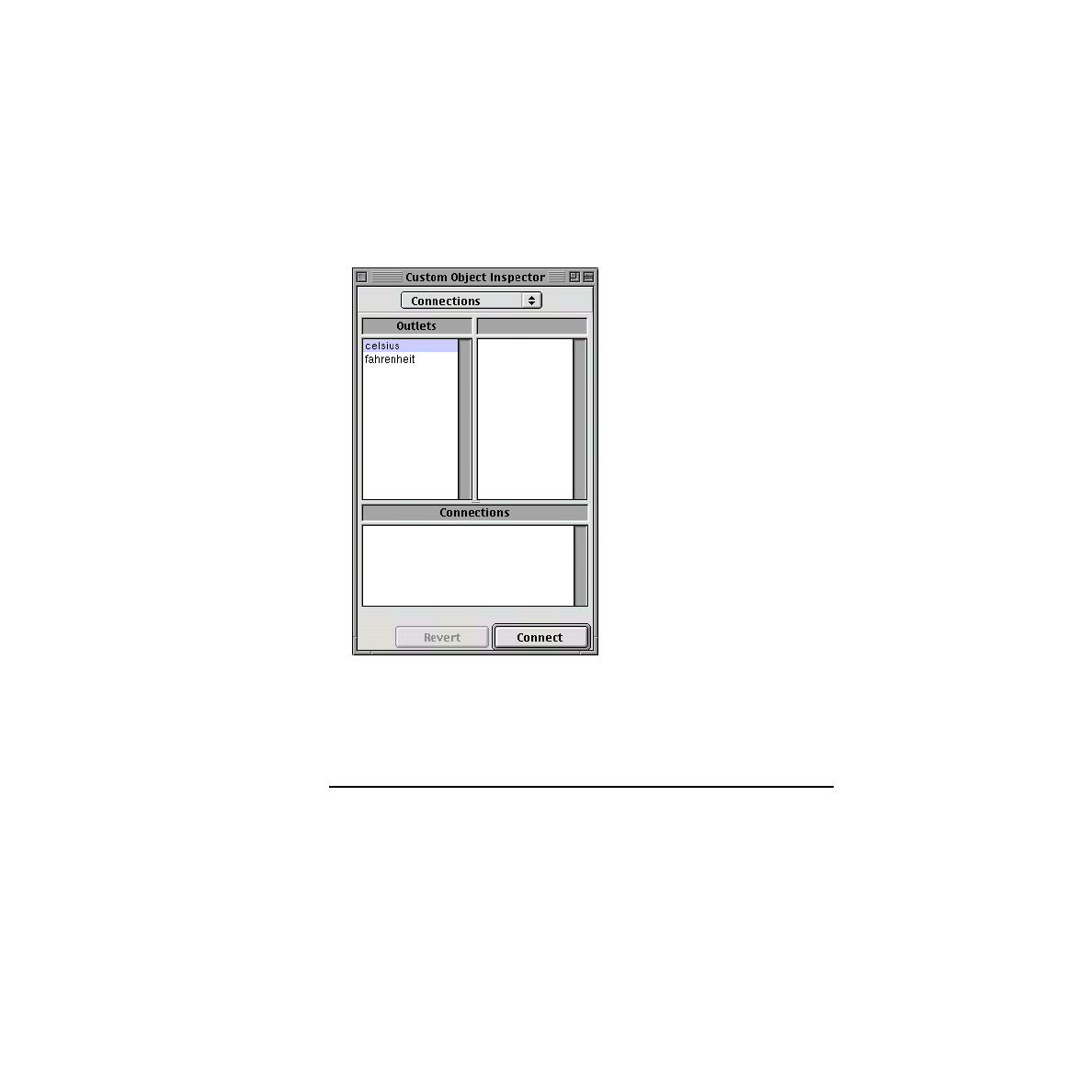
Interface Builder shows the Connections display of its Inspector. The left column
of this display lists the outlets deÞned by TempController.
3. Select the
fahrenheit
outlet.
4. Click the Connect button.
Repeat steps 1 through 4 for the
celsius
outlet.
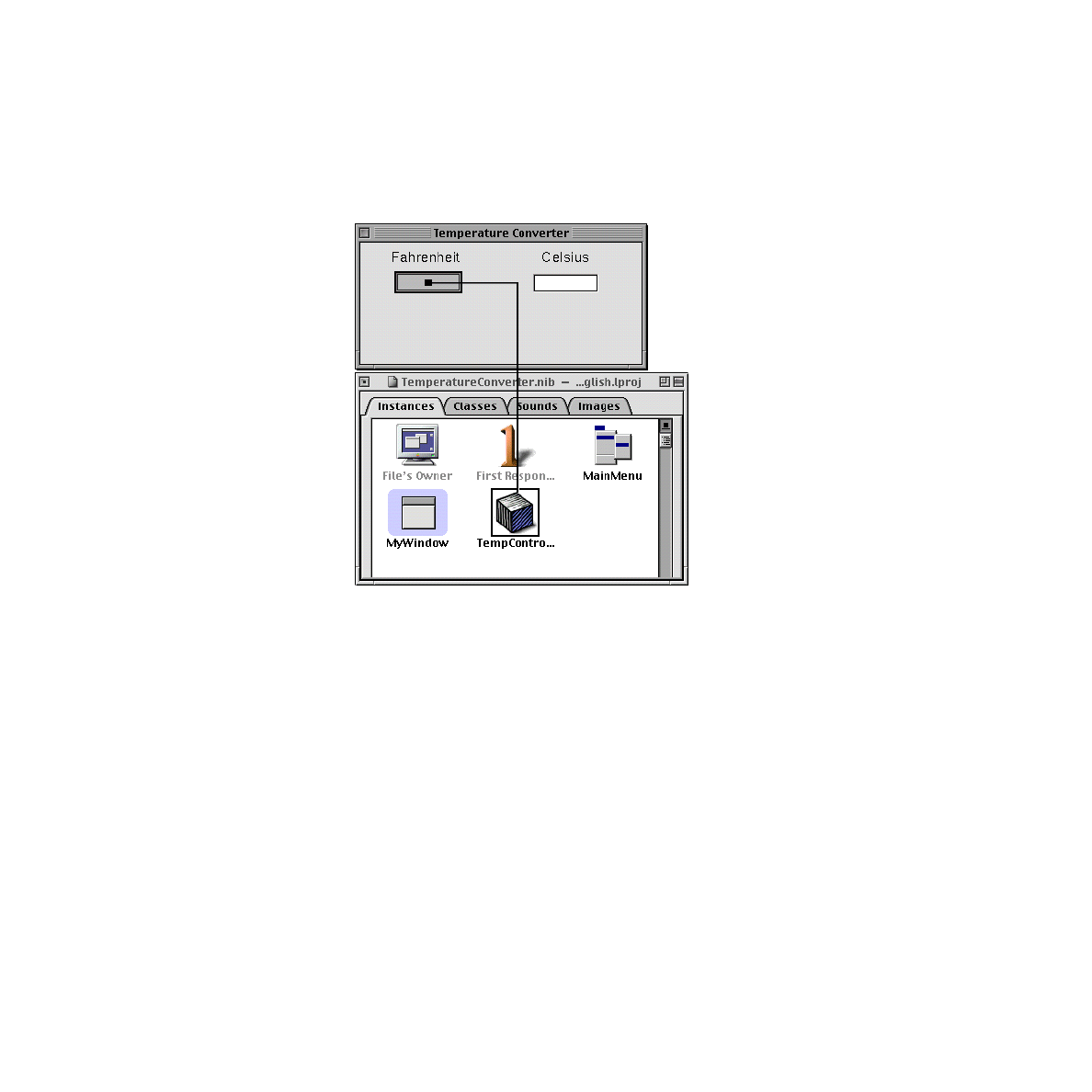
Connect the Action of the Controller
Follow this Interface Builder procedure to connect the action method deÞned by
TempController to the objects that might invoke that method:
1. ControlÐdrag from the the Fahrenheit Þeld (the editable Þeld, not the label) to
the cube representing the custom object. A thick black line follows the cursor
while you drag.
C H A P T E R
Building a Simple Application
Connecting Objects
21
2. When a box encloses the cube, release the mouse button.
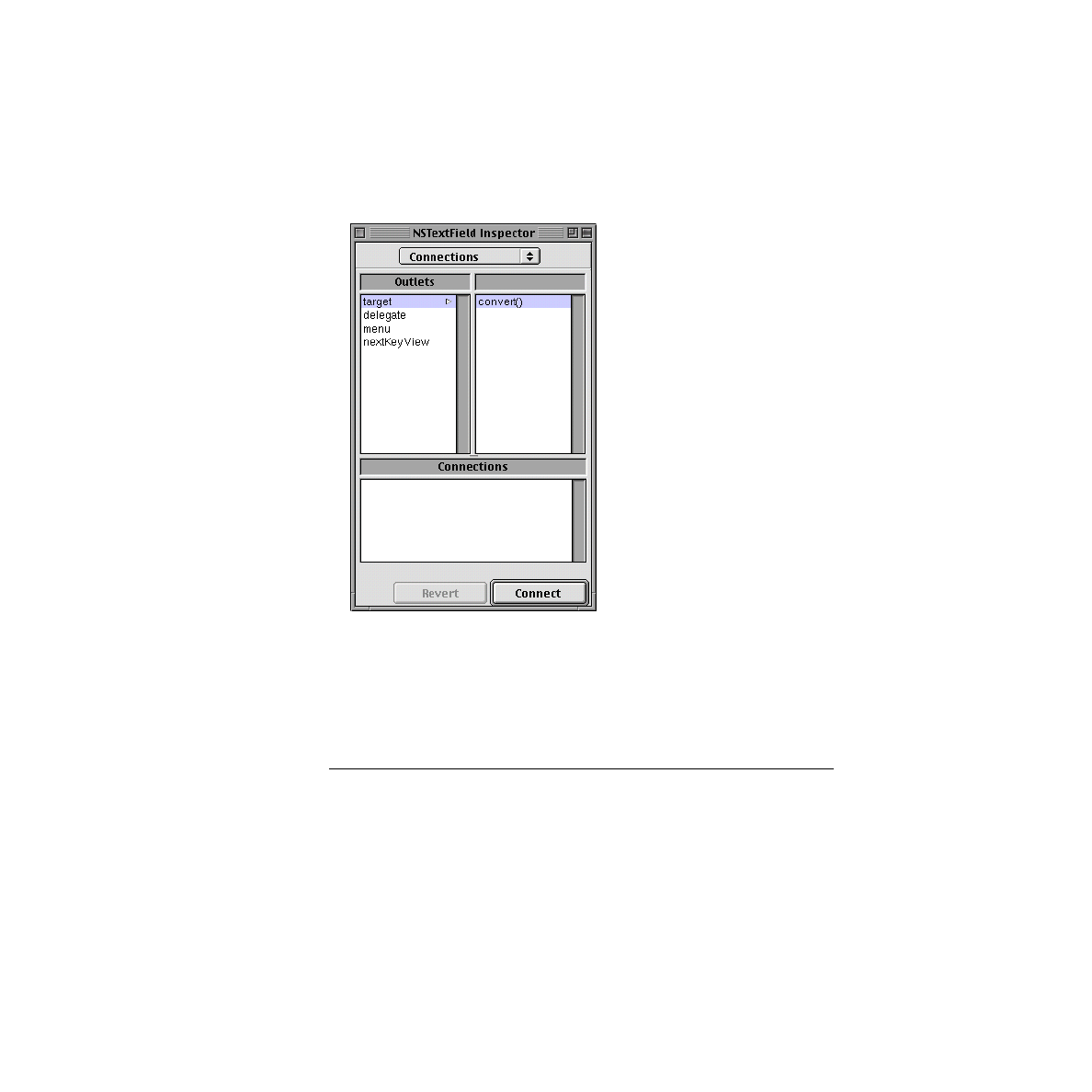
Interface Builder shows the Connections display of its Inspector. The right
column of this display lists the action deÞned by TempController.
22
Connecting Objects
C H A P T E R
Building a Simple Application
3. Select the
convert()
action.
You might Þrst have to click the target item under Outlets to get to the action.
4. Click the Connect button.
Repeat steps 1 through 4 for the Celsius Þeld.
Connect the Responders
As a convenience to users, you want the insertion point to be in a certain Þeld after
the application is launched. For the same reason (convenience), you want users to
be able to switch between the Þelds without having to use the mouseÑthey should
be able to tab between the Þelds. You can specify this behavior entirely in Interface
Builder:
1. Click the Instances tab of the nib Þle window.
C H A P T E R
Building a Simple Application
Connecting Objects
23
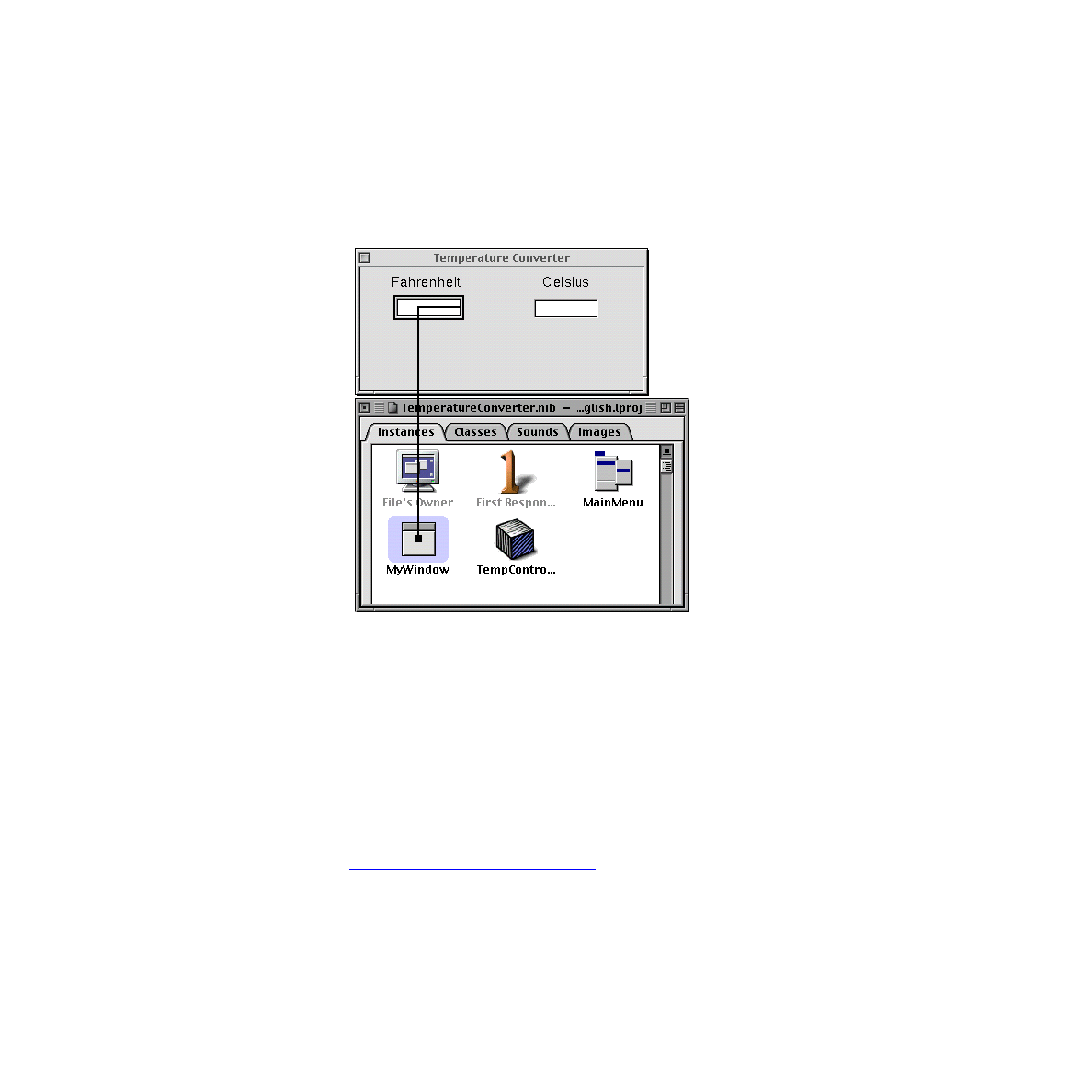
2. ControlÐdrag a connection line from the window icon to the Fahrenheit Þeld.
3. In the Connections display of the inspector, select
initialFirstResponder
.
4. Click the Connect button of the inspector.
5. ControlÐdrag a connection line from the Fahrenheit Þeld to the Celsius Þeld.
6. In the Connections display, select
nextKeyView
and click Connect.
7. ControlÐdrag a connection line from the Celsius Þeld to the Fahrenheit Þeld.
8. In the Connections display, select
nextKeyView
and click Connect.
What have you just done? YouÕve speciÞed the sequence of responder objects in the
user interface that are to receive the focus of keyboard events when users press the
Tab key.
Related Concepts

24
Implementing the Controller Class
C H A P T E R
Building a Simple Application
Test the User Interface
You can now test the user interface youÕve constructed with Interface Builder. Save
the nib Þle and choose Test Interface from the Document menu. Interface Builder
goes into test mode and the window and text Þelds youÕve just created behave as
they would in the Þnal applicationÑexcept, of course, there is yet no custom
behavior.
Notice that the insertion point is initially in the Celsius Þeld. Press the Tab key; note
how the insertion point jumps between the Þelds. Type something into one of the
Þelds, then select it and choose Cut from the Edit menu. Click in the other text Þeld
and choose Paste from the Edit menu. These are but a couple of examples of features
you get in any application with little or no work on your part.
Implementing the Controller Class
Generate the Source Code Files
Write a Patch for Windows Applications
YouÕre now ready to generate source-code template Þles from the nib Þle youÕve
created with Interface Builder. After that, youÕll work solely with the other major
development application, Project Builder.
Generate the Source Code Files
To generate the source-code templates Þles for TempController, in Interface Builder:
1. Click the Classes tab in the nib Þle window.
2. Select the TempController class.
3. Choose Create Files from the Classes menu.
4. Respond to the query ÒCreate TempController.java?Ó by clicking Yes.

C H A P T E R
Building a Simple Application
Implementing the Controller Class
25
5. Respond to the query ÒInsert Þle in project?Ó by clicking Yes.
Interface Builder creates a
TempController.java Þle
and puts it in the Classes
category of Project Builder. You can now quit Interface Builder (or, better still, hide
it) and click in Project BuilderÕs project window to bring it to the front.
Modify the Source Code Files
In Project Builder, perform the following steps to modify the generated Þles:
1. Click the Classes category in the left column of the project browser.
2. Click
TempController.java
in the second column.
The following code is displayed in the code editor:
import com.apple.yellow.application.*;
import com.apple.yellow.foundation.*;
public class TempController {
Object celsius;
Object fahrenheit;
public void convert(Object sender){
}
}
3. Modify the above code so that it looks like this:
import com.apple.yellow.application.*;
public class TempController {
NSTextField celsius;
NSTextField fahrenheit;
public void convert(NSTextField sender) {
}
}
Why is this modiÞcation necessary? Java is a strongly typed language and has no
equivalent for the Objective-C dynamic object type
id
. When Interface Builder
generates source-code Þles for Objective-C classes, it gives
id
as the type of outlets
and as the type of the object sending action messages. This
id
is essential to the
method signature for outlets and actions. However, when it generates Java
source-code Þles, it substitutes the static Java type Object for
id
.
Related Concepts

26
Implementing the Controller Class
C H A P T E R
Building a Simple Application
Implement the convert Method
Finally implement the convert method in Java, as shown here:
import com.apple.yellow.application.*;
public class TempController {
NSTextField celsius;
NSTextField fahrenheit;
public void convert(NSTextField sender) {
if (sender == celsius) {
int f = (int)((9.0/5.0 * celsius.intValue()) + 32);
fahrenheit.setIntValue(f);
} else if (sender == fahrenheit) {
int c = (int)((fahrenheit.intValue()-32) * 5.0/9.0);
celsius.setIntValue(c);
}
}
}
You can freely intermix Yellow Box and native Java objects in the code. And you can
use any Java language element, such as the try/catch exception handler.
Write a Patch for Windows Applications
If youÕre writing the application to run on Yellow Box for Windows, you must write
some code that works around a problem with the Java virtual machine (VM) on
Windows. Because the way the VM implements security-manager features, it will
otherwise not allow any native method to be loaded through a class loader.
The best place to put the code shown below is in:
■
A static initializer in the principal class
■
Your application delegateÕs
applicationDidFinishLaunching
method
The code to add is the following:
try {
com.apple.security.NullSecurityManager.installSystemSecurityManager();
} catch (Exception e) {
// CanÕt install it
}

C H A P T E R
Building a Simple Application
Building and Running the Application
27
If the exception is raised, the ÒnullÓ security manager cannot be installed and thus
native code might not be invoked properly.
Building and Running the Application
YouÕve completed the work required from you for the Temperature Converter
project. Now itÕs Project BuilderÕs turn to work.
Build the Project
To build the project:
1. Click the Build icon in the project window to display the Build panel.
2. Click the same icon in the Build panel.
You can also press CommandÐShiftÐB to start building directly, bypassing step 1.
Project Builder begins compiling and linking the project code. It reports progress in
the Build panel. If there are errors, Project Builder lists them in the upper part of the
display area. Click a line reporting an error to have Project Builder scroll to the site
of the error in the code editor.
Related Concepts
The build target for Application projects is, by default, ÒappÓ (for application). By
clicking the checkmark button on the Build panel, you can bring up the Build

28
Building and Running the Application
C H A P T E R
Building a Simple Application
Options panel, where you can set the target to ÒdebugÓ (which creates an executable
with extra symbols for debugging) or set other per-build parameters.
Launch and Test the Project
Of course, once the application has been built, youÕll want to launch the application
to see if it works as planned. You have at least two ways of doing this:
■
Locate the Þle
TemperatureConverter.app
in the project directory. Double-click
this Þle to launch the application.
■
Click the Launch button on the project window to display the Launch panel.
This button looks like a monitor:
Then click the Launch button (same icon) on the Launch panel to launch the
application.
29
Creating a Custom View Class
Major Tasks:
Defining the Custom View Subclass
This section of the tutorial describes the basic steps for creating a custom view and,
more speciÞcally, shows how to create a sublcass of an Application Kit class that
itself inherits from NSView. In this section, you will add a custom Òimage viewÓ to
the user interface you created in the Þrst part of this tutorial. This custom object will
respond to messages from the controller object, TempController, and change its
image depending on the temperature entered. HereÕs what the Þnal
TemperatureConverter application will look like:

30
Defining the Custom View Subclass
C H A P T E R
Creating a Custom View Class
The behavior that your custom view object adds to its superclass, NSImageView, is
trivial. You could just as well accomplish the same behavior by sending messages to
an Òoff-the-shelfÓ instance of NSImageView. But the subclass illustrates the basic
procedure for making subclasses of Yellow Box classes that donÕt inherit from
java.lang.Object.
summarizes the procedure and provides example code
for creating a subclass of NSView whose instances can draw themselves. This
example subclass can replace the one you will create in this section, because it draws
graphical shapes instead of displaying images when the temperature changes to
another range.
DeÞning the Custom View Subclass
Place and Resize the CustomView Object
Assign the Class to the CustomView
Place and Resize the CustomView Object
The CustomView object on Interface BuilderÕs Views palette represents an instance
of any custom subclass of NSView or of any Application Kit class that inherits from
NSView. The CustomView object lets you specify the basic attributes of all view
objects: their location in a window and their size.
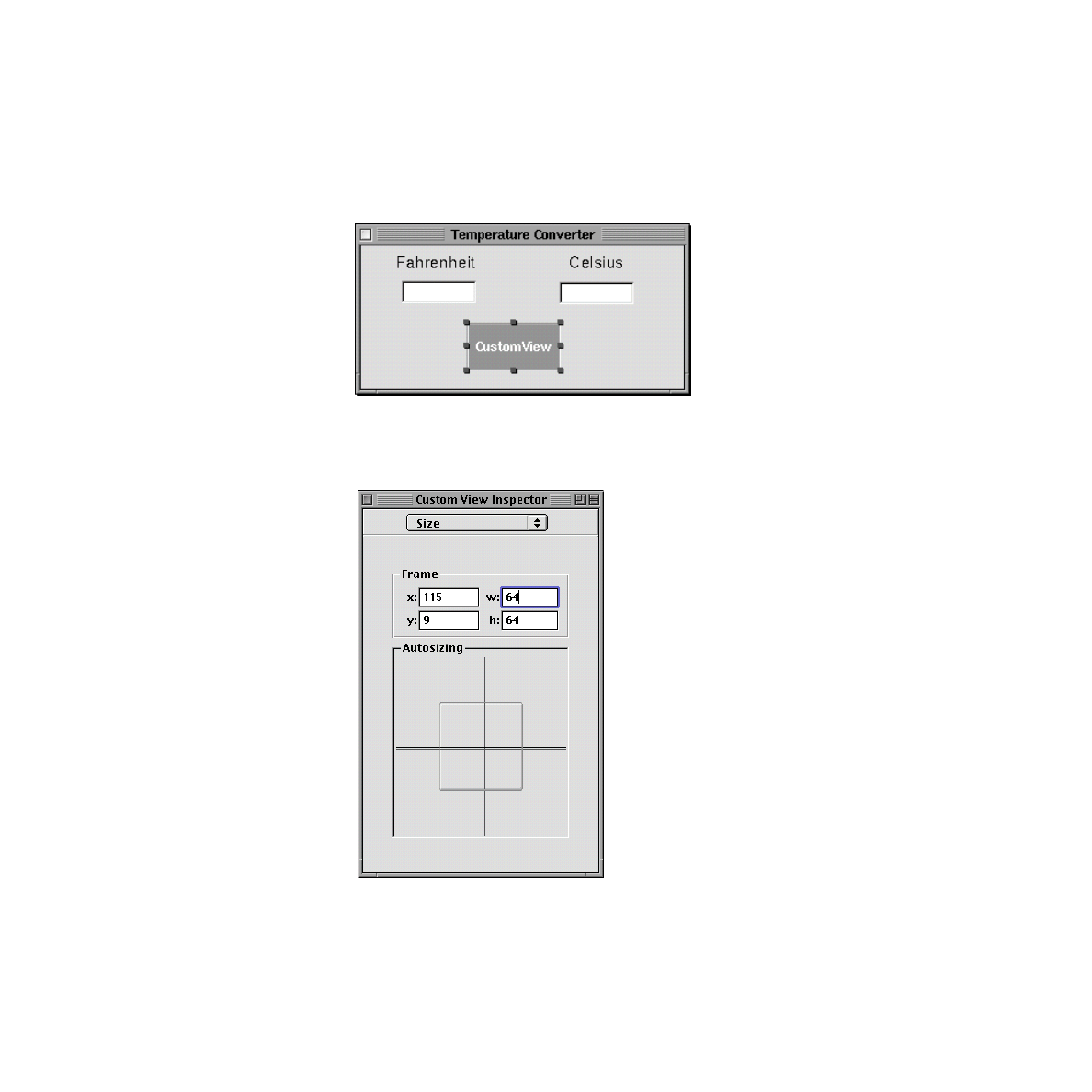
1. Drag the CustomView object from the Views palette and drop it in the window.
Center it in the window beneath the text Þelds.
C H A P T E R
Creating a Custom View Class
Defining the Custom View Subclass
31
2. Resize the CustomView using the Size inspector.
Choose Inspector from the Tools menu, select the Size display, and enter 64 in
both the width (w) and height (h) Þelds.
32
Defining the Custom View Subclass
C H A P T E R
Creating a Custom View Class
Specify the Subclass
As you did earlier with the controller object TempController, you must provide the
name and superclass of your custom class. But now, instead of inheriting from
java.lang.Object, your class inherits from an Application Kit class.
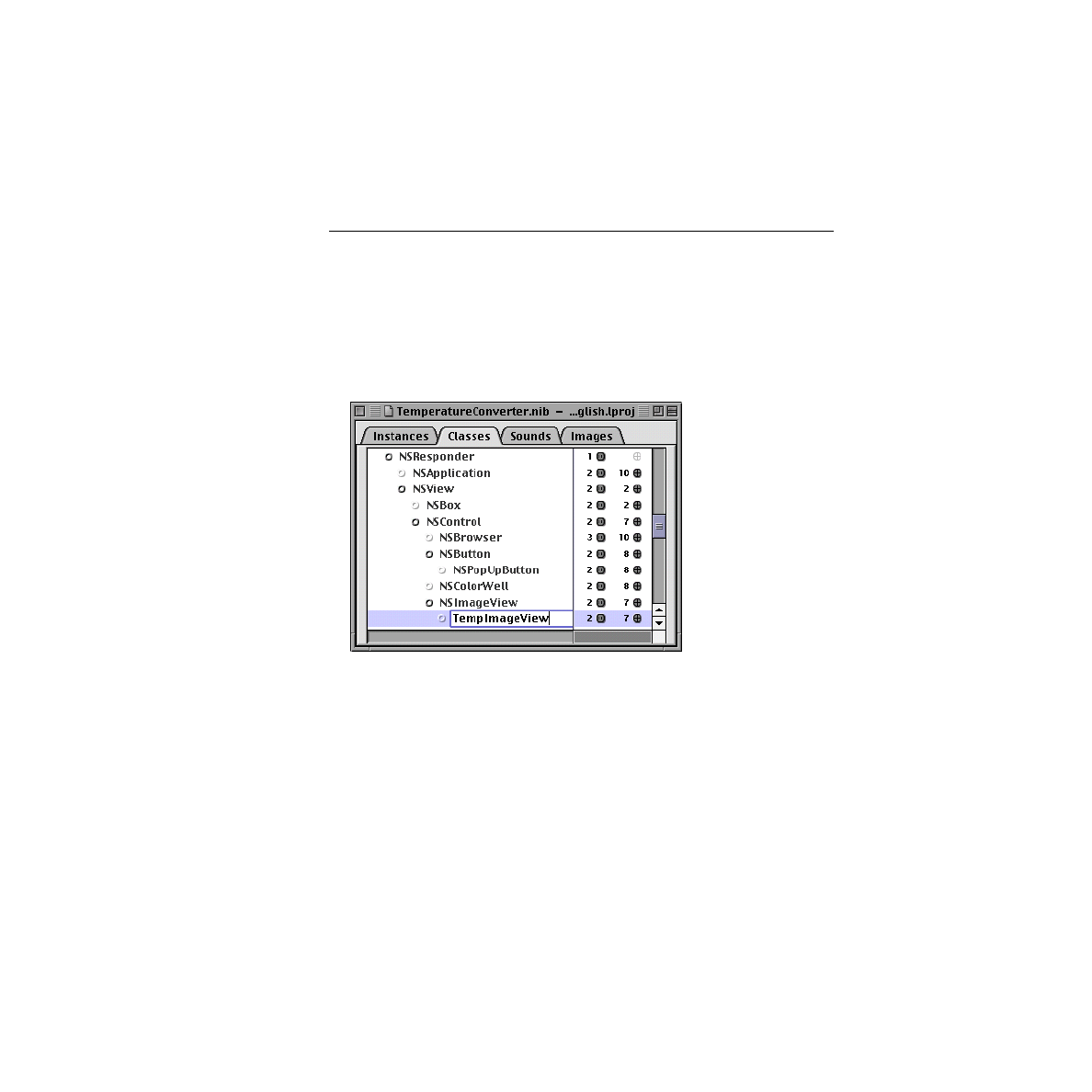
1. In the Classes display of the nib Þle window, select the NSImageView class.
If a class in the display has a Þlled-in circle next to it, you can click the circle to
reveal the subclasses of that class. The path you want to follow is this:
NSObject, NSResponder, NSView, NSControl, NSImageView.
2. Choose Subclass from the Classes menu.
3. Name the class ÒTempImageViewÓ.
There is no need to specify any outlets or actions for this class.
I m p o r t a n t
Currently, Interface Builder lists the Objective-C set of
Yellow Box classes in its Classes display. This set does not
map exactly to the Java set. The release notes for the
Yellow Box Java APIs (JavaAPI.html in
/System/Documentation/Developer/YellowBox/
ReleaseNotes
) describes which Objective-C Foundation
and Application Kit classes and protocols were exposed as
C H A P T E R
Creating a Custom View Class
Defining the Custom View Subclass
33
Java classes and interfaces, and which Java classes are
new. For those Objective-C classes that were not exposed,
it indicates the JDK counterparts that you can use instead.
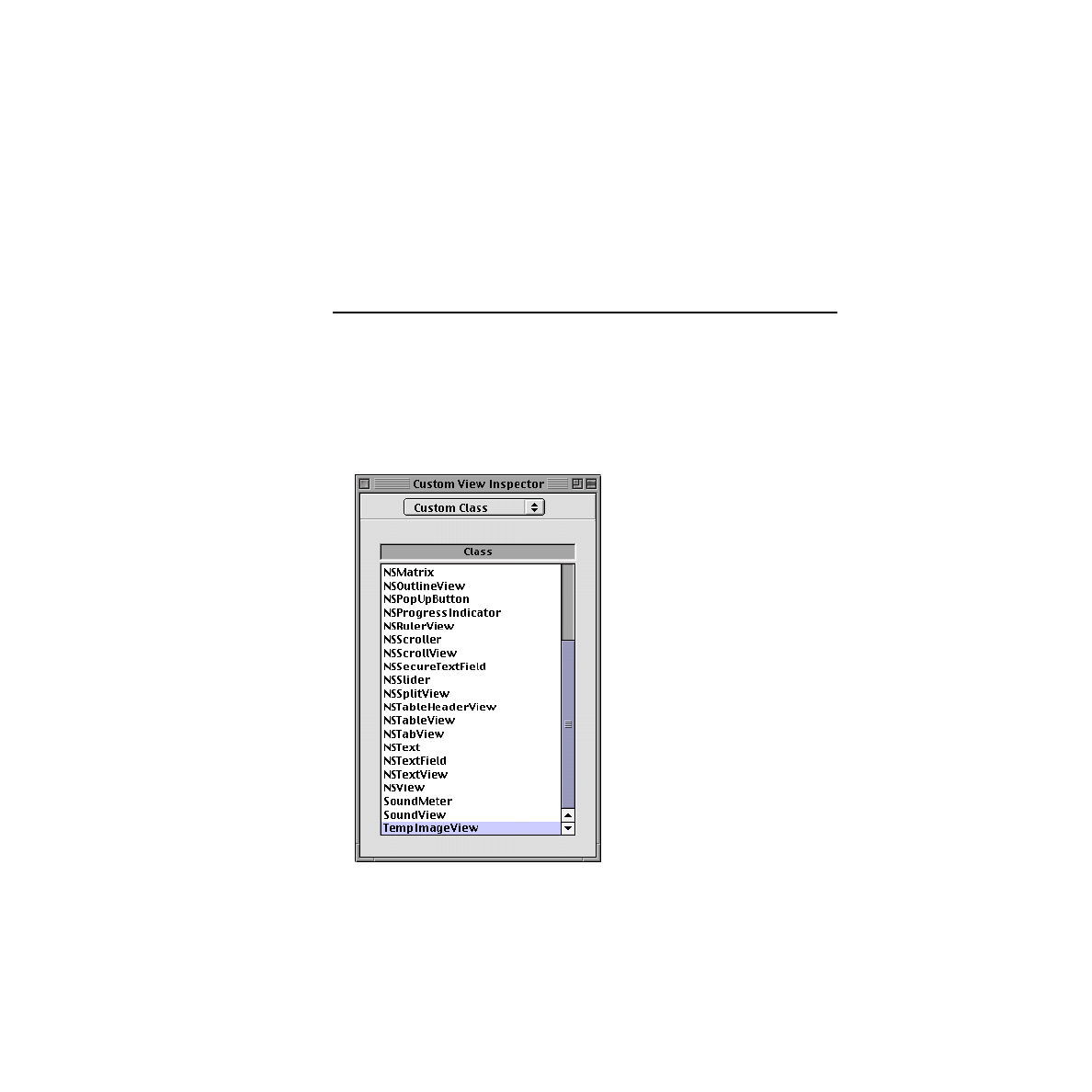
Assign the Class to the CustomView
Unlike custom controller classes, where you use the Classes>Instantiate command
to make an instance, you make an instance of a custom view in Interface Builder by
assigning the class to the CustomView object.
1. Select the CustomView object.
2. Select the Custom Class display of the inspector.
3. Select the TempImageView class in the list provided by that display.

34
Connecting the View Object
C H A P T E R
Creating a Custom View Class
Notice how the title of the custom view object changes to ÒTempImageView.Ó
Connecting the View Object
The TempImageView itself has no outlets or actions, but the controller object
TempController needs to communicate with it to tell it when the temperature value
changes. One additional outlet in TempController is needed for this purpose.
Specify a Controller Outlet
You can always add an action or outlet to an existing custom class. Just make sure
the header and implementation Þles of the class (if created) reßect the new outlet or
action.
1. Select the TempController class in the Classes display of the nib Þle window.
2. Click the electrical-outlet icon next to the class.
3. Choose Add Outlet from the Classes menu (or just press Return).
4. Type the name of the outlet: ÒtempImageÓ.
Before you move on the next step, be sure to collapse the listing of outlets and
actions by clicking another class.
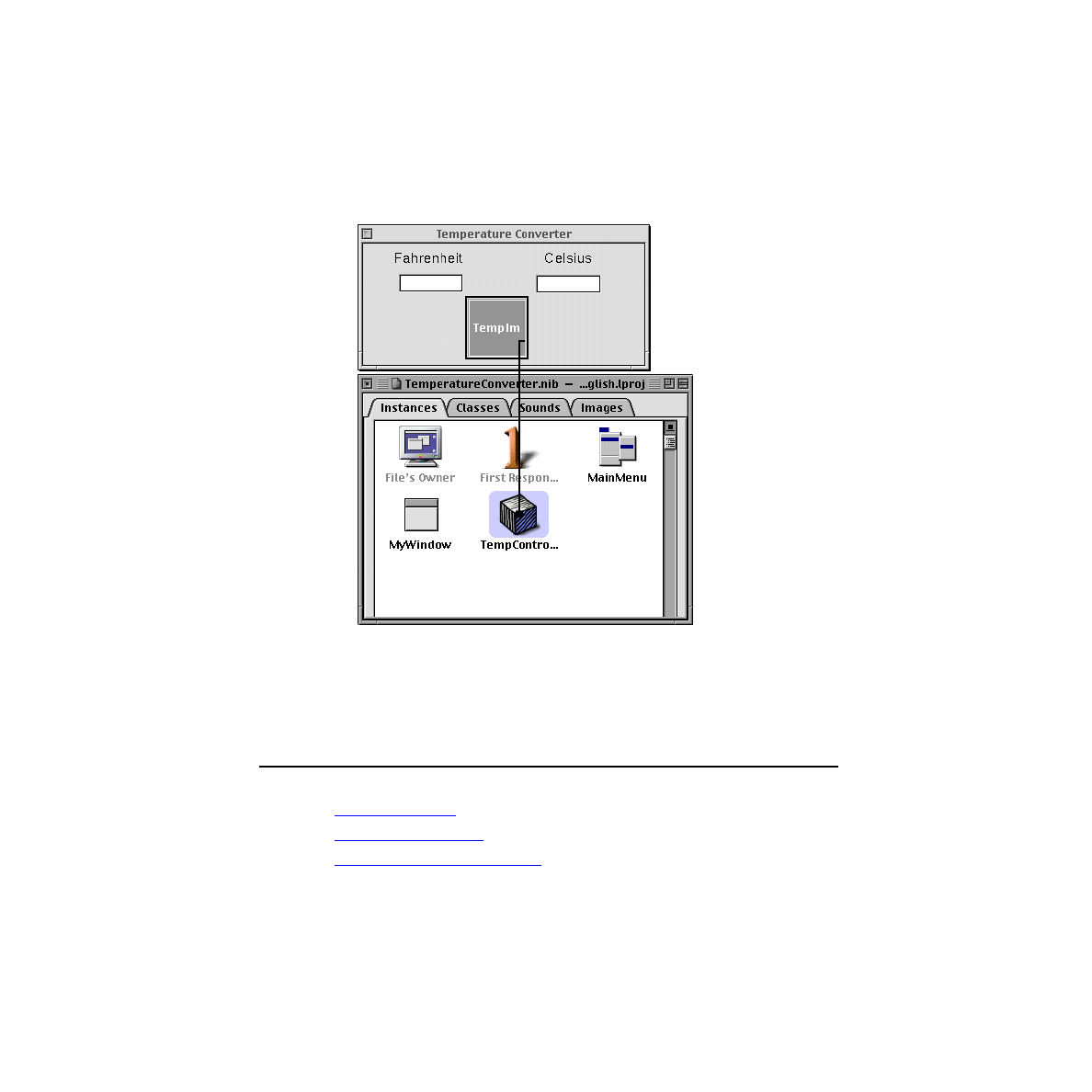
Connect the Instances
YouÕve already created an instance of TempController; all you need to do now is
connect it to the TempImageView instance through the
tempImage
outlet.
1. Click the nib Þle window and the application window to bring them both to the
front of the screen.
2. Drag a connection from the TempController instance in the Instances display to
the custom view object (TempImageView) in the application window.
C H A P T E R
Creating a Custom View Class
Implementing the Custom View
35
3. Select the
tempImage
outlet in the Connections view of the inspector and click
Connect.
4. Save the nib Þle.
Implementing the Custom View
36
Implementing the Custom View
C H A P T E R
Creating a Custom View Class
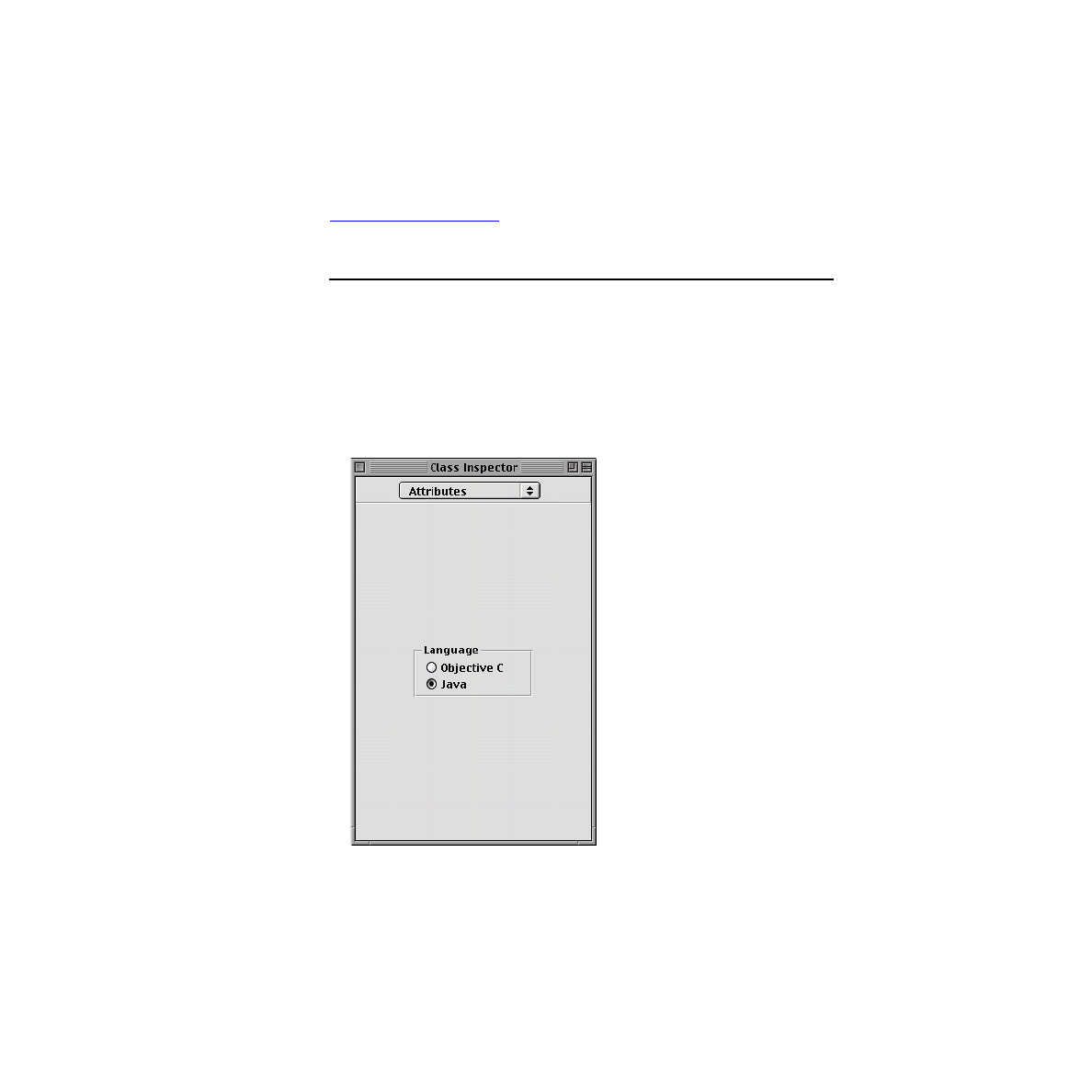
Generate the .java File
The classes under NSObject in the Classes display of the nib Þle window represent,
in most cases, both Java and Objective-C versions of the same class. When you
create source code Þles from your nib-Þle deÞnitions, you must specify which
language you want.
1. Select TempImageView in the Classes display of the nib Þle window.
2. Select the Attributes display of the inspector.
3. Click the Java radio button.
4. Choose Create Files from the Classes menu.

C H A P T E R
Creating a Custom View Class
Implementing the Custom View
37
5. Respond Yes to both conÞrmation prompts.
Implement the Constructor
The constructor for TempImageView loads image Þles from the applicationÕs
resources, converts them to NSImage objects, and assigns these to instance
variables. (YouÕll add these images to the project later in this tutorial.) It also sets
certain inherited attributes of the image view. The following procedure approaches
the implementation of this constructor in three steps.
1. Open TempImageView.java in Project BuilderÕs project browser by clicking the
Þlename listed in the Classes category.
2. Add the instance variables for the three NSImages as shown here:
/* TempImageView */
import com.apple.yellow.application.*;
import com.apple.yellow.foundation.*;
public class TempImageView extends NSImageView {
protected NSImage coldImage; // add this
protected NSImage moderateImage; // add this
protected NSImage hotImage; // add this
3. Load the images, create NSImages, and assign them to instance variables.
public TempImageView(NSRect frame) {
// load images
super(frame);
coldImage = new NSImage("Cold.tiff", true);
if (coldImage == null) {
System.err.println("Image Cold.tiff not found.");
}
moderateImage = new NSImage("Moderate.tiff", true);
if (moderateImage == null) {
System.err.println("Image Moderate.tiff not found.");
}
String h = NSBundle.mainBundle().pathForResource("Hot", "tiff");
if (h != null) {
hotImage = new NSImage(h, true);
} else {

38
Implementing the Custom View
C H A P T E R
Creating a Custom View Class
System.err.println("Image Hot.tiff not found.");
}
There are a few things to observe about the above excerpt of code:
■
TempImageViewÕs constructor is based on NSImageViewÕs
NSImageView(NSRect)
method, so the Þrst thing done is a call to superÕs
constructor.
■
It uses NSImageÕs constructor
NSImage(String, boolean)
to locate the speciÞed
image resource in the application bundle and create an NSImage with it.
■
For the third image (just to show how it can be done differently) NSBundleÕs
pathForResource(String, String)
method is called to locate the image and return a
path to it within the application bundle. This path is used in the
NSImage(String,
boolean)
constructor.
■
The error handling in this constructor is rudimentary. In a real application,
you would probably want to implement something more useful.
4. Set attributes of the image view:
setEditable(false);
setImage(moderateImage);
setImageAlignment(NSImageCell.ImageAlignCenter);
setImageFrameStyle(NSImageCell.ImageFrameNone);
setImageScaling(NSImageCell.ScaleProportionally);
}
The foregoing procedure might lead you to wonder how you can learn more about
the methods of a Yellow Box class, especially their arguments and return types. Mac
OS X and Yellow Box for Windows provide a tool to help you, JavaBrowser. They
also include a version of the Java Yellow Box API reference documentation which
documents many classes; for those that are not documented, a ÒskeletalÓ class
speciÞcation displays the prototype for each method and includes an HTML link to
the methodÕs Objective-C counterpart in the reference documentation.
Implement the Image-Setting Method
TempImageView has one public method that TempController calls whenever the
user enters a new temperature value: the
tempDidChange
method. Implement this
method as shown here:
public void tempDidChange(int degree) {

C H A P T E R
Creating a Custom View Class
Completing the Application
39
if (degree < 45) {
setImage(coldImage);
} else if (degree > 75) {
setImage(hotImage);
} else setImage(moderateImage);
}
These ranges are completely arbitrary, but could be inßuenced by a California
climate. If you have lower or higher thresholds for hot and cold temperatures, you
can specify your own ranges.
Call the Image-Setting Method
In the convert method of TempController, call TempImageViewÕs
tempDidChange
method after converting the entered value. Copy the following example:
public void convert(NSTextField sender) {
if (sender == celsius) {
int f = (int)((9.0/5.0 * celsius.intValue()) + 32);
fahrenheit.setIntValue(f);
} else if (sender == fahrenheit) {
int c = (int)((fahrenheit.intValue()-32) * 5.0/9.0);
celsius.setIntValue(c);
}
tempImage.tempDidChange(fahrenheit.intValue()); // add this
}
You must also add the tempImage outlet you deÞned earlier in Interface Builder as
an instance variable in TempController.java.
Completing the Application

40
Completing the Application
C H A P T E R
Creating a Custom View Class
Add Images to the Project
The TempImageView object must, of course, have images to show. Ready-made
ÒclimateÓ images come provided for this tutorial. You must add these image Þles to
the application.
1. In Project Builder, double-click the Images category in the project browser.
2. In the Add Images panel, navigate to the following directory:
/System/Documentation/Developer/YellowBox/TasksAndConcepts/
JavaTutorial/ApplicationImages
If you are on a Yellow Box for Windows system, the above path starts with the
value of NEXT_ROOT rather than /System.
3. Add the following images: Hot.tiff, Cold.tiff, Moderate.tiff.
Shift-click each Þle to select all images, then click OK to add them to the project.
4. Choose Save from the Project menu.
Build the Project
Now youÕre ready to build the project. Click the Build button in the project window,
then the same button in the Build panel. You can circumvent these buttons by
pressing CommandÐShiftÐB. If there are errors in the code, they will appear in the
two lower displays of the Build panel. Click a line describing an error in the upper
display to go to the line in the code containing the error; Þx the error and rebuild.
Related Concepts
Test Drive the Application
Launch the TemperatureConverter application and see what it can do; this includes
not only what you speciÞcally programmed it to do, but the behavior the
application gets Òfor free.Ó
■
Enter a low temperature value in the Fahrenheit Þeld and press Return.
The Celsius Þeld displays the converted temperature and the image changes to
the ÒcoldÓ picture.

C H A P T E R
Creating a Custom View Class
Completing the Application
41
■
Enter a high temperature value in the Celsius Þeld and press Return.
The Fahrenheit Þeld displays the converted temperature and the image changes
to the ÒhotÓ picture.
Now check out the ÒfreeÓ behavior.
■
Click the window of another application or anywhere in the workspace.
The TemperatureConverter window loses key status (and as a result its title bar
loses its detail) and it might become tiered beneath other windows on your
screen. TemperatureConverter is no longer the active application.
■
Click the TemperatureConverter window.
It is brought to the front tier of the window system and is made key.
■
Choose Hide TemperatureConverter from the Application menu (the menu at
the far right of the menu bar).
The TemperatureConverter window disappears from the screen.
■
In the same Application menu, choose TemperatureConverter from the list of
applications currently running on your system.
The TemperatureConverter window reappears.
■
Select a number in one of the text Þelds, choose Copy from the Edit menu, select
the number in the other text Þeld, and choose Paste from the Edit menu.
The number is copied from one Þeld to the other.
■
Select a number again and choose a suitable command from the Services menu,
such as Make Sticky.
The Services menu lists those applications that can accept selected data from
your application and process it in speciÞc ways. When you choose a Services
command, the application associated with the command starts up (if it is not
already running) and processes the selected number. (In the case of Make Sticky,
the number appears in a Stickies window.)
■
Chose Quit from the File menu.

42
Creating a Subclass of NSView
C H A P T E R
Creating a Custom View Class
Creating a Subclass of NSView
Define a Custom Subclass of NSView
Implement the Code for a Custom NSView
If you have completed the tutorial so far, youÕre done. You need not go any furtherÑ
unless you would like to try a more interesting and challenging variation of the
TempImageView class you created earlier. In this Òextra creditÓ part of the tutorial,
you will create a class for objects that know how to draw themselves and know how
to respond to user events. These classes are custom subclasses of NSView.
Custom subclasses of NSView are ususally constructed differently than subclasses
of other Application Kit classes because the custom NSView subclass is responsible
for drawing itself and, optionally, for responding to user actions. Of course, you can
do custom drawing in a subclass that doesnÕt inherit directly from NSView, but
usually instances of these classes draw themselves adequately. This section
describes in general terms what you must do to create a custom NSView subclass.
Define a Custom Subclass of NSView
The differences are slight between the Interface Builder procedures for deÞning a
direct subclass of NSView and for deÞning a subclass of any Application Kit class
that inherits, directly or indirectly, from NSView. The following is a summary of the
required procedure in Interface Builder:
1. Drag a CustomView object from the Views palette and drop it in the window.
2. Resize the CustomView object to the dimensions you would like it to have.
3. Select NSView in the Classes display of the nib Þle window, choose Subclass
from the Class menu, and name your subclass.
4. Add any necessary outlets or actions.
5. Assign the class you deÞned to the CustomView object.
Do this by selecting the object and selecting the class in the Classes display of the
inspector.

C H A P T E R
Creating a Custom View Class
Creating a Subclass of NSView
43
6. Make any necessary connections.
7. Generate the ÒskeletalÓ .java Þle; before you choose the Classes>Create Files
command, be sure to select Þrst the class and then Java in the Attributes display
of the inspector.
If you are unsure how to complete any of these steps, refer to the
Implement the Code for a Custom NSView
You can implement your custom NSView to do one or two general things: to draw
itself and to respond to user actions. The basic procedures for these and related tasks
are given below.
I m p o r t a n t
The information provided in this section barely scratches
the surface of the concepts related to NSView, including
drawing, the imaging model, event handling, the view
hierarchy, and so on. This section intends only to give you
an idea of what is involved in creating a custom view. For
a much more complete picture, see the description of the
NSView class in the Objective-C API reference.
Drawing
All objects that inherit from NSView must override the
drawRect
method to render
themselves on the screen. The invocation of NSViewÕs
display
method, or one of the
display
variants, leads to the invocation of
drawRect
. Before
drawRect
is invoked,
NSView Òlocks focus,Ó setting the Window Server up with information about the
view, including the window device it draws in, the coordinate system and clipping
path it uses, and other PostScript graphics state information.
In the
drawRect
method, you must write the code that transmits drawing instructions
to the Window Server. The
drawRect
method has one argument: the NSRect object
deÞning the area in which the drawing is to occur (usually the bounds of the
NSView itself or a subrectangle of it). The range of options the Java Yellow Box APIs
provide is currently more limited than on the Objective-C side, which has the whole
suite of PostScript client-side functions and operators. For drawing in Java, you can
use the following classes:

44
Creating a Subclass of NSView
C H A P T E R
Creating a Custom View Class
■
NSBezierPath offers methods for constructing straight or curved lines,
rectangles, ovals, arcs, and polygons with bezier paths.
■
NSAfÞneTransforms has methods for translating, rotating, and resizing
graphical objects, such as those created with NSBezierPath.
■
The static methods of the NSGraphics class draw rectangles, including buttons
of various styles. They also perform bitmap operations and provide various
information about the Window Server and graphics context.
■
FoundationÕs geometry classesÑNSRect, NSSize, and NSPoint (and their
mutable variants)Ñhelp you to compute the location and size of graphical
objects.
■
NSColor and NSFont, among other classes, have methods that directly set a
parameter of the current graphics context.
Invalidating the View
With each cycle of the event loop, the Window Server ensures that each NSView in
a window that requires redrawing is given an opportunity to redisplay itself.
Besides implementing
drawRect
to draw your custom NSView, your application must
indicate that an NSView requires redrawing when data affecting the view changes.
This indication is called Òinvalidation.Ó Invalidation marks an entire view or a
portion of a view as Òinvalid,Ó and thus requiring a redisplay. NSView deÞnes two
methods for marking a viewÕs image as invalid:
setNeedsDisplay
, which invalidates
the viewÕs entire bounds rectangle, and
setNeedsDisplayInRect
, which invalidates a
portion of the view.
You can also force an immediate redisplay of a view with the
display
and
displayRect
methods, which are the counterparts to the methods mentioned above. However,
you should use these and related
display
... methods sparingly, and only when
necessary. Constant forced displays can markedly affect application performance.
You should never invoke
drawRect
directly.
Event Handling
If an NSView expresses a willingness to respond to user events, it is made the
potential recipient of any event detected by the window system. The view then just
must implement the appropriate NSResponder method (or methods) that

C H A P T E R
Creating a Custom View Class
Creating a Subclass of NSView
45
correspond to the event the view is interested in. (NSView inherits from
NSResponder.)
What this means in practical terms is that an NSView must at a bare minimum do
two things:
■
Override NSResponderÕs
acceptsFirstResponder
method to return
true
.
■
Implement an NSResponder method such as
mouseDown
,
mouseDragged
, or
keyUp
.
The argument of each of these methods is an NSEvent, which provides
information related to the event.
See the NSResponder and NSEvent class descriptions in the API reference for
further information.
An Example
The TemperatureView class is similar to the TempImageView class implemented in
the second part of the tutorial. Instead of displaying a different image when the
temperature changes to a certain range, it draws a circle of a different color. To
illustrate basic event handling, the TemperatureView class changes the thickness of
the viewÕs border each time the user clicks the view.
/* TemperatureView */
import com.apple.yellow.application.*;
import com.apple.yellow.foundation.*;
public class TemperatureView extends NSView {
protected NSBezierPath sun;
protected int temperature;
protected int thickness;
static public Þnal int SpringSun=0;
static public Þnal int SummerSun=1;
static public Þnal int WinterSun=2;
public TemperatureView(NSRect frame) {
super(frame);
ßoat shortest = frame.width() >= frame.height()?frame.height():frame.width();
NSRect rect;

46
Creating a Subclass of NSView
C H A P T E R
Creating a Custom View Class
NSColor color;
shortest *= 0.75;
rect = new NSRect(((frame.width() - shortest) /2),
((frame.height() - shortest) /2), shortest, shortest);
sun = NSBezierPath.bezierPathWithOvalInRect(rect);
thickness = 1;
}
public void drawRect(NSRect frame) {
NSColor color;
if (temperature == WinterSun) {
color = NSColor.lightGrayColor();
} else if (temperature == SummerSun) {
color = NSColor.orangeColor();
} else {
color = NSColor.yellowColor();
}
color.set();
sun.Þll();
NSGraphics.frameRectWithWidth(frame, (ßoat)thickness);
}
public void tempDidChange(int degree) {
if (degree < 45) {
temperature = WinterSun;
} else if (degree > 75) {
temperature = SummerSun;
} else temperature = SpringSun;
setNeedsDisplay(true);
}
public void mouseDown(NSEvent e) {
if (thickness == 3) {
thickness = 1;
} else {
thickness++;
}
setNeedsDisplay(true);
}

C H A P T E R
Creating a Custom View Class
Creating a Subclass of NSView
47
public boolean acceptsFirstResponder() {
return true;
}
}

48
Creating a Subclass of NSView
C H A P T E R
Creating a Custom View Class

49
Debugging Java Applications
Major Tasks:
Preparing to Debug an Application
Debugging Java and Objective-C Simultaneously
This part of the tutorial show you the basic steps for debugging Java Yellow Box
applications using the facilities provided by Project Builder. It tells you the steps
you must take to prepare for debugging, illustrates several debugging commands,
and describes how to debug applications built from Java and Objective-C code.
I m p o r t a n t
Project Builder might not support the debugging of 100%
Pure Java applications in the current release; check the
release notes to verify the status of this feature. You can
use /usr/bin/jdb for debugging 100% Pure Java
applications.
Project Builder uses the Java Debugger for debugging Java Yellow Box executables.
The Java Debugger is a tool that uses a customized subset of jdb commands.
Because it is implemented as a set of threads in the Java VM, it is always active when
the VM is running. Thus you can interact with the Java Debugger even when the
target is running (unlike gdb, which requires that the target be stopped before it can
process commands).
Project Builder integrates the Java Debugger and gdb so that, with projects that
consist of Java code and other code (Objective-C, C, or C++), you can use both
debuggers in the same session, switching between them as necessary. Currently,
there is no mixed-stack backtrace; in other words, the stack backtrace when the Java
Debugger is used shows only Java frames, and the gdb stack backtrace shows only
Objective-C, C, and C++ frames.

50
Preparing to Debug an Application
C H A P T E R
Debugging Java Applications
Preparing to Debug an Application
Before you can debug a Yellow Box Java application, you must build the application
with the proper debugging symbols and then run the Java Debugger, after which
you can set breakpoints and begin debugging.
Install Debug Libraries on Windows NT
To debug ÒwrappedÓ frameworks of yours on Yellow Box for Windows systems,
you must Þrst install the debug versions of the Yellow Box libraries (DLLs).
I m p o r t a n t
If you have a Mac OS X system, you do not need to
complete this task. Skip ahead to the next task,
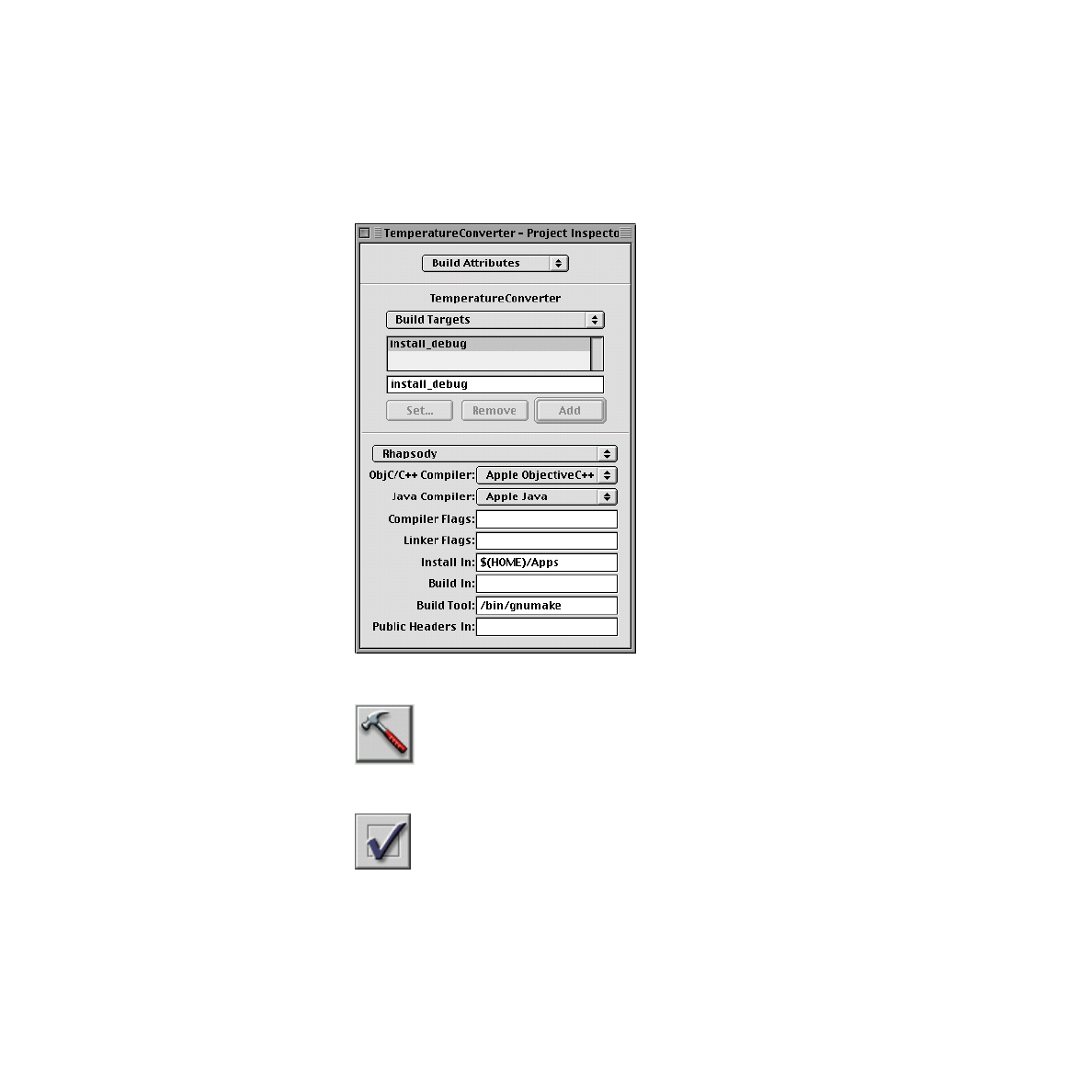
1. Click the Inspector button on the main window:
2. In the Build Attributes display of the Project Inspector, select Build Targets from
the middle pop-up menu.
3. Enter Òinstall_debugÓ in the text Þeld and click Add.
C H A P T E R
Debugging Java Applications
Preparing to Debug an Application
51
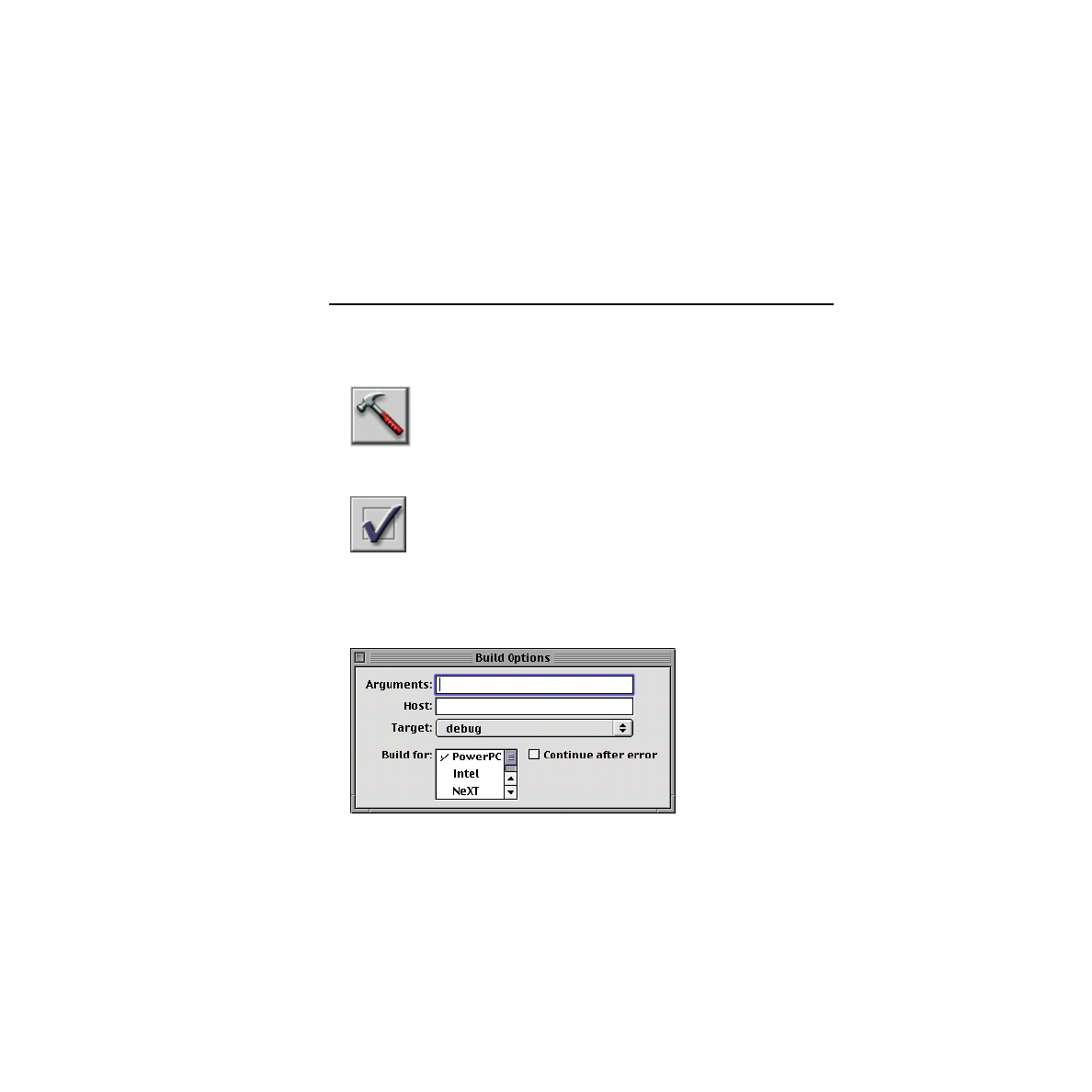
4. To get the Build panel, click the Build button on Project BuilderÕs main window:
5. Click the Options button on the Build panel:
52
Preparing to Debug an Application
C H A P T E R
Debugging Java Applications
6. Choose Òinstall_debugÓ from the Target pop-up menu.
7. Click the Build button on the Build panel to install the debug libraries.
Build for Debugging
1. Display the Build Options panel.
a. Click the Build button on Project BuilderÕs main window:
b. Click the Options button on the Build panel:
2. Set the debug target.
Select the debug item from the Target pop-up menu, as shown in the illustration
below:
3. Remove object Þles and other Þles generated by previous builds by clicking the
Òmake cleanÓ button. This step is necessary only if you had previously built an
application executable without debugging symbols.)
C H A P T E R
Debugging Java Applications
Preparing to Debug an Application
53
The Òmake cleanÓ button on the Build panel looks like a broom:
4. Build the project.
Access the Java Debugger
When you have built the project and have an executable containing symbols
understood by jdb, run the Java Debugger from Project Builder. Project Builder
knows which debugger to run, based on the type of executable it is debugging.
For the following exercise, assume that you are debugging a program containing
only (or mostly) Java code, such as Temperature Converter.
1. Click the Launch button on Project BuilderÕs main window:
This brings up the Launch panel.
2. Make sure that gdb is turned off as a debugging feature.
a. Click the Options button on the Launch panel:
b. Click the Debugger tab to display the debugger options; make sure that the
Java Debugger checkbox is marked and the gdb checkbox is not marked.
I m p o r t a n t
The Java Debugger is automatically selected when
your project contains Java code. The gdb debugger is
also selected if the ÒUse GDB when debugging Java
54
Using the Java Debugger
C H A P T E R
Debugging Java Applications
programsÓ preference (in the Debugging display of the
Preferences panel) is selected. If you do not want gdb
active when you debug Java programs, turn off this
preference.
3. Click the Debug button on the Launch panel.
The Java Debugger starts up and displays its ÒJavaDebug>>Ó prompt. Because the
Java VM is an interpreter, you do not need to suspend the Java Debugger to perform
tasks such as setting breakpoints. You can, however, suspend and resume the Java
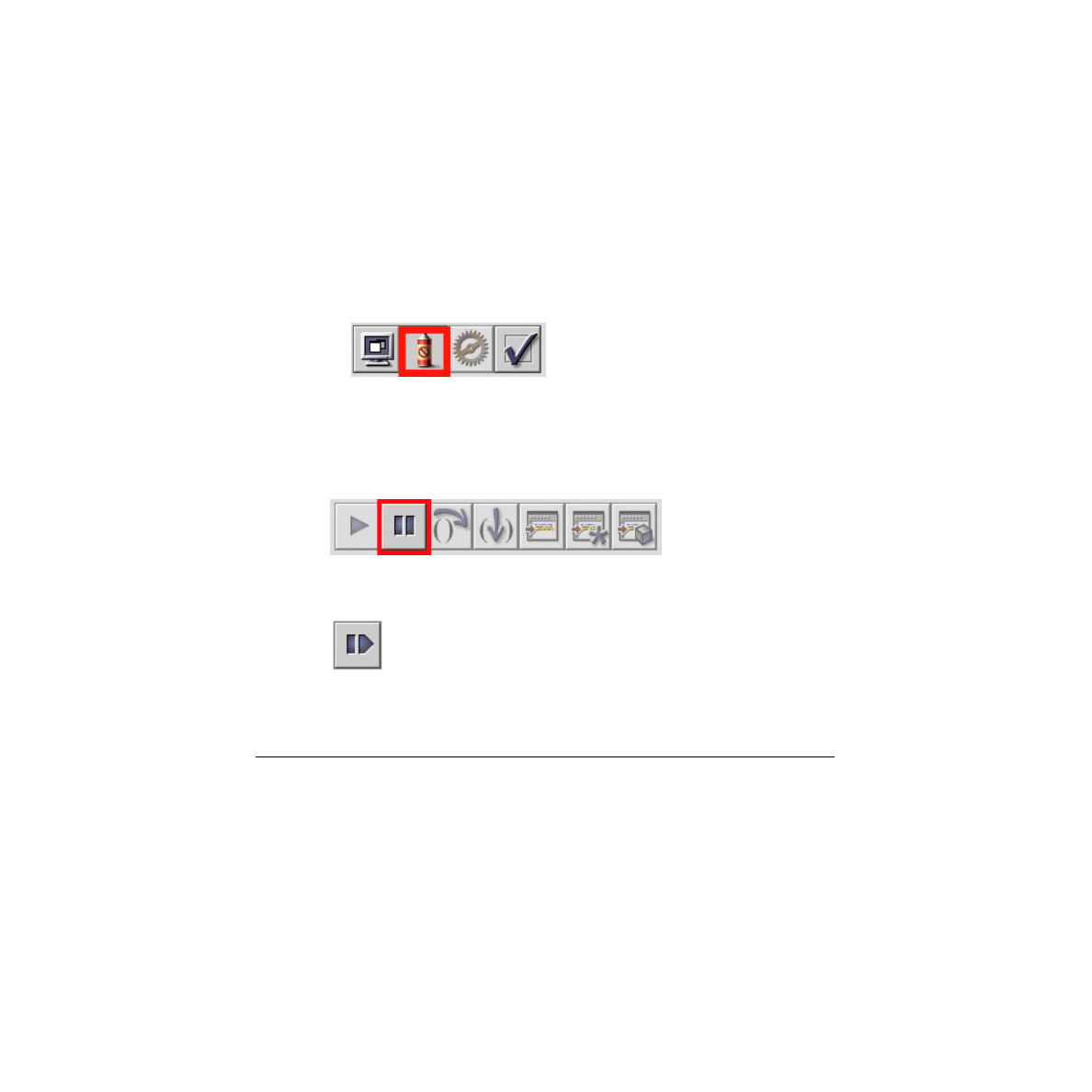
Debugger if you wish. The Suspend/Continue button looks like this in Suspend
mode (in the setting of its neighboring controls):
And in Continue mode the button looks like this:
Using the Java Debugger
Because many JavaDebug commands semantically correspond to gdb commands,
Project Builder reuses the same controls and displays for controlling a Java
debugging session. Some JavaDebug commands, however, cannot be invoked from
the user interface. You must execute these commands from the command line. If you
need to Þnd out which Java Debugger commands are available, you can display a
C H A P T E R
Debugging Java Applications
Using the Java Debugger
55
list of valid commands by entering anything that is not a valid command (such as
ÒhelpÓ) after the ÒJavaDebug>>Ó prompt:
JavaDebug> help
Set and Manipulate Breakpoints
When JavaDebug starts up, a light gray band appears on the left edge of
source-code Þles in the code editor. As in Objective-C debugging, you can set a
breakpoint in Java code by double-clicking in this gray band next to the line of code
where you want a breakpoint.
1. Locate the
convert
method in TempController.m.
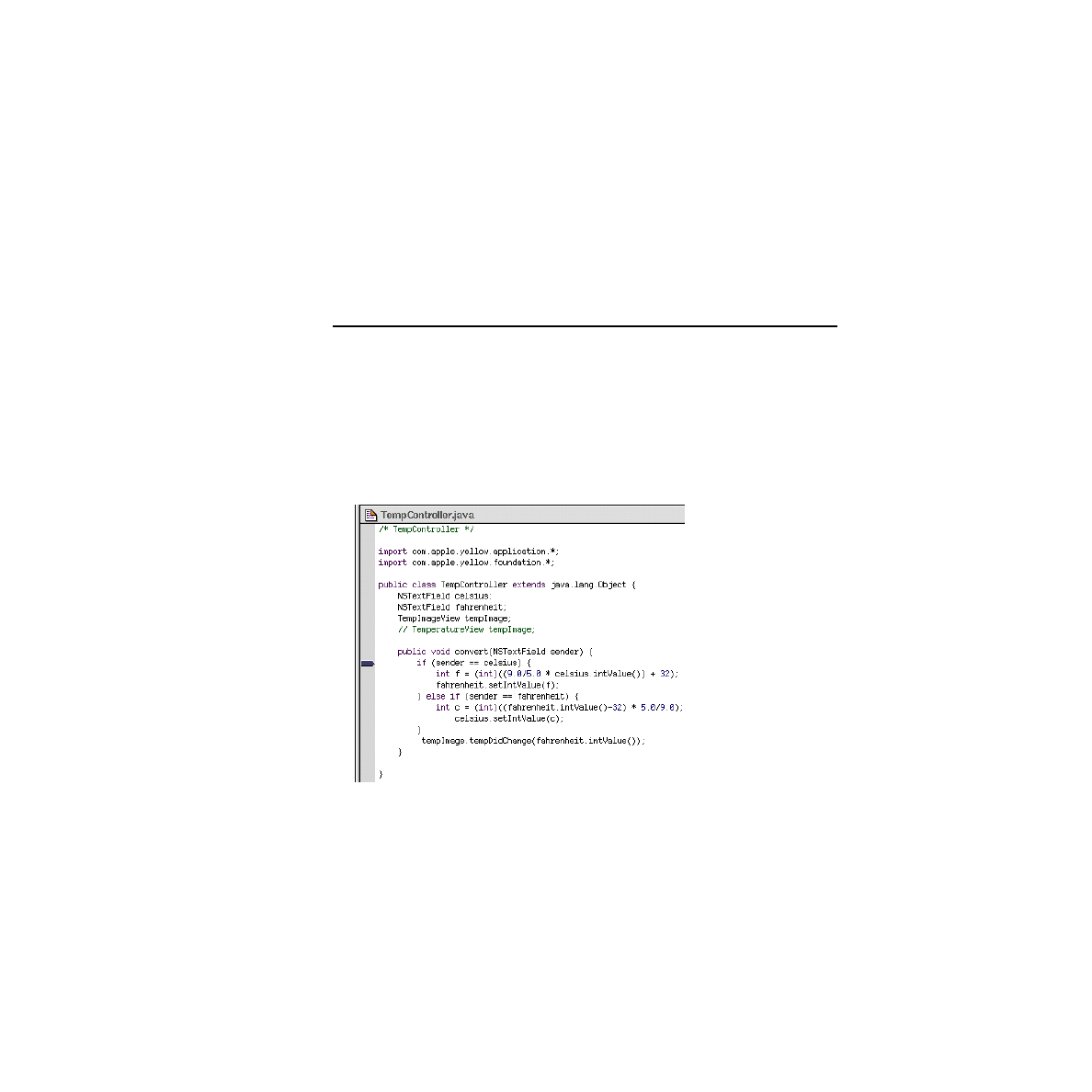
2. Double-click in the gray band on the Þrst line after the initial brace.
A small pointer appears in the gray band.
Once you set a breakpoint you can move it within a Þle by dragging a pointer up
and down the gray band. You can remove it by dragging the pointer off the gray
band into the code editor. And you can temporarily disable a breakpoint, by
ControlÐdouble-clicking the pointer, after which it turns gray (re-enable it by
56
Using the Java Debugger
C H A P T E R
Debugging Java Applications
ControlÐdouble-clicking the pointer again). You can also use the Breakpoint display
of the Task Inspector to enable and disable breakpoints:
1. Click the Task Inspector button on the Launch panel:
2. Click the Breakpoints tab to display the current breakpoints.
3. Double-click the breakpoint line under the Use column. (The breakpoint is
disabled when the checkmark does not appear.)
Several Java Debugger commands let you set, disable, and otherwise manipulate
breakpoints from the command line. For example, to set the same breakpoint as
above, you can just specify the class and method, separated by a colon:
JavaDebug>> b TempController:convert
Set breakpoint 2000 in method: convert at line 13 in file "TempController.java"
C H A P T E R
Debugging Java Applications
Using the Java Debugger
57
Step Into and Over Code
As in any kind of debugging, before you can perform any useful debugging task,
such as stepping through code, you must run the program until it hits the next
breakpoint.
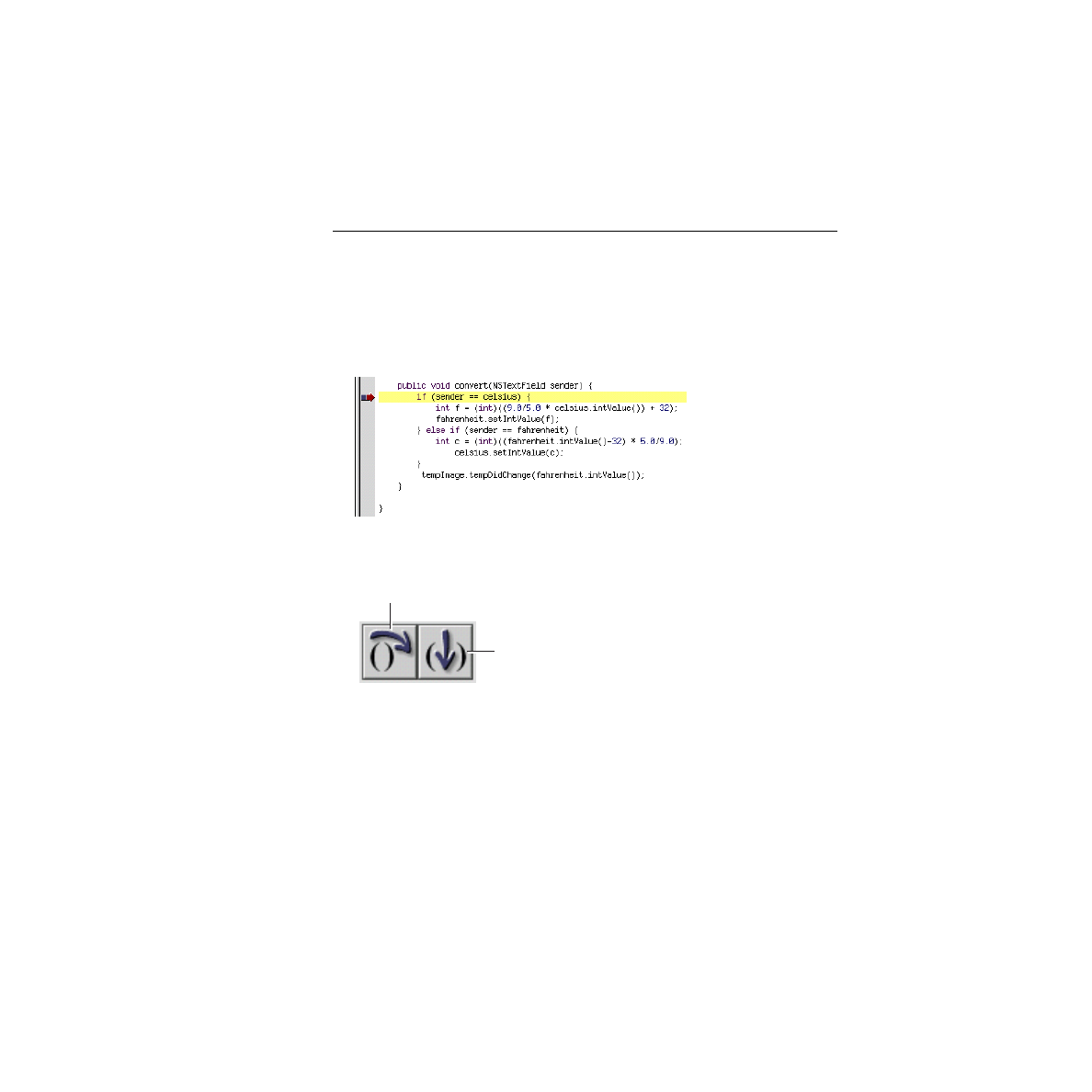
1. Enter a number in a TemperatureConverter Þeld and press Return. Execution
stops at the breakpoint you set in the previous exercise; the program counter is
indicated by a red pointer:
2. Step over the Þrst few lines of code by clicking the appropriate control on the
Launch panel:
Notice how as you step over lines the program counter changes to the next line
to be executed.
3. When you arrive at the last statement of the method (which calls
tempDidChange
),
click the Step Into button. The code editor displays TempImageView.java (or
TemperatureView.java
if you are using the view object implemented by that
code) and the program counter points to the Þrst line of the
tempDidChange
method.
Step Over
Step Into
58
Using the Java Debugger
C H A P T E R
Debugging Java Applications
You can also use Java Debugger commands to step into (
stepi
,
step
, and
si
) and step
over (
next
) lines of code. The
Þnish
command lets you Òstep out,Ó or complete the
execution of the current stack frame. Note that pressing Return repeats the last step
command entered.
Get a Backtrace and Examine a Frame
At any point in debugging you can view the current stack frame.
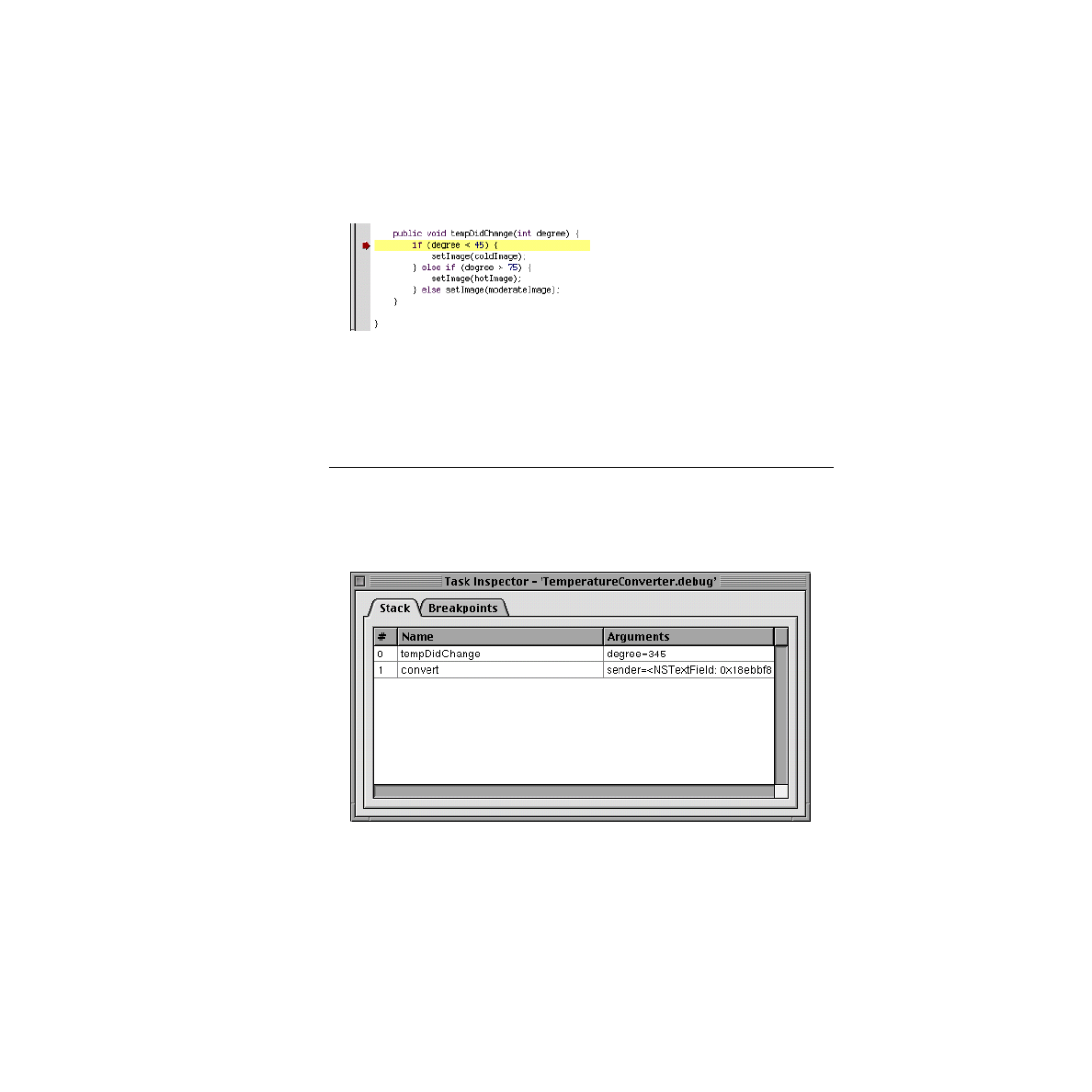
1. Click the Task Inspector button.
2. Click the Stack tab in the Task Inspector.
The display lists the methods in the stack frame in the order of invocation; each line
shows the arguments of a method. (Of course, the arguments of methods for which
C H A P T E R
Debugging Java Applications
Using the Java Debugger
59
your project has no source code are not shown.) Double-click a line to display the
method in the code editor.
The Java Debugger has several commands that you can use to get a backtrace and
examine a frame. To show the stack frame, enter the
backtrace
or
bt
command:
JavaDebug>> bt
[0] TempImageView.tempDidChange (TempImageView:38) pc = 0
[1] TempController.convert (TempController:20) pc = 73
To examine an individual frame, enter
frame
followed by the frame number:
JavaDebug>> frame 1
[1]
convert(sender=<NSTextField: 0x1813508>)
Examine Objects and Variables
Project Builder lets you examine data of three general types: value, reference, and
object. Buttons on the Launch panel correspond to these types:
■
The ÒPrint ValueÓ button (and command) prints the value of a variable.
■
The ÒPrint ReferenceÓ button (and command) prints the value referenced by a
variable; this command is useful for printing the instance variables of a class or
object.
■
The ÒPrint ObjectÓ button (and command) displays an objectÕs self-description
by calling the objectÕs
toString
method.
Because the Java Debugger treats primitive types as objects, the ÒPrint ValueÓ and
ÒPrint ObjectÓ commands are equivalent.
Print Value
Print Reference
Print Object

60
Using the Java Debugger
C H A P T E R
Debugging Java Applications
To use the print buttons:
1. Highlight the variable or expression in the code editor.
Unless a variable (such as an instance variable) has global scope or is an
argument, you must highlight it after the statement that assigns it a value has
been executed.
2. Click the appropriate print button on the Launch panel.
Of course, you can give the same commands from the Java Debugger command
line.
Printing a value:
JavaDebug>> print degree
degree = 120
Printing a reference (object):
JavaDebug>> p* sender
sender = (com.apple.yellow.application.NSTextField)0x368470 {
private int instance = 53568
}
Printing a reference (class):
JavaDebug>> p* NSTextField
NSTextField = 0x3646c0:class(com.apple.yellow.application.NSTextField) {
superclass = 0x366408:class(com.apple.yellow.application.NSControl)
loader = null
private static boolean _alreadySqwaked = false
public static Þnal String ViewFrameDidChangeNotiÞcation = NSViewFrameDidChangeNotiÞcation
public static Þnal String ViewFocusDidChangeNotiÞcation = NSViewFocusDidChangeNotiÞcation
public static Þnal String ViewBoundsDidChangeNotiÞcation = NSViewBoundsDidChangeNotiÞcation
public static Þnal int NoBorder = 0
public static Þnal int LineBorder = 1
public static Þnal int BezelBorder = 2
public static Þnal int GrooveBorder = 3
public static Þnal int ViewNotSizable = 0
public static Þnal int ViewMinXMargin = 1

C H A P T E R
Debugging Java Applications
Using the Java Debugger
61
public static Þnal int ViewWidthSizable = 2
public static Þnal int ViewMaxXMargin = 4
public static Þnal int ViewMinYMargin = 8
public static Þnal int ViewHeightSizable = 16
public static Þnal int ViewMaxYMargin = 32
public static Þnal String ControlTextDidBeginEditingNotiÞcation =
NSControlTextDidBeginEditingNotiÞcation
public static Þnal String ControlTextDidEndEditingNotiÞcation =
NSControlTextDidEndEditingNotiÞcation
public static Þnal String ControlTextDidChangeNotiÞcation = NSControlTextDidChangeNotiÞcation
}
Printing an object:
JavaDebug>> po sender
sender = <NSTextField: 0xd140>
Printing the receiver (this):
JavaBug>> p* this
this = (TempImageView)0x39f5c8 {
private int instance = 25616120
protected NSImage coldImage = (com.apple.yellow.application.NSImage)0x39f670
protected NSImage moderateImage = (com.apple.yellow.application.NSImage)0x39f688
protected NSImage hotImage = (com.apple.yellow.application.NSImage)0x39f3f0
}
Debug Multiple Threads
With the Java Debugger, you can debug multiple threads in an application,
switching among them to set breakpoints, examine stack frames and data, and
perform other debugging tasks. The Java Debugger displays threads in groups; each
thread has its own unique number within a group. To switch to another thread, you
enter the
thread
command with the threadÕs group number as an argument.
To Þnd out a threadÕs number, enter the
group
command (Project Builder has no
controls equivalent to the
group
and
thread
commands):
JavaDebug>> group

62
Debugging Java and Objective-C Simultaneously
C H A P T E R
Debugging Java Applications
Group: system
1
Finalizer thread cond. waiting
2
JavaDebug cond. waiting
3
Debugger agent running
4
Breakpoint handler cond. waiting
5
Step handler cond. waiting
6
Agent input cond. waiting
7
main suspended
8
myThread cond. waiting
Group: main
1
main suspended
••CURRENT GROUP is "system"
••CURRENT THREAD within the group is "main"
In addition to the names and numbers of threads, the output shows the current
states. To switch to a thread, enter the
thread
command with a thread number.
JavaDebug>> thread 8
Current thread now myThread, state=cond. waiting
Debugging Java and Objective-C Simultaneously
This section of the tutorial uses the Java TextEdit example application for
illustration. This application project contains both Java classes and an Objective-C
class, and so it provides a good test case for exploring how to debug in this dual
world. Before you begin the following tasks, copy the TextEdit example project,
located at /System/Developer/Examples/Java/AppKit/TextEdit, to your temporary
directory (/tmp).
C H A P T E R
Debugging Java Applications
Debugging Java and Objective-C Simultaneously
63
Set Up For Debugging
To set up for the tasks illustrated in this sectionÑdebugging both Objective-C and
Java code in the same executableÑdo the following:
1. Build the TextEdit application with debugging symbols (that is, with the target
set to ÒdebugÓ; see
Preparing to Debug an Application
2. Open the Launch Options panel, click the Debugger tab, and make sure both the
ÒgdbÓ and ÒJava DebuggerÓ checkboxes are checked.
I m p o r t a n t
If you are debugging a project of type JavaPackage, you
must select the class with the entry point (
main()
) before
you begin debugging. To do this, select the class
containing
main()
in the project browser; then open the
Project Inspector and, in the File Attributes display, click
the ÒHas Java mainÓ checkbox.
Run both gdb and the Java Debugger
When you have built the TextEdit application and have an executable containing
symbols understood by the Java Debugger, run the debuggers from Project Builder.
Project Builder starts up both gdb and the Java Debugger. In Yellow Box
applications, gdb is started before the Java Debugger because the entry point,
main()
,
contains Objective-C code.
1. Click the Launch button on Project BuilderÕs main window:
This brings up the Launch panel.
2. Click the Debug button on the Launch panel.
64
Debugging Java and Objective-C Simultaneously
C H A P T E R
Debugging Java Applications
The gdb debugger starts up, and prints output to the console view similar to
this:
> Debugging 'TextEdit'...
GDB is free software and you are welcome to distribute copies of it
under certain conditions; type "show copying" to see the conditions.
There is absolutely no warranty for GDB; type "show warranty" for details.
GDB 970507 (powerpc-apple-rhapsody), Copyright 1995 Free Software Foundation, Inc.
Reading symbols from /tmp/TextEdit/TextEdit.debug/TextEdit...done.
(gdb)
3. Run the TemperatureConverter.debug executable in gdb. To do this, click the
arrow button:
This action runs gdb until it stops at a breakpoint automatically set at the entry
point; it writes output to the console view that is similar to the following:
gdb) Starting program: /tmp/TextEdit/TextEdit.debug/TextEdit -NSPBDebug
donote_1345_84422926_1994577324_1
/usr/local/standards/commonalias: No such file or directory.
Breakpoint 1, 0x3b04 in start ()
Dynamic Linkeditor at 0x41100000 offset 0x0
Executable at 0x2000 offset 0x0
/System/Library/Frameworks/AppKit.framework/Versions/C/AppKit at 0x43300000 offset 0x0
/System/Library/Frameworks/Foundation.framework/Versions/C/Foundation at 0x42500000 offset 0x0
/System/Library/Frameworks/System.framework/Versions/B/System at 0x41300000 offset 0x0
(gdb)
4. Set breakpoints in Objective-C code. A good place to set one is the
find:
method
in the TextFinder class (TextFinder.m).
The procedure is the same as for Java code; see
Set and Manipulate Breakpoints
for
details.
5. Click the Continue button to resume the debugging operation:
C H A P T E R
Debugging Java Applications
Debugging Java and Objective-C Simultaneously
65
The gdb debugger writes more output to the console view, after which it links in
the necessary dynamic libraries and runs the Java Debugger (indicated by the
prompt ÒJavaDebug>>Ó):
(gdb) Continuing.
/System/Library/Frameworks/JavaVM.framework/Versions/A/JavaVM at 0x5cd00000 offset 0x0
/usr/lib/java/libObjCJava.A.dylib at 0x53d00000 offset 0x0
/System/Library/Frameworks/JavaVM.framework/Libraries/libjava.A.dylib at 0x5c100000 offset 0x0
/System/Library/Frameworks/JavaVM.framework/Libraries/libzip.A.dylib at 0x5cb00000 offset 0x0
/System/Library/Frameworks/JavaVM.framework/Libraries/libdebugit.A.dylib at 0x5bf00000 offset 0x0
/System/Library/Frameworks/JavaVM.framework/Libraries/libagent.A.dylib at 0x5bd00000 offset 0x0
JavaDebug>> /usr/lib/java/libFoundationJava.B.dylib at 0x50300000 offset 0x0
/System/Library/Frameworks/JavaVM.framework/Libraries/libmath.A.dylib at 0x5c500000 offset 0x0
/usr/lib/java/libAppKitJava.B.dylib at 0x50c00000 offset 0x0
You are now ready to set Java breakpoints and begin debugging the application. A
suggested breakpoint location is at one of the constructors of the Document class.
Now do something with the TextEdit application that causes execution to stop at
one of your breakpoints.
■
Create a new document or open an existing one. If you set a breakpoint at a
Document constructor, the code editor displays Document.java and the
program counter aligns with the breakpoint. The ÒJavaDebug>>Ó prompt is
shown in the Launch panelÕs console.
■
Type some text in the new document and then choose Edit>Find>Find. Enter a
matching string in the Find PanelÕs Find Þeld and click Next. This displays the
TextFinder.m
Þle at the Þnd: breakpoint. Notice how the ÒJavaDebug>>Ó
prompt changes to Ò(gdb)Ó; you are now using the gdb debugger.
I m p o r t a n t
The Java Debugger runs in the Java VM and so it is
running whether the target is running or not.
However, gdb requires that the entire target process be
stopped, and to ensure this it stops the Java VM. This

66
Debugging Java and Objective-C Simultaneously
C H A P T E R
Debugging Java Applications
means that when you switch from the Java Debugger
to gdb, not only the target is stopped but the Java VM
is stopped. You must click the Continue button (or
enter the
continue
command) to restart the Java VM and
the Java Debugger.
Switching Between JavaDebug and gdb
With both gdb and the Java Debugger running on a debugging target, you can use
Project BuilderÕs controls to perform most common debugging tasks in both Java
and non-Java code. Using the Òbreakpoint bandÓ next to source-code Þles, you can
set and manipulate breakpoints in any Þle. When a breakpoint is hit, you can click
the appropriate button on the Launch panel to step into or over code and to inspect
frames, values, and objects. The correct debugger is used for the task at hand.
However, there might be occasions when you want more explicit control, and for
this you need to switch between debuggers on the command line. When debugging
Objective-C (and C and C++) code and Java code simultaneously, you must keep in
mind that the Java VM is still running when the Java Debugger is debugging code
in the stopped target; however, gdb can only debug code when all processes
involving the targetÑincluding the Java VMÑare stopped.
Here is how you switch between debuggers in a session. The following scenario
assumes you have both debuggers active and that the target is currently executing
Java code:
1. Choose Tools>Debugger>Suspend Java VM to use the Java Debugger.
The Java Debugger prompt (ÒJavaDebug>>Ó) appears in the Launch console.
You can now perform Java debugging tasks that require the target to be stopped.
2. Click the Continue button on the Launch panel to have the target continue
execution.
3. Choose Tools>Debugger>Suspend Process to switch to gdb.
The Java Debugger relinquishes control to gdb: the Ò(gdb)Ó prompt appears and
all process are stopped, including the Java VM. You can now perform debugging
tasks in gdb.
4. Click the Continue button to have the target (plus the Java VM) resume running.

C H A P T E R
Debugging Java Applications
Java Debugger Command Reference
67
Java Debugger Command Reference
This section describes the complete set of Java Debugger commands. The Java
Debugger recognizes command truncations as long as they are unique. For
example, it recognizes
du
as
dump
but it cannot interpret ÒdÓ. If a truncation is not
unique, the debugger informs you. Several commands have shortened aliases (for
example,
si
is equivalent to
stepi
and
bt
is equivalent to
backtrace
). The case of a
command does not matter;
Break
is the same
break
which is the same as
BrEaK
.
However, the case of arguments often does matter; for example, class and Þle names
must match case (ÒExceptionÓ is not the same as ÒexceptionÓ).
Getting Help
JavaDebug>> non-command
To get a list of Java Debugger commands, enter any string that is not a
command after the prompt.
Thread Commands
The Java Debugger recognizes a current thread group and a current thread. When
an exception occurs, the current thread is reset. The current thread group is always
the thread group containing the current thread.
Group
[groupName]
Lists thread groups and threads if used by itself. If groupName is given,
the current thread group is set to the group identiÞed by that name. To
avoid confusion, thread groups are referred to by name, while threads
within a group are referred to by number.
Thread
threadNum
Sets the thread within the current thread group to threadNum. To Þnd out
what the current group and thread are, enter the
group
command.
Example:

68
Java Debugger Command Reference
C H A P T E R
Debugging Java Applications
JavaDebug>> group
Group: system
1 Finalizer thread cond. waiting
2 JavaDebug cond. waiting
3 Debugger agent running
4 Breakpoint handler cond. waiting
5 Step handler cond. waiting
6 Agent input cond. waiting
7 main suspended
Group: main
1 main suspended
CURRENT GROUP is "system"
CURRENT THREAD within the group is "main"
JavaDebug>> thread 6
Current thread now Agent input, state=cond. waiting
Stack and Data Inspection
The stack and data inspection commands
frame
,
up
,
down
,
, and
dump
require that
the thread being inspected be suspended. Threads are suspended by program
execution hitting a breakpoint or by users giving the
suspend
command.
Backtrace
|
bt
Displays the contents of the current thread's Java stack. Currently, only
Java stack frames are displayed. No "native" (non-Java) frames appear.
Example:
JavaDebug>> bt
0] java.io.PipedInputStream.read (PipedInputStream:201) pc = 80
[1] java.io.PipedInputStream.read (PipedInputStream:242) pc = 43
[2] java.io.BufferedInputStream.fill (BufferedInputStream:135) pc = 164
[3] java.io.BufferedInputStream.read (BufferedInputStream:162) pc = 12
[4] java.io.FilterInputStream.read (FilterInputStream:81) pc = 4
[5] sun.tools.debug.AgentIn.run (AgentIn:46) pc = 20
[6] java.lang.Thread.run (Thread:474) pc = 11

C H A P T E R
Debugging Java Applications
Java Debugger Command Reference
69
Frame
[frameNum]
Displays the arguments and local variables for the current frame or the
frame number frameNum. Frame numbers, which are the numbers
displayed in the backtrace, are absolute. If you do not compile Java code
with javacÕs -g ßag, local and argument information is not available to
the debugger. The
frame
command resets the current frame.
Example:
JavaDebug>> backtrace
[0] com.apple.alpha.core.MutableDictionary.<init> (MutableDictionary:213) pc = 0
[1] Document.setRichText (Document:534) pc = 10<
[2] Document.toggleRich (Document:596) pc = 69
JavaDebug>> frame 1
[1] setRichText(flag=true)
<local> view = <NSTextView: 0x194b8c0>
Frame = {{0.00, 0.00}, {490.00, 420.00}}, Bounds = {{0.00, 0.00}, {490.00, 420.00}}
Horizontally resizable: NO, Vertically resizable: YES
MinSize = {490.00, 420.00}, MaxSize = {340282346638528859811704183484516925440.00,
340282346638528859811704183484516925440.00}
Up
[numFrames]
Resets the current frame upwards toward older frames (that is, frames
with higher numbers) relative to the current frame. If numFrames is not
given, 1 is assumed.
Down
[numFrames]
Resets the current frame downwards toward newer frames (that is,
frames with lower numbers) relative to the current frame. If numFrames
is not given, 1 is assumed.
|
po
anObject
Prints the object anObject by calling its
toString()
method.
Example:
JavaDebug>> po view
view = <NSTextView: 0x194b8c0>
Frame = {{0.00, 0.00}, {490.00, 420.00}}, Bounds = {{0.00, 0.00}, {490.00, 420.00}}
Horizontally resizable: NO, Vertically resizable: YES

70
Java Debugger Command Reference
C H A P T E R
Debugging Java Applications
MinSize = {490.00, 420.00}, MaxSize = {340282346638528859811704183484516925440.00,
340282346638528859811704183484516925440.00}
Dump
anObject
Prints the object anObject structurally. An alias for
dump
is
p*
(from gdb
usage for Print *=reference)
Example:
JavaDebug>> p* view
view = (com.apple.alpha.app.TextView)0x3bc0c0 {
private int instance = 26523840
}
JavaDebug>> p* 0x3bc0c0
0x3bc0c0 = (com.apple.alpha.app.TextView)0x3bc0c0 {
private int instance = 26523840
}
In the above case, the object is obviously a native object with a peer class.
List
Displays source text for the current frameÑwhen it can Þnd it. (See the
dir
, below).
JavaDebug>> break Document:setRichText
Set breakpoint 2000 in method: setRichText at line 533 in file "Document.java"
JavaDebug>> cont
JavaDebug>> // breakpoint hit because of user action
Broken at 533 in "Document.java"
JavaDebug>> list
File: "Document.java"
529 return layoutManager().hyphenationFactor();
530 }
531

C H A P T E R
Debugging Java Applications
Java Debugger Command Reference
71
532 public void setRichText(boolean flag) {
533 => TextView view = firstTextView();
534 MutableDictionary textAttributes = new MutableDictionary(2);
535
536 isRichText = flag;
537
Control Functions
Suspend
Suspends all Java threads that are not involved in debugging.
Resume
Resumes all Java threads that are not involved in debugging.
Break
[ÞleName:lineNumber]
Sets a breakpoint in Þle ÞleName at line lineNumber. An alias for
break
is
b
.
With no arguments, it prints the current breakpoints.
Break
[className:methodName]
Sets a breakpoint at the start of method methodName in class className .
An alias for
break
is
b
. With no arguments, it prints the current
breakpoints.
Example:
JavaDebug>> break Document:setRichText
Set breakpoint 2000 in method: setRichText at line 533 in file "Document.java"
JavaDebug>> break
break <fileName>:<lineNum> | <class>:<method> -- set a breakpoint
2000 Document.java:533
JavaDebug>> disable 2000
JavaDebug>> break
break <fileName>:<lineNum> | <class>:<method> -- set a breakpoint
2000 Document.java:533 [disabled]

72
Java Debugger Command Reference
C H A P T E R
Debugging Java Applications
Clear
[breakNum]
Clears (forgets) the breakpoint numbered breakNum. With no argument,
it prints the current breakpoints.
Disable
[breakNum]
Disables, but does not clear, the breakpoint numbered breakNum. If no
argument is given, prints the current breakpoints.
Enable
[breakNum]
Re-enables the disabled breakpoint numbered breakNum. If no argument
is given, prints the current breakpoints.
Continue
Continues (resumes) execution of a suspended thread (must be the
current thread).
Step
ÒStep Into.Ó Steps forward a line of code. If the line is a statement that
has a call to a Java method, it steps into the call. If the call is to "native"
(non-Java) code, it steps over the code (that is, it acts like
next
). If the step
returns to native code, it acts like
continue
.
Stepi
Steps forward a single bytecode instruction. It otherwise acts like
step
.
(Currently, there is no command to display the bytecodes. Use
javap -c
classFile to see the bytecodes).
Next
ÒStep Over.Ó Steps forward a line of code. If the code is a method call, it
steps over the call. If the step returns to native code, it acts like
continue
.
Finish
Steps to the end of the code in the current stack frame (also know as "step
out").
Catch
exceptionClass
Causes exceptions for class exceptionClass and all its subclasses to act like
a breakpoint. At this time you cannot step through exception code; you
can only inspect the stack and continue.
Drop
exceptionClass
Reverses the effect of
catch
. The system no longer breaks when an
exception of class exceptionClass is thrown.

C H A P T E R
Debugging Java Applications
Java Debugger Command Reference
73
Convenience Functions
Dir
[newClassPath]
If newClassPath is given, sets the CLASSPATH environment variable
used to search for debug and source information (for example, for the
list
and
frame
commands). If the command has no argument, it prints the
CLASSPATH variable.
GetProp
[propName]
Prints the value for the speciÞed property propName or, if no property is
speciÞed, prints all properties of the Java VM. Java VM properties
cannot be changed.
JavaDebug>> getprop user.home
/Local/Users/kend
JavaDebug>> getprop
Property Names:
user.language = "en"
java.home = "/System/Library/Frameworks/JavaVM.framework/Home"
awt.toolkit = "com.apple.rhapsody.awt.RToolkit"
file.encoding.pkg = "sun.io"
java.version = "internal_build:kend:03/05/98-09:08"
file.separator = "/"
line.separator = "
file.encoding = "MacRoman"
java.compiler = "jitc_ppc"
java.protocol.handler.pkgs = "com.apple.net.protocol"
java.vendor = "Apple Computer, Inc."
user.timezone = "PST"
user.name = "kend"
os.arch = "ppc"
os.name = "Rhapsody"
java.vendor.url = "http://www.apple.com/"
user.dir = "/Local/Users/kend/Projects/TextEdit"
java.class.path = "/Local/Users/kend/Projects/TextEdit/TextEdit.app/Resources/Java/.:.:/Local/Users/kend/
jdk20build/build/classes:/System/Library/Java:/System/Library/Frameworks/JavaVM.framework/Classes/
classes.jar:/System/Library/Frameworks/JavaVM.framework/Classes/awt.jar"

74
Java Debugger Command Reference
C H A P T E R
Debugging Java Applications
java.class.version = "45.3"
os.version = "Premier Release"
path.separator = ":"
user.home = "/Local/Users/kend"

75
Developing Java ApplicationsÑ
Concepts
This document presents the concepts related to the tutorial
Fast Track to Java Development
If you are an Objective-C programmer who is familiar with the Yellow Box
development environment and the Yellow Box APIs, youÕre probably interested
only in the differences in the development procedure between Objective-C and Java:
■
Controller classes must inherit from java.lang.Object. You can specify this
relationship in Interface BuilderÕs Classes display when you deÞne the class.
■
In Interface Builder, when you create a source-code Þle for a Java controller class
(by choosing Classes>Create Files), Java code is generated. However, since Java
has no notion of dynamically typed objects (
id
), it substitutes java.lang.Object as
the type of outlets and senders of action messages. You must specify the correct
class types in place of Object. In other words,
Object myTextField;
public void doThis(Object sender)
must be translated to this:
NSTextField myTextField;
public void doThis(NSButton sender)
If you donÕt specify the correct class type, you must cast to that type in the code.
■
The classes that Interface Builder presents in its Classes display represent, in
most cases, both Objective-C and Java Yellow Box classes. And the process for

76
C H A P T E R
deÞning a class and connecting its outlets is the same for both Yellow Box
language versions. However, before you create the ÒskeletalÓ source Þles to be
added to Project Builder, select the class and then select the language in the
inspectorÕs Attributes display, Interface Builder then generates the source Þle in
the requested language.
The Yellow BoxÕs Java Feature
With the Yellow Box development environment, you can create applications written
in Javaª but built both from objects in the Yellow Box frameworks and from pure
Java objects. These applications run on any Mac OS X or Yellow Box for Windows
system.
There are four major parts to the Yellow BoxÕs Java feature for this release:
■
Java virtual machine
(VM). This is the Java Òruntime,Ó an interpreter that loads
Java class Þles and interprets the bytecode. The VM is packaged in a framework
(JavaVM.framework) which also includes the latest version of JavaSoftÕs JDK
and a copy of JavaSoftÕs reference documentation.
■
Tools integration
. Project Builder integrates the Java compiler (javac), debugger
(jdb), and packaging technology (creation of .jar or .zip Þles). During a build,
Project Builder handles source-code Þles in a project in a manner appropriate to
their extensions. Project Builder also features an integrated debugger interface
that allows you to debug Java and Objective-C (as well as C and C++ ) code
simultaneously. Interface Builder incorporates a few Java features such as
deÞnition of java.lang.Object subclasses and generating of ÒskeletalÓ .java Þles
from class deÞnitions.
■
Java bridge
. This technology links the Java programmatic interfaces of Yellow
Box classes and interfaces with their Objective-C implementations. It makes it
possible for developers to ÒwrapÓ their Objective-C classes in Java APIs.
Currently, most Yellow Box classes are Òwrapped.Ó
The Yellow Box development environment includes project types and tools for
wrapping Objective-C code in Java interfaces. For more on AppleÕs bridging
technology, see
■
New Java classes
. Apple has developed several new Java classesÑboth Yellow
Box and native JavaÑprimarily to resolve ÒunbridgableÓ differences between

C H A P T E R
77
the languages. Some of these classes perform class loading, while others provide
object wrappers for Objective-C structures.
The Yellow Box also helps you build and lets you run 100% Pure Javaª applets and
applications. See
Developing 100% Pure Java Applications
The Java Bridge
The Java bridge is an Apple technology that lets Objective-C objects and Java objects
communicate freely. With it developers can transparently instantiate Objective-C
objects in Java code and treat them as if they were Java objects; for example, it allows
Objective-C protocols to appear in the guise of Java interfaces. Conversely, it can
expose any Java class or interface as an Objective-C class or protocol.
The core Yellow Box frameworksÑthe Application Kit and FoundationÑhave been
ÒbridgedÓ to Java. This means that developers can write Yellow Box applications
using nothing but Java code.
The Java bridge offers the following features:
■
It exposes Objective-C classes as Java classes that can be directly subclassed.
■
Java objects are passed across the bridge to the Objective-C world where they are
manipulated by the code as if they were Objective-C objects. (This happens
whether the object is an instance of a 100% Pure Java object or not.)
■
Some Java classes, such as String and Exception, are mapped to Objective-C
classes, such as NSString and NSException; objects of these classes are
transparently ÒmorphedÓ into each other as they cross the bridge between the
Java and Objective-C worlds.
■
Developers need not worry whether a class comes from the Java or the
Objective-C world. The bridge transparently loads any needed Objective-C
framework whenever a bridged class is used.
The Yellow Box development environment provides a set of tools and speciÞcations
that enable you to bridge your own Objective-C classes and protocols, exposing
them as Java classes and interfaces. (And, if you wish, you can expose Java classes
and interfaces as Objective-C classes and protocols.) The essential tool, bridget,
reads and processes a ÒjobsÓ Þle Ña Þle with an extension of .jobs (the letters of

78
C H A P T E R
which stand for Java to Objective-C Bridging SpeciÞcation). The jobs Þle is a text Þle
that contains speciÞcations mapping Objective-C classes, interfaces, and method
selectors to Java classes, interfaces, and methods.
Other tools in the development environment facilitate the process of bridging
frameworks. The general procedure for bridging is as follows:
1. Create a project in Project Builder that is of type JavaWrapper.
2. Create the jobs Þle. A demo application, WrapIt, assists developers with this
task.
3. Build the project. Project Builder and bridget use the jobs Þle to generate Java
classes and a dynamic library providing the implementation of the native
methods these classes declare.
Developing 100% Pure Java Applications
You can use the Yellow Box development environment to develop 100% Pure Java
applications: that is, applications developed exclusively with JavaSoftÕs Java
Development Kitª (JDK). The Yellow Box includes the latest version of the JDK in
/System/Library/Frameworks/JavaVM. framework
.
To create an 100% Pure Java application with the Yellow Box development
environment:
1. Launch Project Builder.
2. Choose New from the Project menu.
3. Select the Java Package project type from the pop-up menu.
4. Specify a directory location for your application.
5. For each .java Þle in your project:
a. Choose New in Project from the File menu.
b. In the New panel select the Classes suitcase, name the Þle, and give it an
extension of .java. Make sure that the Include Header checkbox is not
selected.

C H A P T E R
79
c. Click OK to add the Þle to the Classes category of the project.
6. Write the Java code needed to implement your project (you can remove the lines
importing the Yellow Box packages).
Project Builder supports syntax coloring and indentation for Java code. You can
use all other Project Builder features that do not depend on project indexing.
7. Build the project. As with Objective-C projects, this merely requires you to
choose Tools>Build>Build Project.
The build process automatically invokes javac with the correct arguments and
does whatever else is requred to build the project, such as creating the archive (a
.zip
Þle, by default). If there are Java coding errors, Project Builder reports them
in its Build panel; you can navigate to the code containing an error by clicking
the reporting line in the panel.
When youÕre ready to create and install the .zip package containing your Java
classes, do the following:
1. Chose the Build Attributes display of the Project Inspector and examine the path
in the Install In Þeld. If the default installation location is not what you want,
change it.
2. Chose Tools>Project Build>Build to open the Build panel.
3. Click the Options button on the Build panel (the checkmark icon).
4. Change the selected item in the Target pop-up menu to ÒinstallÓ.
5. Click the Build button (the hammer icon).
The .zip package is created and installed.
You can use the Java interpreter (java) and the applet previewer (appletviewer) to
run Java applications and applets, respectively. These tools are in /usr/bin.
I m p o r t a n t
To compile and run Java applicatons, the CLASSPATH
environment variable must be correctly set. This variable
is usually set for you by the installation script and by
Project Builder. But if CLASSPATH becomes faulty, you
can reset it with the setenv and javaconÞg commands on
the command line:
#setenv CLASSPATH .:‘javaconfig DefaultClasspath‘

80
C H A P T E R
A Project Window
Project Builder presents the elements of a project in a project window.
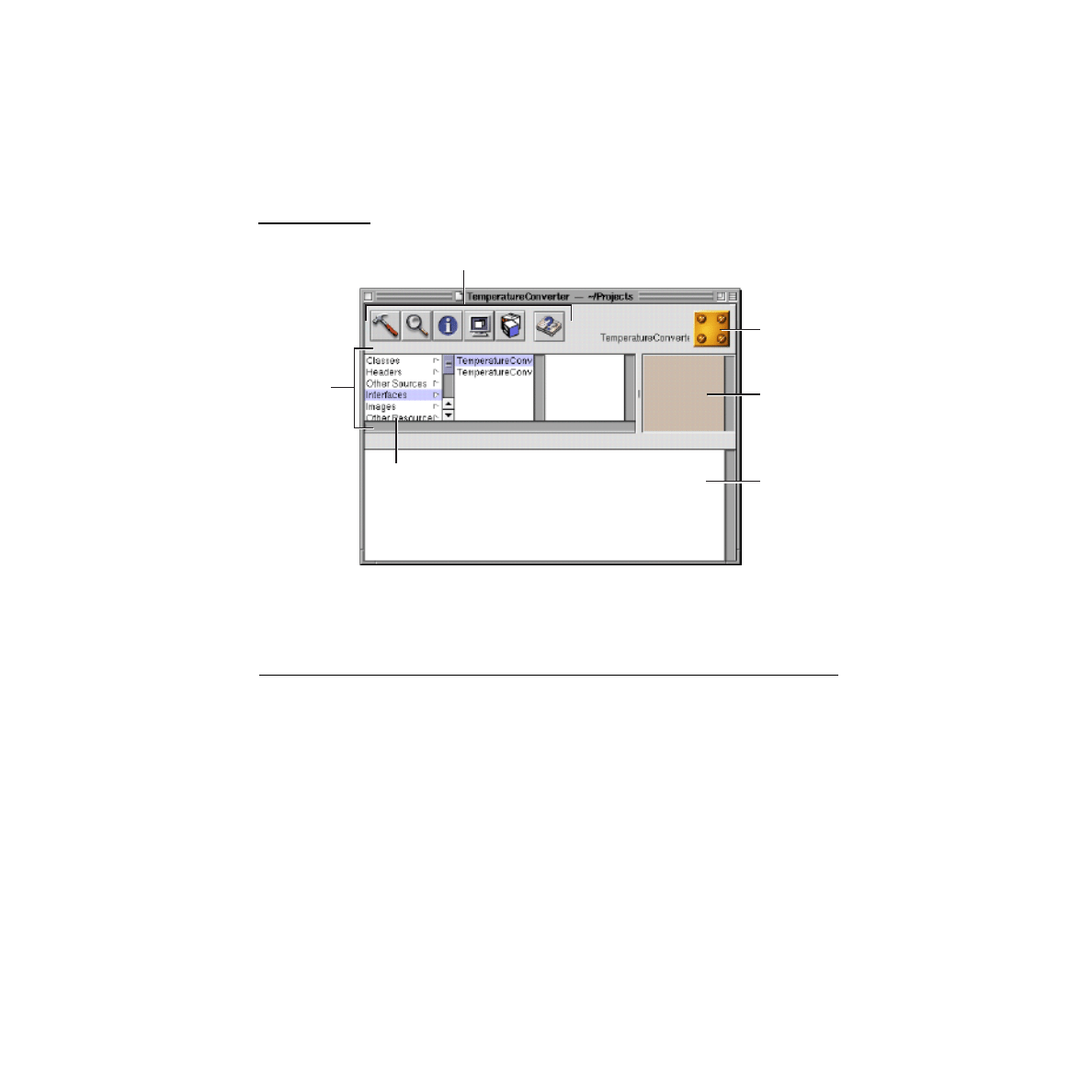
C H A P T E R
81
Figure 0-1
Project Builder’s Main Window
Project Indexing
When you create or open a project, after some seconds you may notice triangular
ÒbranchÓ buttons appearing after source code Þles in the browser. Project Builder
has indexed these Þles.
During indexing, Project Builder stores all symbols of the project (classes, methods,
globals, and such) in virtual memory. This allows Project Builder to access
project-wide information quickly. Indexing is indispensable to such features as
name completion and Project Find. Usually indexing happens automatically when
you create or open a project. You can turn off this option if you wish. Choose
Preferences from the Edit menu and then choose the Indexing display. Turn off the
ÒIndex when project is openedÓ checkbox.
Project browser
Project category
("suitcase")
Control panel (in order):
Project Build, Project Find, Project Inspector, Launch/Debug, Context Help
Selected file
(double-click
to open)
Opened files
Code editor

82
C H A P T E R
You can also index a project at any time by choosing Tools>Indexer>Index Project.
If you want to do without indexing (maybe you have memory constraints), choose
Tools>Indexer>Purge Indices.
WhatÕs a Nib File?
Every application has at least one nib Þle. The main nib Þle contains the application
menu and often a window and other objects. An application can have other nib Þles
as well. Each nib Þle contains the following information:
Archived objects
. Encoded information on Yellow Box objects, including their size,
location, and position in the object hierarchy (for view objects, determined by
superview/subview relationship). At the top of the hierarchy of archived objects is
the FileÕs Owner object, a proxy object that points to the actual object that owns the
nib Þle.
Custom class information
. Interface Builder can store the details of Yellow Box
objects and objects that you palettize (static palettes), but it does not know how to
archive instances of your custom classes since it doesnÕt have access to the code. For
these classes, Interface Builder stores a proxy object to which it attaches class
information.
Connection information
. Information about how objects within the object
hierarchy are interconnected. Connector objects special to Interface Builder store
this information. When you save the document, connector objects are archived in
the nib Þle along with the objects they connect.
Images and sounds
. Image Þles and sound Þles that you drag and drop over the nib
Þle window or over an object that can accept them (such as a button or image view).
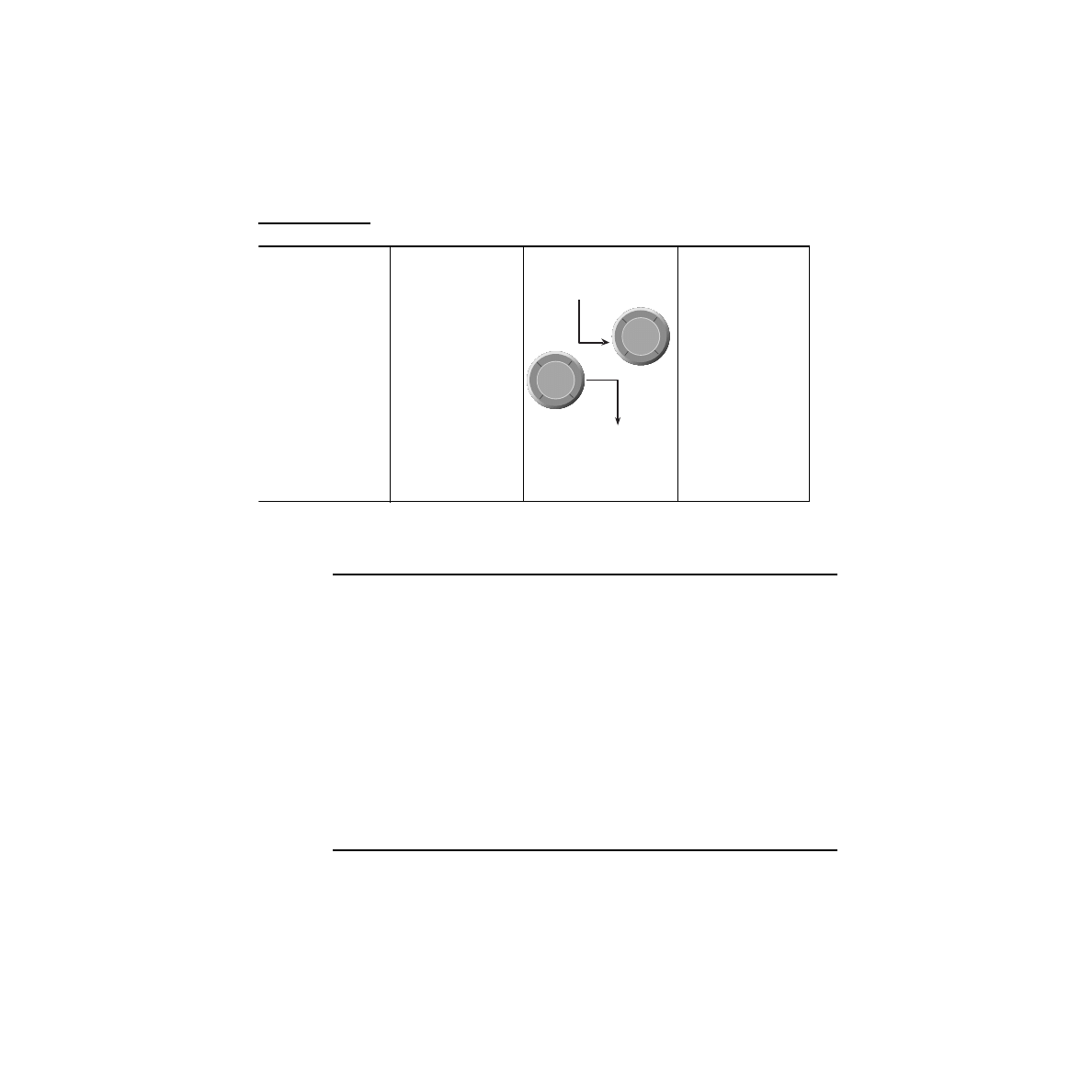
C H A P T E R
83
Figure 0-2
Contents of a Nib File
When You Load a Nib File
In your code, you can load a nib Þle by sending the NSBundle class
loadNibNamed:owner:
or
loadNibFile:externalNameTable:withZone:
messages. When you do this, the runtime system
does the following: It unarchives the objects from the object hierarchy, sending each
object an
initWithCoder:
message after allocating memory for it.
1. It unarchives each proxy object and queries it to determine the identity of the
class that the proxy represents. Then it creates an instance of this custom class
and frees the proxy.
2. It unarchives the connector objects and allows them to establish connections,
including connections to FileÕs Owner.
3. It sends
awakeFromNib
to all objects that were derived from information in the nib
Þle, signalling that the loading process is complete.
Connections and Accessor Methods
When the Yellow Box establishes connections during the course of loading a nib Þle,
it sets the values of the source objectÕs outlets. It Þrst tries to set an outlet through
Archived Objects
Custom Class Info
Connection Info
Images
MyClass = {
ACTIONS = {
dothis;
};
OUTLETS = {
textField;
};
SUPERCLASS =
NSObject;
dothis:
textField

84
C H A P T E R
the ÒsetÓ accessor method if the source object implements it. For example, if the
source object has an outlet named Òcontraption,Ó the system Þrst sees if that object
responds to ÒsetContraptionÓ and, if it does, it invokes the accessor method. If the
source object doesnÕt implement the accessor method, the system sets the outlet
directly.
Problems naturally ensue if a ÒsetÓ accessor method does something other than
directly set the outlet. One common example is an accessor method that sets the
string value of an outlet referring to a text Þeld (
setStringValue
). After loading, the value
of the outlet is null because the ÒsetÓ accessor method did not directly assign the
value.
The Windows of Interface Builder
When you open a nib Þle, Interface Builder opens several windows: the nib Þle
window, a menu bar panel, a palette window, and an empty window in which you
can put elements of a graphical user interface. The nib Þle window gives access to
the objects, class deÞnitions, and resources of a nib Þle. The menu panel allows you
to constuct your application menus. And the palette window holds various objects
of the Application Kit and any custom objects that you or third parties palettize. To
show a palette, click on the of the icons that runs across the top of the window.
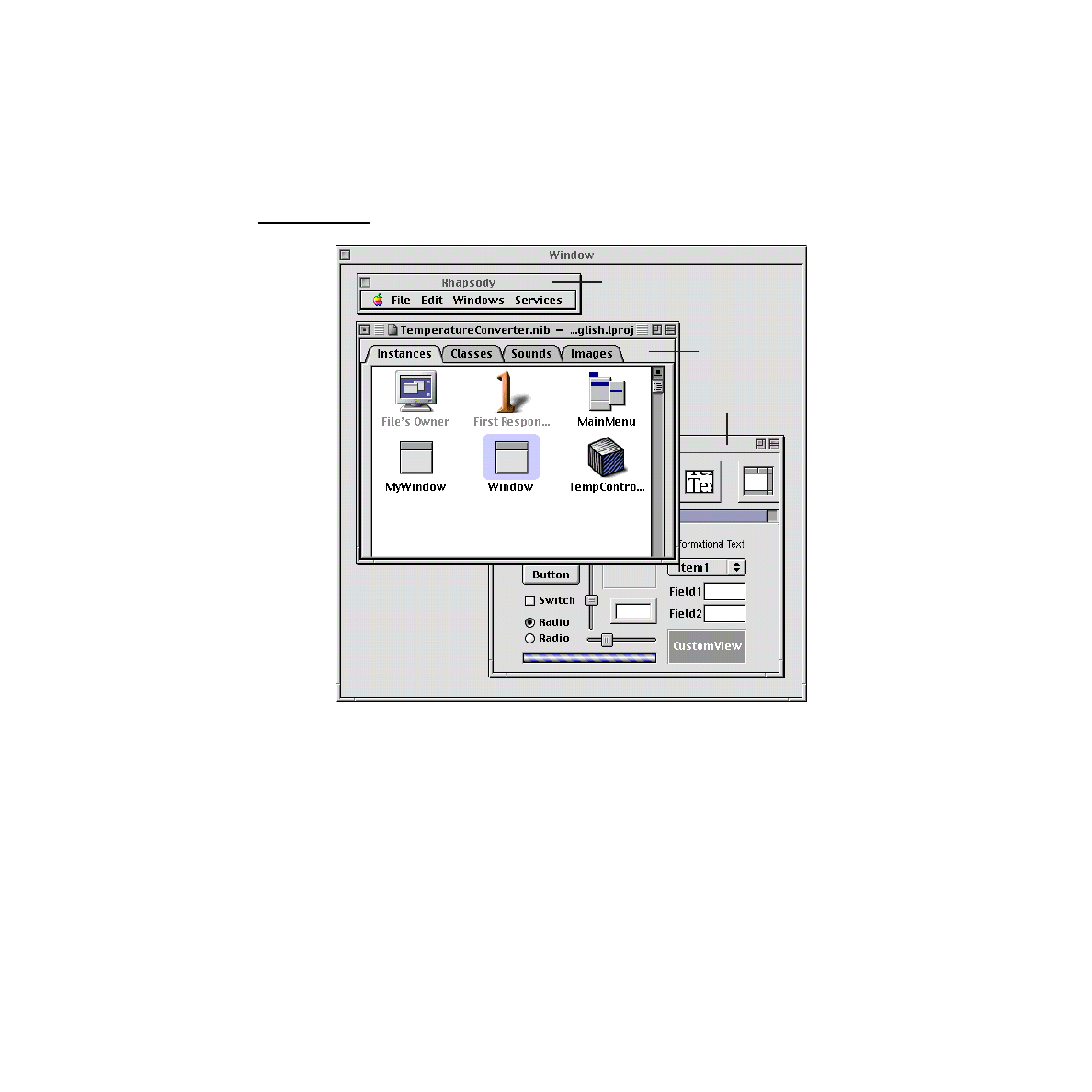
C H A P T E R
85
Figure 0-3
The Standard Windows of Interface Builder
Not shown in Figure 0-3 is Interface BuilderÕs Inspector (Tools>Inspector), which
lets you set attributes and the size of objects, specify objects to be connected, identify
help Þles, and set many other variables.
Menu bar window
Nib file window
Palette window
Composition window
(background)

86
C H A P T E R
The View Hierarchy and the First Responder
Just inside each windowÕs content areaÑthe area enclosed by the title
bar and the other three sides of the frameÑis the Òcontent view.Ó The content view
is the root (or top) NSView in a windowÕs view hierarchy. Conceptually like a tree,
one or more NSViews may branch from the content view, one or more other
NSViews may branch from these subordinate NSViews, and so on. Except for the
content view, each NSView has one (and only one) NSView above it in the hierarchy.
An NSViewÕs subordinate views are called its subviews; its superior view is known
as the superview.
On the screen, enclosure determines the relationship between superview and
subview: a superview encloses its subviews. This relationship has several
implications for drawing:
■
Subviews are positioned in the coordinates of their superview, so when you
move an NSView or transform its coordinate system, all subviews are moved
and transformed in concert.
■
It permits construction of a superview simply by arrangement of subviews. (An
NSBrowser object is an instance of a compound NSView.)
■
Because an NSView has its own coordinate system for drawing, its drawing
instructions remain constant regardless of any change in position in itself or of
its superview.
The view hierarchy also affects how events are handled, particularly through the
Þrst-responder mechanism.
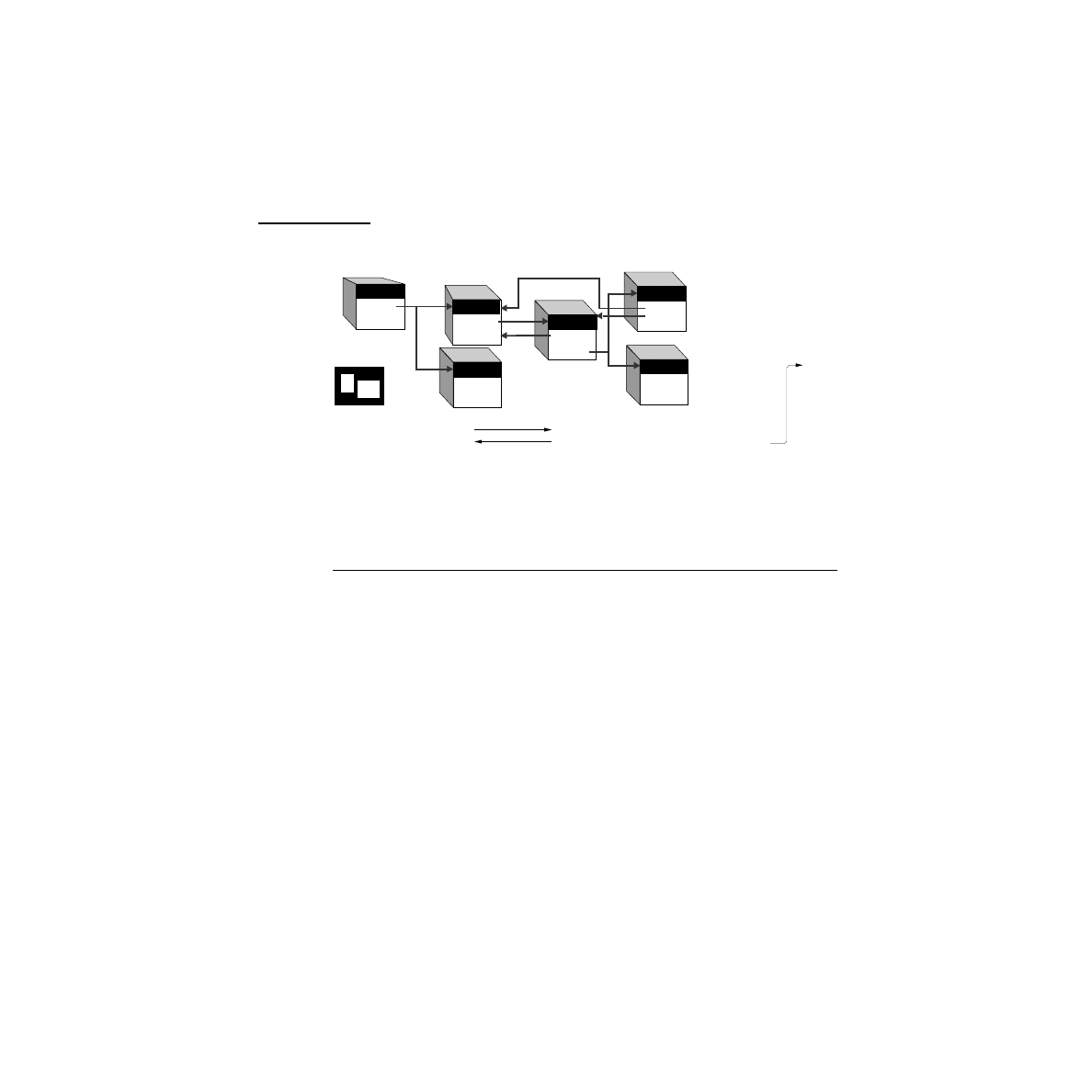
C H A P T E R
87
Figure 0-4
A View Hierarchy
Figure 0-4shows how NSApplication, NSWindow, and NSView objects are
connected through their instance variables.
First Responder and the Responder Chain
Each NSWindow in an application keeps track of the object in its view hierarchy that
has ÒÞrst responderÓ status. The Þrst responder is the NSView that currently is the
focus of keyboard events in the window. By default, an NSWindow is its own Þrst
responder, but any NSView within the window can become Þrst responder when
the user clicks it with the mouse.
You can also set the Þrst responder programmatically with the NSWindowÕs
makeFirstResponder
method. Moreover, the Þrst-responder object can be a target of an
action message sent by an NSControl, such as a button or a matrix.
Programmatically, you do this by sending
setTarget
to the NSControl (or its cell) with
an argument of nil. You can do the same thing in Interface Builder by making a
target/action connection between the NSControl and the First Responder icon in
the Instances display of the nib Þle window.
All NSViews of an application, as well as all NSWindows and the application object
itself, inherit from NSResponder, which deÞnes the default message-handling
behavior: events are passed up the responder chain. Many Application Kit objects,
of course, override this behavior, so events are passed up the chain until they reach
an object that does respond.
NSView (C)
windows
superview
subviews
NSWindow
ContentView
delegate
NSApplication
windows
delegate
NSWindows
ContentView
delegate
NSView (A)
windows
superview (nil)
subviews
NSView (B)
windows
superview
subviews
NSApp
A
B
C

88
C H A P T E R
The series of next responders in the responder chain is determined by the
interrelationships between the applicationÕs NSView, NSWindow, and
NSApplication objects). For an NSView, the next responder is usually its superview;
the content viewÕs next responder is the NSWindow. From there, the event is passed
to the NSApplication object.
For action messages sent to the Þrst responder, the trail back through possible
respondents is even more detailed. The messages are Þrst passed up the responder
chain to the NSWindow and then to the NSWindowÕs delegate. Then, if the previous
sequence occurred in the key window, the same path is followed for the main
window. Then the NSApplication object tries to respond, and failing that, it goes to
NSAppÕs delegate.
The Target/Action Paradigm
Interface Builder allows you to view and specify connections between a control
object and its target in the Connections display of the controlÕs inspector. The
relation of target and action in this Inspector might not be apparent. First, target is
an outlet of a cell object that identiÞes the recipient of an action message. So what is
a cell object and what does it have to do with a button?
One or more cell objects are always associated with a control object (that is, an object
inheriting from NSControl, such as a button). Control objects ÒdriveÓ the invocation
of action methods, but they get the target and action from a cell. This way one
control object, such as an NSMatrix, can have different targets and actions for each
of its cells, as well as its own target and action. NSActionCell deÞnes the target and
action outlets, and most kinds of cells in the Application Kit inherit these outlets.
When a user clicks a button, the button gets the target and action information from
its cell. The action is a selector indicating the method to invoke in the target object.
The button sends the approriate message to its target, which is typically an instance
of a custom class.
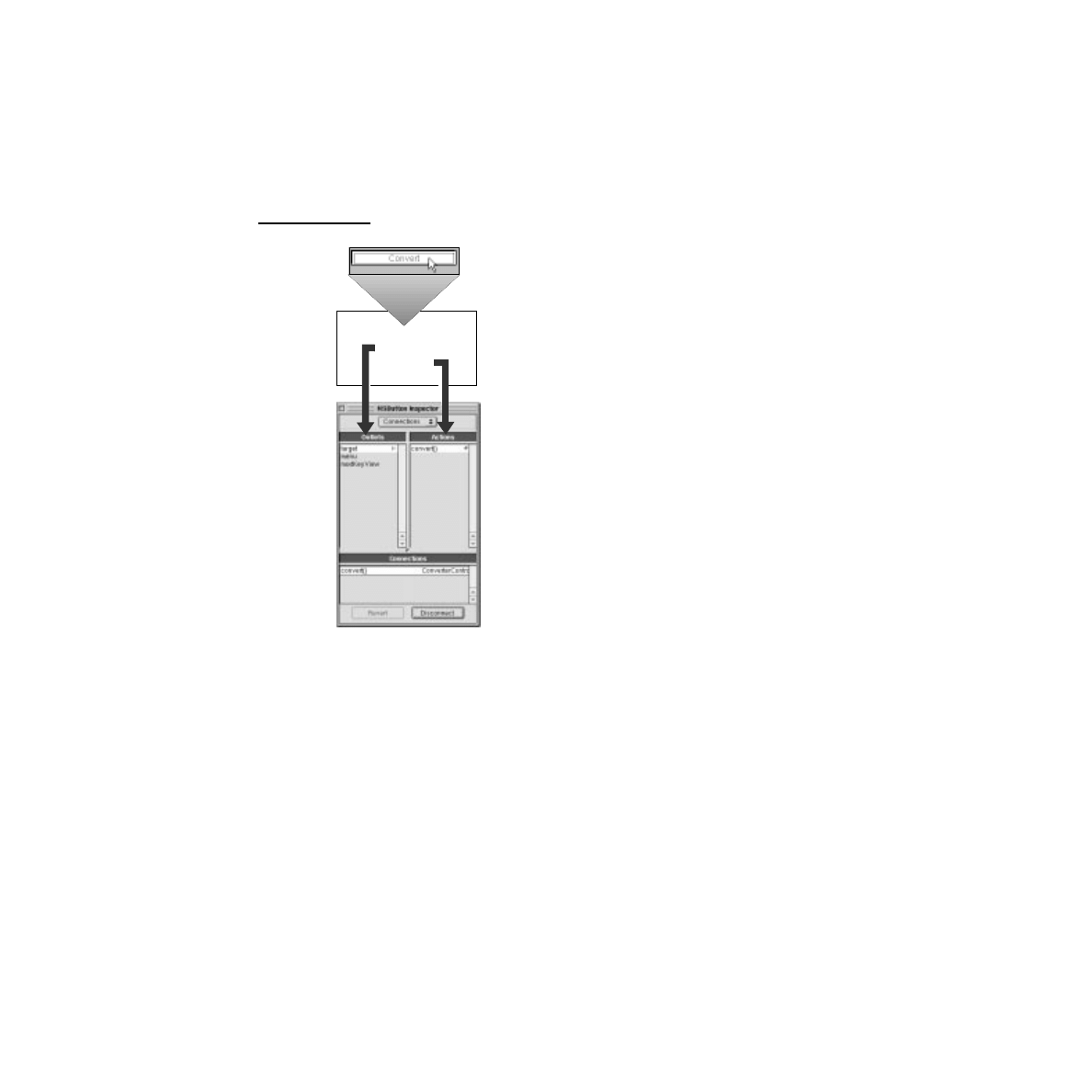
C H A P T E R
89
Figure 0-5
Target and Action in Interface Builder
The Actions column of the Connections display shows the action methods deÞned
by the class of the target object and known by Interface Builder. Interface Builder
identiÞes action methods because their declarations follow the syntax:
- (IBAction)doThis:(id)sender;
The return argument can also be
void
instead of
IBAction
, but the argument is always
sender
.
Instance variables:
NSActionCell
inherits
SEL _action;
id _target

90
C H A P T E R
Model-View-Controller Paradigm
A common and useful paradigm for object-oriented applications, particularly
business applications, is Model-View-Controller (MVC). Derived from
Smalltalk-80, MVC proposes three types of objects in an application, separated by
abstract boundaries and communicating with each other across those boundaries.
Model object
. This type of object represents special knowledge and expertise.
Model objects hold a companyÕs data and deÞne the logic that manipulates that
data. For example, a Customer object, common in business applications, is a Model
object. It holds data describing the salient facts of a customer and has access to
algorithms that access and calculate new data from those facts. A more specialized
Model class might be one in a meteorological system called Front; objects of this
class would contain the data and intelligence to represent weather fronts. Model
objects are not directly displayed. They often are reusable, distributed, persistent,
and portable to a variety of platforms.
View object
. A View object in the paradigm represents something visible on the
user interface (a window, for example, or a button). A View object is ÒignorantÓ of
the data it displays. The Application Kit usually provides all the View objects you
need: windows, text Þelds, scroll views, buttons, browsers, and so on. But you
might want to create your own View objects to show or represent your data in a
novel way (for example, a graph view). You can also group View objects within a
window in novel ways speciÞc to an application. View objects, especially those in
kits, tend to be very reusable and so provide consistency between applications.
Controller object
. Acting as a mediator between Model objects and View objects in
an application is a Controller object. There is usually one per application or window.
A Controller object communicates data back and forth between the Model objects
and the View objects. It also performs all the application-speciÞc chores, such as
loading nib Þles and acting as window and application delegate. Since what a
Controller does is very speciÞc to an application, it is generally not reusable even
though it often comprises much of an applicationÕs code. (This last statement does
not mean, however, that Controller objects cannot be reused; with a good design,
they can.)

C H A P T E R
91
Because of the ControllerÕs central, mediating role, Model objects need not know
about the state and events of the user interface, and View objects need not know
about the programmatic interfaces of the Model objects. You can make your View
and Model objects available to others from a palette in Interface Builder.
Hybrid models
. MVC, strictly observed, is not advisable in all circumstances.
Sometimes itÕs best to combine roles. For instance, in a graphics-intensive
application, such as an arcade game, you might have several View objects that
merge the roles of View and Model. In some applications, especially simple ones,
you can combine the roles of Controller and Model; these objects join the special
data structures and logic of Model objects with the ControllerÕs hooks to the
interface.
The Build Panel
The Project Build panel has buttons that do the following:
■
Initiate the build process.
■
Delete the products of the last build(Òmake cleanÓ).
■
Let you set options for the build.
It also shows the results of the build and takes you to the site of any error in the code
when you click the line in the Project Build panel reporting the error.
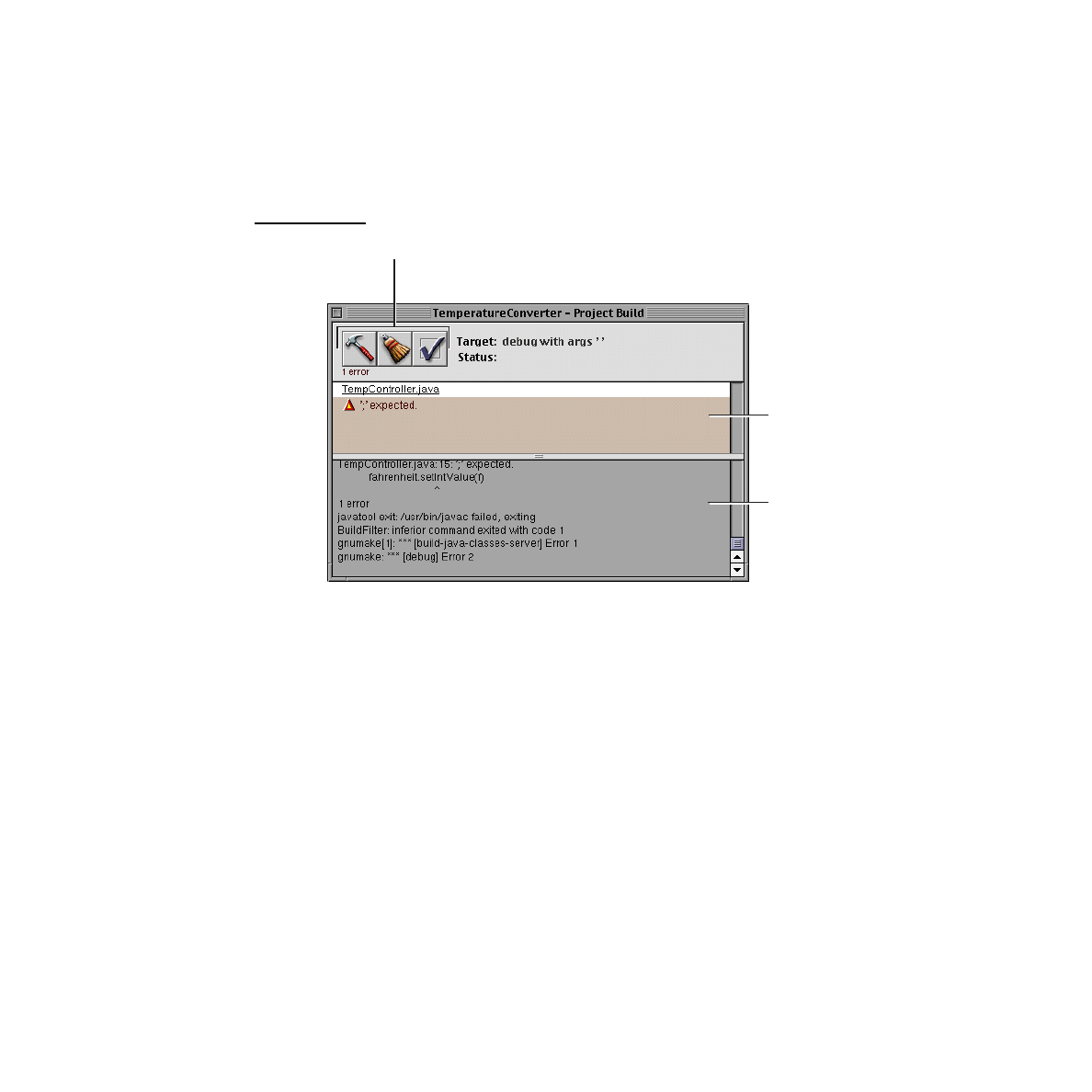
92
C H A P T E R
Figure 0-6
The Build Panel
Panel controls: Build, Make Clean, Options
Error summary
(click line to go
to code site)
Build detail
Document Outline
- Developing Java Applications: A Tutorial
- Building a Simple Application
- Creating a Custom View Class
- Debugging Java Applications
- Developing Java Applications— Concepts
- Fast Track to Java Development
- The Yellow Box’s Java Feature
- The Java Bridge
- Developing 100% Pure Java Applications
- A Project Window
- Project Indexing
- What’s a Nib File?
- The Windows of Interface Builder
- The View Hierarchy and the First Responder
- The Target/Action Paradigm
- Model-View-Controller Paradigm
- The Build Panel
Wyszukiwarka
Podobne podstrony:
developerWorks Tutorial XML programming in Java (1999)
java rmi tutorial IL4RXEZIBFECTEJL7F2TXDTWIOWCBN3VN3U4BNQ
1 Java Reverse Engineering Tutorial
tutorial JAVA 3D, Programowanie
java ApacheAnt tutorial
[JAVA][JDBC RowSet Implementations Tutorial]
(Ebook Pdf Jsf) Sun The Java Server Faces Technology Tutorial
Grafika 2d i 3D TUTORIAL Java
Java Media FreamWork
java 2
bugzilla tutorial[1]
Projekt java
freeRadius AD tutorial
Alignmaster tutorial by PAV1007 Nieznany
JAVA tablice
więcej podobnych podstron