How to upgrade TP-LINK Wireless N device
Notice:
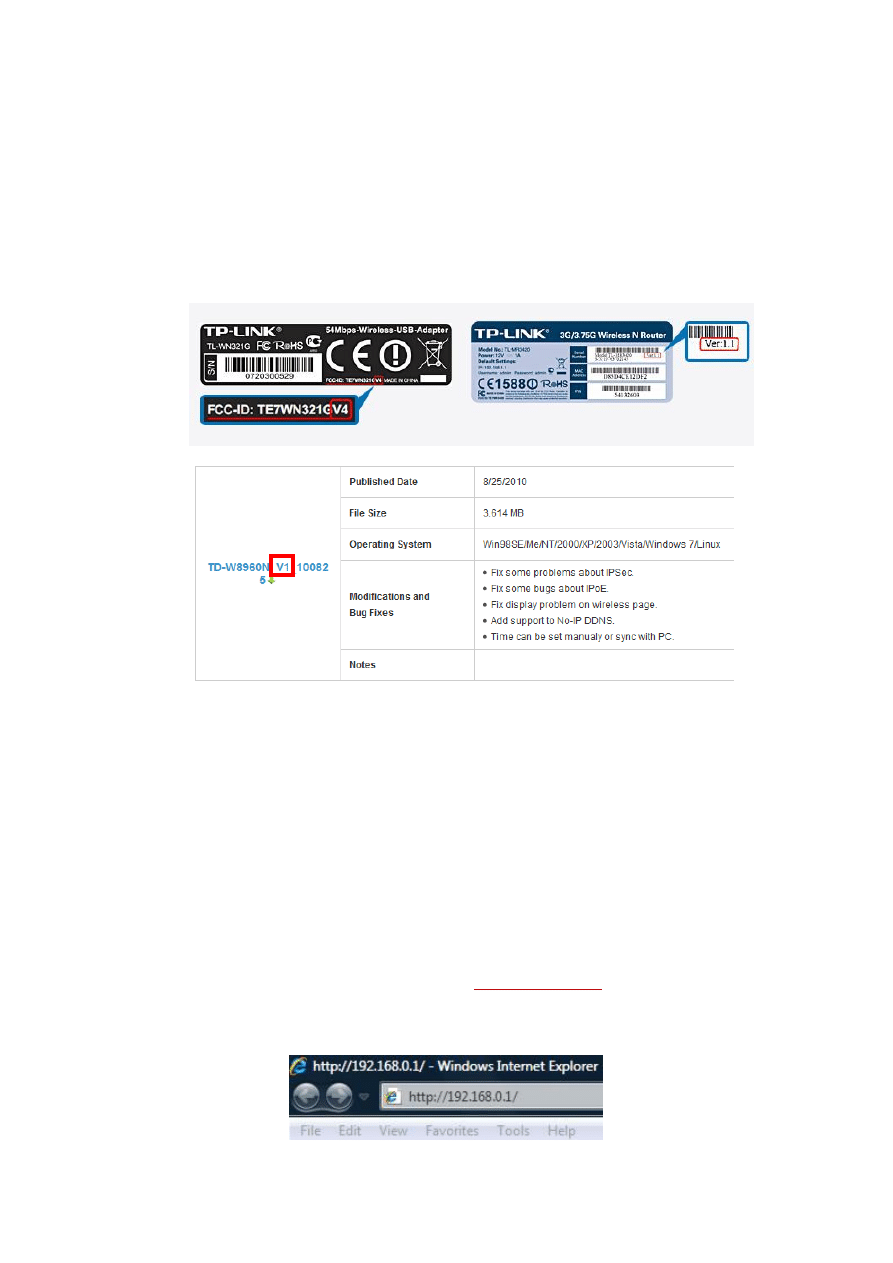
Please verify the hardware version of your device for the firmware ver
sion.Wrong firmware upgrading may damage your device and void the
warranty.
After you downloaded the firmware from TP-LINK website,
please use
decompression software such as WinZIP or WinRAR to extract the
firmware file to a folder;
Do NOT upgrade the firmware via
wireless
connection;
Do NOT turn off the power or cut down the Ethernet cable during
upgrade process;
Please write down all current settings as a backup and enter them
manually after upgrading.
Internet Explorer(IE) is recommended to upgrade the firmware.
Step 1 Log into the TP-LINK device by typing
http://192.168.0.1
in the address bar of
the web browser (such as Internet Explorer, Firefox).
The UserName and
Password are both admin
unless you have changed it before.
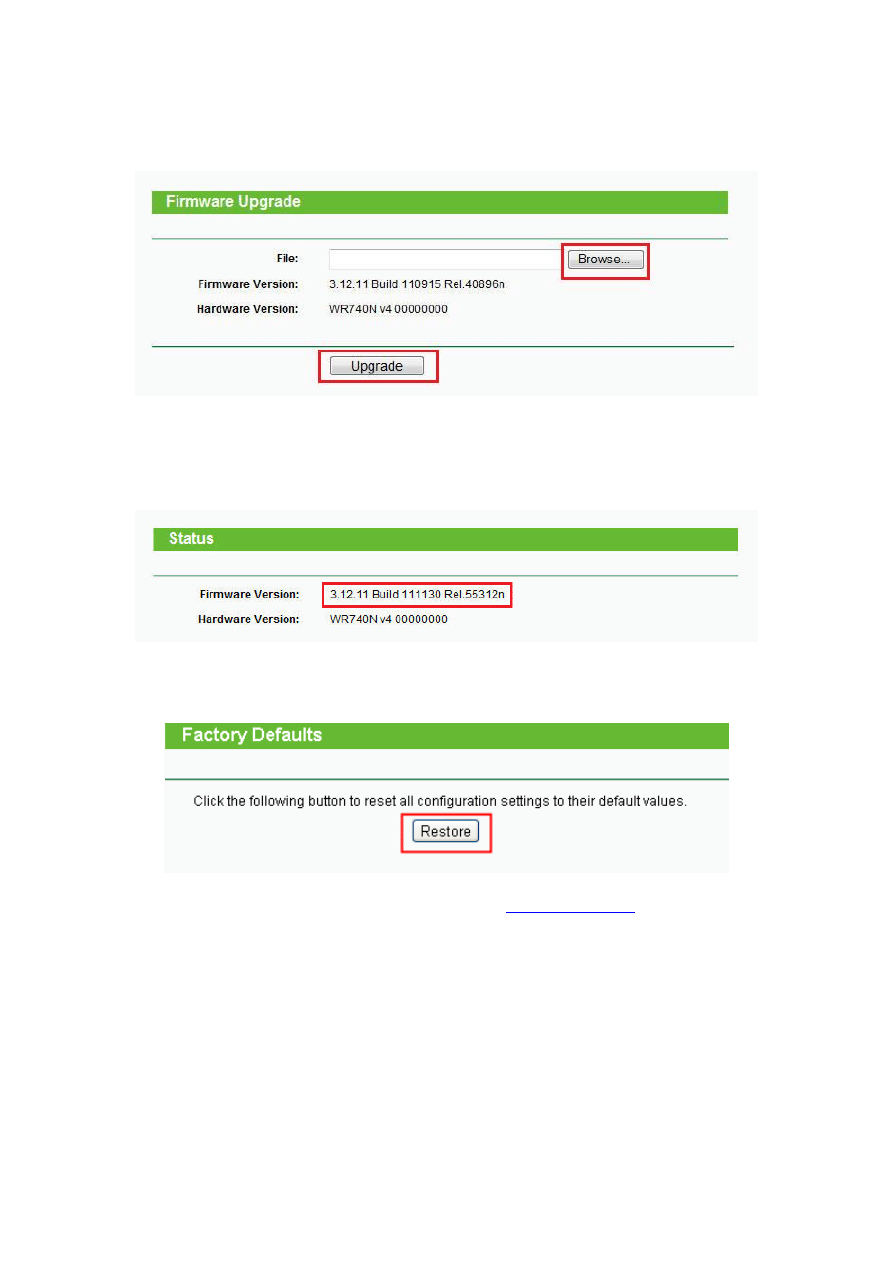
Step 2 Click
System Tools ->Firmware Upgrade
, click the
Browse
button to choose
the firmware you already extracted in the folder.
Step 3 Click the
Upgrade
button. The device will reboot automatically after the
upgrading has been finished. Please wait about 3 minutes.
Step 4 Click Status
, verify that the router’s firmware has been upgraded.
Step 5 It is recommended that restoring the device to factory default to make the new
functions take effect; Click System Tools->Factory Defaults, Click Restore Button.
Step 6 After restoring factory default, please login
settings you have written down before upgrading.
Wyszukiwarka
Podobne podstrony:
how to upgrade EN
How to upgrade
TP LINK You have no authority to access this router! Rozwizanie problemu
How to Use the Local Sto re Welcome to TP LINK
(Ebooks) Diy Woodwork How To About Router Bits
how to manage upgrade swx
w soph52 How to Secure Your Wireless Network
How to read the equine ECG id 2 Nieznany
CISCO how to configure VLAN
O'Reilly How To Build A FreeBSD STABLE Firewall With IPFILTER From The O'Reilly Anthology
How to prepare for IELTS Speaking
How To Read Body Language www mixtorrents blogspot com
How to summons the dead
How to draw Donkey from Shrek
How to Use Linked In
How to build a Raised Formal Pool
więcej podobnych podstron