
Contents
Overview
1
Common Type System
2
Naming Variables
9
Using Built-in Data Types
15
Compound Assignment
18
Increment and Decrement
20
Creating User-Defined Data Types
24
Converting Data Types
28
Lab 3: Creating and Using Types
32
Review
36
Module 3: Using Value-
Type Variables
This course is based on the prerelease Beta 1 version of Microsoft
®
Visual Studio .NET.
Content in the final release of the course may be different from the content included in this
prerelease version. All labs in the course are to be completed with the Beta 1 version of
Visual Studio .NET.

Information in this document is subject to change without notice. The names of companies,
products, people, characters, and/or data mentioned herein are fictitious and are in no way intended
to represent any real individual, company, product, or event, unless otherwise noted. Complying
with all applicable copyright laws is the responsibility of the user. No part of this document may
be reproduced or transmitted in any form or by an y means, electronic or mechanical, for any
purpose, without the express written permission of Microsoft Corporation. If, however, your only
means of access is electronic, permission to print one copy is hereby granted.
Microsoft may have patents, patent applications, trademarks, copyrights, or other intellectual
property rights covering subject matter in this document. Except as expressly provided in any
written license agreement from Microsoft, the furnishing of this document does not give you any
license to these patents, trademarks, copyrights, or other intellectual property.
2001 Microsoft Corporation. All rights reserved.
Microsoft, ActiveX, BizTalk, IntelliSense, JScript, Microsoft Press, MSDN, PowerPoint, Visual
Basic, Visual C++, Visual #, Visual Studio, Windows, and Windows Media are either registered
trademarks or trademarks of Microsoft Corporation in the U.S.A. and/or other countries.
Other product and company names mentioned herein may be the trademarks of their respective
owners.

Module 3: Using Value-Type Variables 1
Overview
n
Common Type System
n
Naming Variables
n
Using Built-in Data Types
n
Creating User-Defined Data Types
n
Converting Data Types
All applications manipulate data in some way. As a C# developer, you need to
understand how to store and process data in your applications. Whenever your
application needs to store data temporarily for use during execution, you store
that data in a variable. Before you use a variable, you must define it. When you
define a variable, you reserve some storage for that variable by identifying its
data type and giving it a name. After a variable is defined, you can assign
values to that variable.
In this module, you will learn how to use value-type variables in C#. You will
learn how to specify the type of data that variables will hold, how to name
variables according to standard naming conventions, and how to assign values
to variables. You also will learn how to convert existing variables from one data
type to another and how to create your own variables.
After completing this module, you will be able to:
n
Describe the types of variables that you can use in C# applications.
n
Name your variables according to standard C# naming conventions.
n
Declare a variable by using built-in data types.
n
Assign values to variables.
n
Convert existing variables from one data type to another.
n
Create and use your own data types.

2 Module 3: Using Value-Type Variables
u
Common Type System
n
Overview of CTS
n
Comparing Value and Reference Types
n
Determining Base Types
n
Comparing Built-in and User-Defined Value Types
n
Simple Types
Every variable has a data type that determines what values can be stored in the
variable. C# is a type-safe language, meaning that the C# compiler guarantees
that values stored in variables are always of the appropriate type.
The Common Language Runtime includes a Common Type System (CTS) that
defines a set of built-in data types that you can use to define your variables. In
this section, you will learn how the CTS works so that you can choose the
appropriate data types for your variables. You also will see examples of value-
type variables, including simple data types.
Module 3: Using Value-Type Variables 3
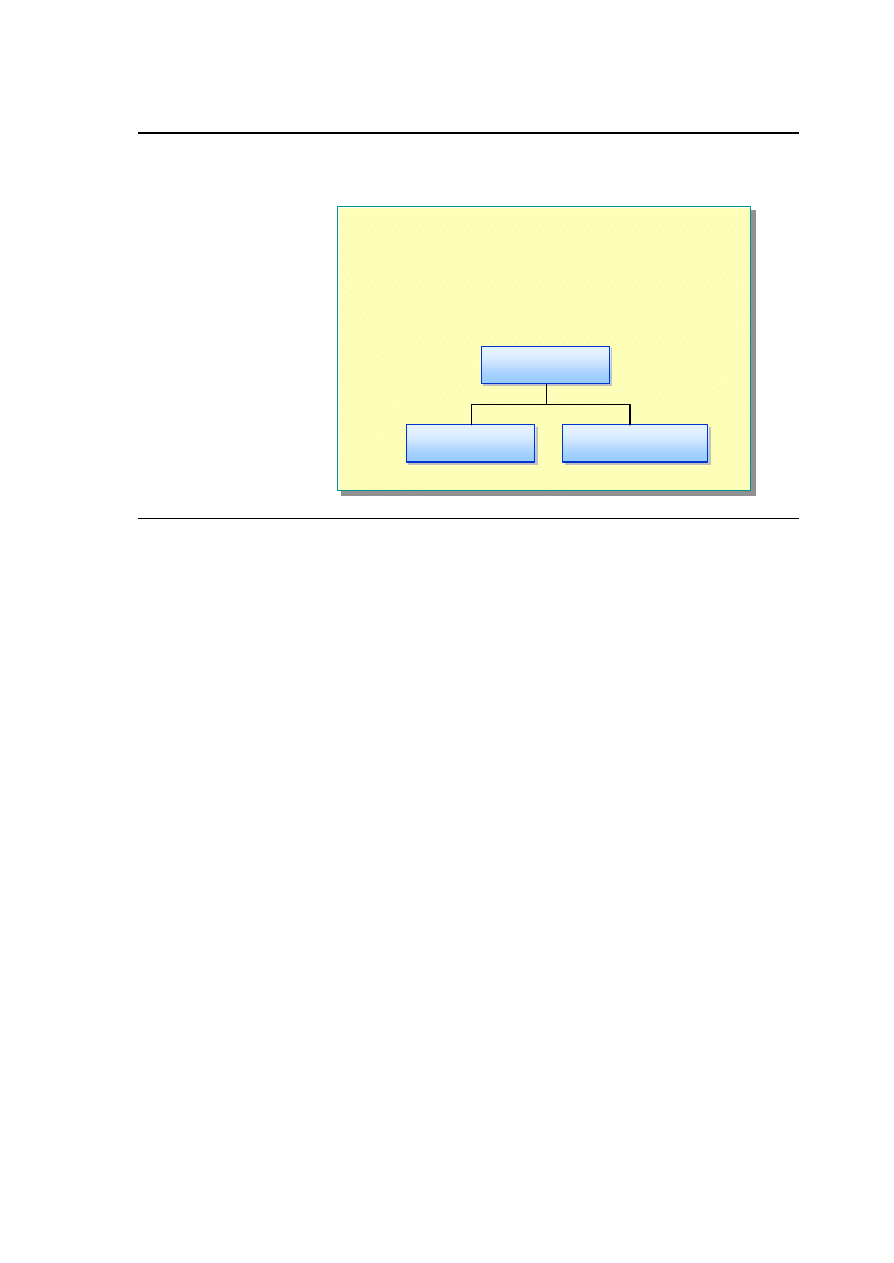
Overview of CTS
n
CTS Supports Object-Oriented and Procedural
Languages
n
CTS Supports Both Value and Reference Types
Reference Type
Reference Type
Type
Type
Value Type
Value Type
When you define a variable, you need to choose the right data type for your
variable. The data type determines the allowable values for that variable, which,
in turn, determine the operations that can be performed on that variable.
CTS
CTS is an integral part of the Common Language Runtime. The compilers,
tools, and the runtime itself share CTS. It is the model that defines the rules that
the runtime follows when declaring, using, and managing types. CTS
establishes a framework that enables cross-language integration, type safety,
and high-performance code execution.
C# defines several categories of variables. In this module, you will learn about
two kinds:
n
Value-type variables
n
Reference-type variables

4 Module 3: Using Value-Type Variables
Comparing Value and Reference Types
n
Value Types:
n
Directly contain their
data
n
Each has its own
copy of data
n
Operations on one
cannot affect another
n
Reference Types:
n
Store references to their
data (known as objects)
n
Two reference variables
can reference same object
n
Operations on one can
affect another
Value Types
Value-type variables directly contain their data. Each value-type variable has its
own copy of the data, so it is not possible for operations on one variable to
affect another variable.
Reference Types
Reference-type variables contain references to their data. The data for
reference-type variables is stored in an instance. It is possible for two reference-
type variables to reference the same object, so it is possible for operations on
one reference variable to affect the object referenced by another reference
variable.
For more information about reference types, see Module 8, “Using Reference-
Type Variables,” in Course 2124A, Introduction to C# Programming for the
Microsoft .NET Platform (Prerelease).
Module 3: Using Value-Type Variables 5
Determining Base Types
n
All Types Are Ultimately Derived from System.Object
n
Value Types Are Derived from System.ValueType
n
To Determine the Base Type of a Variable
x, Use:
x.GetType( ).BaseType
x.GetType( ).BaseType
All of the base data types are defined in the System namespace for C#. All
types are ultimately derived from System.Object.
To determine the base data type of variable x, you can use the following code:
x.GetType( ).BaseType
6 Module 3: Using Value-Type Variables
Comparing Built-in and User-Defined Value Types
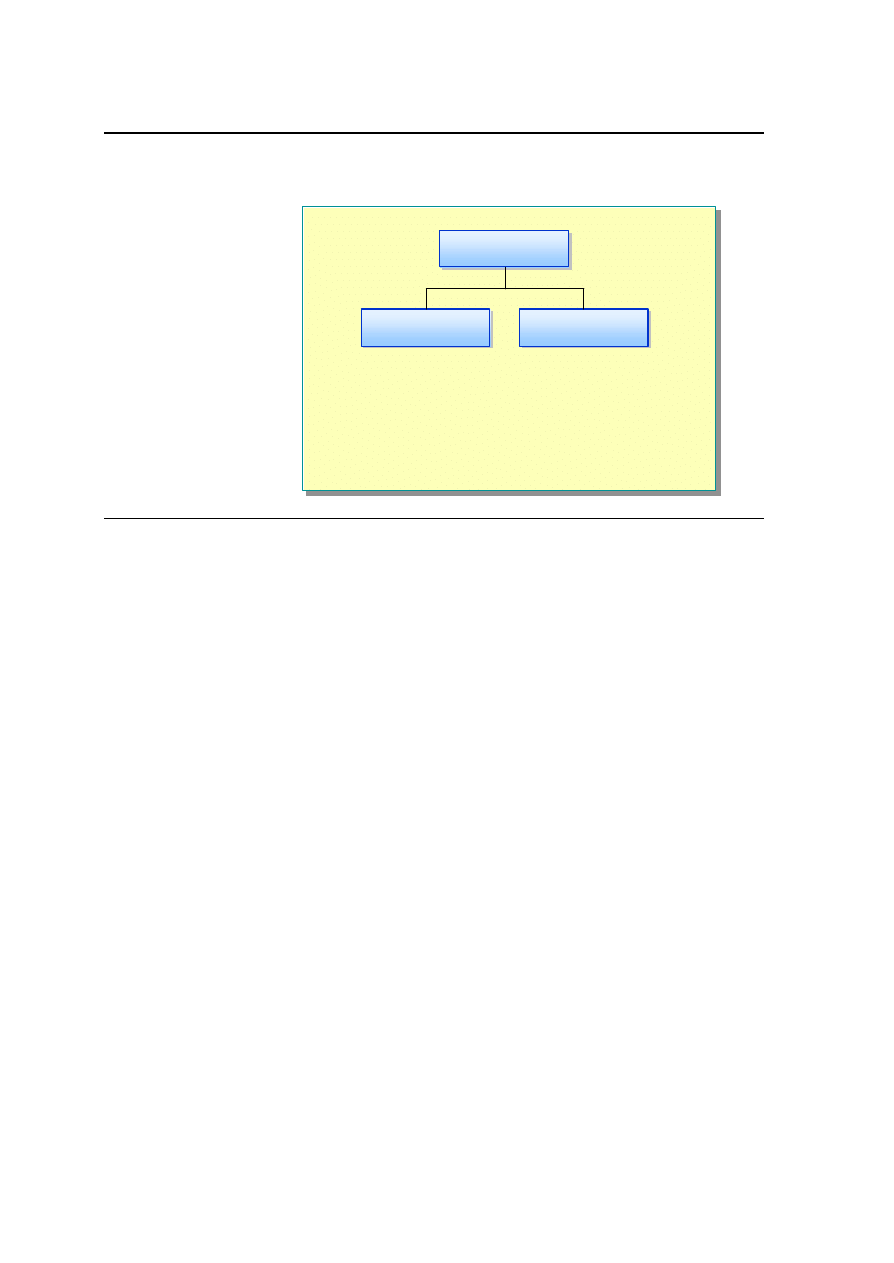
n
Examples of
Built-in Value Types:
n
int
n
float
n
Examples of User-Defined
Value Types:
n
enum
n
struct
User-Defined
User-Defined
Value Types
Value Types
Built-in Type
Built-in Type
Value types include built-in and user-defined data types. The difference
between built-in and user-defined types in C# is minimal because user-defined
types can be used in the same way as built-in ones. The only real difference
between built-in data types and user-defined data types is that you can write
literal values for the built-in types. All value types directly contain data, and
they cannot be null.
You will learn how to create user-defined data types such as enumeration and
structure types in this module.

Module 3: Using Value-Type Variables 7
Simple Types
n
Identified Through Reserved Words
l
int // Reserved keyword
- or -
l
System.Int32
Built- in value types are also referred to as basic data types or simple types.
Simple types are identified by means of reserved keywords. These reserved
keywords are aliases for predefined structure types.
A simple type and the struct type it aliases are completely indistinguishable. In
your code, you can use the reserved keyword or you can use the struct type. The
following examples show both:
byte // Reserved keyword
--Or--
System.Byte // Struct type
int // Reserved keyword
--Or--
System.Int32 // Struct type
For more information about the sizes and ranges of built-in value types, search
for “Value Types” in the Microsoft
®
Visual Studio.NET Help documents.

8 Module 3: Using Value-Type Variables
The following table lists common reserved keywords and their equivalent
aliased struct type.
Reserved keywords
Alias for struct type
sbyte
System.SByte
byte
System.Byte
short
System.Int16
ushort
System.UInt16
int
System.Int32
uint
System.UInt32
long
System.Int64
ulong
System.UInt64
char
System.Char
float
System.Single
double
System.Double
bool
System.Boolean
decimal
System.Decimal

Module 3: Using Value-Type Variables 9
u
Naming Variables
n
Rules and Recommendations for Naming Variables
n
C# Keywords
n
Quiz: Can You Spot Disallowed Variable Names?
f
To use a variable, you first choose a meaningful and appropriate name for the
variable. Each variable has a name that is also referred to as the variable
identifier.
When naming variables, follow the standard naming conventions recommended
for C#. You also need to be aware of the C# reserved keywords that you cannot
use for variable names.
In this section, you will learn how to name your variables by following standard
naming rules and recommendations.
10 Module 3: Using Value-Type Variables
Rules and Recommendations for Naming Variables
n
Rules
l
Use letters, the underscore,
and digits
n
Recommendations
l
Avoid using all uppercase
letters
l
Avoid starting with an
underscore
l
Avoid using abbreviations
l
Use PascalCasing naming
in multiple-word names
different
Different
different
Different
Answer42
42Answer
Answer42
42Answer
ü
ü
ü
ü
û
û
ü
ü
BADSTYLE
_poorstyle
BestStyle
BADSTYLE
_poorstyle
BestStyle
û
û
ü
ü
û
û
Msg
Message
Msg
Message
ü
ü
û
û
When naming variables, observe the following rules and recommendations.
Rules
The following are the naming rules for C# variables:
n
Start each variable name with a letter or underscore character.
n
After the first character, use letters, digits, or the underscore character.
n
Do not use reserved keywords.
n
If you use a disallowed variable name, you will get a compile-time error.
Recommendations
It is recommended that you follow these recommendations when naming your
variables:
n
Avoid using all uppercase letters.
n
Avoid starting with an underscore.
n
Avoid using abbreviations.
n
Use PascalCasing naming in multiple-word names.

Module 3: Using Value-Type Variables 11
PascalCasing Naming Convention
To use the PascalCasing naming convention, capitalize the first character of
each word. Use PascalCasing for classes, methods, properties, enums, interfaces,
fields, namespaces, and properties, as shown in the following example:
void InitializeData( );
camelCasing Naming Convention
To use the camelCasing naming convention, capitalize the first character of
each word except for the first word. Use camelCasing for variables that define
fields and parameters, as shown in the following example:
int loopCountMax;
For more information about naming conventions, see “Naming Guidelines” in
the .NET Framework SDK Help documents.
12 Module 3: Using Value-Type Variables
C# Keywords
n
Keywords Are Reserved Identifiers
n
Do Not Use Keywords As Variable Names
l
Results in a compile-time error
n
Avoid Using Keywords by Changing Their Case
Sensitivity
abstract, base, bool, default, if, finally
abstract, base, bool, default, if, finally
int INT; // Poor style
int INT; // Poor style
Keywords are reserved, which means that you cannot use any keywords as
variable names in C#. Using a keyword as a variable name will result in a
compile-time error.
Keywords in C#
The following is a list of keywords in C#. Remember, you cannot use any of
these words as variable names.
abstract as base bool break
byte case catch char checked
class const continue decimal default
delegate do double else enum
event explicit extern false finally
fixed float for foreach goto
if implicit in int interface
internal is lock long namespace
new null object operator out
override params private protected public
readonly ref return sbyte sealed
short sizeof stackalloc static string
struct switch this throw true
try typeof uint ulong unchecked
unsafe ushort using virtual void
while
Module 3: Using Value-Type Variables 13
Quiz: Can You Spot the Disallowed Variable Names?
char $diskPrice ;
char $diskPrice;
char middleInitial ;
char middleInitial;
int 12count;
int 12count;
float this;
float this;
2
2
2
3
3
3
4
4
4
1
1
1
int __identifier;
int __identifier;
5
5
5

14 Module 3: Using Value-Type Variables
Quiz Answers
1. Disallowed. Variable names cannot begin with a digit.
2. Disallowed. Variable names must start with a letter or an underscore.
3. Allowed. Variable names can start with a letter.
4. Disallowed. Keywords (this) cannot be used to name variables.
5. Allowed. Variable names can start with an underscore.

Module 3: Using Value-Type Variables 15
u
Using Built-in Data Types
n
Declaring Local Variables
n
Assigning Values to Variables
n
Compound Assignment
n
Common Operators
n
Increment and Decrement
n
Operator Precedence
To create a variable, you must choose a variable name, declare your variable,
and assign a value to your variable, unless it has already been automatically
assigned a value by C#.
In this section, you will learn how to create a local variable by using built- in
data types. You will also learn which variables are initialized, which variables
are not initialized, how to use operators to assign values to variables, and how
to define readonly variables and constants.
16 Module 3: Using Value-Type Variables
Declaring Local Variables
n
Usually Declared by Data Type and Variable Name:
n
Possible to Declare Multiple Variables in One
Declaration:
--or--
int itemCount;
int itemCount;
int itemCount, employeeNumber;
int itemCount, employeeNumber;
int itemCount,
employeeNumber;
int itemCount,
employeeNumber;
Variables that are declared in methods, properties, or indexers are called local
variables. Generally, you declare a local variable by specifying the data type
followed by the variable name, as shown in the following example:
int itemCount;
You can declare multiple variables in a single declaration by using a comma
separator, as shown in the following example:
int itemCount, employeeNumber;
In C#, you cannot use uninitialized variables. The following code will result in
a compile-time error because the loopCount variable has not been assigned an
initial value:
int loopCount;
Console.WriteLine ("{0}", loopCount);
Module 3: Using Value-Type Variables 17
Assigning Values to Variables
n
Assign Values to Variables That Are Already Declared:
n
Initialize a Variable When You Declare It:
n
You Can Also Initialize Character Values:
int employeeNumber;
employeeNumber = 23;
int employeeNumber;
employeeNumber = 23;
int employeeNumber = 23;
int employeeNumber = 23;
char middleInitial = 'J';
char middleInitial = 'J';
You use assignment operators to assign a new value to a variable. To assign a
value to a variable that is already declared, use the assignment operator (=), as
shown in the following example:
int employeeNumber;
employeeNumber = 23;
You can also initialize a variable when you declare it, as shown in the following
example:
int employeeNumber = 23;
You can use the assignment operator to assign values to character type variables,
as shown in the following example:
char middleInitial = 'J';
18 Module 3: Using Value-Type Variables
Compound Assignment
n
Adding a Value to a Variable Is Very Common
n
There Is a Convenient Shorthand
n
This Shorthand Works for All Arithmetic Operators
itemCount = itemCount + 40;
itemCount = itemCount + 40;
itemCount += 40;
itemCount += 40;
itemCount -= 24;
itemCount -= 24;
Adding a Value to a Variable Is Very Common
The following code declares an int variable called itemCount, assigns it the
value 2, and then increments it by 40:
int itemCount;
itemCount = 2;
itemCount = itemCount + 40;
There Is a Convenient Shorthand
The code to increment a variable works, but it is slightly cumbersome. You
need to write the identifier that is being incremented twice. For simple
identifiers this is rarely a problem, unless you have many identifiers with very
similar names. However, you can use expressions of arbitrary complexity to
designate the value being incremented, as in the following example:
items[(index + 1) % 32] = items[(index + 1) % 32] + 40;
In these cases, if you needed to write the same expression twice you could
easily introduce a subtle bug. Fortunately, there is a shorthand form that avoids
the duplication:
itemCount += 40;
items[(index + 1) % 32] += 40;
This Shorthand Works for All Arithmetic Operators
var += expression; // var = var + expression
var -= expression; // var = var - expression
var *= expression; // var = var * expression
var /= expression; // var = var / expression
var %= expression; // var = var % expression
Module 3: Using Value-Type Variables 19
Common Operators
== !=
< > <= >= is
&& || ?:
++
- -
+ - * / %
= *= /= %= += -= <<=
>>= &= ^= |=
•
Equality operators
•
Relational operators
•
Conditional operators
•
Increment operator
•
Decrement operator
•
Arithmetic operators
•
Assignment operators
Example
Common Operators
Expressions are constructed from operands and operators. The operators of an
expression indicate which operations to apply to the operands.
Examples of operators include the concatenation and addition operator (+), the
subtraction operator (-), the multiplication operator (*), and the division
operator (/). Examples of operands include literals, fields, local variables, and
expressions.
Common Operators
Some of the most common operators used in C# are described in the following
table.
Type
Description
Assignment operators
Assign values to variables by using a simple assignment.
For the assignment to succeed, the value on the right side
of the assignment must be a type that can be implicitly
converted to the type of the variable on the left side of
the assignment.
Relational logical operators
Compare two values.
Logical operators
Perform bitwise operations on values.
Conditional operator
Selects between two expressions, depending on a
Boolean value.
Increment operator
Increases the value of the variable by one.
Decrement operator
Decreases the value of the variable by one.
Arithmetic operators
Performs standard arithmetic operations.
For more information about the operators available in C#, see “Expressions” in
the C# Language Specification in the Visual Studio.NET Help documents.

20 Module 3: Using Value-Type Variables
Increment and Decrement
n
Changing a Value by One Is Very Common
n
There Is a Convenient Shorthand
n
This Shorthand Exists in Two Forms
itemCount += 1;
itemCount -= 1;
itemCount += 1;
itemCount -= 1;
itemCount++;
itemCount--;
itemCount++;
itemCount--;
++itemCount;
--itemCount;
++itemCount;
--itemCount;
Changing a Value by One is Very Common
You often want to write a statement that increments or decrements a value by
one. You could do this as follows:
itemCount = itemCount + 1;
itemCount = itemCount – 1;
However, as just explained, there is a convenient shorthand for this:
itemCount += 1;
itemCount -= 1;
This shorthand form is the preferred idiomatic way for C# programmers to
increment or decrement a value.
Convenient Shorthand
Incrementing or decrementing a value by one is so common, that this shorthand
method has an even shorter shorthand form!
itemCount++; // itemCount += 1;
itemCount--; // itemCount -= 1;
The ++ operator is called the increment operator and the – operator is called the
decrement operator. You can think of ++ as an operator that changes a value to
its successor and – as an operator that changes a value to its predecessor.
Once again, this shorthand is the preferred idiomatic way for C# programmers
to increment or decrement a value by one.
C++ is called C++ because it was the successor to C!
Note

Module 3: Using Value-Type Variables 21
This Shorthand Exists in Two Forms
You can use the ++ and – operators in two forms.
1. You can place the operator symbol before the identifier, as shown in the
following examples. This is called the prefix notation.
++itemCount;
--itemCount;
2. You can place the operator symbol after the identifier, as shown in the
following examples. This is called the postfix notation.
itemCount++;
itemCount--;
In both cases, the itemCount is incremented (for ++) or decremented (for --) by
one. So why have two notations? To answer this question, you first need to
understand assignment in more detail:
An important feature of C# is that assignment is an operator. This means that
besides assigning a value to a variable, an assignment expression itself has a
value, or outcome, which is the value of the variable after the assignment has
taken place. In most statements the value of the assignment expression is
discarded, but it can be used in a larger expression, as in the following example:
int itemCount = 0;
Console.WriteLine(itemCount = 2); // Prints 2
Console.WriteLine(itemCount = itemCount + 40); // Prints 42
Compound assignment is also an assignment. This means that a compound
assignment expression, besides assigning a value to a variable, also has a
value— an outcome itself. Again, in most statements the value of the compound
assignment expression is discarded, but it can be used in a larger expression, as
in the following example:
int itemCount = 0;
Console.WriteLine(itemCount += 2); // Prints 2
Console.WriteLine(itemCount -= 2); // Prints 0
Increment and decrement are also assignments. This means, for example, that
an increment expression, besides incrementing a variable by one, also has a
value, an outcome itself. Again, in most statements the value of the increment
expression is discarded, but again it can be used in a larger expression, as in the
following example:
int itemCount = 42;
int prefixValue = ++itemCount; // prefixValue == 42
int postfixValue = itemCount++; // postfixValue = 44
The value of the increment expression differs depending on whether you are
using the prefix or postfix version. In both cases itemCount is incremented.
That is not the issue. The issue is what is the value of the increment expression.
The value of a prefix increment/decrement is the value of the variable before
the increment/decrement takes place. The value of a postfix
increment/decrement is the value of the variable after the increment/decrement
takes place.

22 Module 3: Using Value-Type Variables
Operator Precedence
n
Operator Precedence and Associativity
l
Except for assignment operators, all binary operators are
left-associative
l
Assignment operators and conditional operators are
right-associative
Operator Precedence
When an expression contains multiple operators, the precedence of the
operators controls the order in which the individual operators are evaluated. For
example, the expression x + y * z is evaluated as x + (y * z) because the
multiplicative operator has higher prec edence than the additive operator. For
example, an additive-expression consists of a sequence of multiplicative-
expressions separated by + or - operators, thus giving the + and - operators
lower precedence than the *, /, and % operators.
Associativity
When an expression contains the same operator many times, the associativity
controls the order in which the operators are performed. For example, x + y + z
is evaluated as (x + y) + z. This is particularly important for assignment
operators. For example, x = y = z is evaluated as x = (y = z).
n
Except for the assignment operators, all binary operators are left-associative,
meaning that operations are performed from left to right.
n
The assignment operators and the conditional operator (?:) are right-
associative, meaning that operations are performed from right to left.
You can control precedence and associativity by using parentheses. For
example, x + y * z first multiplies y by z and then adds the result to x, but
(x + y) * z first adds x and y and then multiplies the result by z.

Module 3: Using Value-Type Variables 23
The following table summarizes operators in order of precedence, from highest
to lowest.
Category
Operators
Primary
(x) x.y f(x) a[x] x++ x-- new
typeof sizeof checked unchecked
Unary
+ - ! ~ ++x --x (T)x
Multiplicative
* / %
Additive
+ -
Shift
<< >>
Relational
< > <= >= is
Equality
== !=
Logical AND
&
Logical XOR
^
Logical OR
|
Conditional AND
&&
Conditional OR
||
Conditional
?:
Assignment
= *= /= %= += -= <<= >>= &= ^= |=

24 Module 3: Using Value-Type Variables
u
Creating User-Defined Data Types
n
Enumeration Types
n
Structure Types
In this section, you will learn how to create user-defined enumeration (enum)
and structure (struct) data types.
Module 3: Using Value-Type Variables 25
Enumeration Types
n
Defining an Enumeration Type
n
Using an Enumeration Type
n
Displaying an Enumeration Variable
enum Color { Red, Green, Blue }
enum Color { Red, Green, Blue }
Color colorPalette = Color.Red;
Color colorPalette = Color.Red;
Console.WriteLine(“{0}”,colorPalette); // Displays Red
Console. WriteLine(“{0}”,colorPalette); // Displays Red
Enumerators are useful when a variable can only have a specific set of values.
Defining an Enumeration Type
To declare an enumeration, use the enum keyword followed by the enum
variable name and initial values. For example, the following enumeration
defines three integer constants, called enumerator values.
enum Color { Red, Green, Blue }
By default, enumerator values start from 0. In the preceding example, Red has a
value of 0, Green has a value of 1, and Blue has a value of 2.
You can initialize an enumeration by specifying integer literals.

26 Module 3: Using Value-Type Variables
Using an Enumeration Type
You can declare a variable colorPalette of Color type by using the following
syntax:
Color colorPalette; // Declare the variable
colorPalette = Color.Red; // Set value
- Or -
colorPalette = (Color)0; // Type casting int to Color
Displaying an Enumeration Value
To display an enumeration value in readable format, use the following
statement:
Console.WriteLine(“{0}”,colorPalette);
Alternatively, you can use the format method as shown in the following
example:
Console.WriteLine(colorPalette.Format());
Module 3: Using Value-Type Variables 27
Structure Types
n
Defining a Structure Type
n
Using a Structure Type
Employee companyEmployee;
companyEmployee.firstName = "Joe";
companyEmployee.age = 23;
Employee companyEmployee;
companyEmployee.firstName = "Joe";
companyEmployee.age = 23;
public struct Employee
{
string firstName;
int age;
}
public struct Employee
{
string firstName;
int age;
}
You can use structures to create objects that behave like built- in value types.
Because structs are stored inline and are not heap allocated, there is less
garbage collection pressure on the system than there is with classes.
In the .NET Framework, simple data types such as int, float, and double are all
built-in structures.
Defining a Structure Type
You can use a structure to group together several arbitrary types, as shown in
the following example:
public struct Employee
{
string firstName;
int age;
}
This code defines a new type called Employee that consists of two elements:
first name and age.
Using a Structure Type
To access elements inside the struct, use the following syntax:
Employee companyEmployee; // Declare variable
companyEmployee.firstName = "Joe" // Set value
companyEmployee.age = 23;

28 Module 3: Using Value-Type Variables
u
Converting Data Types
n
Implicit Data Type Conversion
n
Explicit Data Type Conversion
In C#, there are two types of conversion:
n
Implicit data type conversion
n
Explicit data type conversion
You will see examples of how to perform both implicit and explicit data
conversion in this section.
Module 3: Using Value-Type Variables 29
Implicit Data Type Conversion
n
To Convert Int to Long:
n
Implicit Conversions Cannot Fail
l
May lose precision, but not magnitude
using System;
class Test
{
static void Main( )
{
int intValue = 123;
long longValue = intValue;
Console.WriteLine("(long) {0} = {1}", intValue,
ÊlongValue);
}
}
using System;
class Test
{
static void Main( )
{
int intValue = 123;
long longValue = intValue;
Console.WriteLine("(long) {0} = {1}", intValue,
ÊlongValue);
}
}
Converting from an int data type to a long data type is implicit. This conversion
always succeeds, and it never results in a loss of information. The following
example shows how to convert the variable intValue from an int to a long:
using System;
class Test
{
static void Main( )
{
int intValue = 123;
long longValue = intValue;
Console.WriteLine("(long) {0} = {1}", intValue,
ÊlongValue);
}
}
30 Module 3: Using Value-Type Variables
Explicit Data Type Conversion
n
To Do Explicit Conversions, Use a Cast Expression:
using System;
class Test
{
static void Main( )
{
long longValue = Int64.MaxValue;
int intValue = (int) longValue ;
Console.WriteLine("(int) {0} = {1}", longValue,
ÊintValue);
}
}
using System;
class Test
{
static void Main( )
{
long longValue = Int64.MaxValue;
int intValue = (int) longValue;
Console.WriteLine("(int) {0} = {1}", longValue,
ÊintValue);
}
}
You can convert variable types explicitly by using a cast expression. The
following example shows how to convert the variable longValue from a long
data type to an int data type by using a cast expression:
using System;
class Test
{
static void Main( )
{
long longValue = Int64.MaxValue;
int intValue = (int) longValue;
Console.WriteLine("(int) {0} = {1}", longValue,
ÊintValue);
}
}
Because an overflow occurs in this example, the output is as follows:
(int) 9223372036854775807 = -1

Module 3: Using Value-Type Variables 31
To avoid such a situation, you can use the checked statement to raise an
exception when a conversion fails, as follows:
using System;
class Test
{
static void Main( )
{
checked
{
long longValue = Int64.MaxValue;
int intValue = (int) longValue;
Console.WriteLine("(int) {0} = {1}", longValue,
ÊintValue);
}
}
}

32 Module 3: Using Value-Type Variables
Lab 3: Creating and Using Types
Objectives
After completing this lab, you will be able to:
n
Create new data types.
n
Define and use variables.
Prerequisites
Before working on this lab, you should be familiar with the following:
n
The Common Type System
n
Value-type variables in C#
Scenario
In Exercise 1, you will write a program that creates a simple enum type and
then sets and prints the values by us ing the Console.WriteLine statement.
In Exercise 2, you will write a program that uses the enum type declared in
Exercise 1 in a struct .
If time permits, you will add input/output functionality to the program you
wrote in Exercise 2.
Starter and Solution Files
There are starter and solution files associated with this lab. The starter files are
in the install folder\Labs\Lab03\Starter folder and the solution files are in the
install folder\Labs\Lab03\Solution folder.
Estimated time to complete this lab: 60 minutes

Module 3: Using Value-Type Variables 33
Exercise 1
Creating an enum Type
In this exercise, you will create an enumerated type for representing different
types of bank accounts (checking and savings). You will create two variables
by using this enum type, and set the values of the variables to Checking and
Deposit. You will then print the values of the variables by using the
System.Console.WriteLine function.
å
To create an enum type
1. Open the Enum.cs file in the install folder\Labs\Lab03\Starter\BankAccount
folder.
2. Add an enum called AccountType before the class definition as follows:
public enum AccountType { Checking, Deposit }
This enum will contain Checking and Deposit types.
3. Declare two variables of type AccountType in Main as follows:
AccountType goldAccount;
AccountType platinumAccount;
4. Set the value of the first variable to Checking and the value of the other
variable to Deposit as follows:
goldAccount = AccountType.Checking;
platinumAccount = AccountType.Deposit;
5. Add two Console.WriteLine statements to print the value of each variable
as follows:
Console.WriteLine("The Customer Account Type is
{0}",goldAccount);
Console.WriteLine("The Customer Account Type is
{0}",platinumAccount);
6. Compile and run the program.

34 Module 3: Using Value-Type Variables
Exercise 2
Creating and Using a Struct Type
In this exercise, you will define a struct that can be used to represent a bank
account. You will use variables to hold the account number (a long), the
account balance (a decimal ), and the account type (the enum that you created
in Exercise 1). You will create a struct type variable, populate the struct with
some sample data, and print the result.
å
To create a struct type
1. Open the Struct.cs file in the install folder\Labs\Lab03\Starter\StructType
folder.
2. Add a public struct called BankAccount that contains the following fields.
Type
Variable
public long
public decimal
public AccountType
accNo
accBal
accType
3. Declare a variable goldAccount of type BankAccount in Main.
BankAccount goldAccount;
4. Set the accType, accBal, and accNo fields of the variable goldAccount.
goldAccount.accType = AccountType.Checking;
goldAccount.accBal = (decimal)3200.00;
goldAccount.accNo = 123;
5. Add Console.WriteLine statements to print the value of each element in the
struct variable.
Console.WriteLine("Acct Number {0}", goldAccount.accNo);
Console.WriteLine("Acct Type {0}", goldAccount.accType);
Console.WriteLine("Acct Balance ${0}",goldAccount.accBal);
6. Compile and run the program.

Module 3: Using Value-Type Variables 35
If Time Permits
Adding Input/Output functionality
In this exercise, you will modify the code written in Exercise 2. Instead of using
the account number 123, you will prompt the user to enter the account number.
You will use this number to print the account summary.
å
To add input/output functionality
1. Open the StructType.cs file in the install folder\Labs \Lab03\Starter\Optional
folder.
2. Add a Console.Write statement to prompt the user to enter the account
number.
Console.Write("Enter account number: ");
3. Read the account number by using a Console.ReadLine statement. Assign
this value to goldAccount.accNo.
goldAccount.accNo = long.Parse(Console.ReadLine());
You need to use the long.Parse method to convert the string read by
the Console.ReadLine statement into a decimal value before assigning it to
goldAccount.accNo.
4. Compile and run the program.
THIS PAGE INTENTIONALLY LEFT BLANK
Note

36 Module 3: Using Value-Type Variables
Review
n
Common Type System
n
Naming Variables
n
Using Built-in Data Types
n
Creating User-Defined Data Types
n
Converting Data Types
1. What is the Common Type System?
2. Can a value type be null?
3. Can you use uninitialized variables in C#? Why?
4. Can there be loss of magnitude as a result of an implicit conversion?
Wyszukiwarka
Podobne podstrony:
CSharp Module 8 Using Reference Type Variables
ASP NET Module 3 Using Microsoft ADO NE
CSharp Module 1 Overview of the Microsoft NET Platform
CSharp Module 5 Methods and Parameters
CSharp Module 10 Inheritance in C#
CSharp Module 9 Creating and Destroying Objects
CSharp Module 6 Arrays
CSharp Module 12 Operators Delegates and Events
CSharp Module 13 Properties and Indexers
CSharp Module 7 Essentials of Object Oriented Programming
ASP NET Module 6 Using Web Services
CSharp Module 14 Attributes
CSharp Module 4 Statements and Exceptions
CSharp Module 11 Aggregation Namespaces and Advanced Scope
ASP NET Module 2 Using Web Controls
Variable Speed Control Of Wind Turbines Using Nonlinear And Adaptive Algorithms
Analysis of shear wall structures of variable thickness using continuous connection method
A Cage Induction Generator Using Back To Back Pwm Converter For Variable Speed Grid Connected Wind E
więcej podobnych podstron