T
ECH
N
OTE
RHEL6 resolution setting without Xorg.conf
RHEL 6 dynamically detects monitor resolutions, making xorg.conf configuration unecessary.
Here is how to manually set supported monitor resolutions undetected by the kernel.
Use the command line to create a new display mode
The newest RHEL releases finally do away with using an xorg.conf file. Although many
administrators may still need manual configuration, new methods make configuration
easier. What administrator in their right mind enjoys the compexity that was xorg.conf?
For demonstration, a HP L2245wg 22-inch Widescreen LCD Monitor is configured on a
RHEL 6.2 system, direct-connected through a DVI cable. When the system boots,
extended display identification data (EDID) is requested from the monitor. Newer monitors respond with their
minimum, maximum and preferred resolution modes. Use xrandr to display the information discovered. A '*'
denotes the mode currently in use and '+' denotes the monitor's preferred (native) resolution. This native
resolution matches a monitor's physical pixel count and results in the sharpest, most readable screen display.
[root@instructor]# xrandr
Screen 0: minimum 320 x 200, current 1680 x 1050, maximum 8192 x 8192
DisplayPort-0 disconnected (normal left inverted right x axis y axis)
DisplayPort-1 disconnected (normal left inverted right x axis y axis)
DVI-0 connected 1680x1050+0+0 (normal left inverted right x axis y axis) 473mm x 296mm
1680x1050 60.0*+
1600x1000 60.0
1280x1024 75.0 60.0
1440x900 59.9
1280x960 60.0
1152x864 75.0
1024x768 75.1 60.0
832x624 74.6
800x600 75.0 60.3
640x480 75.0 60.0
720x400 70.1
In many classrooms, the instructor monitor is connected through a video splitter device or cabled through an
overhead projector. A splitter or projector may only support lower resolutions; this information should be
researched so as to select an appropriate working resolution. However, even if the splitter or projector supports
higher resolutions, the non-direct cabling may prevent the monitor from receiving the EDID request or the system
from recognizing the higher resolution capabilities. In this example, the system lists only basic VESA resolutions.
[root@instructor]# xrandr
Screen 0: minimum 320 x 200, current 1024 x 768, maximum 8192 x 8192
DisplayPort-0 disconnected (normal left inverted right x axis y axis)
DisplayPort-1 disconnected (normal left inverted right x axis y axis)
DVI-0 connected 1024x768+0+0 (normal left inverted right x axis y axis) 0mm x 0mm
1024x768 60.0*
800x600 60.3 56.2
848x480 60.0
640x480 59.9
To be able to configure a higher resolution, first locate the monitor's supported resolutions (see page 3). If the
video splitter or projector can support it, use the native resolution. Use cvt to create the modeline info.
[root@instructor]# cvt 1680 1050
# 1680x1050 59.95 Hz (CVT 1.76MA) hsync: 65.29 kHz; pclk: 146.25 MHz
Modeline "1680x1050_60.00" 146.25 1680 1784 1960 2240 1050 1053 1059 1089 -hsync +vsync
Using the cvt response output, create a new mode. Take the full line text that follows the word "Modeline" above
and use it as parameters for the xrandr --newmode command.
[root@desktopX]# xrandr --newmode "1680x1050_60.00" 146.25 1680 1784 1960 2240 1050 1053 1059
1089 -hsync +vsync
RHEL6 manual screen resolutions
August 29, 2013
Page 1
http://xkcd.com/963/
T
ECH
N
OTE
RHEL6 resolution setting without Xorg.conf
RHEL 6 dynamically detects monitor resolutions, making xorg.conf configuration unecessary.
Here is how to manually set supported monitor resolutions undetected by the kernel.
Use xrandr to confirm that the new mode is recognized. Note that "1680x1050_60.00" is only a text name for
the modeline. cvt generated the name from the resolution and refresh rate information, but any unique name
can be used. In this output below, the mode is seen as having been created, but not yet added to a display port.
The display port in use (marked as "connected") appears to be DVI-0.
[root@instructor ~]# xrandr
Screen 0: minimum 320 x 200, current 1024 x 768, maximum 8192 x 8192
DisplayPort-0 disconnected (normal left inverted right x axis y axis)
DisplayPort-1 disconnected (normal left inverted right x axis y axis)
DVI-0 connected 1024x768+0+0 (normal left inverted right x axis y axis) 0mm x 0mm
1024x768 60.0*
800x600 60.3 56.2
848x480 60.0
640x480 59.9
1680x1050_60.00 (0x161) 146.2MHz
h: width 1680 start 1784 end 1960 total 2240 skew 0 clock 65.3KHz
v: height 1050 start 1053 end 1059 total 1089 clock 60.0Hz
Finish the configuration by using xrandr to add the mode name, using the unique mode name created above, to
the display port. The xrandr --output command will replace the current resolution mode on the desired display
port with the new, requested resolution.
[root@desktopX]# xrandr --addmode DVI-0 1680x1050_60.00
[root@desktopX]# xrandr --output DVI-0 --mode 1680x1050_60.00
The monitor now switches to the new screen resolution. Use xrandr to see the new modeline in use on DVI-0.
[root@desktopX]# xrandr
Screen 0: minimum 320 x 200, current 1680 x 1050, maximum 8192 x 8192
DisplayPort-0 disconnected (normal left inverted right x axis y axis)
DisplayPort-1 disconnected (normal left inverted right x axis y axis)
DVI-0 connected 1680x1050+0+0 (normal left inverted right x axis y axis) 0mm x 0mm
1024x768 60.0
800x600 60.3 56.2
848x480 60.0
640x480 59.9
1680x1050_60.00 60.0*
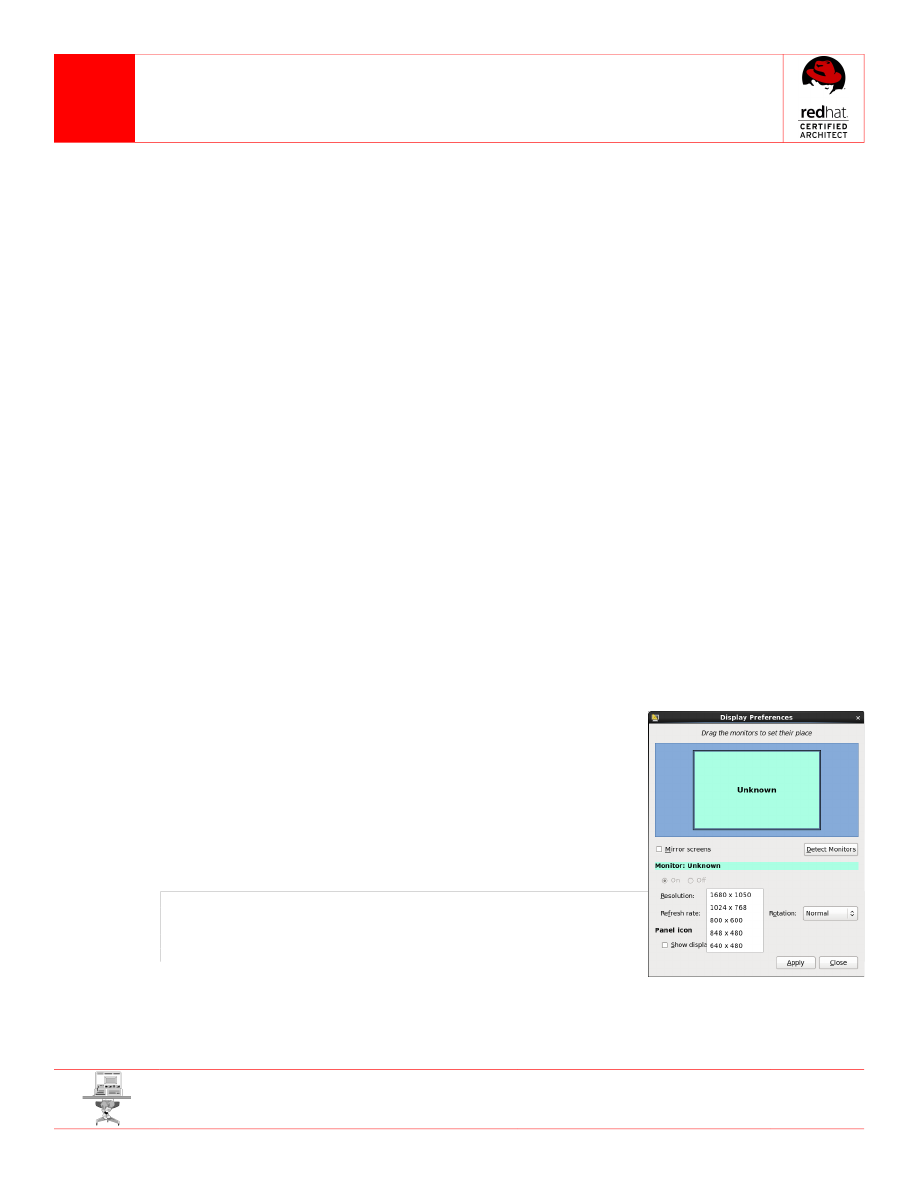
Even though the system still does not recognize the attached monitor, the
Display Preferences dialog includes the selectable new mode (1680 x 1050), as
seen in the screenshot at right. The configuration is temporary and will be lost
unless it is scripted or otherwise set to be reconfigured on reboot.
For simplicity, put the xrandr modeline creation commands in a shell script in
the root home directory for reuse after an instructor system reboot. Generating
the modline parameters with cvt is not necessary as they remain the same.
/root/set-high-resolution.sh (root:root 0755 admin_home_t)
#!/bin/bash
xrandr --newmode "1680x1050_60.00" 146.25 1680 1784 1960 2240
1050 1053 1059 1089 -hsync +vsync
xrandr --addmode DVI-0 1680x1050_60.00
xrandr --output DVI-0 --mode 1680x1050_60.00
Or, you could go back to trying to understand how to build a
working xorg.conf from scratch. Your choice.
Ä
RHEL6 manual screen resolutions
August 29, 2013
Page 2
T
ECH
N
OTE
RHEL6 resolution setting without Xorg.conf
RHEL 6 dynamically detects monitor resolutions, making xorg.conf configuration unecessary.
Here is how to manually set supported monitor resolutions undetected by the kernel.
Research the stable resolutions for a monitor
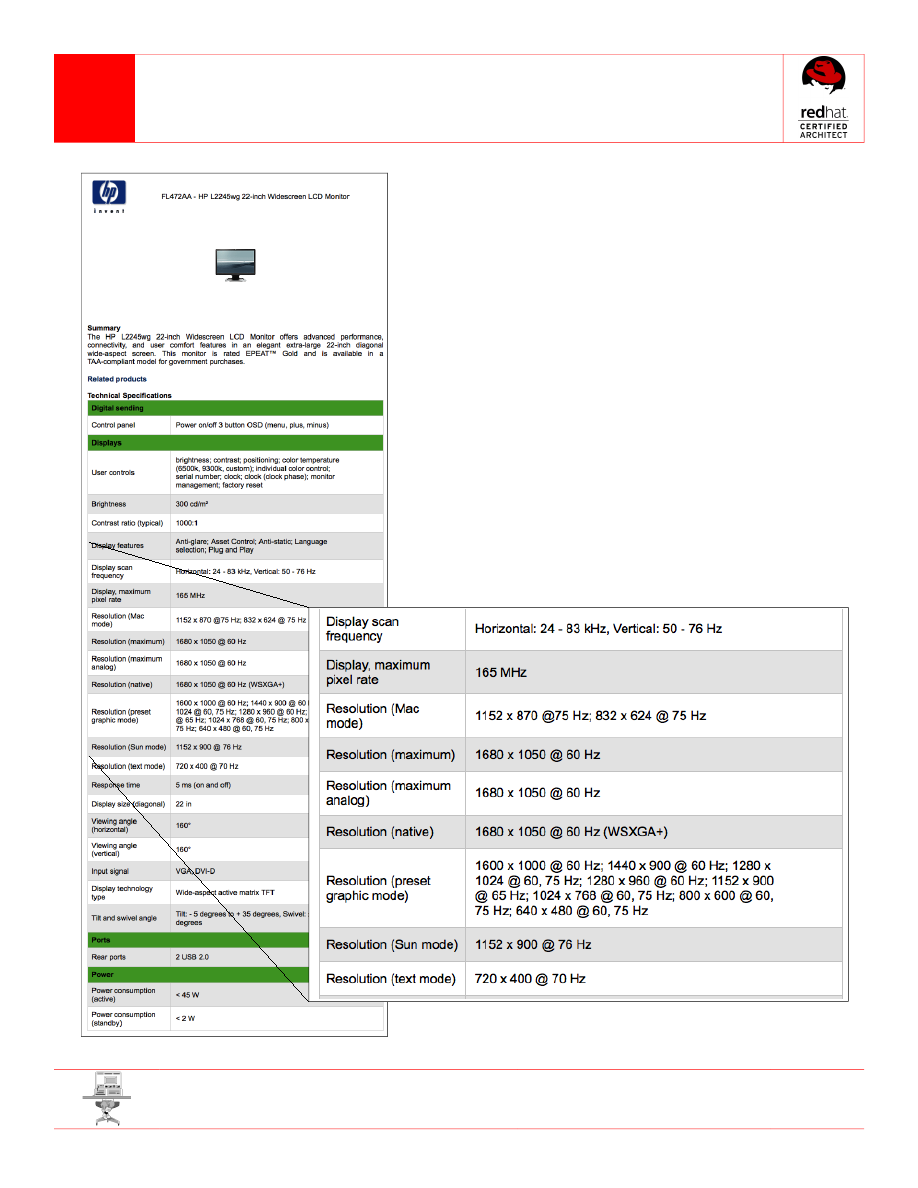
Using the HP L2245wg 22-inch Widescreen LCD Monitor as an
example, an Internet lookup for the specification table (at left) finds
the supported resolutions ("preset graphic mode") and the preferred
resolution ("native"), including the proper refresh rate each requires.
It is important to configure only supported, published resolutions and
stay withing the documented display scan frequency ranges to avoid
the possibility of permanently damaging the monitor. As described in
this Tech Note, use the cvt utility to generate the correct VESA
modeline settings for the desired resolution that is supported.
Most LCD monitors are able to inform the system of their native
resolution using Extended display identification data (EDID), when the
monitor is
directly connected through a proper cable. If the monitor
is connected through a splitter, extender or overhead display device,
the monitor may not see the system's EDID request. The system
may detect display resolutions for the overhead device or, lacking an
EDID response, may configure for default minimal VESA resolutions.
In the page 1 example, the native resolution seen below is used as
the command parameters for cvt: "1680 1050" or "1680 1050 60".
Ä
RHEL6 manual screen resolutions
August 29, 2013
Page 3
Wyszukiwarka
Podobne podstrony:
tech note debugging ha resource groups using rg test
tech note dedicated heartbeat interface
tech note rrdtool workshop
tech note rhel6 alternate boot methods
Brother P touch mini tech Parts Manual
BMW E38 E39 Wide Screen Monitor Service Manual
MMX Manual Tech Overview
Macro Tech 1200 Service Manual ma1200sm original
wyklad3 tech bad
wyklad 29 i 30 tech bad
W5 screening szczepu
PANsound manual
als manual RZ5IUSXZX237ENPGWFIN Nieznany
hplj 5p 6p service manual vhnlwmi5rxab6ao6bivsrdhllvztpnnomgxi2ma vhnlwmi5rxab6ao6bivsrdhllvztpnnomg
BSAVA Manual of Rabbit Surgery Dentistry and Imaging
Okidata Okipage 14e Parts Manual
więcej podobnych podstron