Installation Manual
AVC-Intra Encoder for Compressor

2
Contents
AVC-Intra Encoder for Compressor
3
Getting started with ...............................................................................3
Operational environment.......................................................................4
Software License Agreement ................................................................5
Setup
7
How to install.........................................................................................7
How to configure settings ....................................................................11
How to uninstall...................................................................................18

3
AVC-Intra Encoder for Compressor
Getting started with
AVC-Intra Encoder for Compressor is a plug-in software that can transfer the material
edited on Apple editing software, FinalCutPro, to the Apple codec conversion software,
Compressor, and encode to AVC-Intra 100, 50 using its GUI, output in either Quick Time
file or P2 file format, and allows the user to input P2 metadata when output as P2 file
format.
This document describes how to install this plug-in software and configure the settings on
Apple Mac OS.
The steps of a procedure for transcoding on Apple Compressor with this plug-in follows its
basic operation. Please refer to the user’s manual or other documents of Apple
Compressor about the details.
Please note that the explanations and screen images in this manual may differ from the
actual explanations and screen images due to version upgrades of the software and the
use of environments of PCs.

4
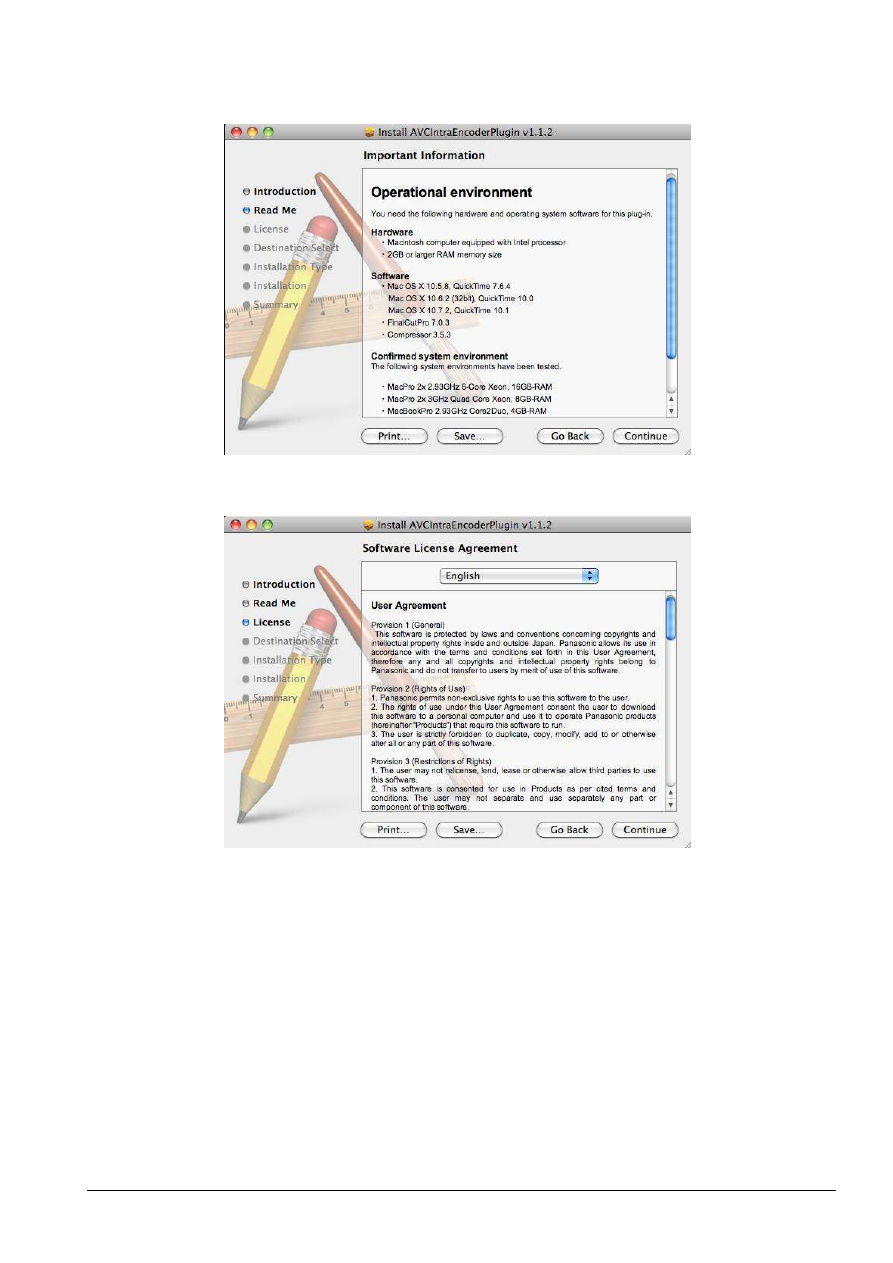
Operational environment
You need the following hardware and operation system software to use AVC-Intra Encoder
for Compressor.
Hardware
* Macintosh computer equipped with Intel processor
* 2GB or larger RAM memory size
Software
* Mac OS X 10.5.8, QuickTime 7.6.4
Mac OS X 10.6.2 (32bit), QuickTime 10.0
Mac OS X 10.7.2, QuickTime 10.1
* FinalCutPro 7.0.3
* Compressor 3.5.3
“ProApps QuickTime Codecs” Version 1.0.1 or later is required to be installed
when using with the OS X 10.7.
Normally, it is installed automatically with the update function of the OS software.
To install manually, download the file from the Apple download website and install
it.
How to confirm the installation status of the ProApps QuickTime Codecs
1. Open [Software Update] in [System Preferences].
2. A list of installed software is displayed by selecting the [Installed Software] tab.
3. It is installed already if “ProApps QuickTime Codecs” is displayed in the list.
Confirmed system environment
For details please see the Panasonic website.
<http://pro-av.panasonic.net/>

5
Software License Agreement
Provision 1 (General)
This software is protected by laws and conventions concerning copyrights and intellectual
property rights inside and outside Japan. Panasonic allows its use in accordance with the
terms and conditions set forth in this User Agreement, therefore any and all copyrights and
intellectual property rights belong to Panasonic and do not transfer to users by merit of use
of this software.
Provision 2 (Rights of Use)
1. Panasonic permits non-exclusive rights to use this software to the user.
2. The rights of use under this User Agreement consent the user to download this software
to a personal computer and use it to operate Panasonic products (hereinafter “Products”)
that require this software to run.
3. The user is strictly forbidden to duplicate, copy, modify, add to or otherwise alter all or
any part of this software.
Provision 3 (Restrictions of Rights)
1. The user may not relicense, lend, lease or otherwise allow third parties to use this
software.
2. This software is consented for use in Products as per cited terms and conditions. The
user may not separate and use separately any part or component of this software.
3. This software must not be used in acts that infringe upon the copyrights or other rights of
Panasonic or third parties.
4. The user may transfer all user rights to this software granted under this User Agreement
to a third party only as a set with the corresponding Product, on the condition that the third
party recipient agrees to the terms and conditions set forth in this User Agreement. In such
case, the original user may not retain duplicate copies of this software and must transfer the
software in its entirety (including all components, media, electronic documentation and this
User Agreement) to the third party recipient.
Provision 4 (Rights to This Software)
All copyrights and other rights to this software belong to Panasonic and/or the original
owner (same hereinafter) who granted Panasonic the right to license use of this software
under the terms and conditions of this User Agreement. The user has no other rights than
to use this software as per the terms and conditions set forth in this User Agreement.
Provision 5 (Scope of Liability)
1. Panasonic and the Original Owner do not guarantee that this software can be
successfully downloaded and installed, nor do they guarantee that the user will not
experience trouble or losses by downloading and installing this software.
2. Panasonic and the Original Owner do not guarantee that errors, bugs or other trouble will
not occur with this software, that the software will run without interruption or that use of this
software will not cause damage to the user or third parties, nor do they guarantee that this
software does not infringe on the intellectual property rights of third parties.
3. Other products, software and network services on which the operation of this software
depends (including that provided by Panasonic, the Original Owner or other third parties)

6
may be stopped or discontinued at the discretion of the product, software or network
service provider. Panasonic and the Original Owner do not guarantee that this software will
operate correctly now or in the future free of interruption of the products, software or
network services on which the operation of this software depends.
4. Any liability for losses on the part of Panasonic or the Original Owner to the user is
limited to direct, actual normal losses incurred by the user or the price that the user paid for
this software, which the user must show proof of.
Provision 6 (Copyright Protection and Updates)
1. The user must observe all laws and conventions concerning copyrights and intellectual
property rights inside and outside Japan in the use of this software.
2. The user agrees that (ⅰ) this software may be appropriately updated for the purpose of
improving security features of the software, remedy errors or improve other update
features, (ⅱ) that features of this software may be added, changed or deleted because of
updates to this software, and (ⅲ) that this User Agreement applies to updated software. In
the event of an update, the user may obtain the updated software by the means and within
the time period specified separately by Panasonic.
Provision 7 (Cancellation of Agreement)
1. Panasonic may promptly cancel this User Agreement in the event that the user violates
any of the terms or conditions set forth herein.
2. In the event that this User Agreement is canceled as per the preceding paragraph, the
user must either discard or return to Panasonic all related software within two weeks of the
date of cancellation. If the user discards this software, the user must promptly provide
Panasonic written notification evident to that effect.
3. Notwithstanding the cancellation of this User Agreement as per the stipulations of
Provision 7-1 above, Provisions 4, 5, 7-2, 7-3, 8-1, and 8-3 to 8-5 shall remain in effect.
Provision 8 (Other)
1. This User Agreement is governed by the laws of Japan.
2. If the user takes this software out to foreign countries, the user must use it in compliance
with applicable conventions, laws, export control regulations and orders.
3. Any and all disputes concerning this software shall be heard by the local district court or
the nearest successor summary court of exclusive jurisdiction over the location of
Panasonic’s headquarters.
4. If any of the provisions of this User Agreement is nullified by law, that provision shall
remain in effect within the scope recognized by law.
5. The user and Panasonic shall discuss and resolve in good faith any matters not
contained in this User Agreement and any doubts on the interpretation of this User
Agreement.
7
Setup
How to install
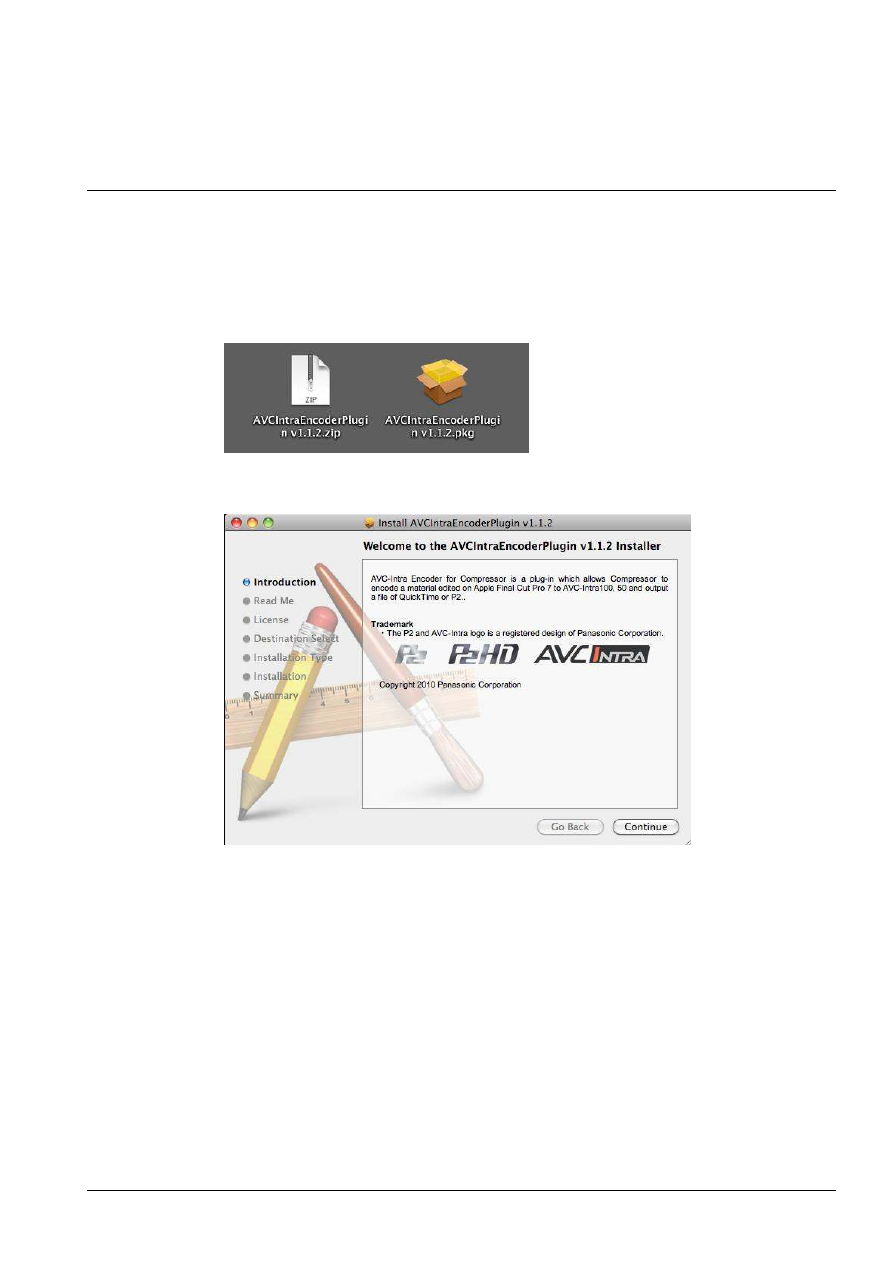
1. The downloaded AVCIntraEncoderPlugin v*.*.*.zip file is double-clicked and it
expanded. The expanded installer is displayed as shown in the figure below as AVC-
Intra Encoder Plugin v*.*.* (It might be displayed as AVCIntraEncoderPlugin v*.*.*.pkg).
The installer starts when this icon is double-clicked.
2. Click [Continue] after appearing the following screen for explanation of installation.
8
3. Click [Continue] after appearing the following screen for important information.
4. Click [Continue] after appearing the following screen for licensing.
9
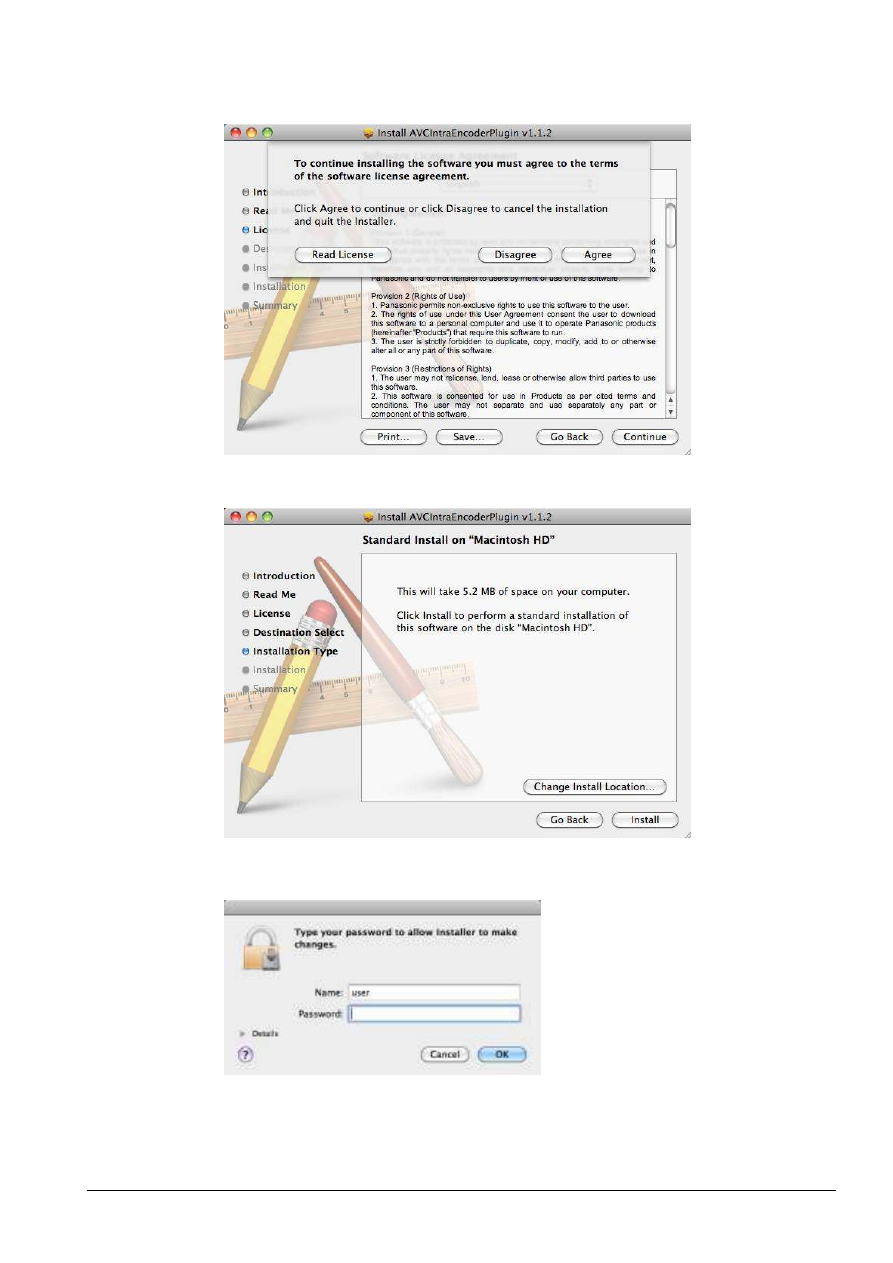
5. Click [Agree] after appearing the following screen for confirming.
6. Click [Install] after appearing the following screen for starting.
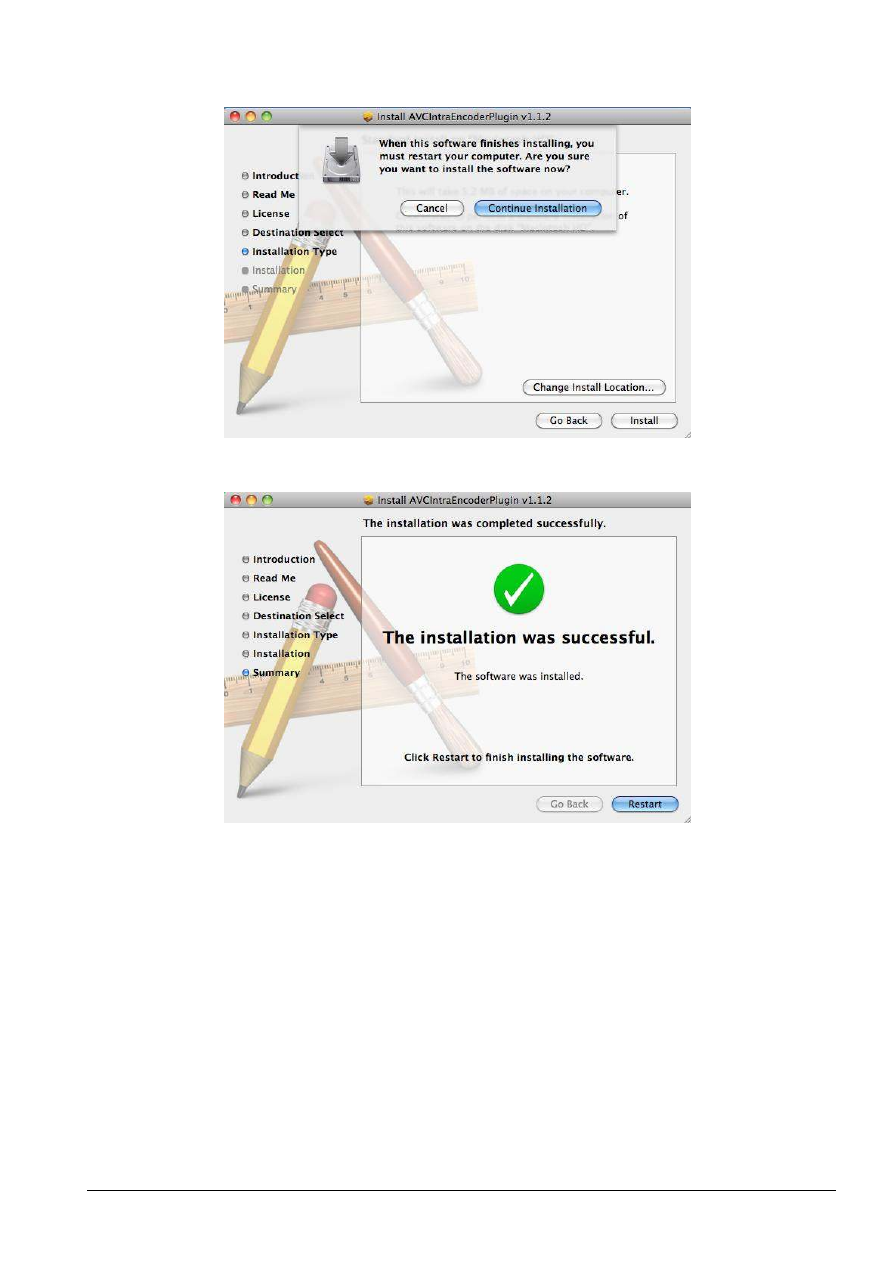
7. Click [OK] after appearing inputting the administrator password.
10
8. Click [Continue Installation] after appearing the following screen for confirming.
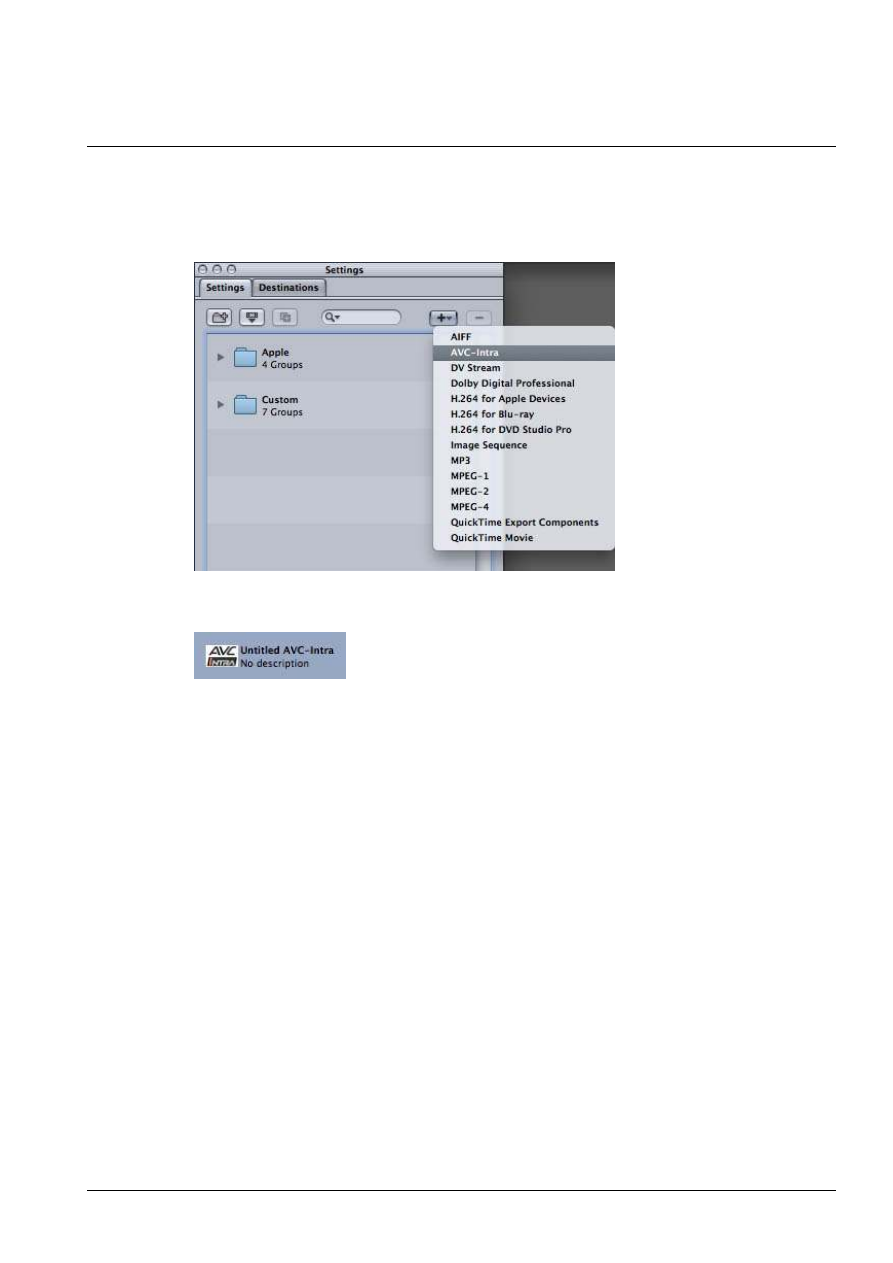
9. Click [Restart] after finishing the installation.
11
How to configure settings
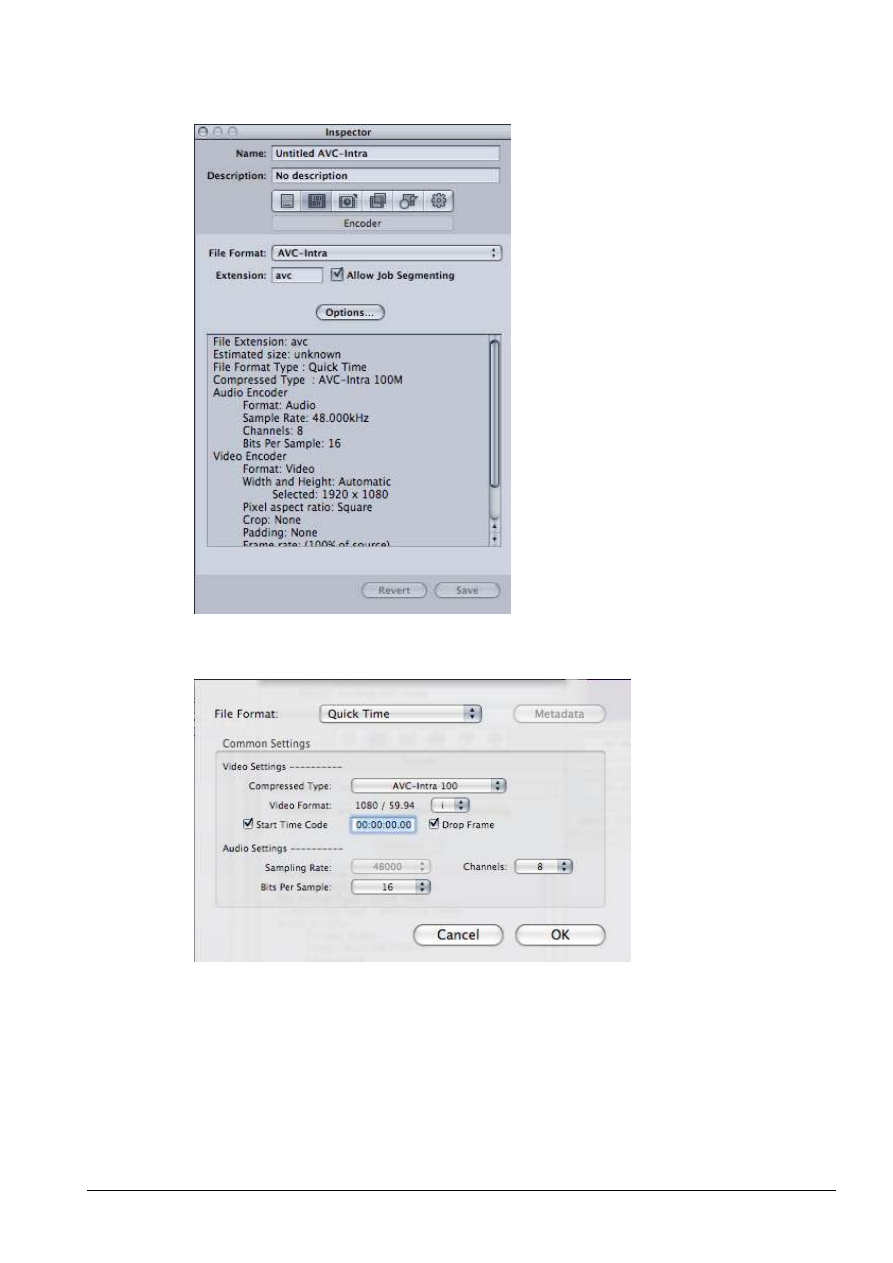
Click [+] (Create a new setting) button on Settings window of Compressor and select [AVC-
Intra] to create an AVC-Intra encoder setting.
The following icon is created.
You can configure each setting of AVC-Intra encoder on Compressor.
<Note for conversion>
This AVC-Intra Encoder plug-in software does not input standard-definition TV format
(NTSC/PAL) to transcode. Also it does not convert HD TV format between 1080i,p and
720p. In the case of unsupported video format, a warning message occurs. Multiple
windows of warning message might be displayed.
This AVC-Intra Encoder plug-in software inputs only QuickTime file format.
While Extension is described as avc on Inspector, the actual exported QuickTime file
extension is mov, and Panasonic P2 eport is compliant with P2 specification.
Please make sure that there are no overlapped file names on a job. If there is the same file
name in the target drive, a file might not be output.
12
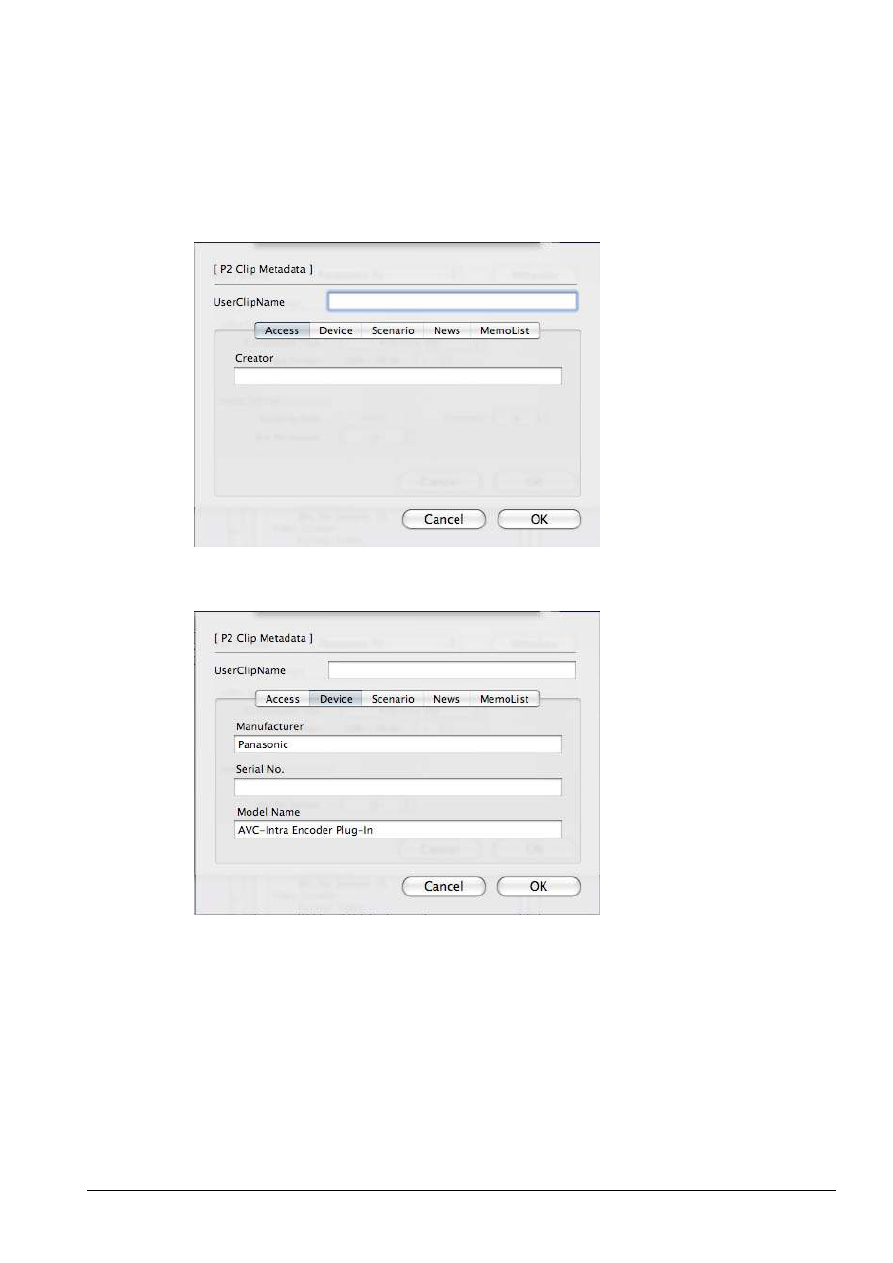
Click [Option] on Encoder window of Inspector to change settings.
The following window is open.
Each item of settings on this window is described below.

13
File Format : Select file format.
Panasonic P2
Quick Time
Quick Time (type.H)
In the case of selecting Panasonic P2, 4GB spanned clip in a P2 card is supported, but
spanned clip with multiple cards is not supported.
Quick Time (type.H) is for specific server products, and requires temporary free space
on a system drive to export a file.
Please see our support page at the following website for the information of supported
server products.
https://eww.pavc.panasonic.co.jp/pro-av/
Video Settings :
Compressed Type : Select video compression format.
AVC-Intra 100
AVC-Intra 50
Video Format : Select interlace or progressive in the case of 1080 format.
i : Interlace
p : Progressive
Video Format display is not updated while this setting window is open.
Start Time Code : Set start timecode for output.
[v] : Setting start timecode is enabled if this item is checked.
[ ] : Tmecode of input material is used if this item is not checked.
Drop Frame : Select drop frame mode (for 59.94, 29.97Hz system only).
[v] : Drop frame is set if this item is check.
[ ] : Non drop frame is set if this item is not checked.
Audio Settings :
Sampling Rate : Audio sampling rate is fixed to 48KHz.
Channels : Select the number of audio channels.
2
4
6
8
When Compressor is launched from FinalCutPro and the number of output audio
channel setting is smaller than the input, each output audio channel is a mix of all
channels of input material.
When Panasonic P2 is selected for File Format, 2, 4 or 8 is selectable.
Bit Per Sample : Select the number of audio sampling bit.
16
24
Only 16 bit is available when Panasonic P2 is selected for File Format.
14
Metadata :
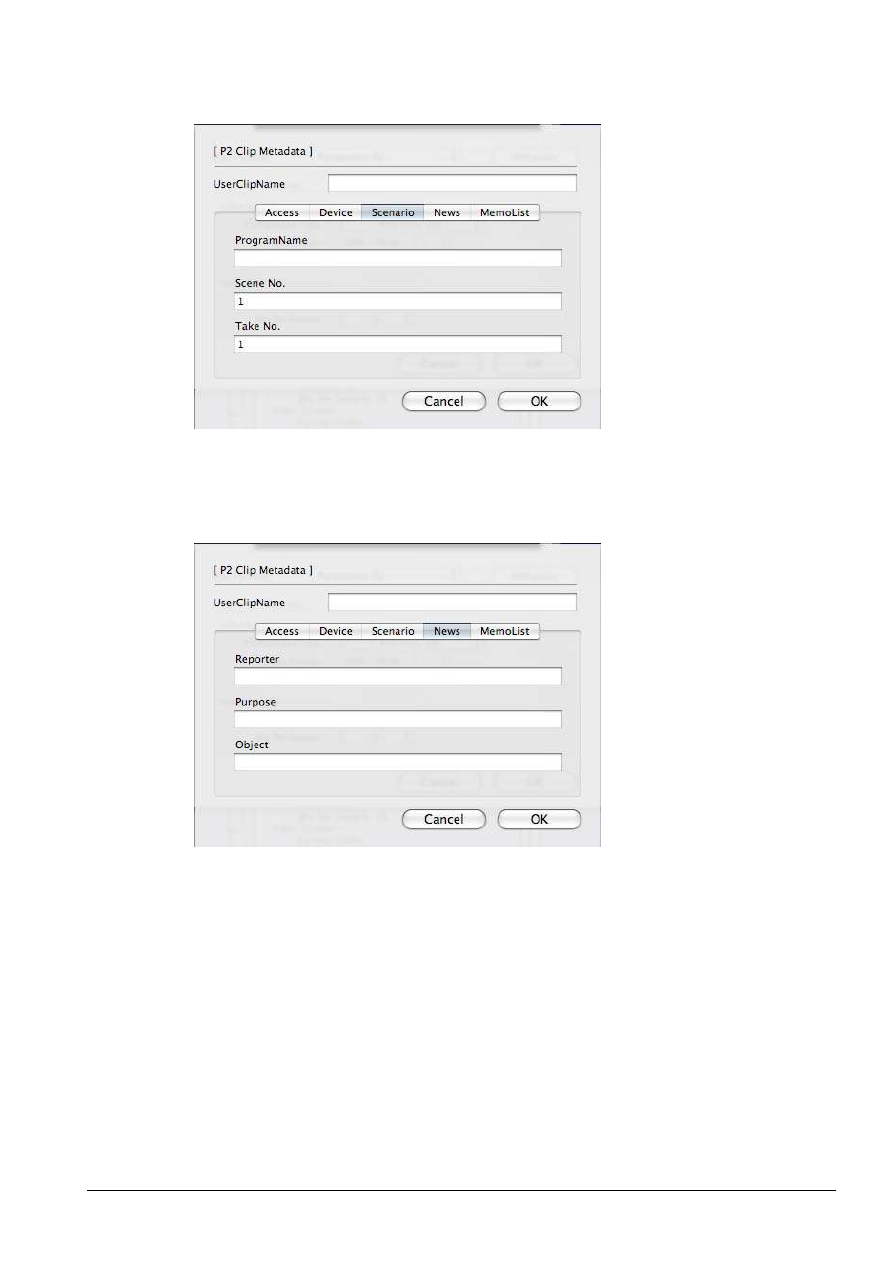
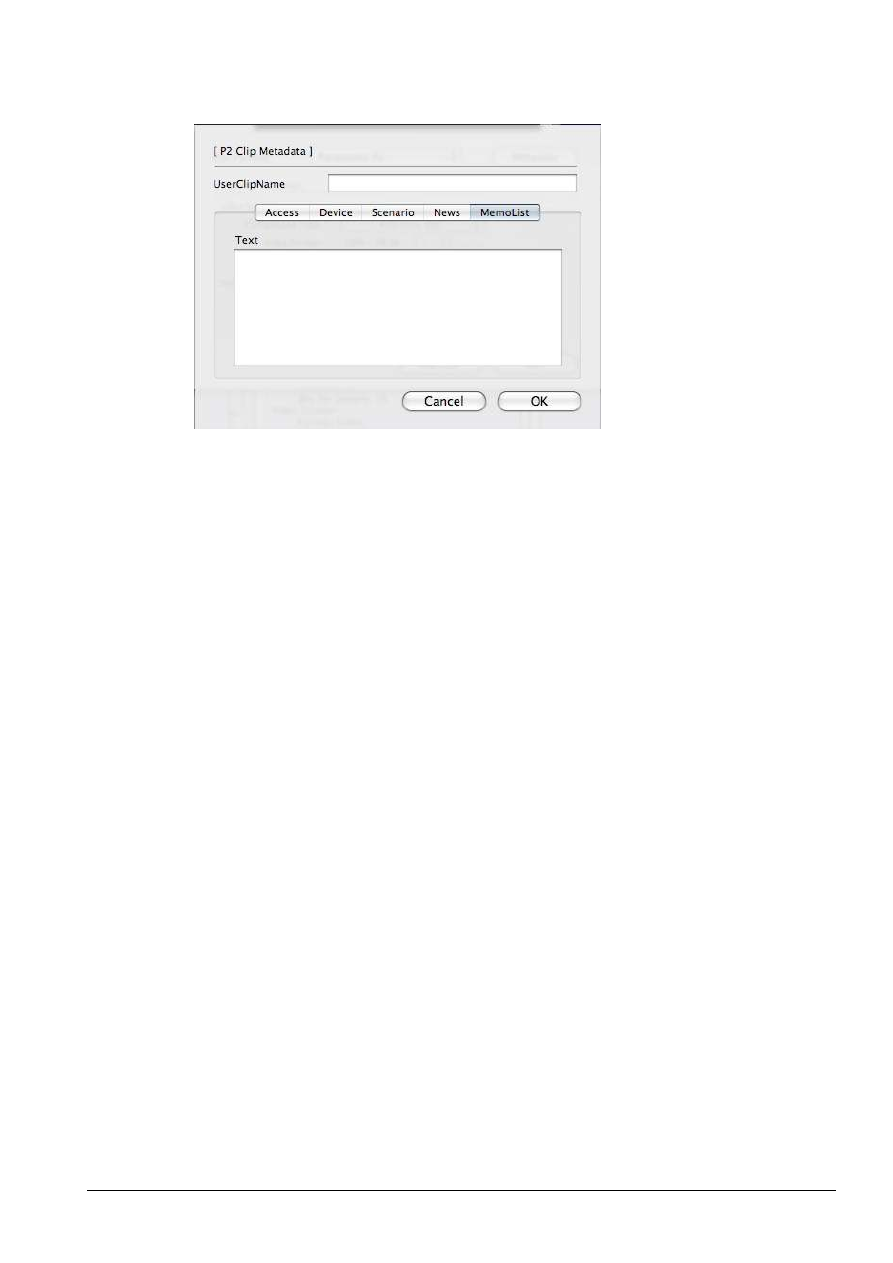
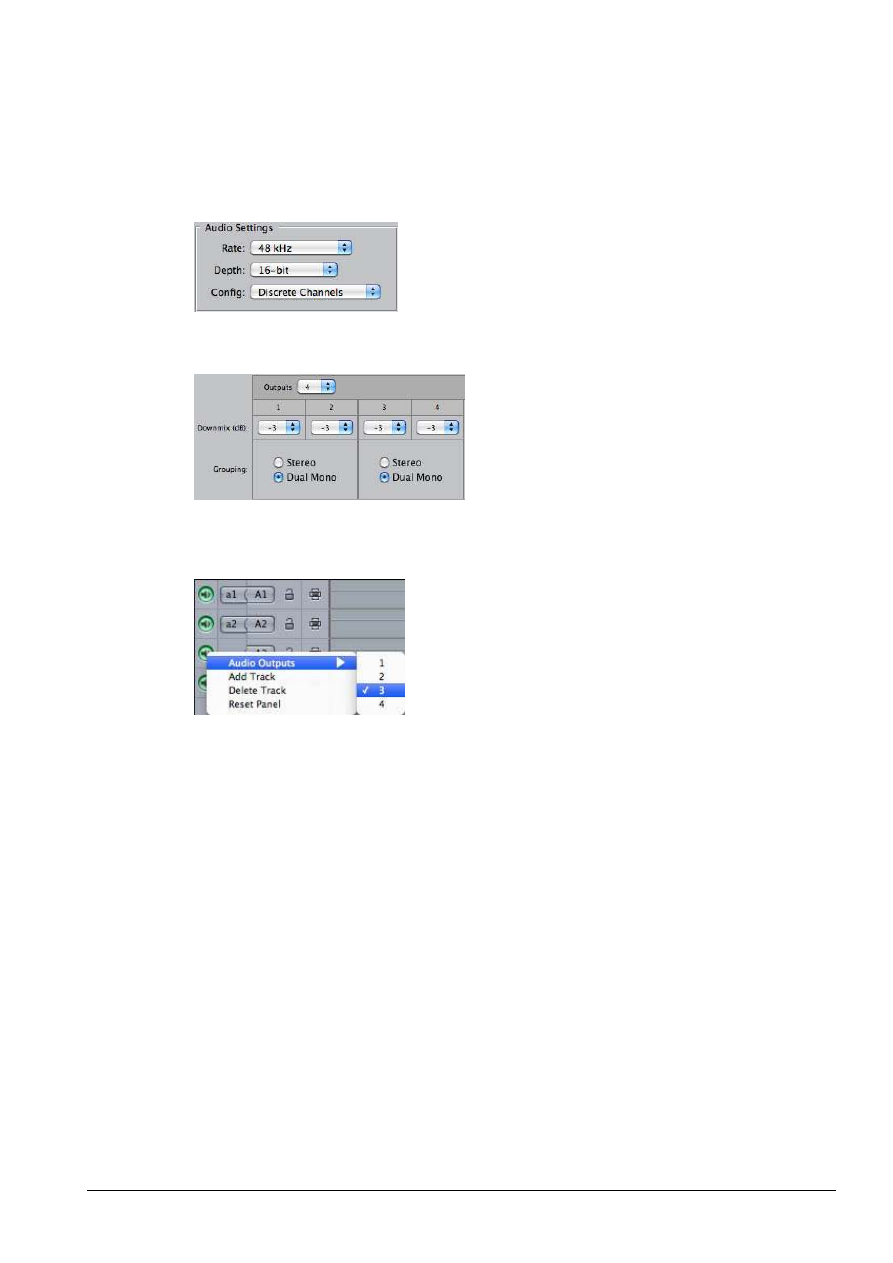
When Panasonic P2 is selected for File Format, you can specify P2 metadata items as you
choose on the setting window opened by clicking [Metadata].
Each item of P2 metadata is
described below. Please note that if the number of input characters exceeds the each limit,
a warning message occurs.
Access
Device
Max. 100 characters
Max. 30 characters
Max. 30 characters
Max. 30 characters
Max. 20 characters
15
Scenario
Scene No. and Take No. are not exported as metadata unless ProgramName is specified.
News
Max. 100 characters
1 to 4294967295
Max. 30 characters
Max. 100 characters
Max. 100 characters
1 to 4294967295
16
MemoList
Max. 1000 characters
17
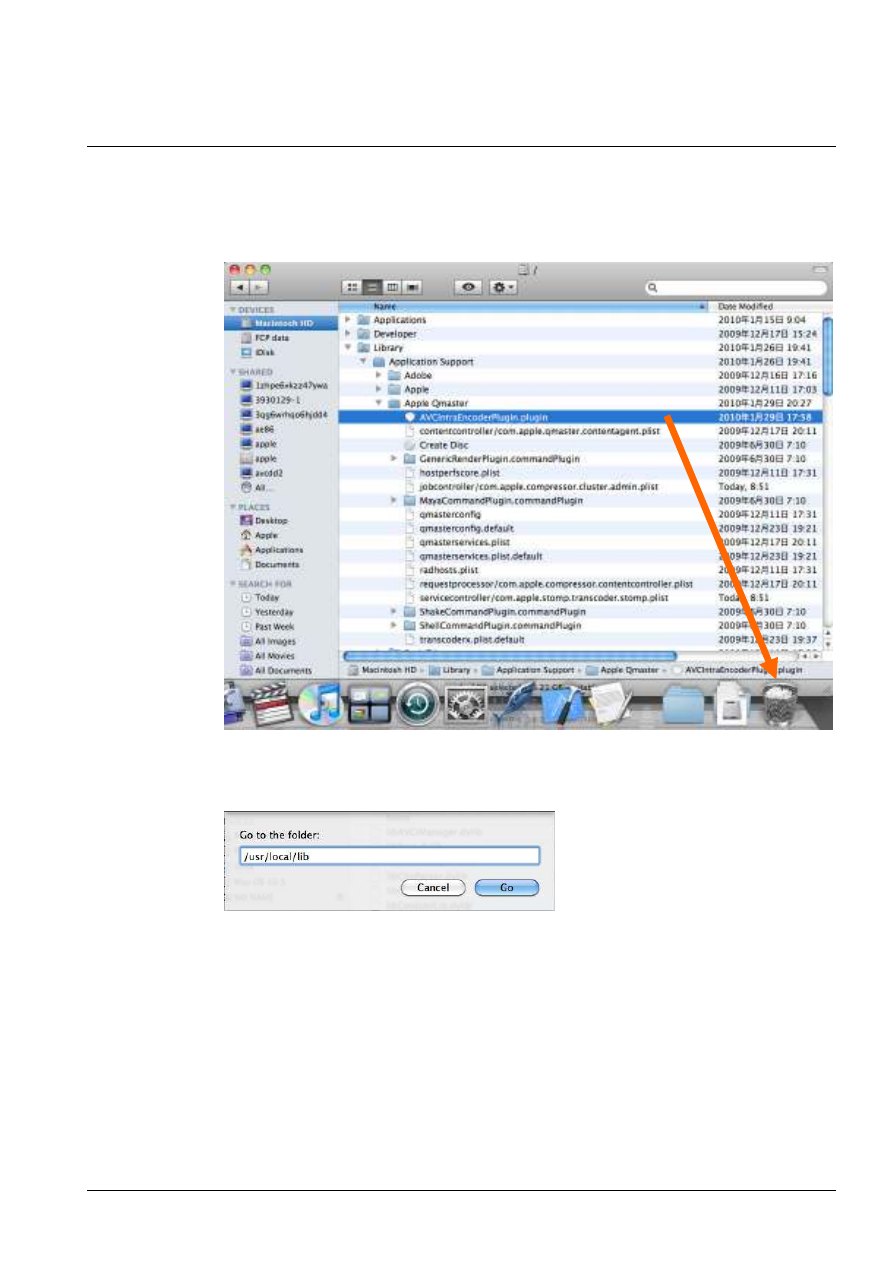
< Settings on FinalCutPro >
The following sequence settings on FinalCutPro are recommended to input the edited
material to AVC-Intra Encoder for Compressor.
Select Discrete Channels for Config of Audio Settings.
Select Dual Mono for Grouping of Audio Outputs
Make sure each audio output channel assignment on a sequence. These assign each AVC-
Intra audio channel to export.
18
How to uninstall
1. Drug AVCIntraEncoderPlugin.plugin in [Library] – [Application Support] – [Apple
Qmaster] in system volume (Macintosh HD usually) and drop it into the trash box.
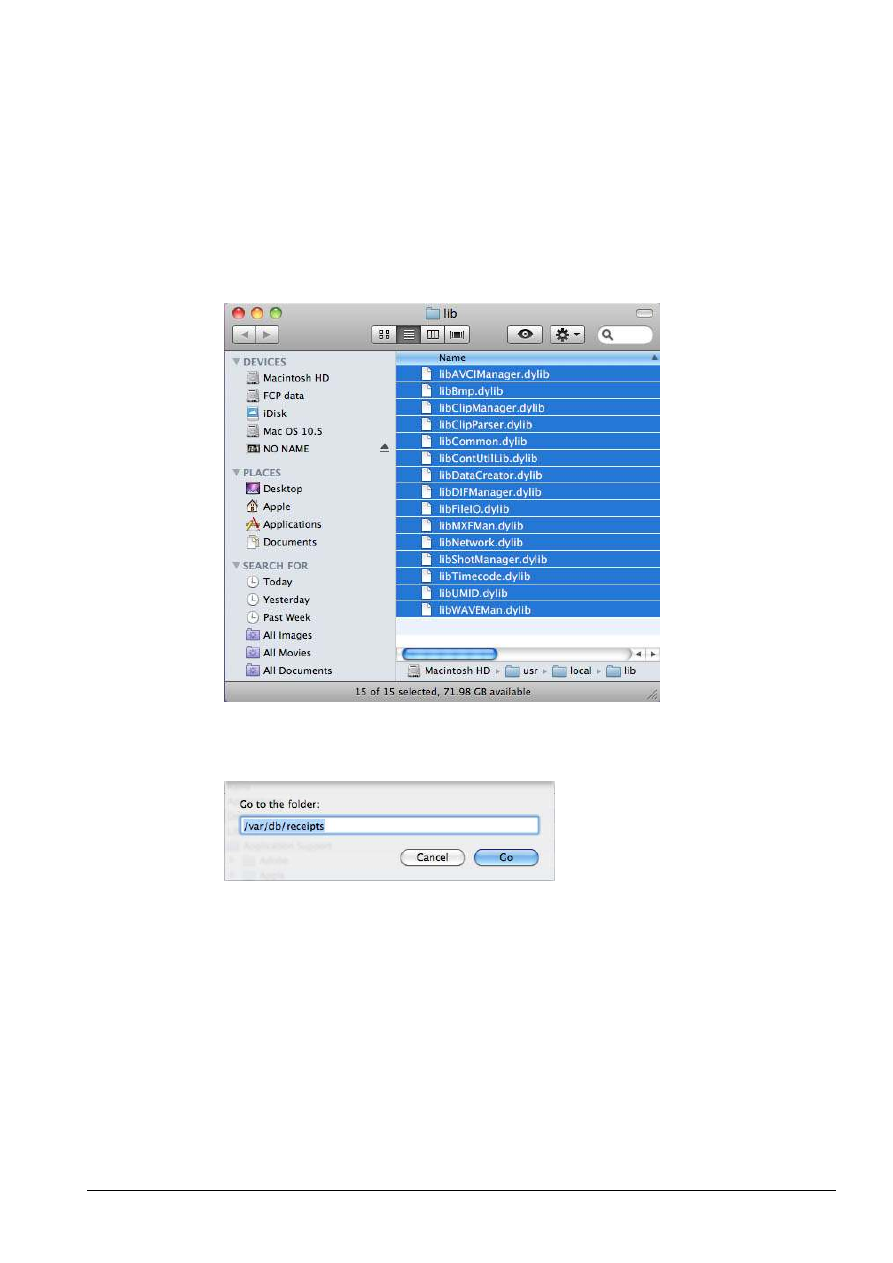
2. Choose [Go] – [Go to Folder] from menu, Click Go button after input “/usr/local/lib” in
the text-box.
3. Drug the following files and drop these into the trash box.
libAVCIManager.dylib
libBmp.dylib
libClipManager.dylib
libClipParser.dylib
libCommon.dylib
libContUtilLib.dylib
libDataCreator.dylib
19
libDIFManager.dylib
libFileIO.dylib
libMXFMan.dylib
libNetwork.dylib
libShotManager.dylib
libTimecode.dylib
libUMID.dylib
libWAVEMan.dylib
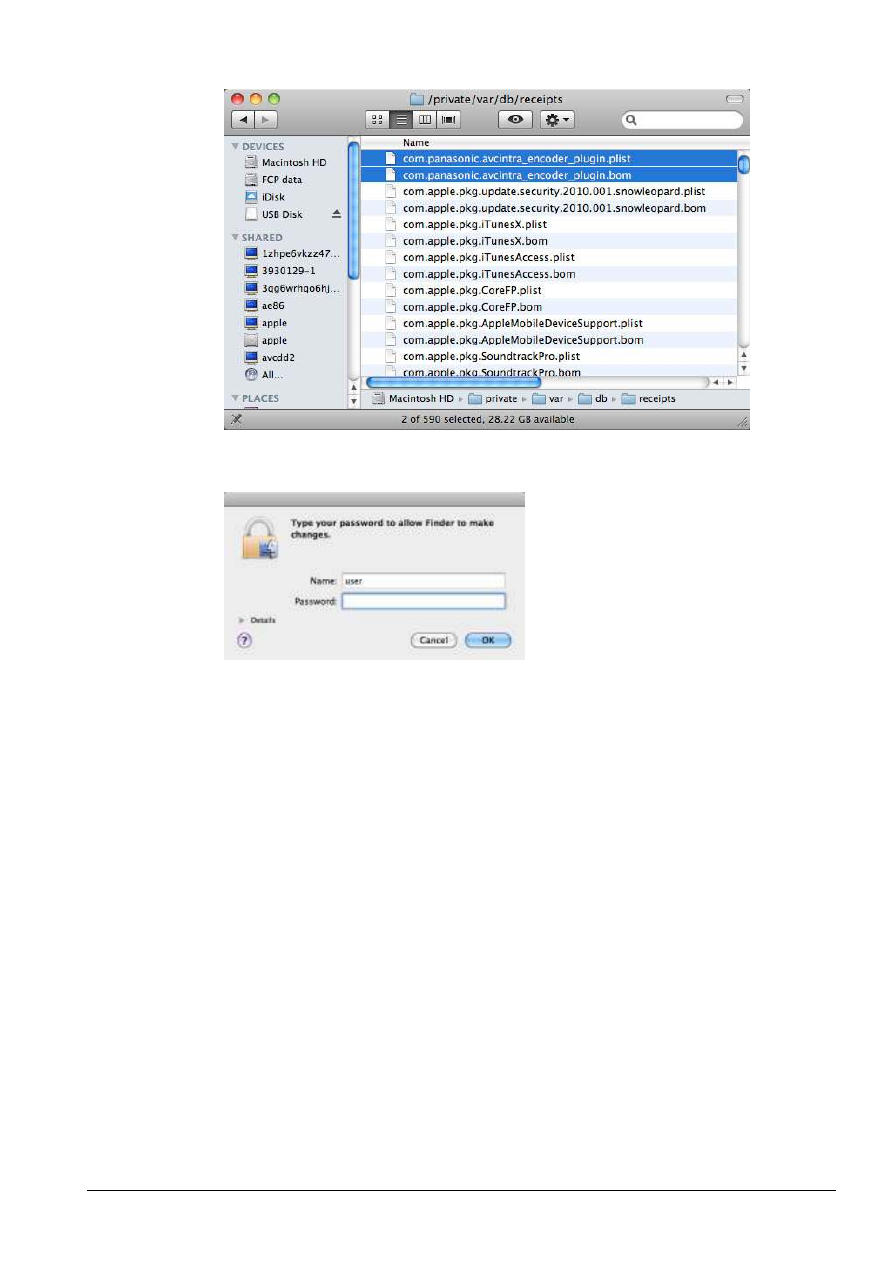
4. Choose [Go] – [Go to Folder] from menu, Click Go button after input “/var/db/receipts”
in the text-box. (on Mac OS X 10.6.2 Snow Leopard or 10.7.2 Lion)
5. Drug com.panasonic.avcintra_encoder_plugin.bom and
com.panasonic.avcintra_encoder_plugin.plist and drop these into the trash box.
20
4. Click [OK] after inputting the administrator password.
Drug AVCIntraEncoderPlugin v*.*.*.pkg in [Library] – [Receipts] in system volume
(Macintosh HD usually) and drop it into the trash box on Mac OS X 10.5.8 Leopard.

21
Web Site:http://panasonic.net
© Panasonic Corporation 2011
Wyszukiwarka
Podobne podstrony:
Installation Manual ENGLISH 2GEN, Vers 1 2
31 Service Manual Installation manual for digital TV tuner
Installer For WindowsVista Operation Manual
DEH P7400MP installation manual EN FR DE NL IT ESpdf
can blocker eis install manual
Install Manual
CBR600 F4i 01 03 Service Manual English
bmw canemu instalation manual
KPRE cerq manual english pdf id 741579
Manual English
USB driver install manual
pl LabVIEW Installation Manual
Manual English
Manual English
DEH P7400MP installation manual EN FR DE NL IT ESpdf
Navibe GB732 GB233 GB633 manual English
truck adblue emulator for man user manual
2 Good Practices for meat industry Manual
SCUBAPRO Dry Suit Manual [english, spanish, german, french]
więcej podobnych podstron