
1
SharePoint Server 2016
Quick Start Guide for Single Server Farms

© 2016 Microsoft Corporation. All rights reserved.
This document is provided “as-is.” Information and
views expressed in this document, including URL
and other Internet Web site references, may change
without notice. You bear the risk of using it. Some
examples are for illustration only and are fictitious.
No real association is intended or inferred. This
document does not provide you with any legal rights
to any intellectual property in any Microsoft product.
You may copy and use this document for your
internal, reference purposes.

This quick start guide provides an overview of SharePoint Server
2016 requirements and installation to support Single Server Farm
installations for evaluation purposes.
Overview

Table of contents
Hardware and software requirements
3
Prerequisites
5
Installation
7
SharePoint Products and Configuration Wizard
9
Farm Configuration Wizard
10
Upgrade
11

3
Hardware and software
requirements
The values in the following table are minimum values for
installations on a single server and for web, application, and cache
servers that are running SharePoint Server 2016 in a multiple server
farm installation.
For all installation scenarios, you must have sufficient hard disk
space for the base installation and sufficient space for diagnostics
such as logging, debugging, creating memory dumps, and so on.
For production use, you must also have additional free disk space
for day-to-day operations. In addition, maintain two times as much
free space as you have RAM for production environments.
Hard disk
RAM
Processor
Deployment type and scale
Scenario
Database server
running a single
SQL instance
Database server
running a single
SQL instance
Development or
evaluation installation
with the minimum
recommended services
Pilot, user acceptance
test running all available
services
64-bit, 4 cores
64-bit, 4 cores
12-16 GB
16-24 GB
80 GB for system drive
100 GB for second drive
80 GB for system drive
100 GB for second drive and
additional drives
NOTE
Hard disk space and number of drives depends on the amount
of content and the way you choose to distribute data for a
SharePoint environment.

4
Operating system requirements
SharePoint Server 2016 is supported on Windows Server 2012 R2
and the Windows Server Technical Preview "Threshold". You can
download evaluation copies of both operating systems from the
TechNet Evaluation Center.
Windows Server 2012 R2
http://www.microsoft.com/en-us/evalcenter/evaluate-windows-
server-2012-r2
Windows Server Technical Preview
http://www.microsoft.com/en-us/evalcenter/evaluate-windows-
server-technical-preview
SharePoint database server
Requirements
SharePoint Server 2016 is supported SQL Server 2014 and SQL
Server 2016. You can download evaluation copies of both database
servers from the TechNet Evaluation Center.
SQL Server from the TechNet Evaluation Center at
http://www.
microsoft.com/en-us/evalcenter/evaluate-sql-server-2014.
.NET Framework requirement
The required version of .NET Framework is different for Windows
Server 2012 R2 and Windows Server Technical Preview “Threshold”.
Windows Server 2012 R2: SharePoint 16 requires .NET
Framework 4.5.2
Windows Server Technical Preview “Threshold”: SharePoint 16
requires .NET Framework 4.6 Preview, which comes with Windows
Server Technical Preview “Threshold”.
NOTE
Starting January 13, 2016, .NET Framework 4.5.2 will be the
minimum version of .NET Framework 4.x supported by Microsoft.
See the Microsoft .NET Framework Support Lifecycle Policy
FAQ at
http://support.microsoft.com/gp/Framework_FAQ
for
more information.
Hardware and software
requirements
5
Prerequisites
SharePoint Server 2016 prerequisites are similar to those required to
install SharePoint Server 2013 and can be installed manually or with
the Prerequisite Installer:
All the required prerequisites are installed by the SharePoint
Prerequisite installer.
The SharePoint Server 2016 Prerequisite Installer
(prerequisiteinstaller.exe) installs the following software, if it has
not already been installed on the target server:
Application Server Role, Web Server (IIS) Role.
You can enable
the Web Server (IIS) role and the Application Server role in Server
Manager. However, if the server is not connected to the Internet,
the
http://support.microsoft.com/en-us/kb/2765260
article has
an Offline method that explains how to use several Window
PowerShell cmdlets to add and enable these roles.
Microsoft SQL Server 2012 Native Client.
Installs with the
Microsoft SQL Server 2012 Feature Pack
[http://www.microsoft.com/
en-us/download/details.aspx?id=29065]
The Microsoft SQL Server 2012 Feature Pack is a collection of stand-
alone packages which provide additional value for Microsoft SQL
Server 2012. It includes the latest versions of:
Tool and components for Microsoft SQL Server 2012
Add-on providers for Microsoft SQL Server 2012
Microsoft ODBC Driver 11 for SQL Server
[http://www.microsoft.
com/en-us/download/details.aspx?id=36434]
Microsoft ODBC Driver 11 for SQL Server is a single dynamic-link
library (DLL) containing run-time support for applications using
native-code APIs to connect to Microsoft SQL Server 2005, 2008,
2008 R2, SQL Server 2012, SQL Server 2014, and Windows Azure SQL
Database. This redistributable installer for Microsoft ODBC Driver
11 for SQL Server installs the client components needed during
run time to take advantage of new SQL Server 2012 features, and
optionally installs the header files needed to develop an application
that uses the ODBC API.
Microsoft Sync Framework Runtime v1.0 SP1 (x64)
[http://www.
microsoft.com/en-us/download/details.aspx?id=17616]
Microsoft Sync Framework is a comprehensive synchronization
platform that enables collaboration and offline scenarios
for applications, services, and devices. Developers can build
synchronization ecosystems that integrate any application and
any type of data, using any protocol over any network. This service
pack is intended to fix a handful of bugs as well as to transition to
a public-facing change tracking API that is new in SQL Compact 3.5
SP2.
Windows Server AppFabric 1.1
[http://www.microsoft.com/en-us/
download/details.aspx?id=27115]
AppFabric is a set of integrated technologies that make it easier to
build, scale, and manage web and composite applications that run
on IIS. AppFabric targets applications built using ASP.NET, Windows
Communication Foundation (WCF), and Windows Workflow
Foundation (WF).
It provides out-of-the-box capabilities for you to easily build and
manage composite applications, including:
Enhanced design and development tools in Visual Studio to build
rich composite applications
Management and monitoring of services and workflows via
integration with IIS Manager and Windows PowerShell
Distributed in-memory application cache to improve application
performance
Cumulative Update Package 1 for Microsoft AppFabric 1.1 for
Windows Server (KB2671763)
[http://support.microsoft.com/en-
us/kb/2671763]
This hotfix package resolves several issues and adds several
features that are described at
https://support.microsoft.com/en-us/
kb/2671763.
6
Microsoft Identity Extensions
[http://www.microsoft.com/en-us/
download/details.aspx?id=15373]
Microsoft Federation Extensions for SharePoint 3.0 enables
interoperable federated access to SharePoint 3.0 sites using the
WS-Federation standard. It is built using the Windows Identity
Foundation and supports use of ADFS 2.0 as an identity provider.
Microsoft Information Protection and Control Client
[http://
go.microsoft.com/fwlink/?LinkID=528177]
The Active Directory Rights Management Services (AD RMS) Client
2.x is software designed for your computers to help protect access
to and usage of information flowing through applications that use
AD RMS.
Microsoft WCF Data Services 5.0
[http://www.microsoft.com/en-
us/download/details.aspx?id=29306]
WCF Data Services 5.0 enables creation and consumption of
data services for the Web according to version 3 of the Open
Data Protocol (OData), which facilitates data access and change
via standard HTTP verbs. WCF Data Services 5.0 includes .NET
Framework server and client libraries as well as Silverlight client
libraries.
Microsoft WCF Data Services 5.6
[http://www.microsoft.com/en-
us/download/details.aspx?id=45308]
This installer will update the NuGet packages referenced by the
WCF Data Services item templates to version 5.6.3. This installer
also makes the code generation (the “Add Service Reference”) for
consuming OData V3 endpoints available for all current and future
.Net 4.5.X versions.
Microsoft .NET Framework 4.5.2
[http://support.microsoft.com/
en-us/kb/2934520]
The Microsoft .NET Framework 4.5.2 is a highly compatible, in-place
update to the .NET Framework 4.5.1, the .NET Framework 4.5, and
the .NET Framework 4. However, it can run side by side with the
.NET Framework 3.5 Service Pack 1 (SP1) and earlier versions of the
.NET Framework.
The .NET Framework 4.5.2 for Windows 8.1, Windows RT 8.1, and
Windows Server 2012 R2 is available on Windows Update and on
Windows Server Update Service (WSUS).
Update for Microsoft .NET Framework to disable RC4 in
Transport Layer Security (KB2898850)
[http://www.microsoft.
com/en-us/download/details.aspx?id=42883]
Resolved a security issue that has been identified that could allow
an unauthenticated remote attacker to compromise a system and
gain access to information.
Visual C++ Redistributable Package for Visual Studio
2013
[http://www.microsoft.com/en-us/download/details.
aspx?id=40784]
The Visual C++ Redistributable Packages install run-time
components that are required to run applications that are
developed by using Visual Studio 2013, on computers that don’t
have Visual Studio 2013 installed. These packages install run-time
components of these libraries: C Runtime (CRT), Standard C++, ATL,
MFC, C++ AMP, and OpenMP.
The prerequisite installer creates log files at %TEMP%\
prerequisiteinstaller.<date>.<time>.log. You can check these log
files for specific details about all changes the installer makes to the
target computer.
In scenarios where installing prerequisites directly from the Internet
is not possible, you can download the prerequisites and then install
them from a network share. For more information, see
Install
prerequisites for SharePoint 2013 from a network share.
Prerequisites
7
Installation
1.
Verify that the user account that is performing this procedure
is the Setup user account. For information about the Setup
user account, see
Initial deployment administrative and service
accounts in SharePoint 2013.
2. On the
SharePoint 2016 Start
page, click
Install SharePoint
Server.
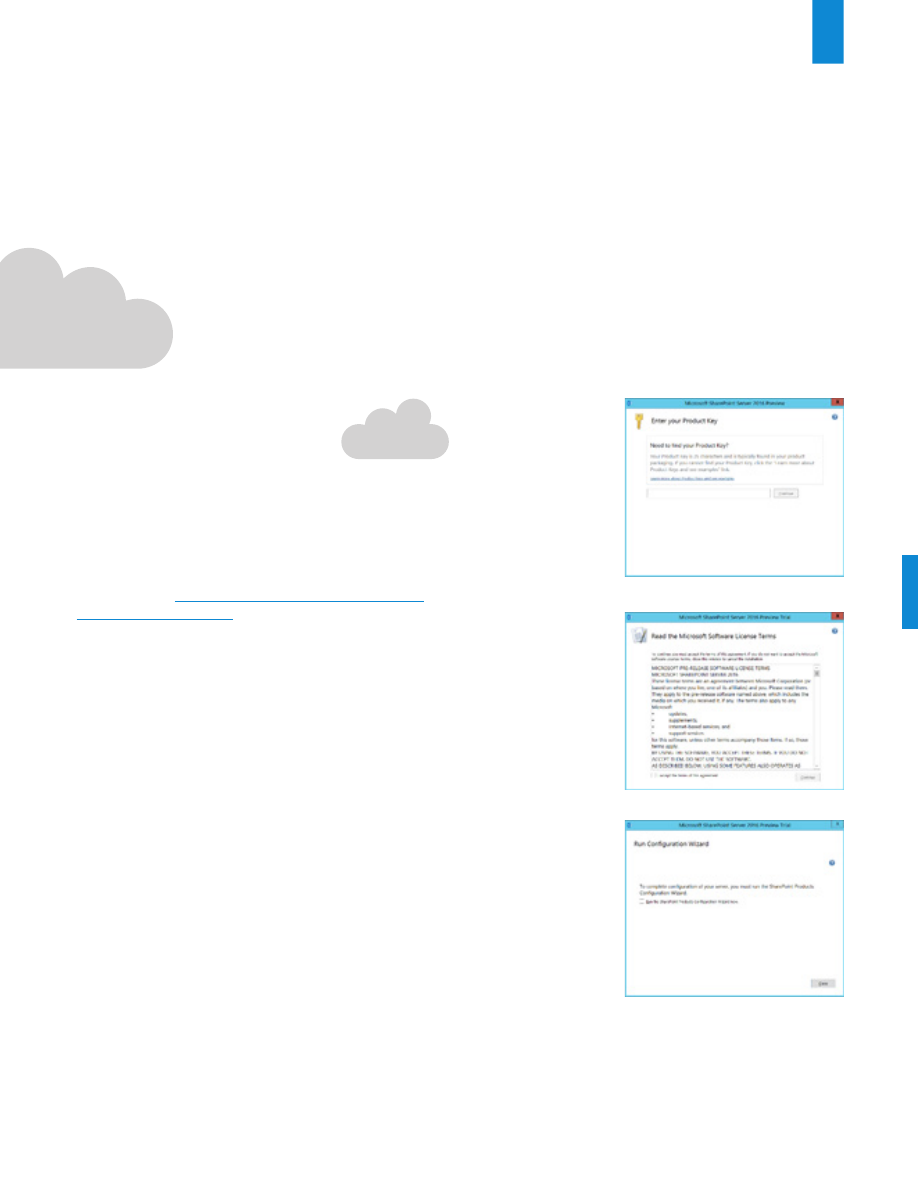
3. On the
Enter Your Product Key
page, enter the evaluation
product key
[RTNGH-MQRV6-M3BWQ-DB748-VH7DM]
, and
then click
Continue
.
NOTE
The evaluation product key is valid for 180 days.
4. On the
Read the Microsoft Software License Terms
page,
review the terms, select the
I accept the terms of this
agreement
check box, and then click
Continue.
5. On the
Server Type
tab, click
Complete.
6. When Setup finishes, a dialog box prompts you to complete
the configuration of your server. Ensure that the
Run the
SharePoint Products Configuration Wizard now
check box
is selected.
7. Click
Close
to start the configuration wizard.
3.
4.
5-6.

8
1.
Verify that the user account that is performing this procedure
is the Setup user account. For information about the Setup
user account, see
Initial deployment administrative and service
accounts in SharePoint 2013.
2. If you have closed the SharePoint Products Configuration
Wizard, click
Start
, point to
All Programs
, click
SharePoint
2016 Products
, and then click S
harePoint 2016 Products
Configuration Wizard
. If the
User Account Control
dialog
box appears, click
Continue
.
3. On the
Welcome to SharePoint Products
page, click
Next
.
4. In the dialog box that notifies you that some services might
have to be restarted during configuration, click
Yes.
5. On the
Connect to a server farm
page, click
Create a new
server farm
, and then click
Next.
6. On the
Specify Configuration Database Settings
page, do
the following:
a)
In the
Database server
box, type the name of the
computer that is running SQL Server.
b)
In the
Database name
box, type a name for your
configuration database or use the default database name.
The default name is SharePoint_Config.
c)
In the
Username box
, type the user name of the server
farm account. Ensure that you type the user name in the
format DOMAIN\user name.
d)
In the
Password box
, type the user password.
7. Click
Next.
8. On the
Specify Farm Security Settings
page, type a
passphrase, and then click
Next
.
Although a passphrase resembles a password, it is usually
longer to improve security. It is used to encrypt credentials
of accounts that are registered in SharePoint Server 2016. For
example, the SharePoint Server 2016 system account that you
provide when you run the SharePoint Products Configuration
Wizard.
Ensure that you remember the passphrase because you must
use it every time that you add a server to the farm.
• Ensure that the passphrase meets the following criteria:
• Contains at least eight characters
• Contains at least three of the following four
character groups:
• English uppercase characters (from A through Z)
• English lowercase characters (from a through z)
• Numerals (from 0 through 9)
• Nonalphabetic characters (such as !, $, #, %)
9. On the
Specify Server Role
page, do the following:
a)
Select
Single Server Farm
from the list of available
options. This role is suitable for evaluation environments
and installs all service applications, services, and
components required for a single-machine farm.
Server roles are a new installation feature of SharePoint Server
2016 that provides a set of optimized roles for provisioning a
SharePoint environment.
10. On the
Configure SharePoint Central Administration Web
Application
page, do the following:
a)
Either select the
Specify port number
check box
and type the port number that you want the SharePoint
Central Administration web application to use, or leave the
Specify port number
check box cleared if you want to use
the default port number.
b)
Click either
NTLM
or
Negotiate (Kerberos)
.
11. Click
Next.
12. After you complete the
SharePoint Products Configuration
Wizard
page, review your configuration settings to verify that
they are correct, and then click
Next
.
13. On the
Configuration Successful
page, click
Finish.
When
the wizard closes, setup opens the web browser and connects
to Central Administration.
SharePoint
Products and
Configuration
Wizard
To complete the configuration of the SharePoint Server 2016, run
the SharePoint Products and Technologies Configuration Wizard.

9
SharePoint
Products and
Configuration
Wizard
14. If the SharePoint Products Configuration Wizard fails, check
the PSCDiagnostics log files, which are located on the
drive on which SharePoint Server 2016 is installed, in the
%COMMONPROGRAMFILES%\Microsoft Shared\Web Server
Extensions\16\LOGS folder.
If you are prompted for your user name and password, you
might have to add the SharePoint Central Administration
website to the list of trusted sites and configure user
authentication settings in Internet Explorer. You might also
want to disable the Internet Explorer Enhanced Security
settings. If you see a proxy server error message, you might
have to configure proxy server settings so that local addresses
bypass the proxy server. Instructions for configuring proxy
server settings are provided in the following section. For
more information about how to configure browser and proxy
settings, see Configure browser settings.

10
Farm Configuration Wizard
1.
Verify that the user account that is performing this procedure
is the Setup user account. For information about the Setup
user account, see
Initial deployment administrative and service
accounts in SharePoint 2013.
2. On the SharePoint Central Administration home page, on the
Quick Launch
, click
Configuration Wizards
, and then click
Launch the Farm Configuration Wizard.
3. On the
Help Make SharePoint Better
page, click one of the
following options, and then click
OK:
•
Yes, I am willing to participate (Recommended.)
•
No, I don’t want to participate.
4. On the
Configure your SharePoint farm
page, next to
Yes,
walk me through the configuration of my farm using this
wizard
, click
Start the Wizard.
5. On the
Configure your SharePoint farm
page, in the
Service
Account
section, click the service account option that you
want to use to configure your services.
6. In the
Services
section, review the services that you want to
use in the farm, and then click
Next.
7. On the
Create Site Collection
page, do the following:
a)
In the
Title and Description
section, in the
Title
box,
type the name of your new site.
b)
Optional: In the
Description
box, type a description of
what the site contains.
c)
In the
Web Site Address
section, select a URL path for the
site.
d)
In the
Template Selection
section, in the
Select a template
list, select the template that you want to use for the top-level
site in the site collection.
8. Click
OK.
9. On the
Configure your SharePoint farm
page, review the
summary of the farm configuration, and then click
Finish.
You have now completed setup and the initial configuration of
SharePoint Server 2016. You have created the SharePoint Central
Administration website. You can now create your farm
and sites, and you can select services by using the Farm
Configuration Wizard.

11
Upgrade
SharePoint Server 2016 supports upgrade from SharePoint
Server 2013. When you upgrade from SharePoint 2013 Products
to SharePoint Server 2016, you must use a database attach
upgrade, which means that you upgrade only the content for
your environment and not the configuration settings. After you
have configured a new SharePoint Server 2016 environment, you
can copy the content and service application databases from the
SharePoint 2013 Products environment to the SharePoint Server
2016 environment. You use a backup and restore process to copy
the database, and you can also choose to set the databases to read-
only in the SharePoint 2013 Products environment so that users can
continue to access their information, but not change it. This article
contains the steps that you take to copy the databases.
NOTE
Site collections provisioned in backward compatible SharePoint
2010 (14) mode must be upgraded to 2013 prior to upgrading to
SharePoint Server 2016. For additional information on upgrading
site collections to SharePoint 2013, see also
https://technet.
microsoft.com/en-us/library/jj219650.aspx.

Thank you
Wyszukiwarka
Podobne podstrony:
SharePoint Server 2016 Reviewer s Guide
OUTLOOK 2016 QUICK START GUIDE
EXCEL 2016 QUICK START GUIDE
Pro drive Quick Start
,Voice Quick Start
borland c++builder 6 quick start 5GXKEOAPPJEUZ3BARU7TLRFBSSUSGQDKNS33OKA
Hackmaster Quick Start Rules
ANSYS quick start
CoC Dark Ages Quick Start
Parallels Desktop Mac Quick Start Guide
Quick Start Guide
2 SATA150 TX2 TX4 quick start v1 2
więcej podobnych podstron