
Technet.Microsoft.com
Technet.Microsoft.com

II
Technet.Microsoft.com
Windows 8
Product Guide for Business

III
Technet.Microsoft.com
© 2012 Microsoft Corporation.
Table of Contents
Changing work environments and Windows 8
3
New possibilities for mobile productivity
7
Enhanced end-to-end security features
12
Manageability and Virtualization Advancements
13
Summary 15

3
Technet.Microsoft.com
Product Guide
for Business
Changing work environments and Windows 8
How people work has changed dramatically over the last few years. Today, users have access to
the latest technology in their personal lives, and are technically savvy. Proliferation of devices, a
variety of form factors, and the explosion of social media technologies push user expectations
and people increasingly have a say in what technology they use to get the job done.
Windows is reimagined to support people’s unique working styles. Windows 8 is more
intuitive and workers can more easily find what it is they need. The new user interface and
app model enable businesses to create their own line-of-business apps to help improve
worker productivity.
We know what’s important to IT administrators. Windows 8 improves on Windows 7
fundamentals like speed, reliability and security and Windows 8 works seamlessly with an
existing Windows management infrastructure.
A better business tablet. With Windows 8 tablets, users can enjoy convenience and mobility
benefits in addition to the familiarity and productivity benefits of Windows.
New possibilities for mobile productivity. Windows 8 provides expanded connectivity
options for mobile users, allowing them to be productive practically anywhere.
Enhanced end-to-end security. Windows 8 provides enterprise-class security capabilities
that keep clients more secure against malware intrusion, better protected with data
encryption.
Manageability and virtualization advancements. Windows 8 includes enhancements to
manageability and virtualization features to help IT administrators manage their client PCs.
4
Technet.Microsoft.com
A better business tablet
Windows 8 tablets bring together the convenience and mobility of a tablet with the
productivity of a PC. With full support for touch, mouse, and keyboard, Windows 8 tablets run
the majority of apps that run today on Windows 7 PCs. IT administrators can also manage and
secure the majority of Windows 8 tablets using their existing management infrastructure.
Windows 7, only better
Features that were great in Windows 7, we made even better. With Windows 8, workers have
the best of both worlds: a powerful new way of working with your PC, and the flexibility and
power of the Windows desktop. Windows 8 contains all of the security and reliability features
that you’ve come to expect from Windows. The features you expect to see in the desktop,
like Jump Lists and Snap, are still there in Windows 8.
Start screen
The power and familiarity of the Windows desktop is now complemented by an easy to use Start
screen The Start screen is a single location to launch all of your apps and see the latest updates
so you know what’s going on. Live tiles display dynamic information from web services and other
sources, allowing workers to access the latest data they need without having to launch the app.
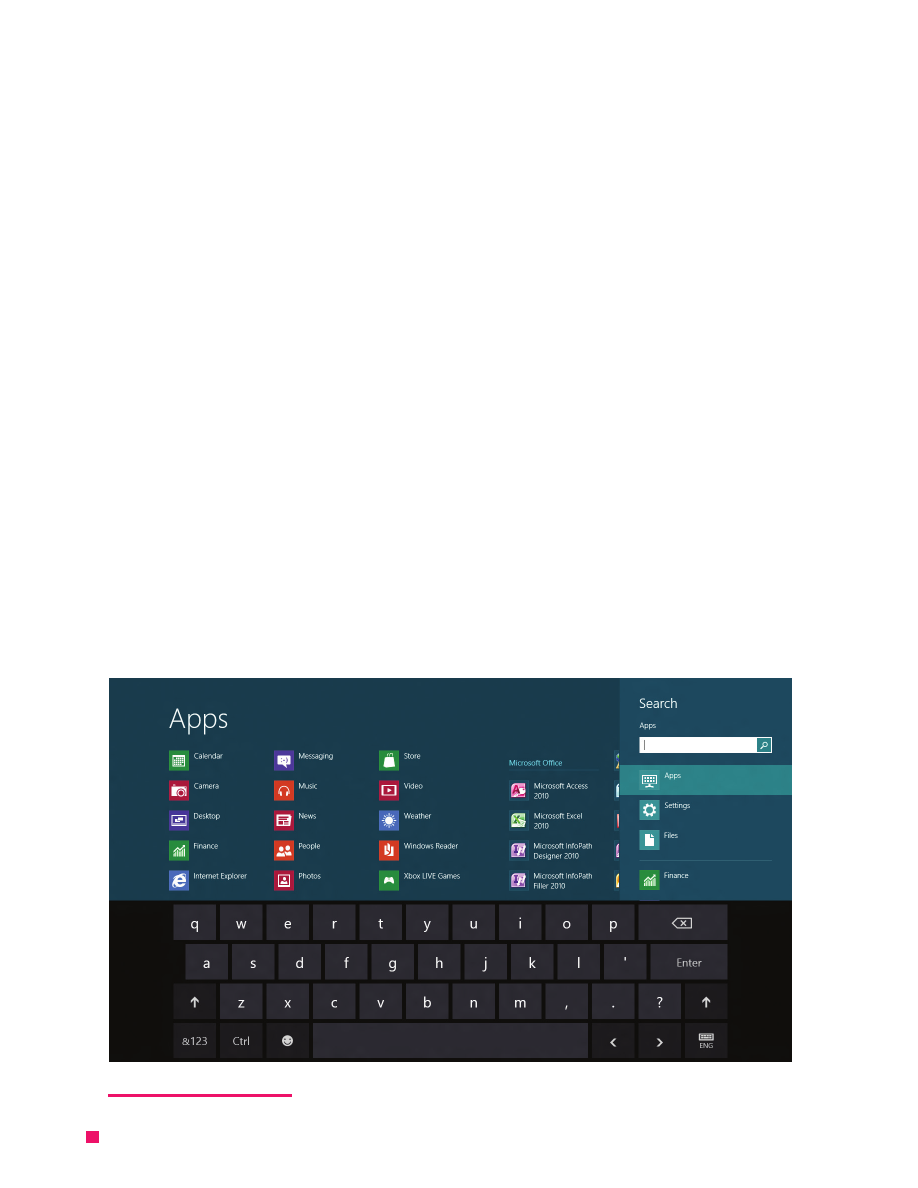
Touch, mouse, and keyboard
With strong support for multi-touch and handwriting recognition, Windows 8 provides an
intuitive and productive way to work for touch-enabled devices. Windows 8 also has great
mouse and keyboard support. With Windows 8, workers can type, swipe, or click their way
through the work day.
Windows 8 supports touch, mouse, and keyboard

5
Technet.Microsoft.com
Line-of-business app development and management
Windows 8 provides new opportunities for line of business apps, especially for tablet form
factors. Line of business Windows Store apps can help enhance worker productivity, with full
screen apps that allow workers to more easily interact with the app. Switching between apps
is easy, and apps that support “snapped“ view enable workers to multitask between apps.
Enterprise developers can build line of business Windows Store apps using the programing
languages they already know. The new Windows Runtime supports C#, C++, JavaScript, and
Visual Basic. Integration with Visual Studio and Intellisense allows developers to more easily
jumpstart their development process for Windows 8.
Windows Store apps cannot access user resources unless the app specifically declares a
need to use those resources. This ensures a clear connection between apps and the types of
resources the app has access to.
With app contracts, users can easily search for information across multiple apps seamlessly.
For developers, app contracts eliminate the need to work with different standards or app-
specific APIs to access data stored or created by another app. For businesses, using app
contracts can make data sharing across apps easier and more efficient.
IT administrators can feel confident that they can maintain control over the deployment
of their line of business Windows Store apps as well. Businesses can load their apps onto a
PC without having to publish their app to the Windows Store. This process, which we call
“sideloading”, is available on a Windows 8 PC that is domain-joined or on a Windows 8 PC
with an activated sideloading product key. This ensures that an app that is created in an
enterprise can stay within the corporate network and be centrally managed, updated, and
distributed. IT administrators remain in control of how apps are installed on users’ PCs and
can control access to the Windows Store by using Group Policy. Specific apps within the
Windows Store can be allowed or blocked using the AppLocker feature.
Also, the majority of your existing line-of-business apps that run on Windows 7 will also run
on Windows 8 (32-bit and 64-bit versions).

6
Technet.Microsoft.com
Choice in form factors
Windows 8 is designed to run well and deliver a consistent experience across many types of
devices from high-performing desktop PCs to low-power tablets. This provides a number of
benefits for businesses. Because Windows 8 takes advantage of advancements in low-power
CPUs, users will experience longer battery life. Because the new user interface is designed
with touch in mind, Windows 8 is ideally suited for touch-centric devices, such as tablets.
Great support for mouse and keyboard input ensures that Windows 8 is equally easy to use
on existing laptop and desktop form factors. And, because Windows 8 is built on the same
foundation as earlier versions of Windows, Windows 8 PCs and devices will integrate seamlessly
into existing managed PC environments, and provide the level of security that customers have
learned to expect from Windows. Also, Windows 8-certified devices include security hardware
that enables Windows 8 to provide the best possible security assurances for IT administrators.
Internet Explorer 10
The web browser is one the most important applications on Windows and organizations rely
on browsers for many critical functions. Information workers demand a flexible work style
and a great browsing experience, across both touch and desktop devices. Internet Explorer 10
delivers an amazing web experience in an entirely new Windows 8 browser that’s fast, fluid,
optimized for touch, and is business-ready.
There are two browsing experiences with Internet Explorer 10. The first is the Internet Explorer
browsing experience optimized for touch-based devices. This full screen experience provides a
fast, modern browser that’s tightly integrated with Windows 8. The second is Internet Explorer
for the desktop, a traditional browsing experience. There are features that distinguish each
browser, but both use the same Internet Explorer 10 engine.
Internet Explorer 10 is a browser optimized for performance, with innovations carried over
and improved from Internet Explorer 9, such as a fast JavaScript engine and page-load times.
Internet Explorer 10 is also built to take full advantage of the operating system and hardware
to accelerate web page rendering, maximizing browsing performance and return on hardware
investment.
For touch devices such as tablets, Internet Explorer provides a new, touch-friendly way
to experience the web. With a focus on less browser and more web, your entire screen is
dedicated to web sites. Tabs and navigation controls appear at the swipe of a finger, and
disappear when not used. Internet Explorer 10 makes it easy for employees to navigate the
web and interact with business apps using intuitive, easy-to-use gestures. For legacy business
apps, Internet Explorer for the desktop continues to provide a more traditional browsing
experience, including support for ActiveX and plug-ins.

7
Technet.Microsoft.com
Internet Explorer 10 excels in security and privacy protection. The SmartScreen filter is a key
security investment in Internet Explorer, having blocked over 2 billion socially-engineered
malware and phishing attacks. Internet Explorer 10 also comes with Enhanced Protected Mode,
which provides even stronger protection from web-based attacks. Enhanced Protected Mode
makes it harder for malicious software to access parts of the operating system that it shouldn’t
access.
Internet Explorer also provides industry-leading privacy features to help keep information and
activities more private. Internet Explorer 10 supports Tracking Protection Lists and “Do Not
Track,” both designed to help manage online tracking. Features such an InPrivate Browsing
also help keep employee data private on shared or public PCs.
Internet Explorer 10 supports modern standards like HTML5, CSS3, and SVG to give corporate
developers the ability to build more powerful web apps. The investments made in legacy line
of business apps carry over to Internet Explorer 10 with little effort, as it supports Internet
Explorer 9, Internet Explorer 8, Internet Explorer 7, and Quirks compatibility modes.
Internet Explorer 10 supports the management and configuration tools that IT professionals
need for cost-effective browser deployment and maintenance, including Internet Explorer
Administration Kit (IEAK), Windows Server Update Services (WSUS), System Center
Configuration Manager (SCCM), and the Microsoft Deployment Toolkit (MDT). With about
1,500 Group Policies, Internet Explorer 10 can be configured as needed for a wide variety
of environments. The Internet Explorer support lifecycle is also tied to Windows, ensuring
predictable support schedules and contributing to peace of mind when deploying Internet
Explorer 10 with Windows 8.
Internet Explorer 10 is enterprise-ready through its focus on fast and fluid web productivity,
return on web development, deployment and management costs, and industry-leading
security and privacy features.
8
Technet.Microsoft.com
New possibilities for mobile productivity
Windows 8 offers new connectivity, access and productivity options for the mobile workforce,
ranging from mobile broadband usage monitoring to bandwidth optimization capabilities.
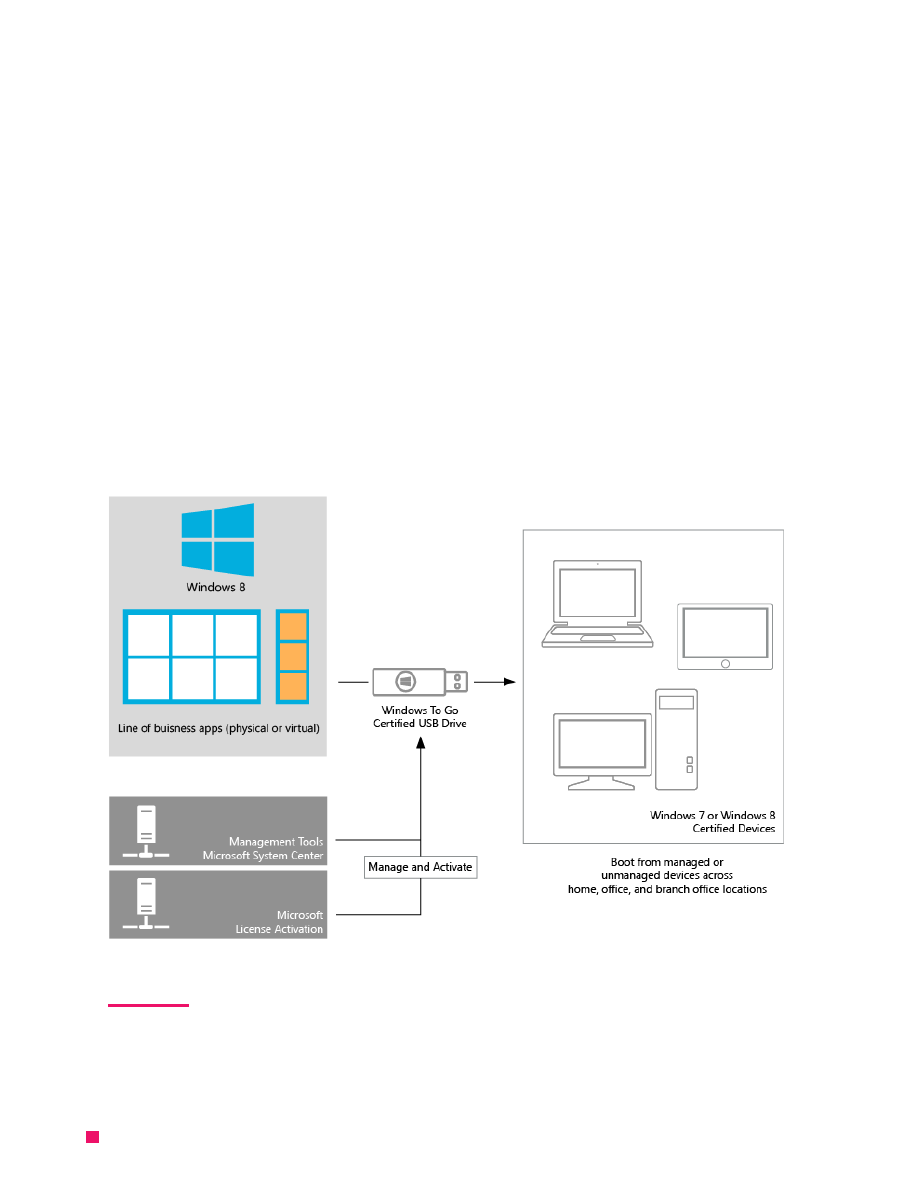
With Windows To Go IT administrators can create a managed corporate desktop on a
bootable USB drive that workers can take with them wherever they go. It’s like having a
secure corporate PC in your pocket.
Windows To Go
IT organizations are challenged to support the changing work styles of users who want
access to their corporate environment anytime, anywhere. These workers need the flexibility
to select their own PCs to get their work done. Remote contractors might require the
same level of access to corporate resources as full time employees to be most productive.
IT administrators want to enable these kinds of scenarios while making sure that corporate
data is secure and that hardware costs are controlled.
How Windows To Go works

9
Technet.Microsoft.com
In Windows 8 Enterprise editions, Windows To Go is a cost effective solution that enables
several alternative workplace scenarios. IT administrators can provide users with a corporate
Windows image that includes line of business apps, settings, and corporate data on a certified
USB storage device. Users can have a consistent Windows 8 experience on any corporate or
personal PC (Windows 7 or Windows 8 logo-certified). When users boot a PC with Windows
To Go, they get a rich, consistent and personalized Windows 8 experience that is as secure as a
fully managed PC. When they shut down, they can remove the USB device and no data is left
on the host PC.
Contractors can be given a Windows To Go drive for the duration of their employment
so that they can be instantly productive without leaving corporate data on their personal
PC. Organizations can now let employees use their own PCs and those workers can use a
Windows To Go USB drive. Windows To Go also enables free seating scenarios, where users
are required to roam across multiple workstations. Windows To Go provides IT administrators
a flexible solution to a variety of worker scenarios.
All of the great Windows 8 security features are also available in Windows To Go, including features
like Trusted Boot and Bitlocker drive encryption. This allows IT administrators to maintain security
requirements. Users can stay connected to corporate resources in Windows To Go by using
DirectAccess or a Virtual Private Network (VPN) connection. IT administrators can also use standard
systems management tools to manage Windows To Go just the same as they use for Windows 8.
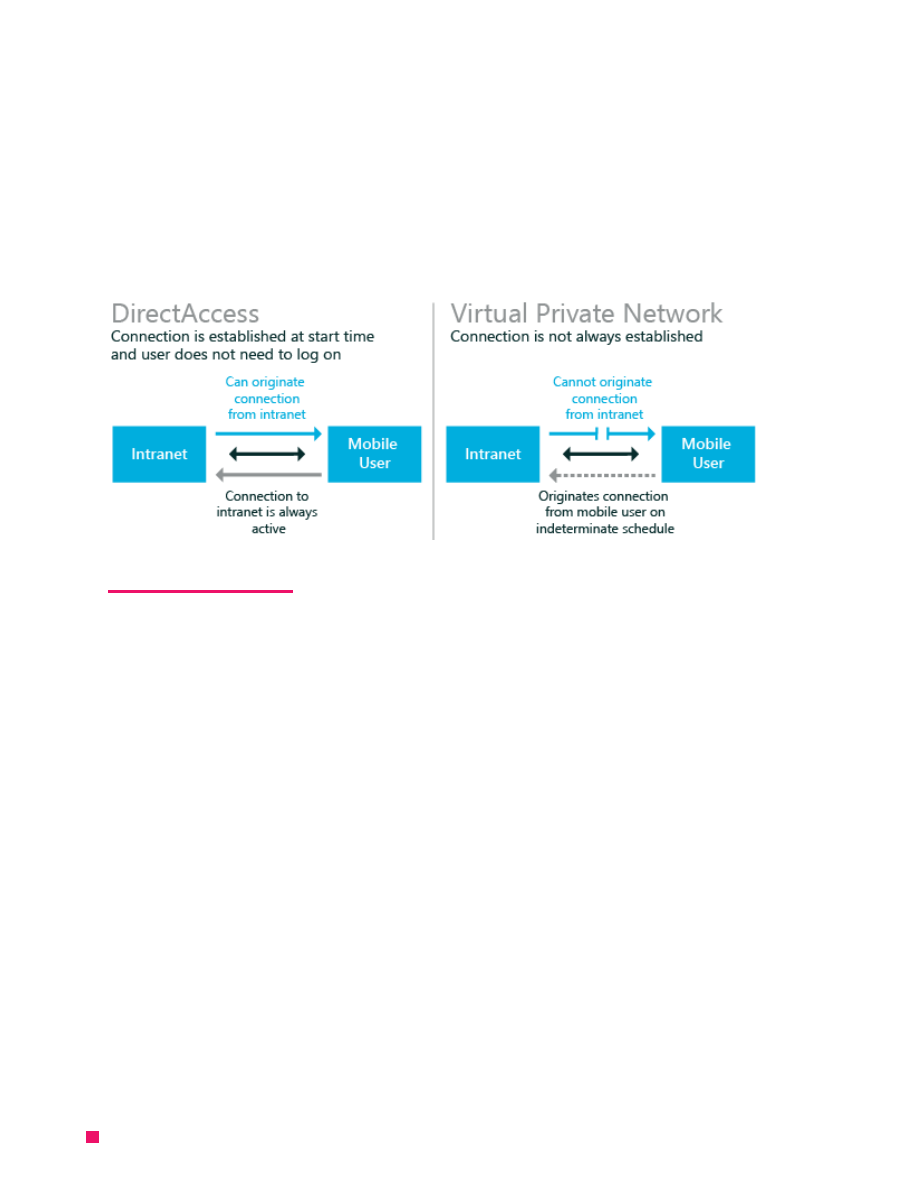
DirectAccess
Traditionally, mobile workers connect to intranet resources by using a Virtual Private Network
(VPN). However, using a VPN can be inconvenient because users must start the VPN
connection and then wait for authentication to complete. If a user forgets their smartcard
or digital pin creator they are unable to login remotely. IT administrators can’t issue updates
until the PC is on the corporate network and because of this, there risk of a user’s PCs
becoming out of date. Also, whenever the user’s PC loses Internet connection, the VPN
connection needs to be reestablished.
Windows 8 Enterprise edition includes DirectAccess, which allows remote users to seamlessly
connect to a corporate network and works with virtual smartcards without having to launch
a separate connection, such as VPN. Whenever client computers with DirectAccess are
connected to the Internet, mobile and remote workers are connected to the corporate
network, allowing them to access line-of-business apps, SharePoint sites, and other internal
websites. Administrators can monitor connections and remotely manage client computers
that are using DirectAccess anytime the PCs are connected to the Internet. IT administrators
10
Technet.Microsoft.com
can keep these remote clients within security compliance by applying the latest security
policies and software updates.
With Windows 8 Enterprise and Windows Server 2012, DirectAccess is simpler to deploy
and easier to manage. DirectAccess can now be deployed seamlessly into to existing
infrastructure, helping to lower deployment costs. The necessary Pv6 to IPv4 transition
technologies are included, allowing end users access to IPv4 resources within the corporate
network.
DirectAccess and Virtual Private Network comparison
Mobile broadband
Built-in mobile broadband features in Windows 8 integrate support for 3G and 4G
telecommunication, which enables mobile workers to get connected to the Internet
immediately. Windows 8 mobile broadband support can help businesses keep data usage
costs low with built-in mobile broadband metering. Users can easily see the data they are
consuming, giving them an opportunity to budget in advance for overages. As mobile
workers move between locations, Windows 8 automatically uses Wi-Fi hotspots if they’re
available. This saves costs and improves bandwidth.
BranchCache
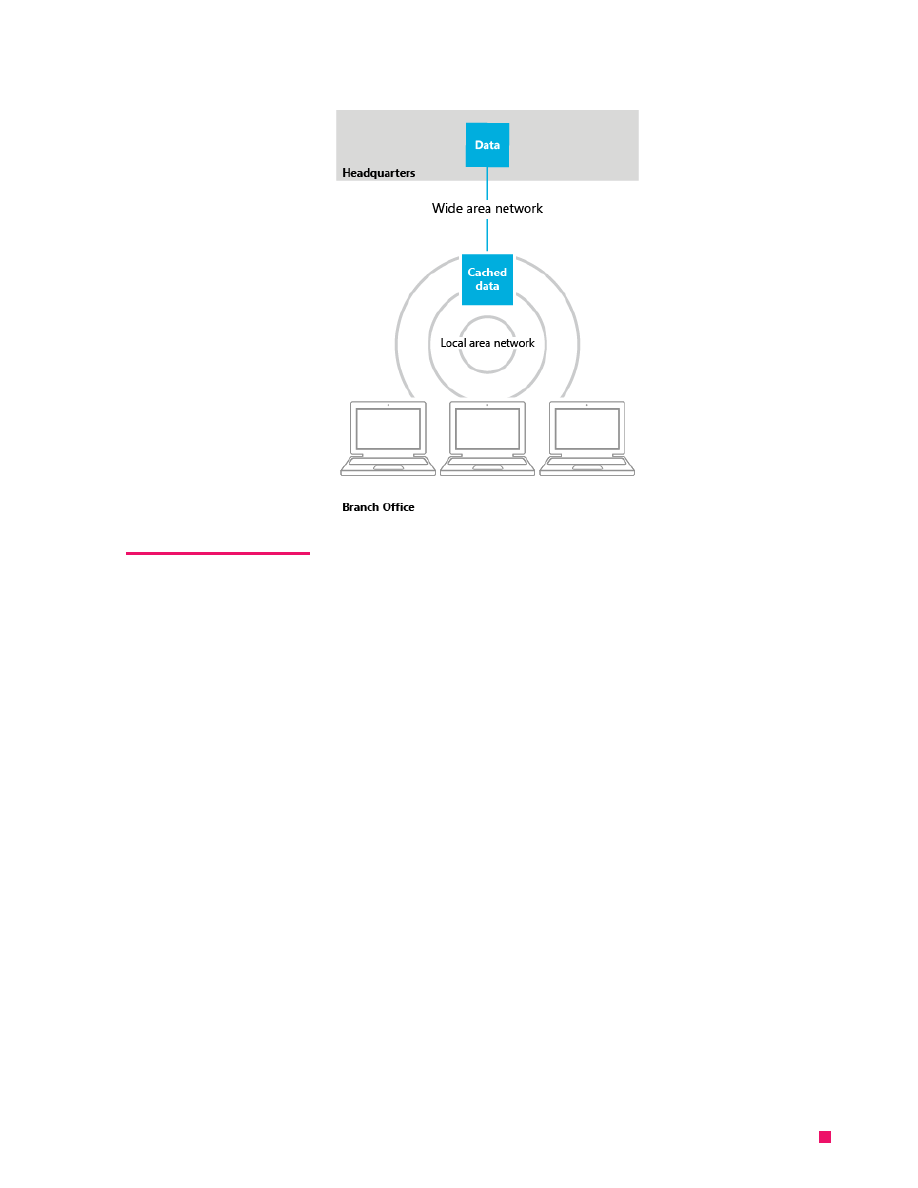
BranchCache is a Wide Area Networking (WAN) bandwidth optimization technology that
downloads files, apps, and other content from headquarters and stores the content in the
branch office. Client computers can then access the content locally, rather than repeatedly
downloading it across the WAN. By using BranchCache, you can reduce WAN use and the
time required for branch workers to access data on the network. Included with Windows 8
Enterprise, BrancCache allows apps that use networking protocols to be more responsive and
users in remote offices to experience higher performance on their local area network.
11
Technet.Microsoft.com
BranchCache Data Cache
BranchCache is easier to deploy and helps to increase the security of data caches.
Deploying BranchCache no longer requires office-by-office configuration, and client
configuration is automatic once configured through Group Policy. BranchCache now
includes cache encryption and removes the requirement for additional disk encryption
technologies. This helps simplify deployment and helps to improve data security.
Performance is also improved with new features, including a data de-duplication technology
that reduces transmitting the same data multiple times. BranchCache can scale to offices of
any size by allowing you to deploy as many hosted cache servers as needed at a location.
Printing enhancements
Windows 8 printing scenarios are simplified. Windows 8 Enterprise edition includes a built-
in print driver that enables users to print to a wide range of printers without having to find,
download, or install device drivers from CDs or websites. This driver provides basic printing
functionality and IT administrators no longer need to load different driver packages onto
the print server. In addition, when the print server is running Windows Server 2012, client
computers running Windows 8 don‘t need to download a driver to use a printer.
The Branch Office Direct Printing feature allows print jobs from a branch office to be redirected
to local printers without going to a print server in a data center. With this feature, users don’t
need to deploy costly WAN optimizing appliances specifically for printing purposes.

12
Technet.Microsoft.com
The printer driver deployment and other configuration data can be managed centrally from
the data center. When a print job is started from the branch office, the printer configuration
and drivers are accessed through the data center if needed, but the print job is sent to the
local printer for fulfillment.
If the WAN link is inactive, print jobs continue to work by using the last known
configuration. This helps to ensure that the branch office still has the ability to print even if
the WAN isn’t available.
Cloud-connected
For companies that are looking for the latest in cloud-connected technologies, Windows 8
includes a robust set of features that allow you to harness the power of the cloud. When
you sign in to your Windows 8 PC, your device is instantly connected to the people, files and
settings you care about. Sign in with a Microsoft account, and any Windows 8 PC is instantly
alive with the things that make Windows yours: your Start page, themes, language preferences
and browser favorites. Restoring a user’s Windows settings is now much easier should a user
need to recover their PC. After resetting a PC and signing in with a Microsoft account, their
settings are restored and apps can easily be downloaded.
For businesses interested in public file sharing technologies, SkyDrive provides a simple,
easy-to-use cloud storage solution. SkyDrive files can be made private or public and you can
also allow access only to specific people.
Enhanced end-to-end security features
From power-on to power-off, Windows 8 provides a more secure foundation to help keep
your business running.
Trusted boot process
Some malware programs target the boot process and insert themselves into the system before
Windows or antimalware software is able to start. Because of this, the ability of Windows or the
anti-malware software to protect the system might be compromised. With UEFI 2.3.1 equipped
devices, the UEFI Secure Boot feature helps to ensure that malware is not able to start before
Windows 8. The Windows 8 Trusted boot feature protects the integrity of the remainder of the
boot process, including the kernel, system files, boot critical drivers, and even the antimalware
software itself. The system’s antimalware software is the first 3rd party application or driver to
start. Moving antimalware into the Trusted Boot process prevents it from being tampered with.
In the event that malware is able to successfully tamper with the boot process Windows helps
to automatically detect and repair the system.
Measured boot process
On Trusted Platform Module (TPM)-based systems, Windows 8 can perform a comprehensive
chain of measurements during the boot process that can be used to further validate the

13
Technet.Microsoft.com
boot process beyond Trusted Boot. Measured boot process enables all aspects of the boot
process to be measured, signed, and stored in a Trusted Platform Module (TPM) chip. This
information can be evaluated by a remote service to further validate a computer’s integrity
before granting it access to resources. This process is called Remote Attestation.
BitLocker Drive Encryption
BitLocker Drive Encryption is a data protection feature in Windows 8 Pro and
Windows 8 Enterprise editions that helps protect data theft from lost, stolen, or
inappropriately decommissioned computers. BitLocker now encrypts hard drives more
quickly, helping to keep data safe without significantly interrupting worker productivity.
BitLocker now supports encrypted drives, which are hard drives that come pre-encrypted
from the manufacturer. BitLocker offloads the cryptographic operations to hardware,
increasing overall encryption performance and decreasing CPU and power consumption.
On devices without hardware encryption, Bitlocker encrypts data more quickly, enterprise
clients can more easily provision BitLocker and they can do it with little time impact.
BitLocker allows you to choose to encrypt the used space on a disk instead of the entire disk.
As free space is used, it will be encrypted. This results in a faster, less disruptive encryption
of a hard drive. In addition, the user experience is improved by allowing a standard user, one
without administrative privileges, to reset the BitLocker PIN.
AppLocker
AppLocker is a simple and flexible mechanism that allows IT administrators to specify exactly
the apps that are allowed to run on their user’s PCs. Traditional access control technologies
such as Active Directory Rights Management Services and Access Control Lists (ACLs) help
control the data users are allowed to access. However, these technologies can’t prevent
users from installing or using non-standard software. In Windows 8 Enterprise edition
AppLocker enables IT administrators to create security policies through Group Policy to
prevent potentially harmful or other non-approved apps from running. With AppLocker, IT
administrators can set rules based on a number of properties, including the signature of the
application’s package or the app’s package installer and can more effectively control apps
with less management.
Windows SmartScreen app reputation service
Windows SmartScreen app reputation is a safety feature in Windows 8. This service provides
application reputation-based technologies to help protect users from malicious software
that they may encounter on the Internet. This technology checks reputation on any new
application, helping to keep users safe no matter what browser they use Windows 8.
This helps to prevent malware and other viruses from infiltrating your organization.
The Windows SmartScreen app reputation feature works with Internet Explorer’s SmartScreen

14
Technet.Microsoft.com
feature, which also helps to protect users from websites seeking to acquire personal
information such as user names, passwords, and billing data.
Claim-based access control
Claim-based access control enables you to set up and manage usage policies for files,
folders and shared resources.
IT administrators can dynamically allow users access to the data they need based on the user’s
role in the company. Unlike previous statically-controlled security groups, Claim-based access
control allows IT admins to dynamically control access to corporate resources based on the user
and device properties that are stored in Active Directory. For example, a policy can be created
that enables individuals in the finance group to have access to specific budget and forecast data,
and the human resources group to have access to personnel files.
Manageability and Virtualization Advancements
With new device form factors and more mobile devices entering the workplace, managing
devices and corporate data is more critical than ever. The trusted management and
security features that millions of businesses depend on every day are a part of Windows 8.
Windows 8 also works well with today’s hardware options. Combined with tools that simplify
compatibility testing and deployment, Windows 8 easily integrates into most existing client
management infrastructures. If your business is running previous versions of Windows Server,
Windows 8 can easily be managed alongside your other Windows client PCs.
Client Hyper-V
Client Hyper-V on Windows 8 Pro and in Windows 8 Enterprise is a robust virtualization
platform that enables IT Pros and developers to run diverse client and server environments
on their Windows 8 PCs. IT administrators can test and manage multiple environments
from a single PC, enabling them to evaluate changes in a test environment in advance of
deploying to a production environment. With support for wireless networking and sleep and
hibernate modes, Client Hyper-V can run on any Second Level Address Translation (SLAT)-
enabled 64-bit PC, including most Intel- and AMD-based laptops. Virtual Machines (VMs)
can easily be migrated between Server and Client Hyper-V without modification, making
developers and IT Administrators more efficient. Client Hyper-V also supports both 32-bit
and 64-bit guest operating systems. Client Hyper-V leverages the security enhancements in
Windows 8 and can easily be managed by existing IT tools such as System Center.
New Virtual Hard Disk Format
An update to the VHD format, called VHDX, has much larger capacity and built-in
resiliency. VHDX supports up to 64 terabytes of storage. It also provides built-in protection

15
Technet.Microsoft.com
from corruption that can occur during power failures and it helps prevent performance
degradation on some large-sector physical disks.
Automation with Windows PowerShell
Management tasks are simplified with Windows PowerShell automation. Windows PowerShell
provides easy-to-learn language syntax. New features in the Windows PowerShell Integrated
Scripting Environment (ISE) make it easier and faster for both new and experienced users to
author clear, maintainable, production-ready automation scripts. Intellisense tap completion,
snippets, and GUI based search provide improved cmdlet discovery making it easier to find
and run any of the 1,200 new high-level, task-oriented cmdlets.
Testing, Deployment, & Migration
Deploying Windows 8 in your organization is faster and easier than Windows 7. Enhanced
tools help IT administrators make the right decisions with minimal downtime for users. A
new version of the Application Compatibility Toolkit (ACT) helps IT administrators understand
potential application compatibility issues by helping to identify which apps are or are not
compatible with Windows 8. ACT helps you to deploy Windows 8 more quickly by helping to
prioritize, test, and detect compatibility issues with your apps.
Migrating user data from a previous Windows installation can be automated with the User
State Migration Tool (USMT). This tool now supports migrating user data from Windows XP
installations. With the end of support for Windows XP approaching, now is a great time to
plan your migration to Windows 8.
Refresh your PC and Reset your PC
Windows 8 helps streamline the recovery process for PCs. Refresh your PC and Reset you
PC allow users to restore their Windows 8 installation and more easily get their systems up
and running again. Even when Windows 8 cannot start, you can utilize these new features
from within the Windows Recovery Environment. Refresh your PC allows users to reinstall
Windows 8 while maintaining their personal files, accounts, and personalization settings.
These features make it faster and easier to get a PC up and running again.
Virtual Desktop Infrastructure (VDI)
Powered by Windows Server 2012, Microsoft VDI provides the best value for virtual desktops
today. The new Remote Desktop client in Windows 8 Pro and Windows 8 Enterprise works
with VDI. Windows Server 2012 provides customers with deployment choices through a
single platform and a consistently rich user experience.

16
Technet.Microsoft.com
Recognizing that not all business needs are the same, VDI offers three deployment options:
sessions, pooled and personal VMs. Setting up a VDI environment is easy with the simple
setup wizard, and managing your VDI environment is simple with administration, intelligent
patching and unified management capabilities. Features such as use disk and Fairshare
ensure high performance and flexibility, while support for lower cost storage and sessions
help reduce the barriers of adoption for VDI. In addition, Microsoft RemoteFX provides users
with a rich, local-like desktop experience, with the ability to play multimedia, 3D graphics,
use USB peripherals and touch enabled device across any type of network (LAN or WAN). All
of these benefits are available across different types of VDI desktops (personal VM, pooled
VM or session based desktops).
Summary
Workers are increasingly influencing the technology they use at work. This trend puts
high expectations on IT administrators to keep their users productive and secure anytime,
anywhere, across a broad range of devices.
Windows 8 is great for businesses because it delivers the experiences people love and the
enterprise-grade capabilities that IT departments need.
With the power and familiarity of the desktop, new ways for users to interact with line of
business Windows Store apps, and support for more mobile form factors, Windows 8 is the
ideal solution for businesses. Along with the end-to-end security features and manageability
enhancements, Windows 8 can help your employees be more productive and help keep your
data more secure.
If you are interested in testing Windows 8 Enterprise for your organization, we recommend
that you download the Windows 8 Enterprise 90-day evaluation (http://technet.microsoft.
com/en-us/windows/windows-8.aspx). This download is designed specifically to help IT
professionals test software and hardware for compatibility on the final version of
Windows 8 Enterprise.
Wyszukiwarka
Podobne podstrony:
Business English dla kazdego id Nieznany
business english dla kazdego
get windows product key power shell
business english tense review
Business English dla kaA1 4dego Nieznany
Cambridge University Press New International Business English
Business English dla każdego
business english words that can and cannot be shortened
business english dla kazdego
business english silent letters and syllables
business english vocabulary
business english questions brainstorming
Career Paths Business English SB Taylor J zeter J
business english dla kazdego
ebook Snort v2 0 0 Install Guide FreeBSD english
business english email functions review
więcej podobnych podstron