Getting Help on the Fly
In addition to modeling the experience of flying, Flight Simulator includes a large virtual library of content to help you
with all aspects of using the product. Each of these topics is useful in its own way and complements the others. Take
time to explore so you know where to go to find what you're looking for.
Mission Tutorials
If you're new to flying or new to Flight Simulator and just want fly now, try some of the Missions. Click Missions on
the main menu and select one of the tutorial Missions.
The Learning Center
The Learning Center works like a Web site. It has four tabs: Key Topics, Site Map, Index and Lessons. If you know
what you're looking for, use the Site Map or the Index to find an article on a specific topic or category. If you just want
to browse a set of articles on important topics, use the Key Topics tab.
The Key Topics tab features pictures that link you to important top-level articles. It's a good way to browse the
Learning Center. There are links for everyone from novices to pros, including overviews of features, and articles
about often-overlooked features.
The Site Map includes a link to every article in the Learning Center organized by category. For example, if you're
looking for articles on GPS or the Flight Planner, you'd look under Navigation in the Site Map. You could also find
these topics easily in the Index. The Index also links to every article in the Learning Center, but it's organized like a
book index. If you're looking for an article on raising the flaps or something about finding radio frequencies, the Index
would be a good place to start.
IMPORTANT: Searching the Learning Center
There is a very effective method for searching the Learning Center content. Download and install the MSN Toolbar
for free. The MSN Toolbar includes a search function that will search rapidly across all files on your computer.
Just type something like ―optimizing‖ into the search box on the Windows taskbar, and then select a file in the search
results with a .htm file extension.
The Lessons tab links you to interactive lessons by flight instructor Rod Machado. Rod will teach you real-world
flying skills for each level, from student level to airline transport pilot.
Rollover Help
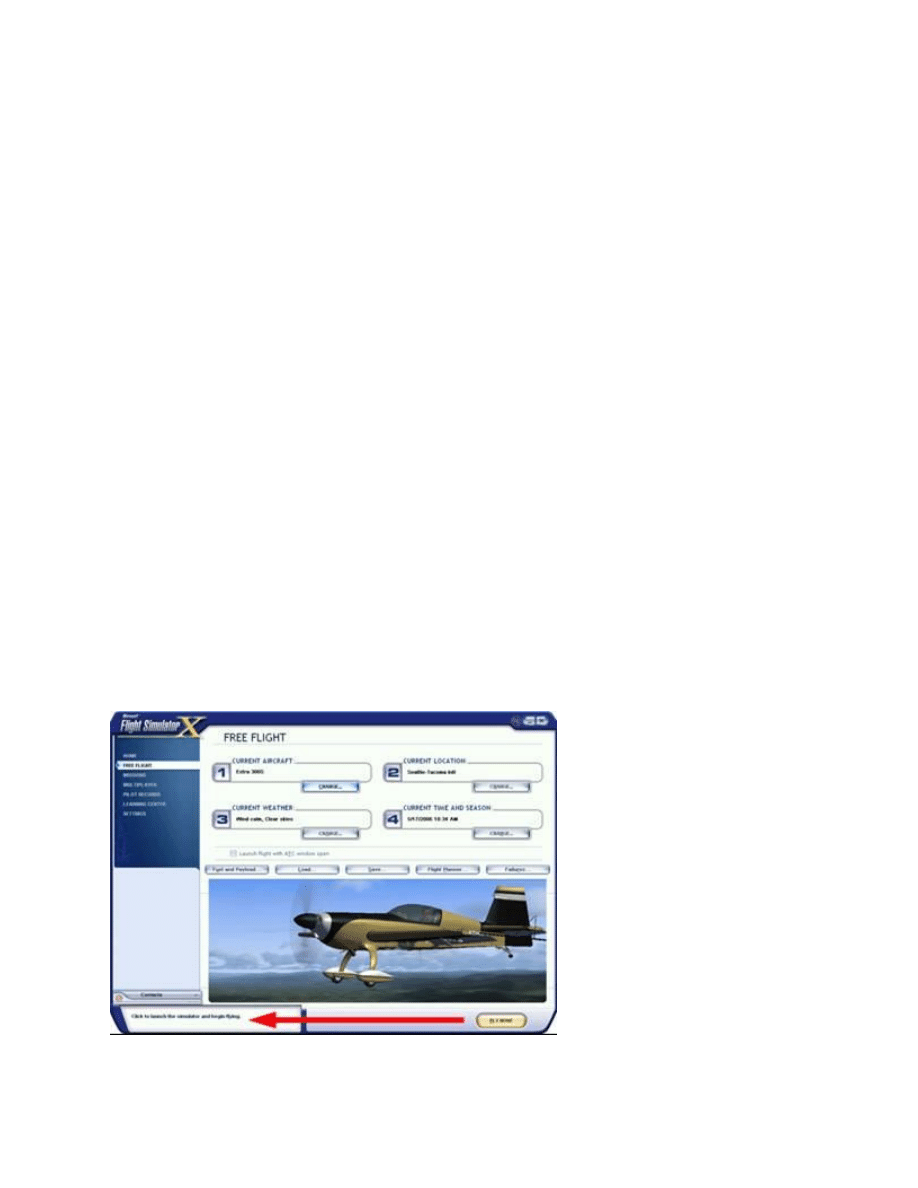
Rollover help is one of the most useful and most overlooked tools in Flight Simulator. Move the pointer over a button
or box, and a description appears in the lower-left corner of the screen (see the large arrow in the image below).
In some instances, rollover help contains a description of the element that the pointer rests on, and in other cases it
includes short instructions on how to use the button or element. Try moving the pointer over different parts of the
screen to get an idea of how useful rollover help can be.
The Kneeboard
The Kneeboard is a very important information tool available while you're flying. The concept is derived from the
kneeboards used by real-world pilots. Real-world kneeboards are usually aluminum or plastic boards that pilots
literally strap to their knee or clip onto the airplane's yoke in order to keep information
—charts, briefings, navigation
logs, and other details charts, briefings, navigation logs, and other details
—at hand during flight.
To access the kneeboard in flight:
Press SHIFT+F10
To move the kneeboard:
1. Place the pointer near the top edge of
the kneeboard
2. Hold down the left mouse button and
drag the kneeboard
The Kneeboard includes seven pages: Briefing, Messages, Nav Log, Keys, Checklist, Reference and Mission. If
you close the Kneeboard, the same page will appear when you reopen it. The kneeboard is moveable just like any
window.
Briefing
All Missions include a flight briefing. The briefing on the kneeboard is an abbreviated version of the mission briefing.
Radio
The Messages page includes a log of the ten most recent messages between your aircraft and ATC (in single-player
mode only). This is especially useful when receiving IFR clearances or when traffic is busy and you can't remember
what the controller said to you a few moments ago. The Messages page also keeps a log of Mission messages.
Nav Log
Real pilots use navigation logs to keep track of headings, altitudes, time en route, and fuel burn. If you create a flight
plan in Flight Simulator, the Flight Planner automatically generates a navigation log. The navigation log is also
automatically written to the kneeboard so that you can reference it in flight.
Keys
Did you forget which key raises or lowers the flaps? The kneeboard contains a list of all of the key commands.
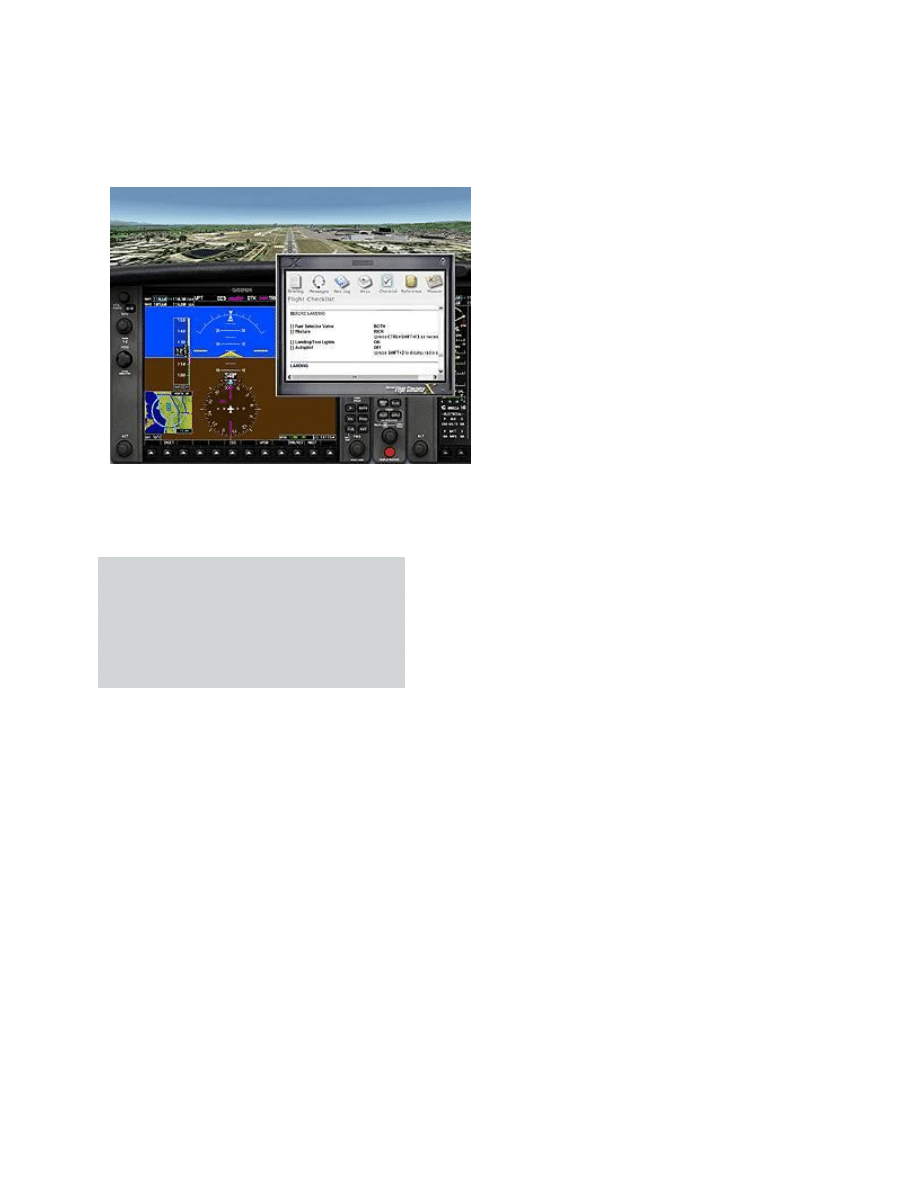
Checklist
Wondering where to find the correct manifold pressure for takeoff in the Douglas DC
–3? For both large complex
airplanes and small simple ones, pilots use a checklist of procedures in most phases of flight to ensure that they don't
miss an important step. These checklists are specific to the model of airplane being flown; the kneeboard displays the
checklist for the airplane you're currently flying.
Reference
What's the "never exceed" (VNE) speed for the Boeing 747
–400? You'll find the answer—and other important
information
—on the Reference page of the kneeboard.
Mission
The Mission page displays a list of the objectives for the current Mission.
ToolTips
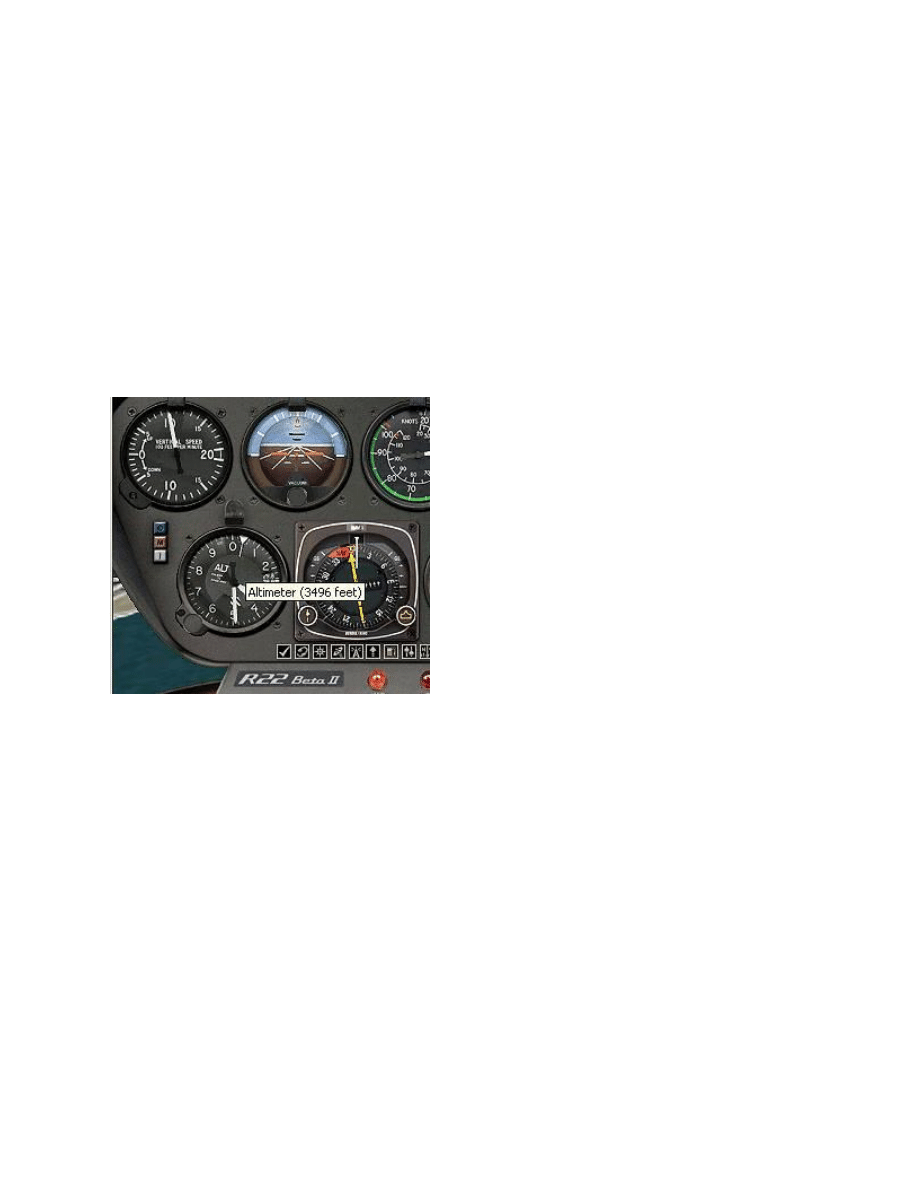
You may already be familiar with ToolTips, the little text bubbles that appear when you pause over buttons or other
elements. In Flight Simulator, ToolTips are different than rollover help. ToolTips are used only on the aircraft panels
and, as illustrated in the picture below, are small pop-up windows containing labels.
Flight Simulator panels have dynamic ToolTips that display the label and instrument values. For example, if you hold
the pointer over the altimeter, it shows not only the name of the instrument, but also the instrument's current reading.
Wyszukiwarka
Podobne podstrony:
Stephani Hecht Blue Line Hockey 05 Change on the Fly
Fly On The Wings Of Love
Fly On The Wall Miley Cyrus
Parzuchowski, Purek ON THE DYNAMIC
Enochian Sermon on the Sacraments
GoTell it on the mountain
Interruption of the blood supply of femoral head an experimental study on the pathogenesis of Legg C
CAN on the AVR
Ogden T A new reading on the origins of object relations (2002)
On the Actuarial Gaze From Abu Grahib to 9 11
91 1301 1315 Stahl Eisen Werkstoffblatt (SEW) 220 Supplementary Information on the Most
Pancharatnam A Study on the Computer Aided Acoustic Analysis of an Auditorium (CATT)
Newell, Shanks On the Role of Recognition in Decision Making
BIBLIOGRAPHY I General Works on the Medieval Church
Chambers Kaye On The Prowl 2 Tiger By The Tail
On The Manipulation of Money and Credit
Dispute settlement understanding on the use of BOTO
To what extend?n?ucation help protect the environment
więcej podobnych podstron