

Table of Contents
1.
Introduction .......................................................................................... 3
2.
Attaching an EA to a Chart .................................................................. 5
The Location of EAs on Your Computer ....................................................................... 5
EA Formats ........................................................................................................................... 5
Compiling an EA ................................................................................................................. 6
Attaching the EA ................................................................................................................. 7
Changing the Properties of an Attached EA ................................................................. 10
3.
The PBGrid Strategy ............................................................................ 11
Placing Pending Orders..................................................................................................... 11
Position Sizing .................................................................................................................... 12
Managing Open Orders .................................................................................................... 13
4.
Trading with PBGrid ........................................................................... 14
5.
Beware of Risks ................................................................................... 16
The Internet Connection .................................................................................................. 16
The Server Connection ..................................................................................................... 16
The Broker .......................................................................................................................... 16
The Trader ........................................................................................................................... 17
The EAs ............................................................................................................................... 17
6.
Terms, Conditions, and Disclaimer .................................................... 18
7.
Index .................................................................................................... 19

P B G R I D V 1 . 0 . 2
A L P A R S A I
© 2007 www.pipboxer.com
Page 3
Disclaimer
: Forex is a risky market. There is no system or person who can guarantee your success. You
implement the methods introduced in this manual and/or use PipBoxer at your own discretion. The author/owner of
this manual and/or PipBoxer shall not be held responsible for your losses of any kind included but not limited to
the program’s malfunction.
1. Introduction
orex is the largest and the most liquid market in the world. With an average
daily trade volume of over $3 trillion no other market can beat it. Forex market
which is an Over-The-Counter (OTC) market is open 24 hours a day for 5
days a week.
Entering the forex market is very easy. You can open an account with less than $300
and enjoy the high leverage of 100:1 or even more. For many people this means
making big money in a short period of time. The temptation is high but unfortunately
the reality is different. The majority of inexperienced traders lose in this market. Many
of them even blow out their accounts completely in a very short period of time. It is
not easy to constantly make money in forex.
To be a successful trader you need to be a disciplined, knowledgeable person. You
need to learn several skills including fundamental and technical analysis methods, and
risk and money management techniques. The psychology of trade also plays a key role
in your success as a trader.
Traders can be categorized as
mechanical
and
discretional
. A mechanical trader sets
up some strict rules for his/her trading and sticks with them all the time. A discretional
trader considers his/her power of judgment at the time of trading. I am not a fan of
discretional trading. In a mechanical approach you can estimate the likelihood of your
success and based on that likelihood you can make correct decisions. A discretional
trader has no clear way to evaluate his/her likelihood of success. A discretional trader
could be more successful than a mechanical trader in short term trading but in the long
run it is the mechanical trader who wins the most. There might be some exceptions
but in general mechanical trading is the right way to go.
The ultimate mechanical trader is the computer. Even a highly-disciplined manual
mechanical trader is not 100% free from discretion. If you leave your trades to your
computer it never breeches the rules you have set for it.
1
F

P B G R I D V 1 . 0 . 2
A L P A R S A I
© 2007 www.pipboxer.com
Page 4
Disclaimer
: Forex is a risky market. There is no system or person who can guarantee your success. You
implement the methods introduced in this manual and/or use PipBoxer at your own discretion. The author/owner of
this manual and/or PipBoxer shall not be held responsible for your losses of any kind included but not limited to
the program’s malfunction.
A computer is a machine and it cannot setup trading rules. It is you “the trader” who
needs to define these rules for the computer to make your computerized trading
experience a successful one. I believe that PipBoxer is one of those successful set of
rules. I will explain this in more detail throughout this guideline.
There are several tools available to trade forex. Probably one of the most successful
ones is MetaTrader. This software application enables the trader to analyze and enter
the market at the same time. Unlike traditional trading platforms you do not need a
chart provider to analyze the market. MetaTrader provides you with the chart and
almost every necessary tool to analyze the chart.
Another nice feature of MetaTrader is the ability to install and run customized tools.
These tools are in the form of indicators, scripts, and Expert Advisors. Since PBGrid
is an Expert Advisor (EA) I will explain the use of EAs and how to attach them to a
chart in the next section.

P B G R I D V 1 . 0 . 2
A L P A R S A I
© 2007 www.pipboxer.com
Page 5
Disclaimer
: Forex is a risky market. There is no system or person who can guarantee your success. You
implement the methods introduced in this manual and/or use PipBoxer at your own discretion. The author/owner of
this manual and/or PipBoxer shall not be held responsible for your losses of any kind included but not limited to
the program’s malfunction.
2. Attaching an EA to a Chart
ne of the reasons that MetaTrader 4 (MT4) is a highly regarded trading
platform is its capability to automatically run trading orders. The tool that
traders use to conduct such automated trades is called an EA (Expert
Advisor).
An EA is a software program that a trader can use within the MT4 terminal. A trader
may use an EA for different reasons, including but not limited to analyzing the market
and creating trading signals, conducting fully automated trades, defining complex
criteria for running a trade, and so on.
In order to be able to use an EA you must attach it to a chart. If you attach an EA to a
chart it uses the chart tick movements to analyze the market and do its job. For
example if you attach an EA to the USDJPY chart the EA will run every time the price
of USDJPY moves. Let’s see how to attach, compile, and use EAs.
The Location of EAs on Your Computer
You need to place your EAs in the “experts” folder. If for example you have installed
MetaTrader in a folder called “My Trading Station” under drive C: the address to this
folder could be “C:\Program Files\My Trading Station\experts\”.
EA Formats
EAs are available in two different formats: the raw format (or source code) and the
compiled format (or executable version). The file extension for EA source codes is
*.mq4 (e.g. PBGrid.mq4) and the file extension of EA compiled programs is *.ex4 (e.g.
PBGrid.ex4). The default location for both formats is the “experts” folder.
You cannot use the source code to run the EA. You must compile the source code
first to make it an executable file. On the other hand the compiled (*.ex4) format is
ready to use. You don’t need the source code to run the compiled format. So
eventually all you need is the compiled file.
2
O
P B G R I D V 1 . 0 . 2
A L P A R S A I
© 2007 www.pipboxer.com
Page 6
Disclaimer
: Forex is a risky market. There is no system or person who can guarantee your success. You
implement the methods introduced in this manual and/or use PipBoxer at your own discretion. The author/owner of
this manual and/or PipBoxer shall not be held responsible for your losses of any kind included but not limited to
the program’s malfunction.
You always receive PBGrid files in compiled format so you do not need to
compile EAs.
The following section is just for your information. You do not need to compile
PipBoxer EAs.
Compiling an EA
If you place an error-free source code in the “experts” folder and then start MT4 it
automatically compiles the EA and creates the *.ex4 file. You may also compile the
EA yourself as follows.
When you install your MT4 trading terminal you also install an application called
MetaEditor. The installation is done automatically. You can use MetaEditor to develop
EAs. You also use MetaEditor to compile EAs. So if you receive the source code of an
EA (i.e. the *.mq4 file) use the following steps to compile it. If you already have the
compiled file in hand skip this procedure.
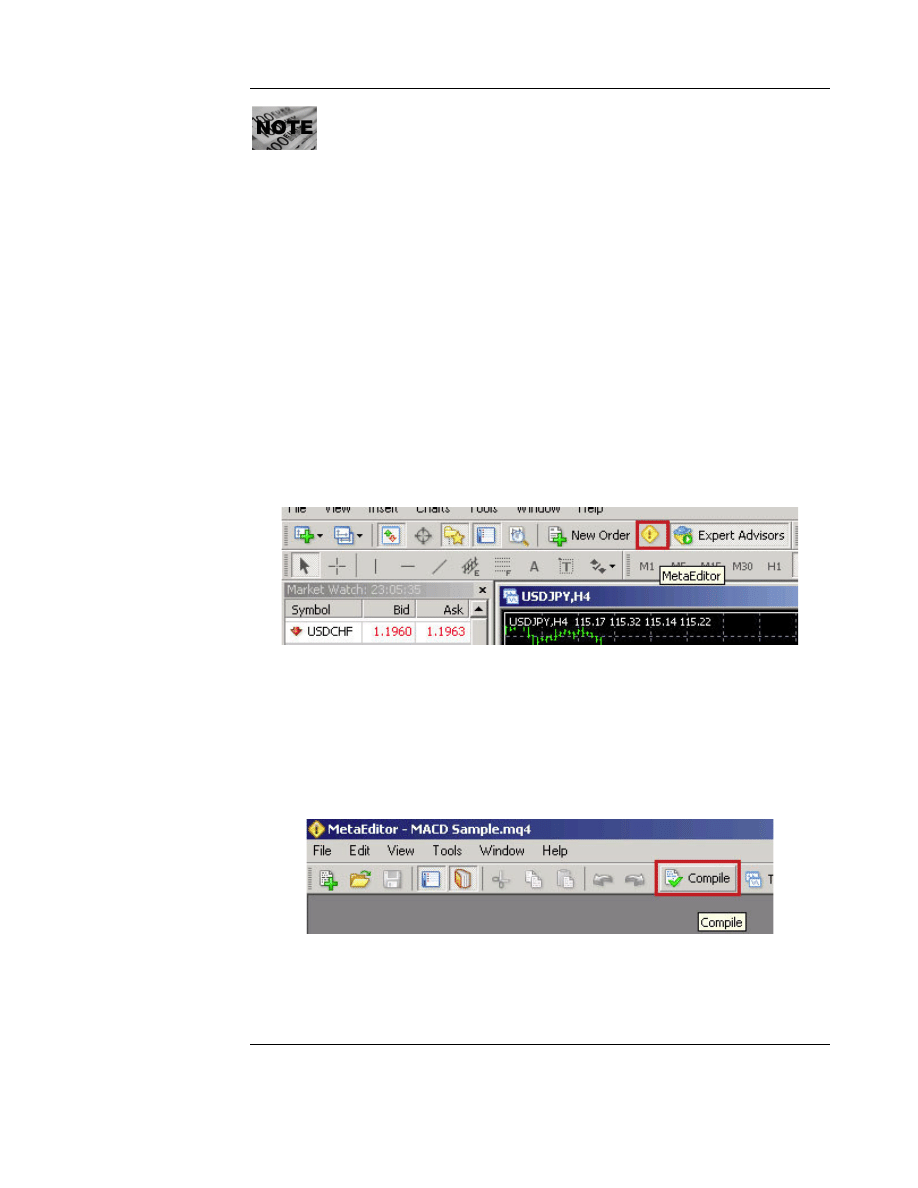
1. From the MT4 terminal run MetaEditor. You can find the MetaEditor icon on
the Standard toolbar of the MT4 terminal (Figure 1).
Figure 1
2. In the MetaEditor window open the EA source code. You can either use the
File>Open to locate and open the file or double-click the file name in the
“Navigator” window. This window is located on the right side of the
MetaEditor window by default.
3. On the MetaEditor toolbar click the “Compile” button (Figure 2).
Figure 2
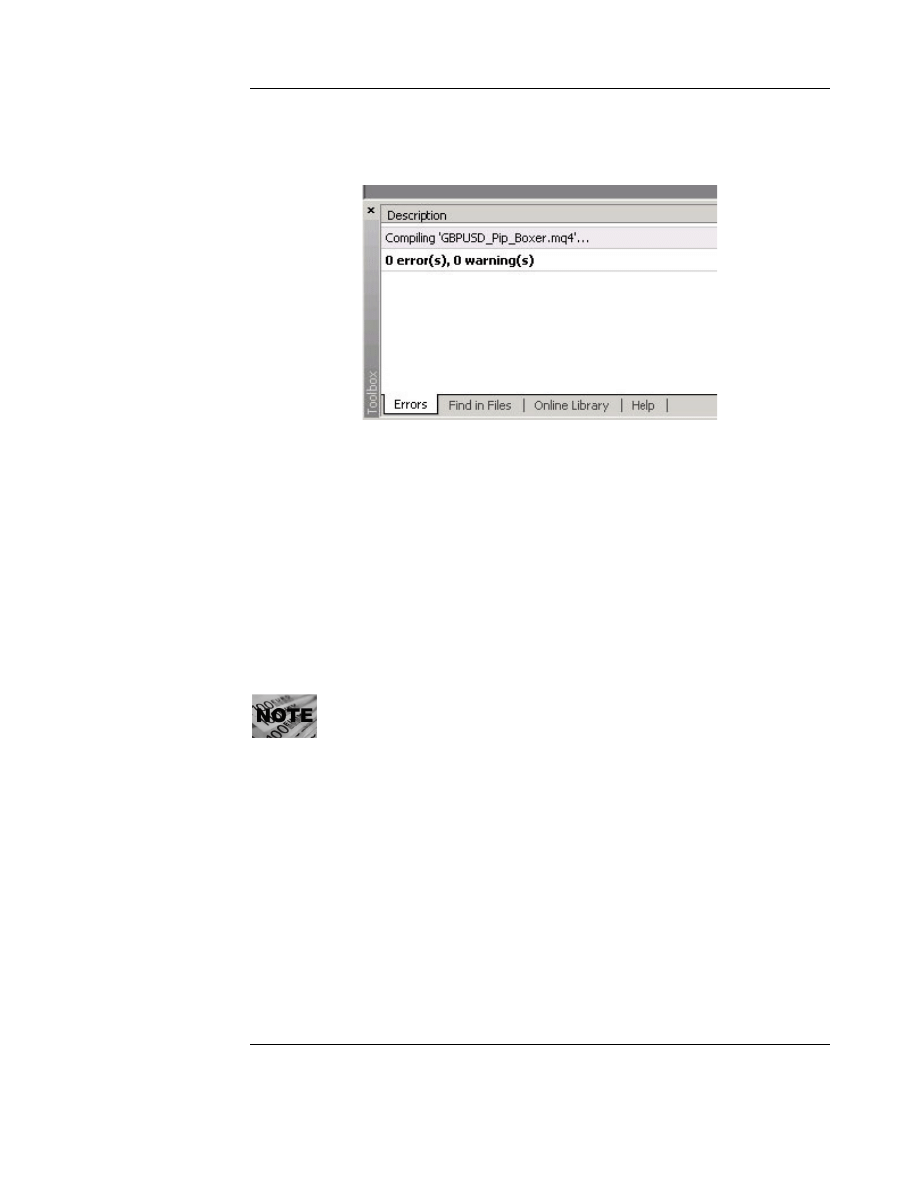
4. If the code contains no errors the application creates the compiled (*.ex4) file
and you are ready to use the EA. The error messages appear on a window
called “Toolbox” embedded in the MetaEditor environment. If you receive a
P B G R I D V 1 . 0 . 2
A L P A R S A I
© 2007 www.pipboxer.com
Page 7
Disclaimer
: Forex is a risky market. There is no system or person who can guarantee your success. You
implement the methods introduced in this manual and/or use PipBoxer at your own discretion. The author/owner of
this manual and/or PipBoxer shall not be held responsible for your losses of any kind included but not limited to
the program’s malfunction.
message similar to the one shown in Figure 3 you are good to go. If not, you
either need to fix the error yourself or contact someone who is an MQL
developer.
Figure 3
5. Close MetaEditor.
Now you are ready to use the EA.
Attaching the EA
To attach an EA to a chart use the following steps.
1. In the MT4 terminal open the desired chart.
2. Select the proper time frame by clicking one of the icons on Periodicity toolbar
or Chart > Periodicity menu.
PBGrid is independent of timeframe. You may select any Periodicity for it.
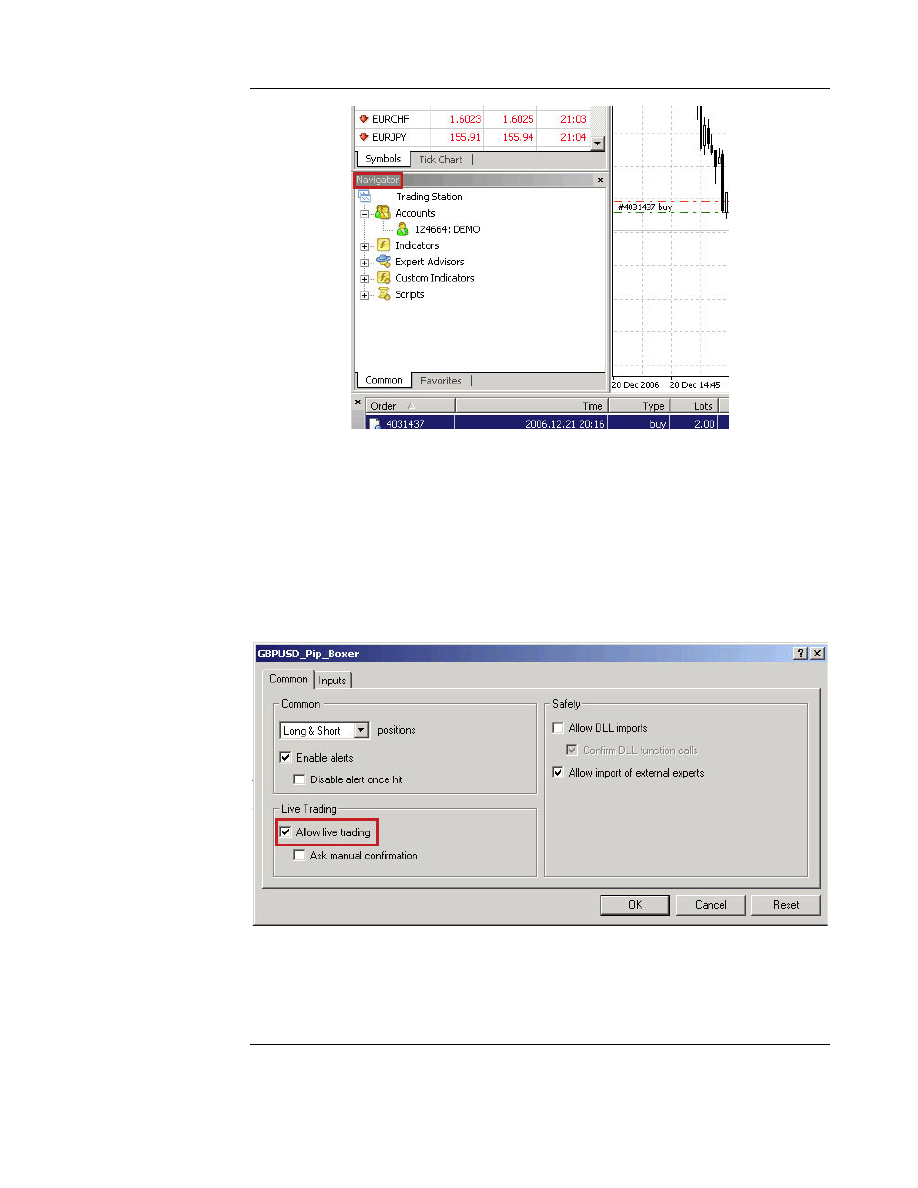
3. Make sure that the “Navigator” window is open. The default location of this
window is below the “Market Watch” window on the left side of the MT4
terminal (Figure 4). If the “Navigator” window is not open either press
Ctrl+N or from the View menu select Navigation.
P B G R I D V 1 . 0 . 2
A L P A R S A I
© 2007 www.pipboxer.com
Page 8
Disclaimer
: Forex is a risky market. There is no system or person who can guarantee your success. You
implement the methods introduced in this manual and/or use PipBoxer at your own discretion. The author/owner of
this manual and/or PipBoxer shall not be held responsible for your losses of any kind included but not limited to
the program’s malfunction.
Figure 4
4. In the “Navigator” window click the “+”sign next to “Expert Advisors”. The
list of current EAs appear in the window.
5. From the list either drag-and-drop the EA to the chart or double-click it. A
dialog box appears.
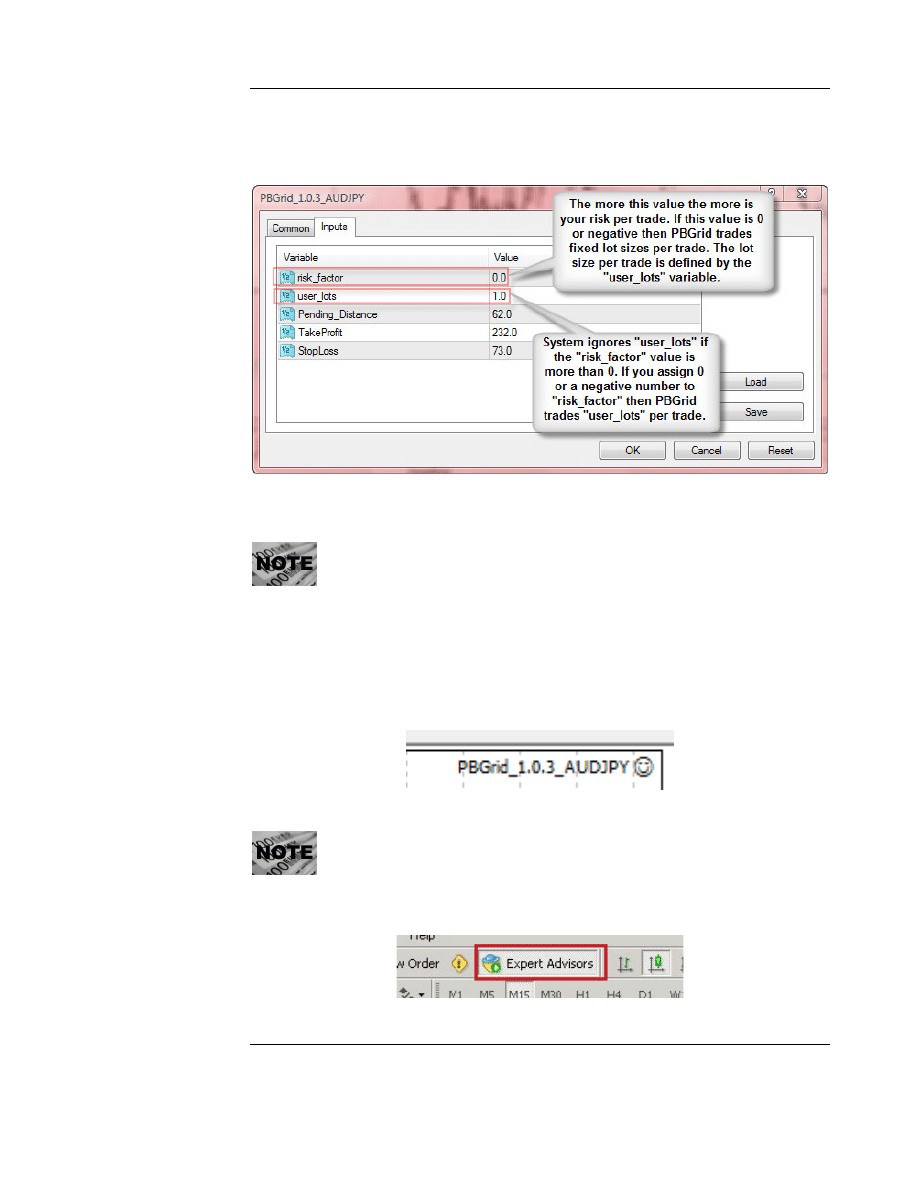
6. On the “Common” tab select the “Allow live trading” option (Figure 5). If
you do not select this option the EA does not enter trades automatically.
Figure 5
P B G R I D V 1 . 0 . 2
A L P A R S A I
© 2007 www.pipboxer.com
Page 9
Disclaimer
: Forex is a risky market. There is no system or person who can guarantee your success. You
implement the methods introduced in this manual and/or use PipBoxer at your own discretion. The author/owner of
this manual and/or PipBoxer shall not be held responsible for your losses of any kind included but not limited to
the program’s malfunction.
7. On the same dialog box select the “Inputs” tab. The tab is located at the top of
the dialog box. In this tab you can make any changes to external variables
(Figure 6).
Figure 6
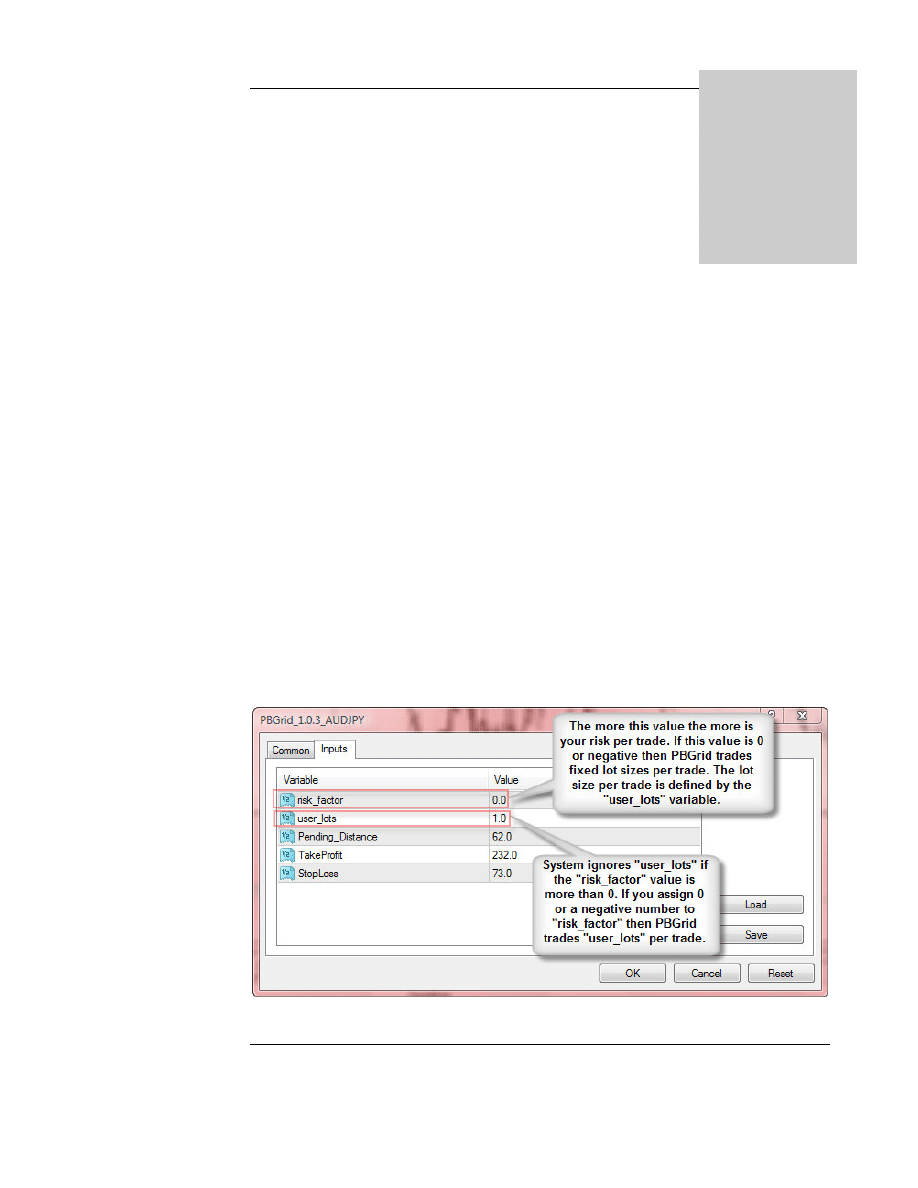
PBGrid input variables are already preset. The only variables that you might
like to change are “risk_factor” and “user_lots”. The “risk_factor” variable
increases/decreases your risk level. If you increase the value of this variable
you increase your risk level. If you set 0 to this variable then PBGrid trades
fixed lot size according to the value entered for the “user_lots” variable. See
figure 6 for more information.
7. Click OK. A smiley (happy face) appears on the upper right corner of the chart
indicating that the EA is running (Figure 7).
Figure 7
You may see an “x” sign instead of the happy face. This means that all of the
EAs are deactivated. To activate EAs from the Standard toolbar press the
“Expert Advisors” icon (Figure 8).
Figure 8

P B G R I D V 1 . 0 . 2
A L P A R S A I
© 2007 www.pipboxer.com
Page 10
Disclaimer
: Forex is a risky market. There is no system or person who can guarantee your success. You
implement the methods introduced in this manual and/or use PipBoxer at your own discretion. The author/owner of
this manual and/or PipBoxer shall not be held responsible for your losses of any kind included but not limited to
the program’s malfunction.
If instead of the happy face you see a sad face it means that this EA is not allowed to
trade live. To enable live trading:
1. Press F7 to see the EA properties dialog box.
2. Select the “Common” tab.
3. Select “Allow live trading” (Figure 5).
Changing the Properties of an Attached EA
To change the properties of an EA that is attached to a chart use the following steps:
1. In the MT4 terminal open the chart.
2. Press F7 to see the EA properties dialog box. Alternatively, you may right click
on the smiley located on the upper right side corner of the chart and select
Properties from the pup-up menu.
3. To change the values assigned to external variables, select the “Inputs” tab and
make the desired changes or click Reset to restore the original settings of the
EA.
4. To change other options select the “Common” tab and select or deselect
desired options.
5. Click OK.
Some brokers disable EAs by default. You need to contact your broker and
ask them to activate EAs for your account. They usually ask you to submit a
form.

P B G R I D V 1 . 0 . 2
A L P A R S A I
© 2007 www.pipboxer.com
Page 11
Disclaimer
: Forex is a risky market. There is no system or person who can guarantee your success. You
implement the methods introduced in this manual and/or use PipBoxer at your own discretion. The author/owner of
this manual and/or PipBoxer shall not be held responsible for your losses of any kind included but not limited to
the program’s malfunction.
3. The PBGrid Strategy
BGrid is all about money management. The entry to the market is very easy.
Unlike many other systems it doesn’t use sophisticated methods to enter the
market. However, when it comes to managing open trades it uses a complex
money management approach that turns it to a successful trading system.
PBGrid uses three steps to complete a trade.
1. Placing pending orders.
2. Position sizing.
3. Managing open orders.
Placing Pending Orders
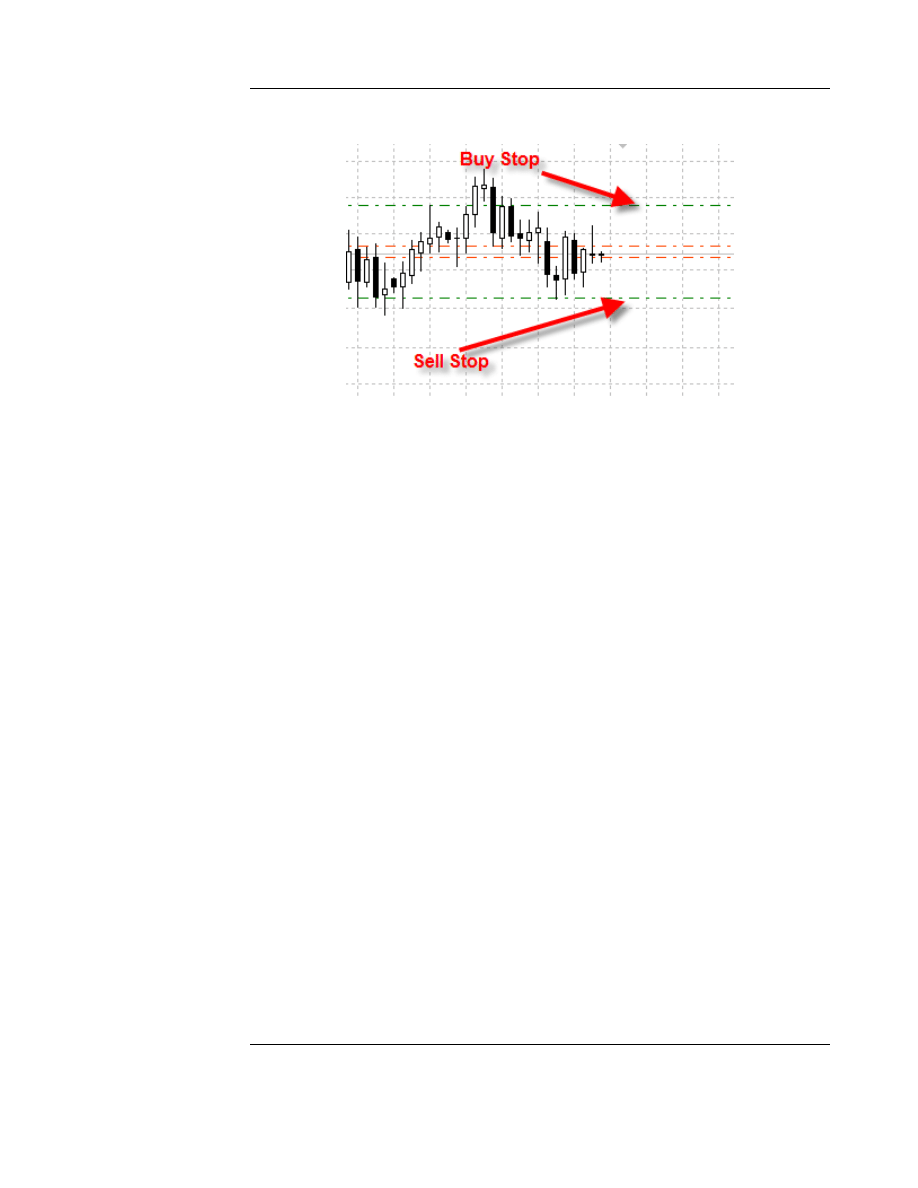
Let me give you a scenario to have a better understanding of how PBGrid places
pending orders. Assume that you have attached PBGrid to an AUD/JPY chart. Let’s
assume that the current Bid price is 86.47 and the spread is 10 pips. Also assume that
the current value of the “Pending_Distance
*
” is 62 pips.
The first step is to make sure there are no open trades that have been opened by
PBGrid today. In this case PBGrid places two pending orders a Sell Stop at 85.85 (i.e.
86.47 minus 62 pips) and a Buy Stop at 87.19 (i.e. 86.47 plus 62 pips plus 10 pips for
spread).
If price hits one of the pending orders PBGrid cancels the other one.
If you manually delete one of the pending orders PBGrid resets the pending orders.
This means that it deletes the other pending order and places two new pending orders
according to the current price. For example if the current Bid price is 86.37 the new
Sell Stop price would be 85.75 and the new Buy Stop price would be 87.09.
*
Pending_Distance is one of the user input variables. These variables are set for the maximum profit but the
users can change their values at their own discretion.
3
P
P B G R I D V 1 . 0 . 2
A L P A R S A I
© 2007 www.pipboxer.com
Page 12
Disclaimer
: Forex is a risky market. There is no system or person who can guarantee your success. You
implement the methods introduced in this manual and/or use PipBoxer at your own discretion. The author/owner of
this manual and/or PipBoxer shall not be held responsible for your losses of any kind included but not limited to
the program’s malfunction.
Figure 9 helps you to have a better understanding of how this system works.
Figure 9
If the open trade of the day closes the same day PBGrid places two new pending
orders.
If the open trade stays open PBGrid places two new pending orders the next day.
Position Sizing
PBGrid uses a fixed ratio position sizing technique. This basically means that the larger
your equity the bigger the position per trade. The formula looks like the following.
Lot# = (risk_factor x Account Equity)/ Lot Size
Lot #
The number of lots to be traded per order
risk_factor
A value that defines the magnitude of your risk per trade
Account Equity
Your account balance + the current open profit
Lot Size
The size of every lot in your account (usually 100,000 units
for standard accounts and 10,000 units for mini accounts)
For example if your account equity is $10,000.00, your risk_factor is 1, and you are
trading a standard account the value of Lot# would be 0.1 of a standard lot. It means
that the system trades 0.1 lots per trade.
There are of course many adjustments behind the scene. For example PBGrid
considers the fact whether your broker allows you to trade min lots or micro lots at all.
It also enters a trade with minimum allowable lot# if the calculated lot# is less than
that. In the previous example if your broker lets you trade micro lots and your account

P B G R I D V 1 . 0 . 2
A L P A R S A I
© 2007 www.pipboxer.com
Page 13
Disclaimer
: Forex is a risky market. There is no system or person who can guarantee your success. You
implement the methods introduced in this manual and/or use PipBoxer at your own discretion. The author/owner of
this manual and/or PipBoxer shall not be held responsible for your losses of any kind included but not limited to
the program’s malfunction.
equity reaches $11000 PBGrid trades 0.11 lots per trade. This means that for every
$1000 in your account it trades 0.01 lots. If you increase the risk_factor (see Figure 6
on page 9) to 2 then for PBGrid will double the size of its positions. It trades 0.2 lots if
your equity is $10000 and 0.22 if it is $11000.
Managing Open Orders
As I mentioned already, PBGrid is all about money management. It comes with a
complex set of money management tools that constantly move Stop Loss and Take
Profit to get out of a trade with the best results possible. While we cannot reveal the
specifics of those tools we can assure you that we have done our best to make them
effective.
P B G R I D V 1 . 0 . 2
A L P A R S A I
© 2007 www.pipboxer.com
Page 14
Disclaimer
: Forex is a risky market. There is no system or person who can guarantee your success. You
implement the methods introduced in this manual and/or use PipBoxer at your own discretion. The author/owner of
this manual and/or PipBoxer shall not be held responsible for your losses of any kind included but not limited to
the program’s malfunction.
4. Trading with PBGrid
rading with PBGrid is very easy. The first step is to place PBGrid file in the
“\experts” folder of your MetaTrader platform. For example if you have
installed MetaTrader 4 in “C:\Program Files\Interbank FX Trader 4” then
the correct location of PBGrid files would be “C:\Program Files\Interbank
FX Trader 4\experts\PBGrid_1.0.3_AUDJPY.ex4”. The exact name and path of the
file could be different. When you place the file in the correct folder make sure to restart
MetaTrader 4.
When you are done with installation you need to attach PBGrid to the correct chart.
For example PBGrid for AUDJPY needs to be attached to an AUDJPY chart. The
timeframe of the chart is not important. Please refer to chapter 2 for more information
about attaching PBGrid to chart.
You may decide to change the parameters of PBGrid at the time of attachment or
afterwards. If you have already attached PBGrid to the chart press F7 to see the
properties of PBGrid. Figure 10 shows you a list of user input parameters.
Figure 10
4
T

P B G R I D V 1 . 0 . 2
A L P A R S A I
© 2007 www.pipboxer.com
Page 15
Disclaimer
: Forex is a risky market. There is no system or person who can guarantee your success. You
implement the methods introduced in this manual and/or use PipBoxer at your own discretion. The author/owner of
this manual and/or PipBoxer shall not be held responsible for your losses of any kind included but not limited to
the program’s malfunction.
risk_factor:
This variable defines your risk level. If you assign a positive
value to this variable PBGrid ignores “user_lots”. If you assign
0 or a negative value to this variable, PBGrid uses “user_lots”
as the number of lots per trade. See section 3 for more
information about “risk_factor”.
user_lots:
Defines the number lots to be traded per order. This variable is
effective only if “risk_factor” is 0 or negative. It defines the
number of lots. For example if “user_lots” is 1 PBGrid trades 1
lot per trade. This could be a standard lot or a mini lot
according to your account type.
Pending_Distance:
Defines the distance of the pending order from the current
price at the time of placing the pending order. This distance is
in pips.
TakeProfit:
Take Profit in pips.
StopLoss:
Stop Loss in pips.
While you can change the values of “Pending_Distance”, “TakeProfit”, and
“StopLoss” we suggest keeping them as they are. We have optimized these values
based on back-test results.

P B G R I D V 1 . 0 . 2
A L P A R S A I
© 2007 www.pipboxer.com
Page 16
Disclaimer
: Forex is a risky market. There is no system or person who can guarantee your success. You
implement the methods introduced in this manual and/or use PipBoxer at your own discretion. The author/owner of
this manual and/or PipBoxer shall not be held responsible for your losses of any kind included but not limited to
the program’s malfunction.
5. Beware of Risks
orex traders are aware that this market is probably one of the riskiest markets
in the world. There are several reasons that make Forex a risky market. The
fundamentals behind forex are very complex and make it unpredictable. Forex
is directly affected by both economic and political news. The highly leveraged
environment of forex is another reason that makes it so risky.
Other than the inherited risks of forex trading there are many other risks that you need
to take into account. Some of them are as follows.
The Internet Connection
The MetaTrader client terminal is by default located on your computer. On the other
hand you need information through the internet to be able to enter and manage trades.
One of the greatest risks that you may encounter is being disconnected from the
internet. There are different ways that you can cope with this risk. For example you can
get a good and reliable internet service and also attach your computer to a UPS
machine to make sure the system is always on. The other solution could be installing
the terminal on a Virtual Dedicated Server (VDS) also known as a Virtual Private
Server (VPS). Many of such servers guarantee over 99% uninterrupted connection to
the internet. If you want to use a VDS service make sure it really works for you.
The Server Connection
Even if the trading terminal is connected to the internet all the time it may get
disconnected from the trading server. There is no specific solution to this problem.
That’s why PBGrid always uses its trading tools to define SL and TP clearly. In case of
disconnection from the trading server the worst case scenario would be hitting the SL.
The Broker
Know your broker. Some brokers do not honor TP or SL all the time and may put you
into trouble. PBGrid uses some tools to mitigate the broker’s interference but at the
end of the day it is you who should select the broker wisely.
5
F

P B G R I D V 1 . 0 . 2
A L P A R S A I
© 2007 www.pipboxer.com
Page 17
Disclaimer
: Forex is a risky market. There is no system or person who can guarantee your success. You
implement the methods introduced in this manual and/or use PipBoxer at your own discretion. The author/owner of
this manual and/or PipBoxer shall not be held responsible for your losses of any kind included but not limited to
the program’s malfunction.
The Trader
PBGrid is a mechanical system that works based on solid rules but if you are not a
disciplined trader you may ruin everything. Make sure to close a trade manually only if
you are quite sure that it won’t work for you. Sometimes a trade moves against you for
several days but eventually hits the TP. PBGrid MM tools can help you to take care of
your trades but your interference can ruin the overall performance of the system. If
you do not feel comfortable with PBGrid demo trade it for a while and enter live
trades only if you feel this is the right system for you.
Trading with fixed lot size is not a good idea. I suggest using risk management tools to
make sure the drawdown is under control. Do not increase “risk_factor” to large
numbers. It can be destructive especially on a live account. If you want more, trade
more than one pair.
The EAs
The built in risk manager in PBGrid calculates lot size based on your equity. However,
the brokers do not allow you to trade any number of lots you want. For example the
calculations might show that you need to trade 1.072 lots while your broker might not
allow you to trade less than 0.1 fractions. This means that you either need to trade 1 lot
or 1.1 lots. The system rounds the number to the nearest value allowed by your broker.
In this case it would be 1.1 lots which is more than the calculated lot size. Therefore if
the trade hits the SL you will lose a little bit more than what you expected. Be prepared
for such incidents.
Although I have done my best to predict all policies set by the broker there might be
exceptional cases that you would see contradictions between the broker’s policy and
the EA. For example the price approaches the TP and the EA tries to move the SL to
near the TP but the broker doesn’t accept the request. Such incidents might happen if
the price is very near to the TP. You might rarely encounter such problems. One
approach is to manually correct the trade to the nearest value allowed by your broker.
You may also contact your broker and ask them to fix the problem. They might be
able to help. While I cannot guarantee to be able to fix such broker related problems
you may also contact me via
info@pipboxer.com
to see if I can modify the program to
deal with such situations.

P B G R I D V 1 . 0 . 2
A L P A R S A I
© 2007 www.pipboxer.com
Page 18
Disclaimer
: Forex is a risky market. There is no system or person who can guarantee your success. You
implement the methods introduced in this manual and/or use PipBoxer at your own discretion. The author/owner of
this manual and/or PipBoxer shall not be held responsible for your losses of any kind included but not limited to
the program’s malfunction.
6. Terms, Conditions, and Disclaimer
Please visit
http://www.pipboxer.com/termsandconditions.php
for the latest version
of terms, conditions, and disclaimer. You will also see our Privacy Policy there. If you
have any questions regarding these issues please contact
policies@pipboxer.com
.
6

19
7. Index
A
allowed, 10
attach, 4, 5, 7, 16
Attaching, 5, 7
B
Box Size, 12
brokers, 10, 16
C
Common, 8, 10
Compile, 6
compiled, 5, 6
Compiling, 6
Conditions, 18
Connection, 16
D
dialog box, 8, 9, 10
disciplined, 3, 17
Disclaimer, 18
discretional, 3
drawdown, 17
E
EA, 4, 5, 6, 7, 8, 9, 10
Entering, 3
ex4, 5, 6
executable, 5
Expert Advisors, 4, 6, 7, 8, 9, 10
external, 9, 10
F
fixed, 17
Forex, 3
Formats, 5
I
information, 16
Inputs, 9, 10
install, 4, 6
Internet, 16
L
Location, 5
lot, 17
M
market, 3, 4, 5, 16
mechanical, 3
menu, 7, 10
MetaEditor, 6, 7
MetaTrader, 4, 5
MM, 17
money, 3
money management, 3
mq4, 5, 6
MT4, 5, 6, 7, 10
N
Navigator, 6, 8
O
OTC, 3
Over-The-Counter, 3
P
PipBoxer, 1, 4, 5, 11
Properties, 10
S
Server, 16
signals, 5
size, 17
SL, 16
solid rules, 17
source code, 5, 6
system, 12, 16, 17
T
terminal, 5, 6, 7, 10, 16
Terms, 18
Toolbox, 6
TP, 16, 17
Trader, 17
trades, 3, 5, 8
U
understanding, 12
USDJPY, 5

20
Wyszukiwarka
Podobne podstrony:
więcej podobnych podstron