GRABBING AUDIO AND VIDEO STREAMING FILES
FROM THE WEB
by Wojciech Korput
Teaching Trainig College
Bydgoszcz, Poland
wkorput@nkjo.bydgoszcz.pl
You may have faced a problem of not being able to use some of the Web materials in
class due to the simple reason of them being provided in a streaming format. Unless you have a
reasonably fast connection and can use the school lab for that purpose, you are helpless trying to
provide your students with a chance of enjoying audio/video clips with intriguing interviews,
songs whose lyrics you may want to analyse or any other material of that kind you find perfect
for enhancing your class. Whether audio or video, RealAudio or MS Windows Media format,
they are usually equally non-downloadable.
Long ago, I managed to find a solution to the problem of capturing the audio files of my
choice I wanted to include in the listening practice of my classes. In fact, it was the piece of
software
called
Audiograbber
which
did
the
job
for
me.
Audiograbber
(
http://www.audiograbber.com-us.net
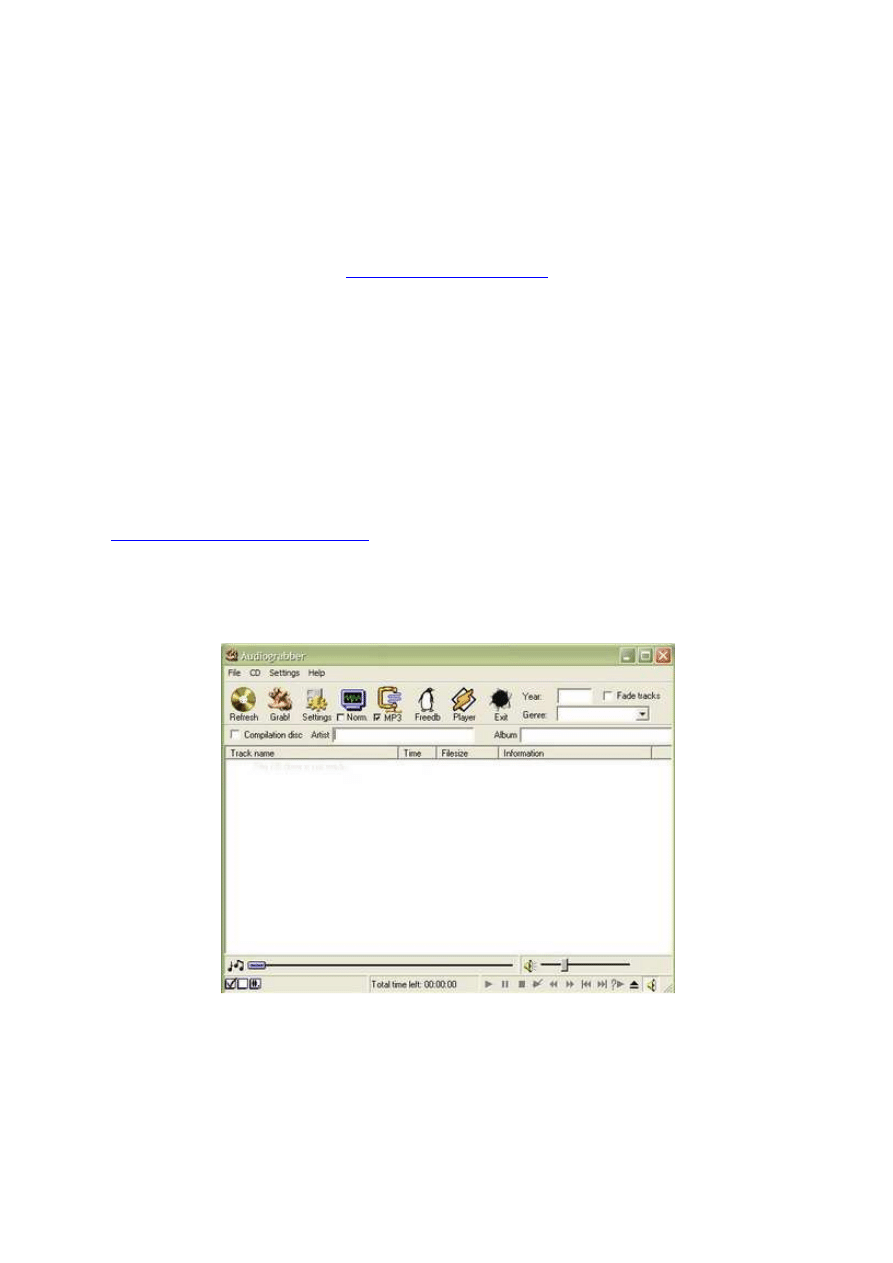
) is a free programme that basically copies music and stores
it on your computers hard drive. Its main purpose, I believe, was to copy music from CDs. There
is also an option to copy music through the soundcard (though with a slight sound degradation)
as well as copy sound via the soundcard from an external source, such as the cassette player or
the radio.
Picture 1. Audiograbber’s main window
Also, Audiograbber can connect to a database on the Internet and download disc
information such as track names. It has a "normalise" function to make tracks from different CDs
sound equally loud. The tracks can be saved as WAV files or converted to MP3 or WMA files
with external programs or internal codecs such as the LAME freeware MP3, or MS Windows
Media Audio codec.
Yet the function I found the most useful for my purpose was grabbing the sound from the
Internet audio streaming sources. The whole procedure is fairly simple: once you have
downloaded the software and installed it, you have to set it up at least to be able to find the
captured files on the hard drive later on after the session. Also the output format needs to be
specified. You have to choose options of e.g. saving the sound files as MP3s at 128kb/s quality,
which is good enough for majority of applications while playing the output files in class.
Remember, if you go for MP3 format, you will have to download and install its codec first, such
as The LAME, free software ideally serving the purpose, by copying the lame.dll file into the
Audiograbber directory. For more information on codecs go to:
http://www.free-codecs.com
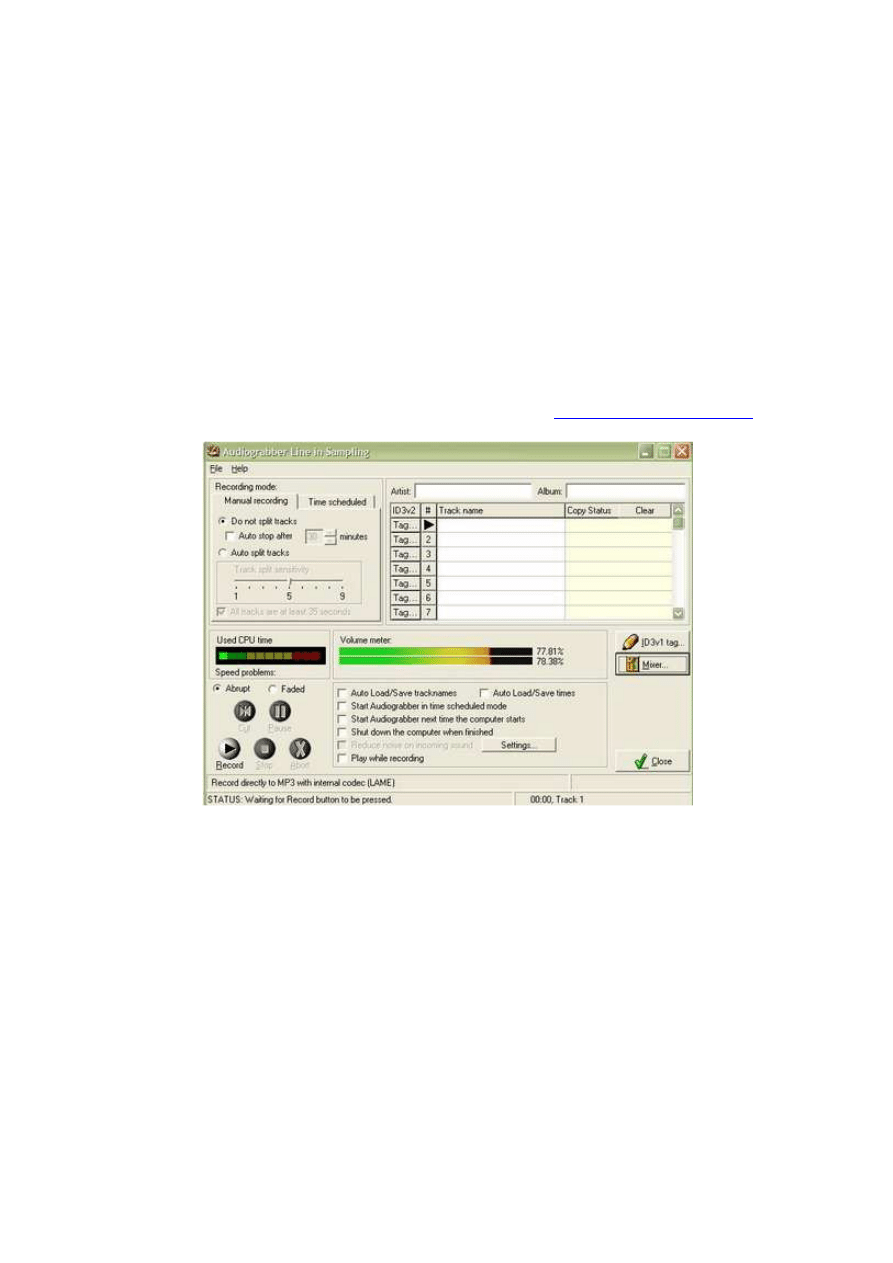
Picture 2. Audiograbber’s Line in recording window
In order to grab audio online with Audiograbber you have to use the menu [File|Line in
sampling], set the controls to the manual mode, if you like to monitor the recording and control it
manually, then use the ‘mixer’ option to check one of the available boxes responsible for
grabbing sound. From my experience, checking either ‘line in’ or ‘mixed source’ box should do
the trick. Once you have done that, play some music from the Net, a saved sound file or a CD to
see if the sound level is visible on the volume meter. Finally, adjust it with the mixer slide bar or,
if the volume levels do not appear, check another box choosing e.g. ‘mixed source.’ Now you are
ready to start your audiograbbing session.
Nevertheless, I have recently faced another challenge, namely the problem of
downloading streaming video files. Since I happen to train Air Force officers and try to upgrade

their command of military English, I found it reasonable to look for authentic materials on the
Web, ideally briefings, as part of their duty is understanding them to be able to operate within
NATO and possibly brief/debrief others as well. The sites which I found perfect in that respect
are
http://www.pentagonchannel.mil
and
http://www.defenselink.mil/transcripts/
. The former is a
Website for a TV channel offering you a streaming video with live coverage of their programme,
which I assume is typically available for American cable TV. Also, it provides you recorded
programmes broadcast on their channel. Clicking on any of the pictures listed in the main
window opens up a separate panel for video broadcasts which includes a sidebar with lots of
subchannels to choose from such as Newscasts, Top Stories or Briefings, the last one with recent
US military briefings directly from Pentagon or Iraq itself to a large extent. The latter site offers
current as well as archived transcripts of the briefings available from the Pentagon Channel in
the video format. Combined, they are perfect authentic materials to analyse in any English for
military class for watching, listening and text analysis. In the above case the download is
basically easy as each video screen is supplemented by a comment with an icon allowing you for
a direct download of the video file.
Much more of a problem, though, posed capturing some video files from certain other
sites. As my college students find it highly appropriate to be exposed at listening/phonetics
classes to a variety of English dialects enhancing their understanding of regional differences in
the language, I found the BBC’s Video Nation (
http://www.bbc.co.uk/videonation/
) be cut out for
that purpose. The site
is a way to meet people from across the UK and hear what they say about
their lives and the world around them. You can watch the video clips and test your
comprehension in Listen out!, check what you have heard by looking at tapescripts, discover
facts about life in the UK in Did you know, practise your grammar and vocabulary skills in
Language Fix, then Get talking! to develop your speaking skills.
Actually, the site offers a RealVideo clip database providing you with several logically
arranged categories of database search. You may want to focus on the dialects throughout Britain
and all you have to do to watch people from e.g. Leeds is either to locate the region/person on
the
map
or use a
drop down menu
with a list of places around the UK. If your preference is to
learn what some British people's opinions on different subjects are, go for a thematically
arranged option at
http://www.bbc.co.uk/videonation/archive/
, providing a wide choice of clips
from such Categories as Tees, Pets or Sport, Features such as Summer, Race UK or Fat Nation,
or Local Sites and other search array of your choice including alphabetical arrangement (both by
video title and author’s surname) as well as keyword search.
Although most of the clips mentioned above are too small to be displayed in a regular full
screen mode as they lose much of their video quality then, it is worthwhile downloading the files
in a video format to make the activities even more attractive to the class since the sound quality
is preserved while the students will still have the advantage of watching the real people talking.
If you lack video presentation facilities in your classroom allowing you to play the video files
directly from the computer, one other option would be applying Audiograbber to capture and
then play just the sound files. Still one other might be copying the videos from the computer onto
a VHS tape and make use of a regular combination of a video player/recorder with a TV set to
make the presentation possible. Yet, in that case, it is advisable not to rely on the speakers from
the TV set, unless it is a state-of-the-art device, but play the sound from the videotape via cable
through some standalone HiFi or an amplifier to preserve initial quality of the recording and
provide your students with as much degree of listening comfort as possible.
The piece of software I found worth recommending for the video capture purpose is
HiDownload from
http://www.streamingstar.com/
, which makes it possible to download files,
record RealMedia, Windows Media, MP3 streams as well as recently added QuickTime
Streaming. As the streaming files’ URLs are usually hidden behind JavaScript or ActiveX
scripts, you are typically able only to save some *.ram address redirecting you to the actual file
which is played live only and cannot be saved the way you normally do it to e.g. *.doc or *pdf
files available on the Web. Yet, the program also features URL Helper to locate the actual files to
record.
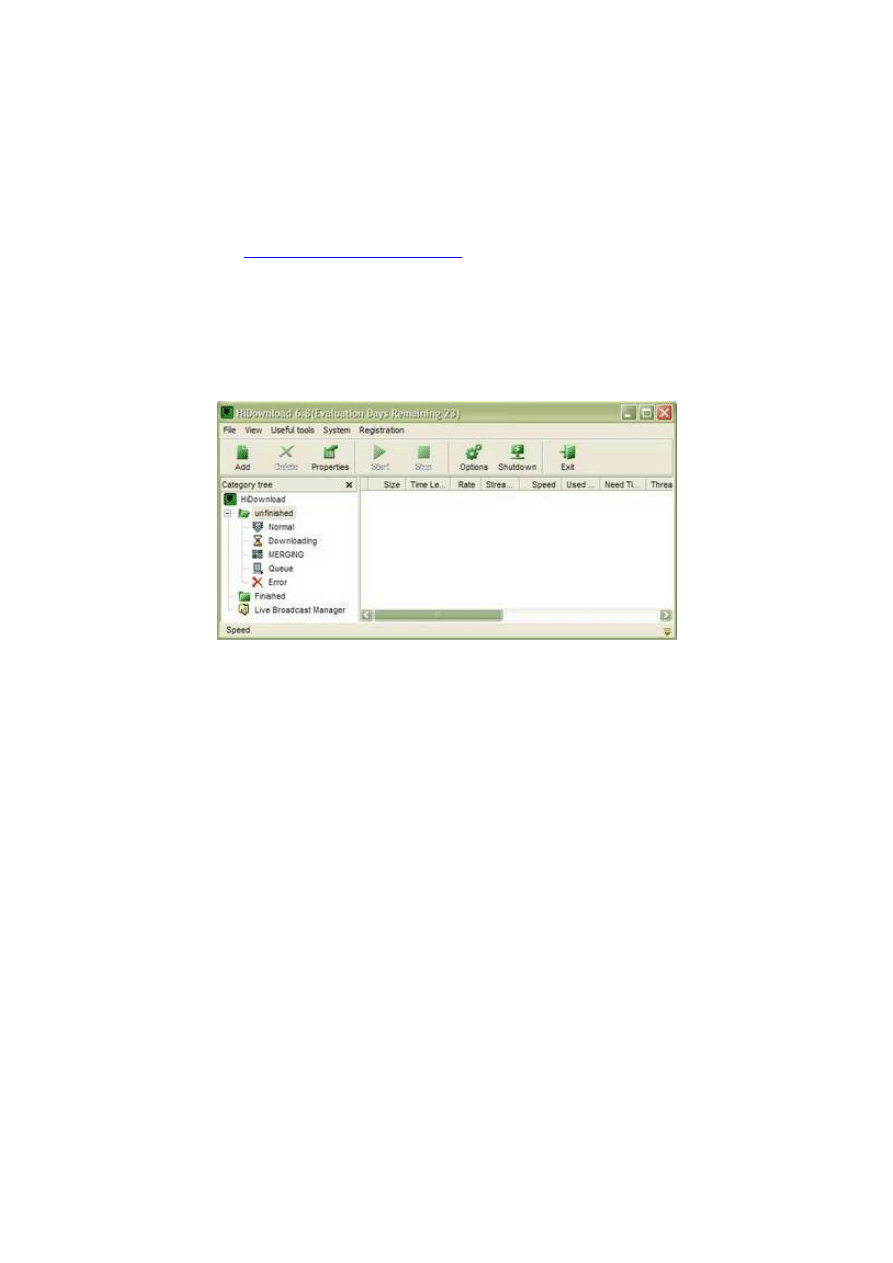
Picture 3. HiDownload main window
Once you have downloaded the software and installed it, you should start it to have a look
behind the Options button to configure the programme al least to specify the location of your
virus scanner and set up the download directory, which is C:\hidownload\ by default. When you
start the programme (hit Evaluate button to start working with it due to its temporary 30-day
licence), apart from the main window, you will see its icon residing in the tray and a bigger Drop
Target icon (which you can disable by clicking the right mouse button on it and choosing the
option) hanging on top of the screen in central location. That means you can now start your Web
browser to locate the video files you want to record onto the hard drive of your computer. Once
you find the link, use the right mouse button to choose the Copy the URL/link option which
activates the add task window (see below) with an automatically entered file source address.
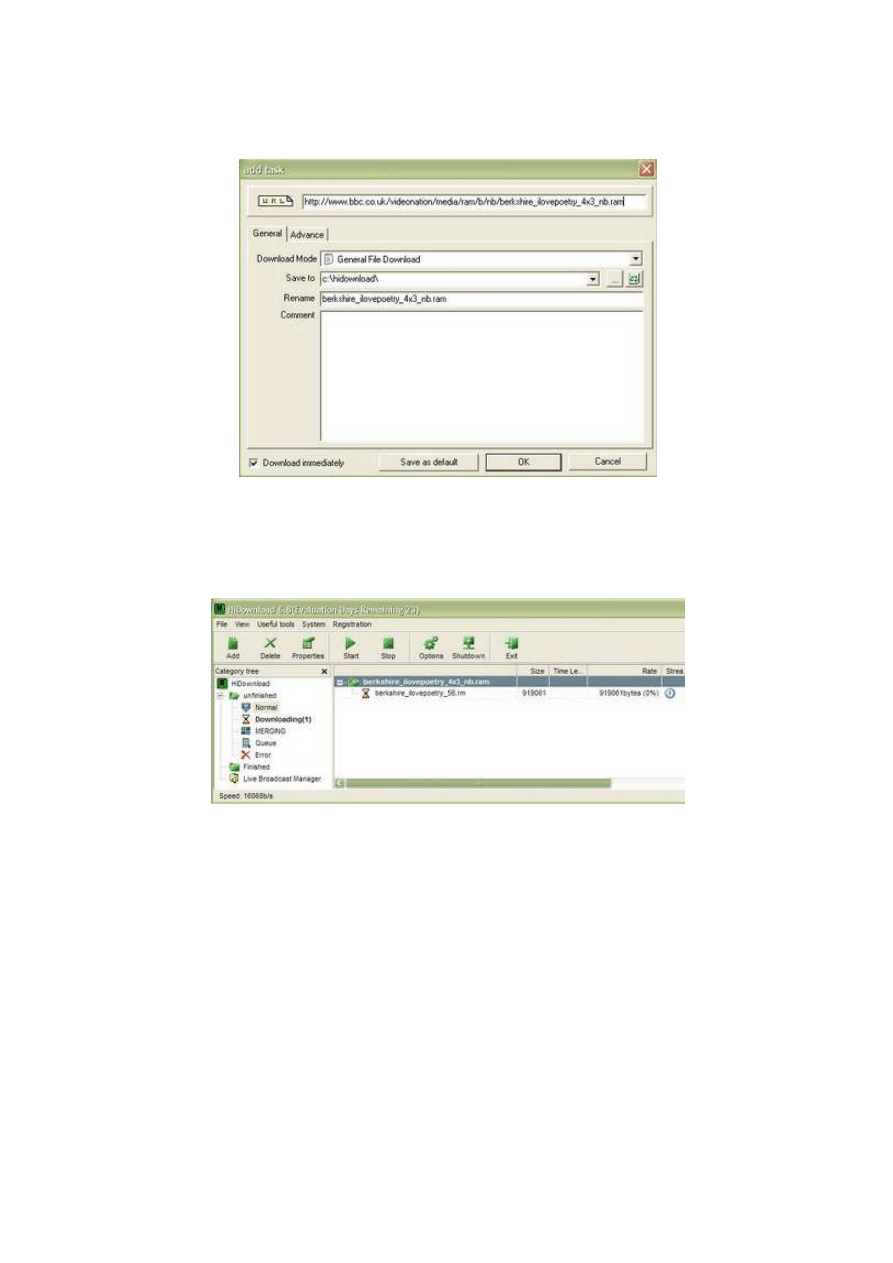
Picture 4. ‘Add task’ window
Now, you have to click OK and watch the file download/record into the directory you
specified to be able to locate it later (check for Save to option like in Picture 4).
Picture 5. Recording in progress
You can monitor the progress in the main window which pops up immediately (see
Picture 5) until you see the whole file in the specified directory. One piece of advice on actually
making use of the files is that although the session is saved in one directory, it leaves you with a
wide confusing range of similarly named files including the video you wanted to have. Locating
the right one is usually simple since it is usually the biggest file on the list with the extension
‘*.@@@1’. When you get rid of the extra extension (e.g. in MS Windows Explorer or working
directly with the files in the folder) and possibly some additional redundant numbers standing for
the name of the session such as [1], [2], etc., the remaining should be your downloaded video file
name with the proper extension depending on the type of the recorded file: *.rm, *wmv, *.asf,
etc.

Finally, in case you do not like handling RealMedia or Windows Media files, an extra
piece of software from the same site, namely Digital Media Converter, makes it easy for you to
convert video and audio files from one format to another. Now you can organise and batch
convert all your video and audio files between: VCD, DVD, AVI (DivX, MS MPEG4,
uncompressed, etc), MPEG-1, MPEG-2 (PAL, NTSC), MP3, MOV, WMA, WMV, and WAV
formats. Unfortunately, its availability is also limited to just 10 days after installation. Yet, you
may try out one other option for converting only audio files for you might be dBpower AMP
Music Converter available from:
http://www.dbpoweramp.com
.
References
More information on downloading streaming media:
•
http://all-streaming-media.com/streaming-media-faq/faq-streambox-vcr-download-
problems.htm
More information on codecs:
•
http://www.free-codecs.com
Other recommended sites for downloading educational grade streaming media:
•
http://www.bbc.co.uk/worldservice/learningenglish/
multimedia/index.shtml
•
http://www.learnenglish.org.uk/songlyrics_frame.html
•
http://www.bbc.co.uk/arts/poetry/outloud/
•
http://www.english-trailers.com
Wyszukiwarka
Podobne podstrony:
2002 05 Broadcast 2000C Audio and Video Editing Suite
Bearden Tech papers Extracting and Using Electromagnetic Energy from the Active vacuum (www chenie
The best of Amish cooking traditional and contemporary recipes adapted from the kitchens and pantrie
Jean and Jeff Sutton Alien From The Stars
There are many languages and cultures which are disappearing or have already disappeared from the wo
III dziecinstwo, Stoodley From the Cradle to the Grave Age Organization and the Early Anglo Saxon Bu
Maps of the Ancient World Ortelius A Selection of 30 Maps from The Osher and Smith Collections
Energy From The Vacuum concepts and principles ?arden
Nanocosm Nanotechnology and the Big Changes Coming from the Inconceivably Small, 2005, p 320
Detection and Function of Opioid Receptors on Cells from the Immune System
A Content Analysis of Magazine?vertisements from the United States and the Arab World
Cook, Glen From the Files of Garrett, P I 05 Dread Brass Shadows
Aspects of the development of casting and froging techniques from the copper age of Eastern Central
RADIOACTIVE CONTAMINATED WATER LEAKS UPDATE FROM THE EMBASSY OF SWITZERLAND IN JAPAN SCIENCE AND TEC
Bibliography Athenian Political Art from the Fit h and Fourth Centuries BCE
Richard Bowes From the Files of the Time Rangers
Elgar Serenade from The Wand of Youth for cello and piano
SERGIS Dog sacrifice in ancient and modern greece from the sacrificial ritual to dog torture
Gade, Lisa, Lynge, Rindel Roman Theatre Acoustics; Comparison of acoustic measurement and simulatio
więcej podobnych podstron