Visual Xpress™ Known Issues
Version 3, build 8 or later
Page 1 of 4
Serial Wedge capability in 4810WA and 4800DR
Serial Wedge Settings (P1, P2, and P1 and P2) are visible under Communication Tab. These settings should not
be visible since they are not supported as indicated in the user guide for both products.
Intermittent failure to update firmware with RF Base, p/n IT2020 or 2020
Firmware updates to a connected scanner will fail intermittently. Repeat the firmware update when this occurs.
Streaming presentation selection is not available for RF devices
The streaming presentation feature is not available when connected to the RF devices IT2020 and 2020. Please
use the User’s Guide to program this feature. The Scan Data window and Command Center can also be used to
enable the feature. The serial menu command to enable is TRGMOD8. Please refer to the user guide on how to
configure this for a specific connected scanner.
Preferred Symbologies is available for all Lightbar products
The help text mentions only the 4600r as supporting this feature. As of 3/14/2008 all LightBar products support
this feature.
Auto-crop is available for devices that do not support it
The auto-crop selection is available for devices that do not support it. Selecting this option and clicking Processed
Image button will not produce an image in the processed view tab. In some cases an error dialog will appear
stating “File format is not supported”. At this time only the 4800DR supports the auto-crop function
Unable to connect at 115200, n, 8 1
After an initial install or after a host machine boots up the device connect will fail for when attempting to connect at
115200 N81. The problem can be cleared by manually configuring the com port with the Port Settings window.
Scanner error when writing settings with E81 parity settings
Setting the RS232 setting of parity even, 8 bits per character and 1 stop bit causes an error when writing settings
to the device. The write operation takes a very long time to complete and sometimes doesn't finish and an error is
thrown. If the write succeeds the scanner settings are verified as 38400, n81. Resetting the device returns the
settings N81. Use the user guide to manually program these settings.
CTS indicator not always correct
The application does not always reflect the actual state of the CTS line. The port however is operating correctly.
Hourglass appears on application launch
On rare occasion an hour glass will appear on application launch. The hour glass will change to the default cursor
Visual Xpress™ Known Issues
Version 3, build 8 or later
Page 2 of 4
when the mouse is clicked.
Can't connect; com port used is not what is set in preferences
Under certain conditions the application will attempt to connect on a com port other than what is selected in
preferences. This is typically seen when working with the port settings view and switching from an RS232
connected scanner to a USB connected scanner and changing port settings directly.
Clear the error by setting the port settings view to the preferred com port and then click on deviceÆ connect
Crop rectangle coordinates change by 1 after every zoom out in view area.
The Crop rectangle displays according to the Image coordinates not the View coordinates. Image coordinates
depends on the current Zoom-in percentage. The crop rectangle value display is a rounded value and can be off
by one. For example if the zoom value 57.8125% (60% would be displayed) a calculated Image coordinate of
15.56756757 would be displayed as 16 after rounding
Image does not refresh immediately sometimes for KIM/TIFF.
Issue is rare. Repeat operation to correct.
Default image size is 0 for KIM images
Only seen when the application starts. Capturing a baseline image updates image size
Images in preview mode are dark.
Products using the 5000 imaging engine have darker images when compared to the 4000 based product. There
are two methods to determine engine type;
1. If the Rev is available in the GeneralÆRevisions node then you have a 5000 based engine
2. If it is not available in the GeneralÆRevisions node then query from the Scan Data Node. In the
Command Center send the ENGREV? command. If the device responds with ENGREV?[ENQ] then the it
is not a 5000 engine product. If the device responds with Type and Revision information then it is a 5000
engine product
All the preview mode settings have been made configurable via registry settings. These settings can improve the
preview performance if necessary. NOTE: If you are not familiar with working with registry settings and how to
back it up please get assistance with some one who is. The following is the registry key and entries that can be
modified. The DWORD values refer to the default menu setting. Refer to the user guide for valid values
[HKEY_CURRENT_USER\Software\Hand Held Products\Visual press\Imaging\PreviewMode]
"SHPJPEGImageQuality"=dword:0000001e
"SNPUpdateTries"=dword:00000006
"SNPImagingStyle"=dword:00000001
"SHPPixelShip"=dword:00000003
"SHPFileFormat"=dword:00000006
Visual Xpress™ Known Issues
Version 3, build 8 or later
Page 3 of 4
Incidents of losing communication
Incidents have been seen that when writing settings or sending serial commands successfully, the application
disconnects and cannot communicate (see scanned barcode data, serial commands, etc in scan data window).
The application gives no indication that the user is no longer connected (still says synchronized on bottom of
screen). To bring back communication use Device Connect.
This condition has been specifically attributed to a couple of specific cases;
1. When writing an Inter-character, Inter-function, and or Inter-message delays to the connected device. See
the Inter-character, Inter-function, and Inter-message delay topic below.
2. Unusually slow communication interfaces, i.e; IBM cash registers or low baud rate connections; and-or a
system with background processes running that utilize a lot of processor resources.
Case #2 is considered to be a rare situation but can be a cause for connection problems. A method of
manipulating program timeout values is available but is provided upon request. Please contact technical support
in this case.
Printing configuration with no scanner attached causes exception error
When you select the menu option FILEÆPrint configuration, an exception error occurs and Visual Xpress will
close. Until an update is available that addresses this issues please insure a scanner is connected when printing
a configuration.
Flash settings progress bar always has focus. Download Status dialog problems.
During the firmware download process, if the user switches between applications, there is a very short period
when the progress bar does not get displayed in front and hence, the progress of the download is not known for
that period. This happens only when switching between applications when the application is waiting for the device
to flash the firmware.
When writing f/w to the device view rs232 the progress indicator is incorrect.
The indicator shows complete long before actual transmission is complete. In addition the hourglass is not visible
even though the download is still in process.
The IMGSHP command is showing up in command window.
Instances have been seen where the command string IMGSHP4L25T4R26B1S or similar appears in the
Command Center, Enter Command edit box. This occurs only when building command barcodes and resizing.
Programming Inter-character, Inter-function, and Inter-message delay causes
failure to connect after writing settings
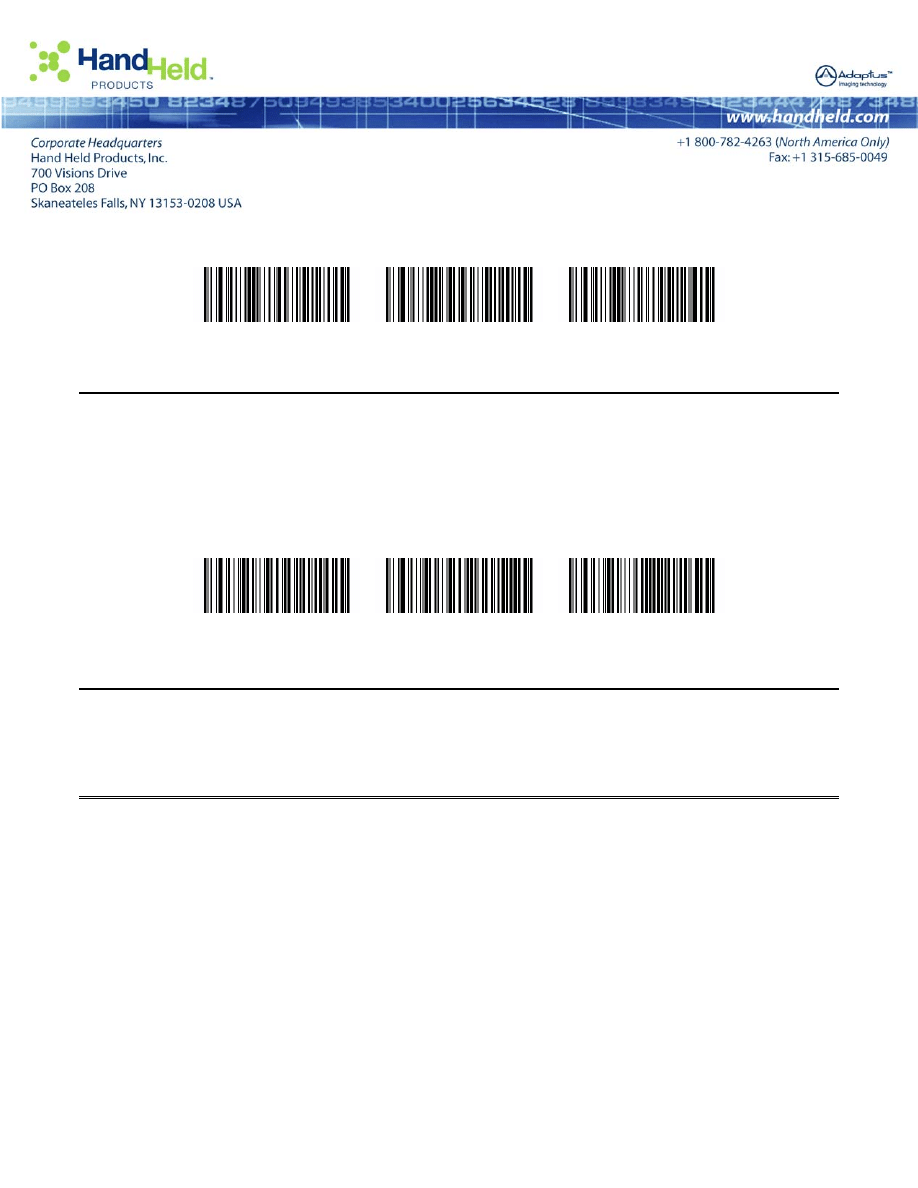
Power Image Configurator will not to connect to the configured device after writing new settings. Setting one or a
combination of these delays will cause this error to occur. The settings are written to the device. To temporarily
set these settings to 0 so you can connect to Power Image Configurator cycle the power to the device and scan
the 3 barcodes below in any order
Visual Xpress™ Known Issues
Version 3, build 8 or later
Page 4 of 4
Inter-function delay = 0
Inter-message delay = 0
Inter-character delay = 0
These changes will remain in effect until the power is cycled.
Horizontal, Vertical and Bits per Pixel not shown in Configure
ÆGeneralÆImage
Characteristics for the 2020 product
Currently when these settings are queried by Visual Xpress during the connect process the 2020 does not report
any values, which is in error. To avoid any confusion Visual Xpress will display these settings with empty values.
When a scanner has been linked to the 2020 valid values can be queried directly. To view the current values
‘connect’ to the 2020, select the Scan Data node and scan the barcodes below.
Horizontal pixels
Vertical pixels
Bits per pixel
NOTE: Pixels settings are read only.
Unknown/Unsupported Devices:
It is possible to connect to an unknown/unsupported device using the port settings window. The “Config Comm”
button allows the user to communicate on a port where an unknown device is connected, however using the
application in this manner is not guaranteed to operate for all cases.
Engine Revision in General
ÆRevisions data is not available.
Engine revision is only available with device firmware revisions 1.268 or later.
Wyszukiwarka
Podobne podstrony:
ANSYS, Inc Known Issues and Limitations
Lab 2 Visual Analyser oraz kompresje v2
Instrukcja Nokia 5310 XpressM
ASP NET 2 0 Tworzenie witryn internetowych z wykorzystaniem C i Visual Basica aspntw
2012 2 MAR Common Toxicologic Issues in Small Animals
Visual Basic Przykładowe zadania , Studia i nauka, Visual Basic
Visual1
Programowanie w Visual?sic dla Excel
Human Rights Issues in Brazil
Visual?sic lekacje
Lab6, Visual Basic Lab 6a, Visual Basic Lab 3
Leksykon VISUAL BASIC, r00-05, Rozdział X
MS Visual C Ćwiczenia
Visual Basic Zdarzenia , Studia i nauka, Visual Basic
67 Audio and Visual System
adudczak visualvm
więcej podobnych podstron