
c
b
How to Create
e
Books
Adobe

© 2001 Adobe Systems Incorporated. All rights reserved.
How to Create Adobe PDF eBooks
for Windows and Macintosh.
If this guide is distributed with software that includes an end-user agreement, this guide, as well as the
software described in it, is furnished under license and may be used or copied only in accordance with
the terms of such license. Except as permitted by any such license, no part of this guide may be repro-
duced, stored in a retrieval system, or transmitted, in any form or by any means, electronic, mechanical,
recording, or otherwise, without the prior written permission of Adobe Systems Incorporated. Please
note that the content in this guide is protected under copyright law even if it is not distributed with soft-
ware that includes an end-user license agreement.
The content of this guide is furnished for informational use only, is subject to change without notice,
and should not be construed as a commitment by Adobe Systems Incorporated. Adobe Systems Incorpo-
rated assumes no responsibility or liability for any errors or inaccuracies that may appear in the informa-
tional content contained in this guide.
Please remember that existing artwork or images that you may want to include in your project may be
protected under copyright law. The unauthorized incorporation of such material into your new work
could be a violation of the rights of the copyright owner. Please be sure to obtain any permission
required from the copyright owner.
Any references to company names in sample templates are for demonstration purposes only and are not
intended to refer to any actual organization.
Adobe, the Adobe logo, Adobe PS, Acrobat, Acrobat Distiller, Acrobat Reader, eBook Reader,
FrameMaker, InDesign, Pagemaker, Photoshop, and PostScript are trademarks of Adobe Systems Incor-
porated. Microsoft, Windows and Office are trademarks of Microsoft Corporation. Mac, Macintosh, and
TrueType are trademarks of Apple Computer, Inc. All other trademarks are the property of their respec-
tive owners.
Adobe Systems Incorporated, 345 Park Avenue, San Jose, California 95110, USA
Notice to U.S. government end users. The software and documentation are “Commercial Items,” as that
term is defined at 48 C.F.R. §2.101, consisting of “Commercial Computer Software” and “Commercial
Computer Software Documentation,” as such terms are used in 48 C.F.R. §12.212 or 48 C.F.R.
§227.7202, as applicable. Consistent with 48 C.F.R.. §12.212 or 48 C.F.R. §§227.7202-1 through
227.7202-4, as applicable, the Commercial Computer Software and Commercial Computer Software
Documentation are being licensed to U.S. Government end users (a) only as Commercial items and (b)
with only those rights as are granted to all other end users pursuant to the terms and conditions herein.
Unpublished-rights reserved under the copyright laws of the United States. Adobe Systems Incorpo-
rated, 345 Park Avenue, San Jose, CA 94110-2704, USA. For U.S. Government End Users, Adobe agrees
to comply with all applicable equal opportunity laws including, if appropriate, the provisions of Execu-
tive Order 11246, as amended, Section 402 of the Vietnam Era Veterans Readjustment Assistance Act of
1974 (38 USC 4212), and Section 503 of the Rehabilitation Act of 1973, as amended, and the regulations
at 41 CFR Parts 60-1 through 60-60, 60-250 ,and 60-741. The affirmative action clause and regulations
contained in the preceding sentence shall be incorporated by reference.

iii
Contents
Benefits of creating Adobe PDF eBooks
. . . . . . . . . . . . . . . . . . . . . . . .2
Designing document templates for eBooks
. . . . . . . . . . . . . . . . . . . . .3
. . . . . . . . . . . . . . . . . . . . .4
. . . . . . . . . . . . . . . . . . . . . . . . .5
. . . . . . . . . . . . . . . . . . . . . . . . . . . .6
Converting documents to Adobe PDF
. . . . . . . . . . . . . . . . . . . .8
Deselecting Acrobat Distiller security options
Setting Acrobat Distiller job options for eBooks
Optimizing your Adobe PDF documents

iv
ADOBE PDF EBOOKS
Setting options for opening eBooks
. . . . . . . . . . . . . . . . 20
. . . . . . . . . . . . . . . 23
. . . . . . . . . . . . . . . . . . . . . 24
Uploading eBooks to Adobe Content Server
Checklist for preparing Adobe PDF eBooks
Customizing Acrobat Distiller job options
Customizing General job options
Customizing Compression job options
. . . . . . . . . . . . . . 33
Converting specific file types to Adobe PDF
Converting Adobe FrameMaker documents
Converting Adobe InDesign documents
Converting Adobe PageMaker Plus documents
Converting Microsoft Word for
Windows documents
. . . . . . . . . . . . . . . . . . . . 48
Converting QuarkXPress documents

1
Introduction
elcome to Adobe’s
How to Create Adobe PDF eBooks
, a
step-by-step guide that covers the basics of creating and
optimizing Adobe® Portable Document Format (PDF) files so
that they can be viewed as electronic books (eBooks) using the
free Adobe® Acrobat eBook Reader™ 2.2 software.
Unlike traditional printed books, eBooks are designed to be
viewed online. When you design a document template in your
authoring application, you should use a smaller page size, ample
margins, and fonts that look good on-screen. Before converting
your document to Adobe PDF, you should set recommended job
options for eBooks in Acrobat Distiller® or your authoring appli-
cation, so that it generates an Adobe PDF document to be viewed
primarily online. Last, you should make finishing touches to
your Adobe PDF document such as renumbering pages using
Adobe Acrobat®, so that it displays at its best in Acrobat eBook
Reader.
Benefits of creating Adobe PDF eBooks
Creating eBooks in Adobe PDF brings you and your customers a
variety of benefits. You can upload Adobe PDF eBooks to Adobe
Content Server for packaging and distribution. In turn,
W

2
ADOBE PDF EBOOKS
Introduction
customers can buy, download, and read Adobe PDF eBooks from
Web-based eBooks stores using the free Acrobat eBook Reader
software.
Adobe PDF eBooks are compact files that can be downloaded
quickly from commercial Web sites and transferred between
reading devices with no loss of quality. They can be read on a
broad range of computer platforms. They preserve the exact look
and feel of your source documents, including page layout, fonts,
colors, and images. So that customers can find what they’re
looking for quickly, they provide navigation features such as
bookmarks and links.
About this guide
In this guide, you’ll find the basic procedures and techniques you
need to create Adobe PDF eBooks, including designing
document templates for eBooks, setting recommended job
options for eBooks in Acrobat Distiller or your authoring appli-
cation, converting your documents to Adobe PDF, and
optimizing your Adobe PDF documents for electronic
publishing using Acrobat. Of course, your specific workflow
depends on the type of documents from which you start.
This guide assumes you’re familiar with the different applica-
tions described. For more information on each application, refer
to the user guide or online help system included with it. If you’re
familiar with Acrobat eBook Reader and have it installed on your
system, you can use it to read this guide online.

3
Chapter 1: Designing document
templates for eBooks
hen creating an Adobe PDF eBook, you can start with an
existing document or create an entirely new document.
Many publishers have archived content from which to produce
eBooks, including source, PostScript®, and PDF documents. If
you’re starting with an existing source document or from
scratch, you should design a document template that makes it
easy to view your eBook in Acrobat eBook Reader. The guide that
you’re reading now is a good example of a document designed
specifically to be viewed online. When designing a document
template in your authoring application, follow the guidelines in
this chapter to determine page size, page margins, text format,
and use of color.
Specifying page sizes
When determining a page size for your Adobe PDF eBook, it’s
important to consider what computer devices your readers will
use to view it. In most cases, your readers will be using a variety
of computer devices, rather than one particular platform. To
accommodate readers with smaller displays, it’s a good idea to
specify a smaller page size. For most eBooks, you should specify
W

4
ADOBE PDF EBOOKS
Chapter 1: Designing document templates for eBooks
a page size of 6 by 9 inches. Pages of this size can be comfortably
displayed on a variety of devices and easily printed to standard
8.5 by 11-inch pages.
Note:
When converting to Adobe PDF using Windows NT or
Windows 2000 operating systems, the resulting PDF document will
retain the 8 1/2 by 11 inch page size instead of the custom page size.
In this case, you can use Acrobat 5.0 to crop the document to the
proper size. To crop multiple documents, see “Batch Processing” in
Adobe Acrobat 5.0 Online Help.
In some cases, you may need to specify a page size larger than 6
by 9 inches. For instance, you may be creating an eBook from a
textbook, which has a typical page size of 9 by 12 inches. If you
specify a page size larger than 7 by 10 inches, you should also
specify for the eBook to open at Fit Width magnification in
Acrobat eBook Reader. For more information, see “Setting
options for opening eBooks” on page 19.
Setting page margins
In both printed books and eBooks, page margins help readers
follow the text and rest their eyes when needed. To make dense
pages more inviting, you should set ample margins that reduce
the amount of text and images cramped on each page. You
should also use the same margins throughout your eBook. If you
use different margins on left and right pages, the text will appear
to jump left to right as the reader pages through the book in
Acrobat eBook Reader.

5
ADOBE PDF EBOOKS
Chapter 1: Designing document templates for eBooks
Formatting text
When formatting text for an eBook, choose fonts that look good
on screen and are especially easy to read. Fonts with delicate
serifs or thin strokes that look good on the printed page can lose
their definition on screen, making them appear fuzzy and
difficult to read.
In general, you should use larger font sizes and higher leading
values than you would use for printed books. For maximum
readability at 100% magnification in Acrobat eBook Reader, you
should use a font size of at least 12 points and a leading of 2
points for body text.
If you have an issue with letter spacing, try to address it by setting
tracking values instead of kerning multiple pairs of individual
characters. Kerning many letter combinations to perfection often
adds little value and increases the file size.
After you’ve created your Adobe PDF eBook, it’s a good idea to
check the readability of its text under a variety of conditions,
including both a CRT and LCD display, as well as a variety of
both magnification and CoolType settings in Acrobat eBook
Reader.

6
ADOBE PDF EBOOKS
Chapter 1: Designing document templates for eBooks
Using color
Although printing books in color can be expensive, there’s no
additional cost to displaying color in Acrobat eBook Reader.
Therefore, you should consider using colorful images and adding
color to text elements such as headings, captions, and callouts.
Printing usually uses the CMYK color model, while computer
displays use the RGB color model. These models have different
gamuts, or ranges of colors that they can accommodate. In
addition, devices do not display the same colors in the same way.
These differences can result in differences between print and
screen colors, and between the same colors displayed on different
screens.
When you generate your Adobe PDF eBook, it’s recommended
that you set options in Acrobat Distiller or your authoring appli-
cation to convert all colors to the device-independent sRGB
model. These settings calibrate colors in a device-independent
way, so that they appear accurately on a variety of computer
displays.
Although Acrobat can be used to standardize colors across
devices, the appearance of colors in your eBook still depends on
each computer device’s color palette. If your eBook contains
colors that aren’t in the palette, the device approximates the
colors using colors in its palette. After creating an Adobe PDF
eBook, it’s a good idea to preview its colors on a variety of
platforms featuring palettes with 256 colors and true colors.

7
Chapter 2: Converting
documents to Adobe PDF
fter you’ve created a good document template for your
eBook in its source application, you’re ready to think
about converting your document to Adobe PDF. You can convert
electronic files from virtually any application to Adobe PDF.
However, the conversion method can vary between applications.
You’ll find that most applications with the exception of Adobe
InDesign™ use the last set of defined job options in Acrobat
Distiller to perform the conversion. Therefore, it’s important
that you set Acrobat Distiller job options for eBooks according to
guidelines in this chapter before converting most documents.
After you’ve set these options, convert your document to Adobe
PDF using your authoring application’s Print command or
another preferred method. For detailed instructions on
converting specific file types, see “Converting specific file types
to Adobe PDF” on page 37.
If you’re working in Adobe InDesign or another application that
doesn’t use the Acrobat Distiller job options to perform the
conversion, you can skip this chapter and set job options for
eBooks directly in the application. For detailed instructions on
converting Adobe InDesign documents, see “Converting Adobe
InDesign documents” on page 40.
A

8
ADOBE PDF EBOOKS
Chapter 2: Converting documents to Adobe PDF
About Acrobat Distiller
Acrobat uses Acrobat Distiller, a simulated printer, to create
Adobe PDF files. When you perform a typical installation of
Acrobat, Acrobat Distiller is automatically installed and
configured for you, so that you can create Adobe PDF files right
away. For many Acrobat users, Acrobat Distiller operates very
much “behind the scenes.” These users only need to be aware that
Acrobat Distiller has predefined sets of job options, which they
can choose from to create Adobe PDF files optimized for a
specific medium. Other users prefer to customize the job options
to change the quality or size of their Adobe PDF files. The default
set of job options in Acrobat Distiller is eBook, which provides
optimization suitable for most general purposes. Other sets of
job options include Press, Print, and Screen.
Deselecting Acrobat Distiller security options
When creating an Adobe PDF eBook, you have several options
for adding security to it. You can set security options in Acrobat
Distiller before generating the Adobe PDF document. You can
also set security options in Acrobat and/or Adobe Content Server
software to an existing Adobe PDF document.
If you plan on uploading your eBook to Adobe Content Server as
this guide discusses in “Uploading eBooks to Adobe Content
Server” on page 26, you should only set security options using
Adobe Content Server software, which is tailored for eBooks. If
you’ve already selected security options in Acrobat Distiller, you

9
ADOBE PDF EBOOKS
Chapter 2: Converting documents to Adobe PDF
should deselect them. Acrobat eBook Reader recognizes both
Acrobat and Adobe Content Server security, so having both types
of security can yield undesirable results.
To deselect security options in Acrobat Distiller:
1
Start Acrobat Distiller by doing one of the following:
•
In Acrobat 5.0, choose Tools > Distiller.
•
In Windows®, choose Start > Programs > Acrobat Distiller 5.0.
2
In the Acrobat Distiller dialog box, choose Settings > Security.
3
In the Acrobat Distiller - Security dialog box, deselect all
security options, and click OK.
Setting Acrobat Distiller job options for eBooks
The default eBook job options in Acrobat Distiller 5.0 are
designed to generate Adobe PDF files to be read primarily on
screen. This set of job options balances image resolution and file
size to produce relatively small, self-contained files. Adobe PDF
files created using the eBook job options have the following main
features: compatibility with Acrobat 4.0 and later, color and
grayscale images downsampled at 150 dots per inch (dpi),
monochrome images downsampled at 300 dpi, all fonts
embedded with the exception of the base 14, and color spaces
converted to sRGB.

10
ADOBE PDF EBOOKS
Chapter 2: Converting documents to Adobe PDF
It’s recommended that eBook publishers not only choose the
default eBook job options in Acrobat Distiller, but also recon-
figure these options by following the procedure in this section.
It’s especially important that you reconfigure these options so
that the base 14 fonts are embedded. If the base 14 fonts aren’t
embedded in a PDF document and the document is viewed
across platforms, font substitution results, which can
compromise readability.
After setting recommended job options for eBooks, you may
want to customize these options to change the quality or size of
your Adobe PDF files. For more information, see “Customizing
Acrobat Distiller job options” on page 29.
To set recommended Acrobat Distiller job options for eBooks:
1
Launch Acrobat Distiller by doing one of the following:
•
In Acrobat 5.0, choose Tools > Distiller.
•
In Windows, choose Start > Programs > Acrobat Distiller 5.0.
2
In the Acrobat Distiller dialog box, make sure that eBook is
chosen for Job Options. Then choose Settings > Job Options.
3
In the General panel of the eBook - Job Options dialog box, do
the following:
•
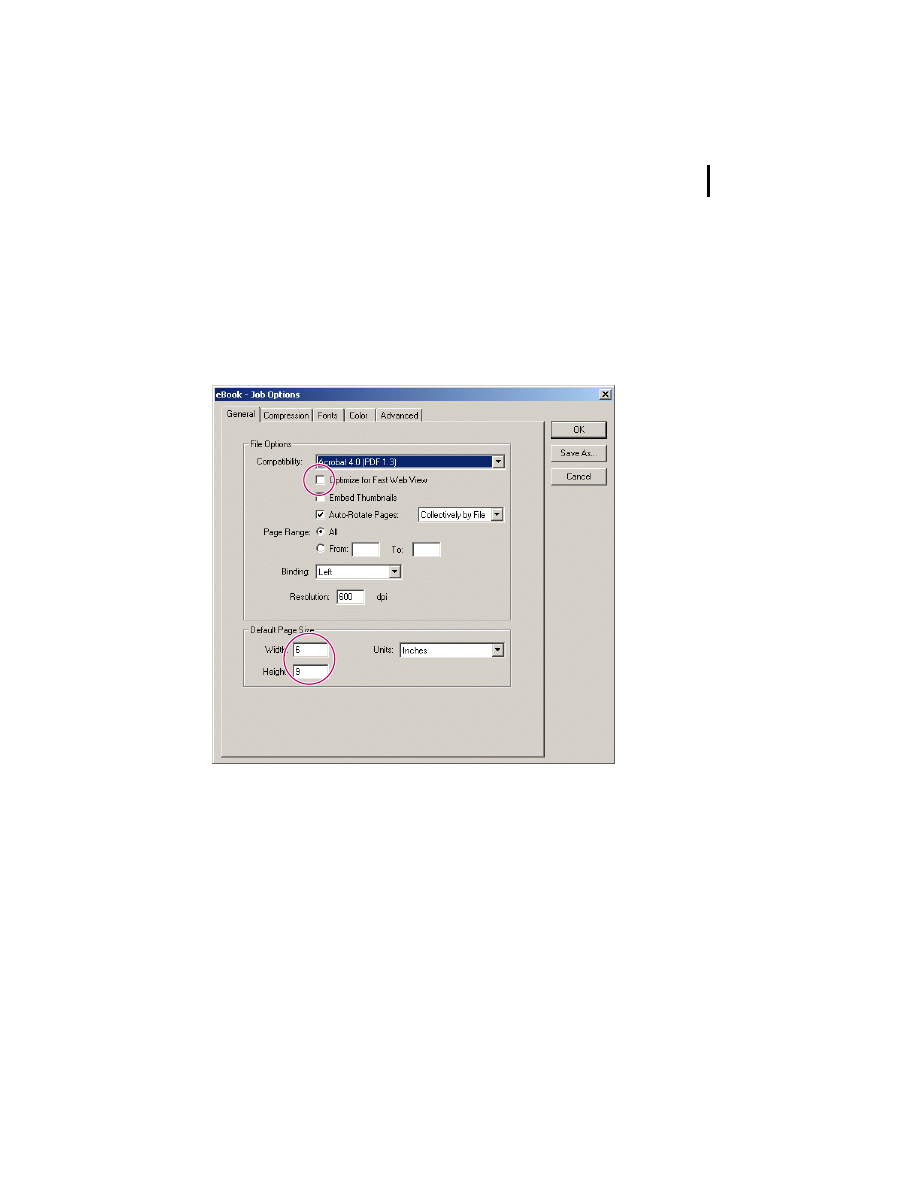
Deselect the Optimize for Fast Web View option. Because your
readers will be viewing the file in Acrobat eBook Reader instead
of a Web browser, you don’t need to select this option.
11
ADOBE PDF EBOOKS
Chapter 2: Converting documents to Adobe PDF
•
If the page size of your document is other than 8.5 by 11 inches,
enter a new default page size. For most eBooks, it’s recom-
mended that you create a document template in your authoring
application that has a page size of 6 by 9 inches. For more infor-
mation, see “Specifying page sizes” on page 3.
Configuring Distiller’s General job options
Note:
When converting to Adobe PDF using Windows NT or
Windows 2000 operating systems, the resulting PDF document will
retain the 8 1/2 by 11 inch page size instead of the custom page size.
In this case, you can use Acrobat 5.0 to crop the document to the
proper size. To crop multiple documents, see “Batch Processing” in
Adobe Acrobat 5.0 Online Help.
12
ADOBE PDF EBOOKS
Chapter 2: Converting documents to Adobe PDF
4
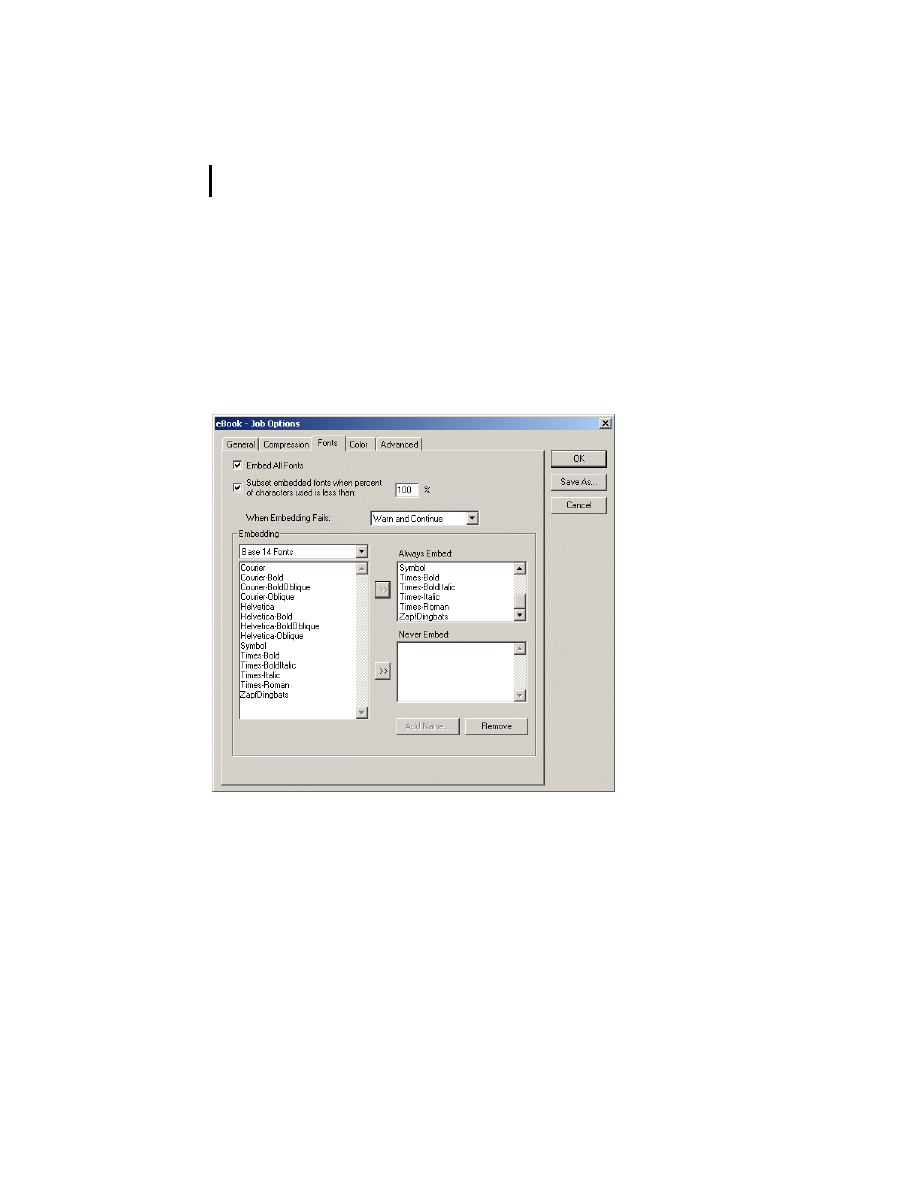
Select the Fonts tab, and then make sure that the Base 14 Fonts
folder is chosen from the menu under Embedding. To embed the
base 14 fonts in the Adobe PDF document, select each of the
fonts in the list on the left. (Shift-click to select more than one
font at a time.) Then click the arrow button next to the Always
Embed list to add the selected fonts to that list.
Configuring Distiller’s Fonts job options
Note:
Fonts that have license restrictions are preceded by a lock
symbol, and the nature of the restriction is described in the expla-
nation area of the dialog box. Also note that to edit text in files, you
must have a licensed copy of the font resident on your local system.
13
ADOBE PDF EBOOKS
Chapter 2: Converting documents to Adobe PDF
5
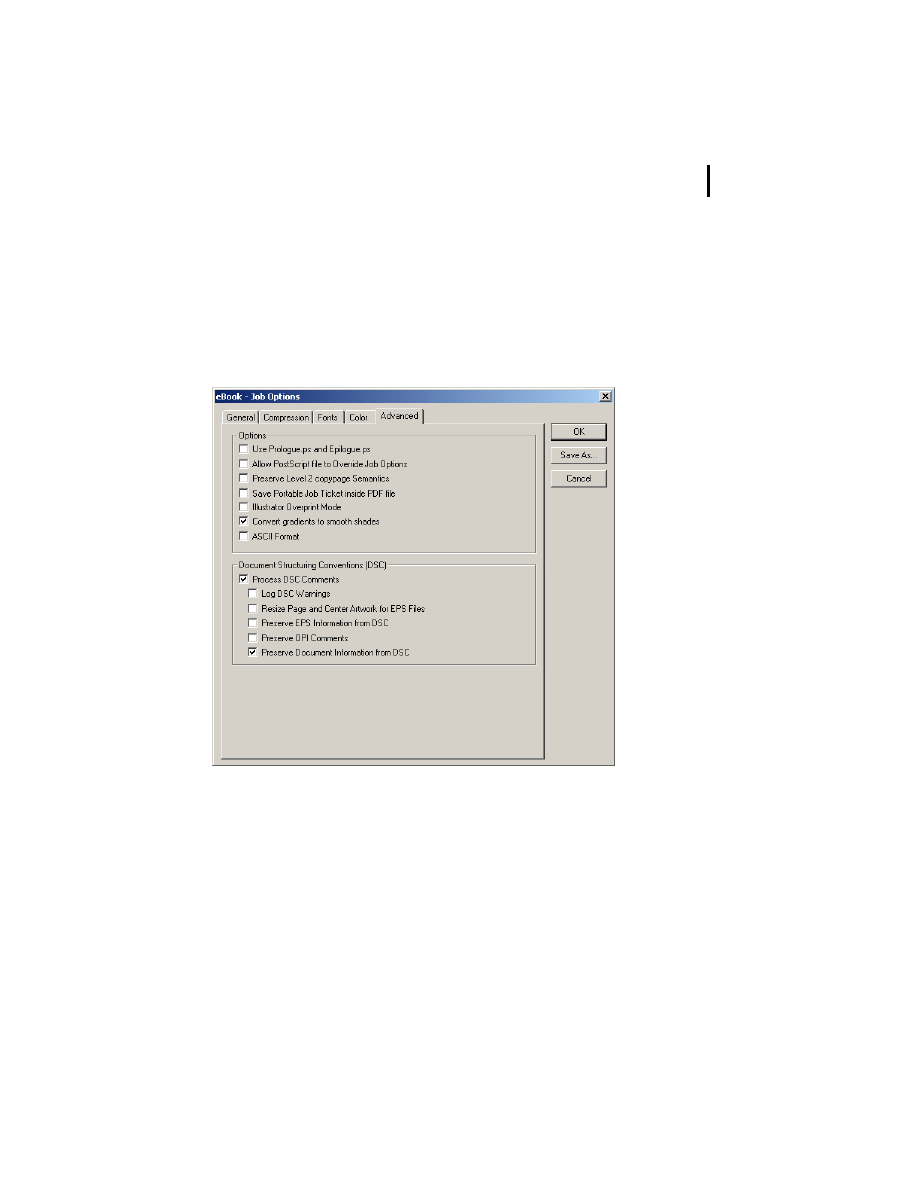
Select the Advanced tab, and then deselect the following
options: Allow PostScript File to Override Job Options, Preserve
Level 2 Copypage Semantics, Illustrator Overprint Mode, and
Resize Page and Center Artwork for EPS Files. For information
on these options, see the Acrobat 5 online Help.
Configuring Distiller’s Advanced job options

14
ADOBE PDF EBOOKS
Chapter 2: Converting documents to Adobe PDF
6
To save the job options that you’ve created in a new file, click
Save As. (You can’t overwrite the predefined sets of options.)
Then enter a filename with the .joboptions extension (we used
eBookPro.joboptions), and click Save. By default, the file is saved
to the Distillr/Settings folder (Windows) or Distiller/Settings
folder (Mac® OS) inside the Acrobat folder. It’s important that
you save the file to this location, so that it’s recognized by Acrobat
Distiller.
The filename you chose appears in the Job Options menu in the
Acrobat Distiller dialog box and is chosen automatically.

15
Chapter 3:
Optimizing your
Adobe PDF documents
fter you’ve converted your document to Adobe PDF, it’s
important that you make finishing touches to your Adobe
PDF document so that it displays at its best in Acrobat eBook
Reader. Follow the guidelines in this chapter to do the following:
•
Create a JPEG thumbnail image of the book’s cover in JPEG,
and attach it to your document.
•
Create a GIF image of the book’s cover.
•
Add metadata to your document.
•
Set options for opening your document in Acrobat eBook
Reader.
•
Renumber pages in your document.
•
Add links to the document’s table of contents.
•
Upload your Adobe PDF eBook to Adobe Content Server.
After you’ve completed these steps, review the “Checklist for
preparing Adobe PDF eBooks” on page 26 to ensure that you
haven’t omitted any important steps in creating your Adobe PDF
eBook.
A

16
ADOBE PDF EBOOKS
Chapter 3: Optimizing your Adobe PDF documents
Creating thumbnail images of the cover
Acrobat eBook Reader features a Library where users can
organize their eBooks. The Library displays thumbnail images of
book covers to identify the eBooks. So that your readers can view
your book’s cover in the Library, create a thumbnail image of
your book’s cover in JPEG format. Use appropriate image editing
software, such as Adobe Photoshop, to make the thumbnail
image 100 pixels wide, 96 dpi, and RGB mode. Then attach the
thumbnail image you just created to your Adobe PDF document.
Additionally, eBook publishers commonly display images of the
book cover on their Web sites to identify and advertise their
publications. You can create a similar thumbnail image in GIF
format to upload as a separate file to Adobe Content Server for
this purpose.
To create thumbnail images of the cover:
1
In Acrobat 5.0, open your document and make the cover the
current page.
2
Use the Graphics Select Tool (
) to drag a marquee around
the page or the portion of the page you wish to show in the eBook
Reader Library.
3
Choose File > Save as, and select JPEG Files from the Save as
type pop-up menu.

17
ADOBE PDF EBOOKS
Chapter 3: Optimizing your Adobe PDF documents
4
Name the file and click Save.
5
Open the file in an image editing application such as
Photoshop and set the image size to 100 pixels wide, the
resolution to 96 dpi, and the color mode to RGB, then save the
image as a JPEG file (select JPEG from the Format pop-up menu
in the Save As dialog box).
6
In Photoshop, choose Save as and save the same image in GIF
format (select Compuserve GIF from the Format pop-up menu
in the Save As dialog box) to create a GIF thumbnail of the cover.
To attach a JPEG thumbnail image to an Adobe PDF document:
1
With the document open to the cover page, reduce the magni-
fication until the Acrobat workspace surrounding the cover page
is visible.
2
Select the File Attachment Tool (
). (By default, the File
Attachment Tool is located in the pop-up menu under the Note
Tool ( ). The tool bar will display the last selected tool from the
attachment tool menu.) The cursor will change to a push pin
icon.
3
Click the Acrobat workspace surrounding the cover page (not
the cover page itself).
4
In the Select File to Attach dialog box, select the JPEG image
file of the cover you created, and click Select.

18
ADOBE PDF EBOOKS
Chapter 3: Optimizing your Adobe PDF documents
5
In the File Attachment Properties dialog box, click OK.
A pushpin icon, indicating the attached JPEG file, appears next
to the cover page.
6
If the pushpin icon is on top of the cover page, drag it to the
Acrobat workspace next to the cover page.
Adding metadata
In Acrobat eBook Reader, users can display information about a
selected eBook in the Book Information dialog box. The infor-
mation displayed includes the book’s title, author, publisher, and
categories. You provide this information (also called metadata)
when you enter your eBook into the Adobe Content Server
database. The Adobe Content Server conveys the metadata to
Acrobat eBook Reader when your eBook is downloaded. If you
don’t plan on uploading your eBook to the Adobe Content
Server, add metadata to your Adobe PDF document using
Acrobat.
To add metadata to an Adobe PDF document using Acrobat:
1
Open your Adobe PDF document in Acrobat 5.0.
2
Choose File > Document Properties > Summary.
3
Enter the book’s title and author, and click OK.
Note:
If metadata was entered into the source document using an
authoring application it is automatically added to the Adobe PDF
document during conversion.

19
ADOBE PDF EBOOKS
Chapter 3: Optimizing your Adobe PDF documents
Setting options for opening eBooks
By default, Acrobat eBook Reader opens an eBook in Single-Page
View, which displays a single page of the eBook at a time. If
desired, you can set options to have Acrobat eBook Reader open
your eBook in Fit Width or Two-Page View instead. The Fit
Width option makes books with large page sizes or smaller text
easier to read. The Two-Page View displays two pages of the
eBook at a time. After opening your eBook, readers can change
the display in Acrobat eBook Reader as needed.
To set options for opening an Adobe PDF document in Acrobat
eBook Reader:
1
Open your Adobe PDF document in Acrobat 5.0.
2
Choose File > Document Properties > Open Options.
3
Do one of the following:
•
To have your document open in Fit Width in Acrobat eBook
Reader, choose Fit Width from the Magnification pop-up menu.
•
To have your document open in Two-Page View in Acrobat
eBook Reader, choose Continuous - Facing from the Page Layout
pop-up menu.
4
Click OK.
Note:
If you chose both the Fit Width and Continuous - Facing
options in Acrobat, the Acrobat eBook Reader opens the eBook in Fit
Width.

20
ADOBE PDF EBOOKS
Chapter 3: Optimizing your Adobe PDF documents
Renumbering eBook pages
It’s recommended that your Adobe PDF eBook consist of four
sections with different numbering schemes: a front cover
numbered “C,” an inside front cover numbered “c,” front matter
numbered in Roman numerals beginning with i or iii (only if
your document has existing front matter), and body pages
numbered in Arabic numerals beginning with 1.
If your Adobe PDF eBook has a front cover, it’s important that it
also has an inside front cover even if it’s only a blank page. It’s
also important that it has an even number of front matter pages,
using a blank page at the end of the front matter if needed. This
ensures that your Adobe PDF eBook displays properly in Two-
Page View in Acrobat eBook Reader with odd-numbered pages
on the right. If needed, insert pages into your Adobe PDF eBook
using Acrobat, although it is generally easier to insert blank pages
in the authoring application than after converting to Adobe PDF.
By default, when you are viewing an Adobe PDF document, the
page numbers that appear in both the Acrobat status bar and the
Adobe Acrobat eBook Reader page navigator bar are numbered
in Arabic numerals beginning with 1. So that these page numbers
match the actual numbers on the pages of your Adobe PDF
eBook, renumber them using Acrobat. Acrobat lets you
renumber pages one section of a document at a time.

21
ADOBE PDF EBOOKS
Chapter 3: Optimizing your Adobe PDF documents
To insert a page into an Adobe PDF eBook:
1
To add a blank page to your Adobe PDF eBook, you must first
create another Adobe PDF document or an image file containing
a single blank page the same size as your eBook pages.
2
In Acrobat 5.0, open your eBook document to a place
requiring an additional blank page.
3
Choose Document > Insert Pages.
4
Select the file that you created to serve as a blank page, and
click Select.
5
Specify to insert the page before or after the current page in
your Adobe PDF eBook, and click OK.
To renumber pages in a section of an Adobe PDF eBook:
1
Open your Adobe PDF eBook in Acrobat 5.0.
2
Choose Window > Thumbnails to display the Thumbnails
palette. Thumbnail images of each page of the Adobe PDF eBook
are generated automatically and displayed in the Thumbnails
palette.
3
To specify which section you want to renumber, click the
thumbnail for the first page of that section. (That is, click the
thumbnail for the front cover, inside front cover, first page of the
front matter, or the first of the body pages.)
4
Choose Number Pages from the Thumbnail palette menu.

22
ADOBE PDF EBOOKS
Chapter 3: Optimizing your Adobe PDF documents
5
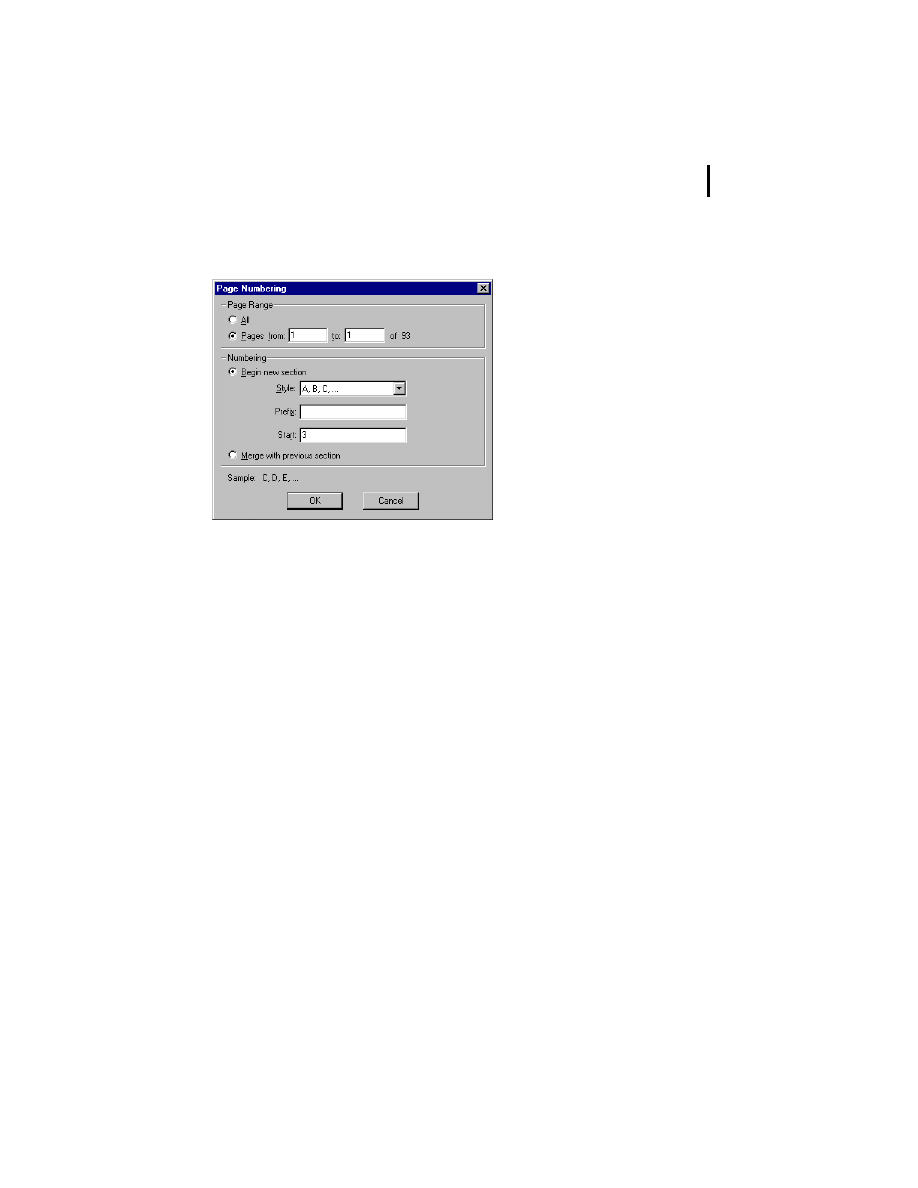
In the Page Numbering dialog box under Pages, specify which
page or pages are to be renumbered by doing one of the
following:
• If you are renumbering a single page such as the front cover or
inside front cover, make sure that the Selected option is selected.
• If you are renumbering a range of pages such as the front
matter or body pages, select the From/To option for entering a
range of pages, and enter the desired range.
6
Under Numbering, make sure that the Begin New Section
option is selected. Then choose a numbering style from the Style
pop-up menu:
• For the front cover, choose A, B, C.
• For the inside front cover, choose a, b, c.
• For the front matter, choose i, ii, iii.
• For the body pages, choose 1, 2, 3.
7
For Start, enter the value that corresponds to the desired page
number for the first page of the new section:
• For both the front and inside cover, enter 3 so that the page is
numbered with the third letter in the alphabet.
• For the front matter, enter 1 or 3 depending on whether you
want the numbering to begin with i or iii.
• For the body pages, enter 1.
23
ADOBE PDF EBOOKS
Chapter 3: Optimizing your Adobe PDF documents
8
Click OK.
Page Numbering dialog box with options set for
renumbering the front cover.
Linking the table of contents
If your Adobe PDF eBook has a table of contents, you’ll want
each of its entries to link to the page it references. That way, when
a reader clicks an entry, the Acrobat eBook Reader jumps to the
referenced page.
When generating an Adobe PDF document, some authoring
applications let you specify for links in the table of contents to be
created automatically. If you were unable to do this, add these
links to your Adobe PDF document using Acrobat.

24
ADOBE PDF EBOOKS
Chapter 3: Optimizing your Adobe PDF documents
To add a link to an entry in the table of contents:
1
Open your Adobe PDF document in Acrobat 5.0 so that the
table of contents is the current page.
2
Select the Link tool, and drag to create a rectangle around an
entry.
3
In the Link Properties dialog box under Appearance, choose
Invisible Rectangle for Type and Invert for Highlight. Under
Action, choose Go to View for Type and choose Inherit Zoom for
Magnification.
4
Navigate to the page to which you want to link the entry, set
the desired magnification, and then click Set Link.
Note: Similarly, you can use Acrobat’s Link tool to create cross-
references and to add links to index entries in your Adobe PDF
eBook.
Creating bookmarks
The Acrobat eBook Reader lets readers add bookmarks to an
eBook. Later, readers can display a list of bookmarks in the
Bookmarks dialog box and use them to jump to corresponding
locations in the eBook.
If your Adobe PDF document contains bookmarks created in
Acrobat, these bookmarks will appear in the Bookmarks dialog
box in Acrobat eBook Reader. When generating an Adobe PDF
document, some authoring applications let you specify for
bookmarks to be created automatically. If you were unable to do

25
ADOBE PDF EBOOKS
Chapter 3: Optimizing your Adobe PDF documents
this, add bookmarks to your Adobe PDF document using
Acrobat. For example, you can create a bookmark for each
chapter.
To create a bookmark in an Adobe PDF document using
Acrobat:
1
Open your Adobe PDF document in Acrobat 5.0.
2
To display the Bookmarks palette, choose Window >
Bookmarks.
3
Go to the page to which you want the bookmark to link.
4
In the Bookmarks palette, click the Create New Bookmark
icon ( ).
5
Type identifying text for the bookmark, and press Enter.
After you have created a bookmark, you can change its order or
hierarchy in the Bookmarks palette by dragging it to a new
location in the palette. While you drag, the location where the
bookmark will be moved is indicated by a black bar.

26
ADOBE PDF EBOOKS
Chapter 3: Optimizing your Adobe PDF documents
Uploading eBooks to Adobe Content Server
When you’re done creating your Adobe PDF eBook, you are
ready to upload it to Adobe Content Server for packaging and
distribution. When you do so, you may also upload a GIF
thumbnail image of the book’s cover. The Adobe Content Server
software will also allow you to specify permissions for using the
eBook (such as printing and copying), and encrypt it. For infor-
mation on performing these tasks, see the Adobe Content Server
documentation. You can also visit the Adobe Content Server
product page at www.adobe.com/products/contentserver.
Checklist for preparing Adobe PDF eBooks
When you’ve finished preparing your Adobe PDF eBook, review
the steps in the process to make sure that you haven’t omitted any
of them.
CHECKLIST FOR PREPARING AN ADOBE PDF EBOOK
1 In Acrobat Distiller or another authoring application, set recommended job
options for eBooks before creating an Adobe PDF document. As a result, text,
line art, and images are compressed; all fonts used in the book are
embedded, including the base 14 fonts if they were used; and, all colors are
converted to sRGB.
2 Create a thumbnail image of the book’s cover in JPEG (100 pixels wide and
96 dpi) and attach it to the Adobe PDF document.
3 Create a thumbnail image of the book’s cover in GIF (100 pixels wide and 96
dpi) for upload it to Adobe Content Server.
4 If appropriate, use Acrobat to specify the Adobe PDF eBook open in Fit Width
or Two-Page View in Acrobat eBook Reader.

27
ADOBE PDF EBOOKS
Chapter 3: Optimizing your Adobe PDF documents
5 Number pages in the Adobe PDF document so that its actual page numbers
correspond to page numbers that appear in the page navigator bar in
Acrobat eBook Reader. The front cover is numbered C, inside front cover is
numbered c, front matter is numbered beginning with i or iii (and contains an
even number of pages), and body pages are numbered beginning with 1.
6 Link entries in the table of contents, cross-references, and index entries.
7 Add bookmarks to the Adobe PDF document.
After you create your Adobe PDF eBook, you are ready to upload to
Adobe Content Server and perform the following steps:
8 Upload your Adobe PDF eBook to Adobe Content Server and enter the book’s
title, author, and other information.
9 Upload a GIF image of the book’s cover to Adobe Content Server.
10 Set permissions for the Adobe PDF eBook and encrypt it using Adobe
Content Server software.
CHECKLIST FOR PREPARING AN ADOBE PDF EBOOK

28
ADOBE PDF EBOOKS
Chapter 3: Optimizing your Adobe PDF documents

29
Appendix A: Customizing
Acrobat Distiller job options
fter you’ve set recommended job options for eBooks in
Acrobat Distiller according to guidelines in “Setting
Acrobat Distiller job options for eBooks” on page 9, you may
want to customize these options to change the quality or size of
your Adobe PDF files. To customize these options, follow the
general guidelines in this appendix. For more information, see
Acrobat 5.0 Online Help.
To customize the recommended Acrobat Distiller job options
for eBooks:
1
Launch Acrobat Distiller by doing one of the following:
• In Acrobat 5.0, choose Tools > Distiller.
• In Windows, choose Start > Programs > Acrobat Distiller 5.0.
2
In the Acrobat Distiller dialog box, make sure that the job
options that you created in “Setting Acrobat Distiller job options
for eBooks” on page 9 are chosen. Then choose Settings > Job
Options.
A

30
ADOBE PDF EBOOKS
Appendix A: Customizing Acrobat Distiller job options
3
In the Job Options dialog box, modify options as desired in
the General, Compression, Fonts, Color, and Advanced panels.
For general information on customizing these options, see the
subsections that follow. For more comprehensive information,
see Acrobat 5.0 Online Help.
4
To apply the changes to the current set of job options, click
OK. To save this set of customized job options in a new file, click
Save As. Then enter a filename with the .joboptions extension,
and click Save. (Be sure to save the file in its default location, so
that it’s recognized by Acrobat Distiller.)
Customizing General job options
The General job options let you specify the version of Acrobat
with which the Adobe PDF file will be compatible and other file
options, including optimizing for faster viewing on the Web,
embedding thumbnails, automatically rotating pages, specifying
a page range in your source document to be converted to Adobe
PDF, choosing a left-side or right-side binding, specifying a
resolution, and specifying a default page size.
In most cases, you’ll want to make your Adobe PDF file
compatible with Acrobat 4.0 or later, so that features such as the
use of sRGB color aren’t lost. You’ll also want to keep the Embed
Thumbnails option deselected. Thumbnail previews of pages
can’t be viewed in Acrobat eBook Reader and increase the file size
substantially. Choose Left for Binding unless your document

31
ADOBE PDF EBOOKS
Appendix A: Customizing Acrobat Distiller job options
contains an Asian language that uses right-side binding. For
more information on customizing General job options, see
Acrobat 5.0 Online Help.
Customizing Compression job options
The Compression job options let you specify how images are
downsampled and compressed, and how text and line art are
compressed. Downsampling and compression can significantly
reduce the size of the Adobe PDF file, but they can also degrade
the quality of images. You may want to experiment with these
options to find an appropriate balance between image quality
and file size.
Downsampling images When you downsample an image,
you decrease the number of pixels in the image, resulting in
image data being lost. Acrobat Distiller lets you specify how
images are downsampled; using average downsampling, bicubic
downsampling, or subsampling.
After selecting a downsampling method for each image type,
enter the desired resolution in dpi for the images. To achieve a
smaller file size than with the recommended job options for
eBooks, try specifying a desired resolution of 96 dpi for color and
grayscale images, and 150 dpi for monochrome images. Next,
enter a resolution to determine which images will be resampled
(images with a resolution above the value you entered will be
resampled). For more information on downsampling images, see
Acrobat 5.0 Online Help.

32
ADOBE PDF EBOOKS
Appendix A: Customizing Acrobat Distiller job options
Compressing color or grayscale images Acrobat Distiller
lets you specify for color or grayscale images to be compressed
using Automatic, JPEG, or ZIP compression. If you have various
types of images, choose Automatic to have Acrobat Distiller
determine the best compression method for you. Choose JPEG
for continuous-tone photographs that contain more detail than
can be reproduced on-screen or in print. Choose ZIP for images
with large areas of single colors or repeating patterns, such as
screenshots and simple images created with paint programs. For
more information on compressing color or grayscale images, see
Acrobat 5.0 Online Help.
Compressing monochrome images Acrobat Distiller lets
you specify for monochrome images to be compressed using
CCITT Group 3 or 4, Run Length, or ZIP compression. Choose
CCITT Group 3 or 4 for black-and-white images created with
paint programs and any images scanned with an image depth of
1 bit. Choose Run Length for images that contain large areas of
solid black or white.
To smooth jagged edges in monochrome images, select the Anti-
Alias to Gray option. Keep in mind that anti-aliasing can cause
small type or thin lines to look blurry. For more information on
compressing monochrome images, see Acrobat 5.0 Online Help.
Compressing text and line art Be sure to select the Compress
Text and Line Art option. With this option selected, Acrobat
Distiller compresses text and line art using ZIP compression,
which results in no loss of data or quality.

33
ADOBE PDF EBOOKS
Appendix A: Customizing Acrobat Distiller job options
Customizing Fonts job options
The Fonts job options let you choose which fonts are to be
embedded in the Adobe PDF document. Embedding fonts
ensures substitute fonts aren’t used in your document, so that it
looks exactly as you intended. Substitute fonts are used when
readers don’t have the fonts in your document installed on their
system. Keep in mind that embedding fonts increases file size. To
save file space, you can embed subsets of fonts or only those
characters that are used in the document.
It’s important to note that some fonts have license restrictions.
Fonts with license restrictions are preceded by this symbol ( )
in the Job Options dialog box. When you select a font with
license restrictions, the nature of the restriction is described in
the explanation area of the dialog box. TrueType fonts can
contain settings added by the font’s designer that prevent the
fonts from being embedded in Adobe PDF files.
Embedding all fonts Select the Embed All Fonts option to
embed all fonts used in the file.
Subsetting fonts To embed only a subset of each font when the
percent of characters used is less than a given value, select the
Subset Embedded Fonts When Percent of Characters is Less
Than option, and specify a percentage. If you select this option
and specify 100, Acrobat Distiller embeds a subset of each font
that’s used in the document, which saves on file space.

34
ADOBE PDF EBOOKS
Appendix A: Customizing Acrobat Distiller job options
Responding when embedding fails Choose from the When
Embedding Fails pop-up menu to specify how Acrobat Distiller
should respond if it can’t find a font to be embedded when
creating an Adobe PDF file. Choose Ignore to have Acrobat
Distiller substitute the font without warning. Choose Warn and
Continue to have Acrobat Distiller warn you before substituting
the font. Choose Cancel to have Acrobat Distiller cancel
processing of the job.
Embedding only certain fonts To embed only certain fonts,
deselect the Embed All Fonts option, and add the fonts you want
embedded to the Always Embed list. (To add a font, select it in
the list on the left and click the arrow button next to the Always
Embed list.) To make sure certain fonts are never embedded, add
those fonts to the Never Embed list. If the font you want isn’t in
a font folder, click Add Name, enter the name of the font, select
Always Embed List or Never Embed List, and click Add. To
remove a font from the Always Embed or Never Embed list, select
it and click Remove.
For more information on customizing Fonts job options, see
Acrobat 5.0 Online Help.
Customizing Color job options
The Color job options let you set color management information
for Acrobat Distiller. You can choose to use the color
management information in the PostScript file, use a color
settings file (CSF) already defined in Acrobat Distiller, or define

35
ADOBE PDF EBOOKS
Appendix A: Customizing Acrobat Distiller job options
custom settings. For best results in your Adobe PDF eBook, it’s
recommended that you convert all colors to sRGB. For more
information on customizing Color job options, see Acrobat 5.0
Online Help.
Customizing Advanced job options
By setting Advanced job options, you can affect the process of
converting a file from PostScript to Adobe PDF. You can also use
these options to specify which Document Structuring Conven-
tions (DSC) comments to keep in an Adobe PDF file. In a
PostScript file, DSC comments contain information about the
file, such as the originating application, creation date, and page
orientation. For more information about customizing Advanced
job options, see Acrobat 5.0 Online Help.

36
ADOBE PDF EBOOKS
Appendix A: Customizing Acrobat Distiller job options

37
Appendix B: Converting specific
file types to Adobe PDF
f you’ve created a good document template for your eBook in
its source application and have configured Acrobat Distiller
job options for eBooks if required, then you’re ready to convert
your document to Adobe PDF. See the sections that follow for
detailed instructions on converting specific file types. To convert
other file types to Adobe PDF, use your authoring application’s
Print command or another preferred method.
After you convert your document to Adobe PDF, it’s important
that you take final steps to prepare your eBook to be viewed in
Adobe Acrobat eBook Reader. For more information, see
“Optimizing your Adobe PDF documents” on page 15.
Converting Adobe FrameMaker documents
When you convert an Adobe FrameMaker® document to Adobe
PDF, you can set options to add metadata and generate
bookmarks in the Adobe PDF document. Links for the table of
contents, cross-references, and index are automatically
converted to equivalent links in the Adobe PDF document. To
convert Web links, you’ll need to create a hypertext marker for
each link in the FrameMaker document before performing the
conversion.
I

38
ADOBE PDF EBOOKS
Appendix B: Converting specific file types to Adobe PDF
To convert multiple FrameMaker files to a single Adobe PDF
eBook, consolidate the files in a FrameMaker book file, so that
you can convert the book to Adobe PDF and generate a single
Adobe PDF document. Before you perform the conversion,
make sure that you update the book’s references.
Although FrameMaker 6.0 provides a Save as PDF command,
Adobe recommends that you print your FrameMaker file to the
Acrobat Distiller for the most reliable results.
To create a hypertext marker for a Web link:
1
In FrameMaker 6.0, open the document that you want to
convert to Adobe PDF.
2
Select the text for the Web link, and apply a character format
to it that differentiates it from the surrounding text.
3
Choose Special > Hypertext.
4
From the Command menu, choose Go to URL. In the
scrolling text box after the phrase “message URL,” enter a URL
for the link using the syntax indicated in the dialog box. Click
New Hypertext Marker.
For more information, see the FrameMaker 6.0 documentation.

39
ADOBE PDF EBOOKS
Appendix B: Converting specific file types to Adobe PDF
To convert a FrameMaker 6.0 document to Adobe PDF:
1
If you haven't already done so, deselect security options in
Acrobat Distiller and configure Acrobat Distiller job options as
recommended in “Setting Acrobat Distiller job options for
eBooks” on page 9.
2
In FrameMaker 6.0, open the document or book you want to
convert to Adobe PDF.
3
Choose File > Print, and then do one of the following:
• In Windows, click Setup. Select Acrobat Distiller, click OK, and
then click Print. To add metadata to your document, click PDF
Setup, and then click the Document Info tab. Click Set when
done, and then click Print.
• In MacOS, select Create Adobe PDF from the printer menu. To
view the PDF document when it has been created, select Launch
Adobe Acrobat in the After PDF Creation pop-up menu. Click
Save.
Note: The Adobe Acrobat application must be installed on your
system to use this procedure. If you do not have Acrobat installed,
see Adobe Support Knowledgebase document 32623 available at
http://www.adobe.com/support/techdocs/296e6.htm for more
information on converting FrameMaker 6.0 documents to PDF.

40
ADOBE PDF EBOOKS
Appendix B: Converting specific file types to Adobe PDF
Converting Adobe InDesign documents
Before converting Adobe InDesign documents to Adobe PDF,
you don’t need to set Acrobat Distiller job options for eBooks, as
required by most other applications. Instead, you customize
related job options directly in InDesign when you perform the
conversion.
To convert an Adobe InDesign 1.5.2 document to Adobe PDF:
1
In Adobe InDesign 1.5.2, open the document you want to
convert to Adobe PDF.
2
Choose File > Export.
3
Choose Adobe PDF as the file type, enter a filename for the
Adobe PDF document to be created, choose a file location, and
click Save.
4
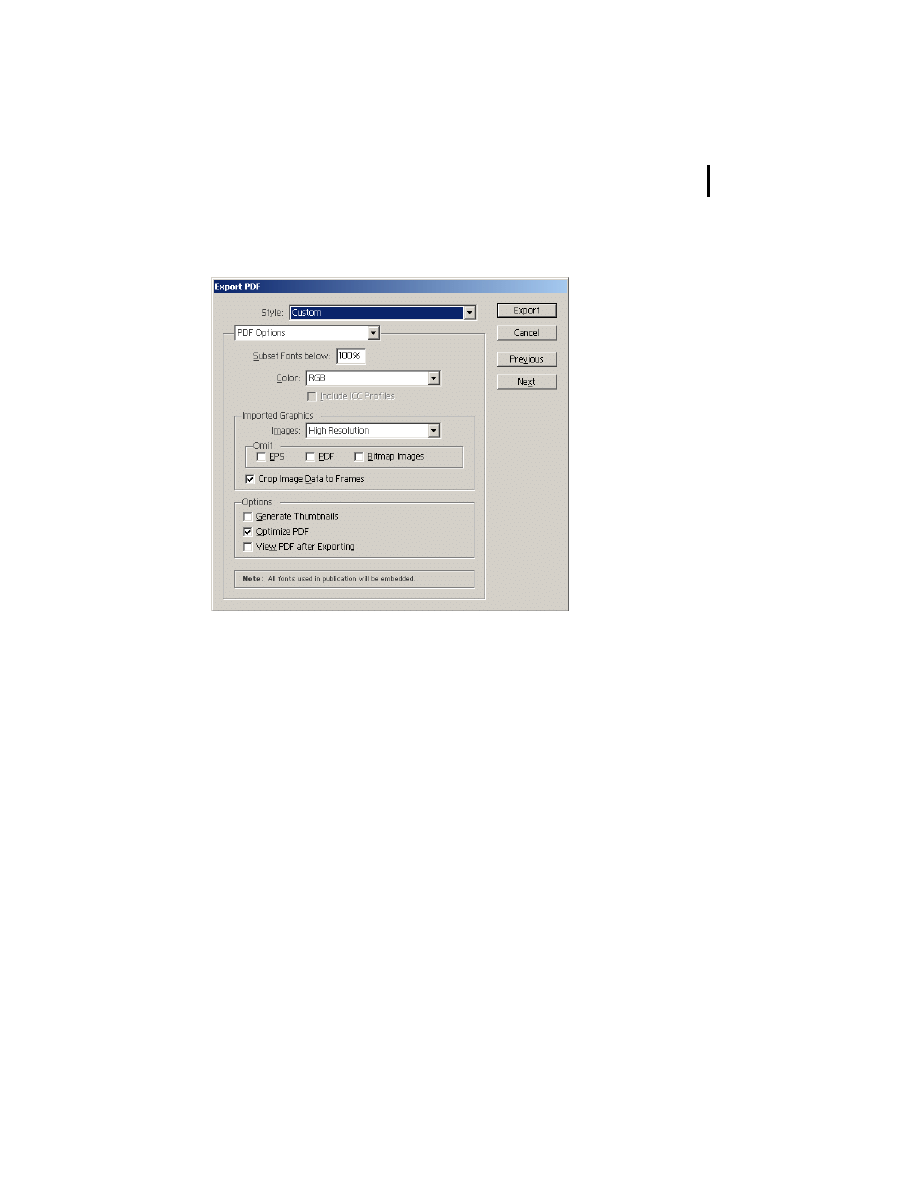
In the Export PDF dialog box, make sure that PDF Options is
chosen from the menu directly below the Style menu, and then
do the following:
• In the Subset Fonts Below text box, enter 100%.
• From the Color menu, choose RGB.
• Under Imported Graphics, choose High Resolution from the
Images menu. Then deselect all options under Omit, and select
the Crop Image Data to Frames option.
41
ADOBE PDF EBOOKS
Appendix B: Converting specific file types to Adobe PDF
• Under Options, select the Optimize PDF option only.
Setting PDF Options in InDesign
5
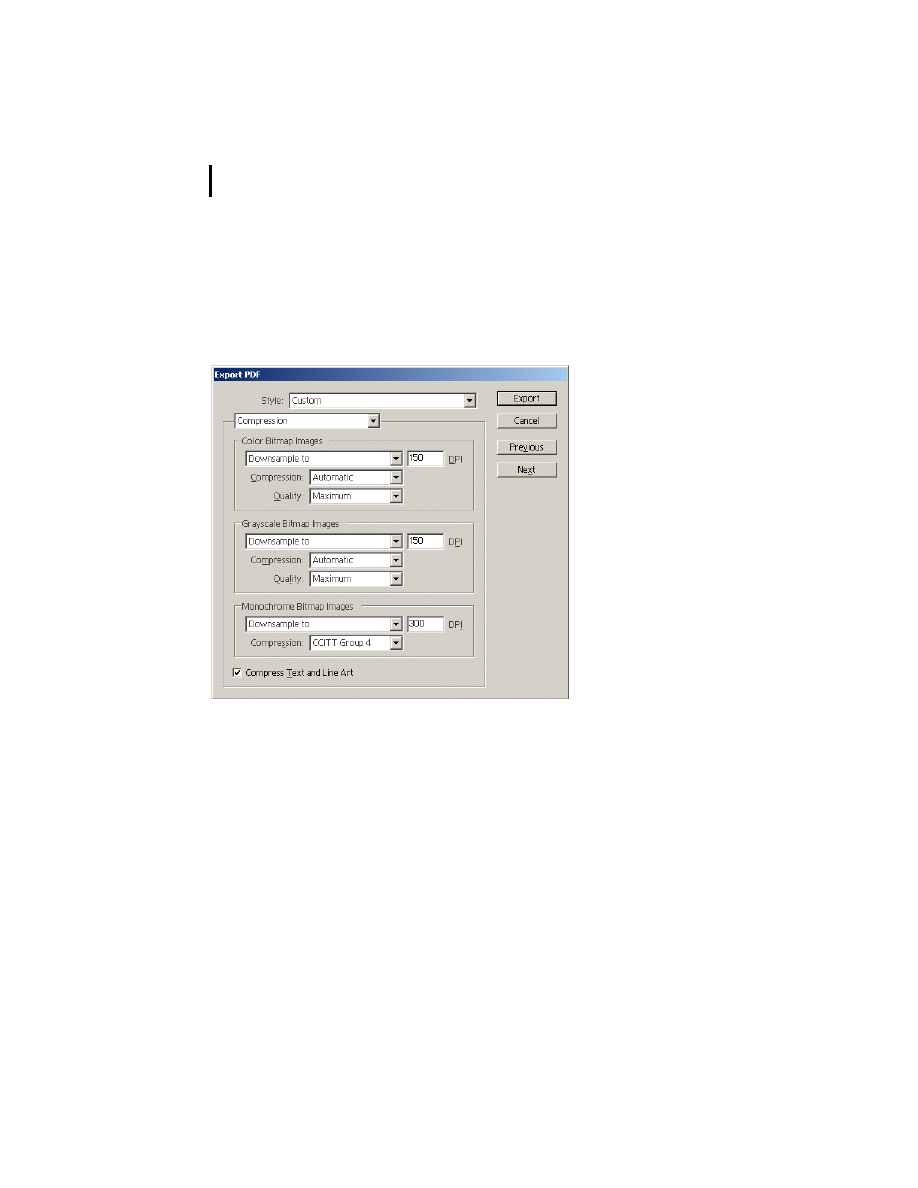
Click Next to view the Compression options, and then do the
following:
• Under Color Bitmap Images, set options to downsample
images to 150 dpi. Choose Automatic for Compression and
Medium for Quality.
• Under Grayscale Bitmap Images, set options to downsample
images to 150 dpi. Choose Automatic for Compression and
Medium for Quality.
42
ADOBE PDF EBOOKS
Appendix B: Converting specific file types to Adobe PDF
• Under Monochrome Bitmap Images, set options to
downsample images to 300 dpi. Choose CCITT Group 4 for
Compression.
• Select the Compress Text and Line Art option.
Setting Compression options in InDesign
6
Click Next to view the Pages and Page Marks options, and then
set options to select the pages to export and define the page infor-
mation service providers use to work with your exported pages.
7
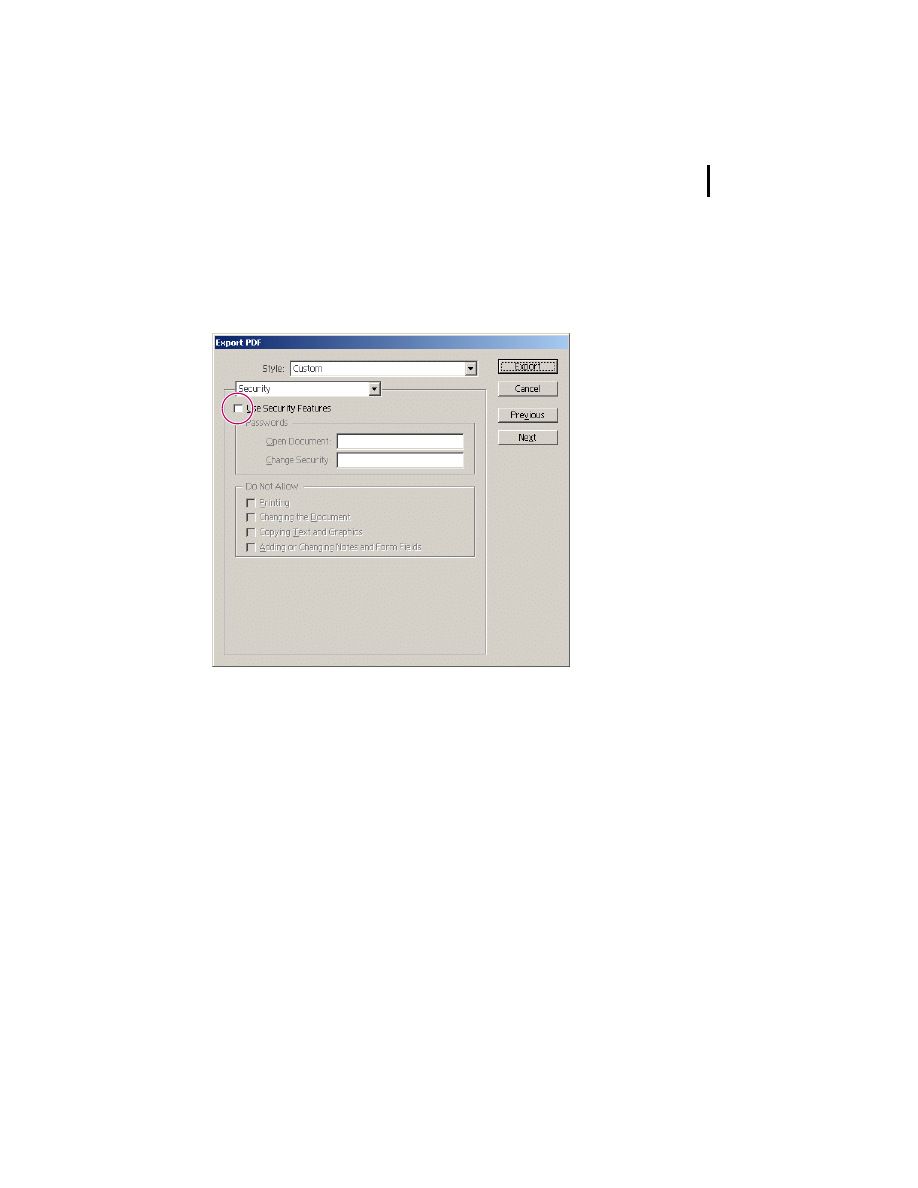
Click Next to view the Security options. If you plan on
uploading your eBook to Adobe Content Server as this guide
discusses in “Optimizing your Adobe PDF documents” on
43
ADOBE PDF EBOOKS
Appendix B: Converting specific file types to Adobe PDF
page 15, you should deselect the Use Security Features option.
Instead, set security options using Adobe Content Server
software only.
Deselecting Use Security Features option in InDesign
8
Click Export.
Converting Adobe PageMaker Plus documents
When you convert Adobe PageMaker® Plus documents to Adobe
PDF, you can specify for PageMaker to use the settings in Acrobat
Distiller. Alternatively, you can specify for PageMaker to override
these settings with options that you set in PageMaker directly.
44
ADOBE PDF EBOOKS
Appendix B: Converting specific file types to Adobe PDF
The procedure in this section uses the former method. For infor-
mation on using the latter method, see the PageMaker documen-
tation.
To convert an Adobe PageMaker 6.5.2 Plus document to Adobe
PDF:
1
If you haven't already done so, deselect security options in
Acrobat Distiller and configure Acrobat Distiller job options as
recommended in “Setting Acrobat Distiller job options for
eBooks” on page 9.
2
In Adobe PageMaker 6.5.2 Plus, open the document you want
to convert to Adobe PDF.
3
Choose File > Export > Adobe PDF.
4
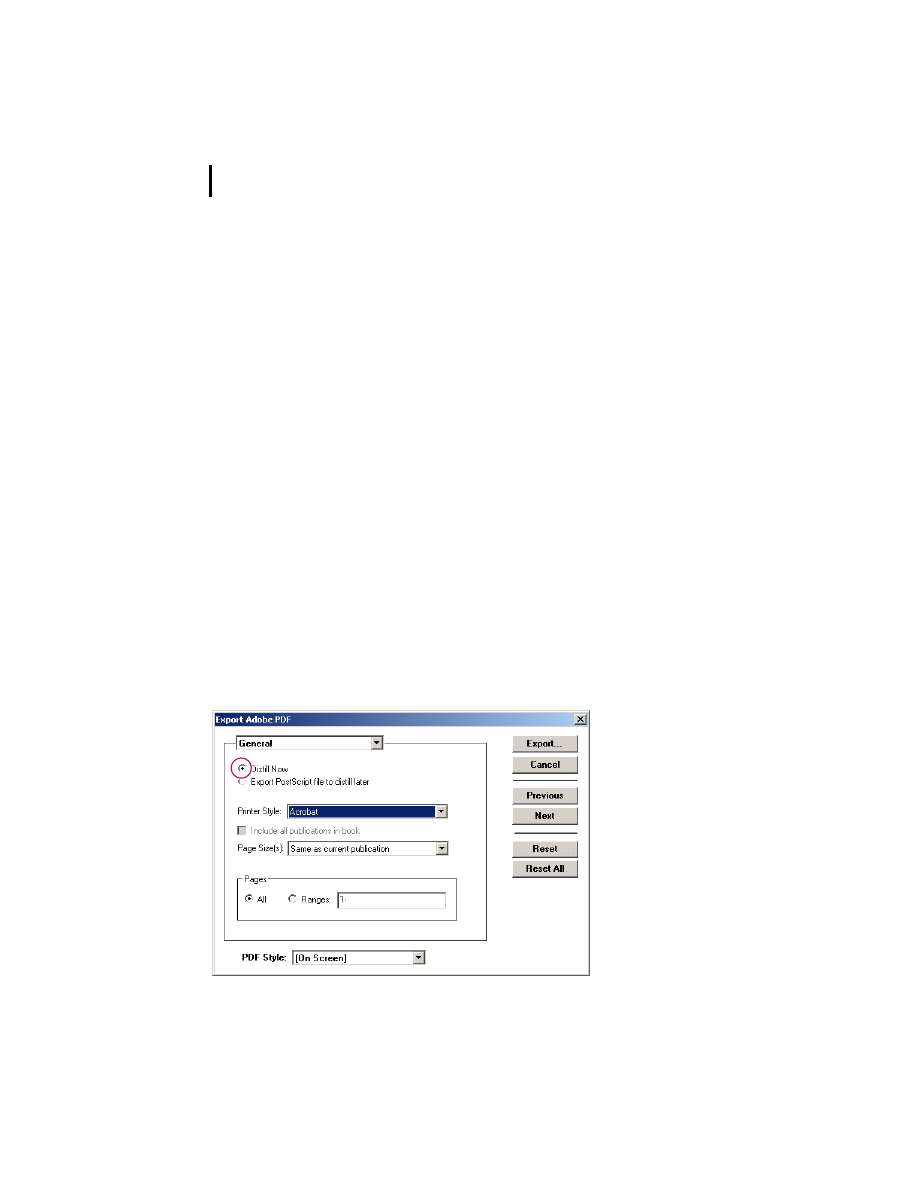
In the Export Adobe PDF dialog box, make sure that General
is chosen from the topmost menu. Select the Distill Now option,
and choose Acrobat for Printer Style.
Setting General options in PageMaker
45
ADOBE PDF EBOOKS
Appendix B: Converting specific file types to Adobe PDF
5
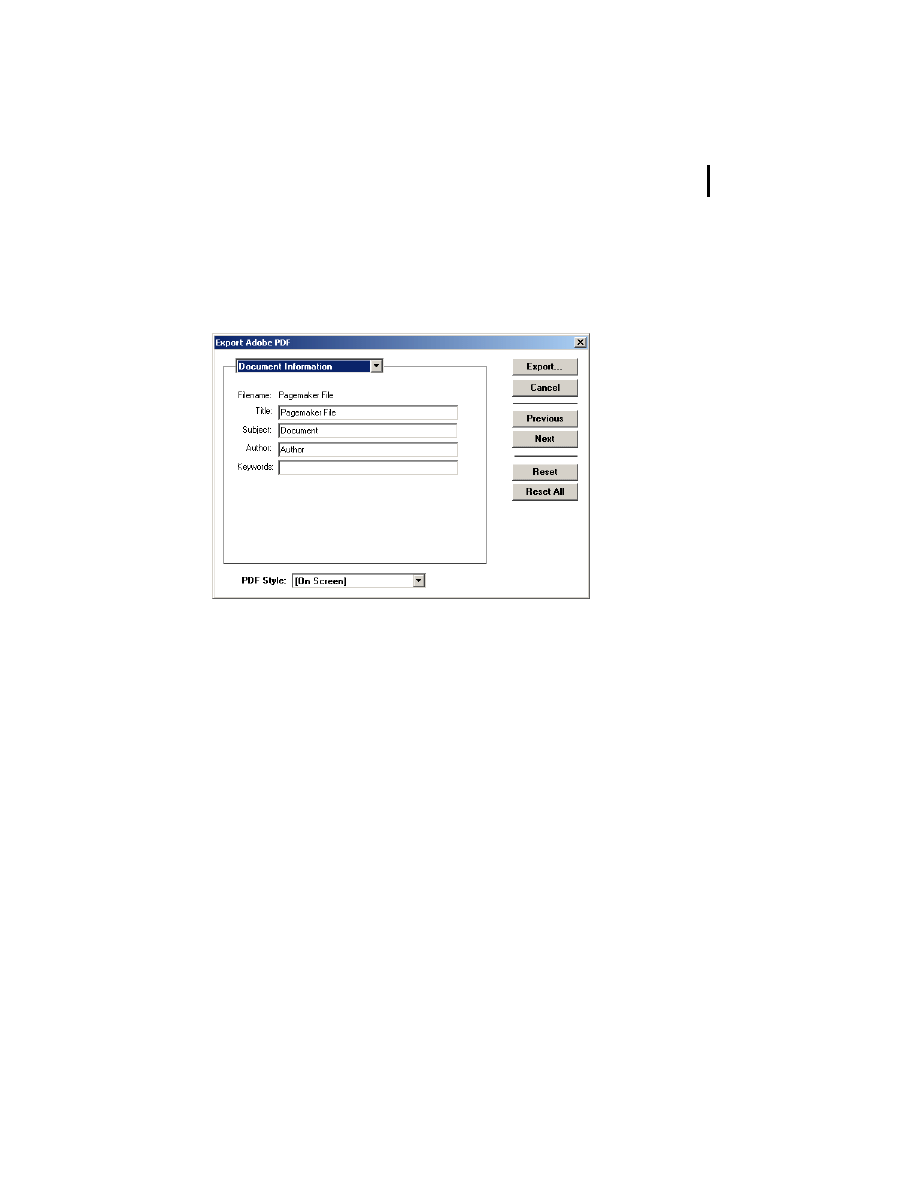
To add metadata to the Adobe PDF document, choose
Document Information from the topmost menu, and enter text
for the book’s title and author.
Setting Document Information options in PageMaker
6
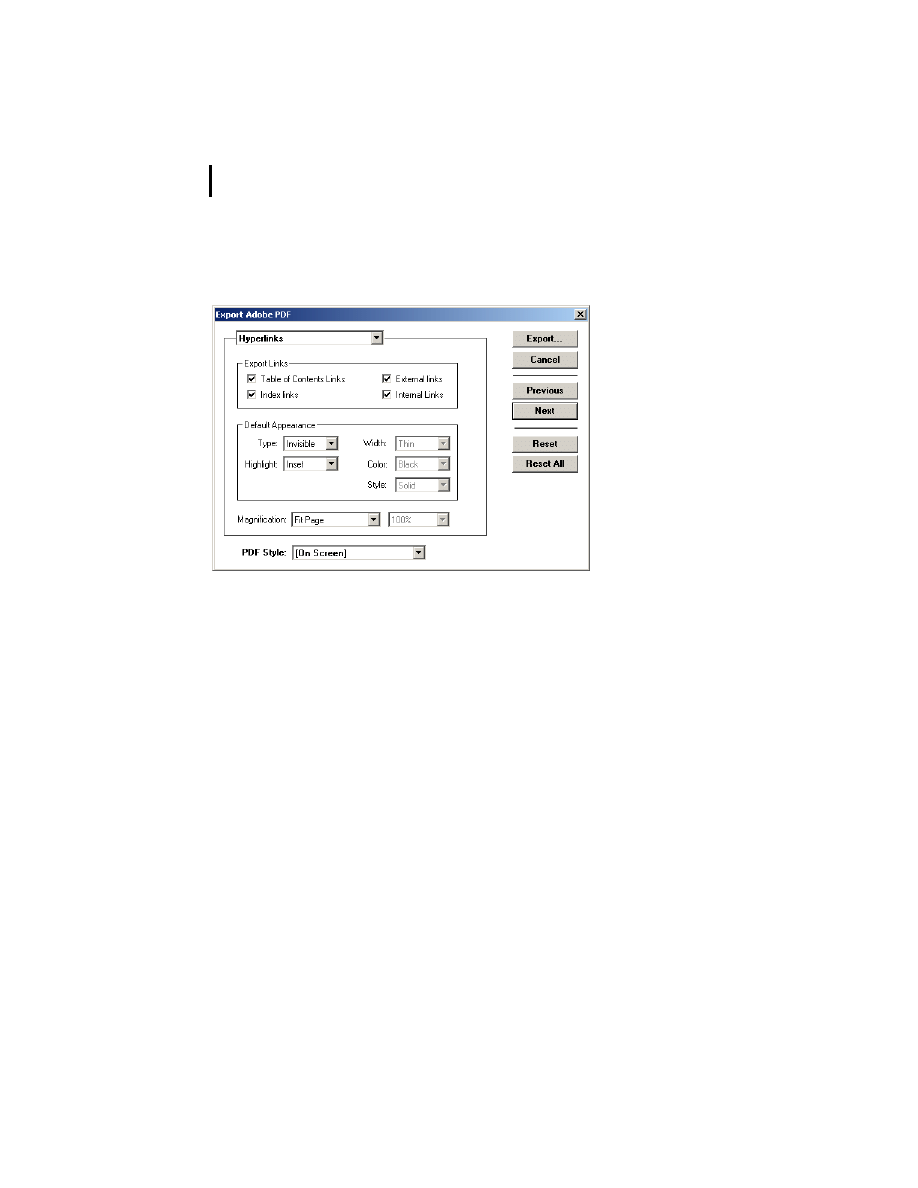
To generate hyperlinks in your Adobe PDF document, choose
Hyperlinks from the topmost menu, and select any of the
following options under Export Links:
• Table of Contents Links to add a hypertext link between each
entry in the table of contents and the page to which the entry
refers.
• Index Links to add a hypertext link between each index entry
and the page to which the entry refers.
• External Links to include the hyperlinks you specified to
external URLs or destinations outside of the current publication.
46
ADOBE PDF EBOOKS
Appendix B: Converting specific file types to Adobe PDF
• Internal Links to include the hyperlinks you specified to
anchors within the publication.
Setting Hyperlinks options in PageMaker
7
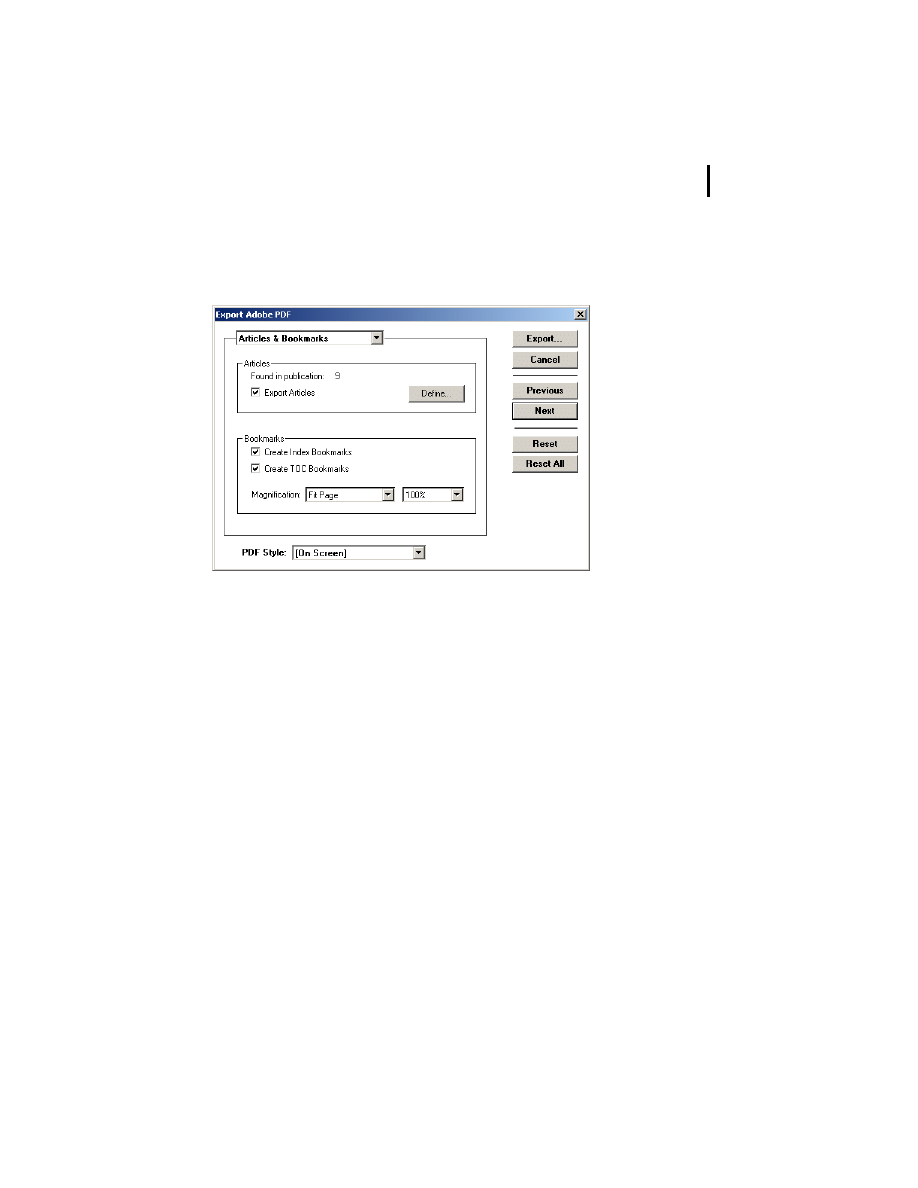
To add bookmarks to your Adobe PDF document, choose
Articles & Bookmarks from the topmost menu, and select any of
the following options under Bookmarks:
• Create Index Bookmarks to create a bookmark for each index
entry.
47
ADOBE PDF EBOOKS
Appendix B: Converting specific file types to Adobe PDF
• Create TOC Bookmarks to create a bookmark for each entry in
the table of contents.
Setting Articles & Bookmarks options in PageMaker
8
Choose Miscellaneous from the topmost menu. Deselect the
Override Distiller Options option, so that PageMaker uses the
Acrobat Distiller settings to perform the conversion.
9
Click Export.
10
In the Save As dialog box, enter a filename, choose a file
location, and click Save.

48
ADOBE PDF EBOOKS
Appendix B: Converting specific file types to Adobe PDF
Converting Microsoft Word for Windows
documents
So that you can easily convert Microsoft® Office for Windows
documents to Adobe PDF, Adobe created a plug-in called Adobe
PDFMaker, which is installed automatically when you install
Adobe Acrobat 5.0 on a system with Microsoft Word 97 or 2000
installed. With Adobe PDFMaker installed, an Acrobat menu
appears on the Microsoft Word menu bar and two Acrobat
buttons appear on the toolbar. Adobe PDFMaker allows you to
set a variety of job options that determine the appearance and
functionality of the Adobe PDF documents that you create.
Note: When converting to Adobe PDF using Windows NT or
Windows 2000 operating systems, the resulting PDF document will
retain the 8 1/2 by 11 inch page size instead of the custom page size.
In this case, you can use Acrobat 5.0 to crop the document to the
proper size. To crop multiple documents, see “Batch Processing” in
Adobe Acrobat 5.0 Online Help.
To convert a Microsoft Word for Windows 2000 document to
Adobe PDF:
1
If you haven't already done so, deselect security options in
Acrobat Distiller and configure Acrobat Distiller job options as
recommended in “Setting Acrobat Distiller job options for
eBooks” on page 9.
2
In Microsoft Word for Windows 2000, open the document
you want to convert to Adobe PDF.
49
ADOBE PDF EBOOKS
Appendix B: Converting specific file types to Adobe PDF
3
Choose Acrobat > Change Conversion Settings.
4
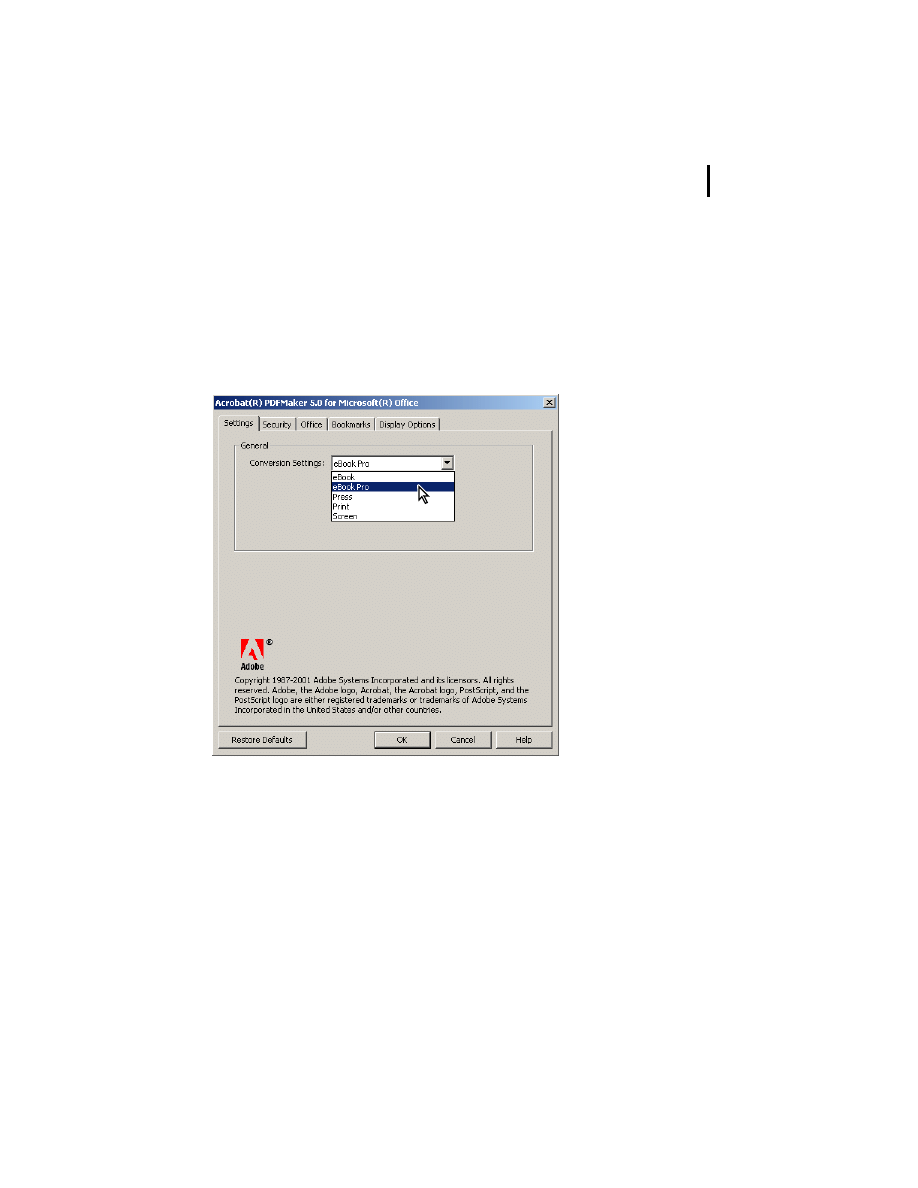
In the Settings panel of the Acrobat PDFMaker 5.0 for
Microsoft Office dialog box, choose the recommended
conversion settings that you created for eBooks in “Setting
Acrobat Distiller job options for eBooks” on page 9.
Choosing custom conversion settings for eBooks in Microsoft Office applications
50
ADOBE PDF EBOOKS
Appendix B: Converting specific file types to Adobe PDF
5
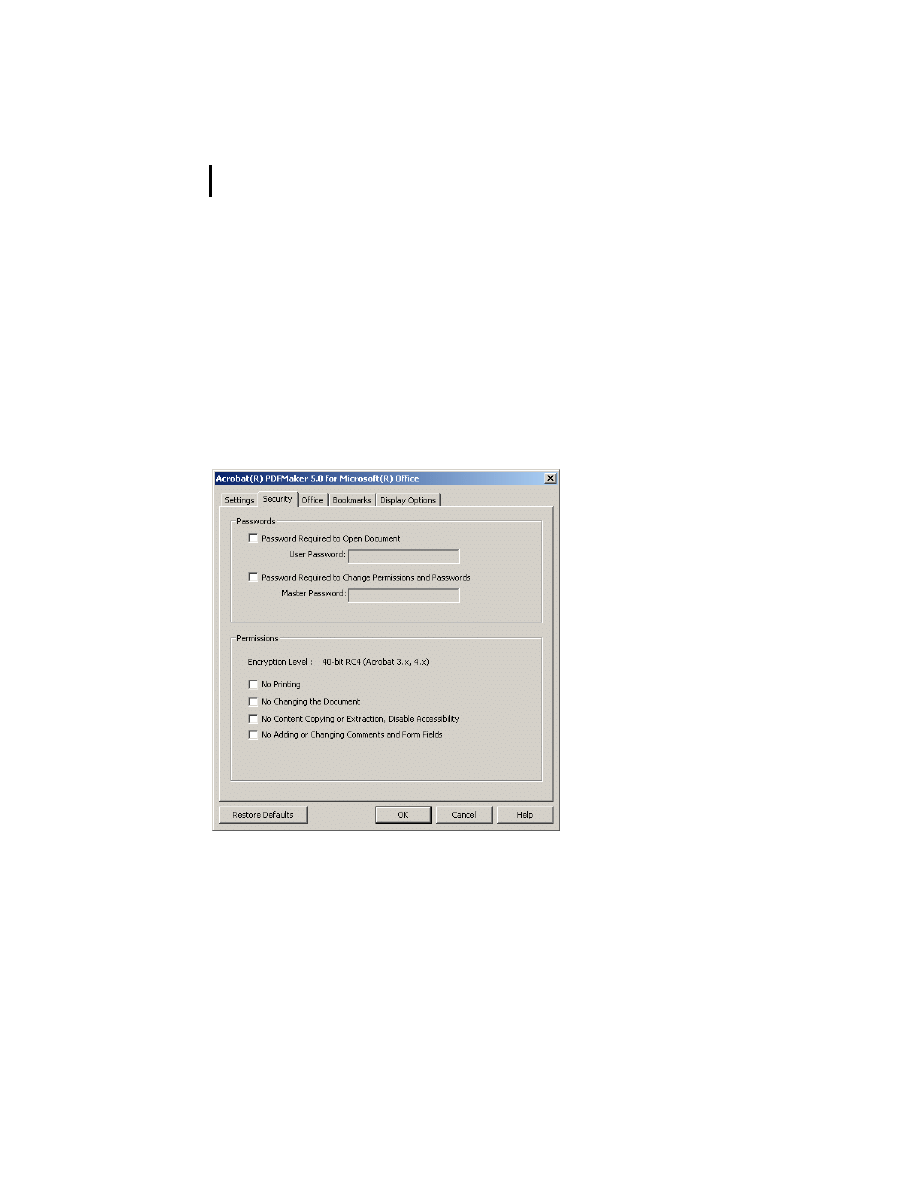
Click the Security tab to display the Security panel. The
Security panel lets you set options to add security to your
document, including specifying passwords and permissions. If
you plan on uploading your eBook to Adobe Content Server as
this guide discusses in “Uploading eBooks to Adobe Content
Server” on page 26, you should deselect all security options.
Instead, set security options using Adobe Content Server
software only.
Deselecting Security options in Microsoft Office applications
6
Modify options as desired in the Office, Bookmarks, and
Display Options panels:
• The Office panel lets you set options specific to converting
Microsoft Word documents to Adobe PDF, such as converting
Word hyperlinks to PDF hyperlinks. By selecting options for
51
ADOBE PDF EBOOKS
Appendix B: Converting specific file types to Adobe PDF
automatically converting hyperlinks, you can save time by not
having to manually add these links to the Adobe PDF document
later using Acrobat.
• The Bookmarks panel lets you set options to automatically
generate bookmarks in the Adobe PDF document.
• The Display Options panel lets you customize the appearance
of your Adobe PDF document when it’s viewed in Acrobat or
Acrobat® Reader®, but not Acrobat eBook Reader.
For more information on changing conversion settings, see the
Adobe PDFMaker Online Help. To view the online Help, click
the Help button in the lower right corner of the dialog box.
7
Click OK to implement your settings.
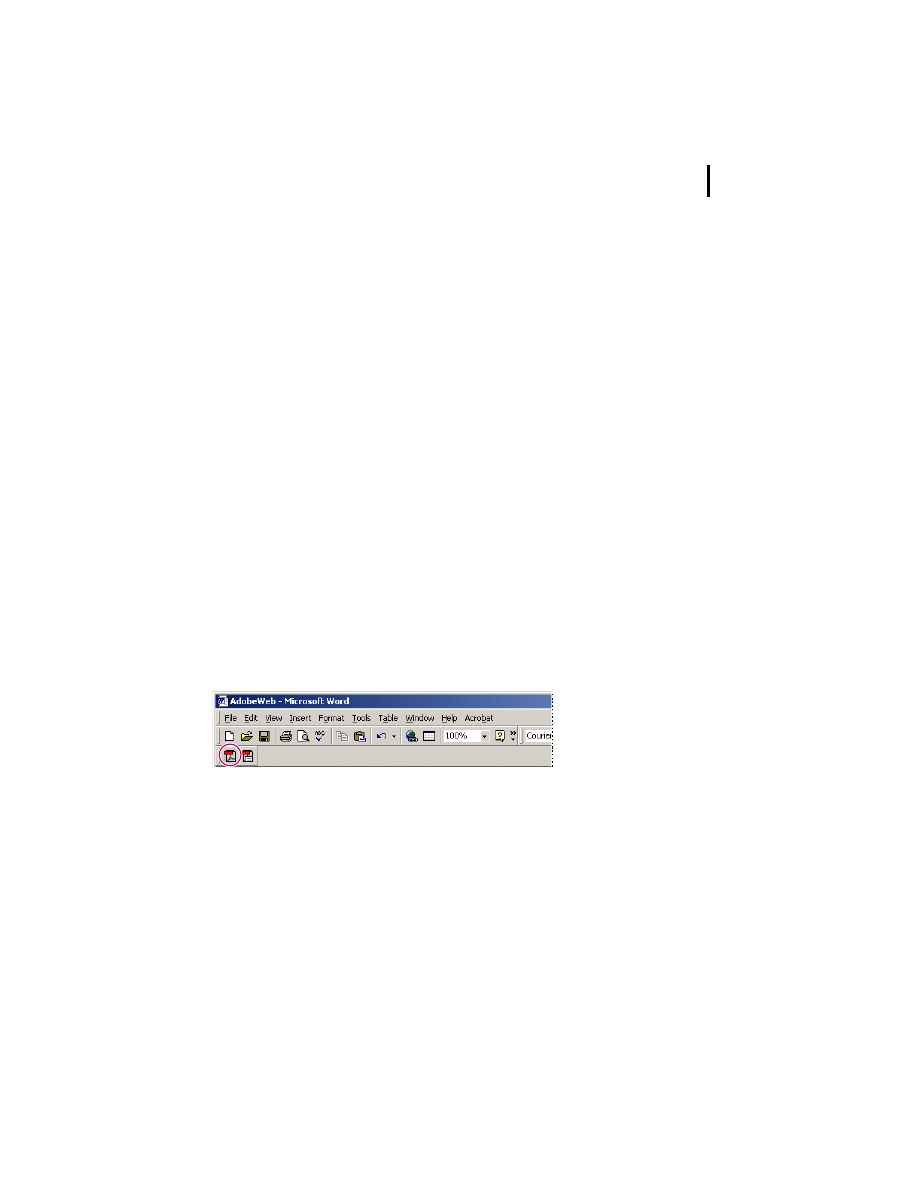
8
Choose Acrobat > Convert to Adobe PDF from the Microsoft
Word menu bar, or click the Convert to Adobe PDF button on
the toolbar.
Convert to Adobe PDF button in Microsoft Office applications
9
In the Save PDF Files As dialog box, enter a filename for the
Adobe PDF document to be created, choose a file location, and
click Save.

52
ADOBE PDF EBOOKS
Appendix B: Converting specific file types to Adobe PDF
Converting QuarkXPress documents
To convert QuarkXPress documents to Adobe PDF, you can set
the recommended job options for eBooks in Acrobat Distiller
before you perform the conversion. Alternatively, you can use the
PDF Filter XTension utility to integrate QuarkXPress and
Acrobat Distiller. You can download this utility and find out
more about it at www.quark.com. The procedure in this section
uses the former method.
To convert a QuarkXPress 4.04 or later document to Adobe PDF
(Windows):
1
In QuarkXPress 4.04 or later for Windows, open the
document you want to convert to Adobe PDF.
2
Choose File > Page Setup or File > Print to display the Print
dialog box.
3
Choose Acrobat Distiller from the Printer menu.
53
ADOBE PDF EBOOKS
Appendix B: Converting specific file types to Adobe PDF
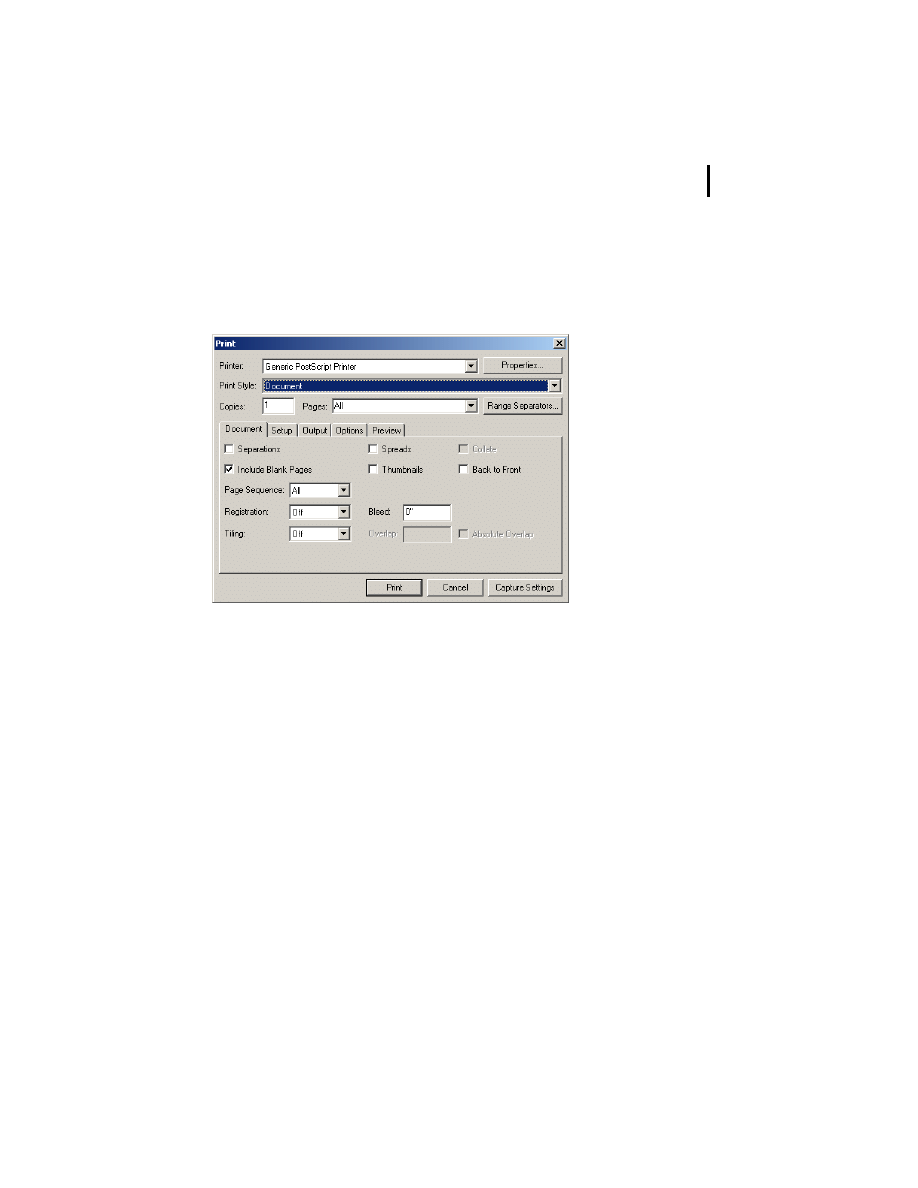
4
Make sure that the Document tab is selected. Deselect the
Separations and Thumbnails options. Choose Off from the
Tiling menu, and set Bleed to 0".
Settings Document options in QuarkXPress (Windows)
54
ADOBE PDF EBOOKS
Appendix B: Converting specific file types to Adobe PDF
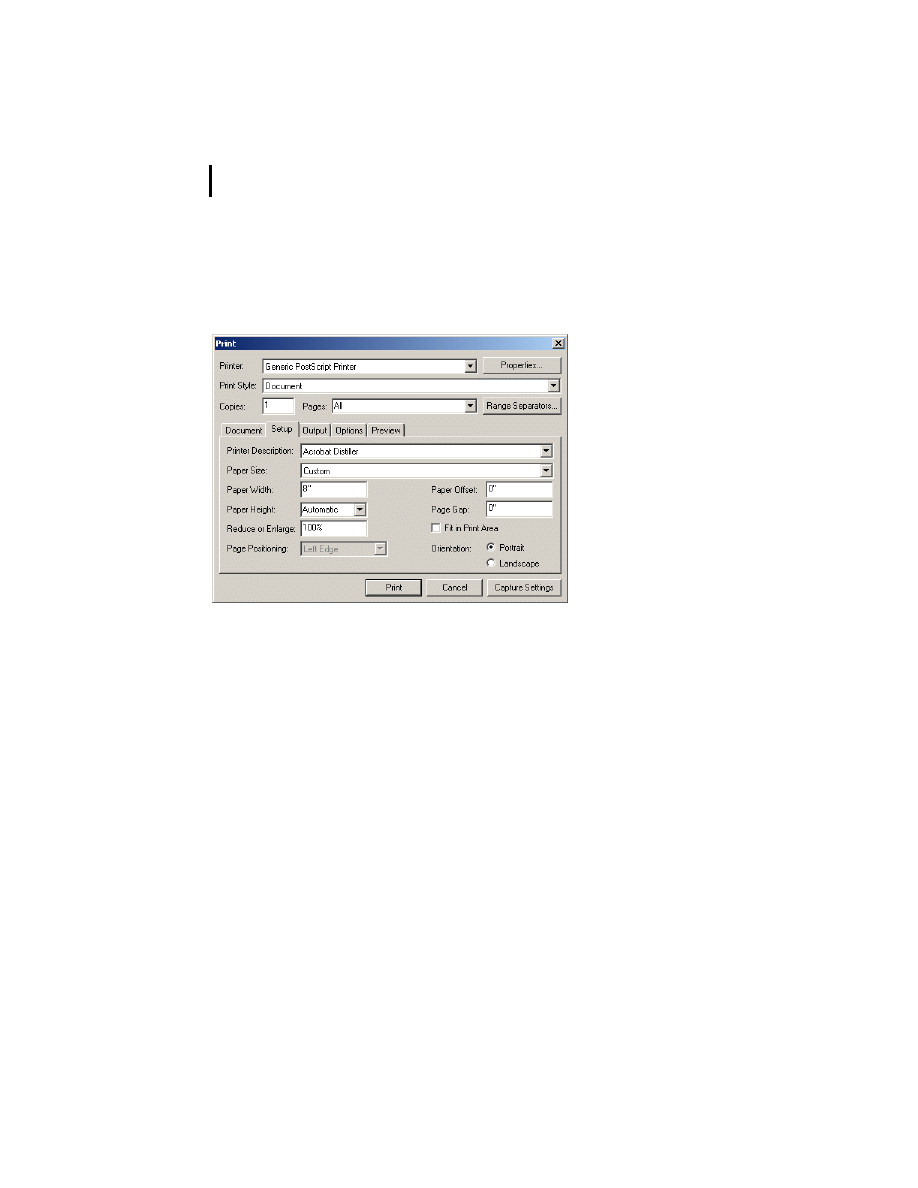
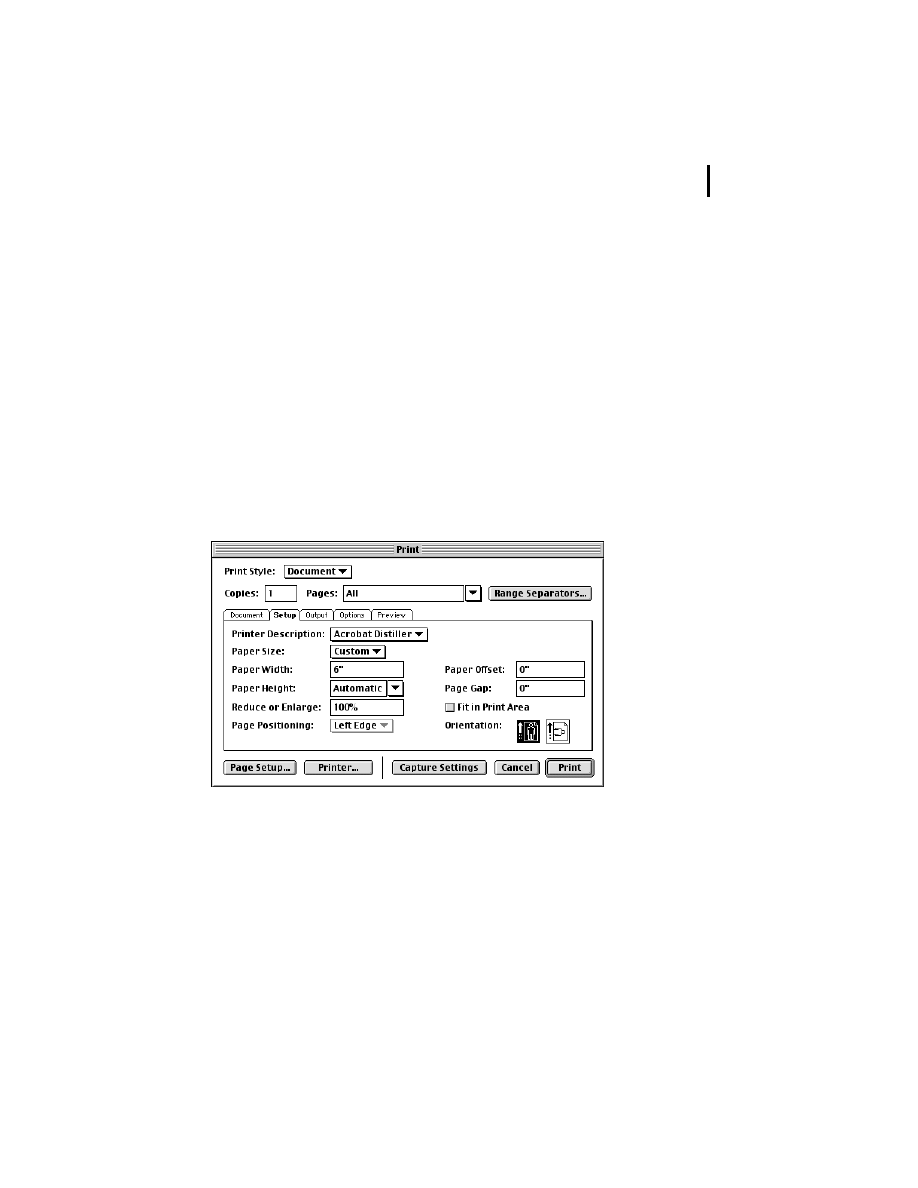
5
Click the Setup tab, and choose Acrobat Distiller from the
Printer Description menu. For Orientation, select Portrait
regardless of the dimensions of your document.
Setting Setup options in QuarkXPress (Windows)
6
Click the Output tab, and specify a Resolution of 600 dpi to
optimize your output for electronic distribution. The dpi setting
is used in the conversion of blends and gradients.
7
Click the Options tab, and choose the appropriate settings for
your file.
8
Click Print.
55
ADOBE PDF EBOOKS
Appendix B: Converting specific file types to Adobe PDF
To convert a QuarkXPress 4.0 or later document to Adobe PDF
(Mac OS):
1
In QuarkXPress 4.0 or later for Mac OS, open the document
you want to convert to Adobe PDF.
2
Choose File > Page Setup or File > Print to display the Print
dialog box.
3
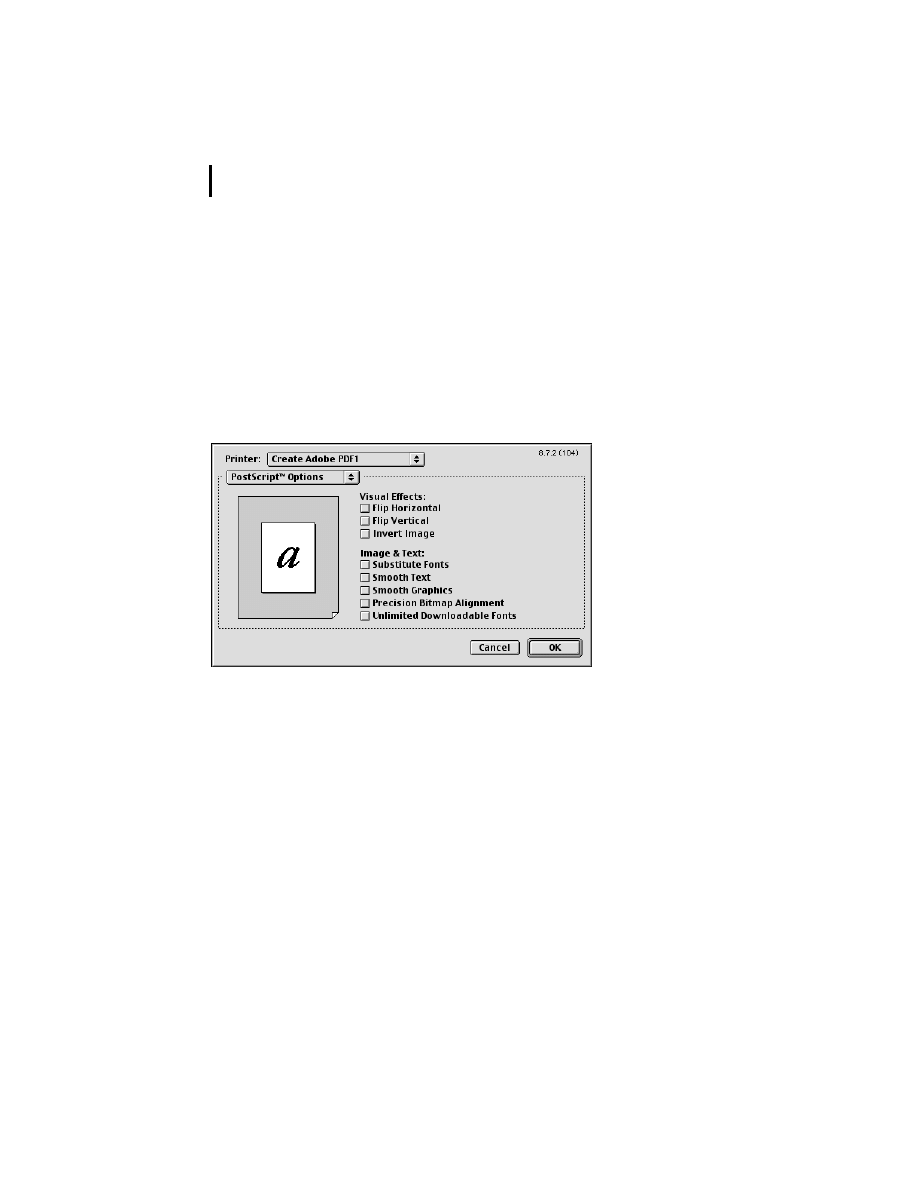
Click the Setup tab, and choose Acrobat Distiller from the
Printer Description menu. For Orientation, select a portrait
orientation regardless of the dimensions of your document.
Click Page Setup.
Setting Setup options in QuarkXPress (Mac OS)
56
ADOBE PDF EBOOKS
Appendix B: Converting specific file types to Adobe PDF
4
In the AdobePS™ Page Setup dialog box, choose Acrobat PDF
from the Format For menu. Choose PostScript Options from the
AdobePS Page Setup menu. Deselect all options for Visual Effects
and Image & Text. Click OK.
Note: It’s very important to set the recommended options in the
AdobePS Page Setup dialog box. Smoothing text or substituting
fonts can make your Adobe PDF files large and unwieldy.
Setting AdobePS Page Setup options in QuarkXPress (Mac OS)
5
In the Print dialog box, click the Document tab, and deselect
Separations.
6
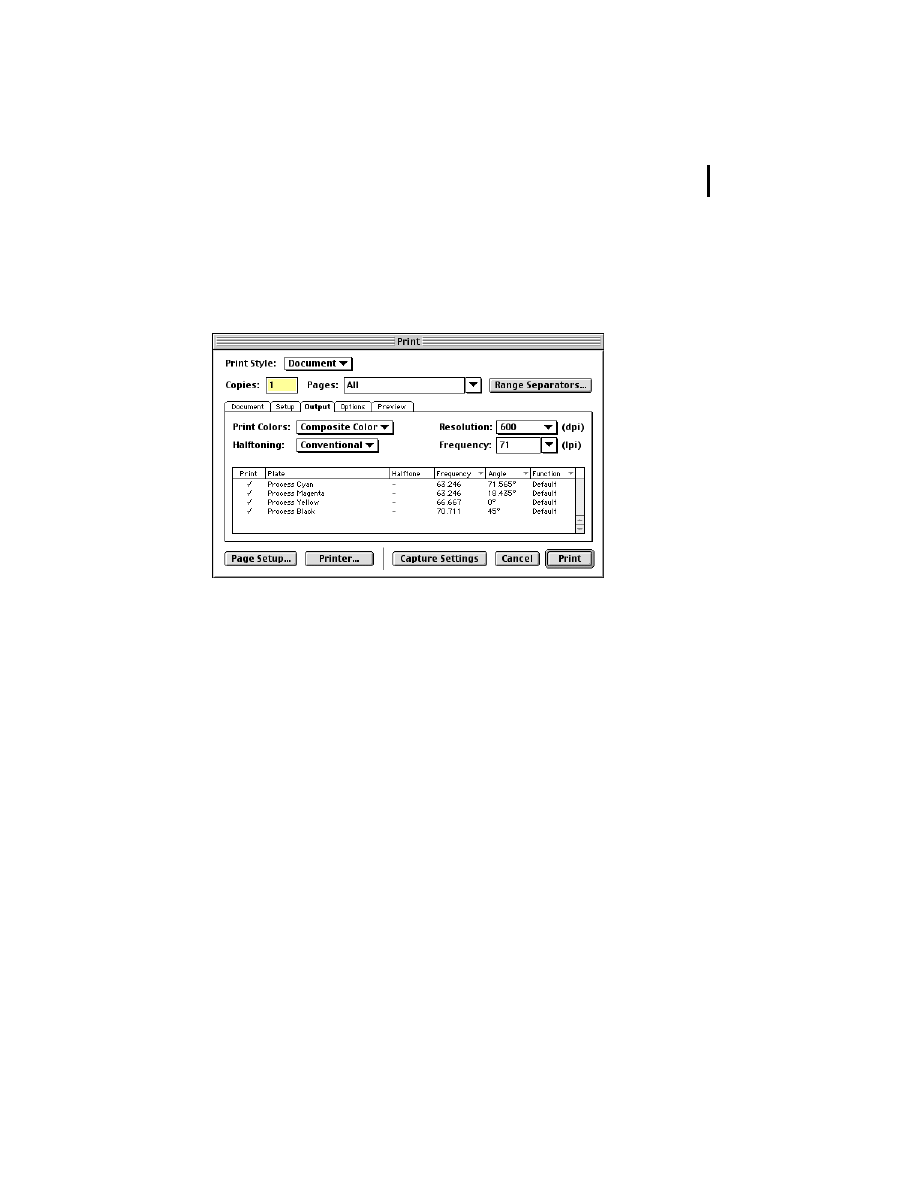
Click the Output tab, and select the appropriate color and
resolution settings for your document. Choose Composite
CMYK from the Print Colors menu. Choose 600 from the
57
ADOBE PDF EBOOKS
Appendix B: Converting specific file types to Adobe PDF
Resolution menu to optimize your document for electronic
distribution. This dpi setting is used in the conversion of blends
and gradients.
Setting Output options in QuarkXPress (Mac OS)
7
When you’ve finished setting options in the Print dialog box,
click Printer.
58
ADOBE PDF EBOOKS
Appendix B: Converting specific file types to Adobe PDF
8
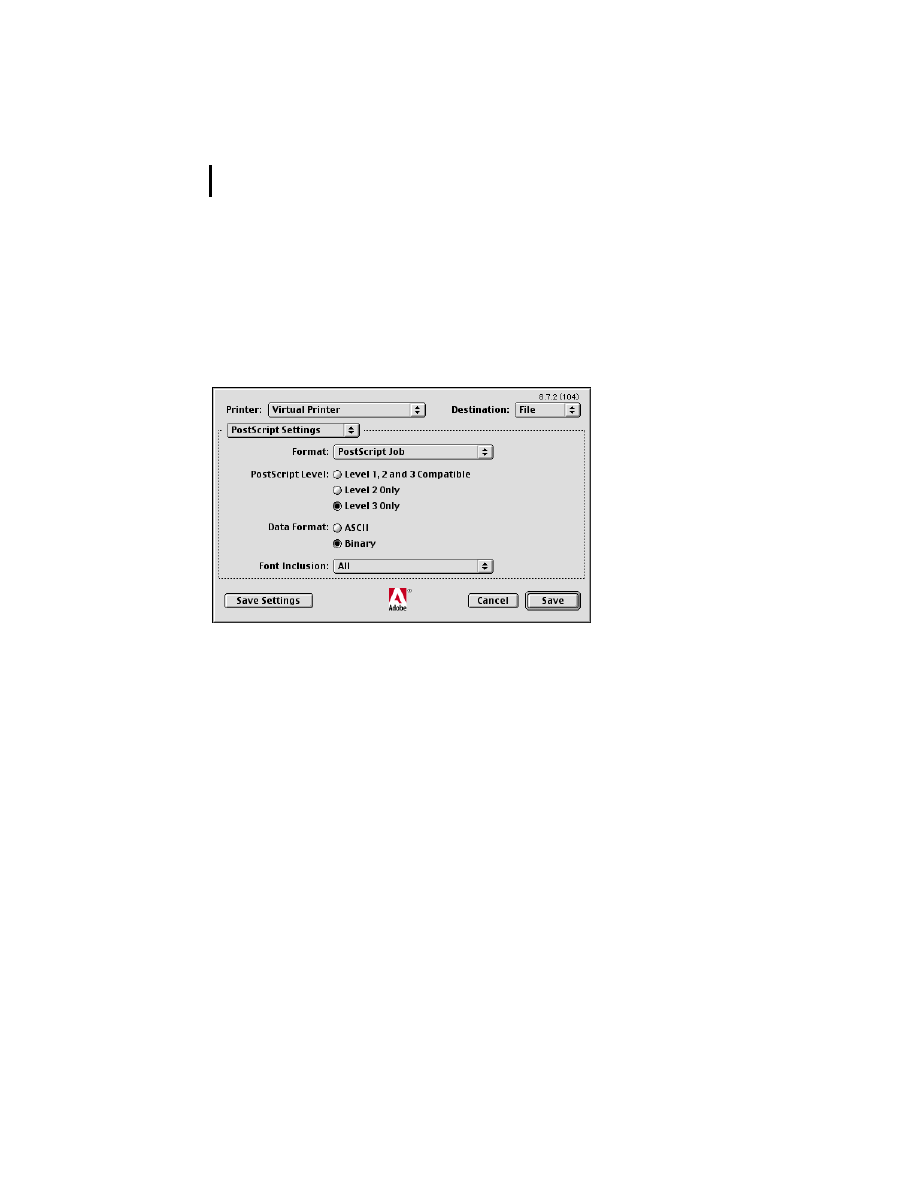
In the dialog box that appears, choose Save as File from the
menu directly below the Printer menu. Choose PostScript Job
from the Format menu. Select Level 3 Only from the PostScript
Level list. Select Binary for Data Format. Choose All from the
Font Inclusion menu.
Printer options in QuarkXPress (Mac OS)
9
Click Save Settings, so that QuarkXPress retains these settings
until the next time you change and save them. Then click Distill.
10
Choose a filename for the Adobe PDF document to be
created, select a file location, and click Save.
11
Click Print.

59
ADOBE PDF EBOOKS
Appendix B: Converting specific file types to Adobe PDF
Creating links and bookmarks
Quark or third parties may have XTensions that allow you to use
QuarkXPress to create links and bookmarks in your Adobe PDF
document (see www.quark.com). If you don’t use an XTension,
you can add links and bookmarks to your Adobe PDF document
using Acrobat. For more information, see “Linking the table of
contents” on page 23 and “Creating bookmarks” on page 24.
Converting existing PostScript and PDF
documents
Like many publishers, you may have archived content from
printed publications as PostScript or PDF files. These files often
contain the high-resolution data required for printing, making
them large in size. To create an eBook version of an existing
PostScript or PDF file, you should convert or reconvert it to
Adobe PDF using the recommended Acrobat Distiller job
options for eBooks. These options are designed to generate a
relatively small Adobe PDF file to be read primarily on-screen.
In some cases, you may have multiple files for a single publi-
cation, such as multiple files for chapters of a book. To create an
Adobe PDF eBook from multiple files, you’ll need to combine
the files into a single Adobe PDF file. Some authoring applica-
tions, such as Adobe FrameMaker, can combine multiple source
files into a single Adobe PDF file. If your authoring application

60
ADOBE PDF EBOOKS
Appendix B: Converting specific file types to Adobe PDF
can do this, use this method. Otherwise, it’s recommended that
you convert your source files to PostScript and then combine
multiple PostScript files into a single Adobe PDF document.
Note: Although you can use Acrobat to combine multiple Adobe
PDF files, it’s not recommended unless you’re combining a small
Adobe PDF file such as the front cover with an additional Adobe
PDF file containing the rest of the eBook. Each Adobe PDF file can
contain embedded font subsets. When you combine multiple Adobe
PDF documents, the resulting Adobe PDF document can contain
multiple embedded subsets of the same font, which can substan-
tially increase the file size.
To convert an existing PostScript file to Adobe PDF:
1
If you haven’t already done so, deselect security options in
Acrobat Distiller and configure Acrobat Distiller job options as
recommended in “Setting Acrobat Distiller job options for
eBooks” on page 9.
2
In Acrobat Distiller 5.0, open the PostScript document that
you want to convert to Adobe PDF.
3
In the Save dialog box, enter a filename for the Adobe PDF
document to be created, select a file location, and click Save.
To convert an existing, uncompressed PDF document to
compressed Adobe PDF:
1
In Acrobat 5.0, open the uncompressed PDF document you
want to convert to compressed Adobe PDF.

61
ADOBE PDF EBOOKS
Appendix B: Converting specific file types to Adobe PDF
2
Choose File > Print, and then do one of the following:
• In Windows, choose Acrobat Distiller from the Printer Name
menu, and click OK.
• In Mac OS, choose Create Adobe PDF for Printer. For Job
Options, choose the recommended conversion settings that you
created for eBooks in “Setting Acrobat Distiller job options for
eBooks” on page 9. Click Save.
3
Enter a filename for the Adobe PDF document to be created,
select a file location, and click Save.
To combine multiple PostScript files into a single Adobe PDF
document:
1
In your authoring application, do one of the following:
• If you’re combining PostScript files located in the same folder,
open the Rundirex.txt (Windows) or RunDirEx.txt (Mac OS) file
located inside of the Adobe Acrobat/Distiller/Xtras folder.
• If you’re combining PostScript files located in separate folders,
open the Runfilex.ps (Windows) or RunFilEx.ps (Mac OS) file
located inside of the Adobe Acrobat/Distiller/Xtras folder.
When opening the file, specify for each line to be treated as a
paragraph.
2
Follow the instructions in the file you just opened. Note that
the utility combines PostScript files in the order in which they are
listed.

62
ADOBE PDF EBOOKS
Appendix B: Converting specific file types to Adobe PDF
3
Save the modified file using the prefix that you want Acrobat
Distiller to give to the Adobe PDF document. (For example, if
you name the file Handbook.ps, Acrobat Distiller creates an
Adobe PDF document named Handbook.pdf.)
4
Quit your authoring application.
5
If you haven’t already done so, deselect security options in
Acrobat Distiller and configure Acrobat Distiller job options as
recommended in “Setting Acrobat Distiller job options for
eBooks” on page 9.
6
In Acrobat Distiller 5.0, open the file you just created.
Acrobat Distiller combines the PostScript files into a single
Adobe PDF document.
7
Open and view the Adobe PDF document in Acrobat 5.0 to
make sure that all of its parts are present and in the correct order.
Document Outline
- Contents
- Introduction
- Designing document templates for eBooks
- Converting documents to Adobe PDF
- Optimizing your Adobe PDF documents
- Customizing Acrobat Distiller job options
- Converting specific file types to Adobe PDF
Wyszukiwarka
Podobne podstrony:
How to Create a Clasp
How to Create Your Future
How to create and develop brand value
(Gardening) Wildflower Meadows How To Create One In Your Garden 1
Dummies Hack How To Create Keygens (1)
Dee Carney How To Tame A Cougar (pdf)(1)
How To Create your own UTAU voice bank rev0 40
How to create Scatter File for MTK Devices
Leo Kiesen How To Create Instant Attraction And Make
Ariel and Shya Kane How to Create a Magical Relationship
How to Create a Windows 7 Live CD the Easy Way
How To Create Instantaneos Sexual Attraction
How to Create Your Future
(ebook PDF) How to Crack CD Protections
(ebook pdf) How to Make Love All Night (and Drive a Woman Wild)
więcej podobnych podstron