Microsoft
®
Access
2010
Quick Reference Card
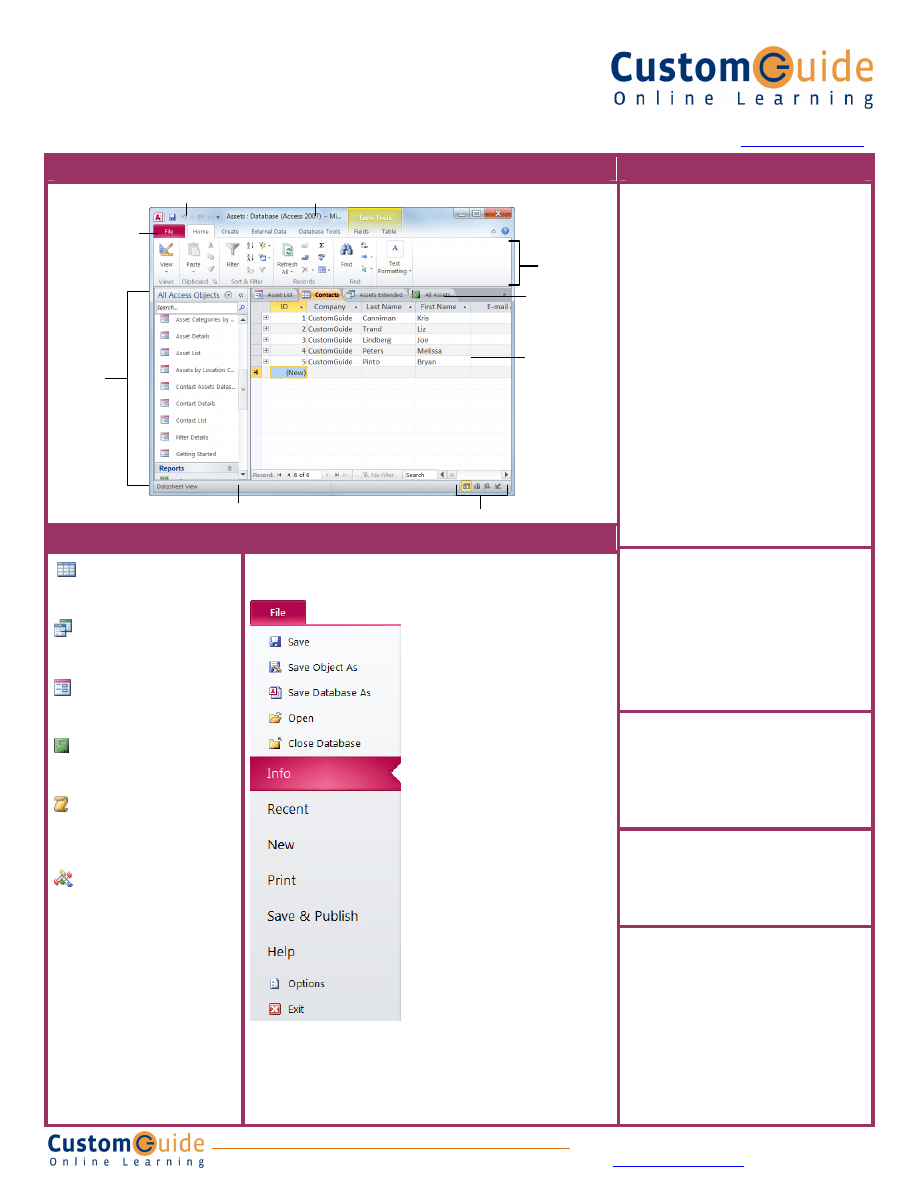
Access 2010 Workspace
Keyboard Shortcuts
General
Open a Database
<Ctrl> + <O>
Close a Database
<Ctrl> + <W>
Print Current View
<Ctrl> + <P>
Delete
<Delete>
Undo
<Ctrl> + <Z>
Help
<F1>
Delete Record
<Ctrl> + < - >
Cancel Changes
<Esc>
Insert Date
<Ctrl> + < ; >
Insert Time
<Shift> + <Ctrl>
+ <:>
Insert Value from
<Ctrl> + < ’ >
Same Field in
(Apostrophe)
Previous Record
Check Spelling
<F7>
Switch Applications
<Alt> + <Tab>
Editing
Cut
<Ctrl> + <X>
Copy
<Ctrl> + <C>
Paste
<Ctrl> + <V>
Find
<Ctrl> + <F>
Replace
<Ctrl> + <H>
Select All
<Ctrl> + <A>
Design View
Properties
<Alt>+<Enter>
Open object in
<Ctrl>+<Enter>
Design View
Save Object
<Ctrl> + <S>
Formatting Text
Bold
<Ctrl + <B>
Italics
<Ctrl + <I>
Underline
<Ctrl + <U>
Navigation
Next Field
<Tab>
Previous Field
<Shift> + <Tab>
Next Screen
<Page Down>
Previous Screen
<Page Up>
First Record
<Ctrl> + < ↑ >
Last Record
<Ctrl> + < ↓ >
Toggle Navigation Pane
<F11>
Database Objects The Fundamentals
Tables store related data in
rows (records) and columns
(fields).
Queries view, filter, calculate,
change, sort, and examine the
data stored in tables.
Forms are custom screens
that provide an easy way to
enter and view data in a table.
Reports present data from a
table or query in a printed
format.
Macros automate common
tasks and can be run by
clicking a button or pressing a
shortcut key.
Modules are groups of
procedures written in Visual
Basic and used to automate
tasks.
•
To Open an Object:
Double-click
the object in the Navigation Pane.
•
To Create a New Object:
Click
the
Create
tab on the Ribbon and
click a button for the object or
wizard you want to use.
•
To Delete an Object:
Select the
object and press
<Delete>
. Click
Yes
.
• The File tab menu and Backstage view contain commands for working
with a program’s files, such as Open, Save, Close, New, and Print.
Customizable Training Materials
Tel. (888) 903-2432 |
www.customguide.com
• Access 2010 introduces Web
databases. Unlike other
databases, Web databases can be
published to a SharePoint site and
opened without Access.
• To Create a Blank Database:
Click the
File
tab and select
New
.
Click the
Blank Database
button
and click
Create
.
• To Create a Database from a
Template: Click the
File
tab and
select
New
. Select the template
category you wish to use, select
the template, and click
Create
.
•
To Open an Existing Database:
Click the
File
tab and select
Open
.
•
To Repair/Compress a
Database: Click the
File
tab and
select
Info
. Click the
Compact &
Repair Database
button.
•
To Import Data from Another
Source: Click the
External Data
tab on the Ribbon and click the
appropriate button in the Import
and Link group.
• To Export Data to Another Source: Click the
External Data
tab
on the Ribbon and click the appropriate button in the Export group.
• To Save a Database: Click the
File
tab and select
Save
.
• To Close a Database: Click the
Close
button, or press
<Ctrl>
+
<W>
.
View buttons
File tab
Quick Access Toolbar
Object tabs
Objects in
the
Navigation
Pane
Table open in
Datasheet view
Title bar
Ribbon
Status bar
Customizable Computer Training
9 Courseware 9 Online Learning 9 Skills Assessments
Access Quick Reference © 2011 CustomGuide
www.customguide.com
| Phone 888.903.2432
Working with Tables
Creating Table Relationships
Linking Tables tells Access how two tables are related to each other. The fields
that you use to link two tables must contain the same concept in two different
tables. A primary key field from one table is often used when linking two tables.
1.
Click the
Table
contextual
tab on the Ribbon and click the
Relationships
button in the Relationships group.
2.
If necessary, click the
Show Table
button in the Relationships group on the
Design tab. In the Show Table window, select a table you want to link, click
the
Add
button, and repeat for each table. Click
Close
.
3.
Drag a field from one table and drop it on the related field in the second table.
(Optional) Check the
Enforce Referential Integrity
box. Click
Create
.
Working with Table Data
• Database information can be directly added and modified from tables and
some queries and forms.
• To Add a Field to a Table:
Enter data in the cell below the Add New Field
column header. Or, click the
Fields
tab on the Ribbon under Table Tools, and
click the button for the field you wish to add in the Add & Delete group.
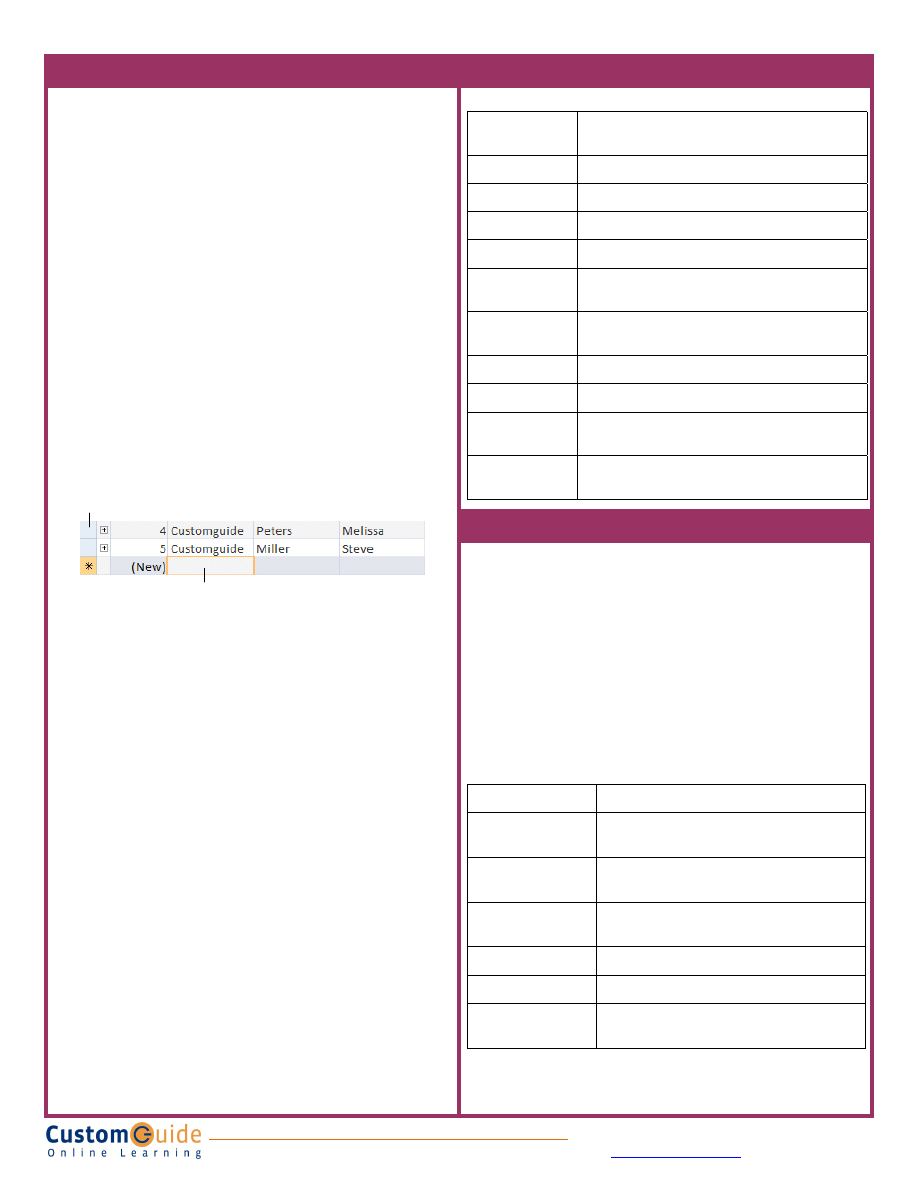
• To Add a New Record: Enter data in the bottom row of the table.
• To Select a Record: Click the
Record selector
to the left of the record.
• To Delete a Record: Select the record, click the
Home
tab on the Ribbon,
and click the
Delete
button in the Records group. Click
Yes
.
• To Spell Check: Click the
Home
tab on the Ribbon and click the
Spelling
button in the Records group.
• To Find Information: Place the cursor in the field that contains the value you
want to search for, click the
Home
tab on the Ribbon, and click the
Find
button in the Find group. Or, press
<Ctrl>
+
<F>
. Type the value you want to
search for in the
Find What
box and click
Find Next
.
•
To Replace Information: Place the cursor in the field that contains the value
you want to replace, click the
Home
tab on the Ribbon and click the
Replace
button in the Find group. Or, press
<Ctrl>
+
<H>
. Type the value you want to
search for in the
Find What box
and the new value in the
Replace With
box.
Click
Find Next
until you’ve found what you’re looking for, then click
Replace
or
Replace All
to replace every instance of the value.
• To Sort Information: Place the cursor in the field that you want to sort by,
click the
Home
tab on the Ribbon, and click either the
Ascending
or
Descending
button in the Sort & Filter group.
• To Filter Information: Place the cursor in the field that contains the values
you want to filter by, click the
Home
tab on the Ribbon, and click the
Filter
button in the Sort & Filter group. Check the boxes for the values you want to
filter for.
•
To Remove a Filter: Click the
Toggle Filter
button in the Sort & Filter group.
•
To Change a Field’s Data Type: Select the field you want to change, click the
Fields
tab on the Ribbon under Table Tools, and click the
Data Type
list
arrow in the Data Type & Formatting group. Select a data type.
Field Data Types
Data Type
Description
Text (Default)
Stores text, numbers, or a combination of both, up to
255 characters long.
Number
Stores numbers that can be used in calculations.
Currency
Stores numbers and symbols that represent money.
Date & Time
Stores dates, times, or both.
Yes/No
Stores only one of two values, such as Yes or No.
Lookup &
Relationship
Stores values from a table, query, or value list. Can be
multivalued.
Rich Text
Stores, text, numbers, or a combination of both that can
be formatted using color and font controls.
Memo
Stores long text entries—up to 64,000 characters long.
Attachment
Allows you to attach files and images to your database.
Hyperlink
Stores clickable links to Web pages on the Internet or
files on a network.
Calculated Field
Stores results of a calculation. The calculation must
refer to other fields in the same table.
Working with Queries and Reports
• To Create a Select Query: Click the
Create
tab on the Ribbon and click the
Query Wizard
button in the Queries group. Click
Simple Query Wizard
and
click
OK
. Follow the instructions to select the fields you want to use from the
desired tables and create the query. If you want to filter records, view the
query in Design view and enter the criteria in the Criteria row.
• To Switch Views: Click the
Home
tab on the Ribbon and click the
View
button in the Views group. Or, right-click the tab and select the view you want
to use in the contextual menu.
• To Summarize Values: Open the Query in Datasheet View, click the
Home
tab on the Ribbon, and click the
Totals
button in the Records group. Click the
list arrow in a column in the Total row in the query select a calculation type
(Sum, Average, etc.).
Criteria Example
Description
“London”
Displays records where the field equals “London”.
Between 1/1/00 and
12/31/00
Displays records where the date is between 1/1/00
and 12/31/00.
NOT "USA" or
<> ""
Displays records where the field does not contain
the text "USA" and is not blank.
Like “S*”
Displays records where the field text starts with an
“S”.
IS NULL
Displays records where the field is blank.
IS NOT NULL
Displays records where the field is not blank.
>100
Displays records whose field value is greater than
100.
• To Create a Report: Click the
Create
tab on the Ribbon and click the
Report
Wizard
button in the Reports group. Follow the instructions to select the fields
you want to use from the desired tables and create the report.
Start adding a new record here.
Record selector
Customizable Computer Training
9 Courseware 9 Online Learning 9 Skills Assessments
Access Quick Reference © 2011 CustomGuide
www.customguide.com
| Phone 888.903.2432
Wyszukiwarka
Podobne podstrony:
w cusb20 Microsoft Office 2010 Free Quick Reference Card
w cusbXX Microsoft Excel 2010 Free Quick Reference Card
w cusb12 Microsoft Visio 2010 Free Quick Reference Card
w cusb25 Microsoft Project 2010 Free Quick Reference Card
w cusb06 Microsoft Word 2010 Free Quick Reference Card
w cusb23 Microsoft Outlook Web App 2010 Free Quick Reference Card
w cusb04 Share Point Foundation 2010 Free Quick Reference Card
w cusb13 Adobe Acrobat 10 Free Quick Reference Card
w cusb08 Microsoft Internet Explorer 9 Free Quick Reference Card
w cusb05 Windows 7 Free Quick Reference Card
w cusb32 Microsoft Outlook 2013 Free Quick Reference Card
VIM Quick Reference Card
The Black Cauldron Quick Reference Card
Manhunter 2 San Francisco Quick Reference Card
JSP Quick Reference Card
Steel Beasts Quick Reference Card PC
Maple 11 Quick Reference Card (Maplesoft, 2007) WW
Sim Theme Park (Quick Reference Card) (UK)
Python 2 4 Quick Reference Card (Letter) (2007)
więcej podobnych podstron