
arduino
programming
notebook
brian w. evans

Arduino Programming Notebook
Written and compiled by Brian W. Evans
With information or inspiration taken from:
http://www.arduino.cc
http://www.wiring.org.co
http://www.arduino.cc/en/Booklet/HomePage
http://cslibrary.stanford.edu/101/
Including material written by:
Paul Badger
Massimo Banzi
Hernando Barragán
David Cuartielles
Tom Igoe
Daniel Jolliffe
Todd Kurt
David Mellis
and others
Published:
First Edition August 2007
Second Edition September 2008
12c bao
This work is licensed under the Creative Commons
Attribution-Share Alike 2.5 License.
To view a copy of this license, visit:
http://creativecommons.org/licenses/by-sa/2.5/
Or send a letter to:
Creative Commons
171 Second Street, Suite 300
San Francisco, California, 94105, USA

contents
structure
structure
7
setup()
7
loop()
7
functions
8
{}
curly
braces
8
;
semicolon
9
/*… */ block comments
9
//
line
comments
9
variables
variables
10
variable
declaration
10
variable
scope
11
datatypes
byte
12
int
12
long
12
float
12
arrays
13
arithmetic
arithmetic
14
compound
assignments
14
comparison
operators
15
logical
operators
15
constants
constants
16
true/false
16
high/low
16
input/output
16

flow control
if
17
if…
else
18
for
19
while
20
do…
while
20
digital i/o
pinMode(pin,
mode)
21
digitalRead(pin)
22
digitalWrite(pin,
value)
22
analog i/o
analogRead(pin)
23
analogWrite(pin,
value)
23
time
delay(ms)
24
millis()
24
math
min(x, y)
24
max(x,
y)
24
random
randomSeed(seed)
25
random(min,
max)
25
serial
Serial.begin(rate)
26
Serial.println(data)
26
appendix
digital
output
29
digital
input
30
high current output
31
pwm
output
32
potentiometer
input
33
variable resistor input
34
servo
output
35

preface
This notebook serves as a convenient, easy to use programming reference for the
command structure and basic syntax of the Arduino microcontroller. To keep it
simple, certain exclusions were made that make this a beginner’s reference best
used as a secondary source alongside other websites, books, workshops, or classes.
This decision has lead to a slight emphasis on using the Arduino for standalone
purposes and, for example, excludes the more complex uses of arrays or advanced
forms of serial communication.
Beginning with the basic structure of Arduino's C derived programming language, this
notebook continues on to describe the syntax of the most common elements of the
language and illustrates their usage with examples and code fragments. This includes
many functions of the core library followed by an appendix with sample schematics
and starter programs. The overall format compliments O’Sullivan and Igoe’s Physical
Computing where possible.
For an introduction to the Arduino and interactive design, refer to Banzi’s Getting
Started with Arduino, aka the Arduino Booklet. For the brave few interested in the
intricacies of programming in C, Kernighan and Ritchie’s The C Programming
Language, second edition, as well as Prinz and Crawford’s C in a Nutshell, provide
some insight into the original programming syntax.
Above all else, this notebook would not have been possible without the great
community of makers and shear mass of original material to be found at the Arduino
website, playground, and forum at http://www.arduino.cc.


structure | 7
structure
The basic structure of the Arduino programming language is fairly simple and runs in
at least two parts. These two required parts, or functions, enclose blocks of
statements.
void setup()
{
statements;
}
void loop()
{
statements;
}
Where setup() is the preparation, loop() is the execution. Both functions are required
for the program to work.
The setup function should follow the declaration of any variables at the very
beginning of the program. It is the first function to run in the program, is run only
once, and is used to set pinMode or initialize serial communication.
The loop function follows next and includes the code to be executed continuously –
reading inputs, triggering outputs, etc. This function is the core of all Arduino
programs and does the bulk of the work.
setup()
The setup() function is called once when your program starts. Use it to initialize pin
modes, or begin serial. It must be included in a program even if there are no
statements to run.
void setup()
{
pinMode(pin, OUTPUT); // sets the 'pin' as output
}
loop()
After calling the setup() function, the loop() function does precisely what its name
suggests, and loops consecutively, allowing the program to change, respond, and
control the Arduino board.
void loop()
{
digitalWrite(pin, HIGH); // turns 'pin' on
delay(1000); // pauses for one second
digitalWrite(pin, LOW); // turns 'pin' off
delay(1000); // pauses for one second
}

functions
A function is a block of code that has a name and a block of statements that are
executed when the function is called. The functions void setup() and void loop() have
already been discussed and other built-in functions will be discussed later.
Custom functions can be written to perform repetitive tasks and reduce clutter in a
program. Functions are declared by first declaring the function type. This is the type
of value to be returned by the function such as 'int' for an integer type function. If no
value is to be returned the function type would be void. After type, declare the name
given to the function and in parenthesis any parameters being passed to the function.
type functionName(parameters)
{
statements;
}
The following integer type function delayVal() is used to set a delay value in a
program by reading the value of a potentiometer. It first declares a local variable v,
sets v to the value of the potentiometer which gives a number between 0-1023, then
divides that value by 4 for a final value between 0-255, and finally returns that value
back to the main program.
int delayVal()
{
int v; // create temporary variable 'v'
v = analogRead(pot); // read potentiometer value
v /= 4; // converts 0-1023 to 0-255
return v; // return final value
}
{} curly braces
Curly braces (also referred to as just "braces" or "curly brackets") define the
beginning and end of function blocks and statement blocks such as the void loop()
function and the for and if statements.
type function()
{
statements;
}
An opening curly brace { must always be followed by a closing curly brace }. This is
often referred to as the braces being balanced. Unbalanced braces can often lead to
cryptic, impenetrable compiler errors that can sometimes be hard to track down in a
large program.
The Arduino environment includes a convenient feature to check the balance of curly
braces. Just select a brace, or even click the insertion point immediately following a
brace, and its logical companion will be highlighted.
8 | structure

; semicolon
A semicolon must be used to end a statement and separate elements of the program.
A semicolon is also used to separate elements in a for loop.
int x = 13; // declares variable 'x' as the integer 13
Note: Forgetting to end a line in a semicolon will result in a compiler error. The error
text may be obvious, and refer to a missing semicolon, or it may not. If an
impenetrable or seemingly illogical compiler error comes up, one of the first things to
check is a missing semicolon, near the line where the compiler complained.
/*… */ block comments
Block comments, or multi-line comments, are areas of text ignored by the program
and are used for large text descriptions of code or comments that help others
understand parts of the program. They begin with /* and end with */ and can span
multiple lines.
/* this is an enclosed block comment
don’t forget the closing comment -
they have to be balanced!
*/
Because comments are ignored by the program and take no memory space they
should be used generously and can also be used to “comment out” blocks of code for
debugging purposes.
Note: While it is possible to enclose single line comments within a block comment,
enclosing a second block comment is not allowed.
// line comments
Single line comments begin with // and end with the next line of code. Like block
comments, they are ignored by the program and take no memory space.
// this is a single line comment
Single line comments are often used after a valid statement to provide more
information about what the statement accomplishes or to provide a future reminder.
structure | 9

10 | variables
variables
A variable is a way of naming and storing a numerical value for later use by the
program. As their namesake suggests, variables are numbers that can be continually
changed as opposed to constants whose value never changes. A variable needs to
be declared and optionally assigned to the value needing to be stored. The following
code declares a variable called inputVariable and then assigns it the value obtained
on analog input pin 2:
int inputVariable = 0; // declares a variable and
// assigns value of 0
inputVariable = analogRead(2); // set variable to value of
// analog pin 2
‘inputVariable’ is the variable itself. The first line declares that it will contain an int,
short for integer. The second line sets the variable to the value at analog pin 2. This
makes the value of pin 2 accessible elsewhere in the code.
Once a variable has been assigned, or re-assigned, you can test its value to see if it
meets certain conditions, or you can use its value directly. As an example to illustrate
three useful operations with variables, the following code tests whether the
inputVariable is less than 100, if true it assigns the value 100 to inputVariable, and
then sets a delay based on inputVariable which is now a minimum of 100:
if (inputVariable < 100) // tests variable if less than 100
{
inputVariable = 100; // if true assigns value of 100
}
delay(inputVariable); // uses variable as delay
Note: Variables should be given descriptive names, to make the code more readable.
Variable names like tiltSensor or pushButton help the programmer and anyone else
reading the code to understand what the variable represents. Variable names like var
or value, on the other hand, do little to make the code readable and are only used
here as examples. A variable can be named any word that is not already one of the
keywords in the Arduino language.
variable declaration
All variables have to be declared before they can be used. Declaring a variable
means defining its value type, as in int, long, float, etc., setting a specified name, and
optionally assigning an initial value. This only needs to be done once in a program but
the value can be changed at any time using arithmetic and various assignments.
The following example declares that inputVariable is an int, or integer type, and that
its initial value equals zero. This is called a simple assignment.
int inputVariable = 0;
A variable can be declared in a number of locations throughout the program and
where this definition takes place determines what parts of the program can use the
variable.

variable scope
A variable can be declared at the beginning of the program before void setup(),
locally inside of functions, and sometimes within a statement block such as for loops.
Where the variable is declared determines the variable scope, or the ability of certain
parts of a program to make use of the variable.
A global variable is one that can be seen and used by every function and statement in
a program. This variable is declared at the beginning of the program, before the
setup() function.
A local variable is one that is defined inside a function or as part of a for loop. It is
only visible and can only be used inside the function in which it was declared. It is
therefore possible to have two or more variables of the same name in different parts
of the same program that contain different values. Ensuring that only one function has
access to its variables simplifies the program and reduces the potential for
programming errors.
The following example shows how to declare a few different types of variables and
demonstrates each variable’s visibility:
int value; // 'value' is visible
// to any function
void setup()
{
// no setup needed
}
void loop()
{
for (int i=0; i<20;) // 'i' is only visible
{ // inside the for-loop
i++;
}
float f; // 'f' is only visible
} // inside loop
variables | 11

12 | datatypes
byte
Byte stores an 8-bit numerical value without decimal points. They have a range of 0-
255.
byte someVariable = 180; // declares 'someVariable'
// as a byte type
int
Integers are the primary datatype for storage of numbers without decimal points and
store a 16-bit value with a range of 32,767 to -32,768.
int someVariable = 1500; // declares 'someVariable'
// as an integer type
Note: Integer variables will roll over if forced past their maximum or minimum values
by an assignment or comparison. For example, if
x = 32767 and a subsequent
statement adds 1 to x,
x = x + 1 or x++, x will then rollover and equal -32,768.
long
Extended size datatype for long integers, without decimal points, stored in a 32-bit
value with a range of 2,147,483,647 to -2,147,483,648.
long someVariable = 90000; // declares 'someVariable'
// as a long type
float
A datatype for floating-point numbers, or numbers that have a decimal point. Floating-
point numbers have greater resolution than integers and are stored as a 32-bit value
with a range of 3.4028235E+38 to -3.4028235E+38.
float someVariable = 3.14; // declares 'someVariable'
// as a floating-point type
Note: Floating-point numbers are not exact, and may yield strange results when
compared. Floating point math is also much slower than integer math in performing
calculations, so should be avoided if possible.

arrays
An array is a collection of values that are accessed with an index number. Any value
in the array may be called upon by calling the name of the array and the index
number of the value. Arrays are zero indexed, with the first value in the array
beginning at index number 0. An array needs to be declared and optionally assigned
values before they can be used.
int myArray[] = {value0, value1, value2...}
Likewise it is possible to declare an array by declaring the array type and size and
later assign values to an index position:
int myArray[5]; // declares integer array w/ 6 positions
myArray[3] = 10; // assigns the 4th index the value 10
To retrieve a value from an array, assign a variable to the array and index position:
x = myArray[3]; // x now equals 10
Arrays are often used in for loops, where the increment counter is also used as the
index position for each array value. The following example uses an array to flicker an
LED. Using a for loop, the counter begins at 0, writes the value contained at index
position 0 in the array flicker[], in this case 180, to the PWM pin 10, pauses for
200ms, then moves to the next index position.
int ledPin = 10; // LED on pin 10
byte flicker[] = {180, 30, 255, 200, 10, 90, 150, 60};
// above array of 8
void setup() // different values
{
pinMode(ledPin, OUTPUT); // sets OUTPUT pin
}
void loop()
{
for(int i=0; i<7; i++) // loop equals number
{ // of values in array
analogWrite(ledPin, flicker[i]); // write index value
delay(200); // pause 200ms
}
}
datatypes | 13

14 | arithmetic
arithmetic
Arithmetic operators include addition, subtraction, multiplication, and division. They
return the sum, difference, product, or quotient (respectively) of two operands.
y = y + 3;
x = x - 7;
i = j * 6;
r = r / 5;
The operation is conducted using the data type of the operands, so, for example, 9 / 4
results in 2 instead of 2.25 since 9 and 4 are ints and are incapable of using decimal
points. This also means that the operation can overflow if the result is larger than
what can be stored in the data type.
If the operands are of different types, the larger type is used for the calculation. For
example, if one of the numbers (operands) are of the type float and the other of type
integer, floating point math will be used for the calculation.
Choose variable sizes that are large enough to hold the largest results from your
calculations. Know at what point your variable will rollover and also what happens in
the other direction e.g. (0 - 1) OR (0 - - 32768). For math that requires fractions, use
float variables, but be aware of their drawbacks: large size and slow computation
speeds.
Note: Use the cast operator e.g. (int)myFloat to convert one variable type to another
on the fly. For example,
i = (int)3.6 will set i equal to 3.
compound assignments
Compound assignments combine an arithmetic operation with a variable assignment.
These are commonly found in for loops as described later. The most common
compound assignments include:
x ++ // same as x = x + 1, or increments x by +1
x -- // same as x = x - 1, or decrements x by -1
x += y // same as x = x + y, or increments x by +y
x -= y // same as x = x - y, or decrements x by -y
x *= y // same as x = x * y, or multiplies x by y
x /= y // same as x = x / y, or divides x by y
Note: For example, x *= 3 would triple the old value of x and re-assign the resulting
value to x.

comparison operators
Comparisons of one variable or constant against another are often used in if
statements to test if a specified condition is true. In the examples found on the
following pages, ?? is used to indicate any of the following conditions:
x == y // x is equal to y
x != y // x is not equal to y
x < y // x is less than y
x > y // x is greater than y
x <= y // x is less than or equal to y
x >= y // x is greater than or equal to y
logical operators
Logical operators are usually a way to compare two expressions and return a TRUE
or FALSE depending on the operator. There are three logical operators, AND, OR,
and NOT, that are often used in if statements:
Logical AND:
if (x > 0 && x < 5) // true only if both
// expressions are true
Logical OR:
if (x > 0 || y > 0) // true if either
// expression is true
Logical NOT:
if (!x > 0) // true only if
// expression is false
arithmetic | 15

16 | constants
constants
The Arduino language has a few predefined values, which are called constants. They
are used to make the programs easier to read. Constants are classified in groups.
true/false
These are Boolean constants that define logic levels. FALSE is easily defined as 0
(zero) while TRUE is often defined as 1, but can also be anything else except zero.
So in a Boolean sense, -1, 2, and -200 are all also defined as TRUE.
if (b == TRUE);
{
doSomething;
}
high/low
These constants define pin levels as HIGH or LOW and are used when reading or
writing to digital pins. HIGH is defined as logic level 1, ON, or 5 volts while LOW is
logic level 0, OFF, or 0 volts.
digitalWrite(13, HIGH);
input/output
Constants used with the pinMode() function to define the mode of a digital pin as
either INPUT or OUTPUT.
pinMode(13, OUTPUT);

if
if statements test whether a certain condition has been reached, such as an analog
value being above a certain number, and executes any statements inside the
brackets if the statement is true. If false the program skips over the statement. The
format for an if test is:
if (someVariable ?? value)
{
doSomething;
}
The above example compares someVariable to another value, which can be either a
variable or constant. If the comparison, or condition in parentheses is true, the
statements inside the brackets are run. If not, the program skips over them and
continues on after the brackets.
Note: Beware of accidentally using ‘=’, as in
if(x=10), while technically valid,
defines the variable x to the value of 10 and is as a result always true. Instead use
‘==’, as in
if(x==10), which only tests whether x happens to equal the value 10 or
not. Think of ‘=’ as “equals” opposed to ‘==’ being “is equal to”.
flow control | 17

if… else
if… else allows for ‘either-or’ decisions to be made. For example, if you wanted to test
a digital input, and do one thing if the input went HIGH or instead do another thing if
the input was LOW, you would write that this way:
if (inputPin == HIGH)
{
doThingA;
}
else
{
doThingB;
}
else can also precede another if test, so that multiple, mutually exclusive tests can be
run at the same time. It is even possible to have an unlimited number of these else
branches. Remember though, only one set of statements will be run depending on
the condition tests:
if (inputPin < 500)
{
doThingA;
}
else if (inputPin >= 1000)
{
doThingB;
}
else
{
doThingC;
}
Note: An if statement simply tests whether the condition inside the parenthesis is true
or false. This statement can be any valid C statement as in the first example,
if
(inputPin == HIGH). In this example, the if statement only checks to see if
indeed the specified input is at logic level high, or +5v.
18 | flow control

for
The for statement is used to repeat a block of statements enclosed in curly braces a
specified number of times. An increment counter is often used to increment and
terminate the loop. There are three parts, separated by semicolons (;), to the for loop
header:
for (initialization; condition; expression)
{
doSomething;
}
The initialization of a local variable, or increment counter, happens first and only
once. Each time through the loop, the following condition is tested. If the condition
remains true, the following statements and expression are executed and the condition
is tested again. When the condition becomes false, the loop ends.
The following example starts the integer i at 0, tests to see if i is still less than 20 and
if true, increments i by 1 and executes the enclosed statements:
for (int i=0; i<20; i++) // declares i, tests if less
{ // than 20, increments i by 1
digitalWrite(13, HIGH); // turns pin 13 on
delay(250); // pauses for 1/4 second
digitalWrite(13, LOW); // turns pin 13 off
delay(250); // pauses for 1/4 second
}
Note: The C for loop is much more flexible than for loops found in some other
computer languages, including BASIC. Any or all of the three header elements may
be omitted, although the semicolons are required. Also the statements for
initialization, condition, and expression can be any valid C statements with unrelated
variables. These types of unusual for statements may provide solutions to some rare
programming problems.
flow control | 19

while
while loops will loop continuously, and infinitely, until the expression inside the
parenthesis becomes false. Something must change the tested variable, or the while
loop will never exit. This could be in your code, such as an incremented variable, or
an external condition, such as testing a sensor.
while (someVariable ?? value)
{
doSomething;
}
The following example tests whether ‘someVariable’ is less than 200 and if true
executes the statements inside the brackets and will continue looping until
‘someVariable’ is no longer less than 200.
while (someVariable < 200) // tests if less than 200
{
doSomething; // executes enclosed statements
someVariable++; // increments variable by 1
}
do… while
The do loop is a bottom driven loop that works in the same manner as the while loop,
with the exception that the condition is tested at the end of the loop, so the do loop
will always run at least once.
do
{
doSomething;
} while (someVariable ?? value);
The following example assigns readSensors() to the variable ‘x’, pauses for 50
milliseconds, then loops indefinitely until ‘x’ is no longer less than 100:
do
{
x = readSensors(); // assigns the value of
// readSensors() to x
delay (50); // pauses 50 milliseconds
} while (x < 100); // loops if x is less than 100
20 | flow control

digital i/o | 21
pinMode(pin, mode)
Used in
void setup() to configure a specified pin to behave either as an INPUT or
an OUTPUT.
pinMode(pin, OUTPUT); // sets ‘pin’ to output
Arduino digital pins default to inputs, so they don't need to be explicitly declared as
inputs with pinMode(). Pins configured as INPUT are said to be in a high-impedance
state.
There are also convenient 20KΩ pullup resistors built into the Atmega chip that can
be accessed from software. These built-in pullup resistors are accessed in the
following manner:
pinMode(pin, INPUT); // set ‘pin’ to input
digitalWrite(pin, HIGH); // turn on pullup resistors
Pullup resistors would normally be used for connecting inputs like switches. Notice in
the above example it does not convert
pin to an output, it is merely a method for
activating the internal pull-ups.
Pins configured as OUTPUT are said to be in a low-impedance state and can provide
40 mA (milliamps) of current to other devices/circuits. This is enough current to
brightly light up an LED (don't forget the series resistor), but not enough current to run
most relays, solenoids, or motors.
Short circuits on Arduino pins and excessive current can damage or destroy the
output pin, or damage the entire Atmega chip. It is often a good idea to connect an
OUTPUT pin to an external device in series with a 470Ω or 1KΩ resistor.

digitalRead(pin)
Reads the value from a specified digital pin with the result either HIGH or LOW. The
pin can be specified as either a variable or constant (0-13).
value = digitalRead(Pin); // sets 'value' equal to
// the input pin
digitalWrite(pin, value)
Outputs either logic level HIGH or LOW at (turns on or off) a specified digital pin. The
pin can be specified as either a variable or constant (0-13).
digitalWrite(pin, HIGH); // sets 'pin' to high
The following example reads a pushbutton connected to a digital input and turns on
an LED connected to a digital output when the button has been pressed:
int led = 13; // connect LED to pin 13
int pin = 7; // connect pushbutton to pin 7
int value = 0; // variable to store the read value
void setup()
{
pinMode(led, OUTPUT); // sets pin 13 as output
pinMode(pin, INPUT); // sets pin 7 as input
}
void loop()
{
value = digitalRead(pin); // sets 'value' equal to
// the input pin
digitalWrite(led, value); // sets 'led' to the
} // button's value
22 | digital i/o

analog i/o | 23
analogRead(pin)
Reads the value from a specified analog pin with a 10-bit resolution. This function
only works on the analog in pins (0-5). The resulting integer values range from 0 to
1023.
value = analogRead(pin); // sets 'value' equal to 'pin'
Note: Analog pins unlike digital ones, do not need to be first declared as INPUT nor
OUTPUT.
analogWrite(pin, value)
Writes a pseudo-analog value using hardware enabled pulse width modulation
(PWM) to an output pin marked PWM. On newer Arduinos with the ATmega168 chip,
this function works on pins 3, 5, 6, 9, 10, and 11. Older Arduinos with an ATmega8
only support pins 9, 10, and 11. The value can be specified as a variable or constant
with a value from 0-255.
analogWrite(pin, value); // writes 'value' to analog 'pin'
A value of 0 generates a steady 0 volts output at the specified pin; a value of 255
generates a steady 5 volts output at the specified pin. For values in between 0 and
255, the pin rapidly alternates between 0 and 5 volts - the higher the value, the more
often the pin is HIGH (5 volts). For example, a value of 64 will be 0 volts three-
quarters of the time, and 5 volts one quarter of the time; a value of 128 will be at 0
half the time and 255 half the time; and a value of 192 will be 0 volts one quarter of
the time and 5 volts three-quarters of the time.
Because this is a hardware function, the pin will generate a steady wave after a call to
analogWrite in the background until the next call to analogWrite (or a call to
digitalRead or digitalWrite on the same pin).
Note: Analog pins unlike digital ones, do not need to be first declared as INPUT nor
OUTPUT.
The following example reads an analog value from an analog input pin, converts the
value by dividing by 4, and outputs a PWM signal on a PWM pin:
int led = 10; // LED with 220 resistor on pin 10
int pin = 0; // potentiometer on analog pin 0
int value; // value for reading
void setup(){} // no setup needed
void loop()
{
value = analogRead(pin); // sets 'value' equal to 'pin'
value /= 4; // converts 0-1023 to 0-255
analogWrite(led, value); // outputs PWM signal to led
}

delay(ms)
Pauses a program for the amount of time as specified in milliseconds, where 1000
equals 1 second.
delay(1000); // waits for one second
millis()
Returns the number of milliseconds since the Arduino board began running the
current program as an unsigned long value.
value = millis(); // sets ‘value’ equal to millis()
Note: This number will overflow (reset back to zero), after approximately 9 hours.
min(x, y)
Calculates the minimum of two numbers of any data type and returns the smaller
number.
value = min(value, 100); // sets 'value' to the smaller of
// 'value' or 100, ensuring that
// it never gets above 100.
max(x, y)
Calculates the maximum of two numbers of any data type and returns the larger
number.
value = max(value, 100); // sets 'value' to the larger of
// 'value' or 100, ensuring that
// it is at least 100.
24 | time and math

randomSeed(seed)
Sets a value, or seed, as the starting point for the random() function.
randomSeed(value); // sets ‘value’ as the random seed
Because the Arduino is unable to create a truly random number, randomSeed allows
you to place a variable, constant, or other function into the random function, which
helps to generate more random "random” numbers. There are a variety of different
seeds, or functions, that can be used in this function including millis() or even
analogRead() to read electrical noise through an analog pin.
random(max)
random(min, max)
The random function allows you to return pseudo-random numbers within a range
specified by min and max values.
value = random(100, 200); // sets 'value' to a random
// number between 100-200
Note: Use this after using the randomSeed() function.
The following example creates a random value between 0-255 and outputs a PWM
signal on a PWM pin equal to the random value:
int randNumber; // variable to store the random value
int led = 10; // LED with 220 resistor on pin 10
void setup() {} // no setup needed
void loop()
{
randomSeed(millis()); // sets millis() as seed
randNumber = random(255); // random number from 0-255
analogWrite(led, randNumber); // outputs PWM signal
delay(500); // pauses for half a second
}
random | 25

Serial.begin(rate)
Opens serial port and sets the baud rate for serial data transmission. The typical
baud rate for communicating with the computer is 9600 although other speeds are
supported.
void setup()
{
Serial.begin(9600); // opens serial port
} // sets data rate to 9600 bps
Note: When using serial communication, digital pins 0 (RX) and 1 (TX) cannot be
used at the same time.
Serial.println(data)
Prints data to the serial port, followed by an automatic carriage return and line feed.
This command takes the same form as Serial.print(), but is easier for reading data on
the Serial Monitor.
Serial.println(analogValue); // sends the value of
// 'analogValue'
Note: For more information on the various permutations of the Serial.println() and
Serial.print() functions please refer to the Arduino website.
The following simple example takes a reading from analog pin0 and sends this data
to the computer every 1 second.
void setup()
{
Serial.begin(9600); // sets serial to 9600bps
}
void loop()
{
Serial.println(analogRead(0)); // sends analog value
delay(1000); // pauses for 1 second
}
26 | serial


appendix
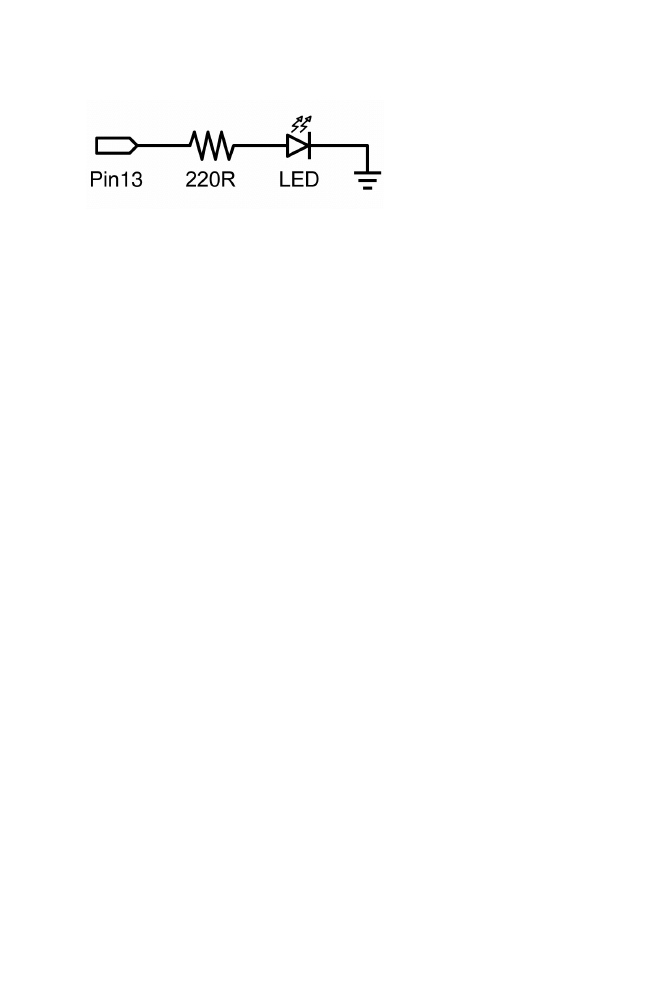
digital output
This is the basic ‘hello world’ program used to simply turn something on or off. In this
example, an LED is connected to pin13, and is blinked every second. The resistor
may be omitted on this pin since the Arduino has one built in.
int ledPin = 13; // LED on digital pin 13
void setup() // run once
{
pinMode(ledPin, OUTPUT); // sets pin 13 as output
}
void loop() // run over and over again
{
digitalWrite(ledPin, HIGH); // turns the LED on
delay(1000); // pauses for 1 second
digitalWrite(ledPin, LOW); // turns the LED off
delay(1000); // pauses for 1 second
}
appendix | 29
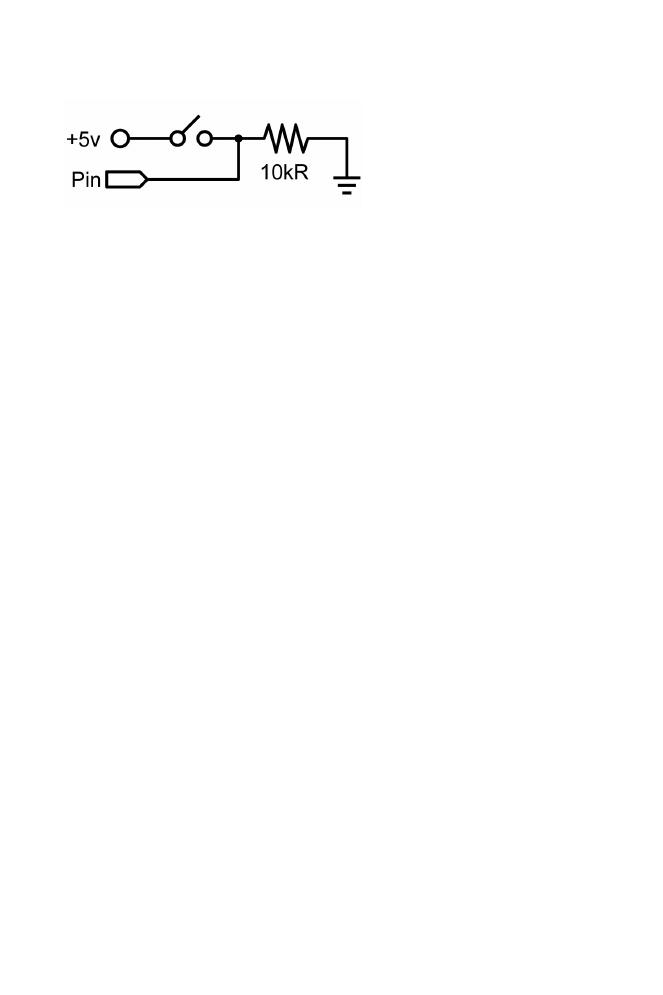
digital input
This is the simplest form of input with only two possible states: on or off. This
example reads a simple switch or pushbutton connected to pin2. When the switch is
closed the input pin will read HIGH and turn on an LED.
int ledPin = 13; // output pin for the LED
int inPin = 2; // input pin (for a switch)
void setup()
{
pinMode(ledPin, OUTPUT); // declare LED as output
pinMode(inPin, INPUT); // declare switch as input
}
void loop()
{
if (digitalRead(inPin) == HIGH) // check if input is HIGH
{
digitalWrite(ledPin, HIGH); // turns the LED on
delay(1000); // pause for 1 second
digitalWrite(ledPin, LOW); // turns the LED off
delay(1000); // pause for 1 second
}
}
30 | appendix
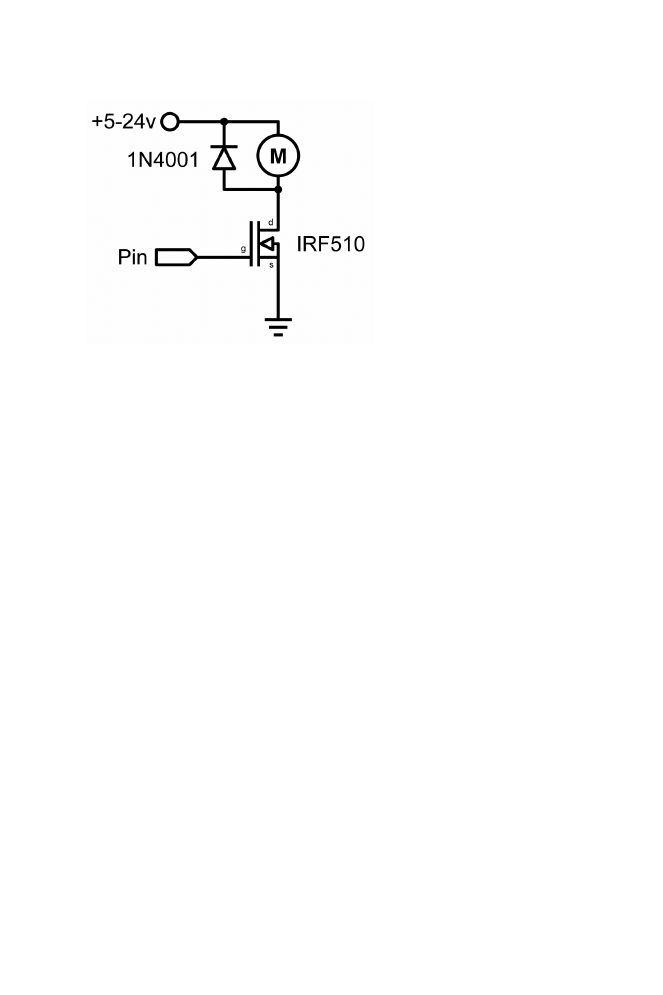
high current output
Sometimes it is necessary to control more than 40ma from the Arduino. In this case a
MOSFET or transistor could be used to switch higher current loads. The following
example quickly turns on and off the MOSFET 5 times every second.
Note: The schematic shows a motor and protection diode but other non-inductive
loads could be used without the diode.
int outPin = 5; // output pin for the MOSFET
void setup()
{
pinMode(outPin, OUTPUT); // sets pin5 as output
}
void loop()
{
for (int i=0; i<=5; i++) // loops 5 times
{
digitalWrite(outPin, HIGH); // turns MOSFET on
delay(250); // pauses 1/4 second
digitalWrite(outPin, LOW); // turns MOSFET off
delay(250); // pauses 1/4 second
}
delay(1000); // pauses 1 second
}
appendix | 31
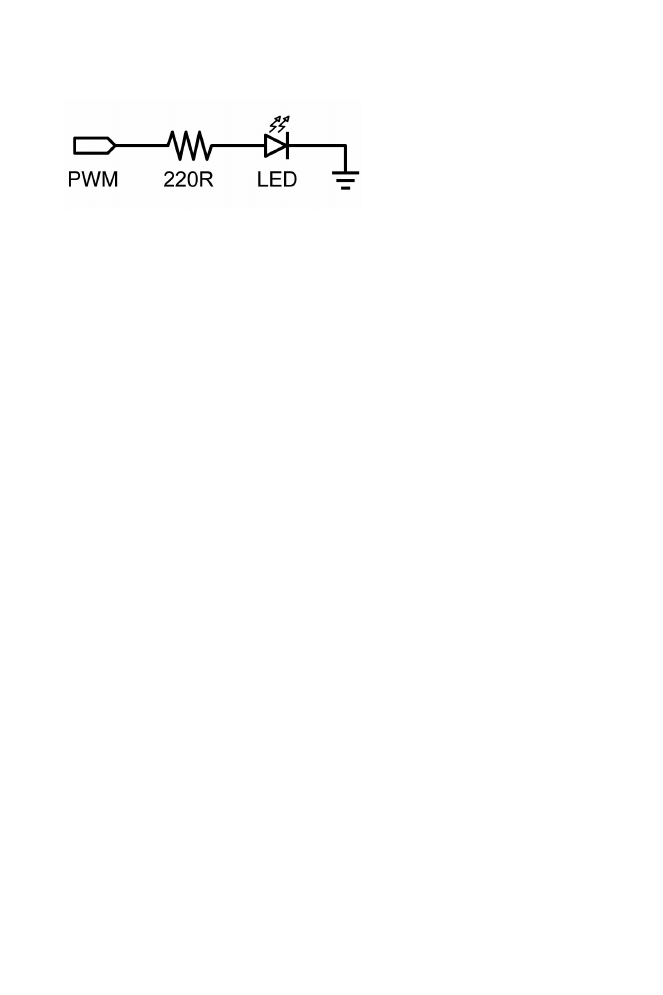
pwm output
Pulsewidth Modulation (PWM) is a way to fake an analog output by pulsing the
output. This could be used to dim and brighten an LED or later to control a servo
motor. The following example slowly brightens and dims an LED using for loops.
int ledPin = 9; // PWM pin for the LED
void setup(){} // no setup needed
void loop()
{
for (int i=0; i<=255; i++) // ascending value for i
{
analogWrite(ledPin, i); // sets brightess level to i
delay(100); // pauses for 100ms
}
for (int i=255; i>=0; i--) // descending value for i
{
analogWrite(ledPin, i); // sets brightess level to i
delay(100); // pauses for 100ms
}
}
32 | appendix
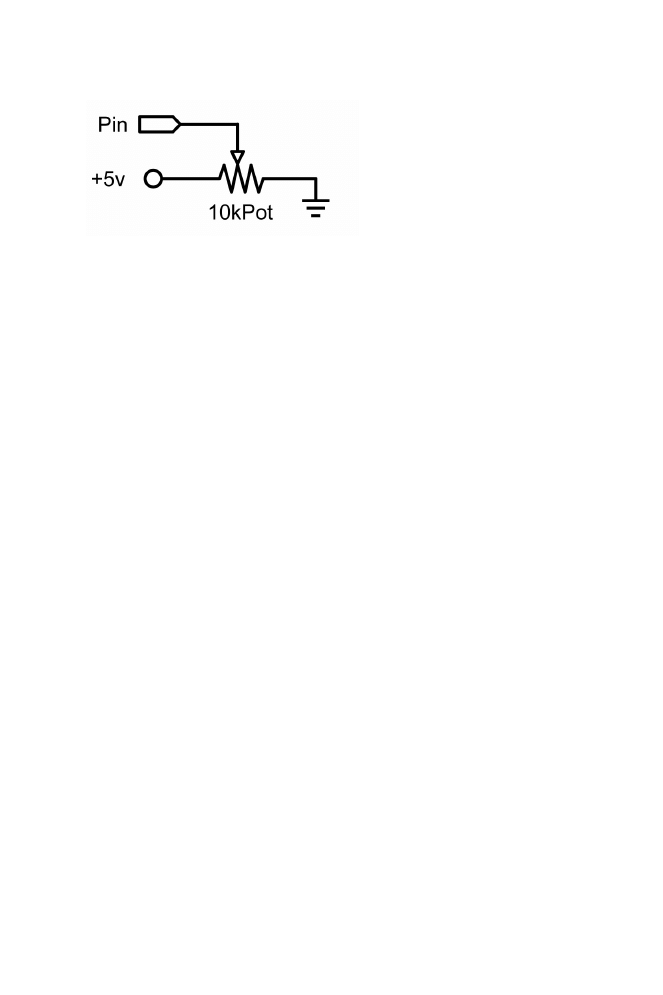
potentiometer input
Using a potentiometer and one of the Arduino’s analog-to-digital conversion (ADC)
pins it is possible to read analog values from 0-1024. The following example uses a
potentiometer to control an LED’s rate of blinking.
int potPin = 0; // input pin for the potentiometer
int ledPin = 13; // output pin for the LED
void setup()
{
pinMode(ledPin, OUTPUT); // declare ledPin as OUTPUT
}
void loop()
{
digitalWrite(ledPin, HIGH); // turns ledPin on
delay(analogRead(potPin)); // pause program
digitalWrite(ledPin, LOW); // turns ledPin off
delay(analogRead(potPin)); // pause program
}
appendix | 33
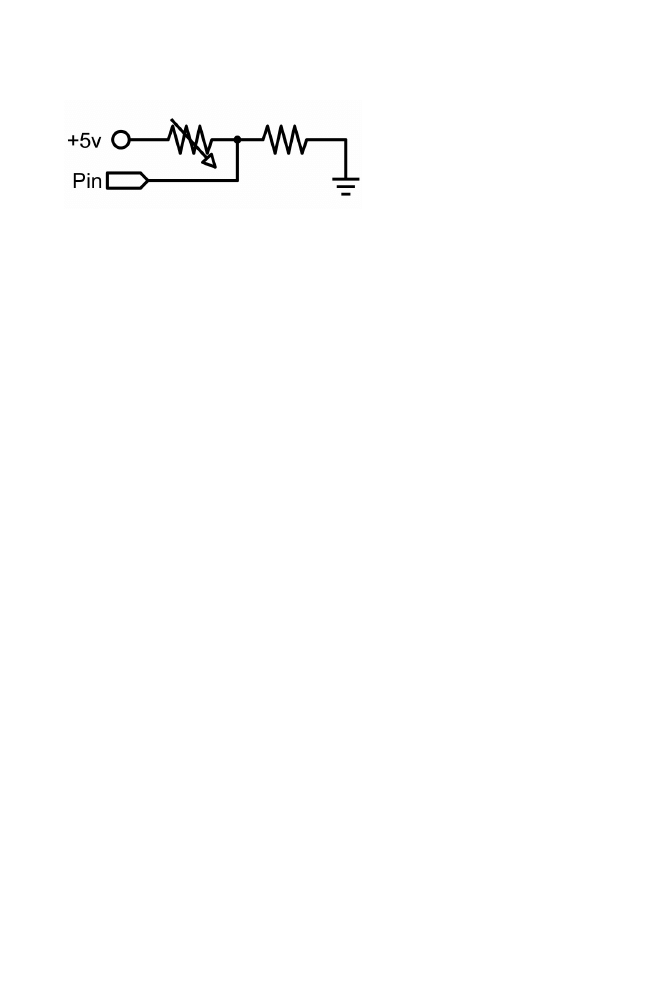
variable resistor input
Variable resistors include CdS light sensors, thermistors, flex sensors, and so on.
This example makes use of a function to read the analog value and set a delay time.
This controls the speed at which an LED brightens and dims.
int ledPin = 9; // PWM pin for the LED
int analogPin = 0; // variable resistor on analog pin 0
void setup(){} // no setup needed
void loop()
{
for (int i=0; i<=255; i++) // ascending value for i
{
analogWrite(ledPin, i); // sets brightess level to i
delay(delayVal()); // gets time value and pauses
}
for (int i=255; i>=0; i--) // descending value for i
{
analogWrite(ledPin, i); // sets brightess level to i
delay(delayVal()); // gets time value and pauses
}
}
int delayVal()
{
int v; // create temporary variable
v = analogRead(analogPin); // read analog value
v /= 8; // convert 0-1024 to 0-128
return v; // returns final value
}
34 | appendix
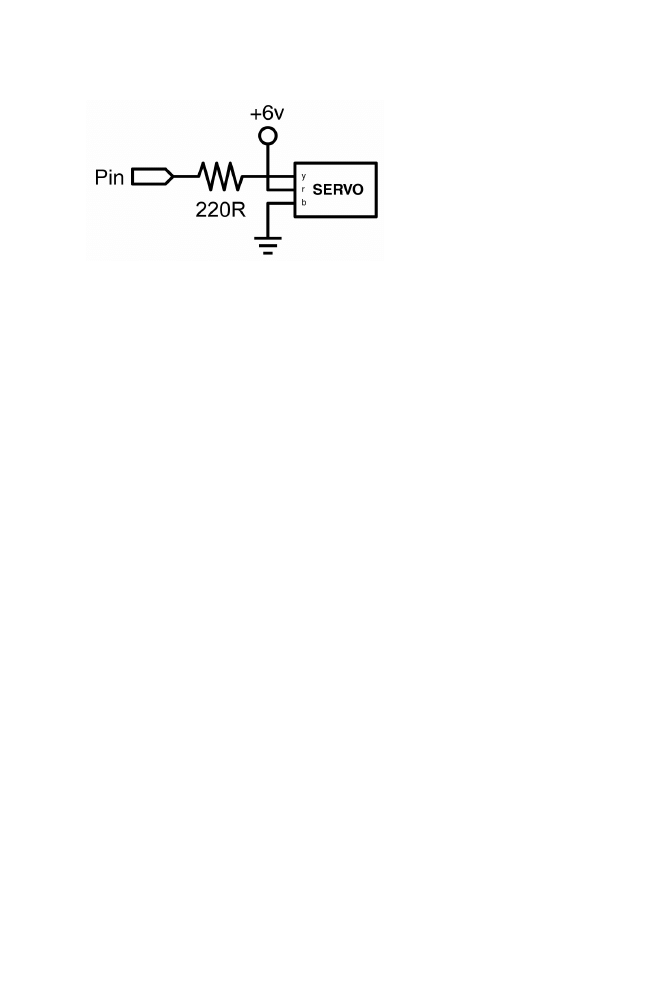
servo output
Hobby servos are a type of self-contained motor that can move in a 180º arc. All that
is needed is a pulse sent every 20ms. This example uses a servoPulse function to
move the servo from 10º -170º and back again.
int servoPin = 2; // servo connected to digital pin 2
int myAngle; // angle of the servo roughly 0-180
int pulseWidth; // servoPulse function variable
void setup()
{
pinMode(servoPin, OUTPUT); // sets pin 2 as output
}
void servoPulse(int servoPin, int myAngle)
{
pulseWidth = (myAngle * 10) + 600; // determines delay
digitalWrite(servoPin, HIGH); // set servo high
delayMicroseconds(pulseWidth); // microsecond pause
digitalWrite(servoPin, LOW); // set servo low
}
void loop()
{
// servo starts at 10 deg and rotates to 170 deg
for (myAngle=10; myAngle<=170; myAngle++)
{
servoPulse(servoPin, myAngle); // send pin and angle
delay(20); // refresh cycle
}
// servo starts at 170 deg and rotates to 10 deg
for (myAngle=170; myAngle>=10; myAngle--)
{
servoPulse(servoPin, myAngle); // send pin and angle
delay(20); // refresh cycle
}
}
appendix | 35

Document Outline
- // line comments
- variable declaration
- arithmetic
- compound assignments
- Note: An if statement simply tests whether the condition inside the parenthesis is true or false. This statement can be any valid C statement as in the first example, if (inputPin == HIGH). In this example, the if statement only checks to see if indeed the specified input is at logic level high, or +5v.
Wyszukiwarka
Podobne podstrony:
Arduino Programmierhandbuch
Arduino programming part1 slides
arduino notebook v1 1
Programamos nuestra placa Arduino gr ficamente con mBlock 1481817824297
Nowy Prezentacja programu Microsoft PowerPoint 5
Charakterystyka programu
1 treści programoweid 8801 ppt
Programowanie rehabilitacji 2
Rola rynku i instytucji finansowych INowy Prezentacja programu Microsoft PowerPoint
Nowy Prezentacja programu Microsoft PowerPoint ppt
Szkoła i jej program
wykluczenie społ program przeciwdział
więcej podobnych podstron