1 - 5 IT Essentials II v2.0 - Lab 10.1.3
Copyright
2002, Cisco Systems, Inc.
Lab 10.1.3: The CLI Interface
Estimated Time: 15 minutes
Objective
In this lab, the student will navigate the Linux file system. The student will learn how to
use the navigation tools provided by Linux to locate files and folders. This lab covers he
following commands:
cd
ls
pwd
cal
date
Equipment
The following equipment is required for this exercise:
•
A computer with Linux Red Hat 7.2 operating system installed.
Scenario
The student is setting up a new computer for a user. Before the user can have the new
computer, some directories and files need to be created that the user will need.
Procedure
Using this new computer that has the Linux operating system installed on it, the student
will navigate through the file system and locate the user’s home directory. The student
will also use the file system to navigate through and check to make sure that the
necessary directories are in place.
2 - 5 IT Essentials II v2.0 - Lab 10.1.3
Copyright
2002, Cisco Systems, Inc.
Step 1: The
ls
,
pwd
and
cd
Commands
1. Login as the root user.
2. At the command line type:
ls
This will display the contents of the root’s home directory. In the space below list the
contents of this directory.
3. From within the root’s home directory type:
cd ..
Press the Enter key. Make sure to include a space between the (cd and the ..). The
cd
..
command moves the users up one directory. The parent directory of the root’s home
directory is the “root” ( / ) of the Linux directory structure. Although the “ / “and the “ /root “
directory sound the same, they are two entirely different directories. The “ / “ is the
highest level you can go in the Linux directory system. The “ /root “ is the home directory
for the root user.
4. From the “ / “ type:
ls
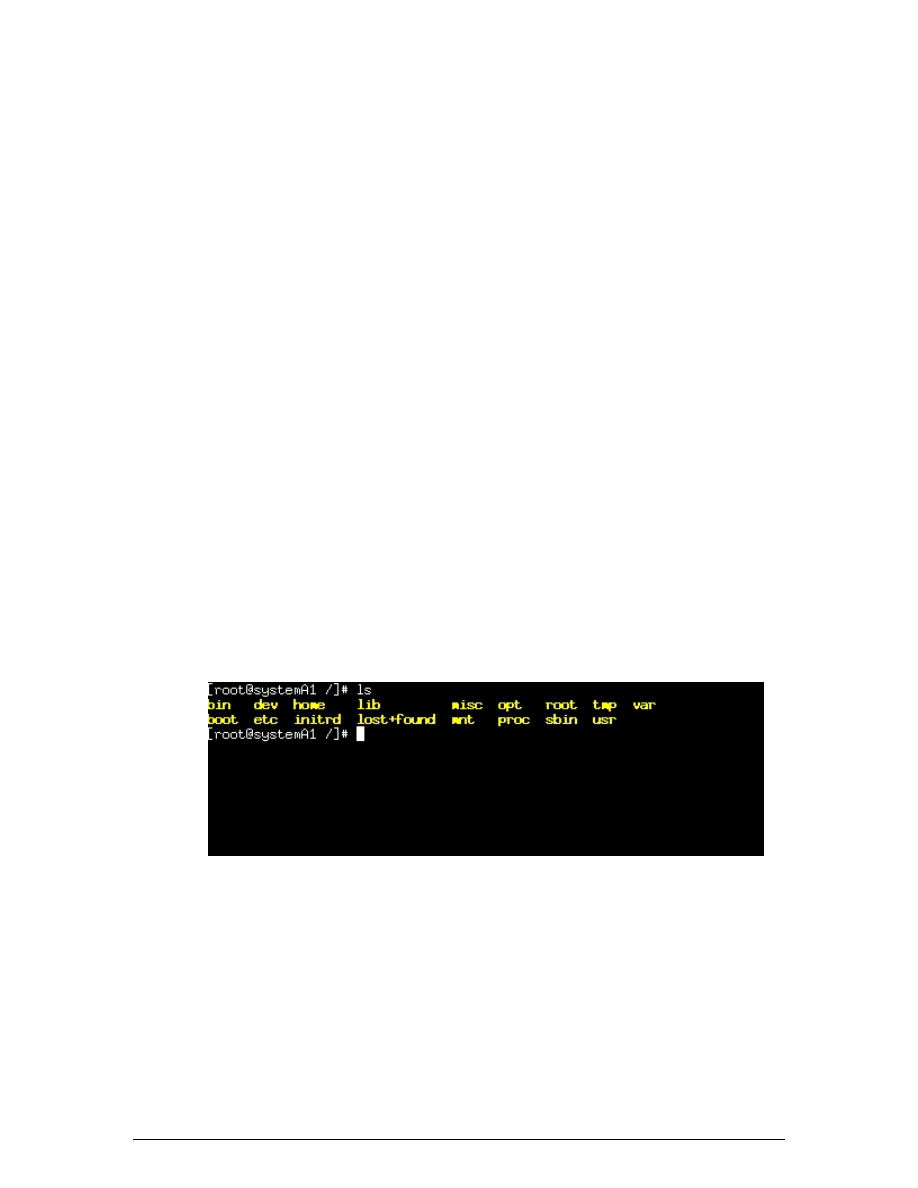
Press the Enter key. This will display the contents of the “ / “ directory. In the space
below, list the directories just below the root “ / “.
__________________________________________________________________
Example:
The contents of the “ / “ directory should look similar to the example above.
5. From the root of the Linux directory structure type:
cd bin
Press the Enter key. This will change the current active directory to the bin. Verify this
with the
pwd
command. The
pwd
command will print the current working directory to the
screen. Type:
pwd
Press the Enter key. In the space below, write down the output of the
pwd
command:
3 - 5 IT Essentials II v2.0 - Lab 10.1.3
Copyright
2002, Cisco Systems, Inc.
__________________________________________________________________
6. To list the contents of the /bin directory type:
ls
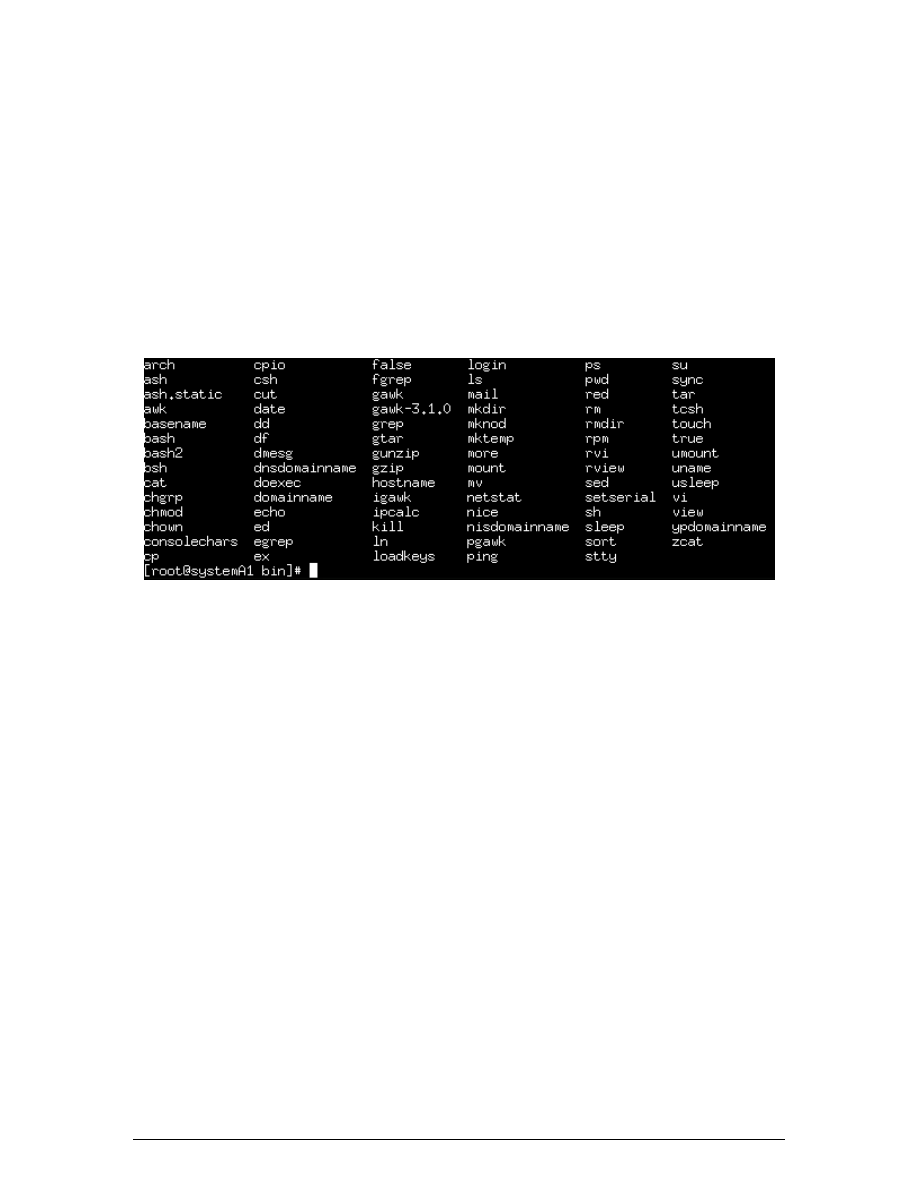
Press the Enter key. Briefly describe the files and programs that are located in the /bin
directory.
In the space below, list three commonly used commands that can be found in the/bin
directory.
__________________________________________________________________
Example: typical /bin directory
7. From the /bin directory, type the following command and press the Enter key:
cd
When typed without switches, the
cd
command will lead to the user’s home directory.
Verify that the user is in the /root home directory, type:
pwd
Press the Enter key and write down the output of the
pwd
command.
__________________________________________________________________
8. From the /root home directory type and press the Enter key:
cd /etc
This command will take the user to the /etc directory. The “ / “ before the etc directory will
tell Linux to “go up” to the root ( / ) first, then down to the etc directory. From within the
/root directory the user cannot simply type “cd etc”. Typing “cd etc” from within the /root
directory will tell Linux to look “down” first and the etc directory will not be found.
From within the /etc directory type:
ls
Press the Enter key and briefly describe the contents of the /etc directory.
4 - 5 IT Essentials II v2.0 - Lab 10.1.3
Copyright
2002, Cisco Systems, Inc.
In the space below, write the files that start with “rc”.
__________________________________________________________________
9. Return home by typing:
cd
Press the Enter key and verify that you are in the home directory by typing:
pwd
In the space below, write out the path.
__________________________________________________________________
Step 2: The
cal
and
date
Commands
1. To use the
man
command to learn about the cal command, type the following:
man cal
Next, type the current month.
Example:
cal 11 2002
Now try:
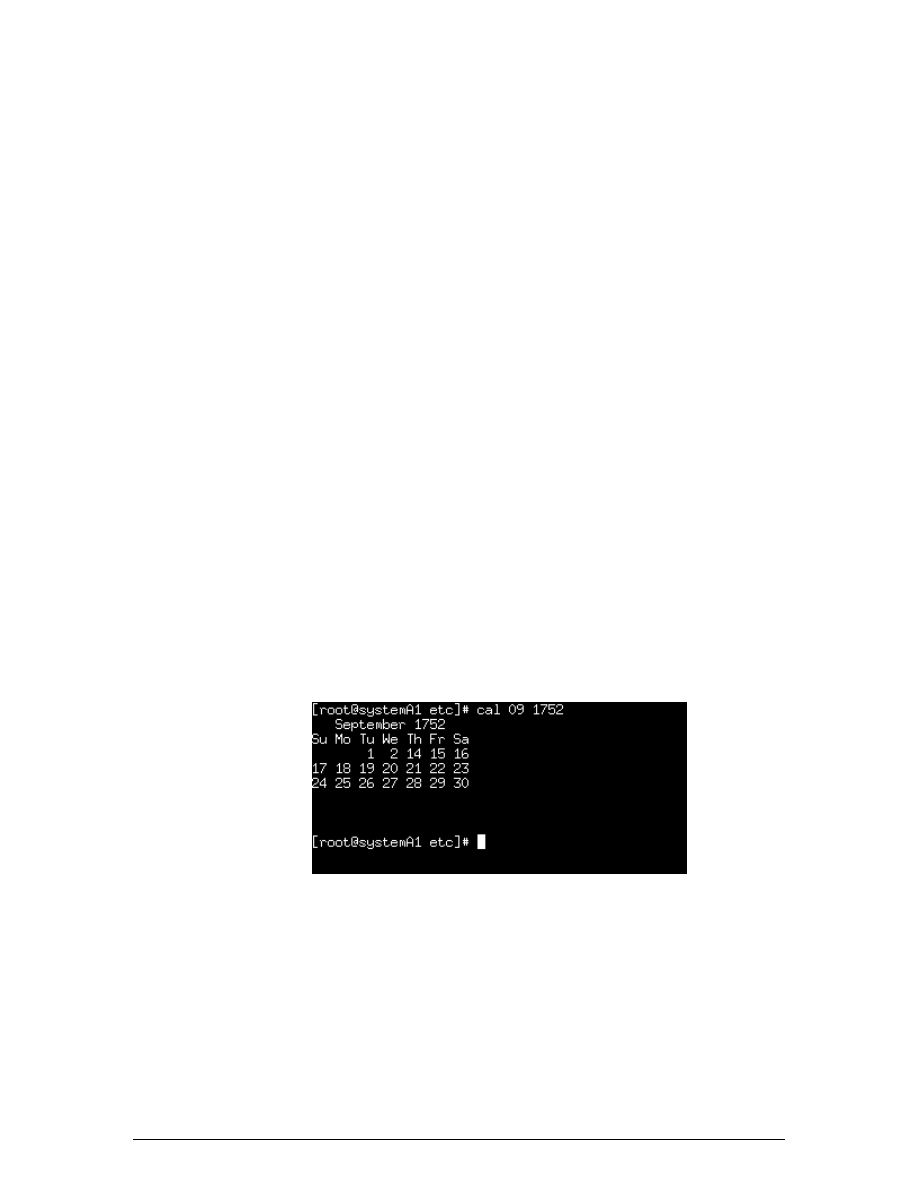
cal 09 1752
Example:
Linux did not get the month wrong. What happened to the 3
rd
through the 13
th
in
September of 1752?
2. To use the
man
command to learn about the date command, type the following:
man date
Type:
date

5 - 5 IT Essentials II v2.0 - Lab 10.1.3
Copyright
2002, Cisco Systems, Inc.
Then type:
date –u
In the space below, describe the difference between the two outputs.
__________________________________________________________________
Reflection
Navigating the file system can be done with the X-Windows GUI similar to the way it is
done in Windows. However, many experienced Linux users find it easier and faster to
navigate using the CLI (Command Line Interface).
Wyszukiwarka
Podobne podstrony:
CCNA2 lab 10 1 6 pl
lab 3 10 5
lab 3 10 1
Lab 8 9 10 ver2
lab 10 2 5
IE RS lab 10 solutions
lab 8 10 1
lab 10 2 4
LAB 10
2010 Lab 10 struktury drzewiaste
lab 10 3 2 1
Podstawy Automatyki Lab 10 CW3 Układy sekwencyjne elektroniczne
Podstawy Automatyki Lab 10 CW1 Układy przełączające oparte na elementach stykowych
Lab 6, 10.2.2.8 Packet Tracer - DNS and DHCP Instructions
lab 5(1) 10
lab 10
CCNA1 lab 10 3 5c pl
lab 2 10 2c
lab 10
więcej podobnych podstron