
1 - 5
Fundamentals UNIX 2.0—-Lab 11.3.2
Copyright
2002, Cisco Systems, Inc.
Fundamentals of UNIX
Lab 11.3.2 – Command Line Printing
(Estimated time: 30 min.)
Objectives:
• Develop an understanding of UNIX command line printing
• Review UNIX printing environment components
• Print files with the
lp
command
• Monitor print jobs and queue status
• Cancel print requests
Background:
In this lab the student will work with UNIX printing commands to send jobs to printers and manage print
queues. Printing services are an essential component of any network operating system. UNIX provides
local and remote printing capabilities. The student will review the major component of the UNIX printing
environment and will work with the command line method of printing using the
lp
command. The
lpstat
command is used to determine the status and availability of network printers the student can print to. The
student will also monitor the print queue status, determine print request IDs and remove print requests
using the
cancel
command.
Tools / Preparation:
a) Before starting this lab, the student should review Chapter 11, Section 1 – The UNIX Printing
Environment, Section2 – Command Line Printing and Section 3 Managing Print Queues.
b) The student will need the following:
1. A login user ID, for example user2 and a password assigned by the instructor.
2. A computer running the UNIX operating system.
3. Networked computers in classroom with class file system installed.
4. Network printer available and print server running.
Notes:
2 - 5
Fundamentals UNIX 2.0—-Lab 11.3.2
Copyright
2002, Cisco Systems, Inc.
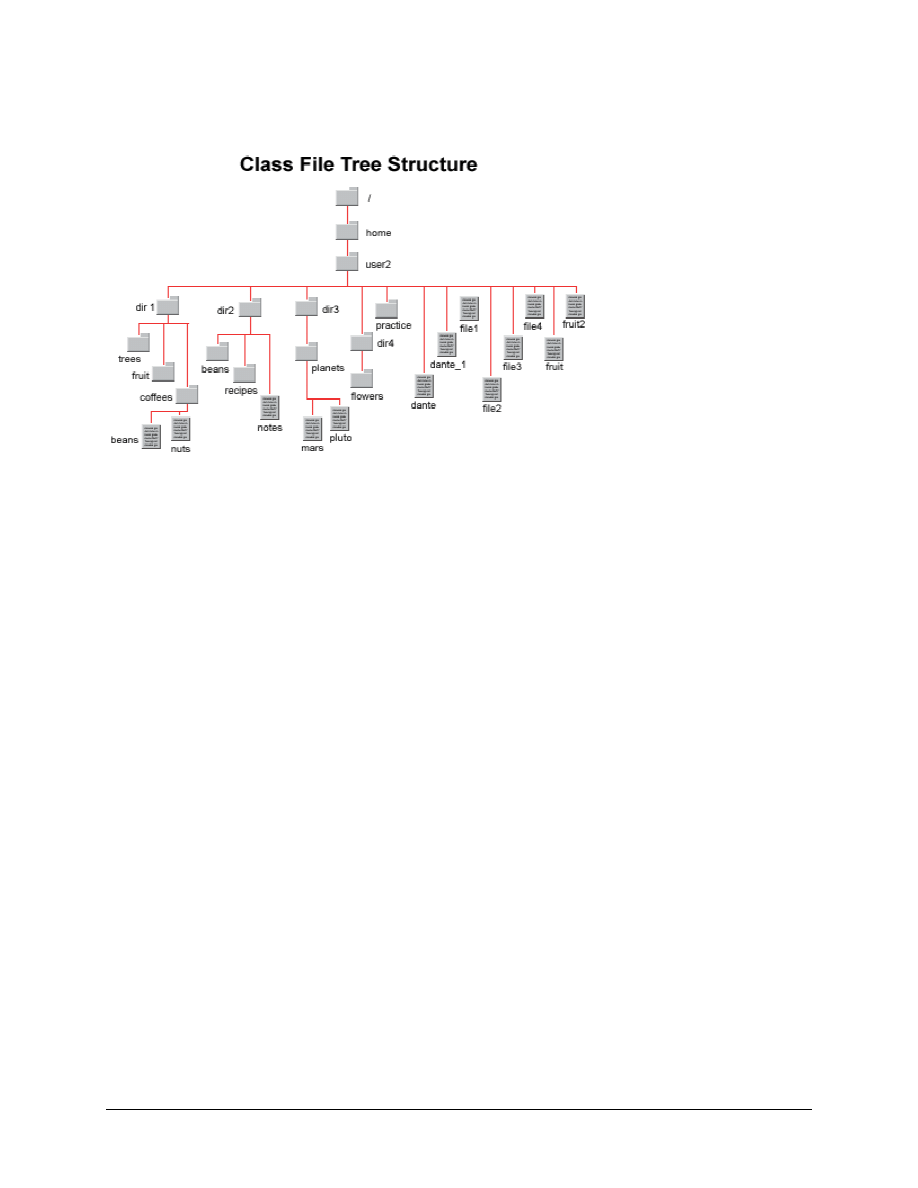
Use the diagram of the sample Class File System directory tree to assist with this lab.
Step 1. Log in to CDE
The student should login with the user name and password assigned by the instructor in the CDE entry
box.
Step 2. Access the Command Line
Right click on the workspace backdrop and click on Tools. Select Terminal from the menu to open a
terminal window.
Step 3. Review UNIX Printing Environment Components
With the UNIX printing environment, users can have local printers attached to their workstations and can
also print to remote network printers. The system administrator sets up the printing environment by
installing printers and defining print queues and servers to support them. There are three main
components in the UNIX printing environment:
• Printer: The printer is a physical printing device. The printer may be attached to a workstation or
a network server or the printer can be attached directly to the network using a hub or switch.
• Printer Name (queue): The printer name is the name of a print queue associated with the
physical printer. It is a logical name for the printer, which is assigned by the system administrator.
This is the name the users print to. A print queue is a directory on the hard disk of a computer
where print requests from users are stored.
• Print Server: The print server is the computer that manages incoming print requests and
releases them when the printer is ready. Print servers run the printer daemon lpsched, which
manages print requests. The print queue is located in the hard disks of the print server. Print
requests or print jobs are stored on the hard disk until they are printed and then the requests are
deleted or purged. A print server can be a workstation or a network server. The local computer
can act as the print server for a local printer. Network print servers are usually centralized and
can handle multiple printers and queues.

3 - 5
Fundamentals UNIX 2.0—-Lab 11.3.2
Copyright
2002, Cisco Systems, Inc.
Use the terms printer, printer name, and print server to fill in the blanks for the following questions.
a. A device that runs the lpsched daemon and holds the print in print queues on its hard disk is a:
b. A
is a physical device that outputs the printed material.
c. The logical name that the user prints to is a
.
Step 4. Print Files with the
lp
Command
Printing of ASCII text or PostScript™ files can be done from the command line using the
lp
(Line Printer)
command. Do not use this method to print data files that are created in applications like FrameMaker or
Sun's Star Office, or binary files. The function of the
lp
command is to queue data for printing. The
format of the lp command with options available is shown below.
Command Format:
lp [ -options ] [ filename(s) ]
Below are some examples using the
lp
command with various options to print files. If the student does
not specify a printer,
lp
will print to the student’s default printer. An administrator must set up the default
printer in advance. Although these examples print only one file, it is possible to send multiple files
simultaneously to the printer and wildcard metacharacters such as * and ? can also be used.
1. Display the name of the student’s default printer.
$ lpstat -d
2. Print file2 in the student’s home directory on the default printer.
$ lp ~/file2
3. Use
the
-d option to specify another printer, if one is available).
$ lp -d staffp ~/file2
4. Use
the
-o nobanner
option to suppress banner page.
$ lp –o nobanner ~/file2
5. Use
the
–n option to specify the number of copies.
$ lp –n 3 ~/file2
a. Change to the student’s home directory. What command was used?
b. What is the name of the student’s default printer?
c. Send a print request to print the fruit file to the default printer. What command was used?
d. What message was displayed on the student’s screen after submitting the print request?
e. Did the fruit file print on the default printer with a banner page showing the student’s user ID?
f.
Send a print request to print the mars file, which is in the planets directory file to the default
printer and suppress the banner page. What command was used?
g. If the student had another printer available called laser5, what command would be used to send a
print request for the fruit2 file to this printer?

4 - 5
Fundamentals UNIX 2.0—-Lab 11.3.2
Copyright
2002, Cisco Systems, Inc.
h. List the files and subdirectories in the student’s home directory. Use the long listing option and
redirect, using the > symbol, the output to a file called userXhomedir.lst, where userX is the
student’s user ID. What command was used?
i.
Send a print request to print the file the student just created to the default printer. What
command was used?
j.
Print the calendar for the current month to the default printer. What command was used?
Step 5. Monitor Print Jobs and Queue Status
When the student uses the
lp
command to send a print request to a printer, the student is actually
sending it to a print queue. The print queue is a special directory that is stored on the hard disk of the
student’s workstation or of a remote network server. Since printers do not have hard disks to store
documents, all requests or print jobs must be spooled or go to the queue first. If the printer is available,
the request is serviced immediately. If the printer is busy, the request is queued until the printer is
available. An administrator can monitor and manage the print queues for multiple printers.
The
lpstat
(line printer status) command is used to display the status of the printer queue. To see the
print requests for a specific printer, use the basic form of the command, which specifies the printer name
or queue to display. If no printer name is specified, the student will see a list of requests on the default
printer.
a. If possible, turn off the printer or have the instructor stop the lpsched daemon on the print server
temporarily so that the student can see what is in the queue before it is printed.
b. Send individual print requests for the files in the student’s home directory that start with ‘file’ to the
default printer. Send the requests in sequence starting with file1, then file2, and so on. What
command was used?
c. Use the following table to record the results of using the
lpstat
command with various options
listed after having sent some print jobs to the queue.
Print Queue Options with lpstat
Option
Meaning
Purpose
Results of Command
Printer
Name
Name of printer
(queue)
Displays requests for a specific
printer’s queue
-p
Printers
Displays status of all printers
-o
Output or
Outstanding
Displays status of all output or
outstanding print requests
-d
Default
Displays which printer is the system
default
-t
Tell All
Displays complete status
information for all printers
-s
Summary
Displays a status summary for all
printers configured on the user’s system
-a
Accepting
Displays which printers are
accepting requests
Step 6. Cancel Print Requests
There are times when the user will want to remove a print request from the print queue. If the print job has
not already printed and is still in the print queue the user can cancel it. The user may only cancel those
print requests that they have initiated. The user cannot remove another user's print requests. Only the
system administrator can cancel print jobs for other users.

5 - 5
Fundamentals UNIX 2.0—-Lab 11.3.2
Copyright
2002, Cisco Systems, Inc.
The cancel command enables the student to cancel print requests previously sent with the
lp
command. To do this, the student must first use the
lpstat
command to identify the request-ID. If the
student cancels a print job, it does not affect the request ID numbers of the other jobs still in the queue.
a. Use
the
lpstat
command to determine the request-ID of the print jobs in the queue that belong
to the student. How can the student tell if these are the student’s print jobs?
b. Note the request-ID for one of the student’s print requests and use the
cancel
command to
remove it from the print queue. What command was used?
c. Use
the
lpstat
command again to determine the request-ID of the print job the student removed
is still there. Is it gone?
d. Use
the
lpstat
and
cancel
commands to remove all remaining print jobs belonging to the
student from the print queue.
Step 7. Remove Files and Directories Created in this Lab
Remove all files and directories created in the student’s home directory during this lab.
Step 8. Close the Terminal Window and Logout
Double click on the dash button in the upper left corner of the screen, then click the EXIT icon on the front
panel.
Wyszukiwarka
Podobne podstrony:
lab11 3
Lab11 RapidPrototyping id 25910 Nieznany
za, Elektrotechnika AGH, Semestr II letni 2012-2013, Fizyka II - Laboratorium, laborki, laborki fizy
lab11 (5)
lab11
lab11
AiP Lab11
LAB11 BB beta2, Wydział Fizyki i Techniki
MiI MT lab11
LAB11
LAB11
lab11 3
LAB11
JP LAB11
lab11, tbbx
lab11
lab11 lab6x
lab11 metrologia
lab11 3 5
więcej podobnych podstron