
1 - 13 IT Essentials II v2.0 - Lab 11.1.5.1
Copyright
2002, Cisco Systems, Inc.
Lab 11.1.5.1: Backing up With Windows 2000
Estimated Time: 20 Minutes
Objective
In this exercise the student will use the backup wizard from Windows 2000 to perform a
backup of files to the hard disk.
Equipment
The following equipment is required for this exercise:
• A computer system running Windows 2000 Professional
Scenario
The System Administrator for the XYZ Company needs to back up some of the files on
the server. These files are important to the company and losing these files would cause
damage to the company. It is the administrator’s job to perform backups as preventative
maintenance, and to back up important files as required.
Procedures
In this lab, the student will use the Windows Back up Wizard to select the files that to be
backed up, and then perform the Back up.
2 - 13 IT Essentials II v2.0 - Lab 11.1.5.1
Copyright
2002, Cisco Systems, Inc.
Step 1: Creating, running, and verifying a backup job
1. Log on to the Server with the Administrator account
2. When the systems boots up, go to Start > Run.
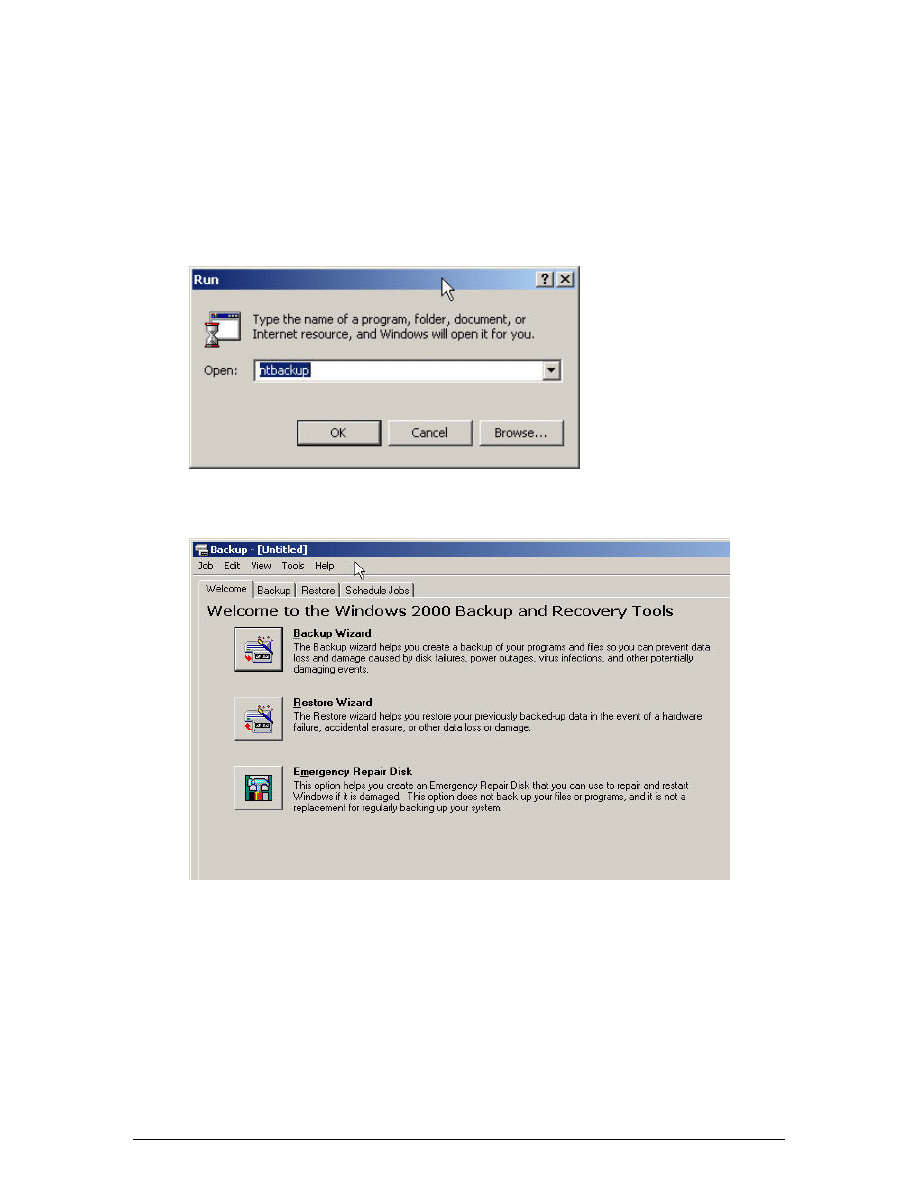
3. In the Run Dialog box, type ntbackup and then click OK. The Backup dialog box will
display.
4. Read the three descriptions under the Welcome tab, and click Backup Wizard. The
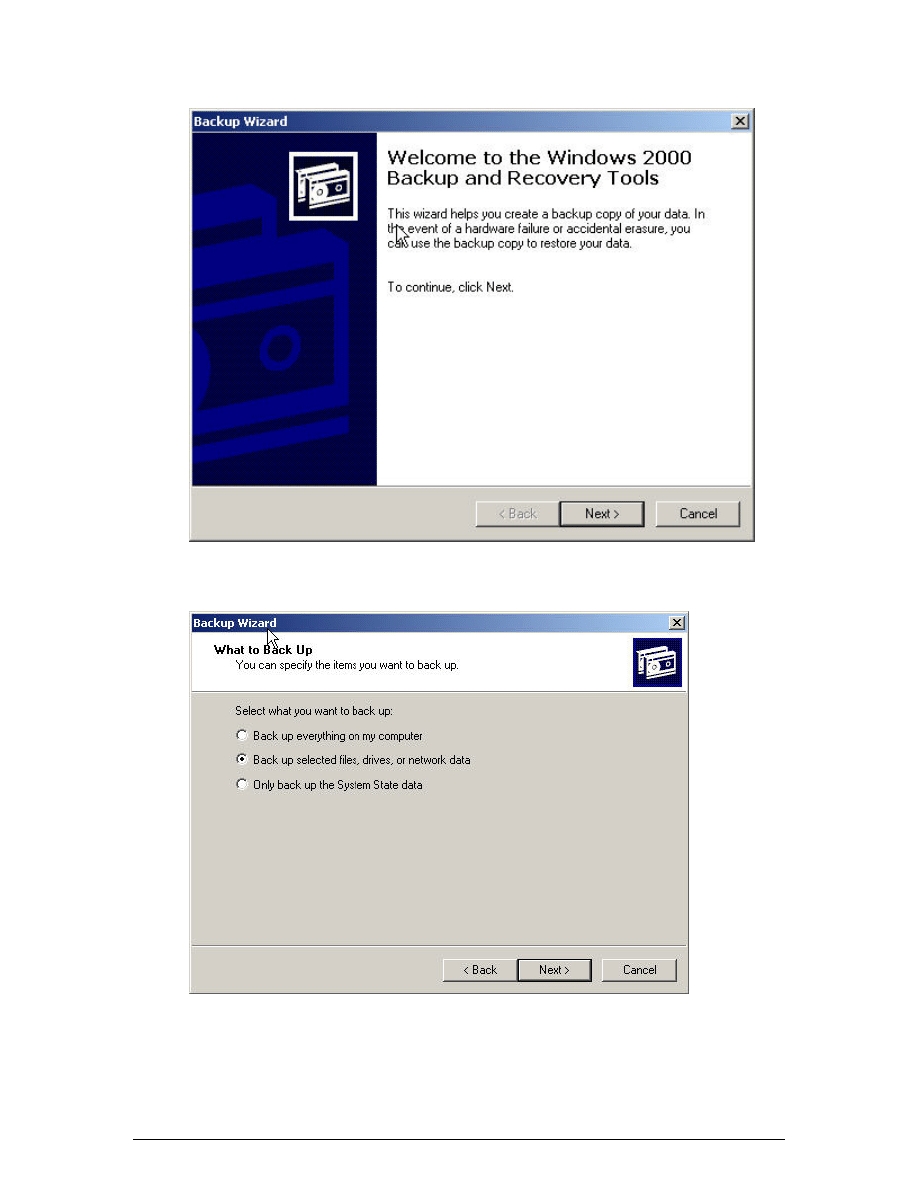
Backup Wizard will start.
3 - 13 IT Essentials II v2.0 - Lab 11.1.5.1
Copyright
2002, Cisco Systems, Inc.
5. Click
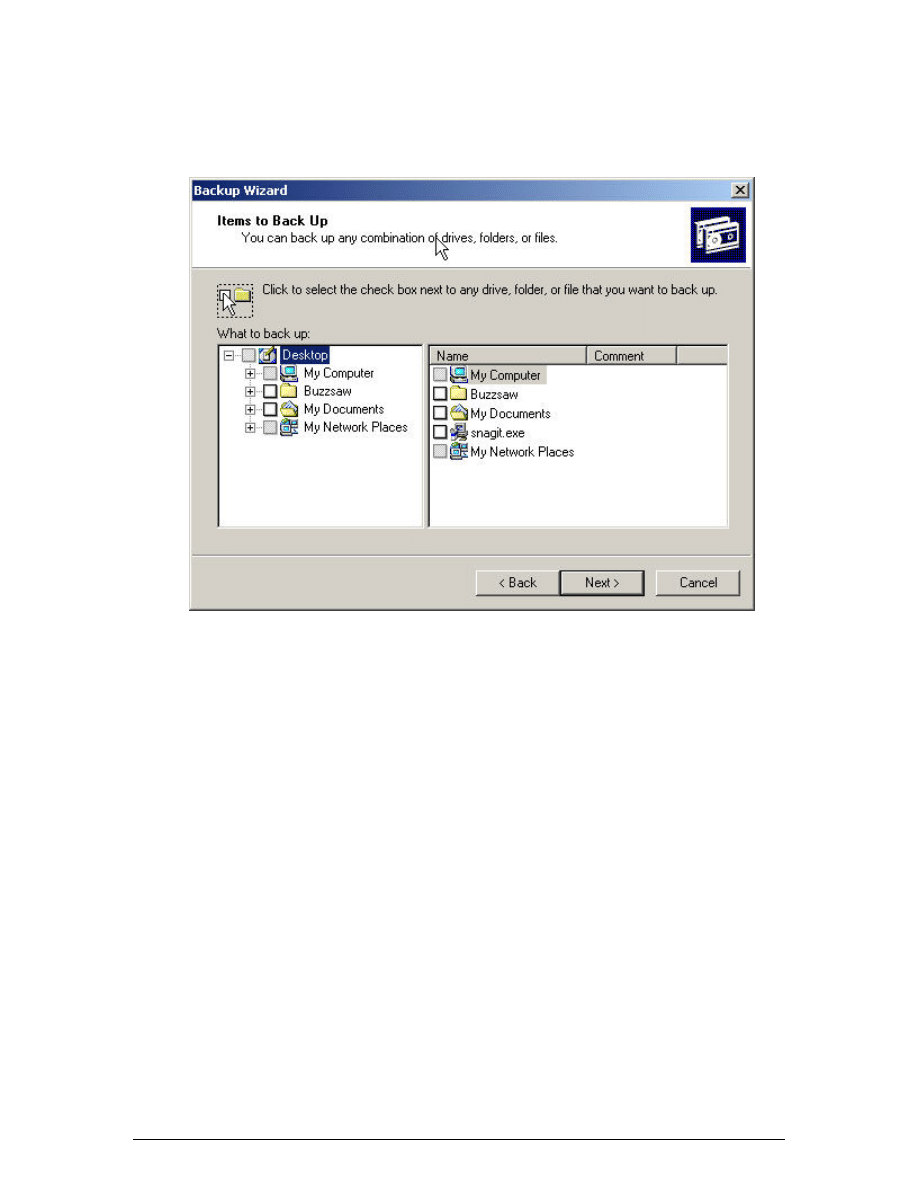
Next, to display the “What To Back Up” screen. Select the type of backup to
perform.
4 - 13 IT Essentials II v2.0 - Lab 11.1.5.1
Copyright
2002, Cisco Systems, Inc.
6. Click
the
Back Up Selected Files, Drives, Or Network Data button, and then click
Next. At this point, the “Items To Back Up” screen will display, prompting to select the
local and network drives, folders, and files to be backed up.
5 - 13 IT Essentials II v2.0 - Lab 11.1.5.1
Copyright
2002, Cisco Systems, Inc.
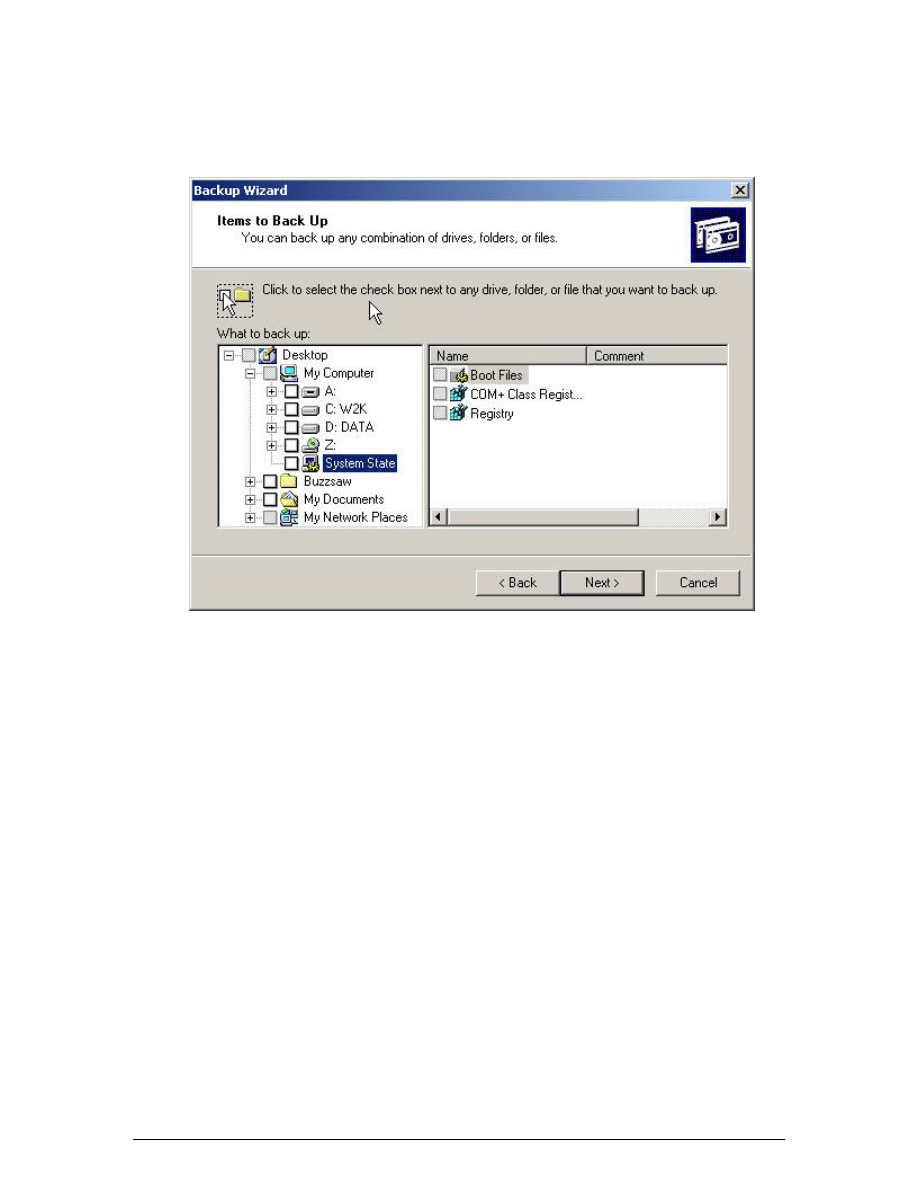
7. Expand “My Computer” and click twice on the words System State (do not select the
box to the left of System State) to display the System State files that can be backed
up.
6 - 13 IT Essentials II v2.0 - Lab 11.1.5.1
Copyright
2002, Cisco Systems, Inc.
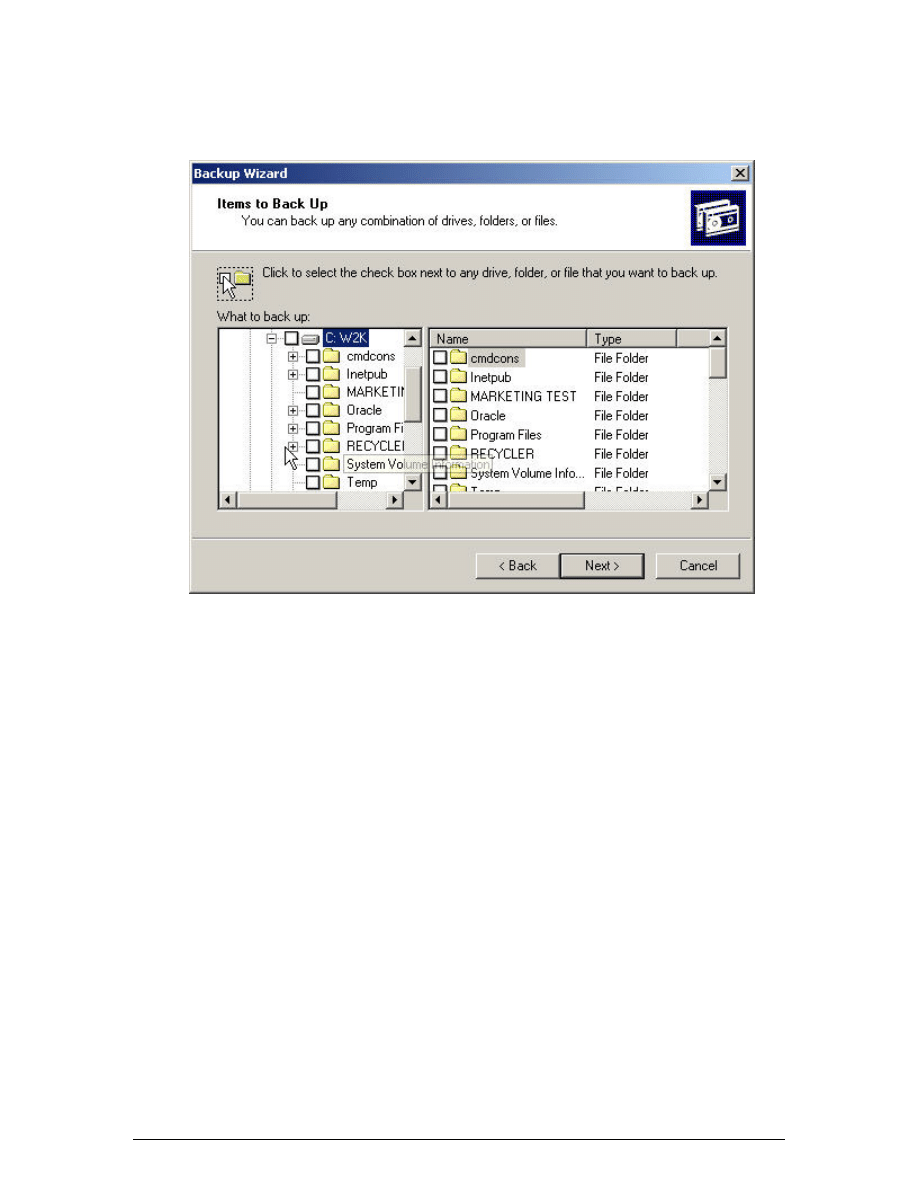
8. In the left window, expand the C: drive by double-clicking on the letter C. Do not
select the check box to the left of C:.
7 - 13 IT Essentials II v2.0 - Lab 11.1.5.1
Copyright
2002, Cisco Systems, Inc.
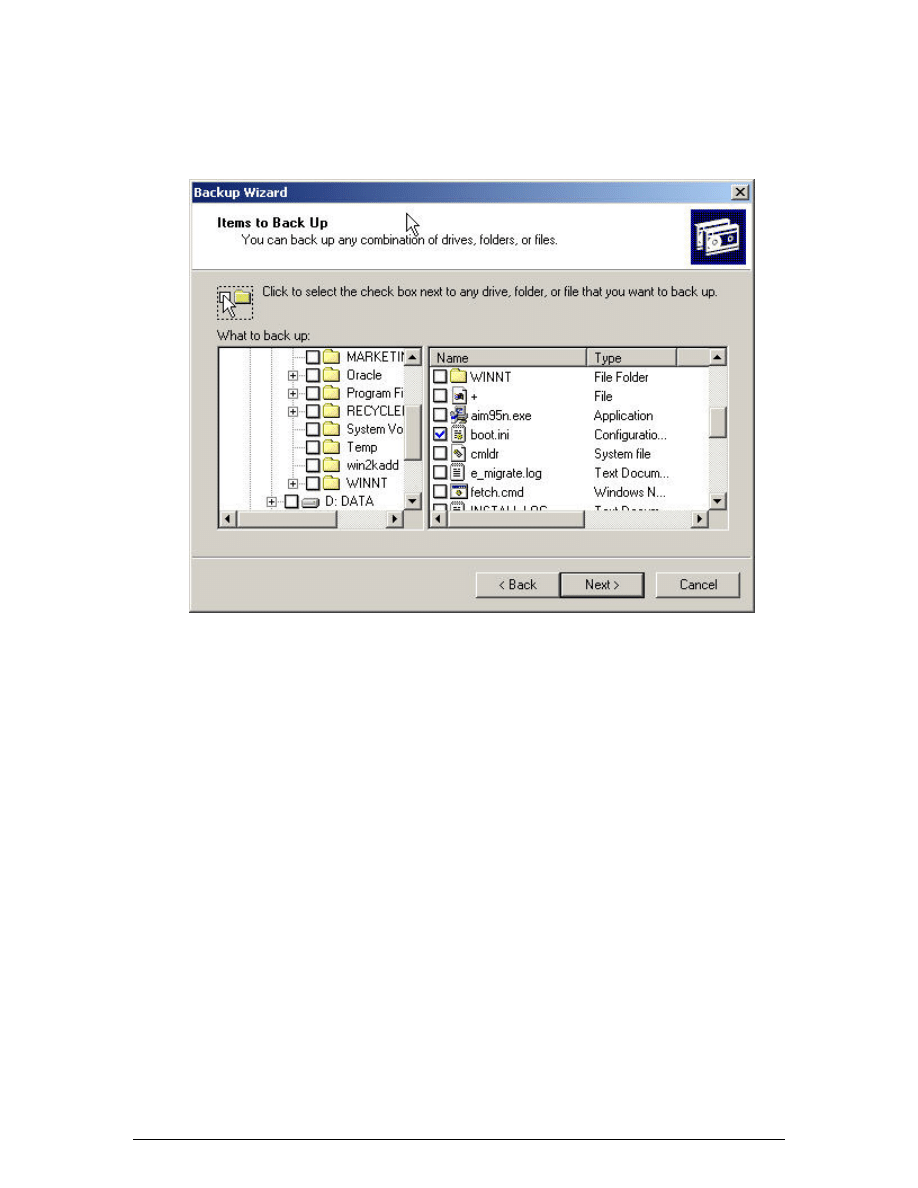
9. In the details window, scroll down and select the boot.ini check box and click Next.
The “Where To Store The Backup” screen will display. In the “Backup Media or File
Name” text box, type c:\ backup1.bkf and then click Next.
Note: The “Backup Media Type” drop-down list will be gray because there is no
removable media to backup to and “File” is the only backup media type available. In a
real scenario, the technician would want to do a back up to some type of removable
media, removable disk, or to another hard drive on another computer.
8 - 13 IT Essentials II v2.0 - Lab 11.1.5.1
Copyright
2002, Cisco Systems, Inc.
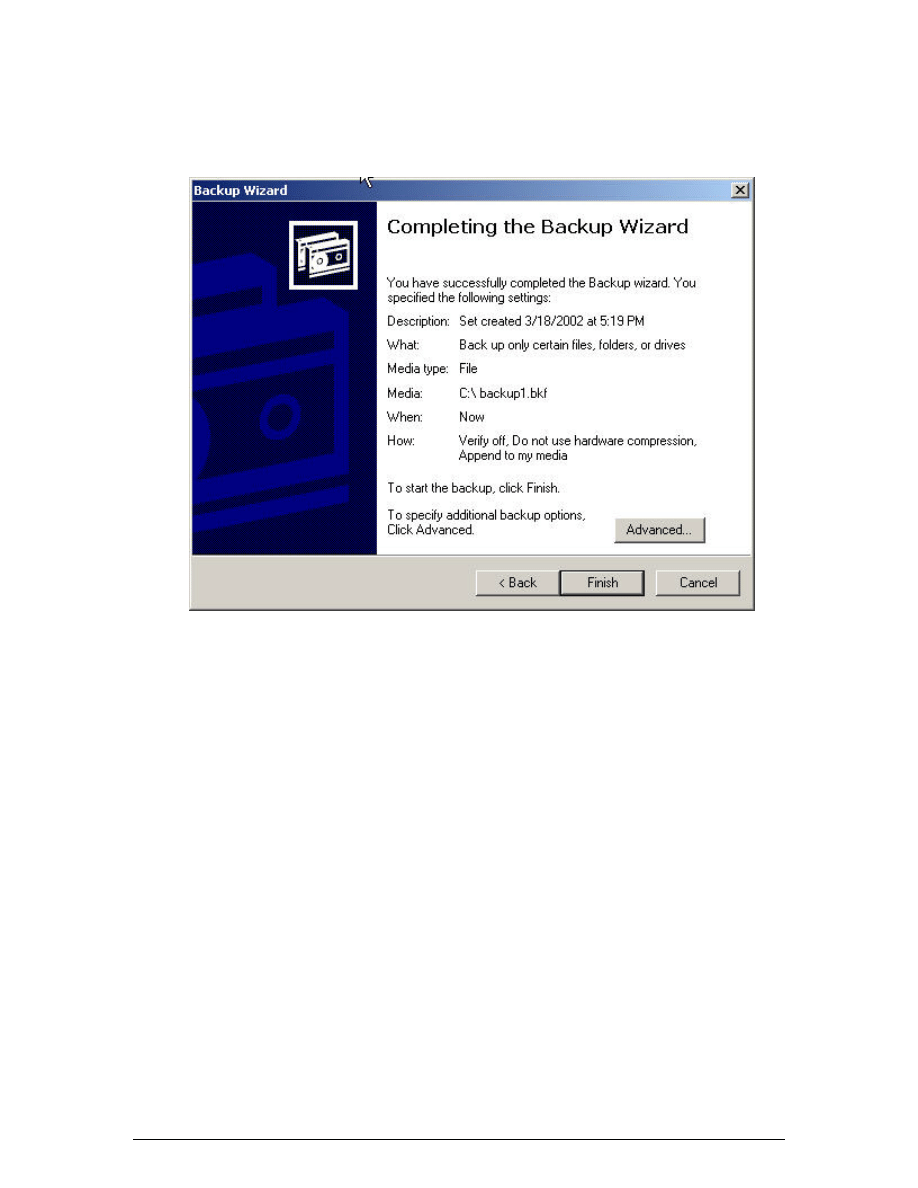
10. The “Completing The Backup Wizard” screen should display. This screen shows the
details of the backup to be performed. Additional changes could be made from this
point also. Click the Advanced button.
9 - 13 IT Essentials II v2.0 - Lab 11.1.5.1
Copyright
2002, Cisco Systems, Inc.
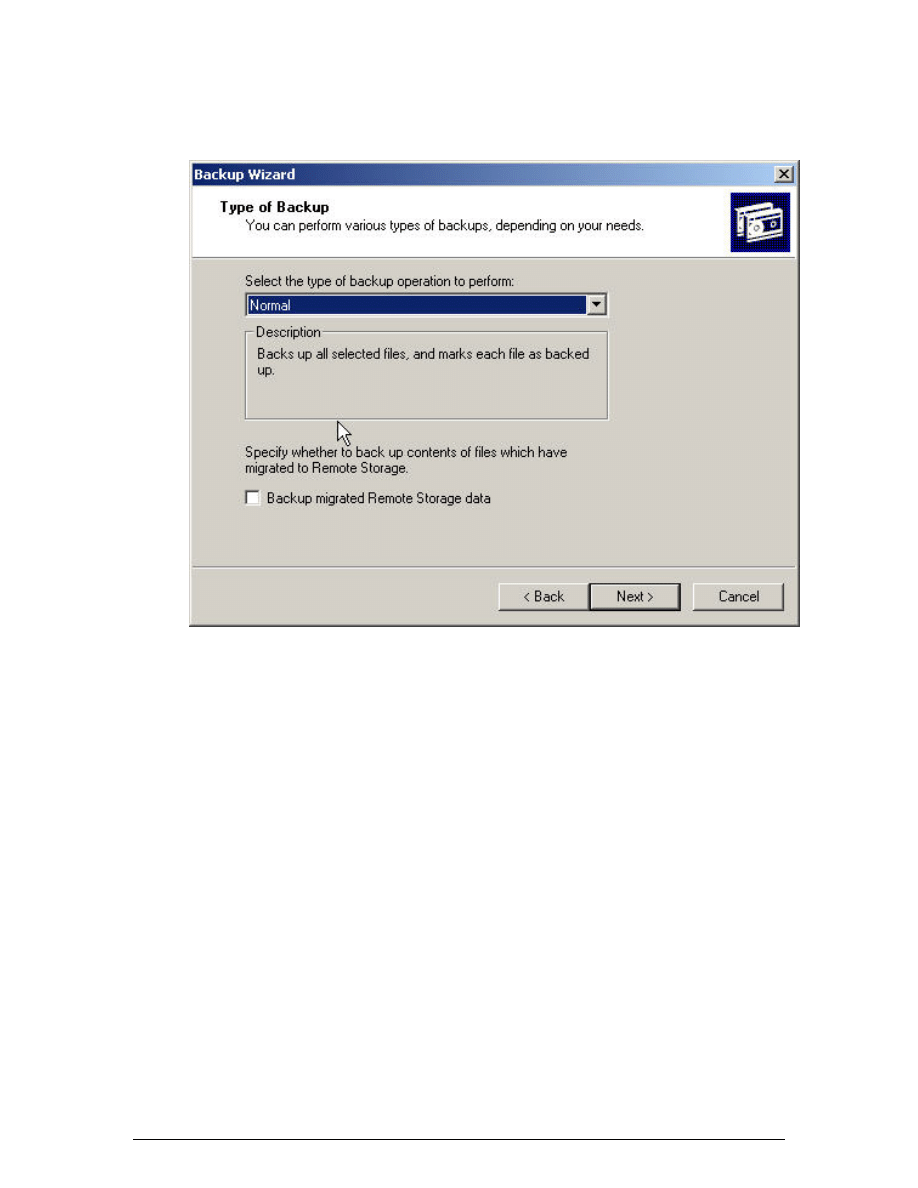
11. When the “Type Of Backup” screen displays, make sure that “Normal” is selected
and that the “Backup Migrated Remote Storage Data” check box is not checked.
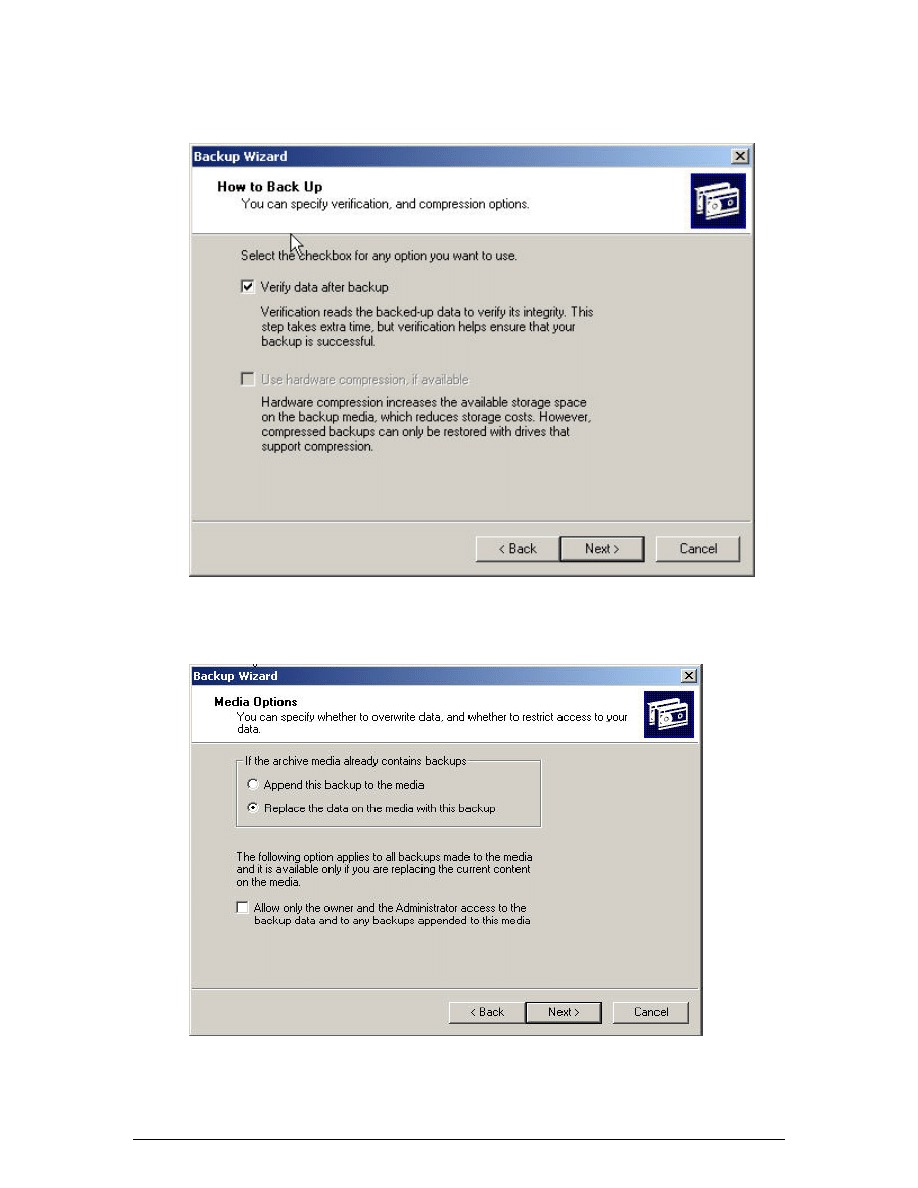
12. Click Next. The “How To Backup” screen should display. This allows verification of
the backed up data after performing the backup.
10 - 13 IT Essentials II v2.0 - Lab 11.1.5.1
Copyright
2002, Cisco Systems, Inc.
13. Select the “Verify Data After Backup” check box, and then click Next.
14. The “Media Options” page will display prompting to specify whether to “append this
backup job to existing media” or “overwrite existing backup data on the destination
media”. Click Replace The Data On The Media With This Backup button.
15. Click Next. The “Backup Label” screen displays asking to supply a label for the
backup job and for the backup media. If the label information is not entered, Windows
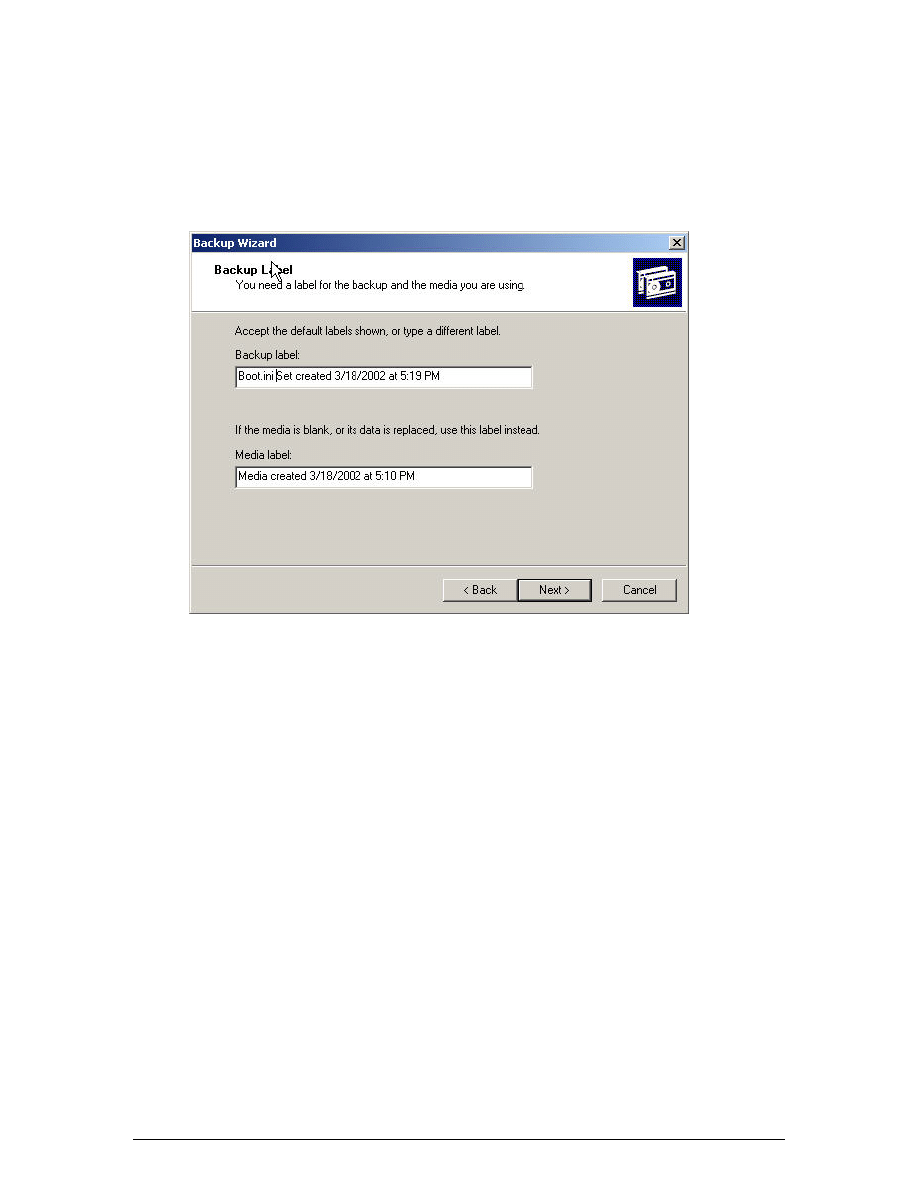
11 - 13 IT Essentials II v2.0 - Lab 11.1.5.1
Copyright
2002, Cisco Systems, Inc.
will supply a backup label and media label by using the current date and time by
default.
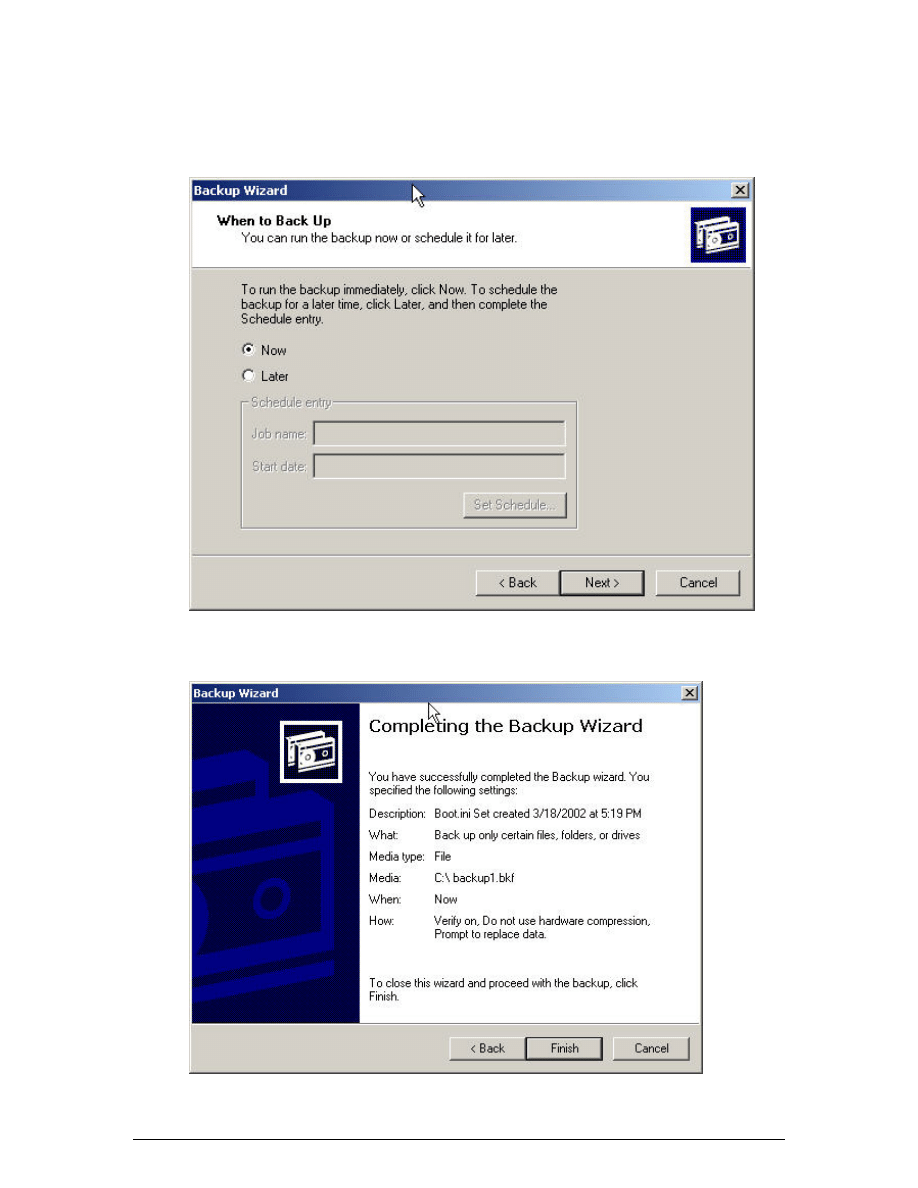
16. In the Backup Label text box, type Boot.ini backup set created on xxx
(xxx is today's date and time). Do not change anything in the “Media Label” text box,
click Next.
12 - 13 IT Essentials II v2.0 - Lab 11.1.5.1
Copyright
2002, Cisco Systems, Inc.
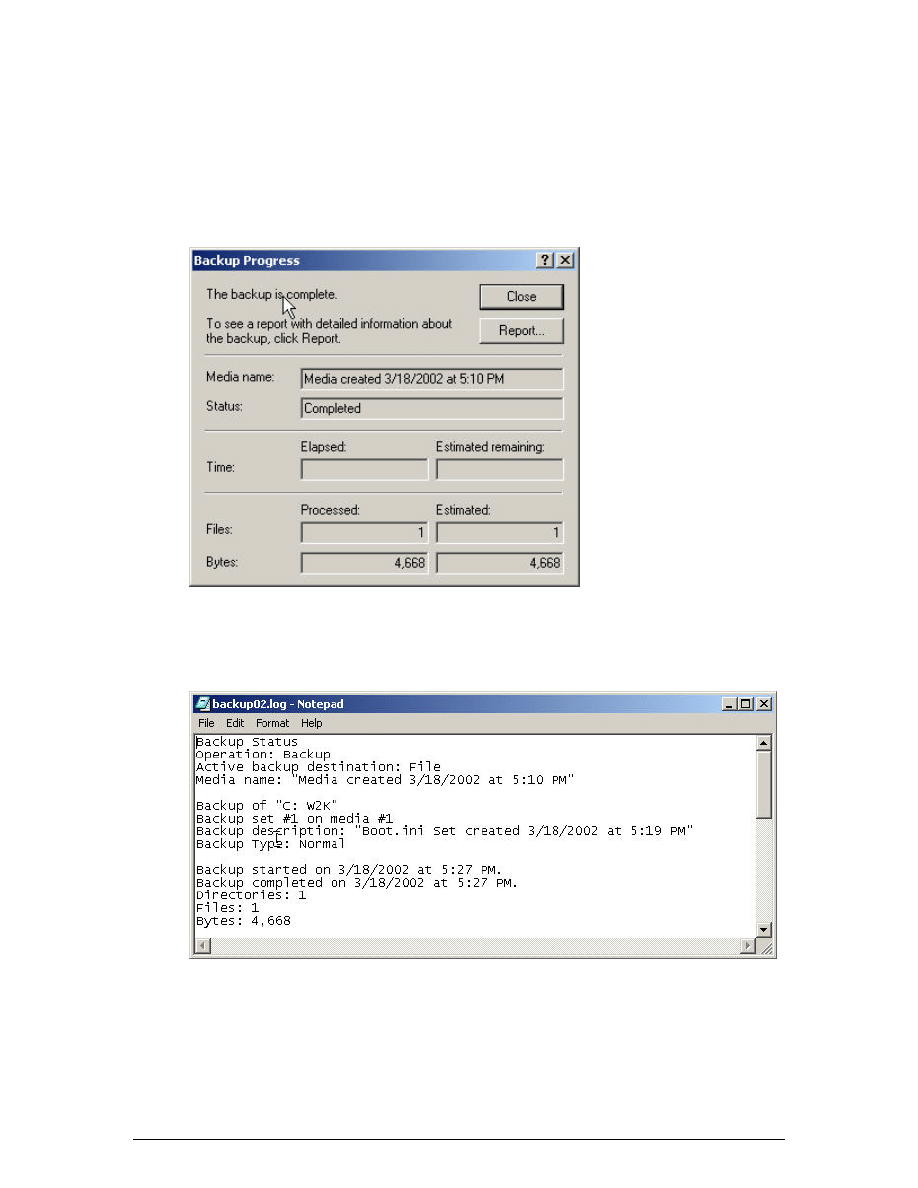
17. When the “When To Back Up” screen displays choose whether to run the backup job
now or schedule this backup job. For this lab, select the Now radio button. Click
Next.
18. When the “Completing The Backup Wizard” screen displays, click Finish to start the
backup job.
13 - 13 IT Essentials II v2.0 - Lab 11.1.5.1
Copyright
2002, Cisco Systems, Inc.
19. Windows Backup will display the “Selection Information” dialog box, indicating the
estimated amount of data for the backup and the time to complete.
20. The Windows Backup will display the Backup Progress dialog box which shows the
status of the backup operation, statistics on estimated and actual amount of data
being processed, the time that has elapsed, and the estimated time that remains for
the backup to complete.
21. When the backup is complete, click the Report button. A backup report will be
displayed. The backup report contains key details about the backup operation, such
as the time it started and how many files were backed up. Review the report and
close Notepad.
22. Close the “Backup Progress” dialog box and the “Backup Dialog” box.
Reflection
This is just one way to perform a backup. Are there any other ways that a backup can be
performed?
Document Outline
Wyszukiwarka
Podobne podstrony:
IE RS lab 11 solutions
lab 11 4 5
Lab 11
lab 11 7 2
lab 11 2 3a
CCNA1 lab 11 2 4 pl
CCNA2 lab 11 2 3b pl
CCNA2 lab 11 2 2b pl
lab 11 3 3
Lab 11 - Oznaczenie modułu jednostronnego ściskania skał, skaly11, WYDZIAŁ GÓRNICZY
lab 11 2 3c
Lab 11 - Oznaczenie modułu jednostronnego ściskania skał, jed.ścisk.11, Nr ?wiczenia_
Lab.11, lab2 pierwszastrona, I TD
CCNA2 lab 11 2 3c pl
lab 11 cps szybki splot
lab 11 3 2
IE RS lab 11 diagram
więcej podobnych podstron