
LECTURE 1, 2, 3
Introduction to computer architecture
Operation system tasks
Practical usage of UNIX/LINUX
Tomasz Zieliński
Department of Telecommunications AGH-UST

COMPUTER-BASED SYSTEM
=====================================================
µP equipment
+
system
+
application
computers
software
software
electronics
informatics
„how to do?”
computer science
processor
&
operating
systems (OS)
existing
computer
programming languages (PL) applications
architecture
hardware
OS
Unix
our
programs
know-how
C/C++
languages
algorithmics
using OS and PLs
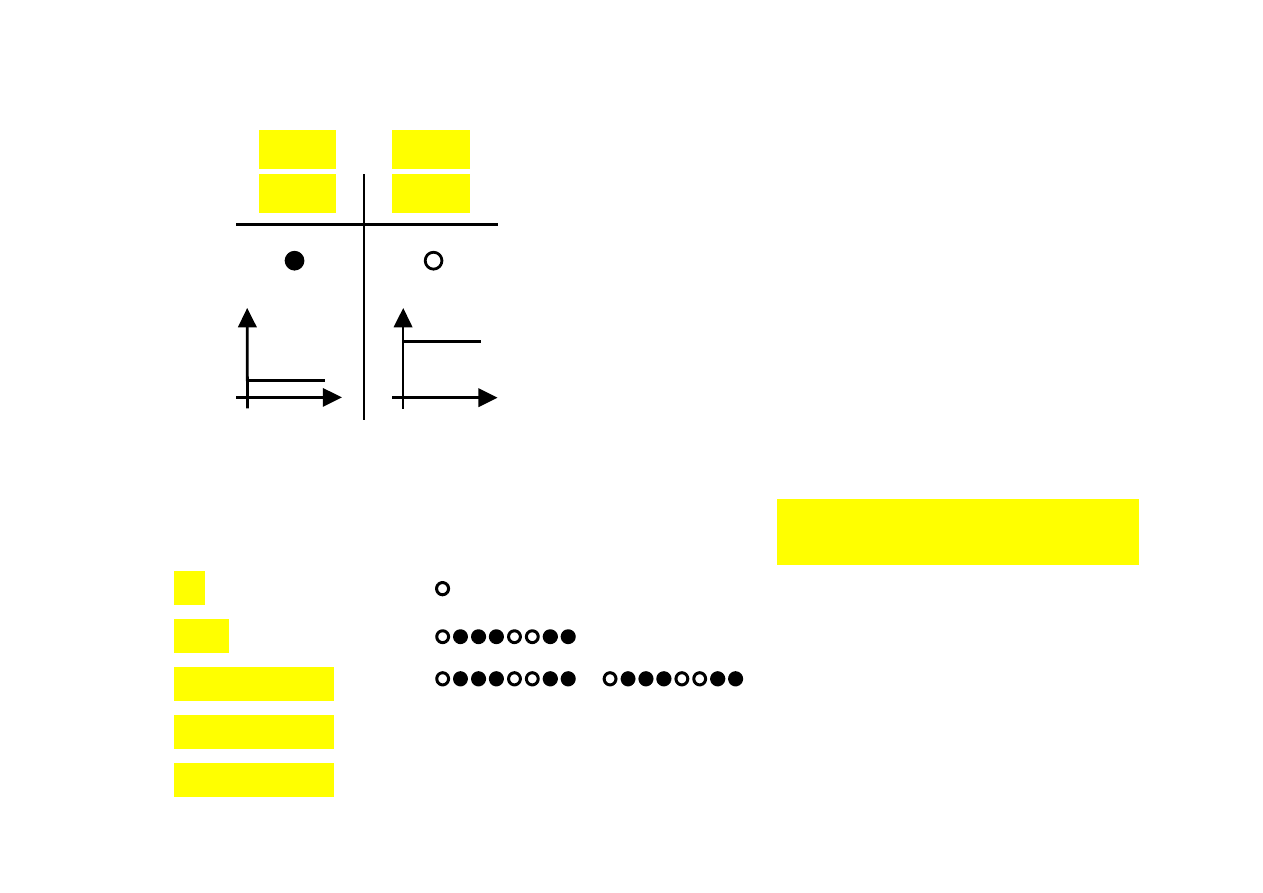
COMPUTER = KINGDOM OF BITS (1)
voltage
„0”
„1”
< 0,7 V
> 2,7 V
NO
YES
sequences of bits:
!"""!!!"
- numbers:
fixed-point
floating -point
data for computations (input/output)
addresses
- characters:
alphanumerical (letters, digits, ...)
control (space, backspace, ...)
- processor instructions
=================================================================================================================================
bit
byte = 8 bits
word 16-bits
word 32-bits
word 64-bits
2
1
= 2
2*2*2*2*2*2*2*2=2
8
= 256
number of combinations
zeros and ones
2
16
= 65 536 = 64 KB
2
32
= 4 294 967 296 = 4 GB
2
64

COMPUTER = KINGDOM OF BITS –
NUMBERS
(2)
-----------------------------------------------------------------
!
"
!
!
!
"
"
!
!
graphically
-----------------------------------------------------------------
0 1 0 0 0 1 1 0
!
8 bits = 1 byte
-----------------------------------------------------------------
2
7
2
6
2
5
2
4
2
3
2
2
2
1
2
0
128 64
32
16
8 4 2 1 ! weights
-----------------------------------------------------------------
64 + 4 + 2 = 70
!
result
Analogy to decimal positional number system, np. 123,45:
1
2
3,
4
5 = 1*100 + 2*10 + 3*1 + 4*0,1 + 5*0,01
---------------------------------------
10
2
10
1
10
0
10
−1
10
−2
100 10
1 0,1
0,01

COMPUTER = KINGDOM OF BITS –
NUMBERS
(3)
binary
decimal hexadecimal
EXAMPLE:
0000 0 0
0001 1 1 binary number
0010 2 2 %
0100 0110 = 0100 0110b
0011 3 3
0100 4 4 hexadecimal number
0101 5 5 0x
4 6 = 0x46 = 46h
0110 6 6
0111 7 7 decimal number
1000 8 8 70
1001 9 9
1010 10
A
1011 11
B
1100 12
C
1101 13
D
1110 14
E
1111 15
F

COMPUTER = KINGDOM OF BITS –
NUMBERS
(4)
0 1 0 0 0 1 1 0 = 0x46 = 70
actual
value
0 0 0 0 0 0 0 0 = 0x00 = 0
minimal
value on 8 bits
...
1 1 1 1 1 1 1 1 = 0xFF = 255
maximal
value on 8 bits
ASCII code (codes of alphanumerical characters)
0x41 =
65
=
A
0x20 space
0x42 = 66 = B
0x43 =
67
=
C
0x7B {
0x44 =
68
=
D
0x7D
}
...
0x5A
=
90
=
Z
0x2A *
...
0x2B +
0x61 =
97
=
a
0x62 = 98 = b
0x46 = F
0x63 = 99 = c
0x64 = 100 = d
...
0x7A = 122 = z
OxC9
OxBA
OxCC
OxC8
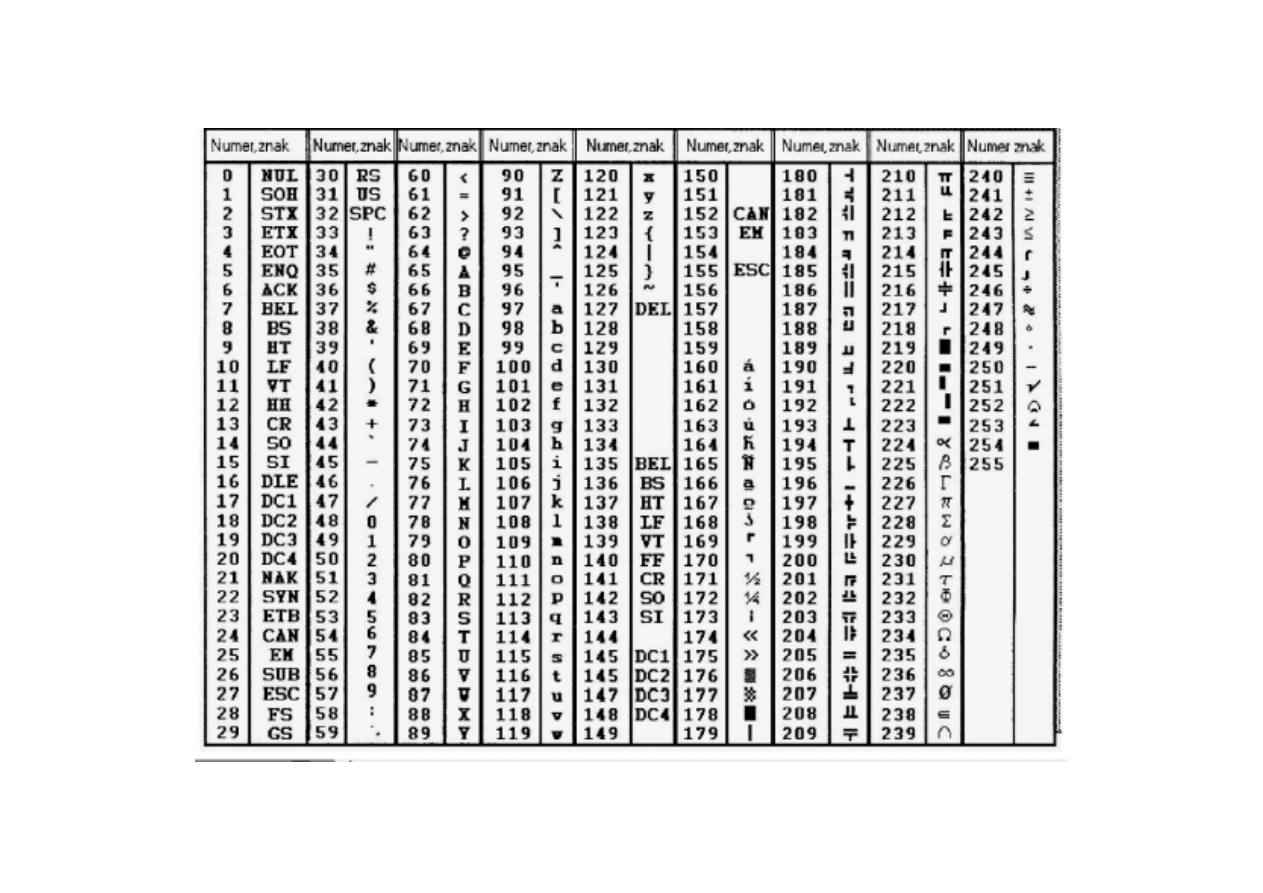
Table of ASCII codes (1): number
↔ character
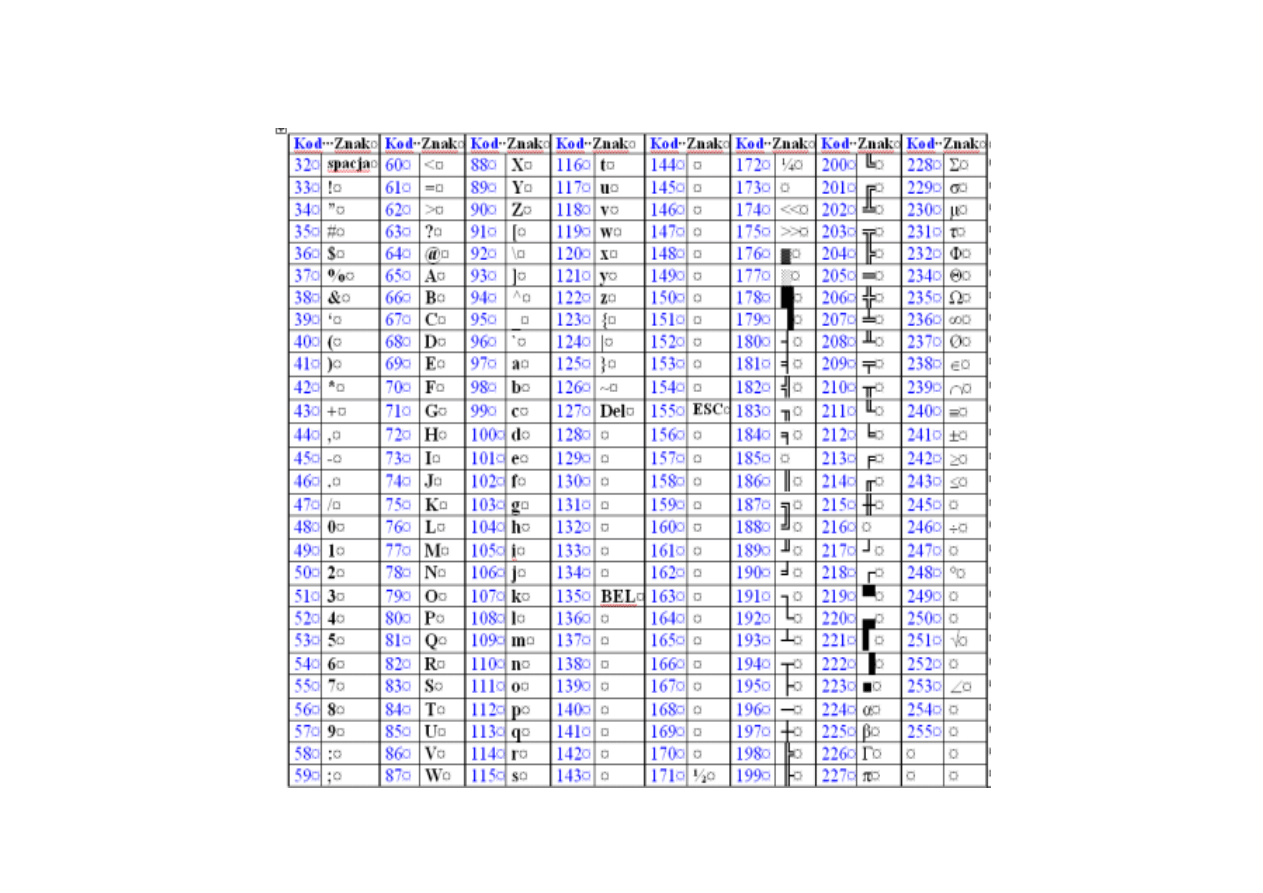
Table of ASCII codes (2): number
↔ character
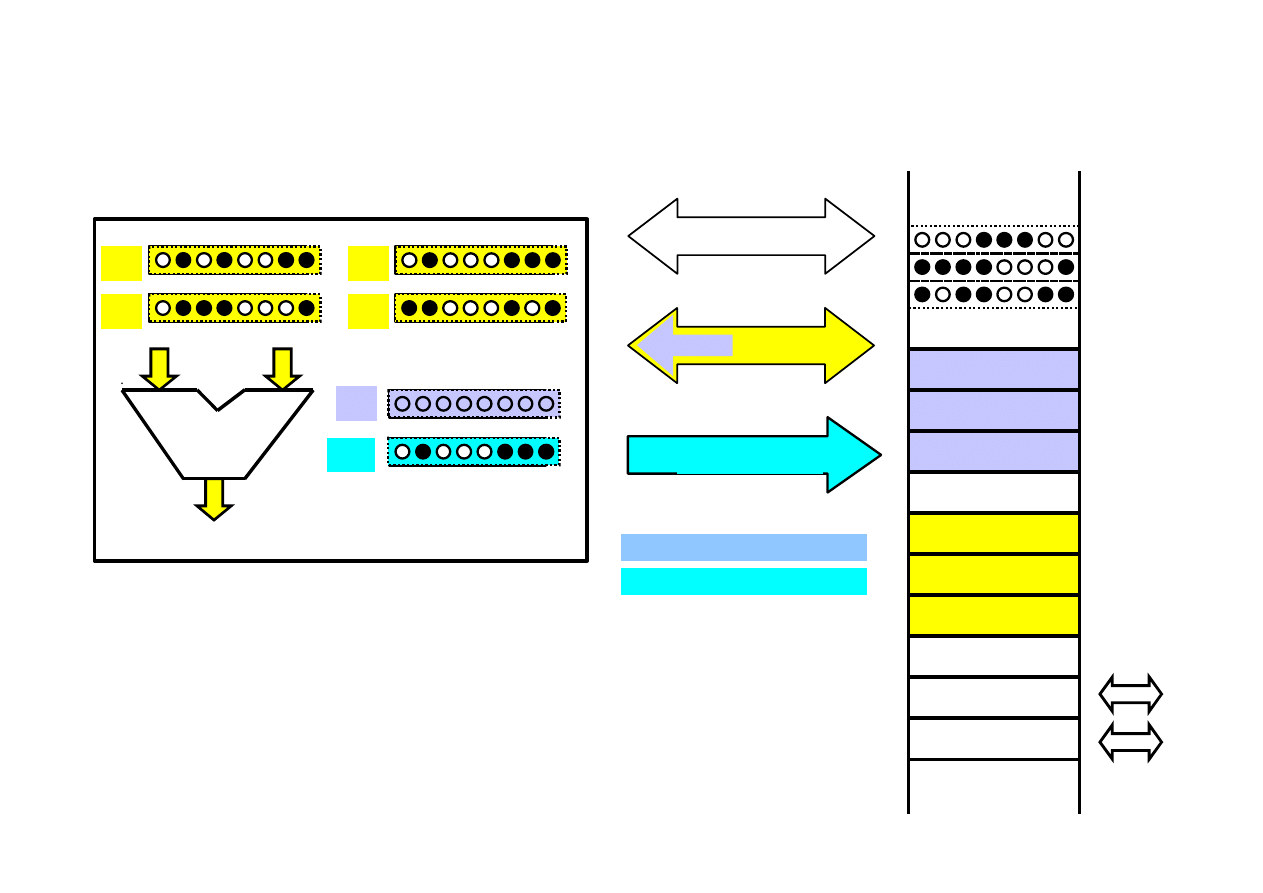
MICROPROCESSOR SYSTEMS IN WORK
µP =
microprocessor
X
A
B
Y
memory
address
PC
Arithmetic Logic Unit
ALU
control
move A,[X] ; A
← memory(adr in X)
move B,[Y] ; B
← memory(adr in Y)
add A, B ; A = A+B
move [X], A ; memory(adr=X)
← A
Asembler language
command
command
command
data
data
data
in/out
in/out
IR
data
IR = Instruction Register
PC = Program Counter
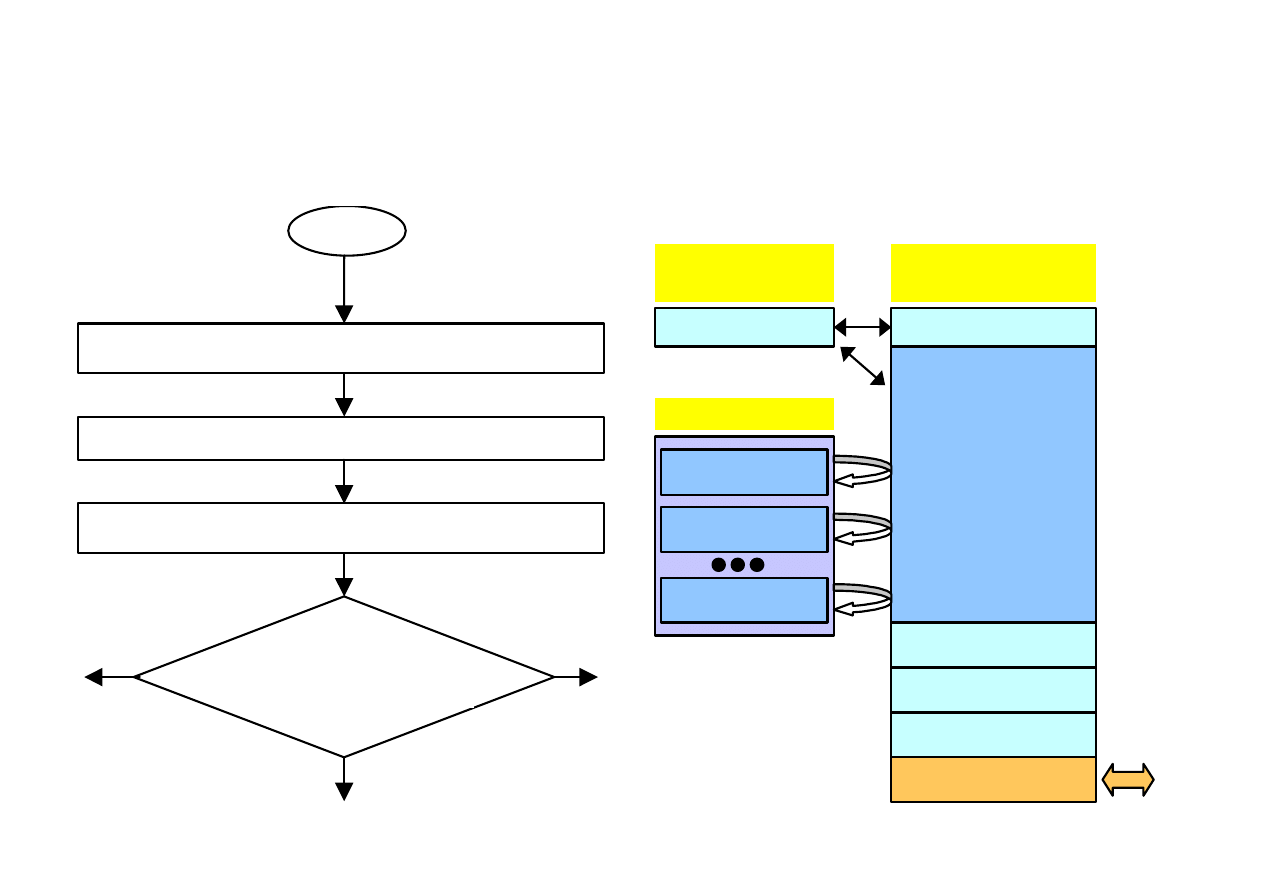
MEMORY USAGE IN COMPUTERS
Starting DOS operating system
Memory usage
=============================================
=======================================
START
Prog
BOOTSTRAP
COMMAND.COM
(from FD, HD, ..)
→ memory
File
CONFIG.SYS
→ values of system variables
What next?
User promts
to the operating system
Execution of commands from file
AUTOEXEC.BAT
BIOS
Memory
EROM (Read)
Memory
RAM (Read/Write)
Command.com
Free
operating
memory
for programs
Program A
Discs FD / HD
Program B
OS Commands
Stack
Interrupt progs
Graphics memory
Input/Out devices

CONFIGURATION FILES IN
DOS
OPERATING SYSTEM
CONFIG.SYS AUTOEXEC.BAT
FILES=
30
BUFFERS=
50
STACKS=
9,256
SHELL=
c:\command.com /E:1024 /P
LASTDRIVE=
H
DEVICE=
C:\DOS\SETVER.EXE
DEVICE=
C:\DOS\HIMEM.SYS
DEVICE=
C:\DOS\RAMDRIVE.SYS 8096 512 /E
DOS=
HIGH
REM
DOS=HIGH,UMB
@ECHO
OFF
PROMPT
$p$g
PATH
C:\;C:\DOS;C:\NC;C:\EDIT;
APPEND
C:\EDIT
SET
LIB=C:\FORT\LIB
SET
INCLUDE=C:\FORT\INCLUDE
SET
TMP=E:\
REM
C:\WINDOWS\SMARTDRV.EXE
CLS
TYPE
WELCOME.TXT
PAUSE
CLS
mode mono
mode con rate=32 delay=1
c:\mouse\mouse.com /R4
c:
nc
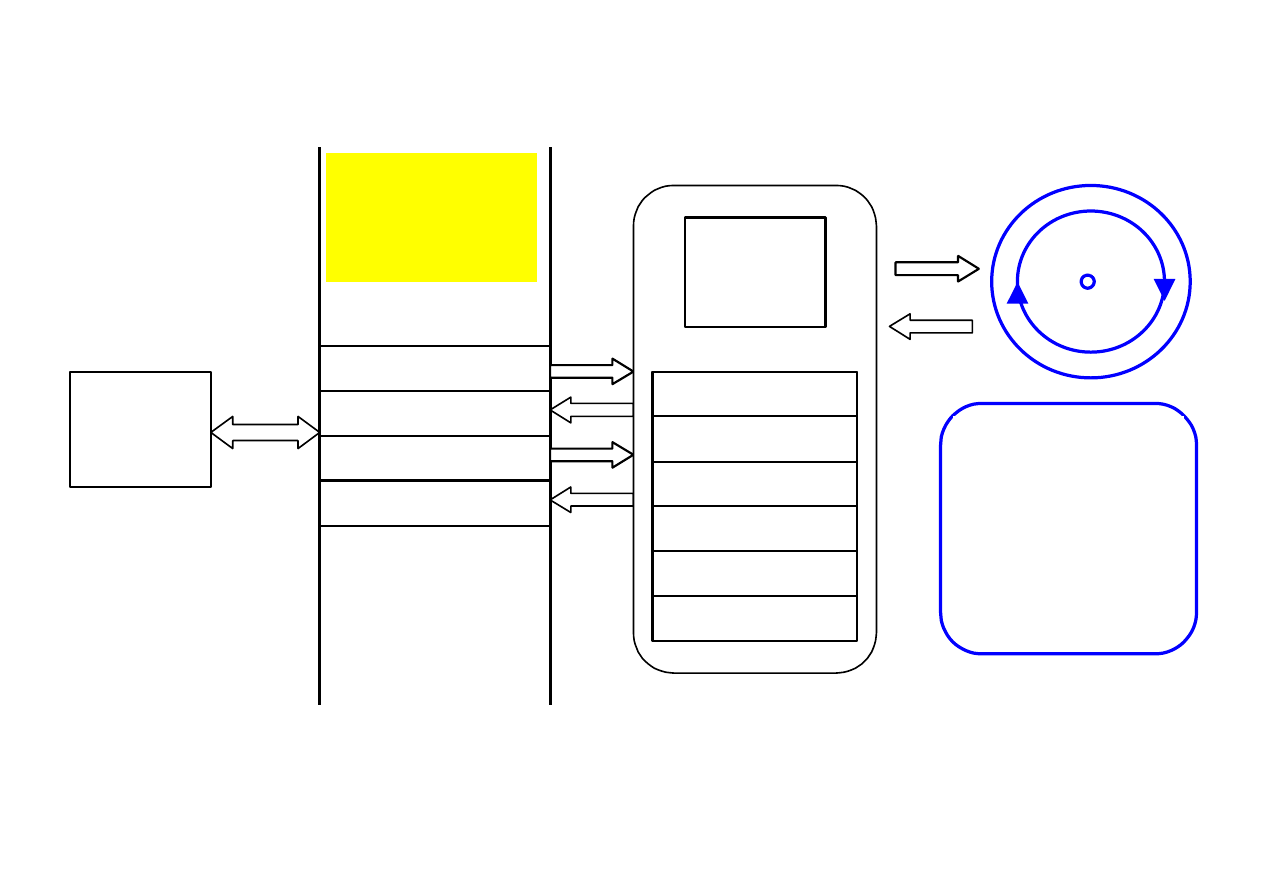
COMPUTER INTERFACE WITH INPUT/OUTPUT DEVICES
µP
Memory
for interfacing
with input/output
devices
Command
Status
Data
OUT
Data
IN
µC
Data buffers
Hard disc
step motor
magnetic heads
cylinders/platters
tracks/sectors/
clasters
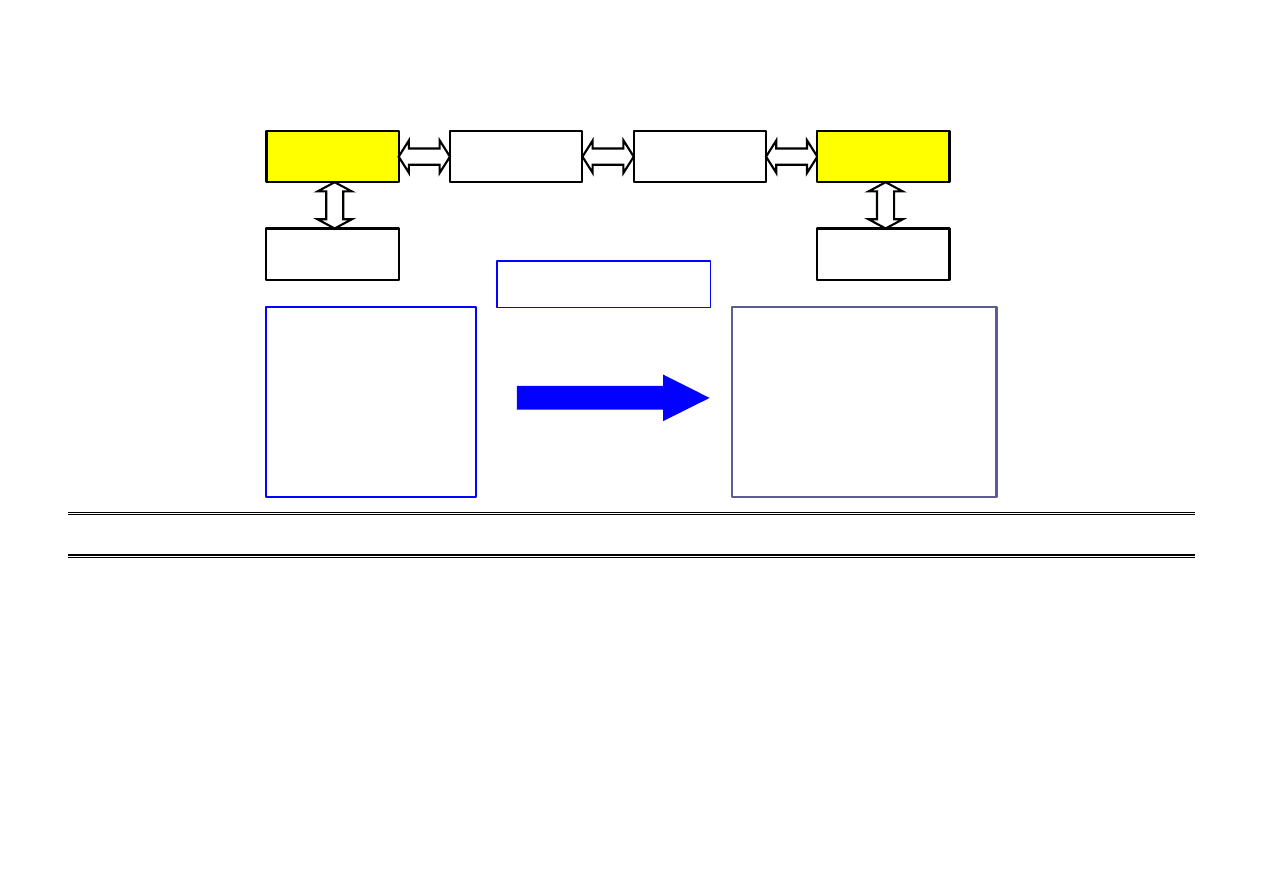
CONNECTING COMPUTERS
Memory
In / Out
µP 1
In / Out
µP 2
Memory
Terminal PC
Windows
PuTTY
program
Server
Unix
pico - editor
gcc - compiler C
EXAMPLE
Example of programming in computer network:
PuTTY
student.uci.agh.edu.pl
connecting
with UCI-AGH server
login: ?
registration:
student account on the server
password:
?
password
for this account
touch
prog1.c
creation
of EMPTY file: prog1.c
pico
prog1.c
editing
this file:
CTRL+O = write, CTRL+X = exit
gcc
prog1.c
compiling and linking
file prog1.c
to
program prog1.out
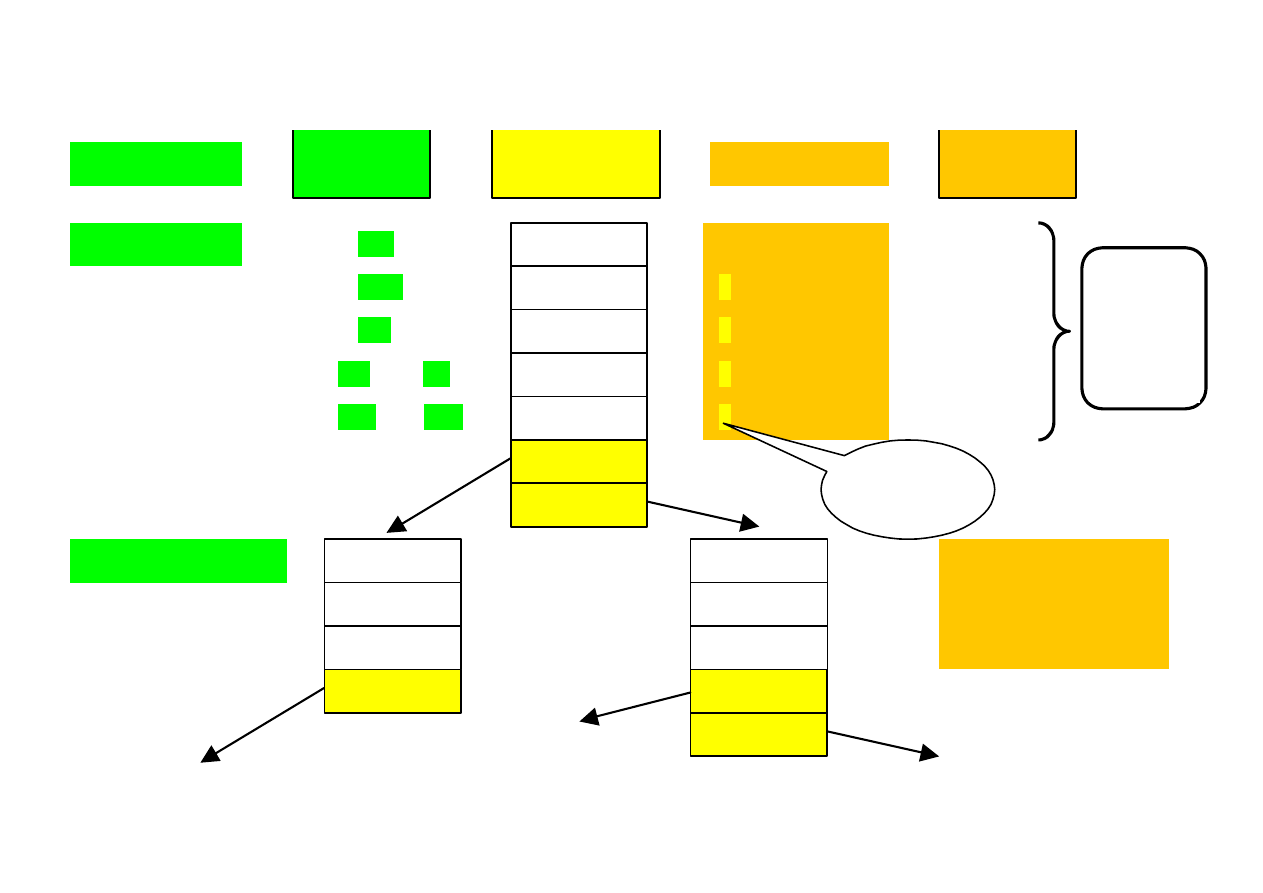
FILES AND DIRECTORIES IN DIFFERENT OPERATING SYSTEMS
program 1
program 2
zbiór 1
zbiór 2
directory A
directory B
MAIN
DIRECTORY
program 3
prog1.exe
prog2.com
prog3.bat
zb1.dat, zb1.txt
zb2.doc, zb2.par
DOS
Windows
program 4
program 5
file 3
directory C
program 6
file 4
file 5
directory D
directory E
prog1
prog2
prog3
zb1
zb2
Unix
Linux
file
attributes
specify
file
type
/home
/home/prog1
~/prog2
~/zb1
~/zb2
~/prog3
/home/dirB/prog6
/home/dirB/zb4
/home/dirB/zb5
C:\
C:\prog1.exe
C:\dirA\prog4.exe
actual
directory

UNIX
− OPERATIONS ON DIRECTORIES AND DISC FILES
======================================EXAMPLE OF USAGE========
pwd
–
present work directory
pwd
ls
–
list (files, directories)
ls
/home, ls /home/dirA
mkdir
–
make directory
mkdir
/home/dirX, mkdir ~/dirY
rmdir
–
remove directory
rmdir
/home/dirX, rmdir ~/dirY
cd
–
change directory
cd
/home, cd /home/dirA, cd ../..
touch
–
create empty file
touch
/home/dirA/dirC/prog
rm
–
remove file(s)
rm
/home/dirA/dirC/prog
cp
–
copy file(s)
cp
file1 file2, cp *.c?? *.cpp
mv
–
move file(s)
mv
~/file1 ~/dirA/file2
cat
–
concatenate file(s)
cat
file1 file2 > file3
chmod
.. –
change mode (of file)
chmod
a=
rwx
file
(read, write, exec)
man
–
manual (opis)
man
chmod
(Q = quit!!!)
================================================================
~, .
– present directory
* -
any sequence of characters
..
– directory one level up
? –
any character
../..
– directory two levels up

UNIX
− PROGRAM EDITION AND COMPILATION
touch
– file creator
gcc
– general C compiler
pico
– editor
g++
– general C++ compiler
gdb
– general debugger
================================================================
touch
prog1.c create
an
empty
file
prog1.c
(EMPTY!)
pico
prog1.c CTRL+O
=
write
CTRL+X = exit
gcc
prog1.c compiling
and
linking
to
prog1.out
gcc
prog1.c –o
prog1
compiling
and
linking
to
prog1
gcc
–c
prog1.c only
compiling
to
prog1.o
gcc
–l prog1.o prog2.o –o prog12
only linking progs prog1.o prog2.o
to
prog12

More about UNIX/LINUX operating system
and its usage

GENERAL CHARACTERISTIC OF
UNIX/LINUX OS
UNIX history at a glance:
1969
– first
Unix
system written in
assembler
in Bell Labs AT&T
1973 – rewriting
Unix
code in
C language
by D. Ritchie and B. Kernighan
1980-1990 – new technologies:
TCP/IP (
Transmission Control Protocol / Internet Protocol
),
GNU OS (
GNU is Not Unix
),
POSIX (
Portable Operating System Interface
)
1991
– Linus Torvalds, Finnish student, wrote kernel of
Linux
operating system
After – development of many Unix “clones”, Open Source community
Main UNIX features:
– multi-tasking and multi-user
– system scalability
– system stability
– code portability
– accessibility of free software (Linux)
Members of UNIX family:
SCO XENIX FreeBSD
SGI IRIX
NetBSD
different Linux distributions:
Knoppix, Ubuntu, ...
Linux
FreeBSD
LAYERS OF
UNIX/LINUX
• System Unix/Linux is built from layers.
• System KERNEL represents its main element.
• It is surrounded by layers ensuring communication with users and different
devices, including input/output ones.
Shells, commands, applications
User
User interface
Interface to libraries
Interface to system calls
Interface to hardware layer
System KERNEL:
controlling processes, resources, …
Hardware layer:
CPU, memory, discs, drivers, …
GNU C library (glibc)
programs
compilers
Graphical presentation
of Unix/Linux layers

SHELLS
OF
UNIX/LINUX
OPERATING SYSTEMS
Shell
represents an interface between a user and the operating system.
Main tasks:
Standard
UNIX
shells:
Their
newer
alternatives:
♦
In LINUX systems
bash shell
is very popular.
♦
It has all commands of
sh shell + additional functions
(syntax supplements,
command history and many new facilities).
♦
Shell can be changed using command
$ chsh
– user commands interpretation and execution
– interface between a user and system KERNEL
– automation of different actions by means of scripts (files with OS commands)
Bourne shell (sh)
bash
(Bourne-Again Shell)
Korn shell (ksh)
zsh (Z Shell)
C shell (csh)
tcsh
(TC-Shell)

COMPARISON OF TWO SHELLS:
BASH
AND
TCSH
BASH:
• the most
popular
shell in Unix systems
• easy in use
•
compatible
with the shell
sh
•
put together features
of two shells: Korn (
ksh
) and C (
csh
)
• has specific variables
TCSH:
• second very popular shell
• extended version of the shell C (
csh
)
• its script syntax is very similar to C language programming
• includes mechanism of transcription correction
• has specific variables
Main differences concern script files.

SYSTEM COMMANDS (1)
General syntax:
encouraging mark $ command_name [options, arguments, …]
Letter options are precede with mark „
-
”, word options – with mark „
--
”
Every command has usually its help: „
-h
” or „
--help
”, e.g.
anycommand -h
Additional information is given by manual:
$ man anycommand
Loging and changing password:
$
login
[
account
]
–
Create a new working session
with the system.
Parameter
account
must be an existing user (or administrator) account. User is
asked for a password if the account exists.
$
passwd
[
param
]
–
Change a user password
. In no parameters are given,
password of actually logged user is changed.
$
logout, exit
–
Finish this working session
(Ctrl+D).
Przykład zakładania konta użytkownika:
$
useradd
account_name
-
create an account „account_name”
$
passwd
account_name
-
create a password for this account
$
login
account_name
-
login using the created account

SYSTEM COMMANDS (2)
Display
of basic information:
$
who
[options] [file|arg1|arg2]
-
show who is actually logged-in
$
uname
[options]
...
-
show system information
$
w
–
show actually working users and their processes
Examples:
Testing network connections:
$
ping
[options] [host_address] –
test connection between computers
$
traceroute
[host_address] -
trace packets route in the network
Examples:
$
who
, $
w
-
display user who are logged-in
$
uname
–o -v
-
display OS name (-o) and kernel version (-v)
$
ping
–c 3 address -
send 3 echo claims (to the given IP address)
$
traceroute
address - show trace route of the given IP address

REMOTE ACCESS
Commands related to remote access:
$
telnet
[host] -
connect to remote host using
telnet
remote session.
It allows to work on remote server like on your own
computer (using local network or Internet).
$
rlogin
[options] [host]
–
login
on remote computer
$
rsh
[options][host] [command] –
execute
command on remote host
$
ssh
[options][host] [command] –
as above, but
with data encryption
A
Examples:
$
telnet
host1
-
connect
to remote host1
$
rlogin
host1
-
login
on remote host1
$
rsh
host1 df
-
check
free space on host1
$
ssh
host1 df
-
as above, but with encyption (security) !
At present only the last command
ssh
(secure shell)
is used.
The transmission is
encrypted (coded, scrambled)
and therefore more safety.

USING MANUALS
Most commands contain
help information
of their usage putted in
man
(manual)
instruction. In general, one can get information using the following commands:
$
man
[-options] subject
$
info
subject
$
whatis
command
$
apropos
[searched_word ... ]
Sometimes in manual there are available a few pages of description for one
command, for example printf(3). We can access these pages as follows:
$ man 3 printf
During manuals reading:
<enter>
– new line
<spacja>
– new page
<q>
– quit
Examples:
$
man
man
$
info
info
$
man
ls
$
info
vi
$
man
ftp
$
info
grep
$
whatis
ls
$
apropos
list
whatis
find and display short command
description
whereis
where is localized command or its
help script
apropos
search for specific strings in manual
description
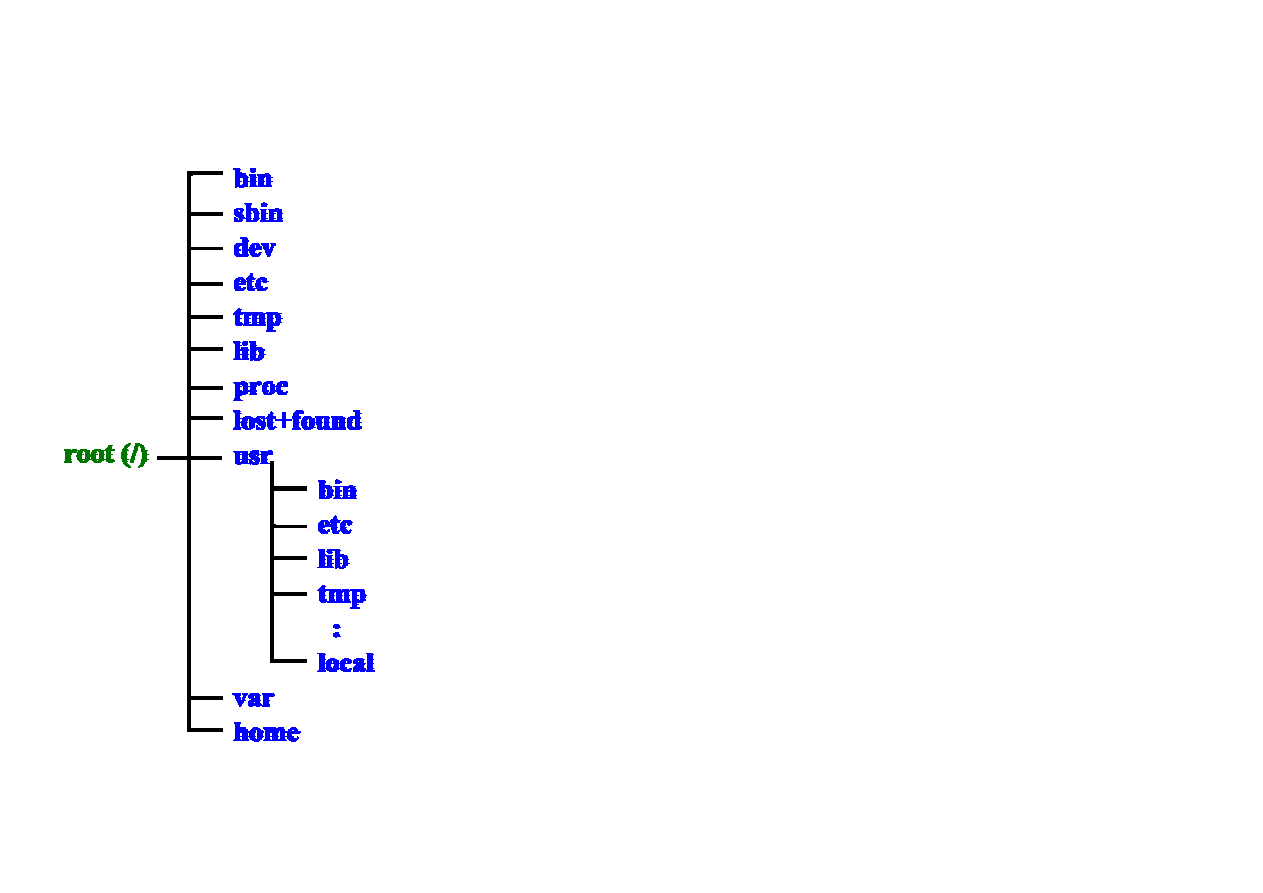
TREE STRUCTURE OF DIRECTORIES
/bin
Commands and programs available for users
/sbin,
System and administrator’s programs
/dev
Special files, representing different devices
/etc
System
configuration
files
/tmp Temporary
files
/lib
System libraries, header files
/proc
Special directory, system information
/lost+found Recovered files after checking of file system
integrity
/usr/local
Additional system software
/var
Varying system scripts (logins, queues, etc.)
/home
Directory for user accounts (exception: /root)

MANAGEMENT OF FILE SYSTEM
Unix command
Description
MS DOS
ls [options] [files]
Display directory content
$ ls -al /home
> dir
cd [dir_name]
Change directory
$ cd .. $ cd ~
> cd
mkdir [dir_name]
rmdir [dir_name]
Make empty/ remove directory
$ mkdir my_dir
$ rmdir my_dir
> md
> rd
cp [file1] [file2]
mv [file1] [file2]
Copy/move file
$ cp src dest
> copy, > move
rm [file]
Remove file
$ rm file_name
> del
rm –rf [dir_name]
Remove directory with files
$ rm -rf my_dir
> deltree
touch [file_name]
Create new, empty file
$ touch file1
-
ln [options] [s] [d]
Create symbolic link
$ ln –s src dest
-

CATEGORIES OF USERS AND ACCESS RIGHTS
Each
file and directory
in Unix/Linux system has an owner who can performs
different operations on it, specified by
access rights
.
User categories:
Three types of access rights:
Kod
File
Directory
r
(read)
Right to read
Right to read directory content
w
(write)
Right to write (change)
Right to change directory content
x
(execute)
Right to execute
Right to entrance to directory
File attributes can be displayed
using command:
$
ls
–l file_name
a
ll
all users
u
ser
user, file owner
g
roup groups of the file owner
o
ther other users
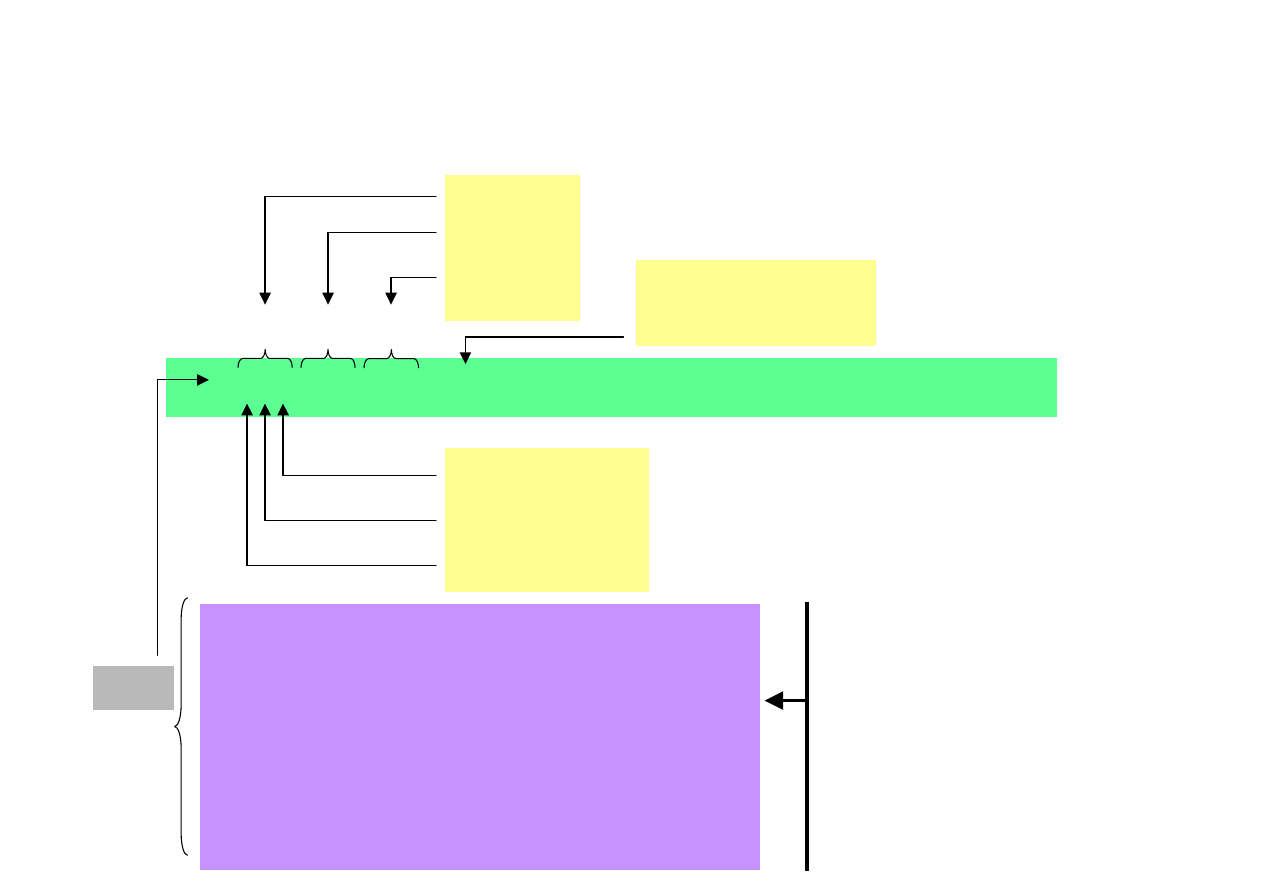
FILE ATTRIBUTES
(ownership, display)
execute 1/0
write 1/0
read....…1/0
-rwxrw-r-- 1 user group ... file_name
g
o
u
u
ser
g
roup
o
ther
type
-
ordinary
file
d
directory = list of files
l
symbolic link
c
urządzenie znakowe (np. modem)
b
block device (e.g. disc)
p
named
pipe
s
socket
Symbolic link
Special file type that is pointing to
other file or directory.
Link can be
„soft” or „hard”.
In Microsoft Windows similar role
plays shortcut.
number of
symbolic links

ADMINISTRATION OF ACCESS RIGHTS
Commands for changing (giving) access rights:
chmod
–
change access rights
to specified file
chown
–
change file owner
chgrp
–
change file attachment to group
Method 1 SYMBOLIC:
$ chmod [who] operator [permission][,...] file_name
Mehod 2 OCTAL:
$ chmod octal_code file_name
operator:
+ add
permission
– cancel permission
= change
permission
who:
a all
u user
g group
o others
permission
for:
r read
w write
x execute
octal_code – sum of octal codes for different groups:
user r=400
w=200
x=100
group r=040
w=020
x=010
others r=004
w=002
x=001
Examples:
Results:
$ chmod 777 plik1 -rwxrwxrwx
$ chmod 641 plik2 -rw-r----x
$ chmod 555 plik3 –r-xr-xr-x
Examples:
$ chmod a+w plik1
$ chmod u-w plik2
$ chmod u=rw,o=r plik3

ARCHIVES OF FILES
Traditionally Unix system has a command for administration of archives.
Since initially it was used for data storage on magnetic tapes
it was given the name
tar
(Tape Archive)
.
Syntax: $ tar
[
-options
]
[…]
Examples:
Create file
name.tar
:
$ tar -cvf
name.tar
file1 file2
Add file to existing archives: $ tar -rvf name.tar file_added
Extract files from archives:
$ tar -xvf name.tar
Write out archives content:
$ tar -tf name.tar
-c
-
create
a new archives
-r
- add file to the archives on its end
-u
- write new or modified files to the archives (
update
)
-x
-
extract
file from the archives
-f
name
- give name of the archives
-t
- write out the archives content
-v
- inform about performed operations on the archives (
verbose
)

COMPRESSION OF FILES
Commands:
gzip
,
bzip2
Syntax:
$
gzip
[-options][file]
$
bzip2
[-options][file]
Examples:
Options for
bzip2
command:
-z =
compression
–d =
decompression
Command
tar
can also do compression
when the following additional options are used:
-z
compression/decompression of archives using
gzip
-j
compression/decompression of archives using
bzip2
Example:
$
tar
-c
z
vf name.tar file1 file2
$
gzip
name
-
compress file
name
$
gzip
–d name
-
decompress file
name
$
gzi
p –r *
-
compress all files in actual directory and all subdirectories
$
gzip
–dr *
-
decompress all files in actual directory and all subdirectories
separate
resultant
files

STREAMS AND PIPES
Stream types:
Operators for
stream redirection
:
Example: $ date > date_time - write
to file
date_time
date and time printing
Pipes
– make available sending data from one command to the other one.
Pipe operator character =
“|”
(vertical line, Shift+\)
Example: $ ls –l /dev | more
− paging result of ls –l /dev
1) Input
0, keyboard is default, stdin
2) Output
1, screen is default, stdout
3) Error
2, screen is default, stderr
>
output stream redirection with overwriting (e.g. to file)
>>
output stream redirection with addition to the end
<
input stream redirection with overwriting (e.g. to buffer)
<<
input stream redirection with addition to the end

CONTENT PROCESSING
Commands for file processing:
$
cat
[parameters] [file]
Concatenate files and show their
contents
Examples:
cat
file1 file2 > file3
$
cut
[parameters] [file]
Cut interesting fragment of text from
given file and display it on the screen
Some options:
-c list
– character
e.g. –c1-5 – first 5 chars in each line
-b list
–
byte e.g. –b1-5 – first 5 bytes in each line
-d delim
–
special character (default tab) e.g. -d :
Example:
cut
–c 4-10 file1
–
show chars 4-10 in each line
cut
-d : -f 5- file1
–
from 5-th word in each line, delim = :

COMMAND / LANGUAGE
AWK
awk
is used for scripts (text files) processing.
AWK
= „
A
ho,
W
einberger, &
K
ernighan” (author’s names)
As a command
it can perform simple text operations.
As a language
it is a very powerful tool for performing complex editorial operations.
Program written in AWK consists of blocks having the following syntax:
Simple programs can be executed directly from command line:
Example of simple using:
condition { commands }
awk
‘condition {command}’ script
awk
‘/user/ {print}’ /etc/passwd
– display lines of script /etc/passwd,
containing regular expression user (that has to be between two characters “/”)

SEARCHING
Command
find
– searching in complex structures of directories
Syntax: $
find
where criterion action
Program
grep
– (
general regular expression print
)
very complex program that displays / prints all lines (in specified files) that fit (or not)
to the given pattern.
Syntax: $
grep
[options] regular_expression [files]
where
where to start searching (default: actual directory)
cryterion
searching criterion (default: all files)
action
what to do with the result of searching (default: -print)
Examples:
$
find
/etc –name passwd
$
find
/home –name *.c
Examples:
$
grep
‘int’ /home
print lines having pattern ‘int’
$
grep
–v
‘int’ /home
print lines not having pattern ‘int’
$
grep
–c
‘int’ /home
print file names and number of lines having pattern
‘int’
Other options:
–name xyz
–user xyz
–group xyz

REGULAR EXPRESSIONS (1)
Regular expressions (used also in Perl, POSIX) represent a tool for looking for
reference character patterns and filtering information in script files.
They are used together with specific commands, e.g.
find
i
grep
Look examples above:
*.c
in
find
and
'int'
in
grep
Operator
Description
Example
Fitting YES Fitting NO
|
Operator OR
‘a|b|c’
‘abc’,‘bc’
‘de’
.
Any single character
‘plik.a’
‘plik1a’
‘plika’
^
Beginning of line
‘^plik’
‘plik1a’
‘plikaa12’
‘replika’
$
End of line
‘plik$’
‘nowyplik’
‘plik1’
*
Zero or more appearance
of last character
‘plik.*a’
‘plika’
‘plik
xx
a’
‘plik
xy
za’
‘plikb’
\
Next character is not treated
as a special one
‘plik\.’
‘plik.24’
‘plik2’

REGULAR EXPRESSIONS (2)
Operator
Description
Example
Fitting Yes Fitting No
[...]
Any character (only one)
from the given list
‘[Pp]lik’
‘Plik’
‘plik’
‘klik’
[^...]
Any character
NOT from the given list
‘[^Pp]lik’
‘klik’
‘plik’
[\b]
String on the word borders
‘\bplik’
‘pliknew’ ‘newplika’
\(...\)
Definition of sub-expression
‘\(plik\)’
‘plik’
-
[\n]
Refering to the n-th sub-expression
(n from 1 to 9)
\(plik\).*\1
plik
x
plik
plik
xy
plik
plikxklik
\< ..\>
Refering to the whole word
‘\<plik\>’ ‘plik’ ‘pliki’

TEXT EDITOR
Vi
(M)
The most known text editor in Unix, developed by Billa Joya, Sun Microsystems.
Admired and hated!
Working modes:
Command Mode
Input Mode
Switch to Command Mode:
ESC
Switch to Input Mode:
i, I, a, A, r, R, o, O
(insert, append, replace, new line)
Start editor:
$ vi file_name
Stop editor and write to file:
ZZ
– write to file and return to console
:q! – quit without saving to file
:wq – quit with saving to file
Remove text (x chars,dd lines):
x, X, dd, [n]x, [n]X
(remove n chars)
Moving in edition window:
h, j, k, l
(left, down, up, right)
Ctrl-f, Ctrl-b
(screen – for/ backwards)
Ctrl-u, Ctrl-d
(half-screen – up, down)
Copy text:
[n]yw
(copy to buffer n words)
[n]yy
(copy to buffer n lines)
p, P
(paste from buffer before/After)
Search text:
:/ref, :?ref,
(search down or up)
n, N
(repeat last search)
Literature:
$ man vi
$ vimtutor
(short course on vi(M))

OTHER EDITORS (PICO, NANO, JOE …)
Editors more user-friendly, better for beginners.
PICO is a part of packet PINE used for administration of electronic mail in Unix.
Main
commands:
Moving
in
editor:
Marking,
cuting,
pasting:
Suggested
literature:
Ctrl-^ – go to marking mode
$ man pico
Ctrl-k – cut the marked fragment
$ man nano
Ctrl-u – paste the marked fragment
$ info nano
Ctrl-g – help
Ctrl-o –
write to file
Ctrl-x –
write to file and quit
Ctrl-t – check spelling
Ctrl-j – text justification
Ctrl-w – search in file
Ctrl-f – move forwards 1 character
Ctrl-b – move backwards 1 character
Ctrl-p – move up 1 line
Ctrl-n – move down 1 line
Ctrl-a – jump to the beginning of line
Ctrl-e – jump to the end of line

SPECIAL FILES (1)
File
/etc/passwd
In ASCII format, containing list of users and their passwords.
Structure of user record:
login_name
- user name in the system
password
- encoded password of the user
UID
- user identifier (number)
GID
- group identifier (number)
name_surname
- user name
directory
- user home directory ($HOME)
shell -
user
shell
(program run after user login)
login_name:password:UID:GID:name_surname:directory:shell
tzielin:x:30068:555:Tomasz Zielinski:/home/tzielin:/bin/bash

SPECIAL FILES (2)
File
/etc/group
In ASCII format, defining groups of users
Strukture of group records:
group_name:password:GID:user_list
group_name
- group name
password
- encoded (if no password is given, it is not required)
GID -
group
identifier
(number)
user_list
- user names belonging to the group
EXAMPLE: adm:x:4:root,adm,daemon

SPECIAL FILES (3)
Selected important start-up scripts:
Selected configuration scripts:
Local shell configuration scripts (
IMPORTANT FOR THE USER
):
/etc/inittab -
using during system start-up
/etc/rc
-
main configuration script (sometimes in /etc/rc.d)
/etc/rc.config
-
configuration script used by /etc/rc for pars initialization
/etc/rc.local -
used for local administration
/etc/fstab
-
file system, installation of disc
/etc/profile
-
configuration file for shells
sh/bash
/etc/csh.login
-
configuration file for shells
csh/tcsh
/etc/shadow
-
encrypted
passwords
of user accounts
~/.profile -
for
sh
~/.csh
rc
-
for
csh
~/.tcsh
rc
-
for
tcsh
~/.bash
rc
-
for
bash

SCRIPTS
Content of the easiest script
for the bash shell (script1.sh):
Script
= uncompiled executable text file, consisting of system commands
and
some control/logic “glue” (instructions, loops, etc.).
Executed by interpreter translating script code (program, sequence of
commands) to machine language understanding by processor.
# Shell type to be executed (# denotes start of remark)
#!/bin/bash
echo „My first script”
# Display text in quotation-marks
Written script should be executable (giving him the right to execution):
$ chmod u+x script1.sh
Execution (running) of script being in actual directory:
$ ./script1.sh

ENVIRONMENTAL / SYSTEM VARIABLES (1)
Environmental / system variables
– names of objects containing information used
by one or many programs in operating system.
There are 4 variable types:
Local variables
Define shell configuration, they are visible only for the
shell for which they were defined
$ set •
read values of all local variables
$ echo $variable •
read value of the selected variable
$ export -n
variable=new_value
•
change variable value
Example:
PS1=
[\u@\h \W]\$
– set encouraging mark
Global variables
They are visible from any shell
$ export
variable=new_value
•
change variable value
Example:
EDITOR=vi
-
name of the default text editor

ENVIRONMENTAL / SYSTEM VARIABLES (2)
Special variables
They are defined by the system and user can not
change their values.
Examples:
$#
• number of parameters sent to program
#?
• exit code of command/program executed in the shell
$0
• name of executed program
$1,$2,...
• consecutive parameters sent to program/command
Program variables
Defined by user in shell scipts
variable=value
• definition and initialization of program variable
$ echo $variable
• read value of selected variable
Examples of variables:
x=123
- definition on number variable
name=”Tomek”
- definition of string variable

CONDITIONAL INSTRUCTIONS (1)
Instruction
if
:
$x
–
value of variable
x
Condition
can include different comparisons and tests:
Example:
#!/bin/bash
echo "Give login:"
read login
if
[ "$login" != "mis" ]
then
echo 'Access denied'
else
echo 'Welcome in the system'
fi
if
condition
then
instructions1
else
instructions2
fi
•
numbers
:
-gt
(greater),
-lt
(lower),
-ge
(greater or equal),
-le
(lower or equal),
-eq
(equal),
-ne
•
text
:
-z
(empty?),
-n
(string value),
=
,
!=
(different),
Str
(null string?)
•
logical
:
-a
( && ) (logical and),
-o
( || ) (logical or),
!
(logical not)
•
files
:
-f
(file existence),
-s
,
-r
,
-w
,
-x
,
-d
(folder),
-h
(symbolic link),
-c

CONDITIONAL INSTRUCTIONS (2)
Instruction
case
:
Example:
#!/bin/bash
echo "Give number of a week day"
read d
case
"$d"
in
"1") echo "Monday" ;;
"2") echo "Tuesday" ;;
"3") echo "Wednesday" ;;
"4") echo "Thursday" ;;
"5") echo "Friday" ;;
"6") echo "Saturday" ;;
"7") echo "Sunday" ;;
*) echo "No number was given"
esac
case
variable
in
"tamplate1") command1 ;;
"tamplate2") command2 ;;
"tamplate3") command3 ;;
*) default_command
esac

LOOPS (1)
Loop
for
:
Loop
select
:
Example:
change file names, capital letters --> small
#!/bin/bash
for
name
in
*
do
mv
$name ‘echo $name |
tr
\
'[A-Z]''[a-z]'‘
done
Example:
#!/bin/bash
echo "What are you choosing?"
select
y
in
X Y Quit
do
case
$y
in
"X")
echo "X is chosen" ;;
"Y")
echo "Y is chosen" ;;
"Quit") exit ;;
*)
echo "Nothing is chosen"
esac
break
# Break the do loop
done
for
variable
in
list
do
instructions
done
select
variable
in
list
do
instructions
done
continue in next line

LOOPS (2)
Loop
while
:
Loop
until
:
Example:
#!/bin/bash
x=1;
while
[ $x -le 10 ]
do
echo "This is display number: $x"
x=$[x + 1]
done
Example
:
#!/bin/bash
x=1;
until
[ $x -ge 10 ]
do
echo "This is display number:: $x"
x=$[x + 1]
done
while
condition
do
instructions
done
until
condition
do
instructions
done

Configuration scripts for shells Bash i Csh/Tcsh:
===========================================
Script profile for Slackware
(the oldest Linux distribution,
by many persons treated as the only genuine / authentic):
===========================================
# /etc/profile: This file contains system-wide defaults
# used by all Bourne (and related) shells.
# Set the values for some environment variables:
export MINICOM="-c on"
export MANPATH=/usr/local/man:/usr/man
export HOSTNAME="`cat /etc/HOSTNAME`"
export LESSOPEN="|lesspipe.sh %s"
export LESS="-M"
# If the user doesn't have a .inputrc, use the one in /etc.
if [ ! -r "$HOME/.inputrc" ]; then
export INPUTRC=/etc/inputrc
fi
# Set the default system $PATH:
PATH="/usr/local/bin:/usr/bin:/bin:/usr/games"
# For root users, ensure that /usr/local/sbin, /usr/sbin, and /sbin
# are in the $PATH.
# Some means of connection don't add these by default
# (sshd comes to mind).
if [ "`id -u`" = "0" ]; then
echo $PATH | grep /usr/local/sbin 1> /dev/null 2> /dev/null
if [ ! $? = 0 ]; then
PATH=/usr/local/sbin:/usr/sbin:/sbin:$PATH
fi
fi

# I had problems with the backspace key using 'eval tset'
# instead of 'TERM=',
# but you might want to try it anyway instead of the section below it.
# I think with the right /etc/termcap it would work.
# eval `tset -sQ "$TERM"`
# Set TERM to linux for unknown type or unset variable:
if [ "$TERM" = "" -o "$TERM" = "unknown" ]; then
TERM=linux
fi
# Set ksh93 visual editing mode:
if [ "$SHELL" = "/bin/ksh" ]; then
VISUAL=emacs
# VISUAL=gmacs
# VISUAL=vi
fi
# Set a default shell prompt:
#PS1='`hostname`:`pwd`# '
if [ "$SHELL" = "/bin/pdksh" ]; then
PS1='! $ '
elif [ "$SHELL" = "/bin/ksh" ]; then
PS1='! ${PWD/#$HOME/~}$ '
elif [ "$SHELL" = "/bin/zsh" ]; then
PS1='%n@%m:%~%# '
elif [ "$SHELL" = "/bin/ash" ]; then
PS1='$ '
else
PS1='\u@\h:\w\$ '
fi
PS2='> '
export PATH DISPLAY LESS TERM PS1 PS2
# Default umask. A umask of 022 prevents new files
# from being created group and world writable.
umask 022

# Notify user of incoming mail. This can be overridden in the user's
# local startup file (~/.bash.login or whatever, depending on the shell)
if [ -x /usr/bin/biff ]; then
biff y 2> /dev/null
fi
# Append any additional sh scripts found in /etc/profile.d/:
for profile_script in /etc/profile.d/*.sh ; do
if [ -x $profile_script ]; then
. $profile_script
fi
done
unset profile_script
# For non-root users, add the current directory to the search path:
if [ ! "`id -u`" = "0" ]; then
PATH="$PATH:."
fi

==================================================
Script csh.login:
(configuration of shells csh i tcsh)
==================================================
# /etc/csh.login: This file contains login defaults used by csh and tcsh.
# Set up some environment variables:
if ($?prompt) then
umask
022
set cdpath = ( /var/spool )
set
notify
set history = 100
setenv MANPATH /usr/local/man:/usr/man
setenv MINICOM "-c on"
setenv HOSTNAME "`cat /etc/HOSTNAME`"
setenv LESS "-M"
setenv LESSOPEN "|lesspipe.sh %s"
set path = ( /usr/local/bin /usr/bin /bin /usr/games )
endif
# If the user doesn't have a .inputrc, use the one in /etc.
if (! -r "$HOME/.inputrc") then
setenv INPUTRC /etc/inputrc
endif
# I had problems with the backspace key installed by 'tset',
# but you might want to try it anyway instead of the section below it.
# I think with the right /etc/termcap it would work.
# eval `tset -sQ "$term"`
# Set TERM to linux for unknown type or unset variable:
if ! $?TERM setenv TERM linux
if ("$TERM" == "") setenv TERM linux
if ("$TERM" == "unknown") setenv TERM linux
# Set default POSIX locale:
setenv LC_ALL POSIX

# Set the default shell prompt:
set prompt = "%n@%m:%~%# "
# Notify user of incoming mail. This can be overridden in the user's
# local startup file (~/.login)
biff y >& /dev/null
# Set an empty MANPATH if none exists
# (this prevents some profile.d scripts
# from exiting from trying to access an unset variable):
if ! $?MANPATH setenv MANPATH ""
# Append any additional csh scripts found in /etc/profile.d/:
[ -d /etc/profile.d ]
if ($status == 0) then
set nonomatch
foreach file ( /etc/profile.d/*.csh )
[ -x $file ]
if ($status == 0) then
source $file
endif
end
unset file nonomatch
endif
# For non-root users, add the current directory to the search path:
if (! "$uid" == "0") set path = ( $path . )

Command syntax in scripts of shells: BASH and TCSH
bash
tcsh
for
variable
in
list
do
instruction
done
foreach
variable (
list
)
instruction
end
while
expression
do
instruction
done
while
(expression)
instruction
end
if
[ expression ];
then
instruction
elif
[ expression ];
then
instruction
else
instruction
fi
if
(expression)
then
instruction
else if
(expression)
then
instruction
endif
case
variable
in
value1 | value2)
instruction;;
value3 | value4)
instruction;;
*) instruction;;
esac
switch
(variable)
case
value1 | value2
:
instruction
breaksw
case
value3 | value4
:
instruction
breaksw
default:
instruction
breaksw
endsw
Wyszukiwarka
Podobne podstrony:
Cele ksztalcenia515[01}02.03, PEDAGOGIKA, Dokumenty
ZJAZD NR 2 01 02 03 2013(1)
01 02 03 04 05 zag edukacja zdrowotna
01 02 03 04 05 zag edukacja zdrowotna
SheetMusic 1989 01 02 03
TI 01 02 03 13 T pl
4 01 00 03 26 02 10
03 01 bis 03 02 MPI Adressen
TI 02 01 07 03 T B M pl
TI 01 02 04 03 T pl
03 01 bis 03 02 MPI Adressen
01 02 tytulowa
ei 2005 01 02 s078
0656PWsrT Rysunek 02 03
LKM cw 01 02
krawiec 743[01] z5 03 u
więcej podobnych podstron