
bb
c
Ad
ob
e
®
Photosho
p
®
cs
2
Scripting Guide

© Copyright 2005 Adobe Systems Incorporated. All rights reserved.
Adobe® Creative Suite 2 Photoshop
®
Scripting Guide for Windows
®
and Macintosh
®
.
NOTICE: All information contained herein is the property of Adobe Systems Incorporated. No part of this publication (whether in hardcopy or
electronic form) may be reproduced or transmitted, in any form or by any means, electronic, mechanical, photocopying, recording, or
otherwise, without the prior written consent of Adobe Systems Incorporated. The software described in this document is furnished under
license and may only be used or copied in accordance with the terms of such license.
This publication and the information herein is furnished AS IS, is subject to change without notice, and should not be construed as a
commitment by Adobe Systems Incorporated. Adobe Systems Incorporated assumes no responsibility or liability for any errors or
inaccuracies, makes no warranty of any kind (express, implied, or statutory) with respect to this publication, and expressly disclaims any and
all warranties of merchantability, fitness for particular purposes, and noninfringement of third party rights.
Any references to company names in sample templates are for demonstration purposes only and are not intended to refer to any actual
organization.
Adobe, the Adobe logo, Illustrator, and Photoshop are either registered trademarks or trademarks of Adobe Systems Incorporated in the
United States and/or other countries.
Apple, Mac, and Macintosh are trademarks of Apple Computer, Inc., registered in the United States and other countries. Microsoft, and
Windows are either registered trademarks or trademarks of Microsoft Corporation in the United States and other countries. JavaScript and all
Java-related marks are trademarks or registered trademarks of Sun Microsystems, Inc. in the United States and other countries. UNIX is a
registered trademark of The Open Group. All other trademarks are the property of their respective owners.
All other trademarks are the property of their respective owners.
If this guide is distributed with software that includes an end user agreement, this guide, as well as the software described in it, is furnished
under license and may be used or copied only in accordance with the terms of such license. Except as permitted by any such license, no part
of this guide may be reproduced, stored in a retrieval system, or transmitted, in any form or by any means, electronic, mechanical, recording,
or otherwise, without the prior written permission of Adobe Systems Incorporated. Please note that the content in this guide is protected
under copyright law even if it is not distributed with software that includes an end user license agreement.
The content of this guide is furnished for informational use only, is subject to change without notice, and should not be construed as a
commitment by Adobe Systems Incorporated. Adobe Systems Incorporated assumes no responsibility or liability for any errors or
inaccuracies that may appear in the informational content contained in this guide.
Adobe Systems Incorporated, 345 Park Avenue, San Jose, California 95110, USA.

iii
Contents
About this manual.......................................................................................................................................................................... 1
What is scripting? ........................................................................................................................................................................... 2
Why use scripting? ......................................................................................................................................................................... 2
Why use scripts instead of Actions?......................................................................................................................................... 2
System requirements.................................................................................................................................................................... 3
Choosing a scripting language ................................................................................................................................................. 4
New Features ................................................................................................................................................................................... 5
Introducing Objects....................................................................................................................................................................... 6
Writing Script Statements ........................................................................................................................................................... 7
Object Model Concepts ............................................................................................................................................................... 7
Photoshop CS2’s Object Model................................................................................................................................................. 8
Object Elements and Collections.............................................................................................................................................. 9
Object References ........................................................................................................................................................................11
Using Commands and Methods .............................................................................................................................................12
Using Variables..............................................................................................................................................................................13
Using Object Properties .............................................................................................................................................................18
Understanding Object Classes and Inheritance................................................................................................................19
Using Arrays ...................................................................................................................................................................................19
Documenting Scripts ..................................................................................................................................................................20
Using Long Script Lines..............................................................................................................................................................21
Creating a Sample Hello World Script...................................................................................................................................21
Using Operators............................................................................................................................................................................25
Using Conditional Statements.................................................................................................................................................26
Using Subroutines, Handlers and Functions ......................................................................................................................29
Executing JavaScripts from AS or VBS ..................................................................................................................................31
Passing AS or VBS Arguments to JavaScript.......................................................................................................................31
Testing and Troubleshooting ..................................................................................................................................................32
Bibliography...................................................................................................................................................................................34
Viewing Photoshop CS2 Objects, Commands and Methods .......................................................................................36
Targeting and Referencing the Application Object.........................................................................................................37
Creating New Objects in a Script ............................................................................................................................................37
Setting the Active Object ..........................................................................................................................................................39
Opening a Document .................................................................................................................................................................42
Saving a Document .....................................................................................................................................................................44
Setting Application Preferences ............................................................................................................................................46
Allowing or Preventing Dialogs ..............................................................................................................................................46
Working with the Photoshop CS2 Object Model..............................................................................................................47
Working with Color Objects .....................................................................................................................................................63
Working with Filters ....................................................................................................................................................................65
Understanding Clipboard Interaction ..................................................................................................................................66
Working with Units ......................................................................................................................................................................68

Adobe Illustrator CS2
Visual Basic Scripting Reference
Contents iv
Sample Workflow Automation JavaScripts.........................................................................................................................71
Advanced Scripting .....................................................................................................................................................................72

1
1
Introduction
About this manual
This manual provides an introduction to scripting Adobe
®
Photoshop CS2
®
on Mac OS
®
and Windows
®
.
Chapter one covers the basic conventions used in this manual and provides an overview of requirements
for scripting Photoshop CS2.
Chapter two covers the Photoshop CS2 object model as well as generic scripting terminology, concepts
and techniques. Code examples are provided in three languages:
●
AppleScript
●
VBScript
●
JavaScript
Note:
Separate reference manuals are available for each of these languages and accompany this Scripting
Guide. The reference manuals are located on the installation CD.
Chapter three covers Photoshop CS2-specific objects and components and describes advanced
techniques for scripting the Photoshop CS2 application.
Note:
Please review the README file shipped with Photoshop CS2 for late-breaking news, sample scripts,
and information about outstanding issues.
Conventions in this guide
Code and specific language samples appear in monospaced courier font:
app.documents.add
Several conventions are used when referring to AppleScript, VBScript and JavaScript. Please note the
following shortcut notations:
●
AS stands for AppleScript
●
VBS stands for VBScript
●
JS stands for JavaScript
The term “commands” will be used to refer both to commands in AppleScript and methods in VBScript and
JavaScript.
When referring to specific properties and commands, this manual follows the AppleScript naming
convention for that property and the VBScript and JavaScript names appear in parenthesis. For example:
“The
display dialogs (DisplayDialogs/displayDialogs)
property is part of the Application
object.”
In this case,
display dialogs
refers to the AppleScript property,
DisplayDialogs
refers to the
VBScript property and
displayDialogs
refers to the JavaScript property.
For larger blocks of code, scripting examples are listed on separate lines.

Photoshop CS2
Adobe Photoshop CS2 Scripting Guide
Introduction 2
AS
layer 1 of layer set 1 of current document
VBS
appRef.ActiveDocument.LayerSets(1).Layers(1)
JS
app.activeDocument.layerSets[0].layers[0]
Finally, tables are sometimes used to organize lists of values specific to each scripting language.
What is scripting?
A script is a series of commands that tells Photoshop CS2 to perform a set of specified actions, such as
applying different filters to selections in an open document. These actions can be simple and affect only a
single object, or they can be complex and affect many objects in a Photoshop CS2 document. The actions
can call Photoshop CS2 alone or invoke other applications.
Scripts automate repetitive tasks and are often used as a creative tool to streamline tasks that might be too
time consuming to do manually. For example, you could write a script to generate a number of localized
versions of a particular image or to gather information about the various color profiles used by a collection
of images.
Why use scripting?
While graphic design is characterized by creativity, some aspects of the actual work of illustration and
image manipulation are anything but creative. Scripting helps creative professionals save time by
automating repetitive production tasks such as resizing or reformatting documents.
Any repetitive task is a good candidate for a script. Once you can identify the steps and conditions
involved in performing the task, you’re ready to write a script to take care of it.
Why use scripts instead of Actions?
If you’ve used Photoshop CS2 Actions, you’re already familiar with the enormous benefits of automating
repetitive tasks. Scripting allows you to extend those benefits by allowing you to add functionality that is
not available for Photoshop CS2 Actions. For example, you can do the following with scripts and not with
actions:
●
You can add conditional logic, so that the script automatically makes “decisions” based on the current
situation. For example, you could write a script that decides which color border to add depending on
the size of the selected area in an image: “If the selected area is smaller than 2 x 4 inches, add a green
border; otherwise add a red border.”
●
A single script can perform actions that involve multiple applications. For example, depending on the
scripting language you are using, you could target both Photoshop CS2 and another Adobe Creative
Suite 2 Application, such as Illustrator
®
CS2, in the same script.
●
You can open, save, and rename files using scripts.

Photoshop CS2
Adobe Photoshop CS2 Scripting Guide
Introduction 3
●
You can copy scripts from one computer to another. If you were using an Action and then switched
computers, you’d have to recreate the Action.
●
Scripts provide more versatility for automatically opening files. When opening a file in an action, you
must hard code the file location. In a script, you can use variables for file paths.
Note:
See Photoshop CS2 Help for more information on Photoshop CS2 Actions.
System requirements
Any system that runs Photoshop CS2 supports scripting.
Mac OS
You can create AppleScripts or JavaScripts for use with Photoshop CS2 on a Macintosh system.
AppleScript Requirements
You can create AppleScripts on a Macintosh using the Script Editor application, which is installed as part of
your Mac OS in the Applications/AppleScript folder. If Script Editor is not on your system, you can install it
from your original system software CD-ROM.
You also need AppleScript, which is installed automatically with the OS. If for any reason AppleScript
technology has not been installed on your system, you can install it as well from your system software
CD-ROM.
For more information on the AppleScript scripting environment, see
AppleScript Dictionary’ on page 36
.
This manual uses the Script Editor from Apple for creating AppleScripts. For more information on using
Script Editor, see
‘Creating and Running an AppleScript’ on page 22
.
JavaScript Requirements (Mac OS)
You can create JavaScripts using any text editor that allows you to save your scripts in a text format with a
.jsx
extension.
The editor applications that are part of a default Apple OS installation, Script Editor and TextEdit, do not
allow you to create and save JavaScript files. However, your Mac OS installation CD includes the Developer
application Project Builder, which you can use to create JavaScripts.
Windows
You can create VBScript scripts on a Windows platform using any text editor that allows you to save your
scripts in a text format with a
.vbs
extension.
For more information, see

Photoshop CS2
Adobe Photoshop CS2 Scripting Guide
Introduction 4
JavaScript
You can write JavaScripts on either the Mac OS or Windows platform using any text editor. You must save
JavaScript files as text files with a
.jsx
extension.
For more information, see
‘Creating and Running a JavaScript’ on page 24
.
Choosing a scripting language
Your choice of scripting language is determined by two trade-offs:
1. Do you need to run the same script on both Macintosh and Windows computers?
If yes, you must create a JavaScript. See
‘Cross-platform scripts’ on page 4
.
2. Does the task you are scripting involve multiple applications (such as Photoshop CS2 and Illustrator
CS2 or a database program)?
If yes, you must create an AppleScript if you are using a Macintosh; you must create a VBScript script if
you are using Windows. See
‘Scripts that control multiple applications’ on page 5
Tip:
You can combine JavaScript’s versatility with the platform-specific advantages of using either
AppleScript or VBScript by executing JavaScripts from your AppleScripts or VBScript scripts. See
‘Executing JavaScripts from AS or VBS’ on page 31
for more information.
Note:
You can use other scripting languages, although they are not documented in this manual.
●
On Mac OS, you can use any language that allows you to send Apple events.
●
On Windows, you can use any OLE Automation-aware language.
Legacy OLE Automation scripting
Photoshop CS2 supports legacy Automation scripting as long as you modify the way that you refer to the
Photoshop CS2
Application
object in your scripts. For example, instead of saying:
Set appRef = CreateObject("Photoshop.Application")
you must change the above code to read:
Set appRef = CreateObject("Photoshop.Application.9.1")
No other change is necessary for legacy COM scripts to run under Photoshop CS2.
Cross-platform scripts
Because JavaScripts performs identically on both Windows and Macintosh computers, it is considered a
cross-platform scripting language.
You run a JavaScript from within Photoshop CS2 by storing the script in the ...Presets\Scripts folder of your
Photoshop CS2 installation and then selecting the script from the File > Scripts menu.
Running JavaScripts from within Photoshop CS2 eliminates the scripts’ facility to directly address other
applications. For example, you cannot easily write a JavaScript to manage a workflow that involves
Photoshop CS2 and a database management program.

Photoshop CS2
Adobe Photoshop CS2 Scripting Guide
Introduction 5
Scripts that control multiple applications
You can write scripts in either AppleScript or VBScript that control multiple applications. For example, on a
Macintosh you can write an AppleScript that first manipulates a bitmap in Photoshop and then commands
a web design application to incorporate it. You can write a script with similar capability on Windows using
VBScript as the scripting language.
New Features
The scripting interface now allows you to do any of the following:
●
Specify Camera Raw options when opening a document.
●
Optimize documents for the Web.
●
Create and format contact sheets.
●
Specify options for the Batch command.
●
Apply the Lens Blur filter.
●
Automatically run scripts when specified events occur. For example, using a
notifier
object, you can
associate a script with an event such as the Photoshop CS2 application opening, so that the script runs
whenever the application opens.

6
2
Scripting basics
This chapter provides a brief introduction to the basic concepts and syntax of the scripting languages
AppleScript, VBScript, and JavaScript. If you are new to scripting, you should read this entire chapter.
If you are familiar with scripting or programming languages, you most likely will want to skip many
sections in this chapter. Use the following list to locate information that is most relevant to you.
●
For more information on Photoshop CS2’s object model, see
.
●
For information on selecting a scripting language, see
‘Choosing a scripting language’ on
●
For examples of scripts created specifically for use with Photoshop CS2, see Chapter 3,
.
●
For detailed information on Photoshop CS2 objects and commands/methods, please refer to the
following publications, which are located on the installation CD in the same directory as this Guide:
●
Adobe Photoshop CS2 AppleScript Scripting Reference
●
Adobe Photoshop CS2 Visual Basic Scripting Reference
●
Adobe Photoshop CS2 JavaScript Scripting Reference
Introducing Objects
A script is a series of commands that tell Photoshop CS2 what to do. Basically, the commands manipulate
objects.
What are objects in the context of a scripting language? When you use Photoshop CS2, you create
documents, layers, channels, and design elements, and you can work with a specific area of an image by
selecting the area. These things are objects. The Photoshop CS2 application is also an object.
Each type of object has its own properties and commands (AppleScript) or methods (VBScript and
JavaScript).
Properties describe or characterize the object. For example:
●
A layer object has a background color. It can also have a text item.
●
A channel object has color properties such as red, green, and blue.
●
The selected area of an image, or selection object, has size and shape properties.
Commands and methods describe actions you want to take on the object. For example, to print a
document, you use the
Document
object’s
print/PrintOut/print()
command/method.
Note:
For more detailed information on commands and methods, see
.
When you write a script to manipulate an object, you can use only the properties and commands or
methods defined for that object. For example, a Channel object does not, obviously, have a
print/PrintOut/print()
command/method.
How do you know which properties or commands/methods you can use? Adobe provides all the
information you need in the following references, which are available on the installation CD:
●
Adobe Photoshop CS2 AppleScript Scripting Reference

Photoshop CS2
Adobe Photoshop CS2 Scripting Guide
Scripting basics 7
●
Adobe Photoshop CS2 Visual Basic Scripting Reference
●
Adobe Photoshop CS2 JavaScript Scripting Reference
Tip:
Throughout this guide, explanations of how to create a script for a task are followed by instructions
for looking up in the appropriate scripting reference the specific elements used in the script. Using
these instructions will help you quickly understand how to script Photoshop CS2.
Writing Script Statements
A scripting language, like human languages, uses sentences or statements, for communication. To write a
script statement:
●
Name an object.
●
Name the property you want to change or create.
●
Indicate the task you want to perform on the object’s property. In AppleScript, you use a command. In
VBScript and JavaScript, you use a method.
For example, to create a new document called myDocument, you would write a script statement that says
Add a document called myDocument
In this example, the object is document, its “name” property is myDocument, and the command or method
is add.
Syntax
Because you use scripting languages to communicate with the your computer, you must follow strict rules
that the computer can understand. These rules are called the language’s syntax.
The syntaxes for AppleScript, VBScript, and JavaScript are different. In this guide, you will learn basic
scripting concepts that these languages share. You will also learn some of the syntax that is specific to
each language.
Object Model Concepts
In a script statement, you refer to an object based on where the object is located in an object model. An
object model is simply an arrangement of objects. The arrangement is called a containment hierarchy.
Here’s a way to think about object models:
1. You live in a house, which we will think of as your
house
object.
2. The house has rooms, which we will call its
room
objects.
3. Each room has
window
and
door
objects.
Windows can be open or shut. (In other words, a
window
object has an
open
property that indicates
whether or not the window is open.)
If you want to write a script that opens a window in your house, you would use the property or
command/method that accomplishes the task. But first, you need to identify the window. This is where the
object model comes in: you identify the window by stating where it is in the careful arrangement of
objects contained in your house.
First of all, the window is contained by the house. But there are lots of windows, so you need to provide
more detail, such as the room in the house. Again, there is probably more than one window in each room,
so you’d also need to provide the wall that the window is in. Using the house object model, you would
identify the window you want to open as "the window on the north wall in the living room in my house".
Photoshop CS2
Adobe Photoshop CS2 Scripting Guide
Scripting basics 8
To get the script to open that window, you’d simply add the command or method for opening it. Thus your
scripting statement would look like this:
In my house, in the living room, the window on the north wall: open it.
Similarly, you could create a script in your house model to change the color of a door to blue. In this case,
you might be able to use the
door
object’s
color
property instead of a command or method:
In my house, in the bedroom, the door to the bathroom: blue.
Containment Hierarchy
When we refer to an object model as a containment hierarchy, we mean that we identify objects in the
model partially by the objects that contain them. You can picture the objects in the house model in a
hierarchy, similar to a family tree, with the house on top, rooms at the next level, and the windows and
doors branching from the rooms.
Applying the Concept to Photoshop CS2
Now apply this object model concept to Photoshop CS2. The Photoshop CS2 application is the house, its
documents are the rooms, and the layers, layersets, channels, and selected areas in your documents are
the windows, doors, ceilings, and floors. You can tell Photoshop CS2 documents to add and remove
objects or set or change individual object properties like color, size and shape. You can also use commands
or methods, such as opening, closing, or saving a file.
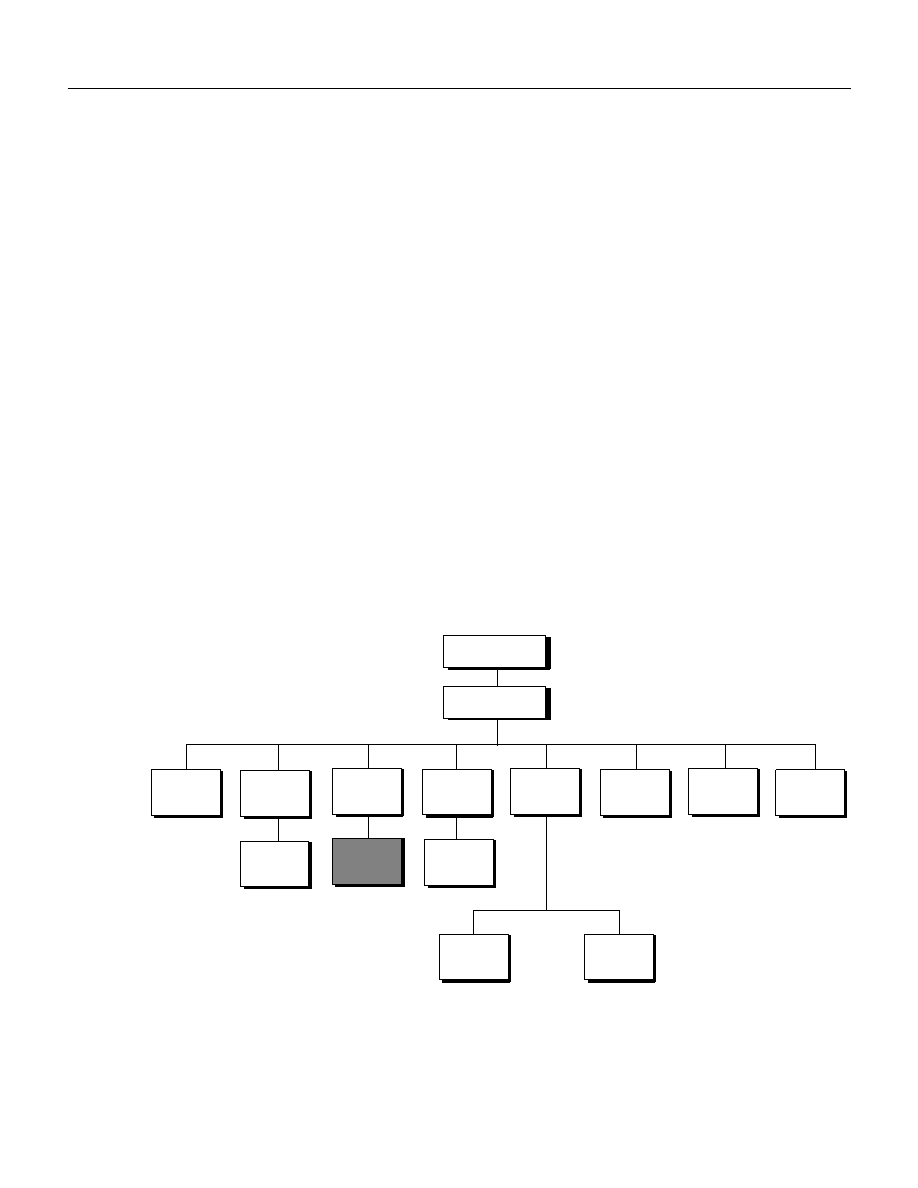
Photoshop CS2’s Object Model
To create efficient scripts, you need to understand the containment hierarchy of the Photoshop CS2 object
model.
.
Application
Document
Art Layer
Channel
Histogram
Selection
History
State
Object Model Classes
Array
Text Item
Layer Set
Layer Set
Path Item
Path Point
(Object)
Notifier
Info
Document
Art Layer

Photoshop CS2
Adobe Photoshop CS2 Scripting Guide
Scripting basics 9
The following table provides information about each object.
Object Elements and Collections
When you add an object to your script, the object is included automatically in an object element
(AppleScript) or collection (VBScript, JavaScript). The objects in a single element or collection are identical
types of objects. For example, each
Channel
object in your script belongs to a
Channels
element or
collection; each
Art Layer
object belongs to an
Art
Layers
element or collection.
Object Name
Description
To create this object without
using a script:
Application
The Photoshop CS2 application
Start the Photoshop CS2
application.
Document
The working object, in which you create layers,
channels, actions, and so on. In a script, you name,
open, or save a document as you would a file in the
application.
In Photoshop CS2, choose
File > New or File > Open.
Selection
The selected area of a layer or document.
Choose the marquee or lasso
tools and drag your mouse.
Path Item
A drawing object, such as the outline of a shape or a
straight or curved line
Choose the path selection or
pen tools and draw a path with
the mouse.
Channel
Pixel information about an image’s color
Choose Window > Channels.
Art Layer
A layer class within a document that allows you to
work on one element of an image without affecting
other elements in the image.
Choose Layer > New > Layer
or Window > Layers.
Layer Set
A collection of
Art Layer
objects.
Choose Layer > New >
Layer Set.
Document Info
Metadata about a
Document
object.
Note:
Metadata is any data that helps to describe
the content or characteristics of a file, such
filename, creation date and time, author
name, the name of the image stored in the
file, etc.
Choose File > File Info.
Notifier
Notifies a script when an event occurs; the event
then triggers the script to execute. For example,
when a user clicks an OK button, the notifier object
tells the script what to do next.
Choose File > Scripts > Script
Events Manager.
History State
Stores a version of the document in the state the
document was in each time you saved it.
Note:
You can use a
History State
object to fill a
Selection
object or to reset the document
to a previous state.
Choose Window > History,
and then choose a history
state from the History
palette.

Photoshop CS2
Adobe Photoshop CS2 Scripting Guide
Scripting basics 10
Note:
Your scripts place objects in elements or collections even when there is only one object of that type
in the entire script, that is, only one object in the element or collection.
When you add an object, the object is numbered automatically within its respective element or collection.
You can identify the object in other script statements by using its element or collection name and assigned
number.
Using the house example, when you add a room to your house, your script stores a number that identifies
the room. If it’s the first room you’ve added, your AppleScript considers the room to be room1; your
VBScript script or JavaScript considers the room to be room0.
Here’s how the scripting languages handle the automatic numbering if you add a second room:
●
AppleScript considers the new room room1 and renumbers the previously added room so that it
becomes room2. AppleScript object numbers shift among objects to indicate the object that you
worked with most recently. See the AppleScript section in
Element or Collection’ on page 10
for further details on this topic.
●
VBScript or JavaScript numbers are static; they don’t shift when you add a new object to the collection.
Object numbering in VBScript and JavaScript indicates the order in which the objects were added to
the script. Because the first room you added was considered room0, the next room you add is
considered room1; if you add a third room, it is labeled room2.
When you add an object that is not a room, the numbering starts all over for the new object element or
collection. For example, if you add a door, your AppleScript considers the door to be door1; your VBScript
script or JavaScript considers the door door0.
Note:
You can also name objects when you add them. For example, you can name the rooms livingRoom
and bedRoom. If an object has a name, you can refer to the object in your script either by name or by
the element/collection name followed by the assigned number.
Generally, beginning scripters are encouraged to use object names in AppleScript.
In VBScript or JavaScript, you’ll find object numbers very useful. For example, you may have several files in
which you want to make the background layer white. You can write a script that says "Open all files in this
folder and change the first layer’s color to white." If you didn’t have the capability of referring to the layers
by number, you’d need to include in your script the names of all of the background layers in all of the files.
Chances are, if you created the files using the Photoshop CS2 application rather than a script, the layers
don’t even have names.
Indexes or Indices
An object’s number in an element or collection is called an index.
Referring to an Object in an Element or Collection
A collection or element name is the plural version of the object type name. For example, an element or
collection of
Document
objects is called documents. In JavaScript and VBScript, you can use the collection
name and the index to refer to an object. The syntax is slightly different in AppleScript.
The following code samples demonstrate the correct syntax for using an object’s index when referring to
the object.
Tip:
Remember that VBScript and JavaScript indices begin with 0. Beginning your count with 0 may seem
confusing, but as you learn about scripting, you’ll find that using 0 gives you added capabilities for
getting your scripts to do what you want.

Photoshop CS2
Adobe Photoshop CS2 Scripting Guide
Scripting basics 11
AS
In AppleScript, you use the object type name followed by a space and then the index. The following
statement refers to the current document. Notice that the element name is implied rather than used
explicitly.
document 1
Note:
If the element name were used, this statement would be
document 1 of documents
.
AppleScript abbreviates the syntax by inferring the element name from the object type name.
In AppleScript, the number that refers to an object in an element changes when the script manipulates
other objects. Unless you update the older art layer’s status to “active layer”, references made to
art
layer 1
of current document refer to the new layer.
Note:
‘Setting the Active Object’ on page 39
for more information about selecting the active
layer.
Tip:
For beginning scripters, it’s a good idea to name all objects in your AppleScripts and then refer to the
objects by name.
VBS
In VBScript, you use the collection name followed by the index enclosed in parentheses. There is no space
between the collection name and the parentheses.
Documents(1)
JS
In JavaScript, the collection name is followed by the index in square brackets with no space between the
object name and the brackets.
documents[0]
Object References
Because scripts use a containment hierarchy, you can think of an object reference as being similar to the
path to a file.
You can use an object’s name or index to refer to the object. (See
‘Indexes or Indices’ on page 10
The following code samples demonstrate the syntax for referring to an
artLayer
object named Profile,
which was the first layer added to the
layerSet
object named Silhouettes, which in turn was the first
layer added to the current document:
AS
Object index reference:
layer 1 of layer set 1 of current document
Object name reference:
layer "Profile" of layer set "Silhouettes" of current document
Note:
When you refer to an object by name, you must enclose the name in double quotes ("").
You can also combine the two types of syntax:
layer 1 of layer set "Silhouettes" of current document

Photoshop CS2
Adobe Photoshop CS2 Scripting Guide
Scripting basics 12
VBS
Object index reference:
appRef.ActiveDocument.LayerSets(0).Layers(0)
Object name reference:
appRef.ActiveDocument.LayerSet("Silhouettes").Layer(“Profile”)
You can also combine the two types of syntax:
appRef.ActiveDocument.LayerSets(1).Layer(“Profile”)
Tip:
Notice that when you refer to an object by its assigned name you use the object classname, which is
singular (
LayerSet
or
Layer
). When you use a numeric index to refer to an object, you use the
collection name, which is plural (
LayerSets
or
Layers
).
JS
Object index reference:
app.documents[1].layerSets[0].layers[0]
Object name reference:
appRef.document(“MyDocument”).layerSet("Silhouettes").layer(“Profile”)
You can also combine the two types of syntax:
appRef.activeDocument.layerSet("Silhouettes").layers[0]
Note:
When you refer to an object by its assigned name you use the object classname, which is singular
(
document
or
layerSet
or
layer
). When you use a numeric index to refer to an object, you use
the collection name, which is plural (
documents
or
layerSets
or
layers
).
Using Commands and Methods
Commands (in AppleScript) and methods (in VBScript and JavaScript) are directions you add to a script to
perform tasks or obtain results. For example, you could use the
open/Open/open()
command/method
to open a specified file.
Note:
You can use only the methods or commands associated with that object type. For example, you can
use the
open/Open/open()
command/method on a
Document
object but not on a
Selection
object which, obviously, cannot be opened.
●
Before using a command on an AppleScript object, look up either the object type or the
command in the Adobe Photoshop CS2 AppleScript Scripting Reference to be sure the association
is valid.
For example, you could look up
open
in the “Commands” chapter of the scripting reference; or
you could look up the
Document
object in the “Objects” chapter.
●
Before using a method on a VBScript or JavaScript object, look up the method in the Methods
table for the object type in the Adobe Photoshop CS2 Visual Basic Scripting Reference or the Adobe
Photoshop CS2 JavaScript Scripting Reference.
For example, you could look up the
Document
object in the “Interface” chapter, and then find
the object’s Methods table.
Commands and Command Properties
Commands (AppleScript) use normal English sentence syntax. The script statement begins with an
imperative verb form followed by a reference to the object upon which you want the script to perform the
task. The following AppleScript command prints the first layer of the current document:
print layer 1 of current document

Photoshop CS2
Adobe Photoshop CS2 Scripting Guide
Scripting basics 13
Some commands require additional data. In AppleScript, the
make new
command adds a new object. You
can specify properties for the object by enclosing the properties in brackets and preceding the brackets
with the phrase with properties. The following statement creates a new document that is four inches wide
and two inches high.
make new document with properties {width:4 as inches, height:2 as inches}
Note:
See
‘Setting the Active Object’ on page 39
for information on making sure your script
performs the task on the correct object.
Methods and Arguments
You insert methods at the end of a VBScript or JavaScript statement. You must place a period before the
method name to separate it from the rest of the statement.
The following VBScript statement prints the current document:
appRef.Documents(1).PrintOut
A method in JavaScript must be followed by parentheses, as in the following statement:
app.documents[0].print()
Some methods require additional data, called arguments, within the parentheses. Other methods have
optional arguments. The following statements use the
Add/add()
method to add a bitmap document
named myDocument that is 4000 pixels wide and 5000 pixels tall and has a resolution of 72 pixels per inch:
Note:
Even though the
Document
object in the following script statements is given a name
(myDocument), you use the object collection name when you add the object. See
an Object in an Element or Collection’ on page 10
for more information on object
collections. See
‘Object References’ on page 11
for information on object collection names
versus object names in a singular form.
VBS
appRef.Documents.Add(4000, 5000, 72, "myDocument", 5)
Note:
The enumerated value
5
at the end of the script statement indicates the value
psNewBitmap
for
the constant
PsNewDocumentMode
. The Adobe Photoshop CS2 Visual Basic Scripting Reference
contains detailed information about enumerated values and constants.
JS
app.documents.add(4000, 5000, 72, "myDocument", DocumentMode.BITMAP)
Using Variables
A variable is a container for data you use in your script. For example, in the following AppleScript
statements the variables
docWidth
and
docHeight
replace the width and height specifications for the
new document.
●
Without variables:
make new document with properties {width:4 as inches, height:2 as inches}
●
With variables:
set docWidth to 4 inches
set docHeight to 2 inches
make new document with properties {docWidth, docHeight}

Photoshop CS2
Adobe Photoshop CS2 Scripting Guide
Scripting basics 14
Why Use Variables?
There are several reasons for using variables rather than entering values directly in the script.
●
Variables make your script easier to update or change. For example, if your script creates several 4 x 2
inch documents and later you want to change the documents’ size to 4 x 3 inches, you could simply
change the value of the variable
docHeight
from 2 to 3 at the beginning of your script and the entire
script would be updated automatically.
If you had used the direct value 2 inches to enter the height for each new document, updating the
document sizes would be much more tedious. You would need find and change each statement
throughout the script that creates a document.
●
Variables make your scripts reusable in a wider variety of situations. As a script executes, it can assign
data to the variables that reflect the state of the current document and selection, and then make
decisions based on the content of the variables.
Data Contained in Variables
The data that a variable contains is the variable’s value. To assign a value to a variable, you use an
assignment statement. A variable’s value can be a number, a string (a word or phrase or other list of
characters enclosed in quotes), an object reference, a mathematical expression, another variable, or a list
(including collections, elements, and arrays).
for information on using mathematical expressions or other
variables as values. See
‘Using Object Properties’ on page 18
for information about arrays.
Assignment statements require specific syntax in each scripting language. See
and Assigning Values’ on page 14
for details.
Creating Variables and Assigning Values
This section demonstrates how to create two variables named thisNumber and thisString, and then assign
the following values:
Note:
When you assign a string value to a variable, you must enclose the value in straight, double quotes
(""). The quotes tell the script to use the value as it appears without interpreting or processing it. For
example, 2 is a number value; "2" is a string value. The script can add, subtract, or perform other
operations with a number value. It can only display a string value.
AS
In AppleScript, you must both create and assign a value to a variable in a single statement. You can create
a variable using either the
set
command or the
copy
command.
With the
set
command, you list the variable name (called an identifier in AppleScript) first and the value
second, as in the following example:
set thisNumber to 10
set thisString to "Hello, World"
With the
copy
command, you list the value first and the identifier second.
copy 10 to thisNumber
copy "Hello World" to thisString
Variable
Value
thisNumber
10
thisString
"Hello World"

Photoshop CS2
Adobe Photoshop CS2 Scripting Guide
Scripting basics 15
Using the Variable in a Script
After declaring and assigning values to your variables, you use the variables in your script to represent the
value; you use only the variable name without the
set
or
copy
command. The following statement uses
the
display dialog
command to create a dialog box with the text Hello World.
display dialog thisString
Assigning an Object Reference as a Value
You can also use variables to store references to objects. (See
‘Object References’ on page 11
for an
explanation of object references.) The following statement creates a variable named
thisLayer
and as
its value, creates a new
Art Layer
object. When you use
thisLayer
in a script statement, you are
referring to the new layer.
set thisLayer to make new art layer in current document
You can also assign a reference to an existing object as the value:
set thisLayer to art layer 1 of current document
AppleScript Value Types
You can use the following types of values for variables in your AppleScripts.
Note:
For now, don’t worry about the value types you don’t understand.
VBS
To create a variable in VBScript, you use the
Dim
keyword at the beginning of the statement. The following
statements create the variables
thisNumber
and
thisString
.
Dim thisNumber
Dim thisString
You can declare multiple variables in a single
Dim
statement by separating the variables with a comma (,),
as follows:
Dim thisNumber, thisString
Value Type
What It Is
Sample Value
boolean
Logical true or false.
true
integer
Whole numbers (no decimal
points). Integers can be positive
or negative.
14
real
A number that may contain a
decimal point.
13.9972
string
A series of text characters.
Note:
Strings appear inside
(straight) quotation
marks.
"I am a string"
list
An ordered list of values. The
values of a list may be any type.
{10.0, 20.0, 30.0, 40.0}
object
A specific reference to an object.
current document
record
An unordered list of properties,
Each property is identified by its
label.
{name: "you", index: 1}

Photoshop CS2
Adobe Photoshop CS2 Scripting Guide
Scripting basics 16
To assign a value to a variable, you use the equals sign (=), as follows:
thisNumber = 10
thisString = "Hello, World"
Note:
Remember to enclose string values in straight, double quotes ("").
Another rule of thumb for proper scripting in VBScript is to declare all of your variables somewhere near
the beginning of the script. That way you can easily see which variables are in use without having to search
throughout the script for them.
The VBScript tool
Option Explicit
forces you to declare all variables before you use them in a script
statement. It also helps you avoid situations in which you try to use a misspelled variable name or an
undeclared variable. You use
Option Explicit
before you declare any variables, as in the following
code sample:
Option Explicit
Dim thisNumber
Dim thisString
thisNumber = 10
thisString = "Hello, World"
Assigning an Object Reference as a Value
You assign an object reference as the value of a variable, use the
Set
command as well as the equal sign.
The following example uses
Set
and the
Add
method to create the variable
thisLayer
, create a new
Art
Layer
object, and then assign the new
Art Layer
object as the value of
thisLayer
:
Dim thisLayer
Set thisLayer = AppRef.Documents(0).ArtLayers.Add
The next example uses
Set
to assign an existing
Art Layer
object (in this case, the third
Art Layer
object added to the script) as the value of
thisLayer
:
Dim thisLayer
Set thisLayer =AppRef.Documents(0).ArtLayers(2)
Using the Variable in a Script Statement
When you use variables in your script to represent values, you use only the variable name without the
Dim
or
Set
keyword. The following example rotates the selected section of the
Art Layer
object
represented by the variable
thisLayer
by 45 degrees:
thisLayer.Selection.Rotate(45)
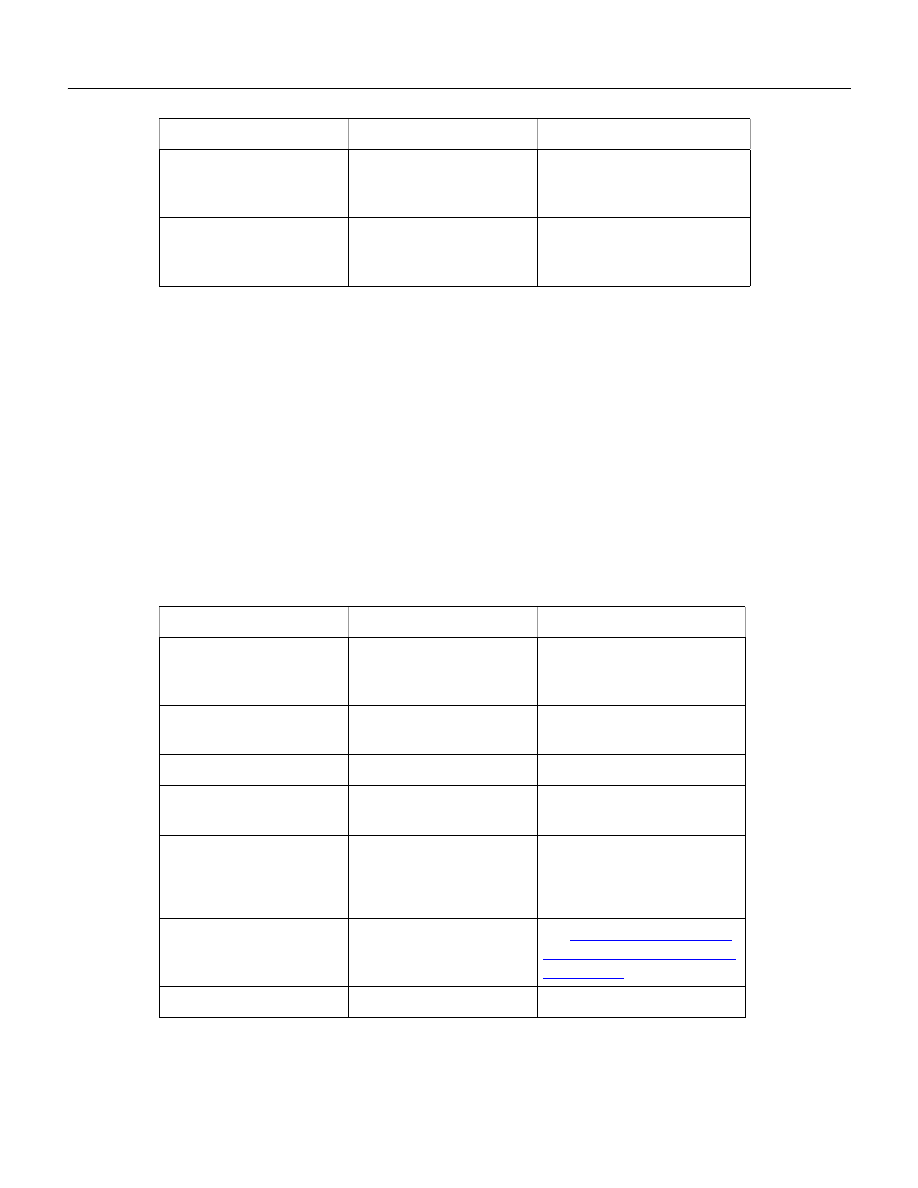
VBScript Value Types
You can use the following types of values for variables in VBScript.
Note:
For now, don’t worry about the value types you don’t understand.
Value Type
What It Is
Example
Boolean
Logical true or false
true
false
Empty
The variable holds no data
myVar = Empty
Error
Stores an error number
Null
The variable holds no valid
value (Usually used to test
an error condition)
null
Number
Any number not inside
double quotes
3.7
2000
Photoshop CS2
Adobe Photoshop CS2 Scripting Guide
Scripting basics 17
JS
The
var
keyword declares (that is, creates) variables in JavaScript. The following example uses separate
statements to declare and assign a value to the variable
thisNumber
; the variable
thisString
is
assigned and declared in a single statement.
var thisNumber
thisNumber = 10
var thisString = "Hello, World"
To assign a reference to an object in JavaScript, you use the same syntax as other JavaScript assignment
statements:
var docRef =
app.activeD
ocument
JavaScript Value Types
You can use the following types of values for variables.
Note:
For now, don’t worry about the value types you don’t understand.
Naming Variables
It’s a good idea to use descriptive names for your variables—such as
firstPage
or
corporateLogo
,
rather than names only you would understand and that you might not recognize when you look at your
Object
Properties and methods
belonging to an object or
array
activeDocument
Documents(1).ArtLayers(2)
String
A series of text characters.
Strings appear inside
(straight) quotation marks
"Hello"
"123 Main St."
" "
Value Type
What It Is
Example (Continued)
Value Type
What It Is
Examples
String
A series of text characters
that appear inside
(straight) quotation marks
"Hello"
"123 Main St."
" "
Number
Any number not inside
double quotes
3.7
15000
Boolean
Logical true or false
true
Null
Something that points to
nothing
Object
Properties and methods
belonging to an object or
array
activeDocument
Documents(1).artLayers(2)
Function
Value returned by a
function
.
Undefined
Devoid of any value
undefined

Photoshop CS2
Adobe Photoshop CS2 Scripting Guide
Scripting basics 18
script a year after you write it, such as
x
or
c
. You can also give your variable names a standard prefix so
that they’ll stand out from the objects, commands, and keywords of your scripting system. For example,
you could use the prefix “doc” at the beginning of any variables that contain
Document
objects, or “layer”
to identify variables that contain
Art Layer
objects.
●
Variable names must be a single word (no spaces). Many people use internal capitalization (such as
myFirstPage
) or underscore characters (
my_first_page
) to create more readable names.
●
Variable names cannot begin with a number or contain punctuation or quotation marks.
You can use underscore characters ( _ ), but not as the first character in the name.
●
Variable names in JavaScript and VBScript are case sensitive.
thisString
is not the same as
thisstring
or
ThisString
.
Variable names in AppleScript are not case sensitive.
Using Object Properties
Properties describe an object. For example, a
Document
object’s height and width properties describe the
document’s size.
To access and modify a property of an object, you name the object and then name the property. The
specific syntax varies by language. The following examples use the kind property of the
ArtLayer
object
to make the layer a text layer.
AS
You can specify properties using
with properties
at the end of the statement and enclosing the
properties in brackets ({ }). Within the brackets, you name the property and then type a colon (:) and the
property definition after the colon, as in the following sample.
make new art layer with properties {kind:text}
VBS
In VBScript, you use an object’s property by naming the object, then typing a period (.), and then typing
the property. Use the equals sign (=) to set the property value.
Set layerRef toArtLayers.Add
layerRef.Kind = 2
Note:
The
Kind
property value, 2, is a constant value. VBScript uses the enumerated constant values
rather than the text version of the value. To find constant values, refer to the “Constants’ chapter in
the appropriate scripting reference. For more information, see
.
JS
In JavaScript, you name the object, type a period (.), and then name the property, using the equals sign (=)
to set the property value.
var layerRef = artLayers.add()
layerRef.kind = LayerKind.TEXT
Note:
The
kind
property in JavaScript uses a constant value indicated by the upper case formatting. In
JavaScript, you must use constant values exactly as they appear in the scripting language reference.
To find constant values, refer to the “Constants’ chapter in the appropriate scripting reference. For
more information, see
‘Understanding and Finding Constants’ on page 19
.

Photoshop CS2
Adobe Photoshop CS2 Scripting Guide
Scripting basics 19
Understanding and Finding Constants
Constants are a type of value that defines a property. Using the example of the
kind
property of an
Art
Layer
object, you can define only specific kinds that Photoshop CS2 allows.
In JavaScript, you must use constants exactly as they are defined—with the exact spelling and
capitalization. In VBScript, you use a constant’s enumerated value.
Note:
Throughout this document, actual values of enumerations are given using the following format:
newLayerRef.Kind = 2 '2 indicates psLayerKind --> 2 (psTextLayer)
The ' before the explanation creates a comment and prevents the text to the right of the ' from being
read by the scripting engine. For more information, see
for more
information on comments.
A constant is indicated as a hypertext link in the Value Type column of the Properties table in the scripting
language reference. When you click the link, you can view the list of possible values for the property.
For example, look up the
Art Layer
object in the “Interface” chapter of any of the following references
on the installation CD:
●
Adobe Photoshop CS2 Visual Basic Scripting Reference
●
Adobe Photoshop CS2 JavaScript Scripting Reference
In the Properties table, look up
kind
. The Value Type column for
kind
contains a link. Click the link to view
the values you can use to define the
kind
property.
Note:
Different objects can use the same property with different constant values. The constant values for
the
Channel
object’s
kind
property are different than the constant values for the
Art Layer
object’s
kind
property.
Understanding Object Classes and Inheritance
In Photoshop CS2, every type of object— document, layer, etc.—belongs to its own class, each with its
own set of properties and behaviors.
Object classes may also “inherit,” or share, the properties of a parent, or superclass. When a class inherits
properties, we call that class a child or subclass of the class from which it inherits properties. In
Photoshop CS2,
Art Layer
objects, for example, inherit from the
Layer
class.
Classes can have properties that aren’t shared with their superclass. Using an example from our house
object, both window objects and door objects might inherit an "opened" property from the parent
Opening
class, but a window could have a
numberOfPanes
property which the
Opening
class could not
have.
In Photoshop CS2 for example,
Art Layer
objects have the property
grouped
which is not inherited
from the
Layer
class.
When you use the scripting language reference documents included on the installation CD, if you
encounter the term inherited from, it indicates that the object class you are looking at is a child class of the
parent class named in the definition.
Using Arrays
In VBScript and JavaScript, arrays are similar to collections; however, arrays are not created automatically.
You can think of an array as a list of values for a single variable. For example, the following JavaScript array
lists 4 values for the variable
myFiles
:
var myFiles = new Array ()
myFiles[0] = “clouds.bmp”

Photoshop CS2
Adobe Photoshop CS2 Scripting Guide
Scripting basics 20
myFiles[1] = “clouds.gif”
myFiles[2] = “clouds.jpg”
myFiles[3] = “clouds.pdf”
Notice that each value is numbered. To use a value in a statement, you must include the number. The
following statement opens the file
clouds.gif
:
open(myFiles[1])
The following sample includes the same statements in VBScript:
Dim myFiles (4)
myFiles(0) = “clouds.bmp”
myFiles(1) = “clouds.gif”
myFiles(2) = “clouds.jpg”
myFiles(3) = “clouds.pdf”
appRef.Open myFiles(1)
Documenting Scripts
You can document the details of your script by including comments throughout the script. Because of the
way they are formatted, comments are ignored by the scripting system as the script executes.
Comments help clarify (to humans, including yourself ) what your script does. It is generally considered
good programming practice to document each bit of logic in your script.
You use comments to:
●
Help you remember the purpose of a section of your script.
●
Help you remember to include all the components you planned for your script. Unless you are an
experienced programmer, you can review your script by reading through the comments more easily
than you can by reading the code.
●
Help others understand your script. It’s possible that other people in your organization will need to use,
update, or debug your script.
Comment Syntax
You can create the following types of comments:
●
Single-line: An entire line is a comment and therefore ignored when your script runs.
●
End-of-line: The line begins with executable code, then becomes a comment which is ignored when
the script runs.
●
Multi-line: An entire block of text, which runs more than a single line in your script, is a comment.
The following sections demonstrate how to format comments in your scripts.
AS
To enter a single-line or end-of-line comment in an AppleScript, type two hyphens (--) before the
comment.
-- this is a single-line comment
set thisNumber to 10 --this is an end-of-line comment
To include a multi-line comment, start your comment with a left-parenthesis followed by an asterisk ( (* )
and end with an asterisk followed by a right-parenthesis ( *) ), as in the following example.
(* this is a
multi-line comment *)

Photoshop CS2
Adobe Photoshop CS2 Scripting Guide
Scripting basics 21
Note:
Generally, your scripts are easier to read if you format all comments as single-line comments
because the comment status of the line is indicated at the beginning of the line.
VBS
In VBScript, enter a single straight quote ( ' ) to the left of the comment.
' this is a comment
Dim thisString ' this is an end-of-line comment
Note:
VBScript does not support multi-line comments. To comment out more than one line, begin each
line with a single straight quote.
JS
In JavaScript, use the double forward slash to comment a single or partial line:
// This comments until the end of the line
var thisString = "Hello, World" // this comments until the end of the line as well
Enclose multi-line comments in the following notation /* */.
/* This entire
block of text
is a comment*/
Note:
Generally, your scripts are easier to read if you format all comments as single-line comments
because the comment status of the line is indicated at the beginning of the line.
Using Long Script Lines
In some cases, individual script lines are too long to fit on a single line in your script editor window.
AS
AppleScript uses the special character (¬) to show that the line continues to the next line.
This continuation character denotes a “soft return” in the script. Press Option-Return to type the character.
VBS
In VBScript, use a space followed by an underscore ( _).
JS
JavaScript does not require a line continuation character. When an individual statement is long to fit on a
single line, the next line simply wraps to the following line. However, to make your script easier to read,
you can use the space bar or Tab to indent the continuation line.
Note:
You can put more than one JavaScript statement on a single line if you separate the statements with
a semicolon (
;
). However, your scripts are easier to read if you start a new line for each statement.
Here is an example of putting two statements on a single line:
var thisNumber= 10; var thisString = "Hello, World"
Creating a Sample Hello World Script
It’s time to put the scripting concepts you’ve just learned into practice. Traditionally, the first thing to
accomplish in any programming environment is the display of a "Hello World" message.
Photoshop CS2
Adobe Photoshop CS2 Scripting Guide
Scripting basics 22
➤
Our Hello World scripts will do the following:
1. Open the Photoshop CS2 application.
2. Create a new
Document
object.
When we create the document, we will also create a variable named
docRef
and then assign a
reference to the document as the value of
docRef
. The document will be 4 inches wide and 2 inches
high.
3. Create an
Art Layer
object.
In our script, we will create a variable named
artLayerRef
and then assign a reference to the
Art
Layer
object as the value of
artLayerRef
.
4. Define
artLayerRef
as a text item.
5. Set the contents of the text item to "Hello World".
Note:
We will also include comments throughout the scripts. In fact, because this is our first script, we will
use comments to excess.
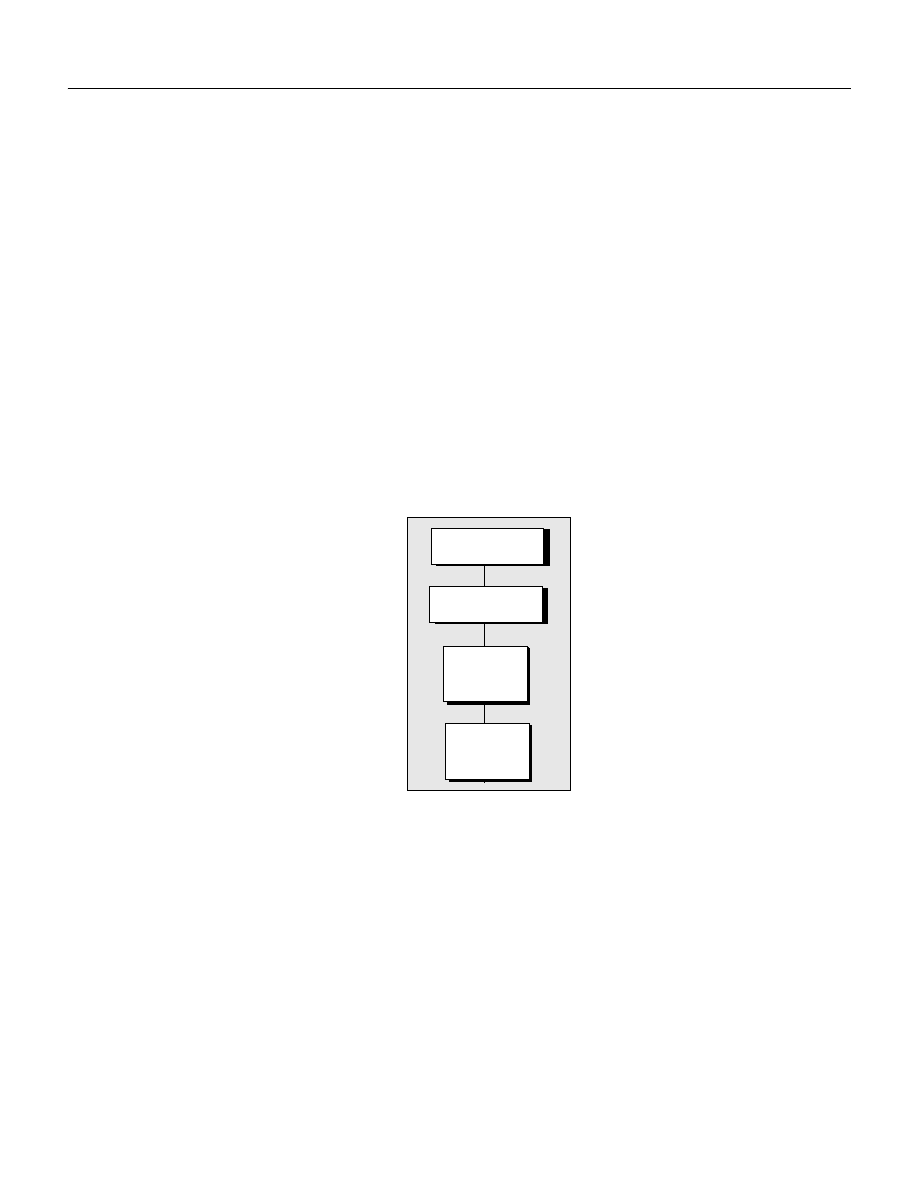
These steps mirror a specific path in the containment hierarchy, as illustrated below.
Creating and Running an AppleScript
You must open Apple’s Script Editor application in order to complete this procedure.
Note:
The default location for the Script Editor is Applications > AppleScript > Script Editor.
➤
To create and run your first Photoshop CS2 AppleScript:
1. Enter the following script in the Script Editor:
Application
Document
Art Layer
Text Item

Photoshop CS2
Adobe Photoshop CS2 Scripting Guide
Scripting basics 23
Note:
The lines preceded by “--” are comments. Entering the comments is optional.
-- Sample script to create a new text item and
-- change its contents.
--target Photoshop CS2
tell application "Adobe Photoshop CS2"
-- Create a new document and art layer.
set docRef to make new document with properties ¬
{width:3 as inches, height:2 as inches}
set artLayerRef to make new art layer in docRef
-- Change the art layer to be a text layer.
set kind of artLayerRef to text layer
-- Get a reference to the text object and set its contents.
set contents of text object of artLayerRef to "Hello, World"
end tell
2. Click Run to run the script. Photoshop CS2 creates a new document, adds a new layer, changes the
layer’s type to text and sets the text to “Hello, World”
Note:
If you encounter errors, see
‘AppleScript Debugging’ on page 32
Creating and Running a VBScript
Follow these steps to create and run a VBScript that displays the text Hello World! in a Photoshop CS2
document.
➤
To create and run your first Photoshop CS2 VBScript:
1. Type the following script into a script or text editor.
Note:
Entering comments is optional.
Dim appRef
Set appRef = CreateObject( "Photoshop.Application" )
' Remember current unit settings and then set units to
' the value expected by this script
Dim originalRulerUnits
originalRulerUnits = appRef.Preferences.RulerUnits
appRef.Preferences.RulerUnits = 2
' Create a new 4x4 inch document and assign it to a variable.
Dim docRef
Dim artLayerRef
Dim textItemRef
Set docRef = appRef.Documents.Add(4, 4)
' Create a new art layer containing text
Set artLayerRef = docRef.ArtLayers.Add
artLayerRef.Kind = 2
' Set the contents of the text layer.
Set textItemRef = artLayerRef.TextItem
textItemRef.Contents = "Hello, World!"
' Restore unit setting
appRef.Preferences.RulerUnits = originalRulerUnits

Photoshop CS2
Adobe Photoshop CS2 Scripting Guide
Scripting basics 24
2. Save file as a text file with a
.vbs
file name extension.
3. Double-click the file in Windows Explorer to run the script.
The script opens Photoshop CS2.
Creating and Running a JavaScript
Follow these steps to create and run a JavaScript that displays the text Hello World! in a Photoshop CS2
document.
Because you will be actually using Photoshop CS2 to run your JavaScripts, it is not necessary to include
code that opens Photoshop CS2 at the beginning of the script.
Note:
Adobe has created the Extend Script scripting language to augment JavaScript for use with
Photoshop CS2. You can use the Extend Script command
#target
to target the Photoshop CS2
application and create the ability to open JavaScripts that manipulate Photoshop CS2 from
anywhere in your file system. See the “Script UI” chapter of the Adobe Photoshop CS2 JavaScript
Scripting Reference for more information.
➤
To create and run your first Photoshop CS2 JavaScript:
1. Type the following script.
Note:
Entering comments is optional.
// Hello Word Script
// Remember current unit settings and then set units to
// the value expected by this script
var originalUnit = preferences.rulerUnits
preferences.rulerUnits = Units.INCHES
// Create a new 4x4 inch document and assign it to a variable
var docRef = app.documents.add( 4, 4 )
// Create a new art layer containing text
var artLayerRef = docRef.artLayers.add()
artLayerRef.kind = LayerKind.TEXT
// Set the contents of the text layer.
var textItemRef = artLayerRef.textItem
textItemRef.contents = "Hello, World"
// Release references
docRef = null
artLayerRef = null
textItemRef = null
// Restore original ruler unit setting
app.preferences.rulerUnits = originalUnit
2. Save file as a text file with a
.jsx
file name extension in the Presets > Scripts folder in your Adobe
Photoshop CS2 directory.
Note:
You must place your JavaScripts in the Presets > Scripts folder in order to make the scripts
accessible from the File > Scripts menu in Photoshop CS2. The scripts do not appear on the File
> Scripts menu until you restart the application.
Note:
Photoshop CS2 also supports JavaScript files that use a
.js
extension.

Photoshop CS2
Adobe Photoshop CS2 Scripting Guide
Scripting basics 25
3. Do either of the following:
●
If Photoshop CS2 is already open, choose File > Scripts > Browse, and then navigate to the Presets
> Scripts folder and choose your script.
●
Start or restart Photoshop CS2, and then choose File > Scripts, and then select your script from the
Scripts menu.
What’s Next
The remainder of this chapter provides information about general scripting tips and techniques.
Experienced AppleScript writers and VBScript and JavaScript programmers may want to skip to Chapter 3,
for specifics on scripting Photoshop CS2.
Using Operators
Operators perform operations on variables or values and return a result. In the following table, the
examples use the following variables:
●
thisNumber =10
●
thisString = "Pride"
Comparison Operators
You can use a different type of operator to perform comparisons such as equal to, not equal to, greater
than, or less than. These are called comparison operators. Consult a scripting language guide, such as the
guides listed in this document’s
, for information on comparison operators.
Operator
Operation
Example
Result
+
add
thisNumber
+ 2
12
-
subtract
thisNumber
- 2
8
*
multiply
thisNumber
* 2
20
/
divide
thisNumber
/2
5
=
assign
thisNumber
= 10
10
+ (JS and
VBS only)
concatenate
a
a.
Concatenation operations combine two strings. Note that a space has been added at the
beginning of the string " and Prejudice"; without the space following the first enclosing quote,
the result would be:
Prideand Prejudice
thisString
+ " and
Prejudice"
Pride and Prejudice
& (AS and
VBS only)
concatenate
b
b.
See note a.
thisString
& " and
Prejudice"
Pride and Prejudice

Photoshop CS2
Adobe Photoshop CS2 Scripting Guide
Scripting basics 26
Using Conditional Statements
Conditional statements give your scripts a way to evaluate something and then act according to the result.
For example, you may want your script to detect the blend mode of a layer or the name or date of a history
state.
Most conditional statements contain the word
if
, or the words
if
and
then
.
The following examples check whether any documents are open; if no documents are open, the scripts
display a dialog box that contains the message “No Photoshop CS2 documents are open!”. If one or more
documents are open, then no dialog is displayed.
AS
tell application "Adobe Photoshop CS2"
(*create a variable named docCount to contain the document count,
then use the count command to get the value*)
set docCount to count every document
if docCount = 0 then
display dialog "No Photoshop CS2 documents are open!"
end if
end tell
VBS
'create a variable named docCount for the document count, open Photoshop
Dim docCount As long
Dim appRef As New Photoshop CS2.Application
'use the count property of the Documents collection object to count the number of
open documents
docCount = appRef.Documents.Count
If docCount = 0 Then
Alert "No Photoshop CS2 documents are open!"
End If
JS
//create a variable named docCount,
//then get its value using
//the length property of the documents (collection) object*/
var docCount = documents.length
if (docCount == 0)
{
alert("No Photoshop CS2 documents are open!")
}
Loops
Loops are control structures that repeat a process until the script achieves a specific goal, status, or
condition.
Simple Loops
The simplest loops repeat a series of script operations a set number of times. Although you’ll find more
substantial uses for loops, the following scripts use a variable named
counter
to demonstrate how to
display a dialog box that contains the number 1, then display another dialog that contains the number 2,
and then display a third dialog that contains 3.

Photoshop CS2
Adobe Photoshop CS2 Scripting Guide
Scripting basics 27
AS
Set counter to 1
repeat with counter from 1 to 3
display dialog counter
end repeat
VBS
In VBScript, this type of loop is called a For-Next loop.
Dim counter As Integer
For counter = 1 to 3
Alert counter
Next
JS
In JavaScript, this type of loop is called a for loop.
Note:
In the following script, the variable that contains the counter is named i. This represents an
exception to the rule of thumb for good naming practices for variables. However, i is a traditional
counter variable name and most script writers recognize its meaning, especially when i is used in a
loop. See
for details on variable naming practices.
var i
for (i =1; i < 4; i=i + 1)
{
alert(i)
}
The condition in the
for
loop contains three statements (separated by semicolons):
●
i = 1
— Set the value of
i
to 1.
●
i<4
— If
i
is less than 4, execute the statement in brackets; if
i
is equal to or more than 4, stop and
don’t do anything else with this loop.
●
i=i + 1
— After executing the statement in the brackets, add 1 to the value of
i
.
Note:
The equation
i=i + 1
can be abbreviated to
i++
.
More Complex Loops
A more complicated type of loop includes conditional logic, so that it performs a task while or until some
condition is true. Conditional statements in a script can include the words while, until, or if — just like in
English.
For example, you could make the conditional statement “I’ll use scripts only if they make my life easier.”
Another way to say this is, “I’ll use scripts only on the condition that they make my life easier.”
Similarly, in the sentence, “I’ll write scripts only while I’m at work,” the condition is being at work. The same
condition is worded with a slight difference in the following sentence: “I’ll write scripts only until I leave
work.”
➤
The following scripts use while loops to do the following:
1. Display a “Quit?” dialog.
The dialog contains two possible responses: an OK button and a Cancel button.
2. When the user clicks Cancel (for “Don’t quit.”), the script displays the dialog again.

Photoshop CS2
Adobe Photoshop CS2 Scripting Guide
Scripting basics 28
3. When the user clicks OK (for “Please quit!”), the script displays a different dialog that asks if the user is
sure they want to quit.
4. When the user clicks Cancel in the new dialog, they see the second dialog again.
5. When the user clicks OK, the loop ends and the dialogs quit appearing.
AS
--create a variable named flag and make its value false
set flag to false
--create the loop and the condition
repeat until flag = true
--the following assumes that a yes response evaluates to true
set flag to button returned of (display dialog "Quit?" ¬
buttons {"OK", "Cancel"}) = "OK"
end repeat
--change the value of flag back to false for the new loop
set flag to false
--create the new loop
repeat while flag = false
set flag to button returned of (display dialog "Are you sure?" ¬
buttons {"OK", "Cancel"}) = "Cancel"
end repeat
VBS
'create a variable named flag of type Boolean and
'set its value to False
Dim flag As Boolean
flag = False
'create the loop and the condition
Do While flag = False
retVal = Alert("Quit?", vbOKCancel)
If (retVal = vbCancel) Then
flag = True
End If
Loop
flag = False
Do Until flag = True
retVal = Alert("Quit?", vbOKCancel)
If (retVal = vbOK) Then
flag = True
End If
Loop
JS
//create a variable named flag and make its value false
var flag = false
//create the loop and the condition
while (flag == false)

Photoshop CS2
Adobe Photoshop CS2 Scripting Guide
Scripting basics 29
{
/*create a confirm dialog with the text Quit?
and two response buttons
change the value of flag to the selected response*/
flag = confirm("Quit?")
}
//change the value of flag back to false
var flag = false
do
{
flag = confirm("Are you sure?")
}
while (flag == false)
Using Subroutines, Handlers and Functions
Subroutines are scripting modules you can refer to from within your script. They allow you to re-use parts
of scripts.If you find yourself typing or pasting the same lines of code into several different places in a
script, you’ve identified a good candidate for a subroutine.
Note:
Subroutines can also be called handlers, functions, or routines; these terms can have slight
differences in different scripting languages. In VBScript, a function is a subroutine that returns a
value. JavaScript generally uses the term function; AppleScript generally uses the term handler.
You can pass one or more values to a subroutine or function; you can receive one or more values in return.
For example, you could pass a single measurement value (such as inches) to a function and ask the
function to return the equivalent value in a different measurement system (such as centimeters). Or you
could ask a function to return the geometric center point of an object from its geometric bounds.
The following samples demonstrate simple subroutine syntax, followed by a more complex subroutine
example.
AS
You enclose a handler in the words
on
and
end
.
Simple Handler
This sample defines a handler named
helloWorld()
that, when called from a script, displays a dialog
with the message Hello World.
on helloWorld()
display dialog “Hello World”
end
To call the handler, you simply include it in your script.
tell Application “Photoshop CS2”
helloWorld()
end tell
When the script runs, the handler enacts the statements in the handler definition.
Complex Handler
The following script displays a dialog with the message Are you sure? and two buttons: Yes and No.
set flag to DoConfirm ("Are you sure?")
display dialog flag as string
'create a handler named DoConfirm

Photoshop CS2
Adobe Photoshop CS2 Scripting Guide
Scripting basics 30
on DoConfirm(prompt)
set button to button returned of (display dialog prompt ¬
buttons {"Yes", "No"} default button 1)
return button = "Yes"
end DoConfirm
VBS
In VBScript, subroutines begin with the keyword
Sub
and do not return a value. If you would like your
subroutine to return a value, you must make it a function. Functions begin with the keyword
Function
.
Subroutine
The following subroutine, which is named
HelloWorld()
, simply displays a message box with the
message Hello World.
Sub HelloWorld()
Alert "Hello World"
End Sub
To call the subroutine, you include it in a script. The following example displays a Hello World message
when a user clicks CommandButton1.
Private Sub CommandButton1_Click()
HelloWorld
End Sub
Function
The following script presents a form with one command button. When a user clicks the button, a dialog
appears with the message Are you sure? and two buttons: Yes and No. When the user clicks a button,
another dialog appears that displays the Boolean value of the clicked button: Yes = True; No = False.
'create a subroutine that calls the function DoConfirm
'and assigns it to the variable named Result
Private Sub CommandButton1_Click()
Result = DoConfirm("Are you sure?")
Alert Result
End Sub
'define the function
Function DoConfirm(prompt)
buttonPressed = Alert (prompt, vbYesNo)
DoConfirm = (buttonPressed = vbYes)
End Function
JS
In JavaScript, all subroutines are functions. The following sample script is a JavaScript version of the
VBScript sample function in the previous example.
/*create a variable and assign its value as the return value
of the function named DoConfirm*/
var theResult = DoConfirm( "Are you sure?" )
//display an alert box with the assigned value as its message
alert(theResult)
//define DoConfirm
function DoConfirm(message)
{
var result = confirm(message)
return result

Photoshop CS2
Adobe Photoshop CS2 Scripting Guide
Scripting basics 31
}
Executing JavaScripts from AS or VBS
You can take advantage of JavaScript’s platform-independence by running scripts from AppleScript or
VBScript. You can execute either a single JavaScript statement or a complete JavaScript file.
AS
To run a JavaScript from AppleScript, you use the
do javascript
command.
The following sample executes a single JavaScript command, which displays an alert box with the text
alert text.
do javascript "alert('alert text')"
To pass a JavaScript file, you can create a reference to the file using
as alias
or
to a reference to
file
as shown in the following examples
set scriptFile to "applications: scripts: myscript" as alias
do javascript scriptFile
set scriptFile to a reference to file "applications: scripts: myscript"
do javascript scriptFile
Note:
Refer to an AppleScript language guide or text book for information on referencing a file using
either
as alias
or
to a reference to file
.
VBS
In VBScript, use the
DoJavaScript
method to execute a single JavaScript command.
objApp.DoJavaScript ("alert('alert text')")
To open a JavaScript file, use the
DoJavaScriptFile
method. The following sample opens a file on the
D:\\
drive.
Dim appRef As Photoshop.Application
Set appRef = CreateObject("Photoshop.Application")
appRef.DoJavaScriptFile ("D:\\Scripts\\MosaicTiles.jsx")
Passing AS or VBS Arguments to JavaScript
You can also pass arguments to JavaScript from either AppleScript or VBScript using the
with
arguments/(Arguments)
parameter of the
do javascript/DoJavaScript
or
DoJavaScriptFile
command or methods. The parameter takes an array to pass any values.
The following examples execute the following JavaScript, which is stored in a file named
JSFile.jsx
in
your Applications\Scripts folder:
alert( "You passed " + arguments.length + " arguments" )
for ( i = 0; i < arguments.length; ++i )
{
alert( arguments[i].toString() )
}
AS
tell application "Adobe Photoshop CS2"
make new document
do javascript (alias a path to the JavaScript shown above) ¬
with arguments {1, "test text", (fileApplications:Scripts:JSFile.jsx),¬
current document}

Photoshop CS2
Adobe Photoshop CS2 Scripting Guide
Scripting basics 32
end tell
VBS
Dim appRef As Photoshop.Application
Set appRef = CreateObject("Photoshop.Application")
appRef.DoJavaScriptFile "C:\\Applications\Scripts\JSFile.jsx", _
Array(1, "test text", appRef.ActiveDocument)
When running JavaScript from AppleScript or VBScript you can also control the debugging state. To do
this, use the
show debugger (ExecutionMode)
argument. The values for ExectionMode are:
●
NeverShowDebugger
Disables debugging from the JavaScript. Any error that occurs in the JavaScript
results in a JavaScript exception being thrown.
Note:
Refer to a JavaScript language guide for information on how to handle JavaScript exceptions.
See
for a listing of language guides.
●
DebuggerOnError
Automatically stops the execution of your JavaScript when a runtime error occurs
and shows the JavaScript debugger.
●
BeforeRunning
Shows the JavaScript debugger at the beginning of your JavaScript.
‘Testing and Troubleshooting’ on page 32
for more information about debugging.
Testing and Troubleshooting
The AppleScript and VBScript scripting environments provide tools for monitoring the progress of your
script while it is running—which makes it easier for you to track down any problems your script might be
encountering or causing.
AppleScript Debugging
Apple’s Script Editor application provides a syntax checking tool that you can use before you run your
script. Additionally, Script Editor calls out problems in the script when you run the script. To view more
details of how your script runs, display the Event Log and Results windows.
➤
To have Script Editor check your syntax:
1. Click Check Syntax in the Script Editor main window.
Note:
It is possible to create and compile scripts in AppleScript that will not run properly. You can
double-check your syntax by using the Event Log and when you run your script.
➤
To use the Event Log window when you run a script:
1. Choose Controls > Open Event Log.
The Script Editor displays the Event Log window.
2. Select Show Events and Show Events Results.
3. Click Run in the Script Editor main window.
As the script executes, you’ll see the commands sent to Photoshop CS2 and the responses.
Note:
You can display the contents of one or more variables in the log window by including the
log
command in your script. Specify the variables you want to display in brackets following the

Photoshop CS2
Adobe Photoshop CS2 Scripting Guide
Scripting basics 33
command. The following sample requests the display of the variables
myVariable
and
otherVariable
.
log {myVariable, otherVariable}
➤
To view results in the Results window rather than the Event Log:
1. Choose Controls > Show Result.
Note:
Third-party editors offer additional debugging features.
VBScript Debugging
The Windows Script Host cancels your script and displays an error message when you try to run a VBScript
that contains faulty syntax or other code errors. The error message names the script and indicates the line
in and character position in which it believes the error is located, along with an error description. You can
use this information as a guideline. However, often, the syntax error is in the line preceding the error
description in the message.
You can trace the execution of your script elements when the script is running by adding MsgBox
commands. A MsgBox command stops your script at point where the command has been inserted and
displays a dialog with the message you included in the command. The syntax for a message box that
displays the message My Message is:
MsgBox (“My Message”)
Check your VBScript documentation for more information. Windows Scripting Host also provides
debugging information.
JavaScript Debugging
JavaScript debugging is described in detail in the Adobe Photoshop CS2 JavaScript Scripting Reference on
the Photoshop installation CD. Please refer to that document for further information.
Error Handling
Imagine that you’ve written a script that formats the current text selection. What should the script do if the
current selection turns out not to be text at all, but a path item? You can add error handling code to your
script to respond to conditions other than those you expect it to encounter.
The following example shows how you can stop a script from executing when a specific file cannot be
found. This example stores a reference to the document named
MyDocument
in a variable named
docRef
. If a document named
MyDocument
does not exist in the current document, the script displays a
message.
AS
—Store a reference to the document with the name "My Document"
—If “My Document” does not exist, display an error message
tell application "Adobe Photoshop CS2"
try
set docRef to document "My Document"
display dialog "Found 'My Document' "
on error
display dialog "Couldn't locate document 'My Document'"
end try
end tell

Photoshop CS2
Adobe Photoshop CS2 Scripting Guide
Scripting basics 34
VBS
Private Sub Command1_Click()
' Store a reference to the document with the name "My Document"
' If the document does not exist, display an error message.
Dim appRef As New Photoshop.Application
Dim docRef As Photoshop.Document
Dim errorMessage As String
Dim docName As String
docName = "My Document"
Set docRef = appRef.ActiveDocument
On Error GoTo DisplayError
Set docRef = appRef.Documents(docName)
Alert "Document Found!"
Exit Sub
DisplayError:
errorMessage = "Couldn't locate document " & "'" & docName & "'"
Alert errorMessage
End Sub
JS
try
{
for (i = 0; i < app.documents.length; ++i)
{
var myName = app.documents[i].name;
alert(myName)
}
}
catch(someError)
{
alert( "JavaScript error occurred. Message = " +
someError.description)
}
Bibliography
AS
For further information and instruction in using the AppleScript scripting language, see these documents
and resources:
●
“AppleScript for the Internet: Visual QuickStart Guide,” 1st ed., Ethan Wilde, Peachpit Press, 1998. ISBN
0-201-35359-8.
●
“AppleScript Language Guide: English Dialect,” 1st ed., Apple Computer, Inc., Addison-Wesley
Publishing Co., 1993. ISBN 0-201-40735-3.
●
“Danny Goodman’s AppleScript Handbook,” 2nd ed., Danny Goodman, iUniverse, 1998. ISBN
0-966-55141-9.
●
Apple Computer, Inc. AppleScript website:

Photoshop CS2
Adobe Photoshop CS2 Scripting Guide
Scripting basics 35
VBS
For further information and instruction in using VBScript and the VBSA scripting language, see these
documents and resources:
●
“Learn to Program with VBScript 6,” 1st ed., John Smiley, Active Path, 1998. ISBN 1-902-74500-0.
●
“Microsoft VBScript 6.0 Professional,” 1st ed., Michael Halvorson, Microsoft Press, 1998. ISBN
1-572-31809-0.
●
“VBS & VBSA in a Nutshell,” 1st ed., Paul Lomax, O’Reilly, 1998. ISBN 1-56592-358-8.
●
Microsoft Developers Network (MSDN) scripting website:
JS
For further information and instruction in using the JavaScript scripting language, see these documents
and resources:
●
“JavaScript: The Definitive Guide," David Flanagan, O’Reily Media Inc, 2002. ISBN 0-596-00048-0.
●
“JavaScript Bible," Danny Goodman, Hungry Minds Inc, 2001. ISBN 0-7645-4718-6.
●
“Adobe Scripting,” Chandler McWilliams, Wiley Publishing, Inc., 2003. ISBN 0-7645-2455-0.

36
3
Scripting Photoshop CS2
This chapter demonstrates several techniques for creating scripts to use specifically with Photoshop CS2.
More importantly, you will learn how to use the Photoshop CS2 scripting references to find the objects,
classes, properties, commands/methods, and even some values (called constants or enumerations) you can
use to create AppleScripts, VBScript scripts, and JavaScripts for Photoshop CS2.
Tip:
Throughout this chapter, the explanation of how to create a script is followed by instructions for
locating information about the specific elements used in the script. Using these instructions will help
you quickly understand how to script Photoshop CS2.
The explanations reference the following publications, which are available on the installation CD:
●
Adobe Photoshop CS2 AppleScript Scripting Reference
●
Adobe Photoshop CS2 Visual Basic Scripting Reference
●
Adobe Photoshop CS2 JavaScript Scripting Reference
Viewing Photoshop CS2 Objects, Commands and Methods
You can also view the reference data for AppleScript and VBScript within your script editor environment.
Note:
JavaScript is a cross-platform language and therefore does not require a specific script editor.
Viewing Photoshop CS2’s AppleScript Dictionary
You use Apple’s Script Editor application to view the dictionary.
Note:
The default location for the Script Editor is Applications > AppleScript > Script Editor.
➤
To view the AppleScript dictionary:
1. In Script Editor, choose File > Open Dictionary.
Script Editor displays an Open Dictionary dialog.
2. Choose Photoshop CS2, and then click Open.
Script Editor opens Photoshop CS2 and then displays the Photoshop CS2 dictionary, which lists objects
as well as the commands, properties and elements associated with each object. The dictionary also lists
the parameters for each command.
Note:
The Photoshop CS2 dictionary does not display the complete list of open and save formats. To view
the complete lists, look up the following commands in the Adobe Photoshop CS2 AppleScript
Scripting Reference:
●
open
●
save
Viewing Photoshop CS2’s Type Library (VBS)
You can use the VBA editor in Microsoft Word to display the objects and commands available for VBScript
in Photoshop CS2.

Photoshop CS2
Adobe Photoshop CS2 Scripting Guide
Scripting Photoshop CS2 37
➤
To view the VBS object library:
1. Start Word, and then choose Tools > Macro > Visual Basic Editor.
2. Choose Tools > References., and then select the Adobe Photoshop CS2 Type Library check box and
click OK.
3. Choose View > Object Browser.
4. Choose Photoshop CS2 type library from the list of open libraries shown in the top-left pull-down
menu.
5. Choose an object class to display more information abut the class.
Targeting and Referencing the Application Object
Because you run your AppleScript and VBScript scripts from outside the Photoshop CS2 application, the
first thing your script should do is indicate that the commands/methods be executed in Photoshop CS2.
Note:
In JavaScript, you do not need to target the
Application
object because you open the scripts from
the Photoshop CS2 application itself. (See
‘Creating and Running a JavaScript’ on
.)
AS
To target Photoshop CS2 in AppleScript, you must enclosing your script in the following statements:
tell application "Adobe Photoshop CS2"
…
end tell
Note:
Because you include all commands in the
tell
block, there is no need to reference the
Application
object throughout the script.
VBS
In VBScript, you can do any of the following to target the application:
Dim appRef
Set appRef = CreateObject("Photoshop.Application")
JS
In JavaScript, because you do not need to reference an
Application
object, all properties and methods of
the application are accessible without any qualification. You can reference the application as part of the
containment hierarchy or leave it out, whichever makes your scripts easier for you to read. The following
statements are equivalent:
var docRef = app.documents[1]
and
var docRef=documents[1]
Note:
JavaScript samples throughout this guide do not reference the
Application
object.
Creating New Objects in a Script
To create a new document in the Photoshop CS2 application, you select File > New. To create other types
of objects within a document, such as a layer, channel, or path, you use the Window menu or choose the

Photoshop CS2
Adobe Photoshop CS2 Scripting Guide
Scripting Photoshop CS2 38
New icon on the appropriate palette. This section demonstrates how to accomplish these same tasks in a
script.
To create an object in a script, you name the type of object you want to create and then use the following
command/method:
●
AS:
make
●
VBS:
Add
●
JS:
add()
As you can see in the Photoshop CS2 Object Model, the Document object contains all other objects except
the Application object. Therefore, you must reference the
Document
object when adding objects other
than
Document
objects to your script.
Note:
In VBScript and JavaScript, you use the object’s collection name to name the object type. For
example, you add a document to the
Documents
collection; you add an art layer to the
art layers
collection. See
‘Object Elements and Collections’ on page 9
for more information.
AS
The following statement creates a
Document
object in an AppleScript.
make new document
You can also use the
set
command to create a variable to hold a reference to a new document. In the
following example, the variable named
docRef
holds a reference to the new document:
set docRef to make new document
To create an object other than a document, you must reference the
Document
object that contains the
object. The following sample creates an art layer in the document contained in the variable named
docRef
.
make new art layer in docRef
Note:
When you create object in AppleScript, you actually add the object to an element the same way you
add a VBScript or JavaScript object to a collection. However, in AppleScript, the element name is
implied in the
make
or
set
statement. For example, the statement:
make new document
actually means:
make new document in the documents element
Do the following to find out more about creating objects in an AppleScript:
●
Look up the
make
and
set
commands in the “Commands” chapter in the Adobe Photoshop CS2
AppleScript Scripting Reference.
●
To find out which commands can be used with an object, look up the object or the object’s element
name in the “Objects” chapter in the Adobe Photoshop CS2 AppleScript Scripting Reference and check the
Valid Commands list. For example, look up “document” or “documents” to learn which commands can
be used with
Document
objects.
VBS
In VBScript, you can use the
Add
method only with the collection name. The
Add
method is not valid with
objects other than collection objects. Also, in VBScript, you must reference the
Application
object when
creating when creating, or referring to, an object in your script.
For example, to create a document in a VBScript script, you cannot use the object name, as in the following
sample, which creates a
Document
object:
appRef.Document.Add()

Photoshop CS2
Adobe Photoshop CS2 Scripting Guide
Scripting Photoshop CS2 39
You must use the collection name, which is a plural form of the object name, as follows:
appRef.Documents.Add()
Note:
In this sample statement, the
Application
object is referenced via a variable named
appRef
. See
‘Targeting and Referencing the Application Object’ on page 37
for more information.
To add an
ArtLayer
object, you must reference both the
Application
and
Document
objects that will
contain the art layer. The following sample references the
Application
object using the variable
appRef
and the
Document
object using the documents index rather than the
Document
object’s name.
appRef.Documents(0).ArtLayers.Add()
If you look up in the
Document
object in the Adobe Photoshop CS2 Visual Basic Scripting Reference, you will
see that there is no
Add()
method in the object’s Methods table. However, the
Add()
method is available
for the
Documents
object. Similarly, the
ArtLayer
object does not have an
Add()
method; the
ArtLayers
object does.
Note:
The
Layers
object is an exception because, although it is a collection object, it does not include an
Add()
method. The
Layers
collection includes both
ArtLayer
and
LayerSet
objects. For more
information, look up the
Layers
object in the scripting reference.
JS
In JavaScript, you can use the
add()
method only with the collection name. The
add()
method is not valid
with objects other than collection objects.
Similar to VBScript, the JavaScript statement to create a document is:
documents.add()
and not:
document.add()
Note:
You can include an
Application
object reference if you wish. The following statement is equivalent
to the previous sample:
app.documents.add()
To add an
ArtLayer
object, you must reference the
Document
object that will contain the layer.
documents(0).artLayers.add()
The
add()
method is associated with the JavaScript
Documents
object but not with the
Document
object
(refer to the Adobe Photoshop CS2 JavaScript Scripting Reference).
Similarly, the
ArtLayer
object does not have an
add()
method; the
ArtLayers
object does.
Note:
The
Layers
collection object does not include an
add()
method. For more information, look up the
Layers
object in the Adobe Photoshop CS2 JavaScript Scripting Reference.
Setting the Active Object
To work on a an object in the Photoshop CS2 application, you must make the object the front-most, or
active object. For example, to work in a layer, you must first bring the layer to the front.
In scripting, the same rule applies. If your script creates two or more documents, the commands and
methods in your script are executed on the active document. Therefore, to ensure that your commands are
acting on the correct document, it is good programming practice to designate the active document
before executing any commands or methods in the script.
To set an active object, do the following:
●
In AppleScript, you use the
current
property of the parent object.

Photoshop CS2
Adobe Photoshop CS2 Scripting Guide
Scripting Photoshop CS2 40
●
In VBScript, you use the
Active
Object
property of the parent object (such as
ActiveDocument
or
ActiveLayer
).
●
In JavaScript, you use the
active
Object
property of the parent object (such as
activeDocument
or
activeLayer
).
Note:
The parent object is the object that contains the specified object. For example, the application is the
parent of the document; a document is the parent of a layer, selection, or channel.
For example, if you search for
activeDocument
in the Adobe Photoshop CS2 JavaScript Scripting
Reference,you will find it is a property of the
Application
object; if you search for
activeLayer
or
activeHistoryState
, you will find they are properties of the
Document
object. Similarly, if you
search for
current
document in the Adobe Photoshop CS2 AppleScript Scripting Reference, you will
find it is a property of the
Class application
, and so on.
For sample scripts that set active objects, see the following sections.
●
‘Setting the Active Document’ on page 40
●
‘Setting the Active Layer’ on page 41
●
‘Setting the Active Channels’ on page 41
Setting the Active Document
The following examples demonstrate how to set the active document.
AS
--create 2 documents
set docRef to make new document with properties ¬
{width:4 as inches, height:4 as inches}
set otherDocRef to make new document with properties¬
{width:4 as inches, height:6 as inches}
--make docRef the active document
set current document to docRef
--here you would include command statements
--that perform actions on the active document. Then, you could
--make a different document the active document
--use the current document property of the application class to
--bring otherDocRef front-most as the new active document
set current document to otherDocRef
VBS
'Create 2 documents
Set docRef = app.Documents.Add ( 4, 4)
Set otherDocRef = app.Documents.Add (4,6)
'make docRef the active document
Set app.activeDocument = docRef
'here you would include command statements
'that perform actions on the active document. Then, you could
'make a different document the active document
'use the ActiveDocument property of the Application object to
'bring otherDocRef front-most as the new active document
Set app.ActiveDocument = otherDocRef

Photoshop CS2
Adobe Photoshop CS2 Scripting Guide
Scripting Photoshop CS2 41
JS
// Create 2 documents
var docRef = app.documents.add( 4, 4)
var otherDocRef = app.documents.add (4,6)
//make docRef the active document
app.activeDocument = docRef
//here you would include command statements
//that perform actions on the active document. Then, you could
//make a different document the active document
//use the activeDocument property of the Application object to
//bring otherDocRef front-most as the new active document
app.activeDocument = otherDocRef
Setting the Active Layer
The following examples demonstrate how to use the
current layer (ActiveLayer/activeLayer)
property of the
Document
object to set the active layer.
AS
set current layer of current document to layer “Layer 1” of current document
VBS
docRef.ActiveLayer = docRef.Layers("Layer 1")
Look up the
ActiveLayer
property in the Properties table of the
Document
object in the “Interface”
chapter of the Adobe Photoshop CS2 Visual Basic Scripting Reference.
JS
docRef.activeLayer = docRef.layers["Layer 1"]
Look up the
activeLayer
property in the Properties table of the
Document
object in the “Interface”
chapter of the Adobe Photoshop CS2 Scripting Guide.
Setting the Active Channels
More than one channel can be active at a time.
AS
Set the active channels to the first and third channel using a channel array:
set current channels of current document to ¬
{ channel 1 of current document, channel 3 of current document }
Alternatively, select all component channels using the
component channels
property of the
Document
object.
set current channels of current document to component channels ¬
of current document
VBS
Set the active channels to the first and third channel using a channel array:
Dim theChannels
theChannels = Array(docRef.Channels(0), docRef.Channels(2))
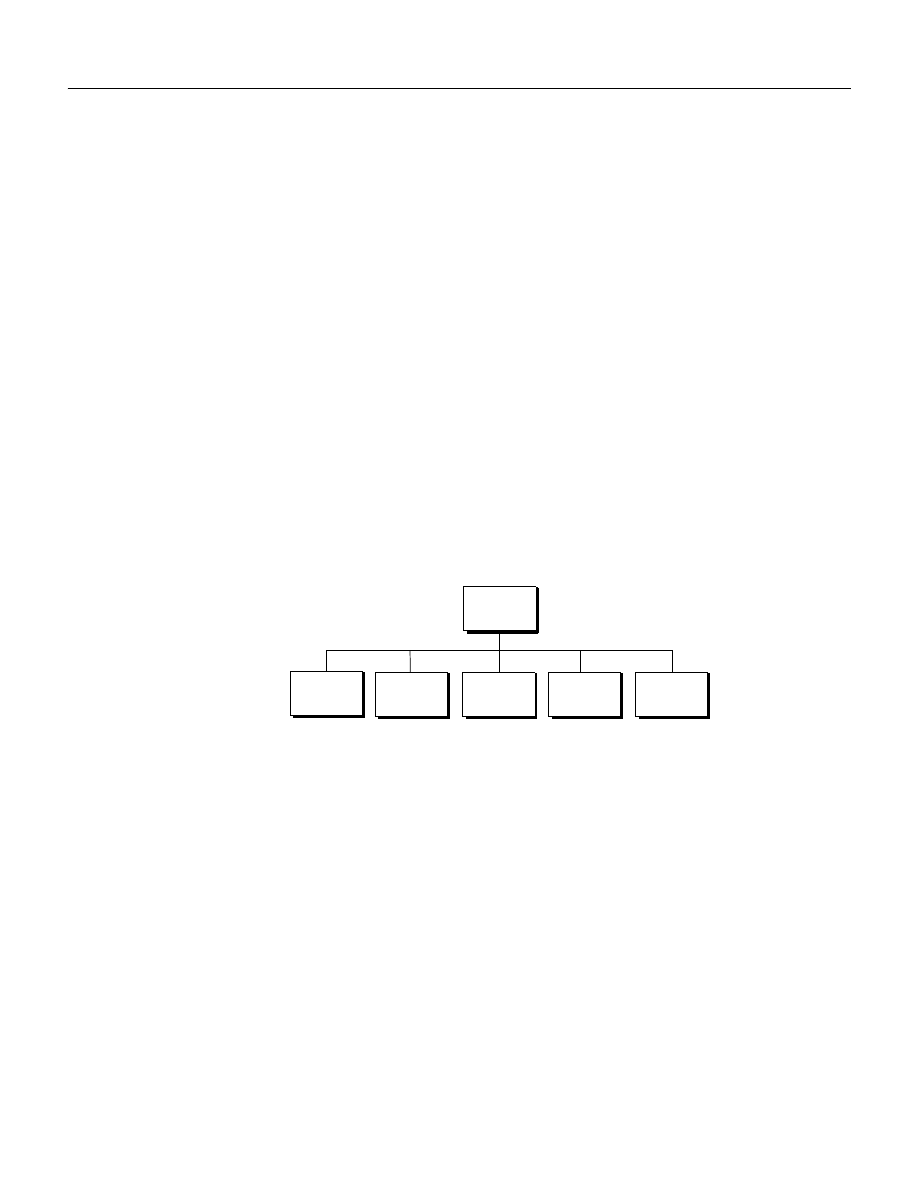
Photoshop CS2
Adobe Photoshop CS2 Scripting Guide
Scripting Photoshop CS2 42
docRef.ActiveChannels = theChannels
Alternatively, select all component channels using the
ComponentChannels
property of the
Document
object:
appRef.ActiveDocument.ActiveChannels= _
appRef.ActiveDocument.ComponentChannels
JS
Set the active channels to the first and third channel using a channel array:
theChannels = new Array(docRef.channels[0], docRef.channels[2])
docRef.activeChannels = theChannels
Alternatively, select all component channels by using the
componentChannels
property of the
Document
object:
app.activeDocument.activeChannels =
activeDocument.componentChannels
Opening a Document
You use the
open
/
Open
/
open()
command/method of the
Application
object to open an existing
document. You must specify the document name (that is, the path to the file that contains the document)
with the command/method.
Specifying File Formats to Open
Because Photoshop CS2 supports many different file formats, the
open/Open/open()
command lets you
specify the format of the document you are opening. If you do not specify the format, Photoshop CS2 will
infer the type of file for you. The following examples open a document using its default type:
AS
set theFile to alias "Applications:Documents:MyFile"
open theFile
or
set theFile to a reference to "Applications:Documents:MyFile"
open theFile
VBS
fileName = "C:\MyFile"
Set docRef = appRef.Open(fileName)
Open Classes
Open
Options
Camera
Raw
Generic
EPS
Raw
Photo CD
Generic

Photoshop CS2
Adobe Photoshop CS2 Scripting Guide
Scripting Photoshop CS2 43
JS
var fileRef = new File("//MyFile")
var docRef = app.open (fileRef)
Notice that in JavaScript, you must create a
File
object and then pass a reference to the object to the
open()
command.
For the document types on the following list, you can set options to specify how the document will be
opened, such as the height and width of the window in which the document is opened, which page to
open to in a multi-page file, etc.
●
PhotoCD
●
CameraRaw
●
RawFormat
●
Adobe PDF
●
EPS
To find out which options you can set for each of file type, look up the properties for the OpenOptions
objects that begin with the file format name. For example:
●
In the Adobe Photoshop CS2 AppleScript Scripting Reference look up the
Photo CD open options
class
or the
EPS open objects
class
.
●
In the Adobe Photoshop CS2 Visual Basic Scripting Reference and the Adobe Photoshop CS2 JavaScript
Scripting Reference, look up the
PhotoCDOpenOptions
or
EPSOpenOptions
objects.
The following examples demonstrate how to open a generic (multi-page/multi-image) PDF document
with the following specifications:
●
The document will open in a window that is 100 pixels high and 200 pixels wide.
●
The document will open in RGB mode with a resolution of 72 pixels/inch.
●
Antialiasing will be used to minimize the jagged appearance of the edges of images in the document.
●
The document will open to page 3.
●
The document’s original shape will change to conform to the height and width properties if the
original shape is not twice as wide as it is tall.
AS
tell application "Adobe Photoshop CS2"
set myFilePath to alias “Applications:PDFFiles:MyFile.pdf”
open myFilePath as PDF with options ¬
{class:PDF open options, height:pixels 100, ¬
width:pixels 200, mode:RGB, resolution:72, ¬
use antialias:true, page:3, ¬
constrain proportions:false}
end tell
VBS
Dim appRef
Set appRef = CreateObject("Photoshop.Application")
'Remember unit settings and set to values expected by this script
Dim originalRulerUnits
originalRulerUnits = appRef.Preferences.RulerUnits
appRef.Preferences.RulerUnits = psPixels

Photoshop CS2
Adobe Photoshop CS2 Scripting Guide
Scripting Photoshop CS2 44
'Create a PDF option object
Dim pdfOpenOptionsRef
Set pdfOpenOptionsRef = CreateObject("Photoshop.PDFOpenOptions")
pdfOpenOptionsRef.AntiAlias = True
pdfOpenOptionsRef.Height = 100
pdfOpenOptionsRef.Width = 200
pdfOpenOptionsRef.mode = psOpenRGB
pdfOpenOptionsRef.Resolution = 72
pdfOpenOptionsRef.Page = 3
pdfOpenOptionsRef.ConstrainProportions = False
' open the file
Dim docRef
Set docRef = appRef.Open(C:\\PDFFiles\MyFile.pdf, pdfOpenOptionsRef)
'Restore unit setting
appRef.Preferences.RulerUnits = originalRulerUnits
JS
// Set the ruler units to pixels
var originalRulerUnits = app.preferences.rulerUnits
app.preferences.rulerUnits = Units.PIXELS
// Get a reference to the file that we want to open
var fileRef = new File( C:\\PDFFiles\MyFile.pdf )
// Create a PDF option object
var pdfOpenOptions = new PDFOpenOptions
pdfOpenOptions.antiAlias = true
pdfOpenOptions.height = 100
pdfOpenOptions.width = 200
pdfOpenOptions.mode = OpenDocumentMode.RGB
pdfOpenOptions.resolution = 72
pdfOpenOptions.page = 3
pdfOpenOptions.constrainProportions = false
// open the file
app.open( fileRef, pdfOpenOptions )
// restore unit settings
app.preferences.rulerUnits = originalRulerUnits
Saving a Document
Options for saving documents in Photoshop CS2 are illustrated below. To find out which properties you
can specify for a specific file format save option, look up the object that begins with the file format name.
For example, to find out about properties for saving an
.eps
file, do the following:
●
In the Adobe Photoshop CS2 AppleScript Scripting Reference, look up the
Class EPS save options
.
●
In the Adobe Photoshop CS2 Visual Basic Scripting Reference and Adobe Photoshop CS2 JavaScript
Scripting Reference, look up
EPSSaveOptions
.
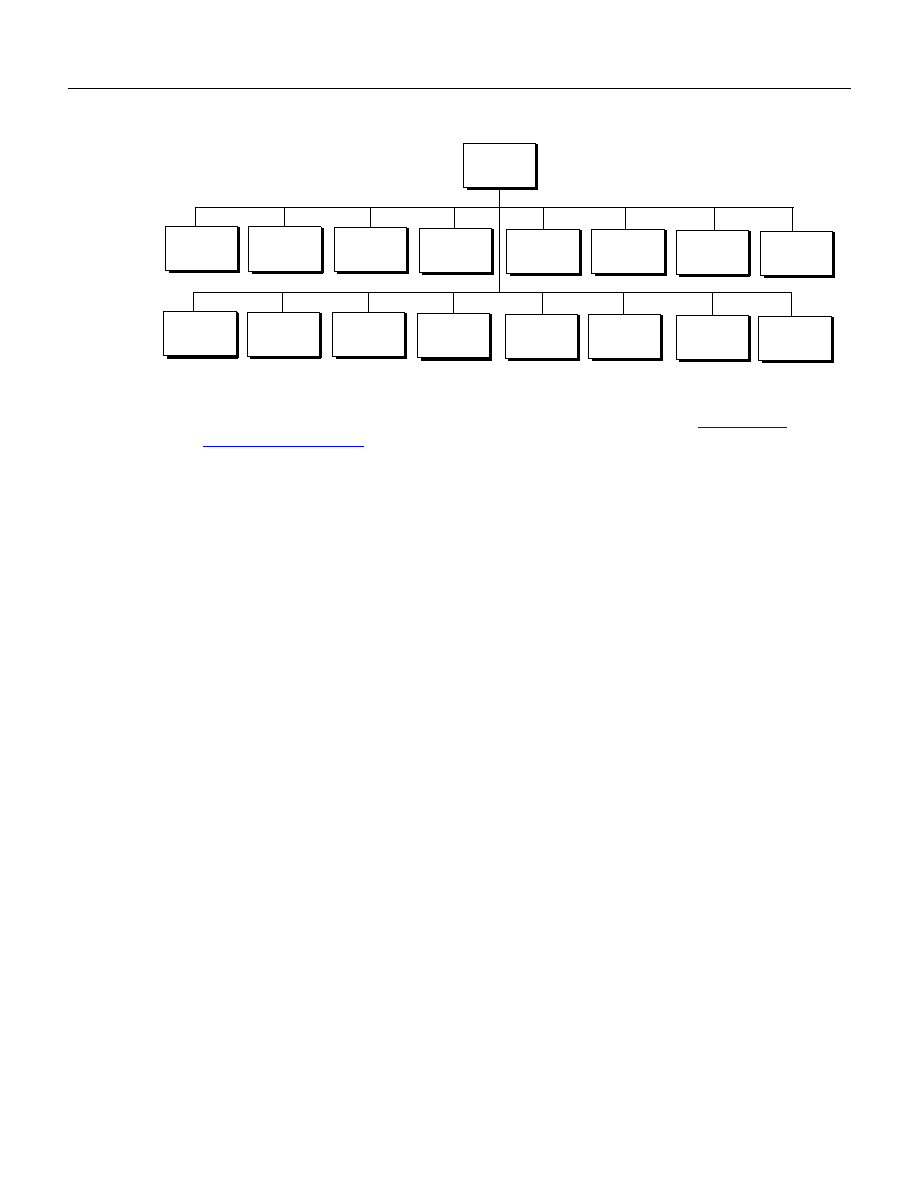
Photoshop CS2
Adobe Photoshop CS2 Scripting Guide
Scripting Photoshop CS2 45
Note:
It is important to note that the
Open
and
Save
formats are not identical. See
for comparison.
Note:
The following optional formats are available only when installed explicitly:
●
Alias PIX
●
Electric Image
●
SGI RGB
●
Wavefront RLA
●
SoftImage
The following scripts save a document as a
.jpeg
file.
AS
tell application "Adobe Photoshop CS2"
make new document
set myOptions to {class:JPEG save options, ¬
embed color profile:false, format options: standard, ¬
matte: background color matte,}
save current document in file myFile as JPEG with options ¬
myOptions appending no extension without copying
end tell
VBS
Dim appRef
Set jpgSaveOptions = CreateObject("Photoshop.JPEGSaveOptions")
jpgSaveOptions.EmbedColorProfile = True
jpgSaveOptions.FormatOptions = 1 'for psStandardBaseline
jpgSaveOptions.Matte = 1 'for psNoMatte
jpgSaveOptions.Quality = 1
appRef.ActiveDocument.SaveAs "c:\temp\myFile2", _
jpgSaveOptions, True, 2 'for psLowercase
JS
jpgFile = new File( "/Temp001.jpeg" )
jpgSaveOptions = new JPEGSaveOptions()
Save Classes
Save
Options
Photoshop
BMP
GIF
EPS
JPEG
Pict
File
Pict
Resource
Pixar
PNG
TIFF
Raw
DSC1
DSC2
SGI
RGB
Targa

Photoshop CS2
Adobe Photoshop CS2 Scripting Guide
Scripting Photoshop CS2 46
jpgSaveOptions.embedColorProfile = true
jpgSaveOptions.formatOptions = FormatOptions.STANDARDBASELINE
jpgSaveOptions.matte = MatteType.NONE
jpgSaveOptions.quality = 1
app.activeDocument.saveAs(jpgFile, jpgSaveOptions, true,
Extension.LOWERCASE)
Setting Application Preferences
Your script can set application preferences such as color picker, file saving options, guide-grid-slice
settings, and so on.
Note:
The properties in the
settings
class/
Preferences
object correlate to the Photoshop CS2
Preferences dialog options, which you display by choosing Photoshop > Preferences on Mac OS or
Edit > Preferences in Windows versions of Photoshop CS2. For explanations of individual
preferences, please refer to Photoshop CS2 Help.
AS
You use properties of the
settings
class to set application preferences in AppleScript. The following script
sets ruler and type unit settings:
set ruler units of settings to inch units
set type units of settings to pixel units
In the Adobe Photoshop CS2 AppleScript Scripting Reference, look up
Class settings-object
to view all of
the settings properties you can use.
VBS
The
Preferences
object is a property of the
Application
object. When you use the
Preferences
object
in a VBScript script, you must indicate its containment in the
Application
object.
appRef.Preferences.RulerUnits = 2 'for PsUnits --> 2 (psInches)
appRef.Preferences.TypeUnits = 1 'for PsTypeUnits --> 1 (psPixels)
In the Adobe Photoshop CS2 Visual Basic Scripting Reference, look up the
Preferences
object to view all of
the settings properties you can use. Additionally, look up the
Application
object >
Preferences
property.
JS
The Preferences object is a property of the
Application
object.
preferences.rulerUnits =Units.INCHES
preferences.typeUnits = TypeUnits.PIXELS
In the Adobe Photoshop CS2 JavaScript Scripting Reference, look up the
Preferences
object to view all of
the settings properties you can use. Additionally, look up the
Application
object >
preferences
property.
Allowing or Preventing Dialogs
It is important to be able to control dialogs properly from a script. If a dialog appears, your script stops
until a user dismisses the dialog. This is normally fine in an interactive script that expects a user to be
sitting at the machine. But if you have a script that runs in an unsupervised (batch) mode, you do not want
dialogs to be displayed and stop your script.
You use the
display dialogs
(
DisplayDialogs/displayDialogs
) property of the
Application
object
to control whether or not dialogs are displayed.

Photoshop CS2
Adobe Photoshop CS2 Scripting Guide
Scripting Photoshop CS2 47
Note:
Using dialogs in your script is roughly equivalent to using stops in a Photoshop CS2 action.
AS
The following script prevents dialogs from being displayed:
set display dialogs to never
In the Adobe Photoshop CS2 AppleScript Scripting Reference, look up the
Class application
to find the
values you can use for the
display dialogs
property.
VBS
To set dialog preferences, you use the
DisplayDialogs
property of the
Application
object.
appRef.DisplayDialogs = 3
'for PsDialogModes --> 3 (psDisplayNoDialogs)
Note that, because
DisplayDialogs
is a property of the
Application
object, you must reference the
Application
object in the script to get to the property.
In the Adobe Photoshop CS2 Visual Basic Scripting Reference, look up the
Application
object property
DisplayDialogs
. You’ll see the value type for this property is the constant
psDialogModes
. In the
“Constants” chapter, look up the options for
psDialogModes
.
JS
To set dialog preferences, you use the
displayDialogs
property of the
Application
object.
displayDialogs = DialogModes.NO
In the Adobe Photoshop CS2 JavaScript Scripting Reference, look up the
Application
object property
displayDialogs
, and then look up the constant
DialogModes
in the “Constants” chapter.
Working with the Photoshop CS2 Object Model
This section contains information about using the objects in the Photoshop CS2 Object Model. For
information on object models, see
‘Object Model Concepts’ on page 7
.
Using the Application Object
This section describes how and when to use the
Application
object in a script. It also describes how to
use some properties of the
Application
object.
You use the properties and commands/methods of the
Application
object to work with Photoshop CS2
functionality and objects such as the following:
●
Global Photoshop CS2 settings or preferences, such as unit values or color settings. See
Application Preferences’ on page 46
.
●
Documents—You can add or open documents and set the active document.
‘Setting the Active Object’ on page 39
.
●
Actions—You can execute actions created either via scripting or using the Actions palette in the
Photoshop CS2 application.
You can use Application object properties to get information such as the following:
●
A list of fonts installed on the system.
●
AS:
Set theFonts to fonts
●
VBS:
Set fontsInstalled = AppRef.fonts

Photoshop CS2
Adobe Photoshop CS2 Scripting Guide
Scripting Photoshop CS2 48
●
JS:
var fontstInstalled = app.fonts
●
The amount of unused memory available to Adobe Photoshop CS2.
●
The location of the Presets folder.
Note:
‘Creating and Running a JavaScript’ on page 24
for information on the Presets
folder.
Using the Document Object
The
Document
object can represent any open document in Photoshop CS2. You can think of a
Document
object as a file; you can also think of it as a canvas. You work with the
Document
object to do the following:
●
Access script objects contained in the
Document
object, such as
ArtLayer
or
Channel
objects. See
‘Containment Hierarchy’ on page 8
‘Photoshop CS2’s Object Model’ on page 8
for
more information.
●
Manipulate a specific
Document
object. For example, you could crop, rotate or flip the canvas, resize the
image or canvas, and trim the image. See
‘Manipulating a Document Object’ on page 48
for a
demonstration.
●
Get the active layer. See
‘Setting the Active Layer’ on page 41
●
Save the current document. See
‘Saving a Document’ on page 44
.
●
Copy and paste within the active document or between different documents. See
Clipboard Interaction’ on page 66
Manipulating a Document Object
The following examples demonstrate how to do the following:
●
Change the size of the image to 4 inches wide and 4 inches high.
●
Change the size of the document window (or canvas) to 5 inches high and 6 inches wide.
●
Trim the top and bottom of the image.
●
Crop the image.
●
Flip the entire window.
Note:
The following examples assume the ruler units have been set to inches. See
Application Preferences’ on page 46
for information on ruler units.
AS
--this script sample assumes the ruler units have been set to inches
resize image current document width 4 height 4
resize canvas current document width 4 height 4
trim current document basing trim on top left pixel ¬
with top trim and bottom trim without left trim and right trim
--the crop command uses unit values
--change the ruler units to pixels
set ruler units of settings to pixel units
crop current document bounds {10, 20, 40, 50} angle 45 ¬
resolution 72 width 20 height 20
flip canvas current document direction horizontal

Photoshop CS2
Adobe Photoshop CS2 Scripting Guide
Scripting Photoshop CS2 49
VBS
'this script sample assumes the ruler units have been set to inches
docRef.ResizeImage 4,4
docRef.ResizeCanvas 4,4
docRef.Trim Type:=psTopLeftPixel, Top:=True, Left:=False, _
Bottom:=True, Right:=False
'the crop command uses unit values
'change the ruler units to pixels
app.Preferences.RulerUnits = Photoshop.PsUnits.psPixels
docRef.Crop Array(10,20,40,50), Angle:=45, Width:=20, _
Height:=20, Resolution:=72
docRef.FlipCanvas psHorizontal
JS
//this sample script assumes the ruler units have been set to inches
docRef.resizeImage( 4,4 )
docRef.resizeCanvas( 4,4 )
docRef.trim(TrimType.TOPLEFT, true, false, true, false)
//the crop command uses unit values
//change the ruler units to pixels
app.preferences.rulerUnits =Units.PIXELS
docRef.crop (new Array(10,20,40,50), 45, 20, 20, 72)
docRef.flipCanvas(Direction.HORIZONTAL)
Working with Layer Objects
The Photoshop CS2 object model contains two types of layer objects:
●
ArtLayer
objects, which can contain image contents and are basically equivalent to Layers in the
Photoshop CS2 application.
Note:
An
ArtLayer
object can also contain text if you use the
kind
property to set the
ArtLayer
object’s type to text layer.
●
Layer Set
objects, which can contain zero or more
ArtLayer
objects.
When you create a layer you must specify whether you are creating an
ArtLayer
or a
Layer Set
.
Note:
Both the
ArtLayer
and
LayerSet
objects have corresponding collection objects,
ArtLayers
and
LayerSets
, which have an
add/Add/add()
command/method.You can reference, but not add,
ArtLayer
and
LayerSet
objects using the
Layers
collection object, because, unlike other
collection objects, it does not have an
add/Add/add()
command/method.

Photoshop CS2
Adobe Photoshop CS2 Scripting Guide
Scripting Photoshop CS2 50
Creating an ArtLayer Object
The following examples demonstrate how to create an
ArtLayer
object filled with red at the beginning of
the current document.
AS
tell application "Adobe Photoshop CS2"
make new art layer at beginning of current document ¬
with properties {name:"MyBlendLayer", blend mode:normal}
select all current document
fill selection of current document with contents ¬
{class:RGB color, red:255, green:0, blue:0}
end tell
VBS
Dim appRef
Set appRef = CreateObject("Photoshop.Application")
' Create a new art layer at the beginning of the current document
Dim docRef
Dim layerObj
Set docRef = appRef.ActiveDocument
Set layerObj = appRef.ActiveDocument.ArtLayers.Add
layerObj.Name = "MyBlendLayer"
layerObj.BlendMode = psNormalBlend
' Select all so we can apply a fill to the selection
appRef.ActiveDocument.Selection.SelectAll
' Create a color to be used with the fill command
Dim colorObj
Set colorObj = CreateObject("Photoshop.SolidColor")
colorObj.RGB.Red = 255
colorObj.RGB.Green = 100
colorObj.RGB.Blue = 0
' Now apply fill to the current selection
appRef.ActiveDocument.Selection.Fill colorObj
JS
// Create a new art layer at the beginning of the current document
var layerRef = app.activeDocument.artLayers.add()
layerRef.name = "MyBlendLayer"
layerRef.blendMode = BlendMode.NORMAL
// Select all so we can apply a fill to the selection
app.activeDocument.selection.selectAll
// Create a color to be used with the fill command
var colorRef = new SolidColor
colorRef.rgb.red = 255
colorRef.rgb.green = 100
colorRef.rgb.blue = 0
// Now apply fill to the current selection
app.activeDocument.selection.fill(colorRef)

Photoshop CS2
Adobe Photoshop CS2 Scripting Guide
Scripting Photoshop CS2 51
The following examples show how to create a
Layer Set
object after the creating the first
ArtLayer
object in the current document:
AS
tell application "Adobe Photoshop CS2"
make new layer set after layer 1 of current document
end tell
VBS
Dim appRef
Set appRef = CreateObject("Photoshop.Application")
' Get a reference to the first layer in the document
Dim layerRef
Set layerRef = appRef.ActiveDocument.Layers(1)
' Create a new LayerSet (it will be created at the beginning of the ' document)
Dim newLayerSetRef
Set newLayerSetRef = appRef.ActiveDocument.LayerSets.Add
' Move the new layer to after the first layer
newLayerSetRef.Move layerRef, psPlaceAfter
JS
// Get a reference to the first layer in the document
var layerRef = app.activeDocument.layers[0]
// Create a new LayerSet (it will be created at the beginning of the // document)
var newLayerSetRef = app.activeDocument.layerSets.add()
// Move the new layer to after the first layer
newLayerSetRef.move(layerRef, ElementPlacement.PLACEAFTER)
Referencing ArtLayer Objects
When you create a layer in the Photoshop CS2 application (rather than a script), the layer is added to the
Layers palette and given a number. These numbers act as layer names and do not correspond to the index
numbers of
ArtLayer
objects you create in a script.
Your VBScript script or JavaScript will always consider the layer at the top of the list in the Layers palette as
the first layer in the index. For example, if your document has four layers, the Photoshop CS2 application
names them Background Layer, Layer 1, Layer 2, and Layer 3. Normally, Layer 3 would be at the top of the
list in the Layers palette because you added it last. If your script is working on this open document and
uses the syntax
Layers(0).Select/layers[0].select()
to tell Photoshop CS2 to select a layer, Layer 3
will be selected. If you then you drag the Background layer to the top of the list in the Layers palette and
run the script again, the Background layer is selected.
You can use the following syntax to refer to the layers by the names given them by the Application:
AS
layer 1 of layer set 1 of current document

Photoshop CS2
Adobe Photoshop CS2 Scripting Guide
Scripting Photoshop CS2 52
Note:
Unlike object references in JavaScript or VBScript, AppleScript object reference names do not
remain constant. Refer to an AppleScript language guide or text book for information on
referencing a file using either
as alias
or
to a reference to file
.
VBS
Layers("Layer 3").Select
JS
layers["Layer 3"].select() //using the collection name and square brackets for the
collection
Working with Layer Set Objects
Existing layers can be moved into layer sets. The following examples show how to create a
Layer Set
object, duplicate an existing
ArtLayer
object, and move the duplicate object into the layer set.
AS
set current document to document "My Document"
set layerSetRef to make new layer set at end of current document
set newLayer to duplicate layer "Layer 1" of current document¬
to end of current document
move newLayer to end of layerSetRef
In AppleScript, you can also duplicate a layer directly into the destination layer set.
set current document to document "My Document"
set layerSetRef to make new layer set at end of current document
duplicate layer "Layer 1" of current document to end of layerSetRef
VBS
In VBScript you must duplicate and place the layer.
Set layerSetRef = docRef.LayerSets.Add
Set layerRef = docRef.ArtLayers(1).Duplicate
layerSetRef.Move appRef, 0 'for psElementPlacement --> 0 psPlaceAtEnd
layerRef.MoveToEnd layerSetRef
JS
In JavaScript you must duplicate and place the layer.
var layerSetRef = docRef.layerSets.add()
var layerRef = docRef.artLayers[0].duplicate(layerSetRef,
ElementPlacement.PLACEATEND)
layerRef.moveToEnd (layerSetRef)
Linking Layer Objects
Scripting also supports linking and unlinking layers. You link layers together so that you can move or
transform the layers in a single statement.
AS
make new art layer in current document with properties {name:"L1"}
make new art layer in current document with properties {name:"L2"}
link art layer "L1" of current document with art layer "L2" of ¬

Photoshop CS2
Adobe Photoshop CS2 Scripting Guide
Scripting Photoshop CS2 53
current document
Look up the
link
command in the Adobe Photoshop CS2 AppleScript Scripting Reference.
VBS
Set layer1Ref = docRef.ArtLayers.Add()
Set layer2Ref = docRef.ArtLayers.Add()
layer1Ref.Link layer2Ref.Layer
Look up
Link
in the Methods table of the
ArtLayer
object in the Adobe Photoshop CS2 Visual Basic
Scripting Reference. Additionally, look up
Add
in the Methods table of the
ArtLayers
object.
JS
var layerRef1 = docRef.artLayers.add()
var layerRef2 = docRef.artLayers.add()
layerRef1.link(layerRef2)
Look up
link()
in the Methods table of the
ArtLayer
object in the Adobe Photoshop CS2 JavaScript
Scripting Reference. Additionally, look up
add()
in the Methods table of the
ArtLayers
object.
Applying Styles to Layers
Note:
This procedure corresponds directly to dragging a style from the Photoshop CS2 Styles palette to a
layer.
Your script can apply styles to an
ArtLayer
object. To apply a style in a script, you use the
apply layer
style/ApplyStyle/applyStyle()
command/method with the style’s name as an argument enclosed in
straight double quotes.
Note:
The layer style names are case sensitive.
Please refer to Photoshop CS2 Help for a list of styles and for more information about styles and the Styles
palette.
The following examples set the Puzzle layer style to the layer named “L1.”
AS
apply layer style art layer "L1" of current document using ¬
"Puzzle (Image)"
Look up the
apply layer style
command in the “Commands” chapter of the Adobe Photoshop CS2
AppleScript Scripting Reference.
VBS
docRef.ArtLayers("L1").ApplyStyle "Puzzle (Image)"
Look up
ApplyStyle
in the Methods table of the
ArtLayer
object in the Adobe Photoshop CS2 Visual Basic
Scripting Reference.
JS
docRef.artLayers["L1"].applyStyle("Puzzle (Image)")
Look up
applyStyle()
in the Methods table of the
ArtLayer
object in the Adobe Photoshop CS2
JavaScript Scripting Reference.

Photoshop CS2
Adobe Photoshop CS2 Scripting Guide
Scripting Photoshop CS2 54
Using the Text Item Object
You can change an existing
ArtLayer
object to a text layer, that is, a
Text Item
object, if the layer is
empty. Conversely you can change a
Text Item
object to an
ArtLayer
object. This “reverse” procedure
rasterizes the text in the layer object.
The
Text Item
object is a property of the
ArtLayer
object. However, to create a new text layer, you must
create a new
ArtLayer
object and then set the art layer's
kind/Kind/kind
property to
text layer
/psTextLayer/ LayerKind.TEXT
.
To set or manipulate text in a text layer, you use the
text object/TextItem/textItem/
object, which is
also a property of the
ArtLayer
object.
Creating a Text Item Object
The following examples create an
ArtLayer
object and then use the
kind
property to convert it to a text
layer.
AS
make new art layer in current document with properties ¬
{ kind: text layer }
VBS
set newLayerRef = docRef.ArtLayers.Add()
newLayerRef.Kind = 2
'2 indicates psTextLayer
JS
var newLayerRef = docRef.artLayers.add()
newLayerRef.kind = LayerKind.TEXT
‘Photoshop CS2’s Object Model’ on page 8
for information on the relationship between
ArtLayer
objects and
TextItem
objects.
Also, look up the following:
●
The
kind
and
TextItem
properties of the
ArtLayer
object in the Adobe Photoshop CS2 Visual Basic
Scripting Reference and the Adobe Photoshop CS2 JavaScript Scripting Reference.
●
The
kind
and
text object
properties of the
Class art layer
in the Adobe Photoshop CS2
AppleScript Scripting Reference.
Determining a Layer’s Kind
The following examples use an
if
statement to check whether an existing layer is a text layer.
AS
if (kind of layerRef is text layer) then
VBS
If layerRef.Kind = 2 Then
'2 indicates psTextLayer

Photoshop CS2
Adobe Photoshop CS2 Scripting Guide
Scripting Photoshop CS2 55
JS
if (newLayerRef.kind == LayerKind.TEXT)
Adding and Manipulating Text in a Text Item Object
The following examples add and right-justify text in a text layer.
AS
set contents of text object of art layer "my text" to "Hello, World!"
set justification of text object of art layer "my text" of ¬
current document to right
VBS
Set textItemRef = artLayers("my text").TextItem
textItemRef.Contents = "Hello, World!"
docRef.ArtLayers("my text").TextItemRef.Justification = 3
'3 = psRight (for the constant value psJustification)
JS
var textItemRef = artLayers["my text"].textItem
textItemRef.contents = "Hello, World!"
docRef.artLayers["my text"].textItemRef.justification =
Justification.RIGHT
Note:
The
text item
object has a
kind
property, which can be set to either
point text
/psPointText/TextType.POINTTEXT
/ or
paragraph
text/psParagraphText/TextType.PARAGRAPHTEXT
. When a new
text item
is created, its
kind
property is automatically set to
point text
.
The
text item
properties
height, width
and
leading
are valid only when the text item's
kind
property is set to
paragraph text.
To familiarize yourself with this objects, properties, and commands/methods in the scripting references,
do the following:
●
In the Adobe Photoshop CS2 AppleScript Scripting Reference, look up the
Class text-object
properties and methods.
●
In the Adobe Photoshop CS2 Visual Basic Scripting Reference and the Adobe Photoshop CS2 JavaScript
Scripting Reference, look up the
TextItem
property of the
ArtLayer
object. To find the properties
and methods you can use with a text layer, look up the
TextItem
object.
Working with Selection Objects
You create a
Selection
object to allow your scripts to act only on a specific, selected section of your
document or a layer within a document. For example, you can apply effects to a selection or copy the
current selection to the clipboard.
The
Selection
object is a property of the
Document
object. Look up the following for more information:
●
In the Adobe Photoshop CS2 AppleScript Scripting Reference, look up
select
in the “Commands” chapter.
Also, look up the
selection
property of the
Class Document
object and the
Class
selection-object
.

Photoshop CS2
Adobe Photoshop CS2 Scripting Guide
Scripting Photoshop CS2 56
●
In the Adobe Photoshop CS2 Visual Basic Scripting Reference and the Adobe Photoshop CS2 JavaScript
Scripting Reference, look up selection in the Properties table for the
Document
object. Also, look up the
select
in the Methods table for the
Selection
object.
Creating and Defining a Selection
To create a selection, you use the
select/Select/select()
command/method of the
Selection
object.
You define a
Selection
object by specifying the coordinates on the screen that describe the selection’s
corners. Since your document is a 2-dimensional object, you specify coordinates using the x-and y-axes as
follows:
●
You use the x-axis to specify the horizontal position on the canvas.
●
You use the y-axis to specify the vertical position on the canvas.
The origin point in Photoshop CS2, that is, x-axis = 0 and y-axis = 0, is the upper left corner of the screen.
The opposite corner, the lower right, is the extreme point of the canvas. For example, if your canvas is 1000
x 1000 pixels, then the coordinate for the lower right corner is x-axis = 1000 and y-axis = 1000.
You specify coordinate points that describe the shape you want to select as an array, which then becomes
the argument or parameter value for the
select/Select/select()
command/method.
➤
The following examples assume that the ruler units have been set to pixels and create a selection
by:
1. Creating a variable to hold a new document that is 500 x 500 pixels in size.
2. Creating a variable to hold the coordinates that describe the selected area (that is, the
Selection
object).
3. Adding an array as the selection variable’s value.
4. Using the
Document
object’s
selection
property, and the
Selection
object’s
select
command/method to select an area. The area’s coordinates are the selection variable’s values.
AS
set docRef to make new document with properties {height: 500 pixels, width:500
pixels}
set shapeRef to select current document region {{ 0, 0}, {0, 100}, ¬
{ 100, 100}, { 100, 0}}
select current document region shapeRef
VBS
DocRef = Documents.Add
ShapeRef = Array((0, 0), (0, 100), (100,100), (100,0))
docRef.Selection.Select ShapeRef
JS
var docRef = app.documents.add(500, 500)
var shapeRef = [
[0,0],
[0,100],
[100,100],
[100,0]
]
docRef.selection.select(shapeRef)

Photoshop CS2
Adobe Photoshop CS2 Scripting Guide
Scripting Photoshop CS2 57
Stroking the Selection Border
The following examples use the
stroke (Stroke/stroke())
command/method of the
Selection
object to stroke the boundaries around the current selection and set the stroke color and width.
Note:
The transparency parameter cannot be used for background layers.
AS
stroke selection of current document using color ¬
{class:CMYK color,cyan:20, magenta:50, yellow:30, black:0}¬
width 5 location inside blend mode vivid light opacity 75 ¬
without preserving transparency
VBS
selRef.Stroke strokeColor, 5, 1, 15, 75, False
JS
app.activeDocument.selection.stroke (strokeColor, 2,
StrokeLocation.OUTSIDE, ColorBlendMode.VIVIDLIGHT, 75,
false)
Inverting Selections
You can use the i
nvert/Invert/invert()
command/method of the Selection object to a selection so you
can work on the rest of the document, layer or channel while protecting the selection.
AS
invert selection of current document
VBS
selRef.Invert
JS
selRef.invert()
Expanding, Contracting and Feathering Selections
You can change the size of a selected area using the expand, contract, and feather commands.
The values are passed in the ruler units stored in Photoshop CS2 preferences and can be changed by your
scripts. If your ruler units are set to pixels, then the following examples will expand, contract and feather by
five pixels. See section
‘Setting Application Preferences’ on page 46
for examples of how to
change ruler units.
AS
expand selection of current document by pixels 5
contract selection of current document by pixels 5
feather selection of current document by pixels 5
VBS
Dim appRef
Set appRef = CreateObject("Photoshop.Application")
Dim selRef
Set selRef = appRef.ActiveDocument.Selection
selRef.Expand 5

Photoshop CS2
Adobe Photoshop CS2 Scripting Guide
Scripting Photoshop CS2 58
selRef.Contract 5
selRef.Feather 5
JS
var selRef = app.activeDocument.selection
selRef.expand( 5 )
selRef.contract( 5 )
selRef.feather( 5 )
Filling a Selection
You can fill a selection either with a color or a history state.
To fill with a color:
AS
fill selection of current document with contents ¬
{class: RGB color, red:255, green:0, blue:0} blend mode ¬
vivid light opacity 25 without preserving transparency
VBS
Set fillColor = CreateObject("Photoshop.SolidColor")
fillColor.RGB.Red = 255
fillColor.RGB.Green = 0
fillColor.RGB.Blue = 0
selRef.Fill fillColor, 15, 25, False
JS
var fillColor = new SolidColor()
fillColor.rgb.red = 255
fillColor.rgb.green = 0
fillColor.rgb.blue = 0
app.activeDocument.selection.fill( fillColor, ColorBlendMode.VIVIDLIGHT,
25, false)
To fill the current selection with the tenth item in the history state:
Note:
See
‘Using History State Objects’ on page 60
for information on
History State
objects.
AS
fill selection of current document with contents history state 10 ¬
of current document
VBS
selRef.Fill docRef.HistoryStates(9)
JS
selRef.fill(app.activeDocument.historyStates[9])

Photoshop CS2
Adobe Photoshop CS2 Scripting Guide
Scripting Photoshop CS2 59
Loading and Storing Selections
You can store
Selection
objects in, or load them from,
Channel
objects.The following examples use the
store/Store/store()
command/method of the
Selection
object to store the current selection in a
channel named
My Channel
and extend the selection with any selection that is currently in that channel.
AS
store selection of current document into channel "My Channel" of ¬
current document combination type extended
VBS
selRef.Store docRef.Channels("My Channel"), 2
'2 indicates that the value of the constant psExtendSelection
'is 2 (psExtendSelection)
JS
selRef.store(docRef.channels["My Channel"], SelectionType.EXTEND)
To restore a selection that has been saved to a
Channel
object, use the
load/Load/load()
method.
AS
load selection of current document from channel "My Channel" of ¬
current document combination type extended
VBS
selRef.Load docRef.Channels("My Channel"), 2
'2 indicates that the value of the constant psExtendSelection
'is 2 (psExtendSelection)
JS
selRef.load (docRef.channels["My Channel"], SelectionType.EXTEND)
See section
‘Understanding Clipboard Interaction’ on page 66
for examples on how to copy, cut
and paste selections.
Working with Channel Objects
The
Channel
object
gives you access to much of the available functionality on Photoshop CS2 channels.
You can create, delete and duplicate channels or retrieve a channel's histogram and change its kind. See
‘Creating New Objects in a Script’ on page 37
for information on creating a
Channel
object in
your script.
You can set or get (that is, find out about) a
Channel
object’s type using the
kind
property. See
‘Understanding and Finding Constants’ on page 19
for script samples that demonstrate how to
create a masked area channel.
Changing Channel Types
You can change the
kind
of a any channel except component channels. The following examples
demonstrate how to change a masked area channel to a selected area channel:

Photoshop CS2
Adobe Photoshop CS2 Scripting Guide
Scripting Photoshop CS2 60
Note:
Component channels are related to the document mode. Refer to Photoshop CS2 Help for
information on channels, channel types, and document modes.
AS
set kind of myChannel to selected area channel
VBS
channelRef.kind = 3 'for psSelectedAreaAlphaChannel
'from the constant value psChannelType
JS
channelRef.kind = ChannelType.SELECTEDAREA
Using the Document Info Object
In Photoshop CS2, you can associate information with a document by choosing File > File Info.
To accomplish this task in a script, you use the
DocumentInfo
object. The following examples
demonstrate how to use the
DocumentInfo
object to set the copyrighted status and owner URL of a
document.
AS
set docInfoRef to info of current document
set copyrighted of docInfoRef to copyrighted work
set owner url of docInfoRef to "http://www.adobe.com"
VBS
Set docInfoRef = docRef.Info
docInfoRef.Copyrighted = 1 'for psCopyrightedWork
docInfoRef.OwnerUrl = "http://www.adobe.com"
JS
docInfoRef = docRef.info
docInfoRef.copyrighted = CopyrightedType.COPYRIGHTEDWORK
docInfoRef.ownerUrl = "http://www.adobe.com"
For information about other types of information (properties) you can associate with a document, look up
the following:
●
In the Adobe Photoshop CS2 AppleScript Scripting Reference, look up the properties for the
Class
info-object
.
●
In the Adobe Photoshop CS2 Visual Basic Scripting Reference and the Adobe Photoshop CS2 JavaScript
Scripting Reference, look up the Properties table for the
DocumentInfo
object.
Using History State Objects
Photoshop CS2 keeps a history of the actions that affect documents. Each time you save a document in the
Photoshop CS2 application, you create a history state; you can access a document’s history states from the
History palette by selecting Window > History.

Photoshop CS2
Adobe Photoshop CS2 Scripting Guide
Scripting Photoshop CS2 61
In a script, you can access a
Document
object’s history states using the
HistoryStates
object, which is a
property of the
Document
object. You can use a
HistoryStates
object to reset a document to a previous
state or to fill a
Selection
object.
The following examples revert the document contained in the variable
docRef
back to the form and
properties it had when it was first saved. Using history states in this fashion gives you the ability to undo
modifications to the document.
AS
set current history state of current document to history state 1 ¬
of current document
VBS
docRef.ActiveHistoryState = docRef.HistoryStates(0)
JS
docRef.activeHistoryState = docRef.historyStates[0]
Note:
Reverting back to a previous history state does not remove any latter states from the history
collection. Use the
Purge
command to remove latter states from the
History States
collection as
shown below:
AS
purge history caches
VBS
appRef.Purge(2) 'for psPurgeTarget --> 2 (psHistoryCaches)
JS
app.purge(PurgeTarget.HISTORYCACHES)
The example below saves the current state, applies a filter, and then reverts back to the saved history state.
AS
set savedState to current history state of current document
filter current document using motion blur with options ¬
{angle:20, radius: 20}
set current history state of current document to savedState
VBS
Set savedState = docRef.ActiveHistoryState
docRef.ApplyMotionBlur 20, 20
docRef.ActiveHistoryState = savedState
JS
savedState = docRef.activeHistoryState
docRef.applyMotionBlur( 20, 20 )
docRef.activeHistoryState = savedState
Using Notifier Objects
You use the
Notifier
object to tie an event to a script. For example, if you would like Photoshop CS2 to
automatically create a new document when you open the application, you could tie a script that creates a
Document
object to an
Open Application
event.

Photoshop CS2
Adobe Photoshop CS2 Scripting Guide
Scripting Photoshop CS2 62
Note:
This type of script corresponds to selecting Start Application in the Script Events Manager (File >
Scripts > Script Events Manager) in the Photoshop CS2 application. Please refer to Photoshop CS2
Help for information on using the Script Events Manager.
Using the PathItem Object
To add a
PathItem
object, you create an array of
PathPointInfo
objects, which specify the coordinates of
the corners or anchor points of your path. Additionally, you can create an array of
SubPathInfo
objects to
contain the
PathPoint
arrays.
The following script creates a
PathItem
object that is a straight line.
AS
--line #1--it’s a straight line so the coordinates for anchor, left, and
--right for each point have the same coordinates
tell application "Adobe Photoshop CS2"
set ruler units of settings to pixel units
set type units of settings to pixel units
set docRef to make new document with properties {height:700, width:500,¬
name:"Snow Cone"}
set pathPointInfo1 to {class:path point info, kind:corner point,¬
anchor:{100, 100}, left direction:{100, 100}, right direction:{100, 100}}
set pathPointInfo2 to {class:path point info, kind:corner point,¬
anchor:{150, 200}, left direction:{150, 200}, right direction:{150, 200}}
set subPathInfo1 to {class:sub path info, entire sub path:{pathPointInfo1,¬
pathPointInfo2}, operation:shape xor, closed:false}
set newPathItem to make new path item in docRef with properties {entire path:¬
{subPathInfo1, subPathInfo2} kind:normal}
end tell
VBS
'line #1--it’s a straight line so the coordinates for anchor, left, and
'right for each point have the same coordinates
Set lineArray(1) = CreateObject("Photoshop.PathPointInfo")
lineArray(1).Kind = 2 ' for PsPointKind --> 2 (psCornerPoint)
lineArray(1).Anchor = Array(100, 100)
lineArray(1).LeftDirection = lineArray(1).Anchor
lineArray(1).RightDirection = lineArray(1).Anchor
Set lineArray(2) = CreateObject("Photoshop.PathPointInfo")
lineArray(2).Kind = 2
lineArray(2).Anchor = Array(150, 200)
lineArray(2).LeftDirection = lineArray(2).Anchor
lineArray(2).RightDirection = lineArray(2).Anchor
Set lineSubPathArray(1) = CreateObject("Photoshop.SubPathInfo")
lineSubPathArray(1).operation = 2 'for PsShapeOperation --> 2 (psShapeXOR)
lineSubPathArray(1).Closed = false
lineSubPathArray(1).entireSubPath = lineArray

Photoshop CS2
Adobe Photoshop CS2 Scripting Guide
Scripting Photoshop CS2 63
JS
//line #1--it’s a straight line so the coordinates for anchor, left, and //right
//for each point have the same coordinates
var lineArray = new Array()
lineArray[0] = new PathPointInfo
lineArray[0].kind = PointKind.CORNERPOINT
lineArray[0].anchor = Array(100, 100)
lineArray[0].leftDirection = lineArray[0].anchor
lineArray[0].rightDirection = lineArray[0].anchor
lineArray[1] = new PathPointInfo
lineArray[1].kind = PointKind.CORNERPOINT
lineArray[1].anchor = Array(150, 200)
lineArray[1].leftDirection = lineArray[1].anchor
lineArray[1].rightDirection = lineArray[1].anchor
var lineSubPathArray = new Array()
lineSubPathArray[0] = new SubPathInfo()
lineSubPathArray[0].operation = ShapeOperation.SHAPEXOR
lineSubPathArray[0].closed = false
lineSubPathArray[0].entireSubPath = lineArray
Working with Color Objects
Your scripts can use the same range of colors that are available from the Photoshop CS2 user interface.
Each color model has its own set of properties. For example, the
RGB color
class contains three
properties: red, blue and green. To set a color in this class, you indicate values for each of the three
properties.
In VBScript and JavaScript, the
SolidColor
class contains a property for each color model. To use this
object, you first create an instance of a
SolidColor
object, then set appropriate color model properties for
the object. Once a color model has been assigned to a
SolidColor
object, the
SolidColor
object cannot
be reassigned to a different color model.
The following examples demonstrate how to set a color using the
CMYK color
class.
AS
set foreground color to {class:CMYK color, cyan:20.0, ¬
magenta:90.0, yellow:50.0, black:50.0}
VBS
'create a solidColor array
Dim solidColorRef
Set solidColorRef = CreateObject("Photoshop.SolidColor")
solidColorRef. CMYK.Cyan = 20
solidColorRef.CMYK.Magenta = 90
solidColorRef.CMYK.Yellow = 50
solidColorRef.CMYK.Black = 50
appRef.ForegroundColor = solidColorRef
JS
//create a solid color array
var solidColorRef = new SolidColor()
solidColorRef.cmyk.cyan = 20
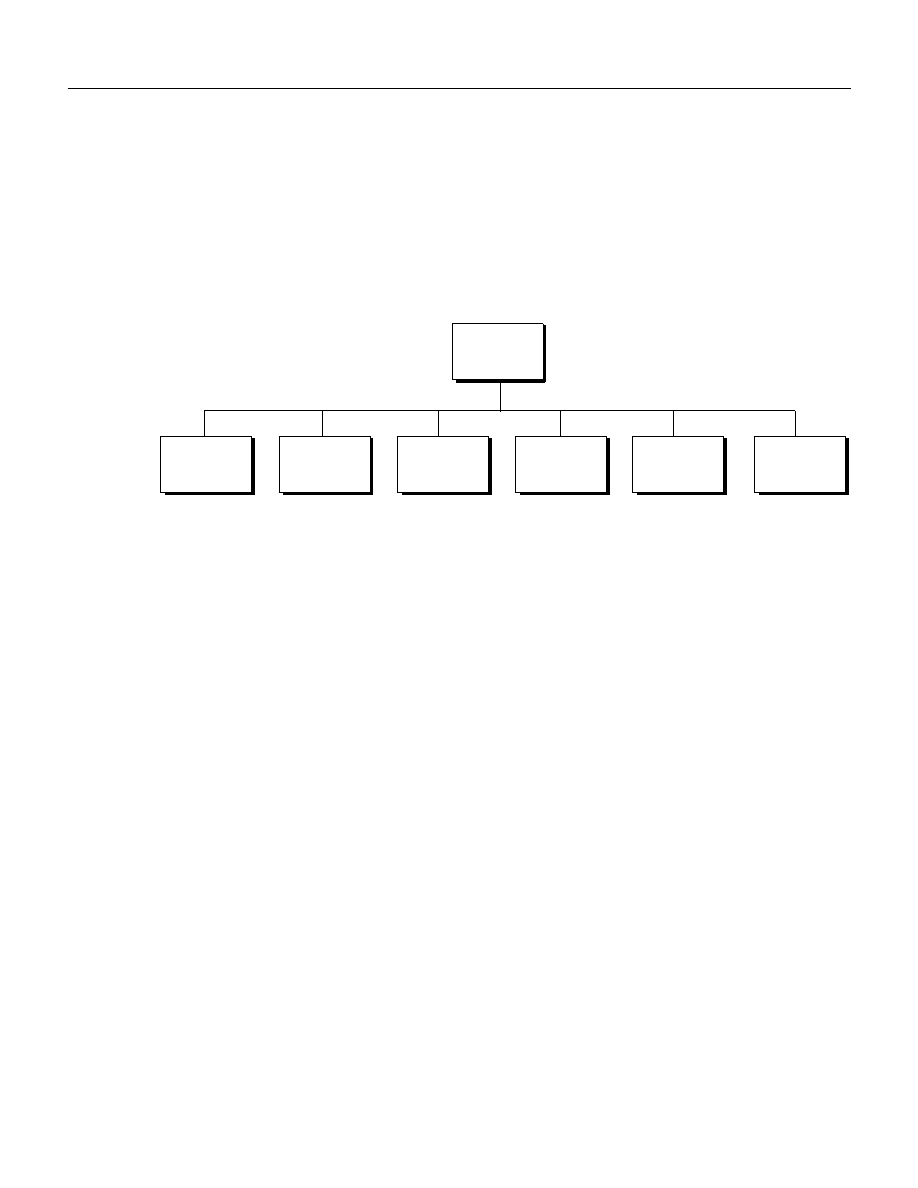
Photoshop CS2
Adobe Photoshop CS2 Scripting Guide
Scripting Photoshop CS2 64
solidColorRef.cmyk.magenta = 90
solidColorRef.cmyk.yellow = 50
solidColorRef.cmyk.black = 50
foregroundColor = solidColorRef
Solid Color Classes
The solid color classes available in Photoshop CS2 are illustrated below.
Using Hex Values
You can express RGB colors as hex (or hexadecimal) values. A hex value contains three pairs of numbers
which represent red, blue and green (in that order).
In AppleScript, the hex value is represented by the
hex value
string property in class
RGB hex color
, and
you use the
convert color
command described below to retrieve the hex value.
In VBScript and JavaScript, the RGBColor object has a string property called
HexValue/hexValue
.
Getting and Converting Colors
The following examples convert an RGB color to its CMYK equivalent.
AS
The following script, which assumes an RGB color model, gets the foreground color and then uses the
convert
command of the
color
class to convert the color to its CMYK equivalent.
get foreground color
convert color foreground color to CMYK
Look up the following in the Adobe Photoshop CS2 AppleScript Scripting Reference:
●
In the “Objects” chapter, the
foreground color
property of the
Class application
●
In the “Commands” chapter,
convert
VBS
The following script uses an
If Then
statement and the
model
property of the
SolidColor
object to
determine the color model in use. The
If Then
statement returns a
SolidColor
object; if it returns an
RGB
object, the
cmyk
property of the
SolidColor
object then converts the color to its CMYK equivalent.
Dim someColor
If (someColor.model = 2) Then
RGB
Color
CMYK
Color
Gray
Color
HSB
Color
Lab
Color
No
Color
Solid
Color
Color Classes

Photoshop CS2
Adobe Photoshop CS2 Scripting Guide
Scripting Photoshop CS2 65
someColor.cmyk
'someColor.model = 2 indicates psColorModel --> 2 (psRGBModel)
End If
Look up the following in the Adobe Photoshop CS2 Visual Basic Scripting Reference:
●
model
and
cmyk
in the
Properties
table of the SolidColor object
JS
This example uses the
foregroundColor
property of the
Application
object to get the original color to
be converted.
var someColor = foregroundColor.cmyk
Look up the following in the Adobe Photoshop CS2 JavaScript Scripting Reference:
●
cmyk
in the Properties table of the
SolidColor
object
●
foregroundColor
in the Properties table of the
Application
object
Comparing Colors
Using the
equal colors/IsEqual/isEqual()
command/method, you can compare colors. The following
statements return
true
if the foreground color is visually equal to background color.
AS
if equal colors foreground color with background color then
VBS
If (appRef.ForegroundColor.IsEqual(appRef.BackgroundColor)) Then
JS
if (app.foregroundColor.isEqual(backgroundColor))
Getting a Web Safe Color
To convert a color to a web safe color use the
web safe color
command on AppleScript and the
NearestWebColor/nearestWebColor
property of the
SolidColor
object for VBScript and JavaScript.
AS
set myWebSafeColor to web safe color for foreground color
VBS
Dim myWebSafeColor
Set myWebSafeColor = appRef.ForegroundColor.NearestWebColor
JS
var webSafeColor = new RGBColor()
webSafeColor = app.foregroundColor.nearestWebColor
Working with Filters
To apply a filter in an AppleScript, you use the
filter
command with an option from the
Class filter
options
. In VBScript and JavaScript, you use a specific filter method. For example, to apply a Gaussian blur
filter, you use the
ApplyGaussianBlur/applyGaussianBlur()
method. All filter methods belong to the
ArtLayer
object.
Note:
Please refer to Photoshop CS2 Help for information about the effects produced by individual filter
types.

Photoshop CS2
Adobe Photoshop CS2 Scripting Guide
Scripting Photoshop CS2 66
The following examples apply the Gaussian blur filter to the active layer.
AS
Use the
filter
command and then both specify the layer and the name of the filter and any options.
filter current layer of current document using Gaussian blur ¬
with options { radius: 5 }
Note:
In the Adobe Photoshop CS2 AppleScript Scripting Reference, look up the
filter
command in the
“Commands” chapter; also look up
Class filter options
in the “Objects” chapter.
VBS
appRef.docRef.ActiveLayer.ApplyGaussianBlur 5
Note:
In the Adobe Photoshop CS2 Visual Basic Scripting Reference, look up
ApplyGaussianBlur
method
and other methods whose name includes filter in the Methods table of the
ArtLayer
object in the
“Interface” chapter.
JS
docRef.activeLayer.applyGaussianBlur(5)
Note:
In the Adobe Photoshop CS2 JavaScript Scripting Reference, look up
applyGaussianBlur()
method
and other methods whose name includes filter in the Methods table of the
artLayer
object in the
“Interface” chapter.
Other Filters
If the filter type that you want to use on your layer is not part of the scripting interface, you can use the
Action Manager from a JavaScript to run a filter. If you are using AppleScript, VBScript or VBScript, you can
run the JavaScript from your script. Refer to the Adobe Photoshop CS2 JavaScript Scripting Reference for
information on using the Action Manager. Also, see
‘Executing JavaScripts from AS or VBS’ on
Understanding Clipboard Interaction
The clipboard commands/methods in Photoshop CS2 operate on
ArtLayer
and
Selection
objects. The
commands can be used to operate on objects within a single document, or to move information between
documents.
The clipboard commands/methods of the art
layer/ArtLayer/ArtLayer
and
selection/Selection/Selection
objects are:
●
copy/Copy/copy()
●
copy merged/Copy
Merge parameter value
/copy(
merge parameter value
)
●
paste/Paste/paste()
●
paste into
/
Copy
IntoSelection parameter value
/paste(
intoSelection parameter
value
)
●
cut/Cut/cut()
Note:
For information on copy, copy merged, paste, paste into, and cut functions, see Photoshop CS2
Help.

Photoshop CS2
Adobe Photoshop CS2 Scripting Guide
Scripting Photoshop CS2 67
Using the Copy and Paste Commands/Methods
The following examples copy the contents an the background layer to the clipboard, create a new
document, and then paste the clipboard contents to the new document. The scripts assume that there is a
document already open in Photoshop CS2 and that the document has a background layer.
Note:
If your script creates a new document in which you paste the clipboard contents, be sure the
document uses the same ruler units as the original document. See
for information.
AS
Note:
On Mac OS, Photoshop CS2 must be the front-most application when executing these commands.
You must use the
activate
command to activate the application before executing any clipboard
commands.
tell application “Adobe Photoshop CS2”
activate
select all of current document
set current layer of current document to layer "Background" of ¬
current document
set newDocRef to make new document
past newDocRef
Note:
In AppleScript, you must select the entire layer before performing the copy.
VBS
//make firstDocument the active document
Set docRef = appRef.ActiveDocument
appRef.docRef.ArtLayers("Background").Copy
Set newDocRef = Documents.Add(8, 6, 72, "New Doc")
newDocRef.Paste
JS
//make firstDocument the active document
var docRef = app.activeDocument
docRef.artLayers["Background"].copy()
var newDocRef = app.documents.add(8, 6, 72, "New Doc")
newDocRef.paste()
Using the Copy Merged Command/Method
You can also perform a merged copy to copy of all visible layers in the selected area.
AS
Note:
On Mac OS, Photoshop CS2 must be the front-most application when executing these commands.
You must use the
activate
command to activate the application before executing any clipboard
commands.
activate
select all of current document
copy merged selection of current document

Photoshop CS2
Adobe Photoshop CS2 Scripting Guide
Scripting Photoshop CS2 68
VBS
In VBScript, you must use the
ArtLayer
or
Selection
object’s
Copy
method with the
Merge
parameter. To
perform the merged copy, you must enter, or pass, the value
true
, as in the following example.
docRef.Selection.Copy True
Look up the
Copy
method in the Methods table for the
ArtLayer
and
Selection
objects in the Adobe
Photoshop CS2 Visual Basic Scripting Reference,
JS
In JavaScript, you must use the
ArtLayer
or
Selection
object’s
copy()
method with the
merge
parameter. To perform the merged copy, you must enter, or pass, the value
true
, as in the following
example.
docRef.selection.copy(true)
Look up the
copy()
method in the Methods table for the
ArtLayer
and
Selection
objects in the Adobe
Photoshop CS2 JavaScript Scripting Reference,
Working with Units
Photoshop CS2 provides two rulers for documents. You can set the measurement units for the rulers in
your script. The rulers are:
●
A graphics ruler used for most graphical layout measurements or operations on a document where
height, width, or position are specified.
You set measurement unit types for the graphics ruler using the
ruler units
(RulerUnits/rulerUnits)
property.
●
A type ruler, which is active when using the type tool
You set measurement unit types for the type ruler using the
type units (TypeUnits/typeUnits)
property.
Note:
These settings correspond to those found in the Photoshop CS2 preference dialog under
Photoshop >Preferences > Units & Rulers on Mac OS or Edit >Preferences > Units & Rulers in
Windows.
Unit Values
All languages support plain numbers for unit values. These values are treated as being of the type
currently specified for the appropriate ruler.
For example, if the ruler units are currently set to inches and the following VBScript statement sets a
document’s size to 3 inches by 3 inches:
docRef.ResizeImage 3,3
If the ruler units had been set to pixels, the document would be 3 pixels by 3 pixels. To ensure that your
scripts produce the expected results you should check and set the ruler units to the type appropriate for
your script. After executing a script the original values of the rule settings should be restored if changed in
the script. See
‘Setting Ruler And Type Units in a Script’ on page 71
for directions on setting
unit values.
Please refer to Photoshop CS2 Help for information about available unit value types.
Special Unit Value Types
The unit values used by Photoshop CS2 are length units, representing values of linear measurement.
Support is also included for pixel and percent unit values. These two unit value types are not, strictly

Photoshop CS2
Adobe Photoshop CS2 Scripting Guide
Scripting Photoshop CS2 69
speaking, length values but are included because they are used extensively by Photoshop CS2 for many
operations and values.
AppleScript Unit Considerations
AppleScript provides an additional way of working with unit values. You can provide values with an
explicit unit type where unit values are used. When a typed value is provided its type overrides the ruler’s
current setting.
For example, to create a document which is 4 inches wide by 5 inches high you would write:
make new document with properties {width:inches 4, ¬
height:inches 5}
The values returned for a Photoshop CS2 property which used units will be returned as a value of the
current ruler type. Getting the height of the document created above:
set docHeight to height of current document
would return a value of 5.0, which represents 5 inches based on the current ruler settings.
In AppleScript, you can optionally ask for a property value as a particular type.
set docHeight to height of current document as points
This would return a value of 360 (5 inches x 72 points per inch).
The
points
and
picas
unit value types are PostScript points, with 72 points per inch. The
traditional
points
and
traditional picas
unit value types are based on classical type setting values, with 72.27
points per inch.
You can convert, or coerce, a unit value from one value type to another. For example, the following script
converts a point value to an inch value.
set pointValue to points 72
set inchValue to pointValue as inches
When this script is run, the variable
inchValue
will contain inches 1, which is 72 points converted to
inches. This conversion ability is built in to the AppleScript language.
Using Unit Values in Calculations
To use a unit value in a calculation it is necessary to first convert the value to a number (unit value cannot
be used directly in calculations). To multiply an inch value write:
set newValue to (inchValue as number) * someValue
Note:
In AppleScript you can get and set values as pixels or percent as you would any other unit value
type. You cannot, however, convert a pixel or percent value to another length unit value as you can
with other length value types. Trying to run the following script will result in an error.
set pixelValue to pixels 72
-- Next line will result in a coercion error when run
set inchValue to pixelValue as inches
Note:
Because Photoshop CS2 is a pixel-oriented application you may not always get back the same value
as you pass in when setting a value. For example, if
ruler units
is set to mm units, and you create
a document that is 30 x 30, the value returned for the height or width will be 30.056 if your
document resolution is set to 72 ppi. The scripting interface assumes settings are measured by ppi.
Unit Value Usage
The following tables list the properties of the classes/objects that are defined to use unit values. Unit
values for these properties, unless otherwise indicated in the table, are based the graphics ruler setting.
To use this table, do one of the following:
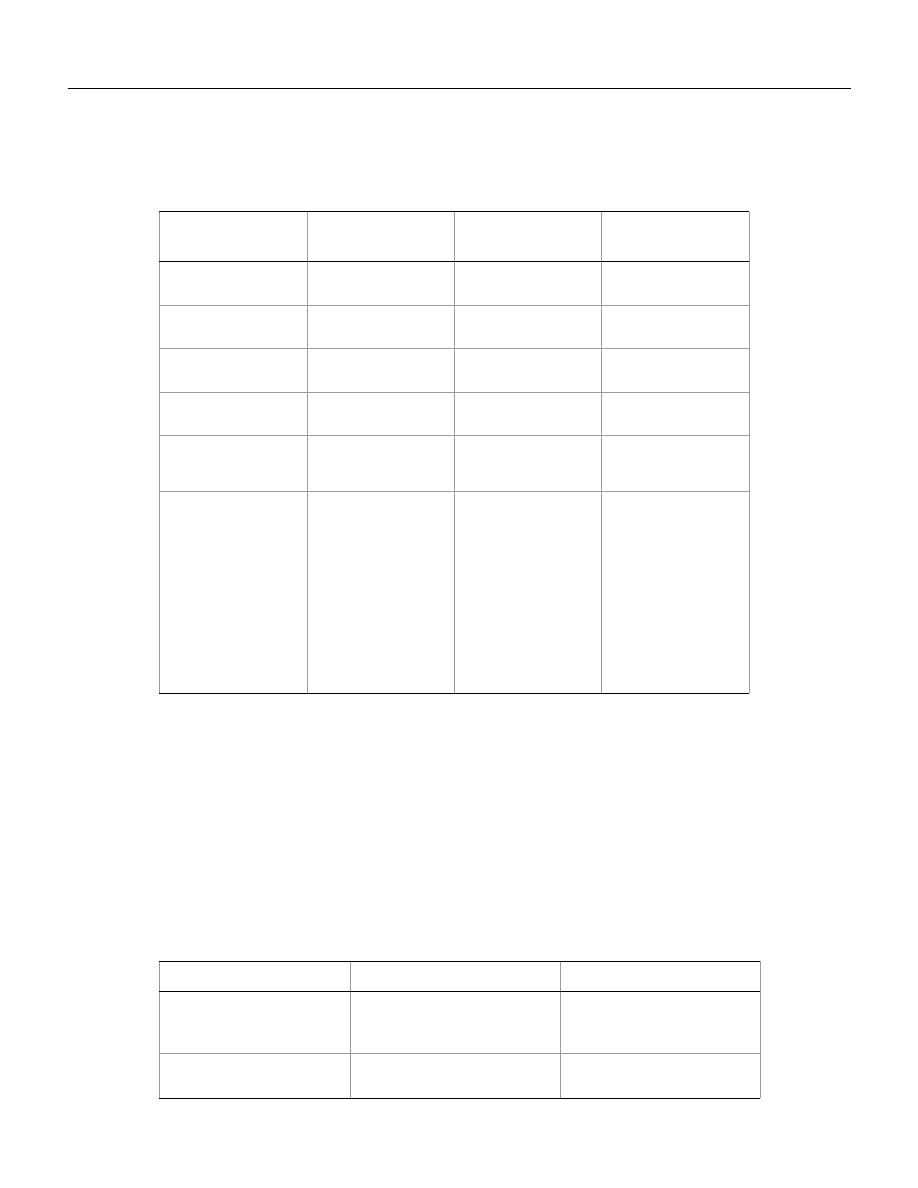
Photoshop CS2
Adobe Photoshop CS2 Scripting Guide
Scripting Photoshop CS2 70
●
Look up the class’s properties in the “Objects” chapter of the Adobe Photoshop CS2 AppleScript Scripting
Reference.
●
Look up the property in the object’s Properties table in the “Objects” chapter of the Adobe Photoshop
CS2 Visual Basic Scripting Reference or the Adobe Photoshop CS2 JavaScript Scripting Reference.
* Unit values based on type ruler setting.
The following table lists the commands/methods that use unit values as parameters or arguments.In some
cases the parameters are required. The VBScript and JavaScript methods are preceded by the ojbect to
which they belong.
To use this table:
●
For AppleScript commands, look up the command in the “Commands” chapter of the Adobe Photoshop
CS2 AppleScript Scripting Reference.
●
For VBScript methods, look up the method in the Methods table of the object in the “Interface” chapter
of the Adobe Photoshop CS2 Visual Basic Scripting Reference.
●
For JavaScript methods, look up the method in the Methods table of the object in the “Interface”
chapter in the Adobe Photoshop CS2 JavaScript Scripting Reference.
Class/Object
AppleScript
Properties
VBScript
Properties
JavaScript
Properties
Document
height
width
Height
Width
height
width
EPS open options
height
width
Height
Width
height
width
PDF open options
height
width
Height
Width
height
width
lens flare open
options
height
width
Height
Width
height
width
offset filter
horizontal
offset
vertical offset
HorizontalOffset
VerticalOffset
horizontalOffset
verticalOffset
Text Item
baseline shift*
first line
indent*
height
hyphenation
zone*
leading*
left indent*
position
right indent*
space before*
space after*
width
BaselineShift*
FirstLineIndent*
Height
HyphenationZone*
Leading*
LeftIndent*
Position
RightIndent*
SpaceBefore*
SpaceAfter*
Width
baselineShift*
firstLineIndent*
height
hyphenationZone*
leading*
leftIndent*
position
rightIndent*
spaceBefore*
spaceAfter*
width
AppleScript VBScript
JavaScript
crop
(bounds, height,
width)
Document.Crop
(Bounds, Height, Width)
document.crop
(bounds, height,
width)
resize canvas
(height, width)
Document.ResizeCanvas
(Height, Width)
document.resizeCanvas
(height, width)

Photoshop CS2
Adobe Photoshop CS2 Scripting Guide
Scripting Photoshop CS2 71
Setting Ruler And Type Units in a Script
The unit type settings of the two Photoshop CS2 rulers control how numbers are interpreted when dealing
with properties and parameters that support unit values. Be sure to set the ruler units as needed at the
beginning of your scripts and save and restore the original ruler settings when your script has completed.
In AppleScript
ruler units
and
type units
are properties of the
settings-object
, accessed through
the Application object's
settings
property as shown below.
set ruler units of settings to inch units
set type units of settings to pixel units
set point size of settings to postscript size
In VBScript and JavaScript
ruler units
and
type units
are properties of the
Preferences
, accessed
through the
Application
object's preferences property as shown below.
VBS
appRef.Preferences.RulerUnits = 2 'for PsUnits --> 1 (psInches)
appRef.Preferences.TypeUnits = 1 'for PsTypeUnits --> 1 (psPixels)
appRef.Preferences.PointSize = 2
'2 indicates psPointType --> 2 (PsPostScriptPoints)
JS
app.preferences.rulerUnits = Units.INCHES
app.preferences.typeUnits = TypeUnits.PIXELS
app.preferences.pointSize = PointType.POSTSCRIPT
Note:
Remember to reset the unit settings back to the original values at the end of a script. See
with Document Preferences’ on page 72
for an example of how to do this.
Sample Workflow Automation JavaScripts
The following sample workflow automation JavaScripts are provided with Photoshop CS2 and
demonstrate various kinds of scripting usage. The scripts are located in the
Presets/Scripts
folder in
resize image
(height, width)
Document.ResizeImage
(Height, Width)
document.resizeImage
(height, width)
contract
(by)
Selection.Contract
(By)
selection.contract
(by)
expand
(by)
Selection.Expand
(By)
selection.expand
(by)
feather
(by)
Selection.Feather
(By)
selection.feather
(by)
select border
(width)
Selection.SelectBorder
(Width)
selection.selectBorder
(width)
translate
(delta x, delta y)
Selection.Translate
(DeltaX, DeltaY)
selection.translate
(deltaX, deltaY)
translate boundary
(delta x, delta y)
Selection.TranslateBoun
dary
(DeltaX, DeltaY)
selection.translateBou
ndary
(deltaX, deltaY)
AppleScript VBScript
JavaScript
(Continued)

Photoshop CS2
Adobe Photoshop CS2 Scripting Guide
Scripting Photoshop CS2 72
your application directory. See
Creating and Running a JavaScript
for information on the
Presets/Scripts
folder.
Advanced Scripting
This section demonstrates how to use the information contained in the previous sections of this chapter to
create scripts that do the following:
●
Configure document preferences.
●
Apply color to text items. In this section, you will also learn how to do the following:
●
Create a reference to an existing document.
●
Create a layer object and make the layer a text layer.
●
Rasterize text so that wrap and blur processing can be applied to words. In these sections you will also
learn how to do the following:
●
Select and work with a specific area of a layer by creating a selection object.
●
Apply wave and motion blur filters to selected text.
Note:
When you finish the lesson in each of the following sections, save the script you have created in the
lesson. Each lesson builds upon the script created in the previous lesson.
Working with Document Preferences
The sample scripts in this section activate a Photoshop CS2 Application object and then save the default
configuration settings into variables so that they can be restored later when the script completes. These
are the default configurations you most probably set up in the Preferences dialog when you initially
installed and configured Photoshop CS2.
Note:
To view or set the Preferences on Mac OS, choose Photoshop >Preferences> Units & Rulers; in
Windows choose Edit >Preferences> Units & Rulers.
Next, the scripts set the following preferences to the following values:
Script Name
Description
Layer Comps to Files.jsx
Saves layer comps as files.
Layer Comps to PDF.jsx
Saves layer comps as a PDF presentation.
Layer Comps to WPG.jsx
Saves layer comps as a Web photo gallery.
Export Layers to Files.jsx
Exports each document in the document to a separate file.
Script Events Manager.jsx
Enables and disables notifier objects.
Image Processor.jsx
Processes camera raw images in various file formats.
Preference
Set to
What it does
rulers
inches
Uses inches as the unit of measurement for graphics

Photoshop CS2
Adobe Photoshop CS2 Scripting Guide
Scripting Photoshop CS2 73
Next, variables are declared that store document dimensions in inches and document resolution in pixels.
A display resolution is declared and the text "Hello, World!" is assigned to a string variable.
Finally, an
if
statement checks whether a
Document
object has been created and then creates a new
Document
object if none exists.
AS
➤
To work with document preferences:
1. Create and run the following script. See
‘Creating and Running an AppleScript’ on page 22
for
details.
tell application "Adobe Photoshop CS2"
--make Photoshop CS2 the active (front-most) application
activate
--create variables for the default settings
set theStartRulerUnits to ruler units of settings
set theStartTypeUnits to type units of settings
set theStartDisplayDialogs to display dialogs
--change the settings
set ruler units of settings to inch units
set type units of settings to pixel units
set display dialogs to never
--create variables for default document settings
set theDocWidthInInches to 4
set theDocHeightInInches to 2
set theDocResolution to 72
set theDocString to "Hello, World!"
units
pixels
Uses pixels as the unit of measurement for text (type)
dialog modes
never
Suppresses the use of dialogs so that your script executes without
the user being asked for input (such as clicking an OK button) at
various stages of the process.
Note:
dialog modes is not an option in the Photoshop CS2
application.
Preference
Set to
What it does (Continued)

Photoshop CS2
Adobe Photoshop CS2 Scripting Guide
Scripting Photoshop CS2 74
--check to see whether any documents are open
--if none are found, create a document
--use the default document settings as its properties
if (count of documents) is 0 then
make new document with properties ¬
{width:theDocWidthInInches, height:theDocHeightInInches,¬
resolution:theDocResolution, name:theDocString}
end if
--change the settings back to the original units stored in the variables
set ruler units of settings to theStartRulerUnits
set type units of settings to theStartTypeUnits
set display dialogs to theStartDisplayDialogs
end tell
2. In Photoshop CS2, choose Photoshop > Preferences > Units & Rulers to verify that your preferences
have been returned to your original settings.
3. After viewing the document in Photoshop CS2, close the document without saving it.
4. To prepare the script for the next section, comment the statements that restore the beginning
preferences by adding hyphens as follows:
--set ruler units of settings to theStartRulerUnits
--set type units of settings to theStartTypeUnits
5. Save the script as
HelloWorldDoc
.
VBS
➤
To work with document preferences:
1. Create the following script. See
‘Creating and Running a VBScript’ on page 23
for details.
Private Sub CommandButton1_Click()
'create variables for default preferences, new preferences
Dim startRulerUnits
Dim startTypeUnits
Dim docWidthInInches
Dim docHeightInInches
Dim resolution
Dim helloWorldStr
Dim appRef
Set appRef = CreateObject("Photoshop.Application")
'target Photoshop CS2
Set appRef = New Photoshop.Application
'assign default preferences to save values in variables
startRulerUnits = appRef.Preferences.RulerUnits
startTypeUnits = appRef.Preferences.TypeUnits
startDisplayDialogs = appRef.DisplayDialogs
'set new preferences and document defaults
appRef.Preferences.RulerUnits = 2 'for PsUnits --> 2 (psInches)
appRef.Preferences.TypeUnits = 1 'for PsTypeUnits --> 1 (psPixels)

Photoshop CS2
Adobe Photoshop CS2 Scripting Guide
Scripting Photoshop CS2 75
appRef.DisplayDialogs = 3 'for PsDialogModes --> 3 (psDisplayNoDialogs)
docWidthInInches = 4
docHeightInInches = 2
resolution = 72
helloWorldStr = "Hello, World!"
'see if any documents are open
'if none, create one using document defaults
If appRef.Documents.Count = 0 Then
app.Documents.Add docWidthInInches, docHeightInInches, resolution,
helloWorldStr
End If
'restore beginning preferences
appRef.Preferences.RulerUnits = startRulerUnits
appRef.Preferences.TypeUnits = startTypeUnits
appRef.DisplayDialogs = startDisplayDialogs
End Sub
2. Choose Run > Run Sub/UserForm or press F5 to run the script.
3. In Photoshop CS2, choose Edit > Preferences > Units & Rulers to verify that your preferences have
been returned to your original settings.
4. After viewing the document in Photoshop CS2, close the document without saving it.
5. To prepare the script for the next section, comment the statements that restore the beginning
preferences by adding straight single quotes as follows:
'app.Preferences.RulerUnits = startRulerUnits
'app.Preferences.TypeUnits = startTypeUnits
6. Name the script
HelloWorldDoc
and save it.
JS
➤
To work with document preferences:
1. Create the following script.
Note:
‘Creating and Running a JavaScript’ on page 24
for details on creating a JavaScript.
//create and assign variables for default preferences
startRulerUnits = app.preferences.rulerUnits
startTypeUnits = app.preferences.typeUnits
startDisplayDialogs = app.displayDialogs
//change settings
app.preferences.rulerUnits = Units.INCHES
app.preferences.typeUnits = TypeUnits.PIXELS
app.displayDialogs = DialogModes.NO
//create and assign variables for document settings
docWidthInInches = 4
docHeightInInches = 2
resolution = 72
//use the length property of the documents object to
//find out if any documents are open
//if none are found, add a document

Photoshop CS2
Adobe Photoshop CS2 Scripting Guide
Scripting Photoshop CS2 76
if (app.documents.length == 0)
app.documents.add(docWidthInInches, docHeightInInches, resolution)
//restore beginning preferences
app.preferences.rulerunits = startRulerUnits
app.preferences.typeunits = startTypeUnits
app.displayDialogs = startDisplayDialogs
2. Name the script
HelloWorldDoc.jsx
and save it in the Scripts folder.
3. Open Photoshop CS2 and choose File > Scripts > HelloWorldDoc to run the script.
4. Choose Edit > Preferences > Units & Rulers to verify that your preferences have been returned to
your original settings.
5. After viewing the document in Photoshop CS2, close the document without saving it.
6. To prepare the script for the next section, comment the statements that restore the beginning
preferences by adding slashes as follows:
//app.preferences.rulerunits = startRulerUnits
//app.preferences.typeunits = startTypeUnits
7. Save the script.
Applying Color to a Text Item
In this section, we will add a layer to the
HelloWorldDoc
script, then change the layer to a text object that
displays the text Hello, World! in red.
Before you begin, do the following:
●
Make sure Photoshop CS2 is closed.
●
Open the script file
HelloWorldDoc
in your script editor application.
AS
➤
To create and specify details in a text item:
1. Type the following code into the
HelloWorldDoc
script immediately before the commented
statements that restore original preferences.
--create a variable named theDocRef
--assign the current (active) document to it
set theDocRef to the current document
--create a variable that contains a color object of the RGB color class
--whose color is red
set theTextColor to {class:RGB color, red:255, green:0, blue:0}
--create a variable for the text layer, create the layer as an art layer object
--and use the kind property of the art layer object to make it a text layer
set theTextLayer to make new art layer in theDocRef with¬
properties {kind:text layer}
--Set the contents, size, position and color of the text layer
set contents of text object of theTextLayer to "Hello, World!"
set size of text object of theTextLayer to 36
set position of text object of theTextLayer to {0.75, 1}

Photoshop CS2
Adobe Photoshop CS2 Scripting Guide
Scripting Photoshop CS2 77
set stroke color of text object of theTextLayer to theTextColor
2. Run the complete script. Be patient while Photoshop CS2 executes your commands one by one.
3. After viewing the document in Photoshop CS2, close the document without saving it.
Note:
Look up the following classes in the Adobe AppleScript Scripting Reference to see if you understand
how you used them in this script:
●
RGB color class
●
Art Layer class
VBS
➤
To create and specify details in a text item:
1. Type the following code into the
HelloWorldDoc
script immediately before the commented
statements that restore original preferences.
'create a reference to the active (current) document
Set docRef = app.ActiveDocument
' create a variable named textColor
'create a SolidColor object whose color is red
'assign the object to textColor
Set textColor = CreateObject ("Photoshop.SolidColor")
textColor.RGB.Red = 255
textColor.RGB.Green = 0
textColor.RGB.Blue = 0
'create an art layer object using the
'Add method of the ArtLayers class
'assign the layer to the variable newTextLayer
Set newTextLayer = docRef.ArtLayers.Add()
'use the Kind property of the Art Layers class to
'make the layer a text layer
newTextLayer.Kind = 2
newTextLayer.TextItem.Contents = helloWorldStr
newTextLayer.TextItem.Position = Array(0.75, 1)
newTextLayer.TextItem.Size = 36
newTextLayer.TextItem.Color = textColor
2. Run the complete script. Be patient while Photoshop CS2 executes your commands one by one.
3. After viewing the document in Photoshop CS2, close the document without saving it.
Note:
Look up the following classes in the Adobe VBScript Scripting Reference “Object Reference” chapter to
see if you understand how you used them in this script:
●
SolidColor
●
ArtLayer

Photoshop CS2
Adobe Photoshop CS2 Scripting Guide
Scripting Photoshop CS2 78
JS
➤
To create and specify details in a text item:
1. Type the following code into the
HelloWorldDoc
script immediately before the commented
statements that restore original preferences.
//create a reference to the active document
docRef = app.activeDocument
//create a variable named textColor
//create a SolidColor object whose color is red
//assign the object to textColor
textColor = new SolidColor
textColor.rgb.red = 255
textColor.rgb.green = 0
textColor.rgb.blue = 0
helloWorldText = "Hello, World!"
//create a variable named newTextLayer
//use the add() method of the artLayers class to create a layer object
//assign the object to newTextLayer
newTextLayer = docRef.artLayers.add()
//use the kind property of the artLayer class to make the layer a text layer
newTextLayer.kind = LayerKind.TEXT
newTextLayer.textItem.contents = helloWorldText
newTextLayer.textItem.position = Array(0.75, 1)
newTextLayer.textItem.size = 36
newTextLayer.textItem.color = textColor
2. Save the script, and then open Photoshop CS2 and select the script from the Scripts menu (choose File
> Script > HelloWorldDoc). Be patient while Photoshop CS2 executes your commands one by one.
3. After viewing the document in Photoshop CS2, close Photoshop CS2 without saving the document.
Note:
Look up the following classes in the Adobe JavaScript Scripting Reference “Object Reference” chapter
to see if you understand how you used them in this script:
●
SolidColor
●
ArtLayer
. Notice that the
LayerKind.TEXT
value of the kind property uses the
LayerKind
constant. Constants are always depicted in upper case letters in Photoshop CS2 JavaScripts.
Applying a Wave Filter
In this section we’ll apply a wave filter to the word Hello in our document. This entails the following steps:
●
Set the document width and height to pixels and then rasterize the text object in the Text Layer.
Note:
Because text is a vector graphic and cannot apply a wave filter to vector graphics, we must first
convert the image to a bitmap. Rasterizing converts mathematically defined vector artwork to
pixels. For more information on rasterizing, refer to Photoshop CS2 Help.
●
Select the area of the layer to which we want to apply the wave filter.
Note:
Defining the Area of a Selection Object
in order to understand the code within the
script that accomplishes this task.

Photoshop CS2
Adobe Photoshop CS2 Scripting Guide
Scripting Photoshop CS2 79
●
Apply a wave filter to the selection.
Note:
The wave is a truncated sine curve.
Defining the Area of a Selection Object
To define the area of a selection object, we will create an array of coordinates, or points specified in pixels
within the document. The array indicates the coordinates that define the outside corners of a rectangular
area that begins at the top left corner of the document and extends half way across the document.
Note:
You can define any number of points for a selected area. The number of coordinates determines the
shape of the selection. The last coordinate defined must be the same as the first so that the area.
Note:
See
‘Photoshop CS2’s Object Model’ on page 8
for information on selection objects and
other Photoshop CS2 objects.
The array values in order are:
●
Upper left corner of the selection:
0,0
●
0
indicates the left-most column in the document.
●
0
indicates the top row in the document.
●
Upper right corner of the selection:
theDocWidthInPixels / 2, 0
●
theDocWidthInPixels / 2
indicates the column in the middle of the document; that is, the
column whose coordinate is the total number of columns in the document divided by 2.
Note:
The value of
theDocWidthInPixels
is the total number of pixels that defines the document’s
horizontal dimension. Columns are arranged horizontally.
●
0
indicates the top row in the document.
●
Lower right corner:
theDocWidthInPixels / 2, theDocHeightInPixels
●
theDocWidthInPixels / 2
indicates the middle of the document.
●
theDocHeightInPixels
indicates the bottom row in the document; that is row whose coordinate
is the total number of rows in the document.
Note:
The value of
theDocHeightInPixels
is the total number of pixels that determine the vertical
dimension of the document. Rows are stacked vertically.
●
Lower left corner:
theDocWidthInPixels / 2, 0
●
theDocWidthInPixels / 2
●
0
●
Upper left corner of the selection:
0,0
AS
➤
To select an area and apply a wave filter to it:
1. Type the following code into the script file
HelloWorldDoc
just above the commented statements that
restore original preferences:
--create new variables to contain the document object’s width and height
--determine width and height values by multiplying the
--width and height in inches by the resolution
--(which equals the number of pixels per inch)

Photoshop CS2
Adobe Photoshop CS2 Scripting Guide
Scripting Photoshop CS2 80
set theDocWidthInPixels to theDocWidthInInches *¬
theDocResolution
set theDocHeightInPixels to theDocHeightInInches *¬
theDocResolution
--use the rasterize command of the art layer object
rasterize theTextLayer affecting text contents
--create a variable named theSelRegion
--assign an array of coordinates as its value
set theSelRegion to {{0, 0}, ¬
{theDocWidthInPixels / 2, 0}, ¬
{theDocWidthInPixels / 2, theDocHeightInPixels}, ¬
{0, theDocHeightInPixels}, ¬
{0, 0}}
--replace the document object with the selection object
--so that the wave is applied only to the selected text
select theDocRef region theSelRegion combination type replaced
--apply the wave filter using the filter command of the
--wave filter class (inherited from the filter options super class)
filter current layer of theDocRef using wave filter ¬
with options {class:wave filter, number of generators:1 ¬
, minimum wavelength:1, maximum wavelength:100, ¬
minimum amplitude:5, maximum amplitude:10 ¬
, horizontal scale:100, vertical scale:100 ¬
, wave type:sine, undefined areas:repeat edge pixels,¬
random seed:0}
2. Choose Run to run the script.
3. After viewing the document in Photoshop CS2, close the document without saving it.
4. Save the script in the Script Editor.
Note:
Look up the following classes in the Adobe AppleScript Scripting Reference to see if you understand
how you used them in this script:
●
wave filter class
●
art layer class
●
rasterize
command
●
filter
command
●
document class
>
select
command,
combination type
parameter
VBS
➤
To select an area and apply a wave filter to it:
1. Type the following code into the script file
HelloWorldDoc
just above the commented statements that
restore original preferences:
'create new variables to contain doc width and height
'convert inches to pixels by multiplying the number of inches by
'the resolution (which equals number of pixels per inch)
docWidthInPixels = docWidthInInches * resolution
docHeightInPixels = docHeightInInches * resolution

Photoshop CS2
Adobe Photoshop CS2 Scripting Guide
Scripting Photoshop CS2 81
'use the Rasterize() method of the ArtLayer class to
'convert the text in the ArtLayer object (contained in the newTextLayer variable)
'to postscript text type
newTextLayer.Rasterize (1)
'create an array to define the selection property
'of the Document object
'define the selected area as an array of points in the document
docRef.Selection.Select Array(Array(0, 0), _
Array(docWidthInPixels / 2, 0), _
Array(docWidthInPixels / 2, docHeightInPixels), _
Array(0, docHeightInPixels), Array(0, 0))
'use the ApplyWave() method of the ArtLayer class
'to apply the wave of the selected text
newTextLayer.ApplyWave 1, 1, 100, 5, 10, 100, 100, 1, 1, 0
2. Choose Run > Run Sub/Userform or press F5 to run the script.
3. After viewing the document in Photoshop CS2, close the document without saving it.
4. Save the script.
Note:
Look up the following classes in the Adobe VBScript Scripting Reference to see if you understand how
you used them in this script:
●
ArtLayer
class
●
ApplyWave()
method
●
Rasterize()
method
●
Selection
class >
Select()
method
JS
➤
To select an area and apply a wave filter to it:
1. Type the following code into the script file
HelloWorldDoc
just above the commented statements that
restore original preferences:
//create new variables to contain doc width and height
//convert inches to pixels by multiplying the number of inches by
//the resolution (which equals number of pixels per inch)
docWidthInPixels = docWidthInInches * resolution
docHeightInPixels = docHeightInInches * resolution
//use the rasterize method of the artLayer class
newTextLayer.rasterize(RasterizeType.TEXTCONTENTS)
//create a variable to contain the coordinate values
//for the selection object
selRegion = Array(Array(0, 0),
Array(docWidthInPixels / 2, 0),
Array(docWidthInPixels / 2, docHeightInPixels),
Array(0, docHeightInPixels),
Array(0, 0))
//use the select method of the selection object
//to create an object and give it the selRegion values
//as coordinates

Photoshop CS2
Adobe Photoshop CS2 Scripting Guide
Scripting Photoshop CS2 82
docRef.selection.select(selRegion)
//
newTextLayer.applyWave(1, 1, 100, 5, 10, 100, 100,
WaveType.SINE, UndefinedAreas.WRAPAROUND, 0)
2. Save the script, and then open Photoshop CS2 and select the script from the Scripts menu (choose File
> Script > HelloWorldDoc).
3. After viewing the document in Photoshop CS2, close Photoshop CS2 without saving the document.
Note:
Look up the following classes in the Adobe JavaScript Scripting Reference “Object Reference” chapter
to see if you understand how you used them in this script:
●
ArtLayer
●
Rasterize()
method. Notice that the
RasterizeType.TEXTCONTENTS
argument uses the
RasterizeType
constant. Constants are always depicted in upper case letters in
Photoshop CS2 JavaScripts.
●
applyWave()
method
Applying a MotionBlur Filter
In this section, we will apply a different filter to the other half of our document.
Additionally, because this is the last exercise in this that deals with our Hello World document, we will
uncomment the statements that reset our original application preferences for rulers and units.
AS
➤
To apply a motionblur filter to HelloWorldDoc:
1. Type the following code into the script file
HelloWorldDoc
just above the commented statements that
restore original preferences.
--change the value of the variable theSelRegion
--to contain the opposite half of the screen
set theSelRegion to {{theDocWidthInPixels / 2, 0},¬
{theDocWidthInPixels, 0}, ¬
{theDocWidthInPixels, theDocHeightInPixels}, ¬
{theDocWidthInPixels / 2, theDocHeightInPixels}, ¬
{theDocWidthInPixels / 2, 0}}
select theDocRef region theSelRegion combination type replaced
filter current layer of theDocRef using motion blur ¬
with options {class:motion blur, angle:45, radius:5}
deselect theDocRef
2. Delete the hyphens from the commented statements immediately above the end tell statement as
follows:
app.Preferences.RulerUnits = startRulerUnits
app.Preferences.TypeUnits = startTypeUnits
3. Choose Run to run the script.

Photoshop CS2
Adobe Photoshop CS2 Scripting Guide
Scripting Photoshop CS2 83
Note:
Look up the
motion blur class
in the Adobe AppleScript Scripting Reference to see if you
understand how you used it in this script:
VBS
➤
To apply a motionblur filter to HelloWorldDoc:
1. Type the following code into the script file
HelloWorldDoc
just above the commented statements that
restore original preferences.
docRef.Selection.Select Array(Array(docWidthInPixels / 2, 0), _
Array(docWidthInPixels, 0), _
Array(docWidthInPixels, docHeightInPixels), _
Array(docWidthInPixels / 2, docHeightInPixels), _
Array(docWidthInPixels / 2, 0))
newTextLayer.ApplyMotionBlur 45, 5
docRef.Selection.Deselect
2. Delete the straight single quotes from the commented statements above the end tell statement as
follows:
app.Preferences.RulerUnits = startRulerUnits
app.Preferences.TypeUnits = startTypeUnits
3. Choose Run > Run Sub/Userform or press F5 to run the script.
Note:
Look up the
ArtLayer
class >
ApplyMotionBlur()
method in the Adobe VBScript Scripting
Reference to see if you understand how you used it in this script:
JS
➤
To apply a motionblur filter to HelloWorldDoc:
1. Type the following code into the script file
HelloWorldDoc
just above the commented statements that
restore original preferences.
//change the value of selRegion to the other half of the document
selRegion = Array(Array(docWidthInPixels / 2, 0),
Array(docWidthInPixels, 0),
Array(docWidthInPixels, docHeightInPixels),
Array(docWidthInPixels / 2, docHeightInPixels),
Array(docWidthInPixels / 2, 0))
docRef.selection.select(selRegion)
newTextLayer.applyMotionBlur(45, 5)
docRef.selection.deselect()
2. Delete the slashes from the commented statements above the end tell statement as follows:
app.preferences.rulerUnits = startRulerUnits
app.preferences.typeUnits = startTypeUnits
3. Save the script, and then open Photoshop CS2 and select the script from the Scripts menu (choose File
> Script > HelloWorldDoc).

Photoshop CS2
Adobe Photoshop CS2 Scripting Guide
Scripting Photoshop CS2 84
Note:
Look up the
ArtLayer
class
applyMotionBlur()
method in the Adobe JavaScript Scripting
Reference “Object Reference” chapter to see if you understand how you used it in this script:

Photoshop CS2
Adobe Photoshop CS2 Scripting Guide
Index 85
Index
A
actions, vs. scripting 2
Adobe Photoshop CS2 object model 8, 47
AppleScript
conventions 1
creating 22
debugging 32
executing JavaScript from 31
running 22
system requirements 3
unit considerations 69
web site 34
Application object
defined 9
display dialogs 46
referencing 37
targeting 37
using 47
arguments
passing to JavaScript from AppleScript 31
passing to JavaScript from VBScript 31
using 13
arrays 19
Art Layer object
applying styles to 53
creating 50
defined 9
making text layer 54
referencing 51
working with 49
B
C
Channel object
activating 41
changing type 59
creating new channels 63
defined 9
setting the active channel 41
working with 59
classes
clipboard
collections
defined 9
numbering in 9
referring to objects in 10
color objects
classes 64
comparing 65
defined 63
getting and converting 64
hex values 64
setting 64
web safe 65
working with 63
commands
conventions 1
defined 6
finding 36
properties 12
using 12
comments 20
comparison operators 25
conditional logic 2
conditional statements 26–30
constants
defined 19
enumerated values 19
finding 36
containment hierarchy
control structures 26
conventions 1
copy and paste commands 67
copy merged 67
D
debugging 32, 33
dialogs, controlling 46
Dim 15
Display dialogs 46
Document Info object
Document information 60
Document object 48
activating 40
adding 38
defined 9
document information 60
opening 42
saving 44
using 48
E
elements
defined 9
numbering in 9
referring to objects in 10
enumerated values
Error handling

Photoshop CS2
Adobe Photoshop CS2 Scripting Guide
Index 86
F
filters
MotionBlur, applying 82
Wave, applying 78
working with 65
H
handlers 29
Hello World script 21–25
History State object
I
indexes 10
indices 10
inheritance 19
J
JavaScript
conventions 1
executing from AppleScript 31
executing from VBScript 31
system requirements (Mac OS) 3
system requirements (Windows) 4
JavaScripts
creating 24
debugging 33
running 24
storing 4
L
languages, choosing 4
Layer objects 49
activating 41
adding 39
applying styles 53
creating 50
linking 52
linking layer 52
making text layers 54
referencing 51
Layer Set object
legacy OLE automation scripting 4
Line continuation characters 21
list value type 15
long script lines, formatting 21
loops 26
M
methods
conventions 1
defined 6
finding 36
using 12
Motion Blur filter, applying 82
MsgBox command 33
N
Notifier object
O
Object classes 19
Object elements or collections 9
Object inheritance 19
object model
Object references 11, 47
objects
Also see individual objects 9
activating 39
Adobe Photoshop CS2 object model 8
collections 9
creating in a script 37
defined 6
elements 9
finding 36
hierarchy 8
model 7
references 11
referring to 10
using properties of 18
P
pasting 67
Path Item object
PathItem object
paths, creating 62
PDF documents
Photoshop CS2 See Adobe Photoshop CS2
preferences
preferences, setting 46
Presets folder 4
properties
R
record value type 15
references 11
ruler units

Photoshop CS2
Adobe Photoshop CS2 Scripting Guide
Index 87
S
saving documents 44
Script Editor
scripting
choosing a language 4
defined 2
legacy OLE automation 4
vs actions 2
scripts
capabilities 2
controlling multiple applications 4
cross platform 4
statements 7
Scripts folder 4
Selection object
creating 56
defined 9
feathering 57
filling 58
inverting 57
loading 59
resizing 57
storing 59
stroking 57
working with 55
Solid Color classes 64
statements, scripting 7
string value type 15
stroking
subroutines 29
superclass 19
syntax 7
system requirements
AppleScript 3
JavaScript (Mac OS) 3
JavaScript (Windows) 4
Mac OS 3
VBScript 3
Windows 3
T
text
Text Item object
text layers 54
text value type 15
texting 32
troubleshooting 32
type units
U
units
AppleScript considerations 69
as properties 69
in arguments 70
in calculations 69
setting 71
special types 68
values 68
working with 68
V
value types
AppleScript 15
constants 19
JavaScript 17
VBScript 16
var 17
variables
assigning values to 14
creating 14–17
defined 13
naming 17
reasons for using 14
value types See value types
values 14
VBScript
conventions 1
creating 23
debugging 33
executing JavaScript from 31
running 23
system requirements 3
type library 36
W
Wave filter, applying 78
Web Safe color 65
Windows system requirements 3
Document Outline
- Contents
- Introduction
- Scripting basics
- Introducing Objects
- Writing Script Statements
- Object Model Concepts
- Photoshop CS2’s Object Model
- Object Elements and Collections
- Object References
- Using Commands and Methods
- Using Variables
- Using Object Properties
- Understanding Object Classes and Inheritance
- Using Arrays
- Documenting Scripts
- Using Long Script Lines
- Creating a Sample Hello World Script
- Using Operators
- Using Conditional Statements
- Using Subroutines, Handlers and Functions
- Executing JavaScripts from AS or VBS
- Passing AS or VBS Arguments to JavaScript
- Testing and Troubleshooting
- Bibliography
- Scripting Photoshop CS2
- Viewing Photoshop CS2 Objects, Commands and Methods
- Targeting and Referencing the Application Object
- Creating New Objects in a Script
- Setting the Active Object
- Opening a Document
- Saving a Document
- Setting Application Preferences
- Allowing or Preventing Dialogs
- Working with the Photoshop CS2 Object Model
- Using the Application Object
- Using the Document Object
- Working with Layer Objects
- Creating an ArtLayer Object
- Working with Layer Set Objects
- Using the Text Item Object
- Working with Selection Objects
- Working with Channel Objects
- Using the Document Info Object
- Using History State Objects
- Using Notifier Objects
- Using the PathItem Object
- Working with Color Objects
- Working with Filters
- Understanding Clipboard Interaction
- Working with Units
- Sample Workflow Automation JavaScripts
- Advanced Scripting
- Index
Wyszukiwarka
Podobne podstrony:
materia oznawstwo skrypt ps www przeklej pl
Prawa człowieka skrypt z podręcznika Z Hołdy
Skrypt PMP z podręcznika Symonides, Bierzanek
skrypt do ps (1), Administracja publiczna
Administracja Publiczna skrypt, Podręczniki, Administracja Publiczna
E. Necka - skrypt, Procesy poznawcze, podręczniki
Prawo rzymskie skrypt z podrecznika prof Rozwadowskiego
Skrypt na podstawie podręcznika prof. zw. dr hab. W. Ziemianina, PRAWO CYWILNE
doktryny skrypt z podrecznika lechu
system polityczny rp - skrypt, Podręczniki, System polityczny RP
poznawcza skrypt do podrecznika id 380479
Historia Prawa Sądowego skrypt podręcznika prof A Dziadzio docx
więcej podobnych podstron