
66
CONSUMERS TEST
HAKIN9 6/2008
that it hit the mainstream. The proliferation
of cheap computing power, memory and
storage has enabled the average user to
have two or three VM’s running even on
modest hardware – my Thinkpad X61s
with 3 gigabytes of RAM supports two
Guest OS’s without much effort (and, yes,
that is even with using Windows Vista
SP1 as the Host OS). Granted, I am not
running production database servers
on these VM’s but you get the point.
Enterprises usually get in the act by utilizing
much more powerful servers, storage
area networks (SANs) and products like
VMware’s ESX Server or Microsoft's Hyper-
V. ESX Server, for exampler, allows the
enterprise user to support many VM’s on
one server, quickly move VM’s from one
physical server to another and convert
a live physical server to a VM on the fly.
Another common use for VM technology is
seen in the bargain web Hosting business.
It used to be you had to choose between
a shared web server (which usually was
completely uncustomizable not to mention
a security nightmare) and a dedicated web
server (which was much more expensive
to purchase and to maintain). With VM’s,
web Hosting companies are able to offer
a much cheaper alternative to a dedicated
server while still allowing the customer to
install whatever applications they need on
their virtual instance of the server.
And then there is our use for VM’s
– security tools and exploits. More on that
later.
Choosing the
right VM technology
There are many different virtualization
products available but I will only focus
on selecting the right one for you, the
individual security professional. The
first thing to consider is your Host OS
requirements. And that brings us to
that most basic question – will you be
running this on Windows, Linux or Mac?
Windows will give you the widest array of
free and commercial options and I will
go into the details of three of them later
in the article. That said, there are lots of
products out there for Linux and Mac
as well. In fact VMware has versions to
support all three as a Host OS. Of course,
there's also the consideration of your
Host hardware. The variations are endless
and most of the time you will be ok with
common hardware found in most PC’s.
However, there are limitations to each
product. For example, some don't support
64-bit Hosts and some don't support
FireWire or Directx9. Be sure to verify the
compatibility of your hardware before
making any purchases or investing a lot
of time.
The next bunch of questions surround
your Guest OS requirements. Will you be
running just various Windows VM’s on
this Host? If so, Microsoft's Virtual PC is a
good solution since it is free and (officially)
only supports Windows Guest OS’s. Most
of the time, however, you are going to want
to run a wide array of Guest OS’s, and a
free solution that can do that is Sun's xVM
VirtualBox. There are 23 non-Windows
Guest OS’s listed in VirtualBox when you
start the setup process for a new VM. On
the commercial side, VMware Workstation
also supports a wide array of Guest OS’s.
On all of the products, even if your specific
OS of choice is not listed as a Guest, you
can always choose Other and see if you
Virtual Machines – A Primer
What is a Virtual Machine? These days, you
cannot toss an unwanted 512MB DIMM
anywhere in the average server room and
not hit a virtual machine (or VM as they are
commonly known). They are everywhere, in
one form or another. There are two basic
types of VM’s, Process VM’s create an
operating environment within the OS that
isolates the process in question from the
rest of the operating system. Sun's Java and
Microsoft's.NET are both good examples of
this type of VM. System VM’s, on the other
hand, divide the physical computing hardware
on which they are installed into independent
slices using one Host operating system to
support just about as many Guest OS’s as
your hardware (and software licensing) will
allow. These types of VM’s were the first on the
scene and, luckily for the security professional,
they are making a very strong resurgence
these past few years. It's these system VM’s
that I will focus on for this article.
Common Uses for VM’s
System VM technology has been around
for a long time but it was not, until recently
Virtual machines
– an integral part of
your security toolkit
WHAT YOU WILL LEARN...
After reading this article, you will have a
good understanding of how Virtual Machine
technology can be used by a security
professional as well as how to choose the
right product for you.
WHAT YOU SHOULD KNOW...
This article is intended to be a beginner's
guide Virtual Machine technology. You
should have an understanding of Windows
or Linux and understand PC hardware and
networking.
~tqw~

VIRTUAL MACHINES
67
HAKIN9
6/2008
can get it working. Also, be aware of the
specific hardware requirements of your
Guest OS. For example, when trying to
install Knoppix NSM as a VMware virtual
machine, the hard drives I had assigned
to the VM just couldn't be seen by Knoppix
NSM. It was quite clearly a driver issue
and I confirmed with the developer of
Knoppix NSM that it only supported IDE
Drives, not SCSI. VMware's default for a
Linux Guest OS is to use SCSI drives. So,
once I created a custom VM and built it
with an IDE drive, everything worked as
expected.
Comparison
of virtual machine products
There are so many products on the market
and they all have their own merits. Like
most things in computing, there's a camp
that will say any one of the products is the
absolute best for one reason or another.
However, let's do a quick comparison of
three that are available with Windows as a
Host OS.
Microsoft Virtual PC 2007
This is a decent solution if you are just
looking to work with Windows products,
but that is not a very common scenario
in the security world. It is free and does
offer the benefit of being able to use the
pre-built VM’s that Microsoft offers for
demo purposes (for example, they offer a
pre-configured 32-bit version of Exchange
2007 that you can use for testing). Its
greatest drawbacks are the lack of support
for other Guest OS’s and having to use
Windows as the Host. Also, it doesn't
support snapshots.
Sun's xVM VirtualBox
This is a great solution that supports a
wide variety of Host and Guest OS’s and
also supports snapshots – oh, and it's free.
It does not support 64-bit Guests, however,
nor does it support importing a VM from
another product or physical machine.
VMware Workstation 6
For the security professional, I think
VMware Workstation 6 is the best choice
available. It offers the widest selection
of Host and Guest OS’s and hardware
choices, including 64-bit and symmetrical
multiprocessor support for the Guest OS.
VMware has an appliance directory that
allows you to download pre-built VM’s
from various vendors and open-source
providers, which is a great way to test
something new. Need to get Zimbra up
and running? Download the appliance
and give it a test drive. Workstation 6
also allows you to import VM’s from
Microsoft's VHD format as well as make
a VM from a running physical machine.
The last important feature for a security
professional is its support of snapshots.
And, if you just want to try out someone
else's pre-built VM without investing
any money, you can download the free
VMware Player.
VM’s and the
security professional
Why you need a VM, in no particular order.
Reason #1
– you only have one computer.
One thing that's obvious in the security
profession is that you have to be
proficient in both Windows and Linux.
There are just too many tools out there
that only run on Linux for even the most
vanilla security person not to have some
need to run a Linux machine. Dual
booting a machine is an option but then
what about the third or forth OS you want
to run? I don't relish the experience of
getting a quad-boot machine working.
Also, you can make a complete mess
of one of your Guest OS’s and not worr y
about damaging the Host.
Reason #2 – Live CDs.
A Live CD is basically an entire OS on a
CD or DVD that you can boot to. Knoppix
is a probably the best known of this bunch
and it has a security-specific relative,
Knoppix NSM. Another great Live CD is
Backtrack 3. Using a VM, you can launch
these live CDs without rebooting. You
simply create a new VM and set it to boot
from the CD drive first. You don't even
have to assign any hard drive space to
the VM. However, live CDs can suffer a bit
performance wise since CD drives are
drastically slower than hard drivers. For
a performance boost, just make an ISO
of the live CD and tell the VM to use that
file as its CD-ROM device and boot from
that. Also, in the case of Knoppix NSM,
which nicely combines serveral network
analysis tools, the live CD version will work
but it will quickly eat up your available
RAM on a busy network if it doesn't have
anywhere else to store the packet captures,
not to mention the fact that you lose all of
the captured data once you turn off the
machine.
Reason #3 – 64-bit Guests
Let's face it, the adoption of 64-bit for
the workstation has taken longer than
expected and a lot of people have held
off on using a 64-bit OS as their primary
OS, usually due to the lack of availability
of certain drivers. However, you can run a
64-bit Guest on a 32-bit Host as long as
the processor on your Host is 64-bit. The
Host OS you are running, however, can
be 32-bit. There is a lot of confusion out
there regarding this but there's a nice tool
from VMware that will let you know if your
processor can support 64-bit Guest OS’s
within VMware.
Reason #4
– Ability to test various platforms
Using VM’s allows you to quickly set up
an array of Guest OS’s that you can use
for testing. For example, if you want to
demonstrate how easy it is to attack an
unpatched system with the Metasploit
Framework, simply fire up a VM of
an unpatched Windows 2000 Server
or Windows XP workstation. If this is
something you want to do regularly with
this same Guest OS but need to make
sure that you start from a clean slate
each time, simply take a snapshot right
after you've completed the installation and
archive it. This way, you can always revert
back to the VM's original state.
Reason #5
– Security Assessments and Audits
Ever y computer user knows what it takes
to get a machine configured just the
way you want it. It's that much harder for
the security professional to get all of the
various software packages configured
and updated. And what happens when
you've finished the audit? Your perfectly
configured security machine is now
altered – maybe it has a database full
of packet captures from your client or
you had to install a VPN application in
~tqw~
68
CONSUMERS TEST
HAKIN9 6/2008
order to access their network remotely.
This machine must be sanitized before
your next security audit. By setting up
a baseline Security Audit VM, you set
it up once and clone it fresh for each
client you work with. This way there is
no danger of cross-pollination and your
clients can rest comfortably. Encr ypting
the VM to ensure that your client's data
will not be compromised should be a
required component of your process
since you have documentation stored
on that VM of all of that client's weak
spots and it would be a treasure trove of
information for a would-be attacker. After
you have delivered your audit you will
receive requests for clarification of your
findings or be asked to dive deeper into
a particular area. With your saved VM of
that audit, you can start right where you
left off, even if it is several months (and
several other audits) later. Finally, if it's
warranted, you can hash the VM file of a
completed audit and save the checksum
so you can prove that has not been
altered since the project ended.
Setting up your first VM
Hardware recommendations. Let's
consider the hardware of your Host
machine. Like most things, throw as
much computing power at it as you can
af ford. I would generally recommend at
least 3 gigabytes of RAM and at least a
dual-core processor. Most of the vendors
have their requirements significantly
lower than that but you can guess how
well a machine with VMware's of ficial
minimum specification of a 733MHz
processor and 512MB of RAM would
actually per form. As for the hard drives,
more is better – and not just for storage
space, either. For per formance reasons,
it's best to keep your Host OS and Guest
OS(s) on as many dif ferent hard drives
as pOS’sible. I usually only run one
Guest OS at a time and a decent USB
2.0 external hard drive works well as the
home for the Guest OS's virtual hard
disk file. Also, dig a little deeper into the
requirements of the products you are
interested in if you plan on using a 64-bit
Host machine.
Guest OS setup options
I will now do a brief walkthrough for setting
up your first VM using VMware Workstation
6. While you have to make several choices
during the installation, most of them
are things you can change later on if
necessary.
Step 1 – Go to File..New...Virtual
Machine. You can just click through the
welcome screen and then choose either
a Typical or a Custom VM. In most cases,
the Typical setup works just fine. But, in a
case where you need a specific type of
virtualized hardware, such as my Knoppix
NSM example earlier, you should choose
Custom. We'll proceed with the Typical
install from here.
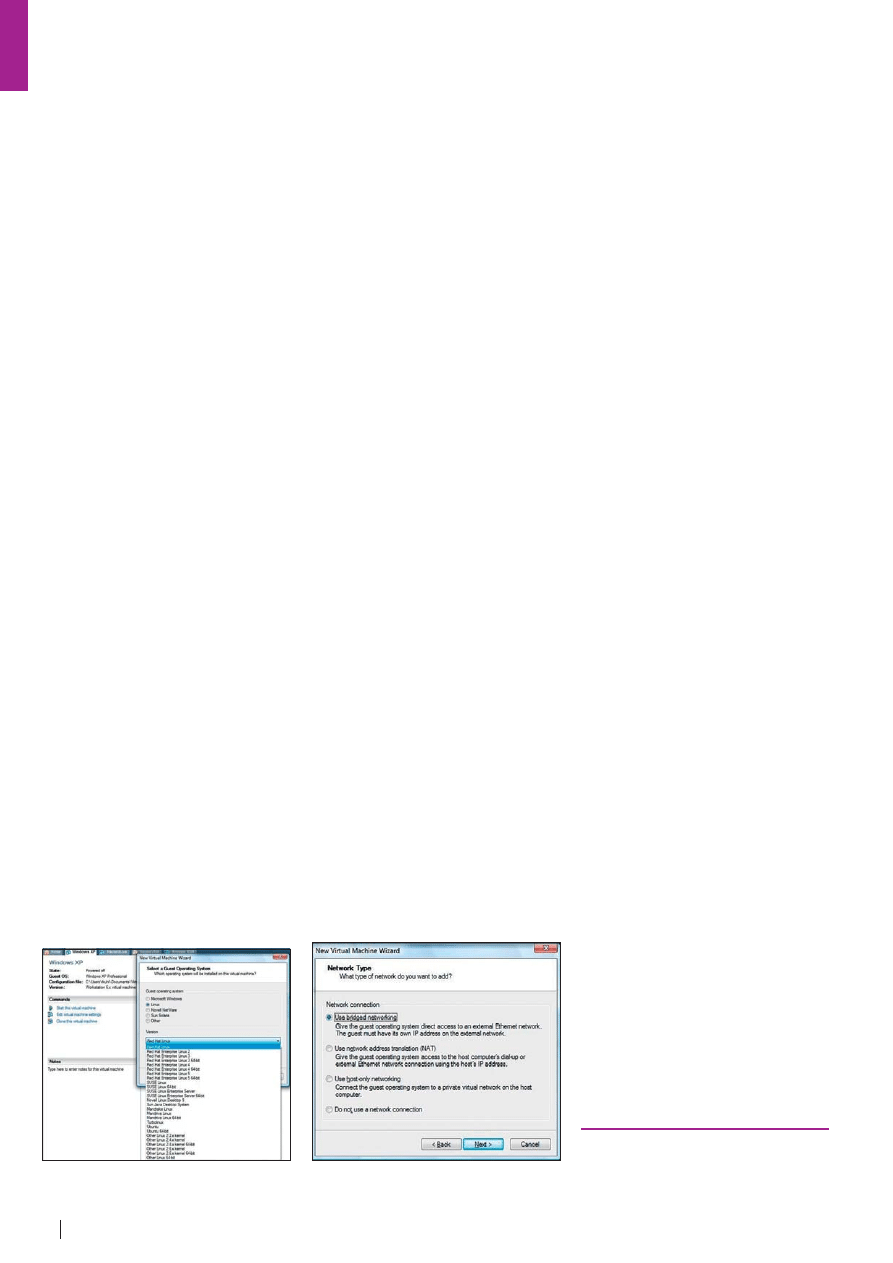
Step 2 – On the next screen (see
Figure 1) you can select your Guest OS.
Once you've done that, you'll be asked for
the name and the location for the Guest
OS's files. As recommended above, it's
best to place this on a different hard drive
than your Host OS.
Step 3 – Next, you will be asked to
choose a networking type (Figure 2). With
VMware, there are four choices. Bridged
networking gives the Guest OS access
to the network just as if it were a physical
machine. This is the most common
choice since means the Guest OS will
pick up its own IP address from the DHCP
server on the network to which the Host
is attached. Network Address Translation
(NAT) will set up the VM with an IP range
of its own but give it access to the Host's
network using the Host's IP address.
Using Host-Only Networking will set up a
private network between the Guest and
the Host without giving the Guest access
to any resources beyond the Host. Then,
there is the choice not to use a network
connection at all.
Step 4 – The last step is to choose
how much disk space to allocate and
when. You can choose to allocate as
much or as little as you would like and,
while you can increase the size later by a
combination of cloning the VM and using
VMware's Converter utility, you might as
well allocate the right amount at the start.
You must also decide to allocate all of
that chosen space now or let the file grow
as needed.
The former will take longer to initially
setup the VM but it will perform better
in the long run. The latter will save you
hard disk space in the beginning but
at the expense of performance as the
VM has to manage its storage down
the road. Generally, I would recommend
allocating all of the space up front. That
said, one reason not to do that is if you
want to create a VM that can fit on a CD
or DVD but you can then later copy to
a hard drive and still have it grow to 20
gigabytes. If you chose to allocate the 20
gigabytes up front, you would not be able
to fit it on the CD or DVD. Of course, you
can always add another Virtual Hard Disk
to your VM for additional storage at any
time.
Click Finish and you've created your
first VM. As I mentioned earlier, you can
adjust many of these settings after the
initial setup. For example, you might want
to increase the RAM assigned as the
Typical setups often have a pretty low initial
RAM allocation. Also, you can adjust the
networking, USB and CD options whenever
necessary.
Russell Kuhl
Russell Kuhl has been working in Information Technology
for over 12 years and holds both the CISSP and CEH
certifications. He currently works as a Senior Engineer for
a consulting firm in Boston, Massachusetts.
Figure 2.
Selecting the appropriate
network type
Figure 1.
Selecting your Guest OS in
VMWare Workstation 6
~tqw~

VIRTUAL MACHINES
69
HAKIN9
6/2008
Conclusion
As you can see, virtual machines are an
invaluable tool to add to your security
toolkit. They allow you to quickly run various
tools and test exploits all from one physical
computer. There are many virtualization
products on the market and the landscape
is constantly changing, so take the time
to review a few and find the one that
best suits your needs and, if you end up
choosing a commercial product, it will be
money well spent.
Opinions
VMware
I am at present using VMware. I chose
this (VMware Ser ver/Player) as it is
free and much better than Virtual Box
(a better speed per formance), and
better than Virtual PC (it can't run Linux),
and Parallel (I didn't find it convincing).
Moreover, VMware Workstations are a
good buy, but I prefer to go with free
ser ver and player models of VMware.
And, then we wish to have snapshot
options which VMware handles ver y
smartly than Virtual Box etc.
I have used Virtual PC (Microsoft),
VirtualBox and Parallel. I decided to change
because of performance issues, modes
(bridge, Host only, NAT etc) and because
of the choice of OS that the solution offers.
I have already tried with Virtual PC, Virtual
Box, Parallel.
I am using VMware Server and
Player Combinations on my machines.
Good Points being – Fast, stable, Guest
OS performance, and good network
connectivity.
Weak points – Performance Extensive
for Host OS. VMware Server and Player
need huge amount of memory as
compared to Virtual Box (10:1 proportion).
Though I have heard VMware Workstation
6.0 + versions are much better. I didn't
have much of these problems, and if you
have enough RAM and CPU power, it works
pretty smooth on the network also.
Surely I will carry on my decision with
VMware Solutions. If you have enough
potential on Host OS, go for VMware. And, if
Host OS runs low on memory or CPU.. go
for Virtual BOX (it's free)
Notes:
• Quality/price – VMware: 7.0; Virtual Box:
8.0; Virtual PC: 6.0
• Effectiveness – VMware: 8.0, Virtual Box:
7.0
• Final, general note – I will stick with
VMware.
by Rishi Narang, Security Researcher
VirtualBox from Sun
I use VirtualBox from Sun. I have chosen
this simply because it is free, it is open
source, and has the same functionality as
all the commercial ones (such as VMware).
It is also crOS’s-platform, which is a good
advantage to have, and functions just
fine on all of them. I have tried VMware
and Qemu. I decided to change from
these because VMware was not free,
and didn't appear overly appealing to
me, plus it crashed constantly on the old
system I used it on, and I decided against
Qemu because it was unstable and
underpowered. I have considered both of
VMware and Qemu, and chose VirtualBox
over these because of the lack of cost, the
open-source code, and the stability, which
all the other programs lacked.
My Virtual Machine helps me because
I run Ubuntu Linux most of the time, and
dislike Windows quite a lot – only using it
for power tasks that require the full CPU &
Windows. So my Virtual Machine helps me
when I need to quickly run programs that will
only run in Windows, such as Photoshop, or
testing out web sites under different OS's.
I also use it to test rootkits and trojans,
as I can infect/damage it with no real
consequences, because I can restore it
straight after. The only breakdowns I've had
have been due to Kernel upgrades when the
Virtualisation drivers weren't yet released for
that Kernel version, so technically, there has
been no issue with the program itself.
I would definitely choose this Virtual
Machine again, as all the features are as
good as those of a commercial app, and
the stability is better – you can't really beat
that.
Notes:
• Quality/price – Quality per price can't
get much better because it's free, so I
give that a 10.0
• Effectiveness – It's effective enough for
me, so a 9.0
• Final, general note: 9.5
by Stephen Argent
VMware Server
My choice is VMware Server, and i am
using it actually. Why I have chosen this
product? There was 3 facts: price, capacity
and facility. I stayed with this one and never
used any other Virtual Machine. However
I was thinking in try virtuozzo, but i had not
time to deal with it.
In my Laptop it was a very useful tool
to try and test any kind of application, OS
patch, virus lab, p2p downloader, etc... In
my servers it was very very helpfull with my
backup and business continuity plan. The
only trouble that i had find is that VM Server
(as a free product) do not let me choose
the processor(s) that every single virtual
machine is going to use.
On the ‘Net
•
http://en.wikipedia.org/wiki/Comparison_of_virtual_machines an excellent comparison of VM
technologies
•
http://www.microsoft.com/windows/products/winfamily/virtualpc/default.mspx Micorosft
Virtual PC 2007
•
http://www.vmware.com/products/ws/ VMWare Workstation
•
http://www.sun.com/software/products/virtualbox/get.jsp Sun's xVM VirualBox
•
http://www.securixlive.com/knoppix-nsm/ a distro for capturing and analyzing network
traffic
•
http://www.remote-exploit.org/backtrack.html an excellent security distro
•
http://en.wikipedia.org/wiki/Virtual_machine a good summary of VM terms
•
http://cs.gmu.edu/cne/itcore/virtualmachine/history.htm a history of virtualization
•
http://www.vmware.com/download/ws/drivers_tools.html VMWare's tools
~tqw~
70
CONSUMERS TEST
HAKIN9 6/2008
Until now I haven't experienced any
problems with this product. I would
recommend it as a great tool for BCP
especially for PyMes...
Notes:
• Quality/price: 10.0
• Effectiveness: 9.0
• Final, general note: 9.0
by Edison Josue Diaz, ejdiazc@gmail.com
VMware Products (ESX, GSX,
Server, Lab Manager) &
Microsoft Virtual Server
Virtual technology provides efficiency with
hardware. It ensures that we are using as
much of our hardware as pOS’sible. It also
provides solutions for high availability as
well as portability. It provides such flexibility
that I couldn't imagine not having it within
our environment.
Somewhere around 2002-03 I used
VMware's GSX. It wasn't bad but required an
OS then the GSX product sat on top of the
OS install. Performance suffered because of
this. In 2004-2005 I began using Windows
virtual server product. It also sat on top of
the base operating system. Because of the
virtual product sitting on top of a normal
OS/machine build, performance again
suffered. The products worked but they
weren't nearly as efficient as they needed to
be for production level applications.
It wasn't until 2005 that we began to
use VMware's ESX server. After testing
its capability we knew we had a product
that would allow us to scale all of our
environments including production with
virtual technology. The granular ability to track
performance, provide server portability, high
availability, and numerous other qualities that
a virtual solution provided us won over our
technical team as well as our management.
We have since added other VMware
products to our environment because of the
success of the product in our environments.
VMware in my opinion is the leader
in this field. It will cost you, but that cost is
offset by the savings in hardware cost. The
return on investment is clearly in our favor.
At this point we are so happy with VMware
we have no reason to look at any other
virtual product. With VMware ESX we don't
see any weakness. The largest problem we
have run into was convincing developers
and management that the product could
do all these amazing things. Once they
realized that the product performed as
advertised, we had no other problems.
Not only would I recommend it, I
would say that you are behind the curve if
you do not have a virtual solution in your
organization. The gains outweigh any
shortcomings by such a large degree that
its not even thinkable on why you wouldn't
move towards virtualization within your
testing and development environments at
a minimum. The running joke here within
my organization is that VMware was made
using space alien technology because of
the amazing capabilities of the product.
You have to be willing to spend some
money to buy the technology, though
the cost is offset by the gains. It is the
single most portable environment I have
ever worked with. The ability to bring up
virtual servers and machines based on
essentially a flat file backup within just a
few minutes makes it an amazing choice
for almost any type of IT need.
It's almost as if IT has completed a circle.
Virtual technology is like having Lpar's (slices
of CPU) on a mainframe. The advantage
with virtual servers over the old school
mainframe technology is that the granular
control you have over virtual machines and
the portability to move them or have the
product itself intuitively move servers from
one physical set of hardware to another
in only a few seconds is amazing. Virtual
technology provides the power of big iron but
the granular portability of a simple server.
Notes:
If asked to provide a ranking between
1-10 (10 being the best) virtual server
technology. Specifically, VMware ESX and
the other product suites are clearly off the
charts (15).
by Chad Godwin
QEMU
Right now I use QEMU. Why do I use it?
First, because is free/open source, also
because I can create my own images
and I don't depend on other companies or
people to create them.
I Used VMware server, it was good, the
main problem is that it consumed to much
memory (RAM) and the second is that it
isn't free/open source.
The virtual machine is great, it helps
a lot before installing ser vers like VoIP,
DNS, mail, etc. because you can test their
functionality, configuration, is easy and
fast to deploy and if something really bad
happens you don't have to reinstall it at
all.
The weak point is that you need some
good or extra memory (RAM) at least 1GB
and swap memory at least 1GB so your
virtual machine will be running smoothly, if
you can have more better.
I have never had any problems and
breakdowns while using it at all. As I told
before, QEMU is great, is free/open source
so you can do a lot with it and I can
recommend it to anyone who likes to test
new configurations.
Notes:
• Quality/price: 10.0
• Effectiveness: 10.0
• Final, general note: 10.0
by Ivan Gutierrez Agramont
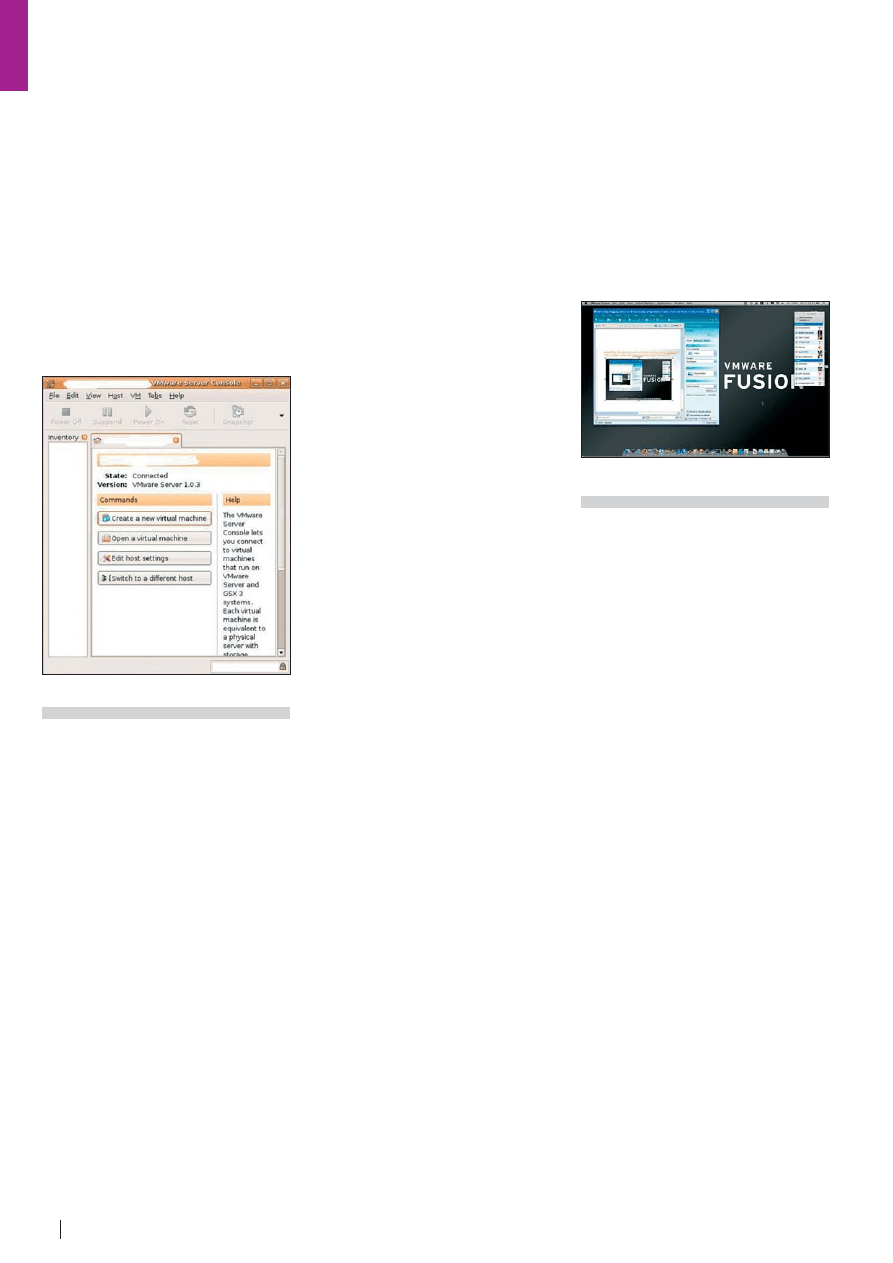
Figure 3.
VMware Server Console
Figure 4.
Fusion Screen Snapz
~tqw~
Wyszukiwarka
Podobne podstrony:
2008 06 Test CAPTCHA
2008 01 We Help You To Choose the Best Anti spyware [Consumer test]
2008 04 Choose the Right Router [Consumer test]
2008 02 We Help You Choose the Most Reliable Firewall [Consumer test]
2008 05 Choose the Data Recovery [Consumer test]
2008 06 Test CAPTCHA
2008 01 We Help You To Choose the Best Anti spyware [Consumer test]
PiKI 2008 06
2008 06 pisemny klucz
2008 06 Java Microedition – metody integracji aplikacji [Inzynieria Oprogramowania]
2008 06 pisemny
mat fiz 2008 06 02
2008 06 05 WHR B DAinstrukcja
2008 06 Edytor grafiki wektorowej Inkscape [Grafika]
Elektronika Praktyczna 2008 06
2008.06.02 prawdopodobie stwo i statystyka
SIMR-AN2-EGZ-2008-06-27a-rozw
2008.06.02 matematyka finansowa
więcej podobnych podstron