
LABORATORIUM
BAZY DANYCH
SQL
(Controlling User Access)

After completing this lesson, you should be able to do the following:
• Create roles to ease setup and maintenance of the security model
• Use the GRANT and REVOKE statements to grant and revoke object privileges
• Create and access database links
1.
Controlling User Access
In a multiple-user environment, you want to maintain security of the database access and
use. With Oracle server database security, you can do the following:
• Control database access
• Give access to specific objects in the database
• Confirm given and received privileges with the Oracle data dictionary
• Create synonyms for database objects
Database security can be classified into two categories: system security and data security.
System security covers access and use of the database at the system level, such as the
username and password, the disk space allocated to users, and the system operations that
users can perform. Database security covers access and use of the database objects and the
actions that those users can have on the objects.
2. Privileges
• Database security:
–
System security
–
Data security
• System privileges: Gaining access to the database
• Object privileges: Manipulating the content of the database objects
• Schemas: Collections of objects, such as tables, views, and sequences
3. System Privileges
• More than 100 privileges are available.
• The database administrator has high-level system privileges for tasks such as:
– Creating new users
– Removing users
– Removing tables
– Backing up tables
4. Creating Users
The DBA creates users by using the
CREATE USER statement.
5. User System Privileges
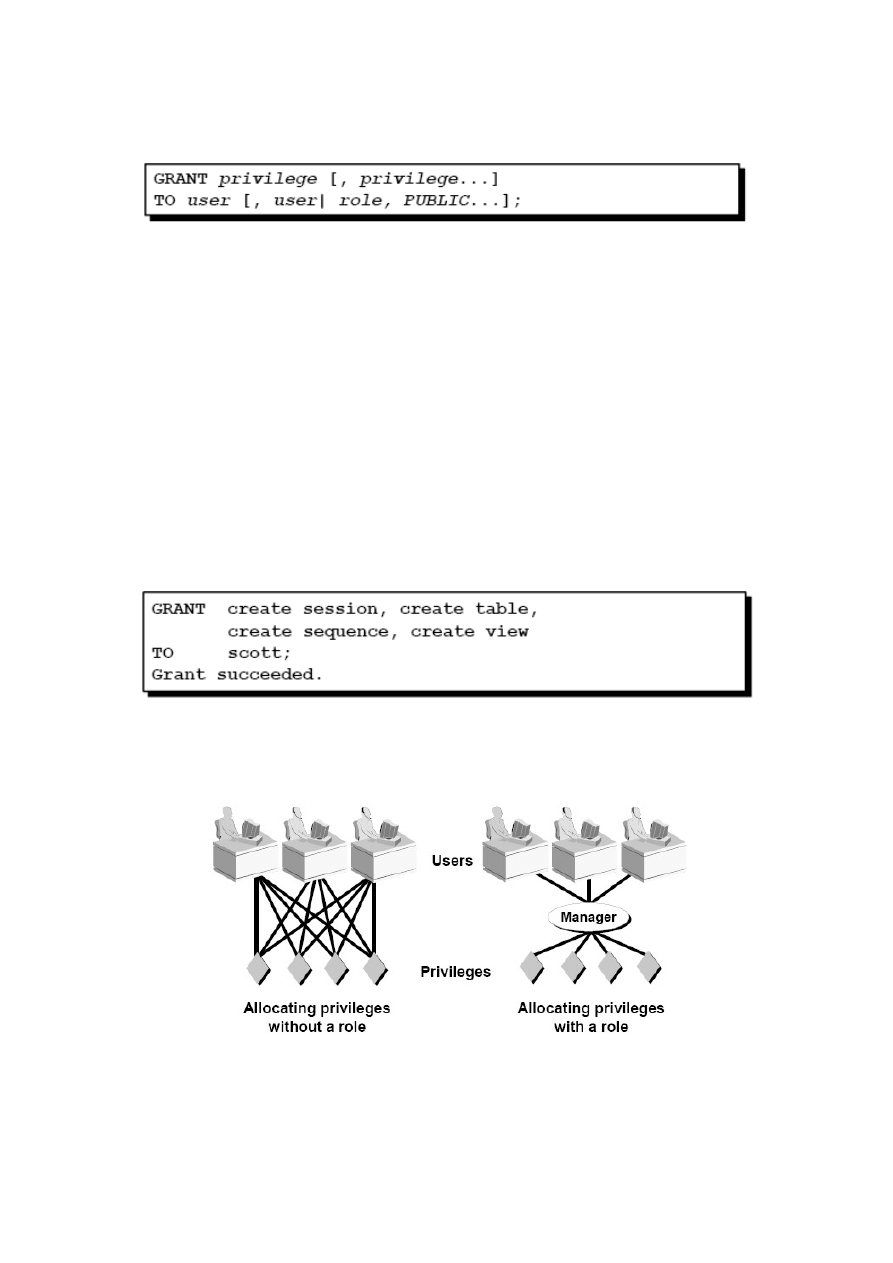
• Once a user is created, the DBA can grant specific system privileges to a user.
• An application developer, for example, may have the following system privileges:
o
CREATE SESSION
o
CREATE TABLE
o
CREATE SEQUENCE
o
CREATE VIEW
o
CREATE PROCEDURE
In the syntax:
privilege
is the system privilege to be granted
user |role|PUBLIC
is the name of the user, the name of the role, or PUBLIC designates
that every user is granted the privilege
6. Granting System Privileges
The DBA can grant a user specific system privileges.
The DBA uses the GRANT statement to allocate system privileges to the user. Once the user
has been granted the privileges, the user can immediately use those privileges.
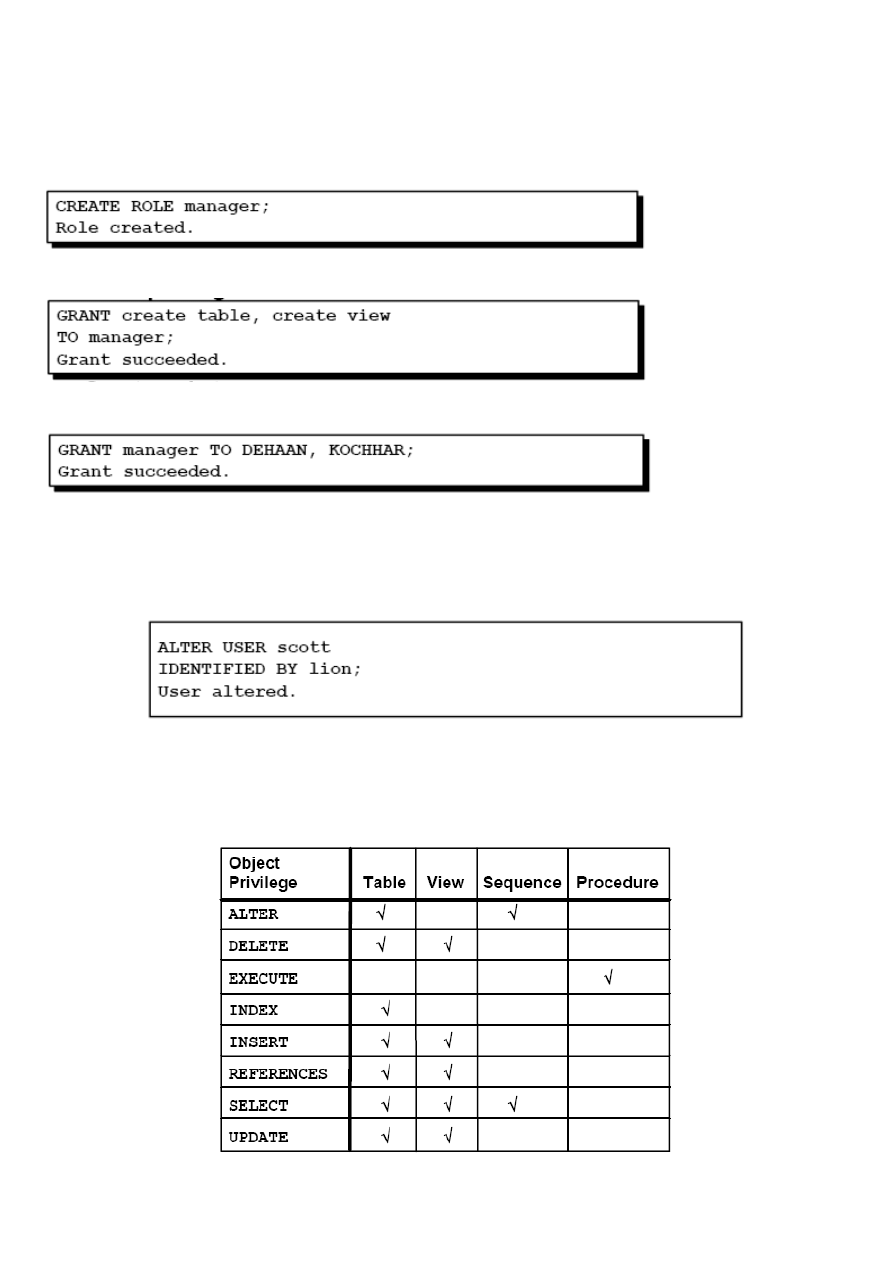
7. What Is a Role?
A role is a named group of related privileges that can be granted to the user. This method makes
it easier to revoke and maintain privileges.
A user can have access to several roles, and several users can be assigned the same role. Roles
are typically created for a database application.
8. Creating and Granting Privileges to a Role
• Create a role
• Grant privileges to a role
• Grant a role to users
9. Changing Your Password
• The DBA creates your user account and initializes your password.
• You can change your password by using the ALTER USER statement.
10. Object Privileges
An object privilege is a privilege or right to perform a particular action on a specific table,
view, sequence, or procedure. Each object has a particular set of grantable privileges.
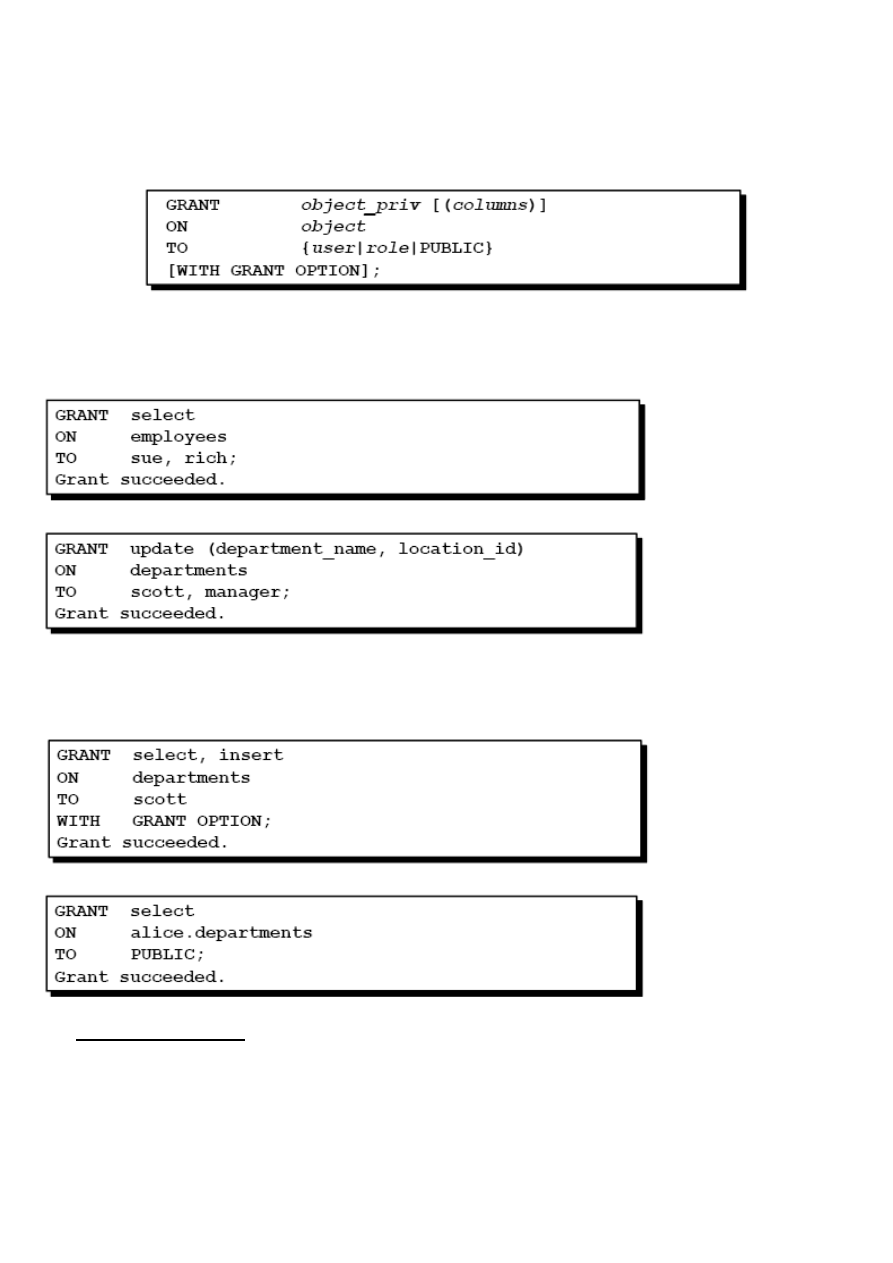
11. Object Privileges
• Object privileges vary from object to object.
• An owner has all the privileges on the object.
• An owner can give specific privileges on that owner’s object.
12. Granting Object Privileges
• Grant query privileges on the EMPLOYEES table.
• Grant privileges to update specific columns to users and roles.
13. Using the WITH GRANT OPTION and PUBLIC Keywords
• Give a user authority to pass along privileges.
• Allow all users on the system to query data from Alice’s DEPARTMENTS table.
The WITH GRANT OPTION Keyword
A privilege that is granted with the WITH GRANT OPTION clause can be passed on to other users and roles by the
grantee. Object privileges granted with the WITH GRANT OPTION clause are revoked when the grantor’s privilege is
revoked.
The example in the slide gives user Scott access to your DEPARTMENTS table with the privileges to query the table and
add rows to the table. The example also allows Scott to give others these privileges.
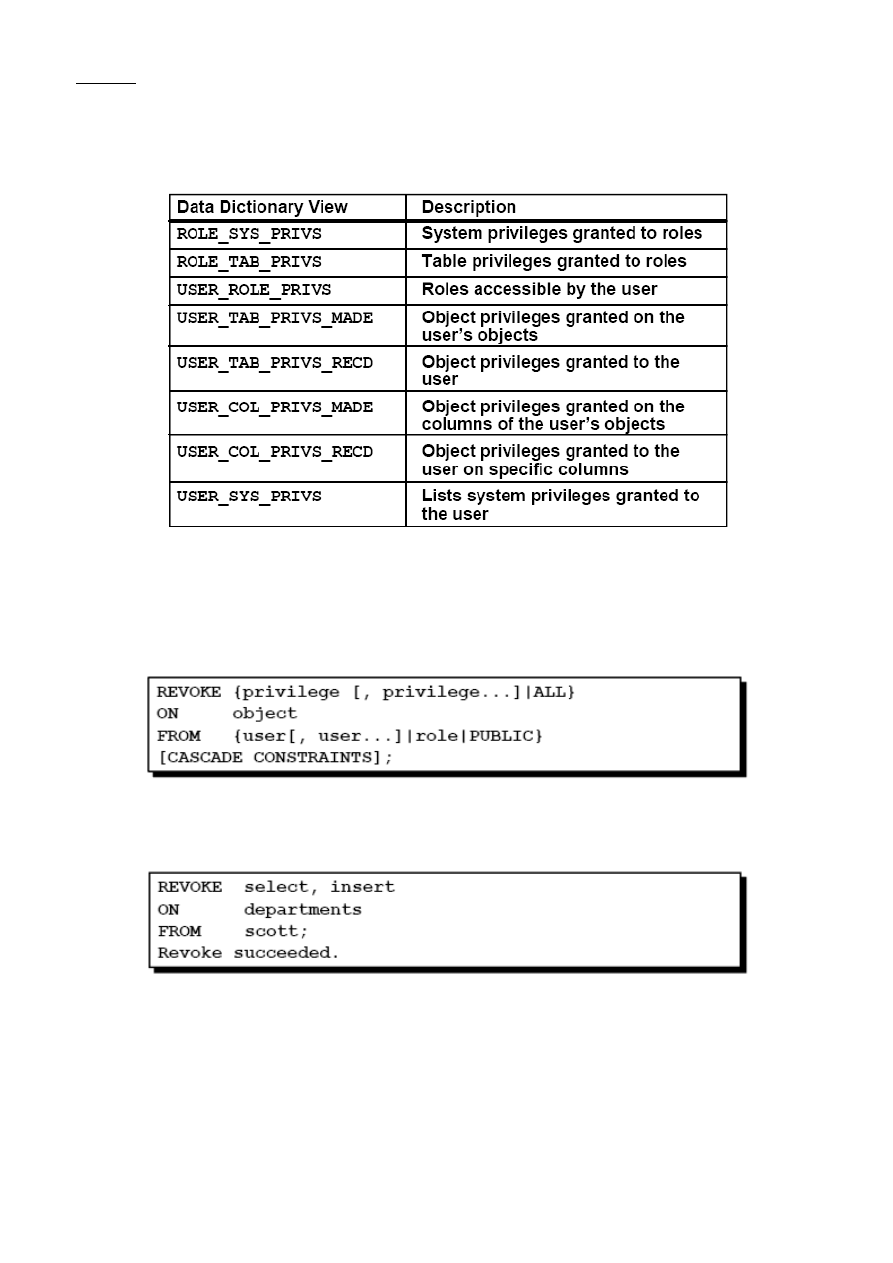
The PUBLIC Keyword
An owner of a table can grant access to all users by using the PUBLIC keyword.
The second example allows all users on the system to query data from Alice’s DEPARTMENTS table.
14. Confirming Privileges Granted
15. How to Revoke Object Privileges
• You use the REVOKE statement to revoke privileges granted to other users.
• Privileges granted to others through the WITH GRANT OPTION clause are also revoked.
In the syntax:
CASCADE CONSTRAINTS
is required to remove any referential integrity constraints made to the object by means of the REFERENCES privilege
16. Synonyms
Simplify access to objects by creating a synonym (another name for an object). With synonyms,
you can:
• Ease referring to a table owned by another user
• Shorten lengthy object names
CREATE [PUBLIC] SYNONYM synonym
FOR object;
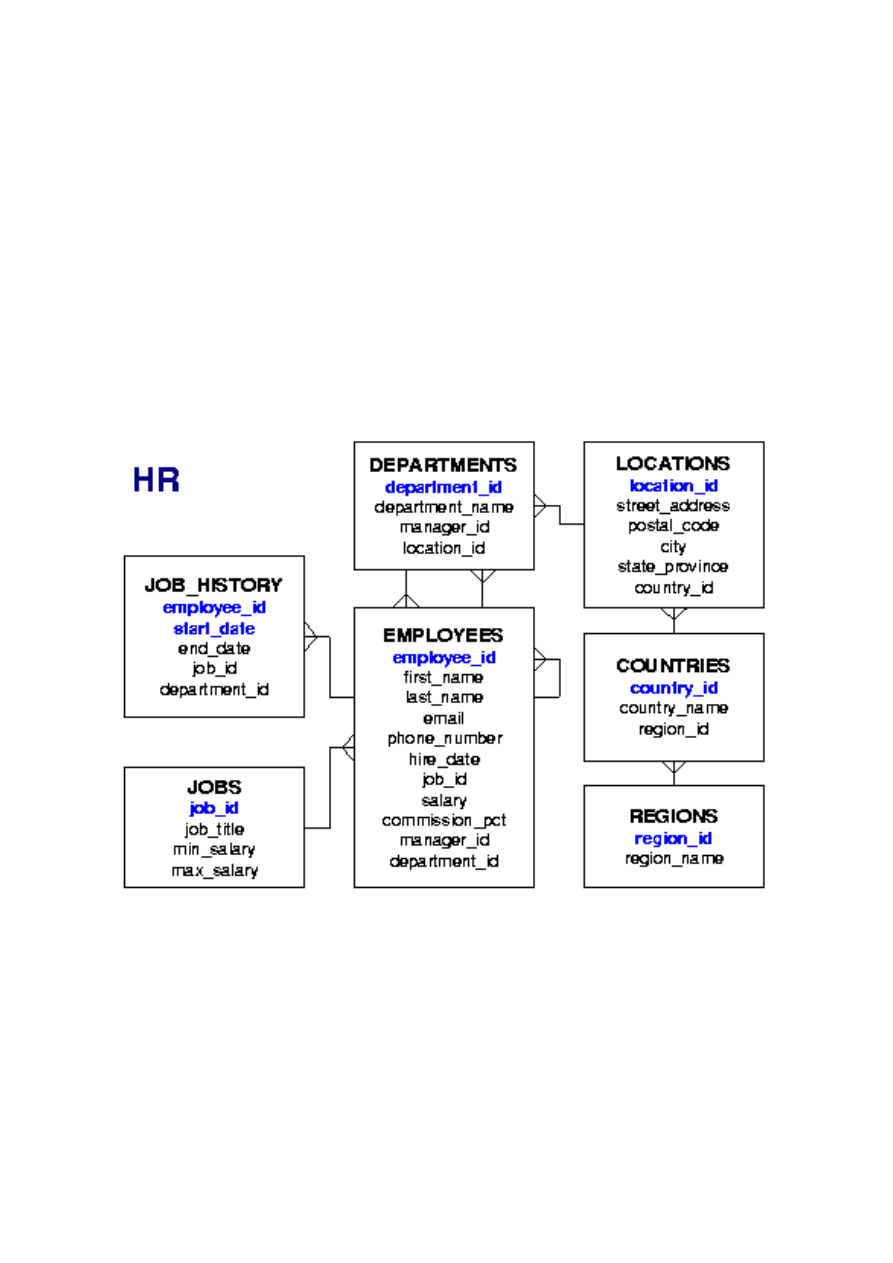
17. Creating and Removing Synonyms
• Create a shortened name for the DEPT_SUM_VU view.
CREATE SYNONYM d_sum
FOR dept_sum_vu;
Synonym Created.
• Drop a synonym
DROP SYNONYM d_sum;
Synonym dropped.
Practice
NOTE: Work in pairs as: Team 1 and Team 2.
1. What privilege should a user be given to log on to the Oracle Server? Is this a system or an object privilege?
2. What privilege should a user be given to create tables?
3. If you create a table, who can pass along privileges to other users on your table?
4. You are the DBA. You are creating many users who require the same system privileges. What should you use to make
your job easier?
5. What command do you use to change your password?
6. Grant another user access to your DEPARTMENTS table. Have the user grant you query access to his or her
DEPARTMENTS
table.
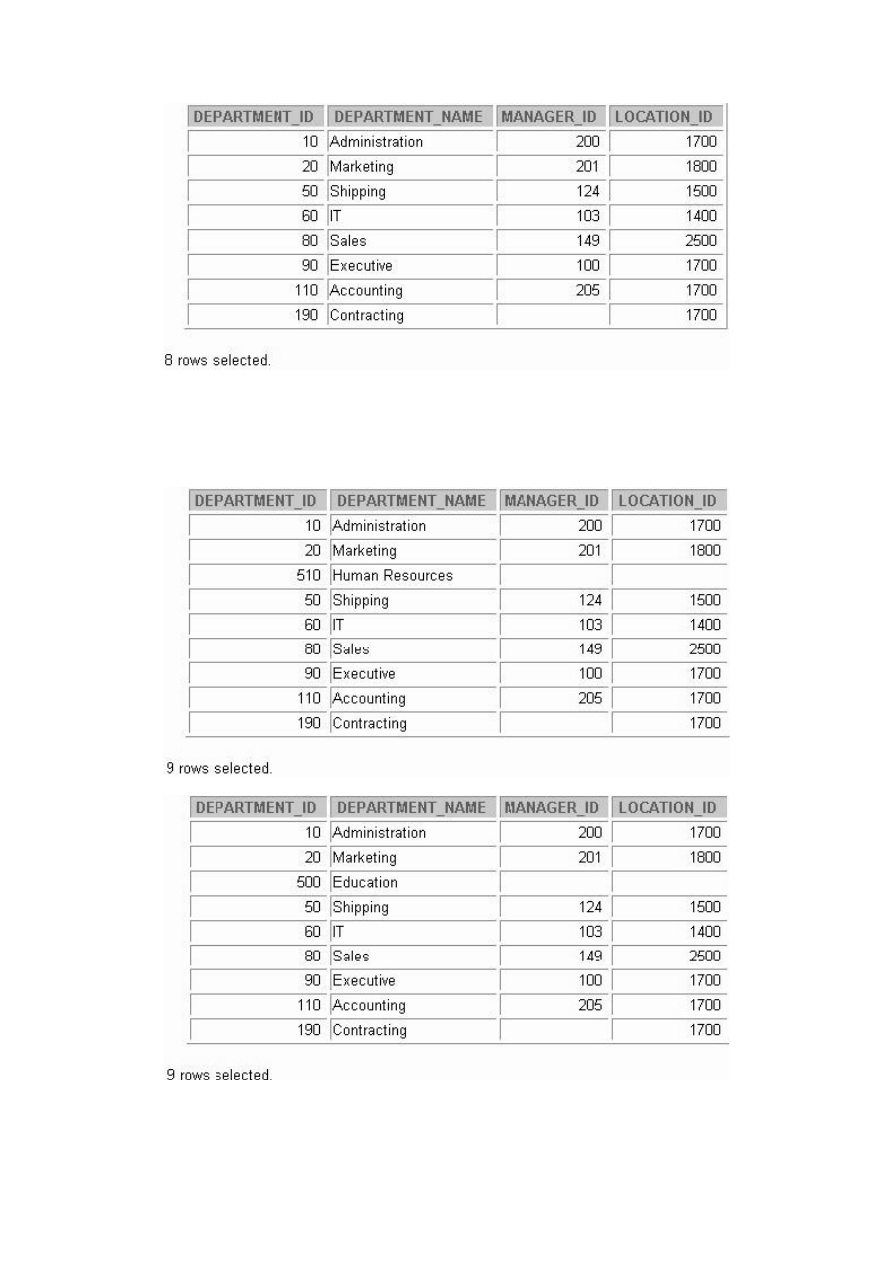
7. Query all the rows in your DEPARTMENTS table.
8. Add a new row to your DEPARTMENTS table.
Team 1
should add Education as department number 500. Team 2 should add Human Resources department number 510.
Query the other team’s table.
9. Create a synonym for the other team’s DEPARTMENTS table.
10. Query all the rows in the other team’s DEPARTMENTS table by using your synonym.
Team 1 SELECT statement results:
Team 2 SELECT statement results:
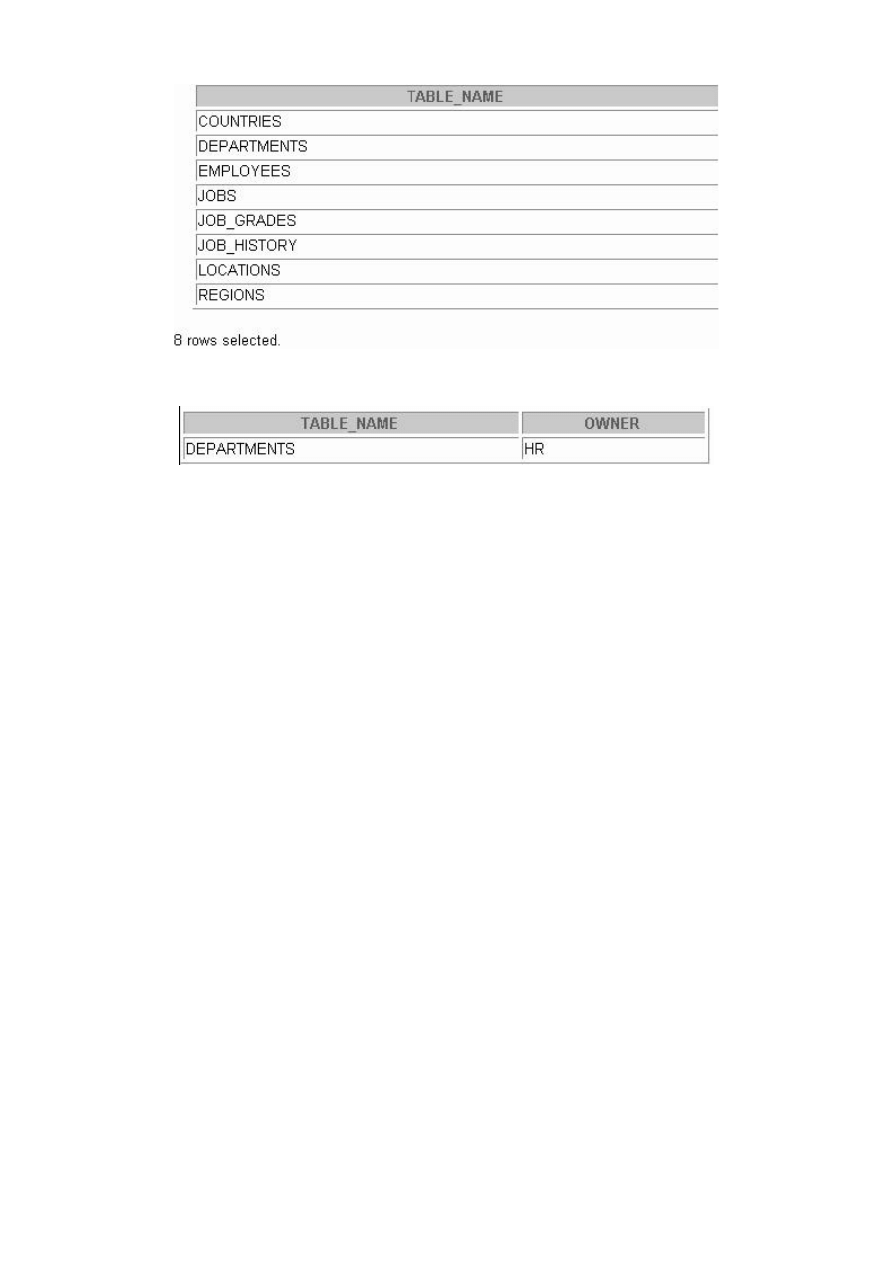
11. Query the USER_TABLES data dictionary to see information about the tables that you own.
12. Query the ALL_TABLES data dictionary view to see information about all the tables that you can access. Exclude
tables that are you own.
Note: Your list may not exactly match the list shown below.
Show working task to the teacher.
13. Revoke the SELECT privilege on your table from the other team.
14. Drop created synonyms.
Wyszukiwarka
Podobne podstrony:
BD Lab DML
bd lab 04 id 81967 Nieznany (2)
bd lab
BD Lab Tab
bd lab 03 id 81966 Nieznany (2)
bd lab 06 id 81969 Nieznany (2)
BD Lab SET
bd lab 05 id 81968 Nieznany (2)
BD Lab indek
BD Lab 456
BD Lab DML
BD Lab 456
więcej podobnych podstron