
ASUS MultiFrame
User’s Guide

Contents
Chapter 1 ASUS MultiFrame Introduction ................................................................1
1.1 Introduction................................................................................................1
Chapter 2 How to use MultiFrame .............................................................................1
2.1
Start the utility............................................................................................1
2.2
9 kinds of windows division ......................................................................1
2.3 Mouse
Tracking .........................................................................................2
2.4 Desktop
extend...........................................................................................2
2.5 Show
monitor
ID........................................................................................3
2.6
Send PowerPoint presentation file to secondary monitor ..........................3
1
Chapter 1 ASUS MultiFrame Introduction
1.1 Introduction
ASUS MultiFrame is a utility, which help you easily divide the windows and make
the windows transferred easily when you open many windows. So it’s convenient for
web browsing and data mutual reading.
Chapter 2 How to use MultiFrame
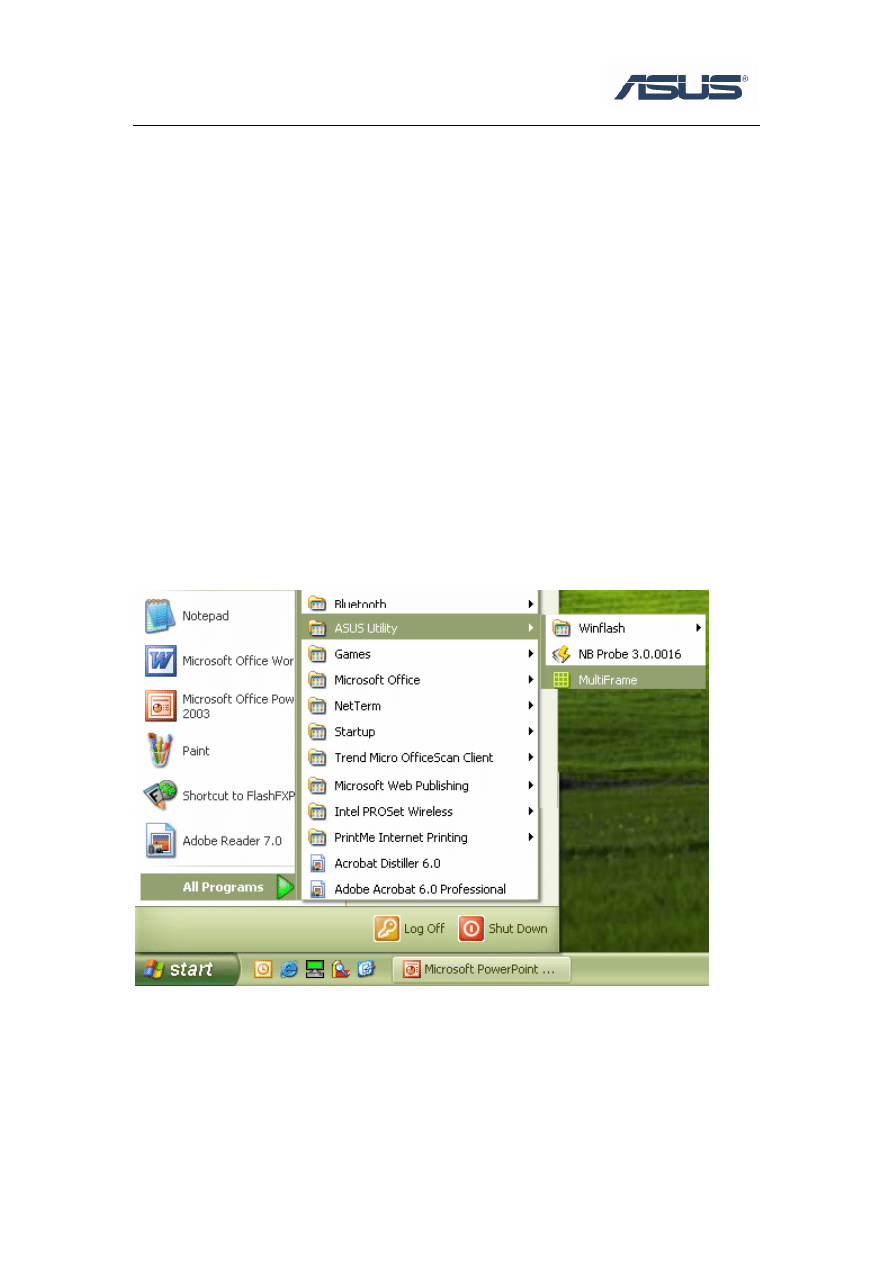
2.1 Start the utility
Click Start \ All Programs \ ASUS Utility \ MultiFrame
2.2 Nine kinds of windows division
Please click the MultiFrame icon like the picture as below and you can setup the
windows into 9 kinds of windows division in all, and MultiFrame mostly can divide
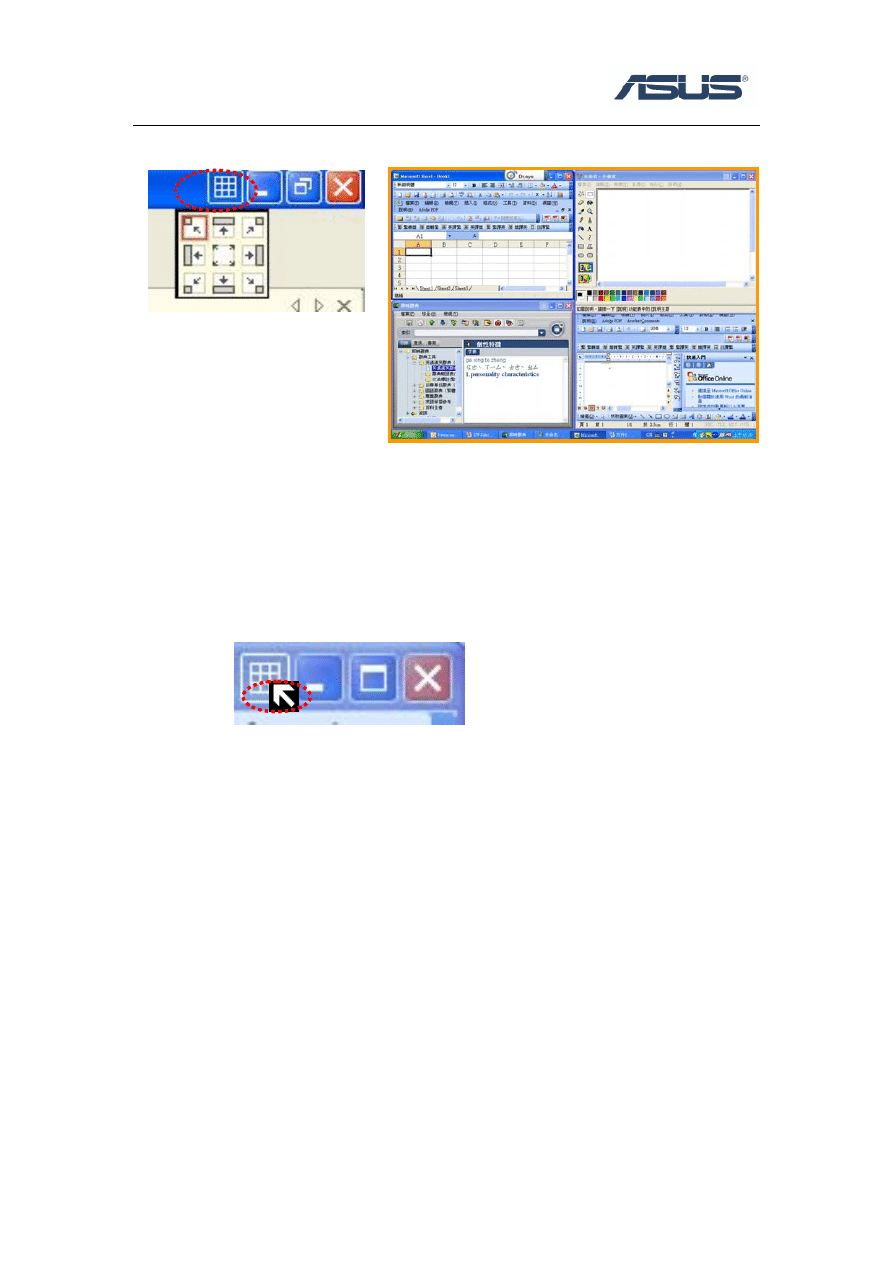
2
the desktop to 4 parts.
2.3 Mouse Tracking
Please right click the MultiFrame icon and choose “Mouse Tracking”.
After new windows division, mouse tracking feature of MultiFrame let you
easily find your mouse and executing windows.
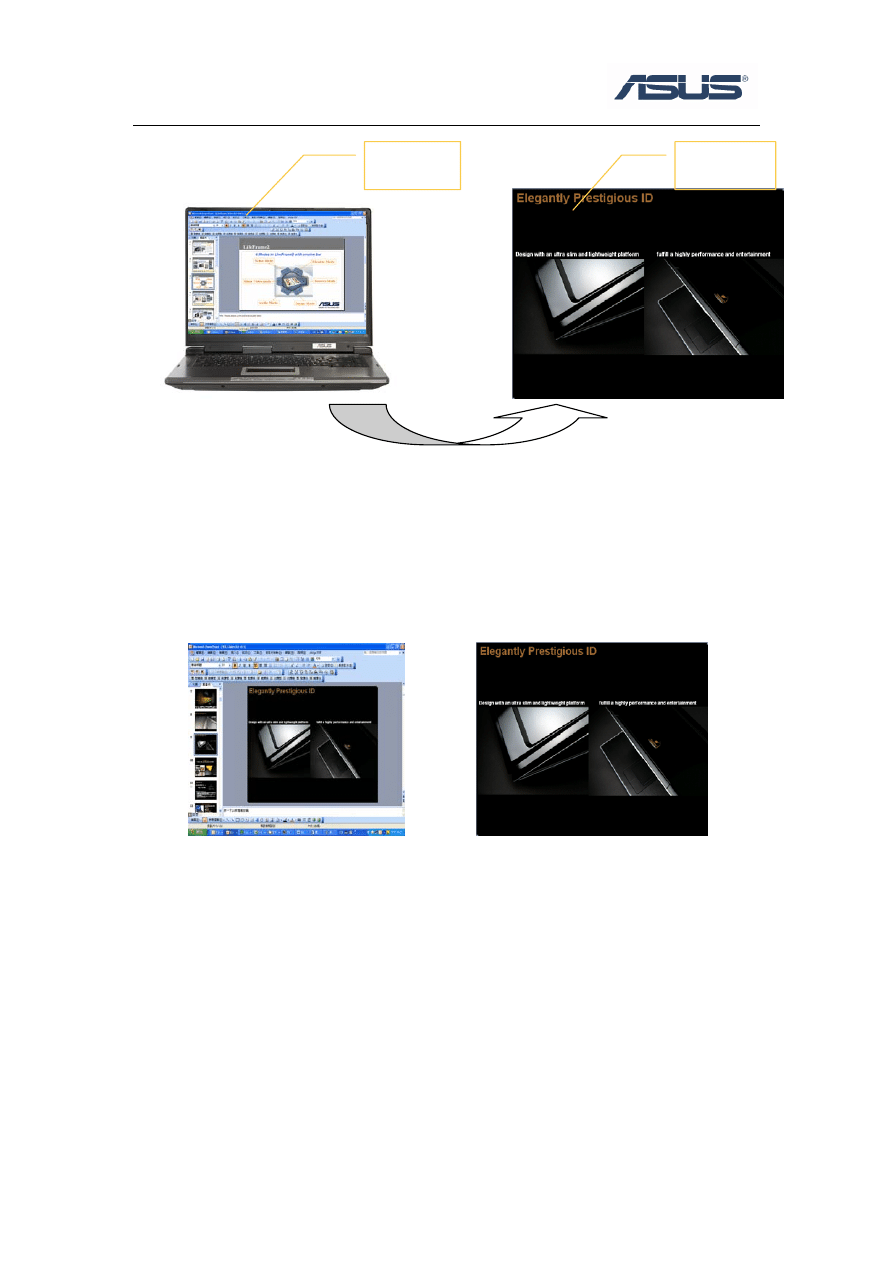
2.4 Desktop extend
Please right click the MultiFrame icon and choose “Enable Extended Desktop”.
Extend Windows of MultiFrame is very useful while doing presentation. You can see
your memo at your NB screen and present another file at projector and keep your
private & confidential file only existed at your NB screen.
3
2.5 Show monitor ID
Please right click the MultiFrame icon and choose “Show Monitor ID”.
It will show Monitor ID to indicate the main monitor and the secondary monitor
even you use the same 2 monitor, so you can easily verify them.
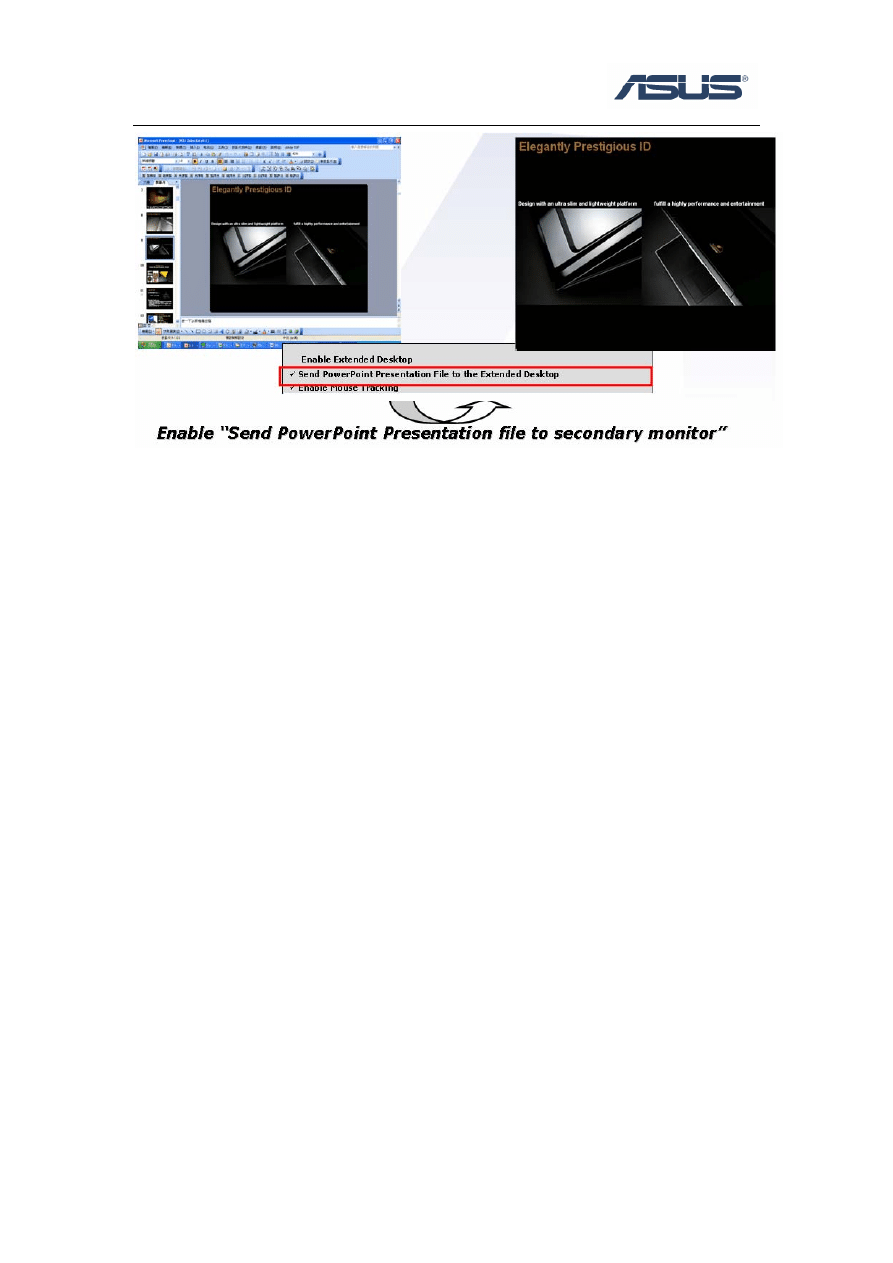
2.6 Send PowerPoint presentation file to secondary
monitor
Please right click the MultiFrame icon and choose “Send PowerPoint presentation
file to secondary monitor”.
It’s very useful while doing presentation, you can easily show what you want to
present and hide others you don’t want to show yet.
2
1
Main
Desktop
Extend
Desktop
4
If you disable the function, the PowerPoint presentation won’t present in the extended
desktop
Wyszukiwarka
Podobne podstrony:
ASUS Net4Switch UserGuide XP EN Nieznany
ASUS Splendid UserGuide XP EN V Nieznany
ASUS Net4Switch UserGuide XP EN Nieznany
ASUS NBprobe UserGuide XP EN V1 Nieznany (2)
ASUS LiveUpdate UserGuide XP EN V1
ASUS Power4Gear UserGuide XP EN V1
ASUS Power4Phone UserGuide XP EN V1
ASUS InstantFun Introduction XP EN V2
microsoft office xp VMV5GKA5M2H Nieznany
6 Liberalizacja rynku gazu i en Nieznany (2)
akkus polprzewodniki ad825ar en Nieznany (2)
więcej podobnych podstron